JavaScript DOM Document Object Model Power your websites
Learn More - Videos and source code included Get this Course https://www.udemy.com/javascript-course- dom/?couponCode=SLIDESHARE Course instructor : Laurence Svekis - providing online training to over 500,000 students across hundreds of courses and many platforms.
JavaScript DOM ● What is the DOM ● Examine the page DOM ● console.dir(document)
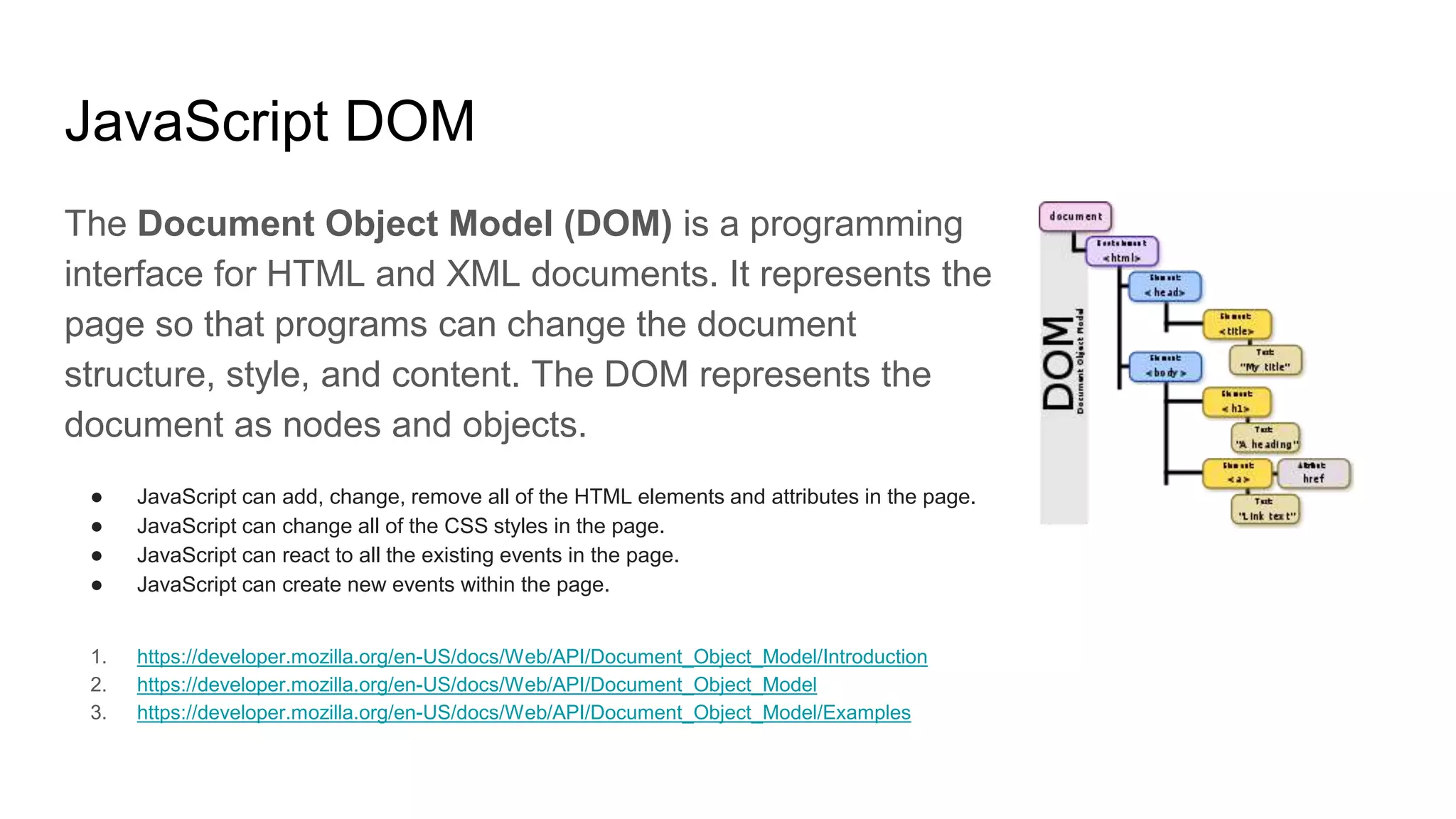
JavaScript DOM The Document Object Model (DOM) is a programming interface for HTML and XML documents. It represents the page so that programs can change the document structure, style, and content. The DOM represents the document as nodes and objects. ● JavaScript can add, change, remove all of the HTML elements and attributes in the page. ● JavaScript can change all of the CSS styles in the page. ● JavaScript can react to all the existing events in the page. ● JavaScript can create new events within the page. 1. https://developer.mozilla.org/en-US/docs/Web/API/Document_Object_Model/Introduction 2. https://developer.mozilla.org/en-US/docs/Web/API/Document_Object_Model 3. https://developer.mozilla.org/en-US/docs/Web/API/Document_Object_Model/Examples
JavaScript and the DOM First Select the element you want to use.
Lesson Challenge Select an element on the page find it in the document object using console.dir(document)
Element Selection ● How to select an element as an object ● getElementById ● querySelector ● Update Background ● Select using CSS
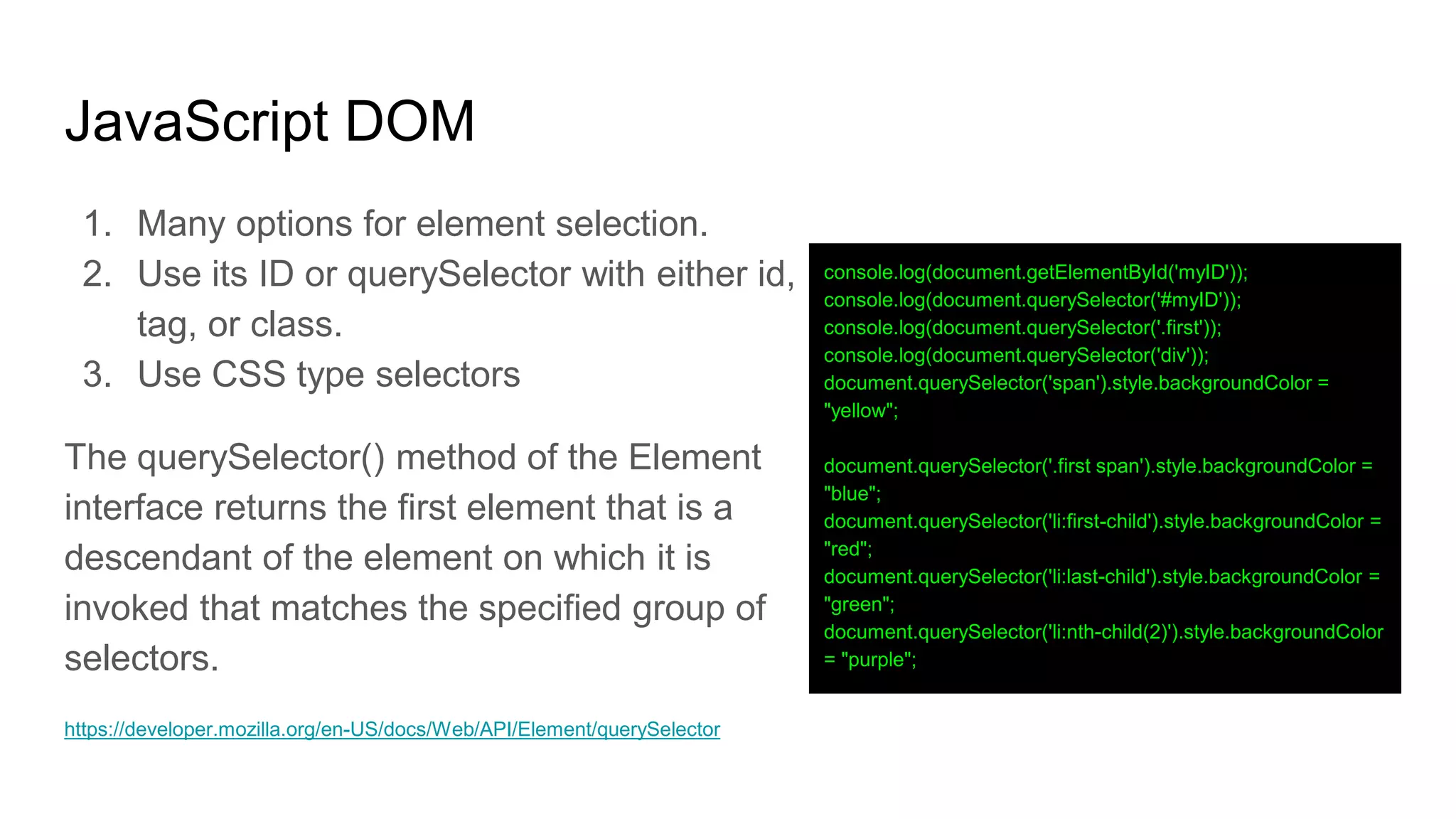
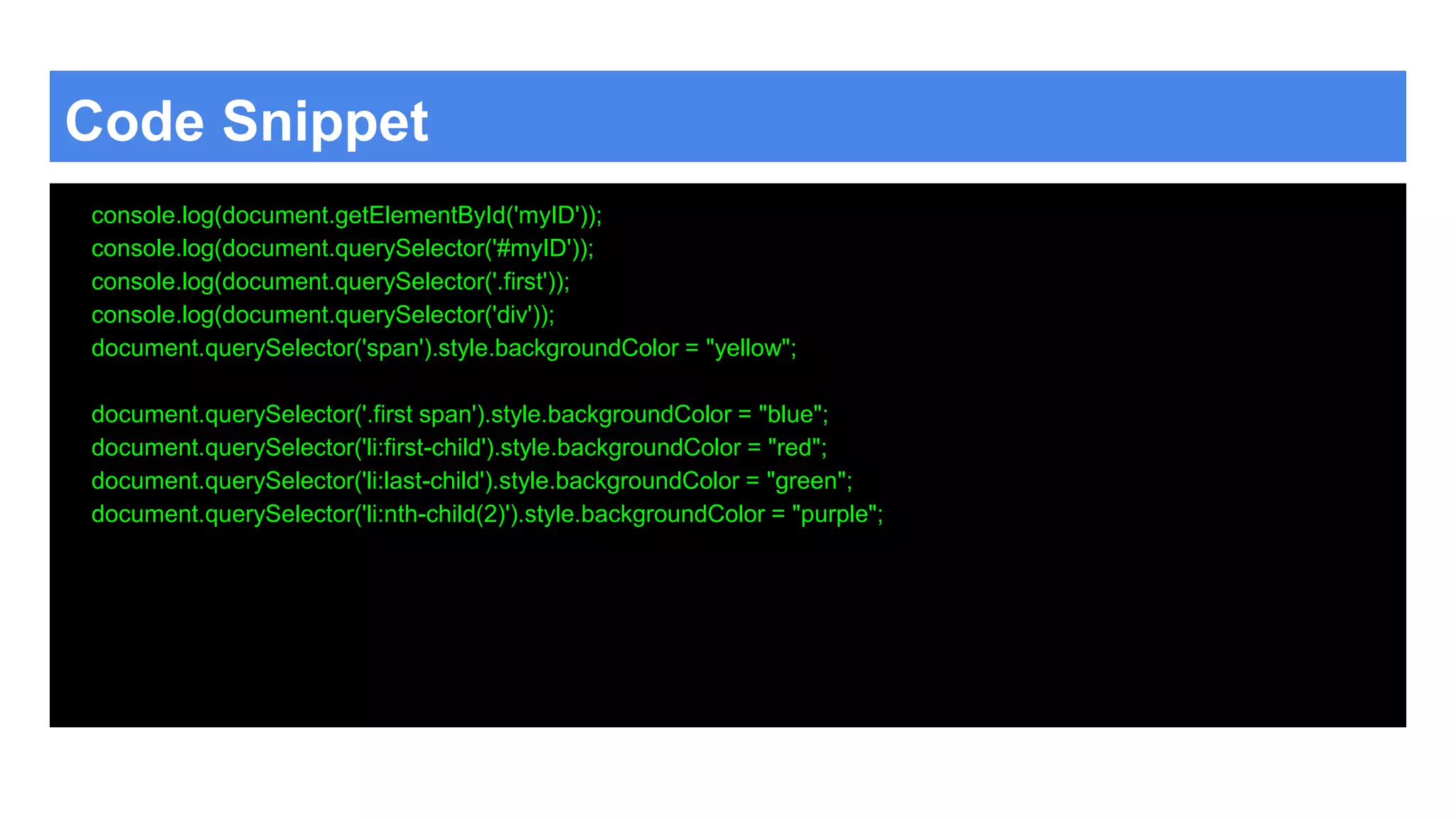
JavaScript DOM 1. Many options for element selection. 2. Use its ID or querySelector with either id, tag, or class. 3. Use CSS type selectors The querySelector() method of the Element interface returns the first element that is a descendant of the element on which it is invoked that matches the specified group of selectors. https://developer.mozilla.org/en-US/docs/Web/API/Element/querySelector console.log(document.getElementById('myID')); console.log(document.querySelector('#myID')); console.log(document.querySelector('.first')); console.log(document.querySelector('div')); document.querySelector('span').style.backgroundColor = "yellow"; document.querySelector('.first span').style.backgroundColor = "blue"; document.querySelector('li:first-child').style.backgroundColor = "red"; document.querySelector('li:last-child').style.backgroundColor = "green"; document.querySelector('li:nth-child(2)').style.backgroundColor = "purple";
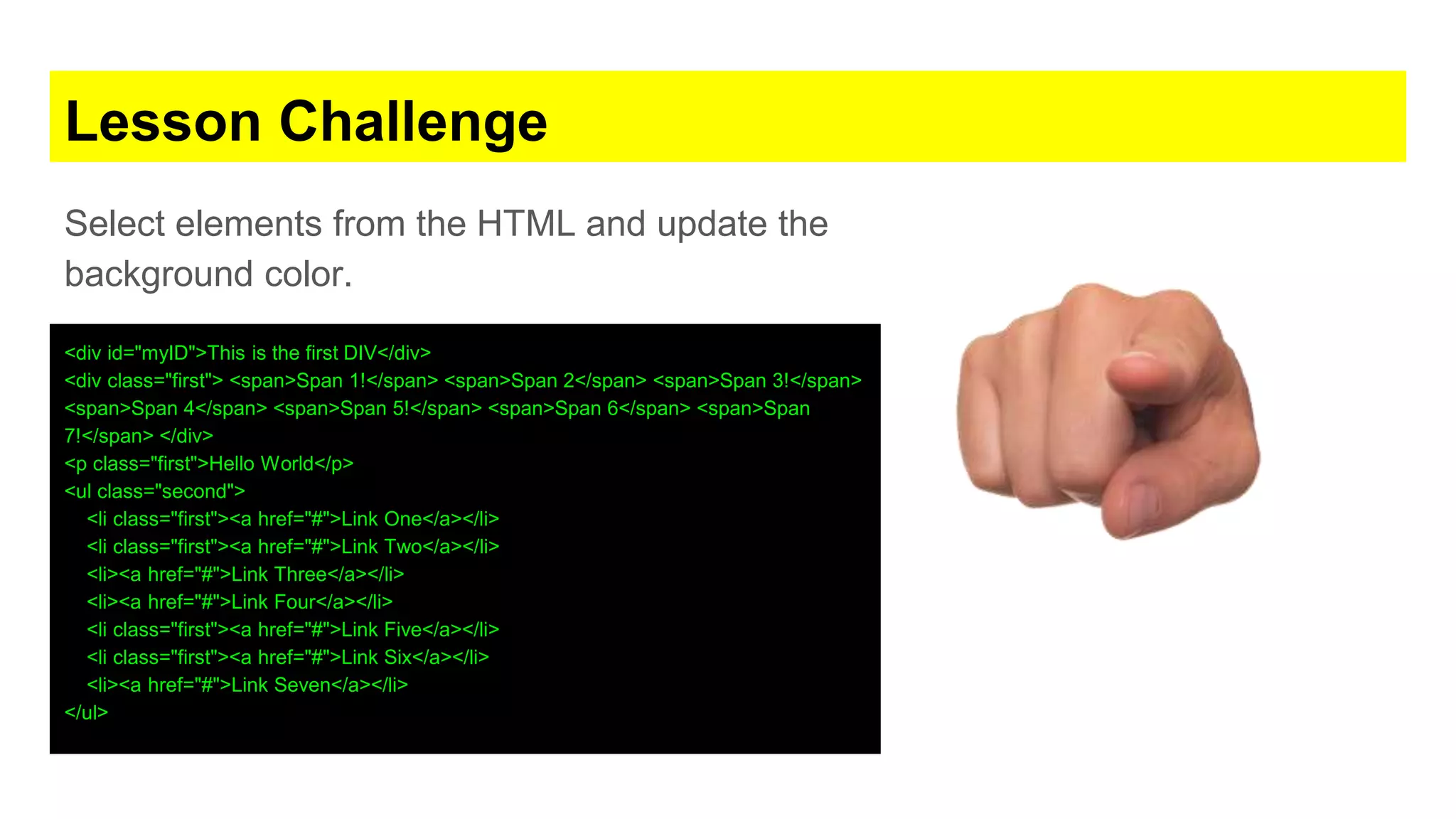
Lesson Challenge Select elements from the HTML and update the background color. <div id="myID">This is the first DIV</div> <div class="first"> <span>Span 1!</span> <span>Span 2</span> <span>Span 3!</span> <span>Span 4</span> <span>Span 5!</span> <span>Span 6</span> <span>Span 7!</span> </div> <p class="first">Hello World</p> <ul class="second"> <li class="first"><a href="#">Link One</a></li> <li class="first"><a href="#">Link Two</a></li> <li><a href="#">Link Three</a></li> <li><a href="#">Link Four</a></li> <li class="first"><a href="#">Link Five</a></li> <li class="first"><a href="#">Link Six</a></li> <li><a href="#">Link Seven</a></li> </ul>
Code Snippet console.log(document.getElementById('myID')); console.log(document.querySelector('#myID')); console.log(document.querySelector('.first')); console.log(document.querySelector('div')); document.querySelector('span').style.backgroundColor = "yellow"; document.querySelector('.first span').style.backgroundColor = "blue"; document.querySelector('li:first-child').style.backgroundColor = "red"; document.querySelector('li:last-child').style.backgroundColor = "green"; document.querySelector('li:nth-child(2)').style.backgroundColor = "purple";
Multiple Element Selection ● Get multiple elements ● getElementsByClassName ● getElementsByTagName ● querySelectorAll ● Iterate element list with for loop ● Iterate element list with forEach
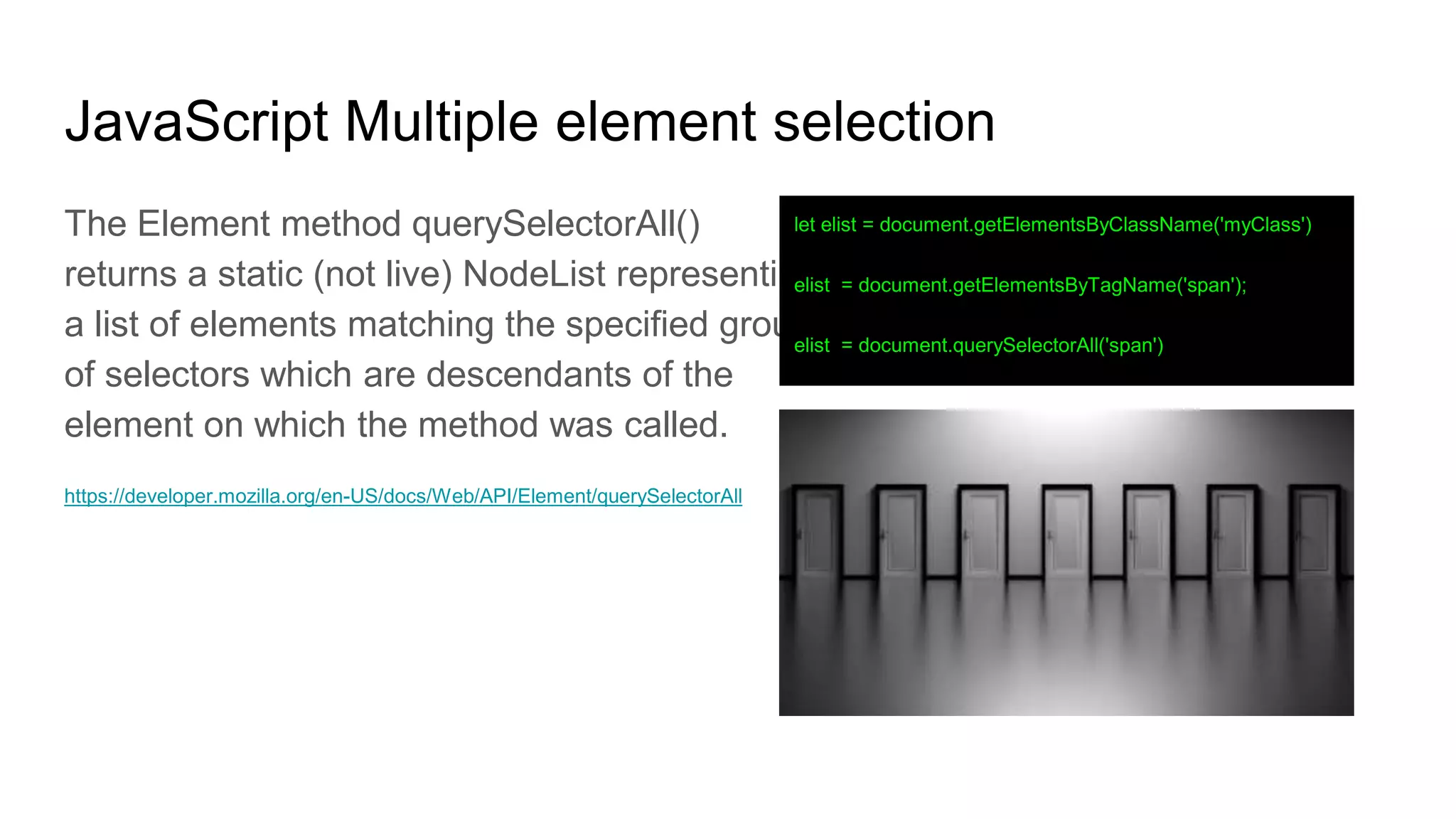
JavaScript Multiple element selection The Element method querySelectorAll() returns a static (not live) NodeList representing a list of elements matching the specified group of selectors which are descendants of the element on which the method was called. https://developer.mozilla.org/en-US/docs/Web/API/Element/querySelectorAll let elist = document.getElementsByClassName('myClass') elist = document.getElementsByTagName('span'); elist = document.querySelectorAll('span')
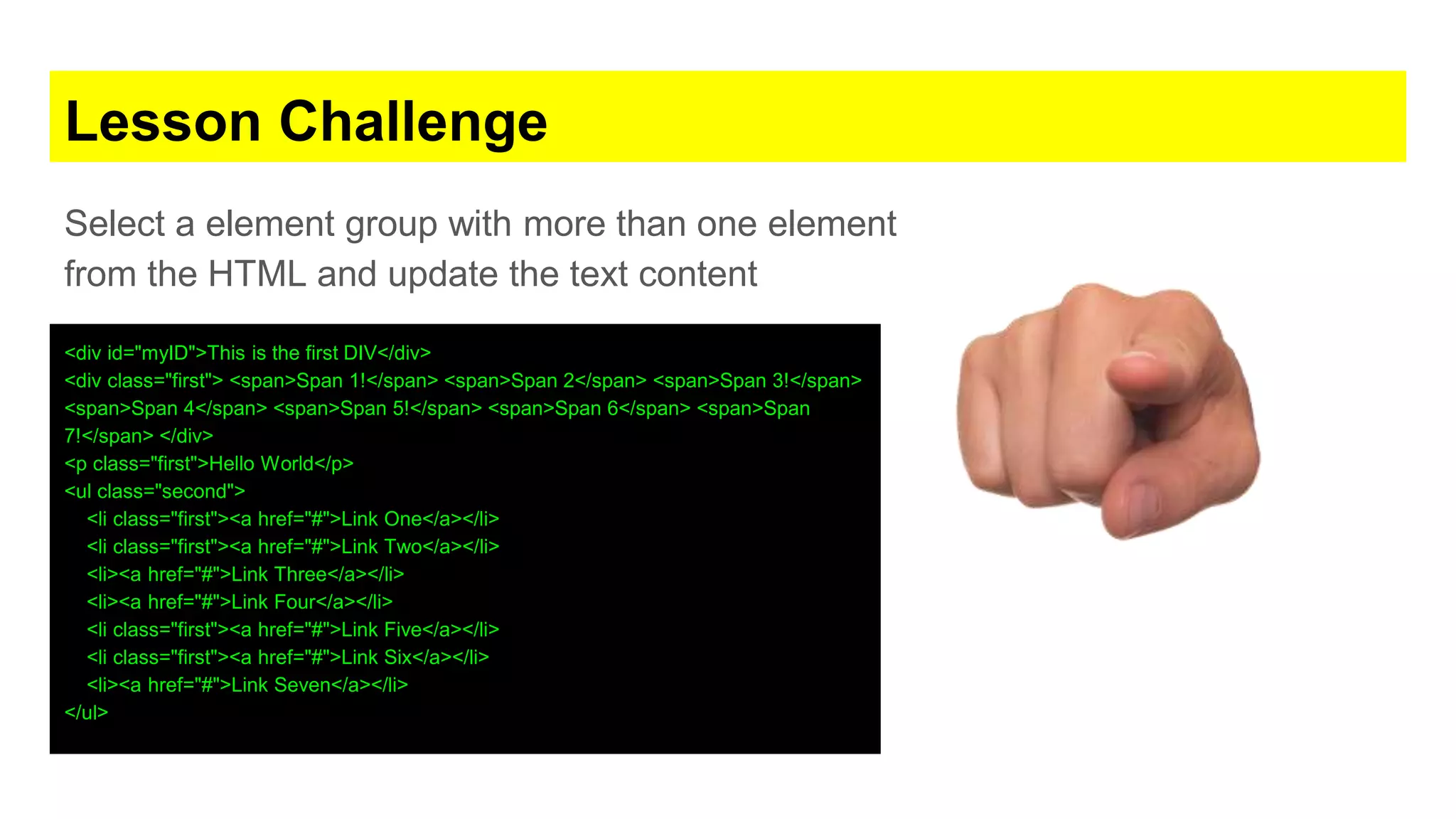
Lesson Challenge Select a element group with more than one element from the HTML and update the text content <div id="myID">This is the first DIV</div> <div class="first"> <span>Span 1!</span> <span>Span 2</span> <span>Span 3!</span> <span>Span 4</span> <span>Span 5!</span> <span>Span 6</span> <span>Span 7!</span> </div> <p class="first">Hello World</p> <ul class="second"> <li class="first"><a href="#">Link One</a></li> <li class="first"><a href="#">Link Two</a></li> <li><a href="#">Link Three</a></li> <li><a href="#">Link Four</a></li> <li class="first"><a href="#">Link Five</a></li> <li class="first"><a href="#">Link Six</a></li> <li><a href="#">Link Seven</a></li> </ul>
Code Snippet let elementList = document.getElementsByClassName('myClass') elementList = document.getElementsByTagName('span'); elementList = document.querySelectorAll('span') for (let i = 0; i < elementList.length; i++) { let el = elementList[i]; elementList[i].textContent = i + 1 + ' Updated'; console.log(el); console.log(i); } elementList.forEach(function (el, index) { console.log(el); console.log(index); el.textContent = `${index}: Updated`; });
Element Manipulation ● Update inner Content ● Update element attributes getAttribute setAttribute ● Update element style attribute
JavaScript Manipulation Select an element, set its innerHTML Set current contents as javascript variable value Update current contents with variable value innerContent innerText innerHTML const el1 = document.querySelector('#one'); console.dir(el1.innerHTML); el1.innerHTML = "Hello World"; el1.style.color = 'red'; el1.style.background = 'blue'; el1.innerText = "TEST";
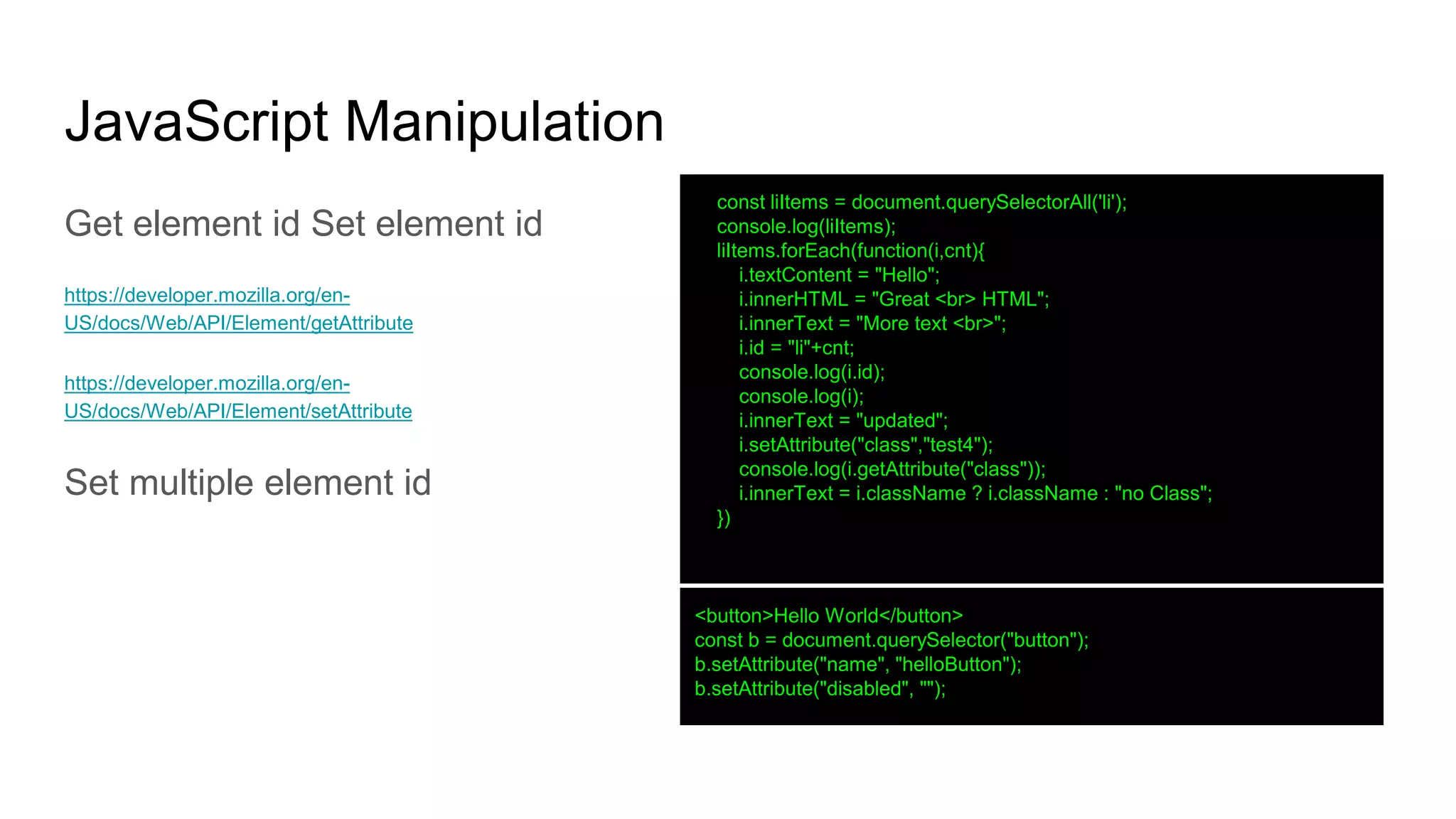
JavaScript Manipulation Get element id Set element id https://developer.mozilla.org/en- US/docs/Web/API/Element/getAttribute https://developer.mozilla.org/en- US/docs/Web/API/Element/setAttribute Set multiple element id const liItems = document.querySelectorAll('li'); console.log(liItems); liItems.forEach(function(i,cnt){ i.textContent = "Hello"; i.innerHTML = "Great <br> HTML"; i.innerText = "More text <br>"; i.id = "li"+cnt; console.log(i.id); console.log(i); i.innerText = "updated"; i.setAttribute("class","test4"); console.log(i.getAttribute("class")); i.innerText = i.className ? i.className : "no Class"; }) <button>Hello World</button> const b = document.querySelector("button"); b.setAttribute("name", "helloButton"); b.setAttribute("disabled", "");
Update Element Image and URL Path Using getAttribute and setAttribute you can update the element attributes. hasAttribute <a href="https://placeholder.com"><img src="https://via.placeholder.com/250/00ffff/000000"></a> <br> <img src="https://via.placeholder.com/350x150/00ff00/ffffff"> <script> const el1 = document.getElementsByTagName('a'); console.log(el1[0]); const el2 = document.getElementsByTagName('img'); console.log(el2[1]); let temp = el1[0].getAttribute('href'); el1[0].setAttribute('href', 'http://www.google.com'); let tempImg1 = el2[0].getAttribute('src'); let tempImg2 = el2[1].getAttribute('src'); el2[0].setAttribute('src', tempImg2); el2[1].setAttribute('src', tempImg1); console.log(el2[1].hasAttribute('src')); console.log(tempImg1);
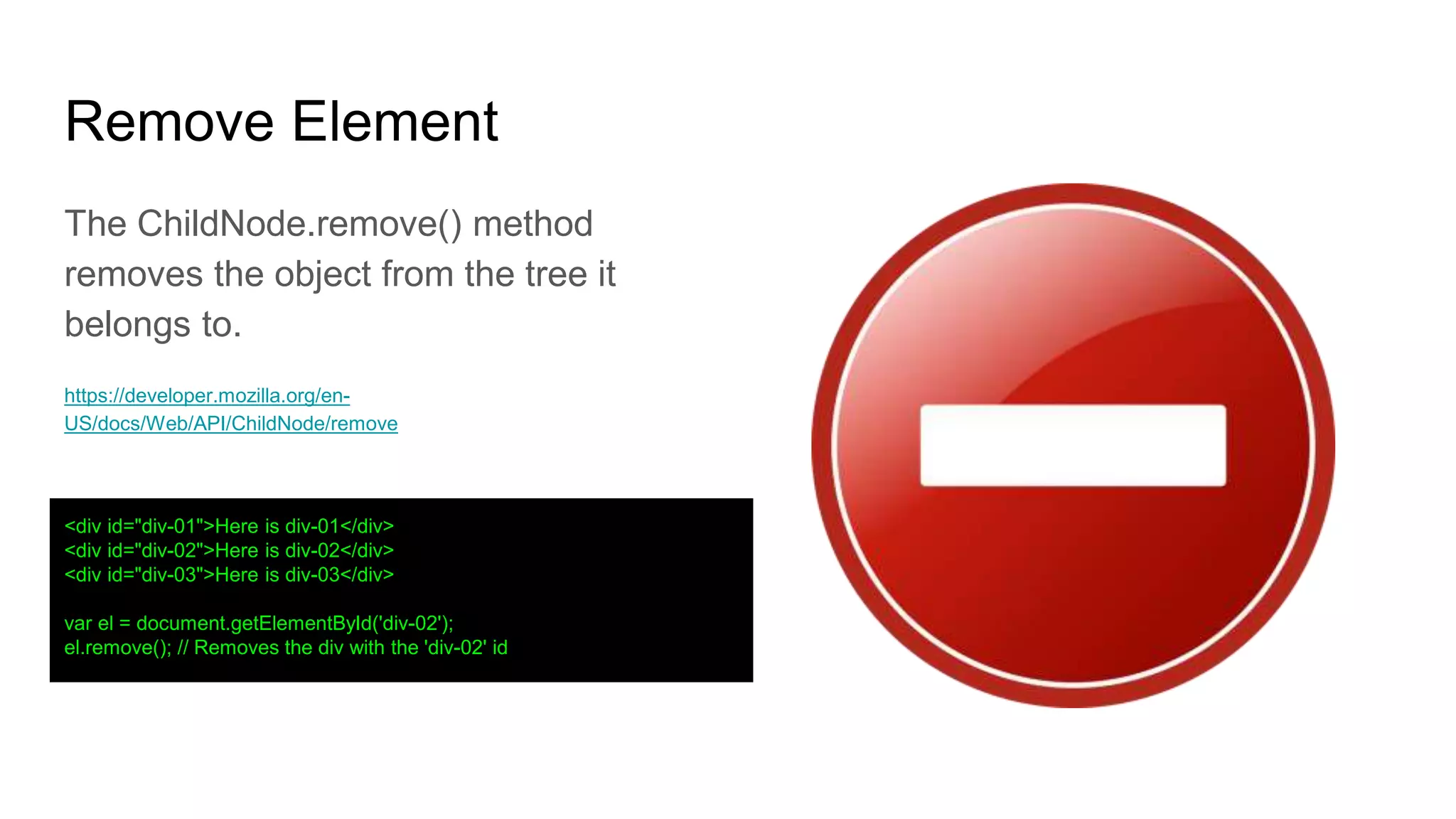
Remove Element The ChildNode.remove() method removes the object from the tree it belongs to. https://developer.mozilla.org/en- US/docs/Web/API/ChildNode/remove <div id="div-01">Here is div-01</div> <div id="div-02">Here is div-02</div> <div id="div-03">Here is div-03</div> var el = document.getElementById('div-02'); el.remove(); // Removes the div with the 'div-02' id
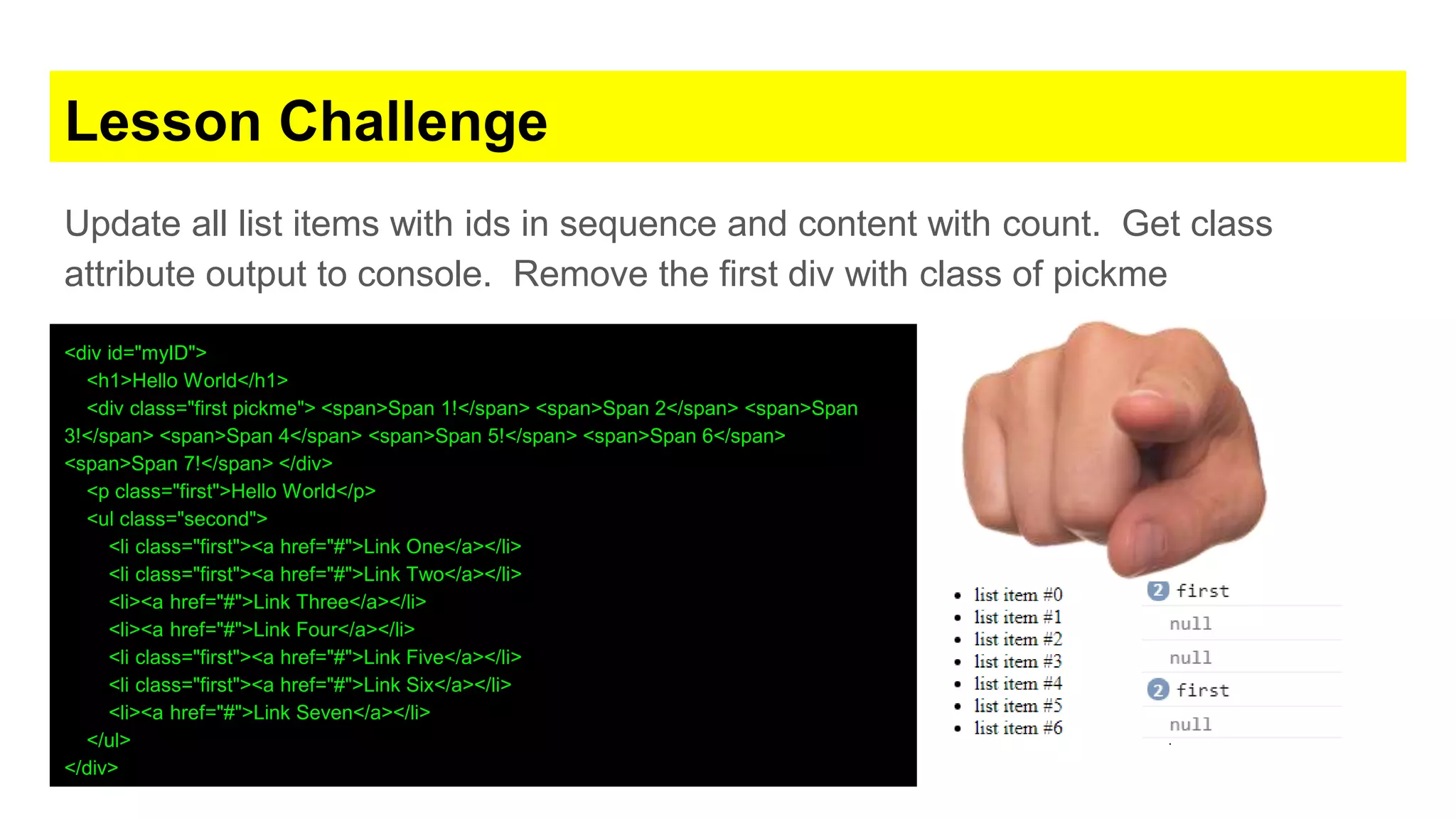
Lesson Challenge Update all list items with ids in sequence and content with count. Get class attribute output to console. Remove the first div with class of pickme <div id="myID"> <h1>Hello World</h1> <div class="first pickme"> <span>Span 1!</span> <span>Span 2</span> <span>Span 3!</span> <span>Span 4</span> <span>Span 5!</span> <span>Span 6</span> <span>Span 7!</span> </div> <p class="first">Hello World</p> <ul class="second"> <li class="first"><a href="#">Link One</a></li> <li class="first"><a href="#">Link Two</a></li> <li><a href="#">Link Three</a></li> <li><a href="#">Link Four</a></li> <li class="first"><a href="#">Link Five</a></li> <li class="first"><a href="#">Link Six</a></li> <li><a href="#">Link Seven</a></li> </ul> </div>
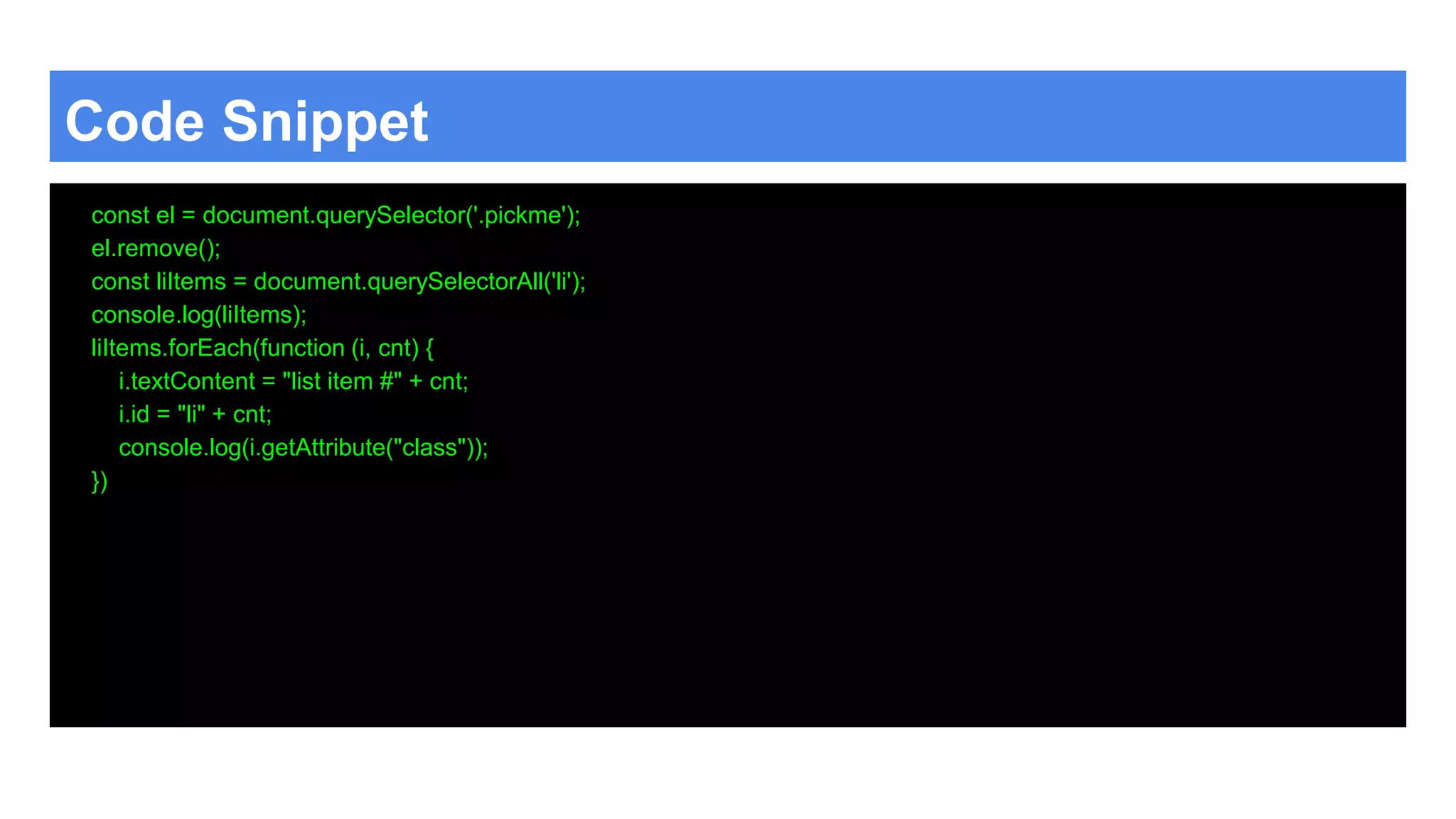
Code Snippet const el = document.querySelector('.pickme'); el.remove(); const liItems = document.querySelectorAll('li'); console.log(liItems); liItems.forEach(function (i, cnt) { i.textContent = "list item #" + cnt; i.id = "li" + cnt; console.log(i.getAttribute("class")); })
Challenge #1 - Image popup Add a popup image when any image on the page is clicked. Popup should show the full size image from the web link. Update the code below to output the window. <img src="http://brackets.io/img/hero.png" width="100px"> <img src="http://www.discoveryvip.com/img/pic.JPG" width="100px"> <img src="https://upload.wikimedia.org/wikipedia/commons/5/5a/DOM-model.svg" width="100px"> <script> window.open(this.src, 'My Image', 'resizable=yes,scrollbars=yes,width=500,height=500'); </script>
Challenge #1 Code const mainList = document.querySelector('ul'); const inputEle = document.querySelector('input'); const clicker = document.getElementById('clicker'); clicker.addEventListener('click', function () { if (inputEle.value.length > 3) { let li = document.createElement('li'); let tempNode = document.createTextNode(inputEle.value); li.appendChild(tempNode); mainList.appendChild(li); } })
Element Classes ● Update classes remove, toggle, replace,add ● Check if class is in classList of element
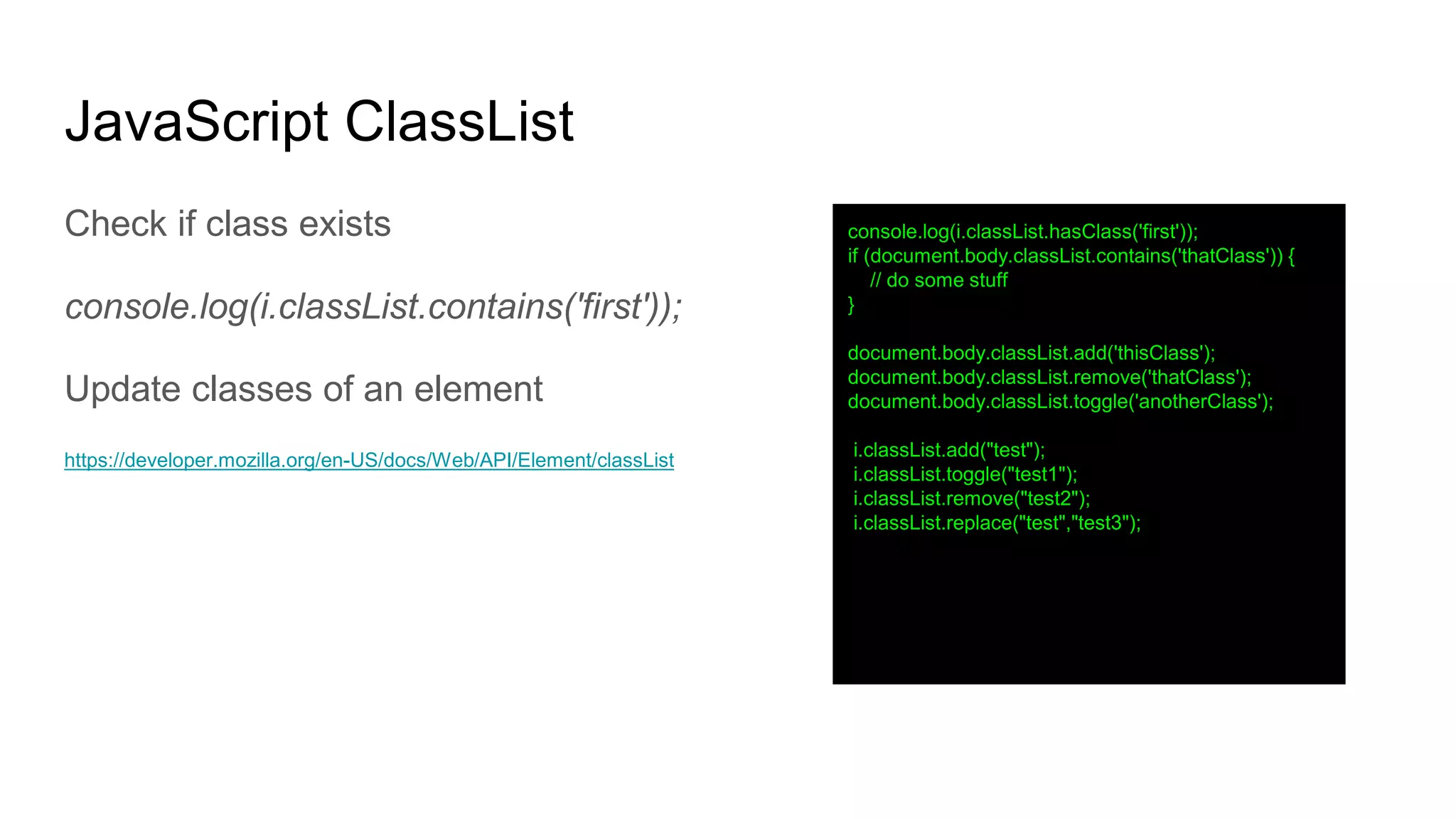
JavaScript ClassList Check if class exists console.log(i.classList.contains('first')); Update classes of an element https://developer.mozilla.org/en-US/docs/Web/API/Element/classList console.log(i.classList.hasClass('first')); if (document.body.classList.contains('thatClass')) { // do some stuff } document.body.classList.add('thisClass'); document.body.classList.remove('thatClass'); document.body.classList.toggle('anotherClass'); i.classList.add("test"); i.classList.toggle("test1"); i.classList.remove("test2"); i.classList.replace("test","test3");
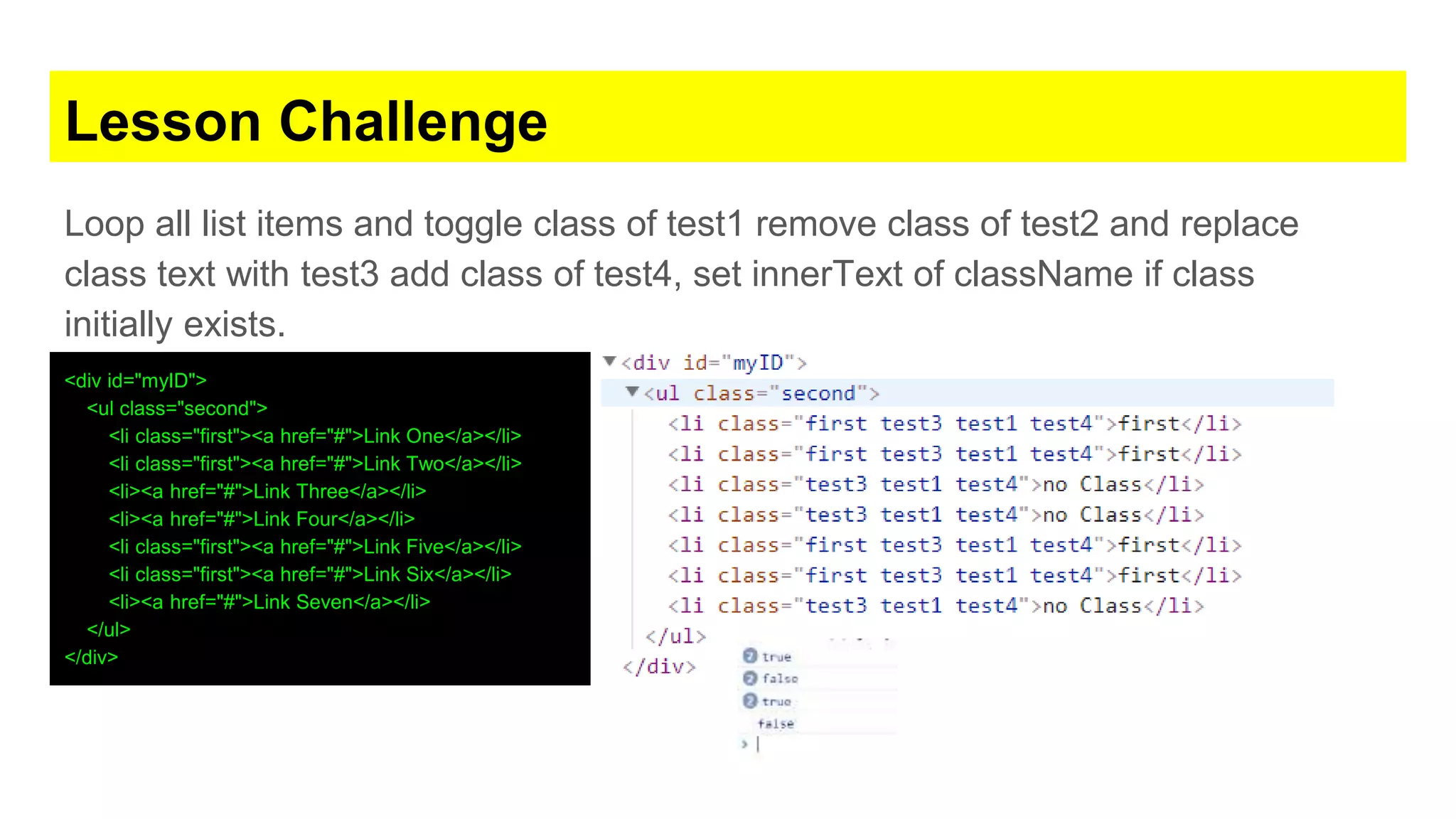
Lesson Challenge Loop all list items and toggle class of test1 remove class of test2 and replace class text with test3 add class of test4, set innerText of className if class initially exists. <div id="myID"> <ul class="second"> <li class="first"><a href="#">Link One</a></li> <li class="first"><a href="#">Link Two</a></li> <li><a href="#">Link Three</a></li> <li><a href="#">Link Four</a></li> <li class="first"><a href="#">Link Five</a></li> <li class="first"><a href="#">Link Six</a></li> <li><a href="#">Link Seven</a></li> </ul> </div>
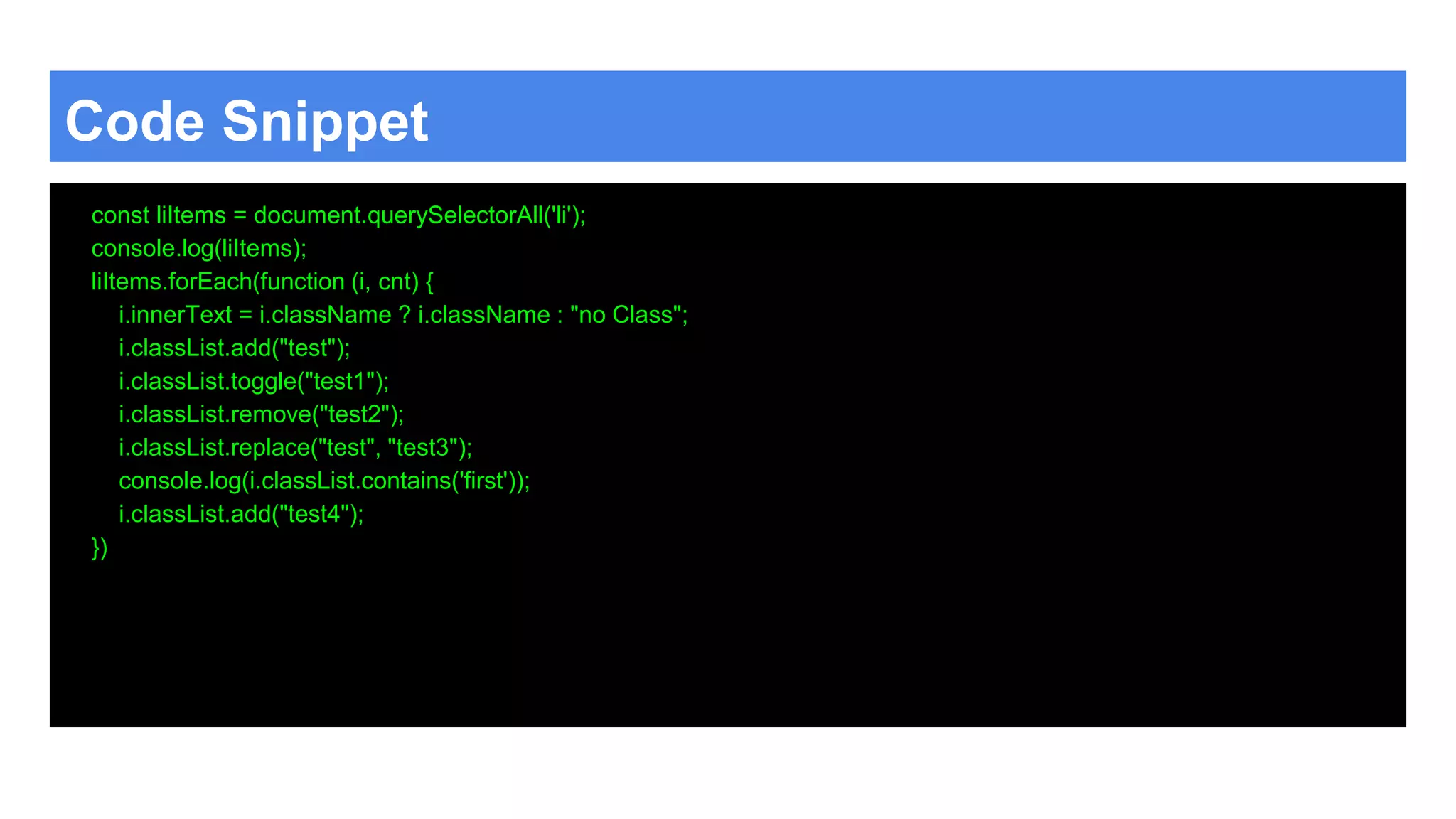
Code Snippet const liItems = document.querySelectorAll('li'); console.log(liItems); liItems.forEach(function (i, cnt) { i.innerText = i.className ? i.className : "no Class"; i.classList.add("test"); i.classList.toggle("test1"); i.classList.remove("test2"); i.classList.replace("test", "test3"); console.log(i.classList.contains('first')); i.classList.add("test4"); })
Element Children and Traversing ● Get element Childnodes ● Element children ● ParentElement ● parentNode ● Siblings ● Next and previous siblings
JavaScript Children The ParentNode property children is a read-only property that returns a live HTMLCollection which contains all of the child elements of the node upon which it was called. HTMLcollection vs NodeList (length) https://developer.mozilla.org/en-US/docs/Web/API/ParentNode/children console.log(el); console.log(el.childNodes); // Note nodelist console.log(el.children); //note HTMLcollection el.childNodes.forEach(function (ele, index) { console.log(ele.textContent); console.log(index); }); /// won't work with children note HTMLcollection for (let i = 0; i < el.children.length; i++) { console.log(el.children[i].textContent); console.log(el.children[i]); } console.log(el.childNodes); console.log(el.parentElement); console.log(el.parentNode); console.log(el); console.log(el.nextElementSibling); console.log(el.nextSibling); console.log(el.previousElementSibling); console.log(el.previousSibling);
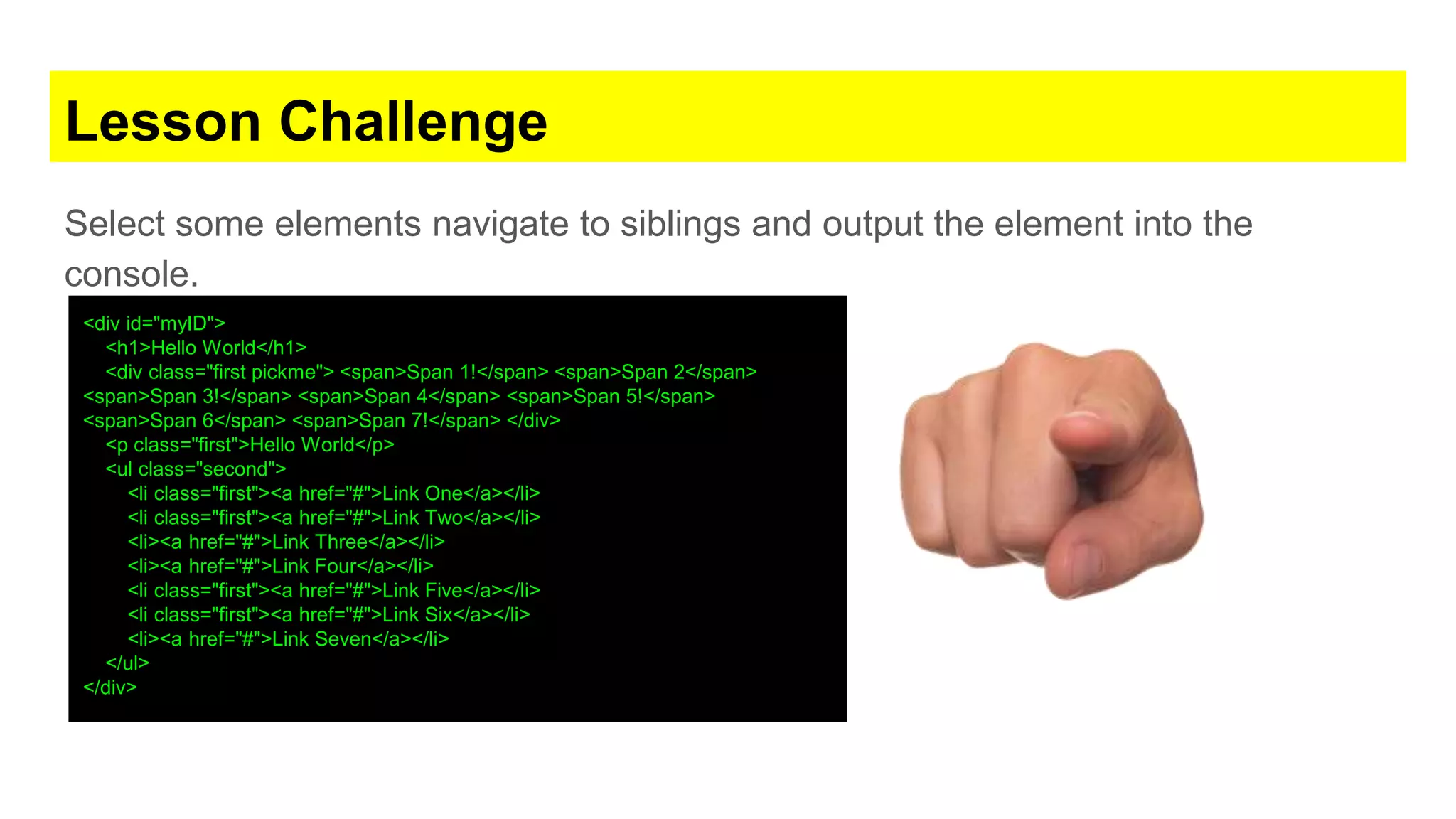
Lesson Challenge Select some elements navigate to siblings and output the element into the console. <div id="myID"> <h1>Hello World</h1> <div class="first pickme"> <span>Span 1!</span> <span>Span 2</span> <span>Span 3!</span> <span>Span 4</span> <span>Span 5!</span> <span>Span 6</span> <span>Span 7!</span> </div> <p class="first">Hello World</p> <ul class="second"> <li class="first"><a href="#">Link One</a></li> <li class="first"><a href="#">Link Two</a></li> <li><a href="#">Link Three</a></li> <li><a href="#">Link Four</a></li> <li class="first"><a href="#">Link Five</a></li> <li class="first"><a href="#">Link Six</a></li> <li><a href="#">Link Seven</a></li> </ul> </div>
Code Snippet const el = document.querySelector('.pickme'); console.log(el); console.log(el.childNodes); // Note nodelist console.log(el.children); //note HTMLcollection for (let i = 0; i < el.children.length; i++) { console.log(el.children[i].textContent); console.log(el.children[i]); } console.log(el.childNodes); console.log(el.parentElement); console.log(el.parentNode); console.log(el); console.log(el.nextElementSibling); console.log(el.nextSibling); console.log(el.previousElementSibling); console.log(el.previousSibling);
Element Style Change ● Update styles lots of options
JavaScript Style Attribute Update the element style attribute https://www.w3.org/TR/DOM-Level-2-Style/css.html#CSS- ElementCSSInlineStyle const el1 = document.getElementsByClassName('test'); console.log(el1[0]); let tempEle = el1[0]; tempEle.style.backgroundColor = "Green"; tempEle.style.color = "white"; tempEle.style.border = "5px dotted purple"; tempEle.style.fontSize = "40px"; tempEle.style.display = "none"; tempEle.style.display = "block";
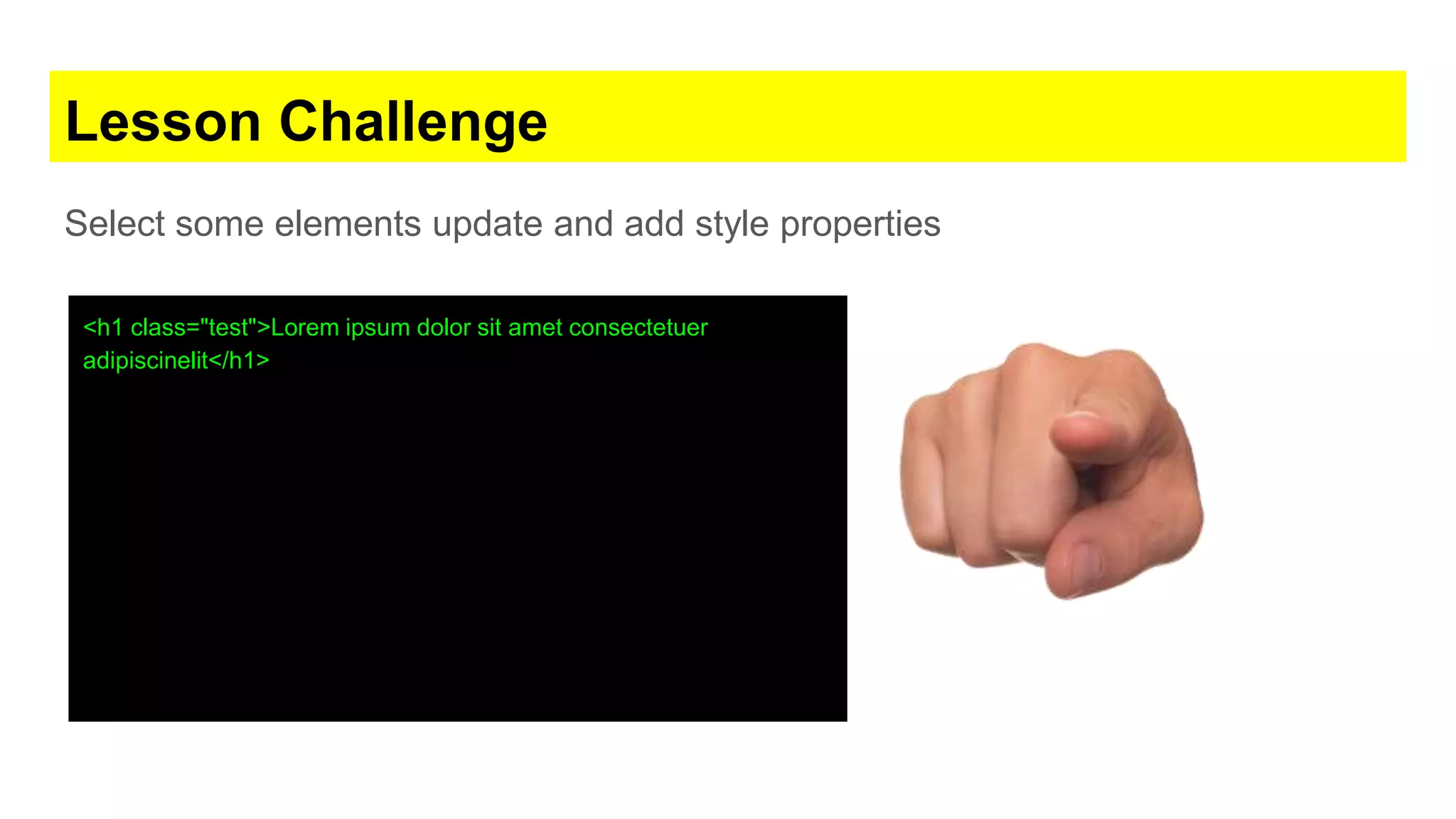
Lesson Challenge Select some elements update and add style properties <h1 class="test">Lorem ipsum dolor sit amet consectetuer adipiscinelit</h1>
Code Snippet <h1 class="test">Lorem ipsum dolor sit amet consectetuer adipiscinelit</h1> <script> Const el1 = document.getElementsByClassName('test'); console.log(el1[0]); let tempEle = el1[0]; tempEle.style.backgroundColor = "Green"; tempEle.style.color = "white"; tempEle.style.border = "5px dotted purple"; tempEle.style.fontSize = "40px"; tempEle.style.display = "none"; tempEle.style.display = "block"; </script>
Create Elements add to page ● Create Elements createElement ● Create Text nodes createTextNode ● Append to other elements appendChild
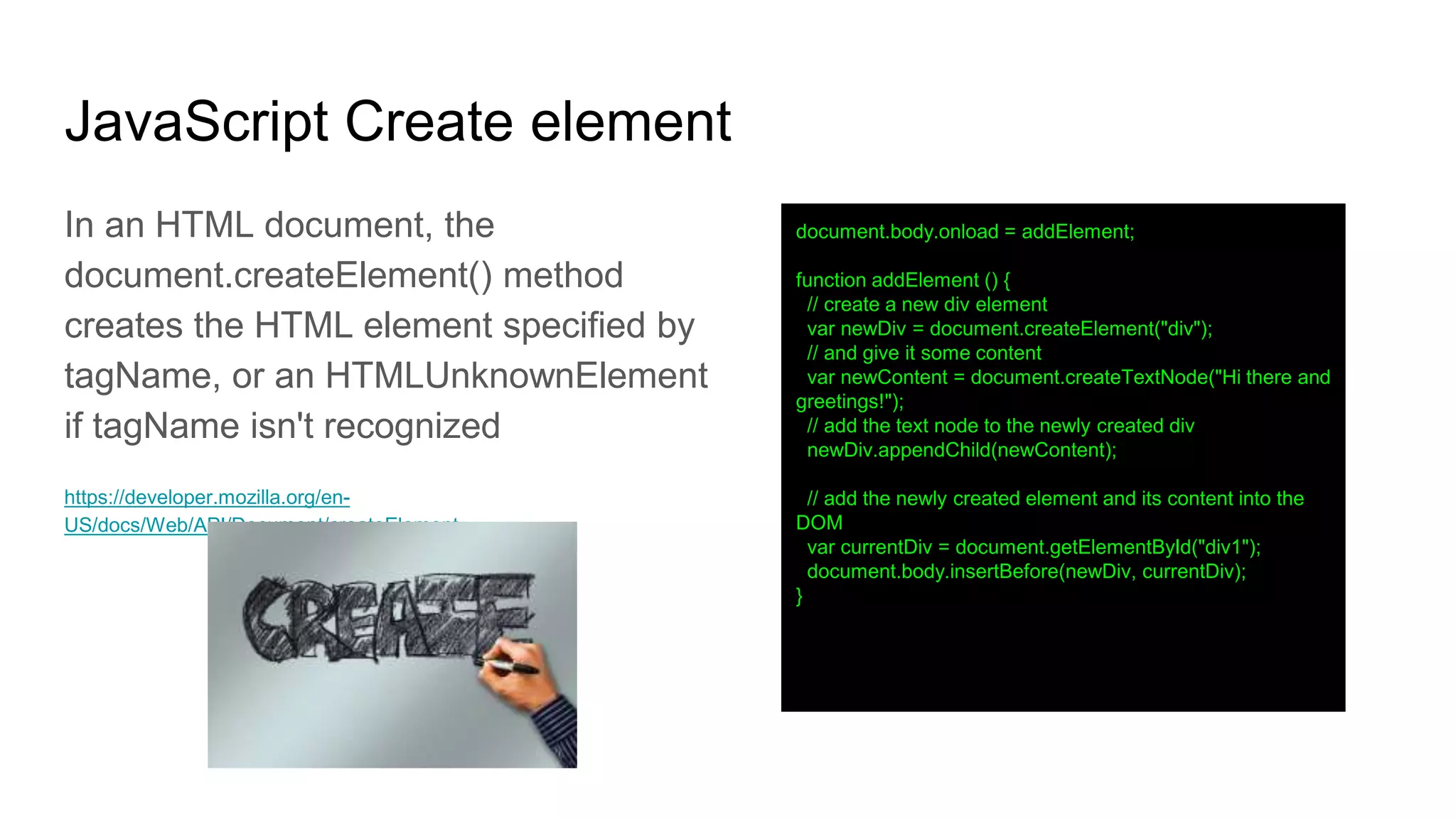
JavaScript Create element In an HTML document, the document.createElement() method creates the HTML element specified by tagName, or an HTMLUnknownElement if tagName isn't recognized https://developer.mozilla.org/en- US/docs/Web/API/Document/createElement document.body.onload = addElement; function addElement () { // create a new div element var newDiv = document.createElement("div"); // and give it some content var newContent = document.createTextNode("Hi there and greetings!"); // add the text node to the newly created div newDiv.appendChild(newContent); // add the newly created element and its content into the DOM var currentDiv = document.getElementById("div1"); document.body.insertBefore(newDiv, currentDiv); }
Lesson Challenge Create a new element, give it an id of test. Add content of hello world. Add it to myID element <div id="myID"> </div>
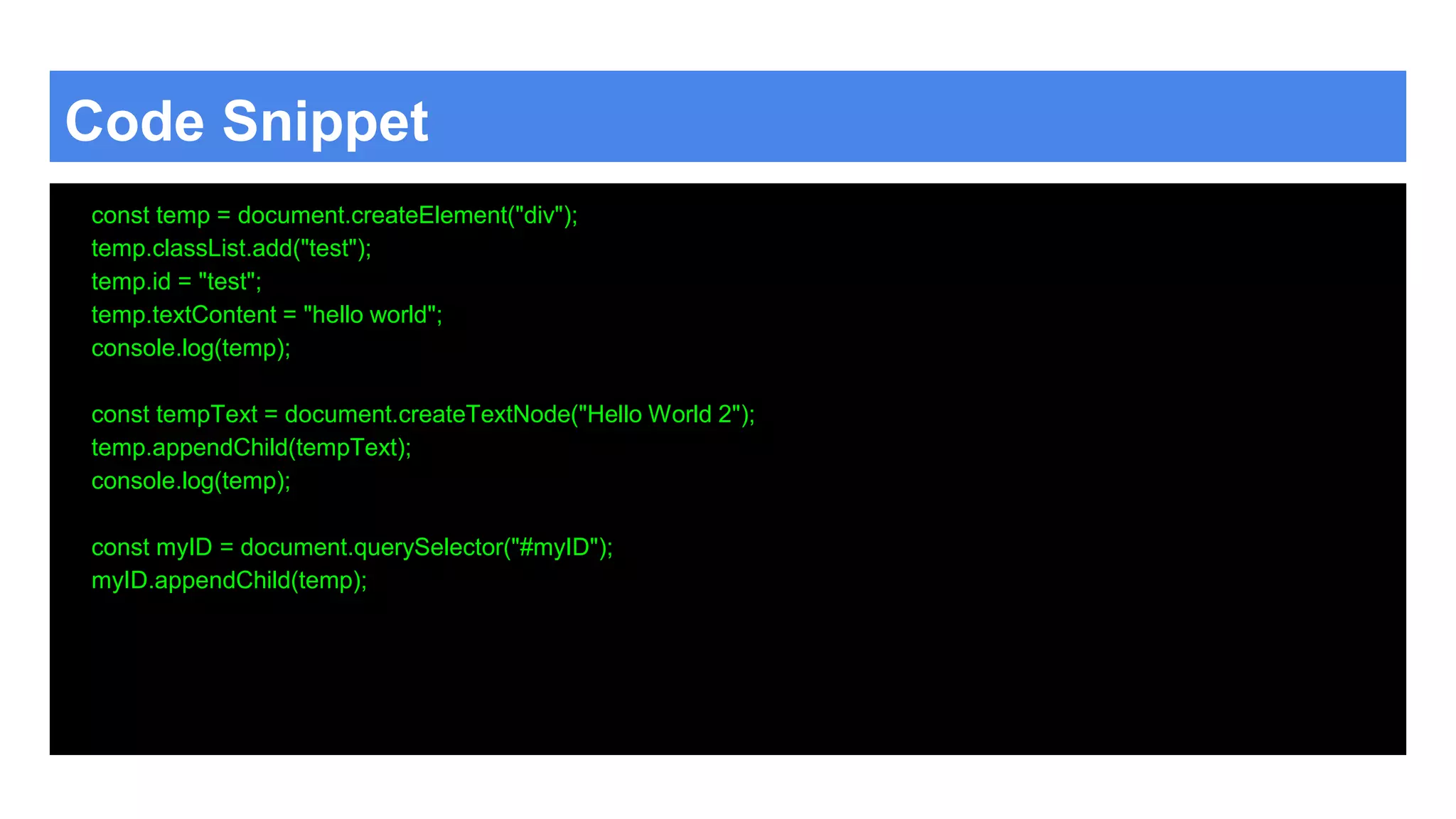
Code Snippet const temp = document.createElement("div"); temp.classList.add("test"); temp.id = "test"; temp.textContent = "hello world"; console.log(temp); const tempText = document.createTextNode("Hello World 2"); temp.appendChild(tempText); console.log(temp); const myID = document.querySelector("#myID"); myID.appendChild(temp);
Add Click Event Listeners ● addEventListener to element
JavaScript Click Event The EventTarget method addEventListener() sets up a function that will be called whenever the specified event is delivered to the target. Common on Element, Document, and Window https://developer.mozilla.org/en- US/docs/Web/API/EventTarget/addEventListener TIP : useCapture = true the Events execute top to down in the capture phase when false it does a bubble bottom to top. useCapture has not always been optional. Ideally, you should include it for the widest possible browser compatibility. <ul> <li class="listItem">My Item</li> <li>Another Item</li> <li class="listItem">Wow Cool</li> <li class="listItem">New Color</li> </ul> <script> const ele1 = document.querySelector('ul'); ele1.addEventListener('click', function () { console.log('click'); ele1.style.color = "yellow"; }) const eleList = document.querySelectorAll('.listItem'); for (var x = 0; x < eleList.length; x++) { eleList[x].addEventListener('click', makeItRed); } function makeItRed() { console.log(this); let temp = this.classList.toggle('red'); console.log(temp); } </script>
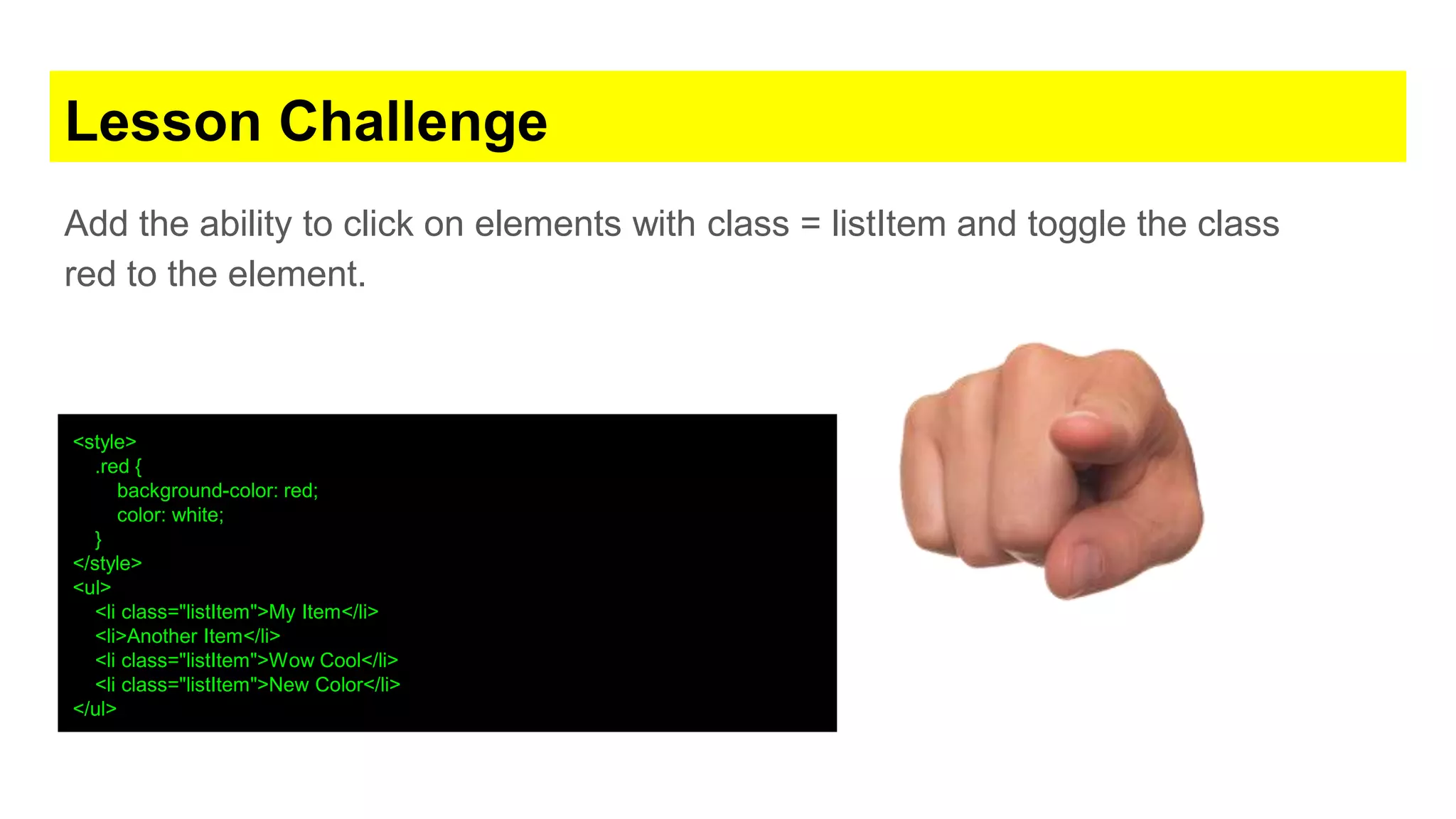
Lesson Challenge Add the ability to click on elements with class = listItem and toggle the class red to the element. <style> .red { background-color: red; color: white; } </style> <ul> <li class="listItem">My Item</li> <li>Another Item</li> <li class="listItem">Wow Cool</li> <li class="listItem">New Color</li> </ul>
Code Snippet const eleList = document.querySelectorAll('.listItem'); for (var x = 0; x < eleList.length; x++) { eleList[x].addEventListener('click', makeItRed); } function makeItRed() { console.log(this); let temp = this.classList.toggle('red'); console.log(temp); }
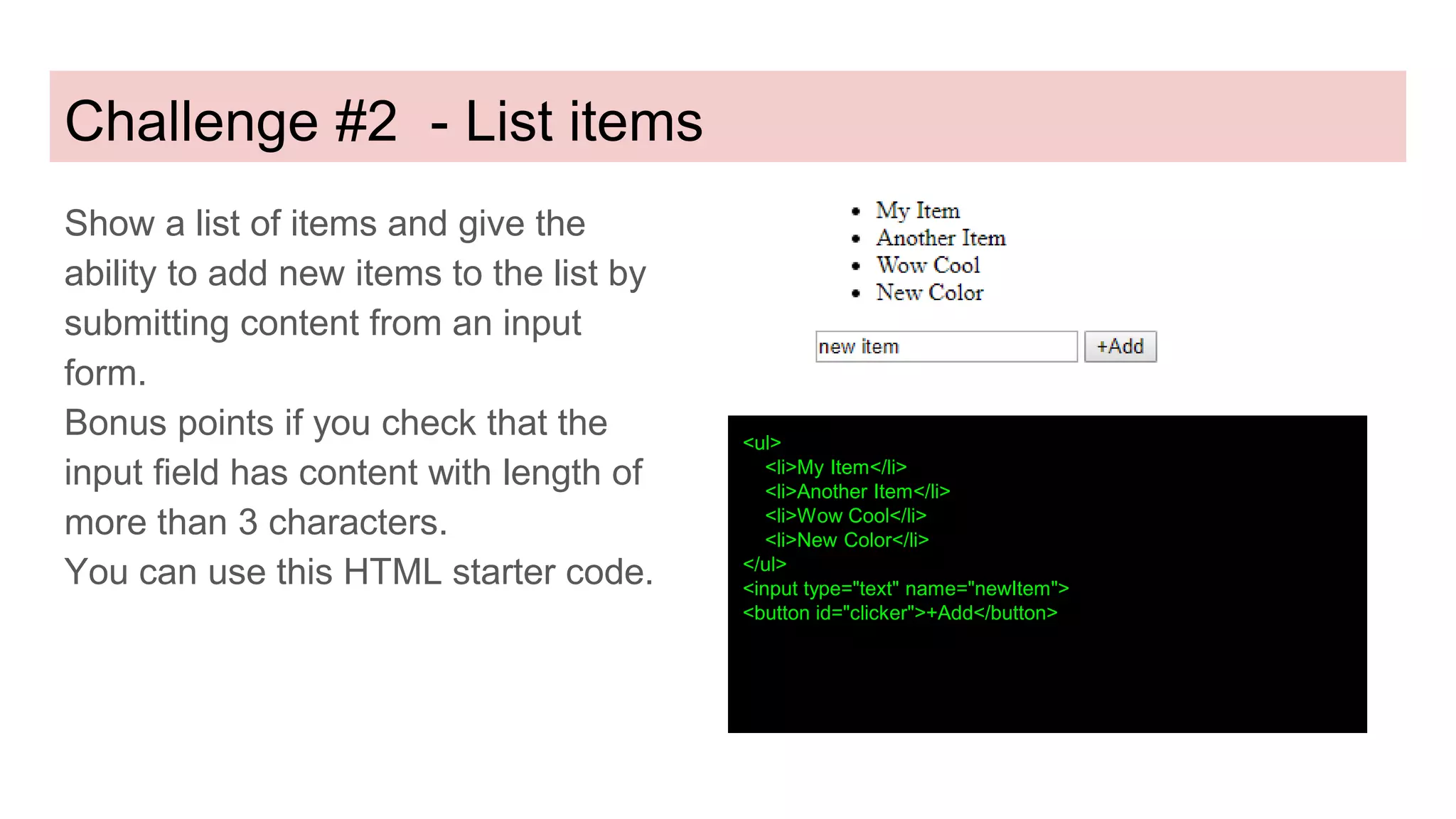
Challenge #2 - List items Show a list of items and give the ability to add new items to the list by submitting content from an input form. Bonus points if you check that the input field has content with length of more than 3 characters. You can use this HTML starter code. <ul> <li>My Item</li> <li>Another Item</li> <li>Wow Cool</li> <li>New Color</li> </ul> <input type="text" name="newItem"> <button id="clicker">+Add</button>
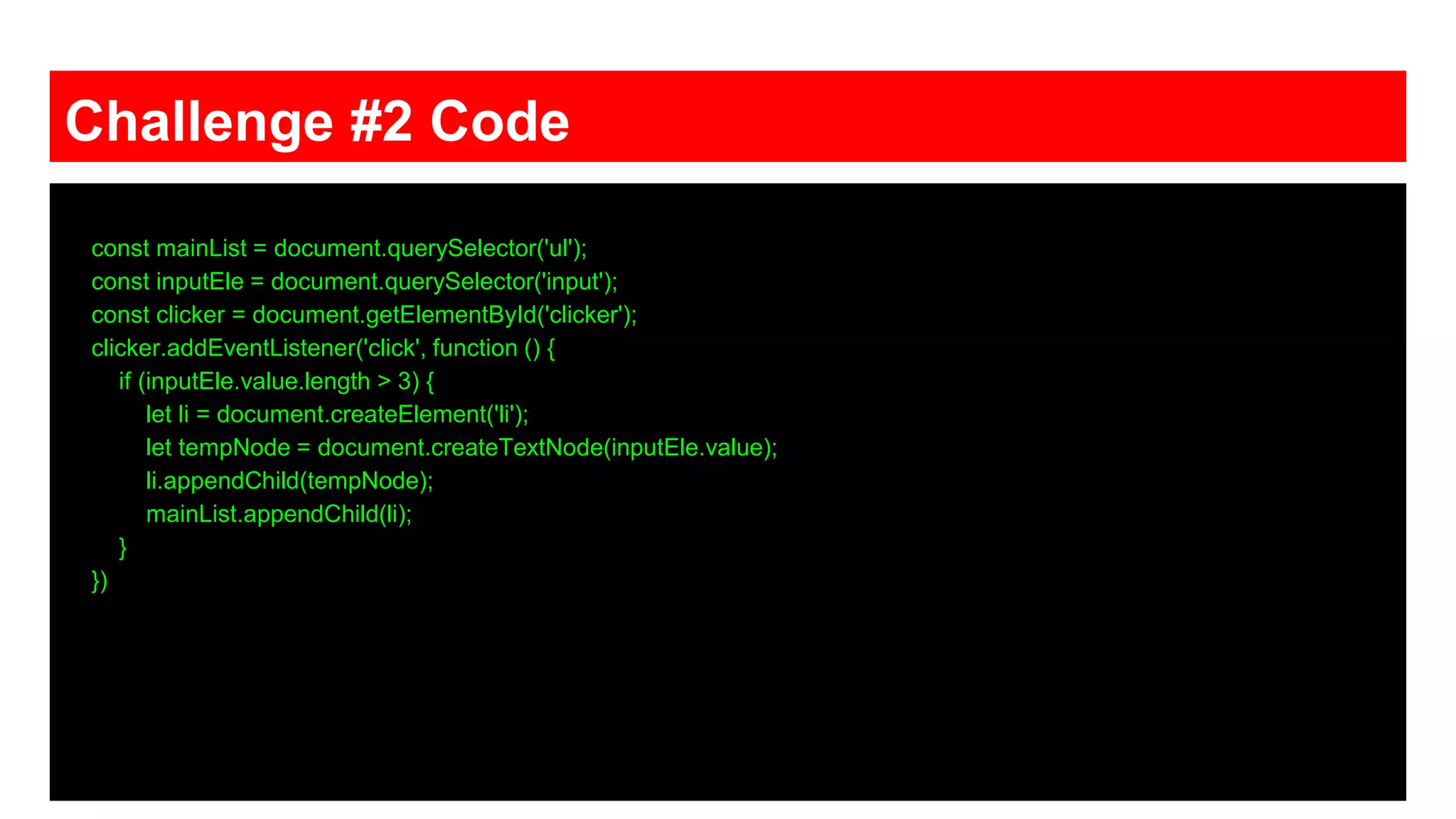
Challenge #2 Code const mainList = document.querySelector('ul'); const inputEle = document.querySelector('input'); const clicker = document.getElementById('clicker'); clicker.addEventListener('click', function () { if (inputEle.value.length > 3) { let li = document.createElement('li'); let tempNode = document.createTextNode(inputEle.value); li.appendChild(tempNode); mainList.appendChild(li); } })
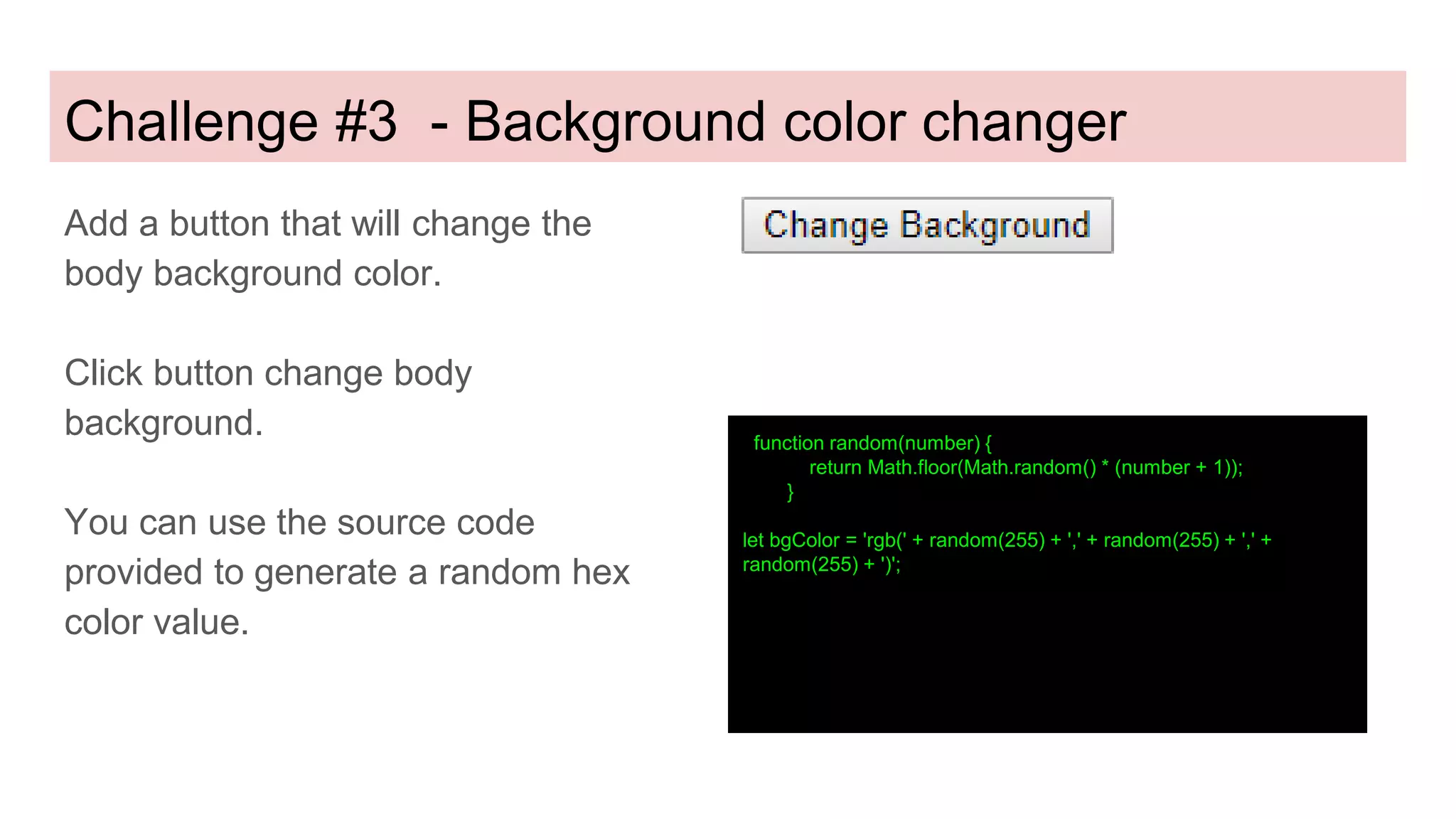
Challenge #3 - Background color changer Add a button that will change the body background color. Click button change body background. You can use the source code provided to generate a random hex color value. function random(number) { return Math.floor(Math.random() * (number + 1)); } let bgColor = 'rgb(' + random(255) + ',' + random(255) + ',' + random(255) + ')';
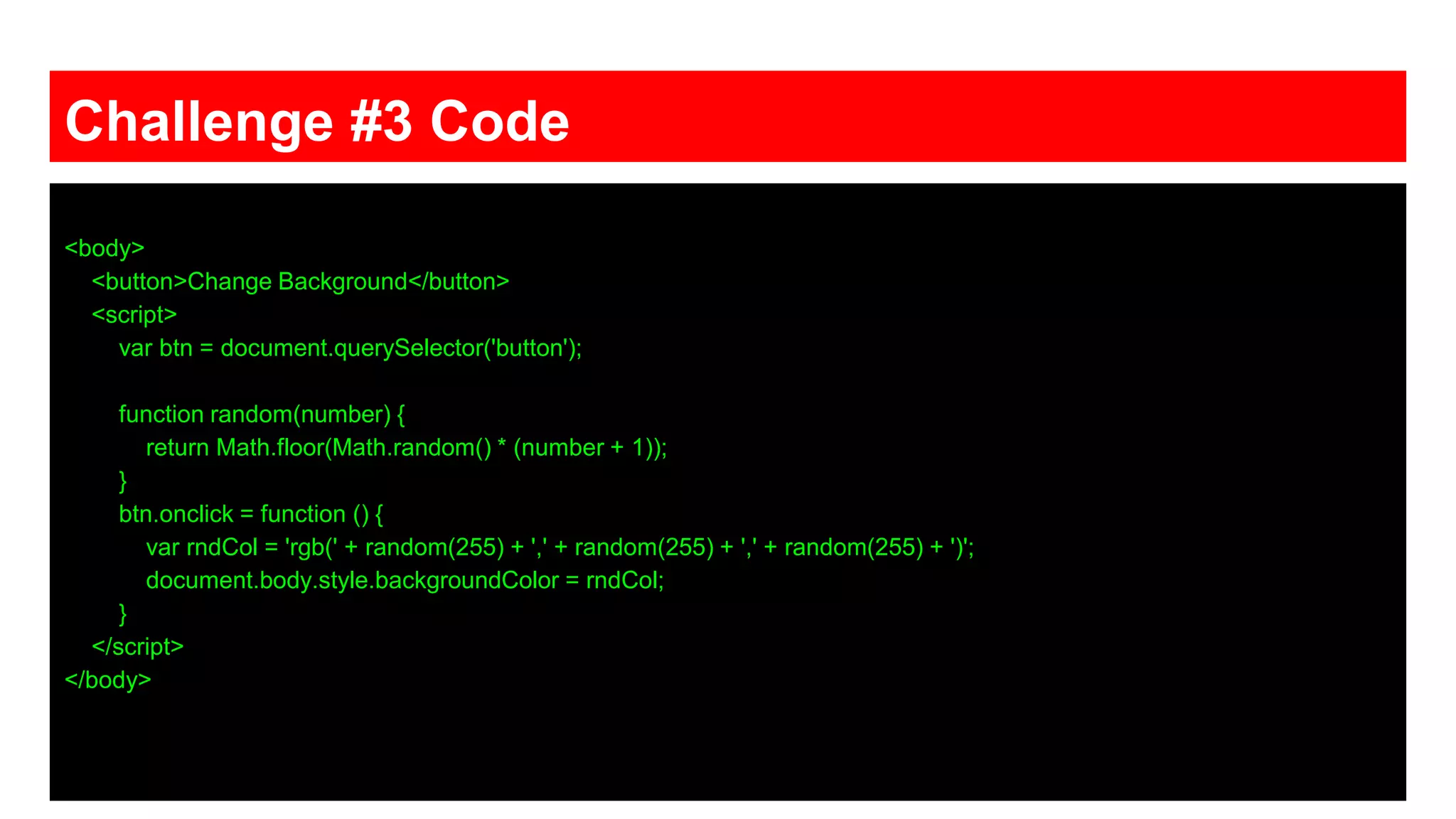
Challenge #3 Code <body> <button>Change Background</button> <script> var btn = document.querySelector('button'); function random(number) { return Math.floor(Math.random() * (number + 1)); } btn.onclick = function () { var rndCol = 'rgb(' + random(255) + ',' + random(255) + ',' + random(255) + ')'; document.body.style.backgroundColor = rndCol; } </script> </body>
Add Event Key Press Listeners ● Keydown listener ● Keyup listener ● Key press tracking
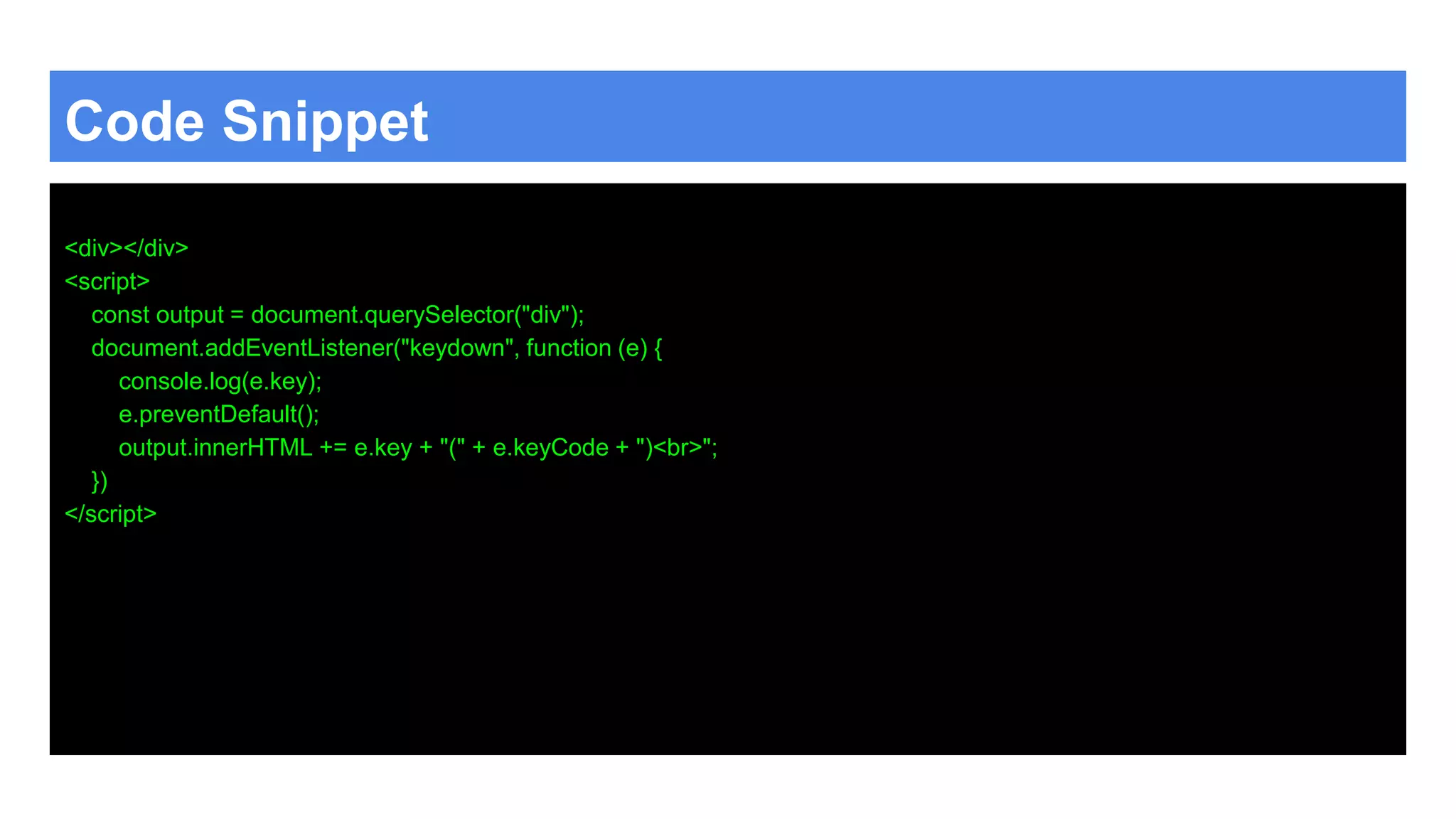
JavaScript Key Event The keydown event is fired when a key is pressed down. https://developer.mozilla.org/en-US/docs/Web/Events/keydown The keyup event is fired when a key is released. https://developer.mozilla.org/en-US/docs/Web/Events/keyup let keys = { ArrowUp: false , ArrowDown: false , ArrowLeft: false , ArrowRight: false } document.addEventListener("keydown", pressKeyOn); document.addEventListener("keyup", pressKeyOff); function pressKeyOn(event) { console.log(event.key); event.preventDefault(); keys[event.key] = true; console.log(keys); } function pressKeyOff(event) { console.log(event.key); event.preventDefault(); keys[event.key] = false; console.log(keys); }
Added to an element Can be added to specific element like inputs. <div></div> <input type="text" name="newItem"> <script> const div = document.querySelector('div'); const ele = document.querySelector('input[name="newItem"]'); ele.addEventListener('keypress', addItem); function addItem(event) { div.textContent = ele.value; if (ele.value.length > 5) { ele.style.backgroundColor = "red"; } else { ele.style.backgroundColor = "white"; } if (event.keyCode === 13 && ele.value.length > 1) { console.log(ele.value.length); eleUL.style.backgroundColor = "yellow"; } } </script>
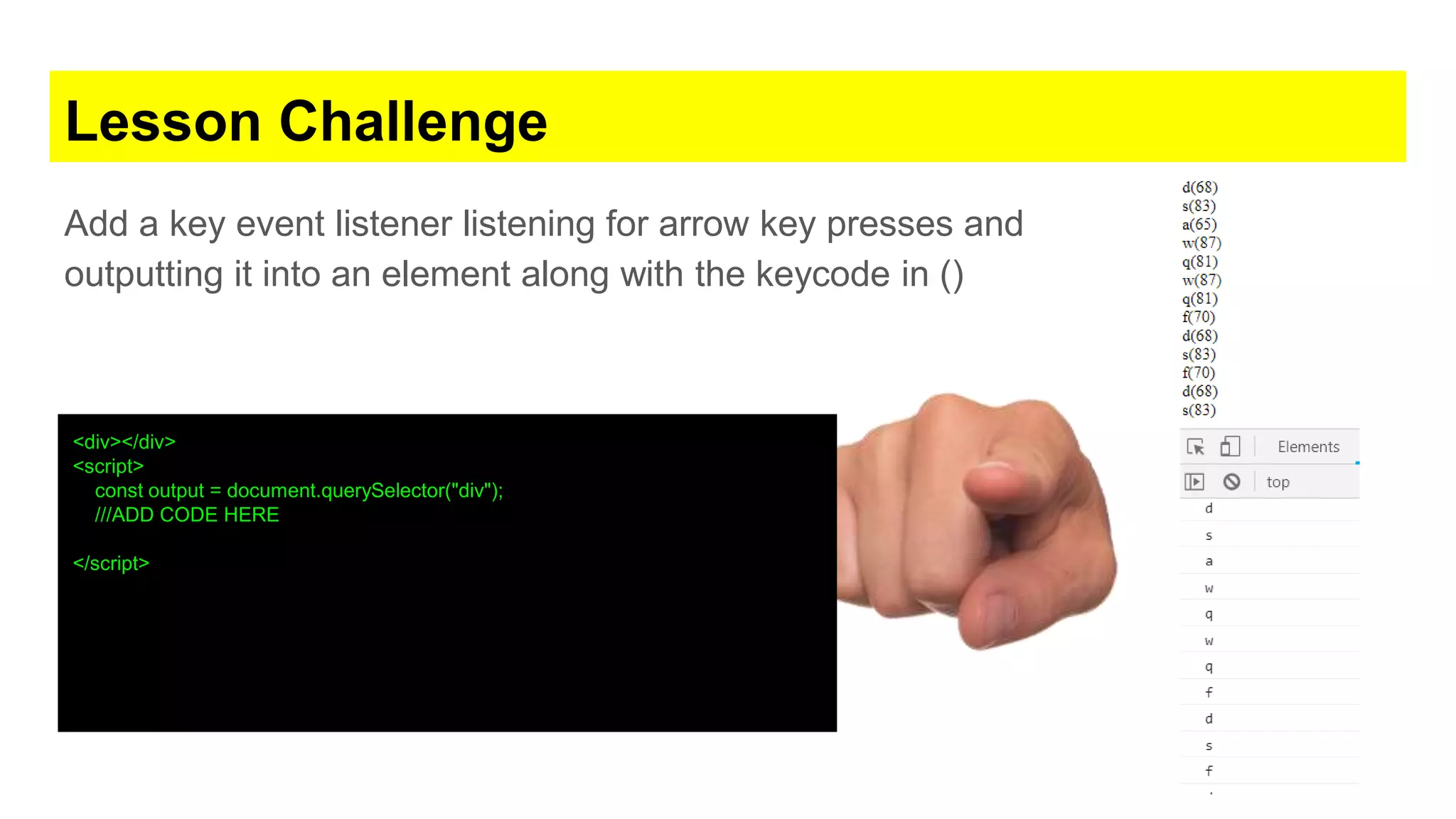
Lesson Challenge Add a key event listener listening for arrow key presses and outputting it into an element along with the keycode in () <div></div> <script> const output = document.querySelector("div"); ///ADD CODE HERE </script>
Code Snippet <div></div> <script> const output = document.querySelector("div"); document.addEventListener("keydown", function (e) { console.log(e.key); e.preventDefault(); output.innerHTML += e.key + "(" + e.keyCode + ")<br>"; }) </script>
More mouse Events ● MouseOver and MouseOut ● Check event values ● This vs event object
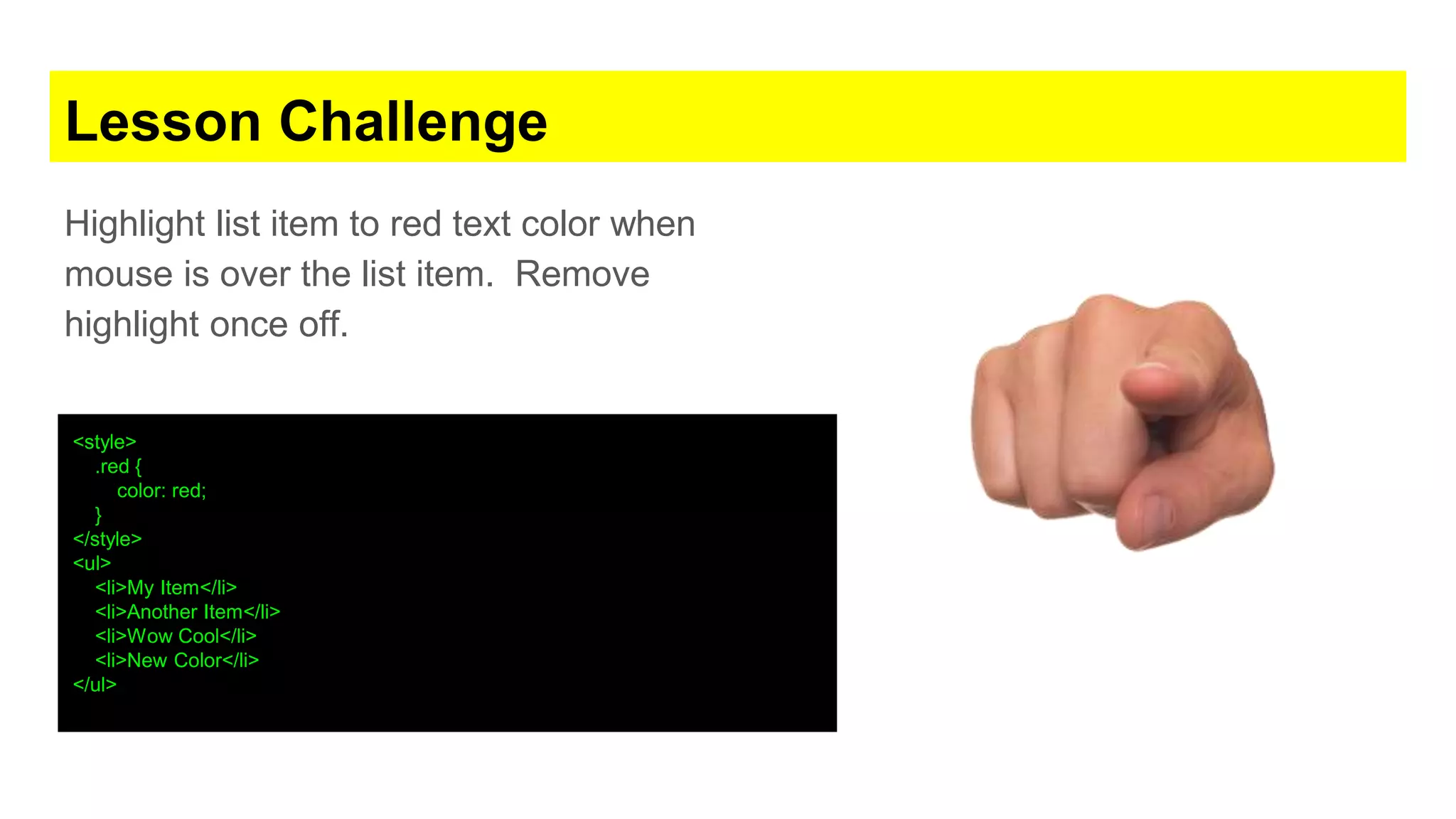
JavaScript Mouse Events The mouseover event is fired when a pointing device is moved onto the element that has the listener attached or onto one of its children. https://developer.mozilla.org/en-US/docs/Web/API/Element/mouseover_event The mouseout event is fired when a pointing device (usually a mouse) is moved off the element that has the listener attached or off one of its children https://developer.mozilla.org/en-US/docs/Web/API/Element/mouseout_event <style> .red { color: red; } </style> <ul> <li>My Item</li> <li>Another Item</li> <li>Wow Cool</li> <li>New Color</li> </ul> <input type="text" name="newItem"> <script> const eleList = document.querySelectorAll('li'); for (var x = 0; x < eleList.length; x++) { console.log(eleList[x]); eleList[x].addEventListener('mouseover', function () { this.classList.add('red'); }); eleList[x].addEventListener('mouseout', function () { this.classList.remove('red'); }) } </script>
Lesson Challenge Highlight list item to red text color when mouse is over the list item. Remove highlight once off. <style> .red { color: red; } </style> <ul> <li>My Item</li> <li>Another Item</li> <li>Wow Cool</li> <li>New Color</li> </ul>
Code Snippet const eleList = document.querySelectorAll('li'); for (var x = 0; x < eleList.length; x++) { console.log(eleList[x]); eleList[x].addEventListener('mouseover', function () { this.classList.add('red'); }); eleList[x].addEventListener('mouseout', function () { this.classList.remove('red'); }) }
Challenge #4 - List items advanced ● Add to list items ● Make existing items click and toggle line strike ● Add x to item to allow for removal from list. Starter code is on the side, create functions to add functionality to the list items. .red { background-color: #eee; color: red; text-decoration: line-through; } <ul> <li>Bananas</li> <li>Milk</li> <li>Bread</li> </ul> <input type="text" name="newItem"> const inputSelect = document.querySelector('input[name="newItem"]'); const mainList = document.querySelector('ul'); inputSelect.addEventListener('keypress', function (event) { if (event.keyCode === 13) { console.log(event.keyCode); makeNew(); } })
Challenge #4 Code const inputSelect = document.querySelector('input[name="newItem"]'); const mainList = document.querySelector('ul'); inputSelect.addEventListener('keypress', function (event) { if (event.keyCode === 13) { console.log(event.keyCode); makeNew(); } }) const allListItems = document.querySelectorAll('li'); for (var x = 0; x < allListItems.length; x++) { allListItems[x].addEventListener('click', myList); } function makeNew() { let li = document.createElement('li'); li.addEventListener('click', myList); let textValue = inputSelect.value; inputSelect.value = ''; let tempNode = document.createTextNode(textValue); li.appendChild(tempNode); mainList.appendChild(li); } function myList() { var temp = this.classList.toggle('red'); if (temp) { let span = document.createElement('span'); span.textContent = ' x '; span.addEventListener('click', function () { this.parentElement.remove(); }) this.appendChild(span); } else { this.getElementsByTagName('span')[0].remove(); } }
Event bubbling and capturing ● Event handling true or false options
JavaScript Event bubbling and capturing 2 events on the same element !!!! Needed when an event occurs in an element inside another element, and both elements have registered a handle for that event. With bubbling, the event is first captured and handled by the innermost element and then propagated to outer elements. With capturing, the event is first captured by the outermost element and propagated to the inner elements. We can use the addEventListener(type, listener, useCapture) to register event handlers for in either bubbling (default) or capturing mode. To use the capturing model pass the third argument as true. eles[i].addEventListener('click', capture, true); eles[i].addEventListener('click', bubble, false);
Code Snippet Try it <div>1 <div>2 <div>3 <div>4 <div>5</div></div></div></div></div><section id="output"></section> <script> const outputElement = document.getElementById('output'); const eles = document.getElementsByTagName('div'); function output(msg) {outputElement.innerHTML += (`${msg} <br>`);} function capture() {output('capture: ' + this.v);} function bubble() {output('bubble: ' + this.v);} for (var i = 0; i < eles.length; i++) { eles[i].style.border = "1px solid red"; eles[i].style.width = "100px"; eles[i].style.padding = "10px"; eles[i].v = (i+1); eles[i].addEventListener('click', capture, true); eles[i].addEventListener('click', bubble, false); } </script>
Congratulations on completing the course! Thank you This ebook uses https://developer.mozilla.org/en-US/docs/Web/JavaScript as a source for examples. Check out more about JavaScript at MDN. Find out more about my courses at http://discoveryvip.com/ Course instructor : Laurence Svekis - providing online training to over 500,000 students across hundreds of courses and many platforms.

JavaScript DOM - Dynamic interactive Code

  • 1.
  • 2.
    Learn More - Videosand source code included Get this Course https://www.udemy.com/javascript-course- dom/?couponCode=SLIDESHARE Course instructor : Laurence Svekis - providing online training to over 500,000 students across hundreds of courses and many platforms.
  • 3.
    JavaScript DOM ● Whatis the DOM ● Examine the page DOM ● console.dir(document)
  • 4.
    JavaScript DOM The DocumentObject Model (DOM) is a programming interface for HTML and XML documents. It represents the page so that programs can change the document structure, style, and content. The DOM represents the document as nodes and objects. ● JavaScript can add, change, remove all of the HTML elements and attributes in the page. ● JavaScript can change all of the CSS styles in the page. ● JavaScript can react to all the existing events in the page. ● JavaScript can create new events within the page. 1. https://developer.mozilla.org/en-US/docs/Web/API/Document_Object_Model/Introduction 2. https://developer.mozilla.org/en-US/docs/Web/API/Document_Object_Model 3. https://developer.mozilla.org/en-US/docs/Web/API/Document_Object_Model/Examples
  • 5.
    JavaScript and theDOM First Select the element you want to use.
  • 6.
    Lesson Challenge Select anelement on the page find it in the document object using console.dir(document)
  • 7.
    Element Selection ● Howto select an element as an object ● getElementById ● querySelector ● Update Background ● Select using CSS
  • 8.
    JavaScript DOM 1. Manyoptions for element selection. 2. Use its ID or querySelector with either id, tag, or class. 3. Use CSS type selectors The querySelector() method of the Element interface returns the first element that is a descendant of the element on which it is invoked that matches the specified group of selectors. https://developer.mozilla.org/en-US/docs/Web/API/Element/querySelector console.log(document.getElementById('myID')); console.log(document.querySelector('#myID')); console.log(document.querySelector('.first')); console.log(document.querySelector('div')); document.querySelector('span').style.backgroundColor = "yellow"; document.querySelector('.first span').style.backgroundColor = "blue"; document.querySelector('li:first-child').style.backgroundColor = "red"; document.querySelector('li:last-child').style.backgroundColor = "green"; document.querySelector('li:nth-child(2)').style.backgroundColor = "purple";
  • 9.
    Lesson Challenge Select elementsfrom the HTML and update the background color. <div id="myID">This is the first DIV</div> <div class="first"> <span>Span 1!</span> <span>Span 2</span> <span>Span 3!</span> <span>Span 4</span> <span>Span 5!</span> <span>Span 6</span> <span>Span 7!</span> </div> <p class="first">Hello World</p> <ul class="second"> <li class="first"><a href="#">Link One</a></li> <li class="first"><a href="#">Link Two</a></li> <li><a href="#">Link Three</a></li> <li><a href="#">Link Four</a></li> <li class="first"><a href="#">Link Five</a></li> <li class="first"><a href="#">Link Six</a></li> <li><a href="#">Link Seven</a></li> </ul>
  • 10.
    Code Snippet console.log(document.getElementById('myID')); console.log(document.querySelector('#myID')); console.log(document.querySelector('.first')); console.log(document.querySelector('div')); document.querySelector('span').style.backgroundColor ="yellow"; document.querySelector('.first span').style.backgroundColor = "blue"; document.querySelector('li:first-child').style.backgroundColor = "red"; document.querySelector('li:last-child').style.backgroundColor = "green"; document.querySelector('li:nth-child(2)').style.backgroundColor = "purple";
  • 11.
    Multiple Element Selection ●Get multiple elements ● getElementsByClassName ● getElementsByTagName ● querySelectorAll ● Iterate element list with for loop ● Iterate element list with forEach
  • 12.
    JavaScript Multiple elementselection The Element method querySelectorAll() returns a static (not live) NodeList representing a list of elements matching the specified group of selectors which are descendants of the element on which the method was called. https://developer.mozilla.org/en-US/docs/Web/API/Element/querySelectorAll let elist = document.getElementsByClassName('myClass') elist = document.getElementsByTagName('span'); elist = document.querySelectorAll('span')
  • 13.
    Lesson Challenge Select aelement group with more than one element from the HTML and update the text content <div id="myID">This is the first DIV</div> <div class="first"> <span>Span 1!</span> <span>Span 2</span> <span>Span 3!</span> <span>Span 4</span> <span>Span 5!</span> <span>Span 6</span> <span>Span 7!</span> </div> <p class="first">Hello World</p> <ul class="second"> <li class="first"><a href="#">Link One</a></li> <li class="first"><a href="#">Link Two</a></li> <li><a href="#">Link Three</a></li> <li><a href="#">Link Four</a></li> <li class="first"><a href="#">Link Five</a></li> <li class="first"><a href="#">Link Six</a></li> <li><a href="#">Link Seven</a></li> </ul>
  • 14.
    Code Snippet let elementList= document.getElementsByClassName('myClass') elementList = document.getElementsByTagName('span'); elementList = document.querySelectorAll('span') for (let i = 0; i < elementList.length; i++) { let el = elementList[i]; elementList[i].textContent = i + 1 + ' Updated'; console.log(el); console.log(i); } elementList.forEach(function (el, index) { console.log(el); console.log(index); el.textContent = `${index}: Updated`; });
  • 15.
    Element Manipulation ● Updateinner Content ● Update element attributes getAttribute setAttribute ● Update element style attribute
  • 16.
    JavaScript Manipulation Select anelement, set its innerHTML Set current contents as javascript variable value Update current contents with variable value innerContent innerText innerHTML const el1 = document.querySelector('#one'); console.dir(el1.innerHTML); el1.innerHTML = "Hello World"; el1.style.color = 'red'; el1.style.background = 'blue'; el1.innerText = "TEST";
  • 17.
    JavaScript Manipulation Get elementid Set element id https://developer.mozilla.org/en- US/docs/Web/API/Element/getAttribute https://developer.mozilla.org/en- US/docs/Web/API/Element/setAttribute Set multiple element id const liItems = document.querySelectorAll('li'); console.log(liItems); liItems.forEach(function(i,cnt){ i.textContent = "Hello"; i.innerHTML = "Great <br> HTML"; i.innerText = "More text <br>"; i.id = "li"+cnt; console.log(i.id); console.log(i); i.innerText = "updated"; i.setAttribute("class","test4"); console.log(i.getAttribute("class")); i.innerText = i.className ? i.className : "no Class"; }) <button>Hello World</button> const b = document.querySelector("button"); b.setAttribute("name", "helloButton"); b.setAttribute("disabled", "");
  • 18.
    Update Element Imageand URL Path Using getAttribute and setAttribute you can update the element attributes. hasAttribute <a href="https://placeholder.com"><img src="https://via.placeholder.com/250/00ffff/000000"></a> <br> <img src="https://via.placeholder.com/350x150/00ff00/ffffff"> <script> const el1 = document.getElementsByTagName('a'); console.log(el1[0]); const el2 = document.getElementsByTagName('img'); console.log(el2[1]); let temp = el1[0].getAttribute('href'); el1[0].setAttribute('href', 'http://www.google.com'); let tempImg1 = el2[0].getAttribute('src'); let tempImg2 = el2[1].getAttribute('src'); el2[0].setAttribute('src', tempImg2); el2[1].setAttribute('src', tempImg1); console.log(el2[1].hasAttribute('src')); console.log(tempImg1);
  • 19.
    Remove Element The ChildNode.remove()method removes the object from the tree it belongs to. https://developer.mozilla.org/en- US/docs/Web/API/ChildNode/remove <div id="div-01">Here is div-01</div> <div id="div-02">Here is div-02</div> <div id="div-03">Here is div-03</div> var el = document.getElementById('div-02'); el.remove(); // Removes the div with the 'div-02' id
  • 20.
    Lesson Challenge Update alllist items with ids in sequence and content with count. Get class attribute output to console. Remove the first div with class of pickme <div id="myID"> <h1>Hello World</h1> <div class="first pickme"> <span>Span 1!</span> <span>Span 2</span> <span>Span 3!</span> <span>Span 4</span> <span>Span 5!</span> <span>Span 6</span> <span>Span 7!</span> </div> <p class="first">Hello World</p> <ul class="second"> <li class="first"><a href="#">Link One</a></li> <li class="first"><a href="#">Link Two</a></li> <li><a href="#">Link Three</a></li> <li><a href="#">Link Four</a></li> <li class="first"><a href="#">Link Five</a></li> <li class="first"><a href="#">Link Six</a></li> <li><a href="#">Link Seven</a></li> </ul> </div>
  • 21.
    Code Snippet const el= document.querySelector('.pickme'); el.remove(); const liItems = document.querySelectorAll('li'); console.log(liItems); liItems.forEach(function (i, cnt) { i.textContent = "list item #" + cnt; i.id = "li" + cnt; console.log(i.getAttribute("class")); })
  • 22.
    Challenge #1 -Image popup Add a popup image when any image on the page is clicked. Popup should show the full size image from the web link. Update the code below to output the window. <img src="http://brackets.io/img/hero.png" width="100px"> <img src="http://www.discoveryvip.com/img/pic.JPG" width="100px"> <img src="https://upload.wikimedia.org/wikipedia/commons/5/5a/DOM-model.svg" width="100px"> <script> window.open(this.src, 'My Image', 'resizable=yes,scrollbars=yes,width=500,height=500'); </script>
  • 23.
    Challenge #1 Code constmainList = document.querySelector('ul'); const inputEle = document.querySelector('input'); const clicker = document.getElementById('clicker'); clicker.addEventListener('click', function () { if (inputEle.value.length > 3) { let li = document.createElement('li'); let tempNode = document.createTextNode(inputEle.value); li.appendChild(tempNode); mainList.appendChild(li); } })
  • 24.
    Element Classes ● Updateclasses remove, toggle, replace,add ● Check if class is in classList of element
  • 25.
    JavaScript ClassList Check ifclass exists console.log(i.classList.contains('first')); Update classes of an element https://developer.mozilla.org/en-US/docs/Web/API/Element/classList console.log(i.classList.hasClass('first')); if (document.body.classList.contains('thatClass')) { // do some stuff } document.body.classList.add('thisClass'); document.body.classList.remove('thatClass'); document.body.classList.toggle('anotherClass'); i.classList.add("test"); i.classList.toggle("test1"); i.classList.remove("test2"); i.classList.replace("test","test3");
  • 26.
    Lesson Challenge Loop alllist items and toggle class of test1 remove class of test2 and replace class text with test3 add class of test4, set innerText of className if class initially exists. <div id="myID"> <ul class="second"> <li class="first"><a href="#">Link One</a></li> <li class="first"><a href="#">Link Two</a></li> <li><a href="#">Link Three</a></li> <li><a href="#">Link Four</a></li> <li class="first"><a href="#">Link Five</a></li> <li class="first"><a href="#">Link Six</a></li> <li><a href="#">Link Seven</a></li> </ul> </div>
  • 27.
    Code Snippet const liItems= document.querySelectorAll('li'); console.log(liItems); liItems.forEach(function (i, cnt) { i.innerText = i.className ? i.className : "no Class"; i.classList.add("test"); i.classList.toggle("test1"); i.classList.remove("test2"); i.classList.replace("test", "test3"); console.log(i.classList.contains('first')); i.classList.add("test4"); })
  • 28.
    Element Children andTraversing ● Get element Childnodes ● Element children ● ParentElement ● parentNode ● Siblings ● Next and previous siblings
  • 29.
    JavaScript Children The ParentNodeproperty children is a read-only property that returns a live HTMLCollection which contains all of the child elements of the node upon which it was called. HTMLcollection vs NodeList (length) https://developer.mozilla.org/en-US/docs/Web/API/ParentNode/children console.log(el); console.log(el.childNodes); // Note nodelist console.log(el.children); //note HTMLcollection el.childNodes.forEach(function (ele, index) { console.log(ele.textContent); console.log(index); }); /// won't work with children note HTMLcollection for (let i = 0; i < el.children.length; i++) { console.log(el.children[i].textContent); console.log(el.children[i]); } console.log(el.childNodes); console.log(el.parentElement); console.log(el.parentNode); console.log(el); console.log(el.nextElementSibling); console.log(el.nextSibling); console.log(el.previousElementSibling); console.log(el.previousSibling);
  • 30.
    Lesson Challenge Select someelements navigate to siblings and output the element into the console. <div id="myID"> <h1>Hello World</h1> <div class="first pickme"> <span>Span 1!</span> <span>Span 2</span> <span>Span 3!</span> <span>Span 4</span> <span>Span 5!</span> <span>Span 6</span> <span>Span 7!</span> </div> <p class="first">Hello World</p> <ul class="second"> <li class="first"><a href="#">Link One</a></li> <li class="first"><a href="#">Link Two</a></li> <li><a href="#">Link Three</a></li> <li><a href="#">Link Four</a></li> <li class="first"><a href="#">Link Five</a></li> <li class="first"><a href="#">Link Six</a></li> <li><a href="#">Link Seven</a></li> </ul> </div>
  • 31.
    Code Snippet const el= document.querySelector('.pickme'); console.log(el); console.log(el.childNodes); // Note nodelist console.log(el.children); //note HTMLcollection for (let i = 0; i < el.children.length; i++) { console.log(el.children[i].textContent); console.log(el.children[i]); } console.log(el.childNodes); console.log(el.parentElement); console.log(el.parentNode); console.log(el); console.log(el.nextElementSibling); console.log(el.nextSibling); console.log(el.previousElementSibling); console.log(el.previousSibling);
  • 32.
    Element Style Change ●Update styles lots of options
  • 33.
    JavaScript Style Attribute Updatethe element style attribute https://www.w3.org/TR/DOM-Level-2-Style/css.html#CSS- ElementCSSInlineStyle const el1 = document.getElementsByClassName('test'); console.log(el1[0]); let tempEle = el1[0]; tempEle.style.backgroundColor = "Green"; tempEle.style.color = "white"; tempEle.style.border = "5px dotted purple"; tempEle.style.fontSize = "40px"; tempEle.style.display = "none"; tempEle.style.display = "block";
  • 34.
    Lesson Challenge Select someelements update and add style properties <h1 class="test">Lorem ipsum dolor sit amet consectetuer adipiscinelit</h1>
  • 35.
    Code Snippet <h1 class="test">Loremipsum dolor sit amet consectetuer adipiscinelit</h1> <script> Const el1 = document.getElementsByClassName('test'); console.log(el1[0]); let tempEle = el1[0]; tempEle.style.backgroundColor = "Green"; tempEle.style.color = "white"; tempEle.style.border = "5px dotted purple"; tempEle.style.fontSize = "40px"; tempEle.style.display = "none"; tempEle.style.display = "block"; </script>
  • 36.
    Create Elements addto page ● Create Elements createElement ● Create Text nodes createTextNode ● Append to other elements appendChild
  • 37.
    JavaScript Create element Inan HTML document, the document.createElement() method creates the HTML element specified by tagName, or an HTMLUnknownElement if tagName isn't recognized https://developer.mozilla.org/en- US/docs/Web/API/Document/createElement document.body.onload = addElement; function addElement () { // create a new div element var newDiv = document.createElement("div"); // and give it some content var newContent = document.createTextNode("Hi there and greetings!"); // add the text node to the newly created div newDiv.appendChild(newContent); // add the newly created element and its content into the DOM var currentDiv = document.getElementById("div1"); document.body.insertBefore(newDiv, currentDiv); }
  • 38.
    Lesson Challenge Create anew element, give it an id of test. Add content of hello world. Add it to myID element <div id="myID"> </div>
  • 39.
    Code Snippet const temp= document.createElement("div"); temp.classList.add("test"); temp.id = "test"; temp.textContent = "hello world"; console.log(temp); const tempText = document.createTextNode("Hello World 2"); temp.appendChild(tempText); console.log(temp); const myID = document.querySelector("#myID"); myID.appendChild(temp);
  • 40.
    Add Click EventListeners ● addEventListener to element
  • 41.
    JavaScript Click Event TheEventTarget method addEventListener() sets up a function that will be called whenever the specified event is delivered to the target. Common on Element, Document, and Window https://developer.mozilla.org/en- US/docs/Web/API/EventTarget/addEventListener TIP : useCapture = true the Events execute top to down in the capture phase when false it does a bubble bottom to top. useCapture has not always been optional. Ideally, you should include it for the widest possible browser compatibility. <ul> <li class="listItem">My Item</li> <li>Another Item</li> <li class="listItem">Wow Cool</li> <li class="listItem">New Color</li> </ul> <script> const ele1 = document.querySelector('ul'); ele1.addEventListener('click', function () { console.log('click'); ele1.style.color = "yellow"; }) const eleList = document.querySelectorAll('.listItem'); for (var x = 0; x < eleList.length; x++) { eleList[x].addEventListener('click', makeItRed); } function makeItRed() { console.log(this); let temp = this.classList.toggle('red'); console.log(temp); } </script>
  • 42.
    Lesson Challenge Add theability to click on elements with class = listItem and toggle the class red to the element. <style> .red { background-color: red; color: white; } </style> <ul> <li class="listItem">My Item</li> <li>Another Item</li> <li class="listItem">Wow Cool</li> <li class="listItem">New Color</li> </ul>
  • 43.
    Code Snippet const eleList= document.querySelectorAll('.listItem'); for (var x = 0; x < eleList.length; x++) { eleList[x].addEventListener('click', makeItRed); } function makeItRed() { console.log(this); let temp = this.classList.toggle('red'); console.log(temp); }
  • 44.
    Challenge #2 -List items Show a list of items and give the ability to add new items to the list by submitting content from an input form. Bonus points if you check that the input field has content with length of more than 3 characters. You can use this HTML starter code. <ul> <li>My Item</li> <li>Another Item</li> <li>Wow Cool</li> <li>New Color</li> </ul> <input type="text" name="newItem"> <button id="clicker">+Add</button>
  • 45.
    Challenge #2 Code constmainList = document.querySelector('ul'); const inputEle = document.querySelector('input'); const clicker = document.getElementById('clicker'); clicker.addEventListener('click', function () { if (inputEle.value.length > 3) { let li = document.createElement('li'); let tempNode = document.createTextNode(inputEle.value); li.appendChild(tempNode); mainList.appendChild(li); } })
  • 46.
    Challenge #3 -Background color changer Add a button that will change the body background color. Click button change body background. You can use the source code provided to generate a random hex color value. function random(number) { return Math.floor(Math.random() * (number + 1)); } let bgColor = 'rgb(' + random(255) + ',' + random(255) + ',' + random(255) + ')';
  • 47.
    Challenge #3 Code <body> <button>ChangeBackground</button> <script> var btn = document.querySelector('button'); function random(number) { return Math.floor(Math.random() * (number + 1)); } btn.onclick = function () { var rndCol = 'rgb(' + random(255) + ',' + random(255) + ',' + random(255) + ')'; document.body.style.backgroundColor = rndCol; } </script> </body>
  • 48.
    Add Event KeyPress Listeners ● Keydown listener ● Keyup listener ● Key press tracking
  • 49.
    JavaScript Key Event Thekeydown event is fired when a key is pressed down. https://developer.mozilla.org/en-US/docs/Web/Events/keydown The keyup event is fired when a key is released. https://developer.mozilla.org/en-US/docs/Web/Events/keyup let keys = { ArrowUp: false , ArrowDown: false , ArrowLeft: false , ArrowRight: false } document.addEventListener("keydown", pressKeyOn); document.addEventListener("keyup", pressKeyOff); function pressKeyOn(event) { console.log(event.key); event.preventDefault(); keys[event.key] = true; console.log(keys); } function pressKeyOff(event) { console.log(event.key); event.preventDefault(); keys[event.key] = false; console.log(keys); }
  • 50.
    Added to anelement Can be added to specific element like inputs. <div></div> <input type="text" name="newItem"> <script> const div = document.querySelector('div'); const ele = document.querySelector('input[name="newItem"]'); ele.addEventListener('keypress', addItem); function addItem(event) { div.textContent = ele.value; if (ele.value.length > 5) { ele.style.backgroundColor = "red"; } else { ele.style.backgroundColor = "white"; } if (event.keyCode === 13 && ele.value.length > 1) { console.log(ele.value.length); eleUL.style.backgroundColor = "yellow"; } } </script>
  • 51.
    Lesson Challenge Add akey event listener listening for arrow key presses and outputting it into an element along with the keycode in () <div></div> <script> const output = document.querySelector("div"); ///ADD CODE HERE </script>
  • 52.
    Code Snippet <div></div> <script> const output= document.querySelector("div"); document.addEventListener("keydown", function (e) { console.log(e.key); e.preventDefault(); output.innerHTML += e.key + "(" + e.keyCode + ")<br>"; }) </script>
  • 53.
    More mouse Events ●MouseOver and MouseOut ● Check event values ● This vs event object
  • 54.
    JavaScript Mouse Events Themouseover event is fired when a pointing device is moved onto the element that has the listener attached or onto one of its children. https://developer.mozilla.org/en-US/docs/Web/API/Element/mouseover_event The mouseout event is fired when a pointing device (usually a mouse) is moved off the element that has the listener attached or off one of its children https://developer.mozilla.org/en-US/docs/Web/API/Element/mouseout_event <style> .red { color: red; } </style> <ul> <li>My Item</li> <li>Another Item</li> <li>Wow Cool</li> <li>New Color</li> </ul> <input type="text" name="newItem"> <script> const eleList = document.querySelectorAll('li'); for (var x = 0; x < eleList.length; x++) { console.log(eleList[x]); eleList[x].addEventListener('mouseover', function () { this.classList.add('red'); }); eleList[x].addEventListener('mouseout', function () { this.classList.remove('red'); }) } </script>
  • 55.
    Lesson Challenge Highlight listitem to red text color when mouse is over the list item. Remove highlight once off. <style> .red { color: red; } </style> <ul> <li>My Item</li> <li>Another Item</li> <li>Wow Cool</li> <li>New Color</li> </ul>
  • 56.
    Code Snippet const eleList= document.querySelectorAll('li'); for (var x = 0; x < eleList.length; x++) { console.log(eleList[x]); eleList[x].addEventListener('mouseover', function () { this.classList.add('red'); }); eleList[x].addEventListener('mouseout', function () { this.classList.remove('red'); }) }
  • 57.
    Challenge #4 -List items advanced ● Add to list items ● Make existing items click and toggle line strike ● Add x to item to allow for removal from list. Starter code is on the side, create functions to add functionality to the list items. .red { background-color: #eee; color: red; text-decoration: line-through; } <ul> <li>Bananas</li> <li>Milk</li> <li>Bread</li> </ul> <input type="text" name="newItem"> const inputSelect = document.querySelector('input[name="newItem"]'); const mainList = document.querySelector('ul'); inputSelect.addEventListener('keypress', function (event) { if (event.keyCode === 13) { console.log(event.keyCode); makeNew(); } })
  • 58.
    Challenge #4 Code constinputSelect = document.querySelector('input[name="newItem"]'); const mainList = document.querySelector('ul'); inputSelect.addEventListener('keypress', function (event) { if (event.keyCode === 13) { console.log(event.keyCode); makeNew(); } }) const allListItems = document.querySelectorAll('li'); for (var x = 0; x < allListItems.length; x++) { allListItems[x].addEventListener('click', myList); } function makeNew() { let li = document.createElement('li'); li.addEventListener('click', myList); let textValue = inputSelect.value; inputSelect.value = ''; let tempNode = document.createTextNode(textValue); li.appendChild(tempNode); mainList.appendChild(li); } function myList() { var temp = this.classList.toggle('red'); if (temp) { let span = document.createElement('span'); span.textContent = ' x '; span.addEventListener('click', function () { this.parentElement.remove(); }) this.appendChild(span); } else { this.getElementsByTagName('span')[0].remove(); } }
  • 59.
    Event bubbling andcapturing ● Event handling true or false options
  • 60.
    JavaScript Event bubblingand capturing 2 events on the same element !!!! Needed when an event occurs in an element inside another element, and both elements have registered a handle for that event. With bubbling, the event is first captured and handled by the innermost element and then propagated to outer elements. With capturing, the event is first captured by the outermost element and propagated to the inner elements. We can use the addEventListener(type, listener, useCapture) to register event handlers for in either bubbling (default) or capturing mode. To use the capturing model pass the third argument as true. eles[i].addEventListener('click', capture, true); eles[i].addEventListener('click', bubble, false);
  • 61.
    Code Snippet Tryit <div>1 <div>2 <div>3 <div>4 <div>5</div></div></div></div></div><section id="output"></section> <script> const outputElement = document.getElementById('output'); const eles = document.getElementsByTagName('div'); function output(msg) {outputElement.innerHTML += (`${msg} <br>`);} function capture() {output('capture: ' + this.v);} function bubble() {output('bubble: ' + this.v);} for (var i = 0; i < eles.length; i++) { eles[i].style.border = "1px solid red"; eles[i].style.width = "100px"; eles[i].style.padding = "10px"; eles[i].v = (i+1); eles[i].addEventListener('click', capture, true); eles[i].addEventListener('click', bubble, false); } </script>
  • 62.
    Congratulations on completingthe course! Thank you This ebook uses https://developer.mozilla.org/en-US/docs/Web/JavaScript as a source for examples. Check out more about JavaScript at MDN. Find out more about my courses at http://discoveryvip.com/ Course instructor : Laurence Svekis - providing online training to over 500,000 students across hundreds of courses and many platforms.