DOM in Java Script Akhilesh Nagar Asst.Prof MCA, GL Bajaj Greater Noida
Introduction • The Document Object Model is the data representation of objects that include the structure and content of a document on the web. • A web Page is a document that can be either displayed in browser or as HTML Source. In both cases, it is the same document but the DOM representation allows it to be manipulated/changed/updated. • So, When a web page is loaded, the browser creates a DOM of the page automatically.

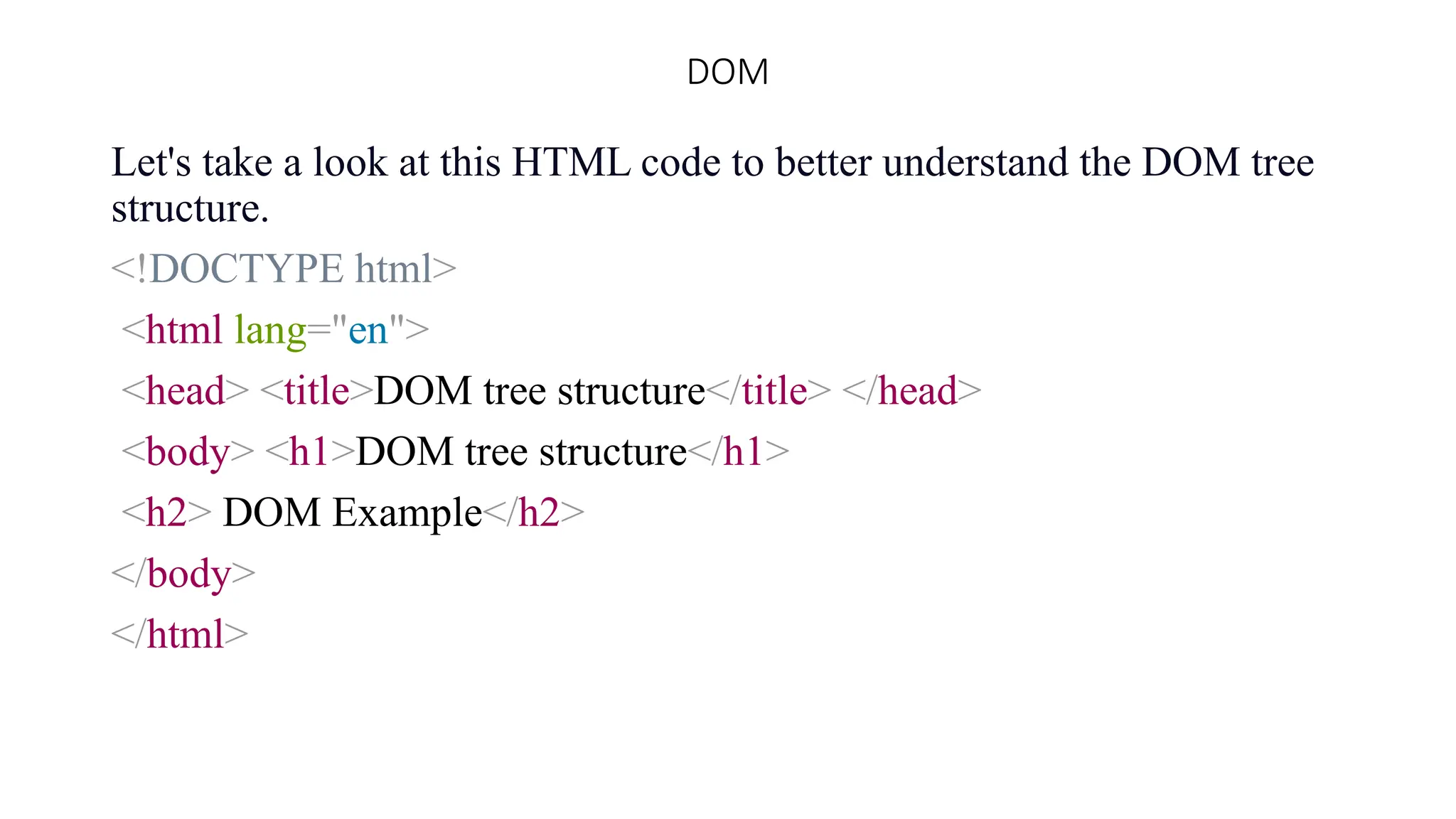
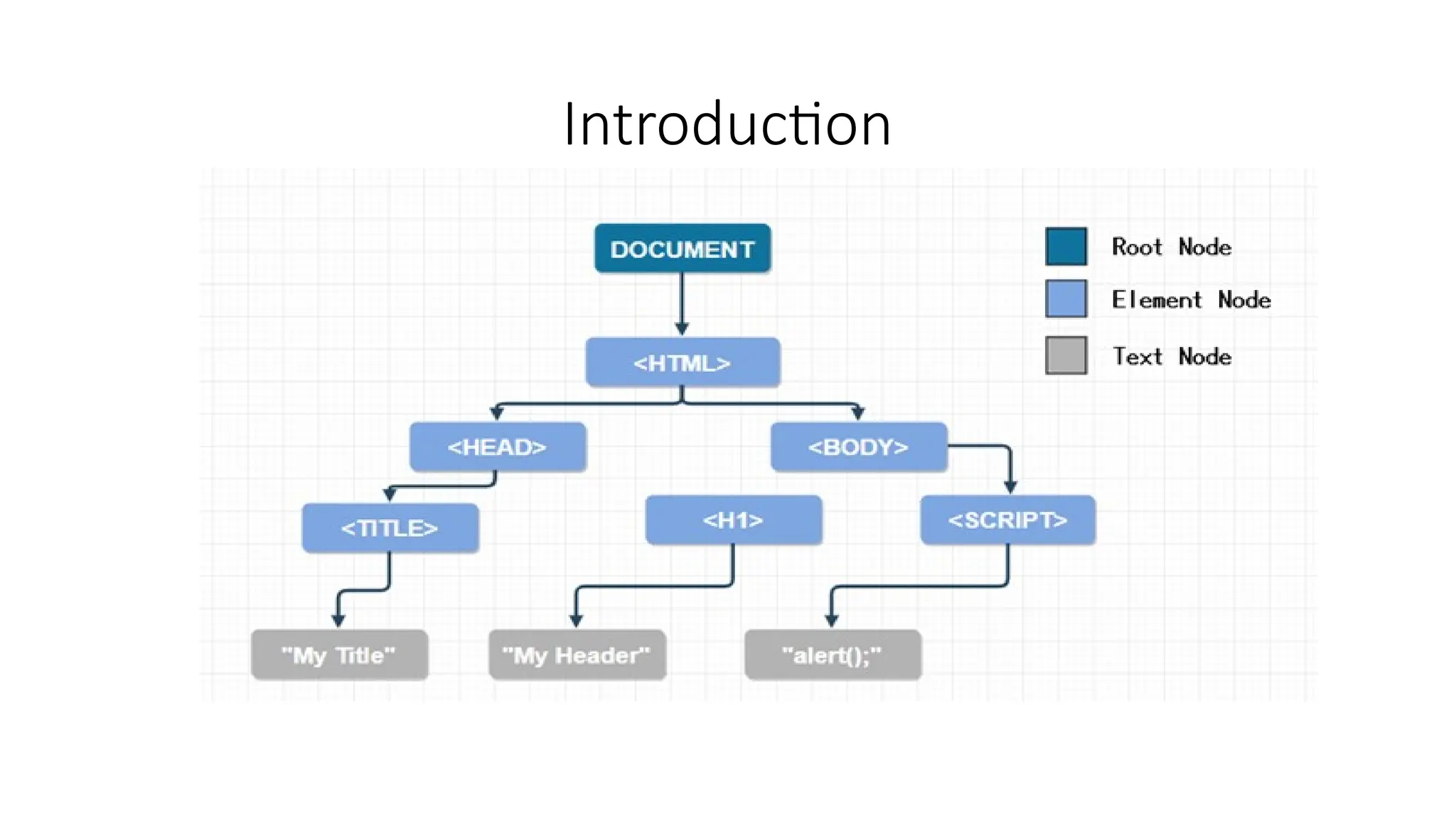
Introduction Cont. • DOM stands for Document Object Model. It is a programming interface that allows us to create, change, or remove elements from the document. We can also add events to these elements to make our page more dynamic. • The DOM views an HTML document as a tree of nodes. A node represents an HTML element.
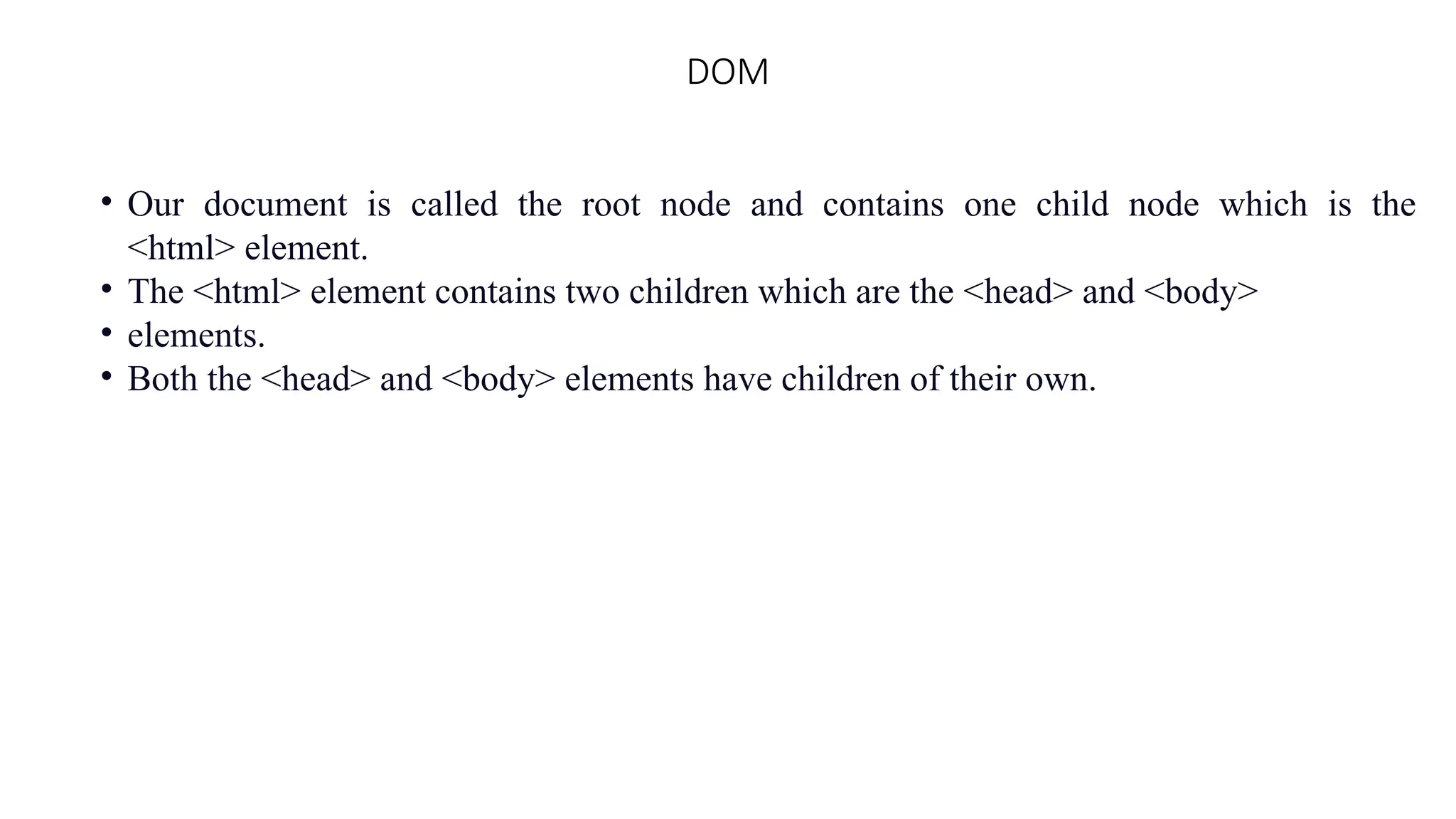
DOM Let's take a look at this HTML code to better understand the DOM tree structure. <!DOCTYPE html> <html lang="en"> <head> <title>DOM tree structure</title> </head> <body> <h1>DOM tree structure</h1> <h2> DOM Example</h2> </body> </html>
DOM • Our document is called the root node and contains one child node which is the <html> element. • The <html> element contains two children which are the <head> and <body> • elements. • Both the <head> and <body> elements have children of their own.
Introduction
USE OF DOM Dynamic Changes or Manipulation In HTML document
DOM Manipulation For DOM manipulation, we first have to select elements; then we can manipulate the HTML document dynamically. 1: How to Select Elements in the Document We have two methods for selecting elements:
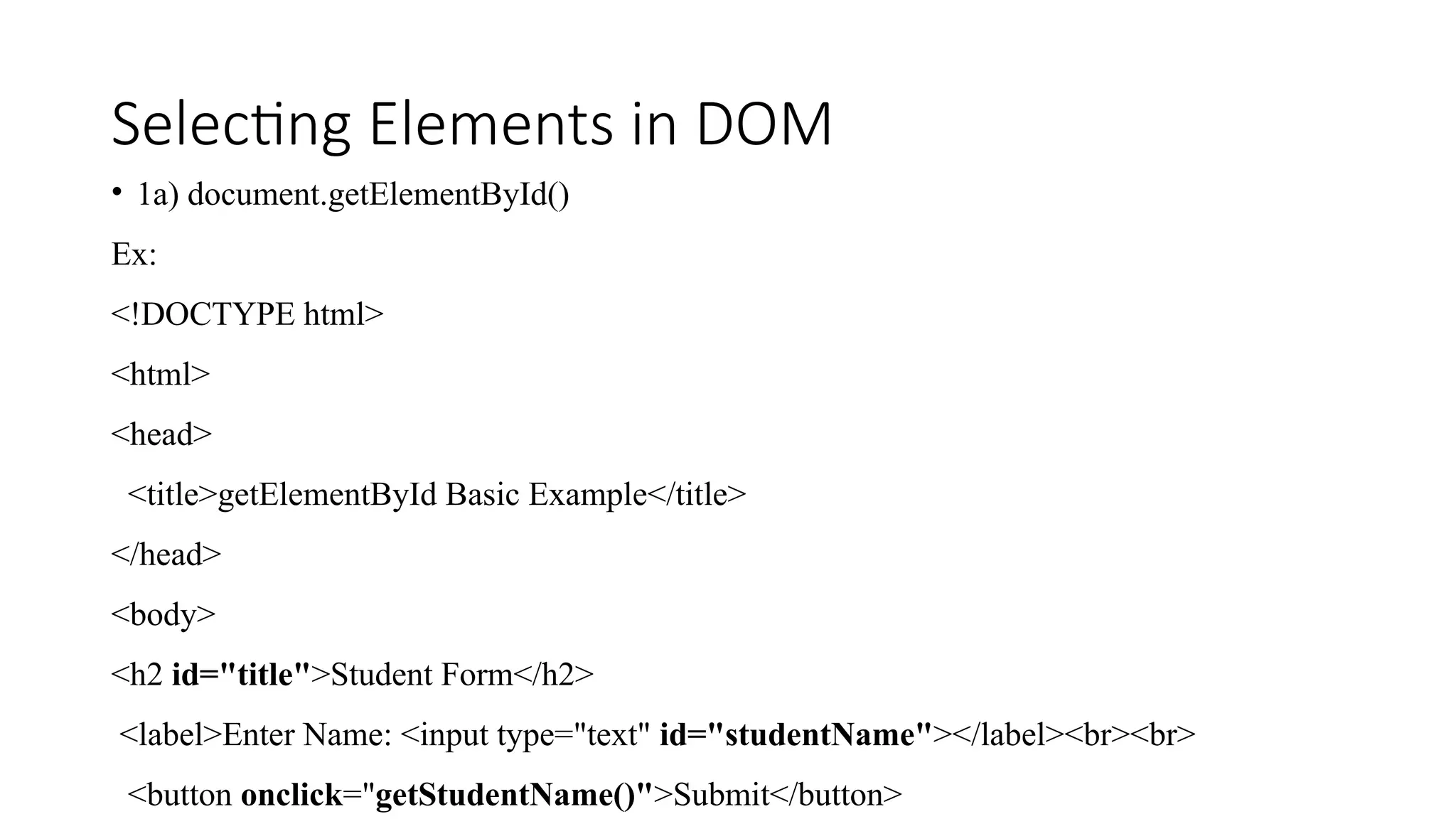
Selecting Elements in DOM • 1a) document.getElementById() Ex: <!DOCTYPE html> <html> <head> <title>getElementById Basic Example</title> </head> <body> <h2 id="title">Student Form</h2> <label>Enter Name: <input type="text" id="studentName"></label><br><br> <button onclick="getStudentName()">Submit</button>
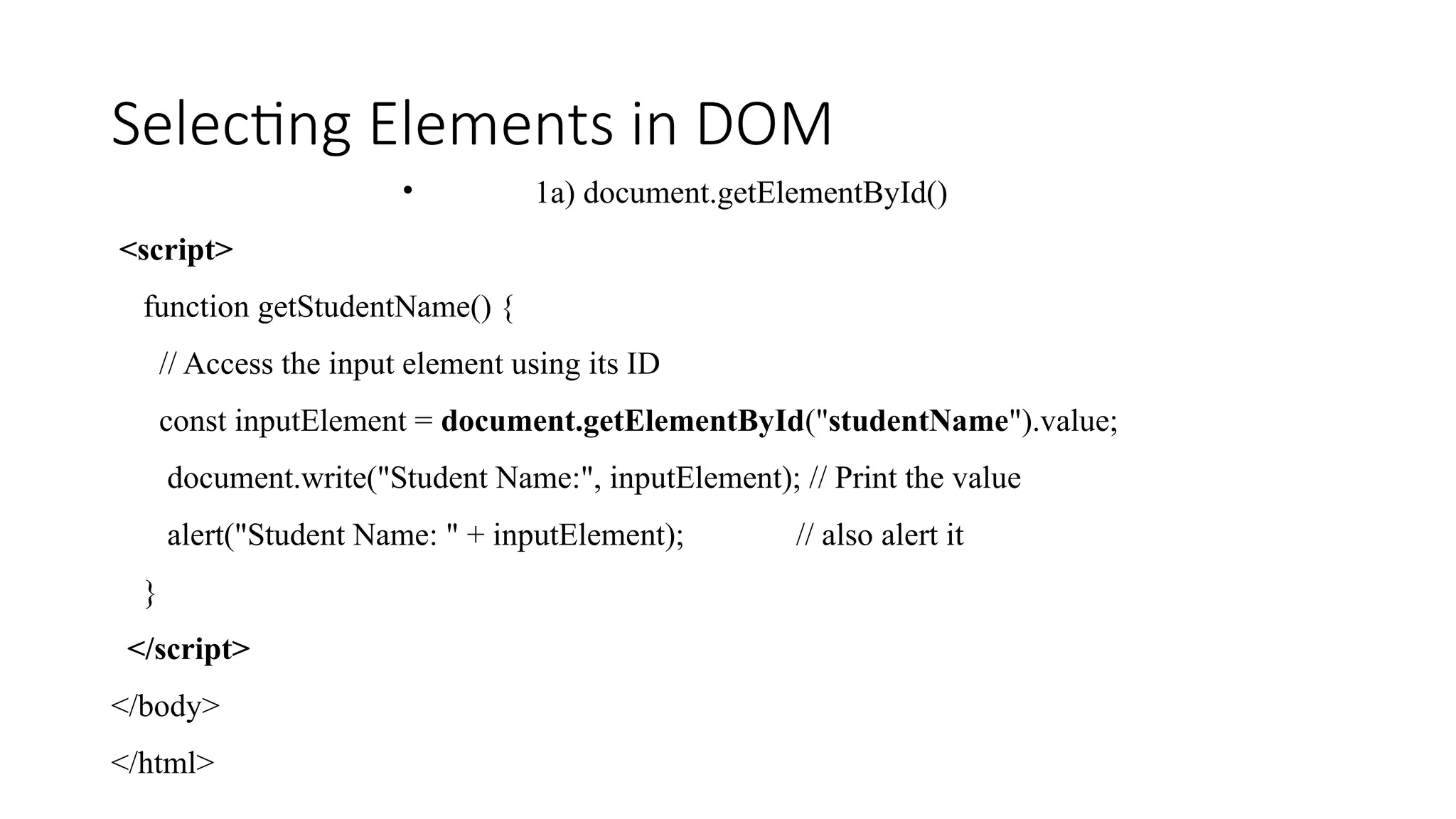
Selecting Elements in DOM • 1a) document.getElementById() <script> function getStudentName() { // Access the input element using its ID const inputElement = document.getElementById("studentName").value; document.write("Student Name:", inputElement); // Print the value alert("Student Name: " + inputElement); // also alert it } </script> </body> </html>
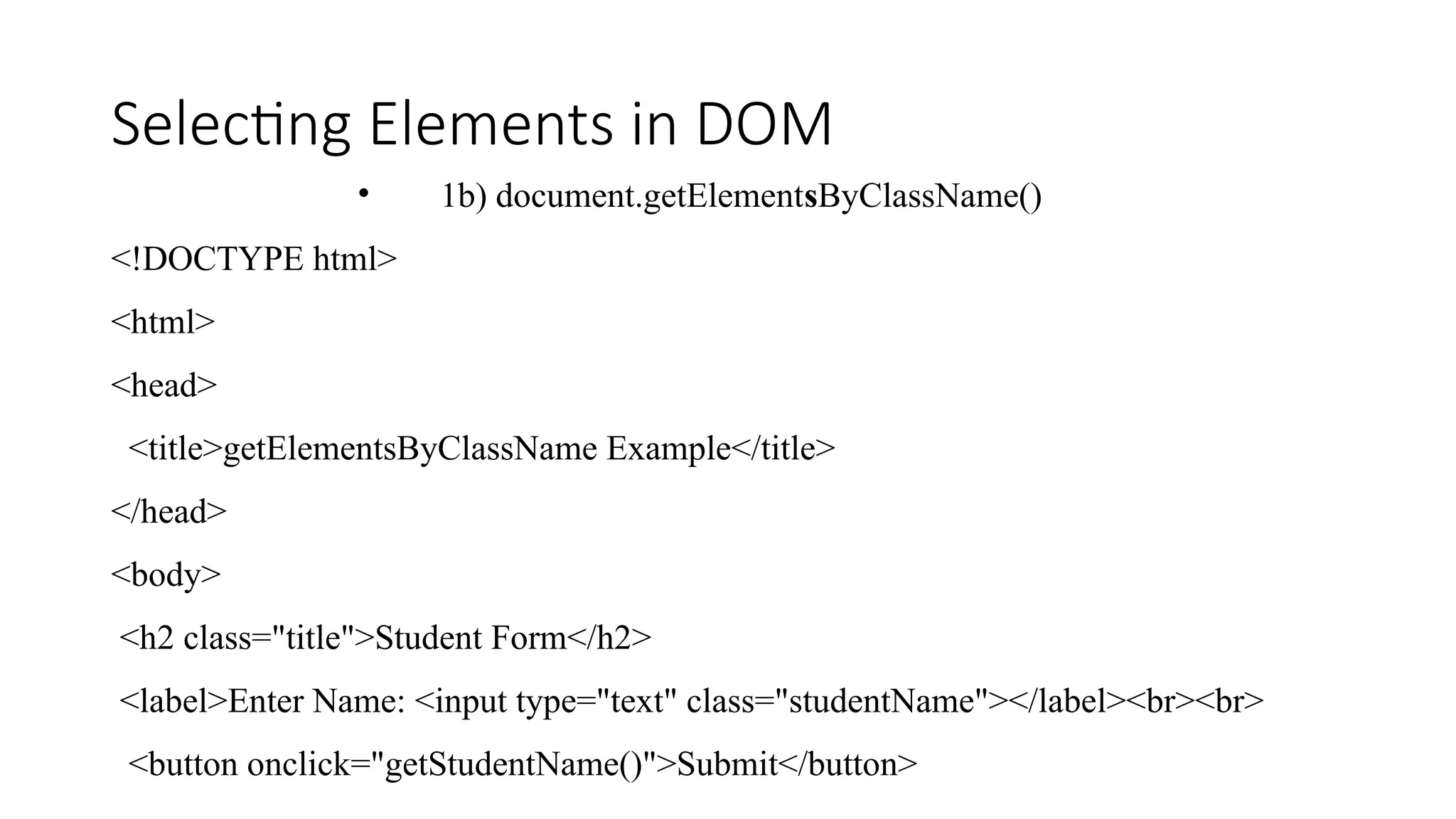
Selecting Elements in DOM • 1b) document.getElementsByClassName() <!DOCTYPE html> <html> <head> <title>getElementsByClassName Example</title> </head> <body> <h2 class="title">Student Form</h2> <label>Enter Name: <input type="text" class="studentName"></label><br><br> <button onclick="getStudentName()">Submit</button>
Selecting Elements in DOM • 1b) document.getElementsByClassName() <script> function getStudentName() { // Step 1: Select the input field by class name const inputElement = document.getElementsByClassName("studentName")[0]; // Step 2: Get the value from the input field const name = inputElement.value; // Step 3: Write to the document (will clear existing page) document.write("Student Name: " + name); } </script> </body> </html>
Selecting Elements in DOM • 1b) document.getElementsByClassName() • getElementsByClassName() returns a collection (array-like), so we access the first element with [0] . You must access specific item using [index] like [0]. • .value is not a property of a collection
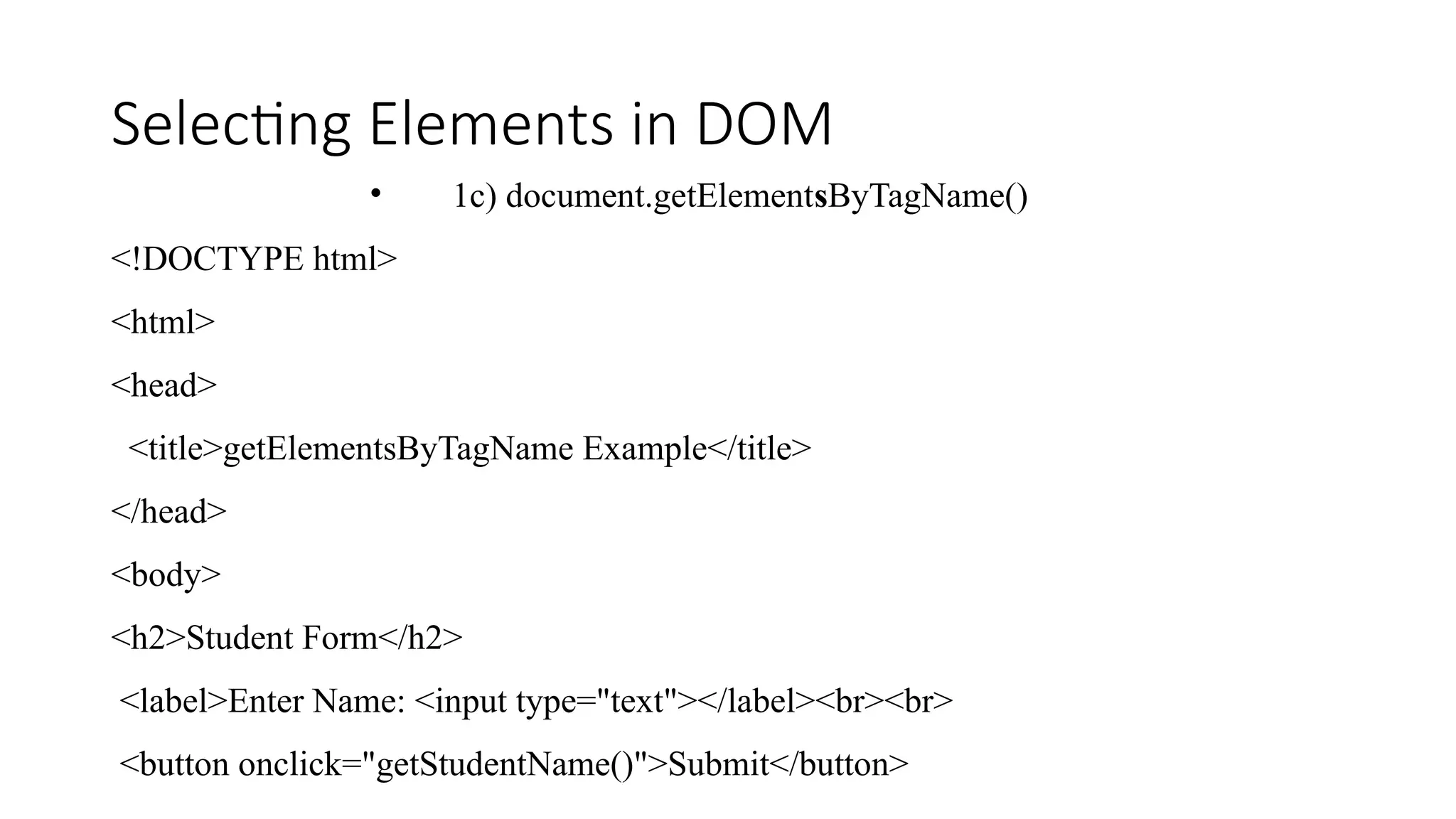
Selecting Elements in DOM • 1c) document.getElementsByTagName() <!DOCTYPE html> <html> <head> <title>getElementsByTagName Example</title> </head> <body> <h2>Student Form</h2> <label>Enter Name: <input type="text"></label><br><br> <button onclick="getStudentName()">Submit</button>
Selecting Elements in DOM • 1c) document.getElementsByTagName() • <script> function getStudentName() { // Step 1: Access all input elements using tag name const inputs = document.getElementsByTagName("input"); // Step 2: Get the value of the first input field const studentName = inputs[0].value; // Step 3: Display the value using document.write document.write("Student Name: " + studentName); } </script> </body> </html>
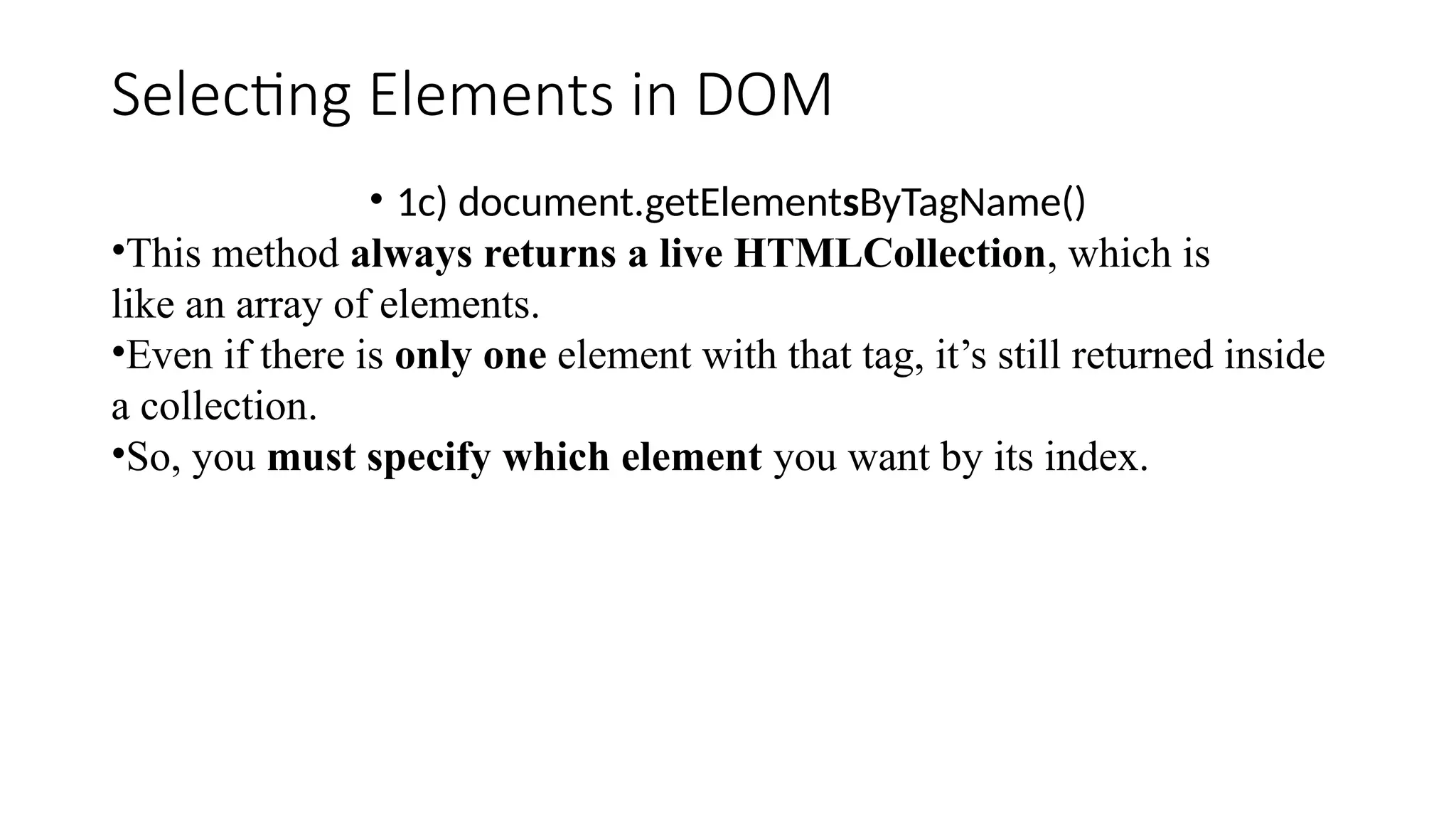
Selecting Elements in DOM • 1c) document.getElementsByTagName() •This method always returns a live HTMLCollection, which is like an array of elements. •Even if there is only one element with that tag, it’s still returned inside a collection. •So, you must specify which element you want by its index.
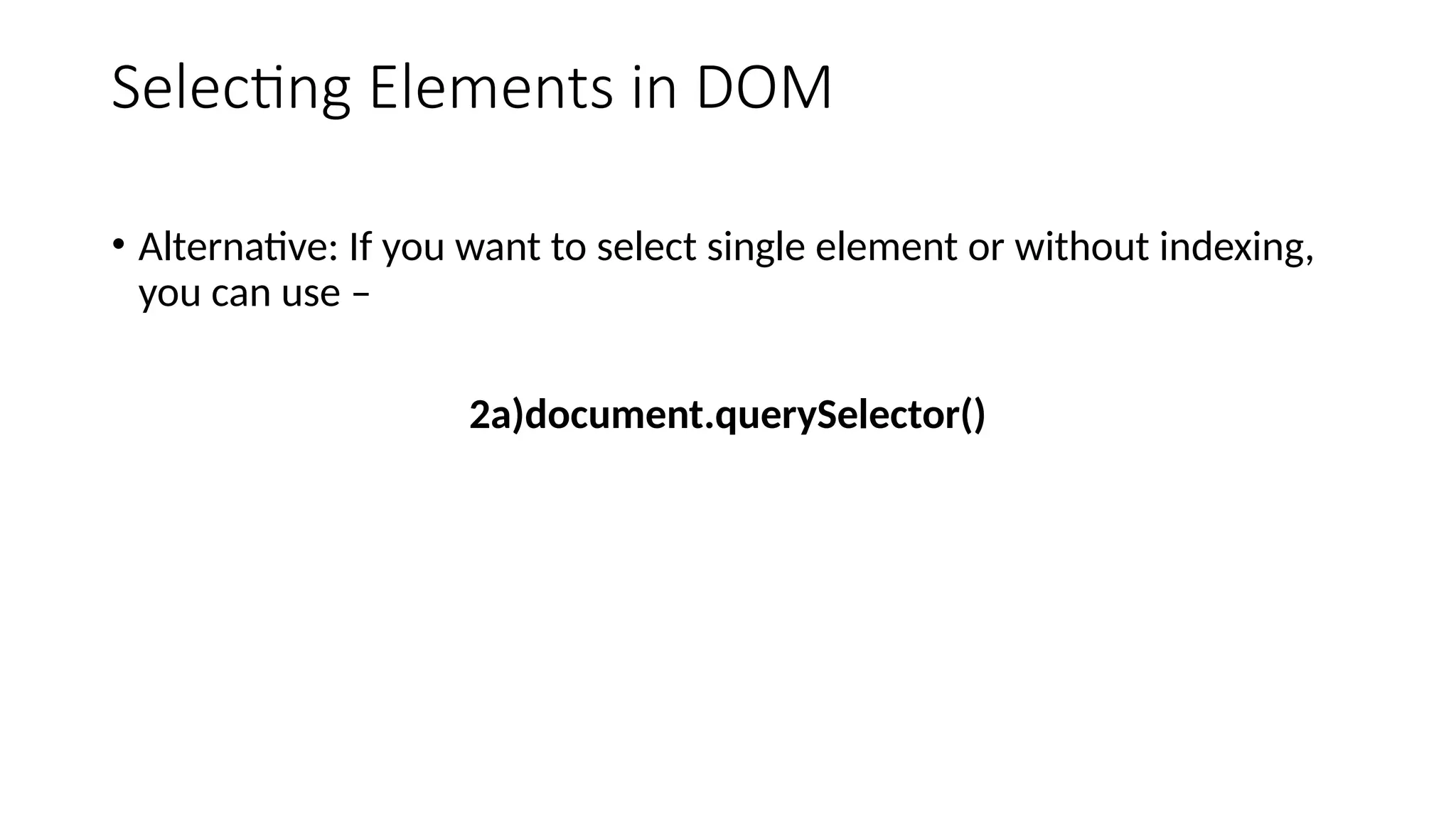
Selecting Elements in DOM • Alternative: If you want to select single element or without indexing, you can use – 2a)document.querySelector()
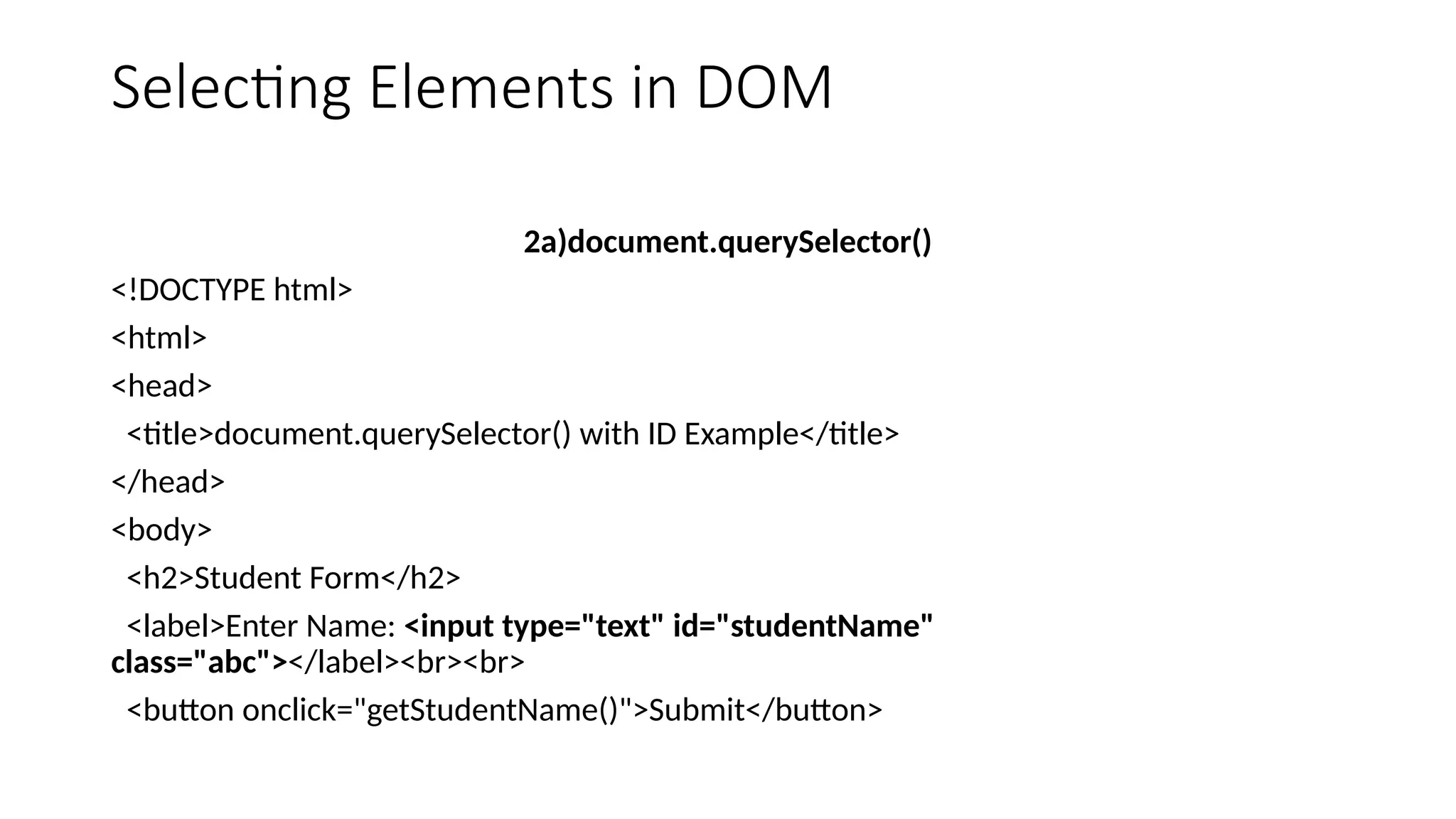
Selecting Elements in DOM 2a)document.querySelector() <!DOCTYPE html> <html> <head> <title>document.querySelector() with ID Example</title> </head> <body> <h2>Student Form</h2> <label>Enter Name: <input type="text" id="studentName" class="abc"></label><br><br> <button onclick="getStudentName()">Submit</button>
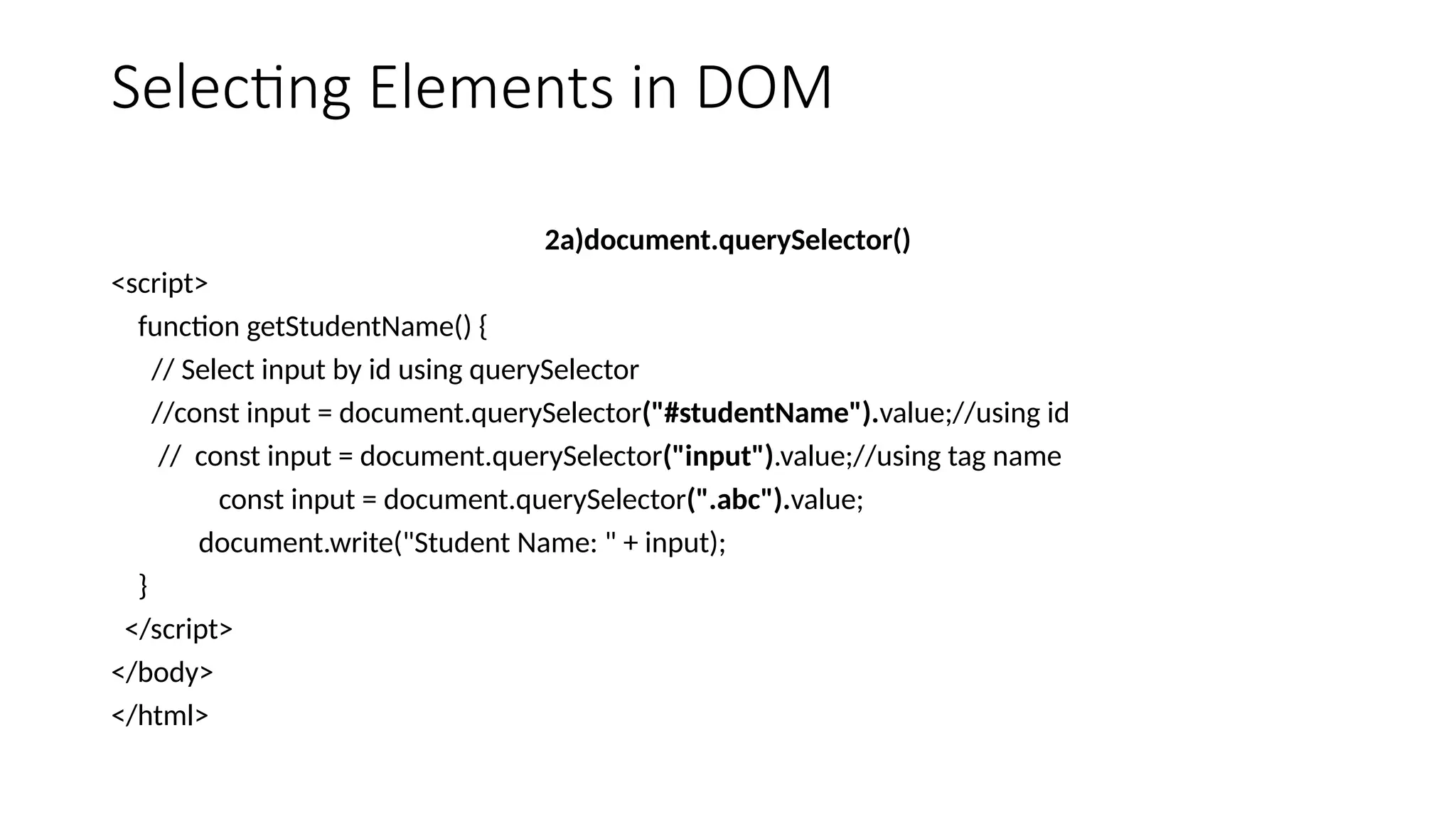
Selecting Elements in DOM 2a)document.querySelector() <script> function getStudentName() { // Select input by id using querySelector //const input = document.querySelector("#studentName").value;//using id // const input = document.querySelector("input").value;//using tag name const input = document.querySelector(".abc").value; document.write("Student Name: " + input); } </script> </body> </html>
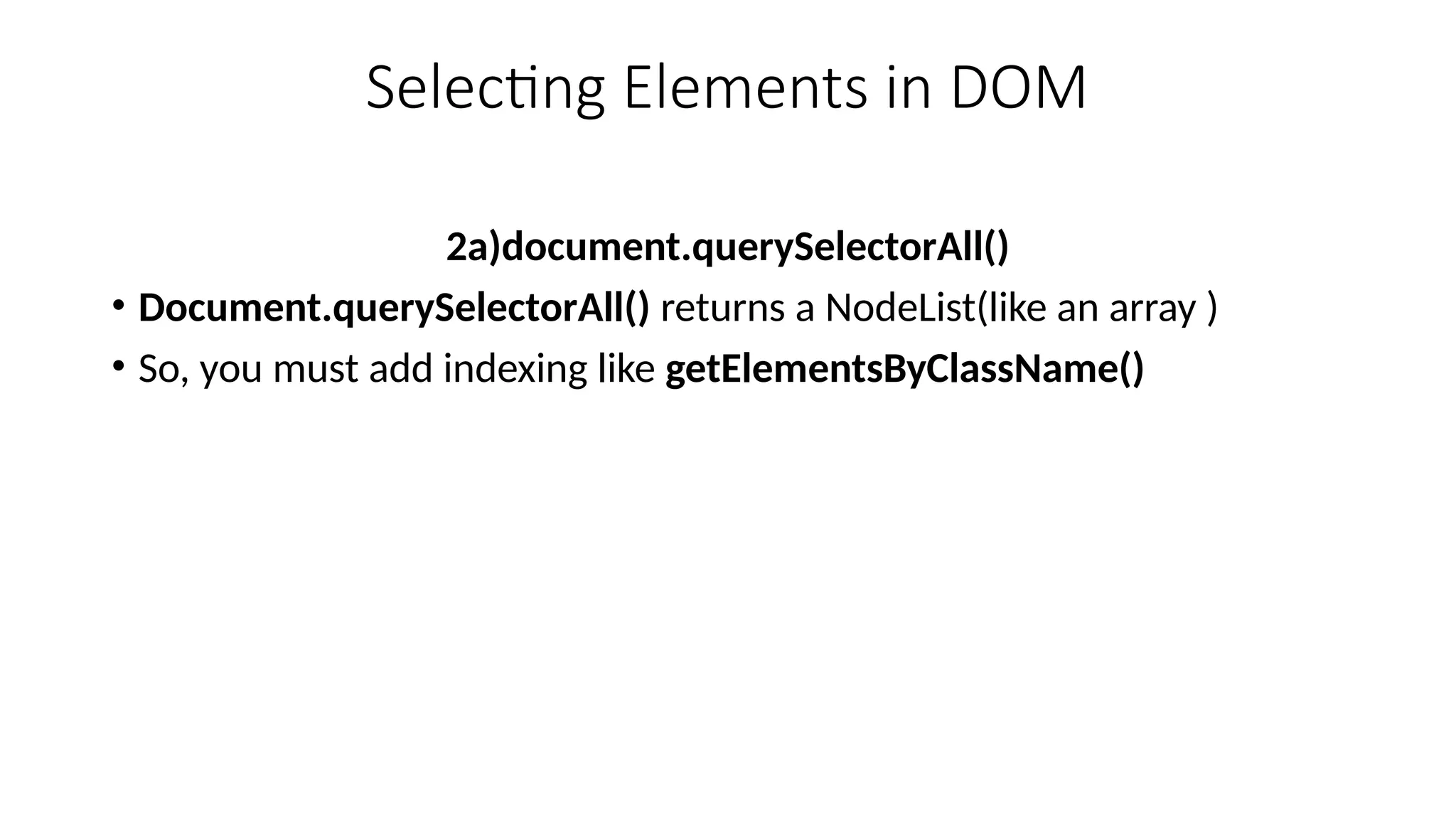
Selecting Elements in DOM 2a)document.querySelectorAll() • Document.querySelectorAll() returns a NodeList(like an array ) • So, you must add indexing like getElementsByClassName()
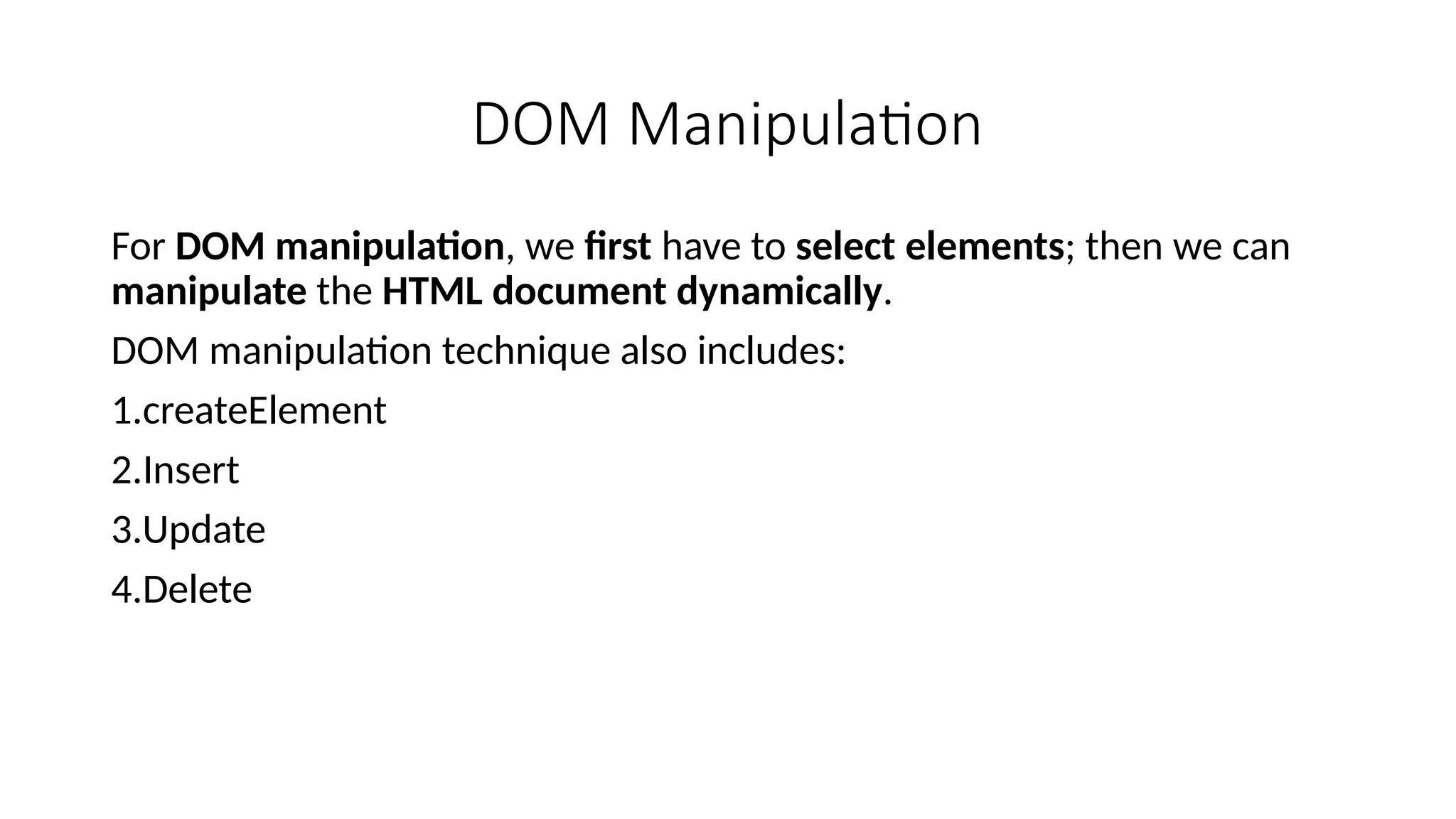
DOM Manipulation For DOM manipulation, we first have to select elements; then we can manipulate the HTML document dynamically. DOM manipulation technique also includes: 1.createElement 2.Insert 3.Update 4.Delete
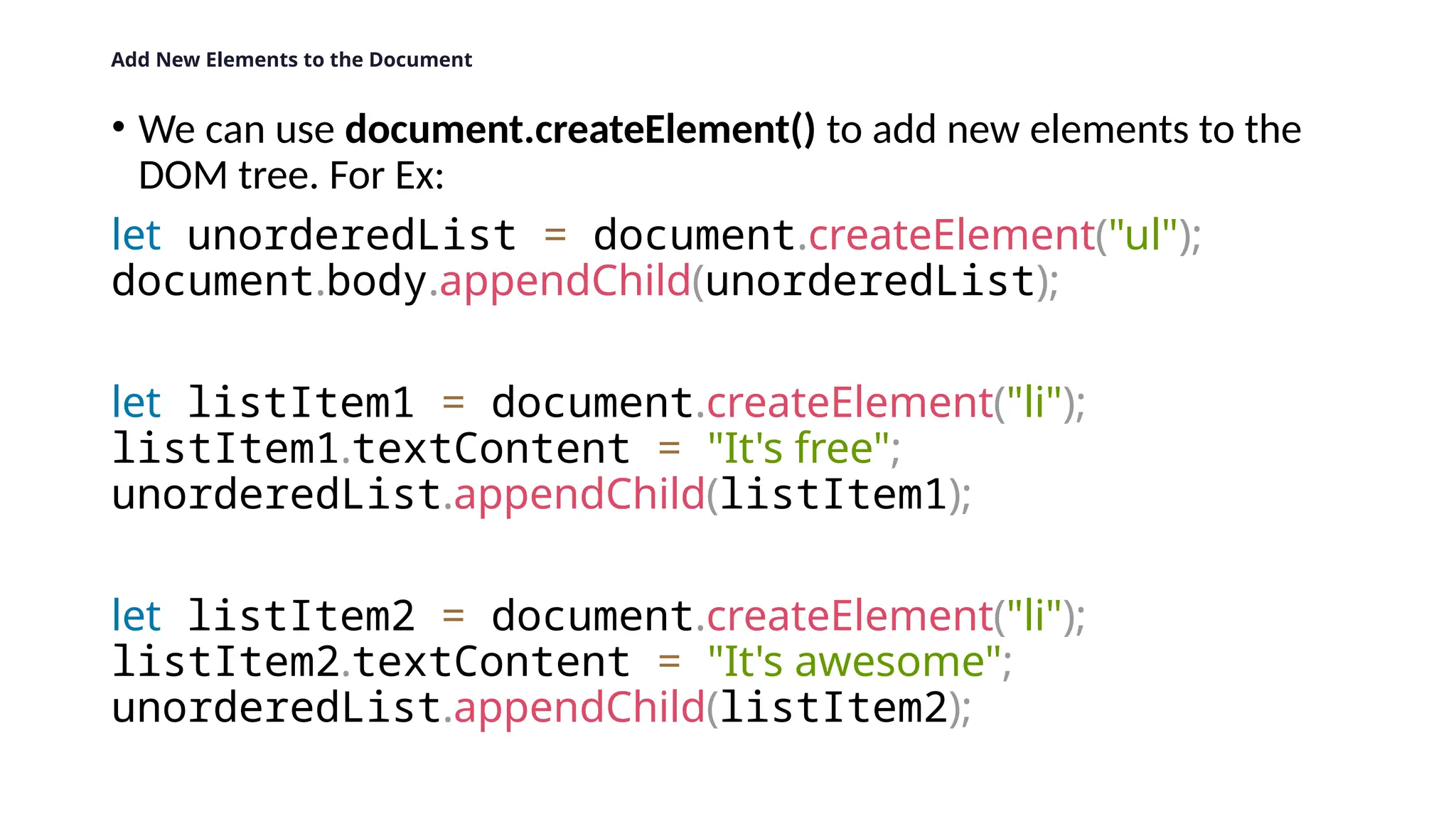
Add New Elements to the Document • We can use document.createElement() to add new elements to the DOM tree. For Ex: let unorderedList = document.createElement("ul"); document.body.appendChild(unorderedList); let listItem1 = document.createElement("li"); listItem1.textContent = "It's free"; unorderedList.appendChild(listItem1); let listItem2 = document.createElement("li"); listItem2.textContent = "It's awesome"; unorderedList.appendChild(listItem2);
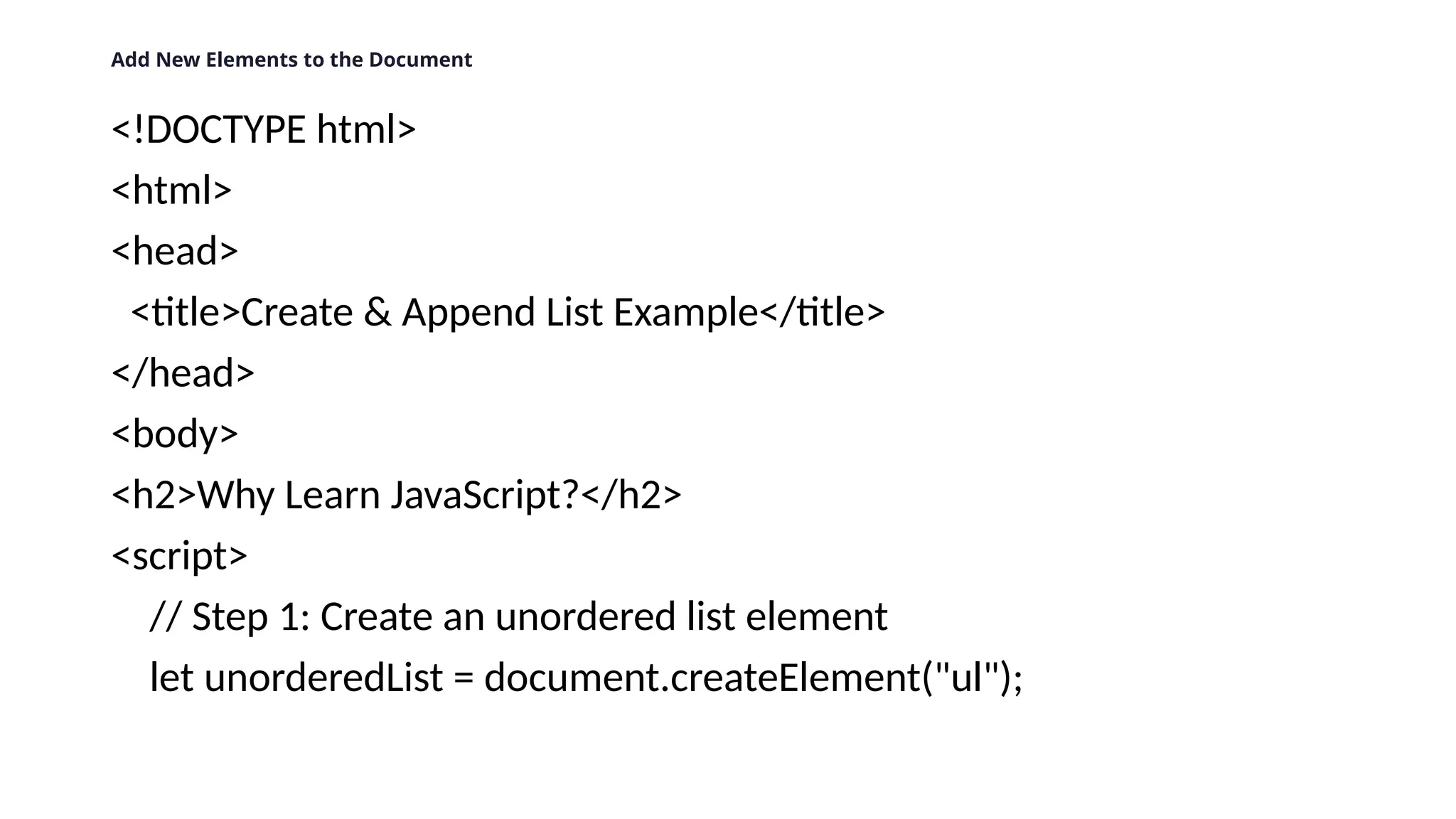
Add New Elements to the Document <!DOCTYPE html> <html> <head> <title>Create & Append List Example</title> </head> <body> <h2>Why Learn JavaScript?</h2> <script> // Step 1: Create an unordered list element let unorderedList = document.createElement("ul");
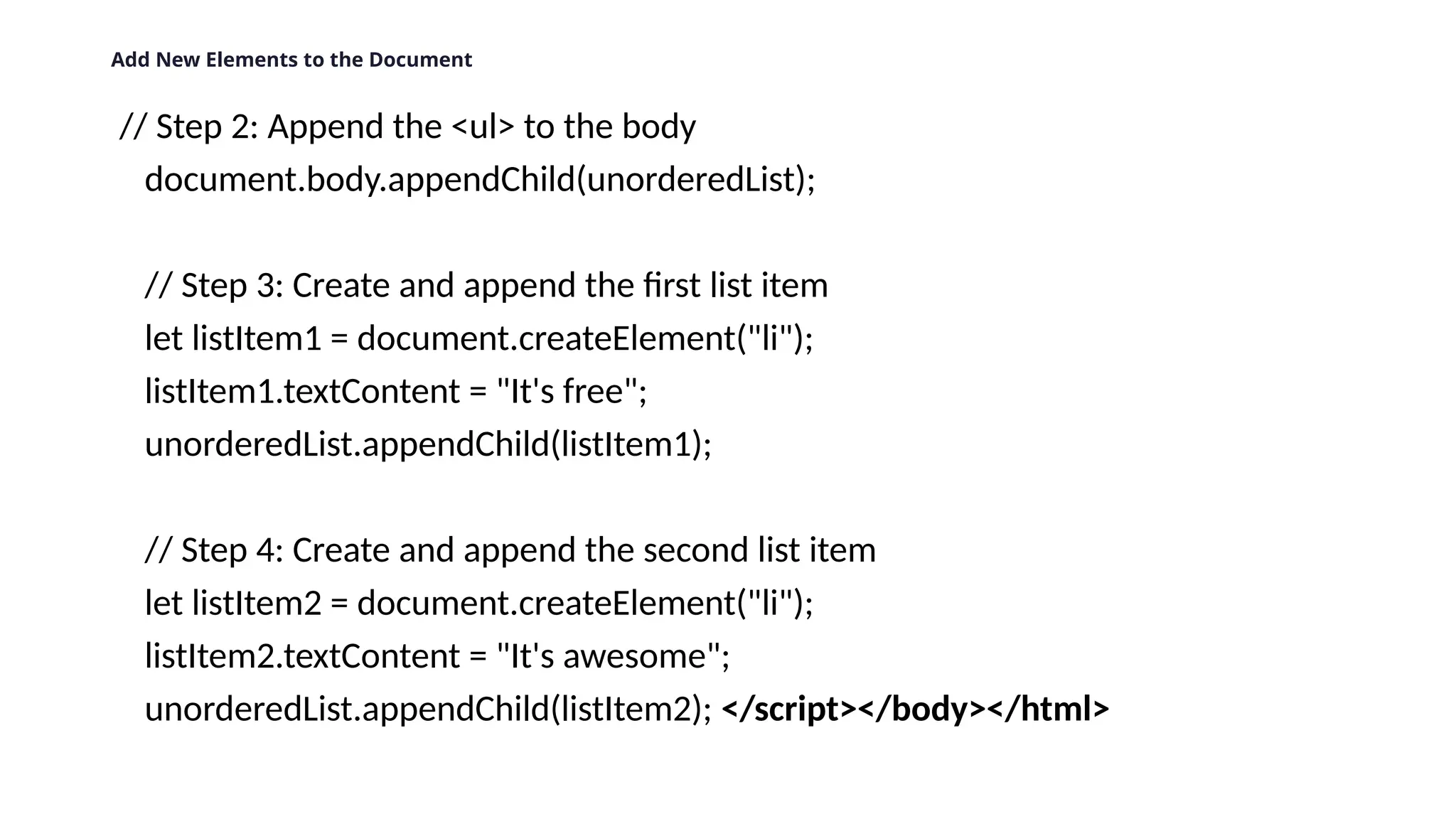
Add New Elements to the Document // Step 2: Append the <ul> to the body document.body.appendChild(unorderedList); // Step 3: Create and append the first list item let listItem1 = document.createElement("li"); listItem1.textContent = "It's free"; unorderedList.appendChild(listItem1); // Step 4: Create and append the second list item let listItem2 = document.createElement("li"); listItem2.textContent = "It's awesome"; unorderedList.appendChild(listItem2); </script></body></html>
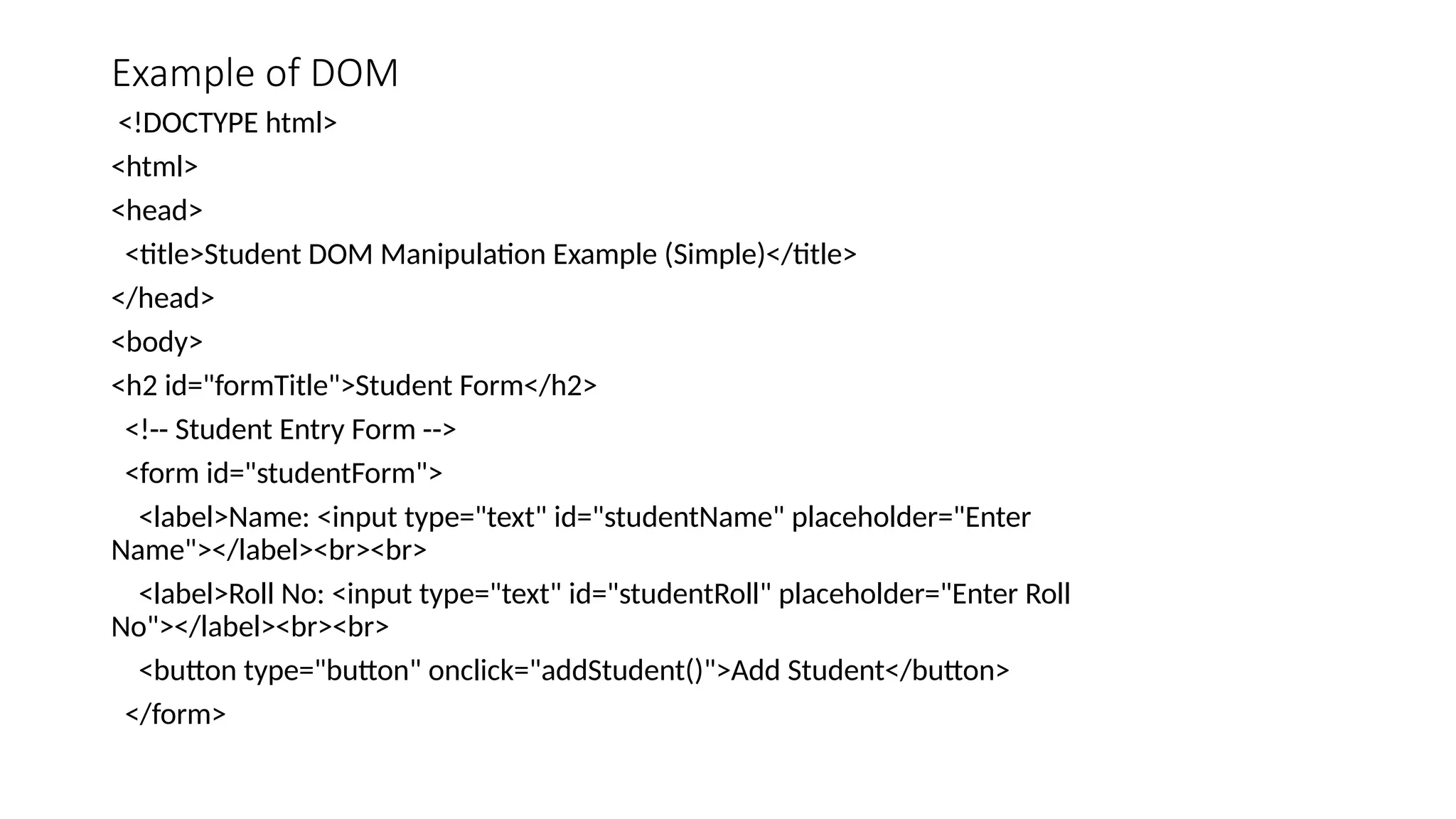
Example of DOM <!DOCTYPE html> <html> <head> <title>Student DOM Manipulation Example (Simple)</title> </head> <body> <h2 id="formTitle">Student Form</h2> <!-- Student Entry Form --> <form id="studentForm"> <label>Name: <input type="text" id="studentName" placeholder="Enter Name"></label><br><br> <label>Roll No: <input type="text" id="studentRoll" placeholder="Enter Roll No"></label><br><br> <button type="button" onclick="addStudent()">Add Student</button> </form>
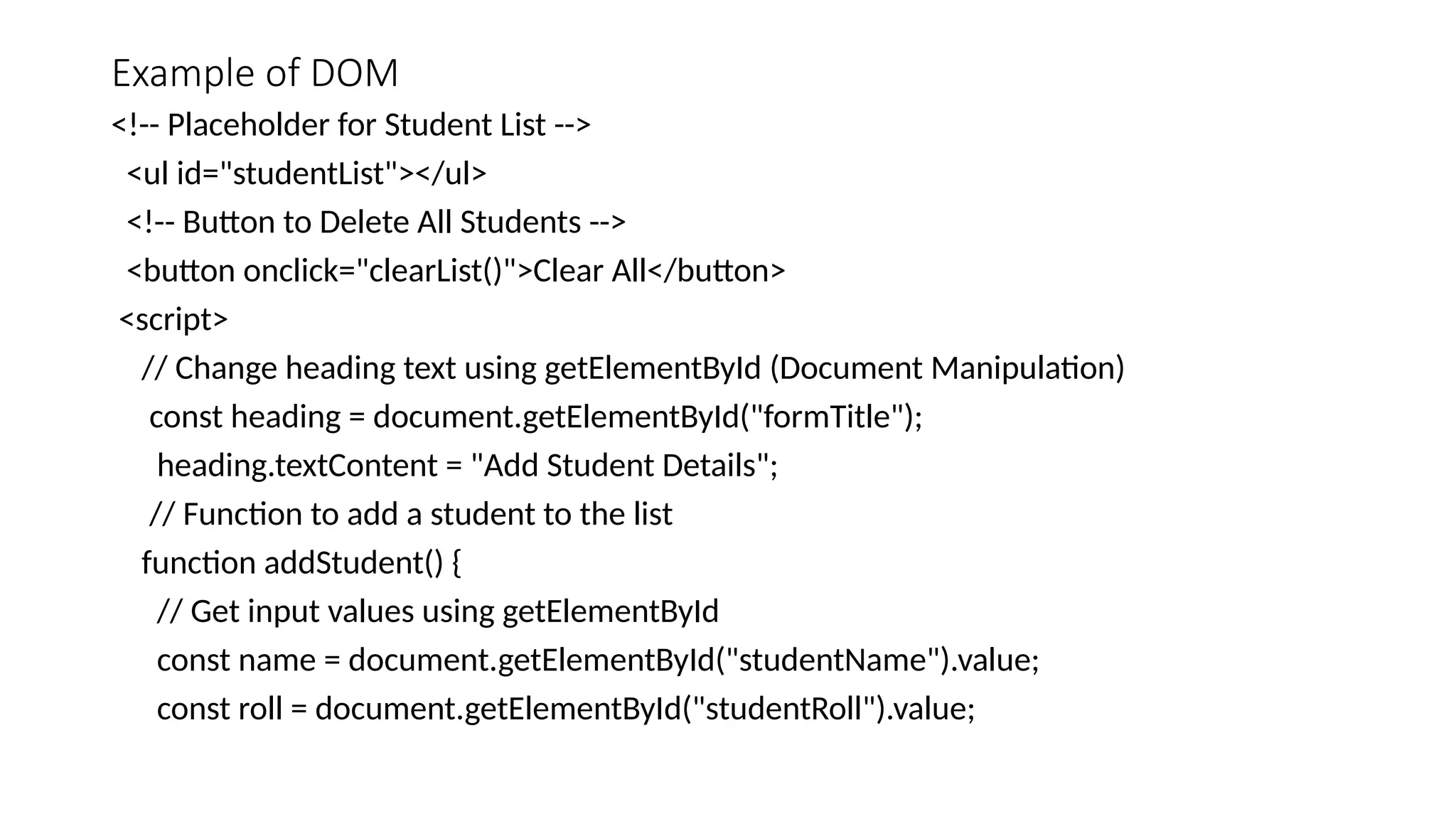
Example of DOM <!-- Placeholder for Student List --> <ul id="studentList"></ul> <!-- Button to Delete All Students --> <button onclick="clearList()">Clear All</button> <script> // Change heading text using getElementById (Document Manipulation) const heading = document.getElementById("formTitle"); heading.textContent = "Add Student Details"; // Function to add a student to the list function addStudent() { // Get input values using getElementById const name = document.getElementById("studentName").value; const roll = document.getElementById("studentRoll").value;
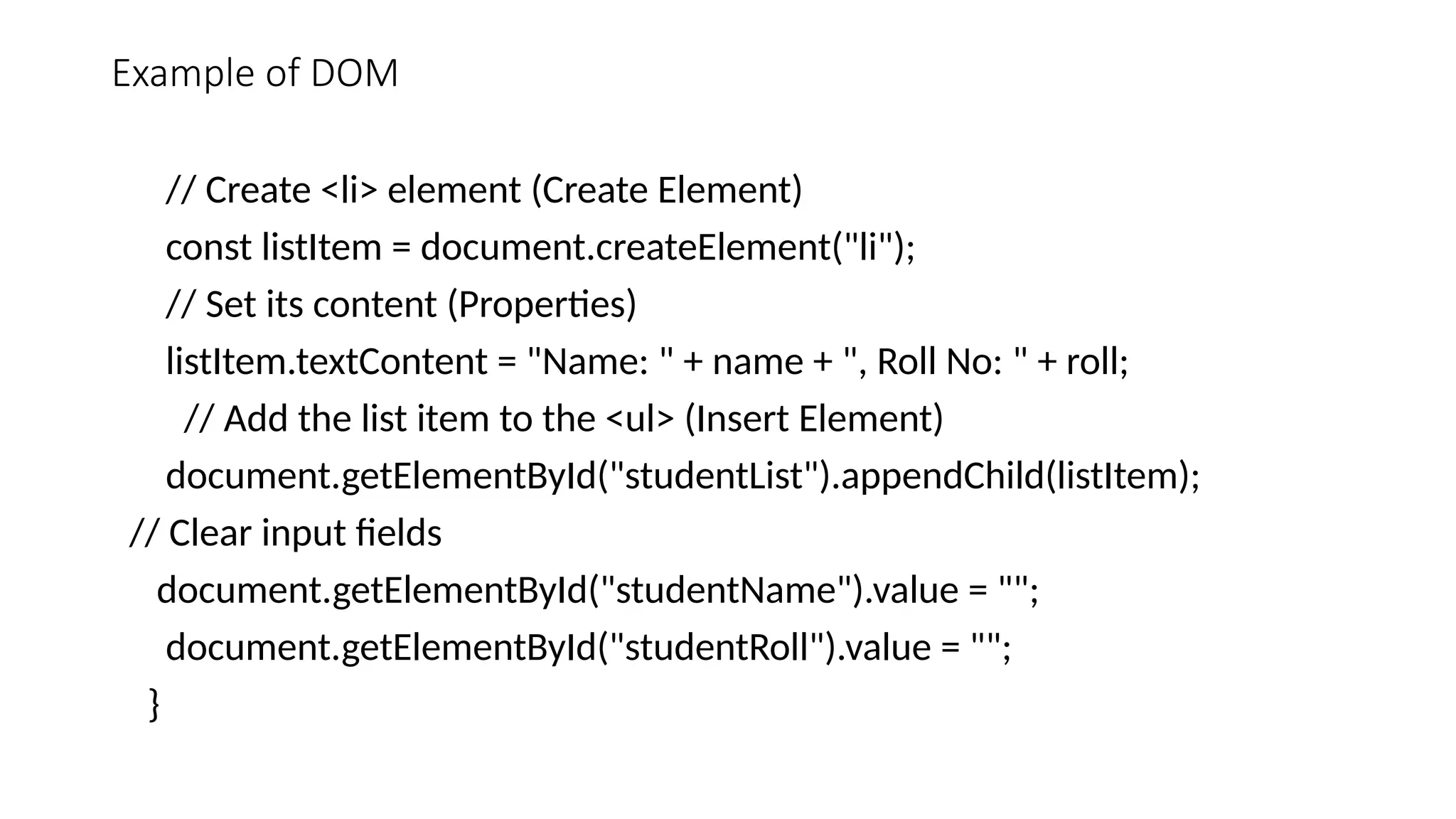
Example of DOM // Create <li> element (Create Element) const listItem = document.createElement("li"); // Set its content (Properties) listItem.textContent = "Name: " + name + ", Roll No: " + roll; // Add the list item to the <ul> (Insert Element) document.getElementById("studentList").appendChild(listItem); // Clear input fields document.getElementById("studentName").value = ""; document.getElementById("studentRoll").value = ""; }
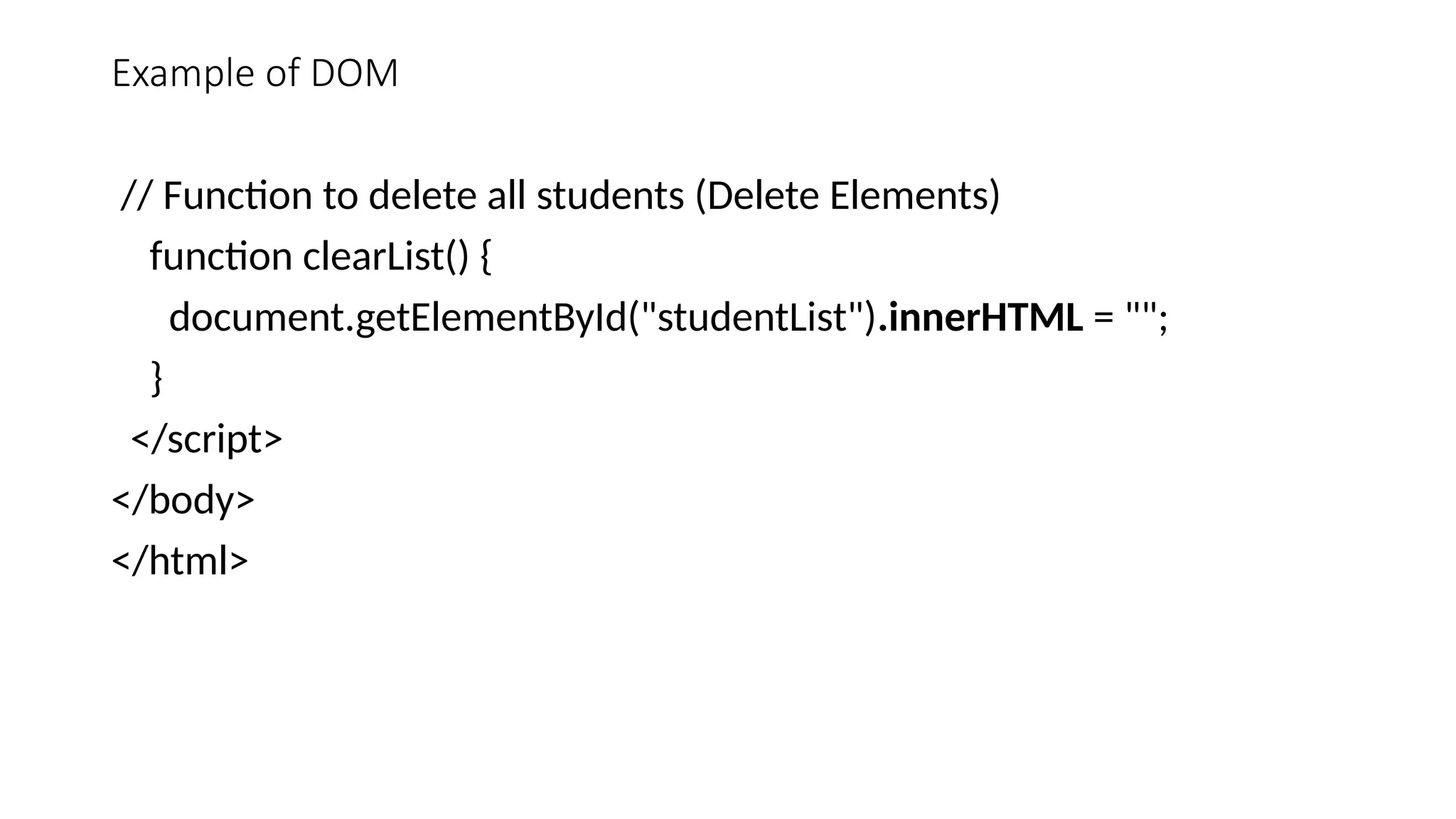
Example of DOM // Function to delete all students (Delete Elements) function clearList() { document.getElementById("studentList").innerHTML = ""; } </script> </body> </html>

DOM (document Object Model) in java Script).pptx

  • 1.
    DOM in JavaScript Akhilesh Nagar Asst.Prof MCA, GL Bajaj Greater Noida
  • 2.
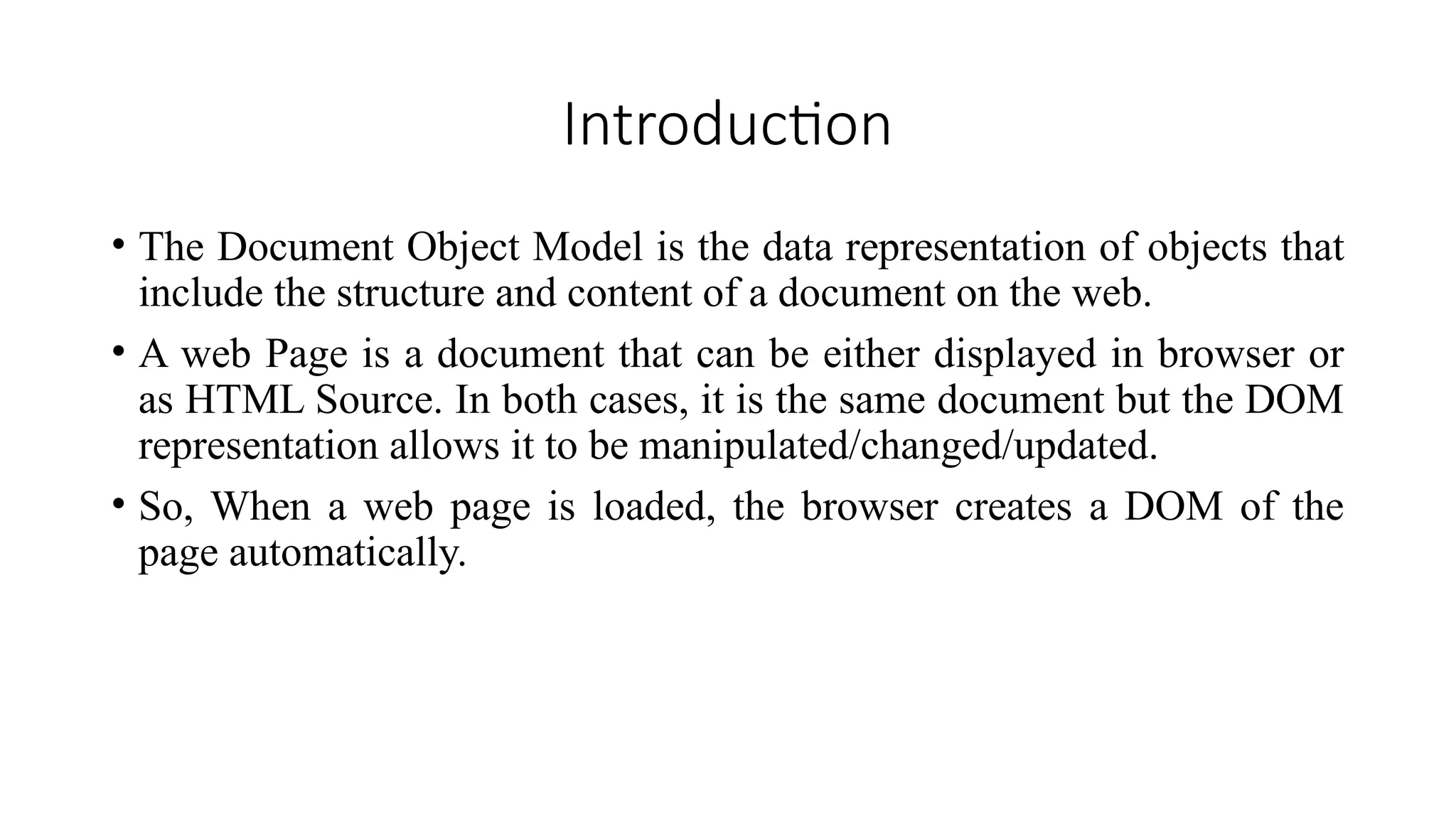
    Introduction • The DocumentObject Model is the data representation of objects that include the structure and content of a document on the web. • A web Page is a document that can be either displayed in browser or as HTML Source. In both cases, it is the same document but the DOM representation allows it to be manipulated/changed/updated. • So, When a web page is loaded, the browser creates a DOM of the page automatically.
  • 3.
    Introduction Cont. • DOMstands for Document Object Model. It is a programming interface that allows us to create, change, or remove elements from the document. We can also add events to these elements to make our page more dynamic. • The DOM views an HTML document as a tree of nodes. A node represents an HTML element.
  • 4.
    DOM Let's take alook at this HTML code to better understand the DOM tree structure. <!DOCTYPE html> <html lang="en"> <head> <title>DOM tree structure</title> </head> <body> <h1>DOM tree structure</h1> <h2> DOM Example</h2> </body> </html>
  • 5.
    DOM • Our documentis called the root node and contains one child node which is the <html> element. • The <html> element contains two children which are the <head> and <body> • elements. • Both the <head> and <body> elements have children of their own.
  • 6.
  • 7.
    USE OF DOM DynamicChanges or Manipulation In HTML document
  • 8.
    DOM Manipulation For DOMmanipulation, we first have to select elements; then we can manipulate the HTML document dynamically. 1: How to Select Elements in the Document We have two methods for selecting elements:
  • 9.
    Selecting Elements inDOM • 1a) document.getElementById() Ex: <!DOCTYPE html> <html> <head> <title>getElementById Basic Example</title> </head> <body> <h2 id="title">Student Form</h2> <label>Enter Name: <input type="text" id="studentName"></label><br><br> <button onclick="getStudentName()">Submit</button>
  • 10.
    Selecting Elements inDOM • 1a) document.getElementById() <script> function getStudentName() { // Access the input element using its ID const inputElement = document.getElementById("studentName").value; document.write("Student Name:", inputElement); // Print the value alert("Student Name: " + inputElement); // also alert it } </script> </body> </html>
  • 11.
    Selecting Elements inDOM • 1b) document.getElementsByClassName() <!DOCTYPE html> <html> <head> <title>getElementsByClassName Example</title> </head> <body> <h2 class="title">Student Form</h2> <label>Enter Name: <input type="text" class="studentName"></label><br><br> <button onclick="getStudentName()">Submit</button>
  • 12.
    Selecting Elements inDOM • 1b) document.getElementsByClassName() <script> function getStudentName() { // Step 1: Select the input field by class name const inputElement = document.getElementsByClassName("studentName")[0]; // Step 2: Get the value from the input field const name = inputElement.value; // Step 3: Write to the document (will clear existing page) document.write("Student Name: " + name); } </script> </body> </html>
  • 13.
    Selecting Elements inDOM • 1b) document.getElementsByClassName() • getElementsByClassName() returns a collection (array-like), so we access the first element with [0] . You must access specific item using [index] like [0]. • .value is not a property of a collection
  • 14.
    Selecting Elements inDOM • 1c) document.getElementsByTagName() <!DOCTYPE html> <html> <head> <title>getElementsByTagName Example</title> </head> <body> <h2>Student Form</h2> <label>Enter Name: <input type="text"></label><br><br> <button onclick="getStudentName()">Submit</button>
  • 15.
    Selecting Elements inDOM • 1c) document.getElementsByTagName() • <script> function getStudentName() { // Step 1: Access all input elements using tag name const inputs = document.getElementsByTagName("input"); // Step 2: Get the value of the first input field const studentName = inputs[0].value; // Step 3: Display the value using document.write document.write("Student Name: " + studentName); } </script> </body> </html>
  • 16.
    Selecting Elements inDOM • 1c) document.getElementsByTagName() •This method always returns a live HTMLCollection, which is like an array of elements. •Even if there is only one element with that tag, it’s still returned inside a collection. •So, you must specify which element you want by its index.
  • 17.
    Selecting Elements inDOM • Alternative: If you want to select single element or without indexing, you can use – 2a)document.querySelector()
  • 18.
    Selecting Elements inDOM 2a)document.querySelector() <!DOCTYPE html> <html> <head> <title>document.querySelector() with ID Example</title> </head> <body> <h2>Student Form</h2> <label>Enter Name: <input type="text" id="studentName" class="abc"></label><br><br> <button onclick="getStudentName()">Submit</button>
  • 19.
    Selecting Elements inDOM 2a)document.querySelector() <script> function getStudentName() { // Select input by id using querySelector //const input = document.querySelector("#studentName").value;//using id // const input = document.querySelector("input").value;//using tag name const input = document.querySelector(".abc").value; document.write("Student Name: " + input); } </script> </body> </html>
  • 20.
    Selecting Elements inDOM 2a)document.querySelectorAll() • Document.querySelectorAll() returns a NodeList(like an array ) • So, you must add indexing like getElementsByClassName()
  • 21.
    DOM Manipulation For DOMmanipulation, we first have to select elements; then we can manipulate the HTML document dynamically. DOM manipulation technique also includes: 1.createElement 2.Insert 3.Update 4.Delete
  • 22.
    Add New Elementsto the Document • We can use document.createElement() to add new elements to the DOM tree. For Ex: let unorderedList = document.createElement("ul"); document.body.appendChild(unorderedList); let listItem1 = document.createElement("li"); listItem1.textContent = "It's free"; unorderedList.appendChild(listItem1); let listItem2 = document.createElement("li"); listItem2.textContent = "It's awesome"; unorderedList.appendChild(listItem2);
  • 23.
    Add New Elementsto the Document <!DOCTYPE html> <html> <head> <title>Create & Append List Example</title> </head> <body> <h2>Why Learn JavaScript?</h2> <script> // Step 1: Create an unordered list element let unorderedList = document.createElement("ul");
  • 24.
    Add New Elementsto the Document // Step 2: Append the <ul> to the body document.body.appendChild(unorderedList); // Step 3: Create and append the first list item let listItem1 = document.createElement("li"); listItem1.textContent = "It's free"; unorderedList.appendChild(listItem1); // Step 4: Create and append the second list item let listItem2 = document.createElement("li"); listItem2.textContent = "It's awesome"; unorderedList.appendChild(listItem2); </script></body></html>
  • 25.
    Example of DOM <!DOCTYPEhtml> <html> <head> <title>Student DOM Manipulation Example (Simple)</title> </head> <body> <h2 id="formTitle">Student Form</h2> <!-- Student Entry Form --> <form id="studentForm"> <label>Name: <input type="text" id="studentName" placeholder="Enter Name"></label><br><br> <label>Roll No: <input type="text" id="studentRoll" placeholder="Enter Roll No"></label><br><br> <button type="button" onclick="addStudent()">Add Student</button> </form>
  • 26.
    Example of DOM <!--Placeholder for Student List --> <ul id="studentList"></ul> <!-- Button to Delete All Students --> <button onclick="clearList()">Clear All</button> <script> // Change heading text using getElementById (Document Manipulation) const heading = document.getElementById("formTitle"); heading.textContent = "Add Student Details"; // Function to add a student to the list function addStudent() { // Get input values using getElementById const name = document.getElementById("studentName").value; const roll = document.getElementById("studentRoll").value;
  • 27.
    Example of DOM //Create <li> element (Create Element) const listItem = document.createElement("li"); // Set its content (Properties) listItem.textContent = "Name: " + name + ", Roll No: " + roll; // Add the list item to the <ul> (Insert Element) document.getElementById("studentList").appendChild(listItem); // Clear input fields document.getElementById("studentName").value = ""; document.getElementById("studentRoll").value = ""; }
  • 28.
    Example of DOM //Function to delete all students (Delete Elements) function clearList() { document.getElementById("studentList").innerHTML = ""; } </script> </body> </html>