WORKSHOP ON ARDUINO DAY – 1: ARDUINO BASICS DESIGN INNOVATION CENTRE
Free and Open-Source Software (FOSS)  Free and open-source software (FOSS) allows users and programmers to edit, modify or reuse the software's source code. This gives developers the opportunity to improve program functionality by modifying it.  The term “free” indicates that the software does not have constraints on copyrights. The term “open source” indicates the software is in its project form, enabling easy software development from expert developers collaborating worldwide without any need for reverse engineering.  Some examples of FOSS include: Linux Kernel, Ubuntu, Nextcloud, Google Chrome OS, Android OS, BSD, GIMP, Blender, OpenOffice, Chrome Browser, Eclipse, etc.
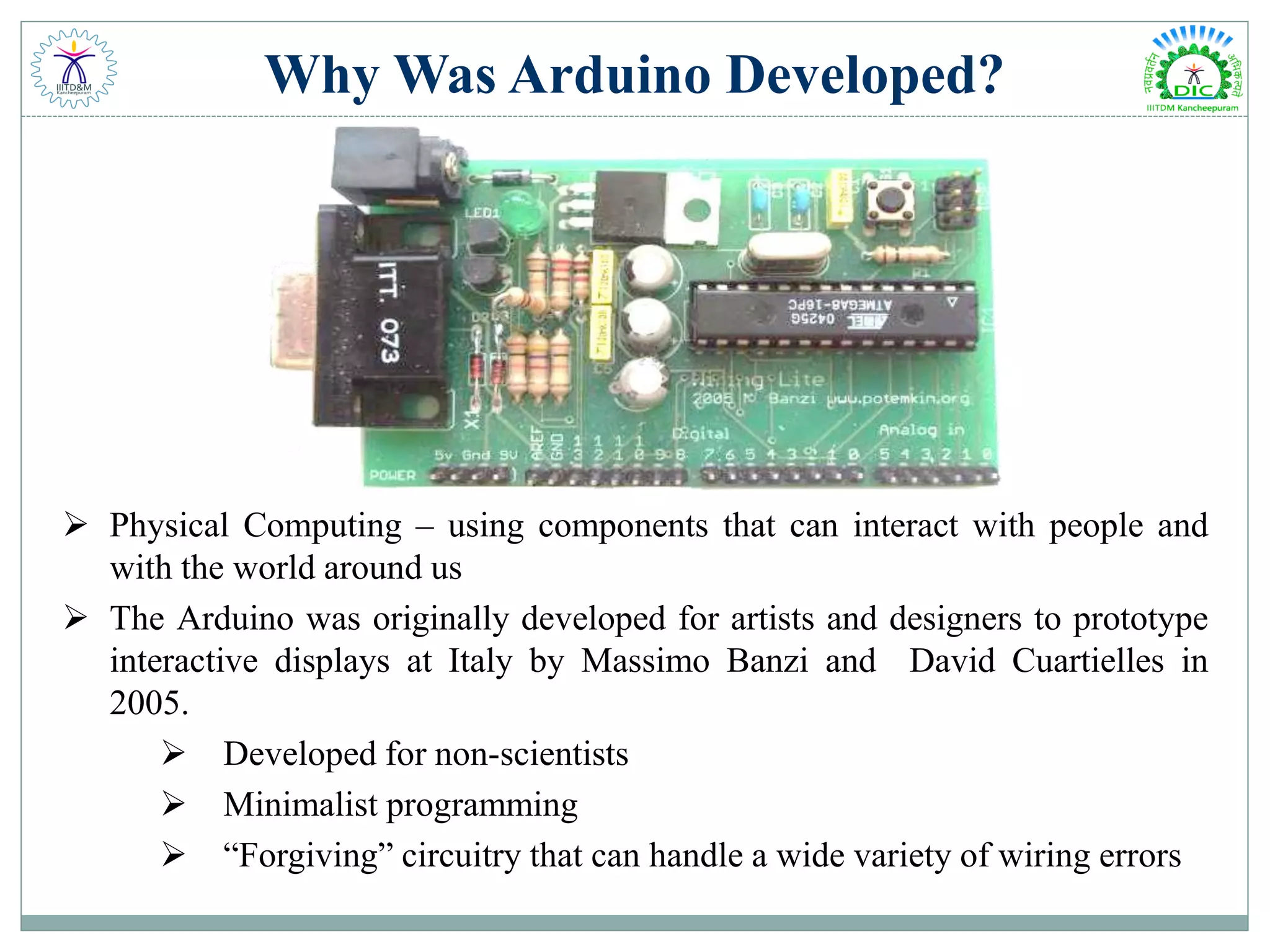
Why Was Arduino Developed?  Physical Computing – using components that can interact with people and with the world around us  The Arduino was originally developed for artists and designers to prototype interactive displays at Italy by Massimo Banzi and David Cuartielles in 2005.  Developed for non-scientists  Minimalist programming  “Forgiving” circuitry that can handle a wide variety of wiring errors
What is Arduino Not?  It is not a chip (IC)  It is not a board (PCB)  It is not a company or a manufacturer  It is not a programming language  It is not a computer architecture (although it involves all of these things...) Official Definition: Arduino is an open-source electronics prototyping platform based on flexible, easy-to-use hardware and software. It's intended for artists, designers, hobbyists, and anyone interested in creating interactive objects or environments.
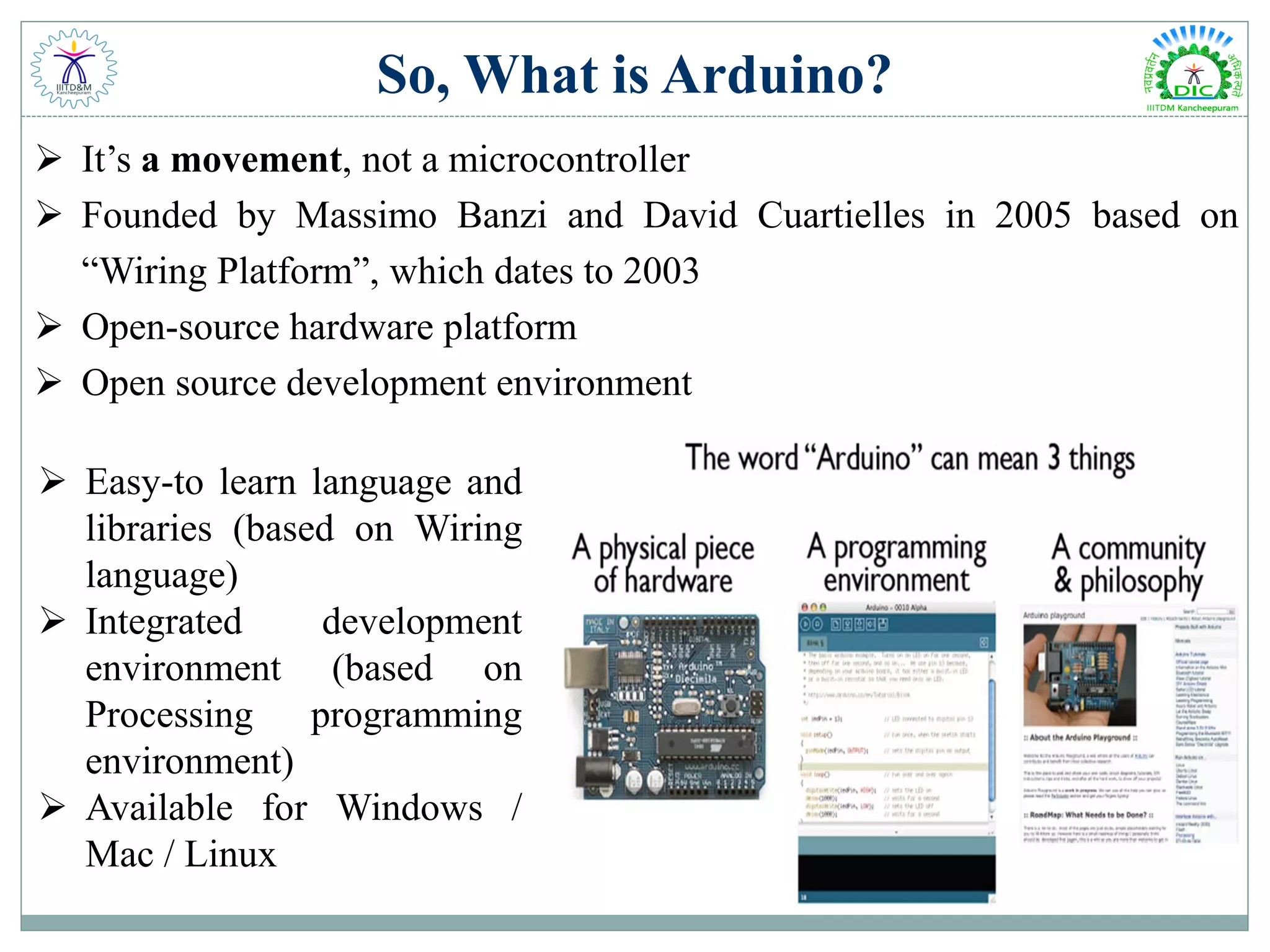
So, What is Arduino?  It’s a movement, not a microcontroller  Founded by Massimo Banzi and David Cuartielles in 2005 based on “Wiring Platform”, which dates to 2003  Open-source hardware platform  Open source development environment  Easy-to learn language and libraries (based on Wiring language)  Integrated development environment (based on Processing programming environment)  Available for Windows / Mac / Linux
Why Arduino?  For whatever reason, Arduino microcontrollers have become the de facto standard  Strives for the balance between ease of use and usefulness 1. Programming languages seen as major obstacle 2. Arduino C is a greatly simplified version of C++  It is an open-source project, software/hardware is extremely accessible and very flexible to be customized and extended  Arduino is backed up by a growing online community, lots of source code is already available and we can share and post our examples for others to use, too!  It is inexpensive and comes with free authoring software Original Arduino.cc Manufactured Arduino Uno: ₹ 2,400.00 Electrical & Code compatible Arduino Uno Clone: ₹ 500.00
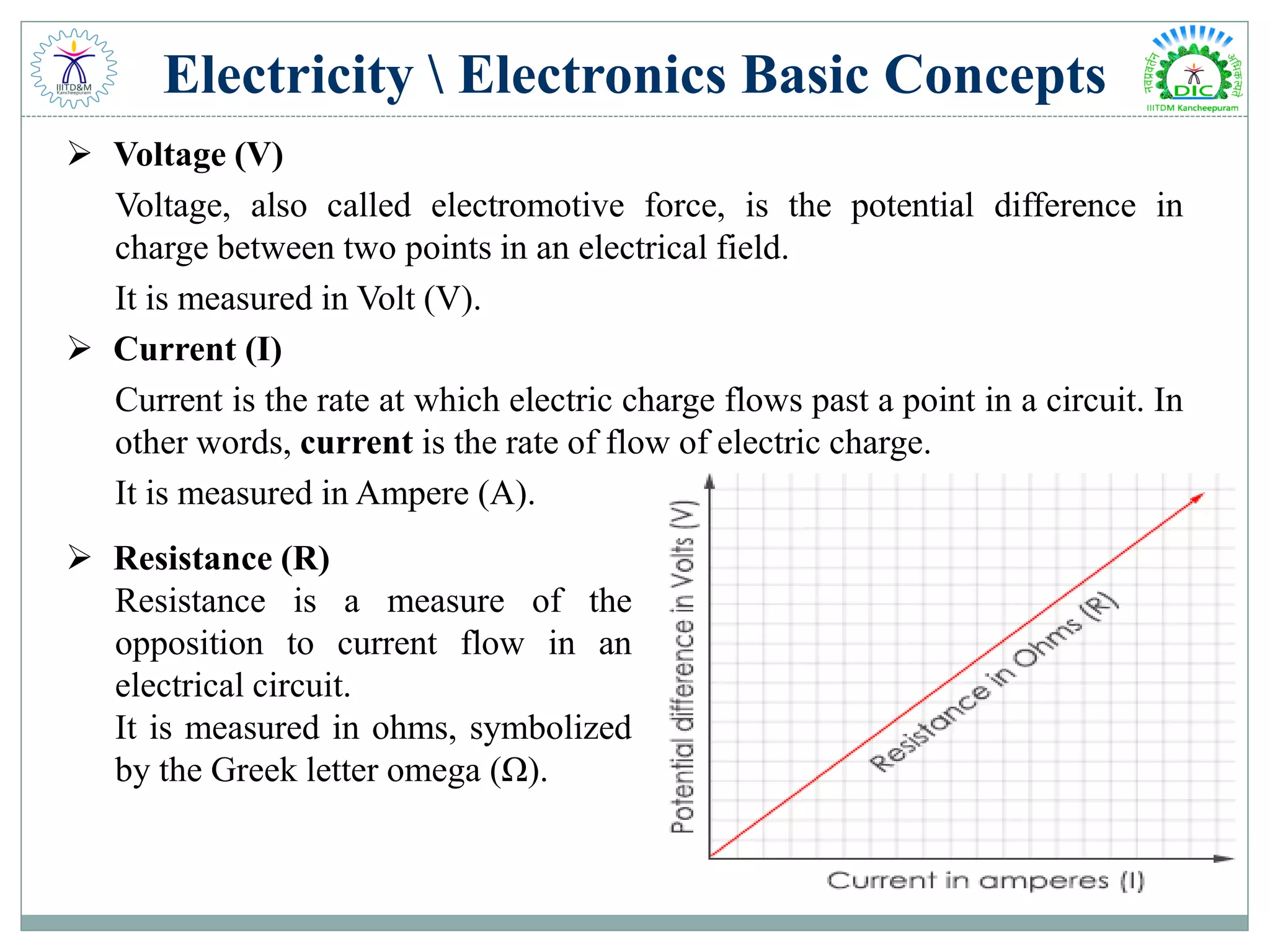
Electricity Electronics Basic Concepts  Voltage (V) Voltage, also called electromotive force, is the potential difference in charge between two points in an electrical field. It is measured in Volt (V).  Current (I) Current is the rate at which electric charge flows past a point in a circuit. In other words, current is the rate of flow of electric charge. It is measured in Ampere (A).  Resistance (R) Resistance is a measure of the opposition to current flow in an electrical circuit. It is measured in ohms, symbolized by the Greek letter omega (Ω).
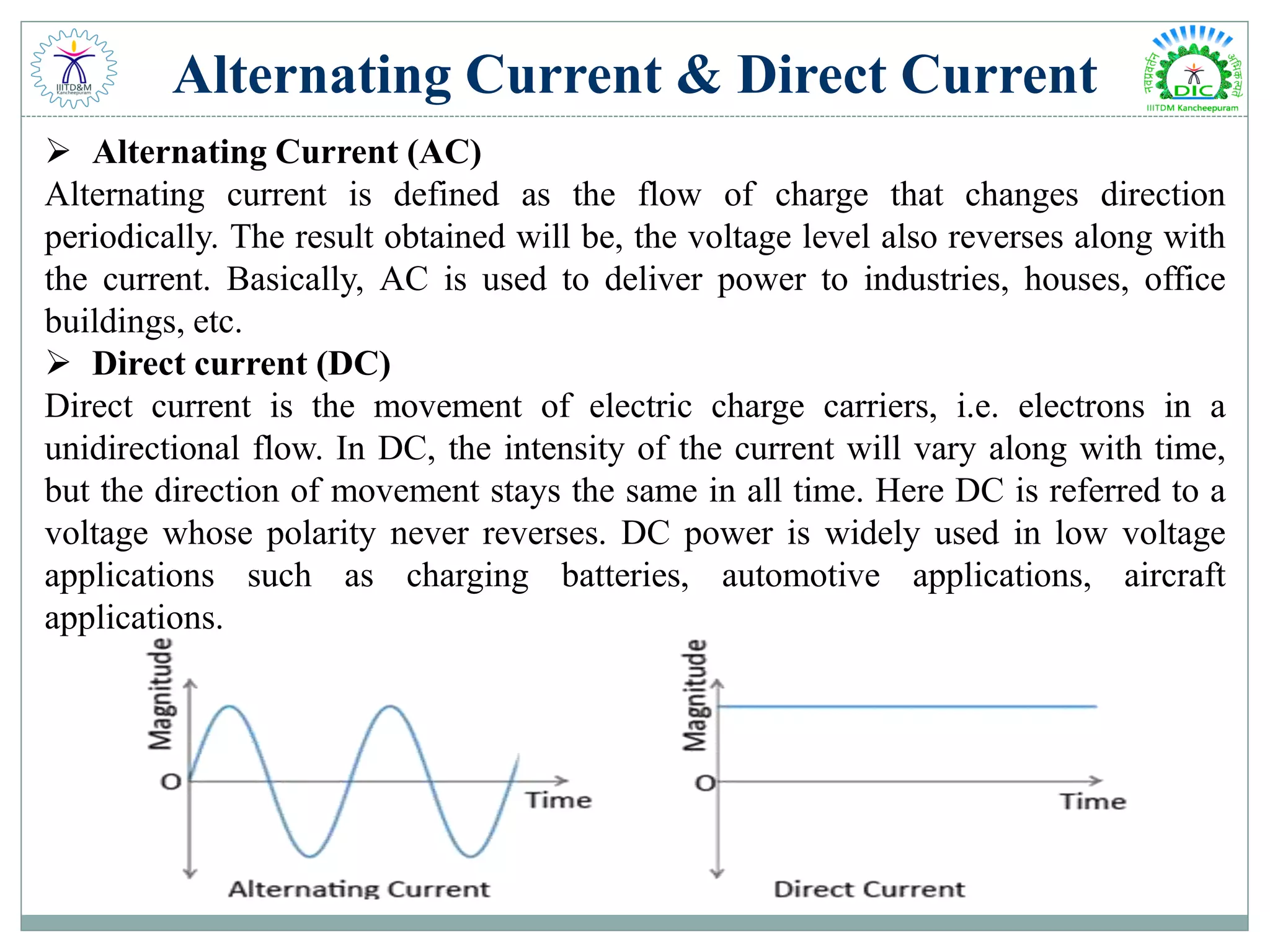
Alternating Current & Direct Current  Alternating Current (AC) Alternating current is defined as the flow of charge that changes direction periodically. The result obtained will be, the voltage level also reverses along with the current. Basically, AC is used to deliver power to industries, houses, office buildings, etc.  Direct current (DC) Direct current is the movement of electric charge carriers, i.e. electrons in a unidirectional flow. In DC, the intensity of the current will vary along with time, but the direction of movement stays the same in all time. Here DC is referred to a voltage whose polarity never reverses. DC power is widely used in low voltage applications such as charging batteries, automotive applications, aircraft applications.
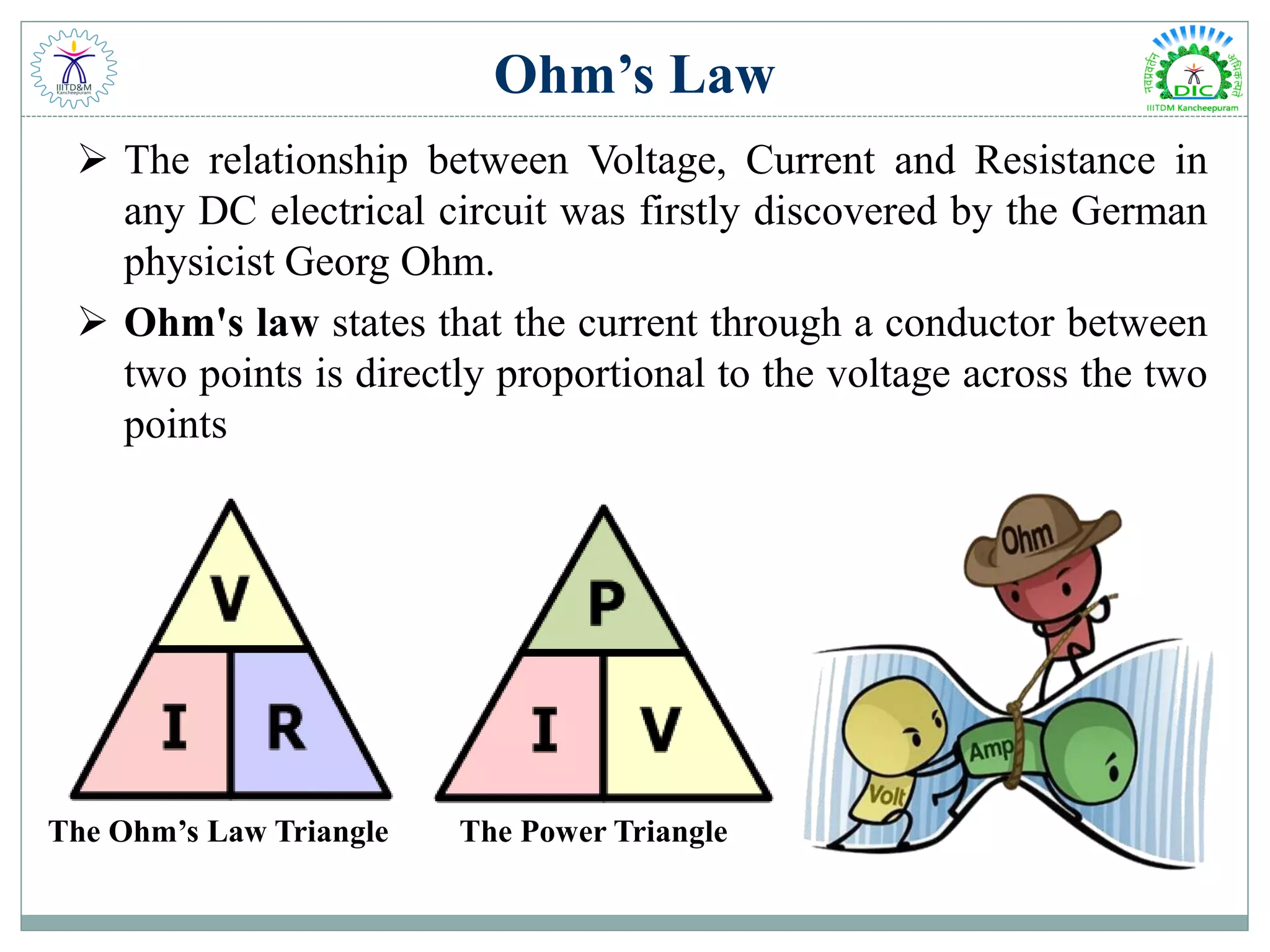
Ohm’s Law  The relationship between Voltage, Current and Resistance in any DC electrical circuit was firstly discovered by the German physicist Georg Ohm.  Ohm's law states that the current through a conductor between two points is directly proportional to the voltage across the two points The Power TriangleThe Ohm’s Law Triangle
Current Flow , Voltage Flow & Resistance Analogies Water = Charge Pressure = Voltage (V) Flow = Current (I) Size of the Pipe = Resistance (R)
Circuit  An electronic circuit is composed of individual electronic components, such as resistors, transistors, capacitors, inductors and diodes, connected by conductive wires or traces through which electric current can flow. To be referred to as electronic, rather than electrical, generally at least one active component must be present.  The word “circuit” is derived from the circle. An Electrical Circuit must have a continuous loop from Power (Vcc) to Ground (GND).
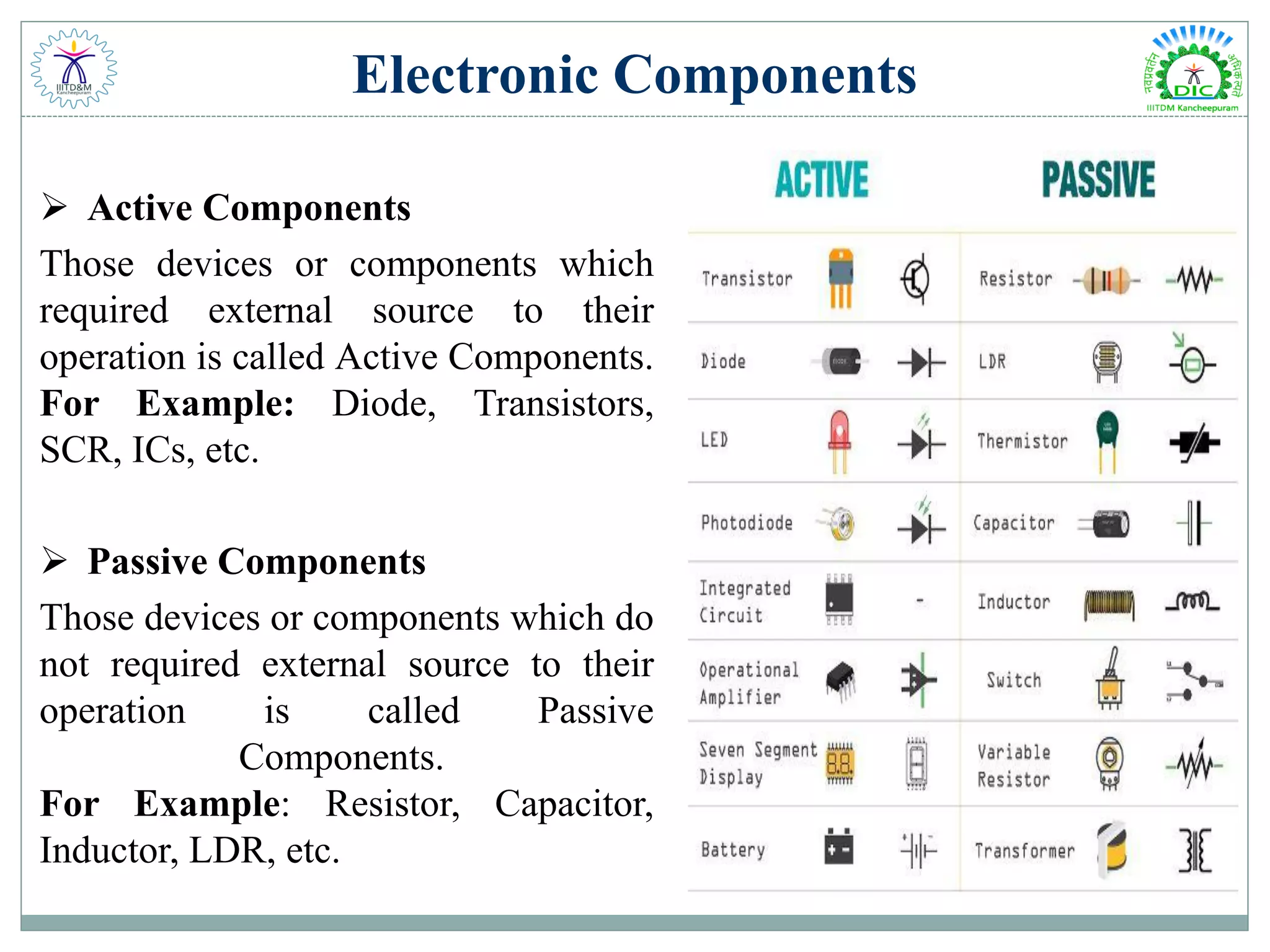
Electronic Components  Active Components Those devices or components which required external source to their operation is called Active Components. For Example: Diode, Transistors, SCR, ICs, etc.  Passive Components Those devices or components which do not required external source to their operation is called Passive Components. For Example: Resistor, Capacitor, Inductor, LDR, etc.
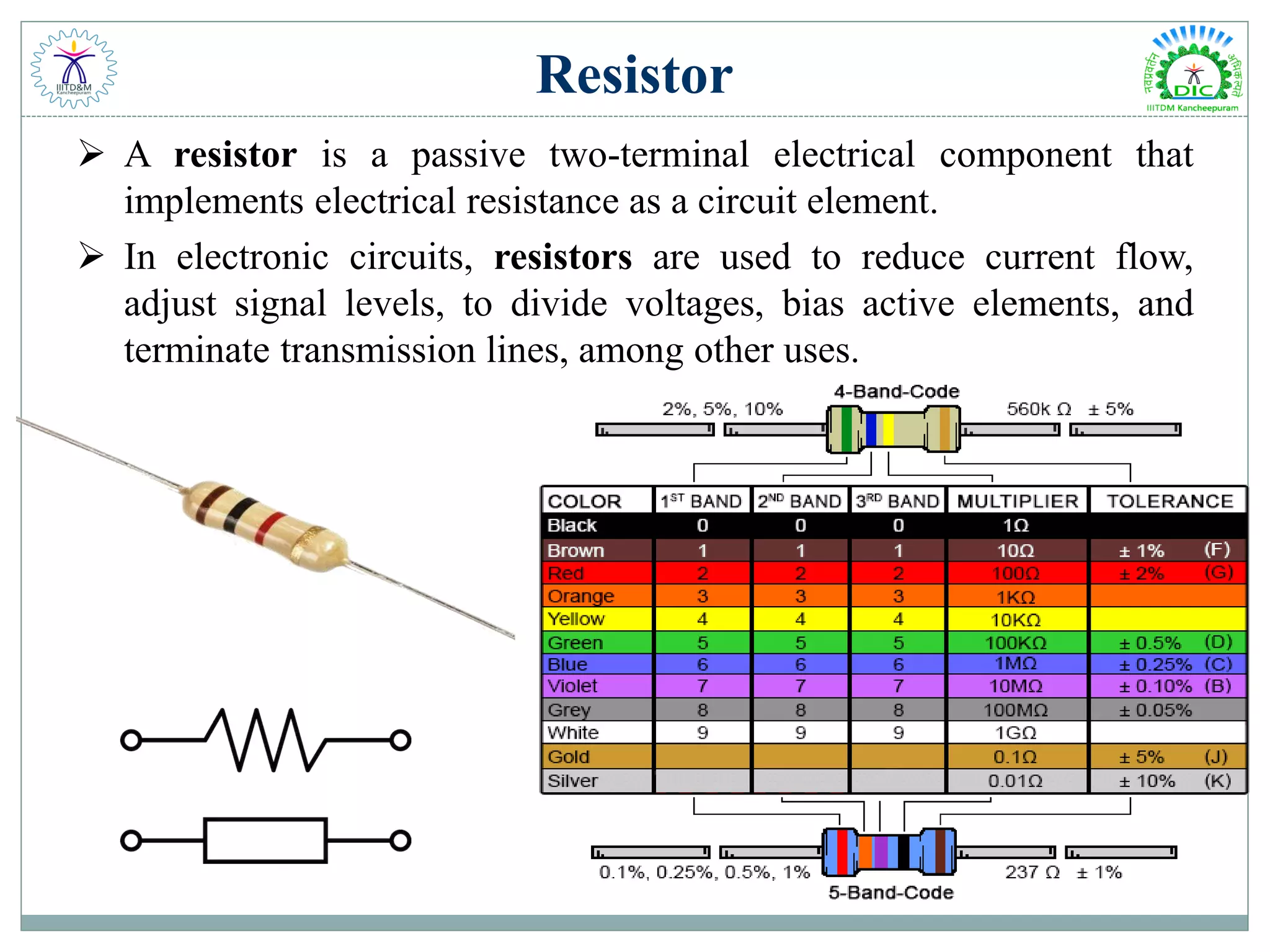
Resistor  A resistor is a passive two-terminal electrical component that implements electrical resistance as a circuit element.  In electronic circuits, resistors are used to reduce current flow, adjust signal levels, to divide voltages, bias active elements, and terminate transmission lines, among other uses.
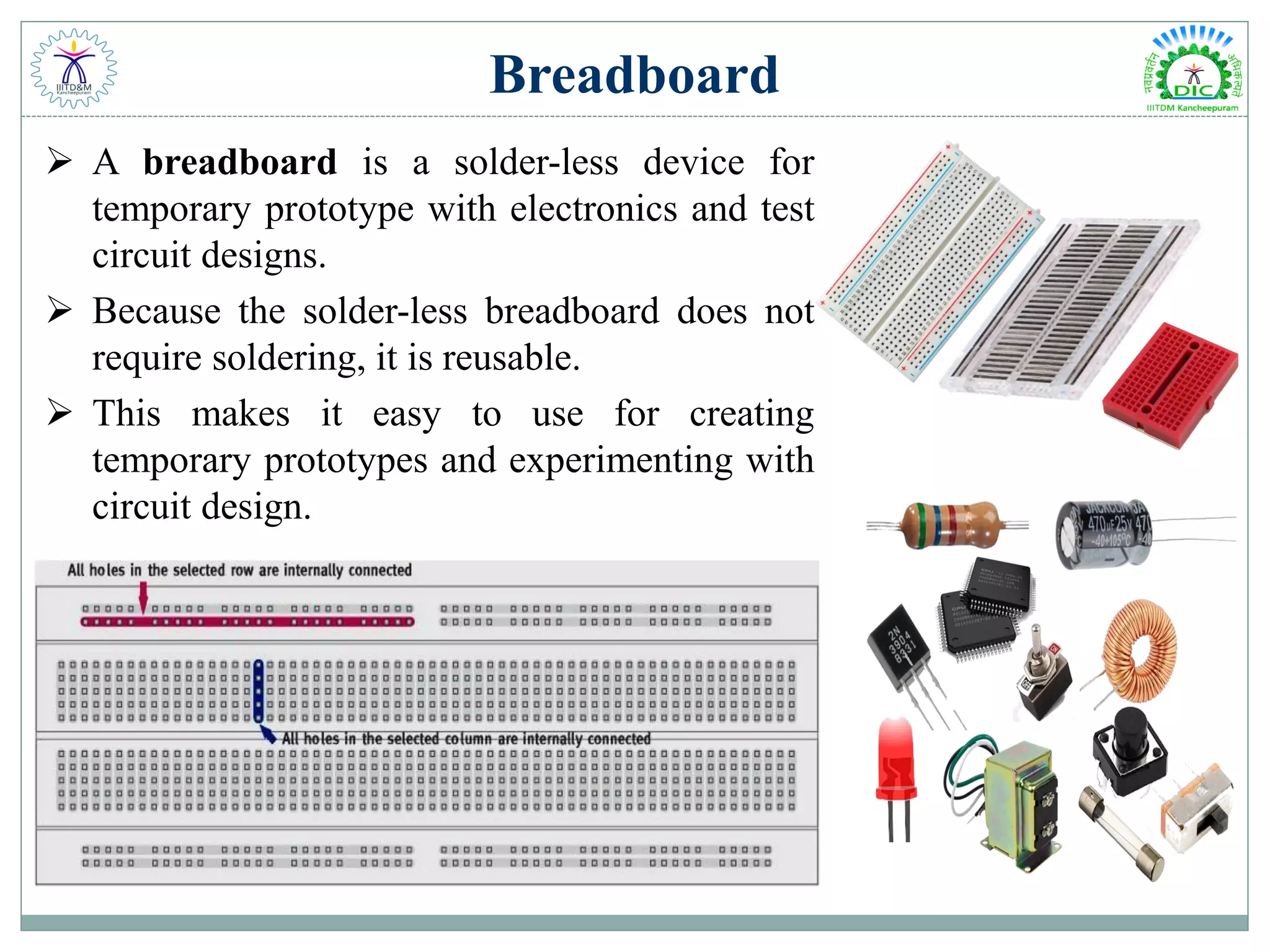
Breadboard  A breadboard is a solder-less device for temporary prototype with electronics and test circuit designs.  Because the solder-less breadboard does not require soldering, it is reusable.  This makes it easy to use for creating temporary prototypes and experimenting with circuit design.
Analog & Digital Signals What is analog ?  It is continuous range of voltage values (not just 0 or 5V)  Analog has many (infinite) values Why convert to digital ?  Because our microcontroller only understands digital.  Digital has two values: on and off
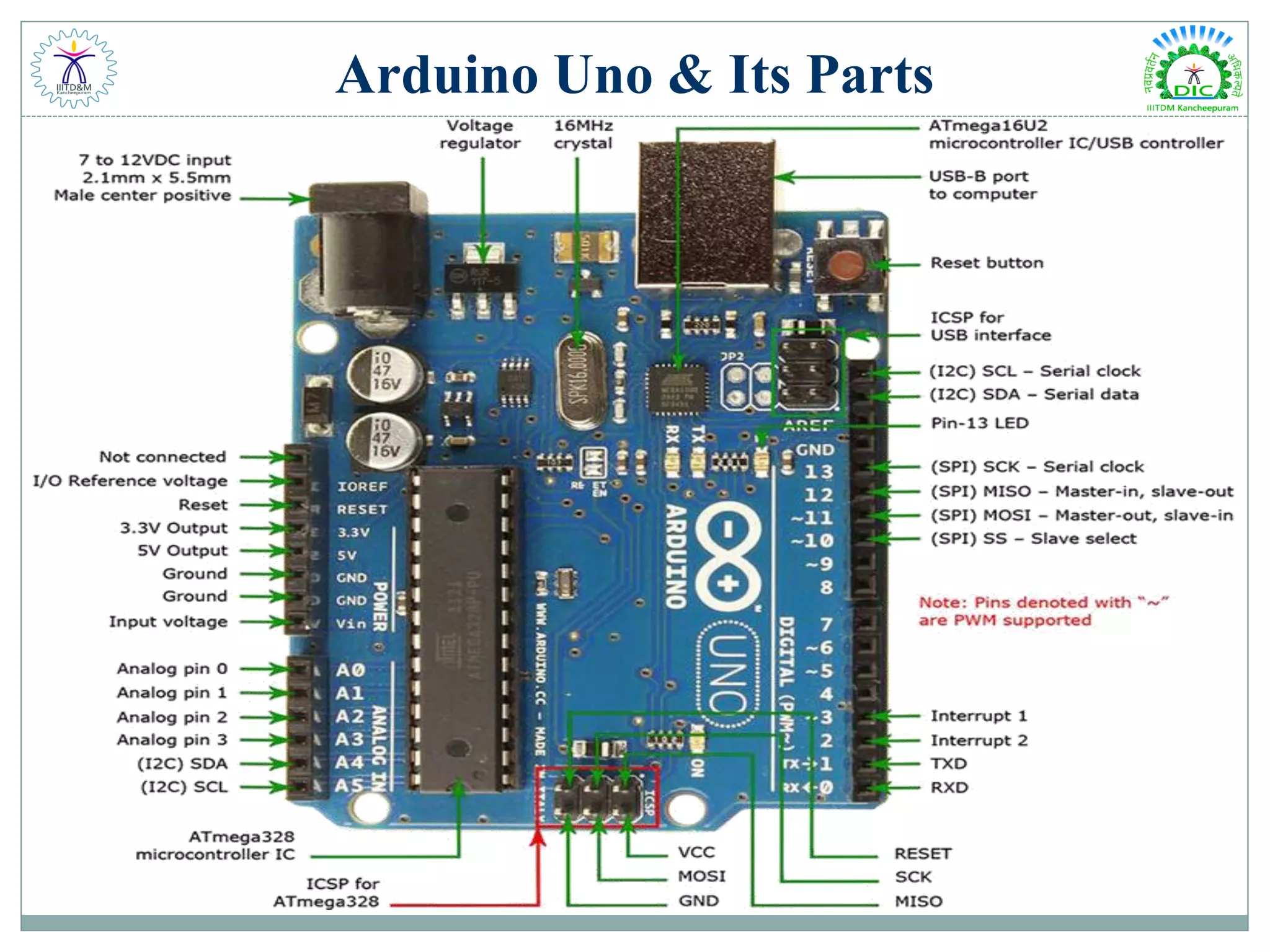
Arduino Uno & Its Parts
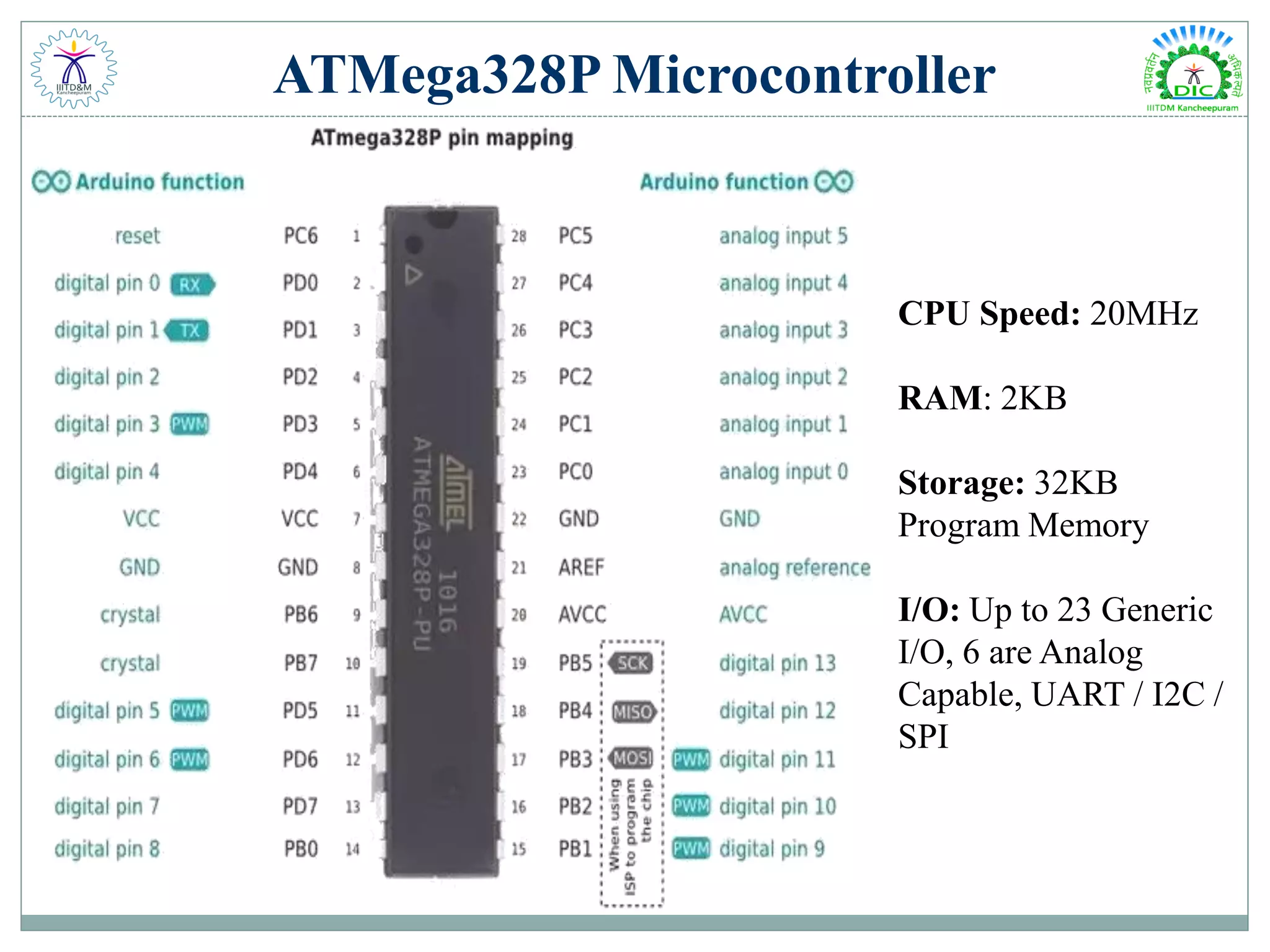
ATMega328P Microcontroller CPU Speed: 20MHz RAM: 2KB Storage: 32KB Program Memory I/O: Up to 23 Generic I/O, 6 are Analog Capable, UART / I2C / SPI
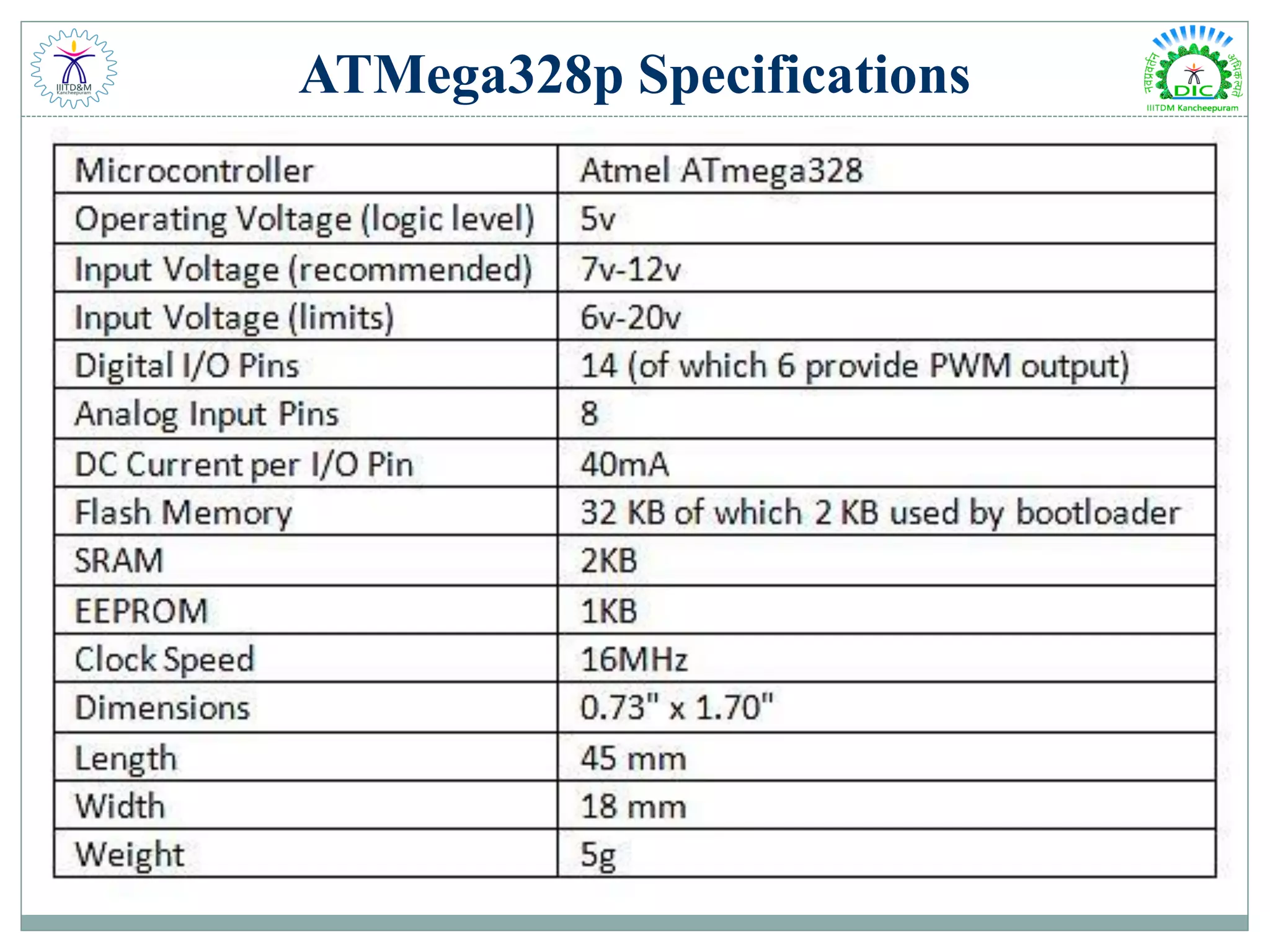
ATMega328p Specifications
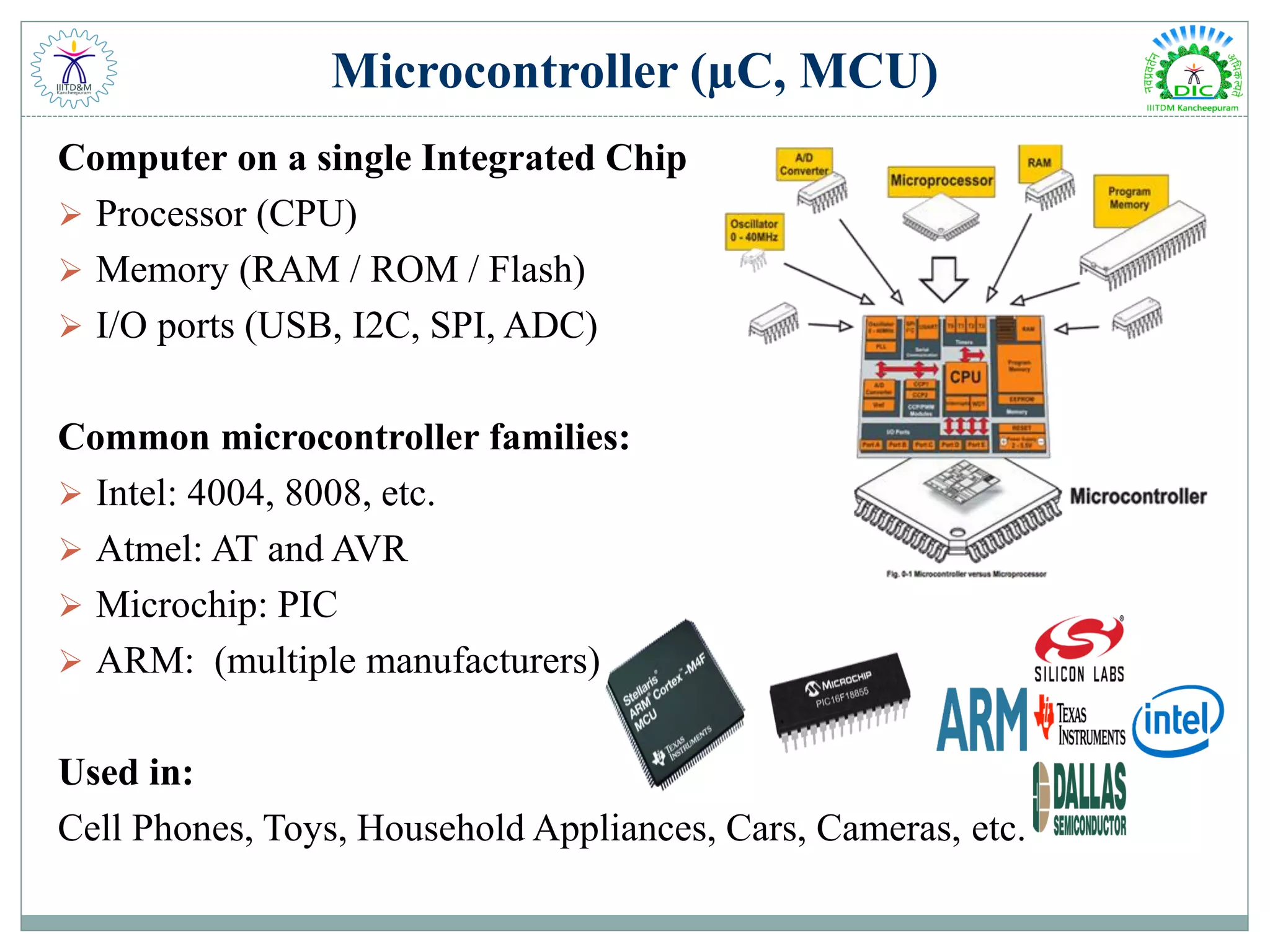
Microcontroller (µC, MCU) Computer on a single Integrated Chip  Processor (CPU)  Memory (RAM / ROM / Flash)  I/O ports (USB, I2C, SPI, ADC) Common microcontroller families:  Intel: 4004, 8008, etc.  Atmel: AT and AVR  Microchip: PIC  ARM: (multiple manufacturers) Used in: Cell Phones, Toys, Household Appliances, Cars, Cameras, etc.
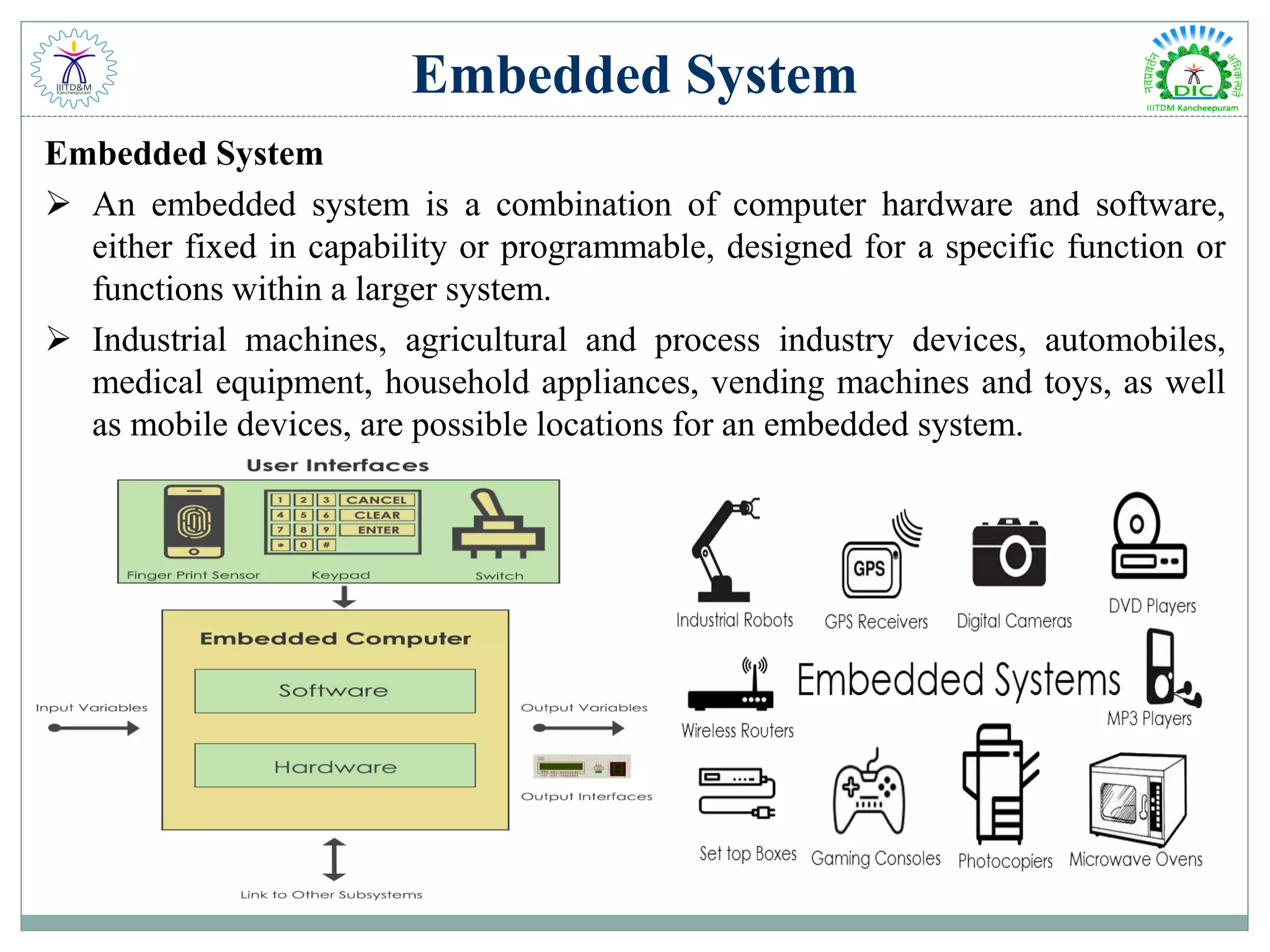
Embedded System Embedded System  An embedded system is a combination of computer hardware and software, either fixed in capability or programmable, designed for a specific function or functions within a larger system.  Industrial machines, agricultural and process industry devices, automobiles, medical equipment, household appliances, vending machines and toys, as well as mobile devices, are possible locations for an embedded system.
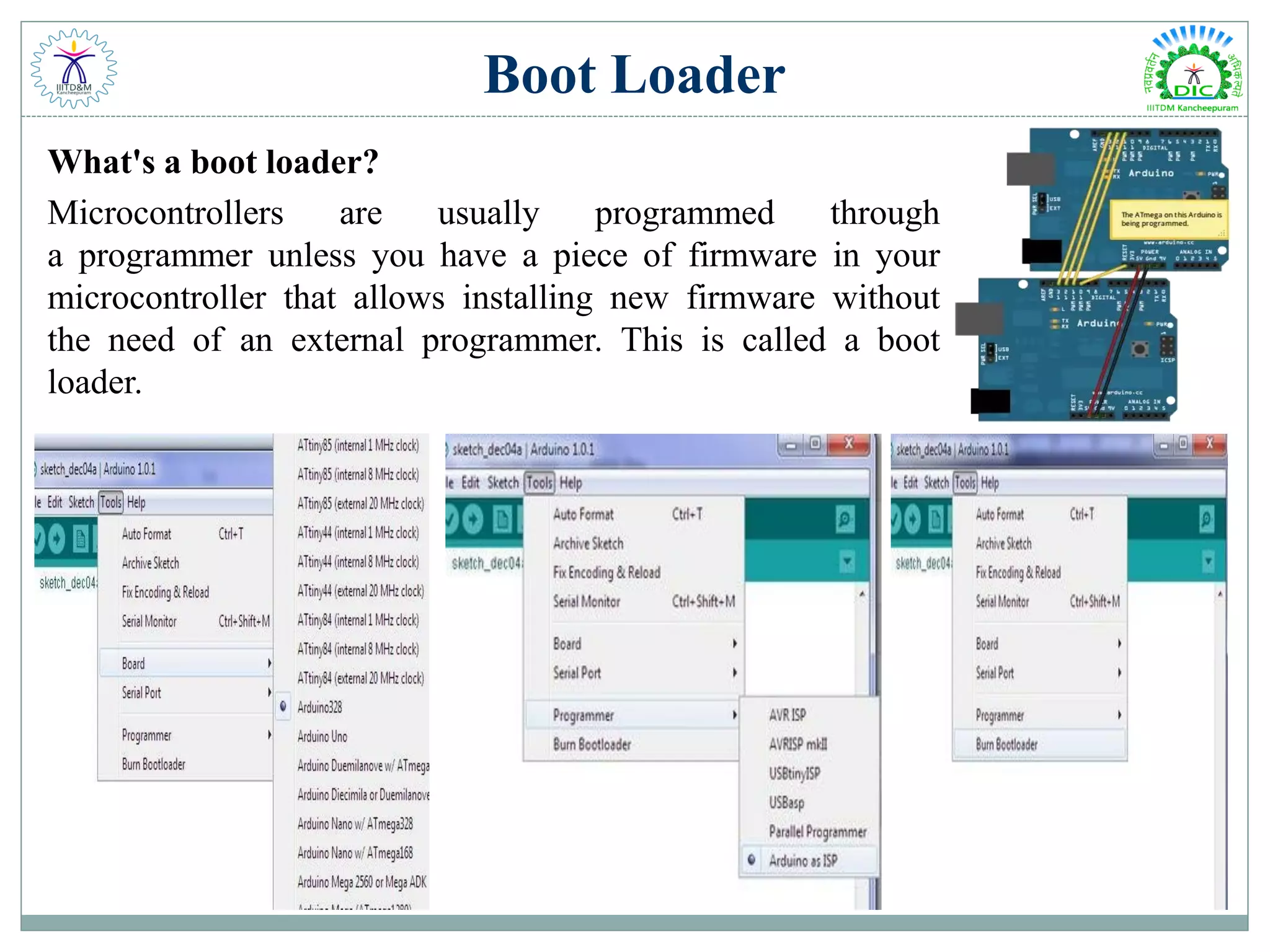
Boot Loader What's a boot loader? Microcontrollers are usually programmed through a programmer unless you have a piece of firmware in your microcontroller that allows installing new firmware without the need of an external programmer. This is called a boot loader.
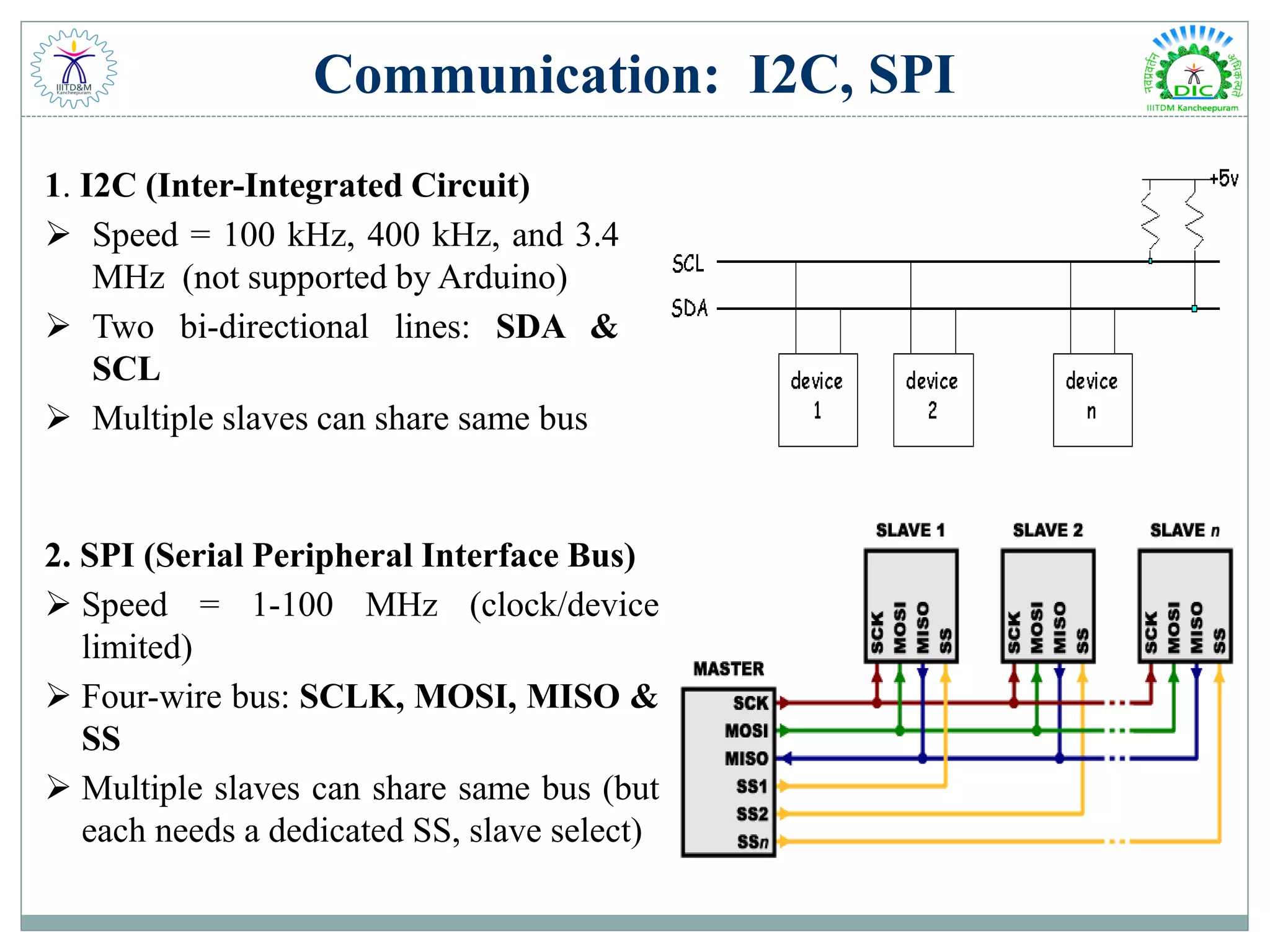
Communication: I2C, SPI 1. I2C (Inter-Integrated Circuit)  Speed = 100 kHz, 400 kHz, and 3.4 MHz (not supported by Arduino)  Two bi-directional lines: SDA & SCL  Multiple slaves can share same bus 2. SPI (Serial Peripheral Interface Bus)  Speed = 1-100 MHz (clock/device limited)  Four-wire bus: SCLK, MOSI, MISO & SS  Multiple slaves can share same bus (but each needs a dedicated SS, slave select)
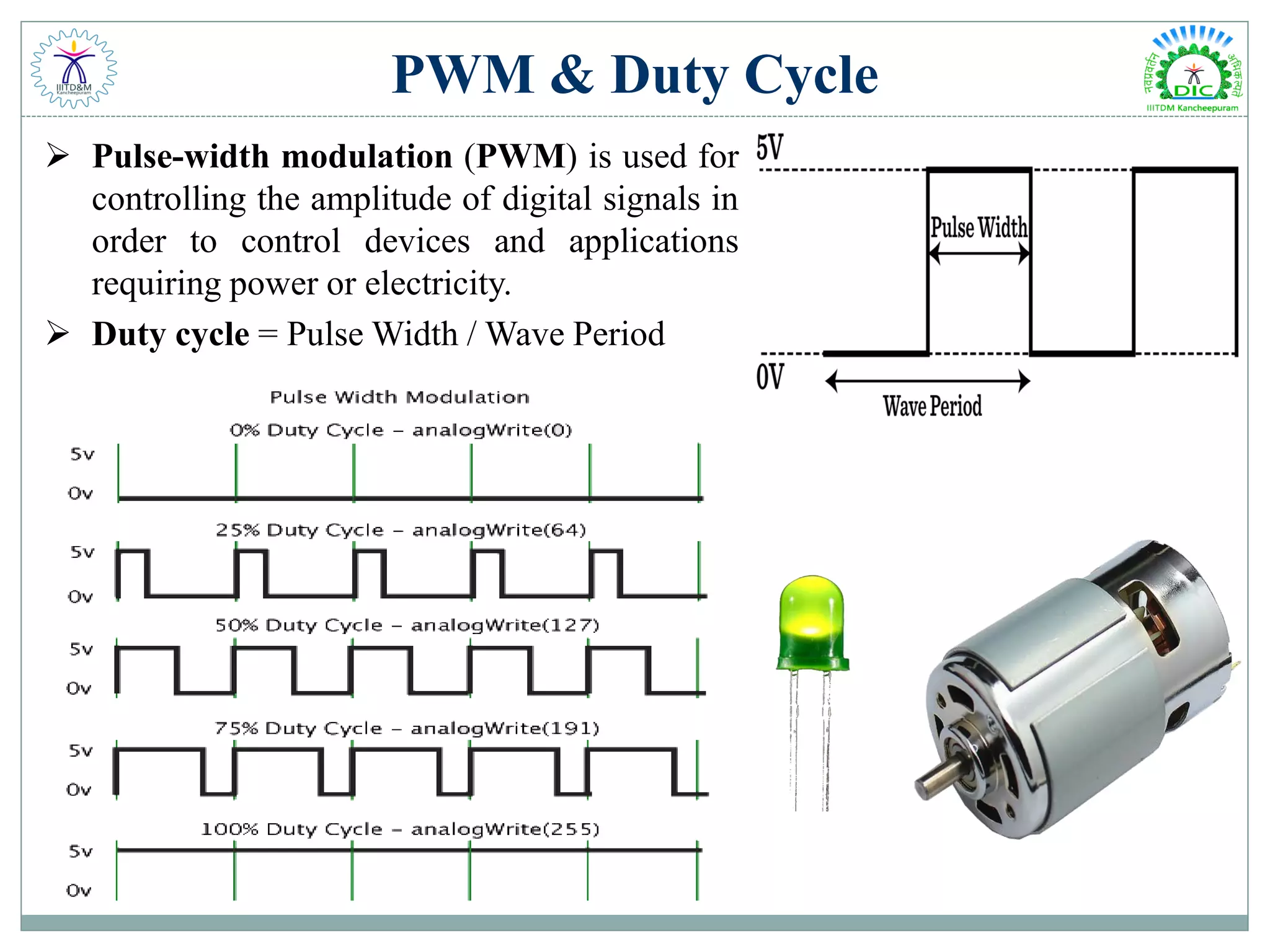
PWM & Duty Cycle  Pulse-width modulation (PWM) is used for controlling the amplitude of digital signals in order to control devices and applications requiring power or electricity.  Duty cycle = Pulse Width / Wave Period
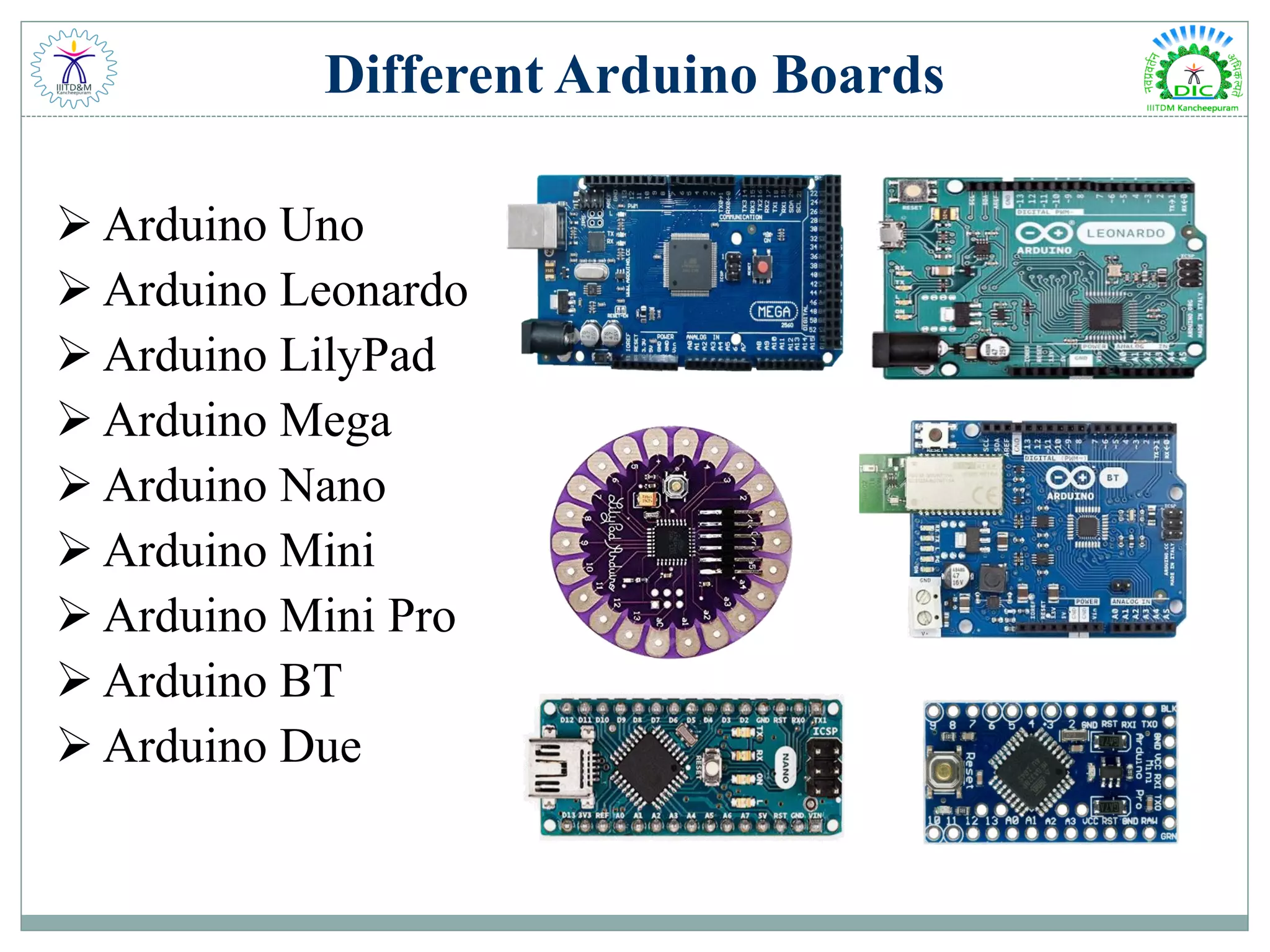
Different Arduino Boards  Arduino Uno  Arduino Leonardo  Arduino LilyPad  Arduino Mega  Arduino Nano  Arduino Mini  Arduino Mini Pro  Arduino BT  Arduino Due
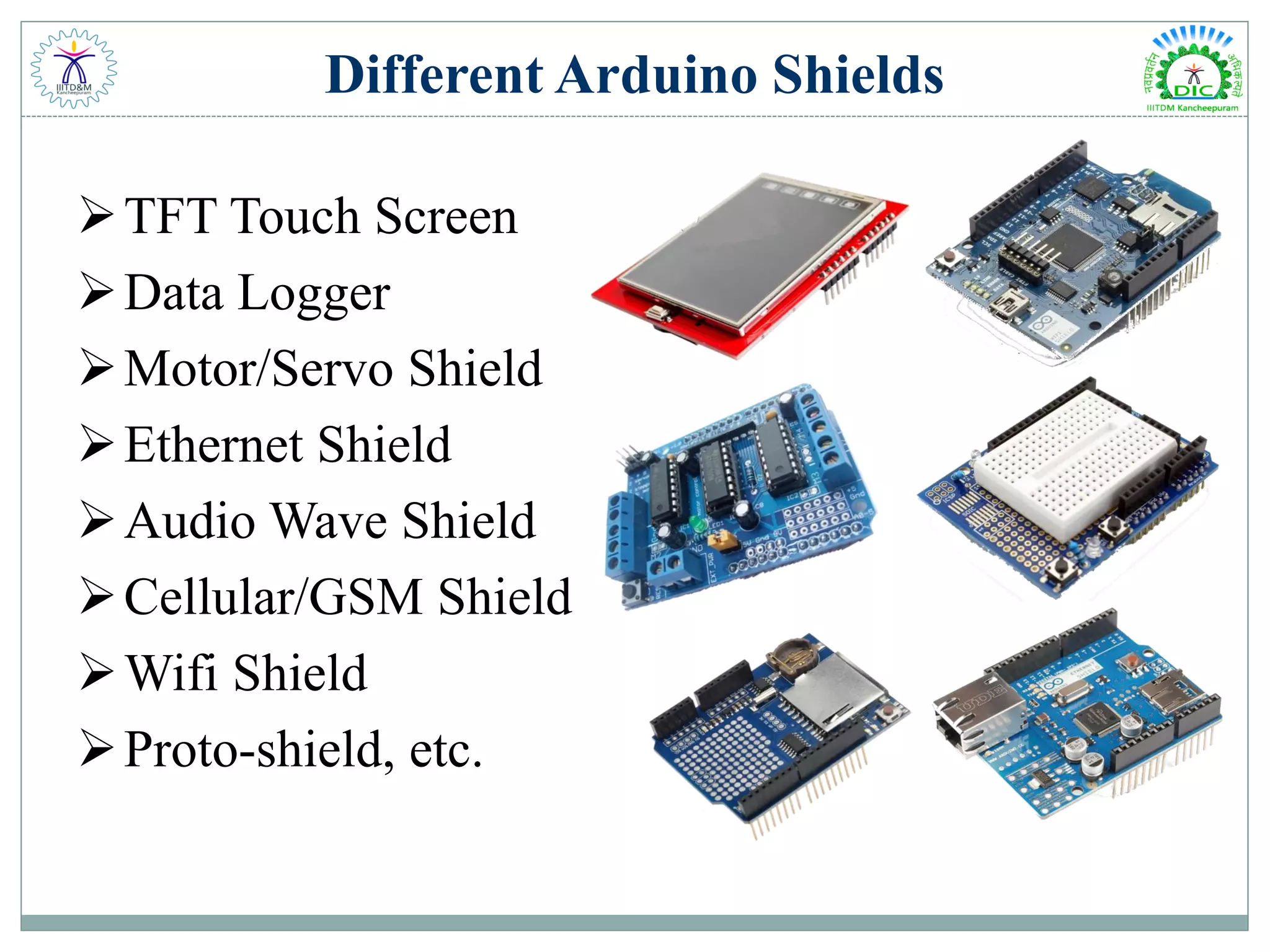
Different Arduino Shields TFT Touch Screen Data Logger Motor/Servo Shield Ethernet Shield Audio Wave Shield Cellular/GSM Shield Wifi Shield Proto-shield, etc.
Getting Started with Arduino Download Arduino compiler and development environment from: http://arduino.cc/en/Main/Software  Current version: 1.8.10  Available for Windows, Mac OS X & Linux  Downloadable as Installer & Zip File  Before running Arduino, plug in your board using USB cable (external power is not necessary)  When USB device is not recognized, navigate to and select the appropriate driver from the installation directory  Run Arduino
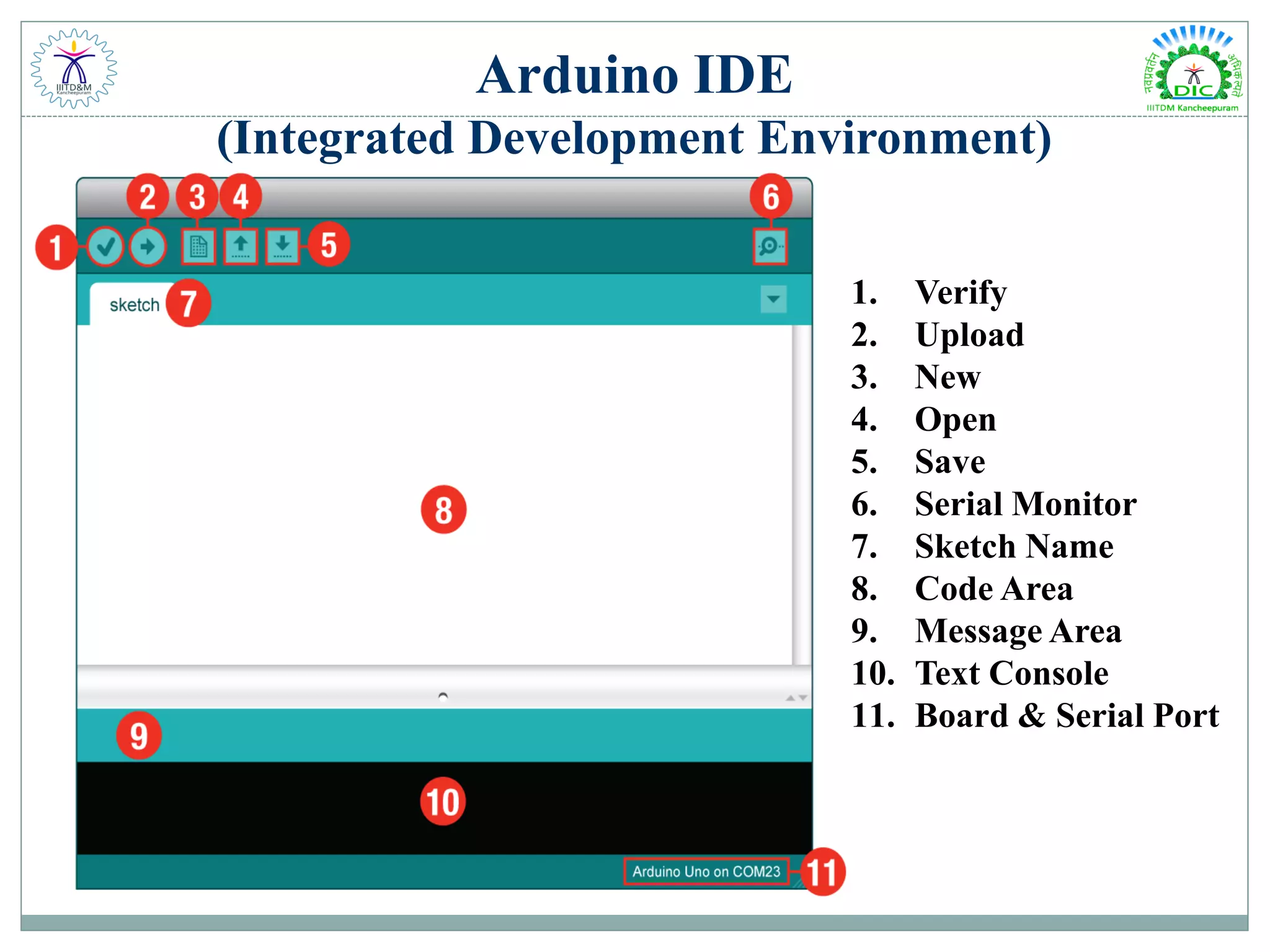
Arduino IDE (Integrated Development Environment) 1. Verify 2. Upload 3. New 4. Open 5. Save 6. Serial Monitor 7. Sketch Name 8. Code Area 9. Message Area 10. Text Console 11. Board & Serial Port
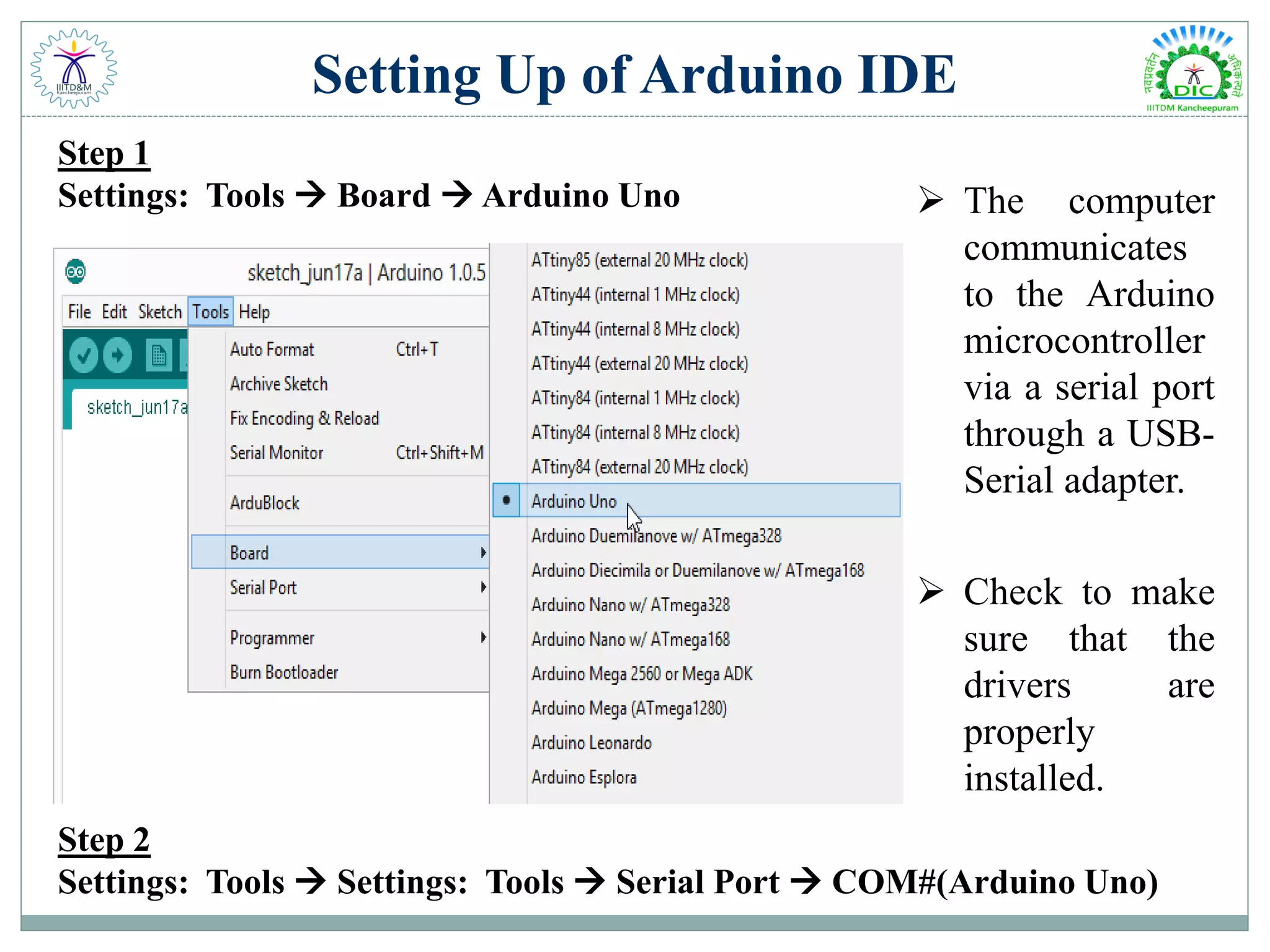
Setting Up of Arduino IDE  The computer communicates to the Arduino microcontroller via a serial port through a USB- Serial adapter.  Check to make sure that the drivers are properly installed. Step 1 Settings: Tools  Board  Arduino Uno Step 2 Settings: Tools  Settings: Tools  Serial Port  COM#(Arduino Uno)
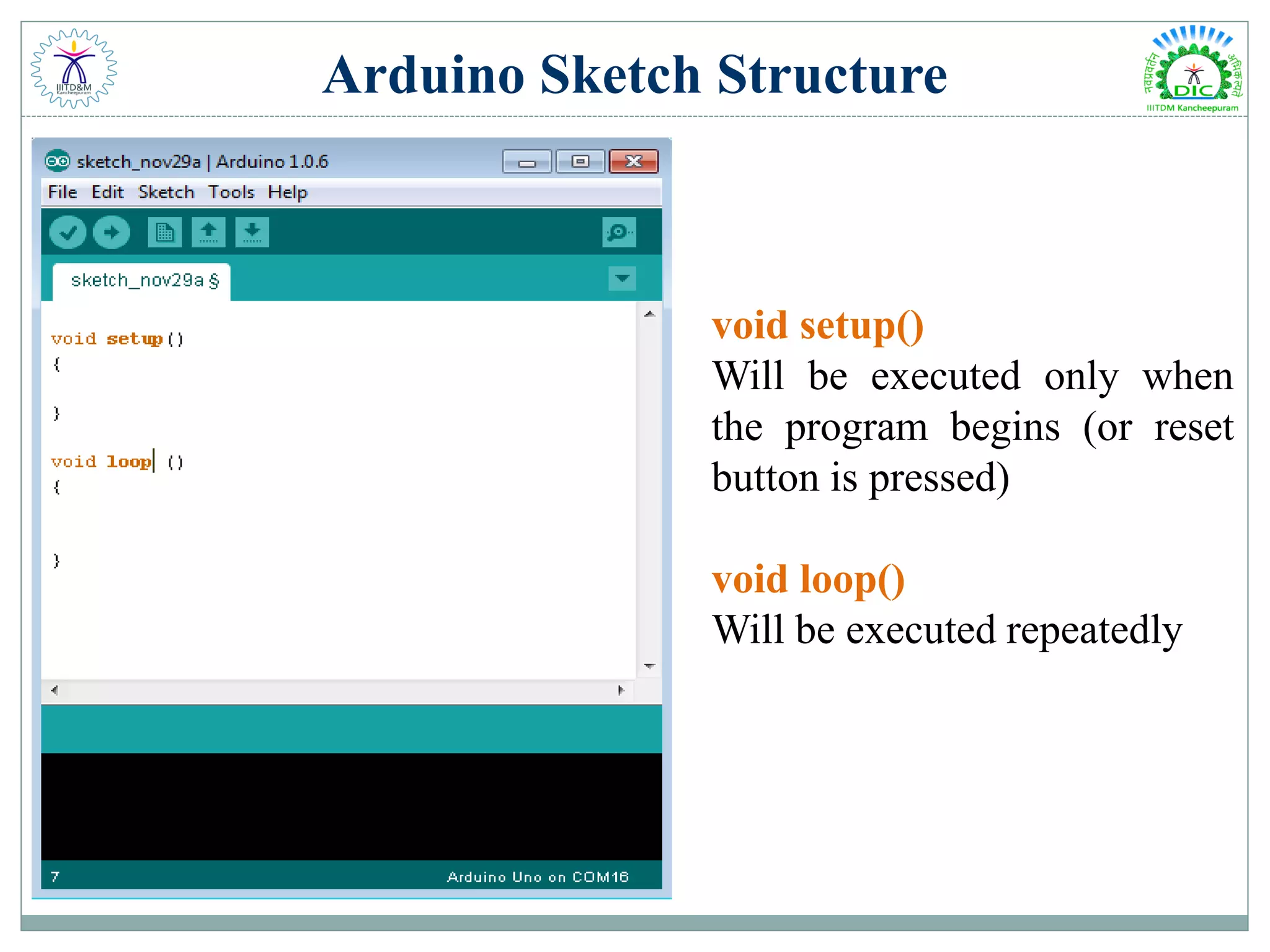
Arduino Sketch Structure void setup() Will be executed only when the program begins (or reset button is pressed) void loop() Will be executed repeatedly
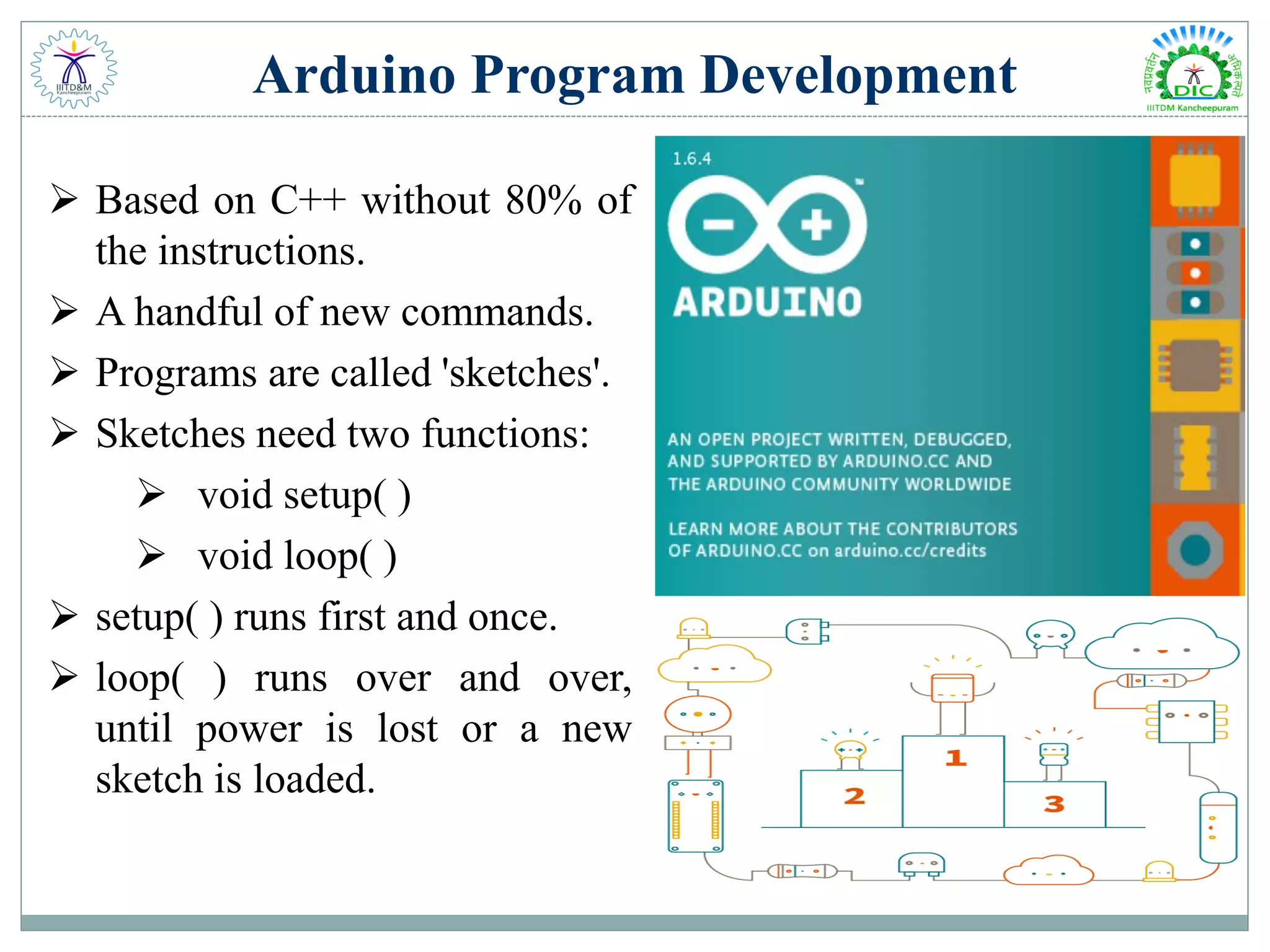
Arduino Program Development  Based on C++ without 80% of the instructions.  A handful of new commands.  Programs are called 'sketches'.  Sketches need two functions:  void setup( )  void loop( )  setup( ) runs first and once.  loop( ) runs over and over, until power is lost or a new sketch is loaded.
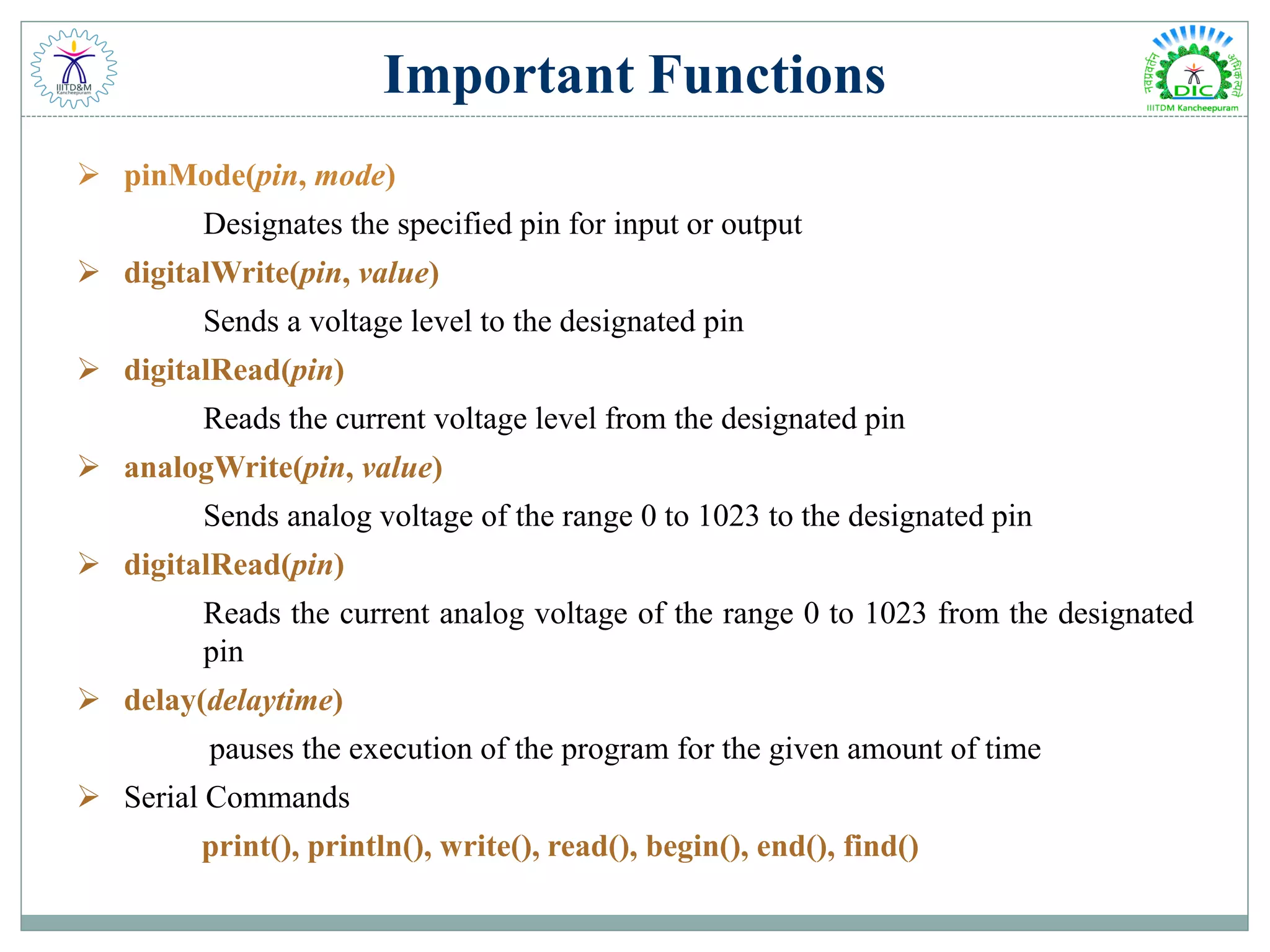
Important Functions  pinMode(pin, mode) Designates the specified pin for input or output  digitalWrite(pin, value) Sends a voltage level to the designated pin  digitalRead(pin) Reads the current voltage level from the designated pin  analogWrite(pin, value) Sends analog voltage of the range 0 to 1023 to the designated pin  digitalRead(pin) Reads the current analog voltage of the range 0 to 1023 from the designated pin  delay(delaytime) pauses the execution of the program for the given amount of time  Serial Commands print(), println(), write(), read(), begin(), end(), find()
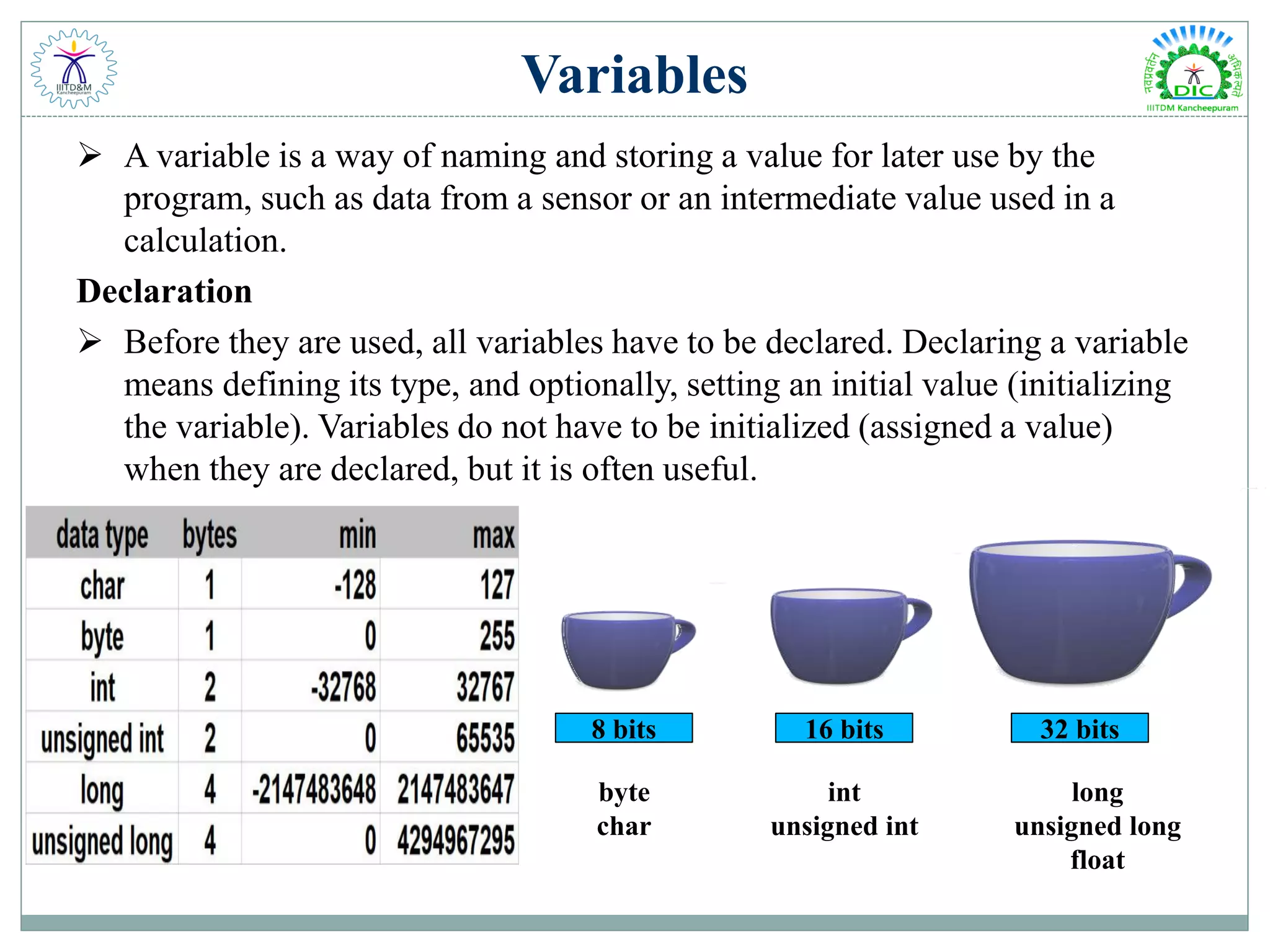
Variables  A variable is a way of naming and storing a value for later use by the program, such as data from a sensor or an intermediate value used in a calculation. Declaration  Before they are used, all variables have to be declared. Declaring a variable means defining its type, and optionally, setting an initial value (initializing the variable). Variables do not have to be initialized (assigned a value) when they are declared, but it is often useful. 8 bits 16 bits 32 bits byte char int unsigned int long unsigned long float
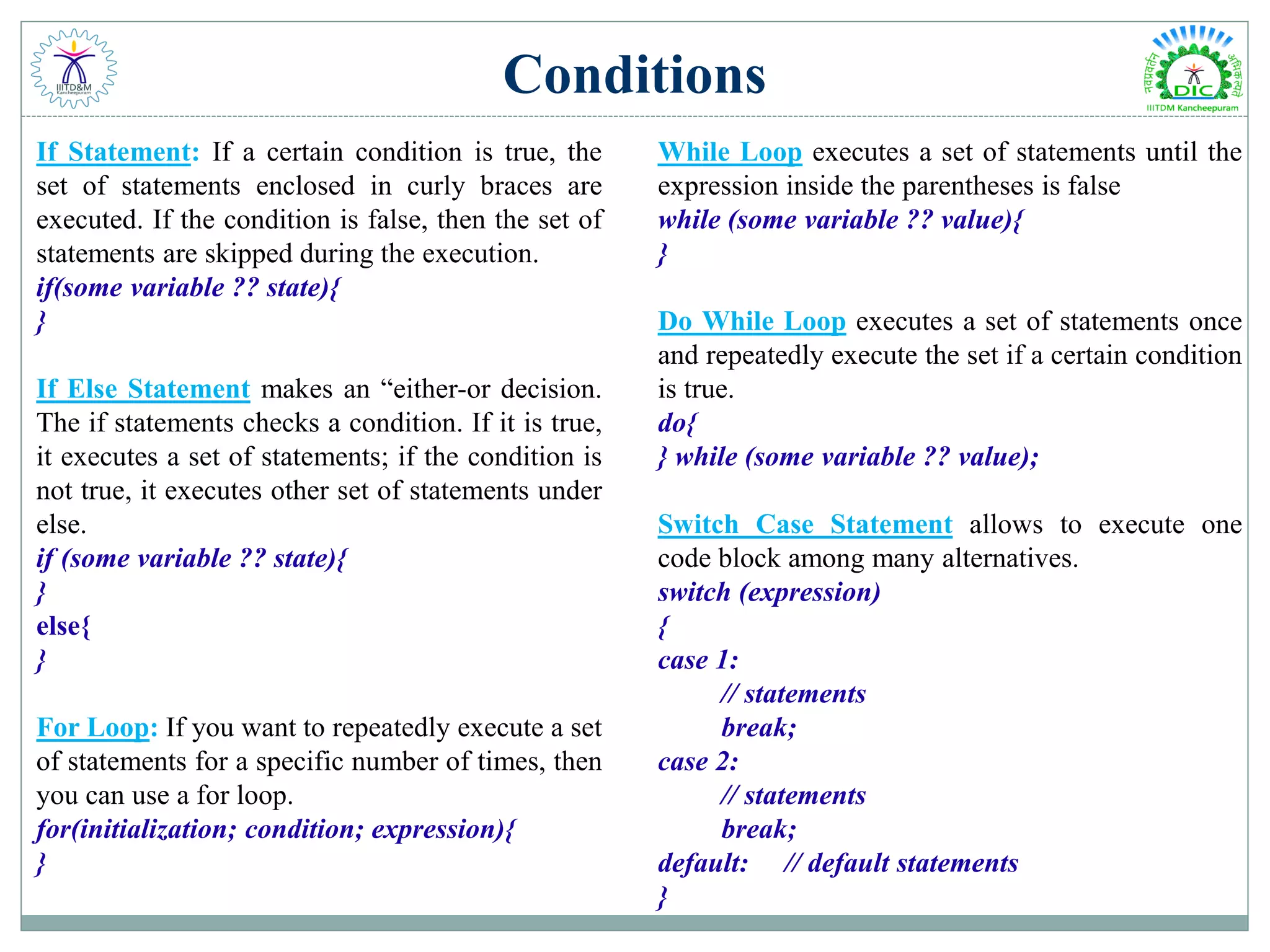
Conditions If Statement: If a certain condition is true, the set of statements enclosed in curly braces are executed. If the condition is false, then the set of statements are skipped during the execution. if(some variable ?? state){ } If Else Statement makes an “either-or decision. The if statements checks a condition. If it is true, it executes a set of statements; if the condition is not true, it executes other set of statements under else. if (some variable ?? state){ } else{ } For Loop: If you want to repeatedly execute a set of statements for a specific number of times, then you can use a for loop. for(initialization; condition; expression){ } While Loop executes a set of statements until the expression inside the parentheses is false while (some variable ?? value){ } Do While Loop executes a set of statements once and repeatedly execute the set if a certain condition is true. do{ } while (some variable ?? value); Switch Case Statement allows to execute one code block among many alternatives. switch (expression) ​{ case 1: // statements break; case 2: // statements break; default: // default statements }
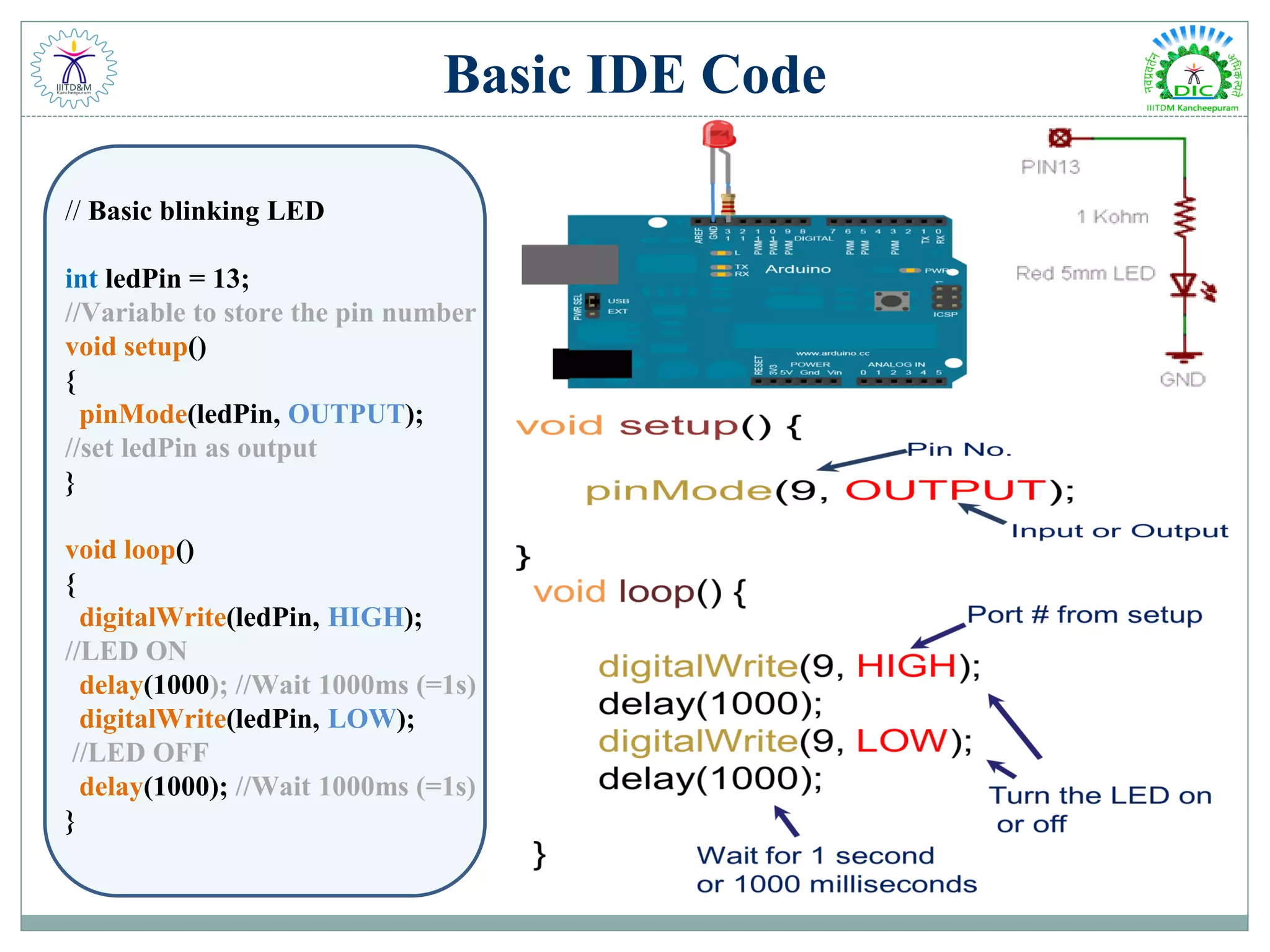
Basic IDE Code // Basic blinking LED int ledPin = 13; //Variable to store the pin number void setup() { pinMode(ledPin, OUTPUT); //set ledPin as output } void loop() { digitalWrite(ledPin, HIGH); //LED ON delay(1000); //Wait 1000ms (=1s) digitalWrite(ledPin, LOW); //LED OFF delay(1000); //Wait 1000ms (=1s) }
Sensor What is a sensor?  A device that receives a stimulus and responds with an electrical signal.  A special type of transducer, device that converts one type of energy into another
Common Sensors  Mechanical  Accelerometers  Gyroscopes  Optical  Photo Detectors  Infrared  Semiconductor  Gas  Temperature  Magnetic Sensor Characteristics  Range  Accuracy  Transfer Function  Sensitivity  Error
Actuators  Device that turns energy (typically electrical) to motion.  An actuator is a component of a machine that is responsible for moving and controlling a mechanism or system, for example by opening a valve. In simple terms, it is a "mover".  An actuator requires a control signal and a source of energy. Features: Force Speed Torque Power Efficiency
Activities Activity 1 : Blinking & Fading an LED What is LED?  An LED lamp or LED light bulb is an electric light for use in light fixtures that produces light using one or more light-emitting diodes (LEDs).  LED lamps have a lifespan many times longer than equivalent incandescent lamps, and are significantly more efficient than most fluorescent lamps.  The main semiconductor materials used to manufacture LEDs are: InGaN, AlGaInP, AlGaAs, GaP LED Applications
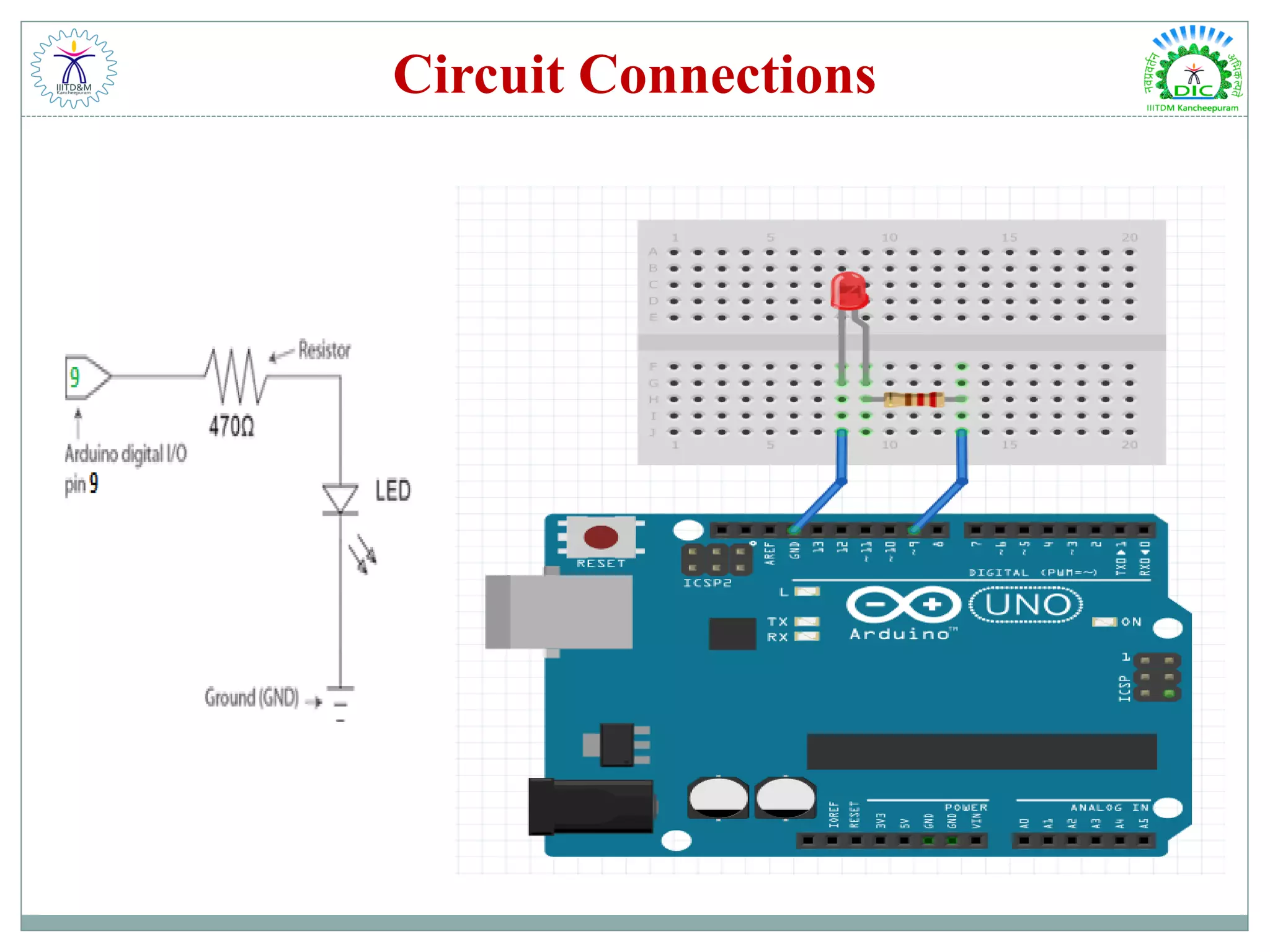
Circuit Connections
Code & Explanation /*LED Blink Experiment */ int led =9; // LED anode is connected to Arduino Pin 9 void setup(){ pinMode(led,OUTPUT); // Initialize the digital pin as an output } // The loop routine runs over and over again forever: void loop(){ digitalWrite(led,HIGH); // turn the LED on by making voltage HIGH delay(1000); // wait for a second digitalWrite(led,LOW); // turn the LED off by making the voltage LOW delay(1000); // wait for a second }
Activity 2 : Potentiometer Potentiometer  A potentiometer is a three-terminal resistor with a sliding or rotating contact that forms an adjustable voltage divider.  If only two terminals are used, one end and the wiper, it acts as a variable resistor or rheostat. Applications:  Controllers  Audio Systems  Measuring Devices  Tuners & Calibrators
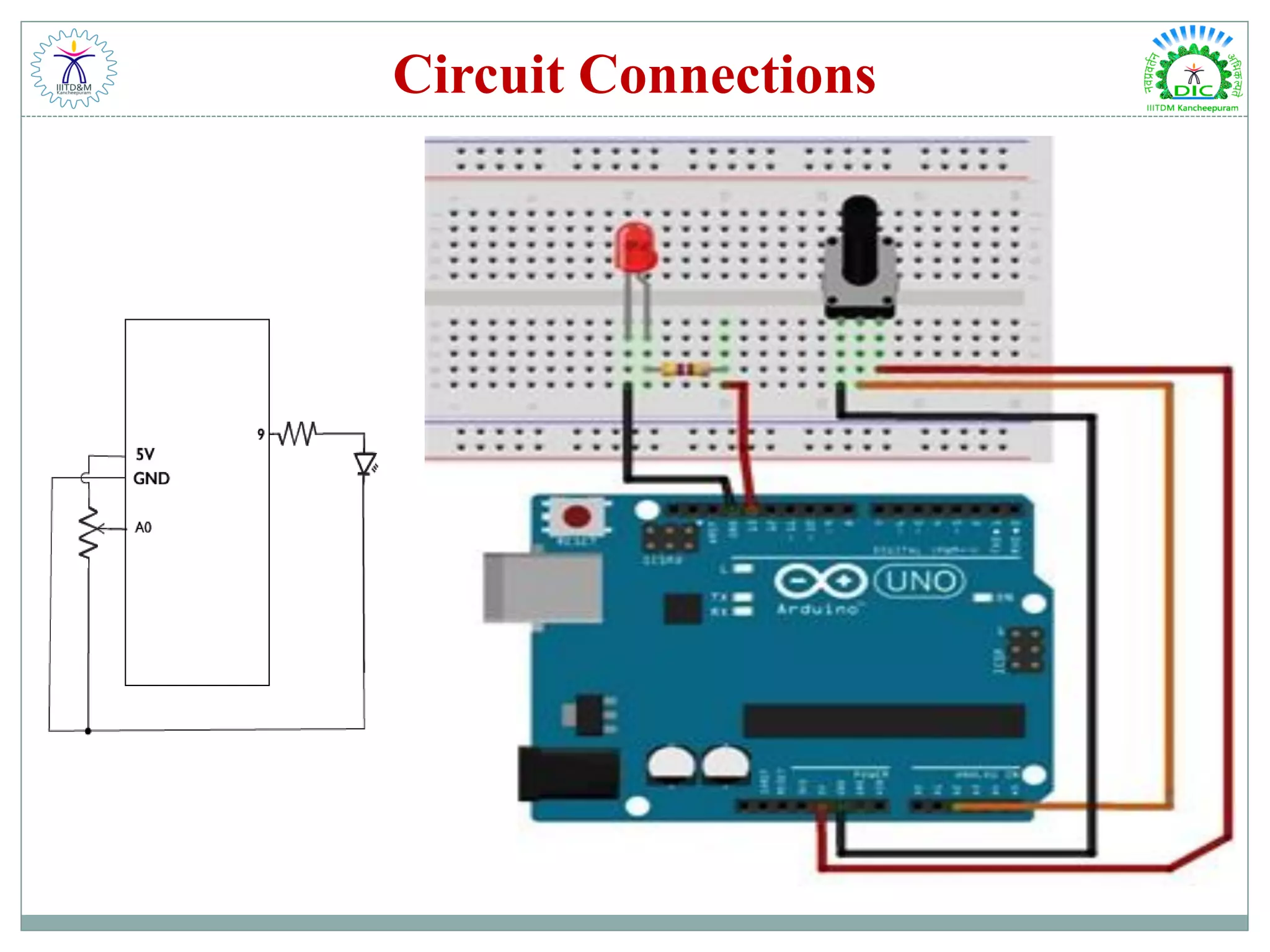
Circuit Connections
Code & Explanation /* Program to control LED by varying the pulse width */ int potPin = 2; // select input pin A2 for the pot int ledPin = 13; // select output pin 13 for the LED int val = 0; // variable to store pot voltage void setup() { pinMode(ledPin, OUTPUT); // declare ledPin13 as an OUTPUT } void loop() { val = analogRead(potPin); // read pot voltage as integer digitalWrite(ledPin, HIGH); // turn the ledPin on delay(val); // stop the program for some time digitalWrite(ledPin, LOW); // turn the ledPin off delay(val); // stop the program for some time }
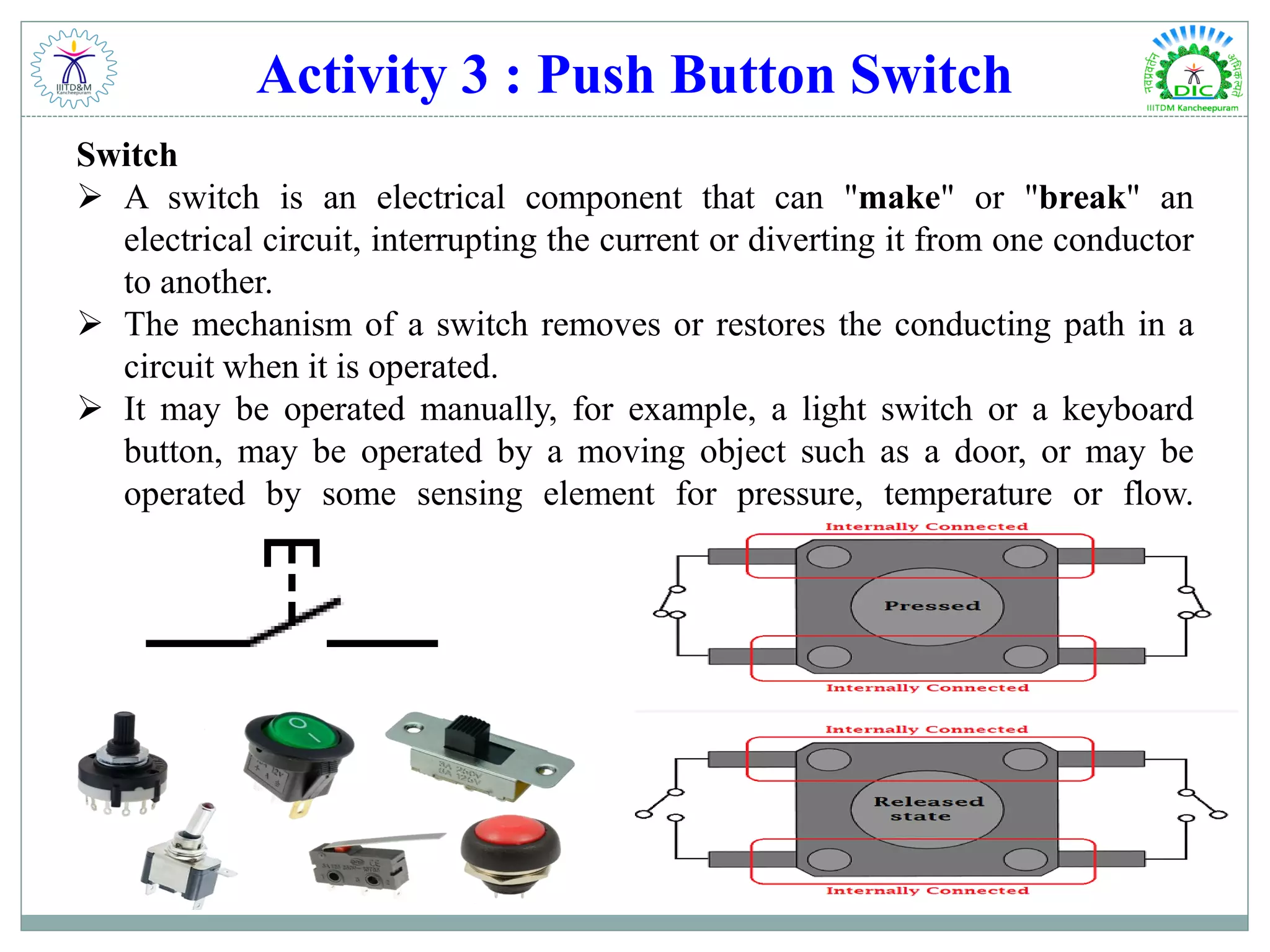
Activity 3 : Push Button Switch Switch  A switch is an electrical component that can "make" or "break" an electrical circuit, interrupting the current or diverting it from one conductor to another.  The mechanism of a switch removes or restores the conducting path in a circuit when it is operated.  It may be operated manually, for example, a light switch or a keyboard button, may be operated by a moving object such as a door, or may be operated by some sensing element for pressure, temperature or flow.
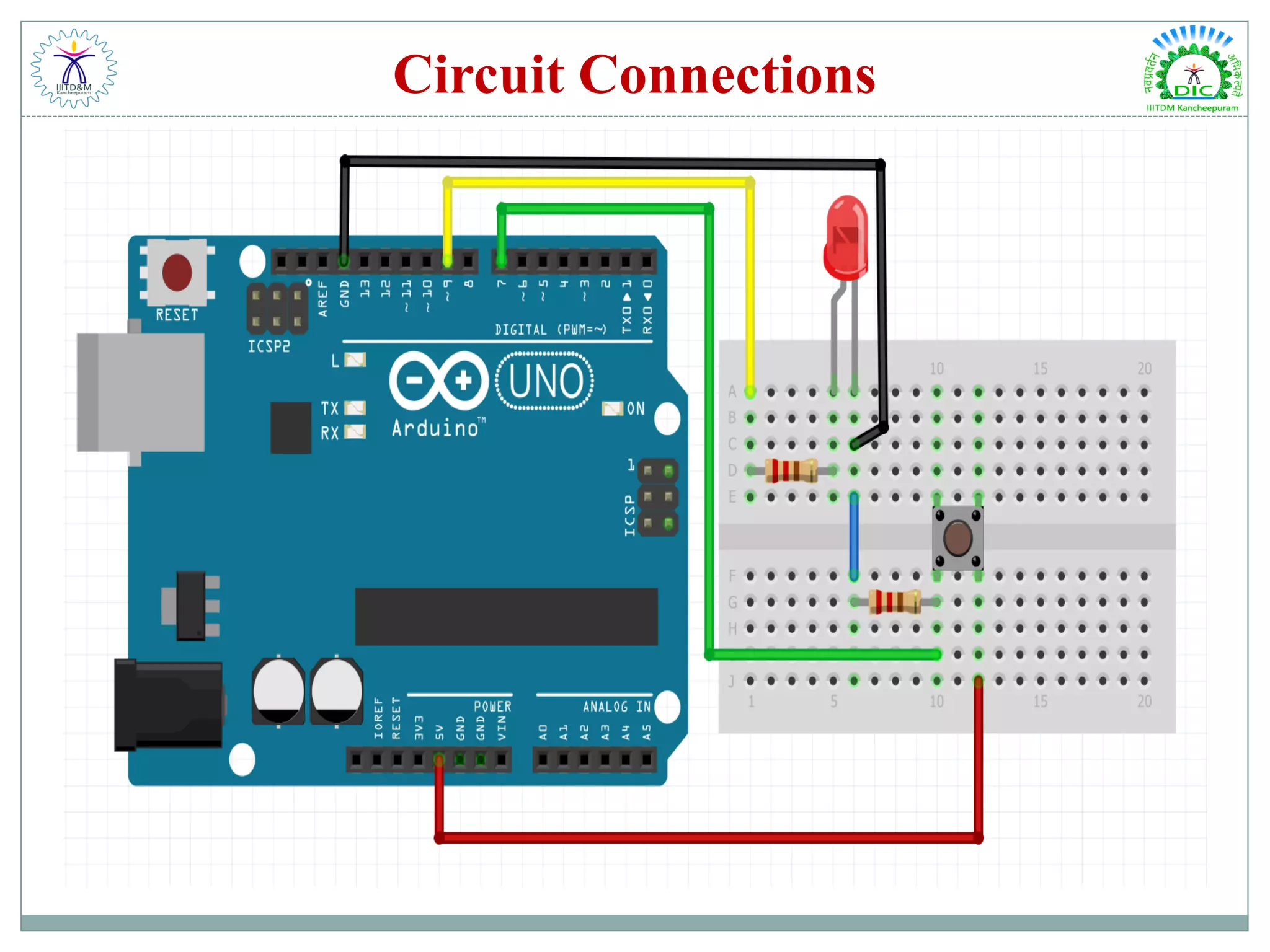
Circuit Connections
Code & Explanation // Program for Push Button with LED // set pin numbers: const int buttonPin = 7; // Pushbutton pin const int ledPin = 9; // LED pin // variables will change: int buttonState = 0; // variable reads pushbutton status void setup() { pinMode(ledPin, OUTPUT); // initialize the LED pin as an output pinMode(buttonPin, INPUT); // initialize the pushbutton pin as an input } void loop() { buttonState = digitalRead(buttonPin); // read the state of the pushbutton value // if it is, the buttonState is HIGH: if (buttonState == HIGH) { // check if the pushbutton is pressed digitalWrite(ledPin, HIGH); // turn LED on } else { digitalWrite(ledPin, LOW); // turn LED off } }
Activity 3.1 : Interrupt Interrupt Introduction  An interrupt, in microcontroller context, is a signal that temporarily stops what the CPU is currently working at.  A typical Arduino sketch consists of setup() and loop() functions. When a sketch is executed, the top most lines are run first. So logically the setup() function is run before the loop() function. Although it’s far more common to have headers for libraries above setup() which are of course catered first by the compiler. The loop() function is an endless loop so there is no way to exit it.  If we will now use interrupts, we add a third function named isr(). ISR is short for Interrupt Service Routine. This is where the program jumps to whenever there is an interrupt.  When does the program jump to isr()?  Arduino Uno Digital Pins: 2 & 3 usable for interrupts  attachInterrupt(digitalPinToInterrupt(interruptPin), isr, CHANGE); void setup(){ } void loop(){ } void isr(){ }
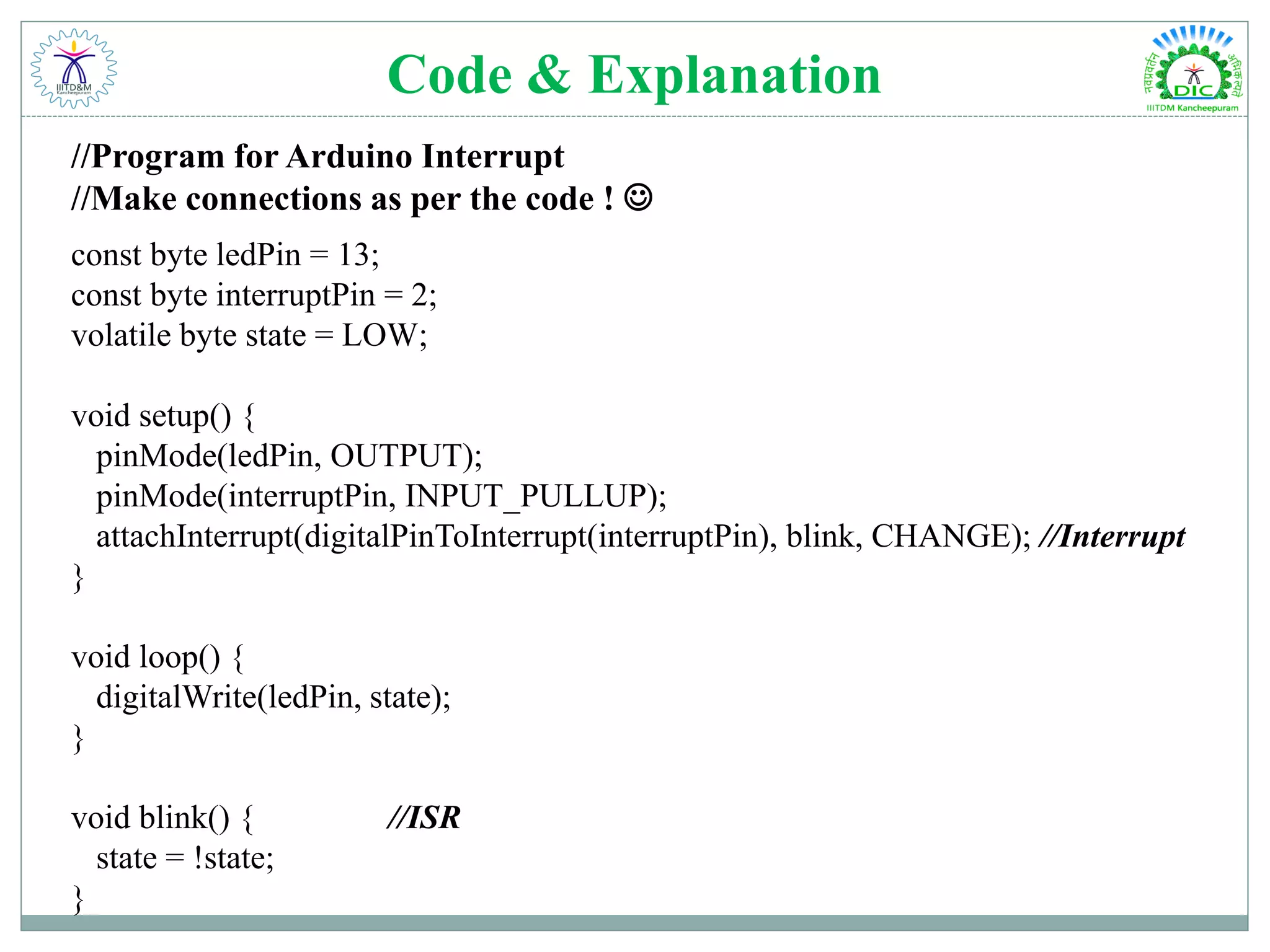
Code & Explanation //Program for Arduino Interrupt //Make connections as per the code !  const byte ledPin = 13; const byte interruptPin = 2; volatile byte state = LOW; void setup() { pinMode(ledPin, OUTPUT); pinMode(interruptPin, INPUT_PULLUP); attachInterrupt(digitalPinToInterrupt(interruptPin), blink, CHANGE); //Interrupt } void loop() { digitalWrite(ledPin, state); } void blink() { //ISR state = !state; }
Activity 4 : Controlling an RGB LED RGB LED  RGB LED means Red, Blue and Green Light Emitting Diode.  By configuring the intensity of each LED, other colours can be produced. There are two kinds of RGB LEDs: common anode LED and common cathode LED. Applications:  Interior Lighting  Signs & Displays  Designer Decorations
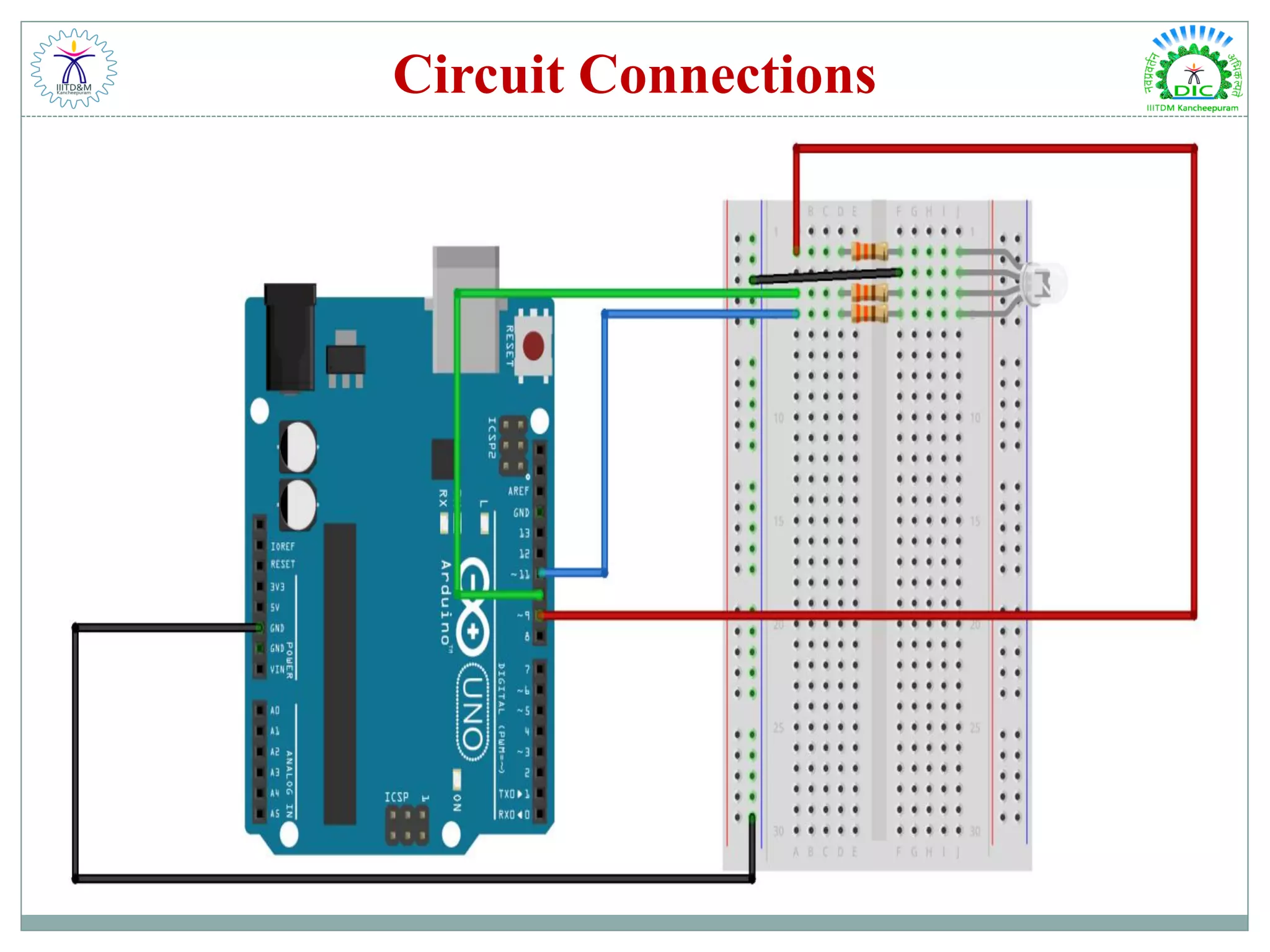
Circuit Connections
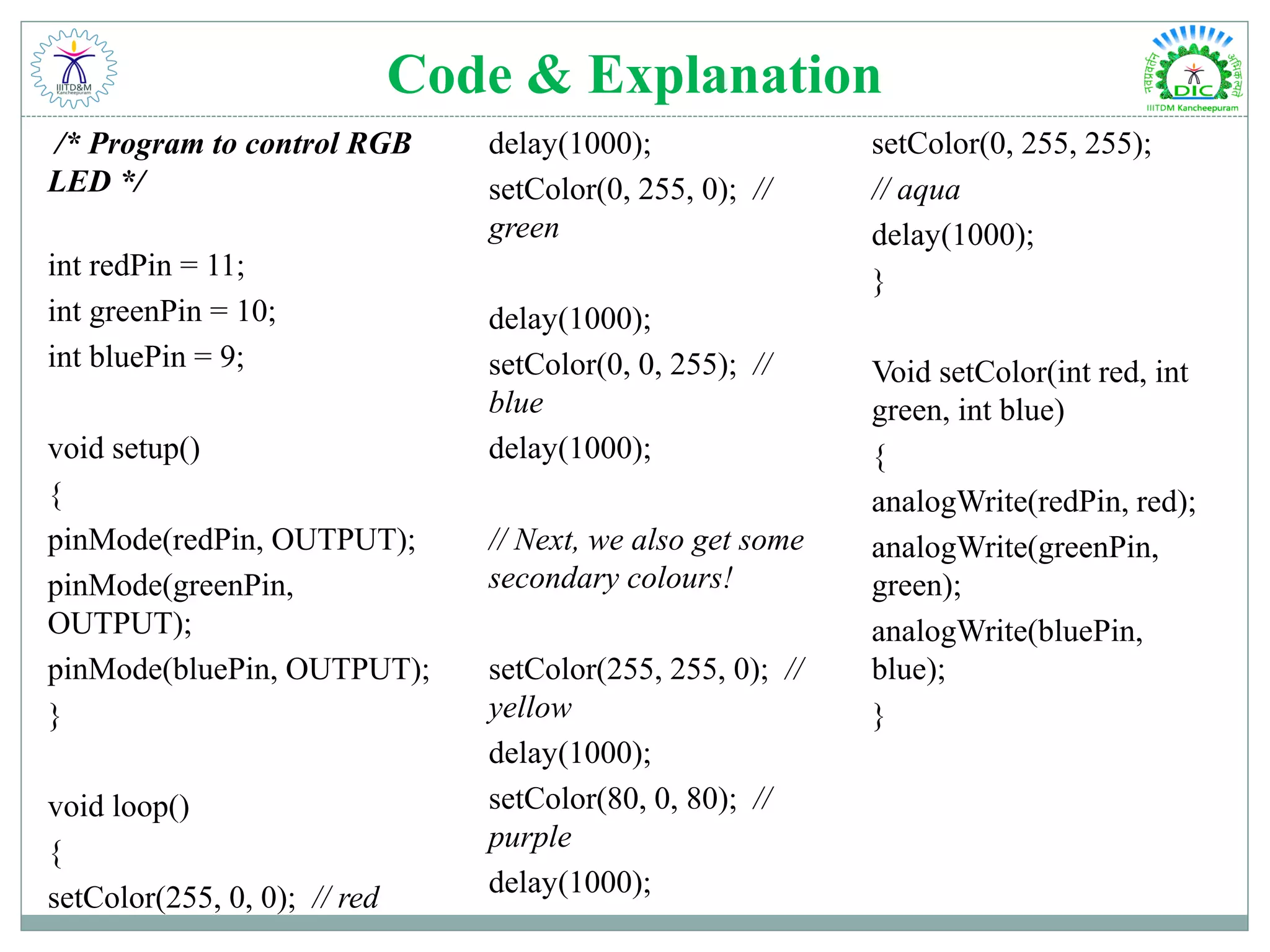
Code & Explanation /* Program to control RGB LED */ int redPin = 11; int greenPin = 10; int bluePin = 9; void setup() { pinMode(redPin, OUTPUT); pinMode(greenPin, OUTPUT); pinMode(bluePin, OUTPUT); } void loop() { setColor(255, 0, 0); // red delay(1000); setColor(0, 255, 0); // green delay(1000); setColor(0, 0, 255); // blue delay(1000); // Next, we also get some secondary colours! setColor(255, 255, 0); // yellow delay(1000); setColor(80, 0, 80); // purple delay(1000); setColor(0, 255, 255); // aqua delay(1000); } Void setColor(int red, int green, int blue) { analogWrite(redPin, red); analogWrite(greenPin, green); analogWrite(bluePin, blue); }
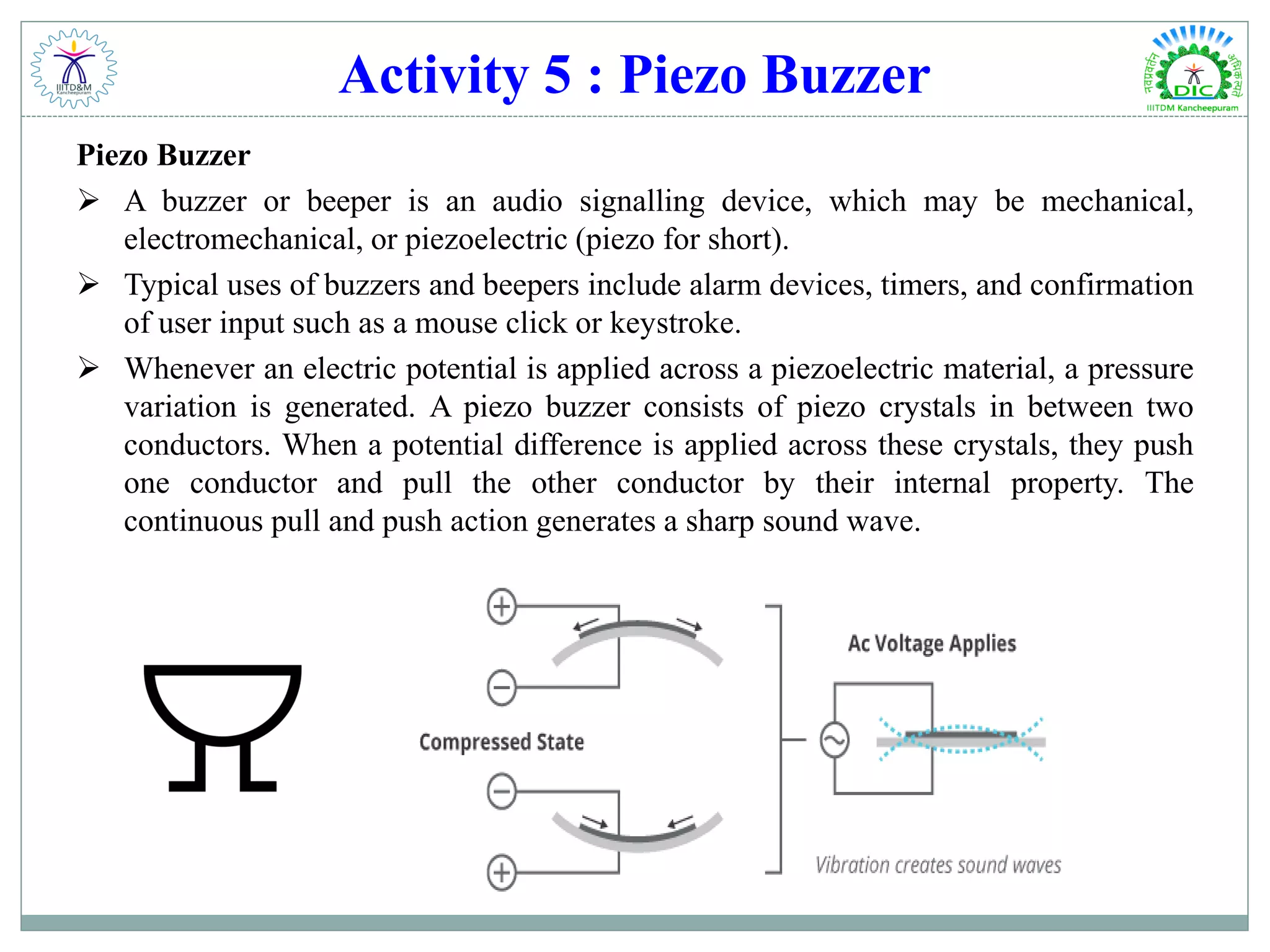
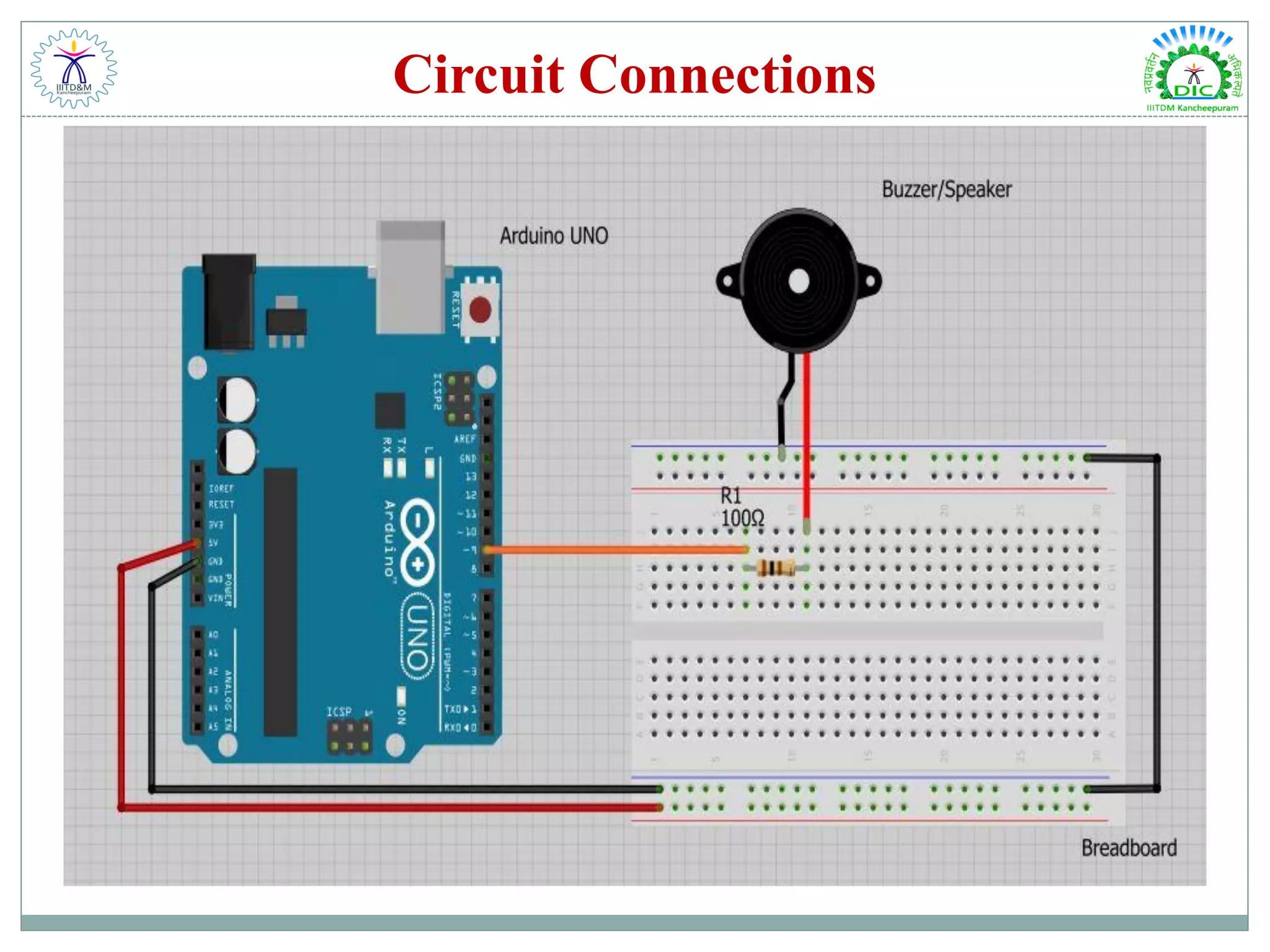
Activity 5 : Piezo Buzzer Piezo Buzzer  A buzzer or beeper is an audio signalling device, which may be mechanical, electromechanical, or piezoelectric (piezo for short).  Typical uses of buzzers and beepers include alarm devices, timers, and confirmation of user input such as a mouse click or keystroke.  Whenever an electric potential is applied across a piezoelectric material, a pressure variation is generated. A piezo buzzer consists of piezo crystals in between two conductors. When a potential difference is applied across these crystals, they push one conductor and pull the other conductor by their internal property. The continuous pull and push action generates a sharp sound wave.
Circuit Connections
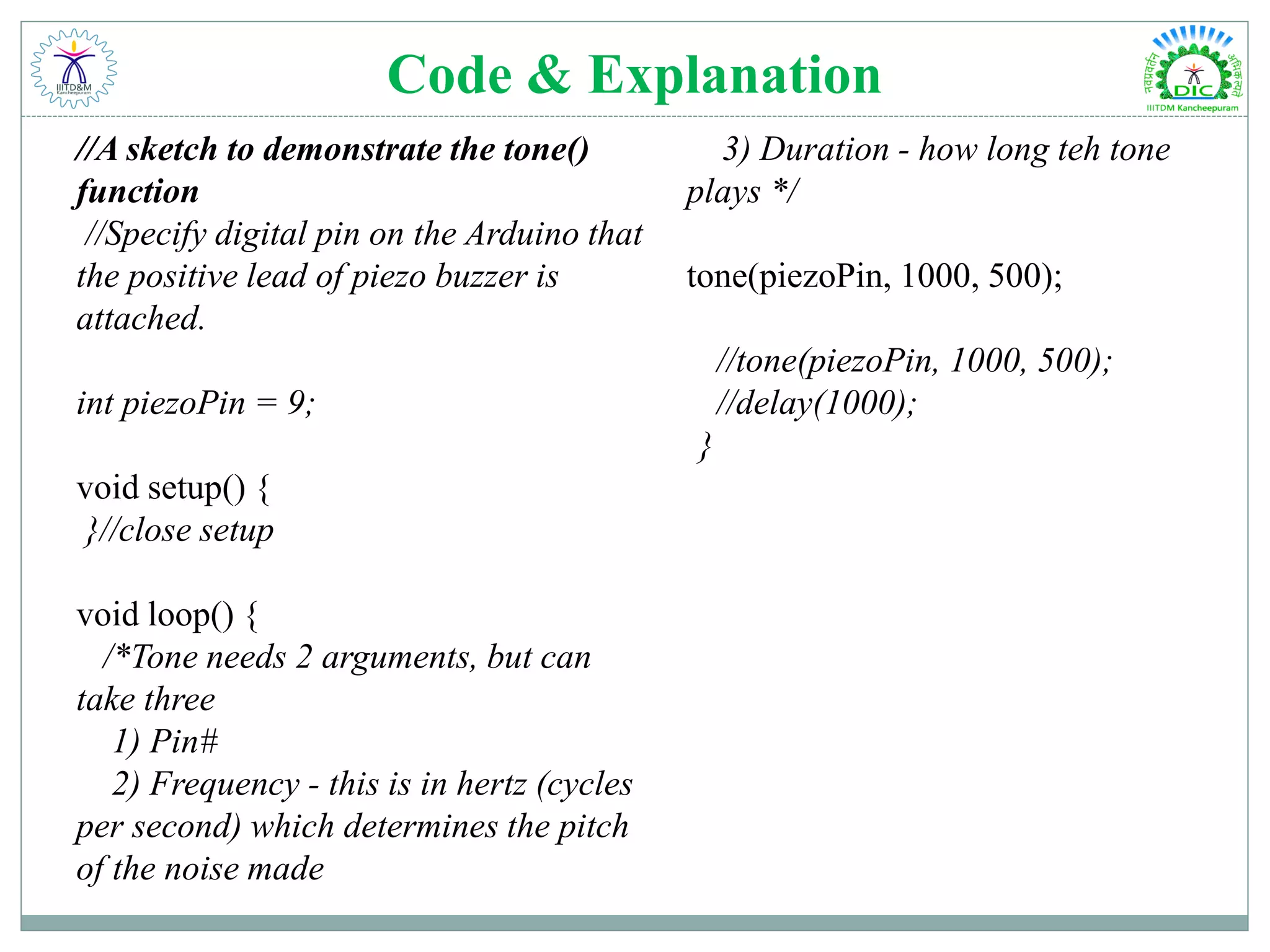
Code & Explanation //A sketch to demonstrate the tone() function //Specify digital pin on the Arduino that the positive lead of piezo buzzer is attached. int piezoPin = 9; void setup() { }//close setup void loop() { /*Tone needs 2 arguments, but can take three 1) Pin# 2) Frequency - this is in hertz (cycles per second) which determines the pitch of the noise made 3) Duration - how long teh tone plays */ tone(piezoPin, 1000, 500); //tone(piezoPin, 1000, 500); //delay(1000); }
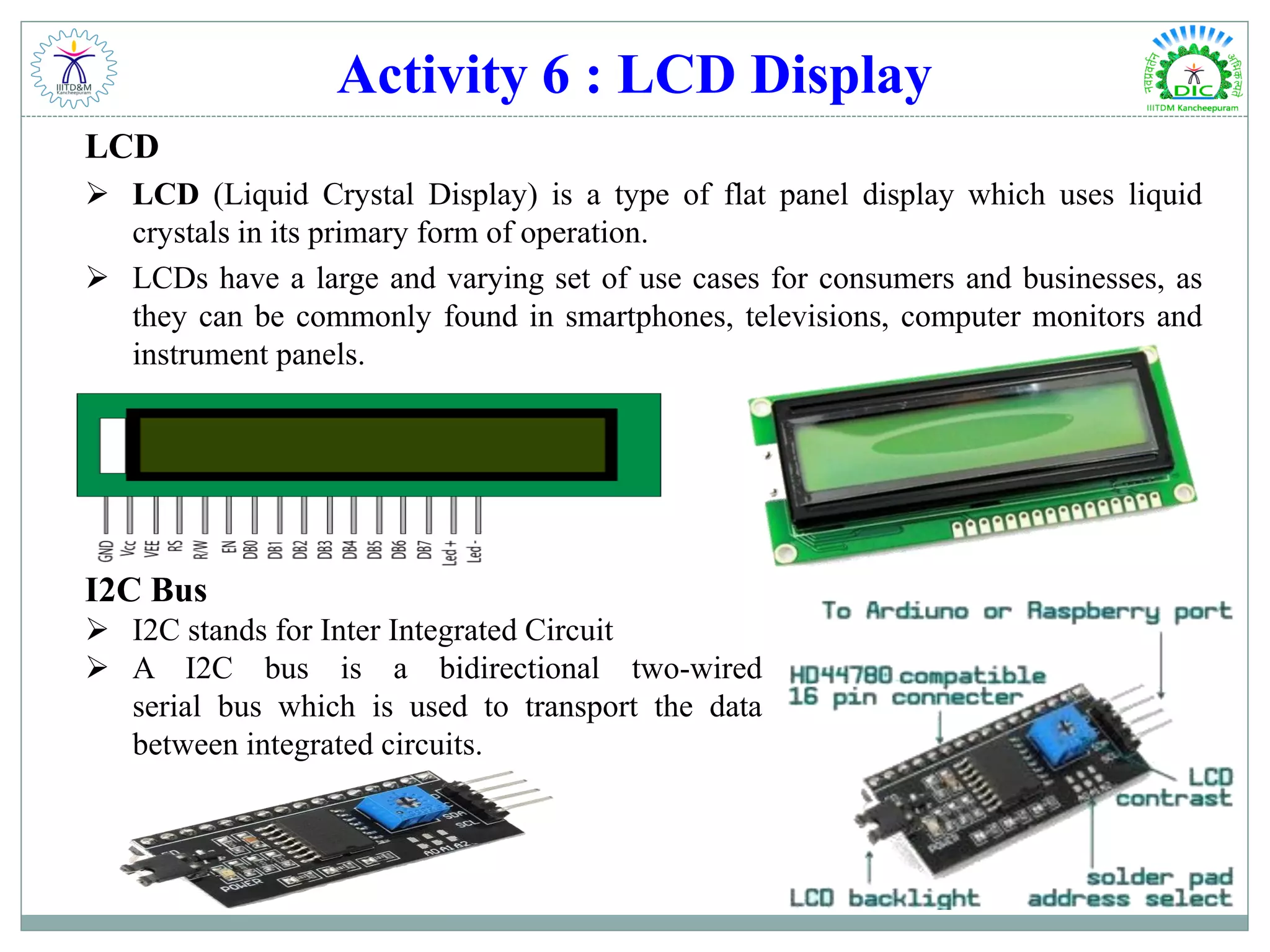
Activity 6 : LCD Display LCD  LCD (Liquid Crystal Display) is a type of flat panel display which uses liquid crystals in its primary form of operation.  LCDs have a large and varying set of use cases for consumers and businesses, as they can be commonly found in smartphones, televisions, computer monitors and instrument panels. I2C Bus  I2C stands for Inter Integrated Circuit  A I2C bus is a bidirectional two-wired serial bus which is used to transport the data between integrated circuits.
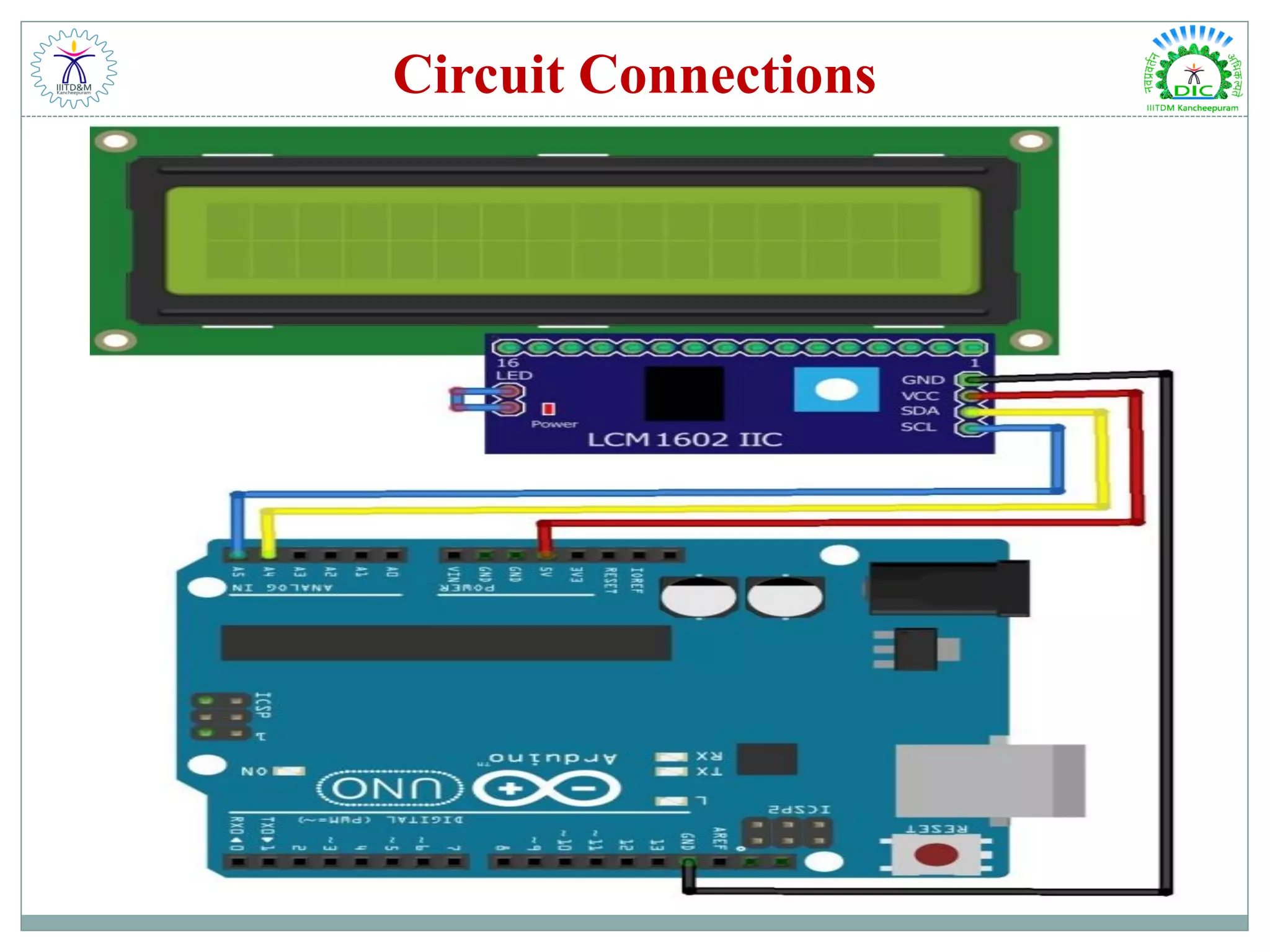
Circuit Connections
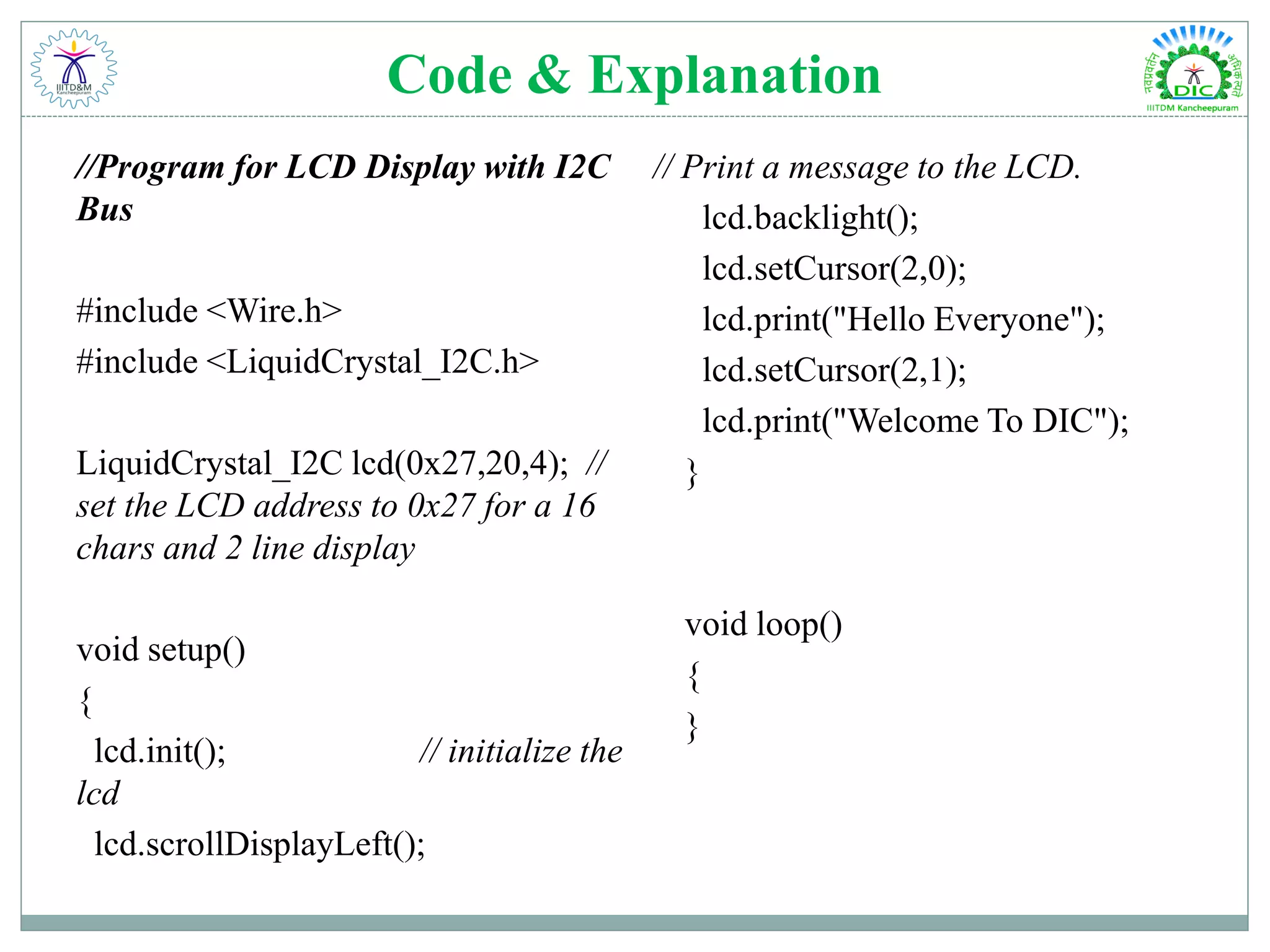
Code & Explanation //Program for LCD Display with I2C Bus #include <Wire.h> #include <LiquidCrystal_I2C.h> LiquidCrystal_I2C lcd(0x27,20,4); // set the LCD address to 0x27 for a 16 chars and 2 line display void setup() { lcd.init(); // initialize the lcd lcd.scrollDisplayLeft(); // Print a message to the LCD. lcd.backlight(); lcd.setCursor(2,0); lcd.print("Hello Everyone"); lcd.setCursor(2,1); lcd.print("Welcome To DIC"); } void loop() { }
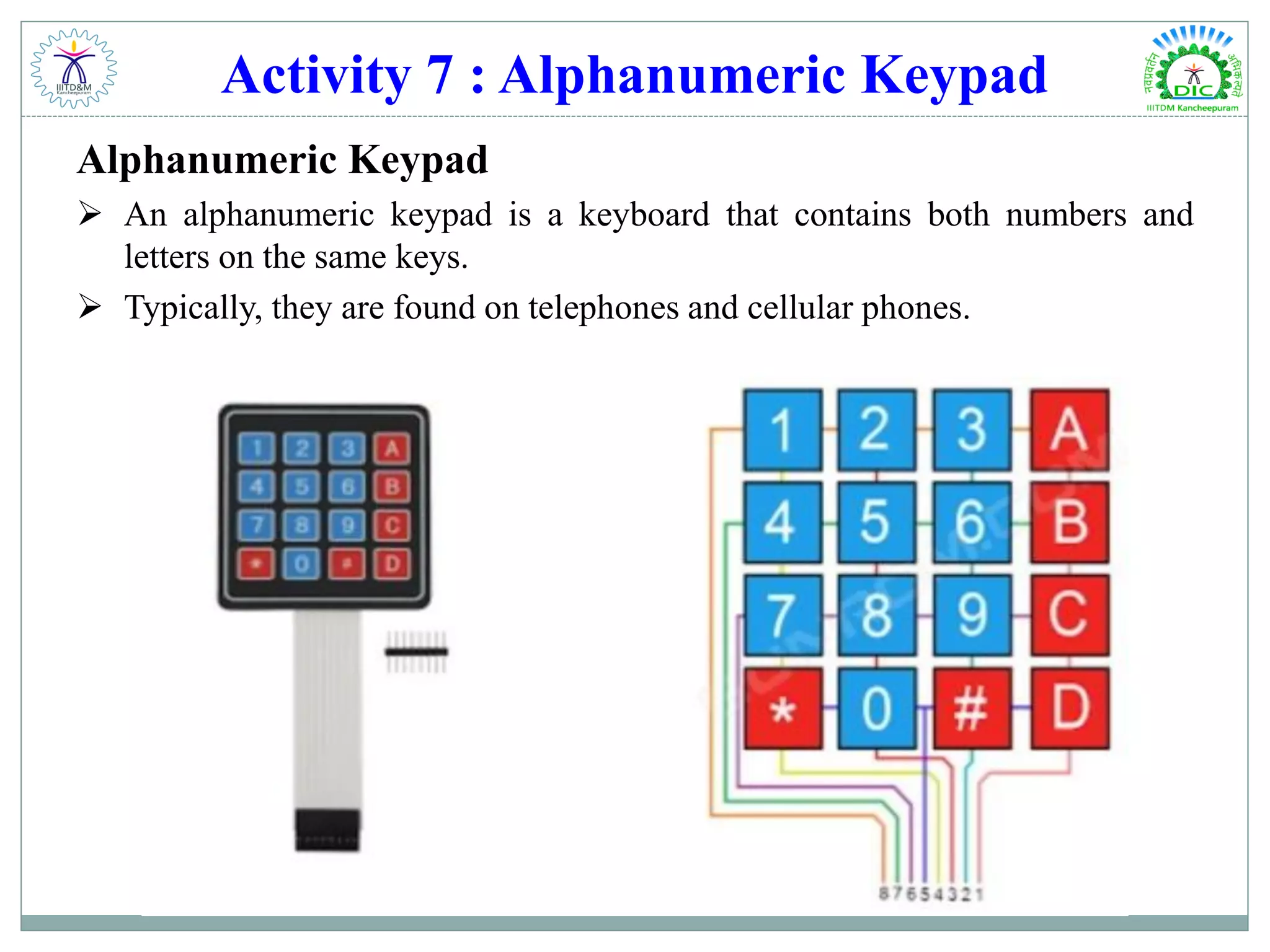
Activity 7 : Alphanumeric Keypad Alphanumeric Keypad  An alphanumeric keypad is a keyboard that contains both numbers and letters on the same keys.  Typically, they are found on telephones and cellular phones.
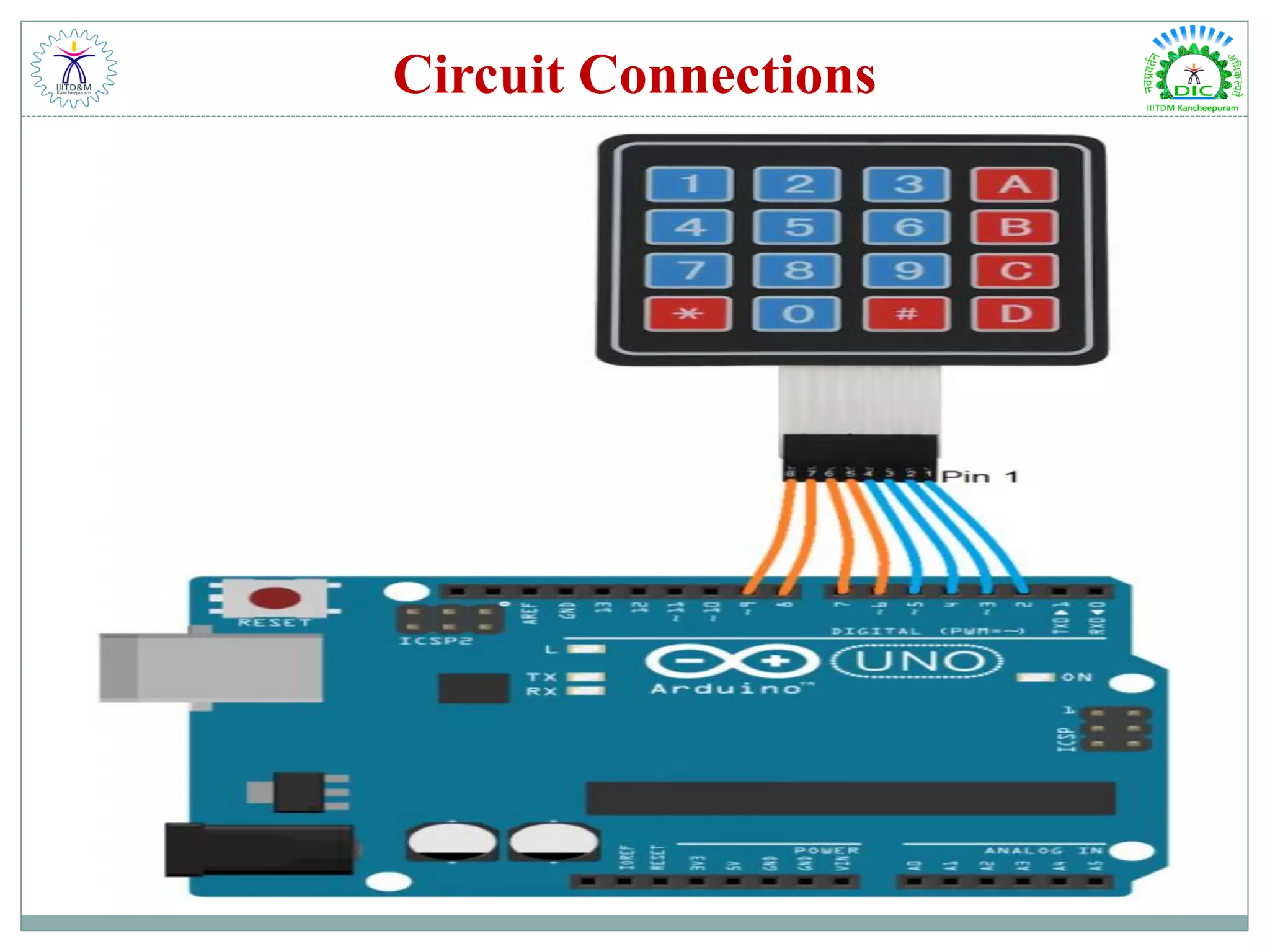
Circuit Connections
Code & Explanation /* Program for Using Keypad with Arduino */ #include <Keypad.h> #include <Wire.h> const byte Rows= 4; //number of rows on the keypad i.e. 4 const byte Cols= 4; char keymap[Rows][Cols]= { {'1', '2', '3','A'}, {'4', '5', '6','B'}, {'7', '8', '9','C'}, {'*', '0', '#','D'} }; //a char array is defined byte rPins[Rows]= {9,8,7,6}; //Rows 0 to 3 byte cPins[Cols]= {5,4,3,2}; //Columns 0 to 3 // command for library for keypad Keypad kpd= Keypad(makeKeymap(keymap), rPins, cPins, Rows, Cols); void setup(){ Serial.begin(9600); // serial monitor } //If key is pressed, this key is stored in 'keypressed' variable’ //If key is not equal to 'NO_KEY', then this key is printed out void loop() //main program { char keypressed = kpd.getKey(); if (keypressed != NO_KEY) { Serial.print(keypressed); // write this string on the top row } }
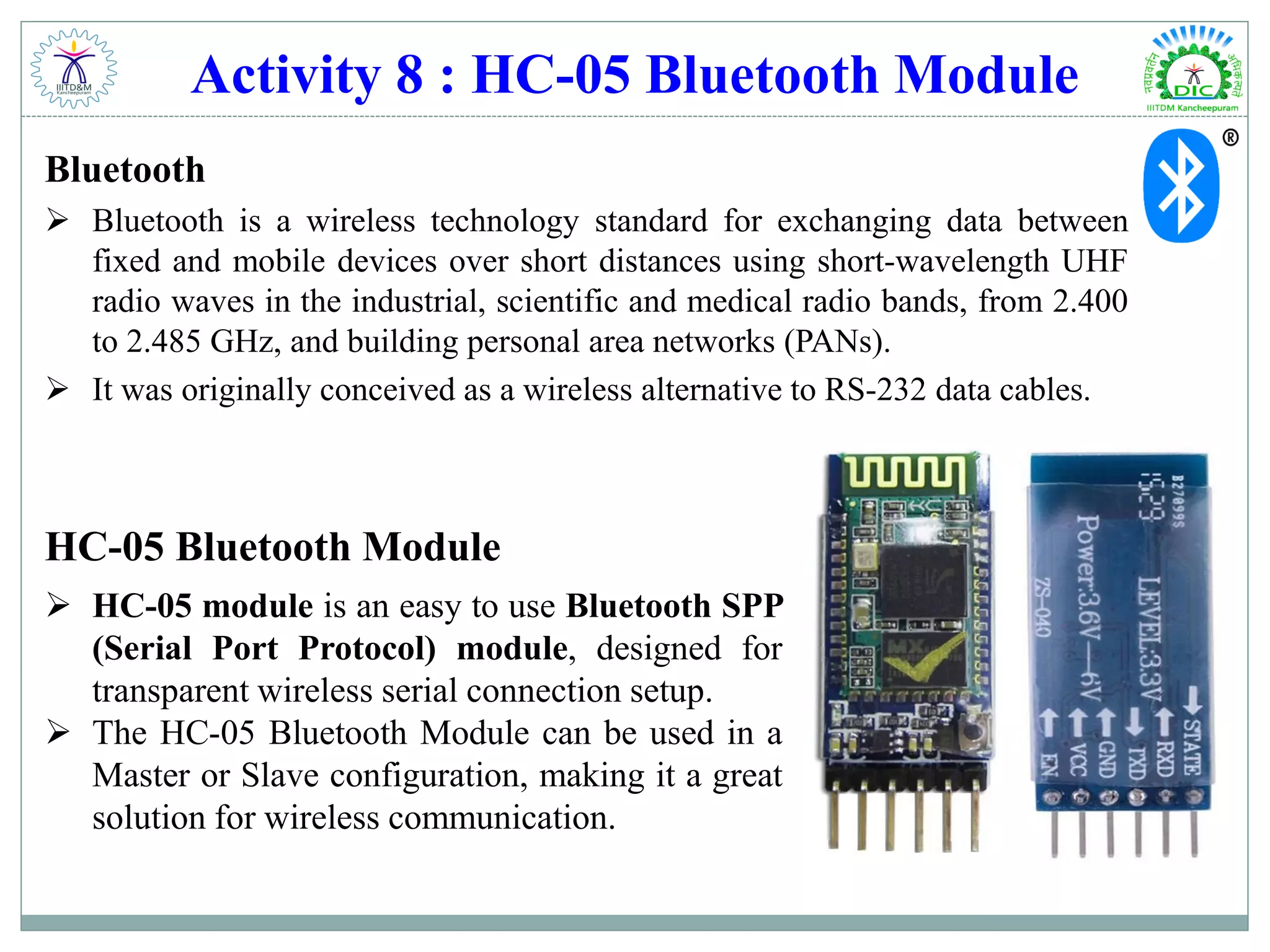
Activity 8 : HC-05 Bluetooth Module Bluetooth  Bluetooth is a wireless technology standard for exchanging data between fixed and mobile devices over short distances using short-wavelength UHF radio waves in the industrial, scientific and medical radio bands, from 2.400 to 2.485 GHz, and building personal area networks (PANs).  It was originally conceived as a wireless alternative to RS-232 data cables. HC-05 Bluetooth Module  HC‐05 module is an easy to use Bluetooth SPP (Serial Port Protocol) module, designed for transparent wireless serial connection setup.  The HC-05 Bluetooth Module can be used in a Master or Slave configuration, making it a great solution for wireless communication.
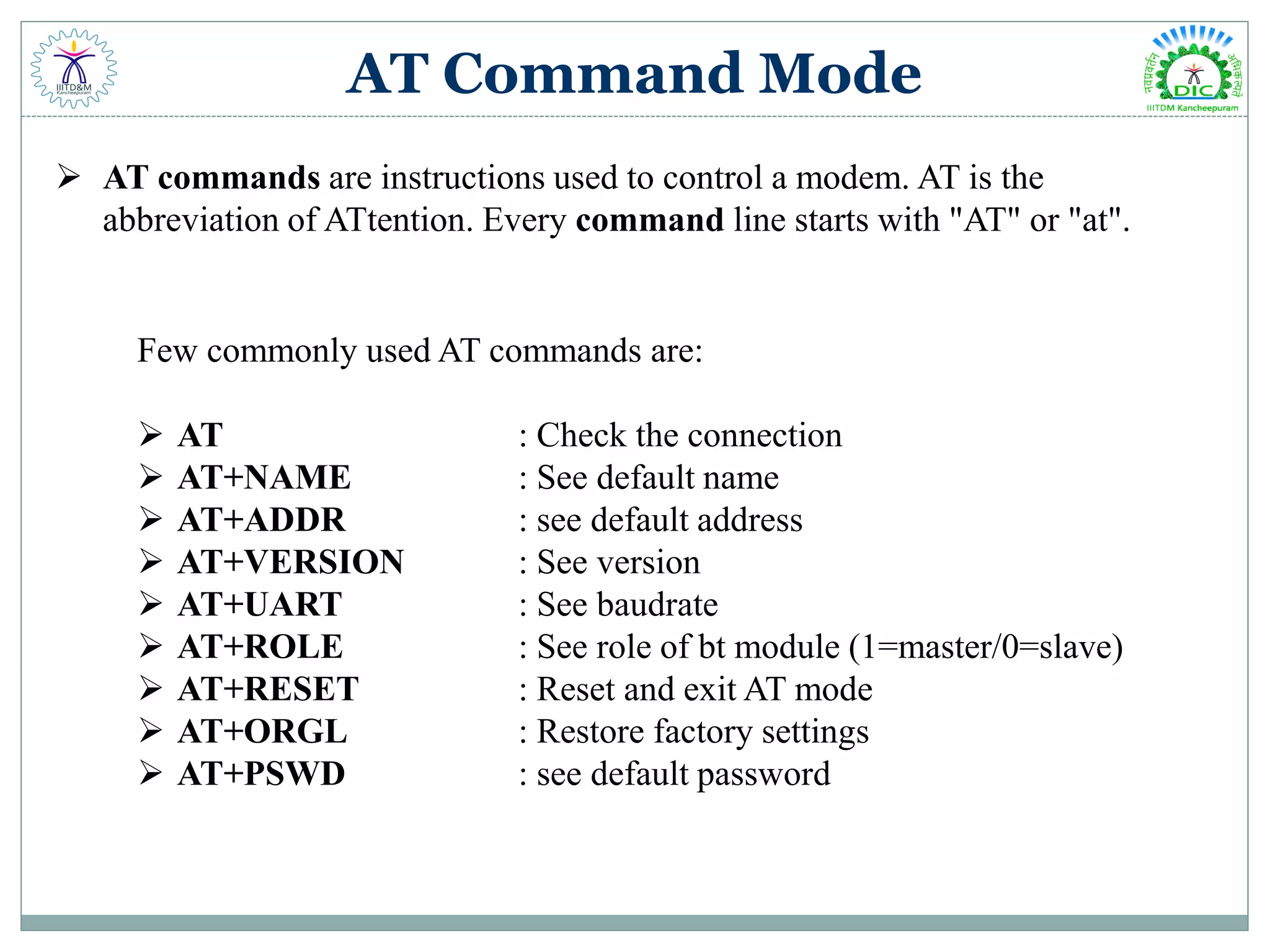
AT Command Mode  AT commands are instructions used to control a modem. AT is the abbreviation of ATtention. Every command line starts with "AT" or "at". Few commonly used AT commands are:  AT : Check the connection  AT+NAME : See default name  AT+ADDR : see default address  AT+VERSION : See version  AT+UART : See baudrate  AT+ROLE : See role of bt module (1=master/0=slave)  AT+RESET : Reset and exit AT mode  AT+ORGL : Restore factory settings  AT+PSWD : see default password
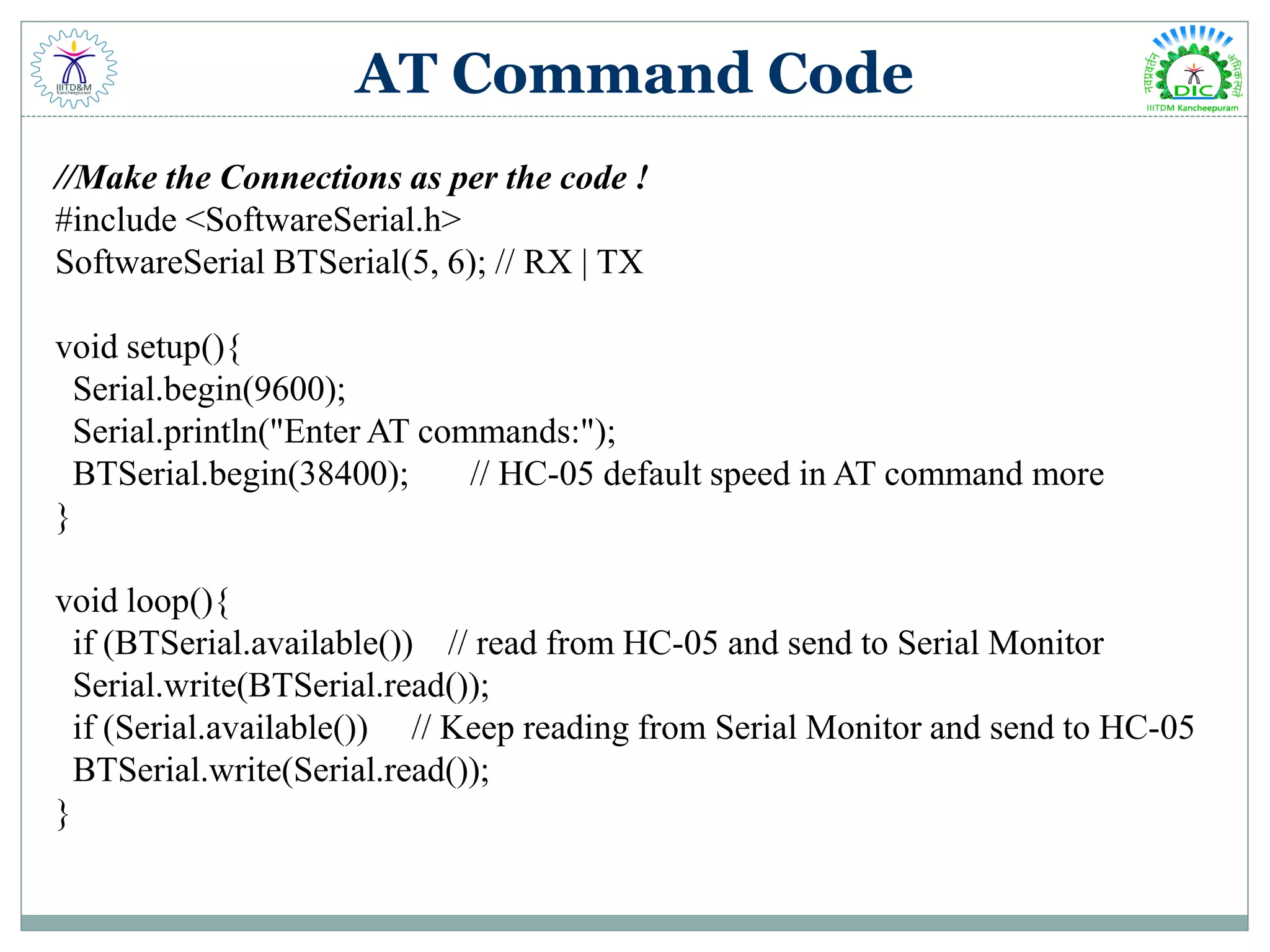
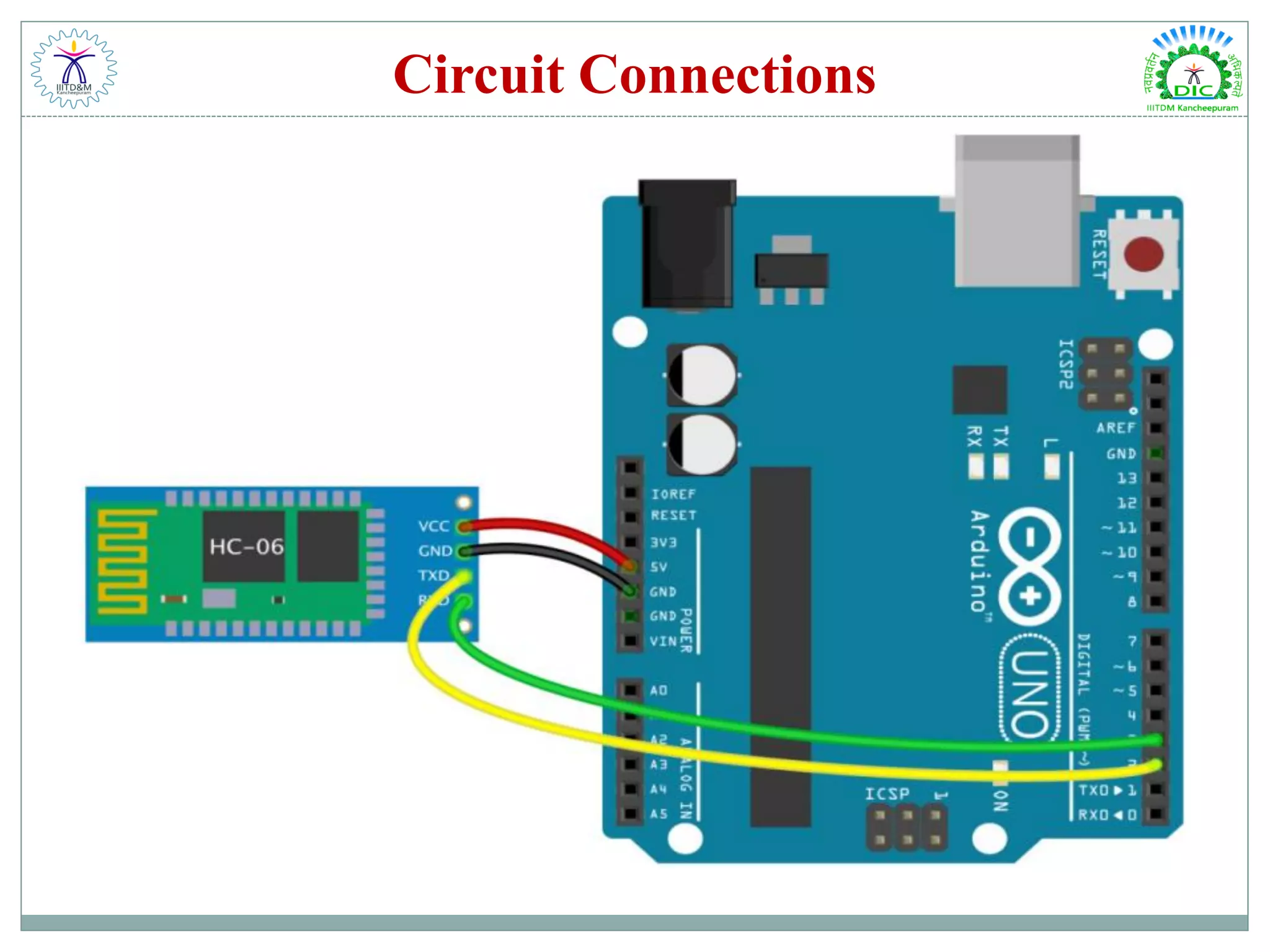
AT Command Code //Make the Connections as per the code ! #include <SoftwareSerial.h> SoftwareSerial BTSerial(5, 6); // RX | TX void setup(){ Serial.begin(9600); Serial.println("Enter AT commands:"); BTSerial.begin(38400); // HC-05 default speed in AT command more } void loop(){ if (BTSerial.available()) // read from HC-05 and send to Serial Monitor Serial.write(BTSerial.read()); if (Serial.available()) // Keep reading from Serial Monitor and send to HC-05 BTSerial.write(Serial.read()); }
Circuit Connections
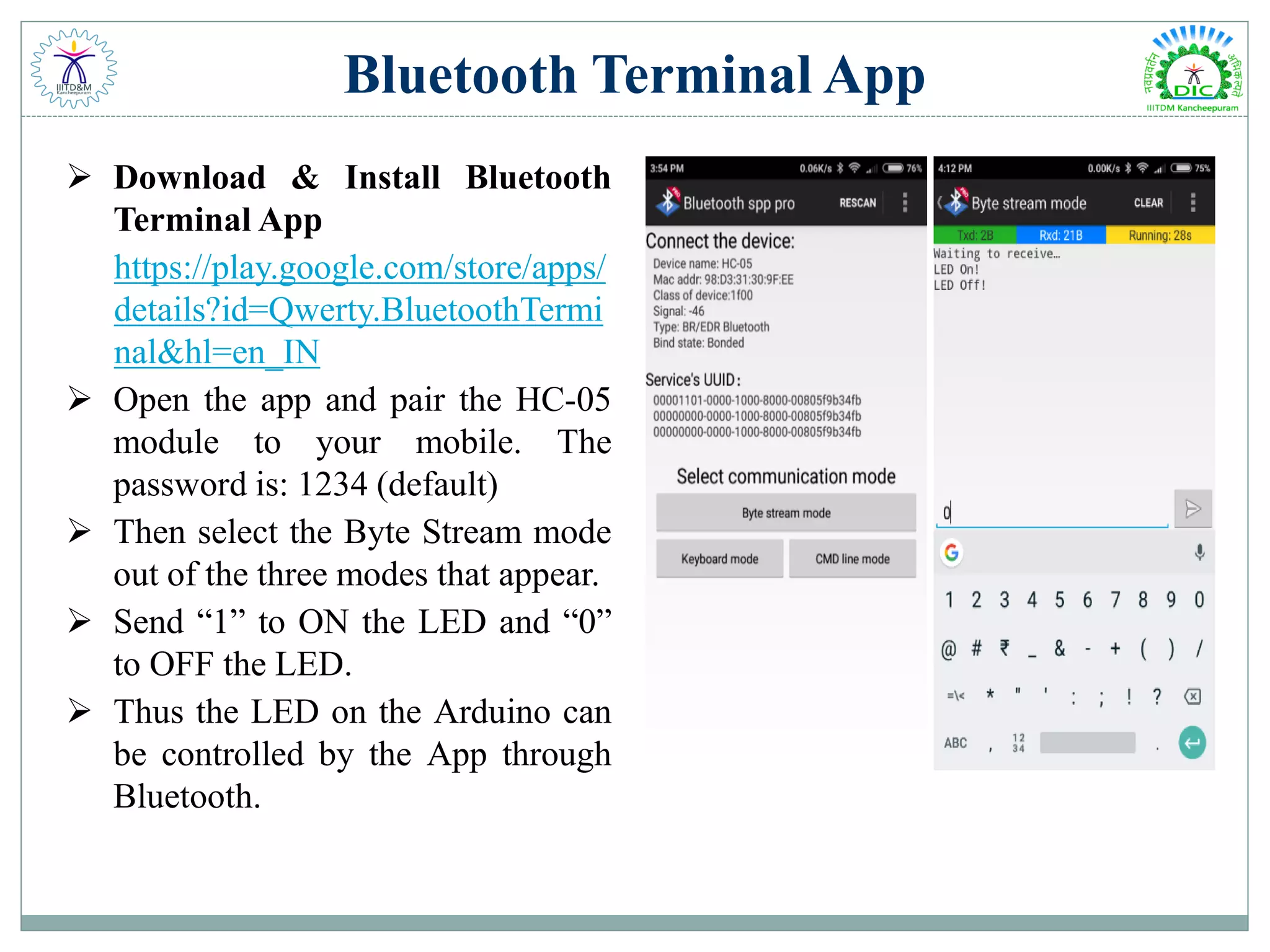
Bluetooth Terminal App  Download & Install Bluetooth Terminal App https://play.google.com/store/apps/ details?id=Qwerty.BluetoothTermi nal&hl=en_IN  Open the app and pair the HC-05 module to your mobile. The password is: 1234 (default)  Then select the Byte Stream mode out of the three modes that appear.  Send “1” to ON the LED and “0” to OFF the LED.  Thus the LED on the Arduino can be controlled by the App through Bluetooth.
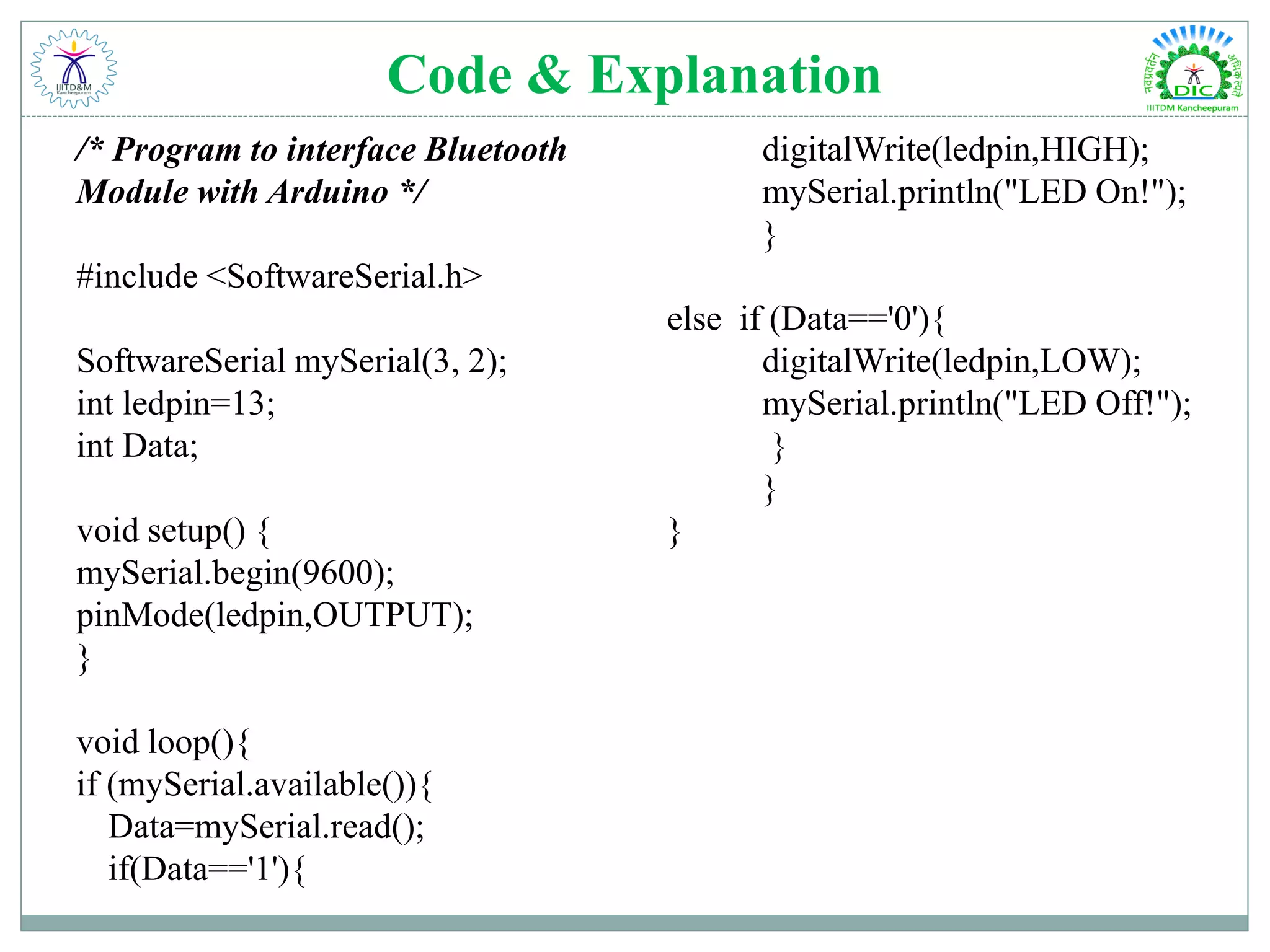
Code & Explanation /* Program to interface Bluetooth Module with Arduino */ #include <SoftwareSerial.h> SoftwareSerial mySerial(3, 2); int ledpin=13; int Data; void setup() { mySerial.begin(9600); pinMode(ledpin,OUTPUT); } void loop(){ if (mySerial.available()){ Data=mySerial.read(); if(Data=='1'){ digitalWrite(ledpin,HIGH); mySerial.println("LED On!"); } else if (Data=='0'){ digitalWrite(ledpin,LOW); mySerial.println("LED Off!"); } } }
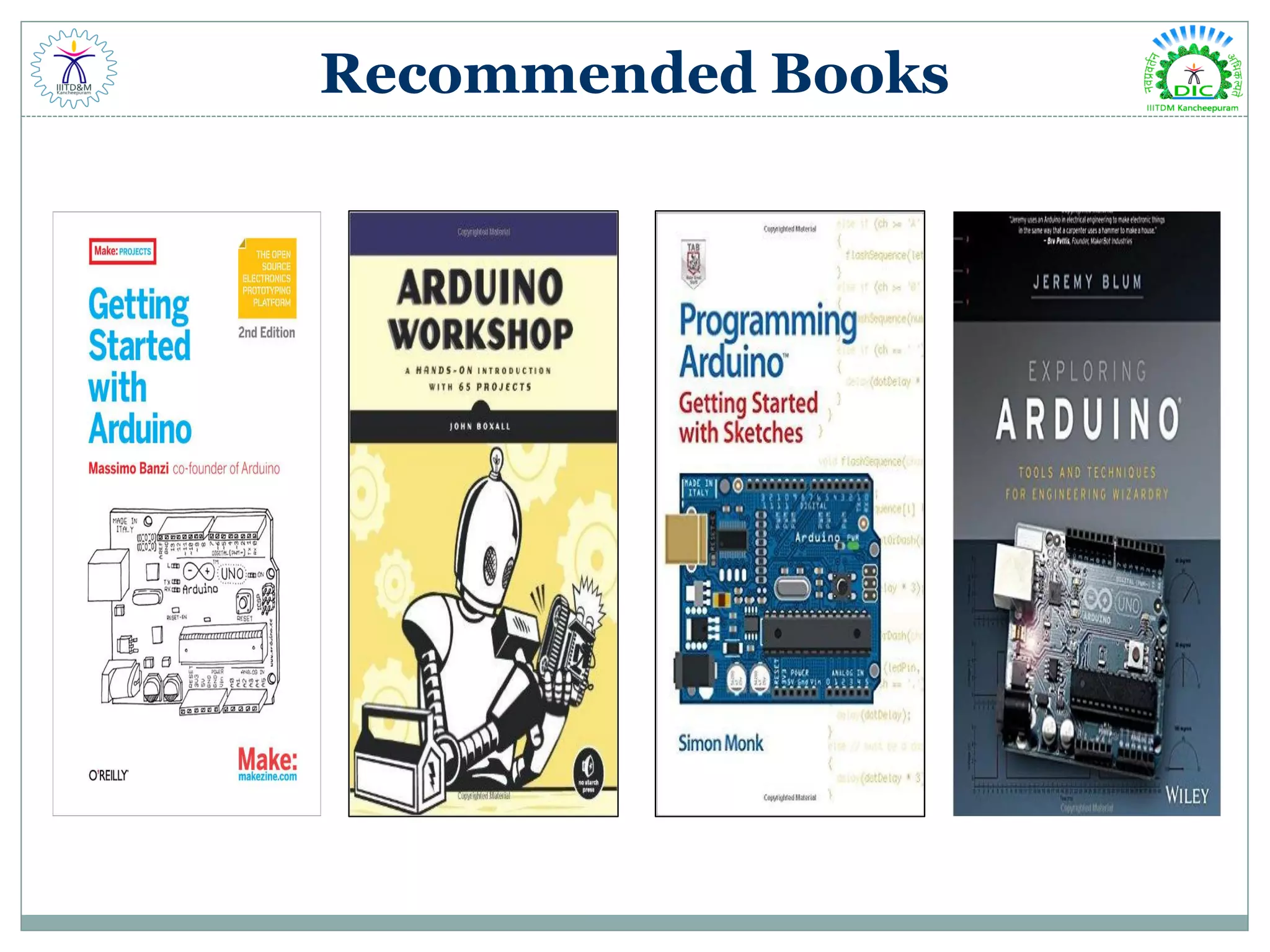
Recommended Books
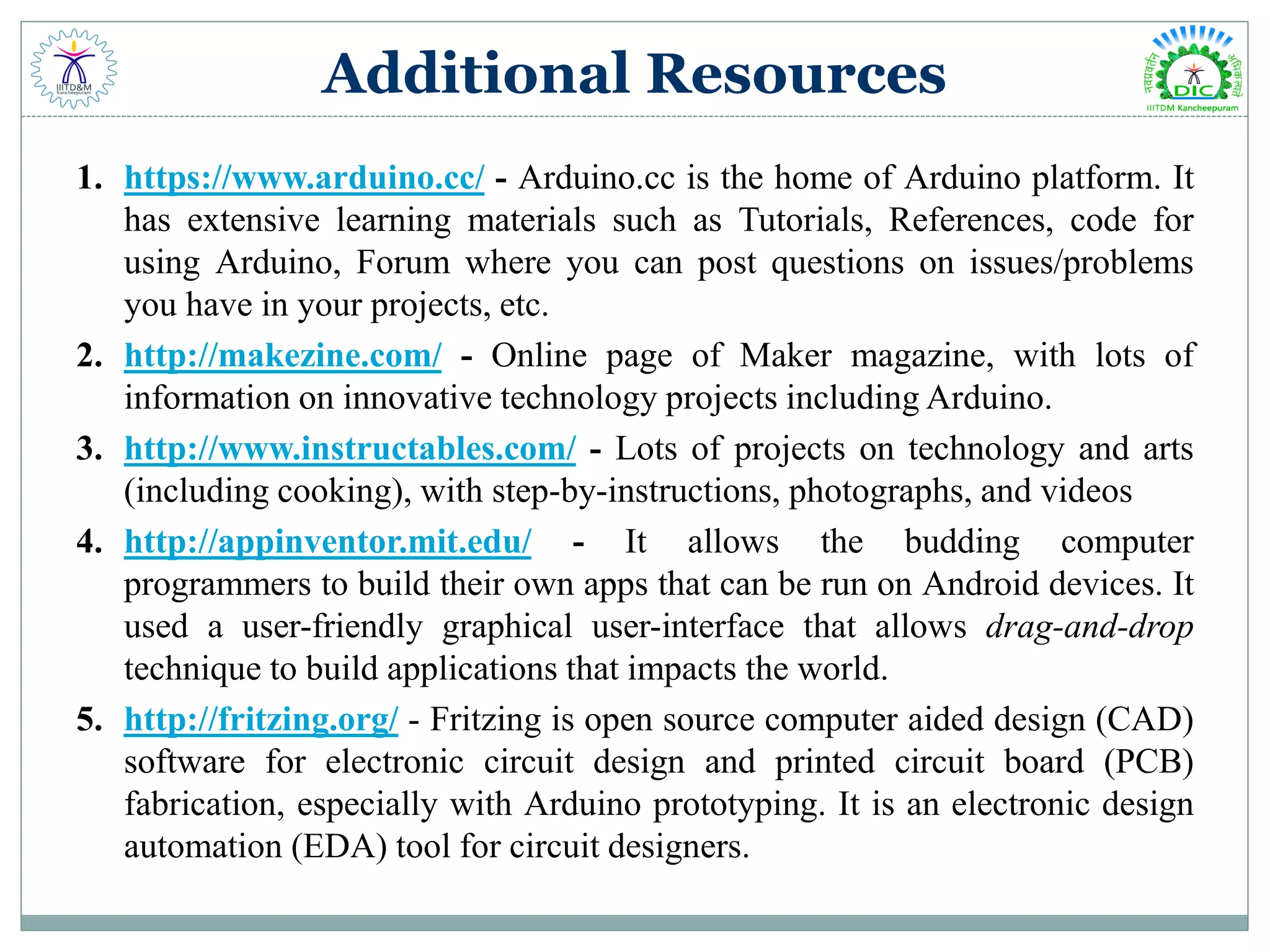
Additional Resources 1. https://www.arduino.cc/ - Arduino.cc is the home of Arduino platform. It has extensive learning materials such as Tutorials, References, code for using Arduino, Forum where you can post questions on issues/problems you have in your projects, etc. 2. http://makezine.com/ - Online page of Maker magazine, with lots of information on innovative technology projects including Arduino. 3. http://www.instructables.com/ - Lots of projects on technology and arts (including cooking), with step-by-instructions, photographs, and videos 4. http://appinventor.mit.edu/ - It allows the budding computer programmers to build their own apps that can be run on Android devices. It used a user-friendly graphical user-interface that allows drag-and-drop technique to build applications that impacts the world. 5. http://fritzing.org/ - Fritzing is open source computer aided design (CAD) software for electronic circuit design and printed circuit board (PCB) fabrication, especially with Arduino prototyping. It is an electronic design automation (EDA) tool for circuit designers.
Desgin Innovation Centre, Indian Institute of Information Technology, Design & Manufacturing, Kancheepuram, Chennai – 600127 E-mail: designinnovationcentre@gmail.com

Arduino Workshop Day 1 - Basic Arduino

  • 1.
    WORKSHOP ON ARDUINO DAY– 1: ARDUINO BASICS DESIGN INNOVATION CENTRE
  • 2.
    Free and Open-SourceSoftware (FOSS)  Free and open-source software (FOSS) allows users and programmers to edit, modify or reuse the software's source code. This gives developers the opportunity to improve program functionality by modifying it.  The term “free” indicates that the software does not have constraints on copyrights. The term “open source” indicates the software is in its project form, enabling easy software development from expert developers collaborating worldwide without any need for reverse engineering.  Some examples of FOSS include: Linux Kernel, Ubuntu, Nextcloud, Google Chrome OS, Android OS, BSD, GIMP, Blender, OpenOffice, Chrome Browser, Eclipse, etc.
  • 3.
    Why Was ArduinoDeveloped?  Physical Computing – using components that can interact with people and with the world around us  The Arduino was originally developed for artists and designers to prototype interactive displays at Italy by Massimo Banzi and David Cuartielles in 2005.  Developed for non-scientists  Minimalist programming  “Forgiving” circuitry that can handle a wide variety of wiring errors
  • 4.
    What is ArduinoNot?  It is not a chip (IC)  It is not a board (PCB)  It is not a company or a manufacturer  It is not a programming language  It is not a computer architecture (although it involves all of these things...) Official Definition: Arduino is an open-source electronics prototyping platform based on flexible, easy-to-use hardware and software. It's intended for artists, designers, hobbyists, and anyone interested in creating interactive objects or environments.
  • 5.
    So, What isArduino?  It’s a movement, not a microcontroller  Founded by Massimo Banzi and David Cuartielles in 2005 based on “Wiring Platform”, which dates to 2003  Open-source hardware platform  Open source development environment  Easy-to learn language and libraries (based on Wiring language)  Integrated development environment (based on Processing programming environment)  Available for Windows / Mac / Linux
  • 6.
    Why Arduino?  Forwhatever reason, Arduino microcontrollers have become the de facto standard  Strives for the balance between ease of use and usefulness 1. Programming languages seen as major obstacle 2. Arduino C is a greatly simplified version of C++  It is an open-source project, software/hardware is extremely accessible and very flexible to be customized and extended  Arduino is backed up by a growing online community, lots of source code is already available and we can share and post our examples for others to use, too!  It is inexpensive and comes with free authoring software Original Arduino.cc Manufactured Arduino Uno: ₹ 2,400.00 Electrical & Code compatible Arduino Uno Clone: ₹ 500.00
  • 7.
    Electricity ElectronicsBasic Concepts  Voltage (V) Voltage, also called electromotive force, is the potential difference in charge between two points in an electrical field. It is measured in Volt (V).  Current (I) Current is the rate at which electric charge flows past a point in a circuit. In other words, current is the rate of flow of electric charge. It is measured in Ampere (A).  Resistance (R) Resistance is a measure of the opposition to current flow in an electrical circuit. It is measured in ohms, symbolized by the Greek letter omega (Ω).
  • 8.
    Alternating Current &Direct Current  Alternating Current (AC) Alternating current is defined as the flow of charge that changes direction periodically. The result obtained will be, the voltage level also reverses along with the current. Basically, AC is used to deliver power to industries, houses, office buildings, etc.  Direct current (DC) Direct current is the movement of electric charge carriers, i.e. electrons in a unidirectional flow. In DC, the intensity of the current will vary along with time, but the direction of movement stays the same in all time. Here DC is referred to a voltage whose polarity never reverses. DC power is widely used in low voltage applications such as charging batteries, automotive applications, aircraft applications.
  • 9.
    Ohm’s Law  Therelationship between Voltage, Current and Resistance in any DC electrical circuit was firstly discovered by the German physicist Georg Ohm.  Ohm's law states that the current through a conductor between two points is directly proportional to the voltage across the two points The Power TriangleThe Ohm’s Law Triangle
  • 10.
    Current Flow ,Voltage Flow & Resistance Analogies Water = Charge Pressure = Voltage (V) Flow = Current (I) Size of the Pipe = Resistance (R)
  • 11.
    Circuit  An electroniccircuit is composed of individual electronic components, such as resistors, transistors, capacitors, inductors and diodes, connected by conductive wires or traces through which electric current can flow. To be referred to as electronic, rather than electrical, generally at least one active component must be present.  The word “circuit” is derived from the circle. An Electrical Circuit must have a continuous loop from Power (Vcc) to Ground (GND).
  • 12.
    Electronic Components  ActiveComponents Those devices or components which required external source to their operation is called Active Components. For Example: Diode, Transistors, SCR, ICs, etc.  Passive Components Those devices or components which do not required external source to their operation is called Passive Components. For Example: Resistor, Capacitor, Inductor, LDR, etc.
  • 13.
    Resistor  A resistoris a passive two-terminal electrical component that implements electrical resistance as a circuit element.  In electronic circuits, resistors are used to reduce current flow, adjust signal levels, to divide voltages, bias active elements, and terminate transmission lines, among other uses.
  • 14.
    Breadboard  A breadboardis a solder-less device for temporary prototype with electronics and test circuit designs.  Because the solder-less breadboard does not require soldering, it is reusable.  This makes it easy to use for creating temporary prototypes and experimenting with circuit design.
  • 15.
    Analog & DigitalSignals What is analog ?  It is continuous range of voltage values (not just 0 or 5V)  Analog has many (infinite) values Why convert to digital ?  Because our microcontroller only understands digital.  Digital has two values: on and off
  • 16.
    Arduino Uno &Its Parts
  • 17.
    ATMega328P Microcontroller CPU Speed:20MHz RAM: 2KB Storage: 32KB Program Memory I/O: Up to 23 Generic I/O, 6 are Analog Capable, UART / I2C / SPI
  • 18.
  • 19.
    Microcontroller (µC, MCU) Computeron a single Integrated Chip  Processor (CPU)  Memory (RAM / ROM / Flash)  I/O ports (USB, I2C, SPI, ADC) Common microcontroller families:  Intel: 4004, 8008, etc.  Atmel: AT and AVR  Microchip: PIC  ARM: (multiple manufacturers) Used in: Cell Phones, Toys, Household Appliances, Cars, Cameras, etc.
  • 20.
    Embedded System Embedded System An embedded system is a combination of computer hardware and software, either fixed in capability or programmable, designed for a specific function or functions within a larger system.  Industrial machines, agricultural and process industry devices, automobiles, medical equipment, household appliances, vending machines and toys, as well as mobile devices, are possible locations for an embedded system.
  • 21.
    Boot Loader What's aboot loader? Microcontrollers are usually programmed through a programmer unless you have a piece of firmware in your microcontroller that allows installing new firmware without the need of an external programmer. This is called a boot loader.
  • 22.
    Communication: I2C, SPI 1.I2C (Inter-Integrated Circuit)  Speed = 100 kHz, 400 kHz, and 3.4 MHz (not supported by Arduino)  Two bi-directional lines: SDA & SCL  Multiple slaves can share same bus 2. SPI (Serial Peripheral Interface Bus)  Speed = 1-100 MHz (clock/device limited)  Four-wire bus: SCLK, MOSI, MISO & SS  Multiple slaves can share same bus (but each needs a dedicated SS, slave select)
  • 23.
    PWM & DutyCycle  Pulse-width modulation (PWM) is used for controlling the amplitude of digital signals in order to control devices and applications requiring power or electricity.  Duty cycle = Pulse Width / Wave Period
  • 24.
    Different Arduino Boards Arduino Uno  Arduino Leonardo  Arduino LilyPad  Arduino Mega  Arduino Nano  Arduino Mini  Arduino Mini Pro  Arduino BT  Arduino Due
  • 25.
    Different Arduino Shields TFTTouch Screen Data Logger Motor/Servo Shield Ethernet Shield Audio Wave Shield Cellular/GSM Shield Wifi Shield Proto-shield, etc.
  • 26.
    Getting Started withArduino Download Arduino compiler and development environment from: http://arduino.cc/en/Main/Software  Current version: 1.8.10  Available for Windows, Mac OS X & Linux  Downloadable as Installer & Zip File  Before running Arduino, plug in your board using USB cable (external power is not necessary)  When USB device is not recognized, navigate to and select the appropriate driver from the installation directory  Run Arduino
  • 27.
    Arduino IDE (Integrated DevelopmentEnvironment) 1. Verify 2. Upload 3. New 4. Open 5. Save 6. Serial Monitor 7. Sketch Name 8. Code Area 9. Message Area 10. Text Console 11. Board & Serial Port
  • 28.
    Setting Up ofArduino IDE  The computer communicates to the Arduino microcontroller via a serial port through a USB- Serial adapter.  Check to make sure that the drivers are properly installed. Step 1 Settings: Tools  Board  Arduino Uno Step 2 Settings: Tools  Settings: Tools  Serial Port  COM#(Arduino Uno)
  • 29.
    Arduino Sketch Structure voidsetup() Will be executed only when the program begins (or reset button is pressed) void loop() Will be executed repeatedly
  • 30.
    Arduino Program Development Based on C++ without 80% of the instructions.  A handful of new commands.  Programs are called 'sketches'.  Sketches need two functions:  void setup( )  void loop( )  setup( ) runs first and once.  loop( ) runs over and over, until power is lost or a new sketch is loaded.
  • 31.
    Important Functions  pinMode(pin,mode) Designates the specified pin for input or output  digitalWrite(pin, value) Sends a voltage level to the designated pin  digitalRead(pin) Reads the current voltage level from the designated pin  analogWrite(pin, value) Sends analog voltage of the range 0 to 1023 to the designated pin  digitalRead(pin) Reads the current analog voltage of the range 0 to 1023 from the designated pin  delay(delaytime) pauses the execution of the program for the given amount of time  Serial Commands print(), println(), write(), read(), begin(), end(), find()
  • 32.
    Variables  A variableis a way of naming and storing a value for later use by the program, such as data from a sensor or an intermediate value used in a calculation. Declaration  Before they are used, all variables have to be declared. Declaring a variable means defining its type, and optionally, setting an initial value (initializing the variable). Variables do not have to be initialized (assigned a value) when they are declared, but it is often useful. 8 bits 16 bits 32 bits byte char int unsigned int long unsigned long float
  • 33.
    Conditions If Statement: Ifa certain condition is true, the set of statements enclosed in curly braces are executed. If the condition is false, then the set of statements are skipped during the execution. if(some variable ?? state){ } If Else Statement makes an “either-or decision. The if statements checks a condition. If it is true, it executes a set of statements; if the condition is not true, it executes other set of statements under else. if (some variable ?? state){ } else{ } For Loop: If you want to repeatedly execute a set of statements for a specific number of times, then you can use a for loop. for(initialization; condition; expression){ } While Loop executes a set of statements until the expression inside the parentheses is false while (some variable ?? value){ } Do While Loop executes a set of statements once and repeatedly execute the set if a certain condition is true. do{ } while (some variable ?? value); Switch Case Statement allows to execute one code block among many alternatives. switch (expression) ​{ case 1: // statements break; case 2: // statements break; default: // default statements }
  • 34.
    Basic IDE Code //Basic blinking LED int ledPin = 13; //Variable to store the pin number void setup() { pinMode(ledPin, OUTPUT); //set ledPin as output } void loop() { digitalWrite(ledPin, HIGH); //LED ON delay(1000); //Wait 1000ms (=1s) digitalWrite(ledPin, LOW); //LED OFF delay(1000); //Wait 1000ms (=1s) }
  • 35.
    Sensor What is asensor?  A device that receives a stimulus and responds with an electrical signal.  A special type of transducer, device that converts one type of energy into another
  • 36.
    Common Sensors  Mechanical Accelerometers  Gyroscopes  Optical  Photo Detectors  Infrared  Semiconductor  Gas  Temperature  Magnetic Sensor Characteristics  Range  Accuracy  Transfer Function  Sensitivity  Error
  • 37.
    Actuators  Device thatturns energy (typically electrical) to motion.  An actuator is a component of a machine that is responsible for moving and controlling a mechanism or system, for example by opening a valve. In simple terms, it is a "mover".  An actuator requires a control signal and a source of energy. Features: Force Speed Torque Power Efficiency
  • 38.
    Activities Activity 1 :Blinking & Fading an LED What is LED?  An LED lamp or LED light bulb is an electric light for use in light fixtures that produces light using one or more light-emitting diodes (LEDs).  LED lamps have a lifespan many times longer than equivalent incandescent lamps, and are significantly more efficient than most fluorescent lamps.  The main semiconductor materials used to manufacture LEDs are: InGaN, AlGaInP, AlGaAs, GaP LED Applications
  • 39.
  • 40.
    Code & Explanation /*LEDBlink Experiment */ int led =9; // LED anode is connected to Arduino Pin 9 void setup(){ pinMode(led,OUTPUT); // Initialize the digital pin as an output } // The loop routine runs over and over again forever: void loop(){ digitalWrite(led,HIGH); // turn the LED on by making voltage HIGH delay(1000); // wait for a second digitalWrite(led,LOW); // turn the LED off by making the voltage LOW delay(1000); // wait for a second }
  • 41.
    Activity 2 :Potentiometer Potentiometer  A potentiometer is a three-terminal resistor with a sliding or rotating contact that forms an adjustable voltage divider.  If only two terminals are used, one end and the wiper, it acts as a variable resistor or rheostat. Applications:  Controllers  Audio Systems  Measuring Devices  Tuners & Calibrators
  • 42.
  • 43.
    Code & Explanation /*Program to control LED by varying the pulse width */ int potPin = 2; // select input pin A2 for the pot int ledPin = 13; // select output pin 13 for the LED int val = 0; // variable to store pot voltage void setup() { pinMode(ledPin, OUTPUT); // declare ledPin13 as an OUTPUT } void loop() { val = analogRead(potPin); // read pot voltage as integer digitalWrite(ledPin, HIGH); // turn the ledPin on delay(val); // stop the program for some time digitalWrite(ledPin, LOW); // turn the ledPin off delay(val); // stop the program for some time }
  • 44.
    Activity 3 :Push Button Switch Switch  A switch is an electrical component that can "make" or "break" an electrical circuit, interrupting the current or diverting it from one conductor to another.  The mechanism of a switch removes or restores the conducting path in a circuit when it is operated.  It may be operated manually, for example, a light switch or a keyboard button, may be operated by a moving object such as a door, or may be operated by some sensing element for pressure, temperature or flow.
  • 45.
  • 46.
    Code & Explanation //Program for Push Button with LED // set pin numbers: const int buttonPin = 7; // Pushbutton pin const int ledPin = 9; // LED pin // variables will change: int buttonState = 0; // variable reads pushbutton status void setup() { pinMode(ledPin, OUTPUT); // initialize the LED pin as an output pinMode(buttonPin, INPUT); // initialize the pushbutton pin as an input } void loop() { buttonState = digitalRead(buttonPin); // read the state of the pushbutton value // if it is, the buttonState is HIGH: if (buttonState == HIGH) { // check if the pushbutton is pressed digitalWrite(ledPin, HIGH); // turn LED on } else { digitalWrite(ledPin, LOW); // turn LED off } }
  • 47.
    Activity 3.1 :Interrupt Interrupt Introduction  An interrupt, in microcontroller context, is a signal that temporarily stops what the CPU is currently working at.  A typical Arduino sketch consists of setup() and loop() functions. When a sketch is executed, the top most lines are run first. So logically the setup() function is run before the loop() function. Although it’s far more common to have headers for libraries above setup() which are of course catered first by the compiler. The loop() function is an endless loop so there is no way to exit it.  If we will now use interrupts, we add a third function named isr(). ISR is short for Interrupt Service Routine. This is where the program jumps to whenever there is an interrupt.  When does the program jump to isr()?  Arduino Uno Digital Pins: 2 & 3 usable for interrupts  attachInterrupt(digitalPinToInterrupt(interruptPin), isr, CHANGE); void setup(){ } void loop(){ } void isr(){ }
  • 48.
    Code & Explanation //Programfor Arduino Interrupt //Make connections as per the code !  const byte ledPin = 13; const byte interruptPin = 2; volatile byte state = LOW; void setup() { pinMode(ledPin, OUTPUT); pinMode(interruptPin, INPUT_PULLUP); attachInterrupt(digitalPinToInterrupt(interruptPin), blink, CHANGE); //Interrupt } void loop() { digitalWrite(ledPin, state); } void blink() { //ISR state = !state; }
  • 49.
    Activity 4 :Controlling an RGB LED RGB LED  RGB LED means Red, Blue and Green Light Emitting Diode.  By configuring the intensity of each LED, other colours can be produced. There are two kinds of RGB LEDs: common anode LED and common cathode LED. Applications:  Interior Lighting  Signs & Displays  Designer Decorations
  • 50.
  • 51.
    Code & Explanation /*Program to control RGB LED */ int redPin = 11; int greenPin = 10; int bluePin = 9; void setup() { pinMode(redPin, OUTPUT); pinMode(greenPin, OUTPUT); pinMode(bluePin, OUTPUT); } void loop() { setColor(255, 0, 0); // red delay(1000); setColor(0, 255, 0); // green delay(1000); setColor(0, 0, 255); // blue delay(1000); // Next, we also get some secondary colours! setColor(255, 255, 0); // yellow delay(1000); setColor(80, 0, 80); // purple delay(1000); setColor(0, 255, 255); // aqua delay(1000); } Void setColor(int red, int green, int blue) { analogWrite(redPin, red); analogWrite(greenPin, green); analogWrite(bluePin, blue); }
  • 52.
    Activity 5 :Piezo Buzzer Piezo Buzzer  A buzzer or beeper is an audio signalling device, which may be mechanical, electromechanical, or piezoelectric (piezo for short).  Typical uses of buzzers and beepers include alarm devices, timers, and confirmation of user input such as a mouse click or keystroke.  Whenever an electric potential is applied across a piezoelectric material, a pressure variation is generated. A piezo buzzer consists of piezo crystals in between two conductors. When a potential difference is applied across these crystals, they push one conductor and pull the other conductor by their internal property. The continuous pull and push action generates a sharp sound wave.
  • 53.
  • 54.
    Code & Explanation //Asketch to demonstrate the tone() function //Specify digital pin on the Arduino that the positive lead of piezo buzzer is attached. int piezoPin = 9; void setup() { }//close setup void loop() { /*Tone needs 2 arguments, but can take three 1) Pin# 2) Frequency - this is in hertz (cycles per second) which determines the pitch of the noise made 3) Duration - how long teh tone plays */ tone(piezoPin, 1000, 500); //tone(piezoPin, 1000, 500); //delay(1000); }
  • 55.
    Activity 6 :LCD Display LCD  LCD (Liquid Crystal Display) is a type of flat panel display which uses liquid crystals in its primary form of operation.  LCDs have a large and varying set of use cases for consumers and businesses, as they can be commonly found in smartphones, televisions, computer monitors and instrument panels. I2C Bus  I2C stands for Inter Integrated Circuit  A I2C bus is a bidirectional two-wired serial bus which is used to transport the data between integrated circuits.
  • 56.
  • 57.
    Code & Explanation //Programfor LCD Display with I2C Bus #include <Wire.h> #include <LiquidCrystal_I2C.h> LiquidCrystal_I2C lcd(0x27,20,4); // set the LCD address to 0x27 for a 16 chars and 2 line display void setup() { lcd.init(); // initialize the lcd lcd.scrollDisplayLeft(); // Print a message to the LCD. lcd.backlight(); lcd.setCursor(2,0); lcd.print("Hello Everyone"); lcd.setCursor(2,1); lcd.print("Welcome To DIC"); } void loop() { }
  • 58.
    Activity 7 :Alphanumeric Keypad Alphanumeric Keypad  An alphanumeric keypad is a keyboard that contains both numbers and letters on the same keys.  Typically, they are found on telephones and cellular phones.
  • 59.
  • 60.
    Code & Explanation /*Program for Using Keypad with Arduino */ #include <Keypad.h> #include <Wire.h> const byte Rows= 4; //number of rows on the keypad i.e. 4 const byte Cols= 4; char keymap[Rows][Cols]= { {'1', '2', '3','A'}, {'4', '5', '6','B'}, {'7', '8', '9','C'}, {'*', '0', '#','D'} }; //a char array is defined byte rPins[Rows]= {9,8,7,6}; //Rows 0 to 3 byte cPins[Cols]= {5,4,3,2}; //Columns 0 to 3 // command for library for keypad Keypad kpd= Keypad(makeKeymap(keymap), rPins, cPins, Rows, Cols); void setup(){ Serial.begin(9600); // serial monitor } //If key is pressed, this key is stored in 'keypressed' variable’ //If key is not equal to 'NO_KEY', then this key is printed out void loop() //main program { char keypressed = kpd.getKey(); if (keypressed != NO_KEY) { Serial.print(keypressed); // write this string on the top row } }
  • 61.
    Activity 8 :HC-05 Bluetooth Module Bluetooth  Bluetooth is a wireless technology standard for exchanging data between fixed and mobile devices over short distances using short-wavelength UHF radio waves in the industrial, scientific and medical radio bands, from 2.400 to 2.485 GHz, and building personal area networks (PANs).  It was originally conceived as a wireless alternative to RS-232 data cables. HC-05 Bluetooth Module  HC‐05 module is an easy to use Bluetooth SPP (Serial Port Protocol) module, designed for transparent wireless serial connection setup.  The HC-05 Bluetooth Module can be used in a Master or Slave configuration, making it a great solution for wireless communication.
  • 62.
    AT Command Mode AT commands are instructions used to control a modem. AT is the abbreviation of ATtention. Every command line starts with "AT" or "at". Few commonly used AT commands are:  AT : Check the connection  AT+NAME : See default name  AT+ADDR : see default address  AT+VERSION : See version  AT+UART : See baudrate  AT+ROLE : See role of bt module (1=master/0=slave)  AT+RESET : Reset and exit AT mode  AT+ORGL : Restore factory settings  AT+PSWD : see default password
  • 63.
    AT Command Code //Makethe Connections as per the code ! #include <SoftwareSerial.h> SoftwareSerial BTSerial(5, 6); // RX | TX void setup(){ Serial.begin(9600); Serial.println("Enter AT commands:"); BTSerial.begin(38400); // HC-05 default speed in AT command more } void loop(){ if (BTSerial.available()) // read from HC-05 and send to Serial Monitor Serial.write(BTSerial.read()); if (Serial.available()) // Keep reading from Serial Monitor and send to HC-05 BTSerial.write(Serial.read()); }
  • 64.
  • 65.
    Bluetooth Terminal App Download & Install Bluetooth Terminal App https://play.google.com/store/apps/ details?id=Qwerty.BluetoothTermi nal&hl=en_IN  Open the app and pair the HC-05 module to your mobile. The password is: 1234 (default)  Then select the Byte Stream mode out of the three modes that appear.  Send “1” to ON the LED and “0” to OFF the LED.  Thus the LED on the Arduino can be controlled by the App through Bluetooth.
  • 66.
    Code & Explanation /*Program to interface Bluetooth Module with Arduino */ #include <SoftwareSerial.h> SoftwareSerial mySerial(3, 2); int ledpin=13; int Data; void setup() { mySerial.begin(9600); pinMode(ledpin,OUTPUT); } void loop(){ if (mySerial.available()){ Data=mySerial.read(); if(Data=='1'){ digitalWrite(ledpin,HIGH); mySerial.println("LED On!"); } else if (Data=='0'){ digitalWrite(ledpin,LOW); mySerial.println("LED Off!"); } } }
  • 67.
  • 68.
    Additional Resources 1. https://www.arduino.cc/- Arduino.cc is the home of Arduino platform. It has extensive learning materials such as Tutorials, References, code for using Arduino, Forum where you can post questions on issues/problems you have in your projects, etc. 2. http://makezine.com/ - Online page of Maker magazine, with lots of information on innovative technology projects including Arduino. 3. http://www.instructables.com/ - Lots of projects on technology and arts (including cooking), with step-by-instructions, photographs, and videos 4. http://appinventor.mit.edu/ - It allows the budding computer programmers to build their own apps that can be run on Android devices. It used a user-friendly graphical user-interface that allows drag-and-drop technique to build applications that impacts the world. 5. http://fritzing.org/ - Fritzing is open source computer aided design (CAD) software for electronic circuit design and printed circuit board (PCB) fabrication, especially with Arduino prototyping. It is an electronic design automation (EDA) tool for circuit designers.
  • 69.
    Desgin Innovation Centre, IndianInstitute of Information Technology, Design & Manufacturing, Kancheepuram, Chennai – 600127 E-mail: designinnovationcentre@gmail.com