1 Workshop on Raspberry Pi Game Console Join the Maker World by GPIO Applications sosorry <hi@ricelee.com>
● Thanks for Department of Innovative Information and Technology, Tamkang University, who has contributed to the translations. ● 淡江大學 / 資訊創新與科技學系 http://www.iit.tku.edu.tw/ Credits
CC BY — CC BY-NC — CC BY-SA CC (Creative Commons) Attribution — This license lets others distribute, remix, tweak, and build upon your work, even commercially, as long as they credit you for the original creation. Attribution-NonCommercial — This license lets others remix, tweak, and build upon your work non-commercially, and although their new works must also acknowledge you and be non-commercial, they don’t have to license their derivative works on the same terms. Attribution-ShareAlike — This license lets others remix, tweak, and build upon your work even for commercial purposes, as long as they credit you and license their new creations under the identical terms.
4 ● Raspberry Pi Approved Reseller About Us
● Dedicated to Raspberry Pi Application & Promotion ● Advocated to Raspberry Pi User Group: Meetings/Workshops/Studies/Hackathon User Group x Activity
6 ● COSCUP, MakerConf, PyCon Speaker ● Slides ● http://www.slideshare.net/raspberrypi- tw/presentations ● Source Code ● https://github.com/raspberrypi-tw Share x Tutorial
7
8 ● Introduction of Raspberry Pi GPIO ● Environment Setup ● Input / Output ● Digital / Analog ● Practices & Implementations Outlines
9 ● Learn Circuit Fundamentals ● Learn How to Program According to the Datasheets ● Make Your Own Game Console Goals
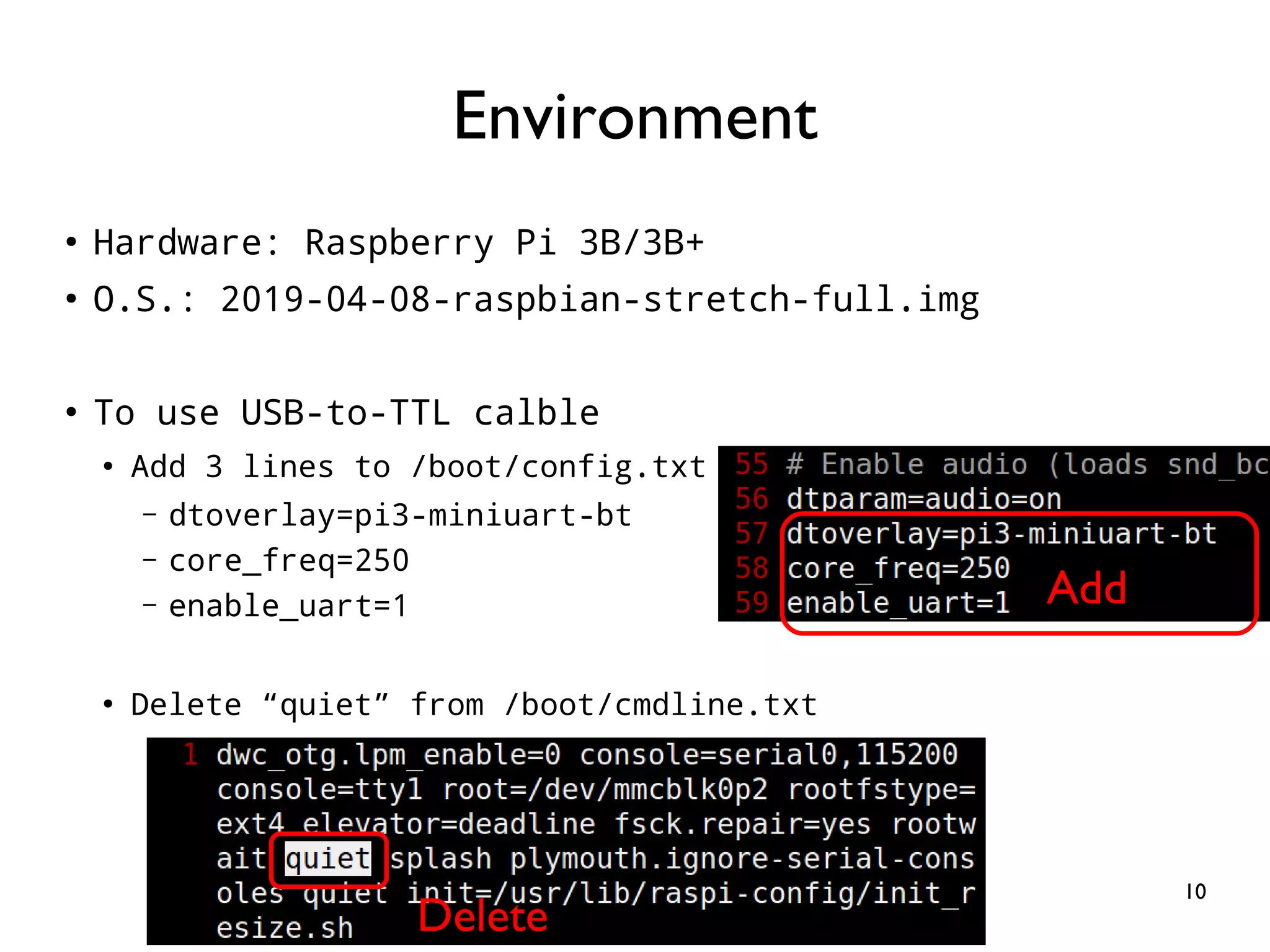
10 ● Hardware: Raspberry Pi 3B/3B+ ● O.S.: 2019-04-08-raspbian-stretch-full.img ● To use USB-to-TTL calble ● Add 3 lines to /boot/config.txt – dtoverlay=pi3-miniuart-bt – core_freq=250 – enable_uart=1 ● Delete “quiet” from /boot/cmdline.txt Environment Add Delete
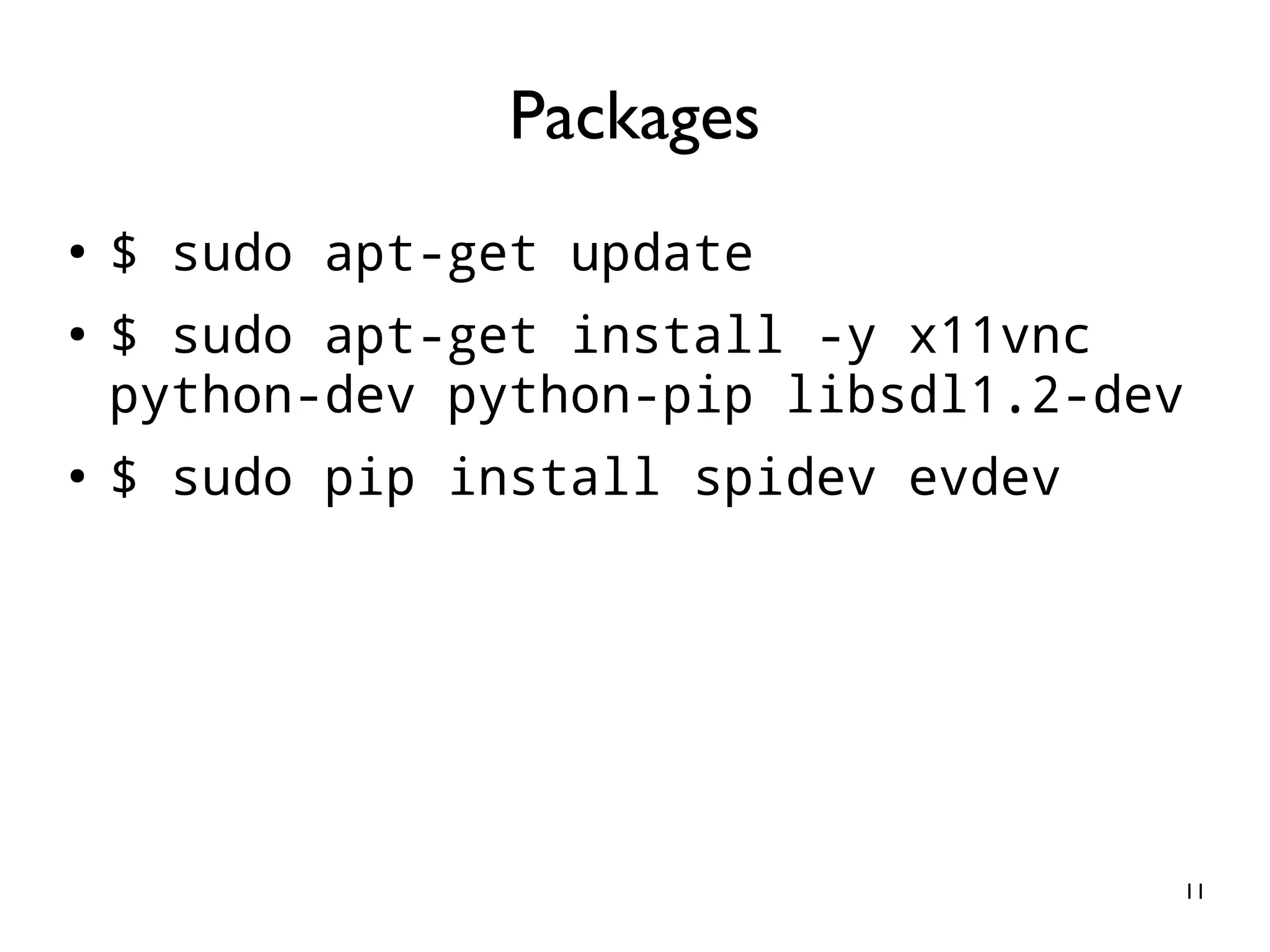
11 ● $ sudo apt-get update ● $ sudo apt-get install -y x11vnc python-dev python-pip libsdl1.2-dev ● $ sudo pip install spidev evdev Packages
12 Introduction of Raspberry Pi GPIO
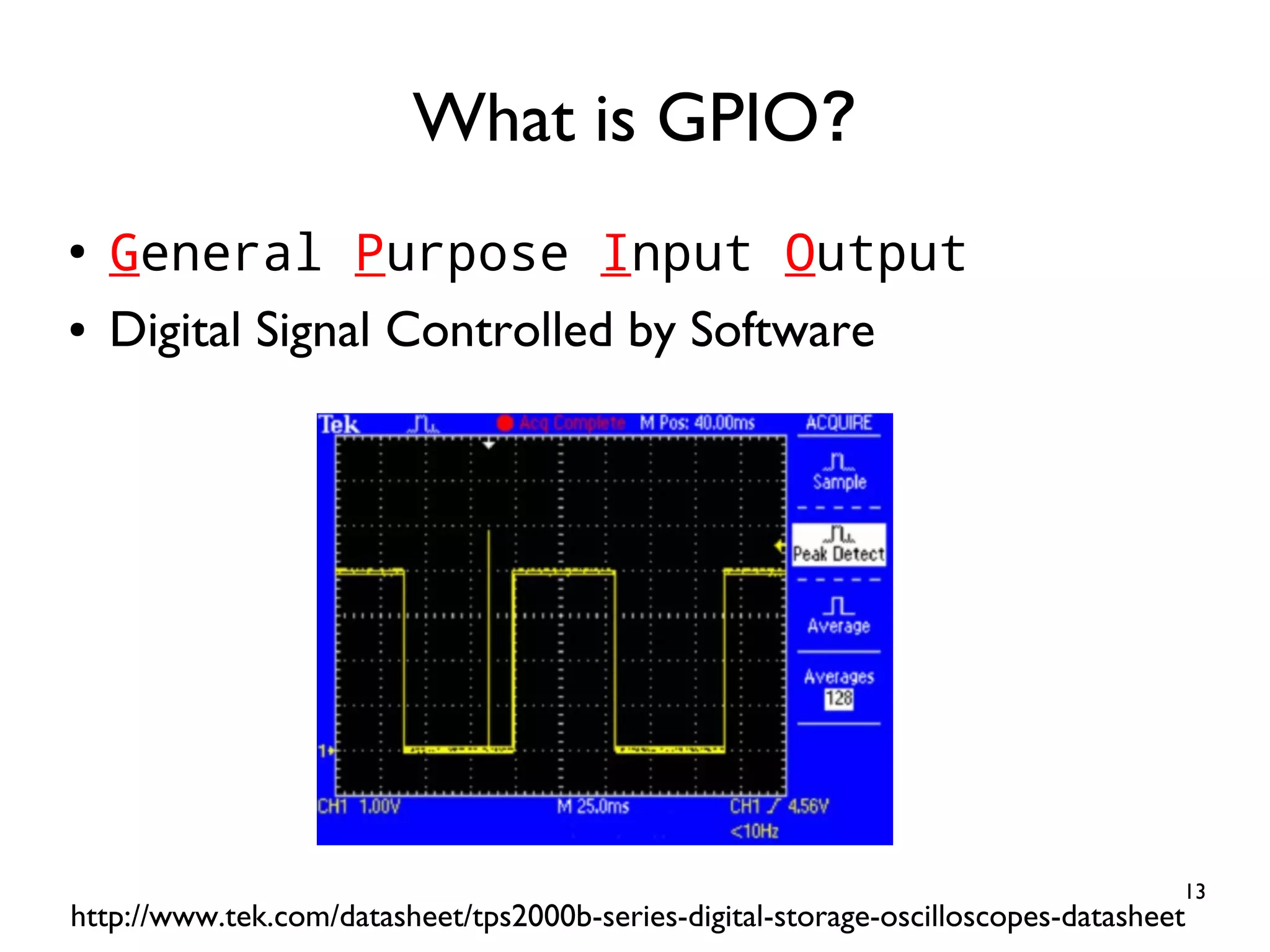
13 ● General Purpose Input Output ● Digital Signal Controlled by Software What is GPIO? http://www.tek.com/datasheet/tps2000b-series-digital-storage-oscilloscopes-datasheet
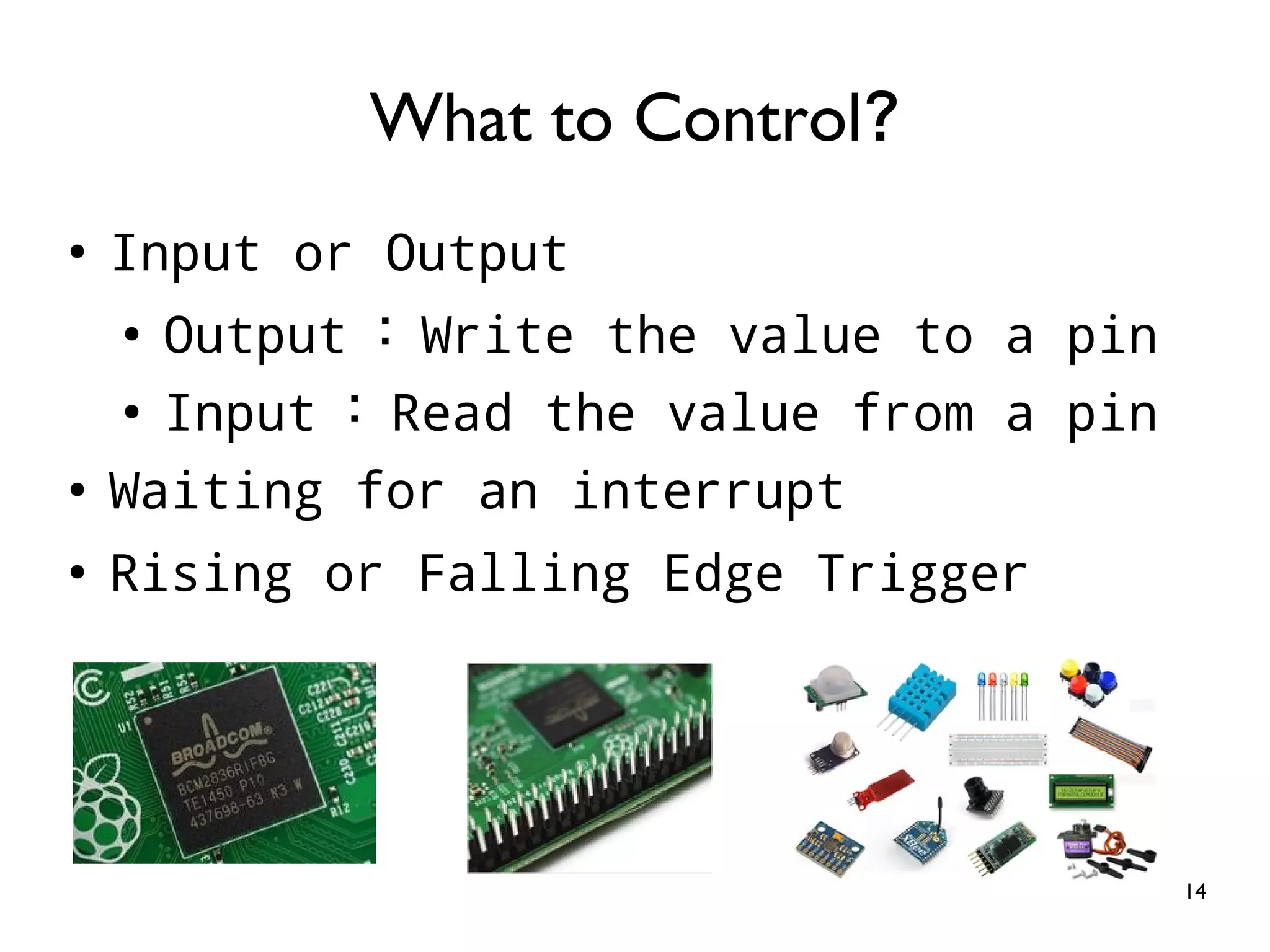
14 ● Input or Output ● Output : Write the value to a pin ● Input : Read the value from a pin ● Waiting for an interrupt ● Rising or Falling Edge Trigger What to Control?
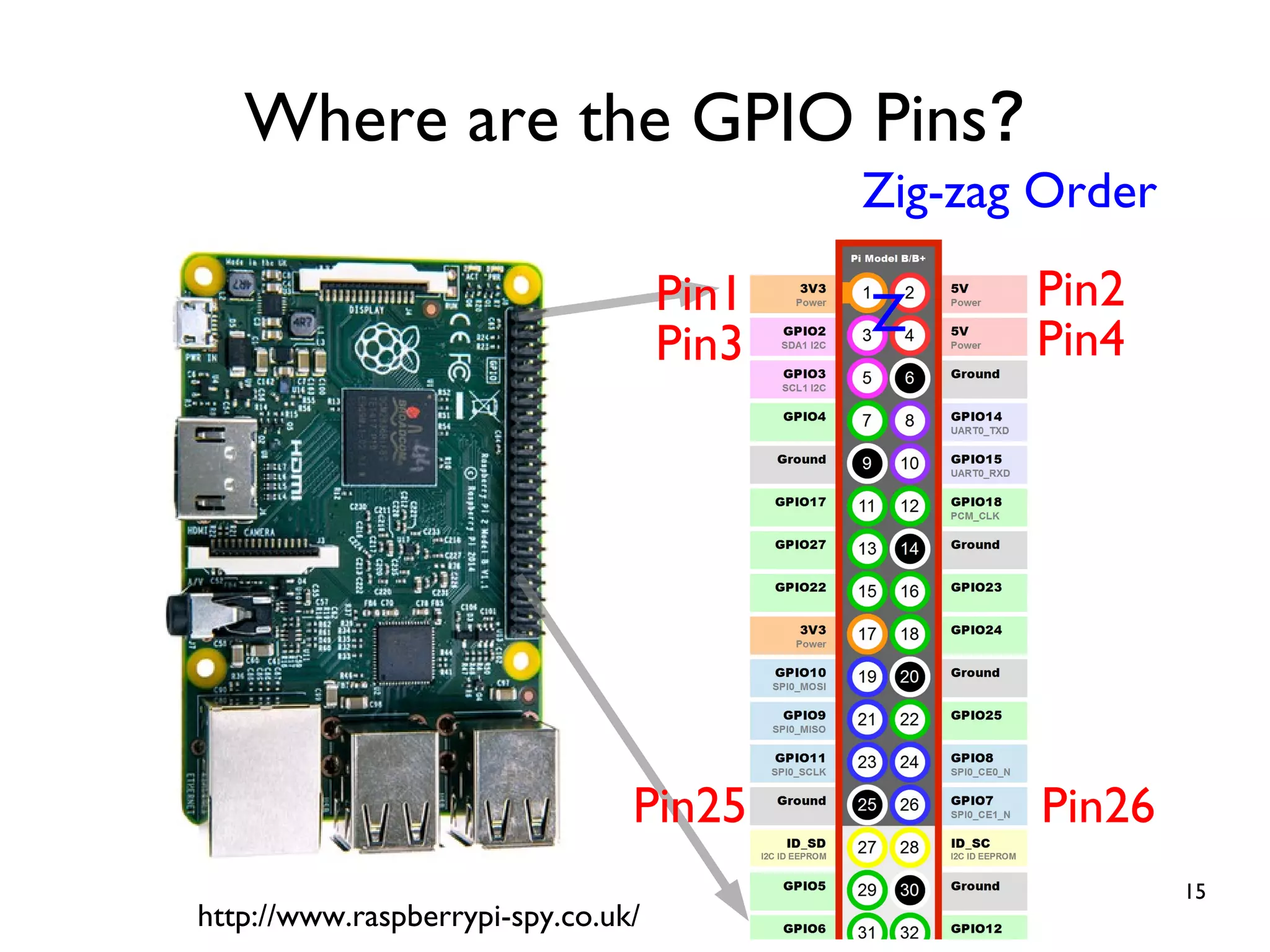
15 Where are the GPIO Pins? http://www.raspberrypi-spy.co.uk/ Pin1 Pin2 Pin25 Pin26 Pin3 Pin4Z Zig-zag Order
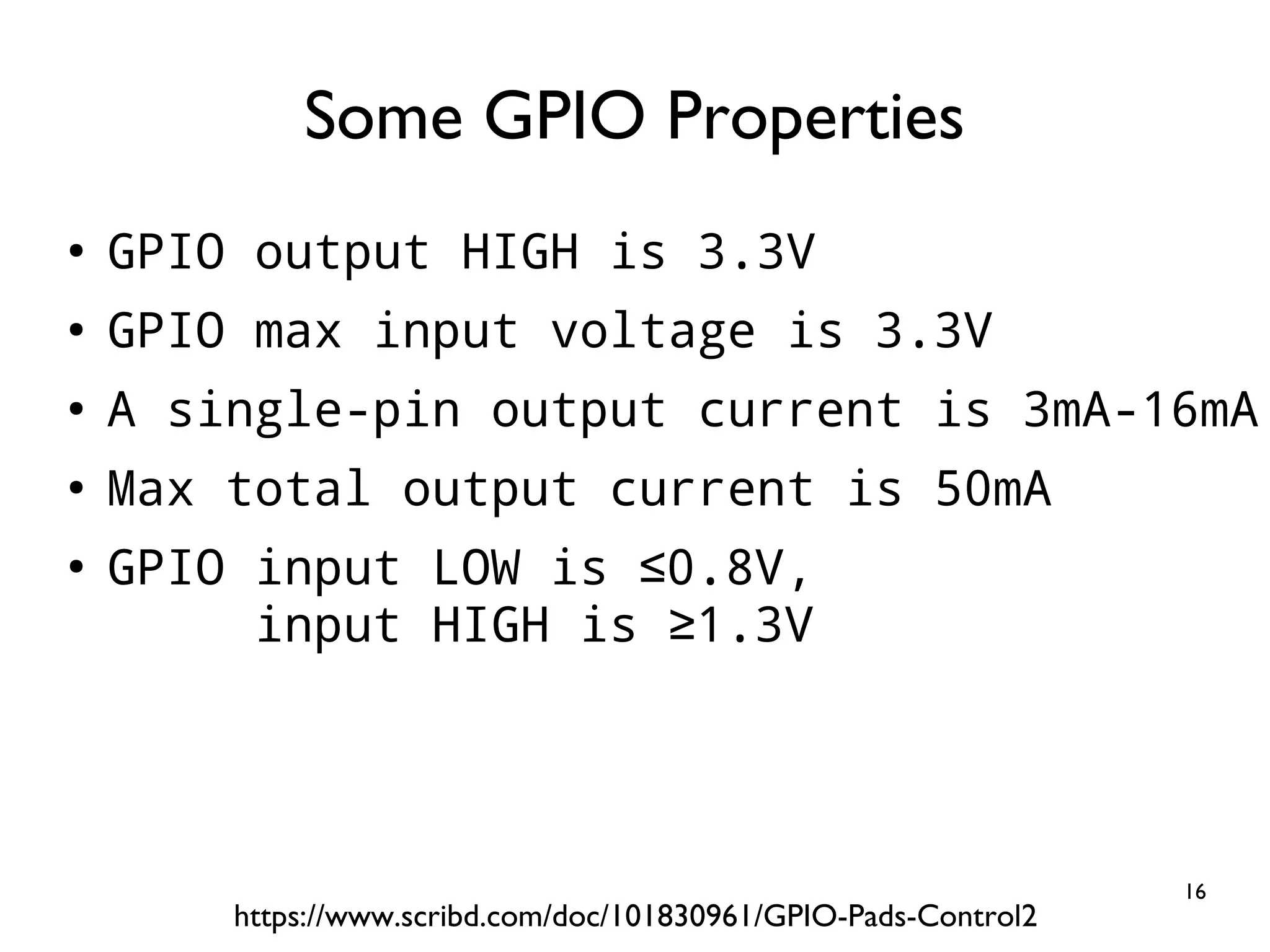
16 ● GPIO output HIGH is 3.3V ● GPIO max input voltage is 3.3V ● A single-pin output current is 3mA-16mA ● Max total output current is 50mA ● GPIO input LOW is ≤0.8V, input HIGH is ≥1.3V Some GPIO Properties https://www.scribd.com/doc/101830961/GPIO-Pads-Control2
17 ● C ● C + wiringPi ● C# ● Ruby ● Perl ● Python ● Scratch ● Java Pi4J Library ● Shell script Controlling Raspberry Pi GPIO
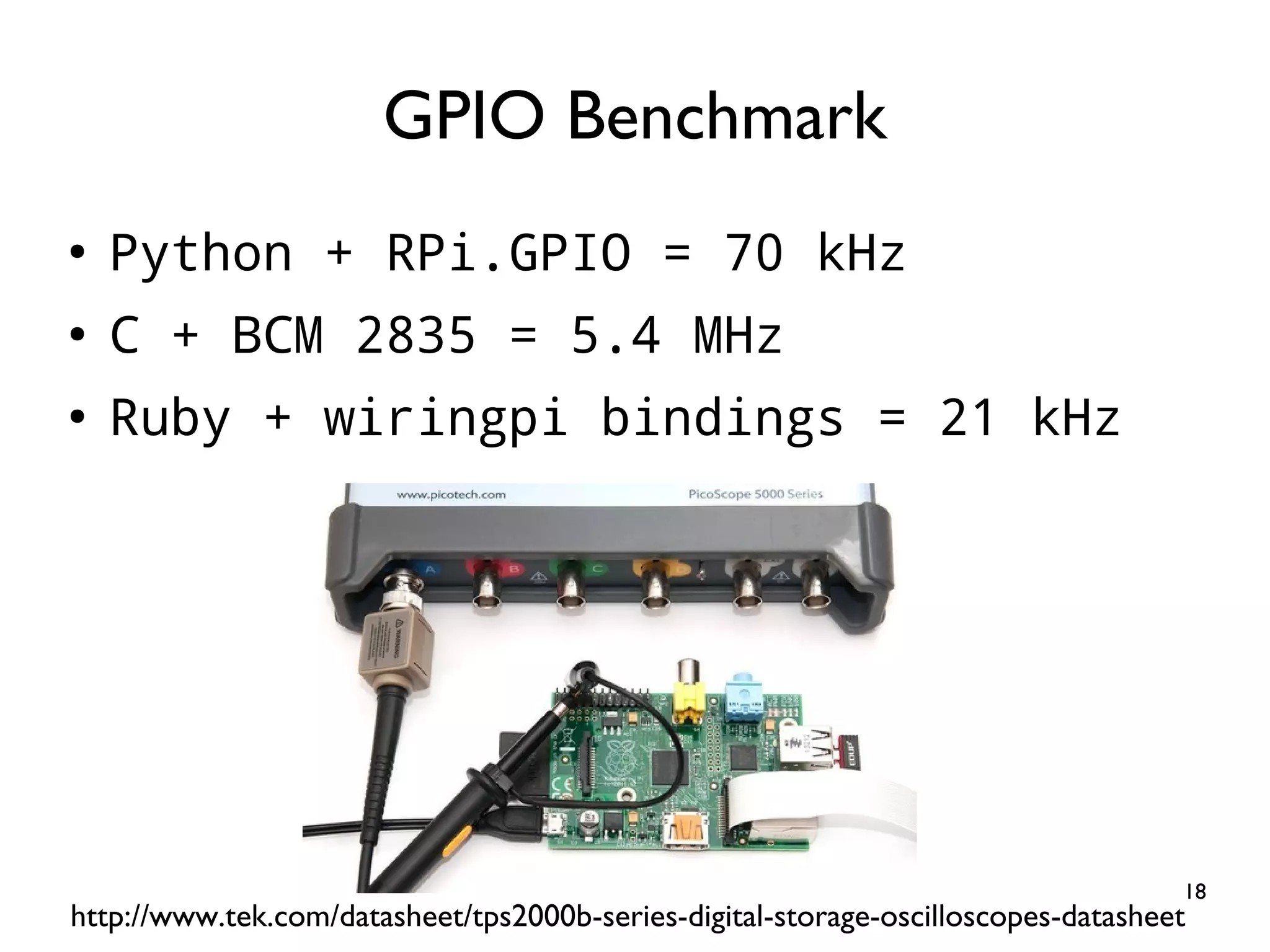
18 ● Python + RPi.GPIO = 70 kHz ● C + BCM 2835 = 5.4 MHz ● Ruby + wiringpi bindings = 21 kHz GPIO Benchmark http://www.tek.com/datasheet/tps2000b-series-digital-storage-oscilloscopes-datasheet
19 Python + GPIO
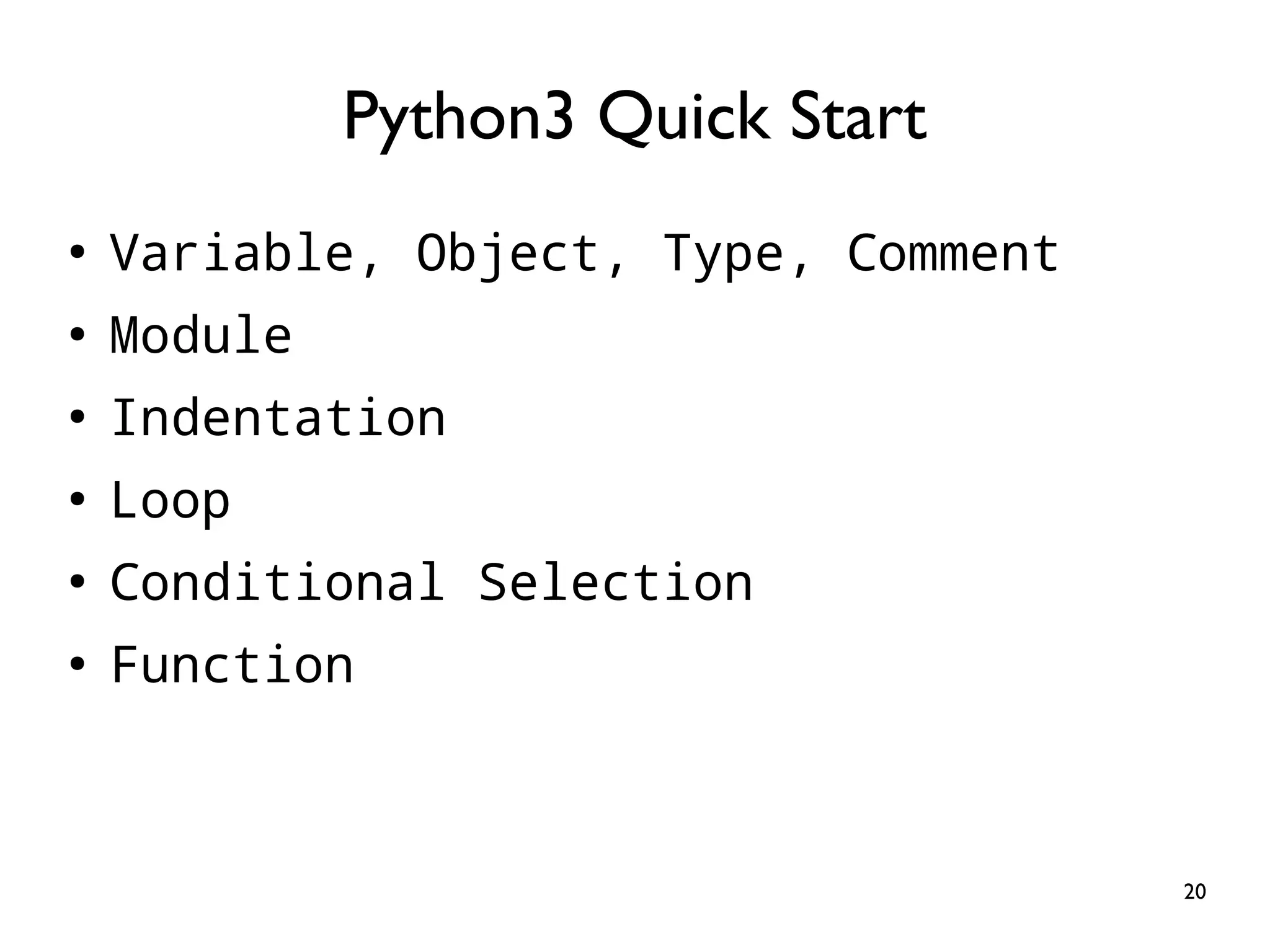
20 ● Variable, Object, Type, Comment ● Module ● Indentation ● Loop ● Conditional Selection ● Function Python3 Quick Start
21 ● Dynamic typing # This is a comment i = 3 # assign 3 to variable i i = [1, 2, 3, 4, 5] # assign a list to i print(i[2]) # print the 3rd element i = "abcde" # assign a string to i print(i[2]) # print the 3rd character Variable, Object, Type, Comment
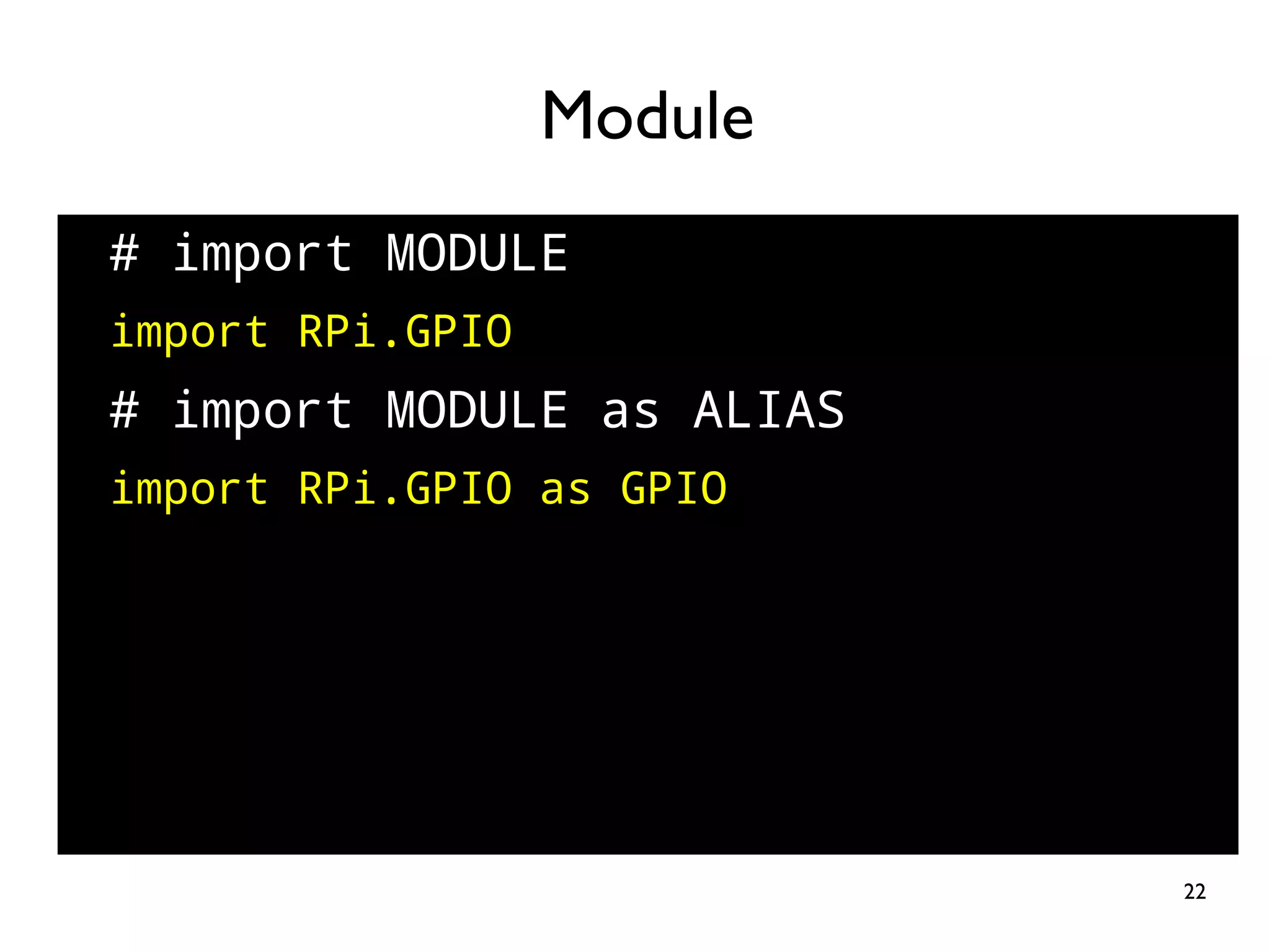
22 # import MODULE import RPi.GPIO # import MODULE as ALIAS import RPi.GPIO as GPIO Module
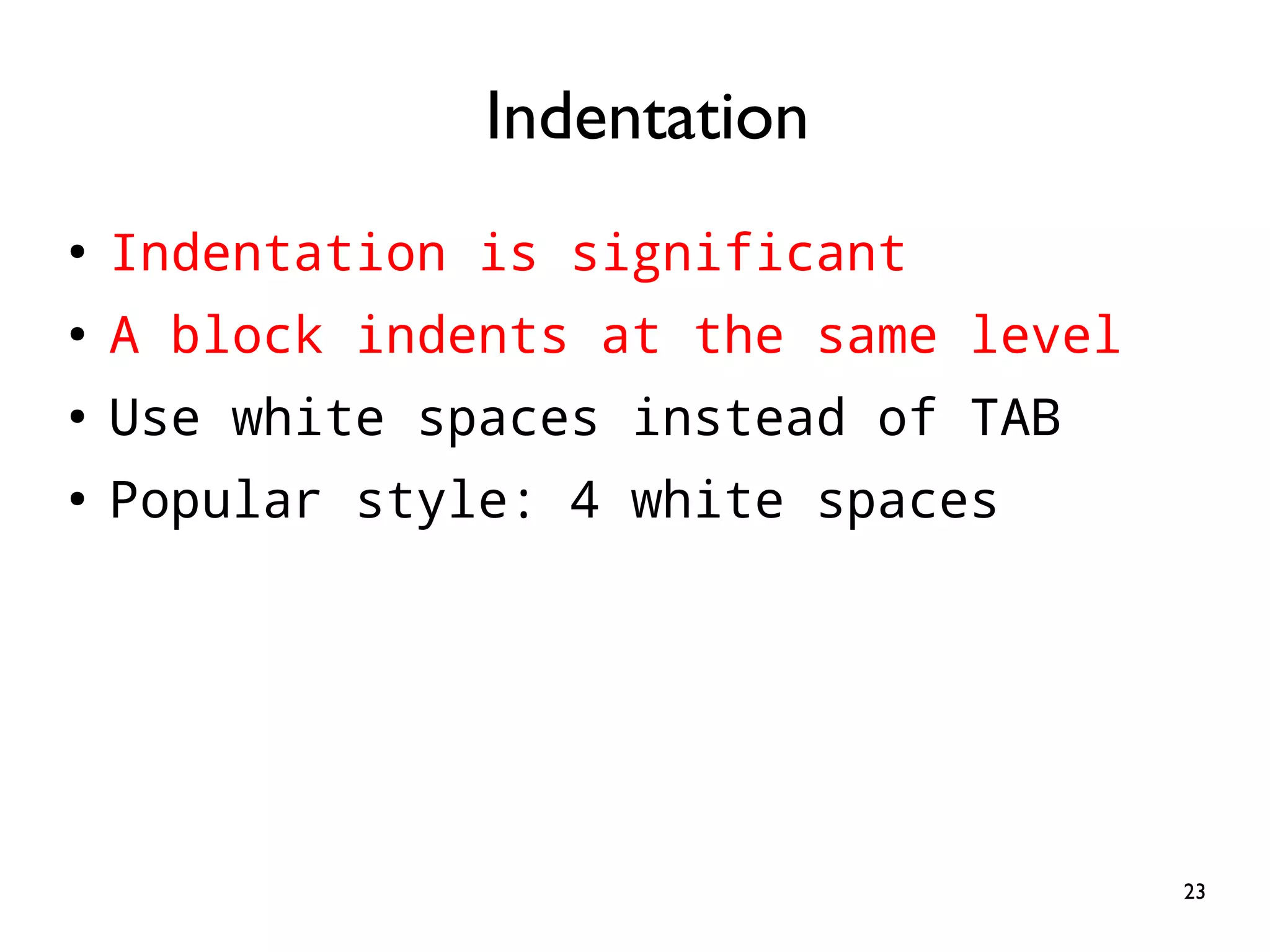
23 ● Indentation is significant ● A block indents at the same level ● Use white spaces instead of TAB ● Popular style: 4 white spaces Indentation
24 ● Iterator for i in range(start, stop[, step]): process for i in range(0, 11, 5): print(i) Loop
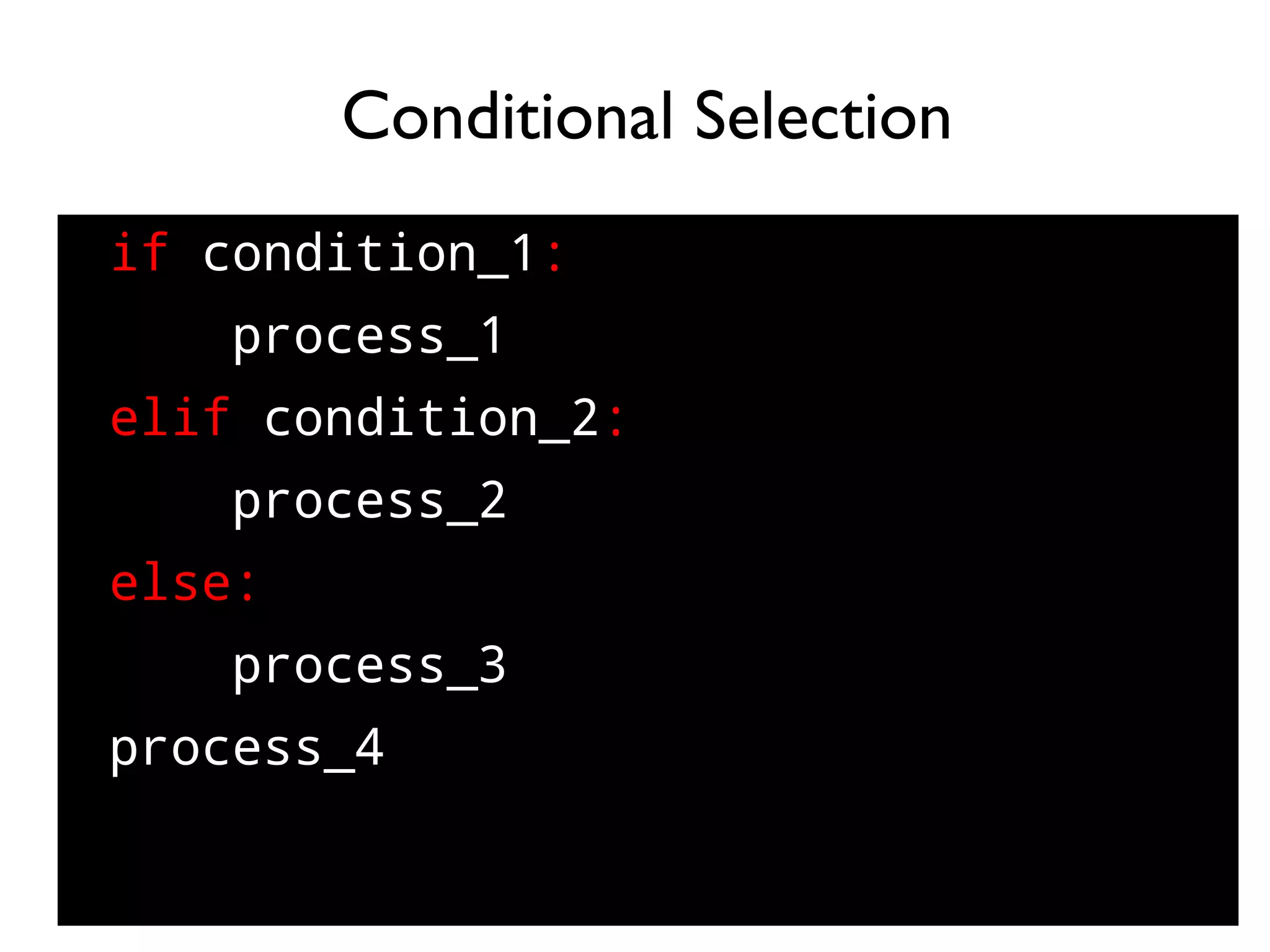
25 if condition_1: process_1 elif condition_2: process_2 else: process_3 process_4 Conditional Selection
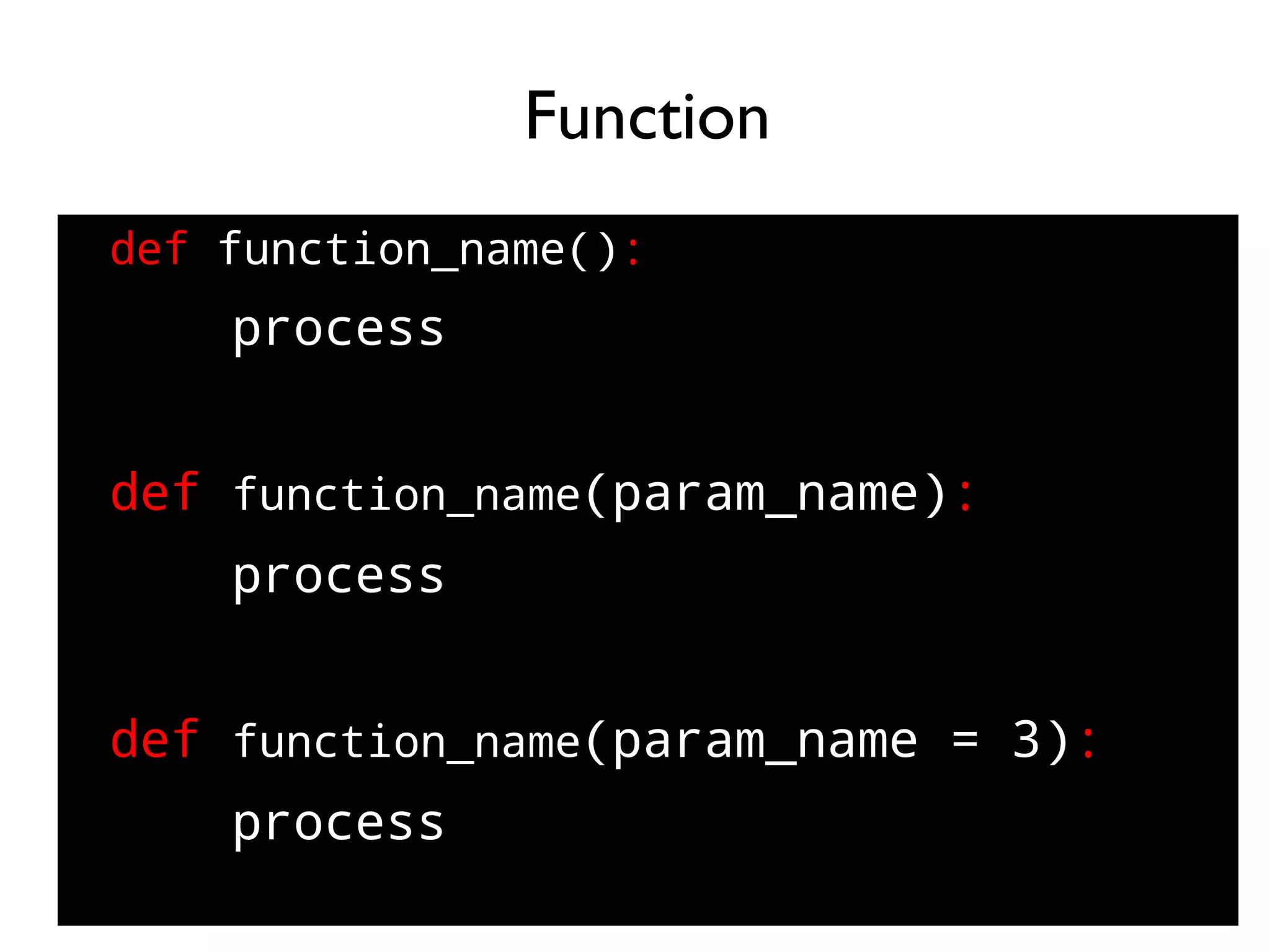
26 def function_name(): process def function_name(param_name): process def function_name(param_name = 3): process Function
27 ● 1. Execute the script file ● $ nano test.py ● $ python3 test.py ● 2. Execute interactively ● $ python3 Python 3.5.3 (default, Sep 27 2018, 17:25:39) ● [GCC 6.3.0 20170516] on linux Type "help", "copyright", "credits" or "license" for more information. >>> Execution Modes
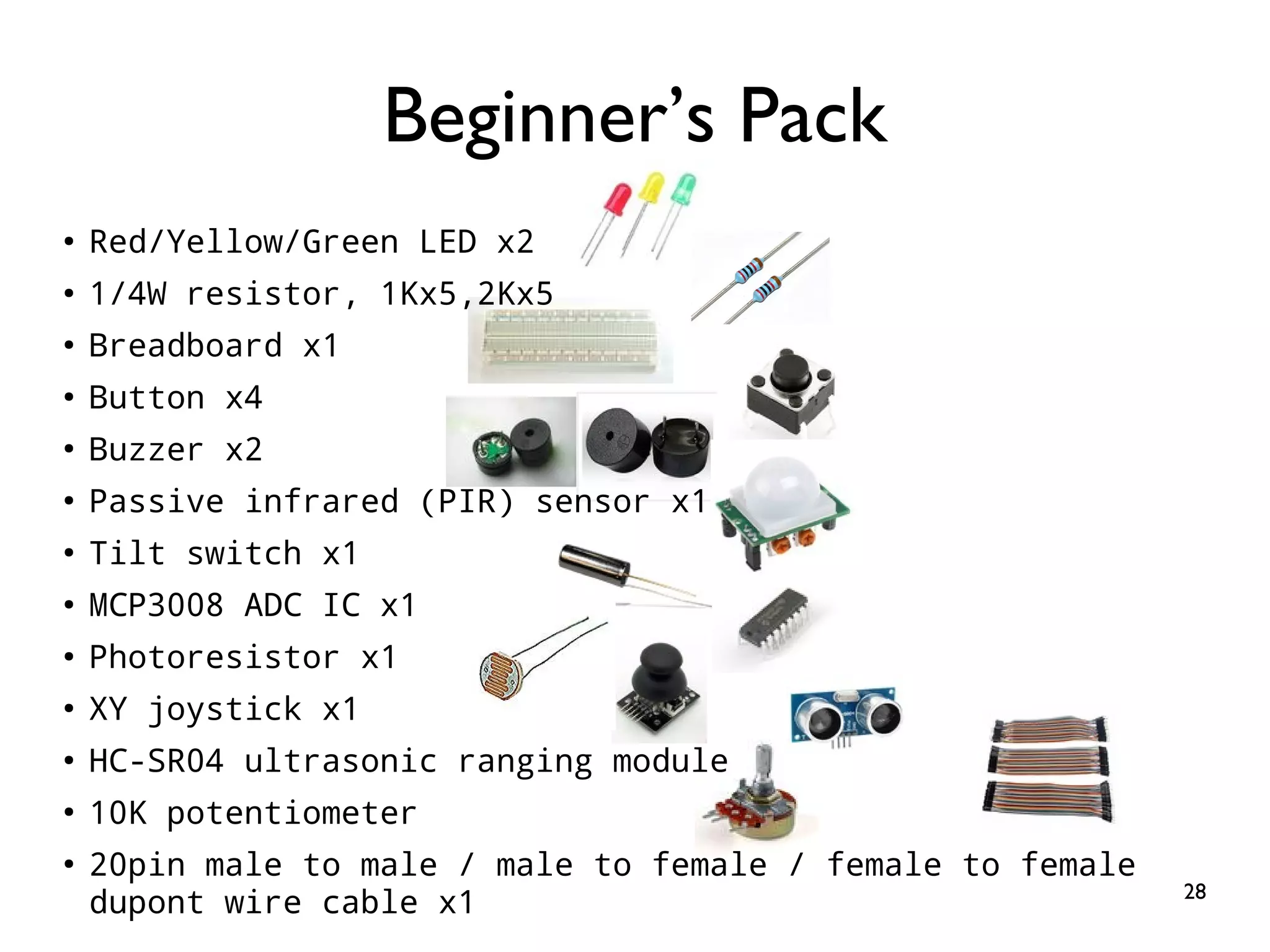
28 Beginner’s Pack ● Red/Yellow/Green LED x2 ● 1/4W resistor, 1Kx5,2Kx5 ● Breadboard x1 ● Button x4 ● Buzzer x2 ● Passive infrared (PIR) sensor x1 ● Tilt switch x1 ● MCP3008 ADC IC x1 ● Photoresistor x1 ● XY joystick x1 ● HC-SR04 ultrasonic ranging module ● 10K potentiometer ● 20pin male to male / male to female / female to female dupont wire cable x1
29 Compatible to all Raspberry Pi models Buy: https://ricelee.com/product/gpio-game- console-starter-kit
30 Digital Output
31 Practice 1: Hello World Goal: Thinking in Hardware/Software
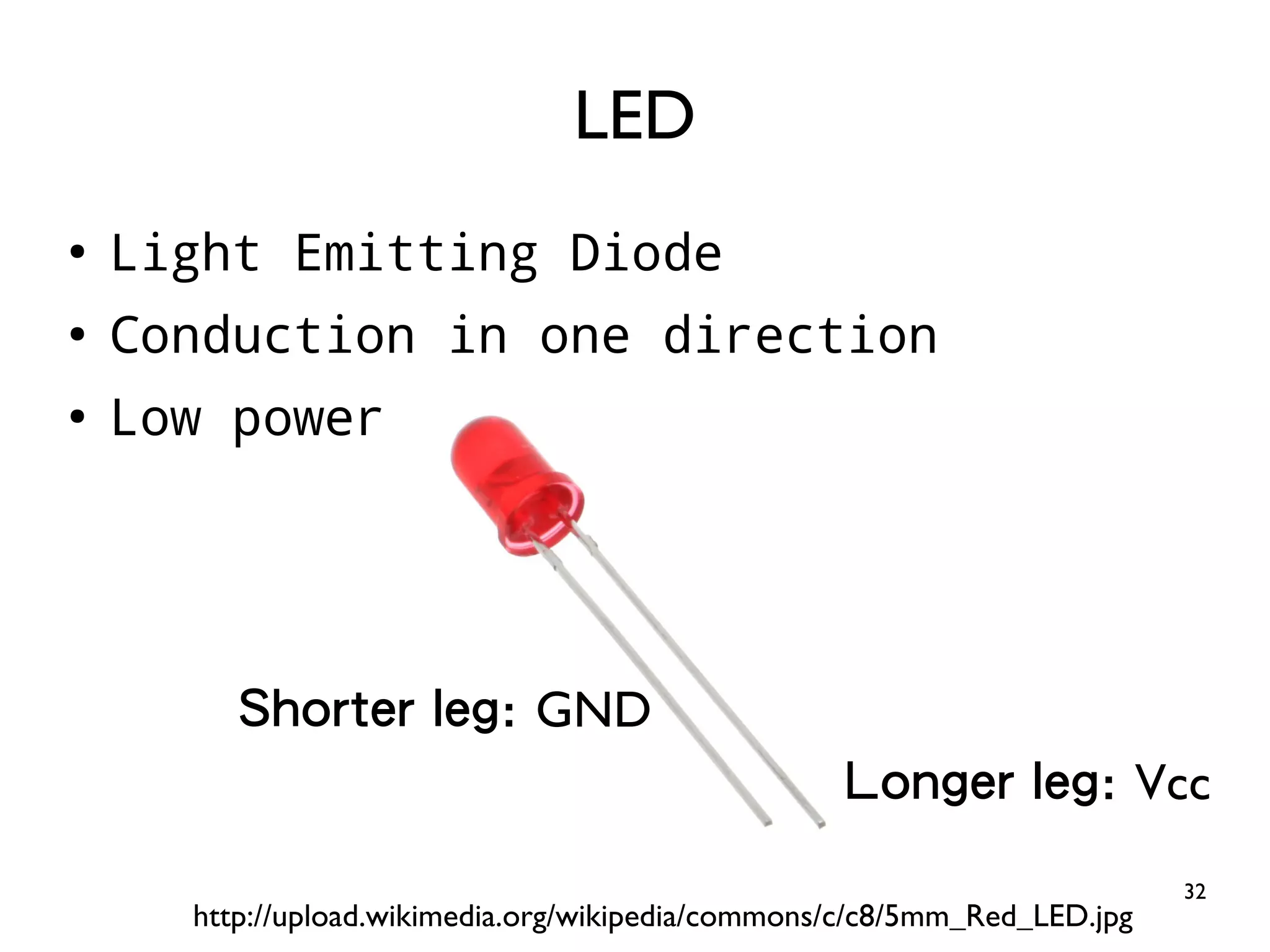
32 ● Light Emitting Diode ● Conduction in one direction ● Low power LED http://upload.wikimedia.org/wikipedia/commons/c/c8/5mm_Red_LED.jpg Longer leg: Vcc Shorter leg: GND
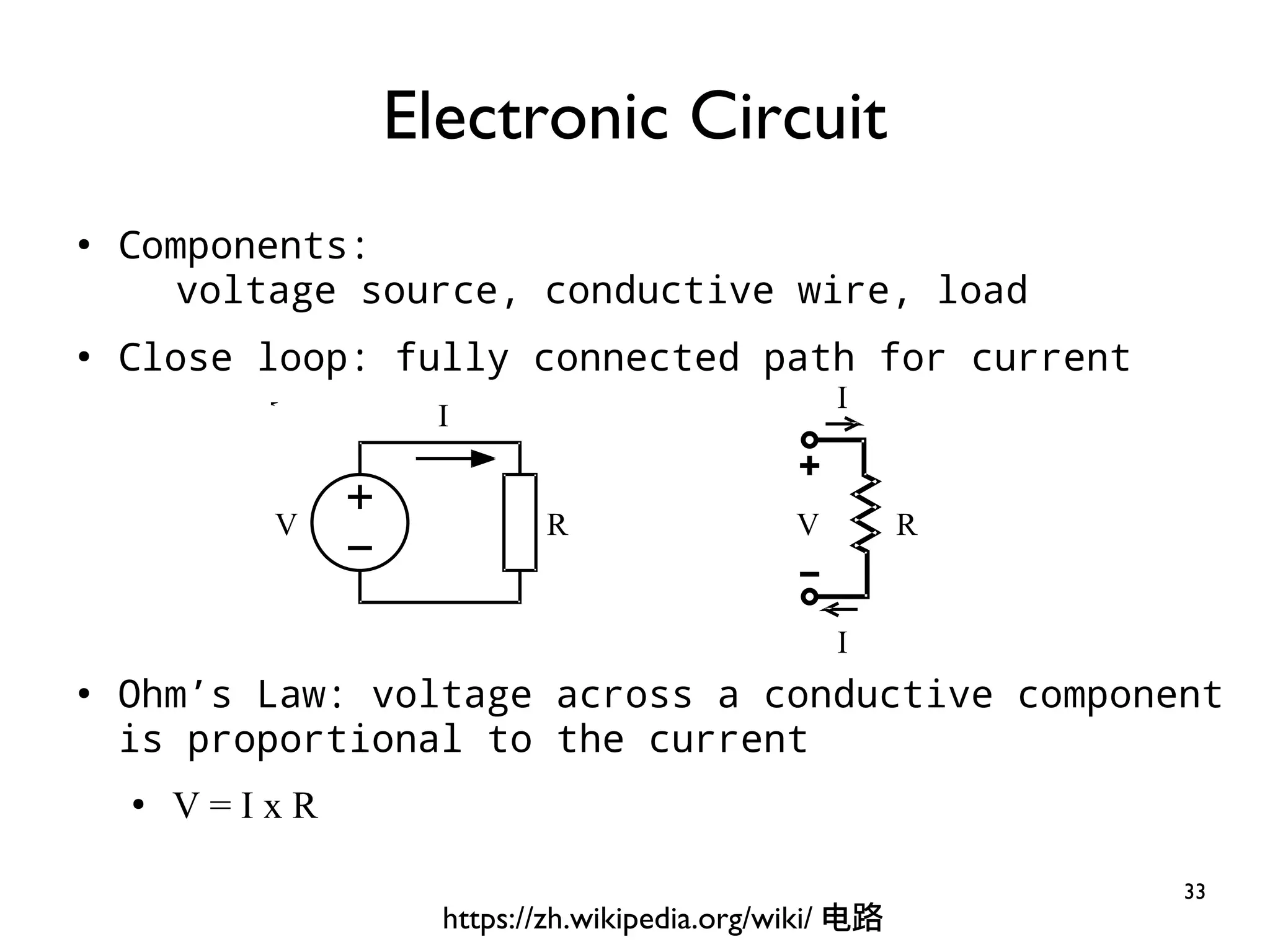
33 ● Components: voltage source, conductive wire, load ● Close loop: fully connected path for current ● Ohm’s Law: voltage across a conductive component is proportional to the current ● V = I x R Electronic Circuit I I V RV R I https://zh.wikipedia.org/wiki/ 电路
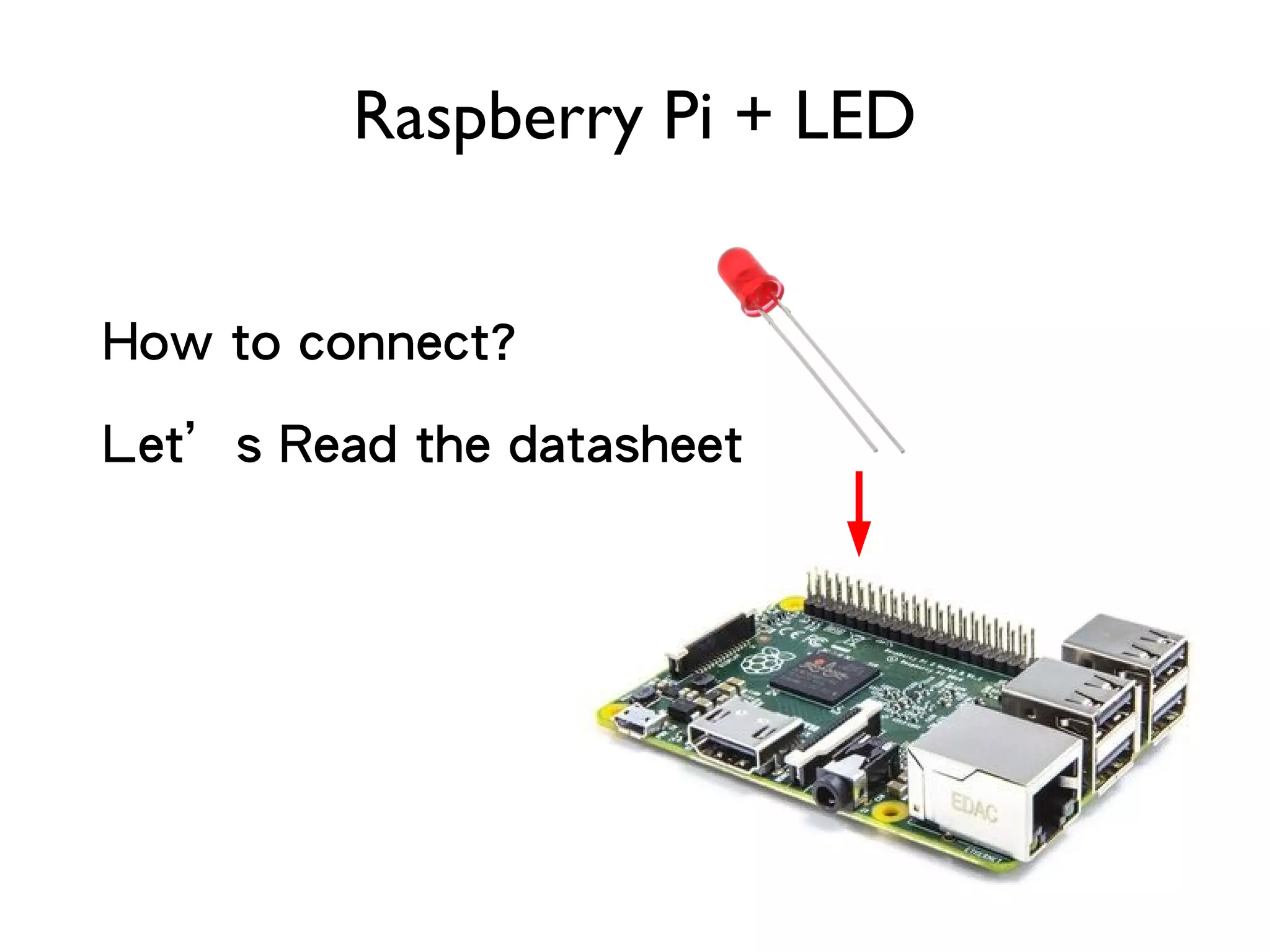
34 Raspberry Pi + LED How to connect? Let’s Read the datasheet
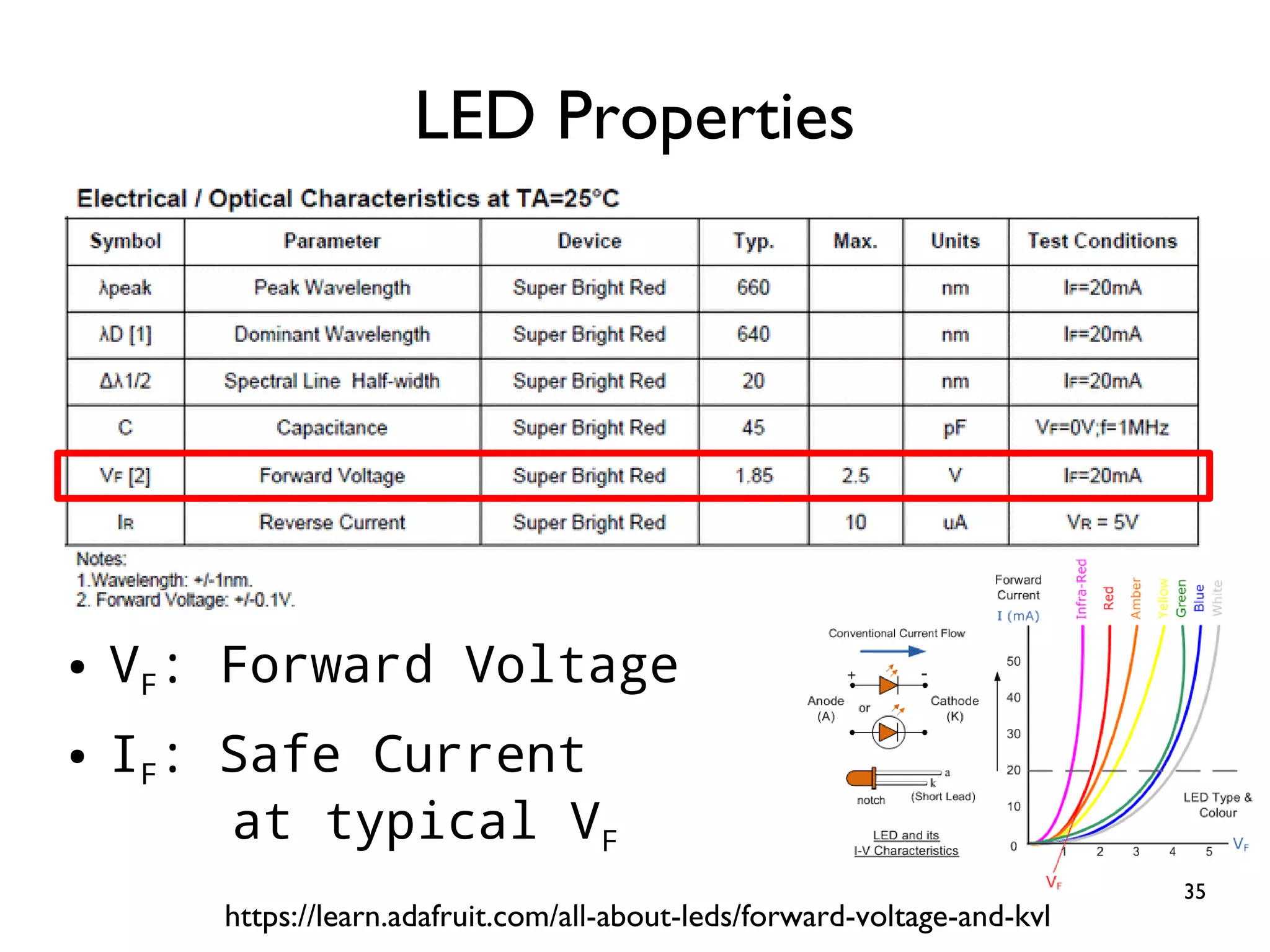
35 ● VF: Forward Voltage ● IF: Safe Current at typical VF LED Properties https://learn.adafruit.com/all-about-leds/forward-voltage-and-kvl
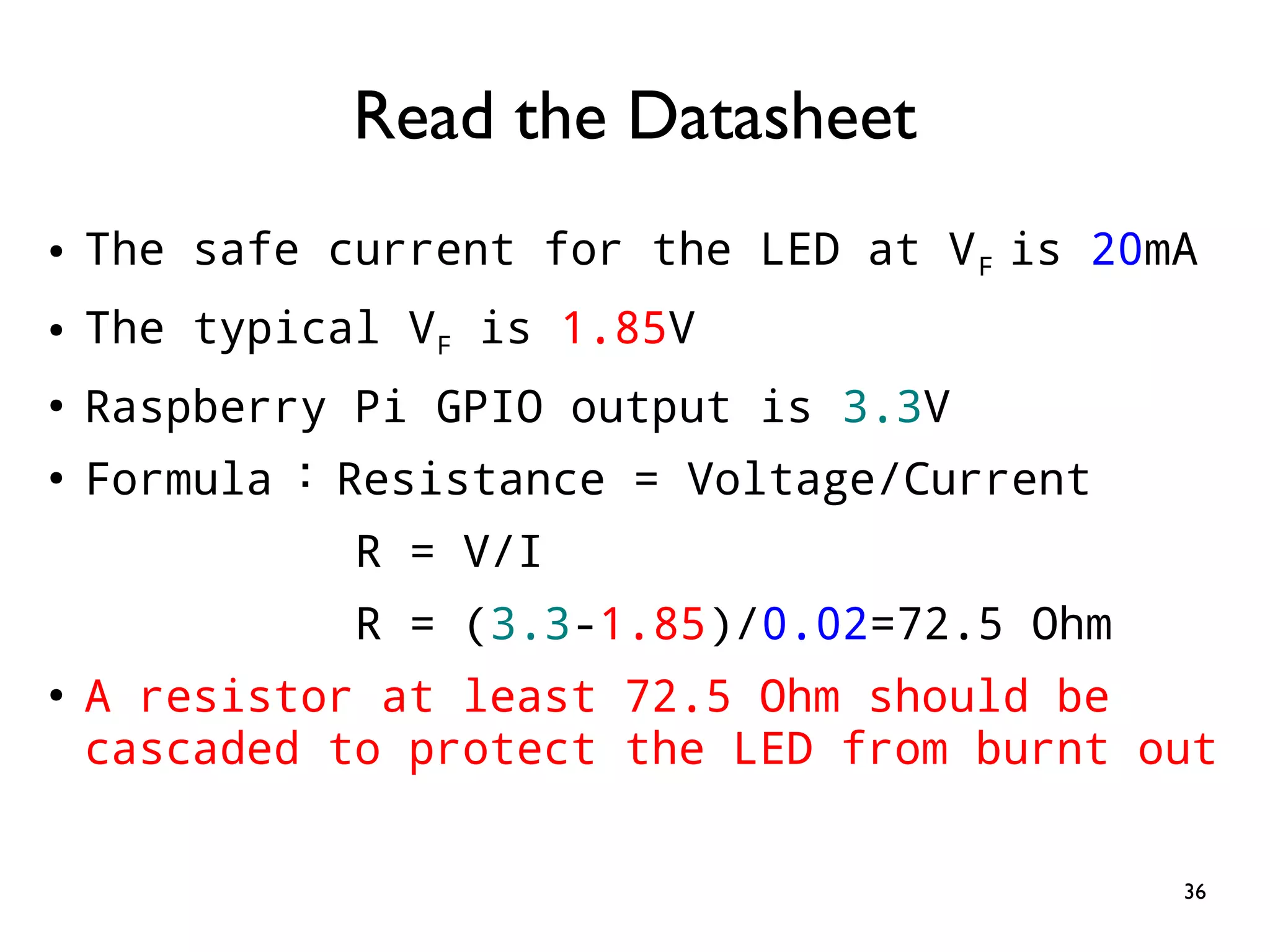
36 ● The safe current for the LED at VF is 20mA ● The typical VF is 1.85V ● Raspberry Pi GPIO output is 3.3V ● Formula : Resistance = Voltage/Current R = V/I R = (3.3-1.85)/0.02=72.5 Ohm ● A resistor at least 72.5 Ohm should be cascaded to protect the LED from burnt out Read the Datasheet
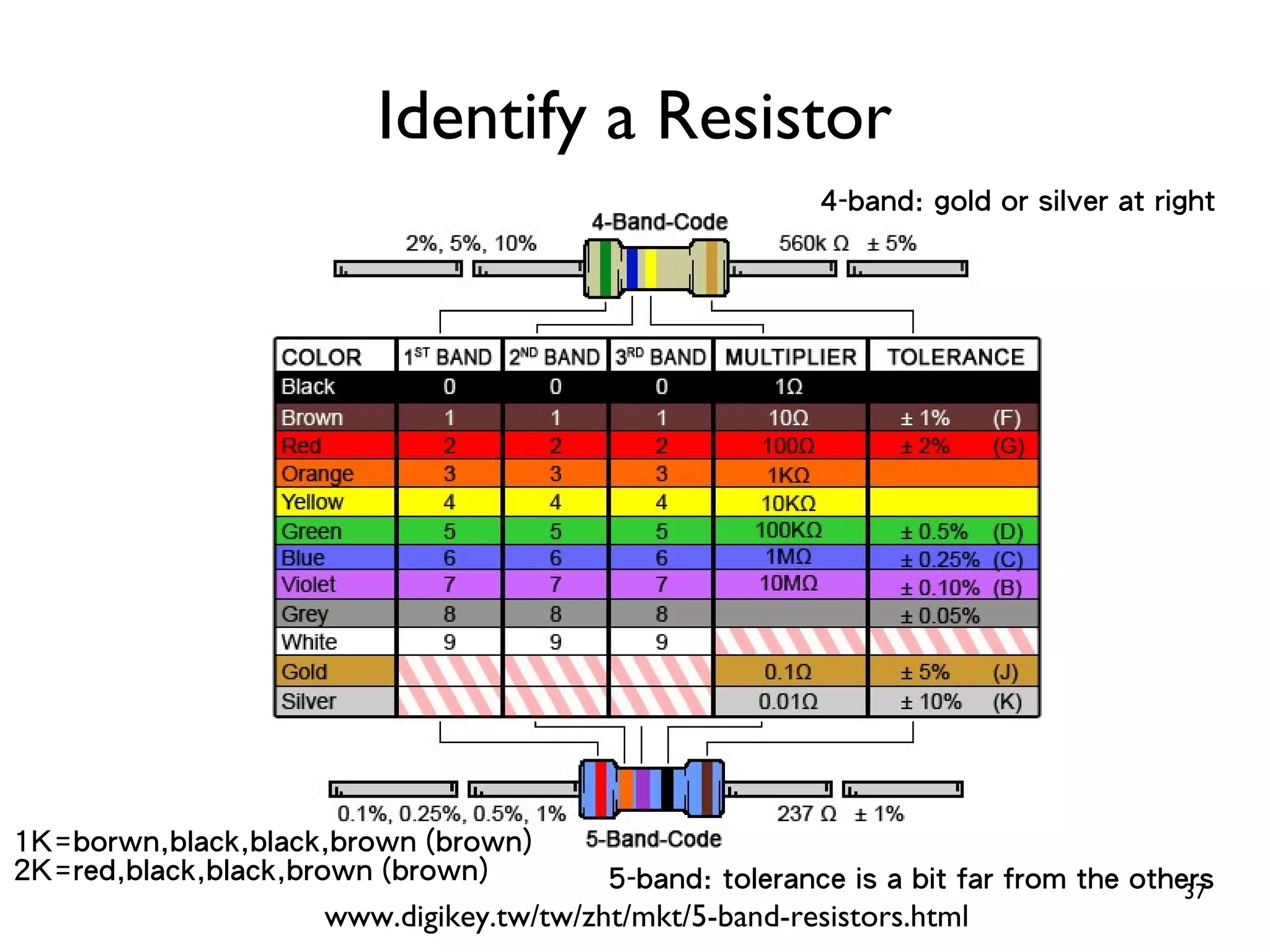
37 Identify a Resistor www.digikey.tw/tw/zht/mkt/5-band-resistors.html 4-band: gold or silver at right 5-band: tolerance is a bit far from the others 1K=borwn,black,black,brown (brown) 2K=red,black,black,brown (brown)
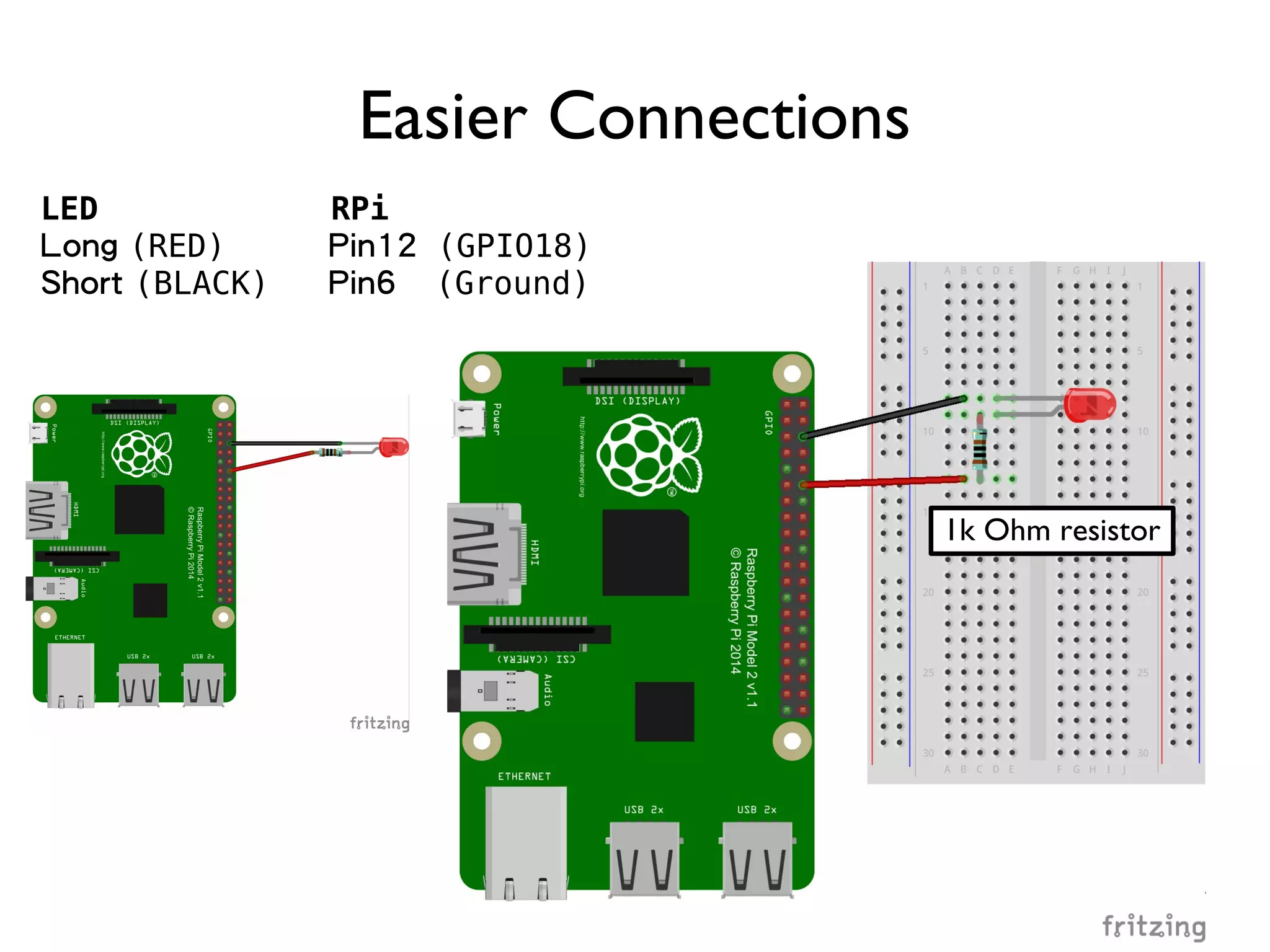
38 Which Pin to Connect?
39 Which Pin to Connect? One to the ground; One to the voltage source
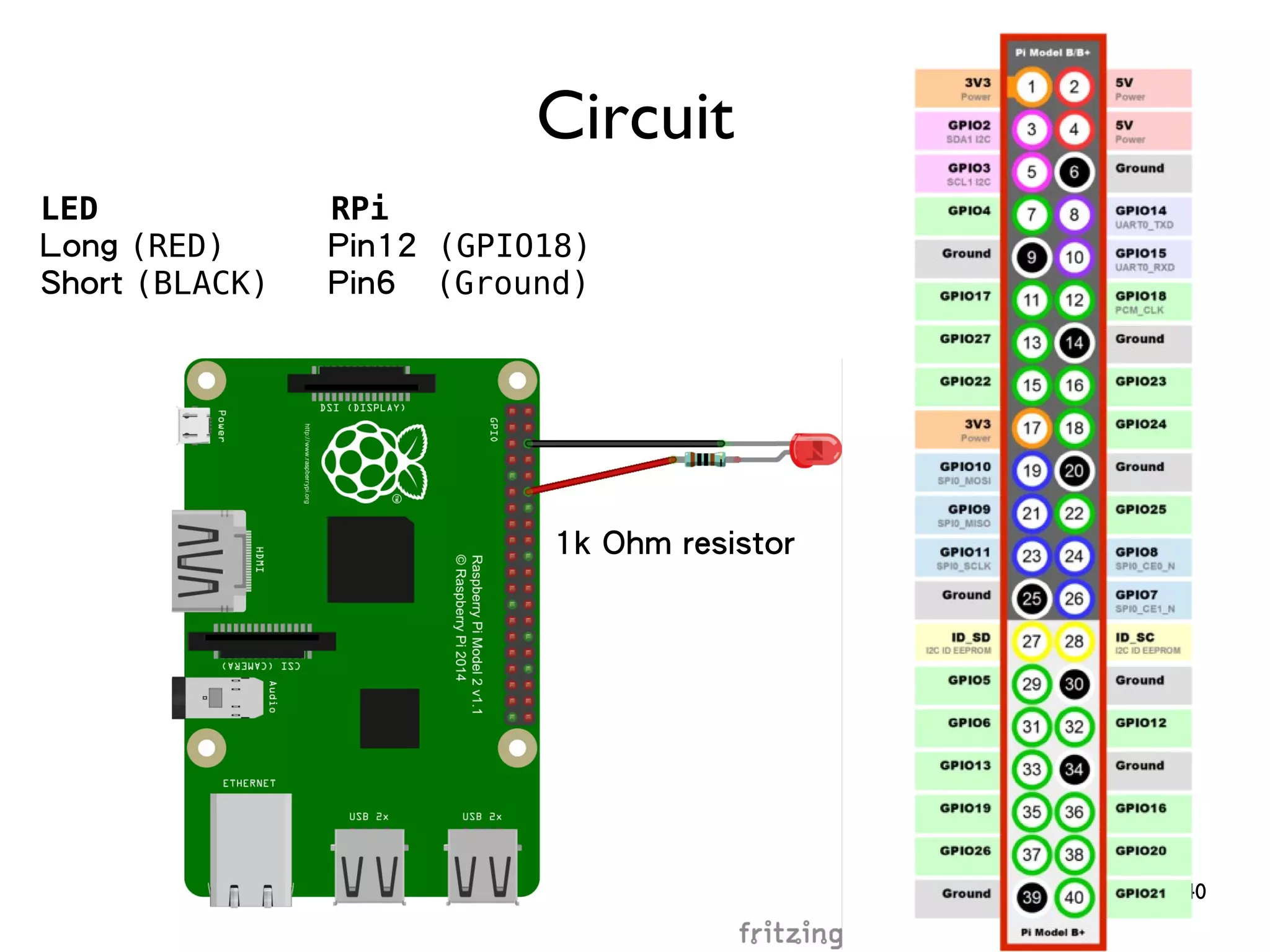
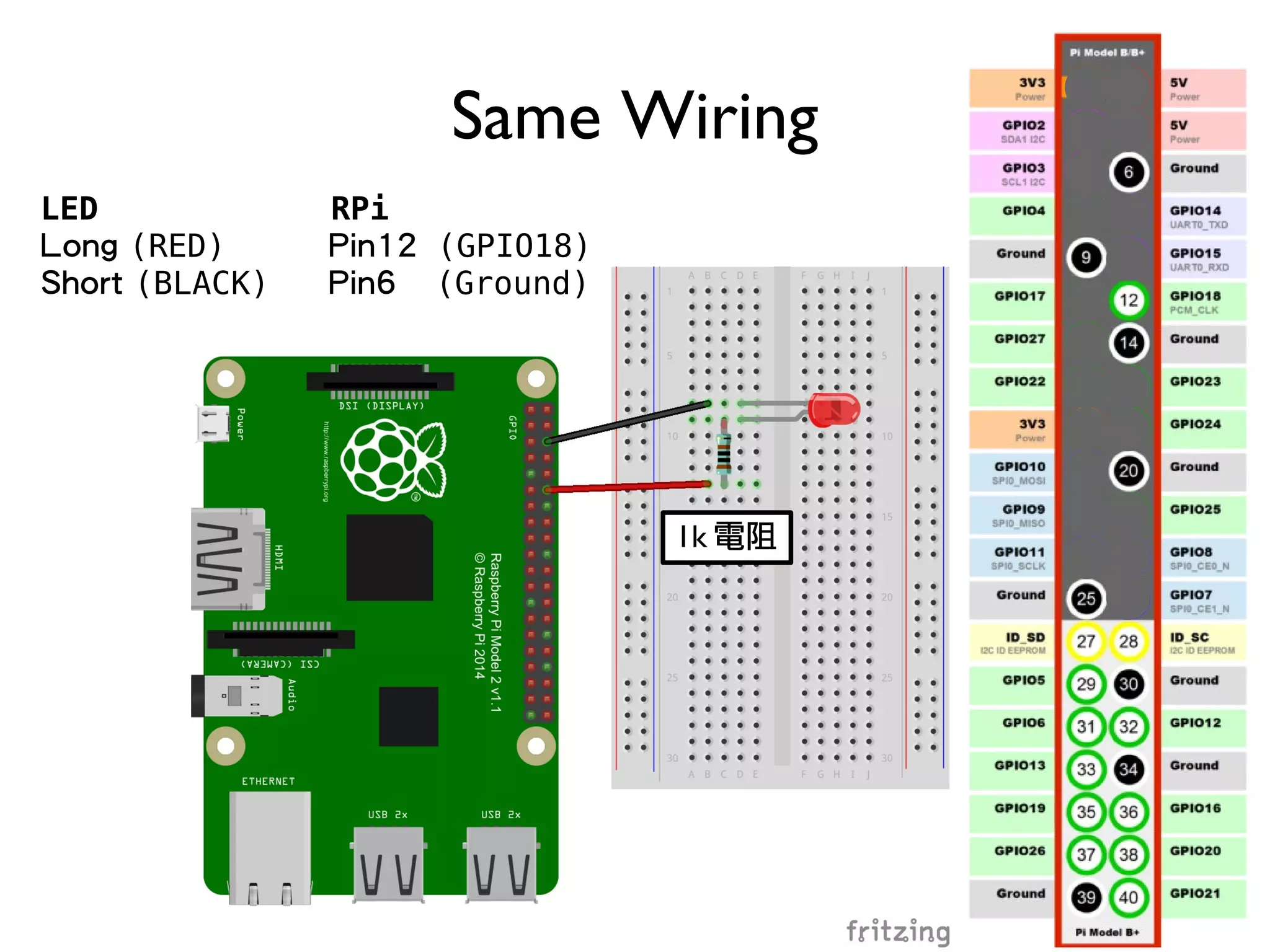
40 Circuit LED RPi Long (RED) Pin12 (GPIO18) Short (BLACK) Pin6 (Ground) 1k Ohm resistor
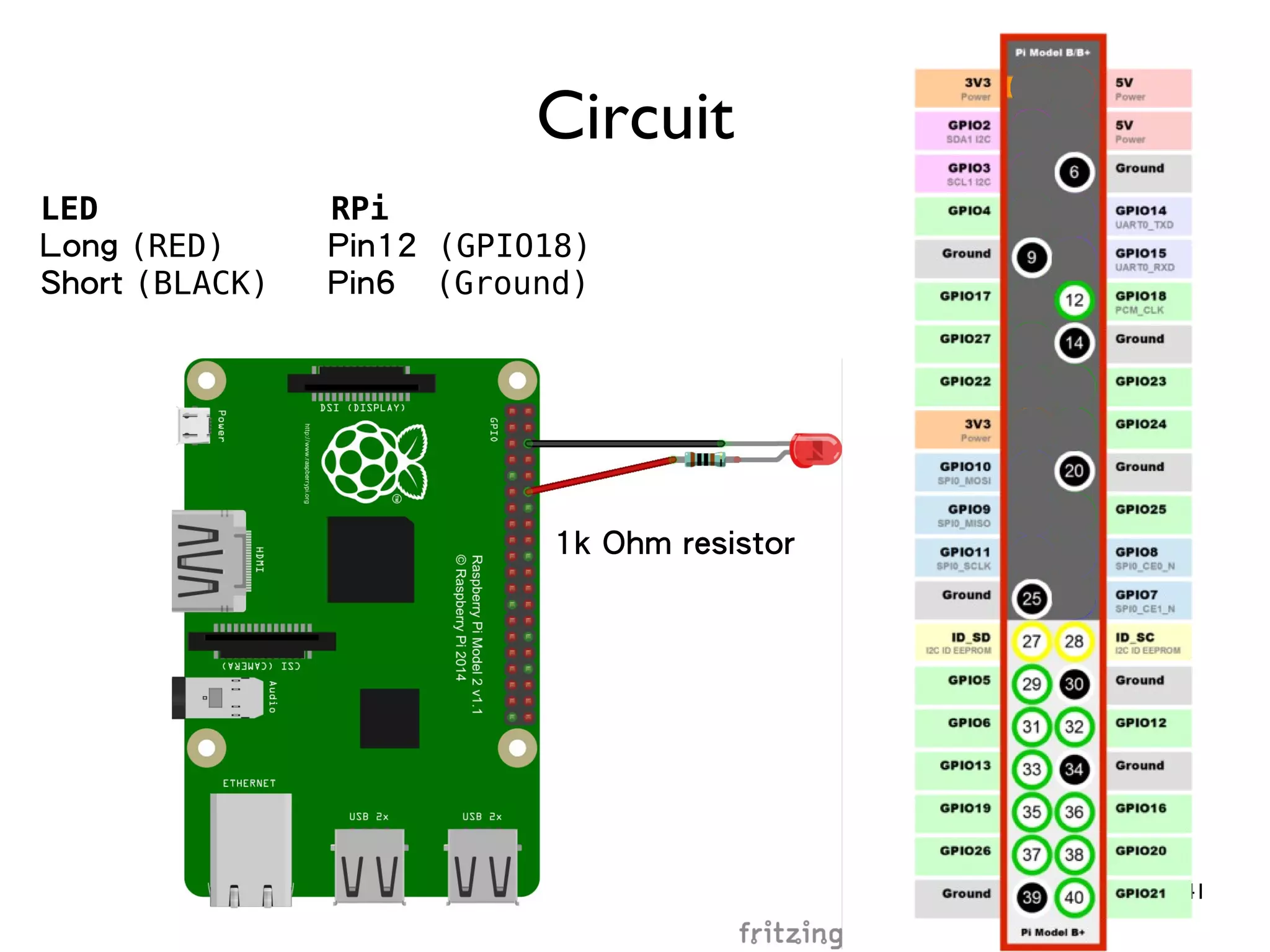
41 Circuit LED RPi Long (RED) Pin12 (GPIO18) Short (BLACK) Pin6 (Ground) 1k Ohm resistor
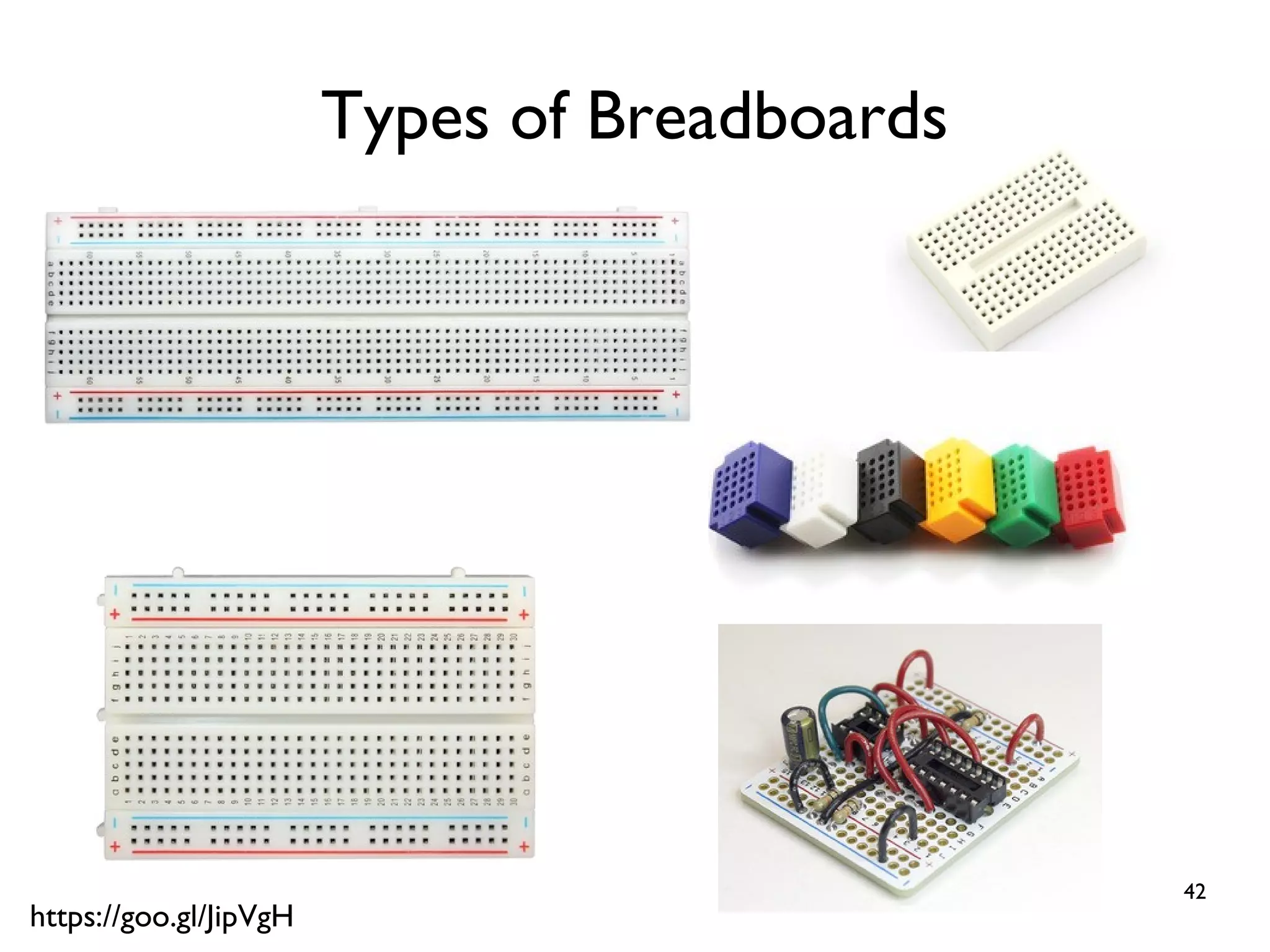
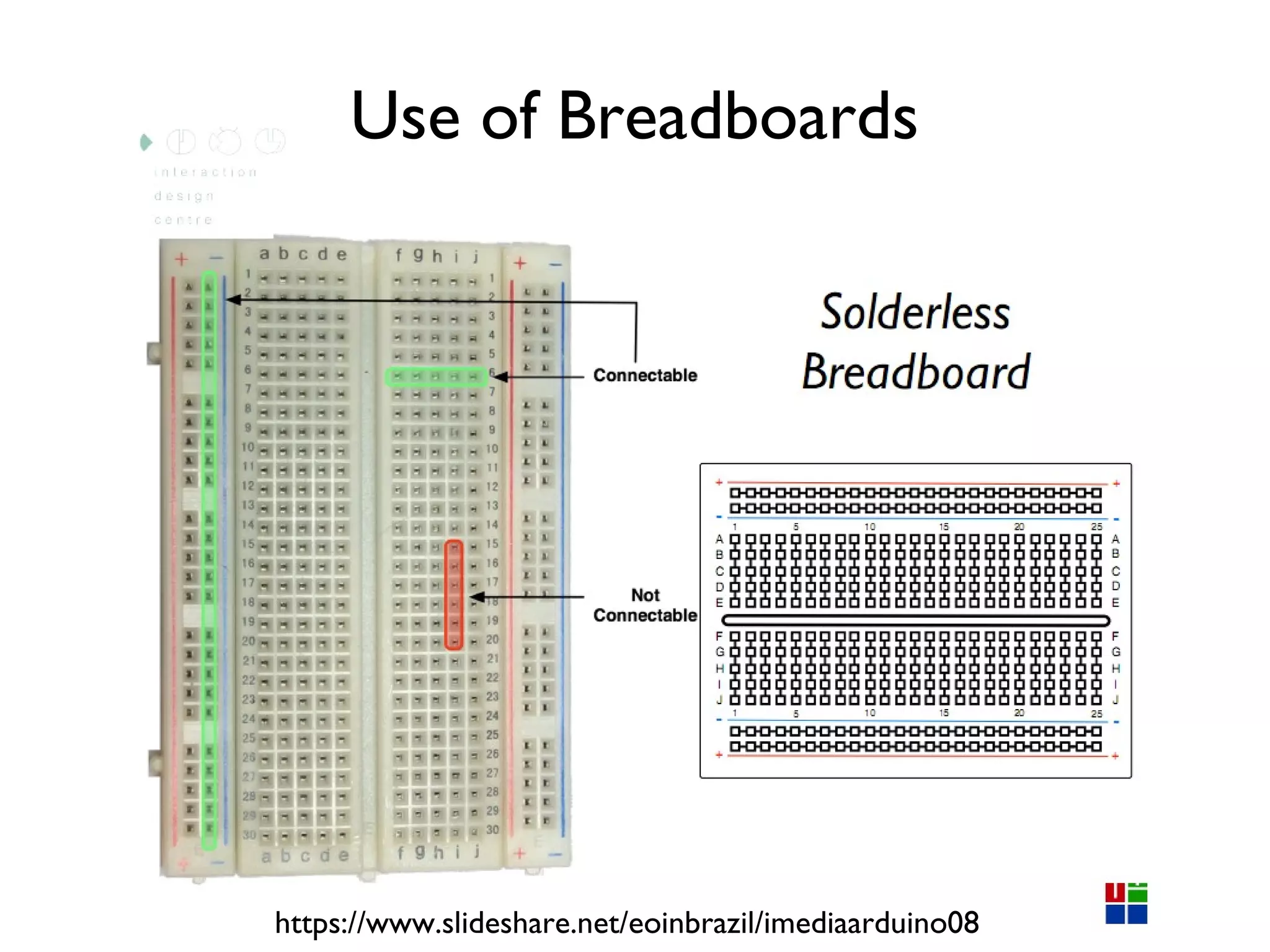
42 Types of Breadboards https://goo.gl/JipVgH
Use of Breadboards https://www.slideshare.net/eoinbrazil/imediaarduino08
44 Easier Connections 1k Ohm resistor LED RPi Long (RED) Pin12 (GPIO18) Short (BLACK) Pin6 (Ground)
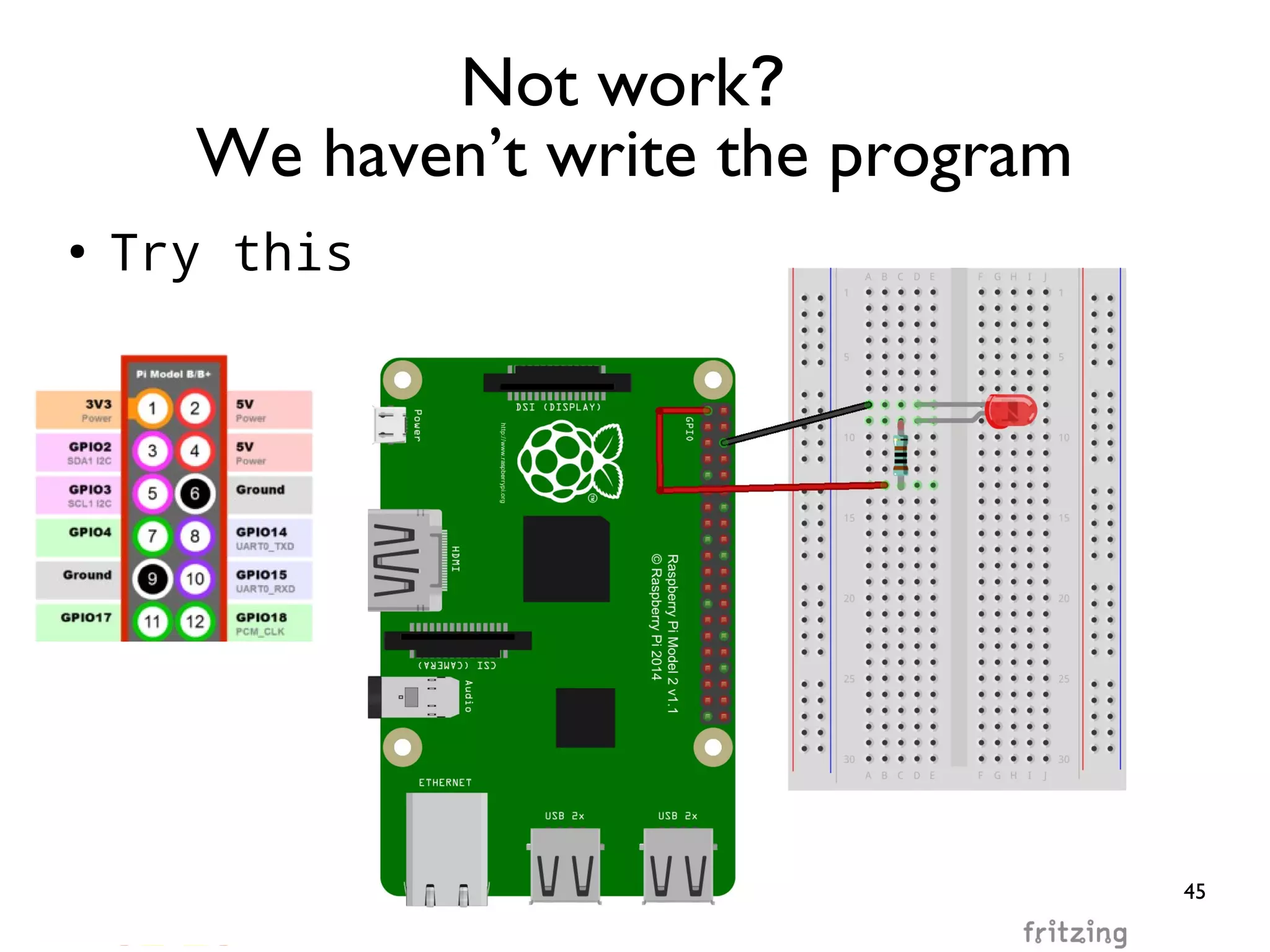
45 ● Try this Not work? We haven’t write the program
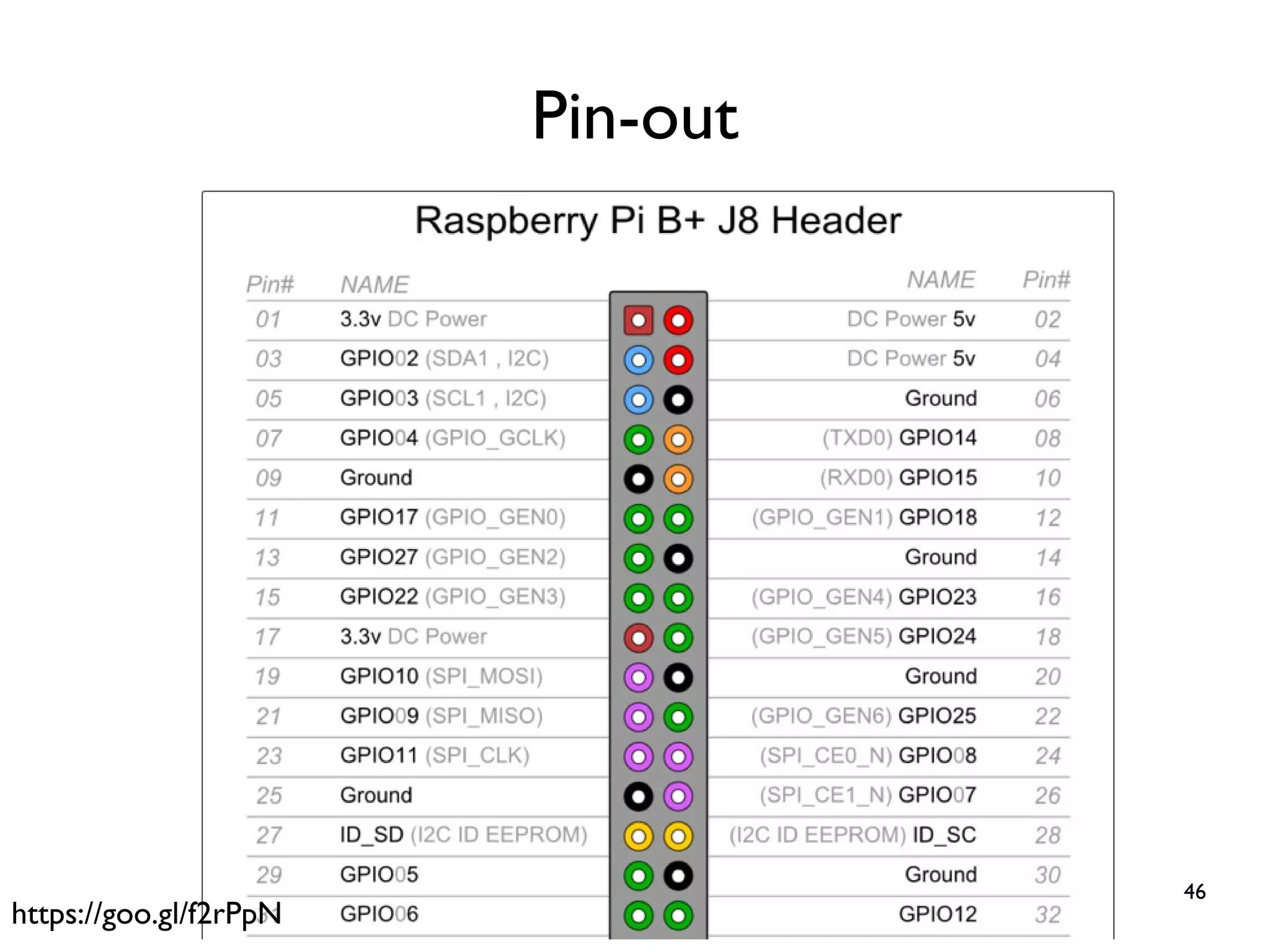
46 Pin-out https://goo.gl/f2rPpN
47 Control GPIO with Python
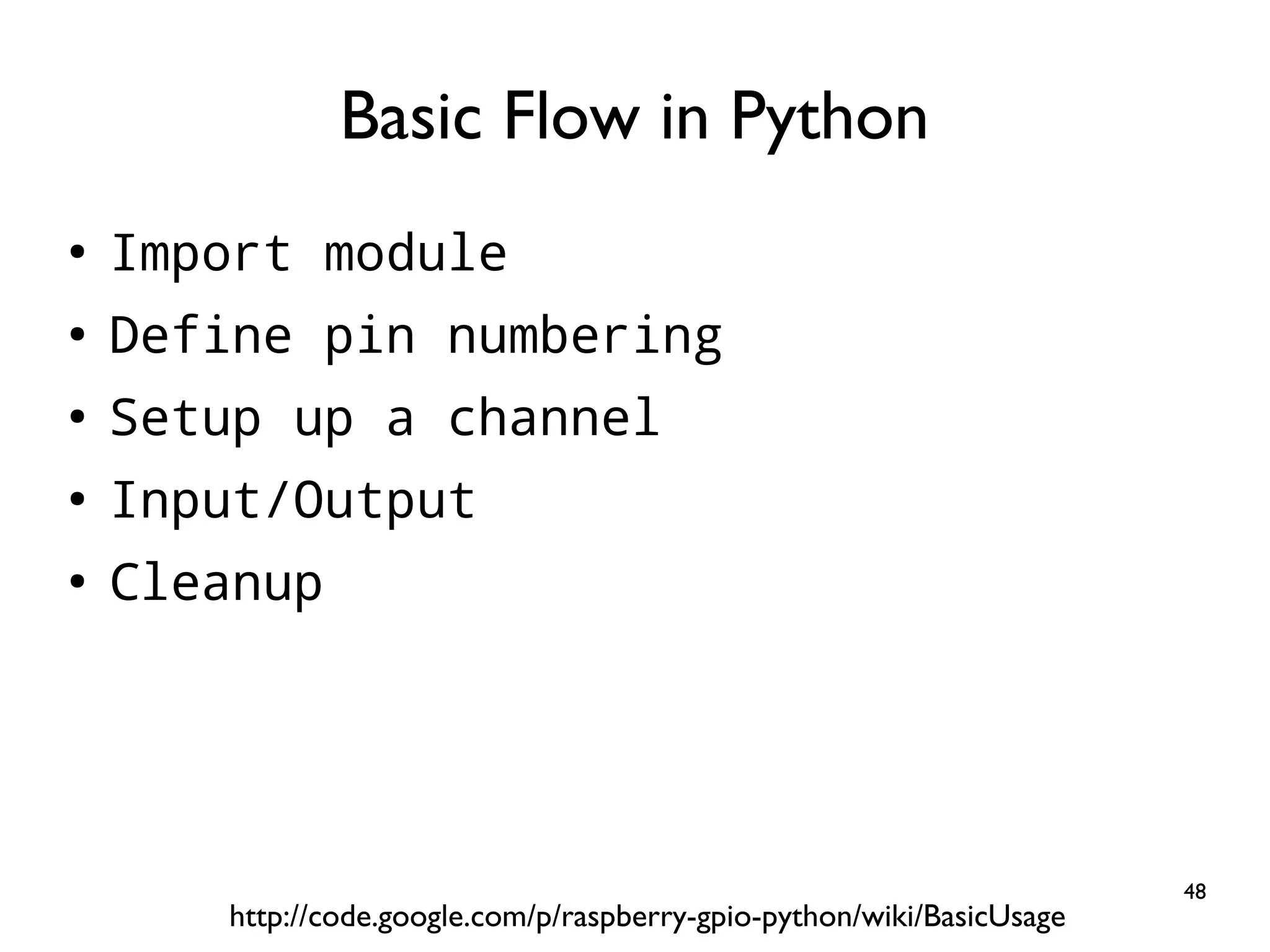
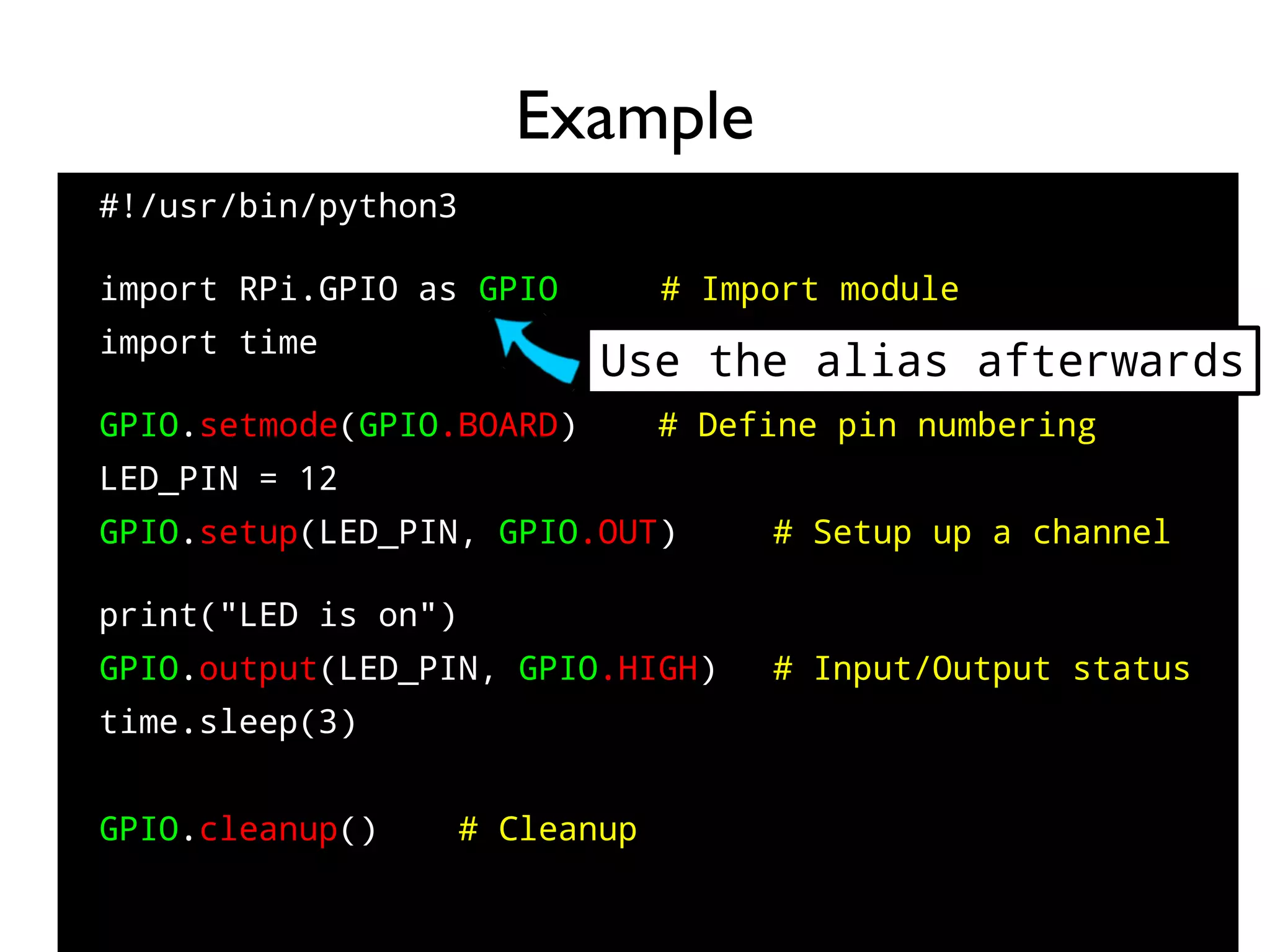
48 ● Import module ● Define pin numbering ● Setup up a channel ● Input/Output ● Cleanup Basic Flow in Python http://code.google.com/p/raspberry-gpio-python/wiki/BasicUsage
49 #!/usr/bin/python3 ● import RPi.GPIO as GPIO # Import module import time GPIO.setmode(GPIO.BOARD) # Define pin numbering LED_PIN = 12 GPIO.setup(LED_PIN, GPIO.OUT) # Setup up a channel print("LED is on") GPIO.output(LED_PIN, GPIO.HIGH) # Input/Output status time.sleep(3) GPIO.cleanup() # Cleanup Example Use the alias afterwards
50 DEMO led_on.py $ python3 led_on.py
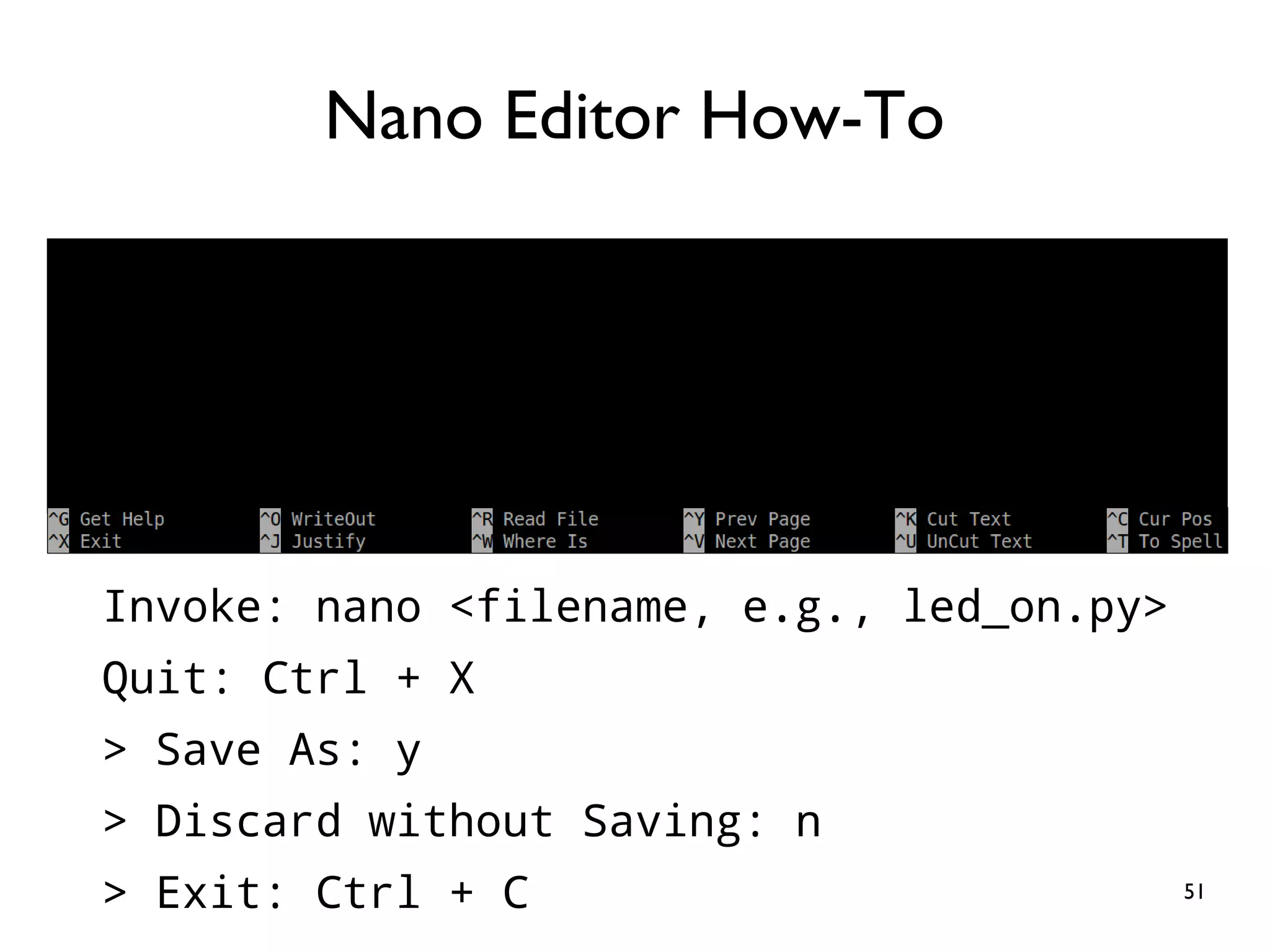
51 Invoke: nano <filename, e.g., led_on.py> Quit: Ctrl + X > Save As: y > Discard without Saving: n > Exit: Ctrl + C Nano Editor How-To
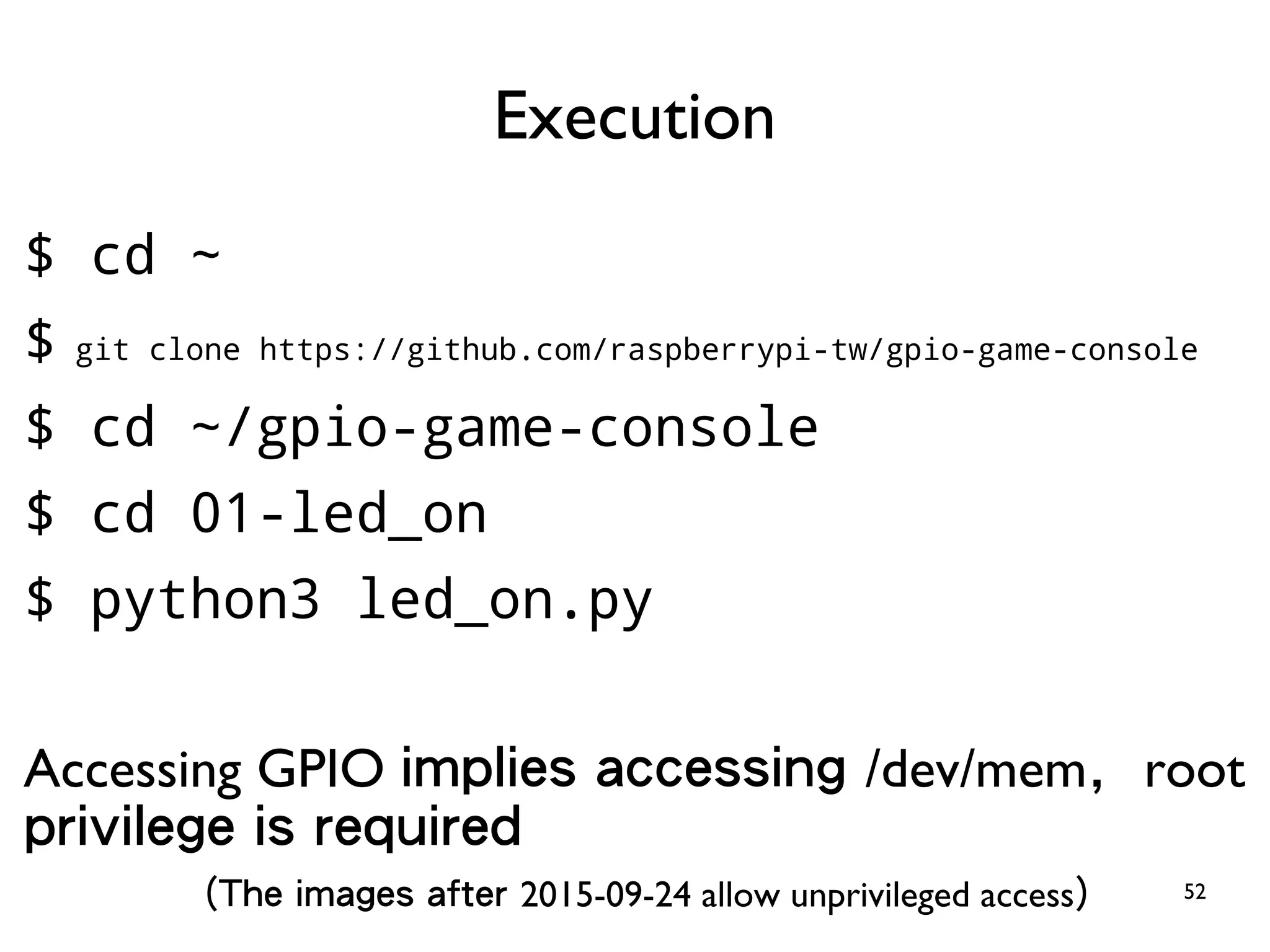
52 $ cd ~ $ git clone https://github.com/raspberrypi-tw/gpio-game-console $ cd ~/gpio-game-console $ cd 01-led_on $ python3 led_on.py Accessing GPIO implies accessing /dev/mem, root privilege is required (The images after 2015-09-24 allow unprivileged access) Execution
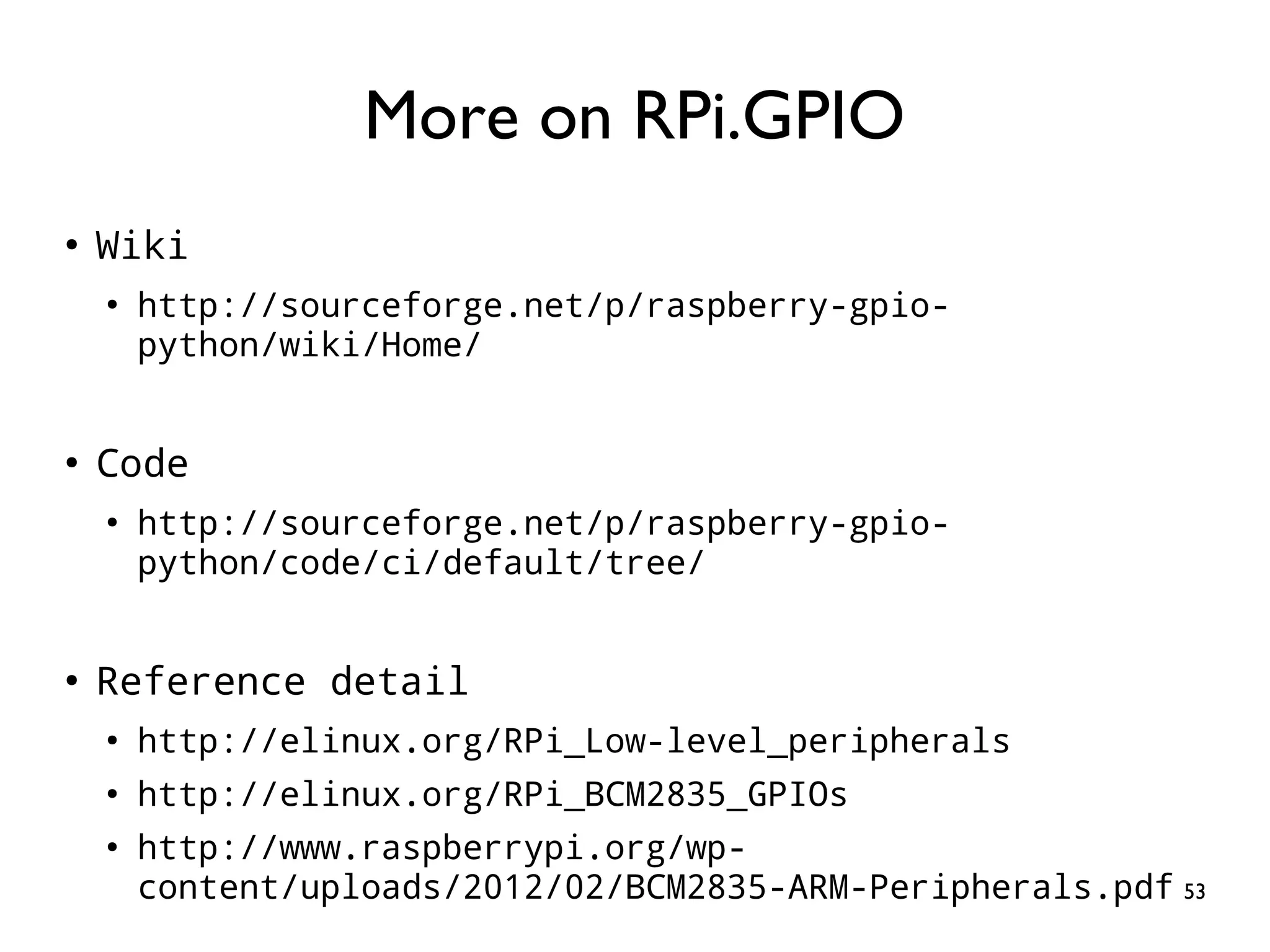
53 ● Wiki ● http://sourceforge.net/p/raspberry-gpio- python/wiki/Home/ ● Code ● http://sourceforge.net/p/raspberry-gpio- python/code/ci/default/tree/ ● Reference detail ● http://elinux.org/RPi_Low-level_peripherals ● http://elinux.org/RPi_BCM2835_GPIOs ● http://www.raspberrypi.org/wp- content/uploads/2012/02/BCM2835-ARM-Peripherals.pdf More on RPi.GPIO
54 Practice 2: Blinking LED Goal: Getting Familiar with Python
55 Same Wiring 1k 電阻 LED RPi Long (RED) Pin12 (GPIO18) Short (BLACK) Pin6 (Ground)
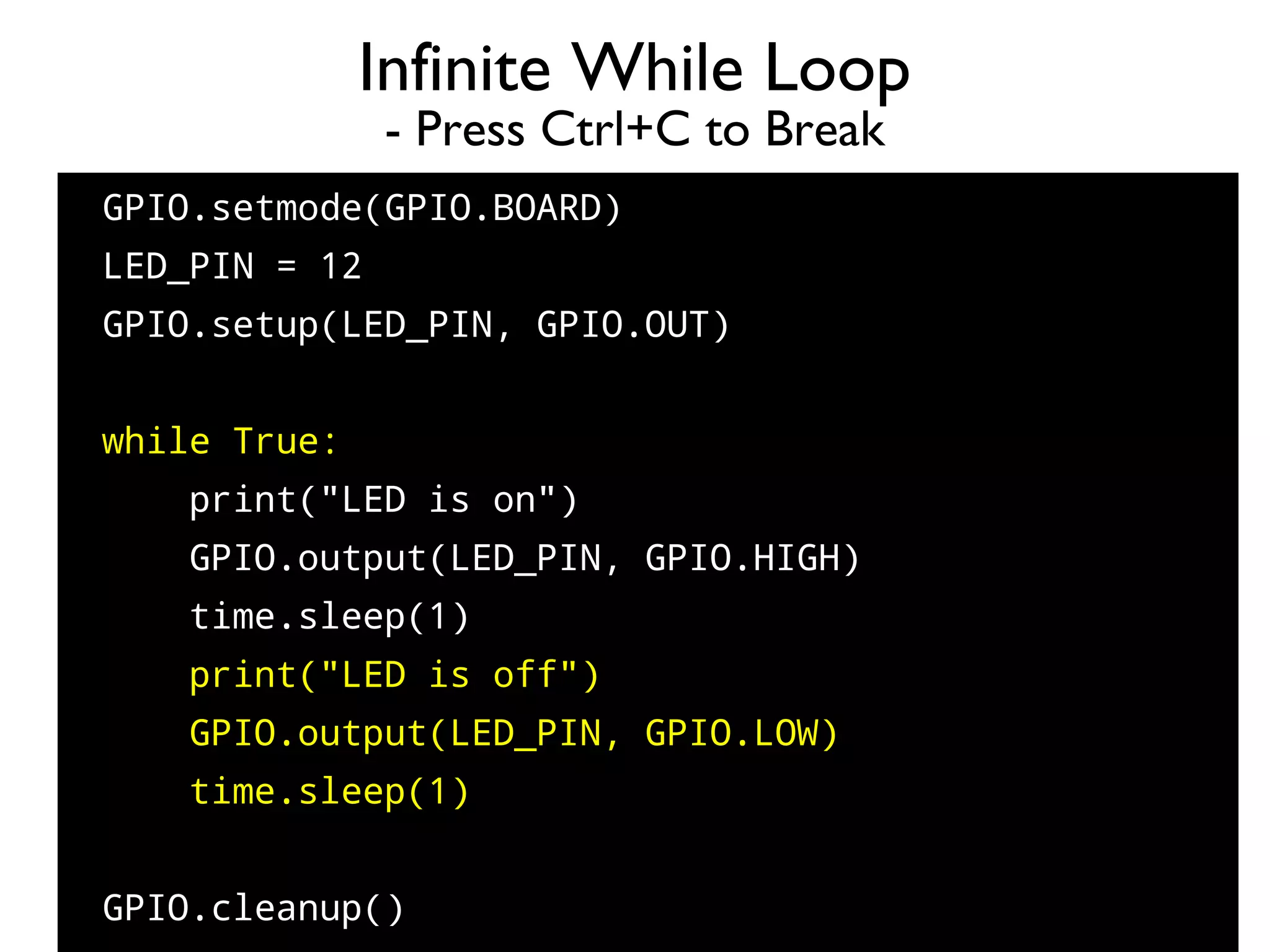
56 GPIO.setmode(GPIO.BOARD) LED_PIN = 12 GPIO.setup(LED_PIN, GPIO.OUT) while True: print("LED is on") GPIO.output(LED_PIN, GPIO.HIGH) time.sleep(1) print("LED is off") GPIO.output(LED_PIN, GPIO.LOW) time.sleep(1) GPIO.cleanup() Infinite While Loop - Press Ctrl+C to Break
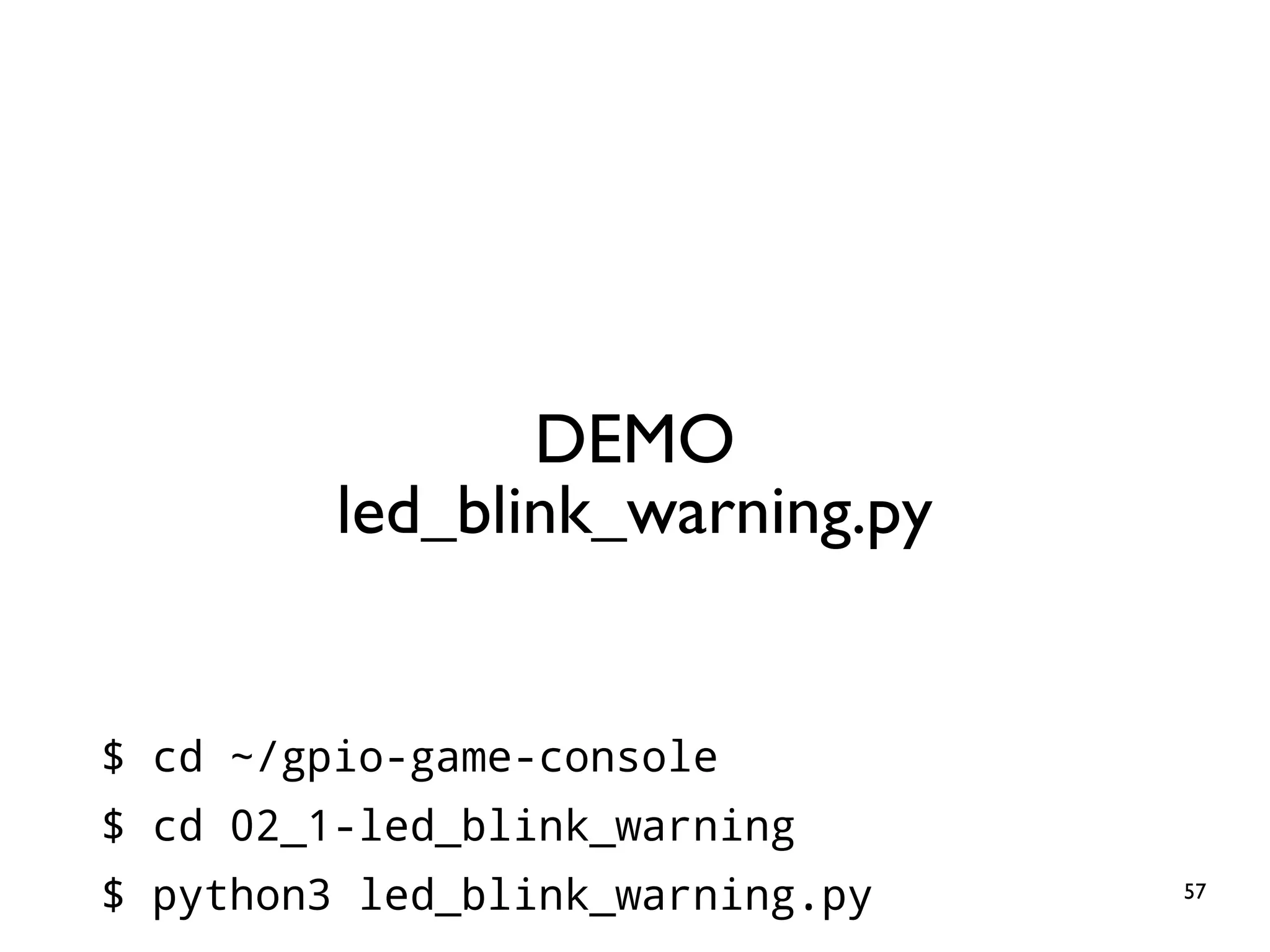
57 DEMO led_blink_warning.py $ cd ~/gpio-game-console $ cd 02_1-led_blink_warning $ python3 led_blink_warning.py
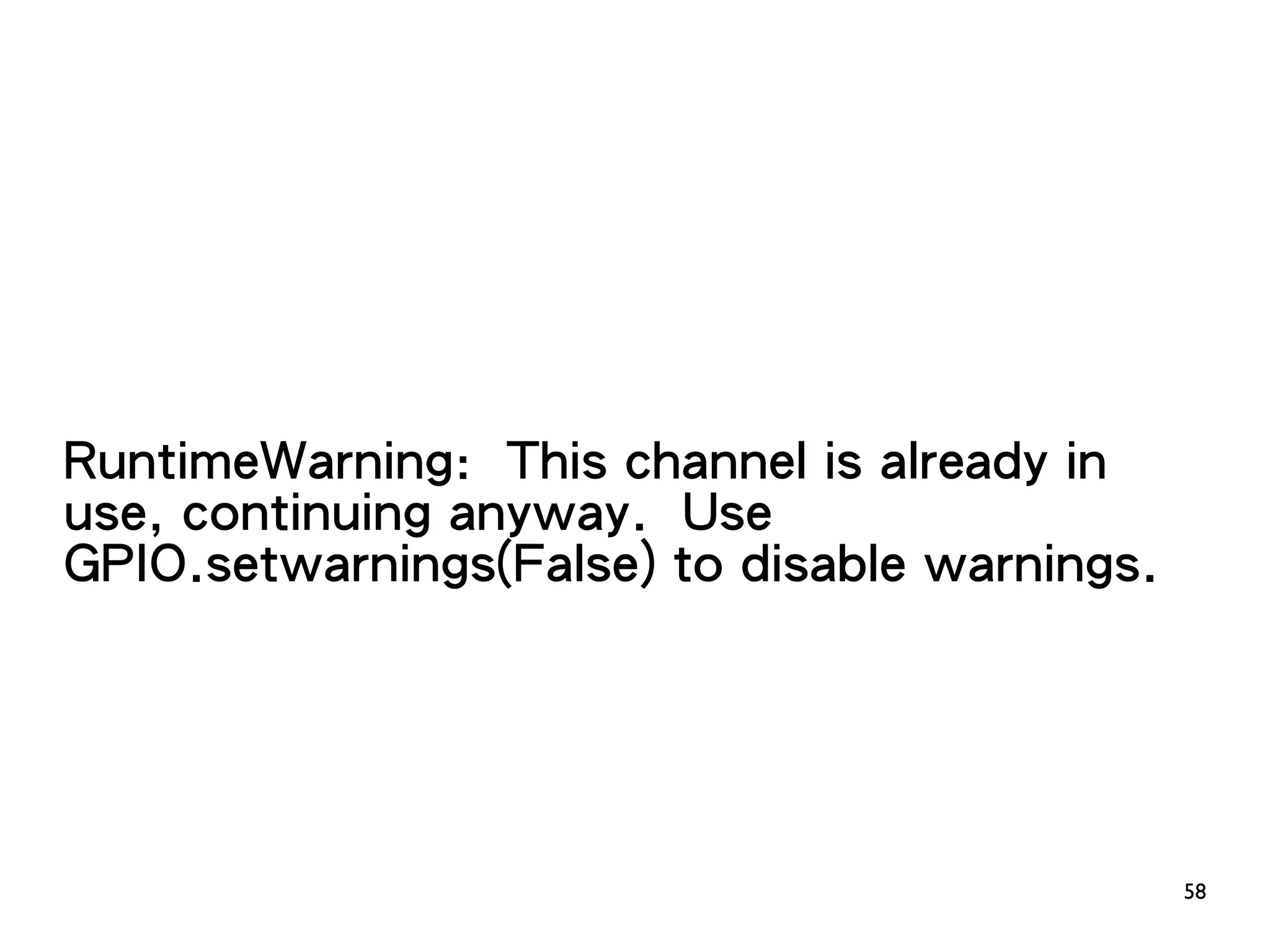
58 RuntimeWarning: This channel is already in use, continuing anyway. Use GPIO.setwarnings(False) to disable warnings.
59 Why the Warning Message?
60 ● Normal exit when finishing the flow ● Abort when error ● Interrupted (Receiving interrupt signal, e.g., Ctrl+C) When is a program terminated?
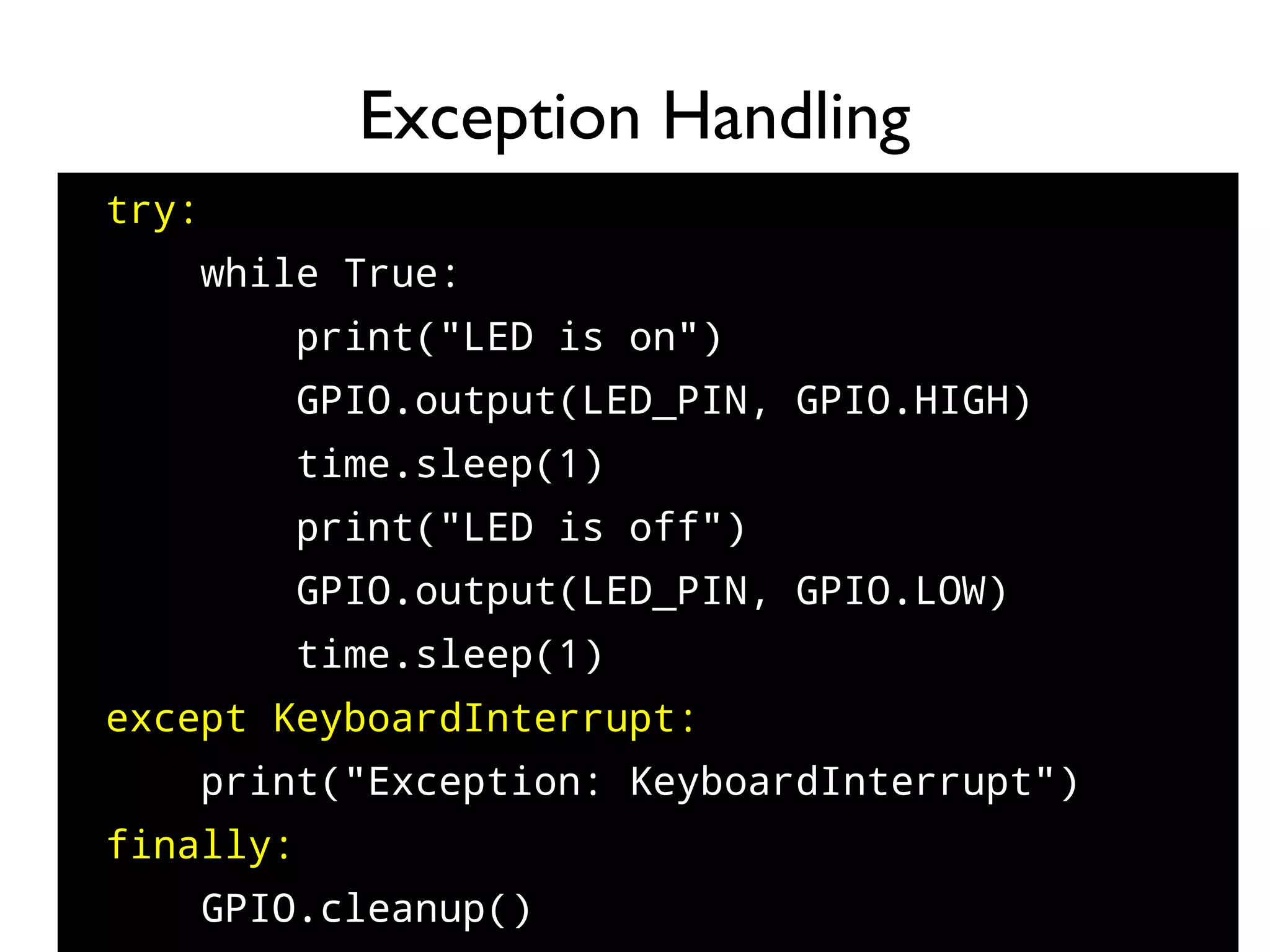
61 try: while True: print("LED is on") GPIO.output(LED_PIN, GPIO.HIGH) time.sleep(1) print("LED is off") GPIO.output(LED_PIN, GPIO.LOW) time.sleep(1) except KeyboardInterrupt: print("Exception: KeyboardInterrupt") finally: GPIO.cleanup() Exception Handling
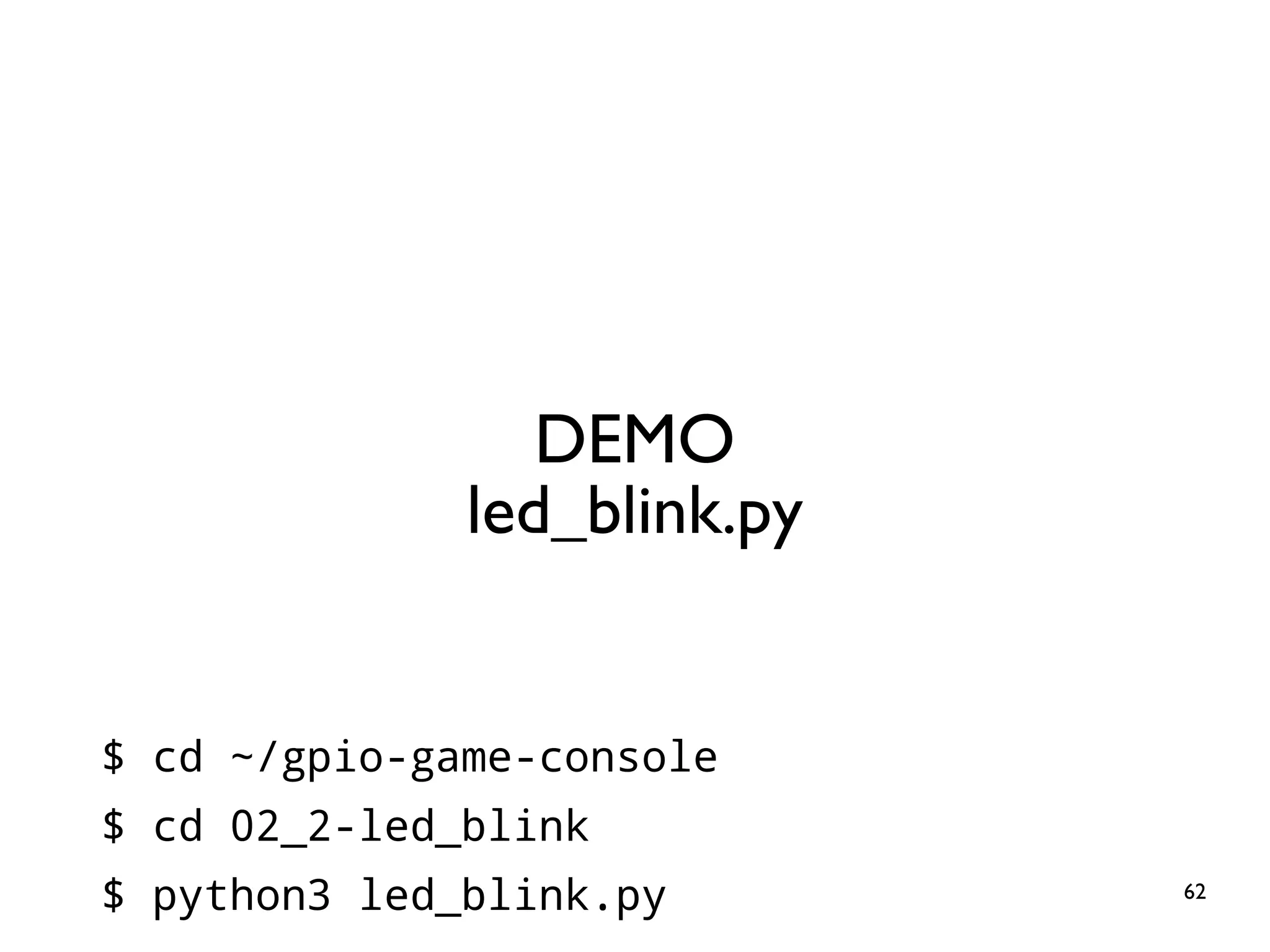
62 DEMO led_blink.py $ cd ~/gpio-game-console $ cd 02_2-led_blink $ python3 led_blink.py
63 Practice 3: LED Traffic Lights Goal: Structural Program Design
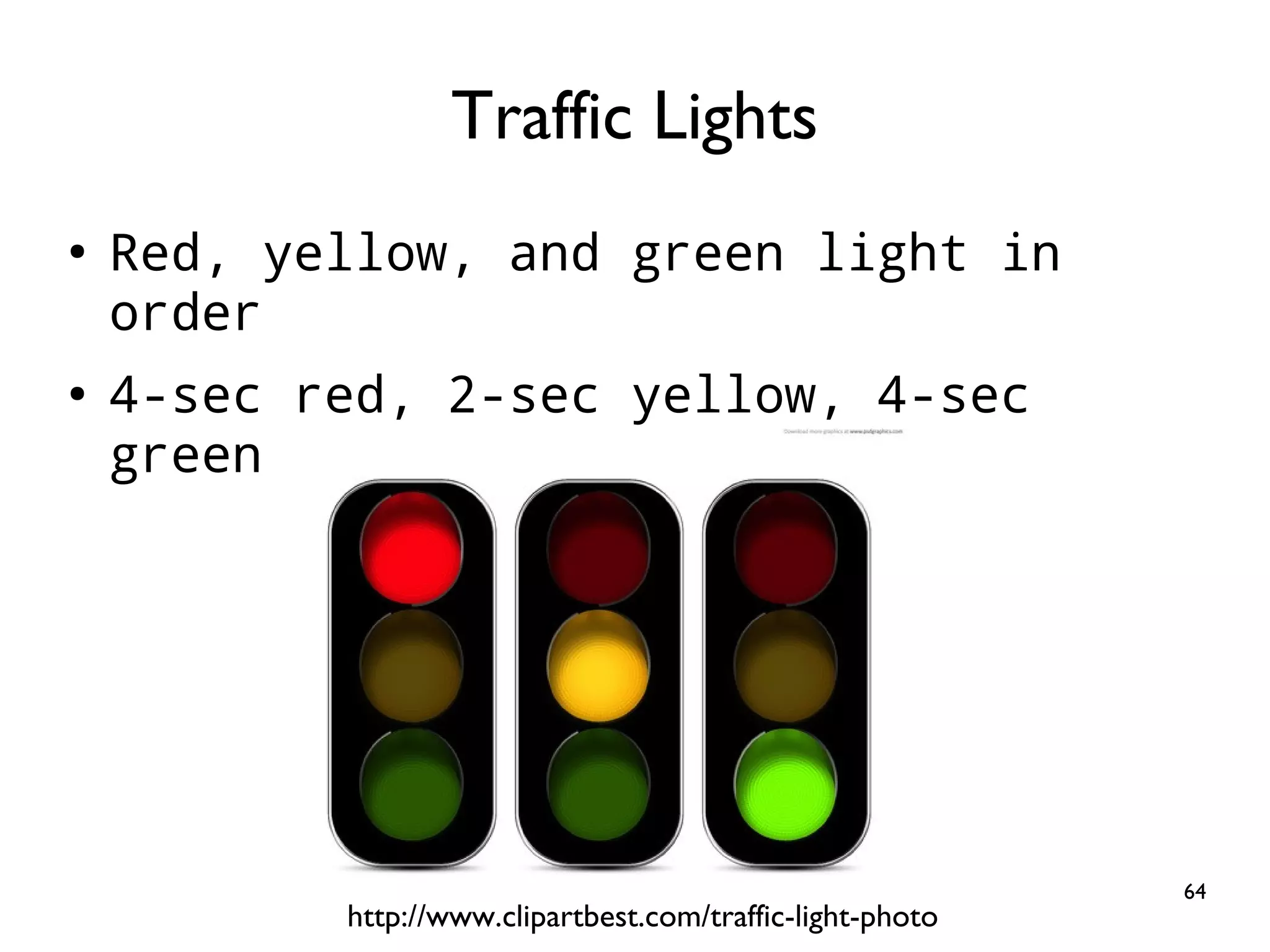
64 ● Red, yellow, and green light in order ● 4-sec red, 2-sec yellow, 4-sec green Traffic Lights http://www.clipartbest.com/traffic-light-photo
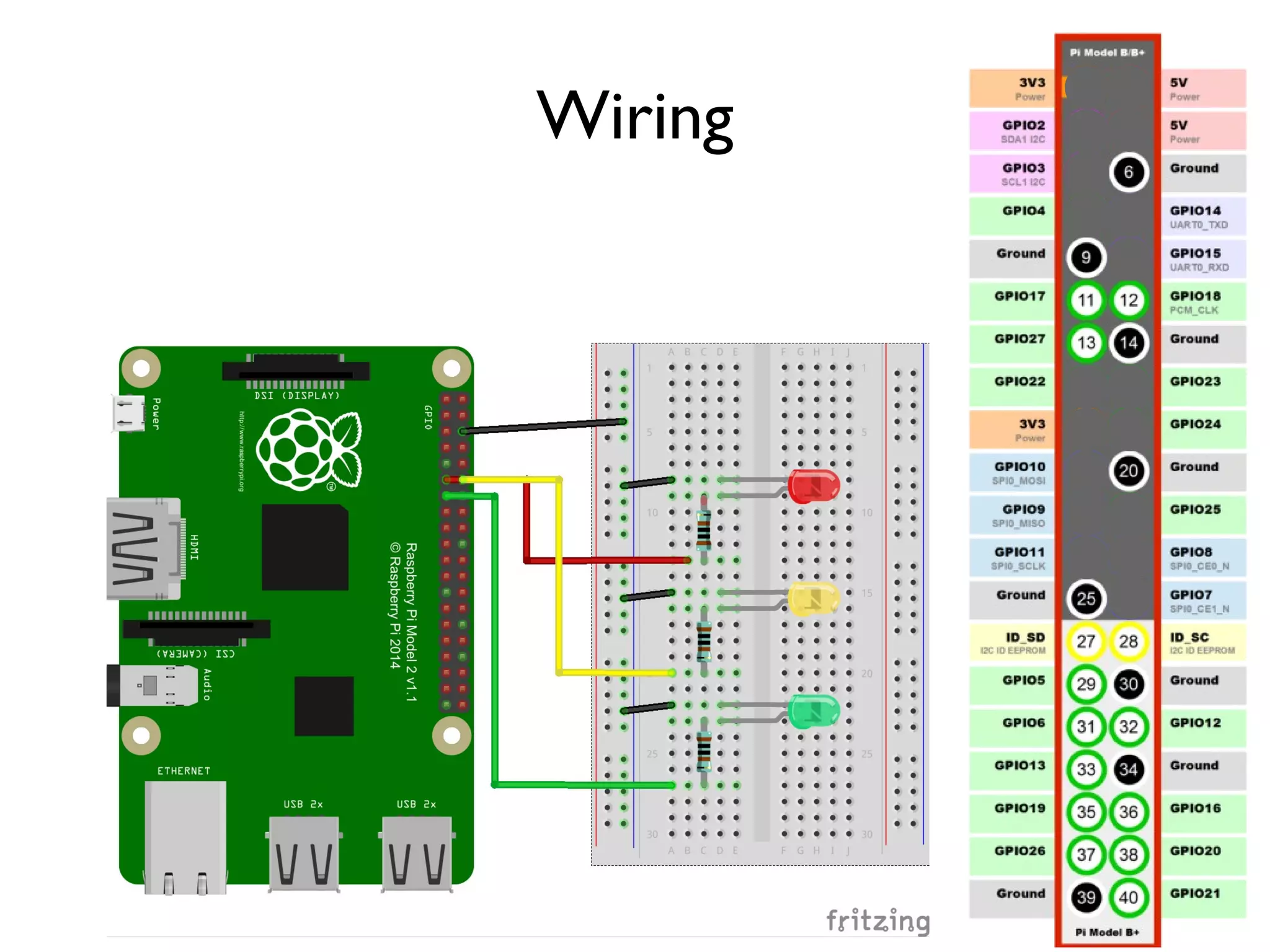
65 Wiring
66 DEMO traffic_light_nonstructure.py $ cd ~/gpio-game-console $ cd 03_1-traffic_light_nonstructure $ python3 traffic_light_nonstructure.py
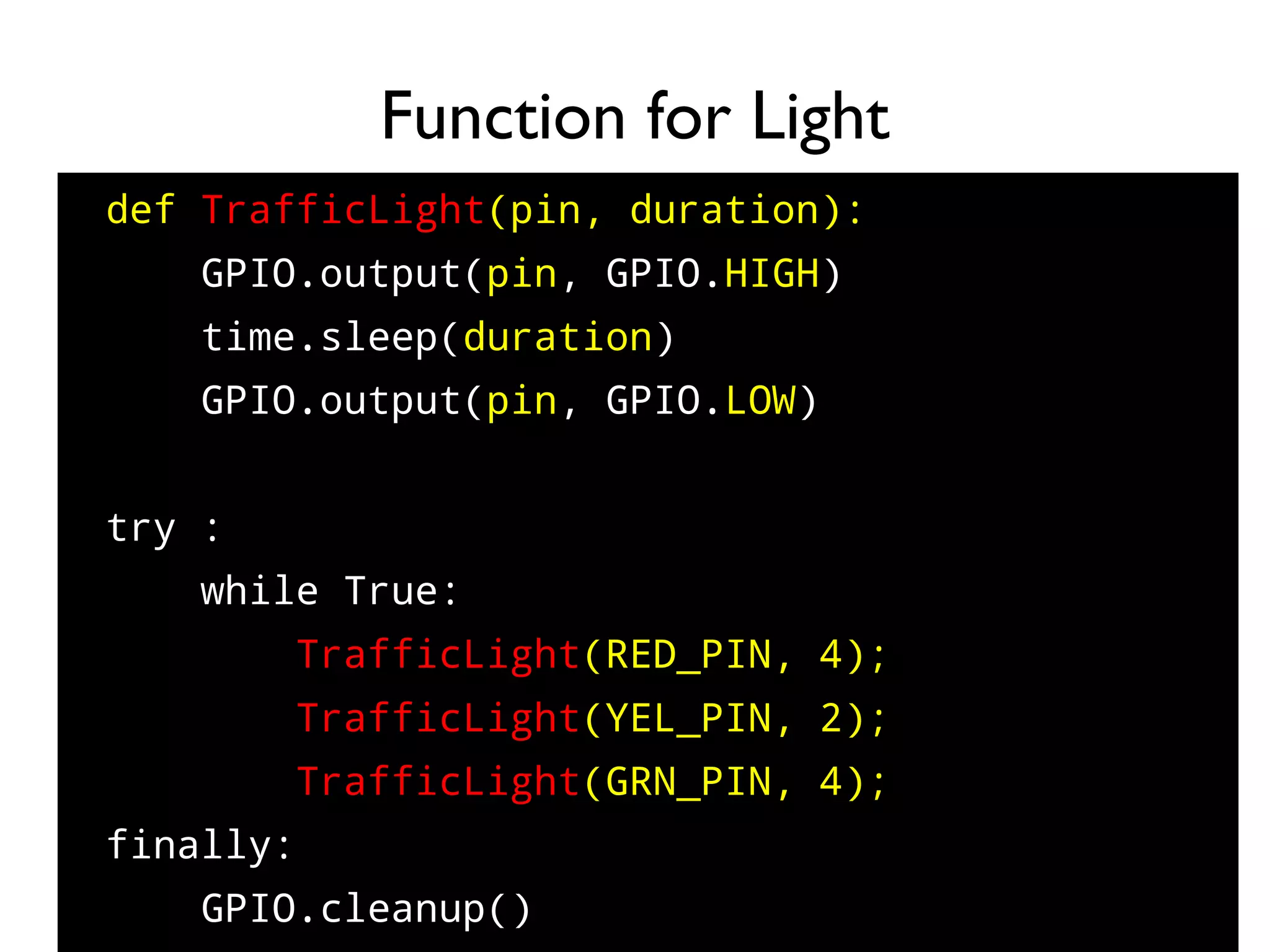
67 def TrafficLight(pin, duration): GPIO.output(pin, GPIO.HIGH) time.sleep(duration) GPIO.output(pin, GPIO.LOW) try : while True: TrafficLight(RED_PIN, 4); TrafficLight(YEL_PIN, 2); TrafficLight(GRN_PIN, 4); finally: GPIO.cleanup() Function for Light
68 DEMO traffic_light.py $ cd ~/gpio-game-console $ cd 03_2-traffic_light $ python3 traffic_light.py
69 Digital Input
70 Practice 4: Button Input Goal: Distinguish Hardware and Software Signals
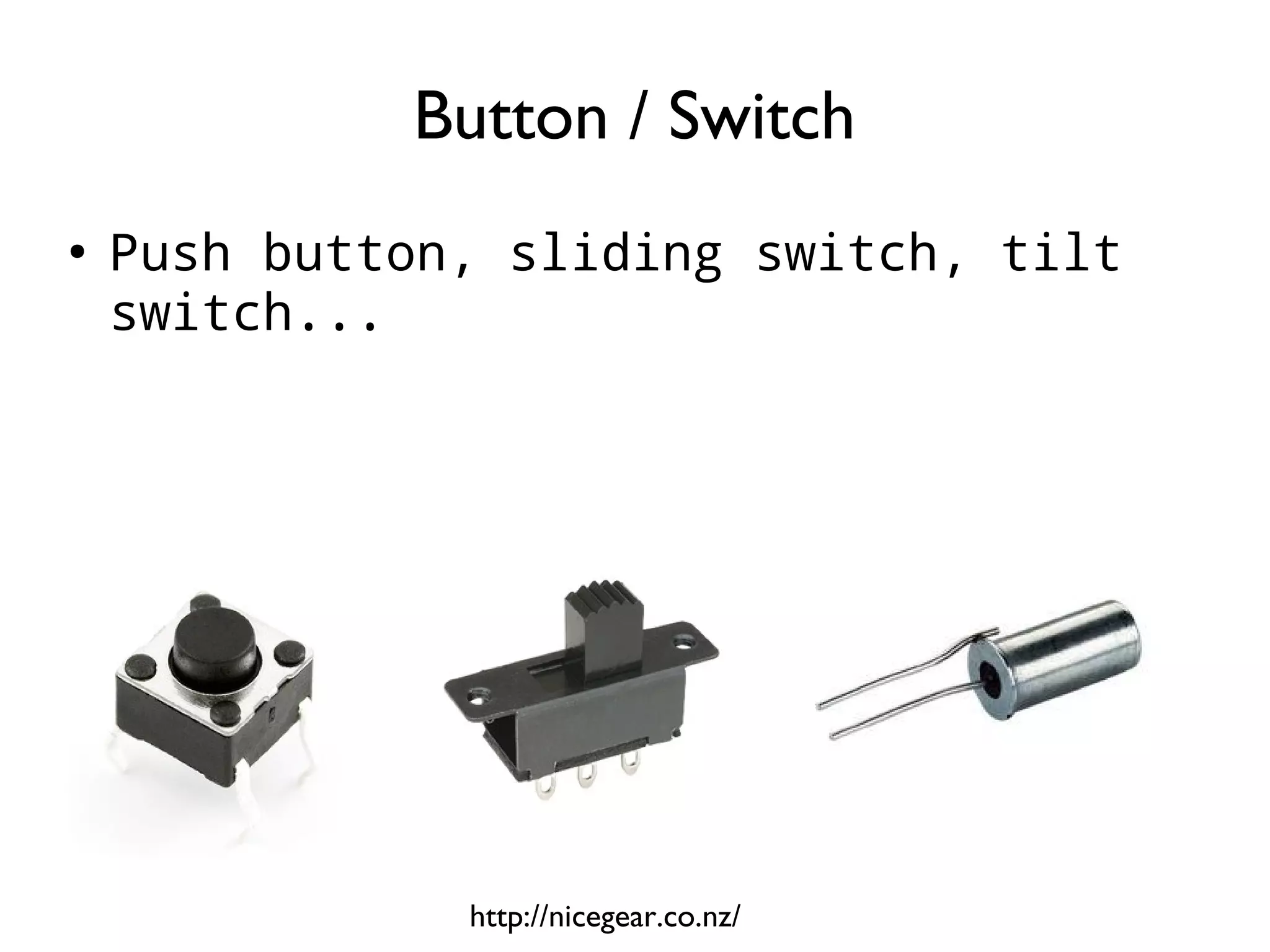
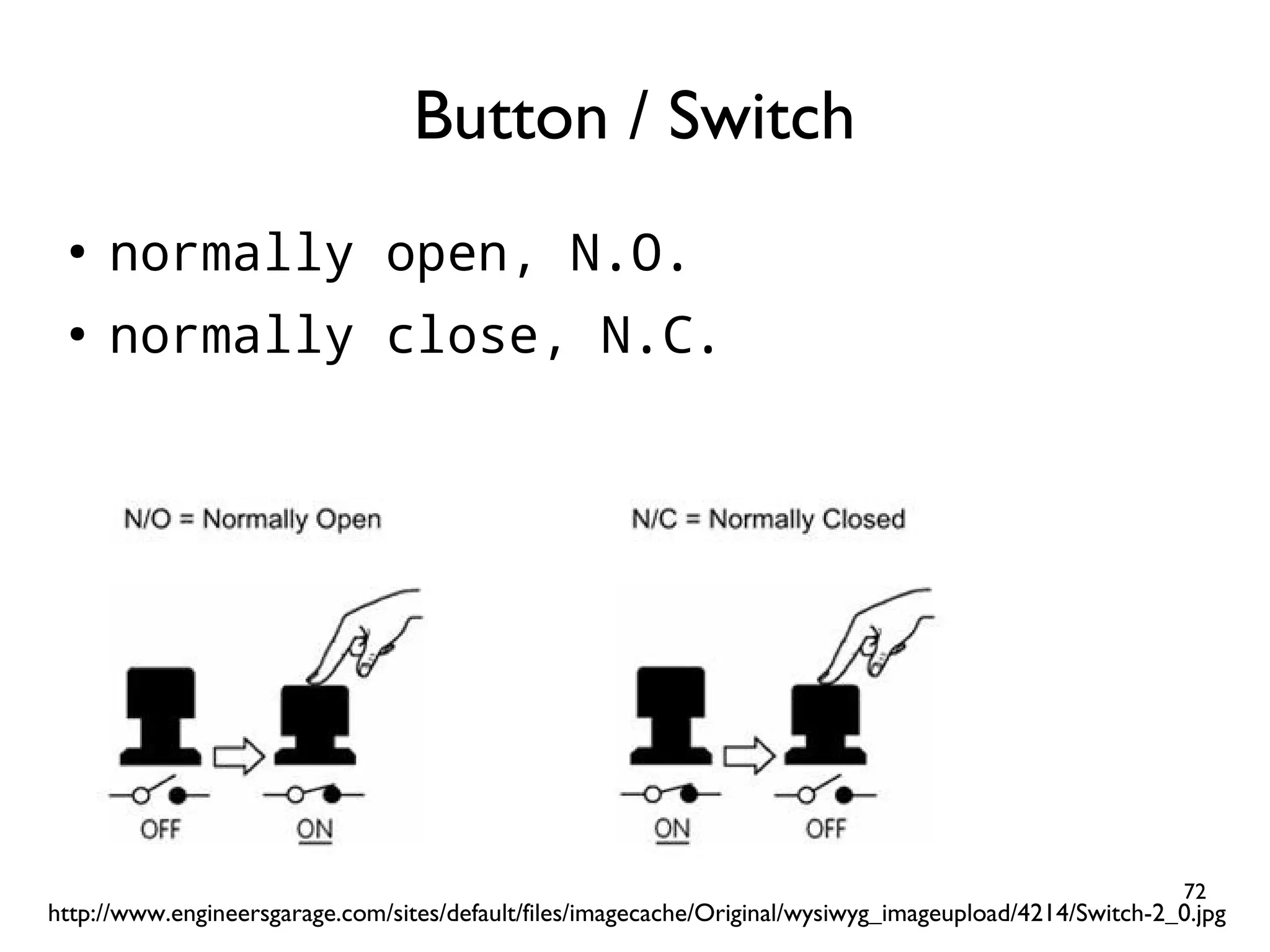
71 ● Push button, sliding switch, tilt switch... Button / Switch http://nicegear.co.nz/
72 ● normally open, N.O. ● normally close, N.C. Button / Switch http://www.engineersgarage.com/sites/default/files/imagecache/Original/wysiwyg_imageupload/4214/Switch-2_0.jpg
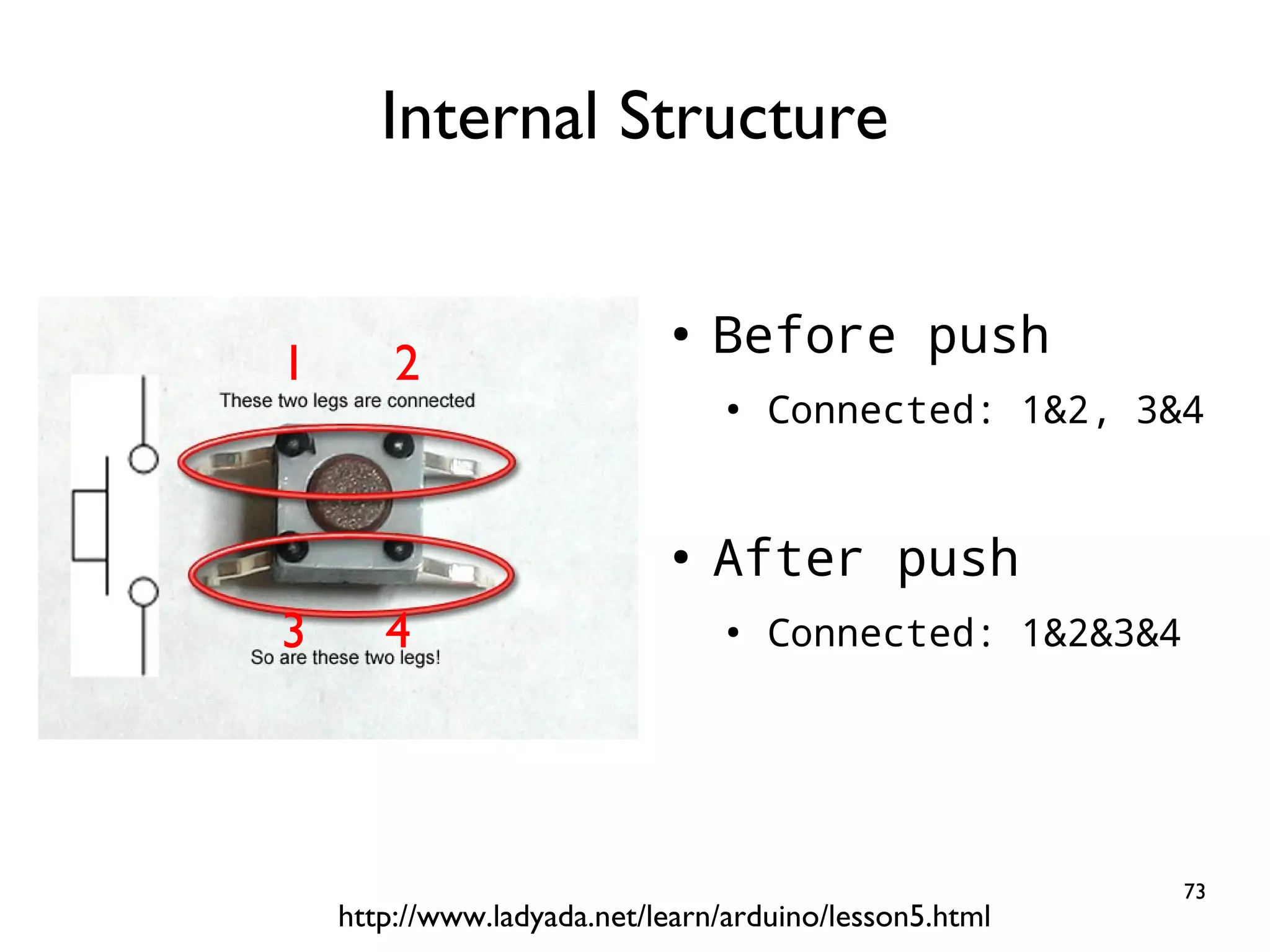
73 Internal Structure http://www.ladyada.net/learn/arduino/lesson5.html ● Before push ● Connected: 1&2, 3&4 ● After push ● Connected: 1&2&3&4 1 2 3 4
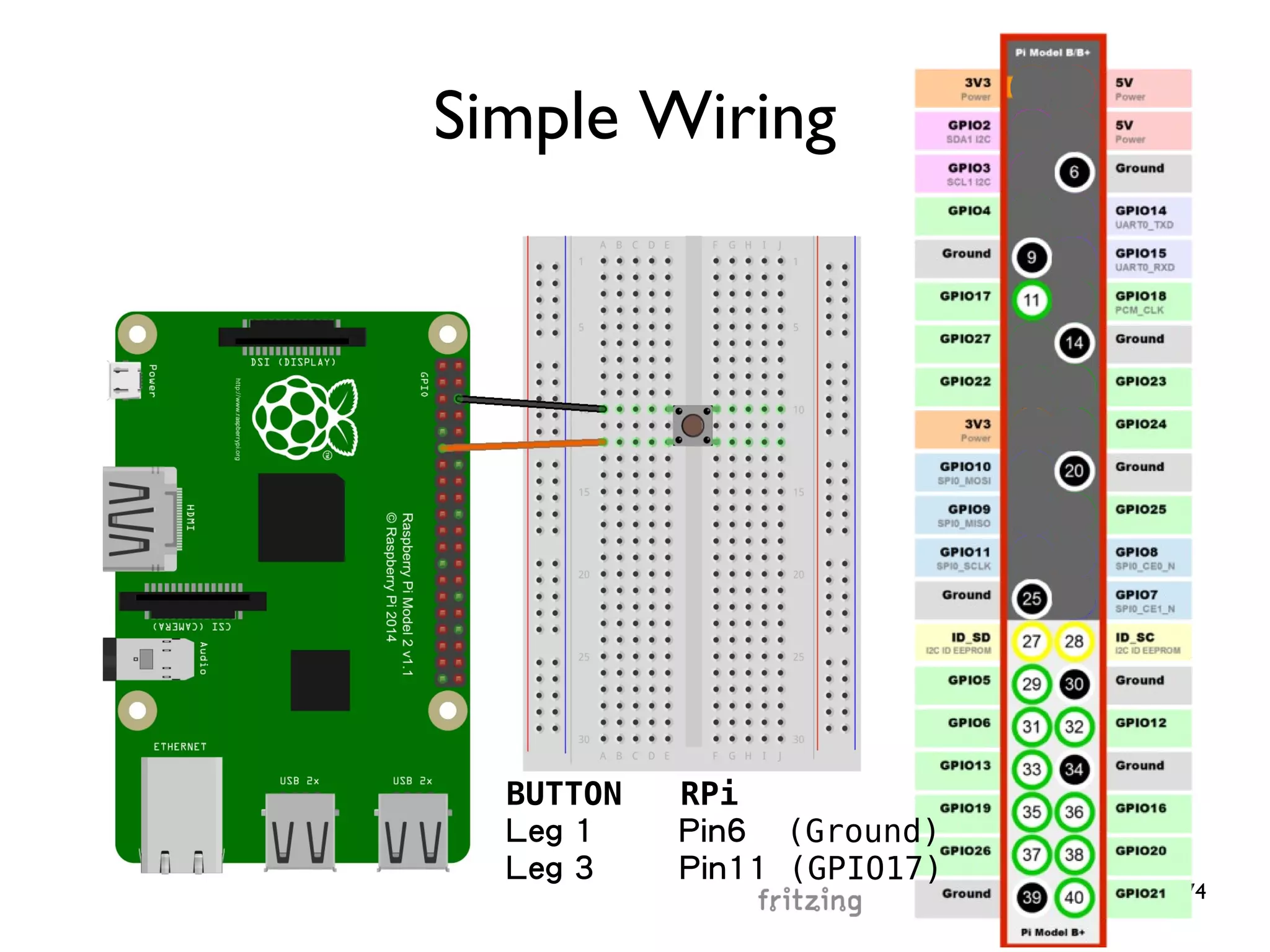
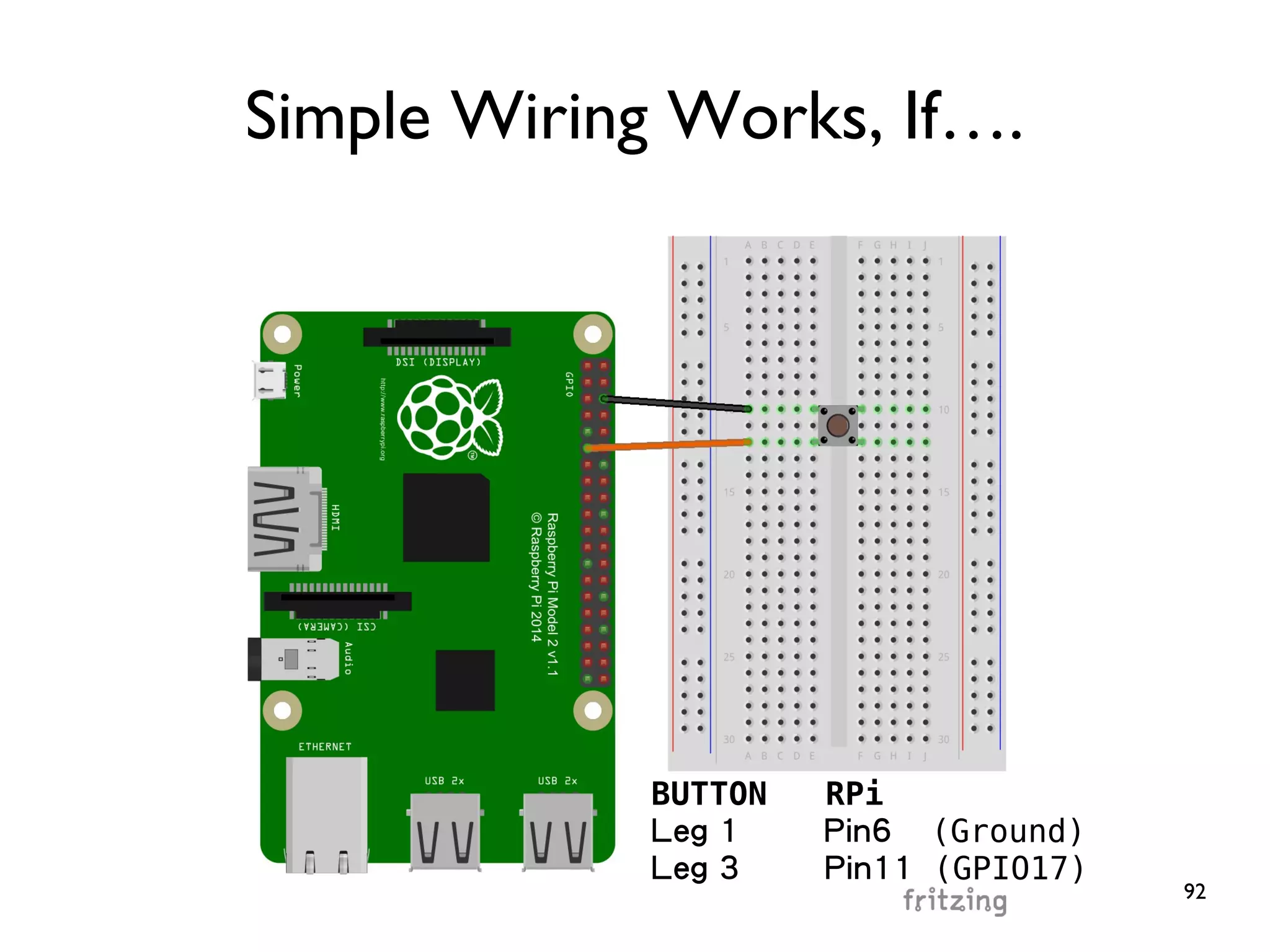
74 Simple Wiring BUTTON RPi Leg 1 Pin6 (Ground) Leg 3 Pin11 (GPIO17)
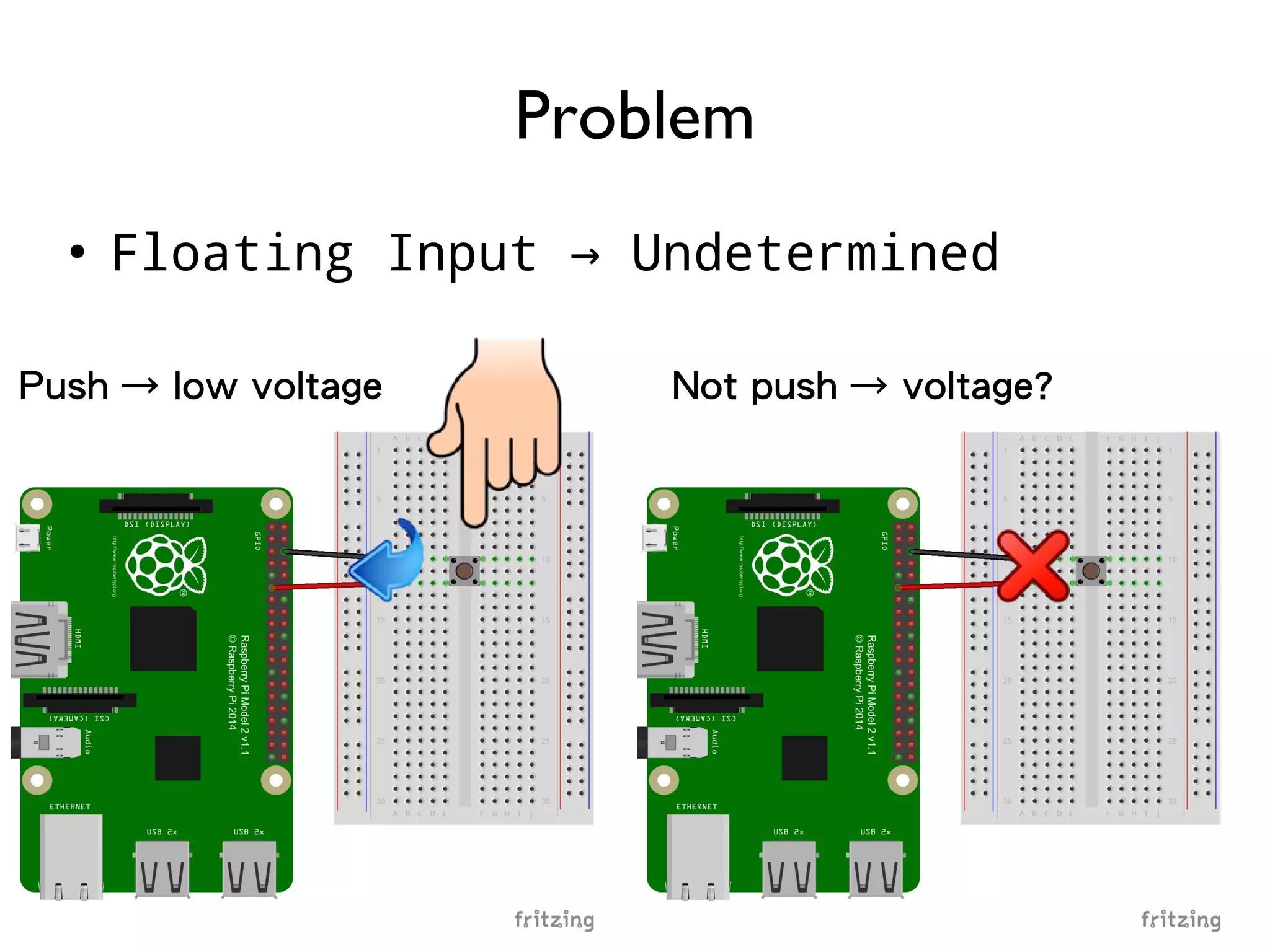
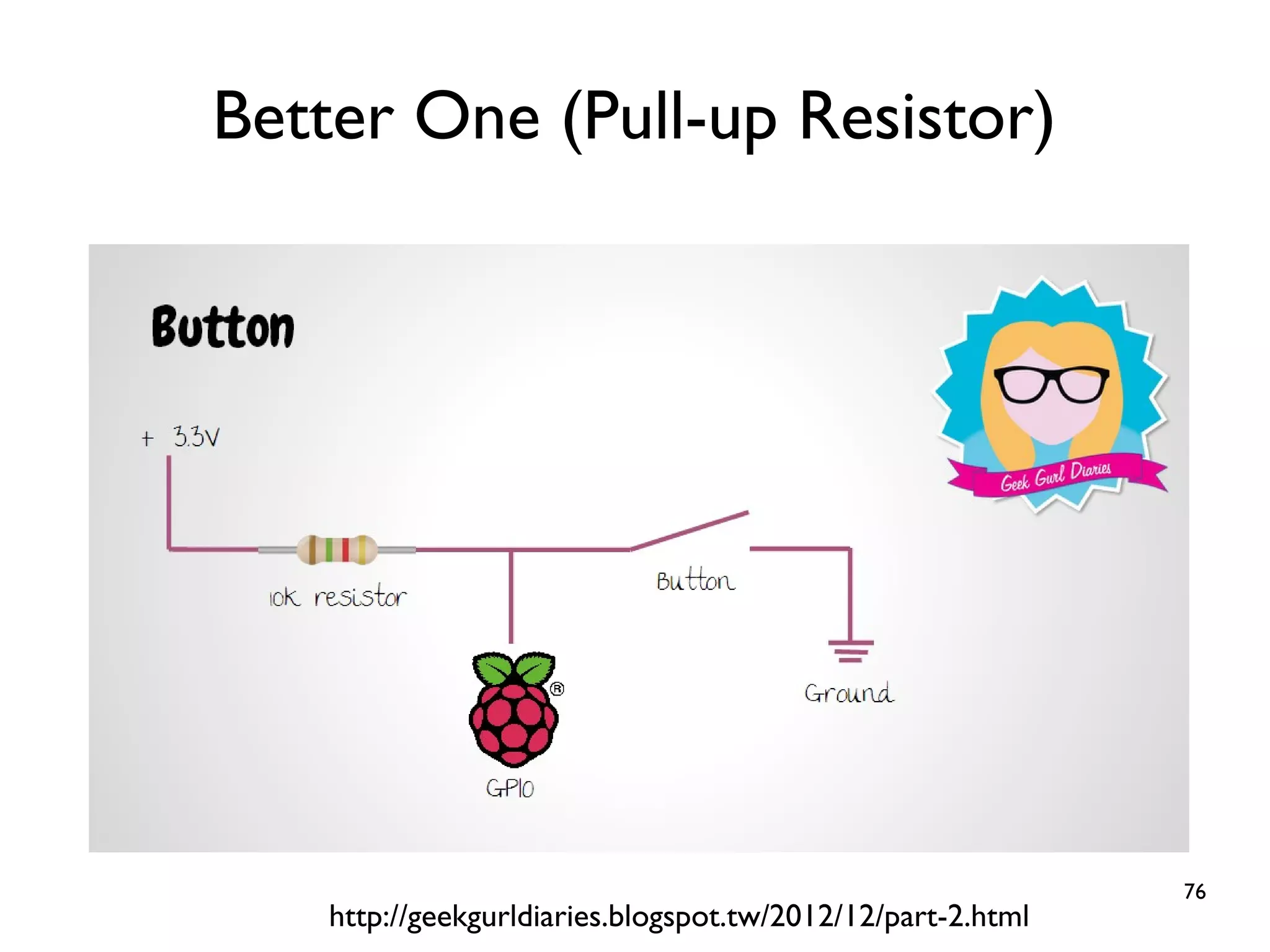
75 ● Floating Input Undetermined→ Problem Not push → voltage?Push → low voltage
76 Better One (Pull-up Resistor) http://geekgurldiaries.blogspot.tw/2012/12/part-2.html
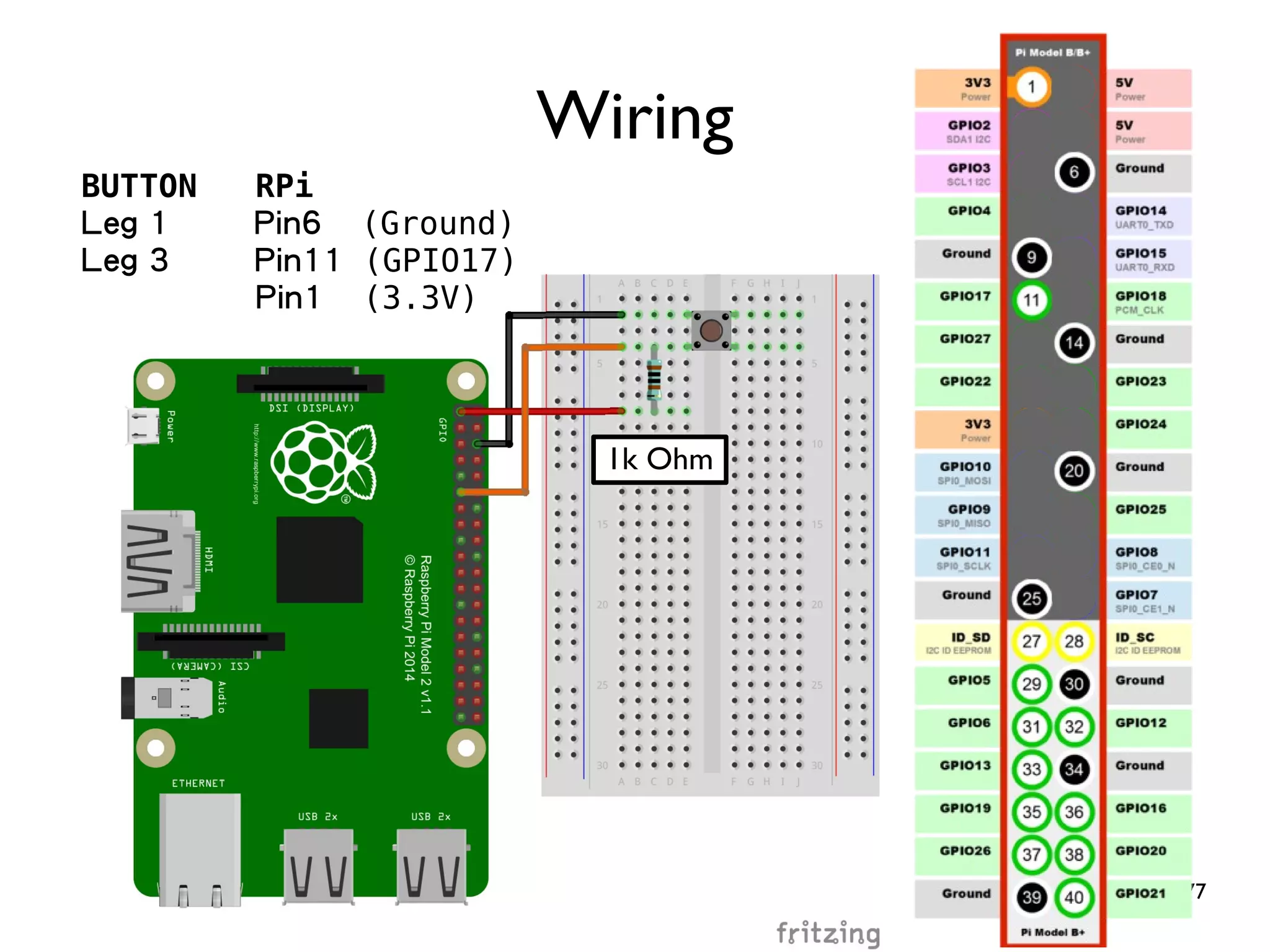
77 Wiring BUTTON RPi Leg 1 Pin6 (Ground) Leg 3 Pin11 (GPIO17) Pin1 (3.3V) 1k Ohm
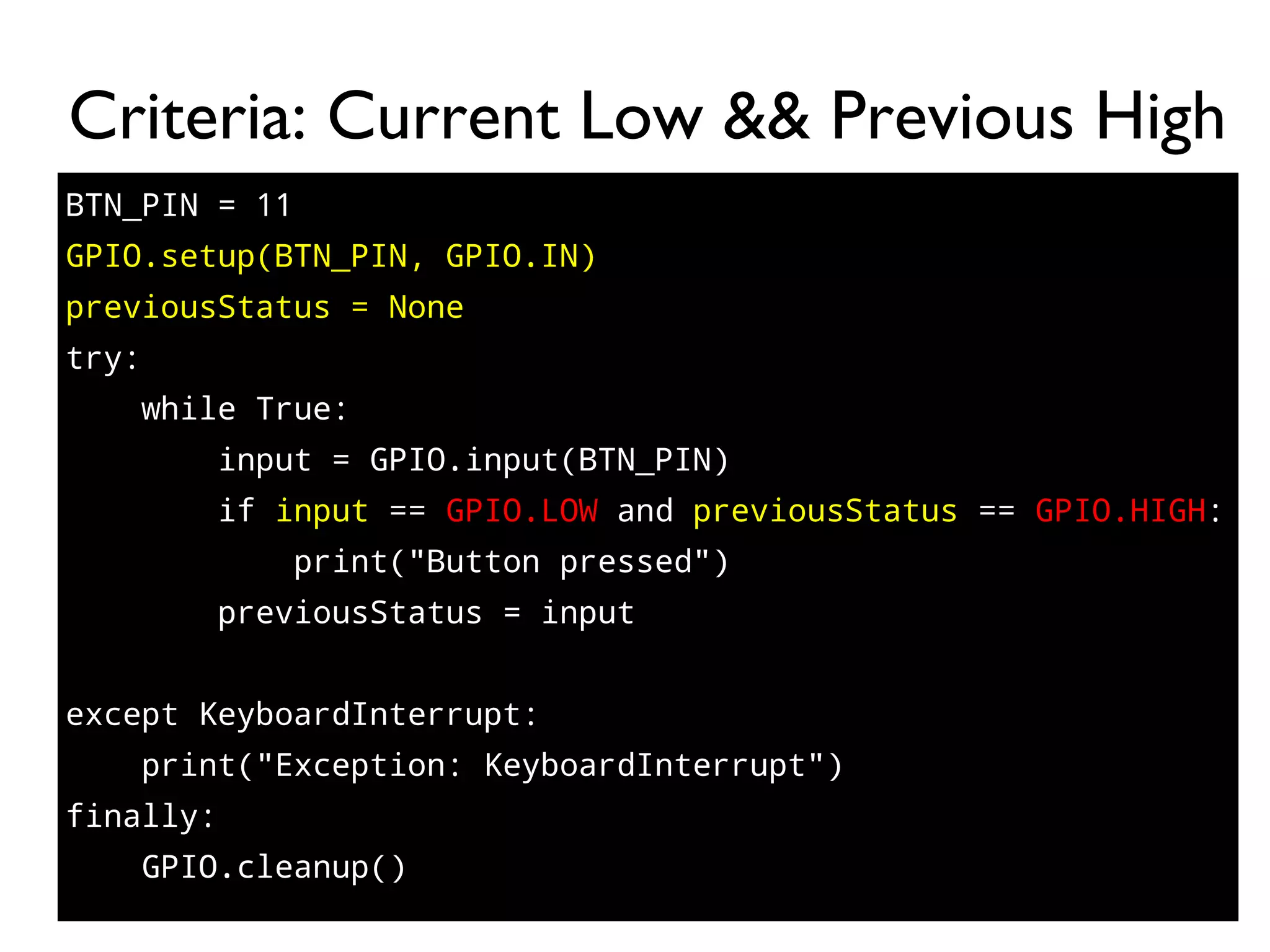
78 BTN_PIN = 11 GPIO.setup(BTN_PIN, GPIO.IN) previousStatus = None try: while True: input = GPIO.input(BTN_PIN) if input == GPIO.LOW and previousStatus == GPIO.HIGH: print("Button pressed") previousStatus = input except KeyboardInterrupt: print("Exception: KeyboardInterrupt") finally: GPIO.cleanup() Criteria: Current Low && Previous High
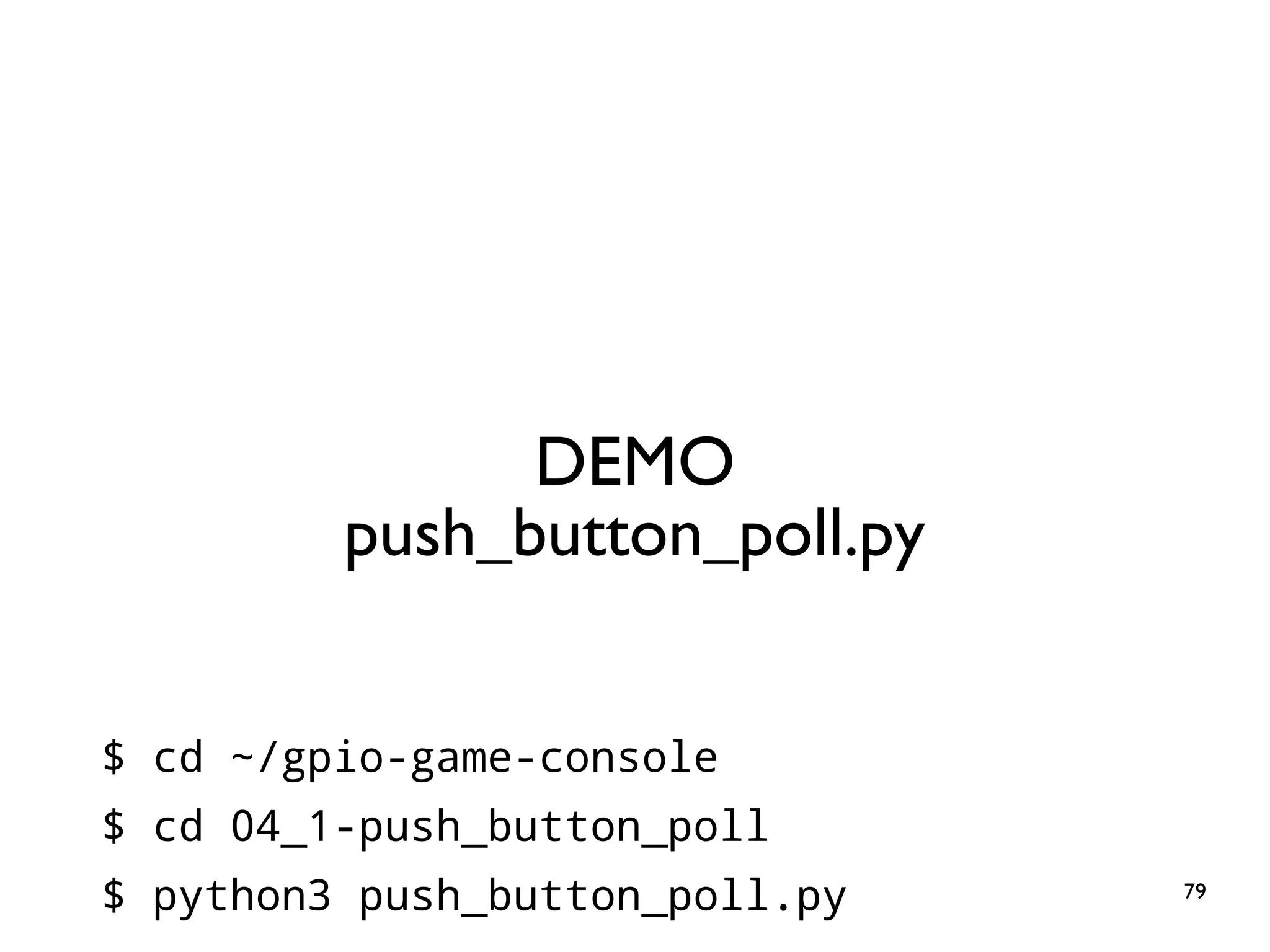
79 DEMO push_button_poll.py $ cd ~/gpio-game-console $ cd 04_1-push_button_poll $ python3 push_button_poll.py
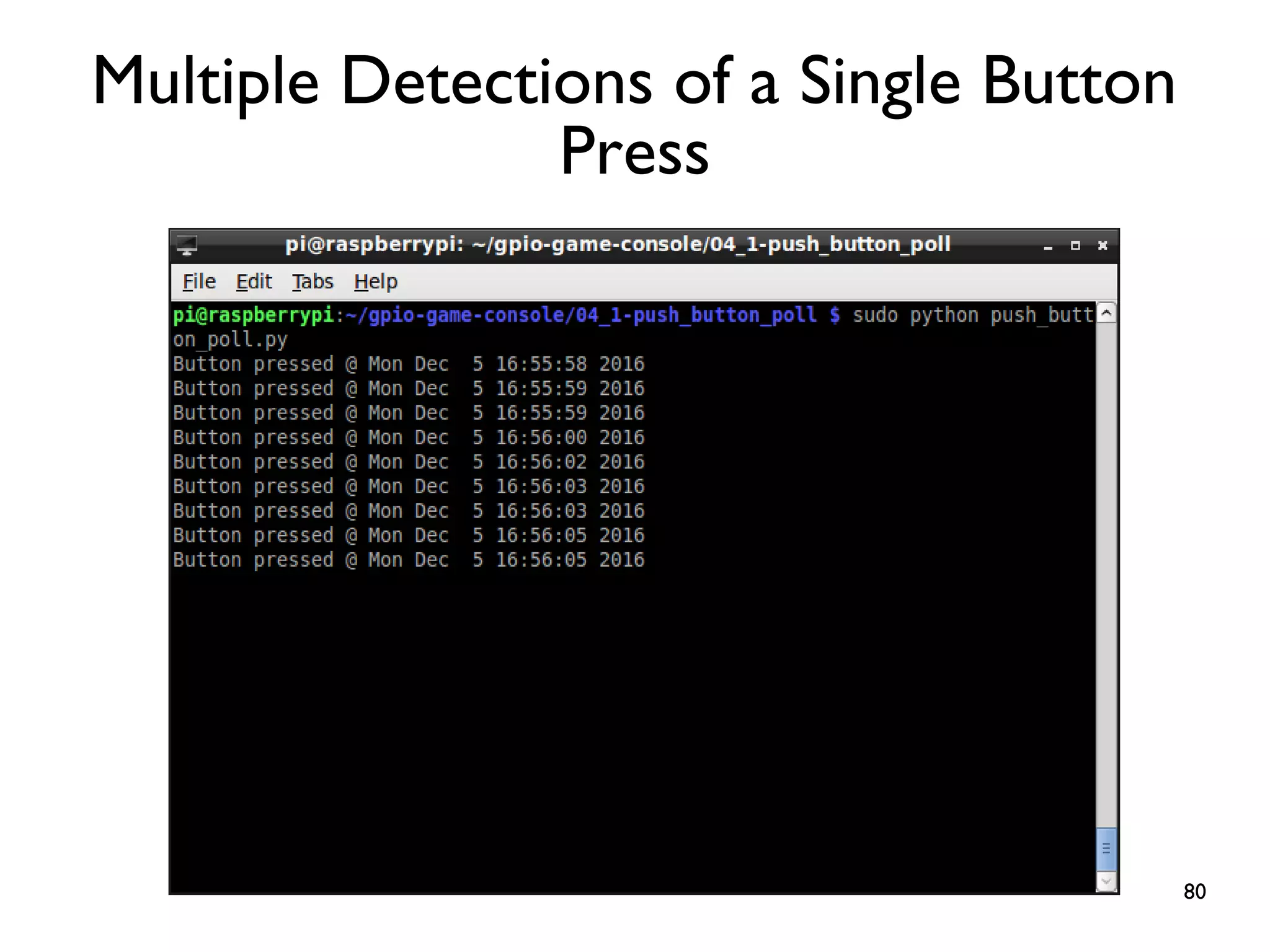
80 Multiple Detections of a Single Button Press
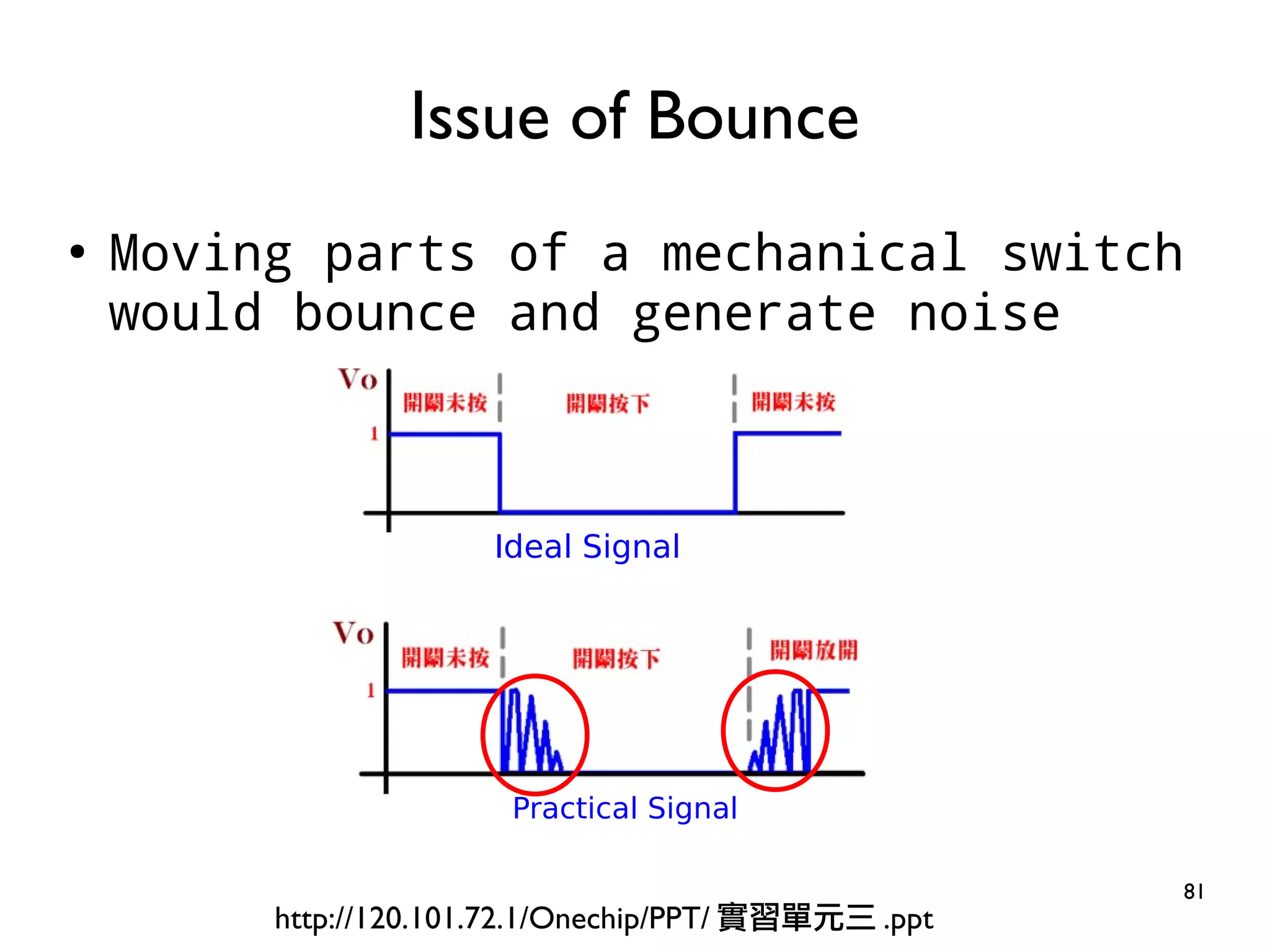
81 ● Moving parts of a mechanical switch would bounce and generate noise Issue of Bounce http://120.101.72.1/Onechip/PPT/ 實習單元三 .ppt Ideal Signal Practical Signal
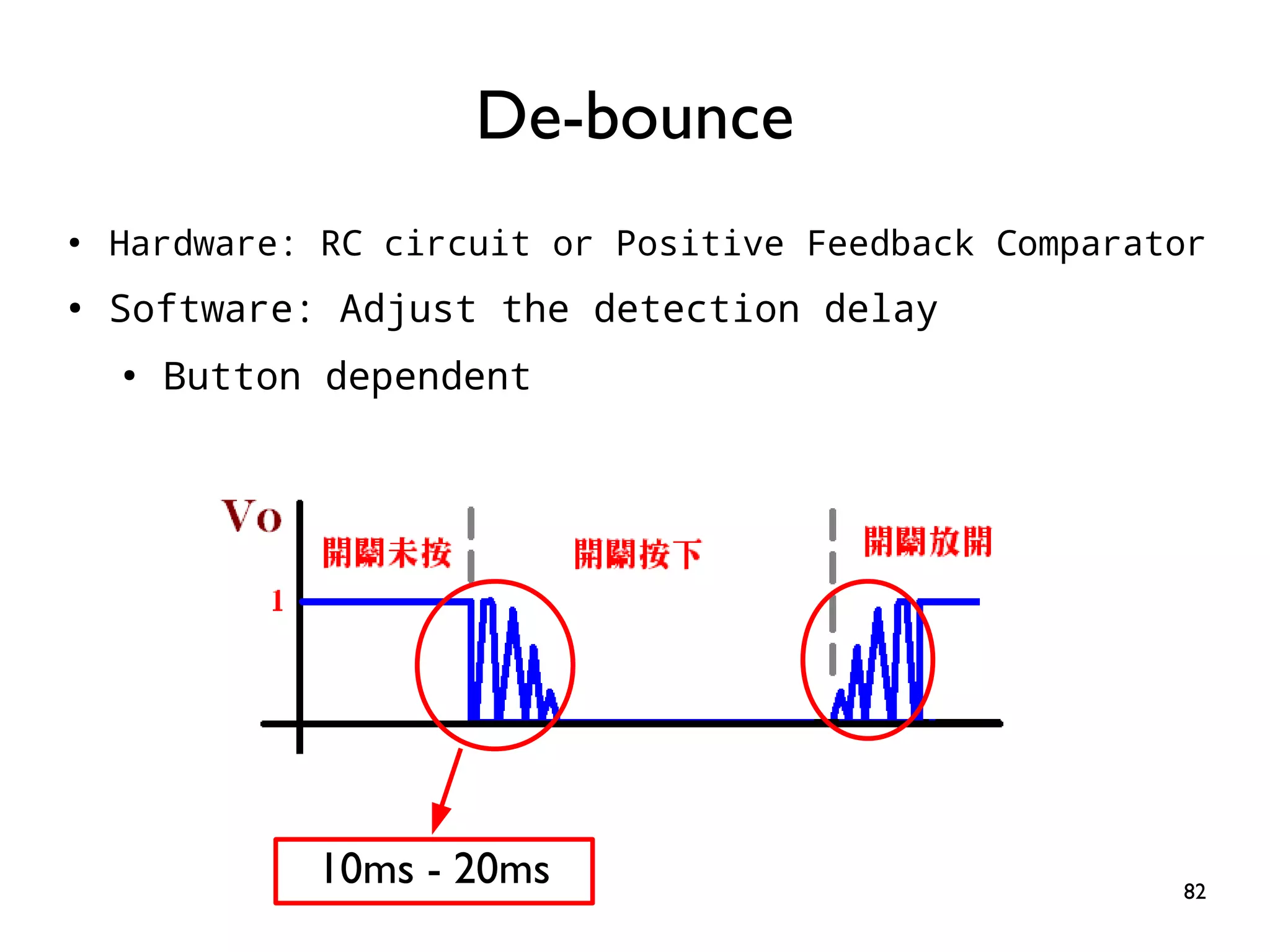
82 ● Hardware: RC circuit or Positive Feedback Comparator ● Software: Adjust the detection delay ● Button dependent De-bounce 10ms - 20ms
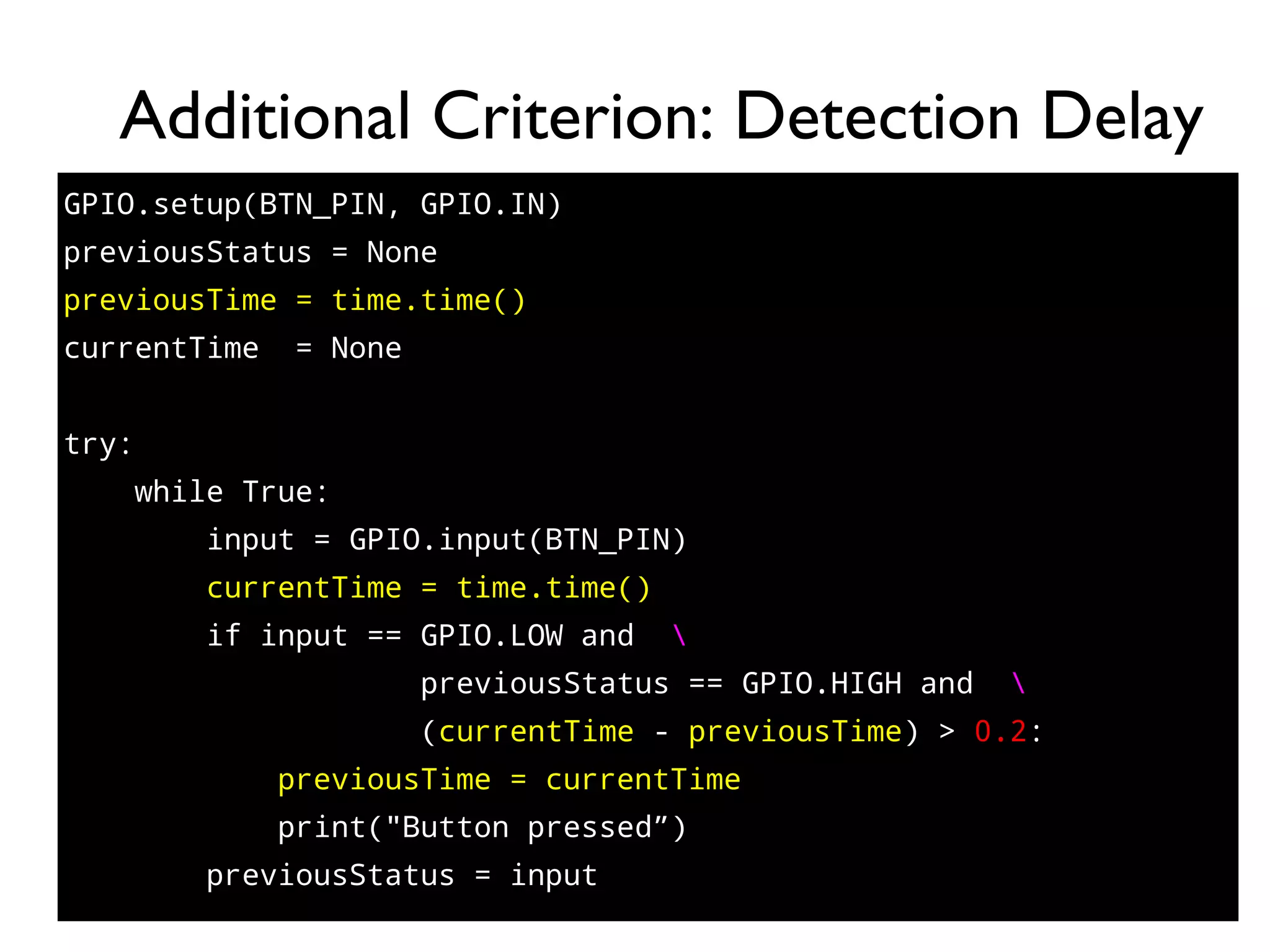
83 GPIO.setup(BTN_PIN, GPIO.IN) previousStatus = None previousTime = time.time() currentTime = None try: while True: input = GPIO.input(BTN_PIN) currentTime = time.time() if input == GPIO.LOW and previousStatus == GPIO.HIGH and (currentTime - previousTime) > 0.2: previousTime = currentTime print("Button pressed”) previousStatus = input Additional Criterion: Detection Delay
84 DEMO push_button_debounce.py $ cd ~/gpio-game-console $ cd 04_2-push_button_debounce $ python3 push_button_debounce.py
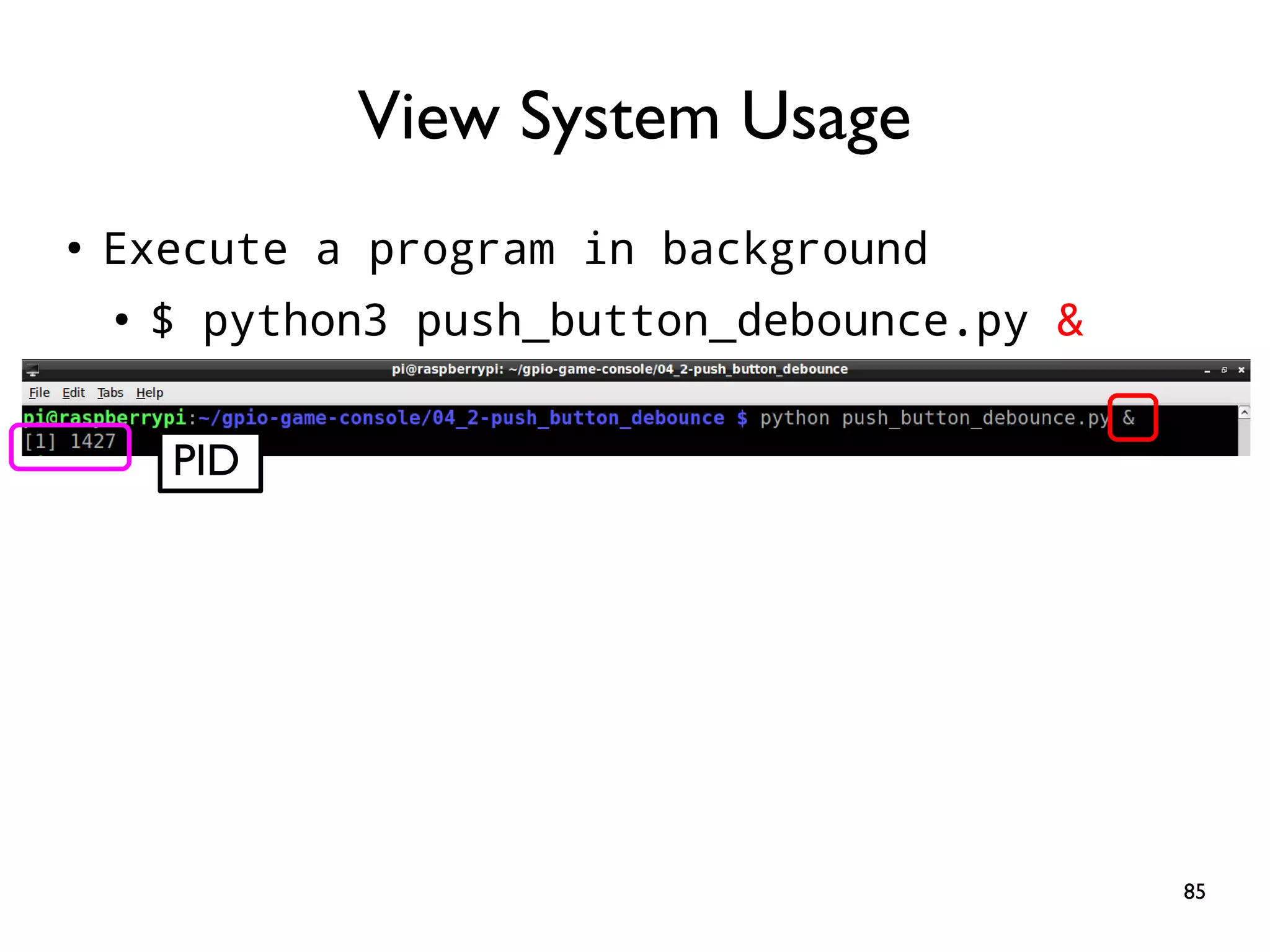
85 View System Usage PID ● Execute a program in background ● $ python3 push_button_debounce.py &
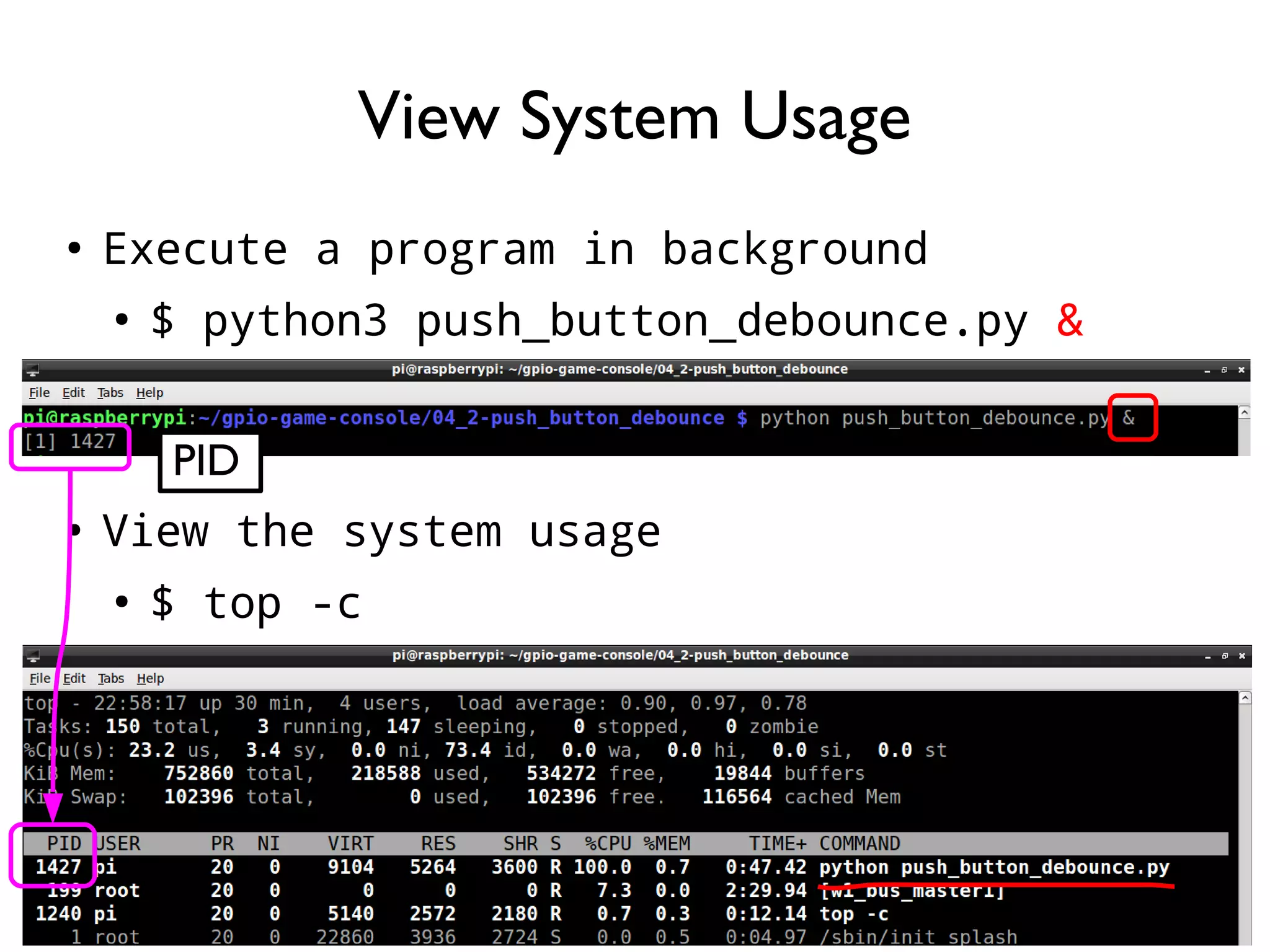
86 ● Execute a program in background ● $ python3 push_button_debounce.py & ● View the system usage ● $ top -c View System Usage PID
87 ● Polling ● The SoC checks the peripherals periodically ● Interrupt ● When a peripheral change its state, it sends an interrupt request to the SoC Polling vs. Interrupt
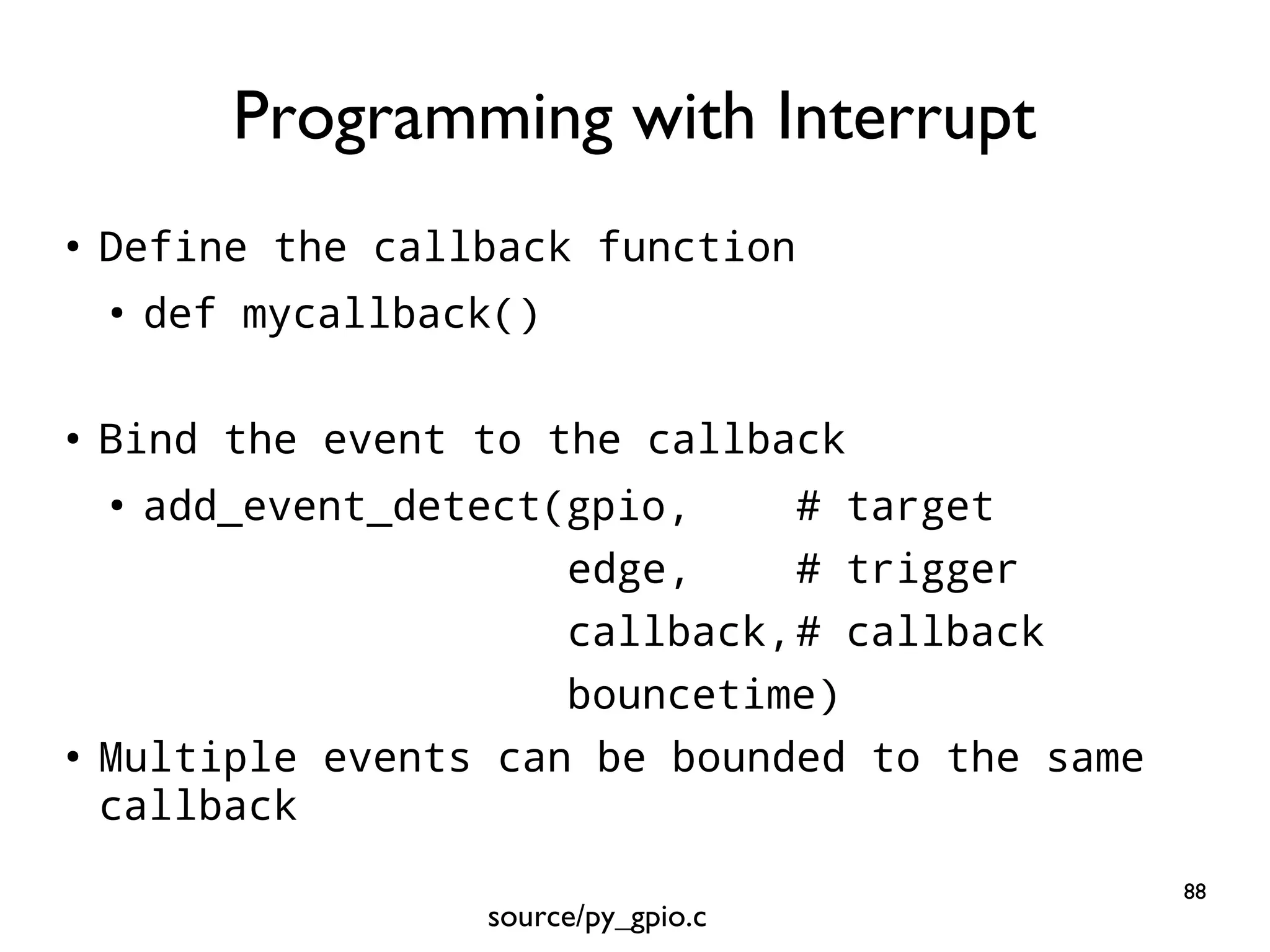
88 ● Define the callback function ● def mycallback() ● Bind the event to the callback ● add_event_detect(gpio, # target edge, # trigger callback,# callback bouncetime) ● Multiple events can be bounded to the same callback Programming with Interrupt source/py_gpio.c
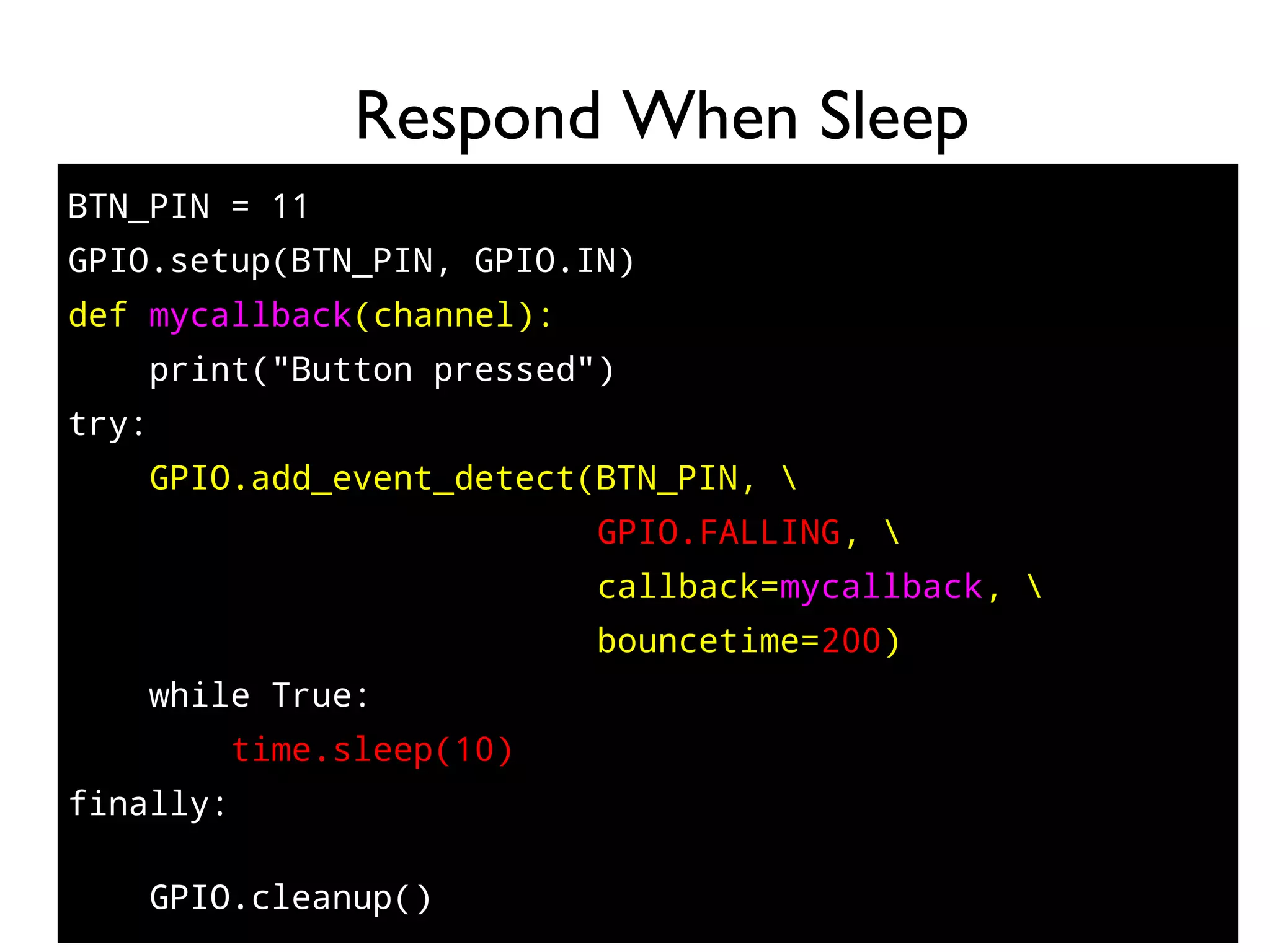
89 BTN_PIN = 11 GPIO.setup(BTN_PIN, GPIO.IN) def mycallback(channel): print("Button pressed") try: GPIO.add_event_detect(BTN_PIN, GPIO.FALLING, callback=mycallback, bouncetime=200) while True: time.sleep(10) finally: GPIO.cleanup() Respond When Sleep
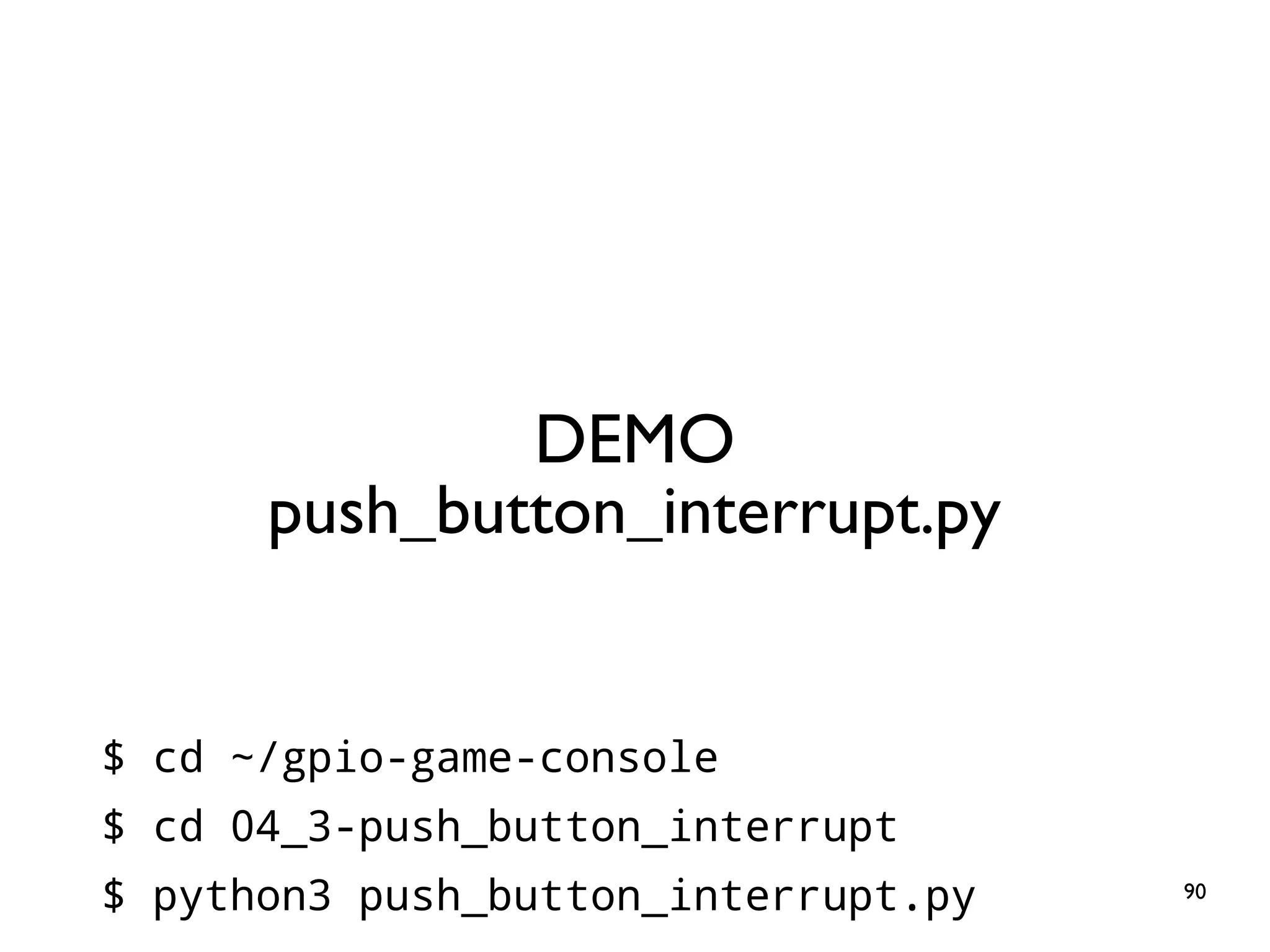
90 DEMO push_button_interrupt.py $ cd ~/gpio-game-console $ cd 04_3-push_button_interrupt $ python3 push_button_interrupt.py
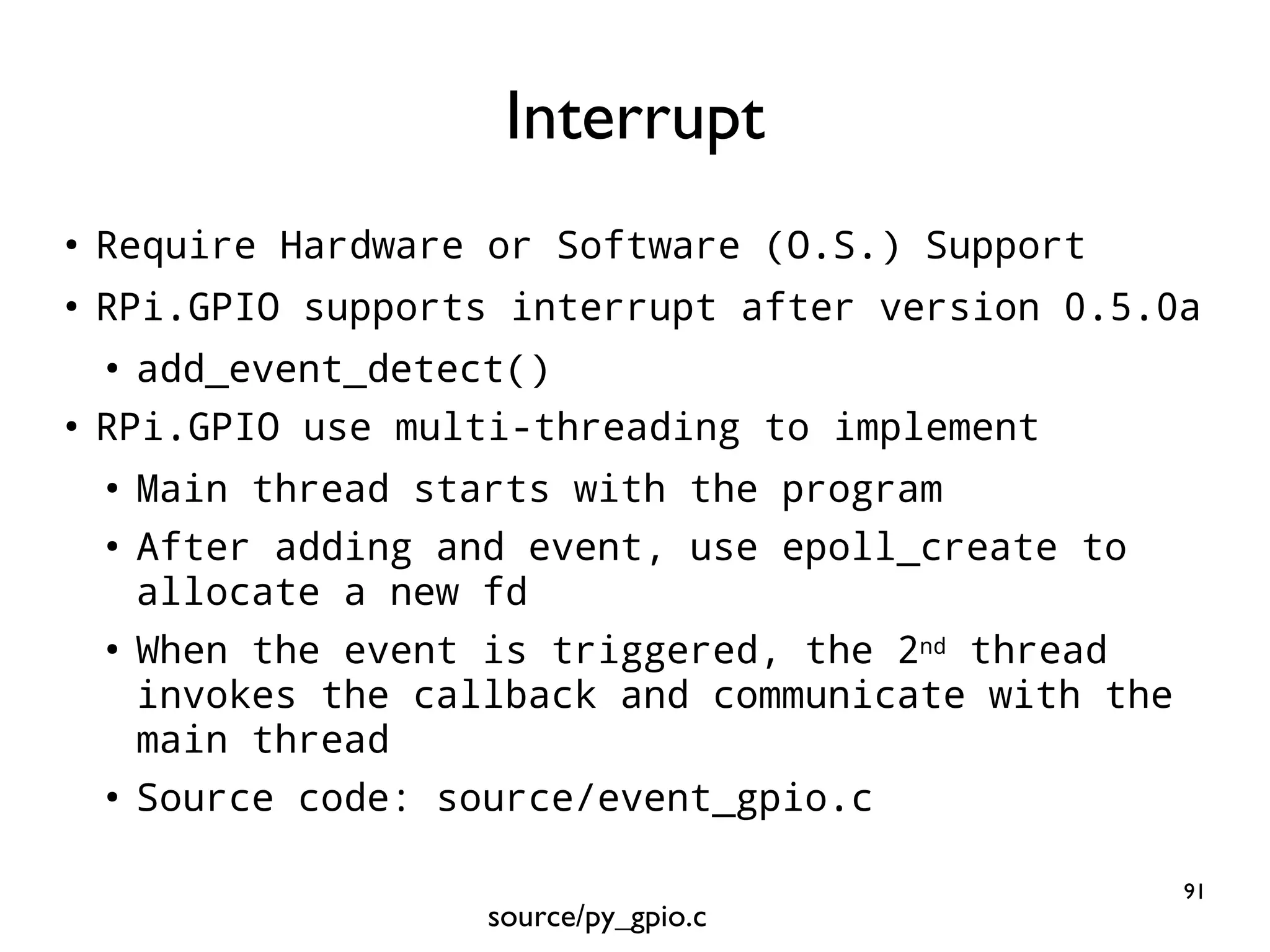
91 ● Require Hardware or Software (O.S.) Support ● RPi.GPIO supports interrupt after version 0.5.0a ● add_event_detect() ● RPi.GPIO use multi-threading to implement ● Main thread starts with the program ● After adding and event, use epoll_create to allocate a new fd ● When the event is triggered, the 2nd thread invokes the callback and communicate with the main thread ● Source code: source/event_gpio.c Interrupt source/py_gpio.c
92 Simple Wiring Works, If…. BUTTON RPi Leg 1 Pin6 (Ground) Leg 3 Pin11 (GPIO17)
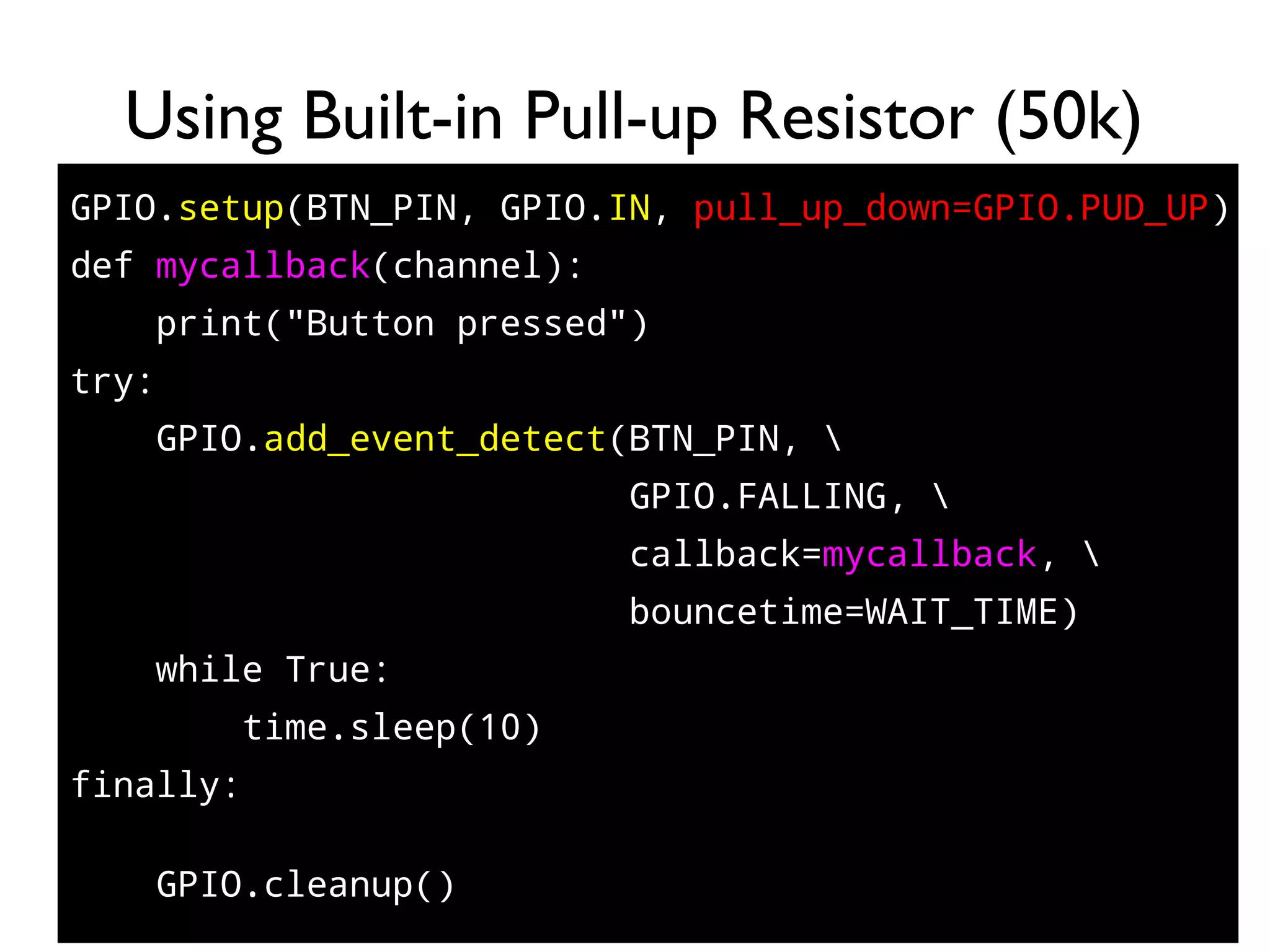
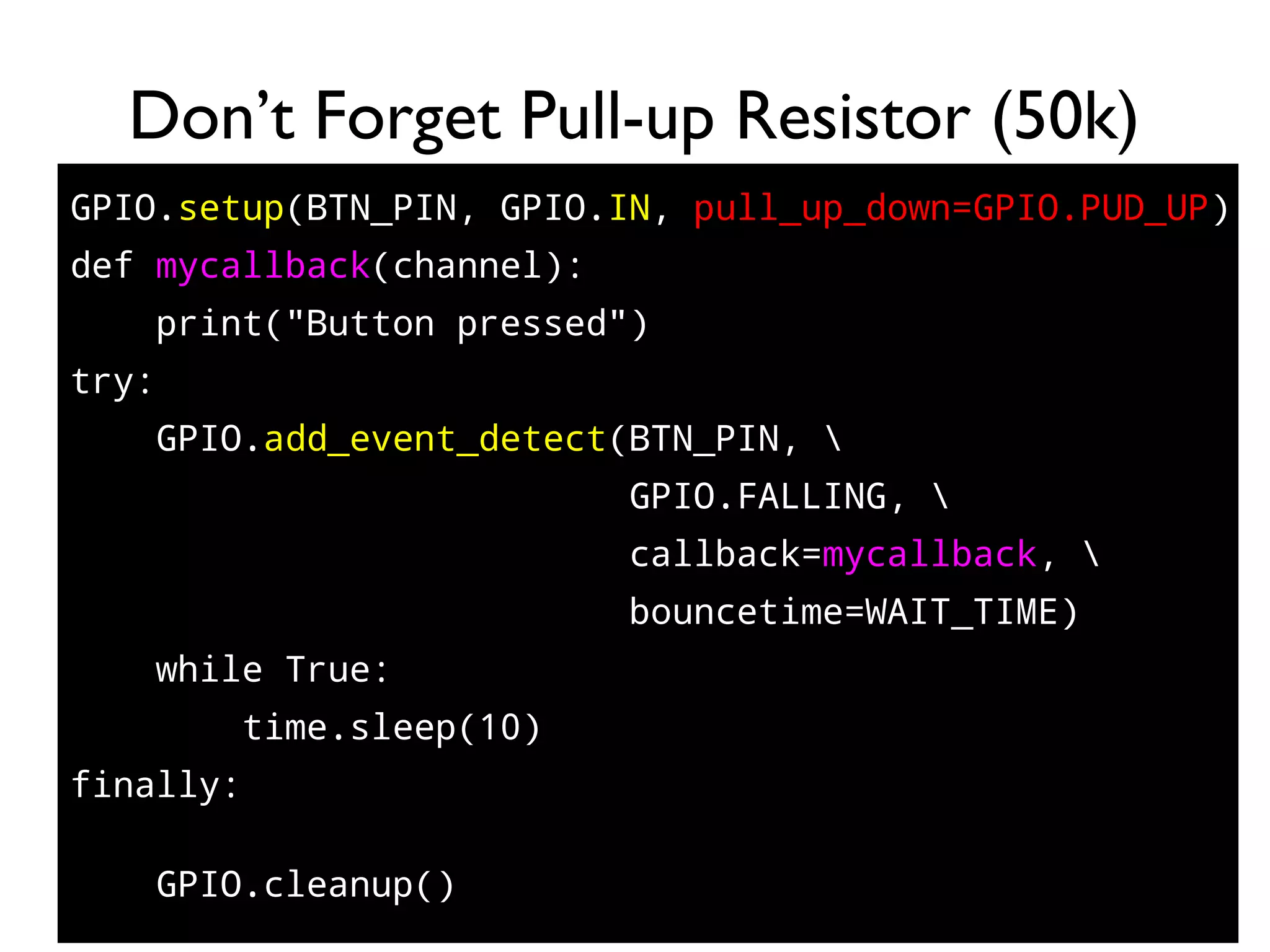
93 GPIO.setup(BTN_PIN, GPIO.IN, pull_up_down=GPIO.PUD_UP) def mycallback(channel): print("Button pressed") try: GPIO.add_event_detect(BTN_PIN, GPIO.FALLING, callback=mycallback, bouncetime=WAIT_TIME) while True: time.sleep(10) finally: GPIO.cleanup() Using Built-in Pull-up Resistor (50k)
94 DEMO push_button_internal_pull_up.py $ cd ~/gpio-game-console $ cd 04_4-push_button_internal_pull_up $ python3 push_button_internal_pull_up.py
95 Practice 5: Tilt Switch Goal: Variants of Hardware
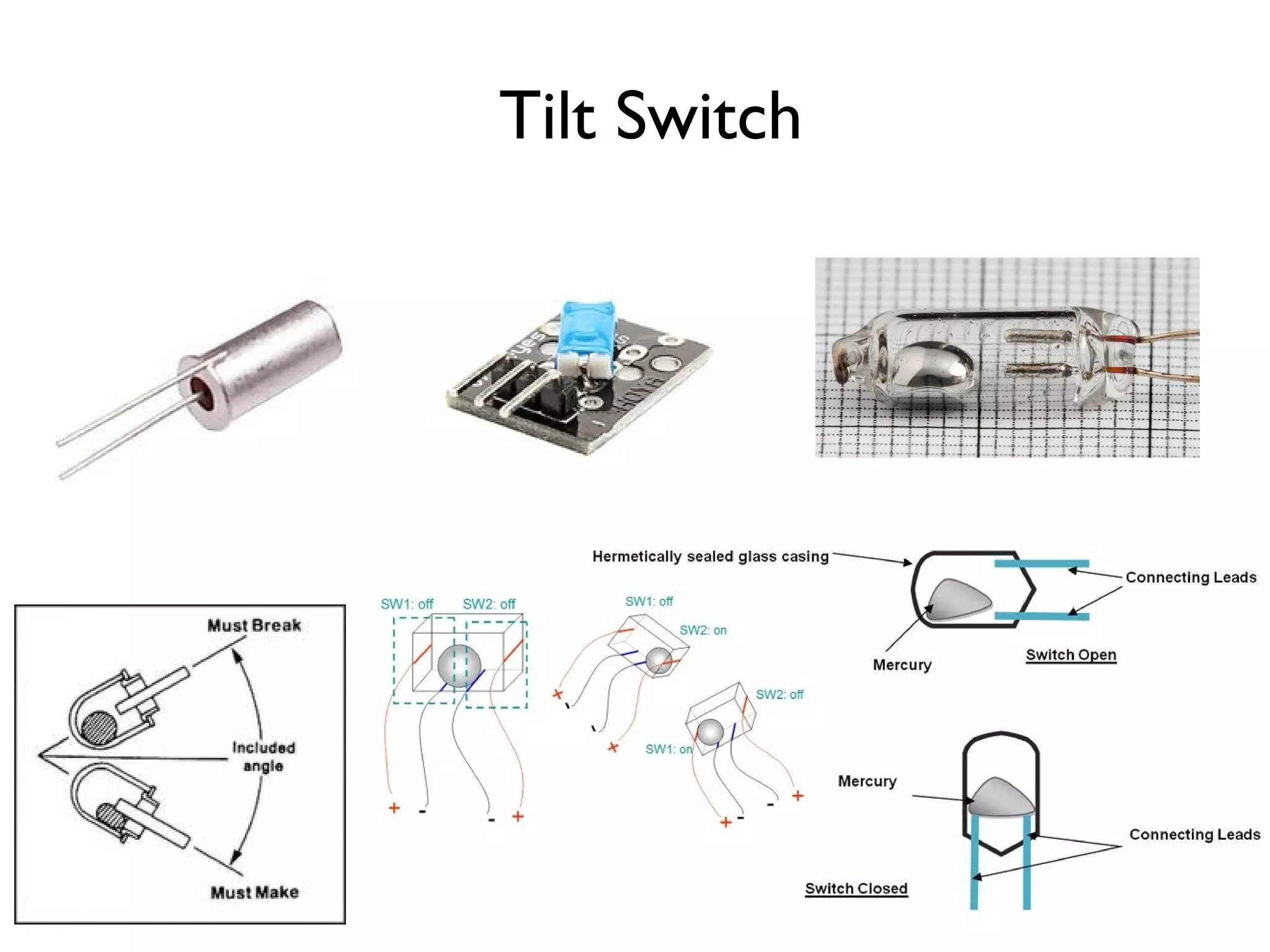
96 Tilt Switch
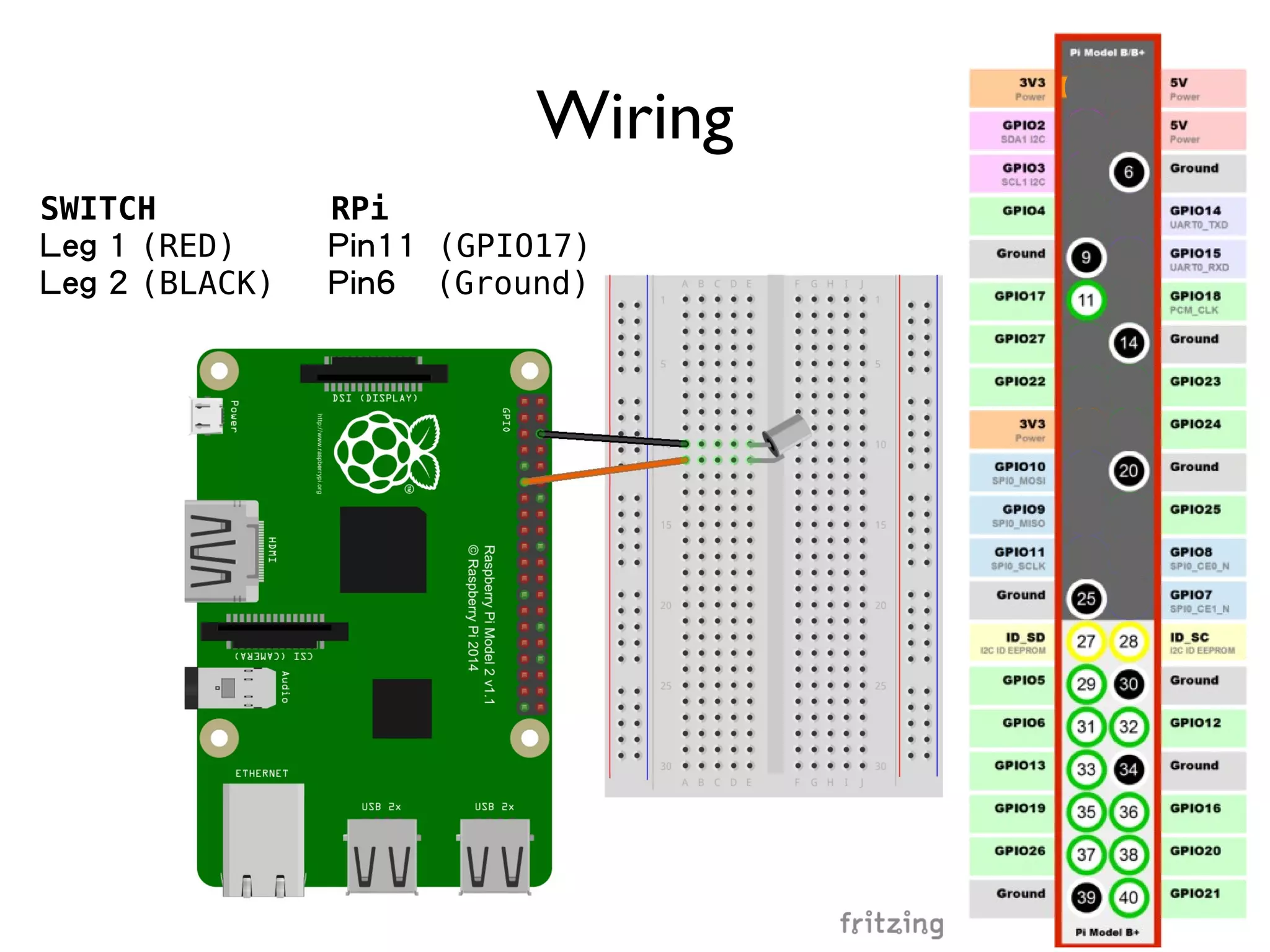
97 Wiring SWITCH RPi Leg 1 (RED) Pin11 (GPIO17) Leg 2 (BLACK) Pin6 (Ground)
98 GPIO.setup(BTN_PIN, GPIO.IN, pull_up_down=GPIO.PUD_UP) def mycallback(channel): print("Button pressed") try: GPIO.add_event_detect(BTN_PIN, GPIO.FALLING, callback=mycallback, bouncetime=WAIT_TIME) while True: time.sleep(10) finally: GPIO.cleanup() Don’t Forget Pull-up Resistor (50k)
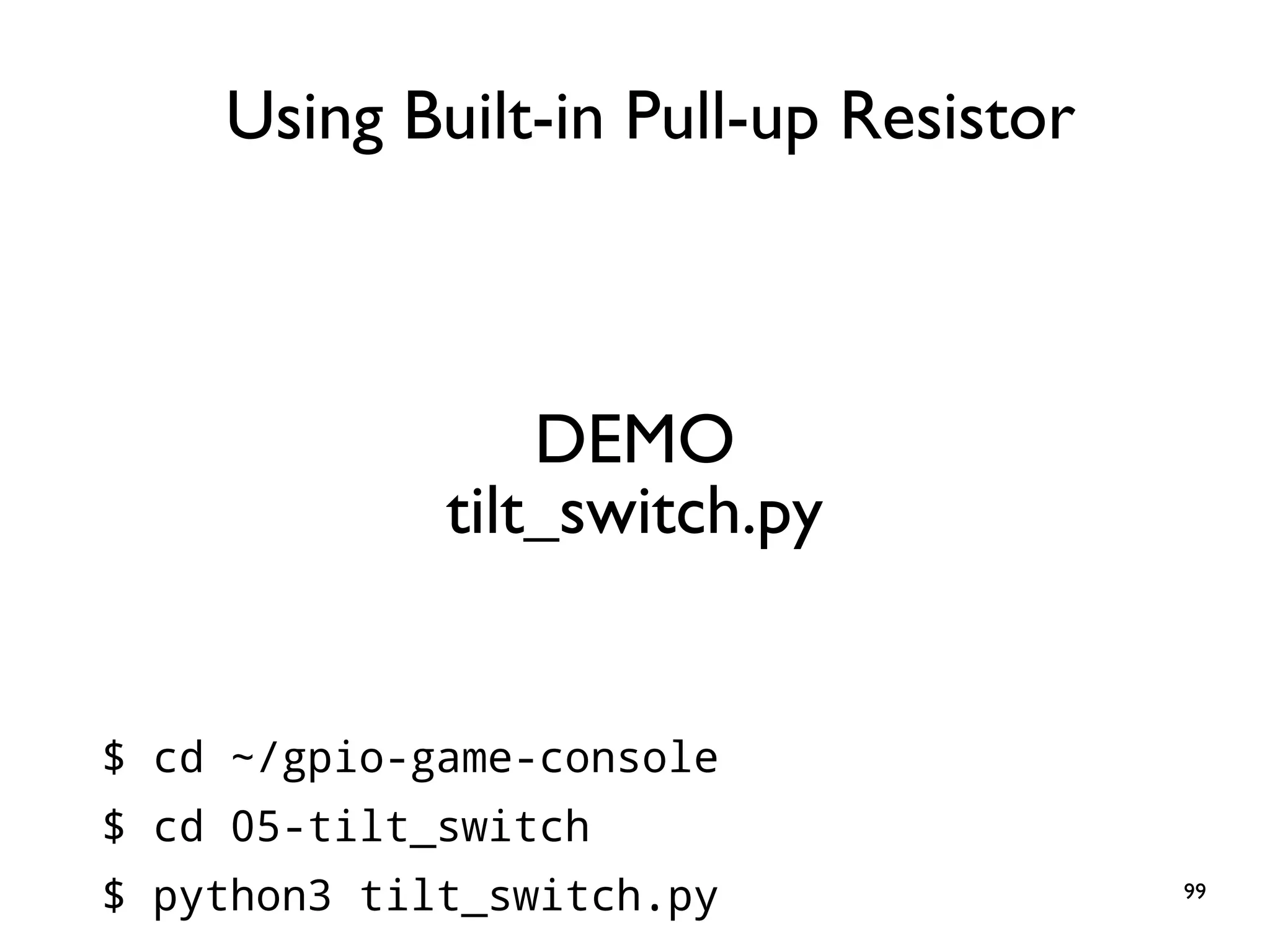
99 DEMO tilt_switch.py $ cd ~/gpio-game-console $ cd 05-tilt_switch $ python3 tilt_switch.py Using Built-in Pull-up Resistor
100 Practice 6: Buzzer Goal: Sound Output
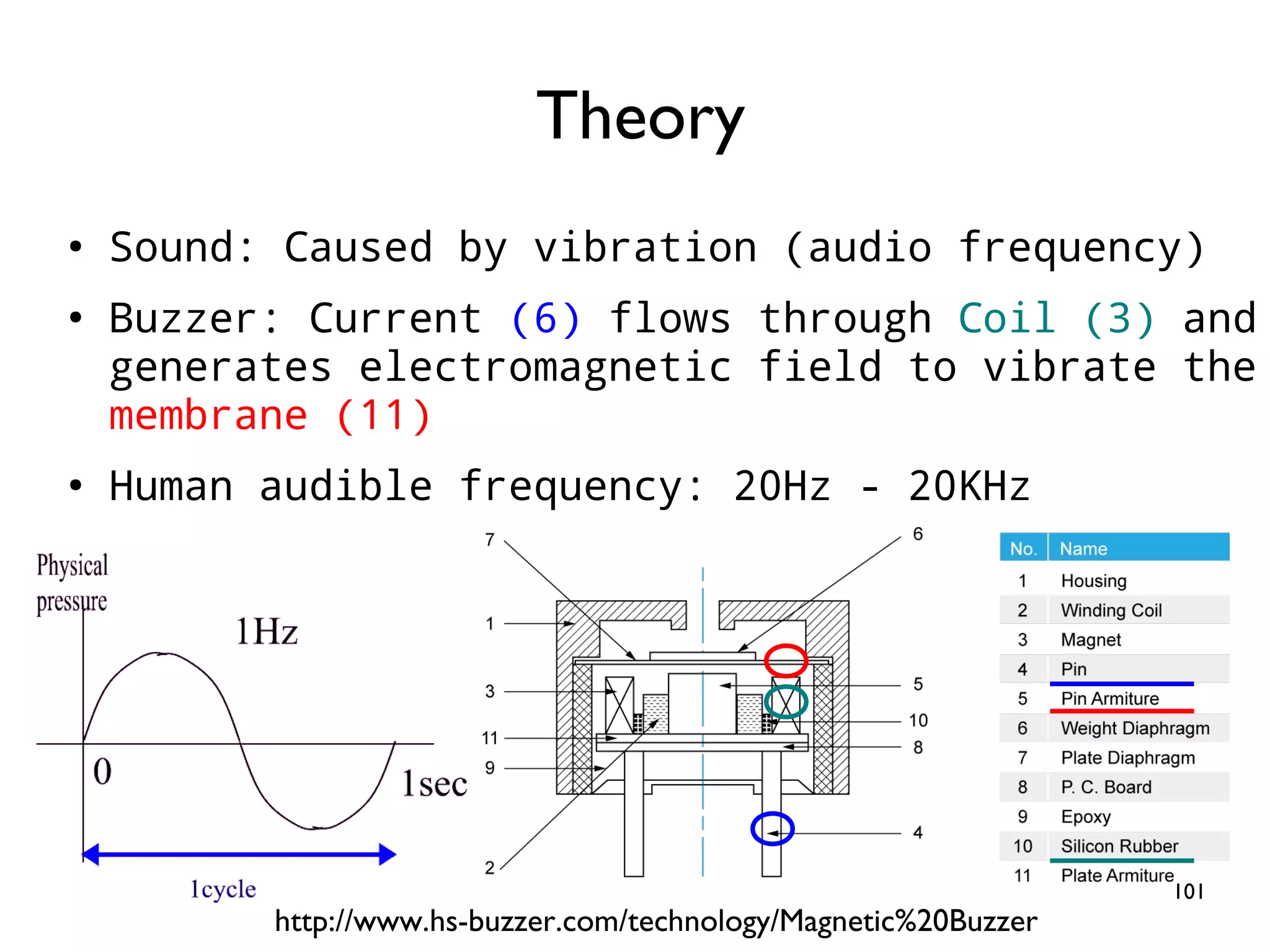
101 ● Sound: Caused by vibration (audio frequency) ● Buzzer: Current (6) flows through Coil (3) and generates electromagnetic field to vibrate the membrane (11) ● Human audible frequency: 20Hz - 20KHz Theory http://www.hs-buzzer.com/technology/Magnetic%20Buzzer
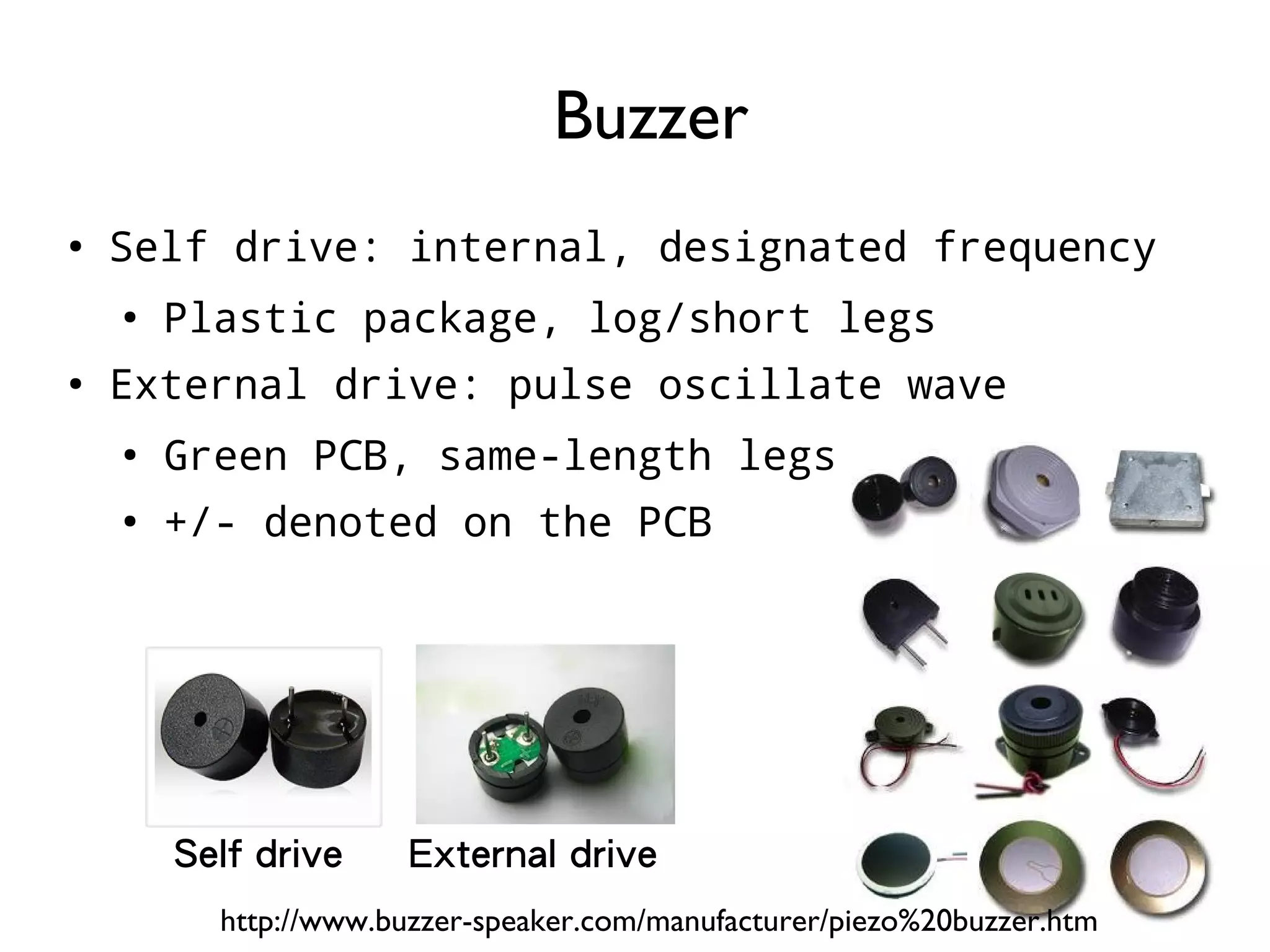
102 ● Self drive: internal, designated frequency ● Plastic package, log/short legs ● External drive: pulse oscillate wave ● Green PCB, same-length legs ● +/- denoted on the PCB Buzzer http://www.buzzer-speaker.com/manufacturer/piezo%20buzzer.htm Self drive External drive
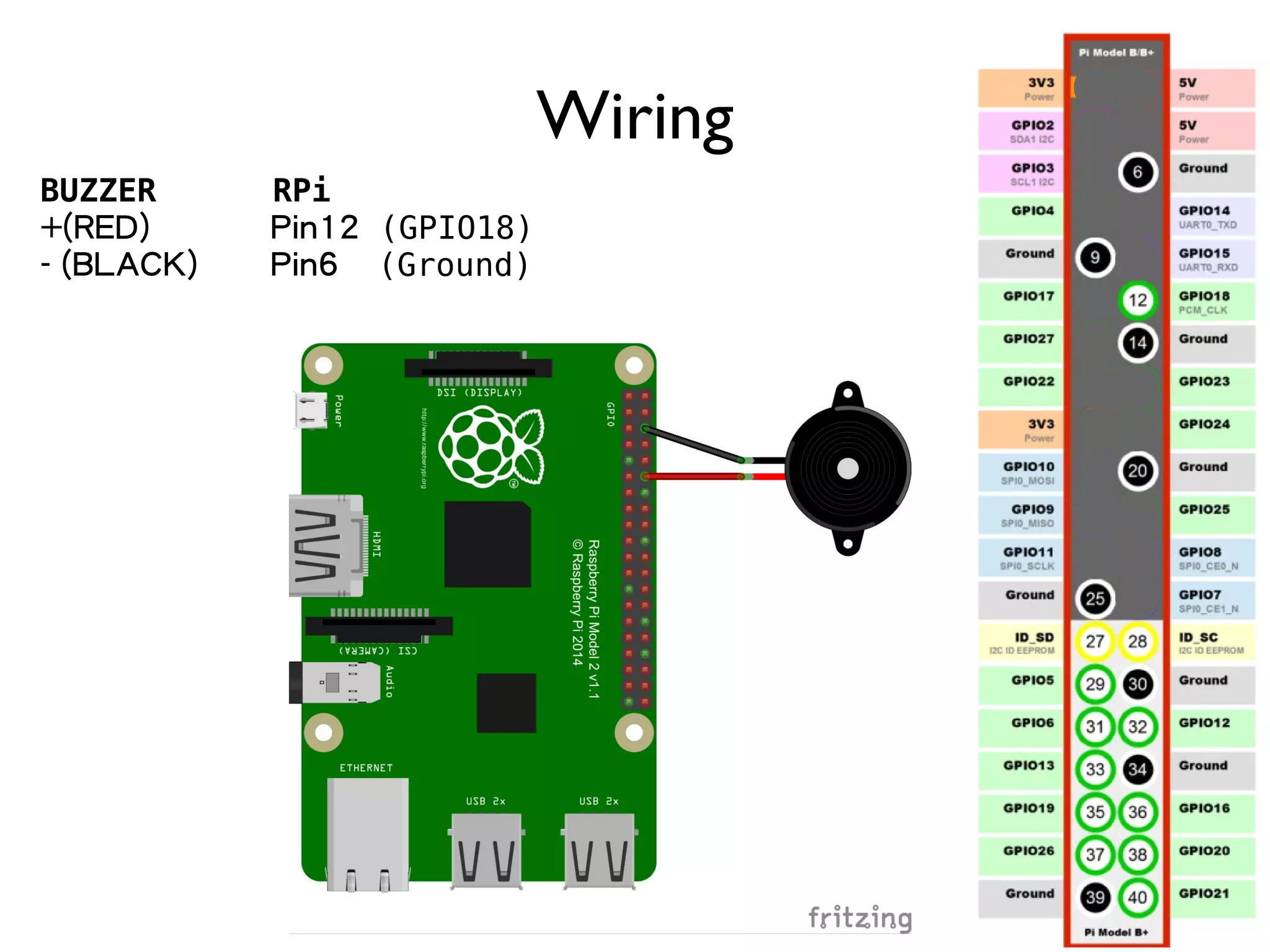
103 Wiring BUZZER RPi +(RED) Pin12 (GPIO18) - (BLACK) Pin6 (Ground)
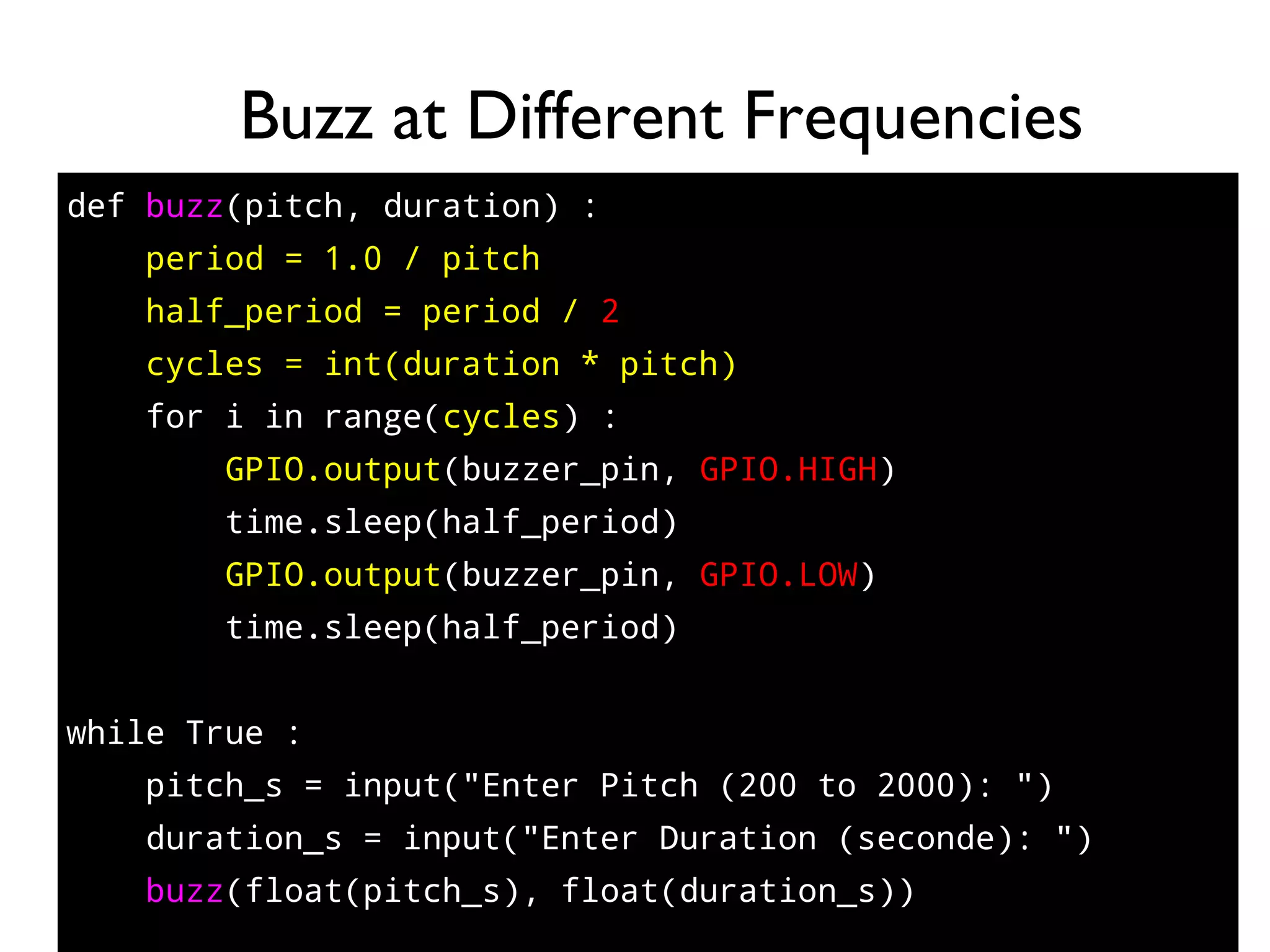
104 def buzz(pitch, duration) : period = 1.0 / pitch half_period = period / 2 cycles = int(duration * pitch) for i in range(cycles) : GPIO.output(buzzer_pin, GPIO.HIGH) time.sleep(half_period) GPIO.output(buzzer_pin, GPIO.LOW) time.sleep(half_period) while True : pitch_s = input("Enter Pitch (200 to 2000): ") duration_s = input("Enter Duration (seconde): ") buzz(float(pitch_s), float(duration_s)) Buzz at Different Frequencies
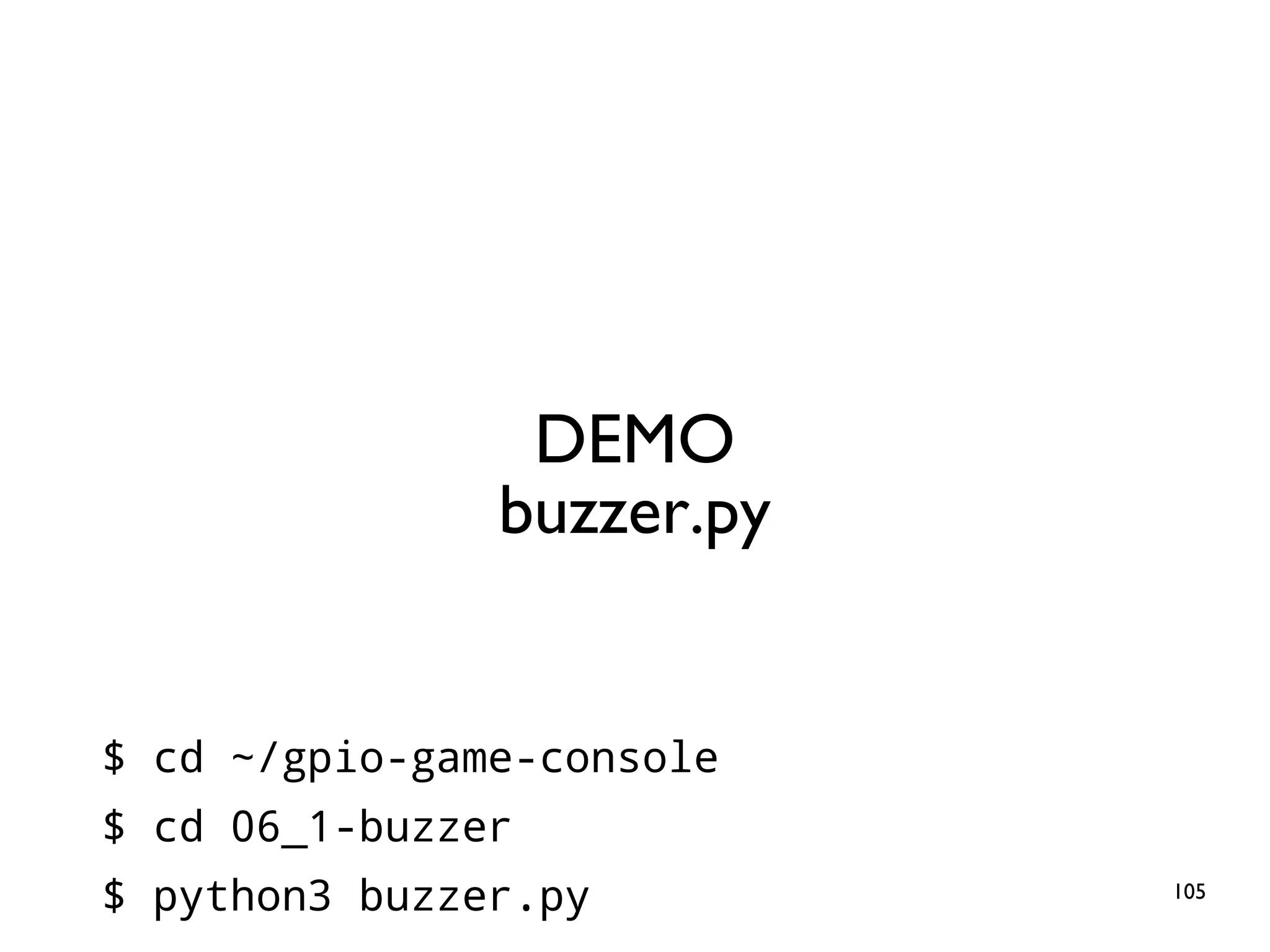
105 DEMO buzzer.py $ cd ~/gpio-game-console $ cd 06_1-buzzer $ python3 buzzer.py
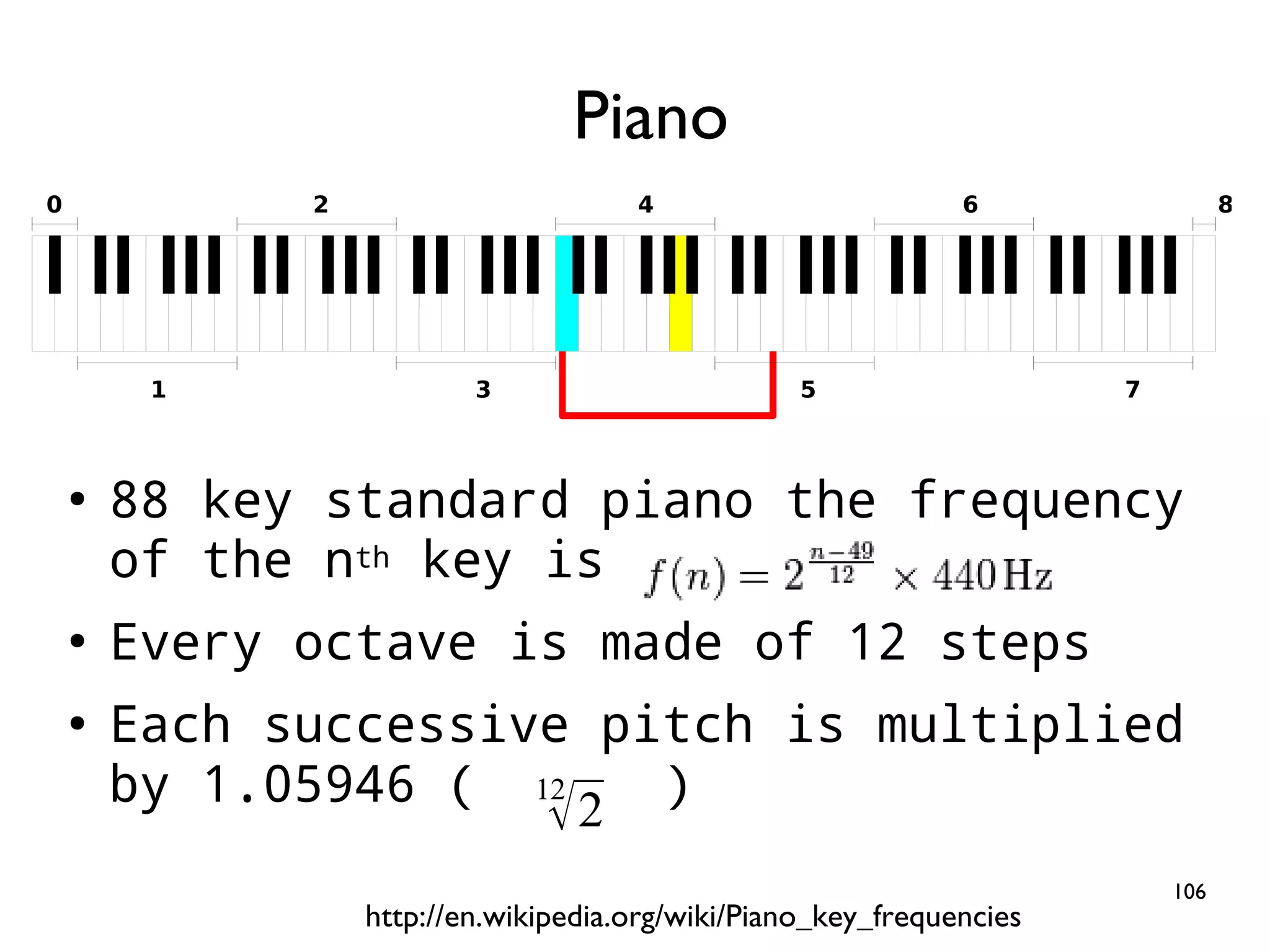
106 ● ● 88 key standard piano the frequency of the nth key is ● Every octave is made of 12 steps ● Each successive pitch is multiplied by 1.05946 ( ) Piano 1 2 3 4 5 6 7 0 8 http://en.wikipedia.org/wiki/Piano_key_frequencies 12 √2
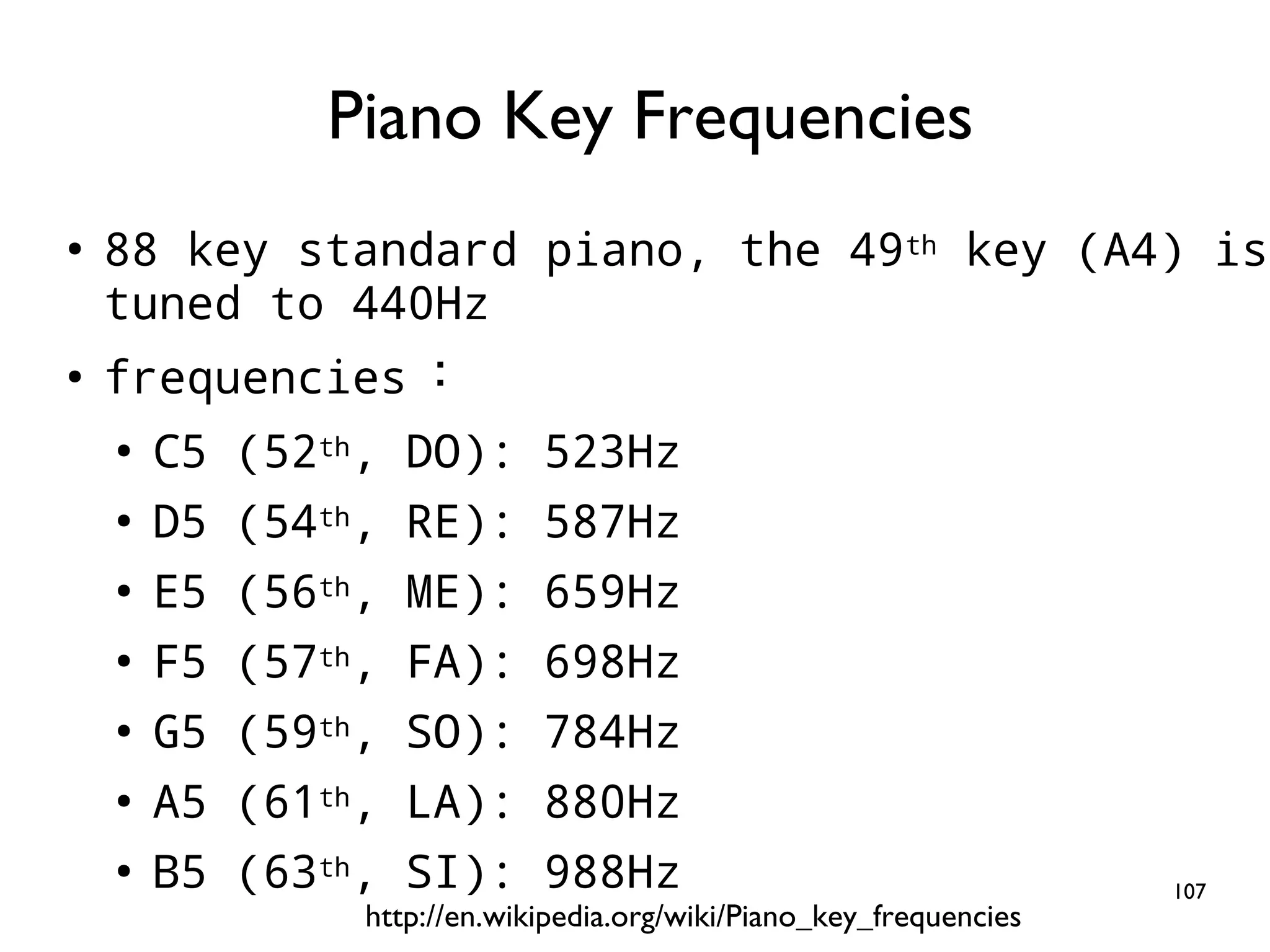
107 ● 88 key standard piano, the 49th key (A4) is tuned to 440Hz ● frequencies : ● C5 (52th, DO): 523Hz ● D5 (54th, RE): 587Hz ● E5 (56th, ME): 659Hz ● F5 (57th, FA): 698Hz ● G5 (59th, SO): 784Hz ● A5 (61th, LA): 880Hz ● B5 (63th, SI): 988Hz Piano Key Frequencies http://en.wikipedia.org/wiki/Piano_key_frequencies
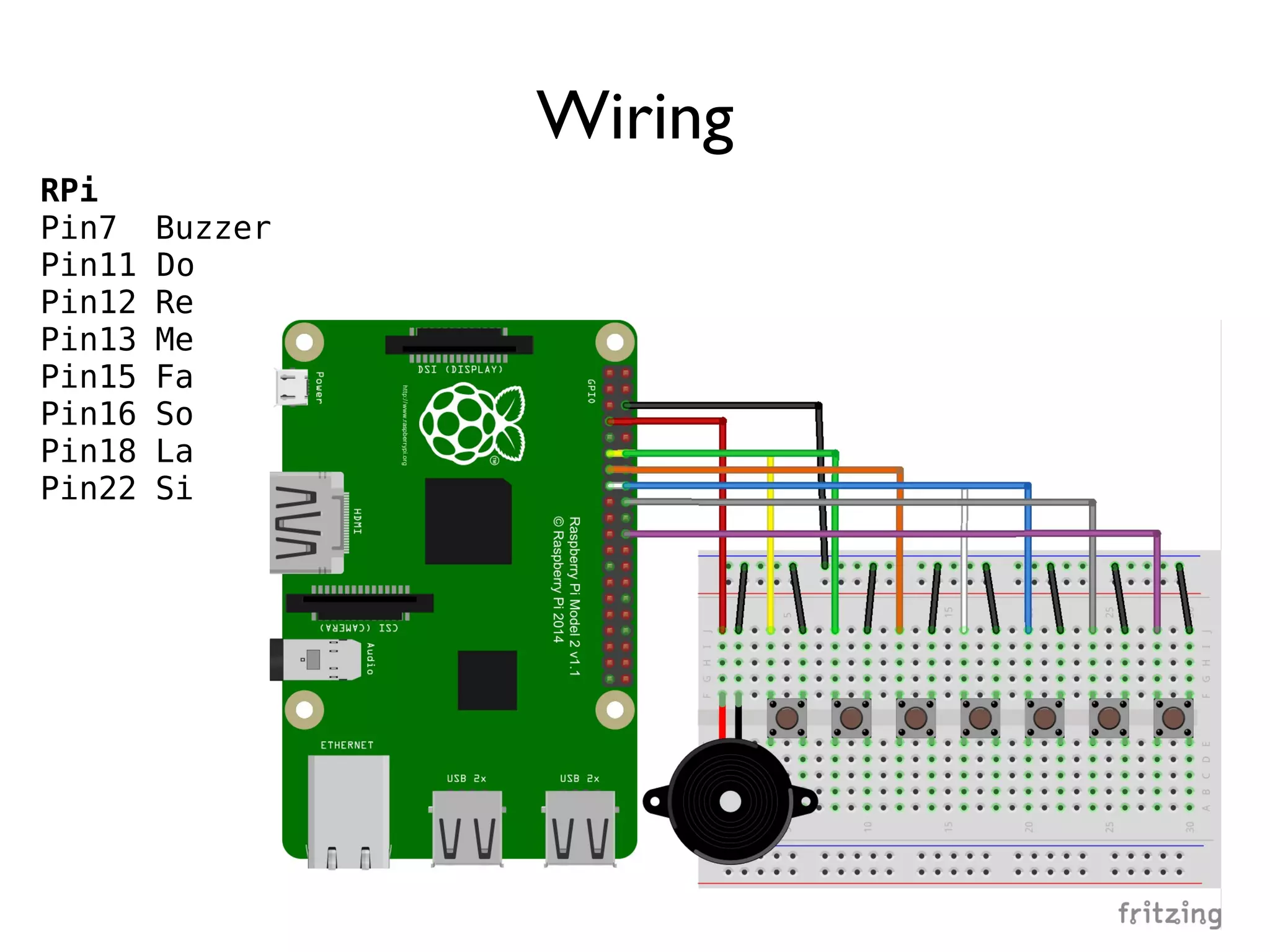
108 Wiring RPi Pin7 Buzzer Pin11 Do Pin12 Re Pin13 Me Pin15 Fa Pin16 So Pin18 La Pin22 Si
109 DEMO paino_buzzer.py $ cd ~/gpio-game-console $ cd 06_2-paino_buzzer $ python3 paino_buzzer.py
110 Practice 7: Passive Infrared Sensor (PIR) Goal: Typical Sensor Usage
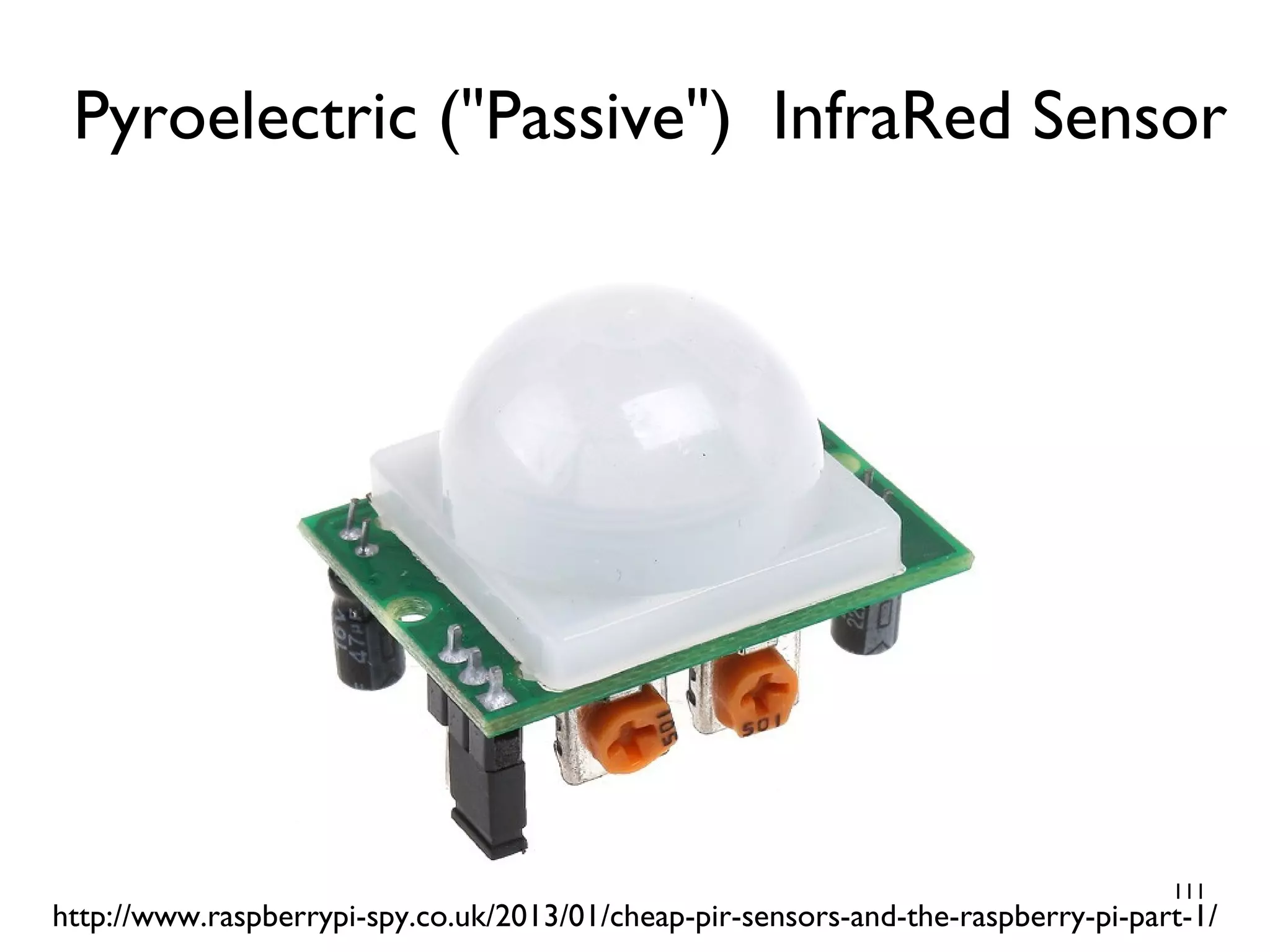
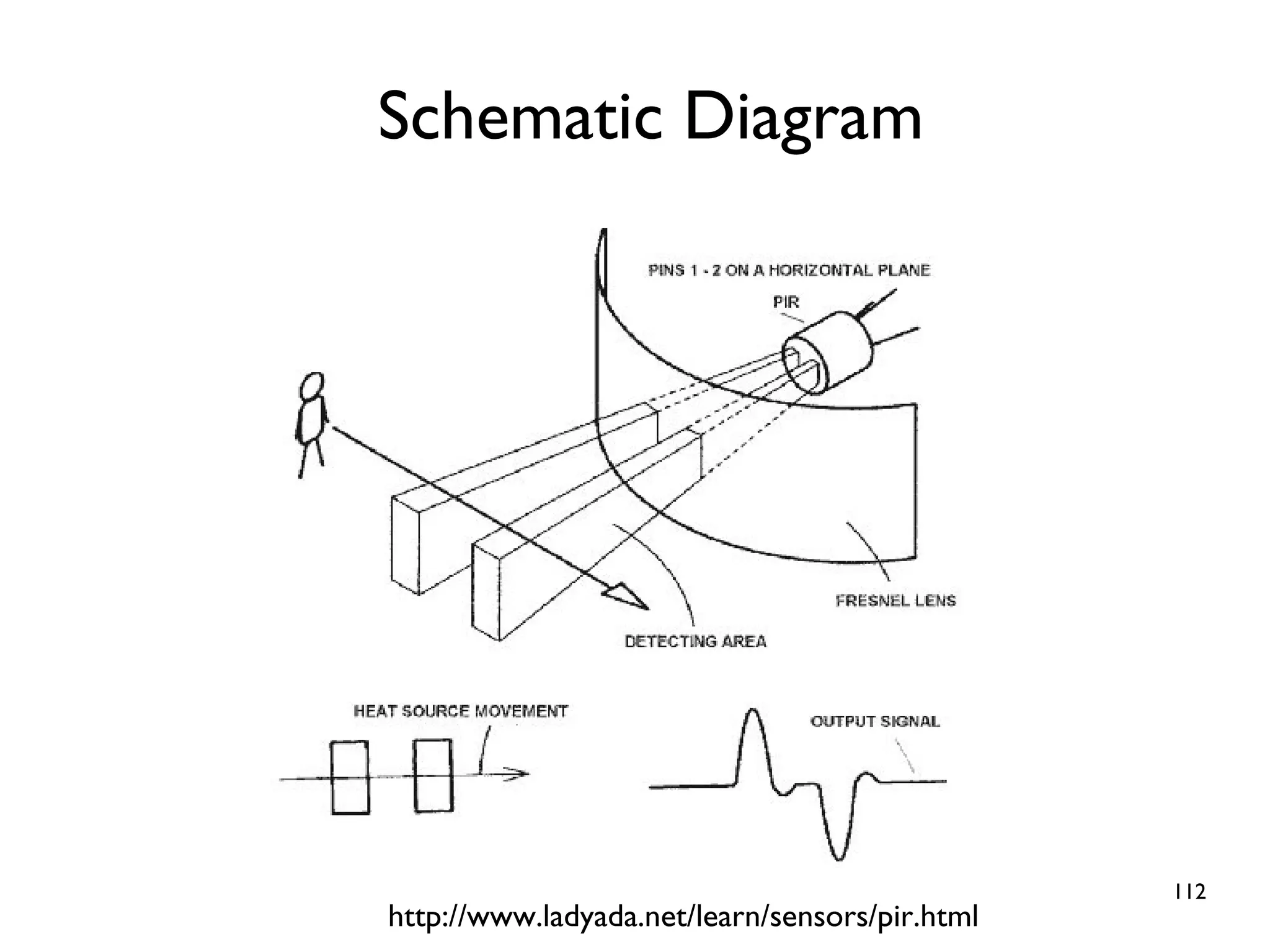
111 Pyroelectric ("Passive") InfraRed Sensor http://www.raspberrypi-spy.co.uk/2013/01/cheap-pir-sensors-and-the-raspberry-pi-part-1/
112 Schematic Diagram http://www.ladyada.net/learn/sensors/pir.html
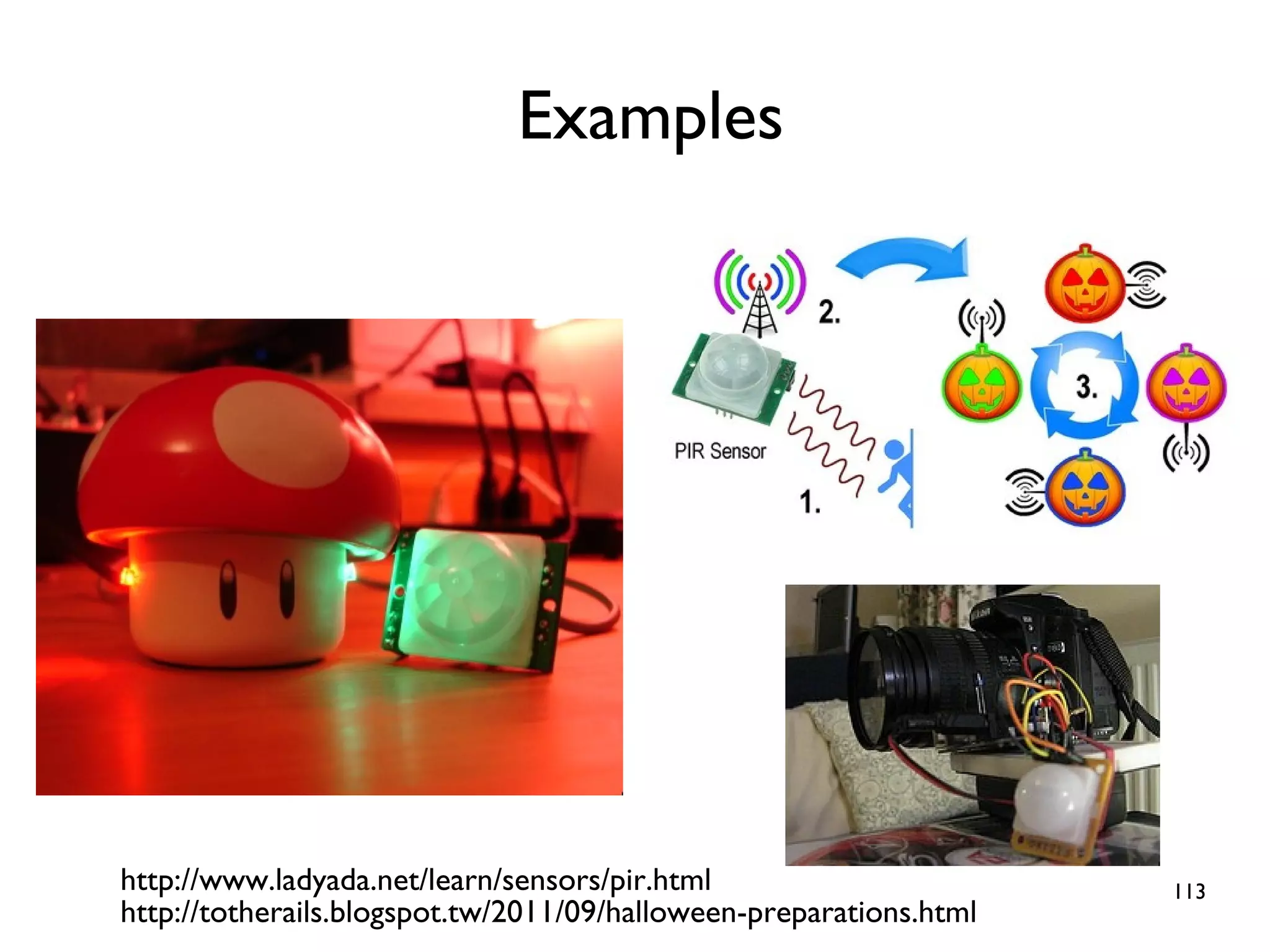
113 Examples http://www.ladyada.net/learn/sensors/pir.html http://totherails.blogspot.tw/2011/09/halloween-preparations.html
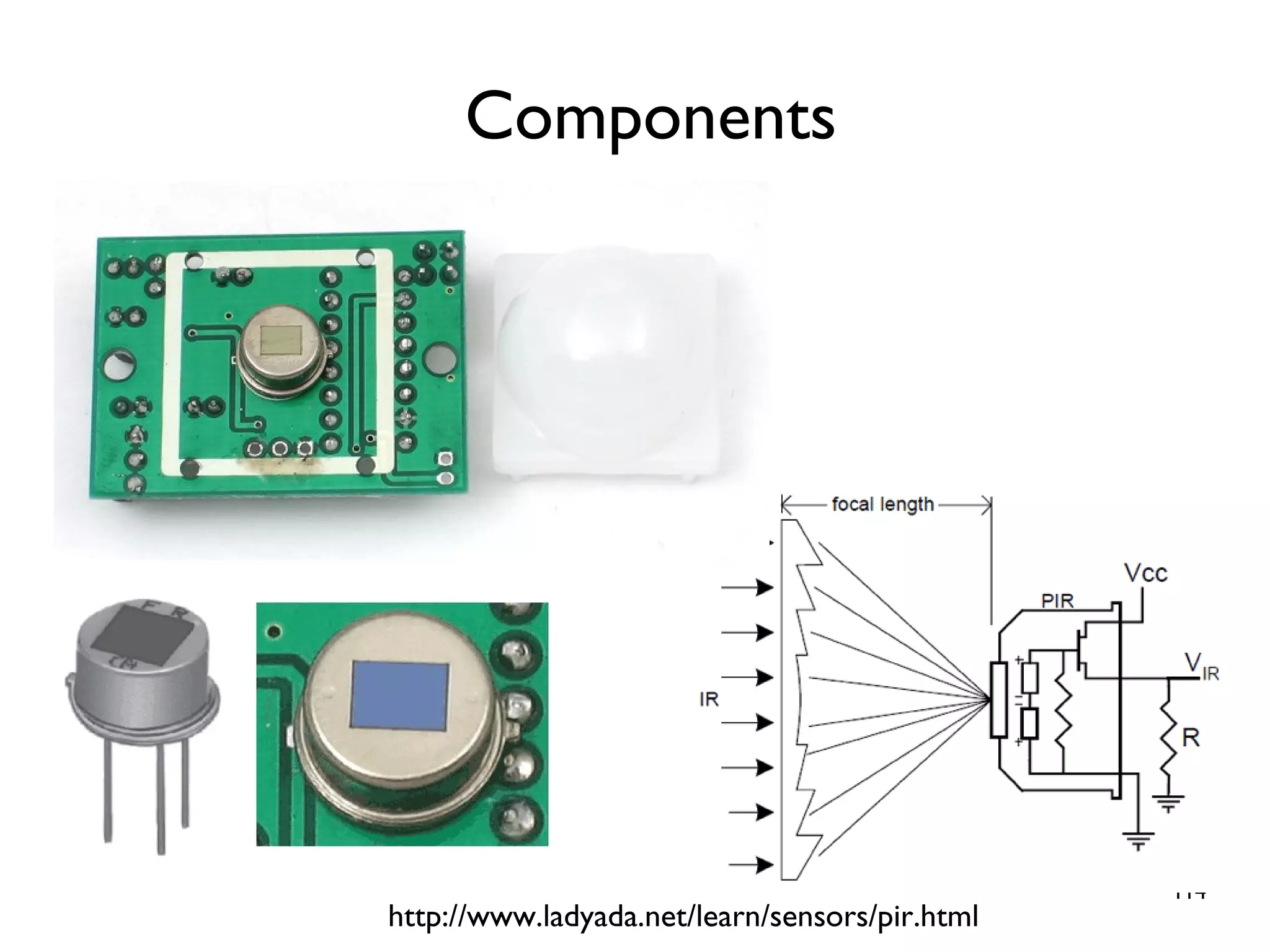
114 Components http://www.ladyada.net/learn/sensors/pir.html
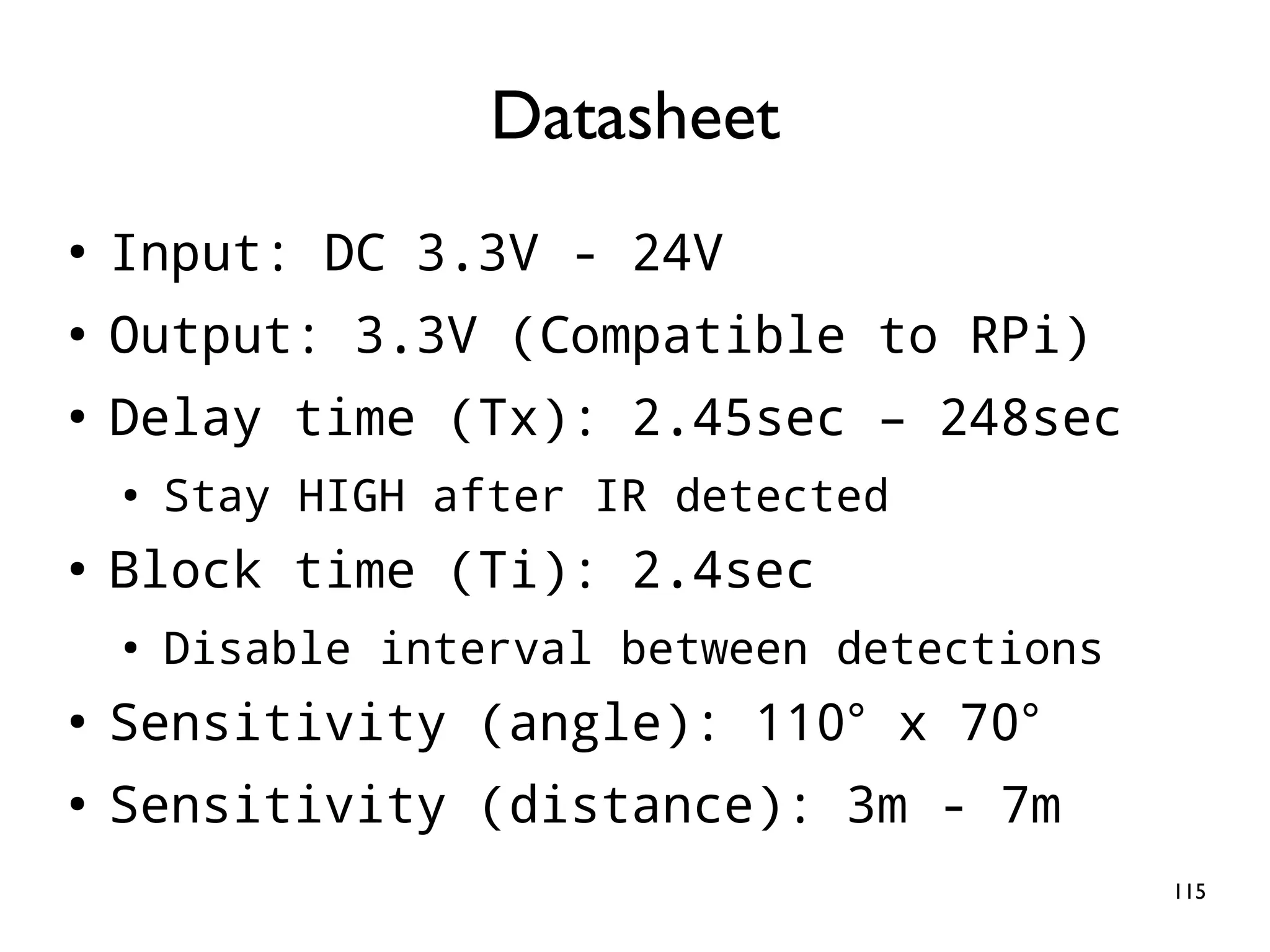
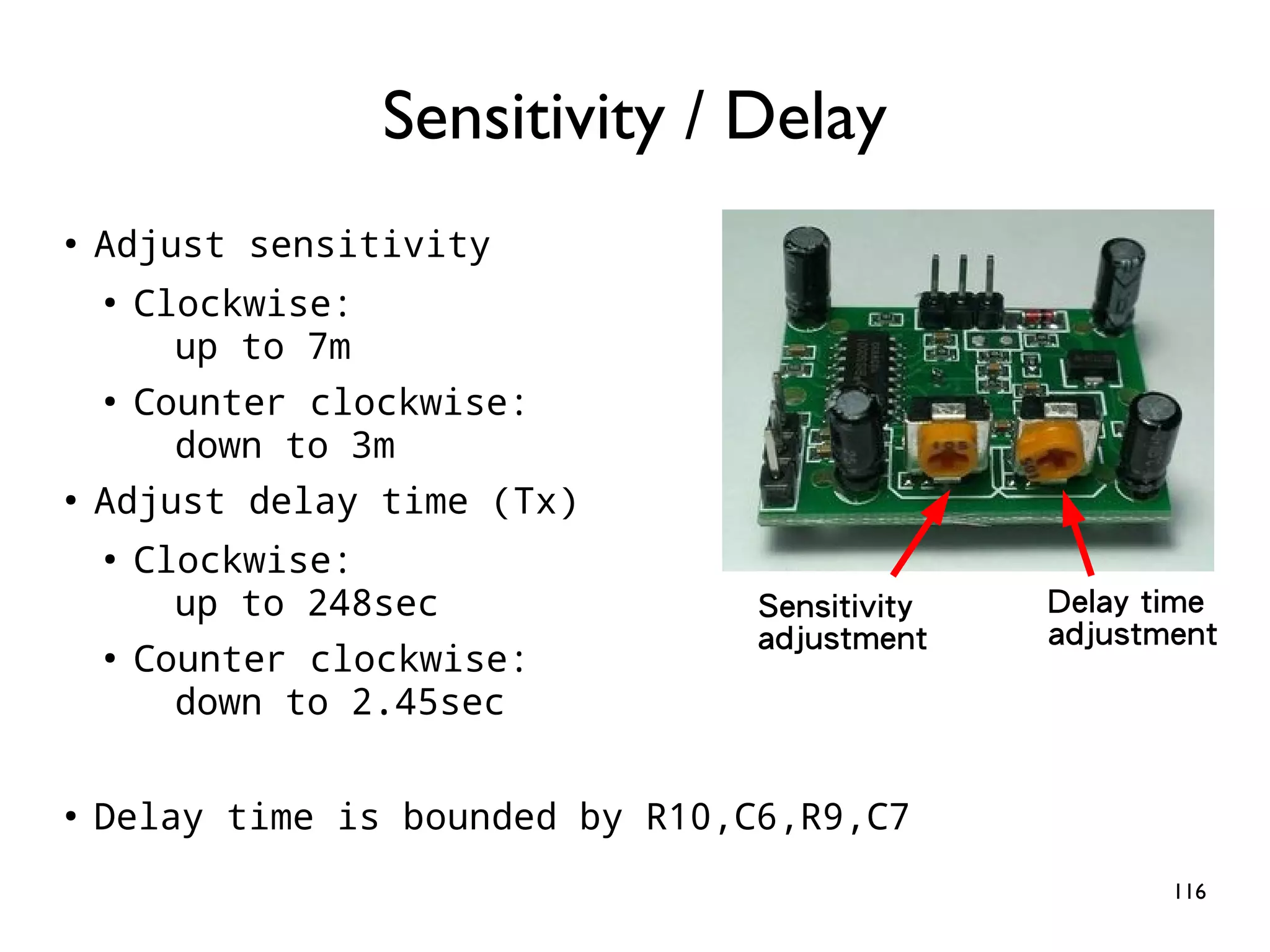
115 ● Input: DC 3.3V - 24V ● Output: 3.3V (Compatible to RPi) ● Delay time (Tx): 2.45sec – 248sec ● Stay HIGH after IR detected ● Block time (Ti): 2.4sec ● Disable interval between detections ● Sensitivity (angle): 110° x 70° ● Sensitivity (distance): 3m - 7m Datasheet
116 ● Adjust sensitivity ● Clockwise: up to 7m ● Counter clockwise: down to 3m ● Adjust delay time (Tx) ● Clockwise: up to 248sec ● Counter clockwise: down to 2.45sec ● Delay time is bounded by R10,C6,R9,C7 Sensitivity / Delay Sensitivity adjustment Delay time adjustment
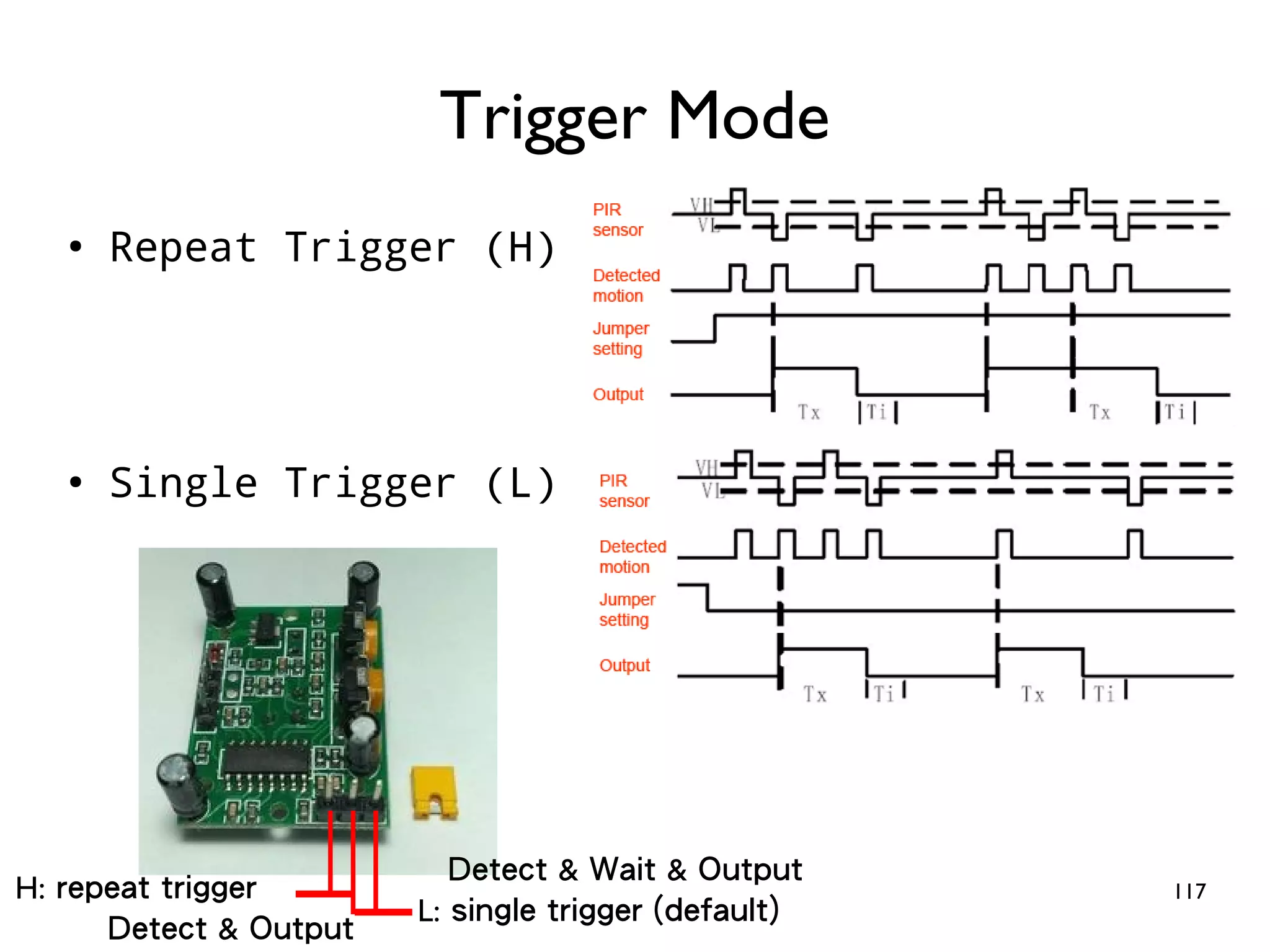
117 ● Repeat Trigger (H) ● Single Trigger (L) Trigger Mode H: repeat trigger L: single trigger (default) Detect & Output Detect & Wait & Output
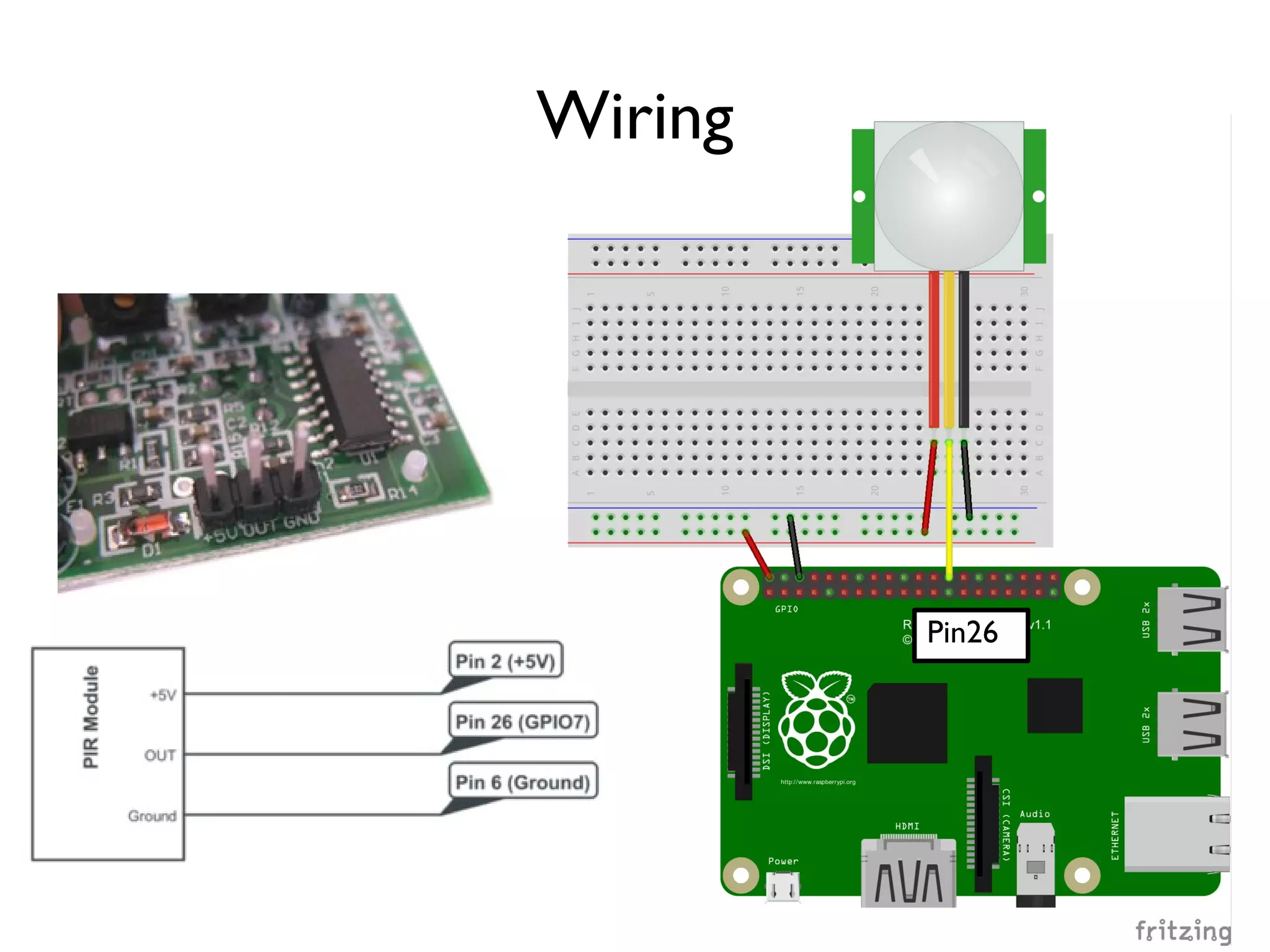
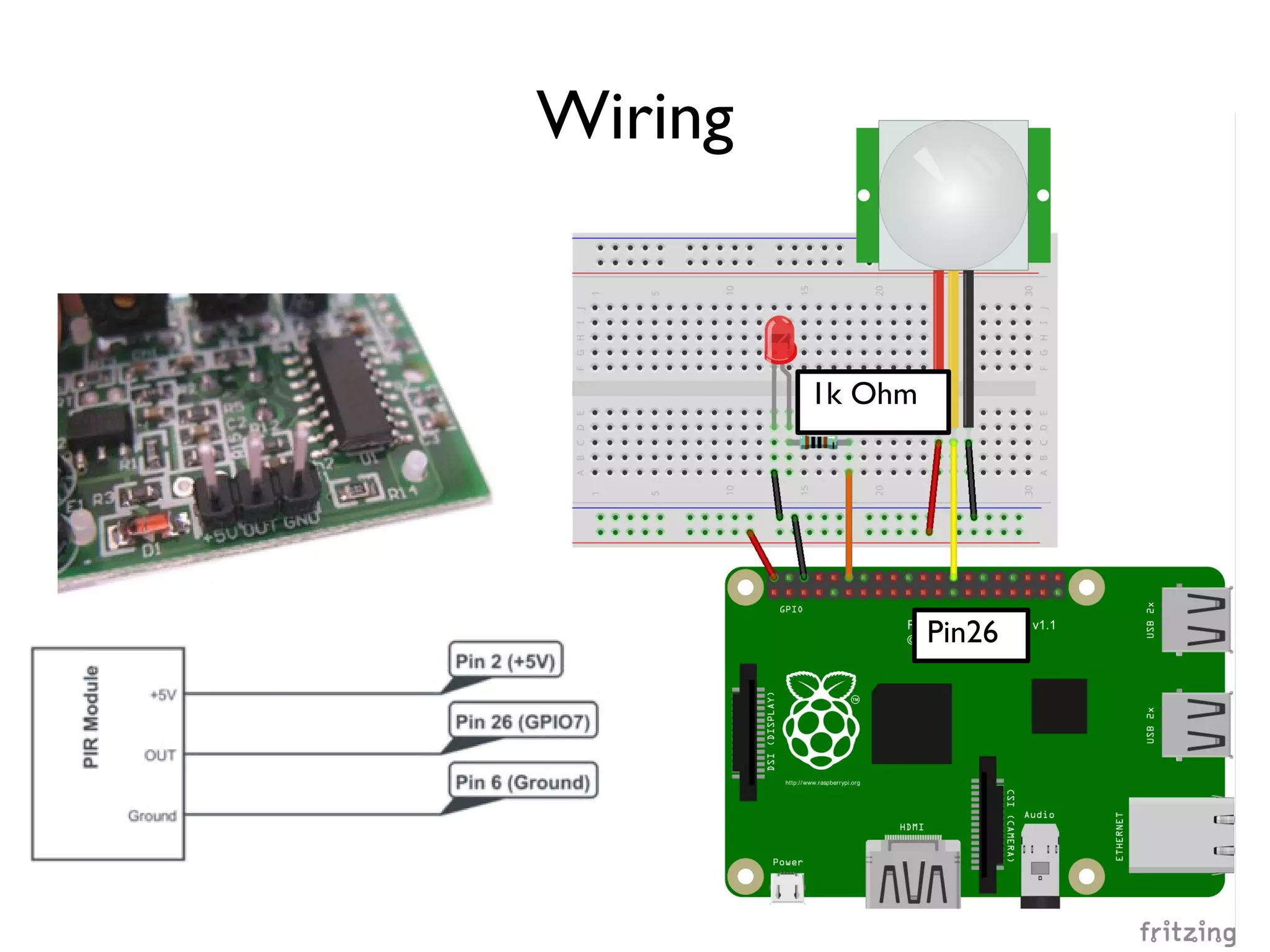
118 Wiring Pin26
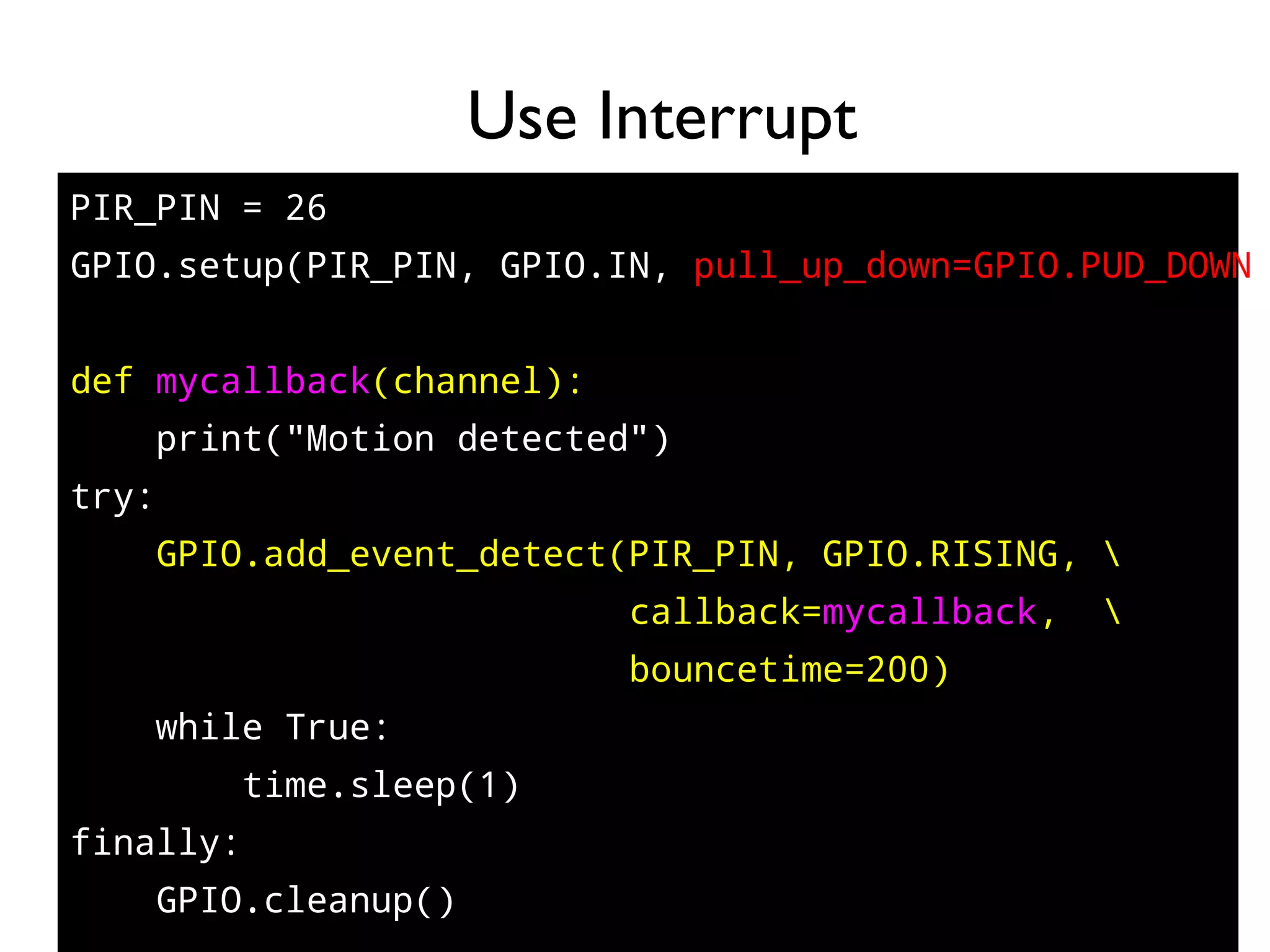
119 PIR_PIN = 26 GPIO.setup(PIR_PIN, GPIO.IN, pull_up_down=GPIO.PUD_DOWN) def mycallback(channel): print("Motion detected") try: GPIO.add_event_detect(PIR_PIN, GPIO.RISING, callback=mycallback, bouncetime=200) while True: time.sleep(1) finally: GPIO.cleanup() Use Interrupt
120 DEMO pir.py $ cd ~/gpio-game-console $ cd 07_1-pir $ python3 pir.py HIGH for Detected, Use Built-in Pull-down Resistor
121 Attach an LED Indicator
122 Wiring 1k Ohm Pin26
123 DEMO people_alarm_system.py $ cd ~/gpio-game-console $ cd 07_2-people_alarm_system $ python3 people_alarm_system.py
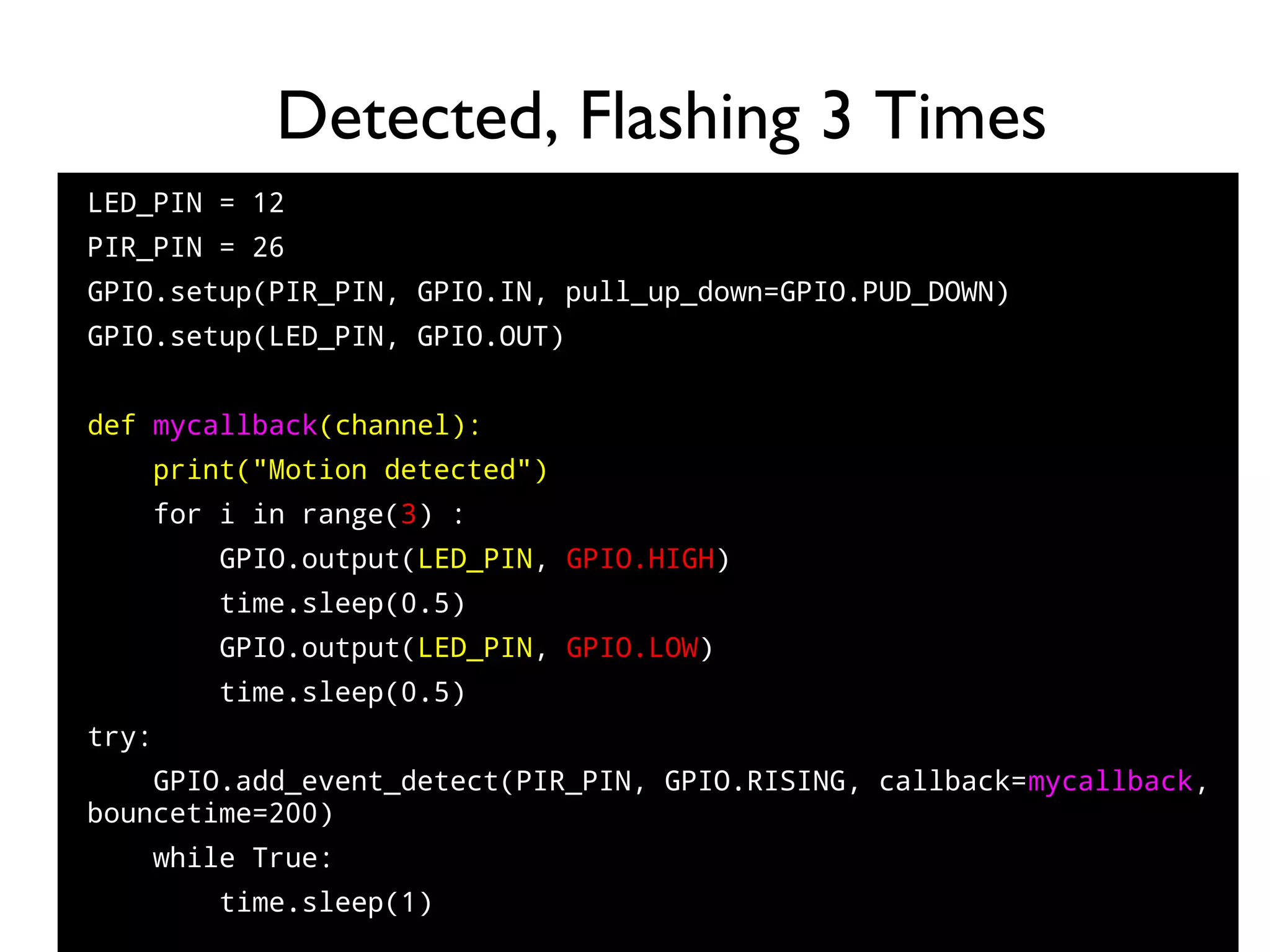
124 LED_PIN = 12 PIR_PIN = 26 GPIO.setup(PIR_PIN, GPIO.IN, pull_up_down=GPIO.PUD_DOWN) GPIO.setup(LED_PIN, GPIO.OUT) def mycallback(channel): print("Motion detected") for i in range(3) : GPIO.output(LED_PIN, GPIO.HIGH) time.sleep(0.5) GPIO.output(LED_PIN, GPIO.LOW) time.sleep(0.5) try: GPIO.add_event_detect(PIR_PIN, GPIO.RISING, callback=mycallback, bouncetime=200) while True: time.sleep(1) Detected, Flashing 3 Times
125 Practice 8: Ultrasonic Ranging Module Goal: Programming with Datasheet
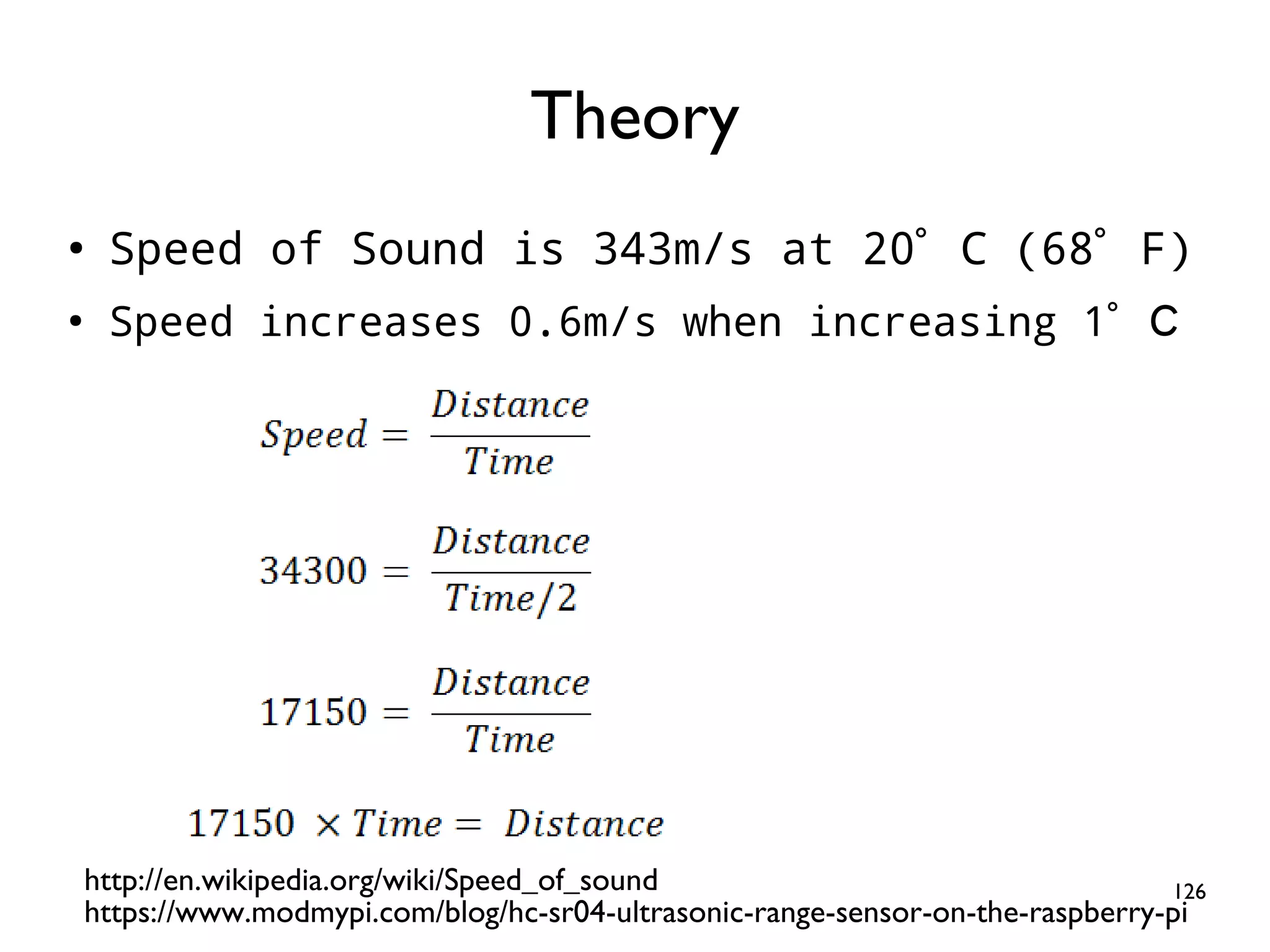
126 ● Speed of Sound is 343m/s at 20°C (68°F) ● Speed increases 0.6m/s when increasing 1°C Theory http://en.wikipedia.org/wiki/Speed_of_sound https://www.modmypi.com/blog/hc-sr04-ultrasonic-range-sensor-on-the-raspberry-pi
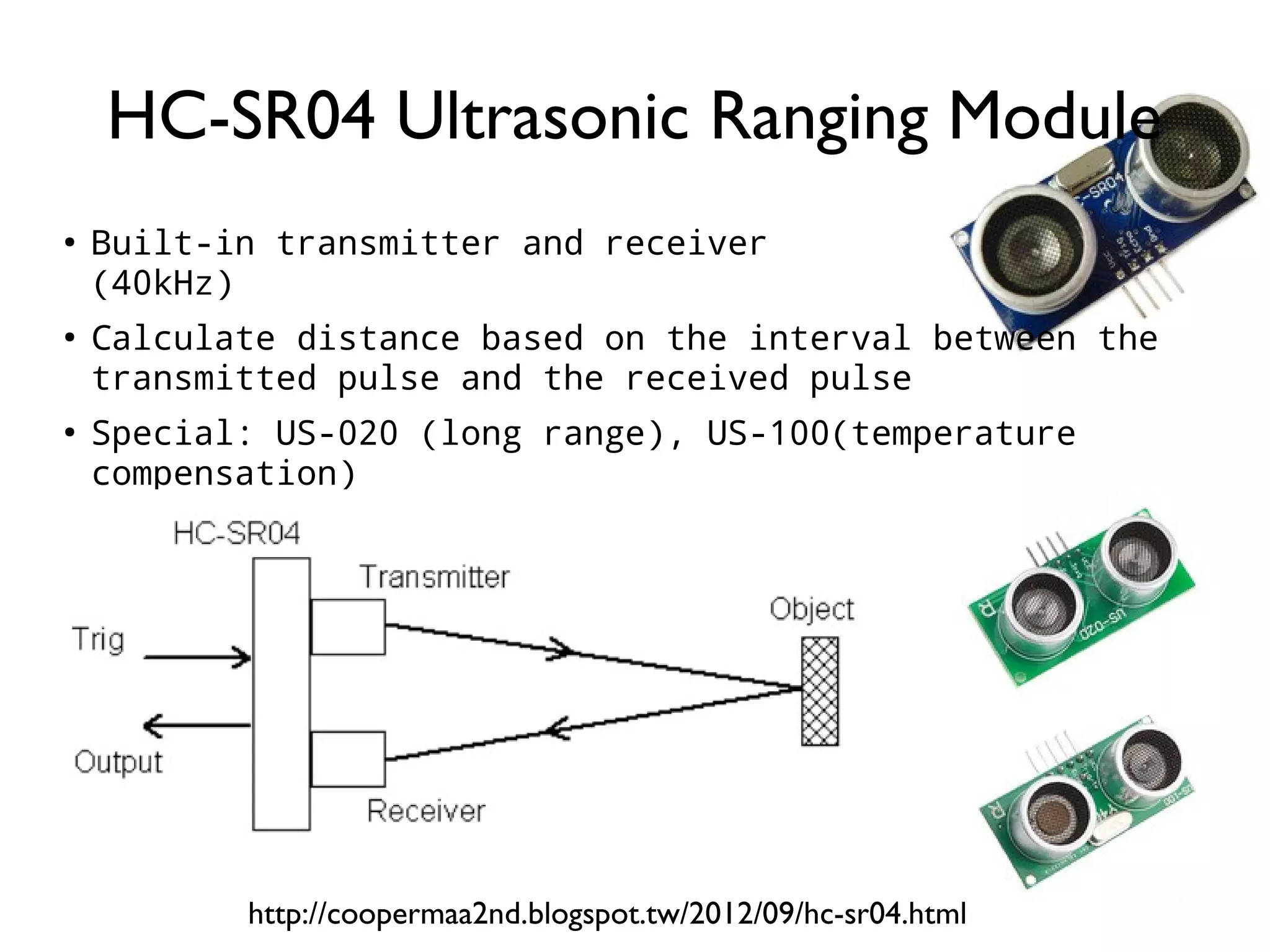
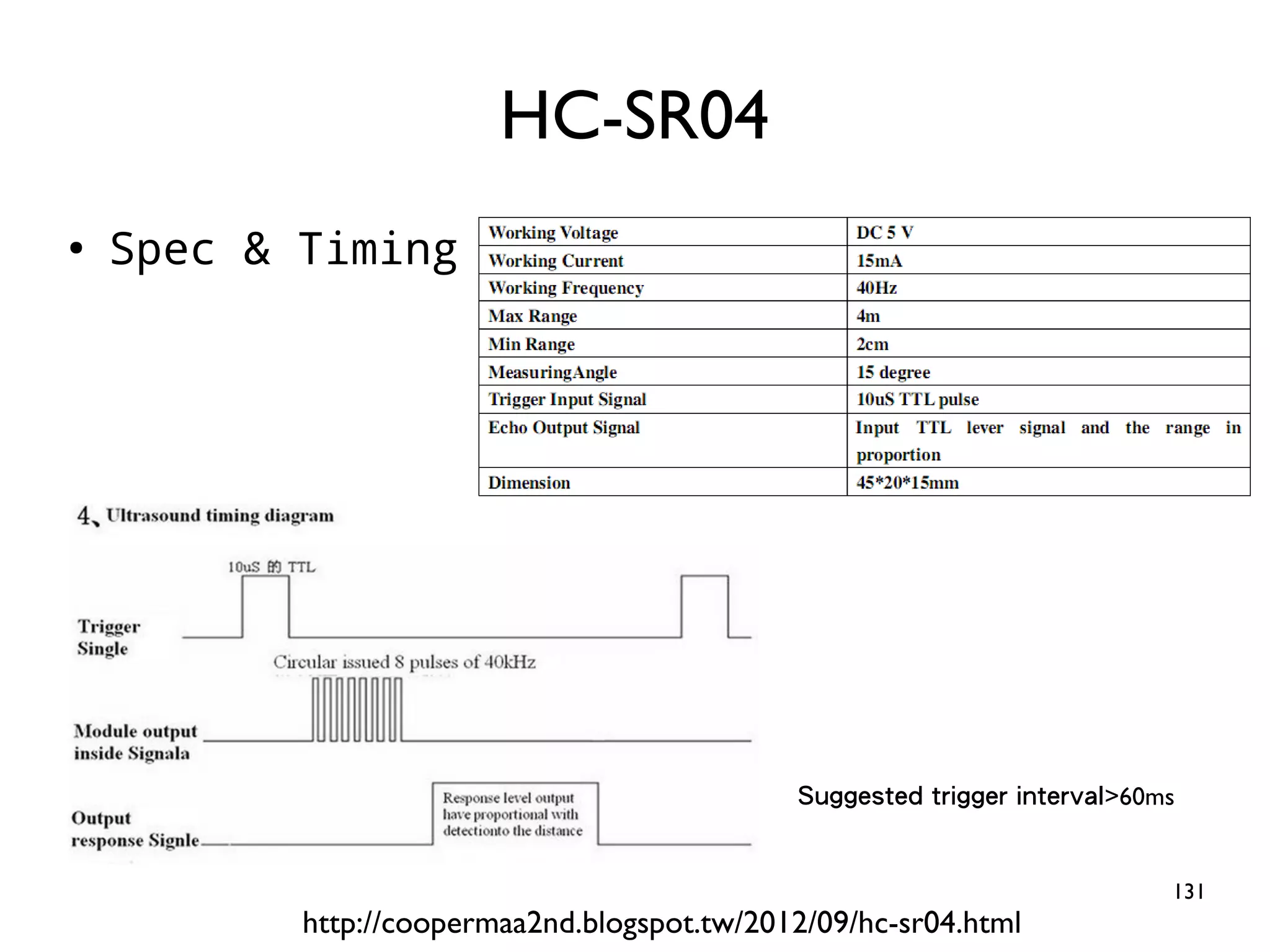
127 ● Built-in transmitter and receiver (40kHz) ● Calculate distance based on the interval between the transmitted pulse and the received pulse ● Special: US-020 (long range), US-100(temperature compensation) HC-SR04 Ultrasonic Ranging Module http://coopermaa2nd.blogspot.tw/2012/09/hc-sr04.html
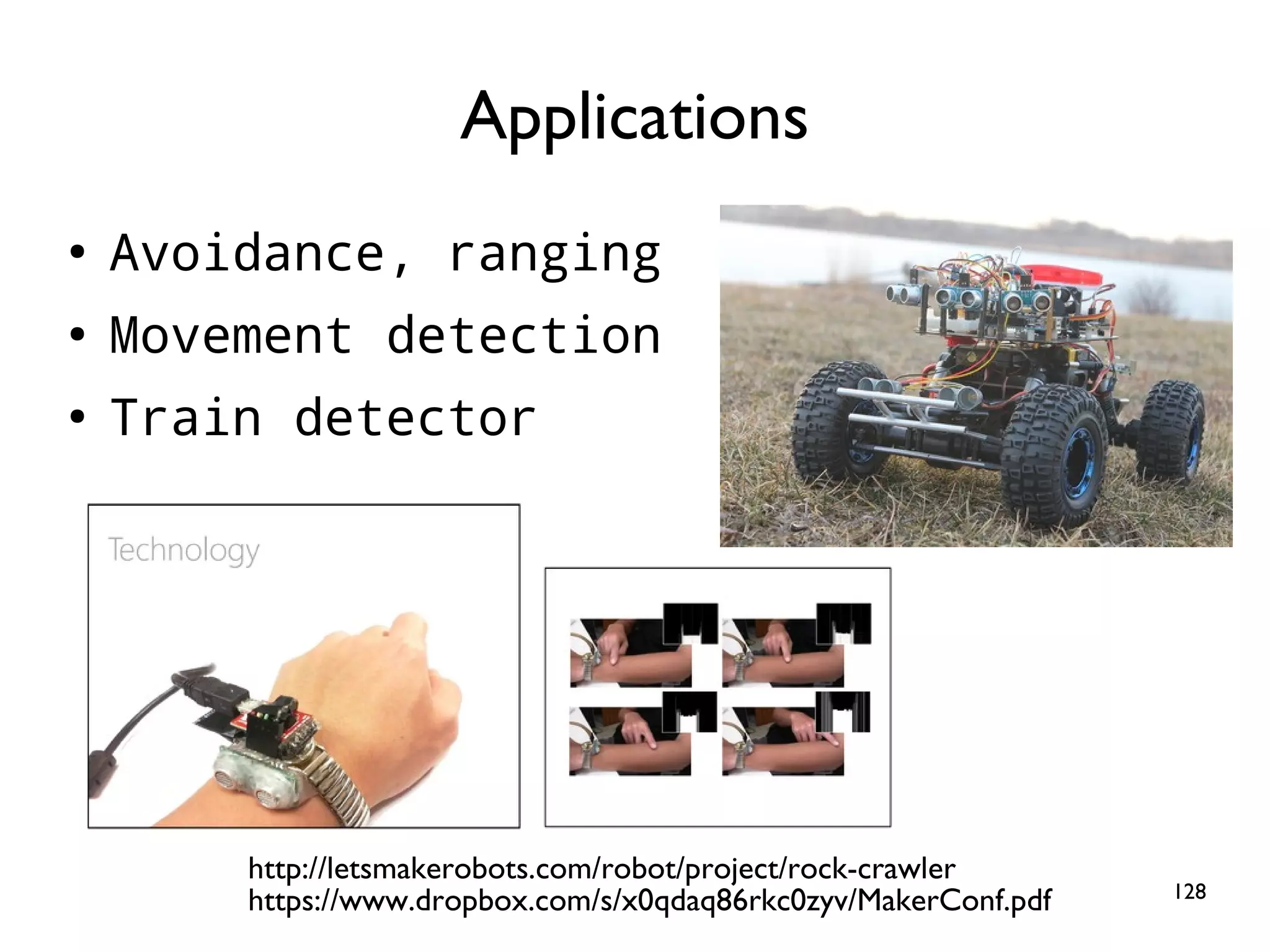
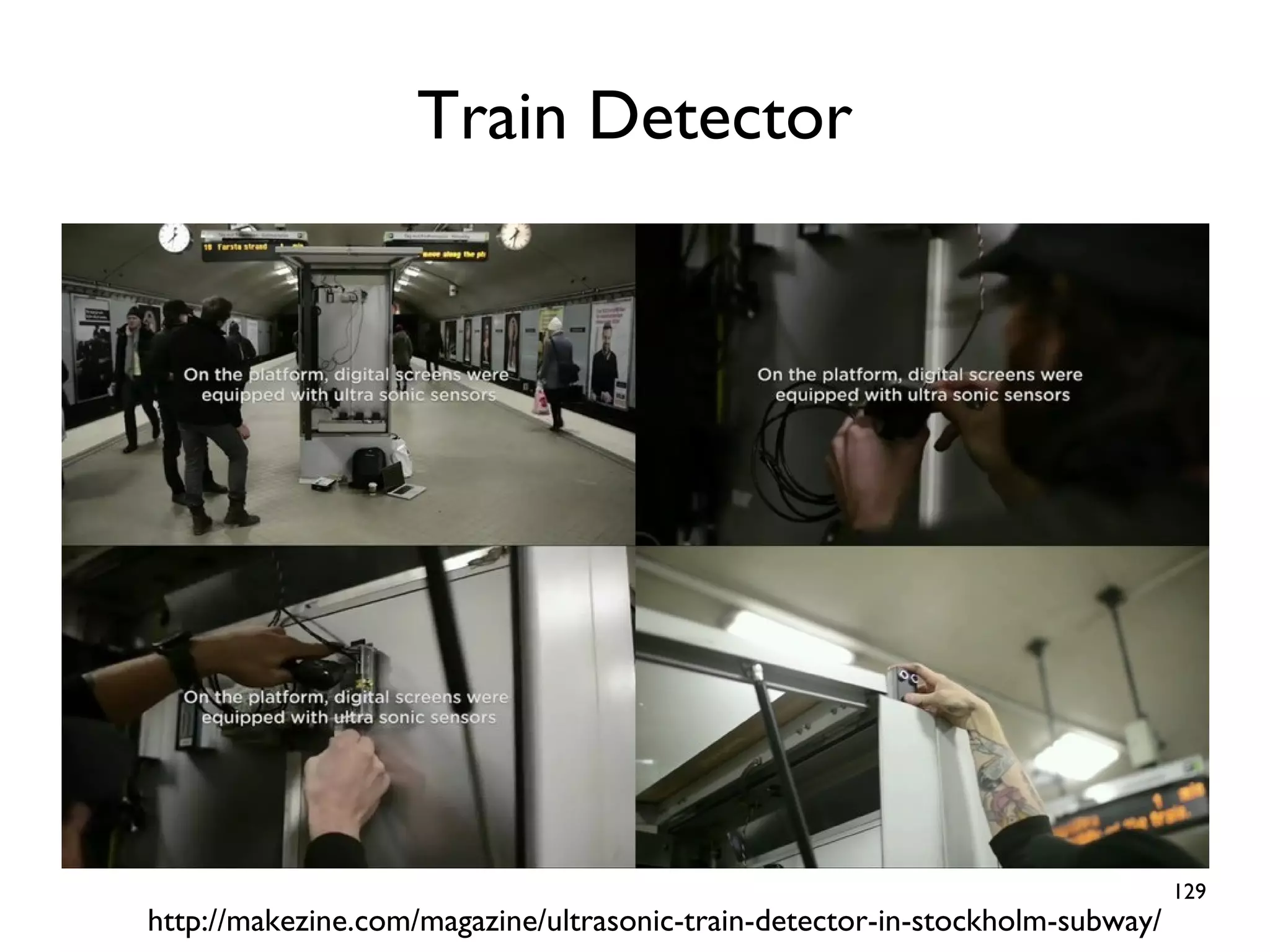
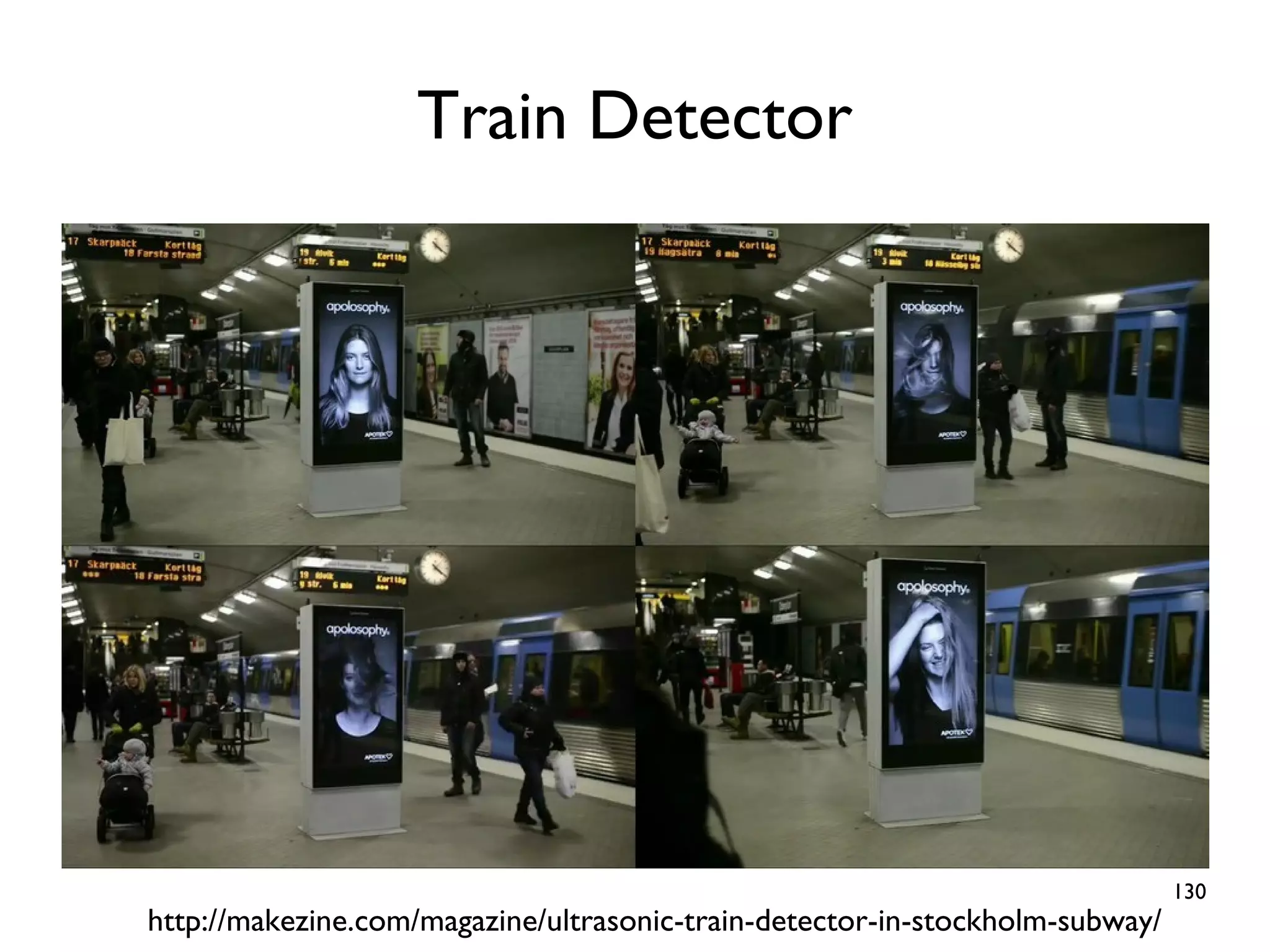
128 ● Avoidance, ranging ● Movement detection ● Train detector Applications http://letsmakerobots.com/robot/project/rock-crawler https://www.dropbox.com/s/x0qdaq86rkc0zyv/MakerConf.pdf
129 Train Detector http://makezine.com/magazine/ultrasonic-train-detector-in-stockholm-subway/
130 Train Detector http://makezine.com/magazine/ultrasonic-train-detector-in-stockholm-subway/
131 ● Spec & Timing HC-SR04 http://coopermaa2nd.blogspot.tw/2012/09/hc-sr04.html Suggested trigger interval>60ms
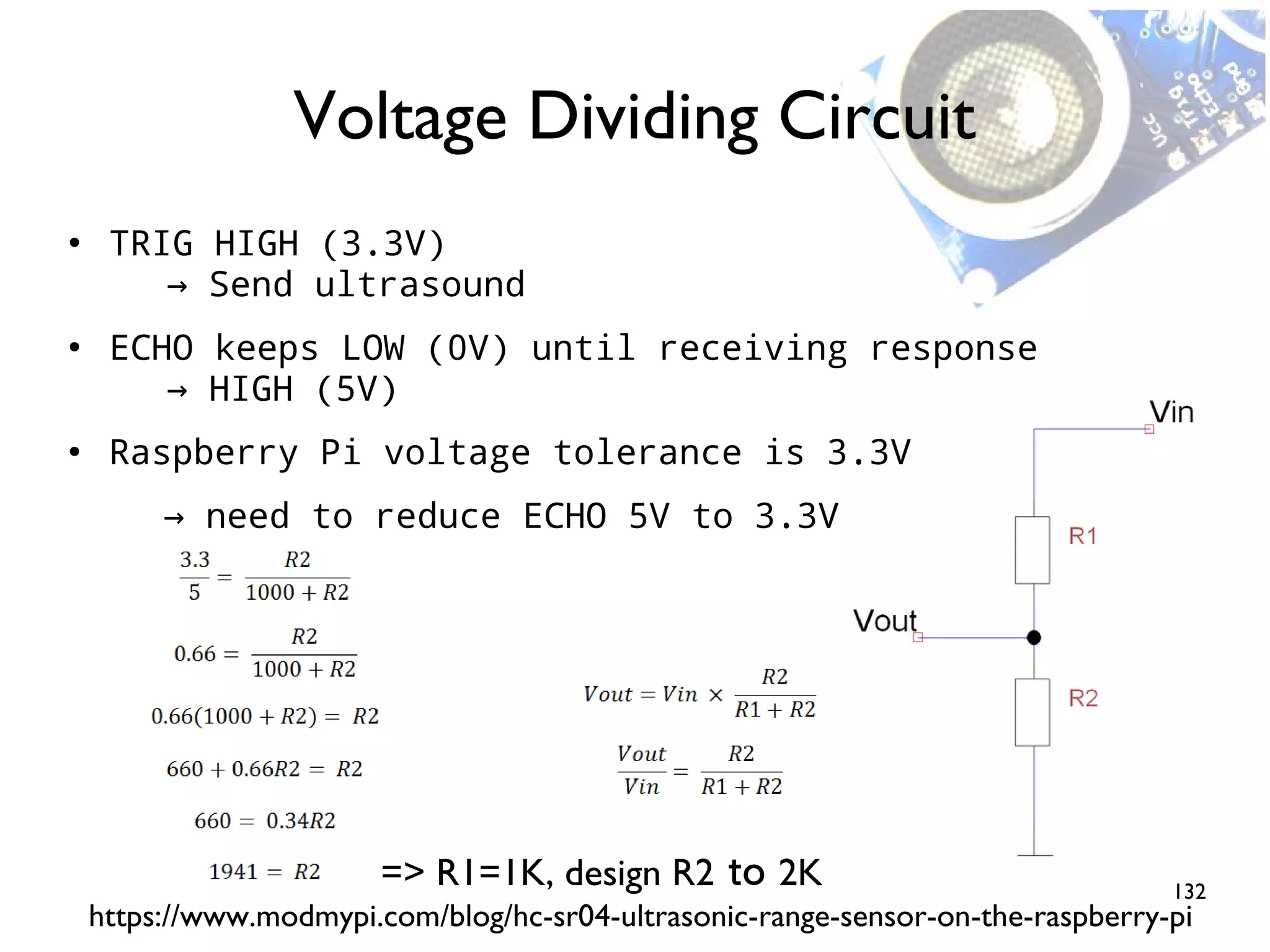
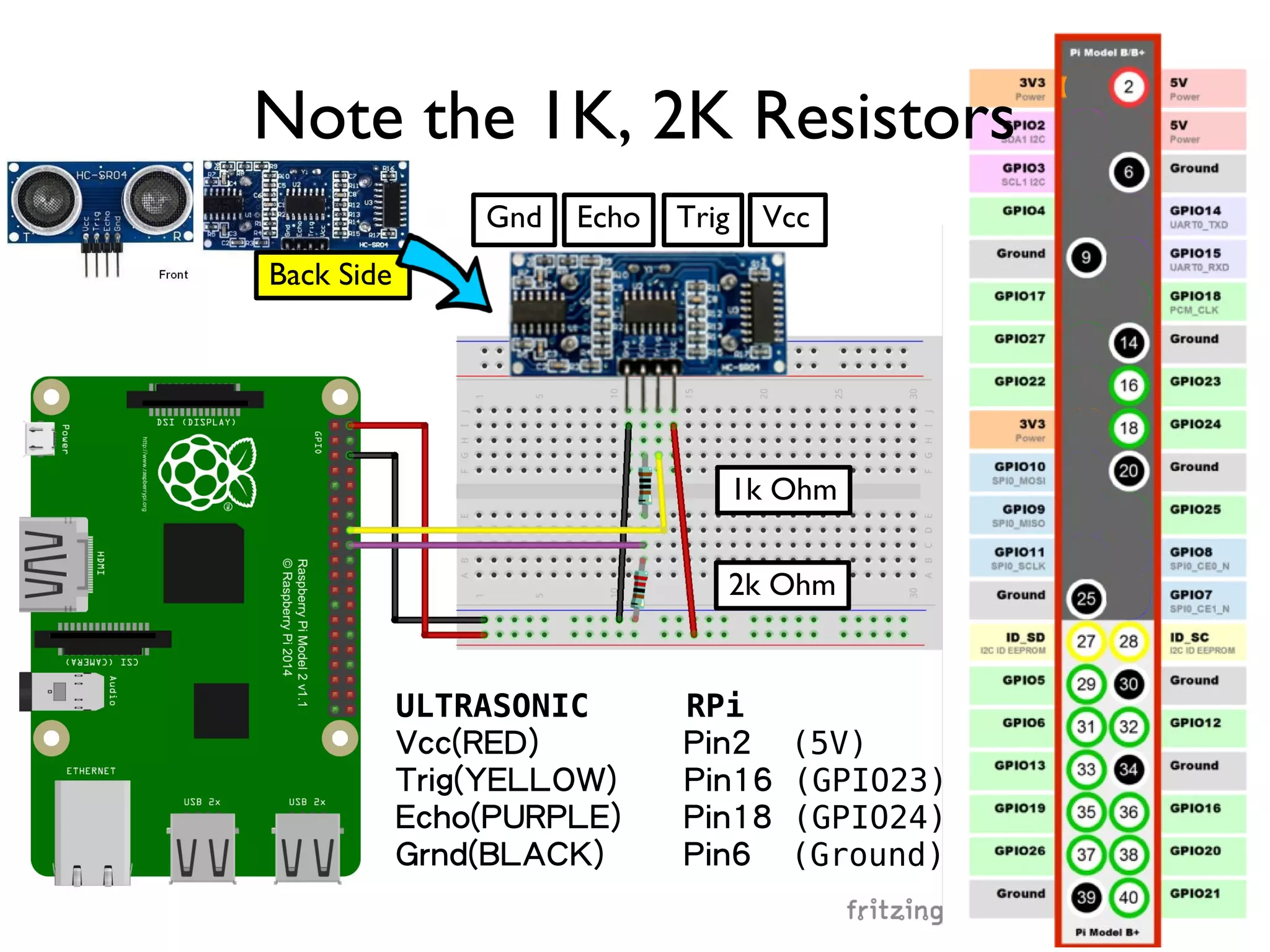
132 ● TRIG HIGH (3.3V) Send ultrasound→ ● ECHO keeps LOW (0V) until receiving response HIGH (5V)→ ● Raspberry Pi voltage tolerance is 3.3V → need to reduce ECHO 5V to 3.3V Voltage Dividing Circuit https://www.modmypi.com/blog/hc-sr04-ultrasonic-range-sensor-on-the-raspberry-pi => R1=1K, design R2 to 2K
133 Note the 1K, 2K Resistors VccGnd Echo Trig Back Side ULTRASONIC RPi Vcc(RED) Pin2 (5V) Trig(YELLOW) Pin16 (GPIO23) Echo(PURPLE) Pin18 (GPIO24) Grnd(BLACK) Pin6 (Ground) 1k Ohm 2k Ohm
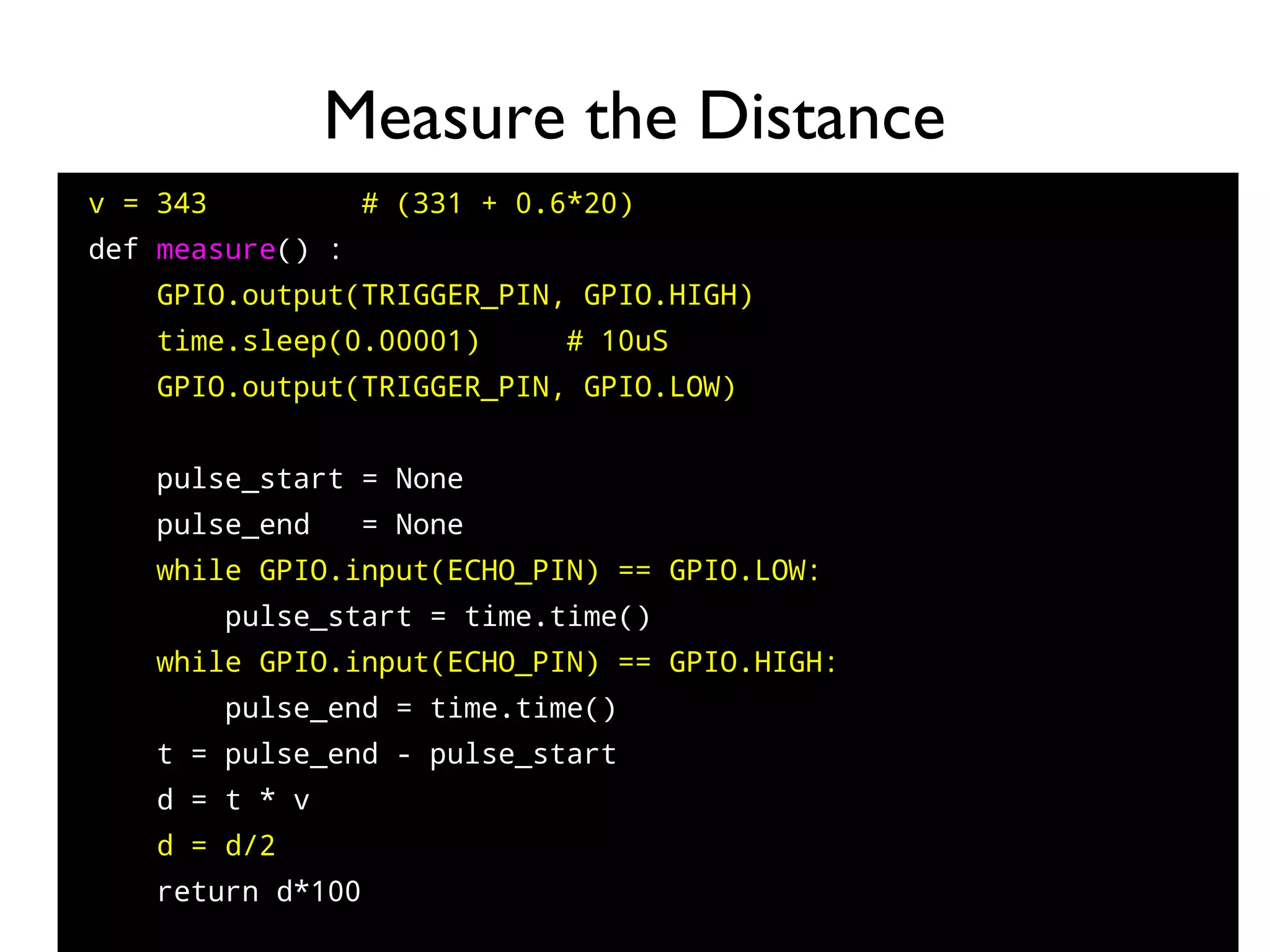
134 v = 343 # (331 + 0.6*20) def measure() : GPIO.output(TRIGGER_PIN, GPIO.HIGH) time.sleep(0.00001) # 10uS GPIO.output(TRIGGER_PIN, GPIO.LOW) pulse_start = None pulse_end = None while GPIO.input(ECHO_PIN) == GPIO.LOW: pulse_start = time.time() while GPIO.input(ECHO_PIN) == GPIO.HIGH: pulse_end = time.time() t = pulse_end - pulse_start d = t * v d = d/2 return d*100 Measure the Distance
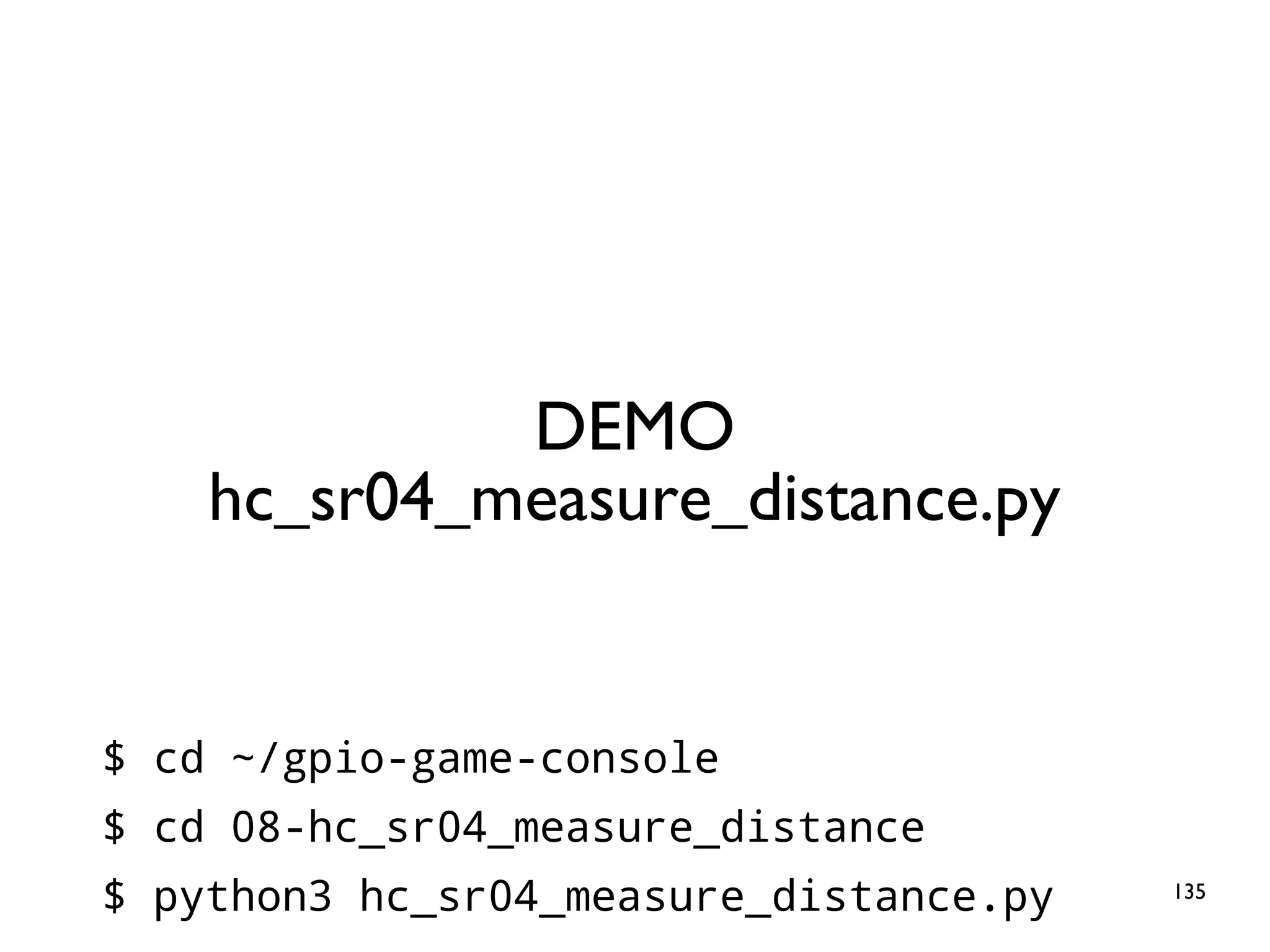
135 DEMO hc_sr04_measure_distance.py $ cd ~/gpio-game-console $ cd 08-hc_sr04_measure_distance $ python3 hc_sr04_measure_distance.py
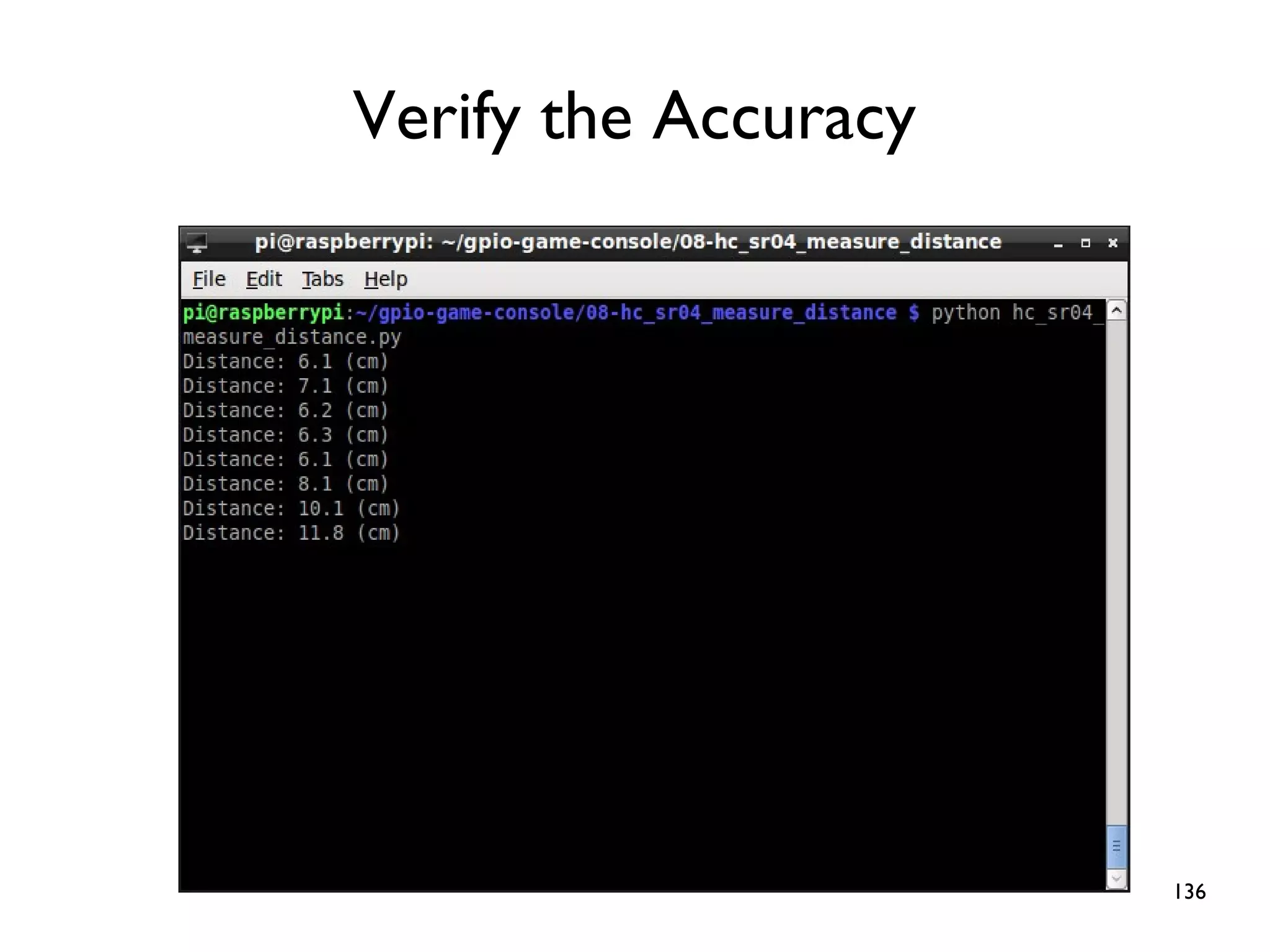
136 Verify the Accuracy
137 Practice 9: Breathing Light Goal: Simulate Signals
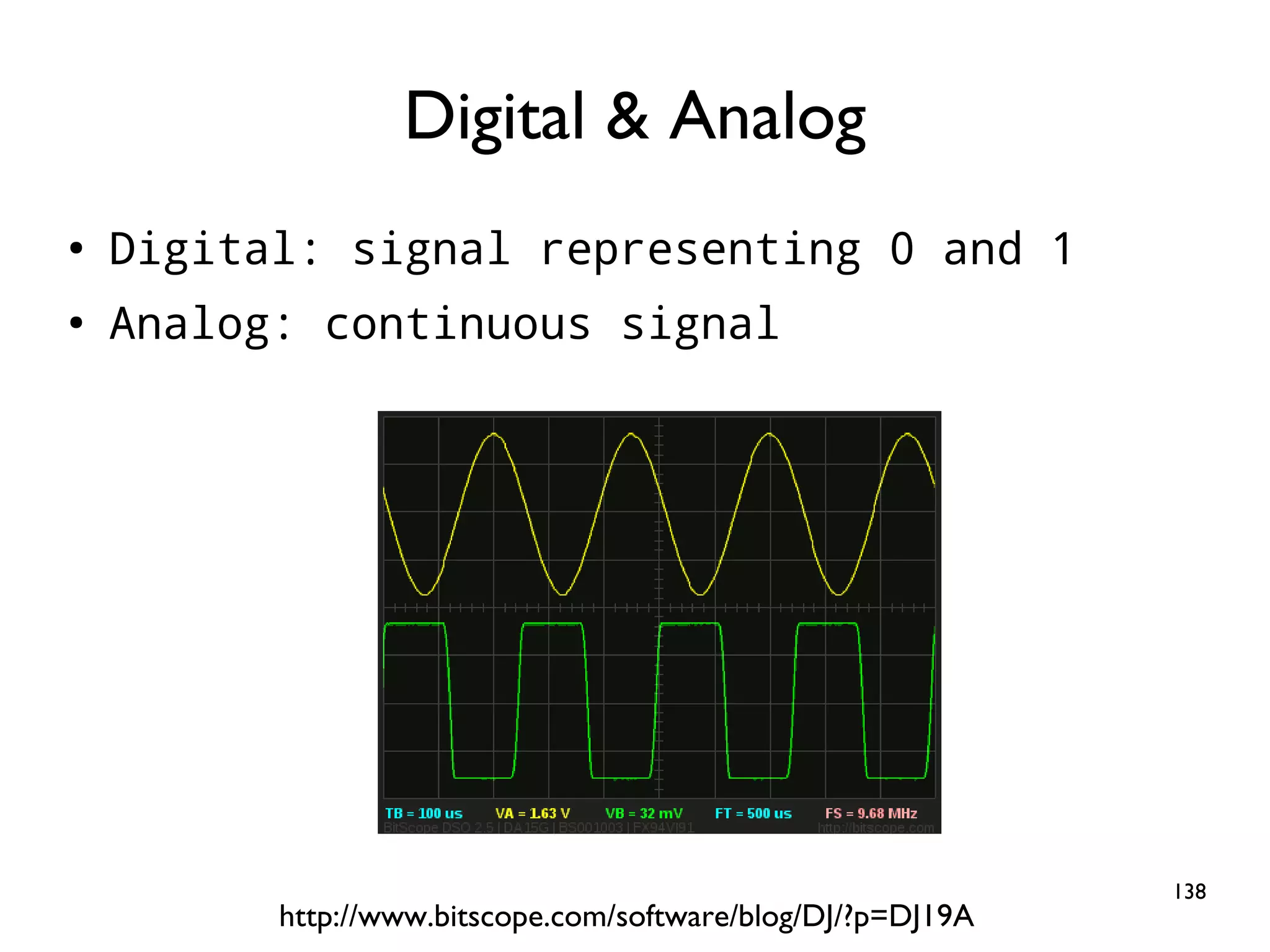
138 ● Digital: signal representing 0 and 1 ● Analog: continuous signal Digital & Analog http://www.bitscope.com/software/blog/DJ/?p=DJ19A
139 ● Digital: Light ON/OFF ● Analog: bright, a little bright, a little dim, dim... ● However, GPIO output is is either HIGH or LOW Signal Represented by LED
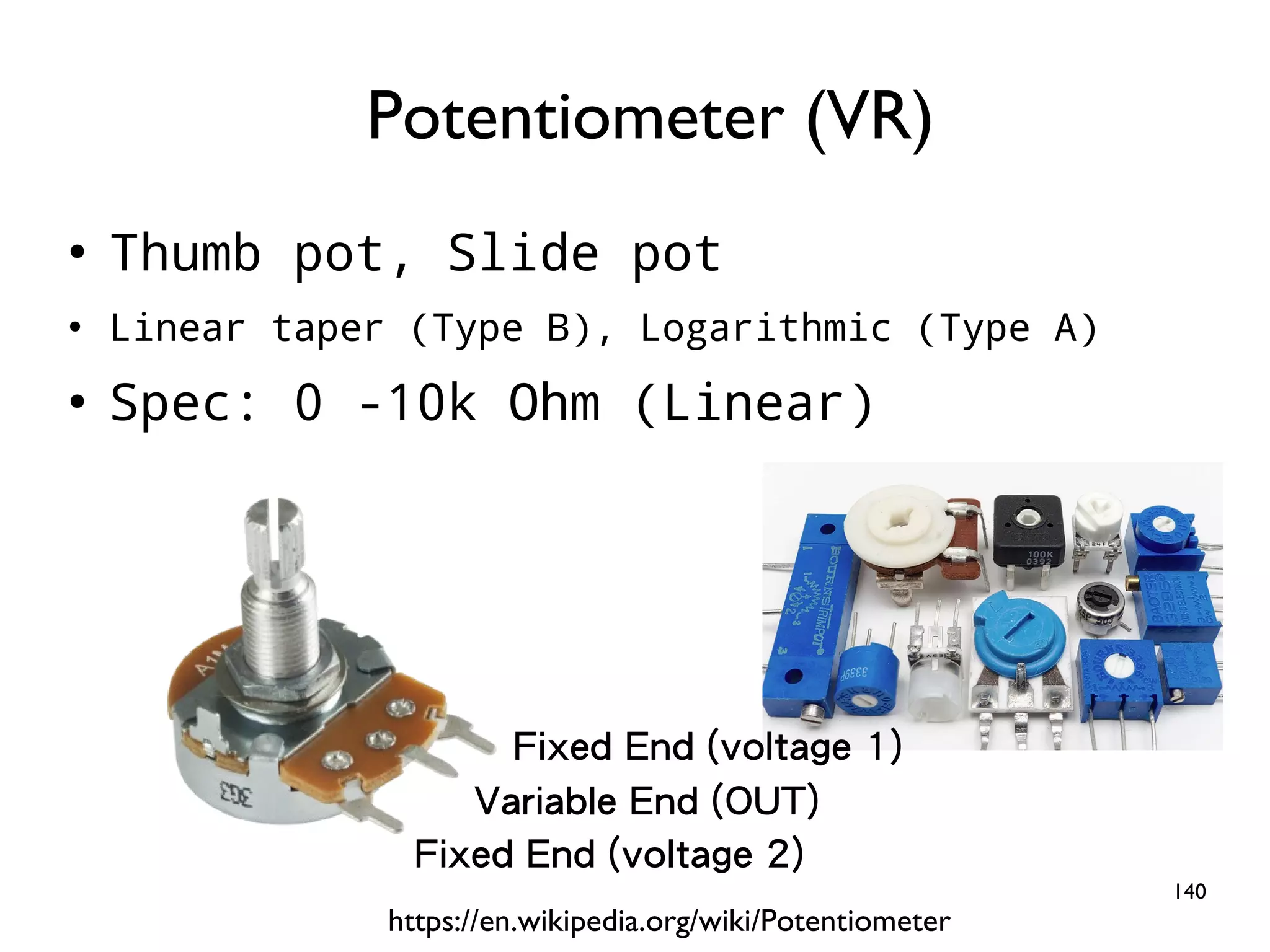
140 ● Thumb pot, Slide pot ● Linear taper (Type B), Logarithmic (Type A) ● Spec: 0 -10k Ohm (Linear) Potentiometer (VR) https://en.wikipedia.org/wiki/Potentiometer Fixed End (voltage 2) Fixed End (voltage 1) Variable End (OUT)
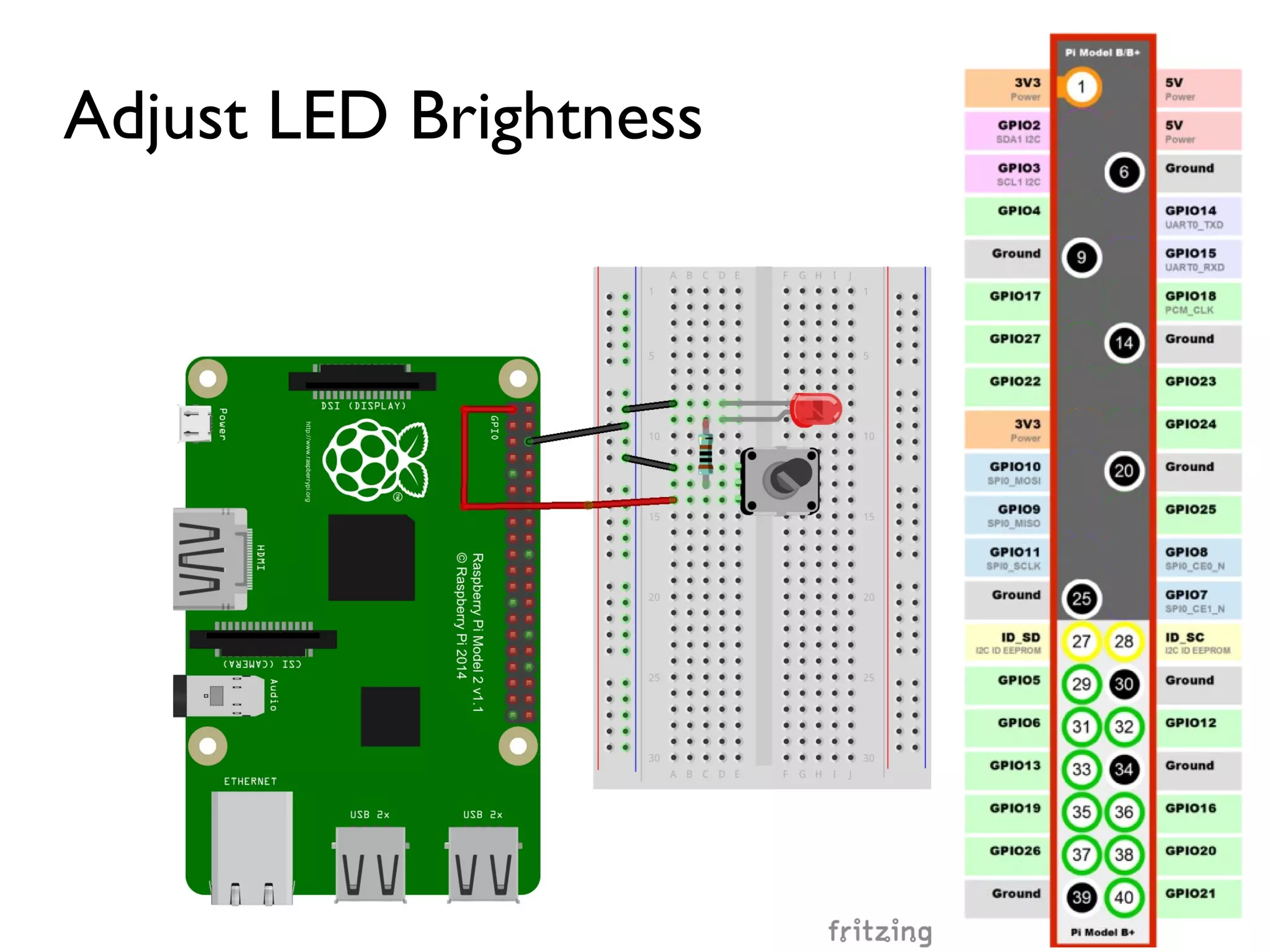
141 Adjust LED Brightness
142 Without additional hardware?
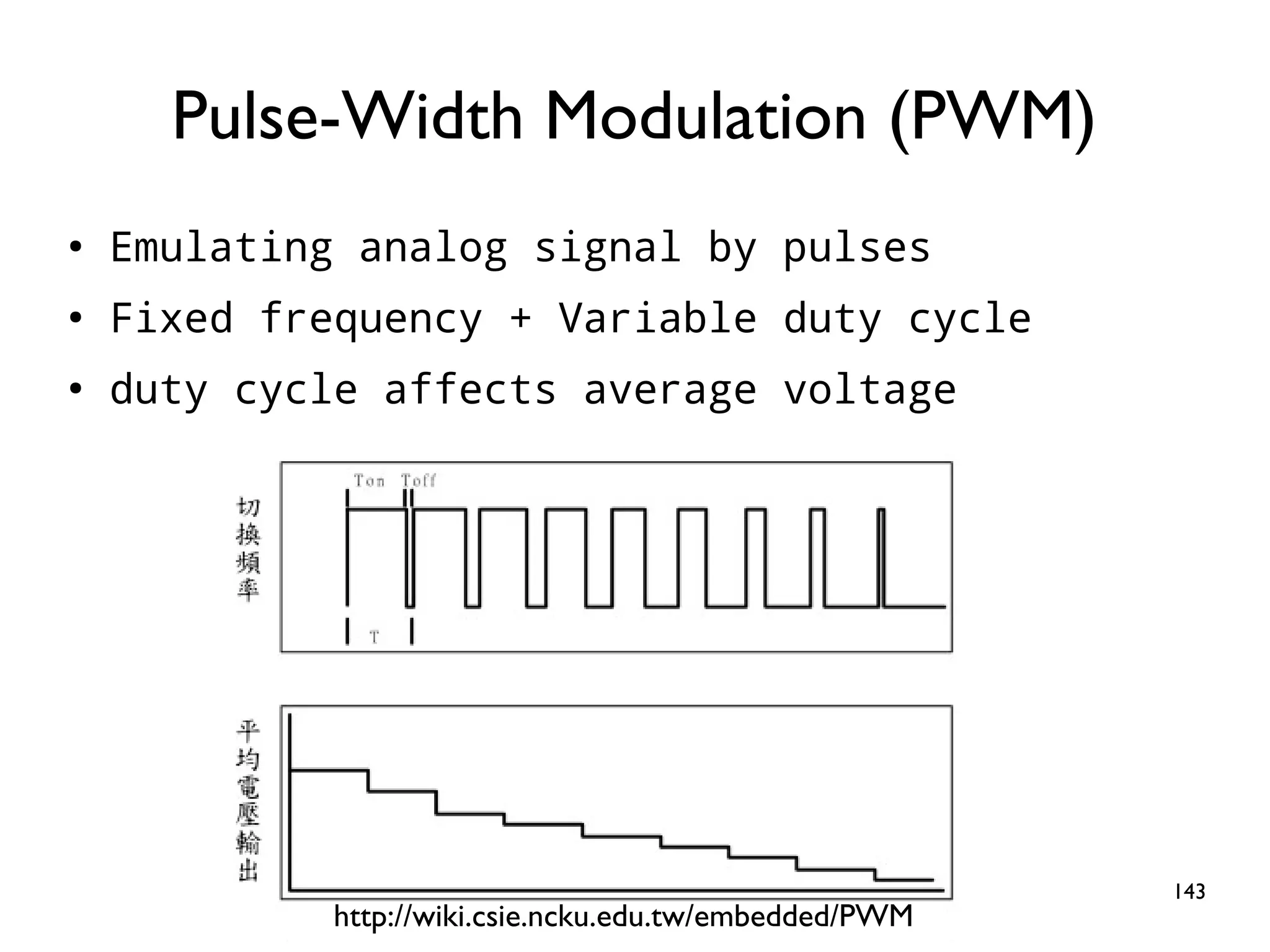
143 ● Emulating analog signal by pulses ● Fixed frequency + Variable duty cycle ● duty cycle affects average voltage Pulse-Width Modulation (PWM) http://wiki.csie.ncku.edu.tw/embedded/PWM
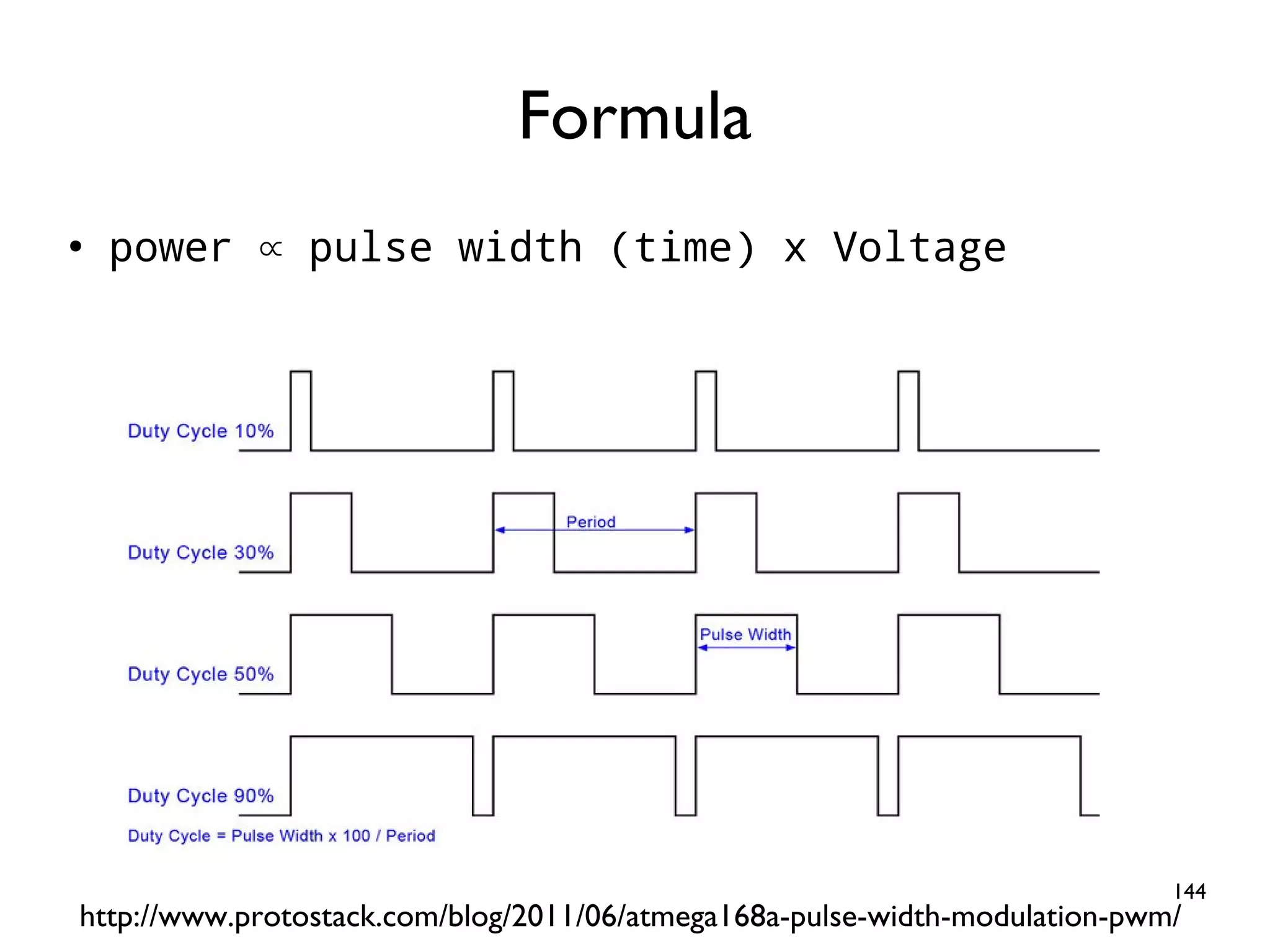
144 ● power ∝ pulse width (time) x Voltage Formula http://www.protostack.com/blog/2011/06/atmega168a-pulse-width-modulation-pwm/
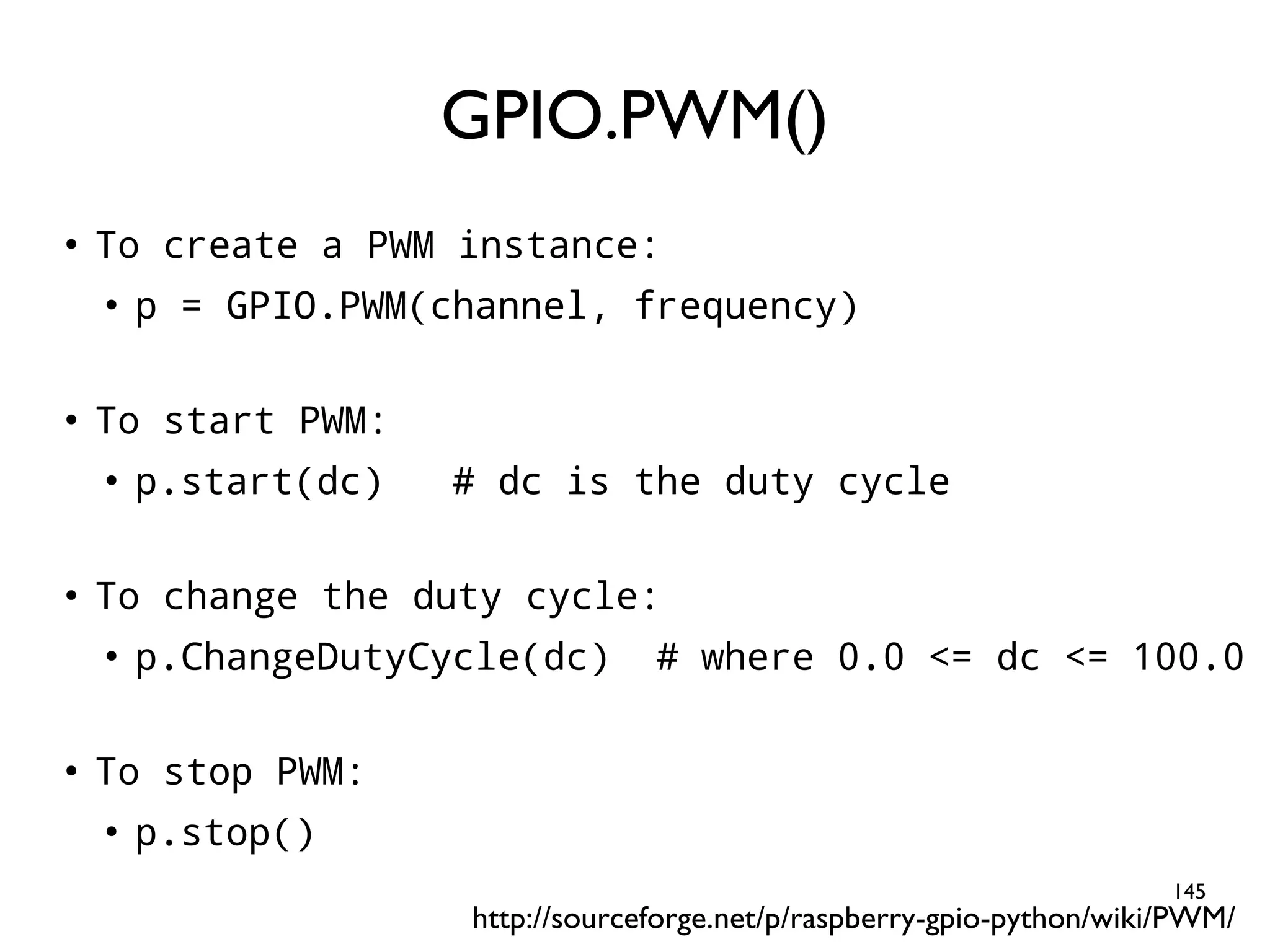
145 ● To create a PWM instance: ● p = GPIO.PWM(channel, frequency) ● To start PWM: ● p.start(dc) # dc is the duty cycle ● To change the duty cycle: ● p.ChangeDutyCycle(dc) # where 0.0 <= dc <= 100.0 ● To stop PWM: ● p.stop() GPIO.PWM() http://sourceforge.net/p/raspberry-gpio-python/wiki/PWM/
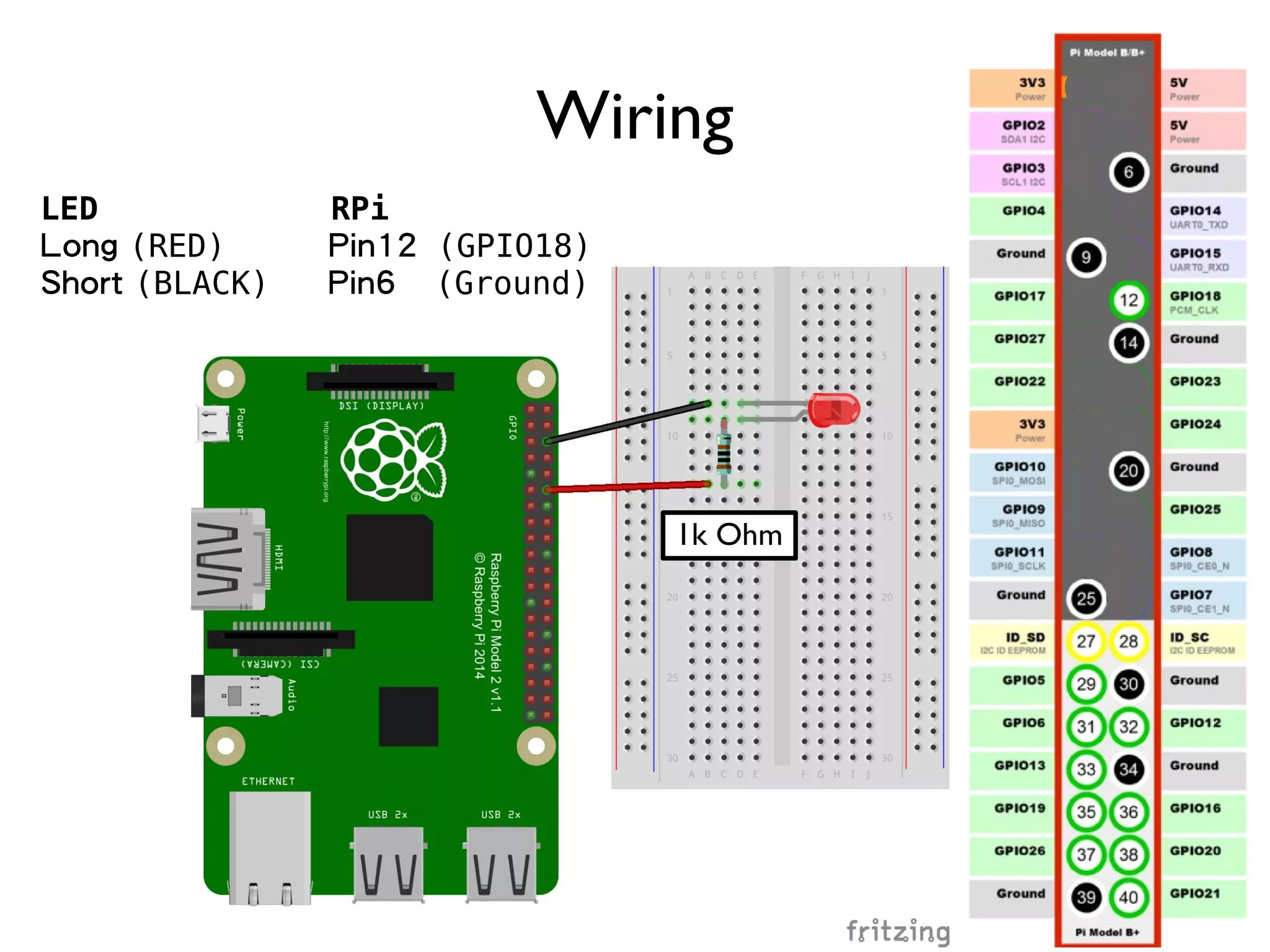
146 Wiring LED RPi Long (RED) Pin12 (GPIO18) Short (BLACK) Pin6 (Ground) 1k Ohm
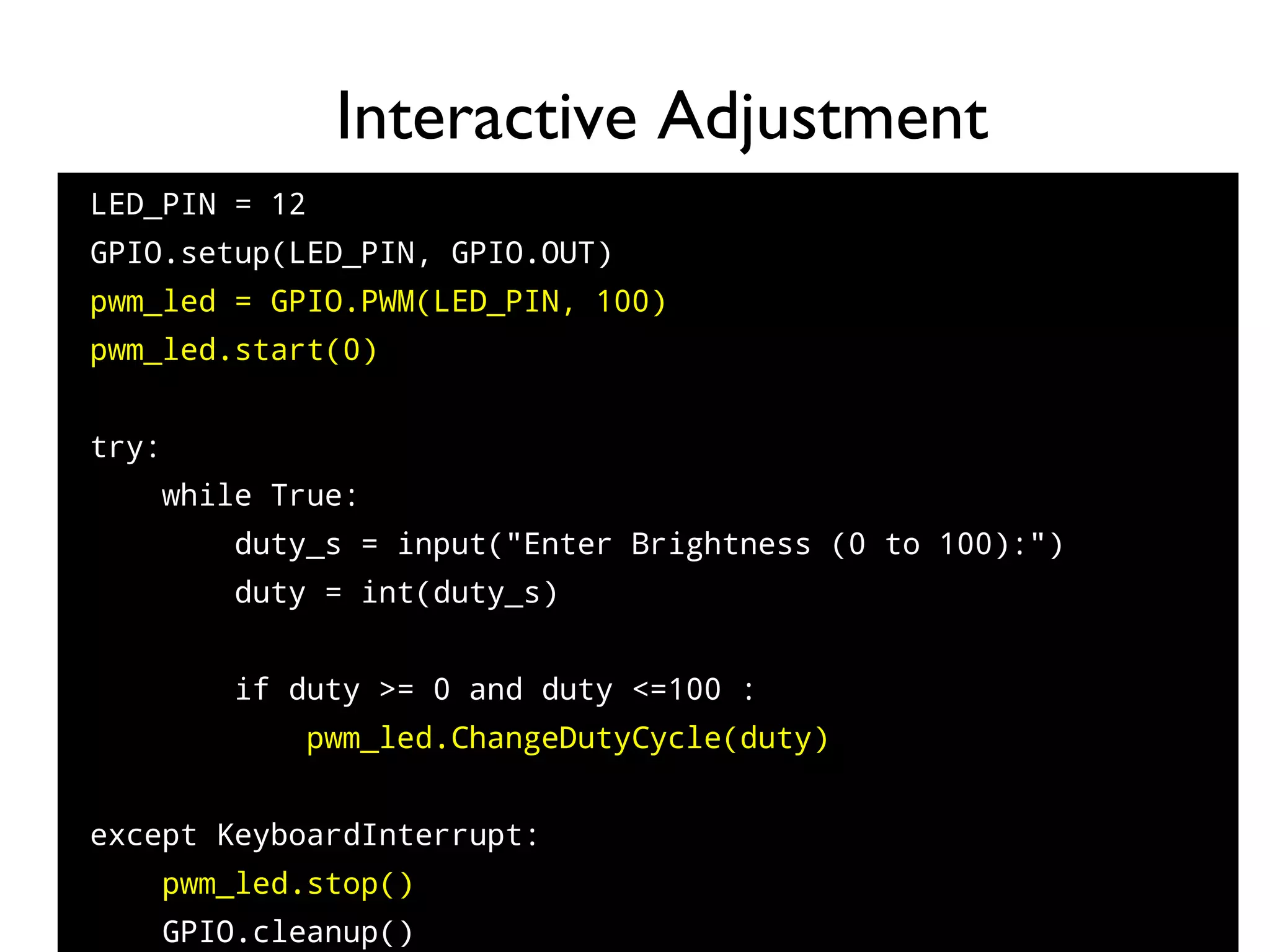
147 LED_PIN = 12 ● GPIO.setup(LED_PIN, GPIO.OUT) pwm_led = GPIO.PWM(LED_PIN, 100) ● pwm_led.start(0) ● ● try: ● while True: ● duty_s = input("Enter Brightness (0 to 100):") ● duty = int(duty_s) ● ● if duty >= 0 and duty <=100 : ● pwm_led.ChangeDutyCycle(duty) ● ● except KeyboardInterrupt: ● pwm_led.stop() ● GPIO.cleanup() Interactive Adjustment
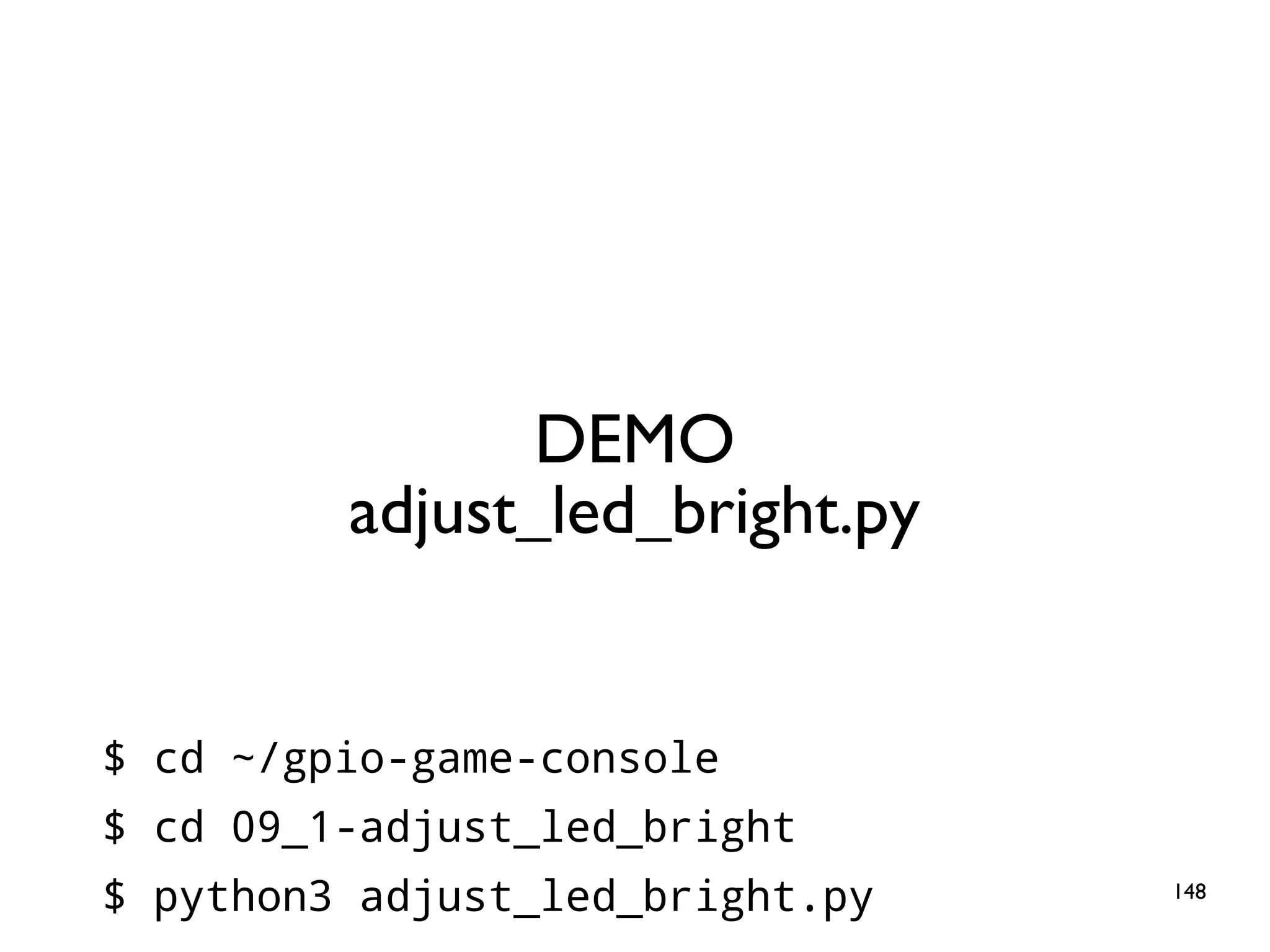
148 DEMO adjust_led_bright.py $ cd ~/gpio-game-console $ cd 09_1-adjust_led_bright $ python3 adjust_led_bright.py
149 LED_PIN = 12 GPIO.setup(LED_PIN, GPIO.OUT) pwm_led = GPIO.PWM(LED_PIN, 100) pwm_led.start(0) while True: for dc in range(0, 101, 5): pwm_led.ChangeDutyCycle(dc) time.sleep(0.1) time.sleep(0.5) for dc in range(100, -1, -5): pwm_led.ChangeDutyCycle(dc) time.sleep(0.1) time.sleep(0.5) Slow-pace Bright and Dim
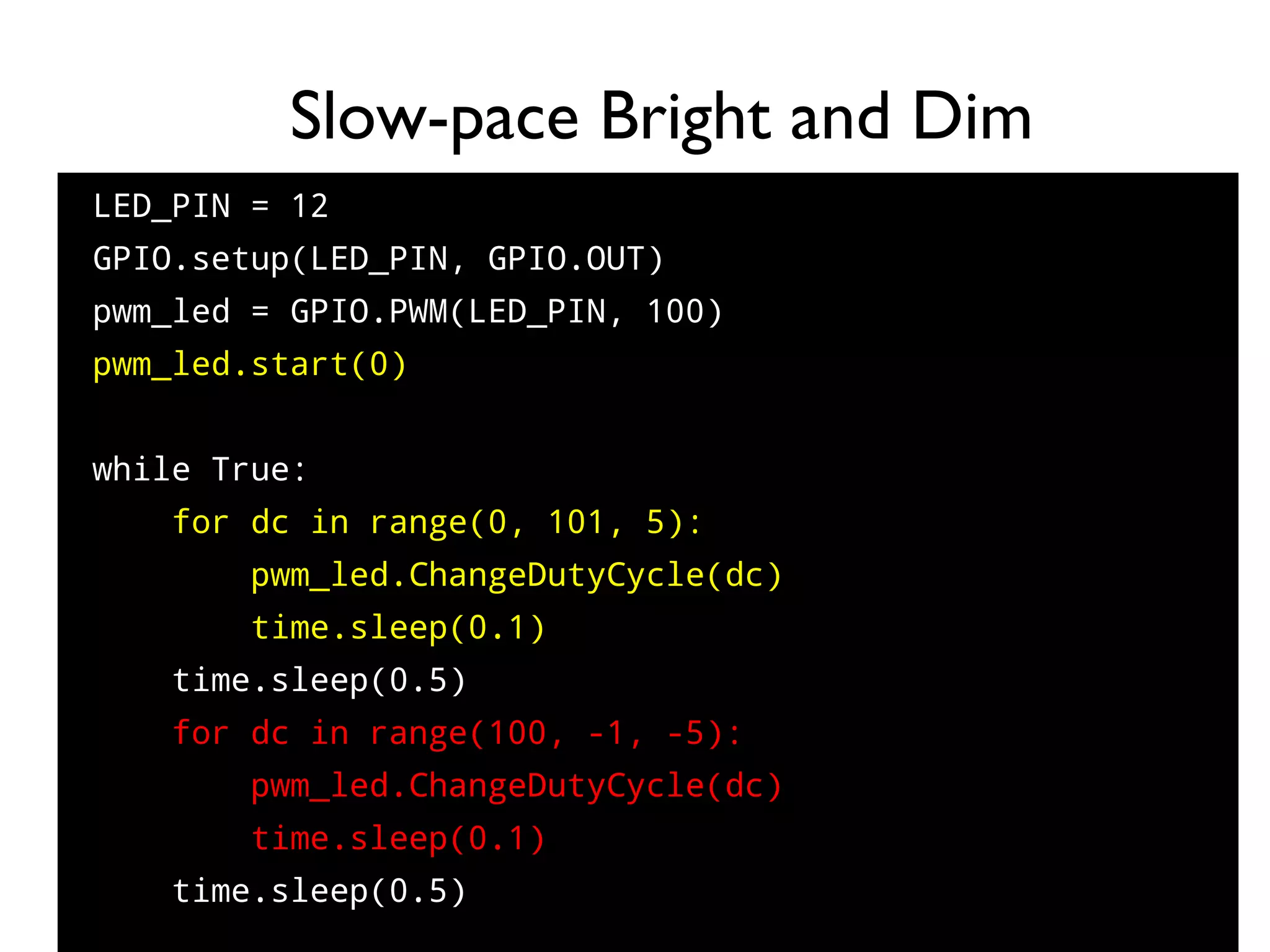
150 DEMO pwm_led.py $ cd ~/gpio-game-console $ cd 09_2-pwm_led $ python3 pwm_led.py
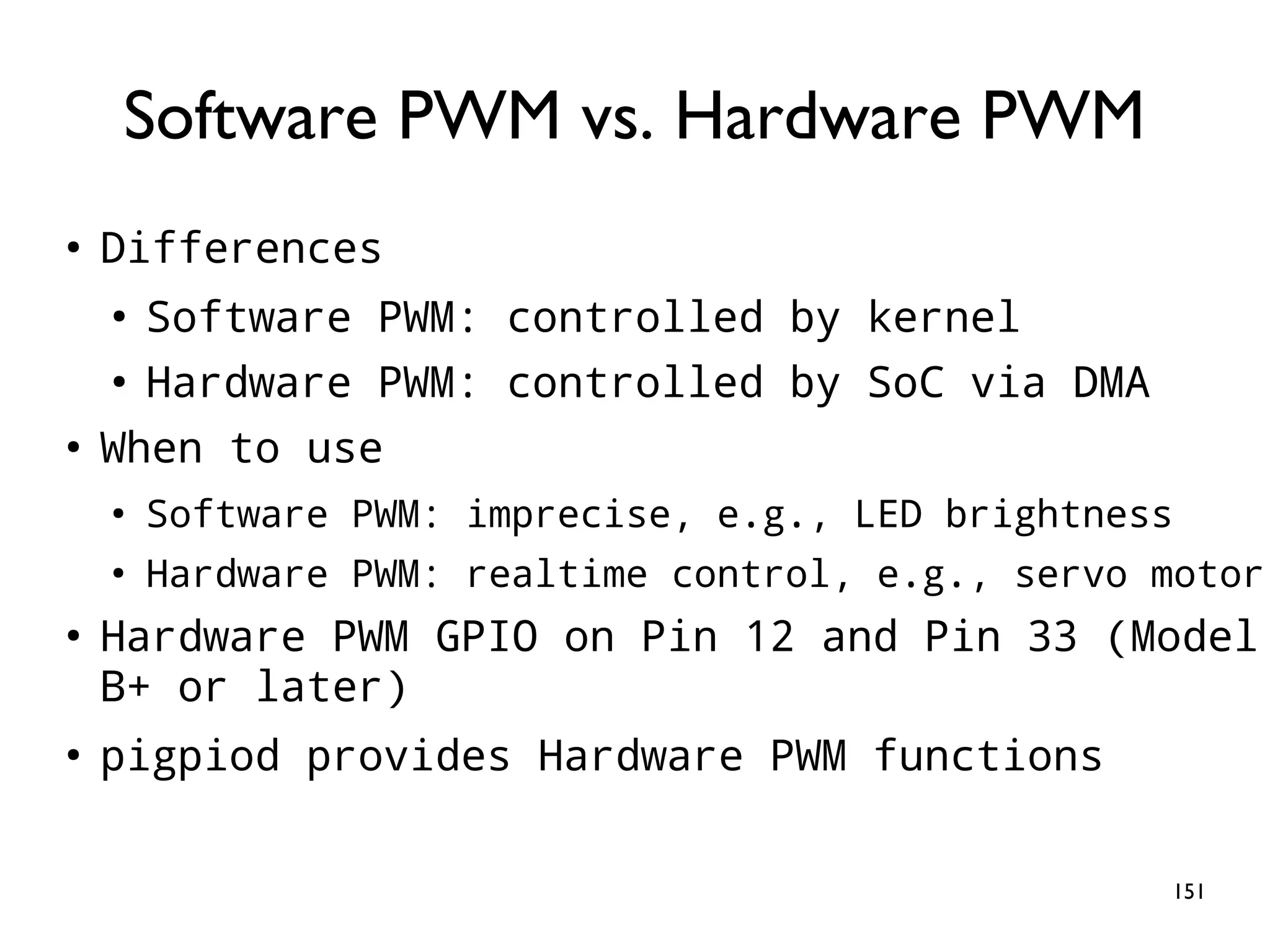
151 ● Differences ● Software PWM: controlled by kernel ● Hardware PWM: controlled by SoC via DMA ● When to use ● Software PWM: imprecise, e.g., LED brightness ● Hardware PWM: realtime control, e.g., servo motor ● Hardware PWM GPIO on Pin 12 and Pin 33 (Model B+ or later) ● pigpiod provides Hardware PWM functions Software PWM vs. Hardware PWM
152 Practice 10: Photoresistor Goal: Reading Analog Signal
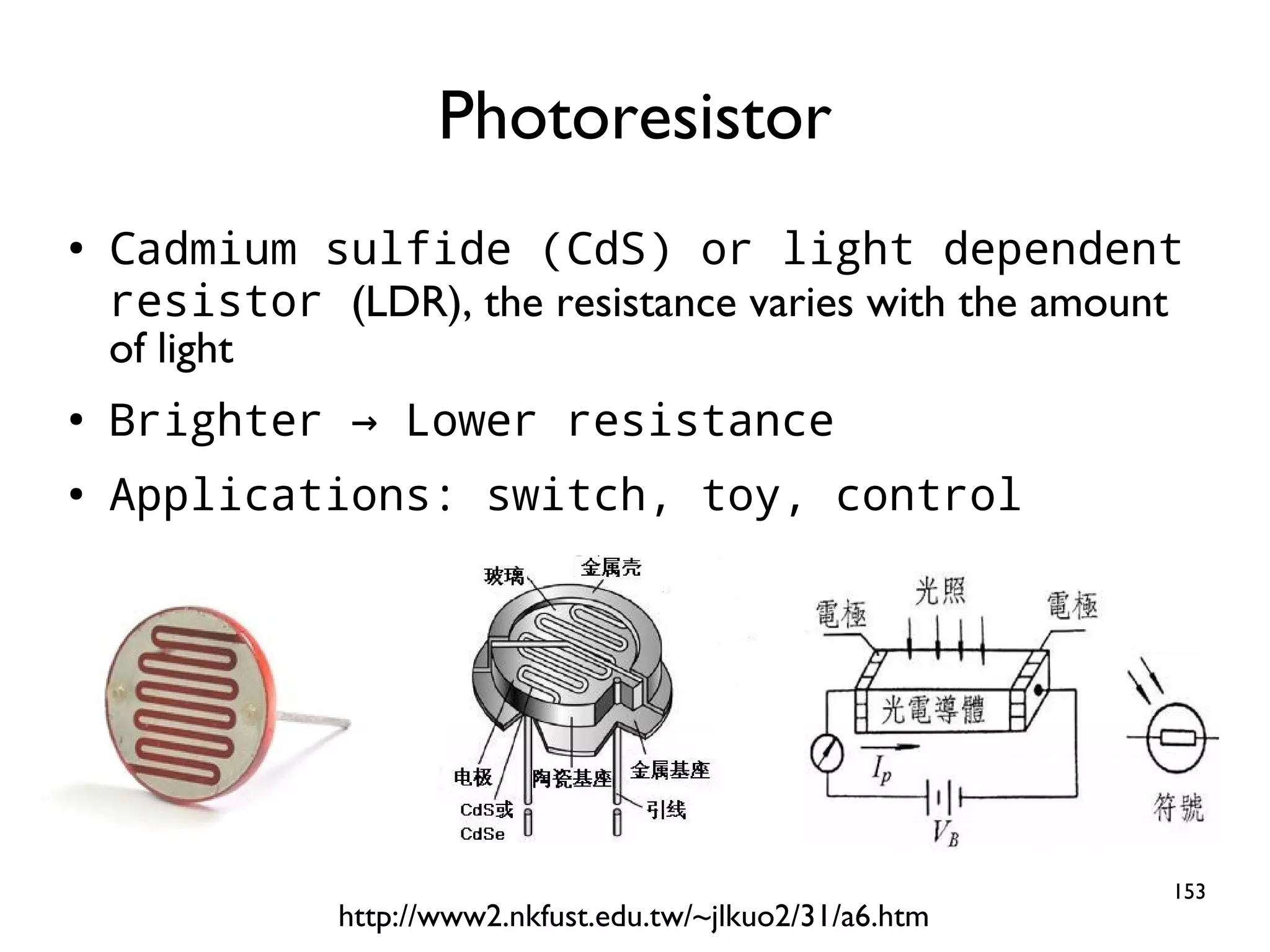
153 ● Cadmium sulfide (CdS) or light dependent resistor (LDR), the resistance varies with the amount of light ● Brighter Lower resistance→ ● Applications: switch, toy, control Photoresistor http://www2.nkfust.edu.tw/~jlkuo2/31/a6.htm
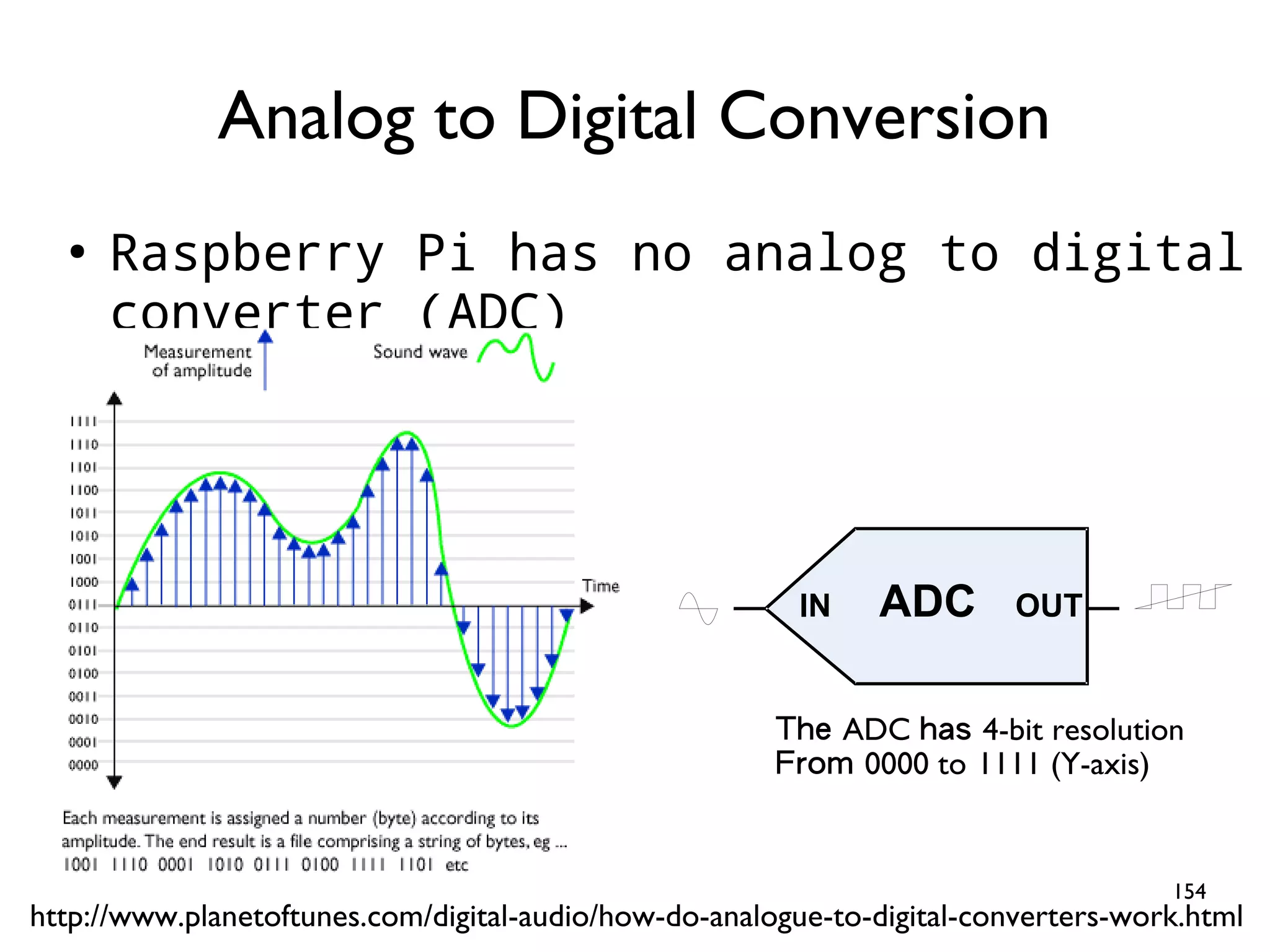
154 ● Raspberry Pi has no analog to digital converter (ADC) Analog to Digital Conversion http://www.planetoftunes.com/digital-audio/how-do-analogue-to-digital-converters-work.html IN ADC OUT The ADC has 4-bit resolution From 0000 to 1111 (Y-axis)
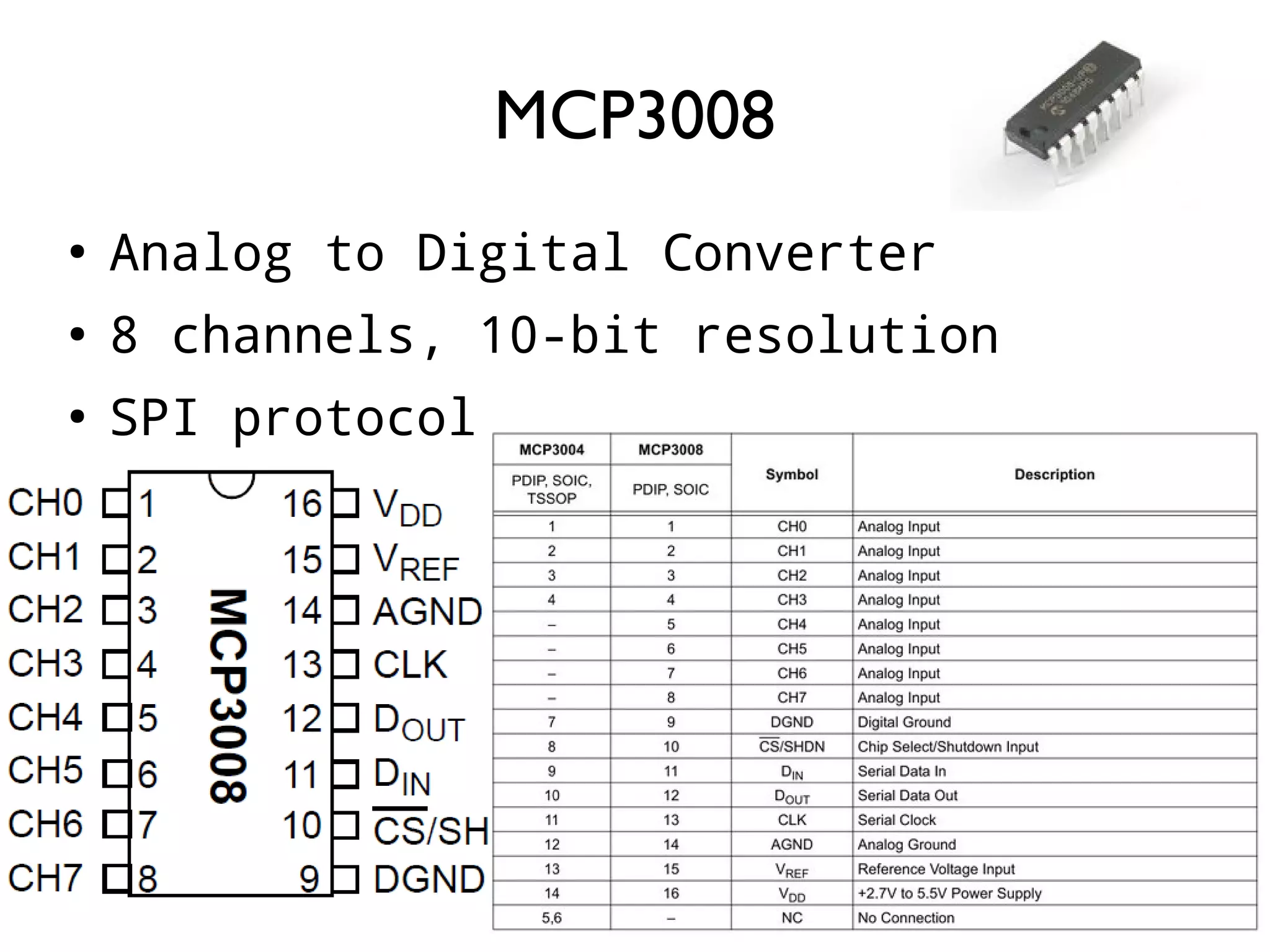
155 ● Analog to Digital Converter ● 8 channels, 10-bit resolution ● SPI protocol MCP3008
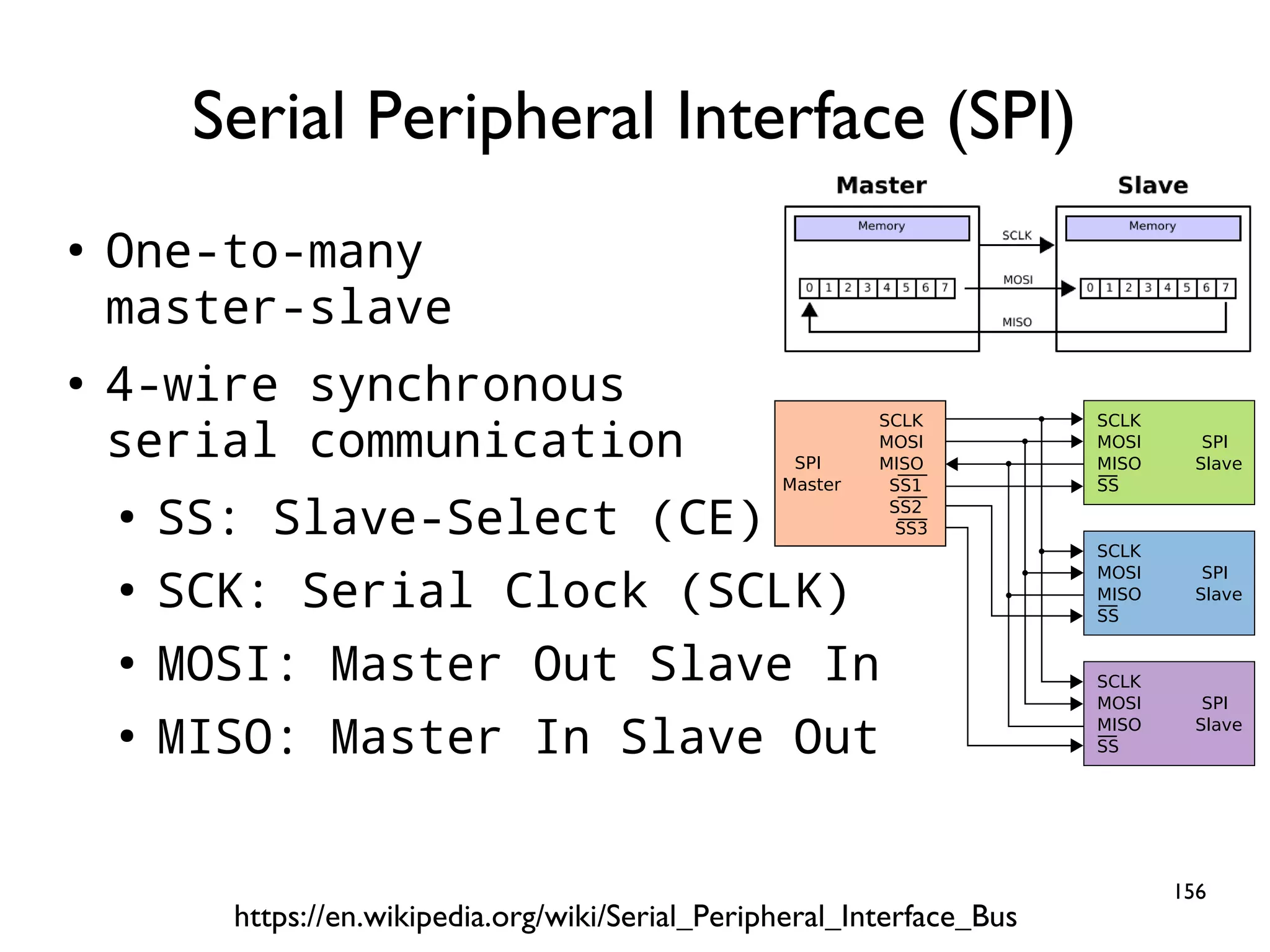
156 ● One-to-many master-slave ● 4-wire synchronous serial communication ● SS: Slave-Select (CE) ● SCK: Serial Clock (SCLK) ● MOSI: Master Out Slave In ● MISO: Master In Slave Out Serial Peripheral Interface (SPI) https://en.wikipedia.org/wiki/Serial_Peripheral_Interface_Bus SPI Master SCLK MOSI MISO SS1 SS2 SS3 SPI Slave SCLK MOSI MISO SS SPI Slave SCLK MOSI MISO SS SPI Slave SCLK MOSI MISO SS
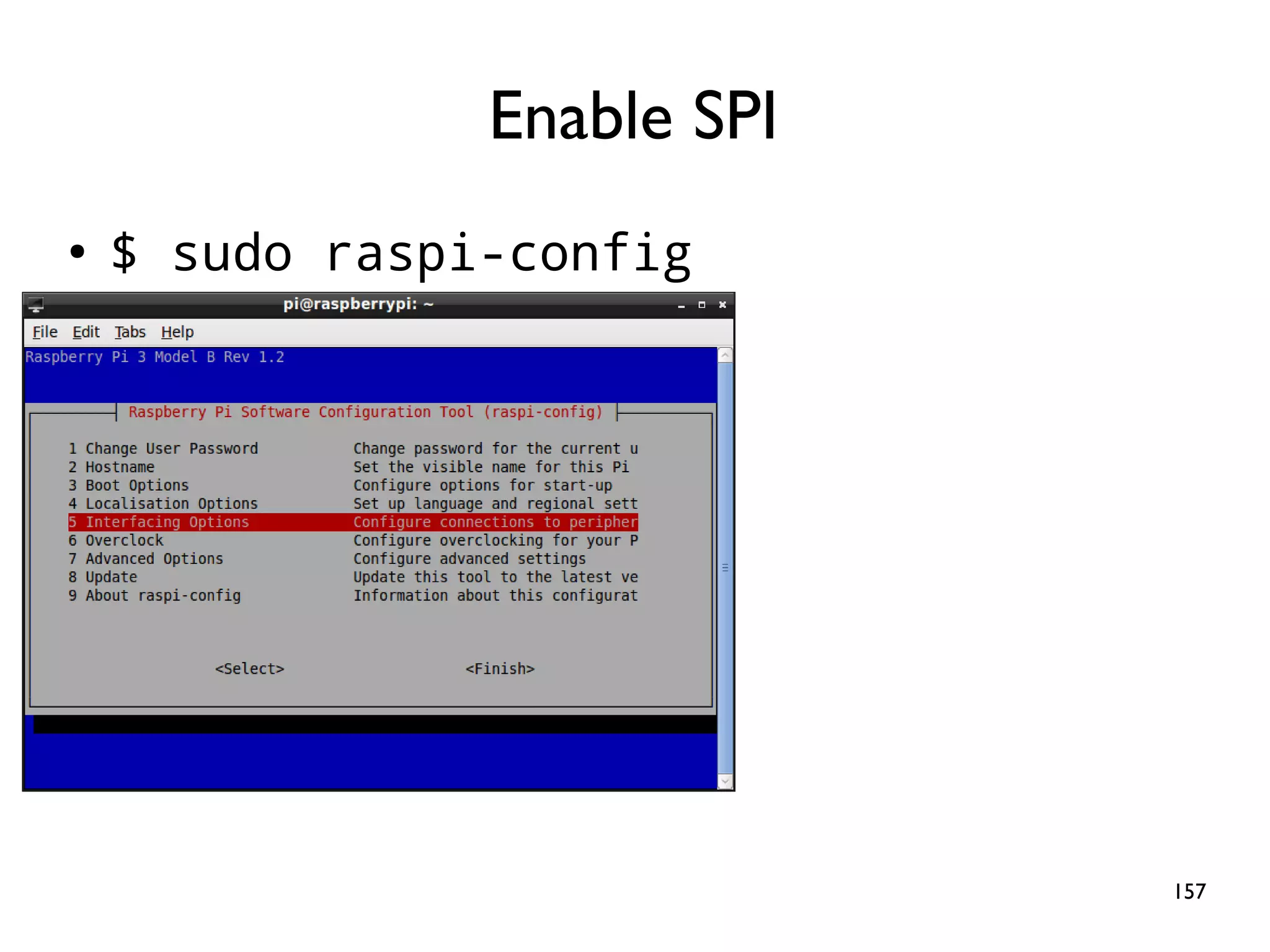
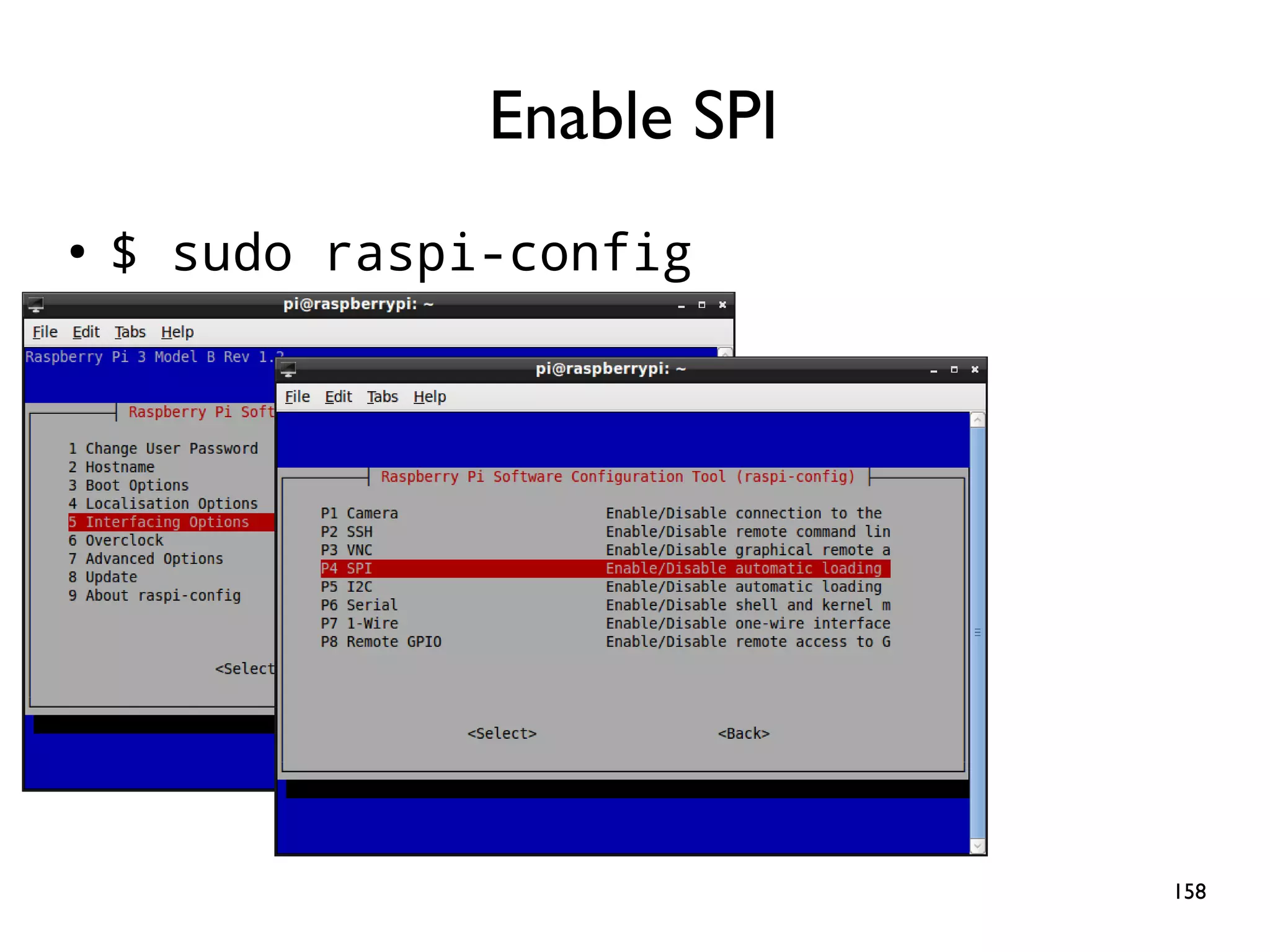
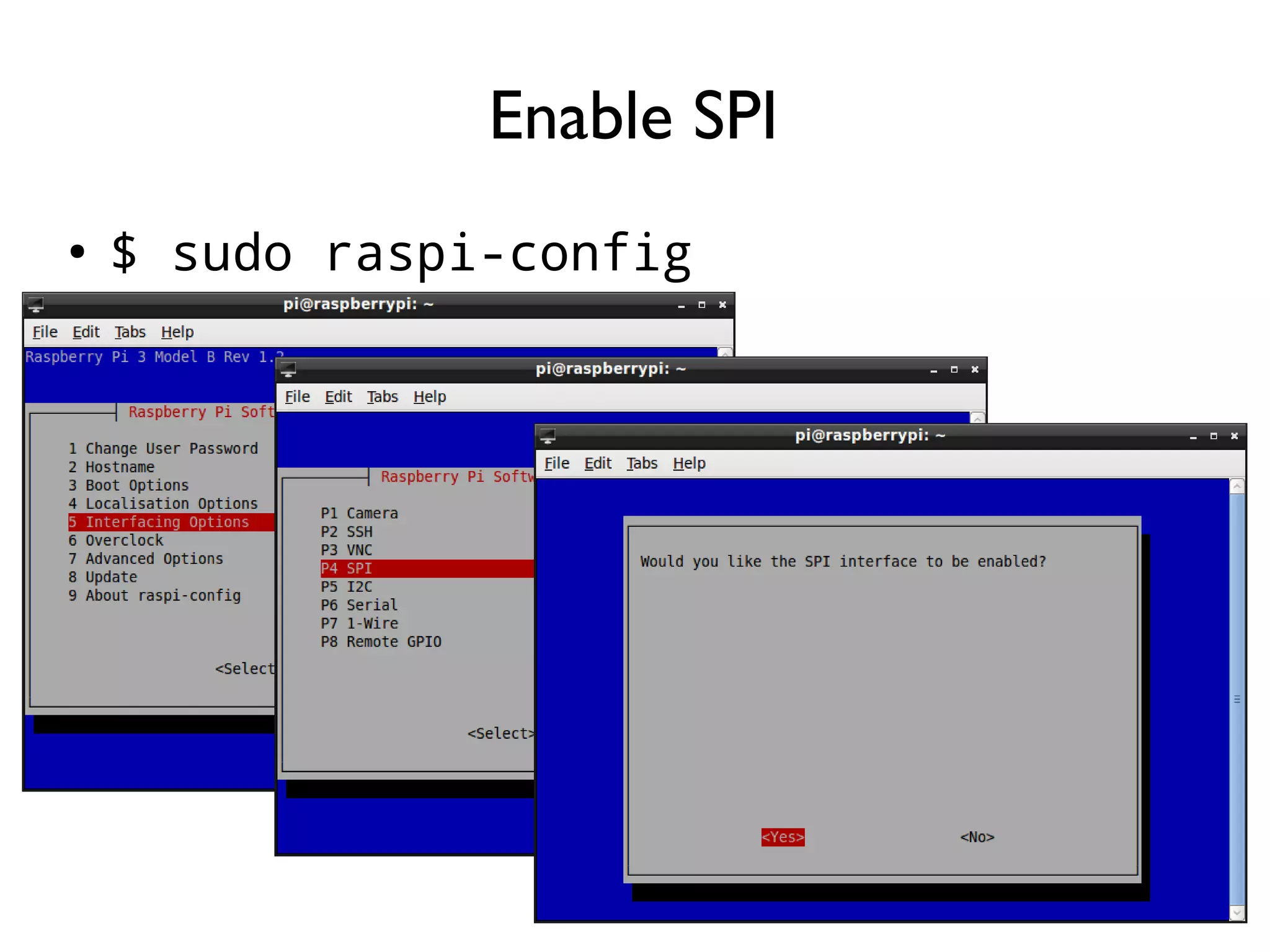
157 ● $ sudo raspi-config Enable SPI
158 ● $ sudo raspi-config Enable SPI
159 ● $ sudo raspi-config Enable SPI
160 ● Ensure the SPI module is loaded ● $ ls /dev/spi* ● Required packages (if not installed) ● $ sudo apt-get update ● $ sudo apt-get install -y python-dev ● $ sudo pip install spidev Before Continuing
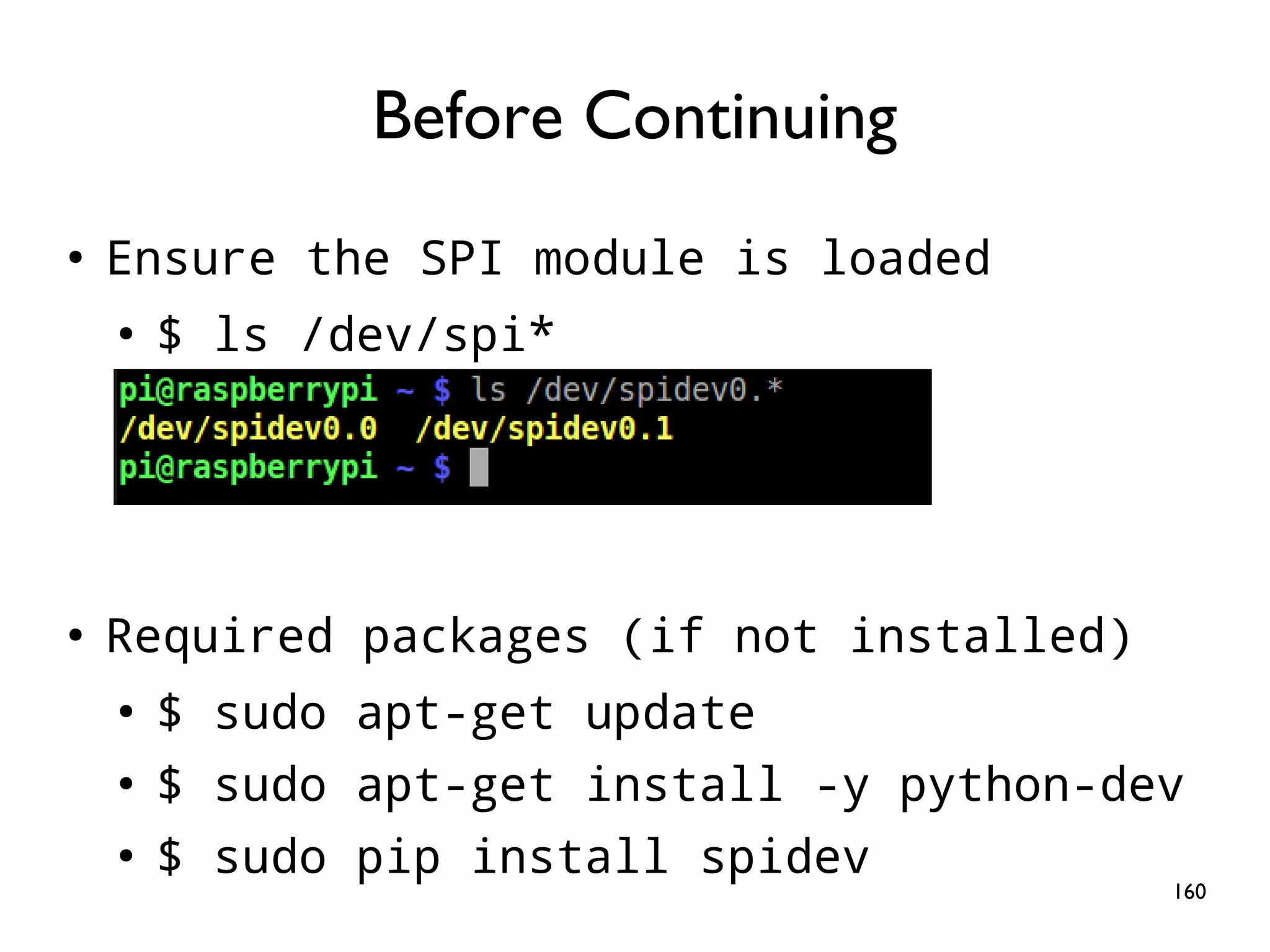
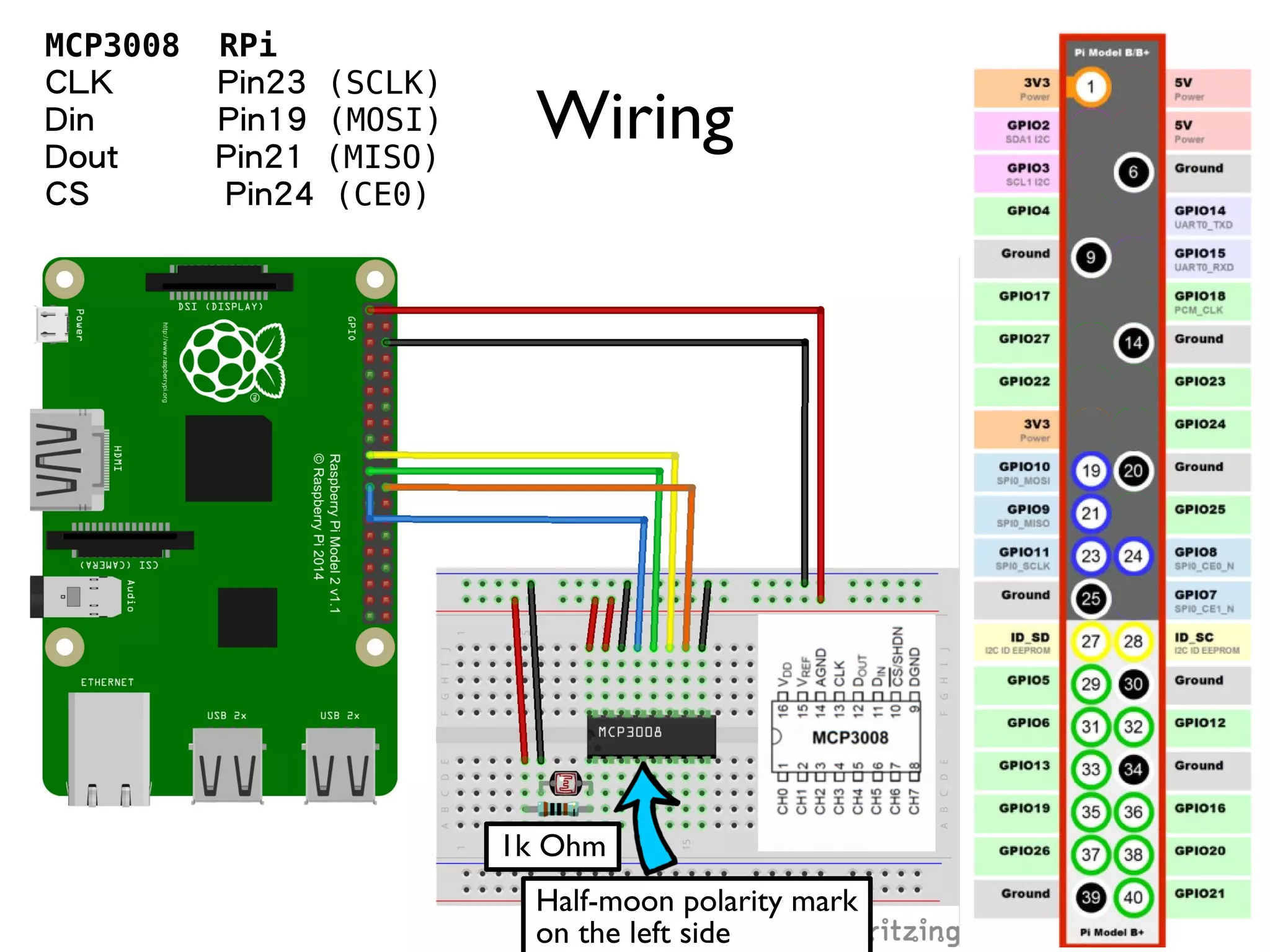
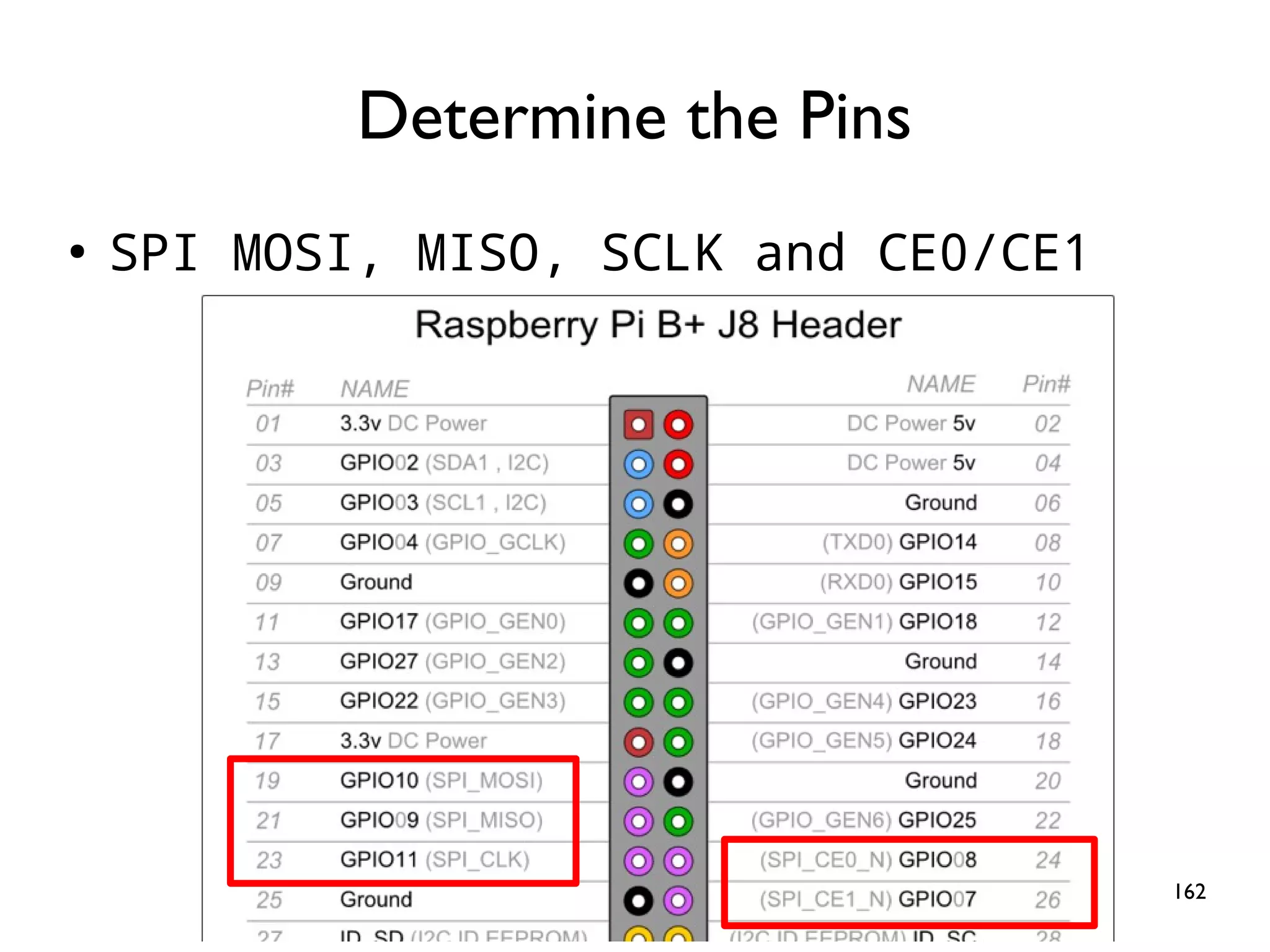
161 Wiring MCP3008 RPi CLK Pin23 (SCLK) Din Pin19 (MOSI) Dout Pin21 (MISO) CS Pin24 (CE0) Half-moon polarity mark on the left side 1k Ohm
162 ● SPI MOSI, MISO, SCLK and CE0/CE1 Determine the Pins
163 spi = spidev.SpiDev() spi.open(0,0) # (0,0) indicates CE0 and /dev/spidev0.0 spi.max_speed_hz = 1800000 # 10kHz to 3.6 MHz ● ● def ReadChannel(channel): adc = spi.xfer2([1,(8+channel)<<4,0]) data = ((adc[1]&3) << 8) + adc[2] return data def ConvertVolts(data,places): volts = (data * 3.3) / float(1023) volts = round(volts,places) return volts light_channel = 0 delay = 1 while True: light_level = ReadChannel(light_channel) light_volts = ConvertVolts(light_level, 2) print("Light:{} ({}V)".format(light_level,light_volts)) time.sleep(delay)
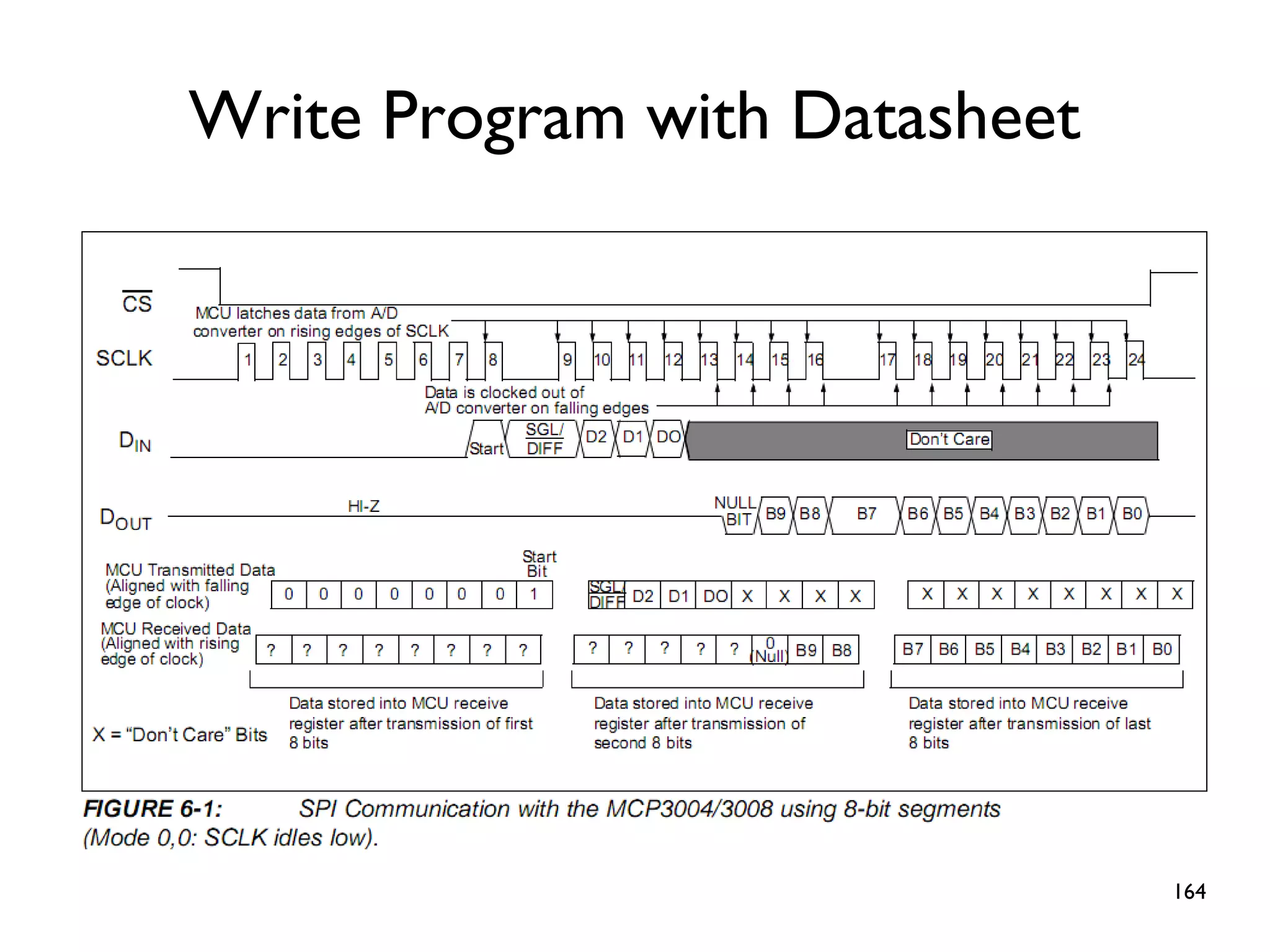
164 Write Program with Datasheet
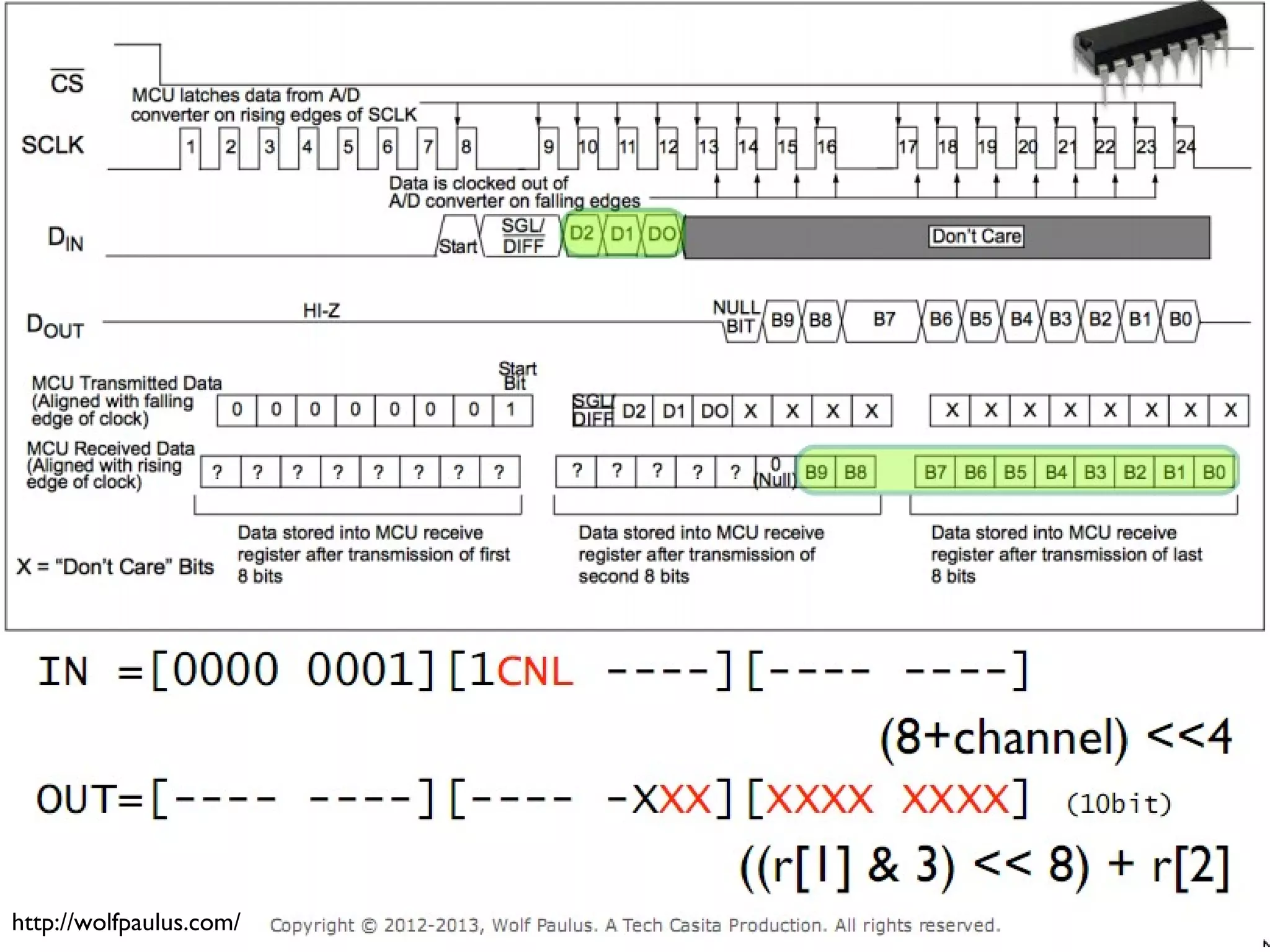
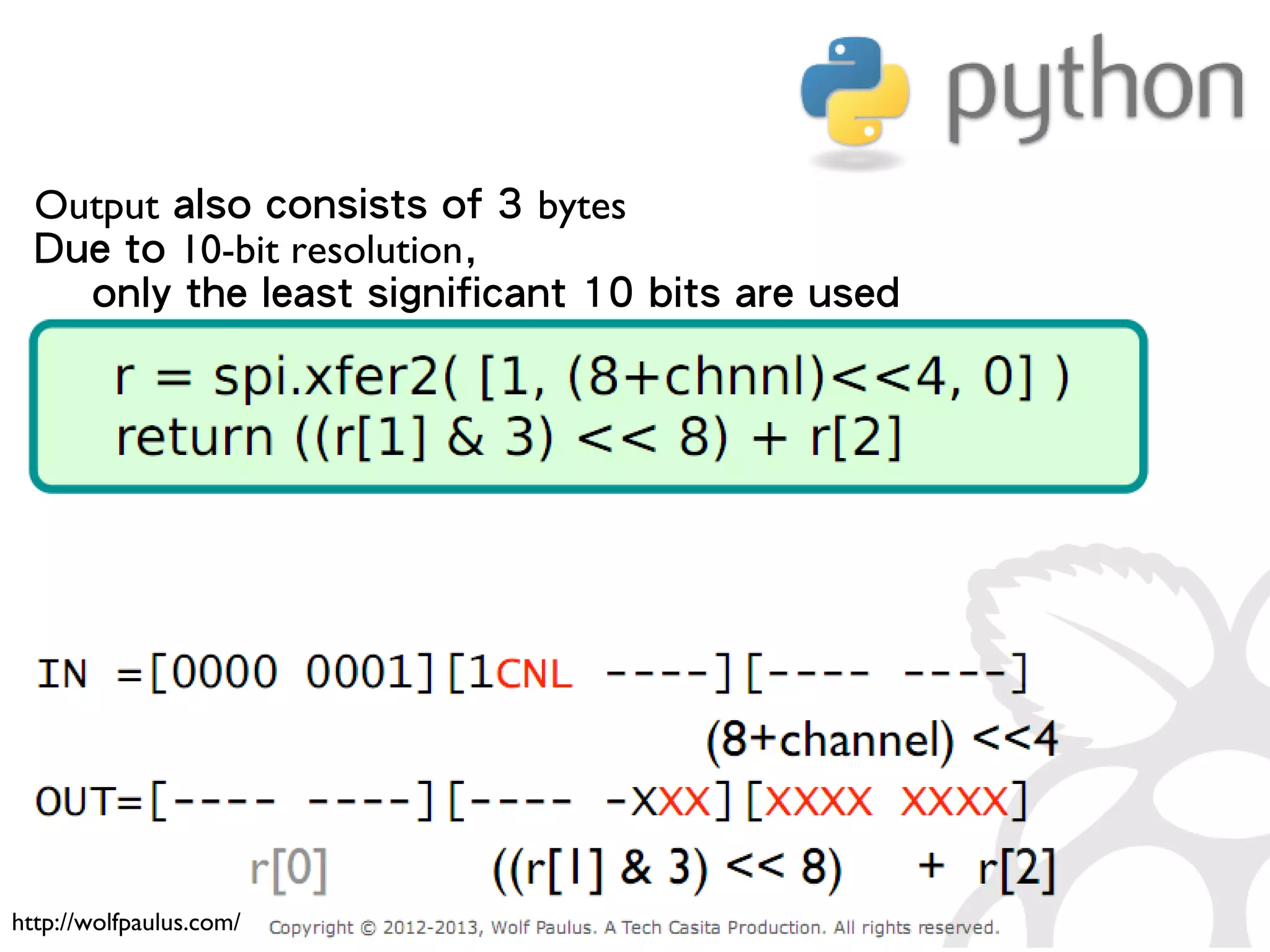
165 ● Input consists of 3 bytes ● # byte 1: the start bit (always 0x01) ● # byte 2: configure bits ● # byte 3: don't care ● spi.xfer2([1,(8+channel)<<4,0]) ● Ch0 = 1000 0000 ● Ch1 = 1001 0000 Understand spi.xfer2() 0x01 don't careCh0/Ch1
166 http://wolfpaulus.com/
167 http://wolfpaulus.com/ Output also consists of 3 bytes Due to 10-bit resolution, only the least significant 10 bits are used
168 DEMO photoresistor.py $ cd ~/gpio-game-console $ cd 10-photoresistor $ python3 photoresistor.py
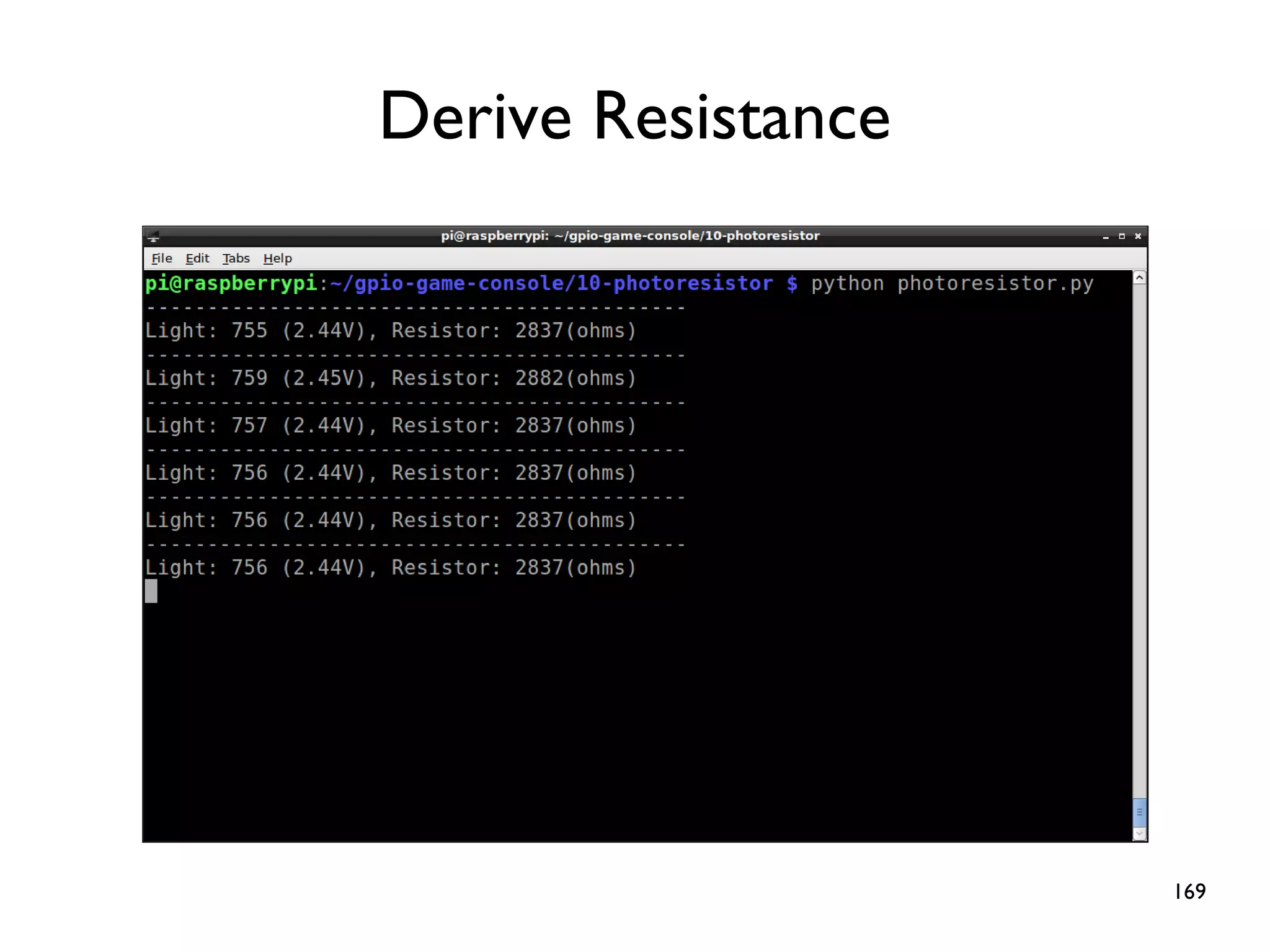
169 Derive Resistance
170 Practice 13: Emulator Goal: Integration
171 Game Console = Hardware + Game http://www.emulatorworld.com/
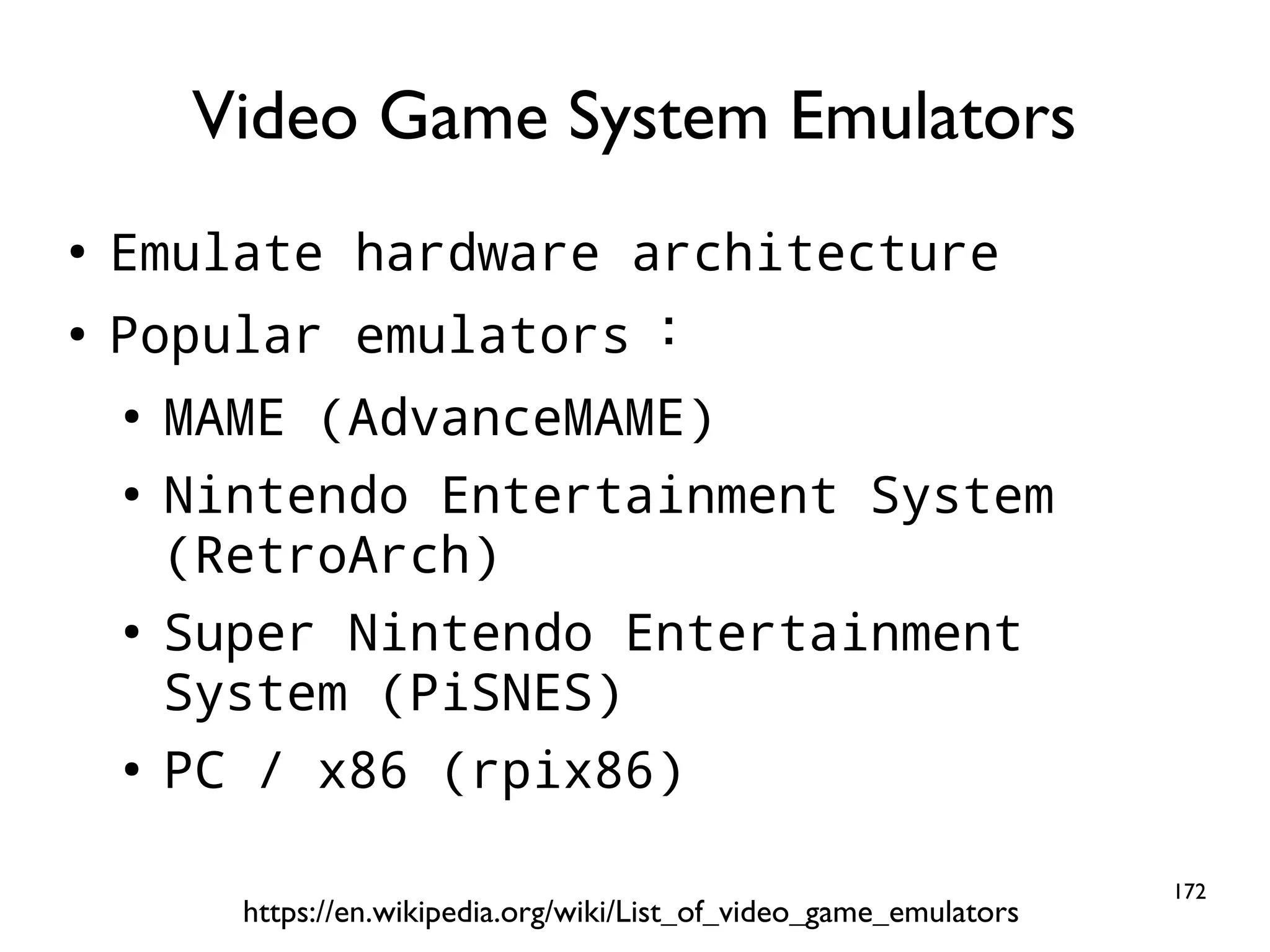
172 ● Emulate hardware architecture ● Popular emulators : ● MAME (AdvanceMAME) ● Nintendo Entertainment System (RetroArch) ● Super Nintendo Entertainment System (PiSNES) ● PC / x86 (rpix86) Video Game System Emulators https://en.wikipedia.org/wiki/List_of_video_game_emulators
173 ● Emulate Arcade Machines MAME(Multiple Arcade Machine Emulator) http://www.williamsamusements.co.uk/mame.html
174 ● RFB protocol + screen sharing and remote control ● O.S. independent, cross-platform ● Client/Server architecture Virtual Network Computing
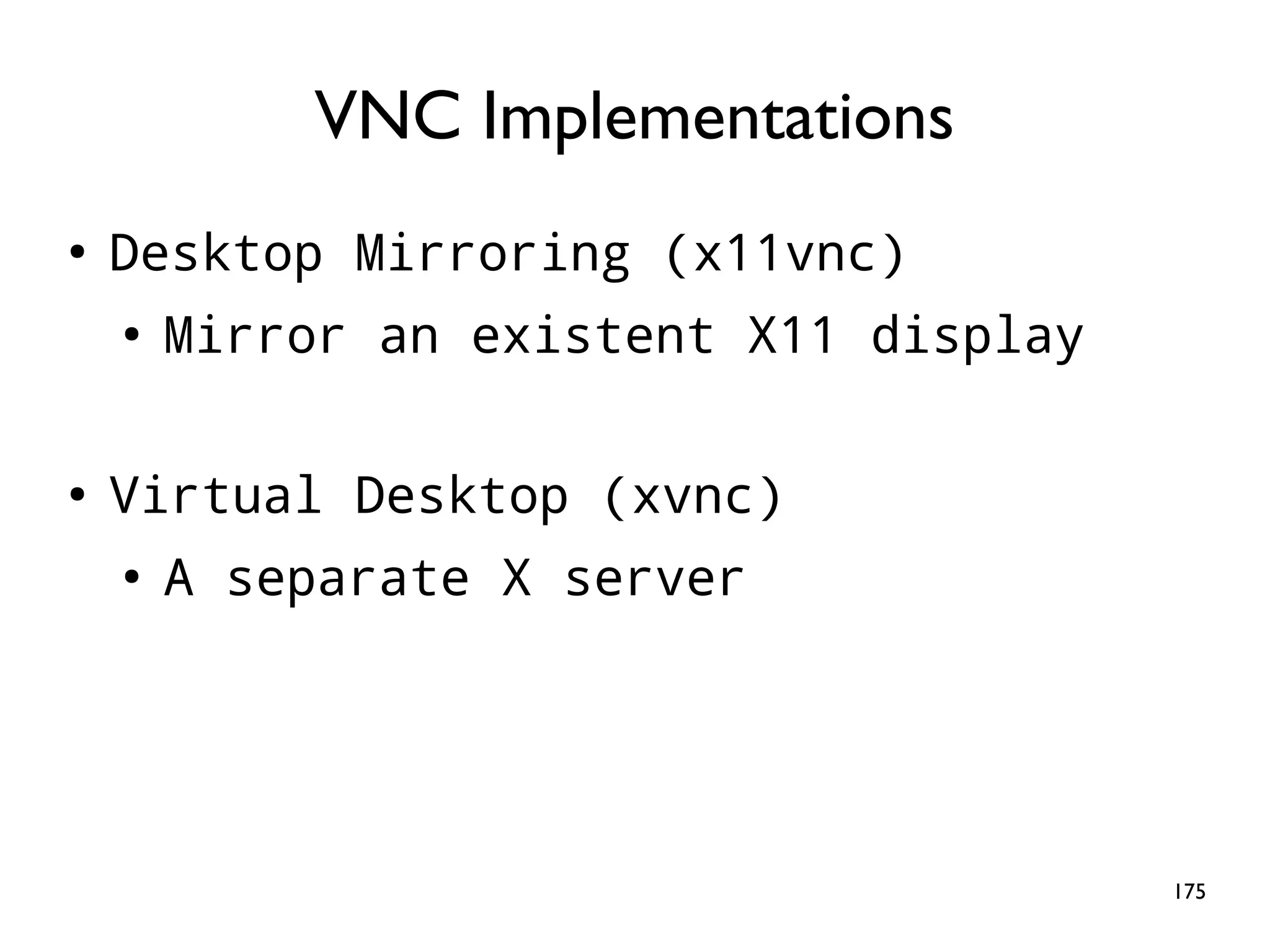
175 ● Desktop Mirroring (x11vnc) ● Mirror an existent X11 display ● Virtual Desktop (xvnc) ● A separate X server VNC Implementations
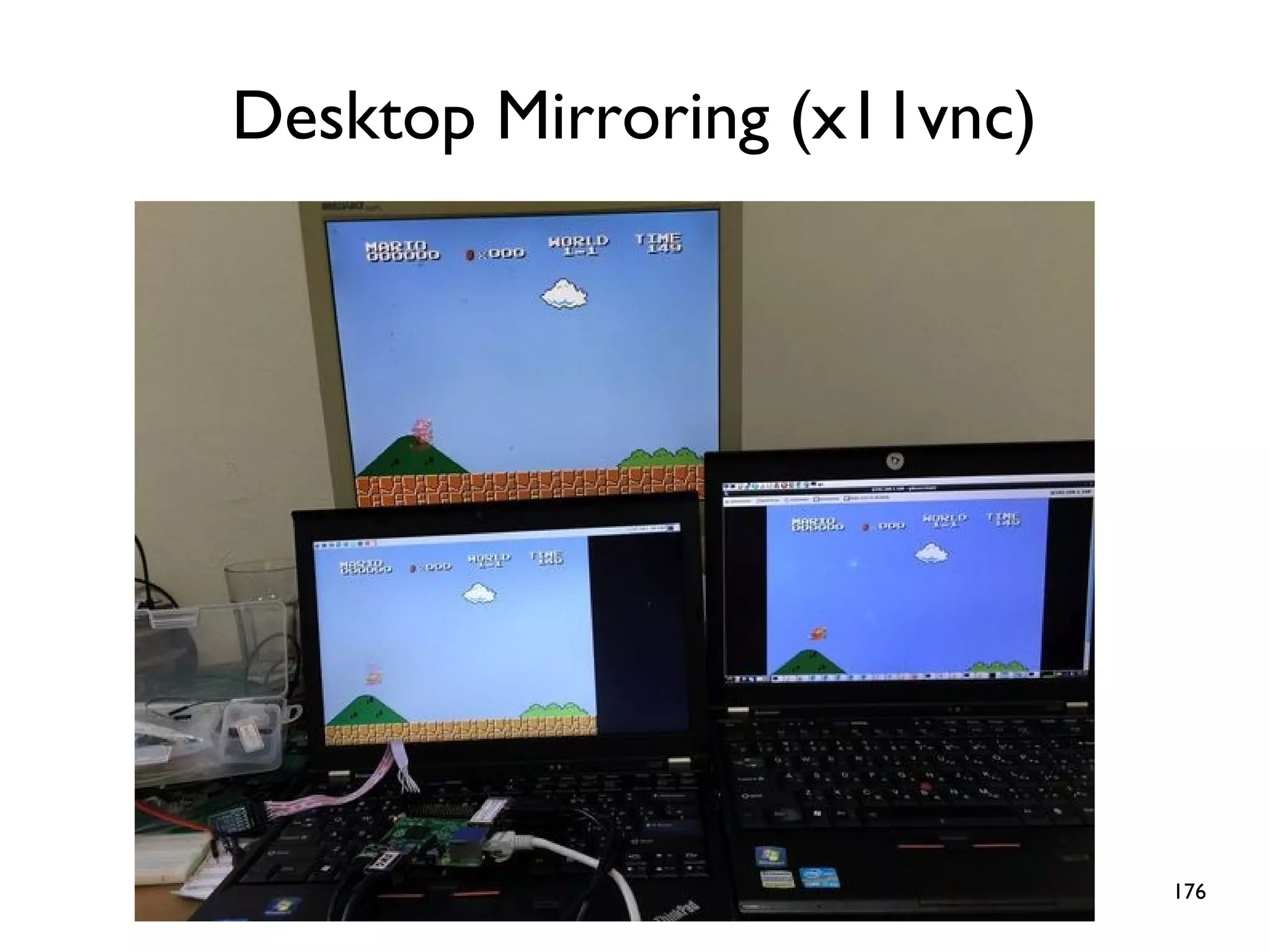
176 Desktop Mirroring (x11vnc)
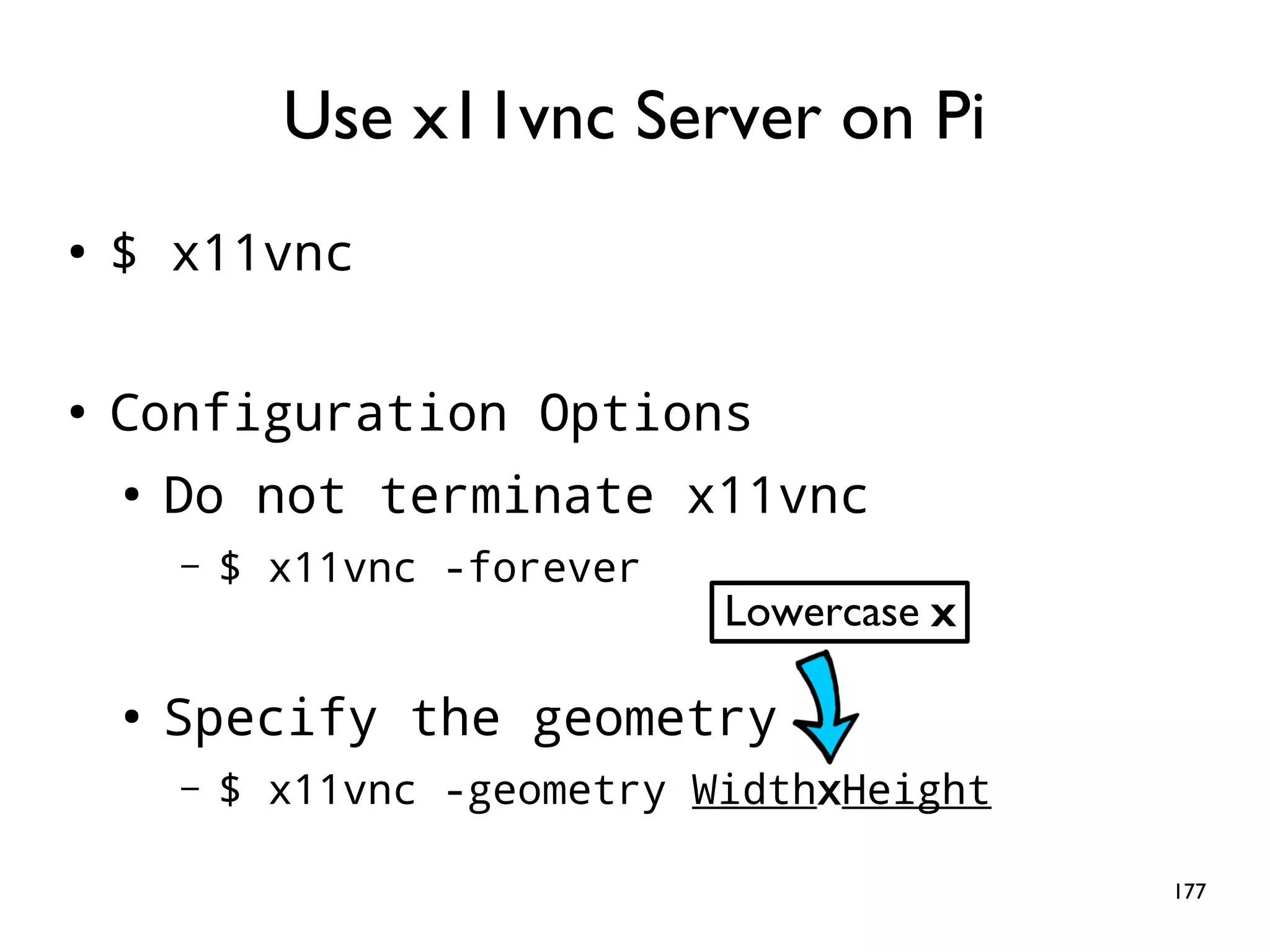
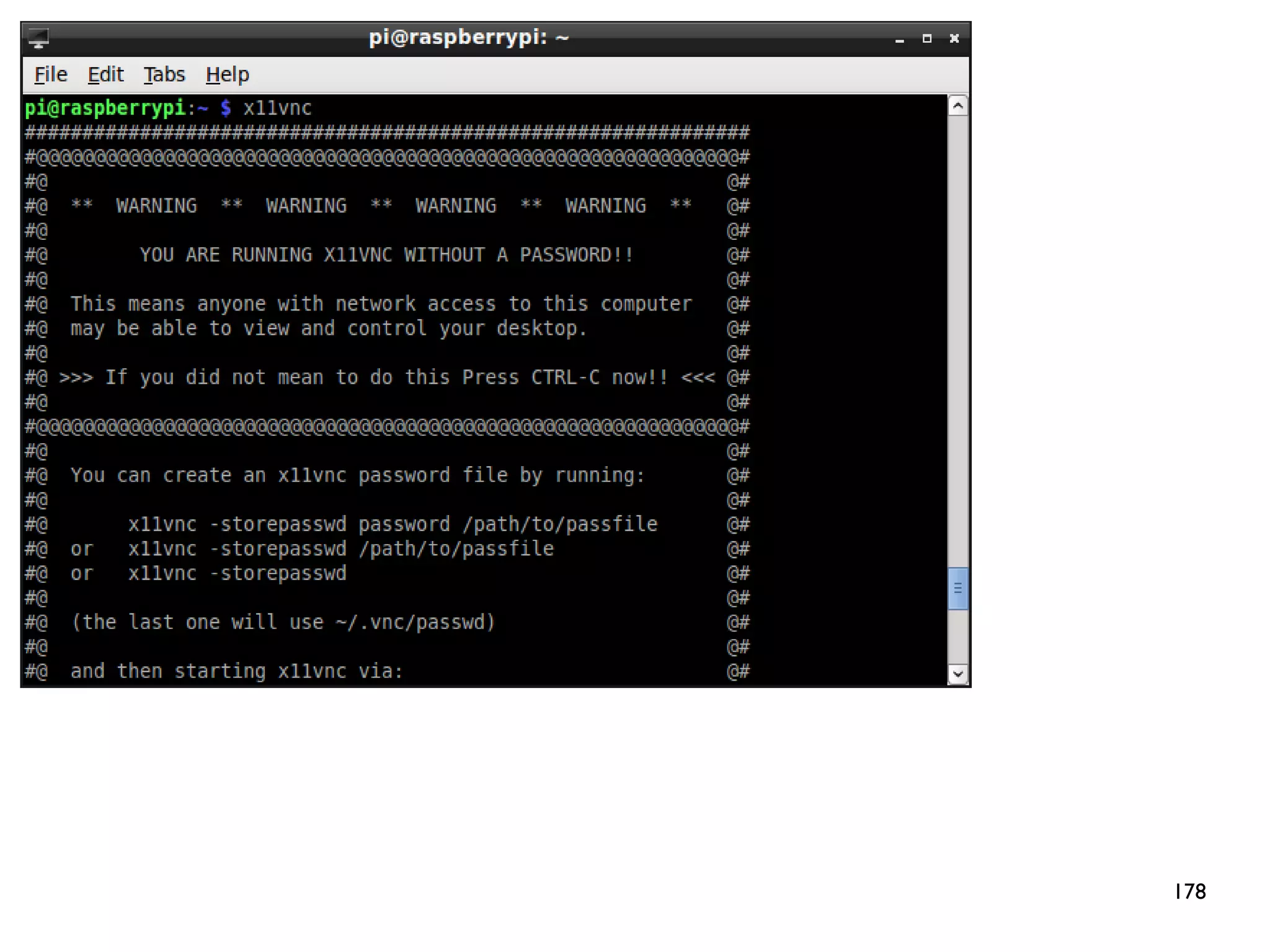
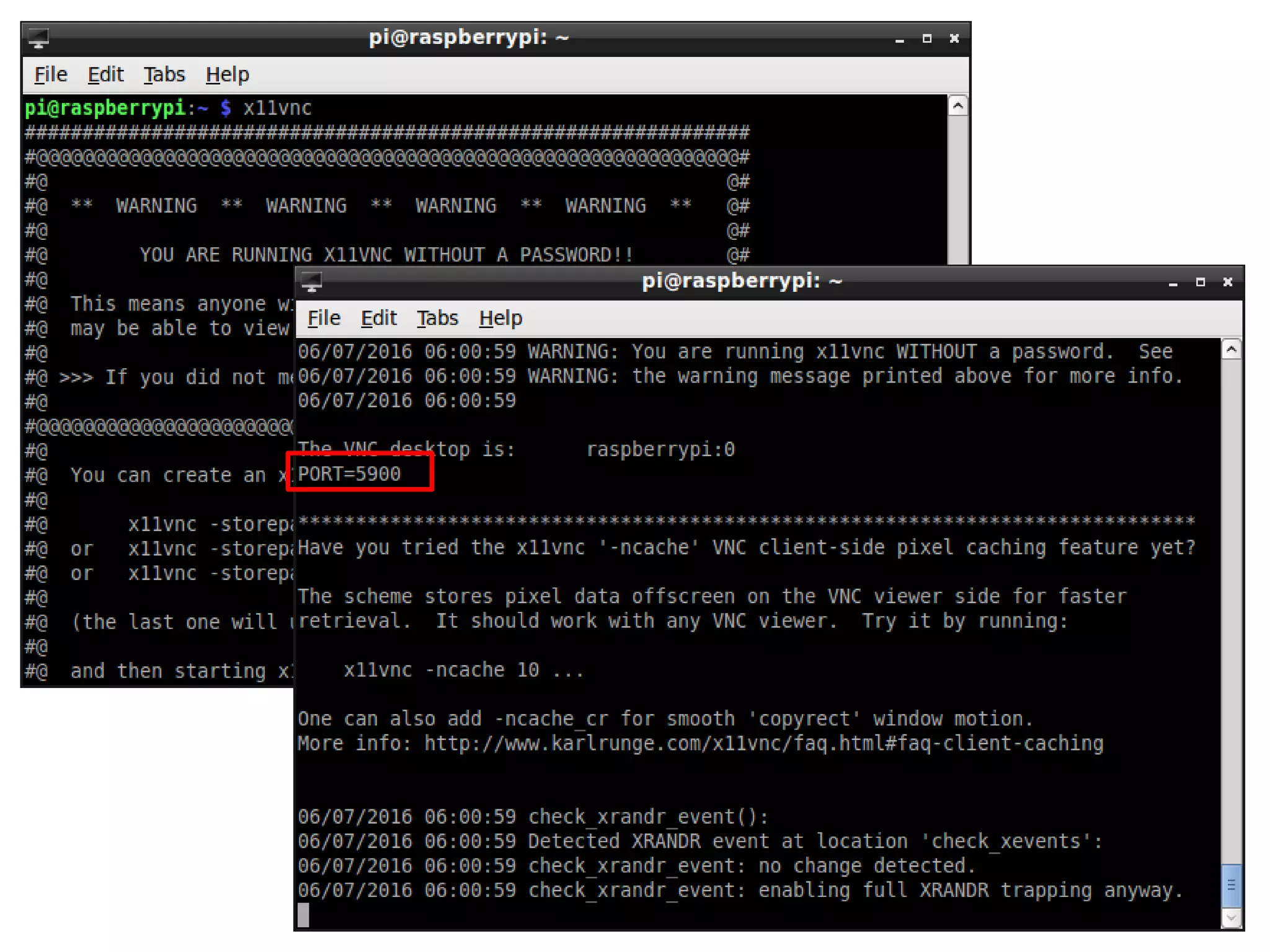
177 ● $ x11vnc ● Configuration Options ● Do not terminate x11vnc – $ x11vnc -forever ● Specify the geometry – $ x11vnc -geometry WidthxHeight Use x11vnc Server on Pi Lowercase x
178
179
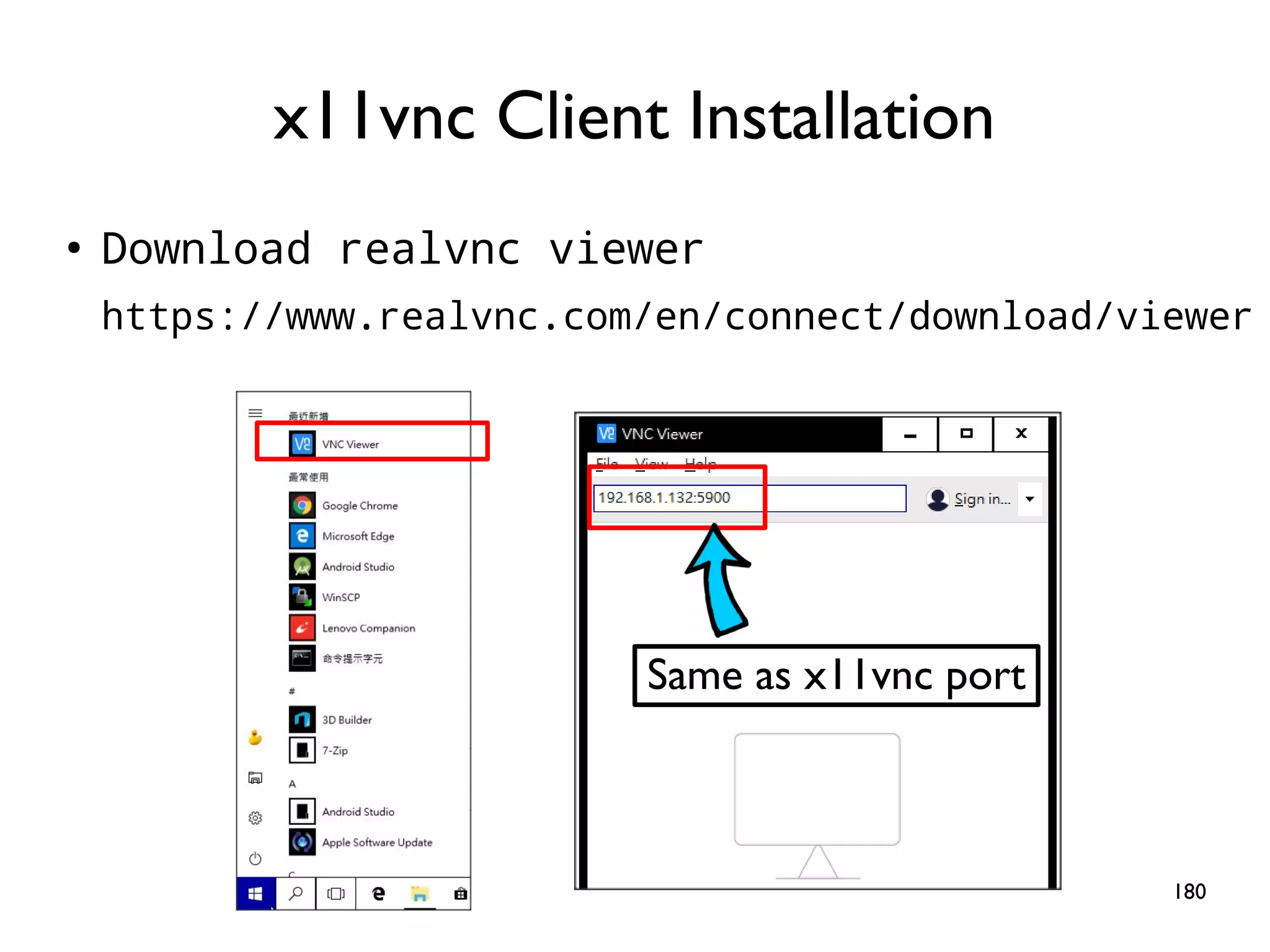
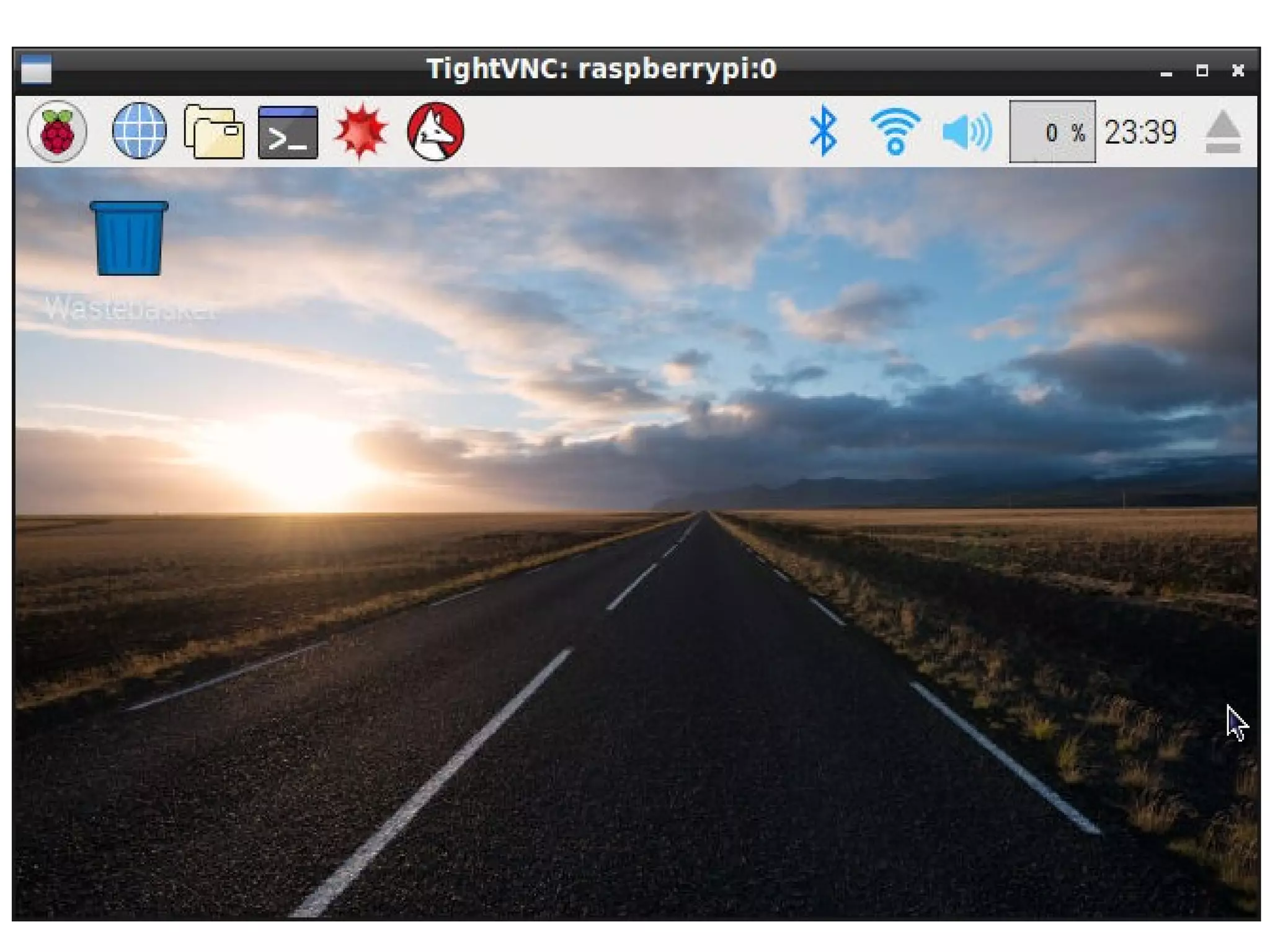
180 ● Download realvnc viewer https://www.realvnc.com/en/connect/download/viewer x11vnc Client Installation Same as x11vnc port
181
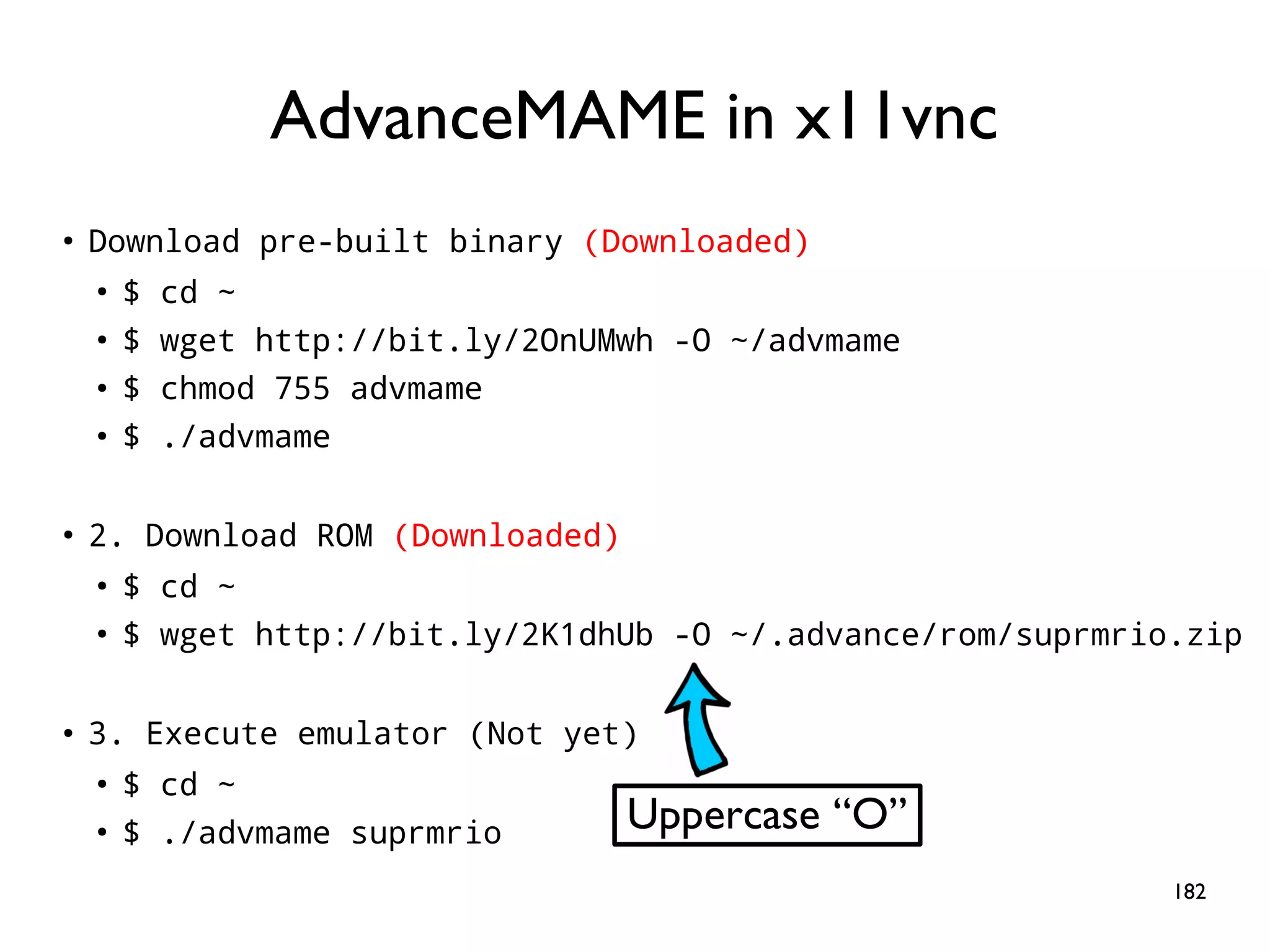
182 ● Download pre-built binary (Downloaded) ● $ cd ~ ● $ wget http://bit.ly/2OnUMwh -O ~/advmame ● $ chmod 755 advmame ● $ ./advmame ● 2. Download ROM (Downloaded) ● $ cd ~ ● $ wget http://bit.ly/2K1dhUb -O ~/.advance/rom/suprmrio.zip ● 3. Execute emulator (Not yet) ● $ cd ~ ● $ ./advmame suprmrio AdvanceMAME in x11vnc Uppercase “O”
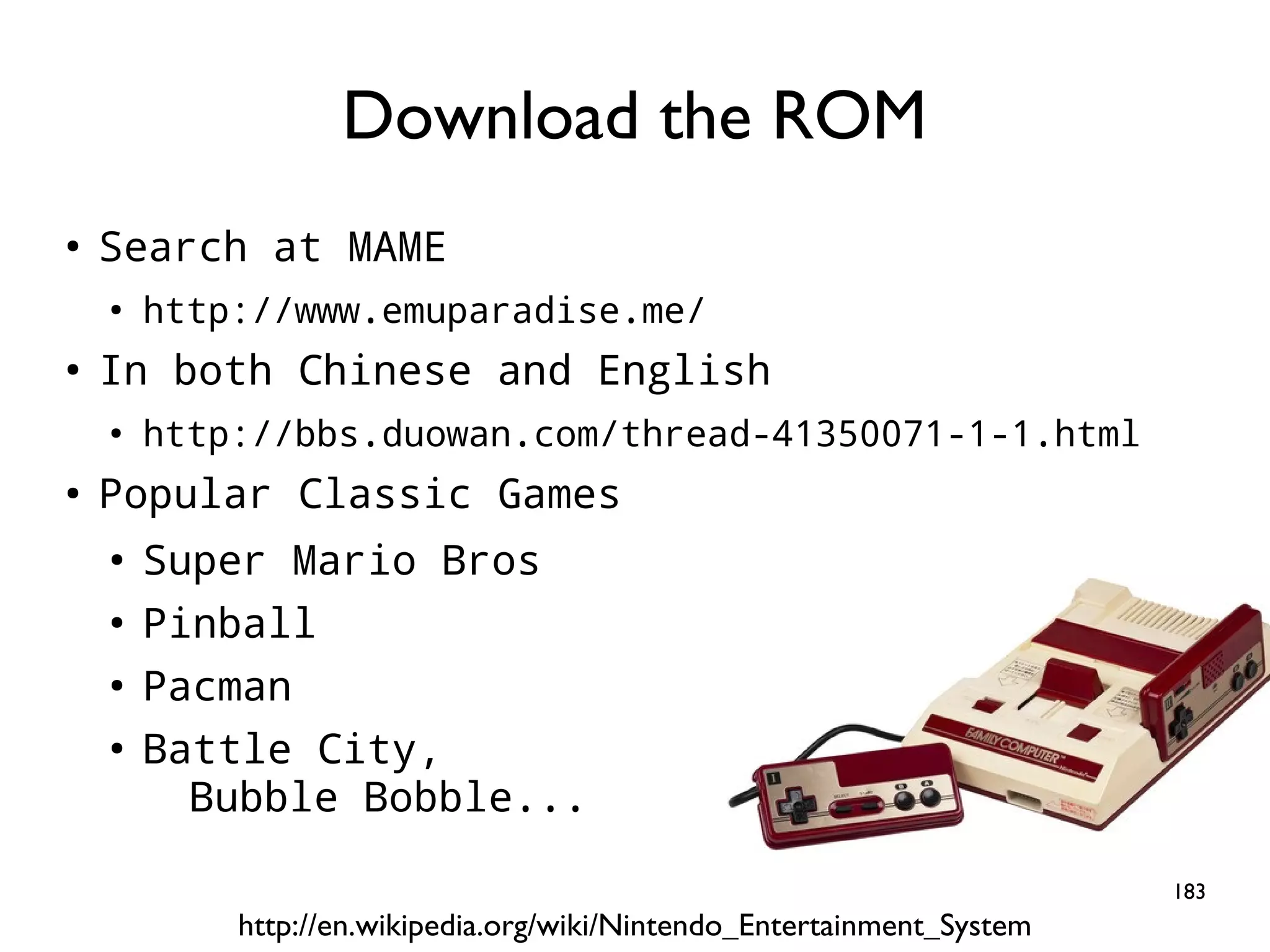
183 ● Search at MAME ● http://www.emuparadise.me/ ● In both Chinese and English ● http://bbs.duowan.com/thread-41350071-1-1.html ● Popular Classic Games ● Super Mario Bros ● Pinball ● Pacman ● Battle City, Bubble Bobble... Download the ROM http://en.wikipedia.org/wiki/Nintendo_Entertainment_System
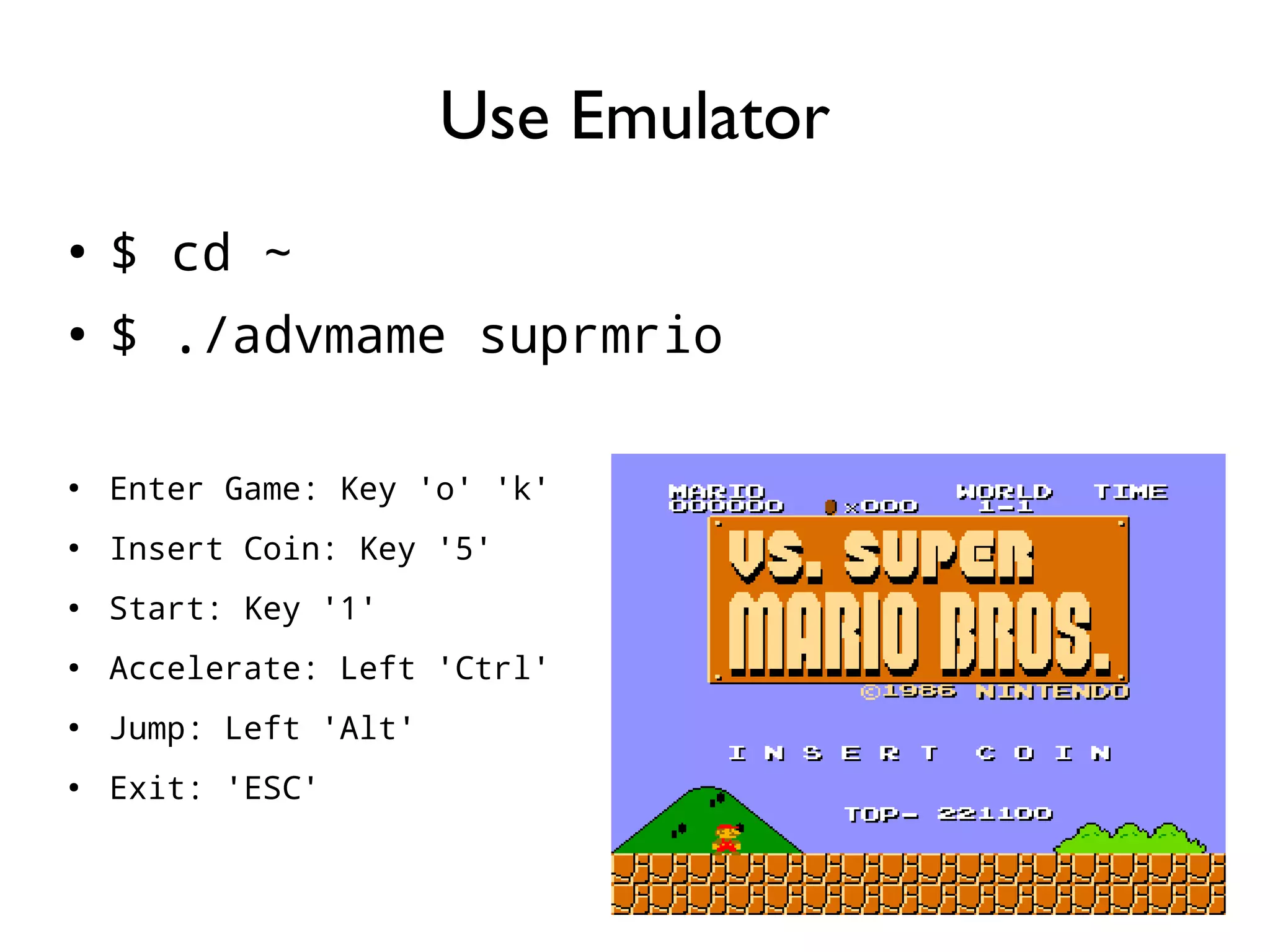
184 ● $ cd ~ ● $ ./advmame suprmrio ● Enter Game: Key 'o' 'k' ● Insert Coin: Key '5' ● Start: Key '1' ● Accelerate: Left 'Ctrl' ● Jump: Left 'Alt' ● Exit: 'ESC' Use Emulator
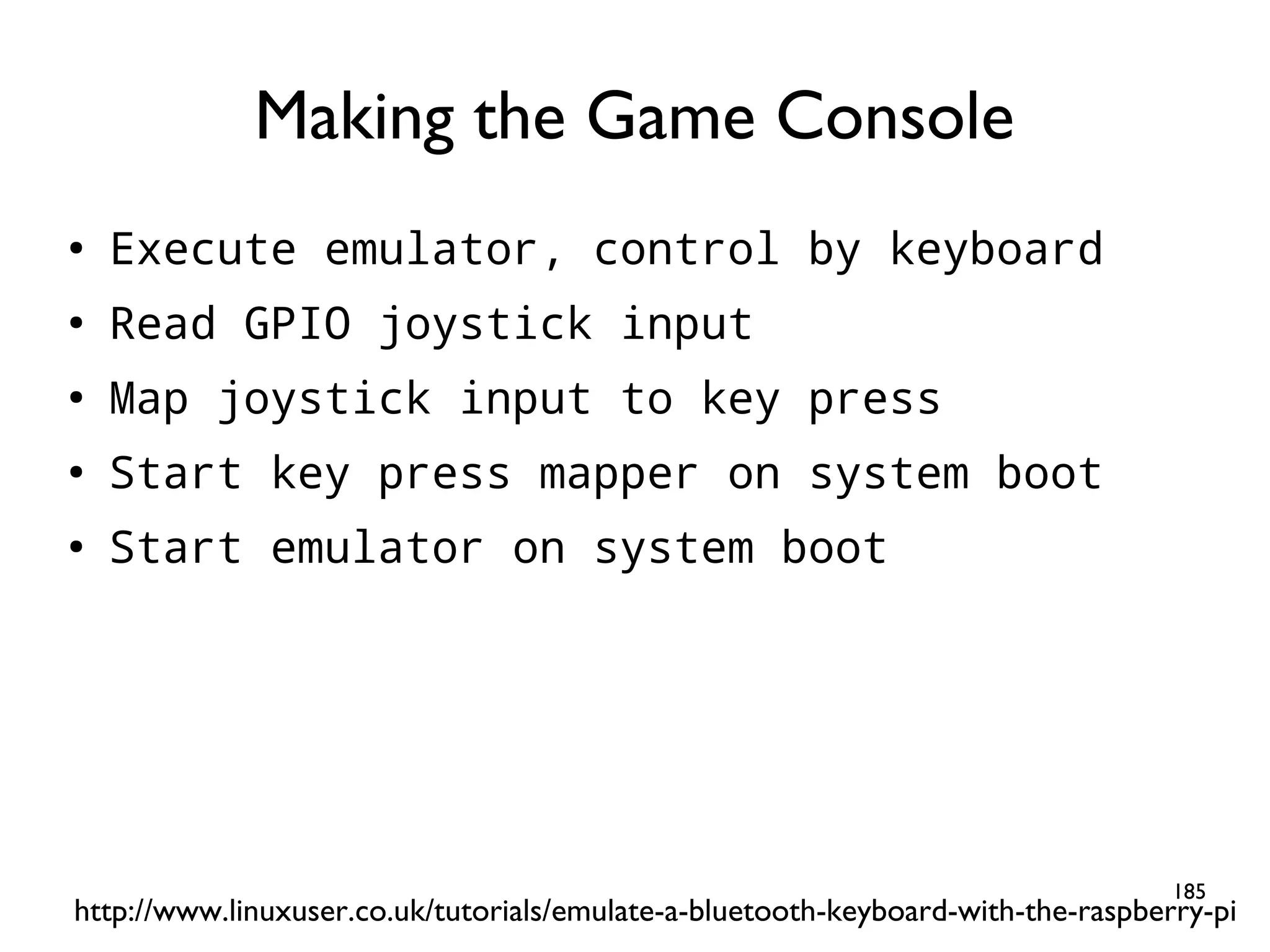
185 ● Execute emulator, control by keyboard ● Read GPIO joystick input ● Map joystick input to key press ● Start key press mapper on system boot ● Start emulator on system boot Making the Game Console http://www.linuxuser.co.uk/tutorials/emulate-a-bluetooth-keyboard-with-the-raspberry-pi
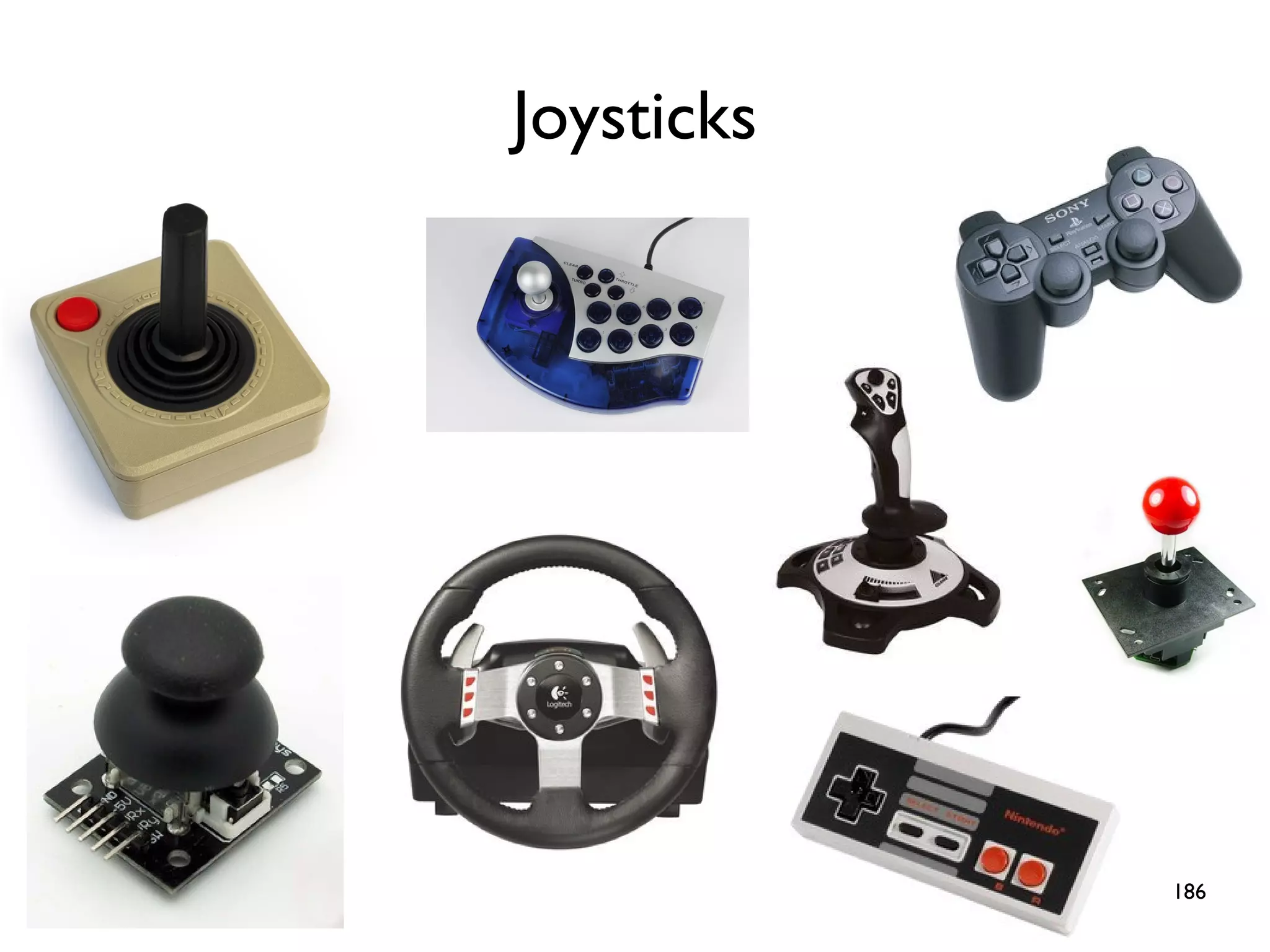
186 Joysticks
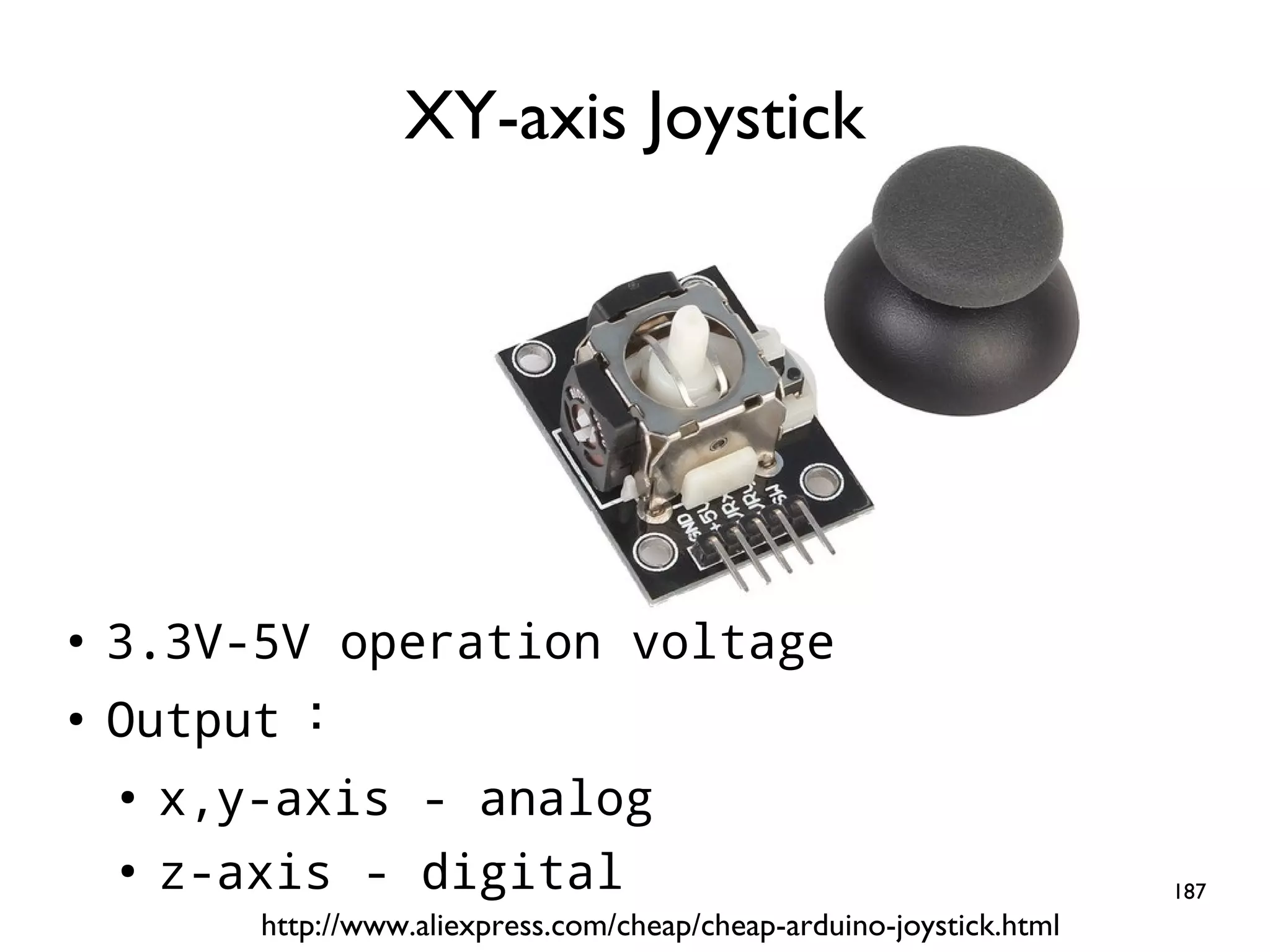
187 ● 3.3V-5V operation voltage ● Output : ● x,y-axis - analog ● z-axis - digital XY-axis Joystick http://www.aliexpress.com/cheap/cheap-arduino-joystick.html
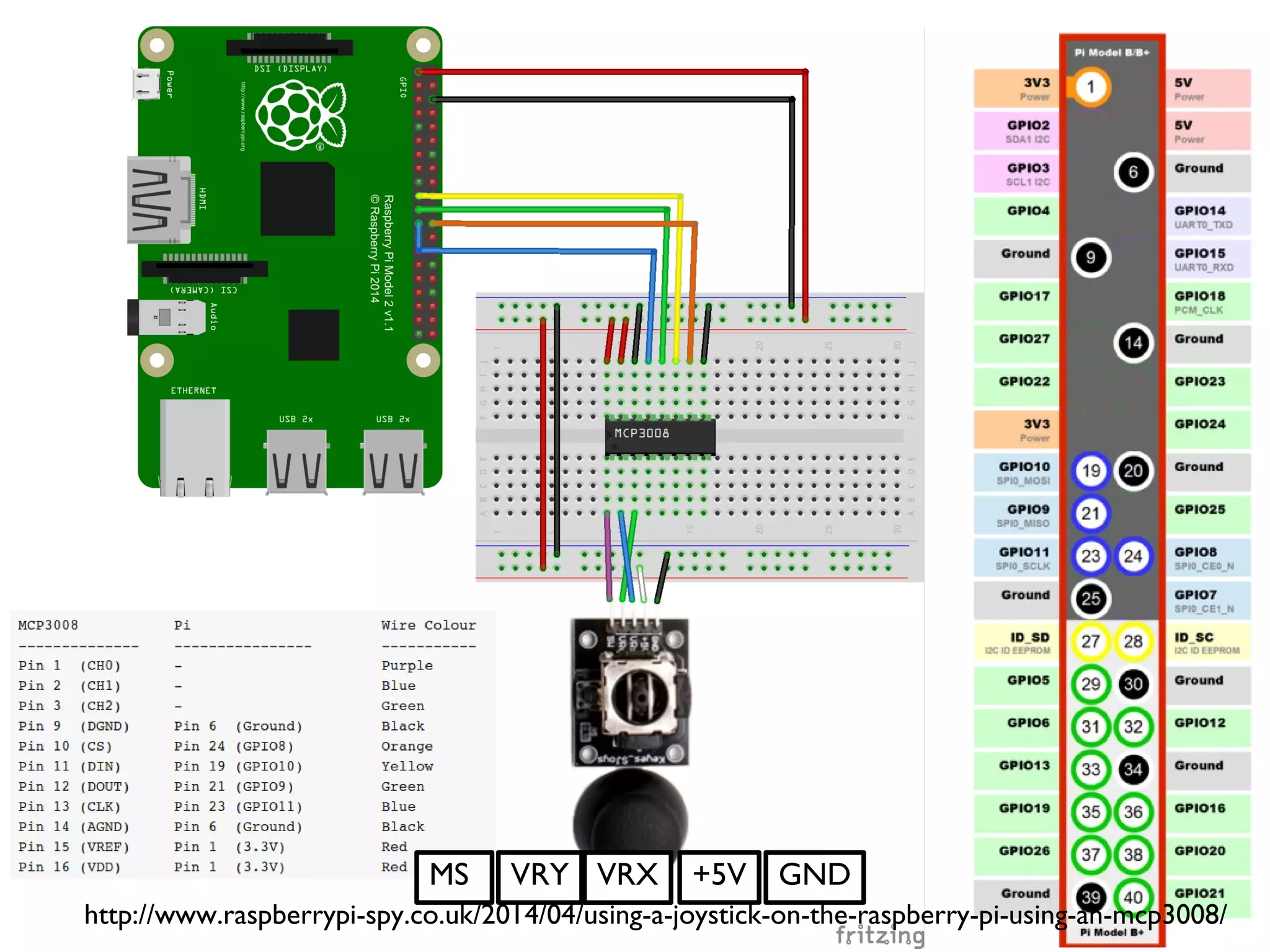
188 http://www.raspberrypi-spy.co.uk/2014/04/using-a-joystick-on-the-raspberry-pi-using-an-mcp3008/ +5VMS VRY VRX GND
189 spi = spidev.SpiDev() ● spi.open(0,0) ● spi.max_speed_hz = 1800000 ● ● def ReadChannel(channel): ● adc = spi.xfer2([1,(8+channel)<<4,0]) ● data = ((adc[1]&3) << 8) + adc[2] ● return data ● ● vrx_channel = 1 ● vry_channel = 2 ● ● while True: ● vrx_pos = ReadChannel(vrx_channel) ● vry_pos = ReadChannel(vry_channel) ● ● print("X : {} Y : {} ".format(vrx_pos,vry_pos)) ● ● time.sleep(0.5)
190 DEMO mcp3008_joystick $ cd ~/gpio-game-console $ cd 11_1-mcp3008_joystick $ python3 mcp3008_joystick.py
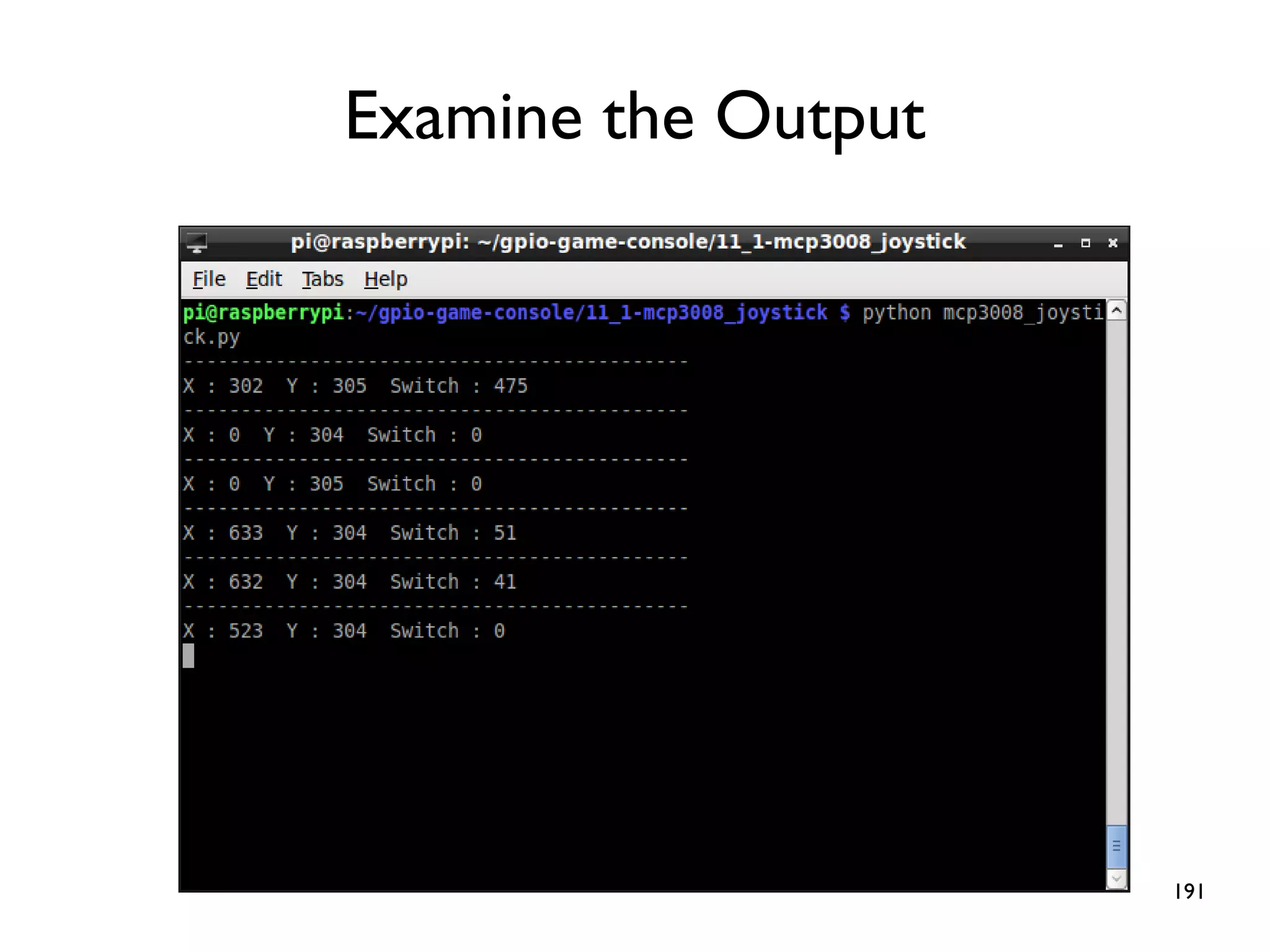
191 Examine the Output
192 How to map joystick input to key- press?
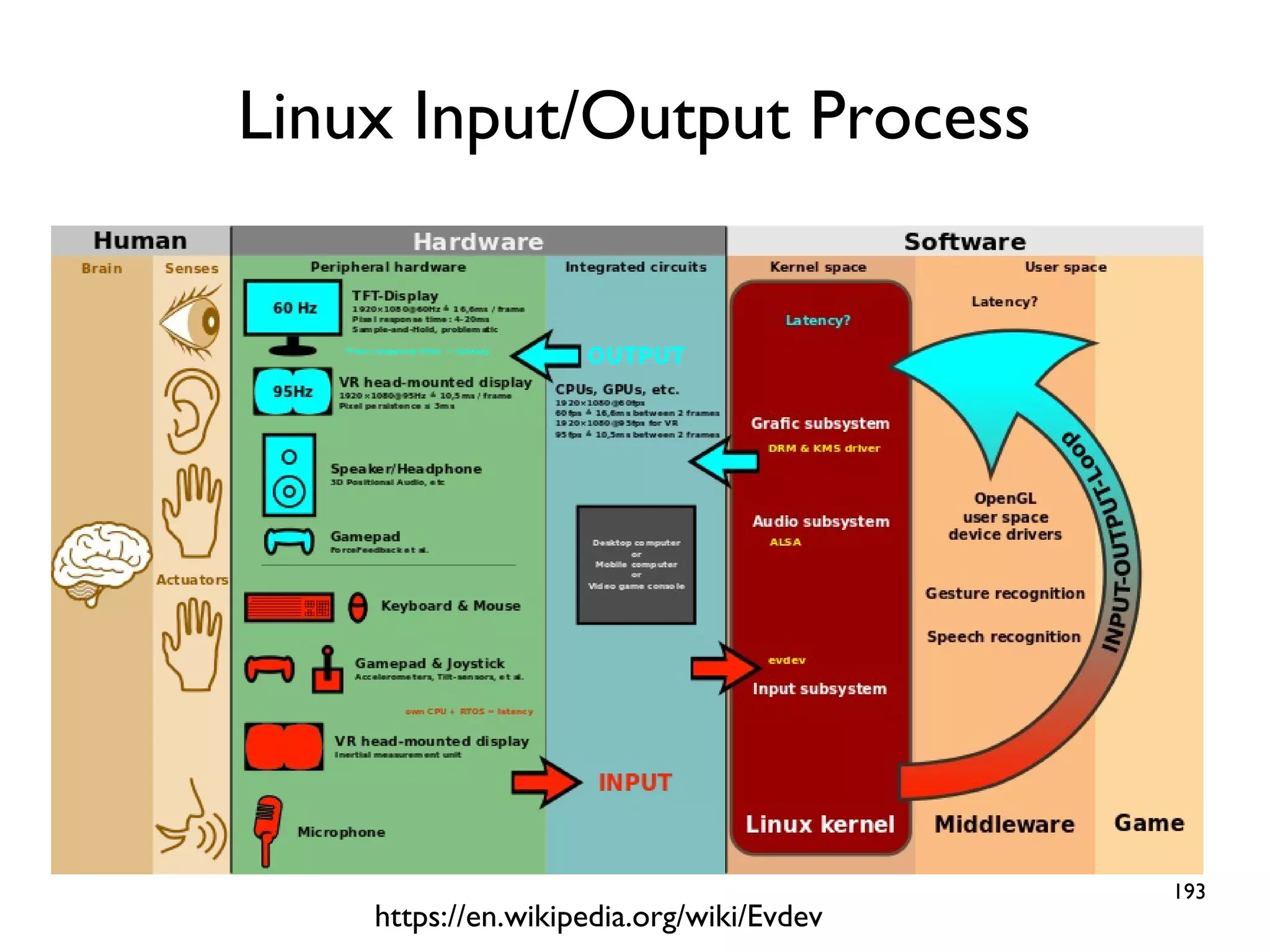
193 Linux Input/Output Process https://en.wikipedia.org/wiki/Evdev
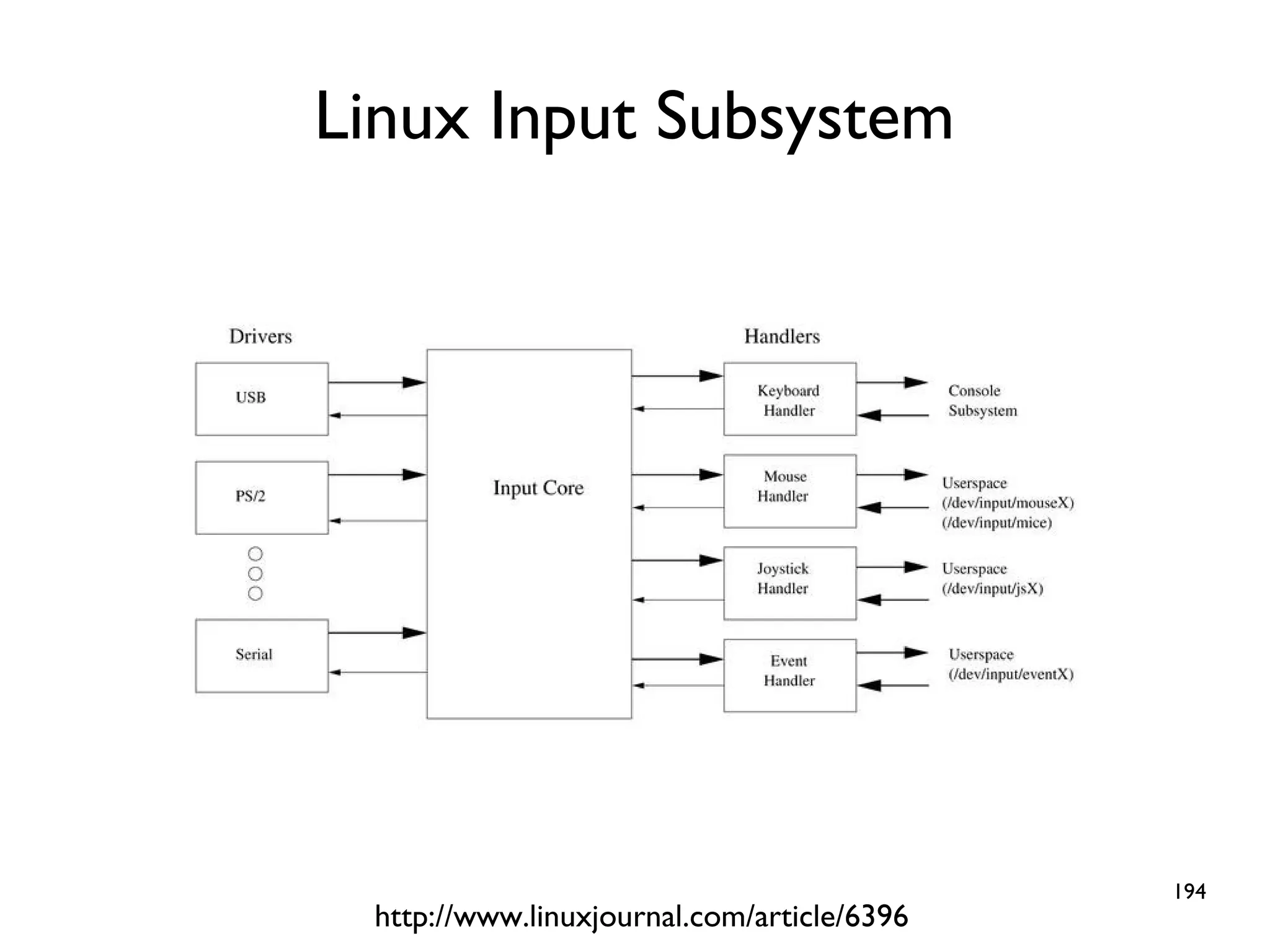
194 Linux Input Subsystem http://www.linuxjournal.com/article/6396
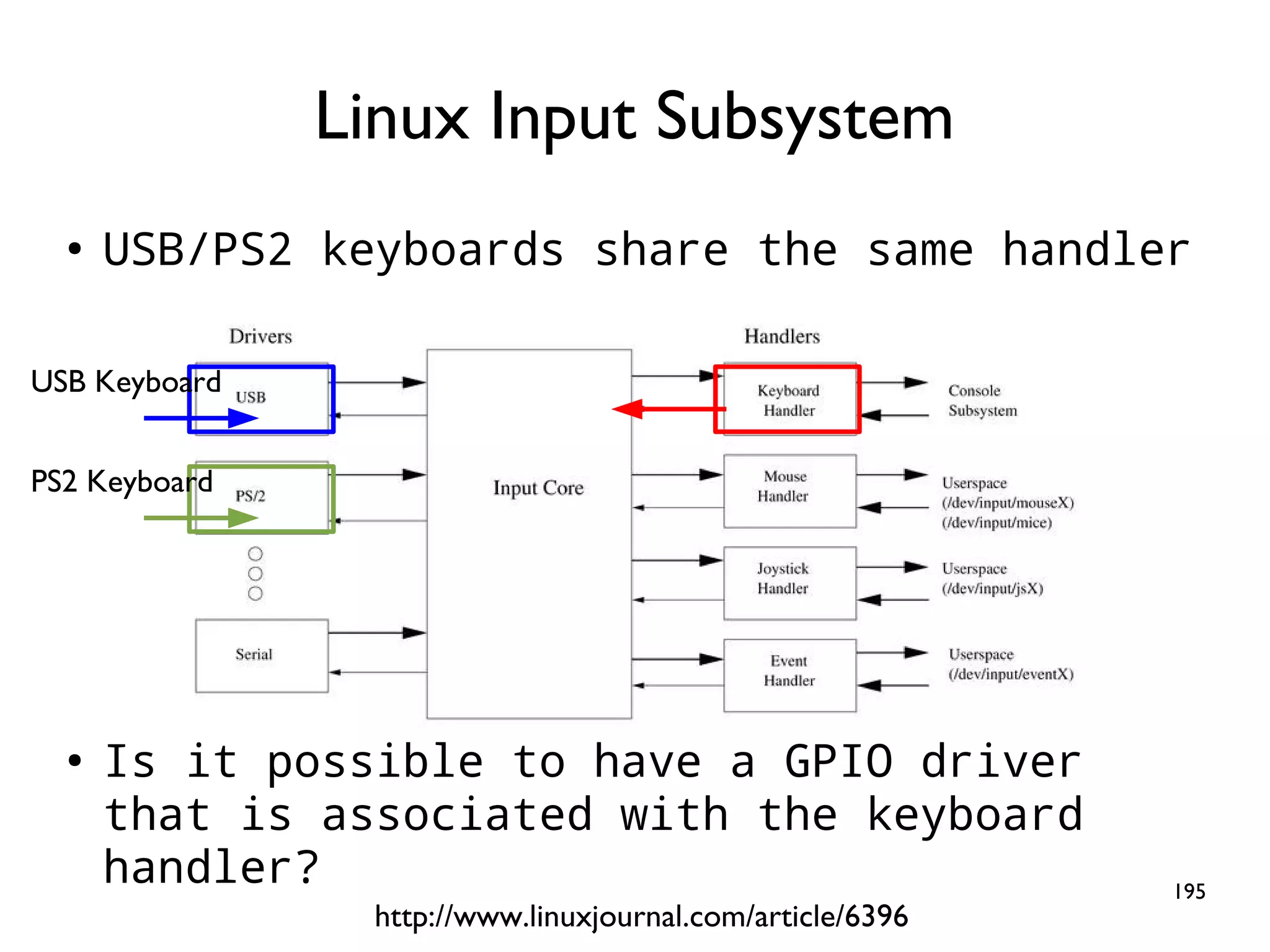
195 ● USB/PS2 keyboards share the same handler ● Is it possible to have a GPIO driver that is associated with the keyboard handler? Linux Input Subsystem http://www.linuxjournal.com/article/6396 USB Keyboard PS2 Keyboard
196 Is it possible to accomplish it in the user space instead of the kernel space?
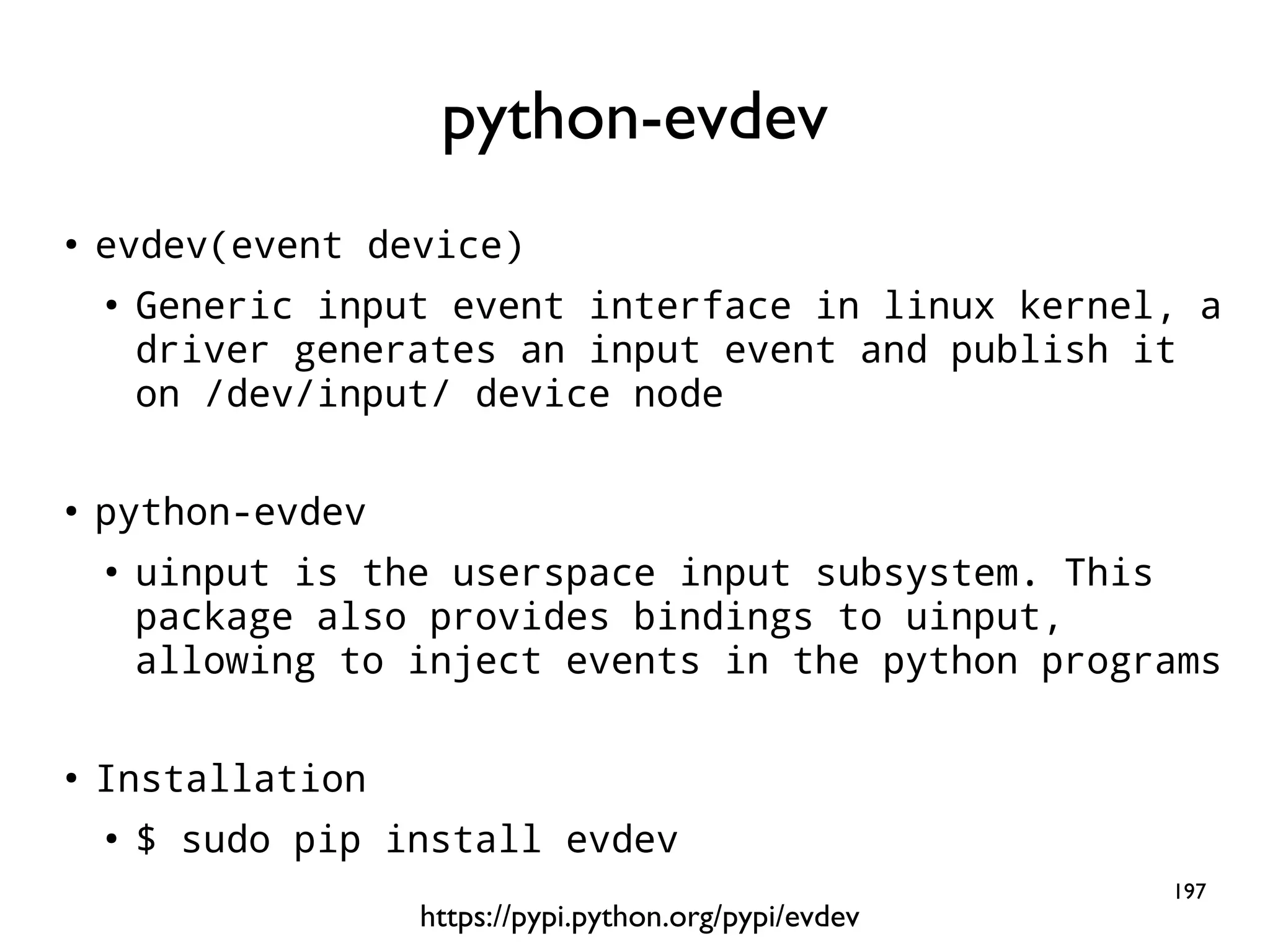
197 ● evdev(event device) ● Generic input event interface in linux kernel, a driver generates an input event and publish it on /dev/input/ device node ● python-evdev ● uinput is the userspace input subsystem. This package also provides bindings to uinput, allowing to inject events in the python programs ● Installation ● $ sudo pip install evdev python-evdev https://pypi.python.org/pypi/evdev
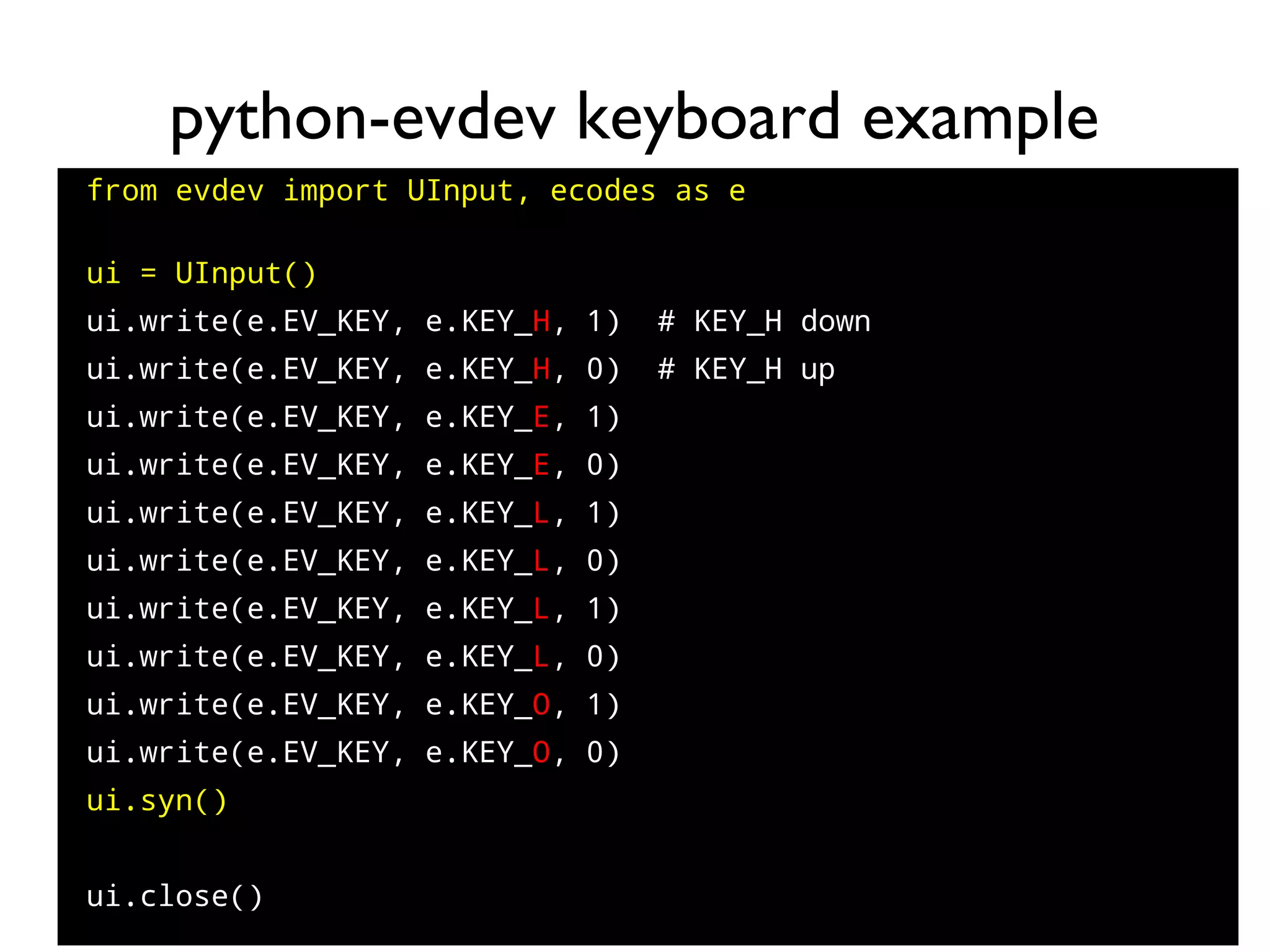
198 python-evdev keyboard example from evdev import UInput, ecodes as e ui = UInput() ui.write(e.EV_KEY, e.KEY_H, 1) # KEY_H down ui.write(e.EV_KEY, e.KEY_H, 0) # KEY_H up ui.write(e.EV_KEY, e.KEY_E, 1) ui.write(e.EV_KEY, e.KEY_E, 0) ui.write(e.EV_KEY, e.KEY_L, 1) ui.write(e.EV_KEY, e.KEY_L, 0) ui.write(e.EV_KEY, e.KEY_L, 1) ui.write(e.EV_KEY, e.KEY_L, 0) ui.write(e.EV_KEY, e.KEY_O, 1) ui.write(e.EV_KEY, e.KEY_O, 0) ui.syn() ● ui.close()
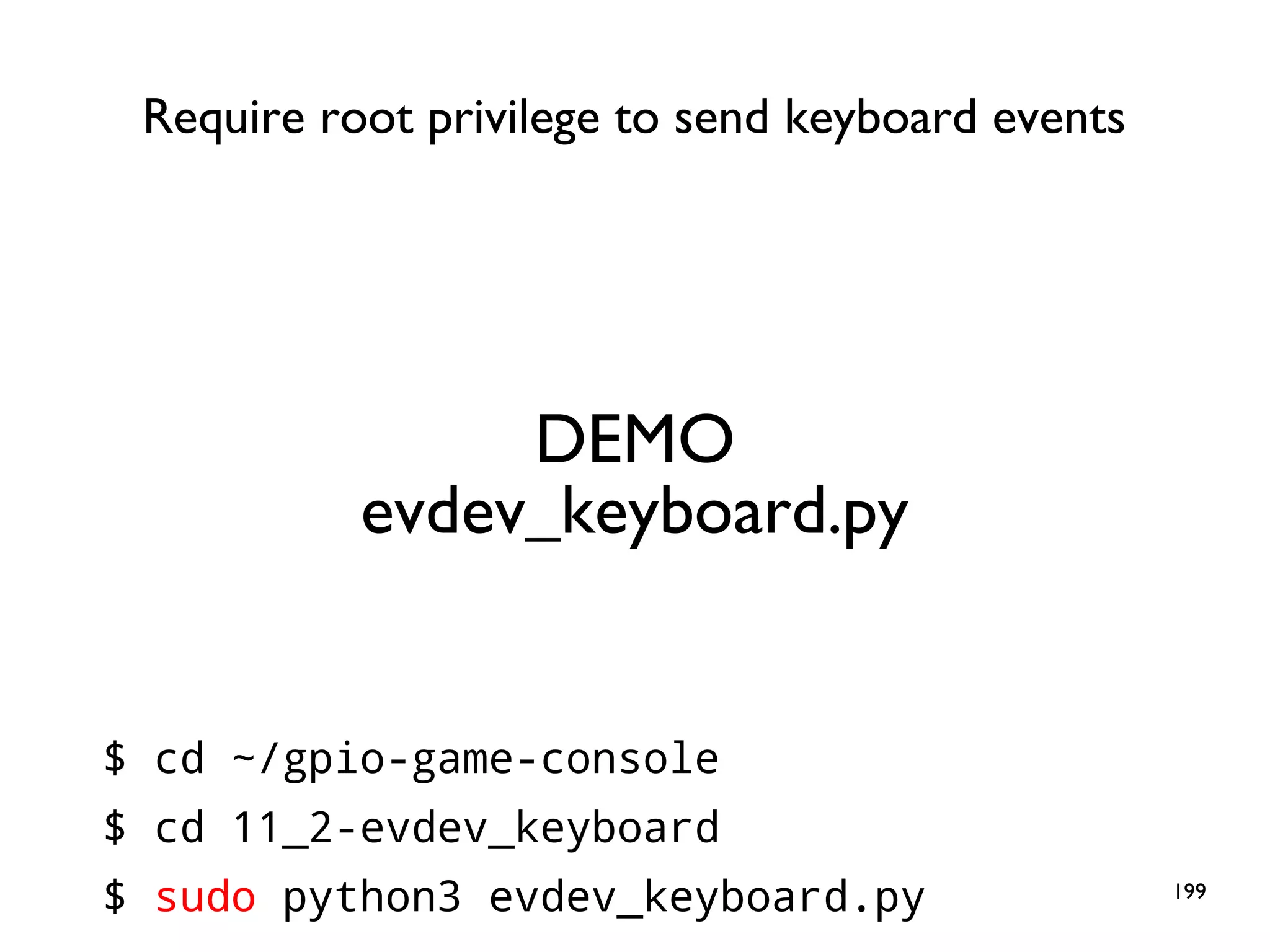
199 DEMO evdev_keyboard.py $ cd ~/gpio-game-console $ cd 11_2-evdev_keyboard $ sudo python3 evdev_keyboard.py Require root privilege to send keyboard events
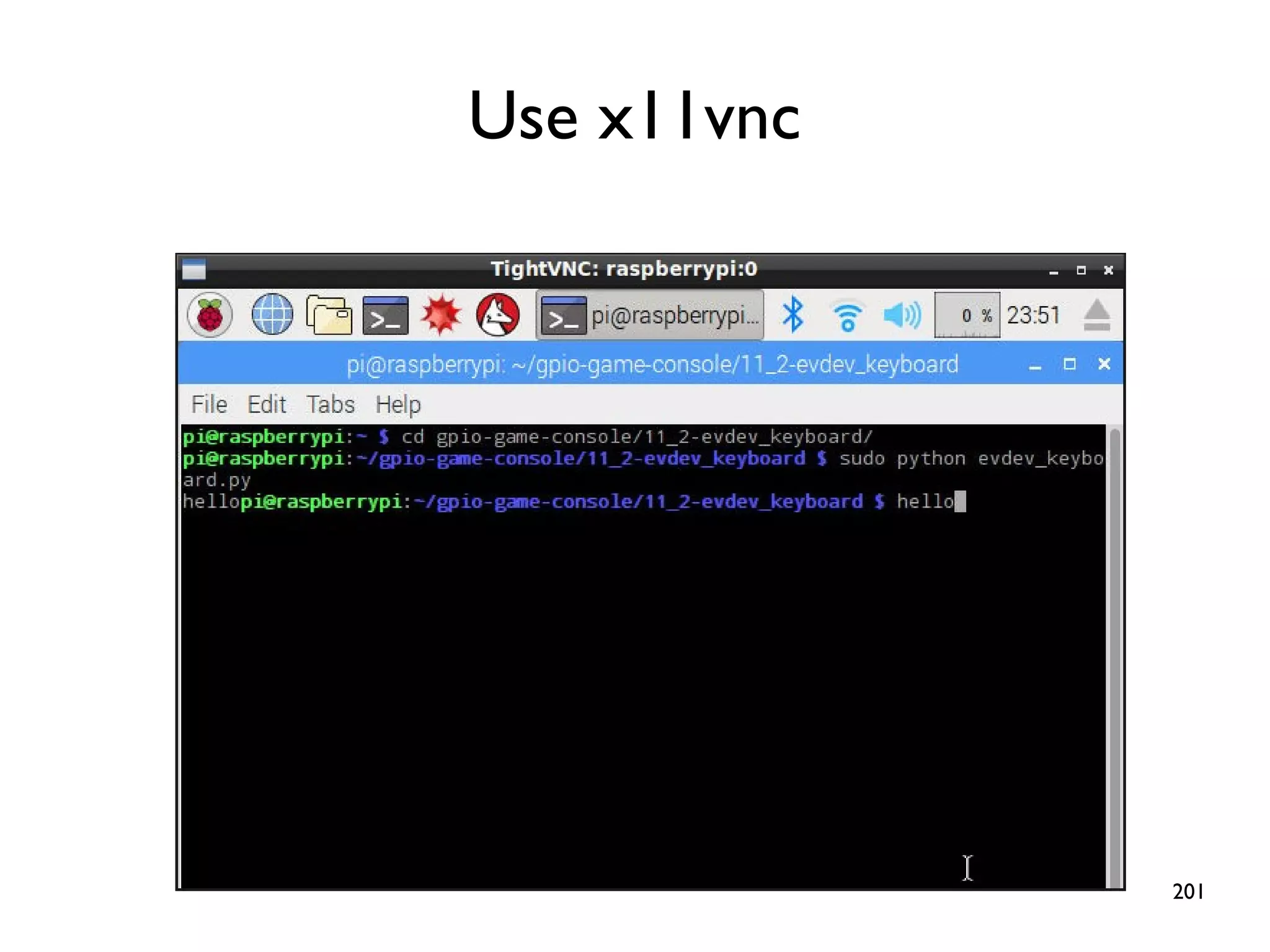
200 Nothing Noticeable?
201 Use x11vnc
202 Arrow Keys and Joystick Input
203 Arrow Keys and Joystick Input - Examine the read value for various joystick movement
204 vrx_channel = 1 while True: vrx_pos = ReadChannel(vrx_channel) if vrx_pos > 700 : ui.write(e.EV_KEY, e.KEY_DOWN, 1) ui.write(e.EV_KEY, e.KEY_UP, 0) ui.syn() elif vrx_pos < 200 : ui.write(e.EV_KEY, e.KEY_DOWN, 0) ui.write(e.EV_KEY, e.KEY_UP, 1) ui.syn() else : ui.write(e.EV_KEY, e.KEY_DOWN, 0) ui.write(e.EV_KEY, e.KEY_UP, 0) ui.syn() time.sleep(0.1)
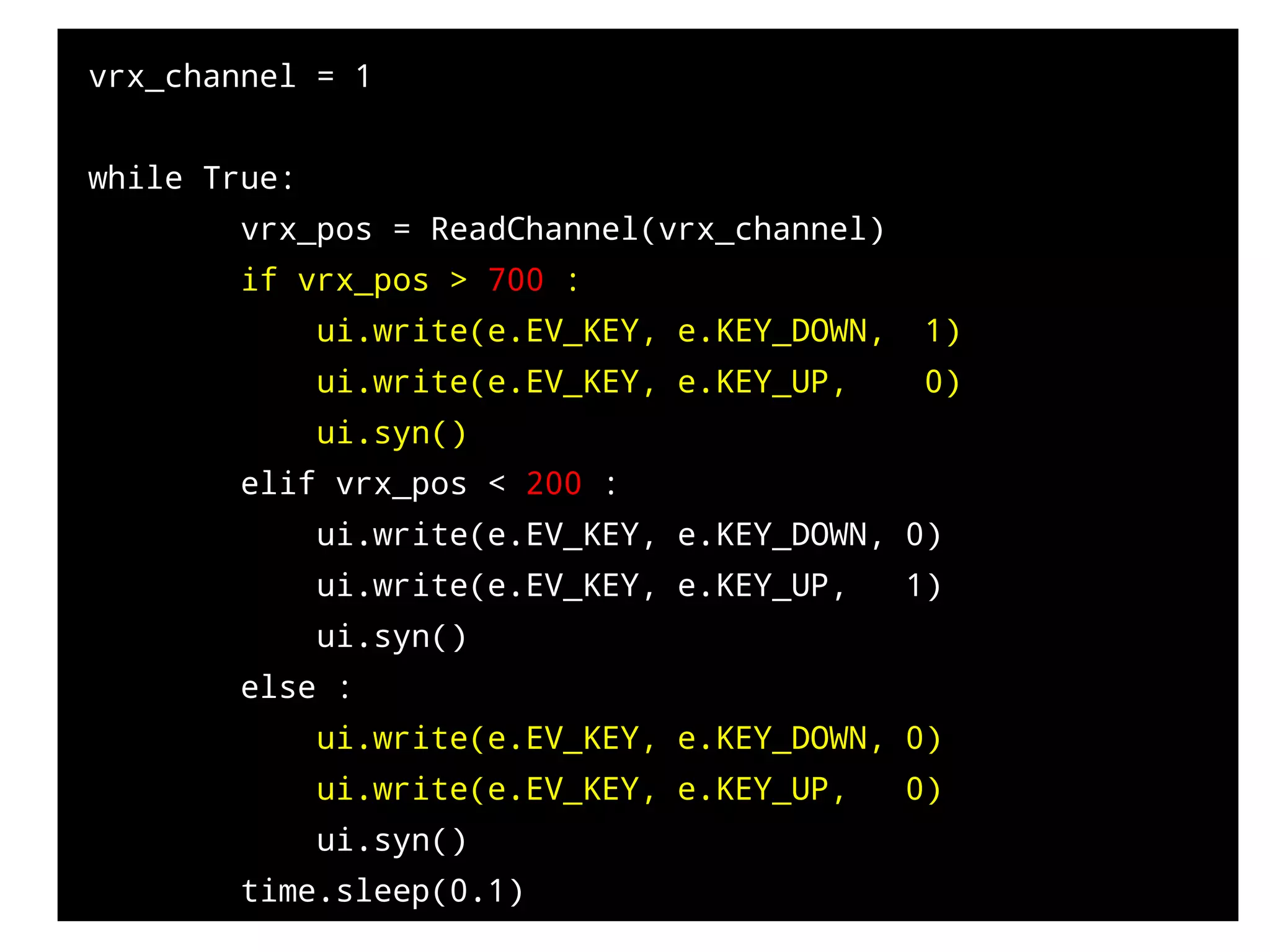
205 DEMO joystick_mapping_keyboard.py $ cd ~/gpio-game-console $ cd 11_3-joystick_mapping_keyboard $ sudo python3 joystick_mapping_keyboard.py
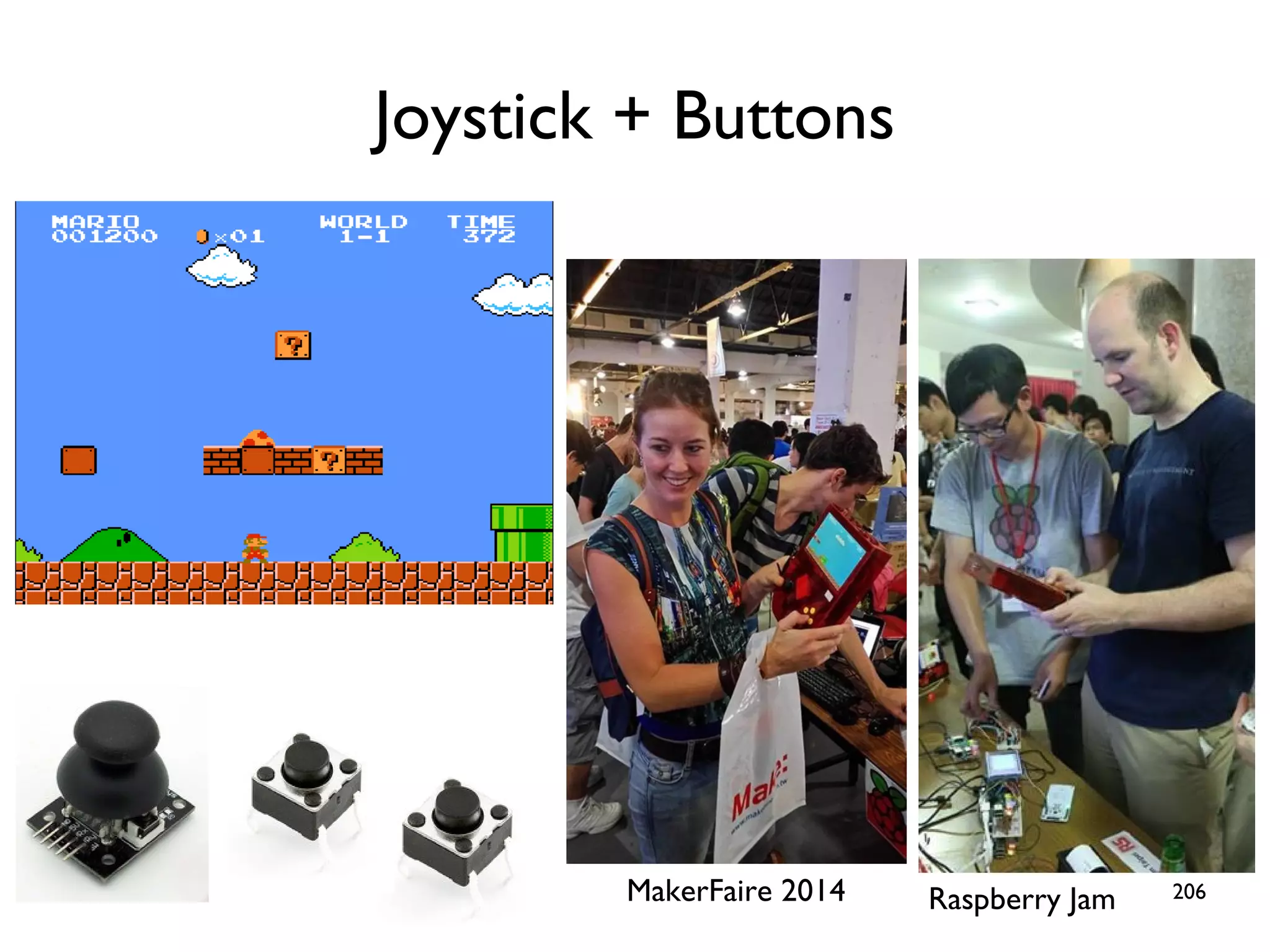
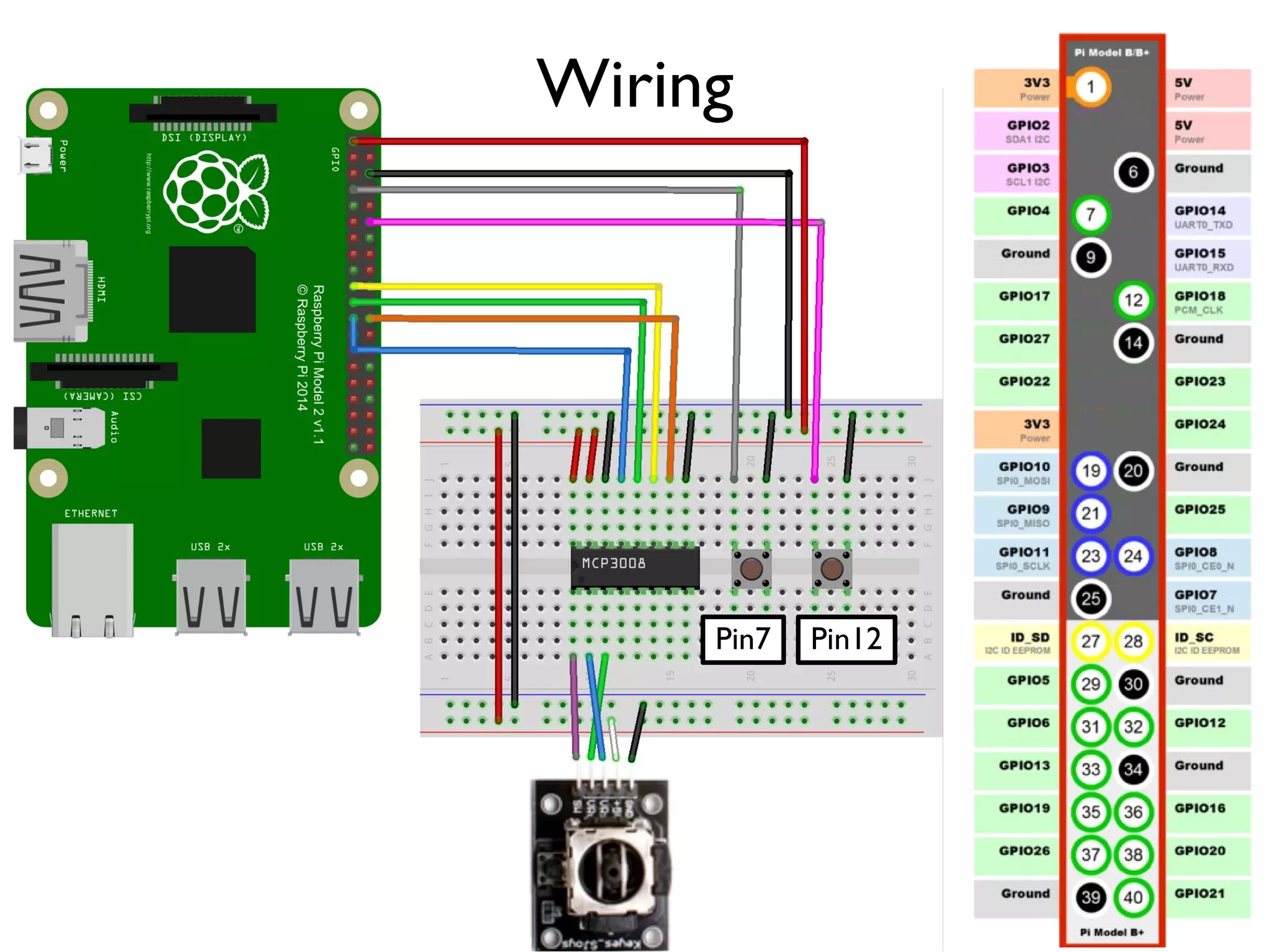
206 Joystick + Buttons MakerFaire 2014 Raspberry Jam
207 Wiring Pin7 Pin12
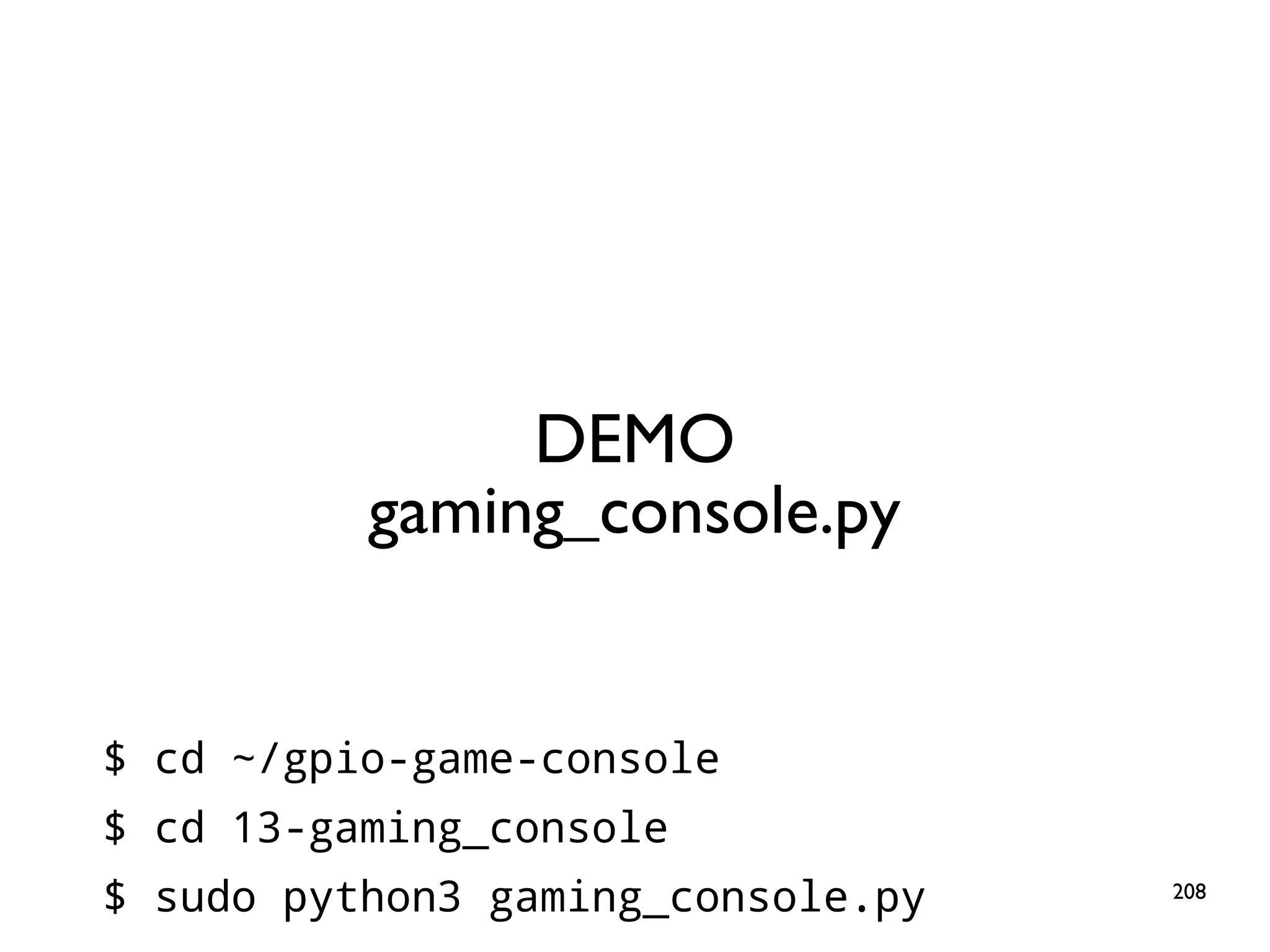
208 DEMO gaming_console.py $ cd ~/gpio-game-console $ cd 13-gaming_console $ sudo python3 gaming_console.py
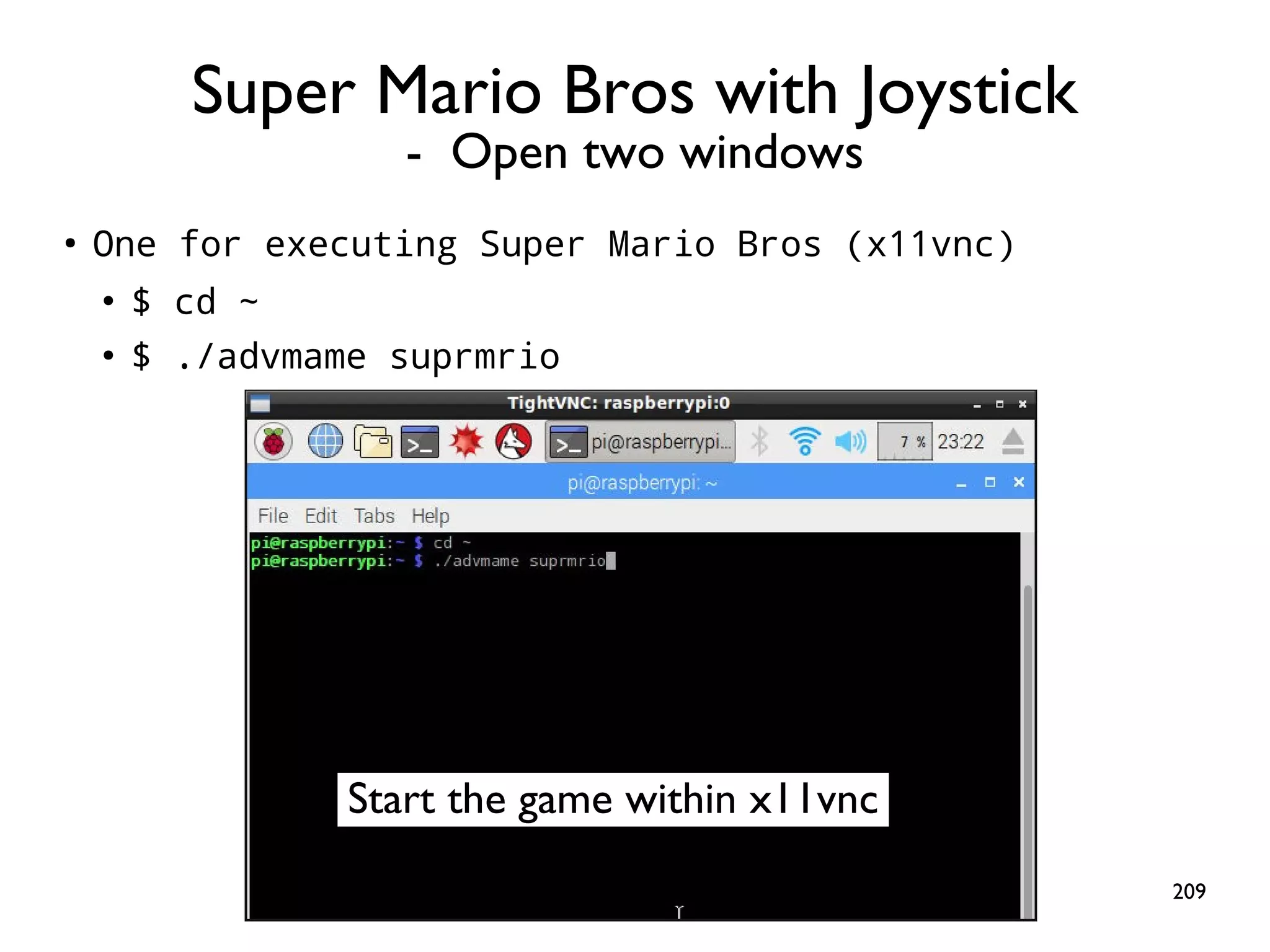
209 ● One for executing Super Mario Bros (x11vnc) ● $ cd ~ ● $ ./advmame suprmrio Super Mario Bros with Joystick - Open two windows Start the game within x11vnc
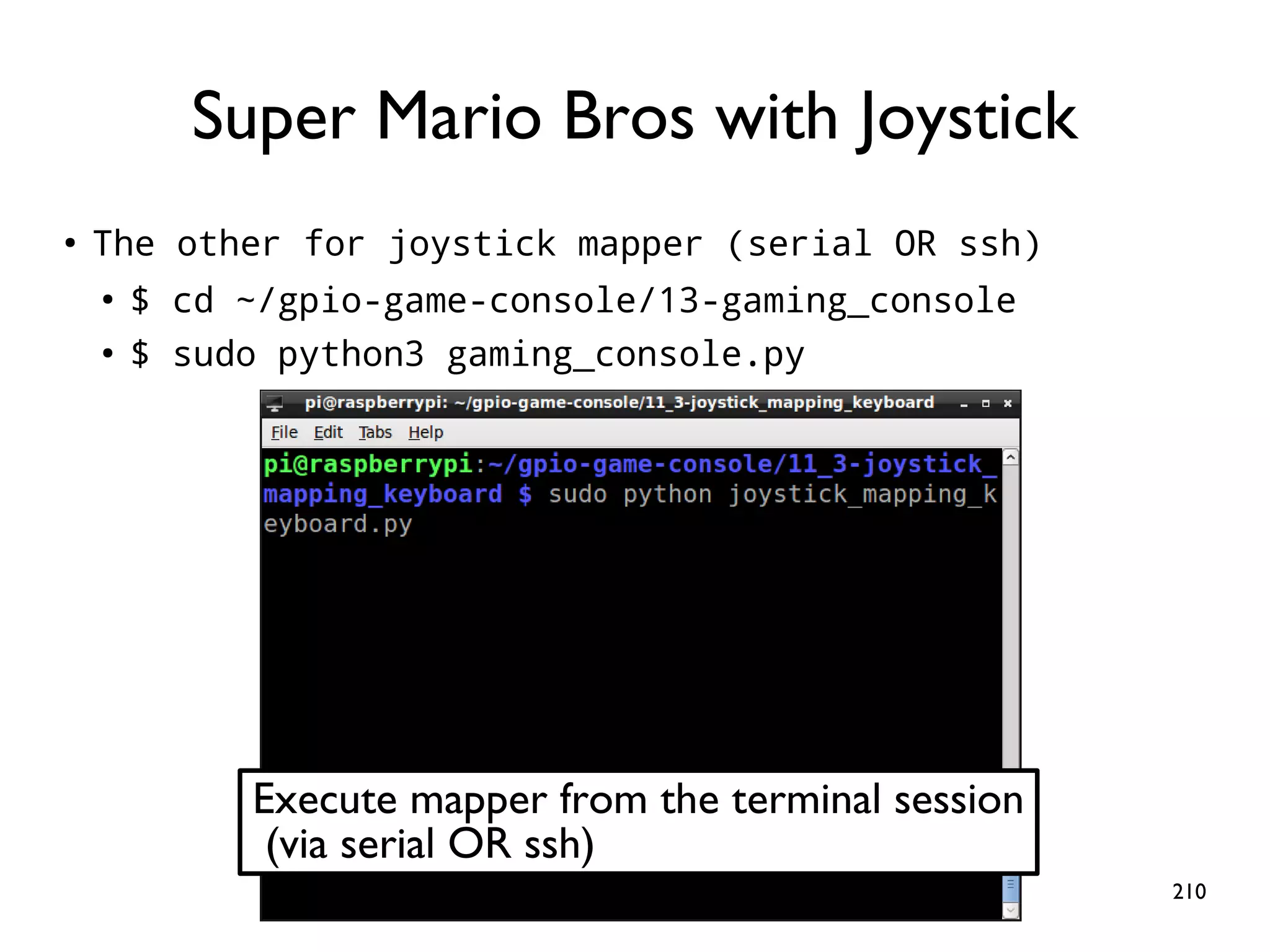
210 ● The other for joystick mapper (serial OR ssh) ● $ cd ~/gpio-game-console/13-gaming_console ● $ sudo python3 gaming_console.py Super Mario Bros with Joystick Execute mapper from the terminal session (via serial OR ssh)
211 Complicated! How to start at boot?
212 ● One-shot execution: put the command in /etc/rc.local ● Background service: write systemd unit file ● GUI programs: use LXDE autostart Start at Boot
213 ● Add a line (highlighted yellow) ● $ sudo nano /etc/rc.local sudo python /home/pi/gpio-game-console/13- gaming_console/gaming_console.py & # Print the IP address _IP=$(hostname -I) || true if [ "$_IP" ]; then printf "My IP address is %sn" "$_IP" fi exit 0 Key-press Mapper at Boot Note: a single line
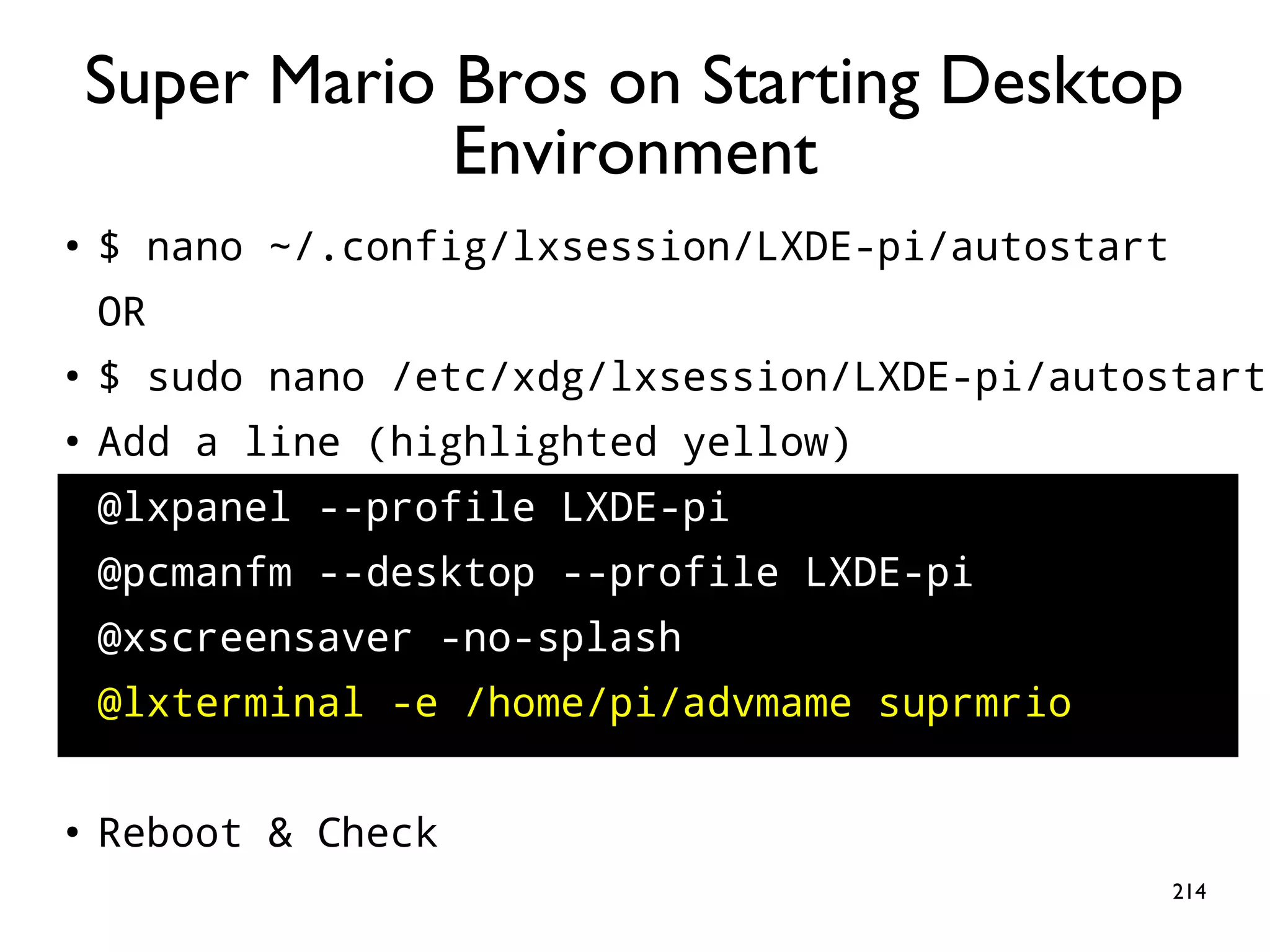
214 ● $ nano ~/.config/lxsession/LXDE-pi/autostart OR ● $ sudo nano /etc/xdg/lxsession/LXDE-pi/autostart ● Add a line (highlighted yellow) @lxpanel --profile LXDE-pi @pcmanfm --desktop --profile LXDE-pi @xscreensaver -no-splash @lxterminal -e /home/pi/advmame suprmrio ● Reboot & Check Super Mario Bros on Starting Desktop Environment
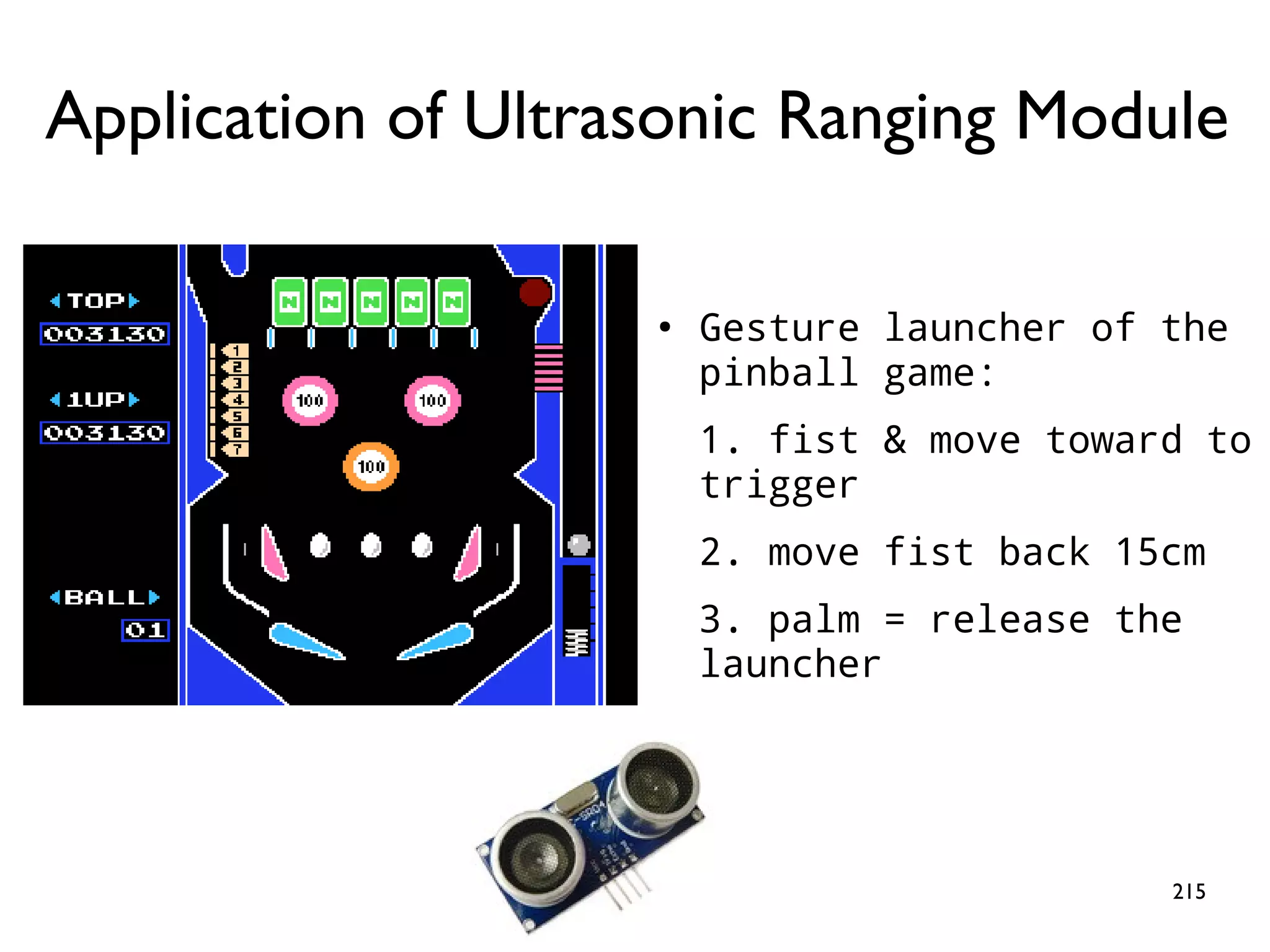
215 Application of Ultrasonic Ranging Module ● Gesture launcher of the pinball game: 1. fist & move toward to trigger 2. move fist back 15cm 3. palm = release the launcher
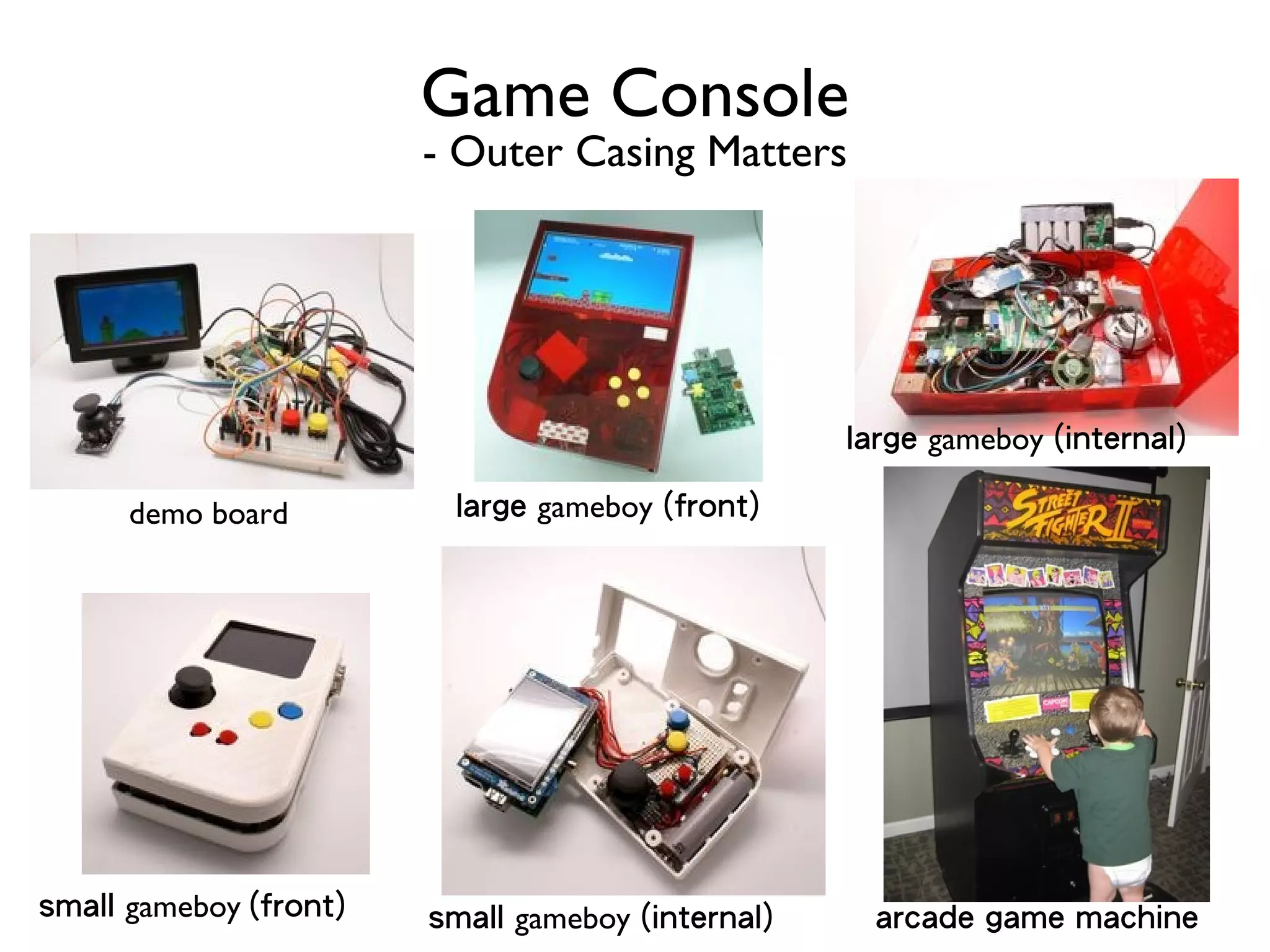
216 Game Console - Outer Casing Matters demo board large gameboy (front) large gameboy (internal) small gameboy (front) small gameboy (internal) arcade game machine
217 More Applications
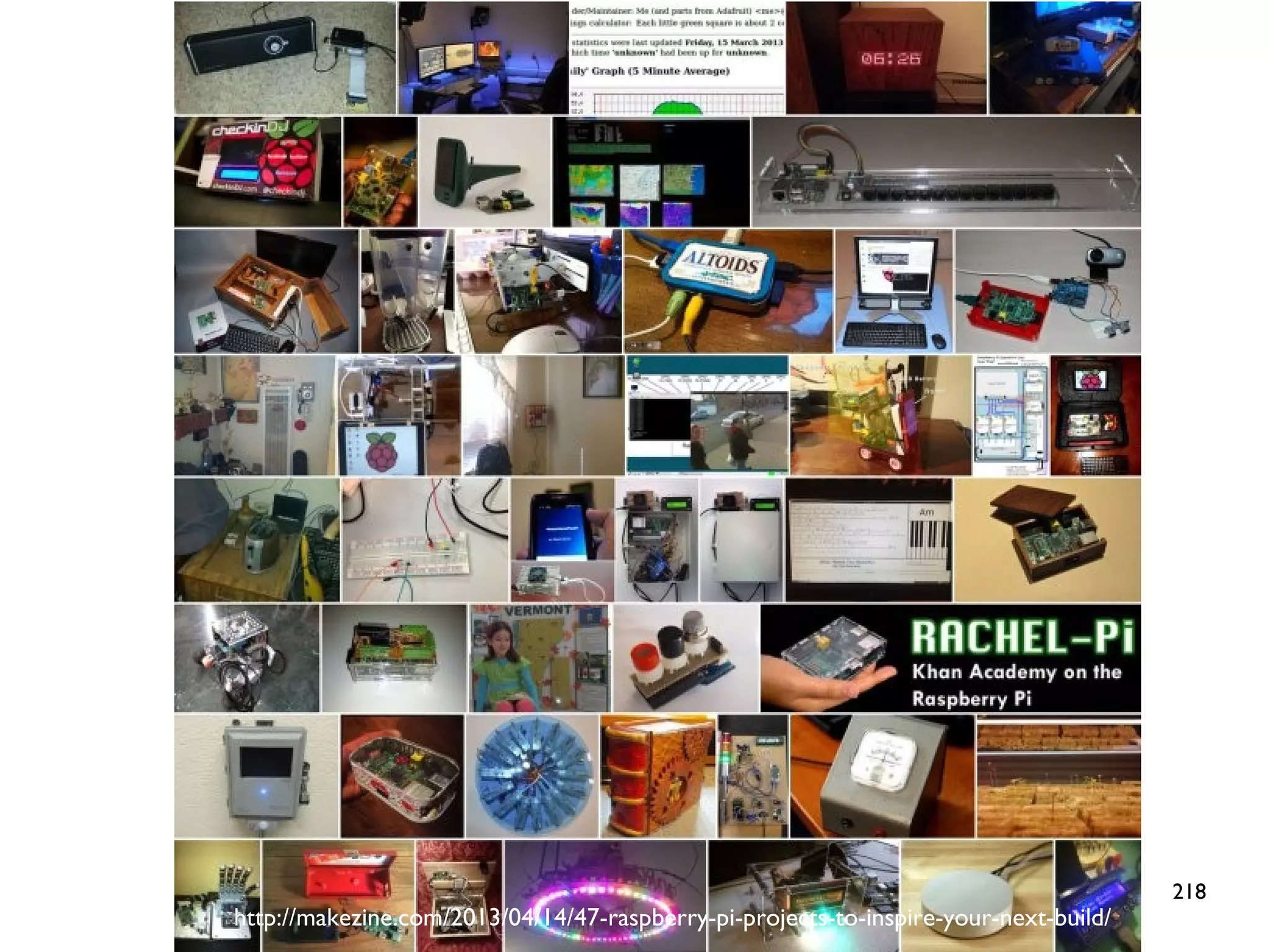
218 http://makezine.com/2013/04/14/47-raspberry-pi-projects-to-inspire-your-next-build/
219 Raspberry Pi Rocks the World Thanks
220 Supplement: Building AdvanceMAME
221 ● Install gcc-4.8 ● $ sudo apt-get install gcc-4.8 ● Download advancemame-1.4.tar.gz ● http://www.advancemame.it/download ● Build & Install ● $ sudo apt-get install -y gcc-4.8 libsdl1.2-dev ● $ tar zxvf advancemame-1.4.tar.gz ● $ cd advancemame-1.4/ ● $ CC=gcc-4.8 GCC=g++-4.8 ./configure --disable- fb ● $ make -j4 ● $ ./advmame AdvanceMAME
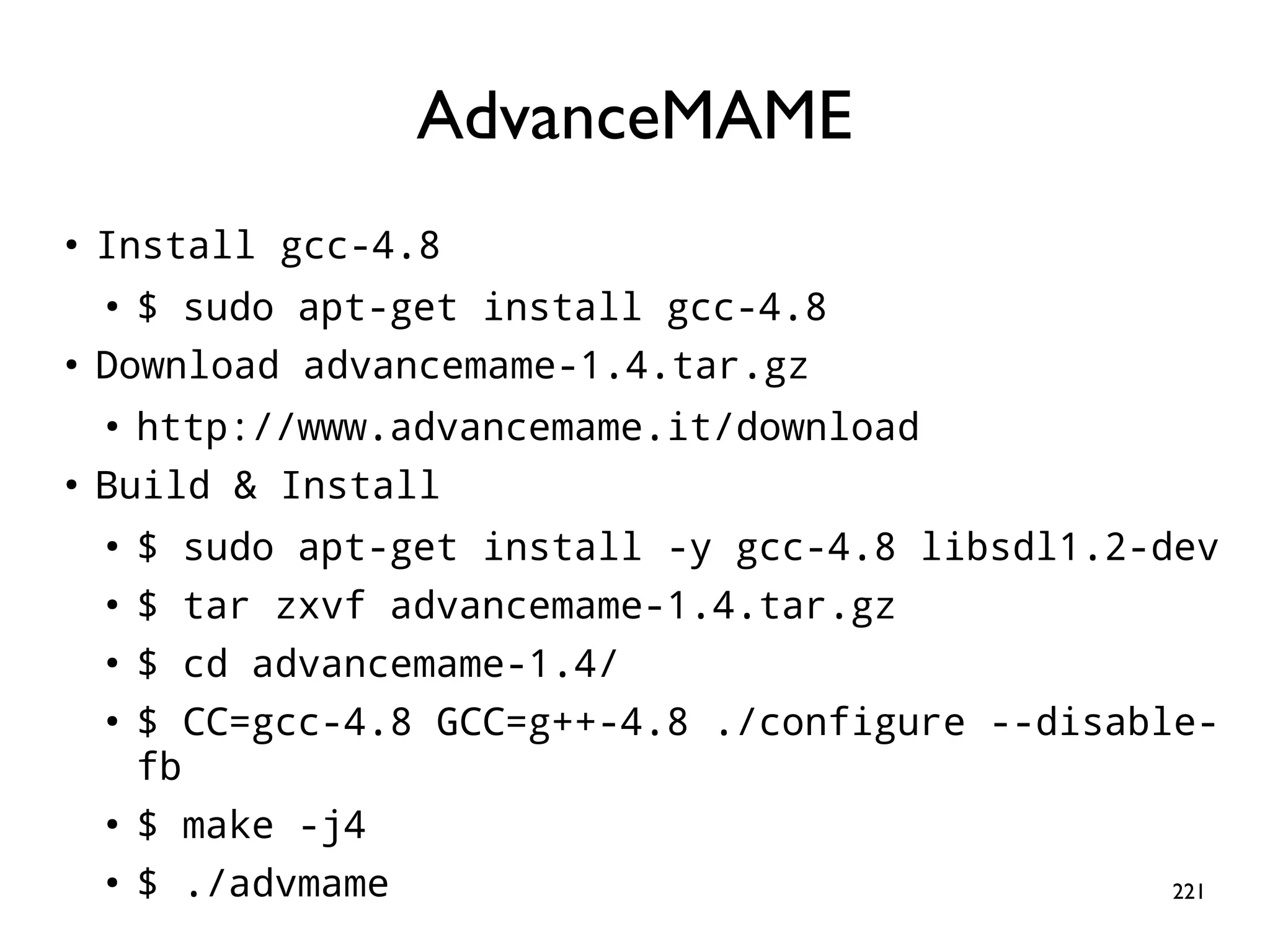
222 ● 1.Generate rc file ● $ cd /home/pi/advancemame-1.4 ● $ chmod 755 advmame ● $ ./advmame ● 2.Download rom ● $ cd /home/pi/.advance/rom ● 3.Execute the emulator ● $ cd /home/pi/advancemame-1.4 ● $ ./advmame suprmrio Executing the Emulator
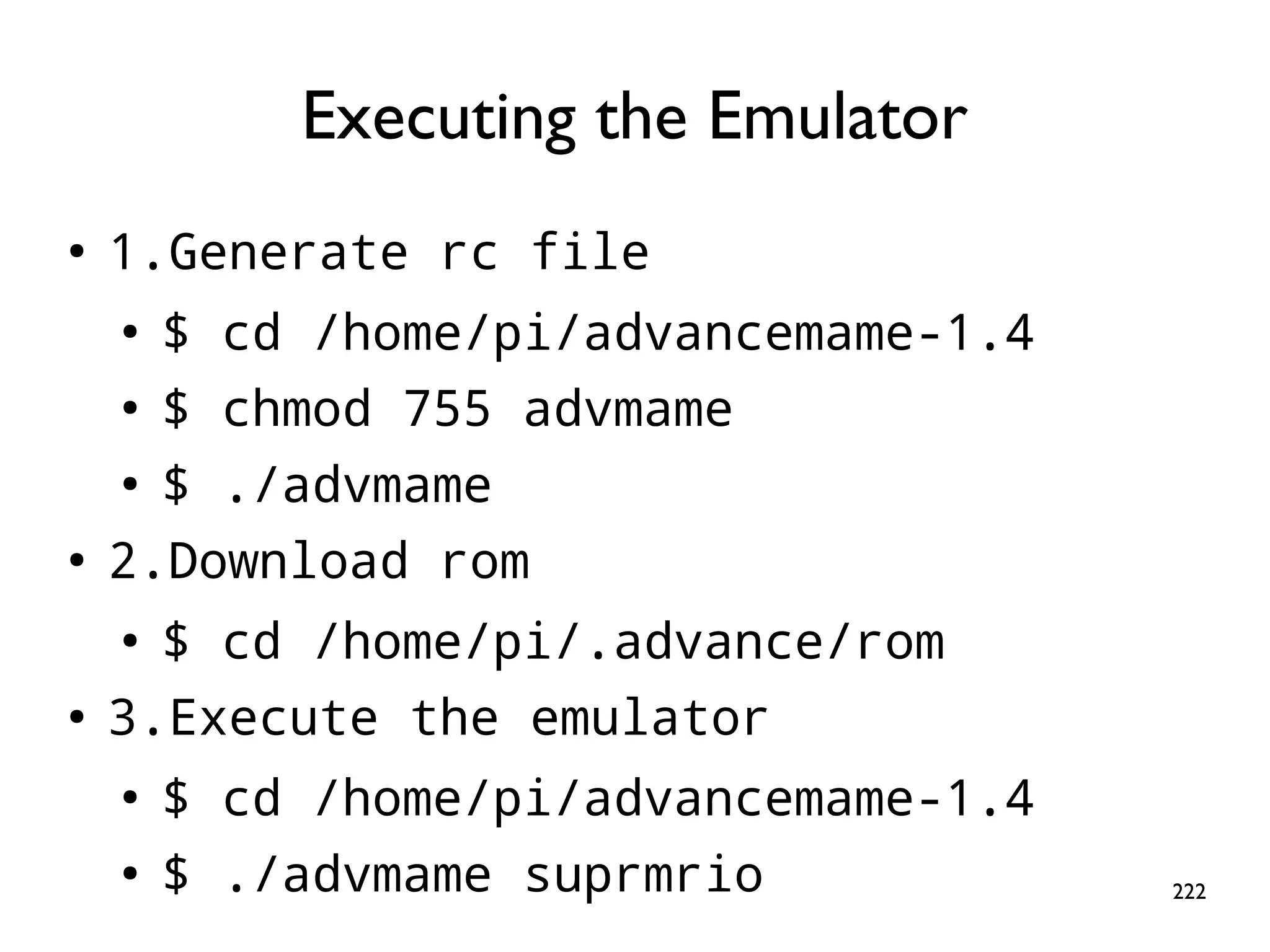
223 Supplement: AdvanceMAME Performance Tuning
224 ● Set display resolution to 256x240x60 ● TAB-key to activate the menu, choose [Video Mode], ESC-key to leave My AdvanceMAME is Slooow
225 ● Set display resolution to 256x240x60 ● TAB-key to activate the menu, choose [Video Mode], ESC-key to leave My AdvanceMAME is Slooow
226 ● Set display resolution to 256x240x60 ● TAB-key to activate the menu, choose [Video Mode], ESC-key to leave My AdvanceMAME is Slooow

Raspberry Pi GPIO Tutorial - Make Your Own Game Console