www.edureka.co/git-github Hacking Git
www.edureka.co/git-github What will you learn today?  Creating GitHub repository  Pushing code to remote GitHub repository  Unstaging files  Using alias and gitignore file  Creating new branches and merging them back to master branch
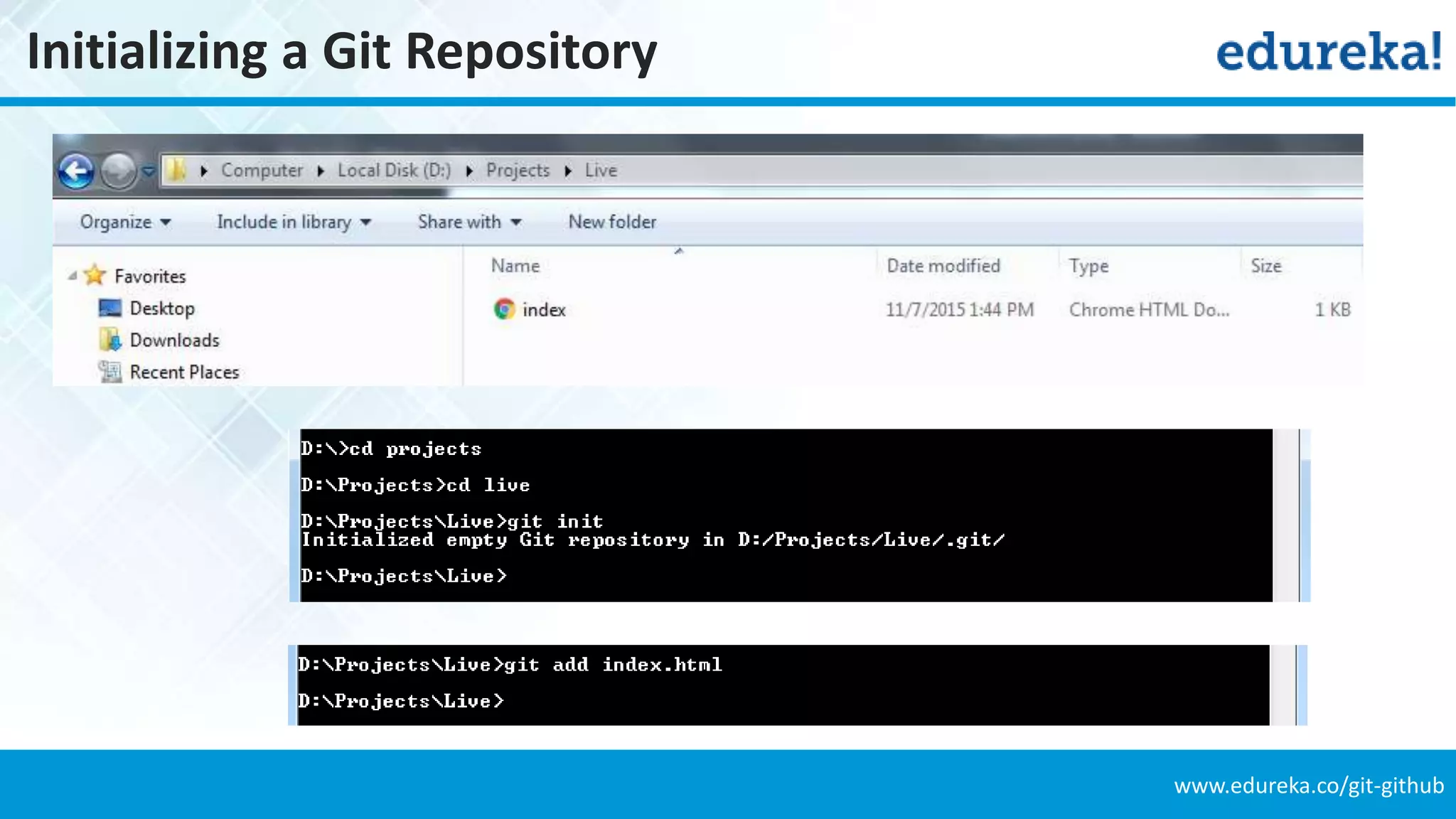
www.edureka.co/git-github Initializing a Git Repository index.html
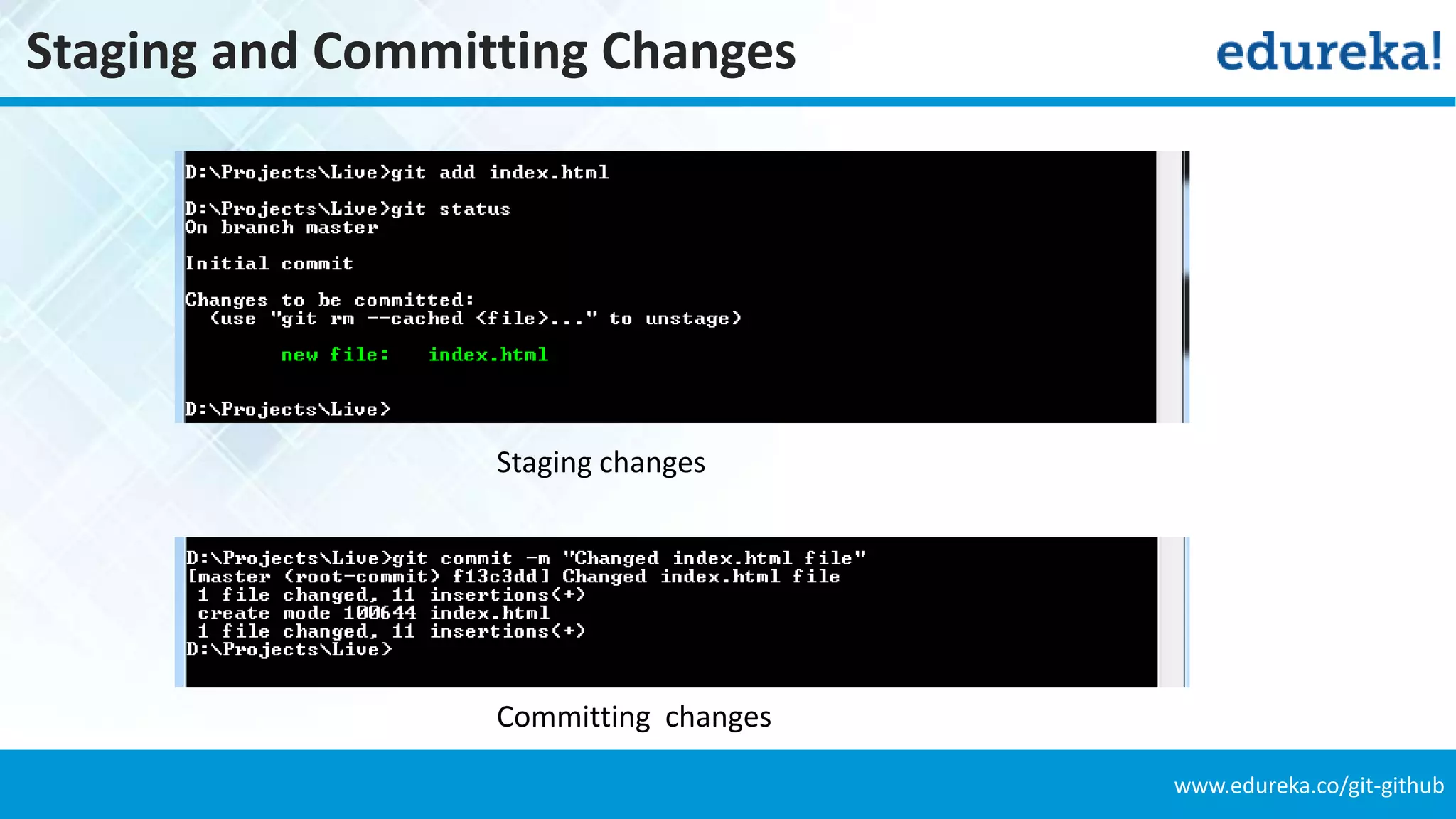
www.edureka.co/git-github Staging and Committing Changes Staging changes Committing changes
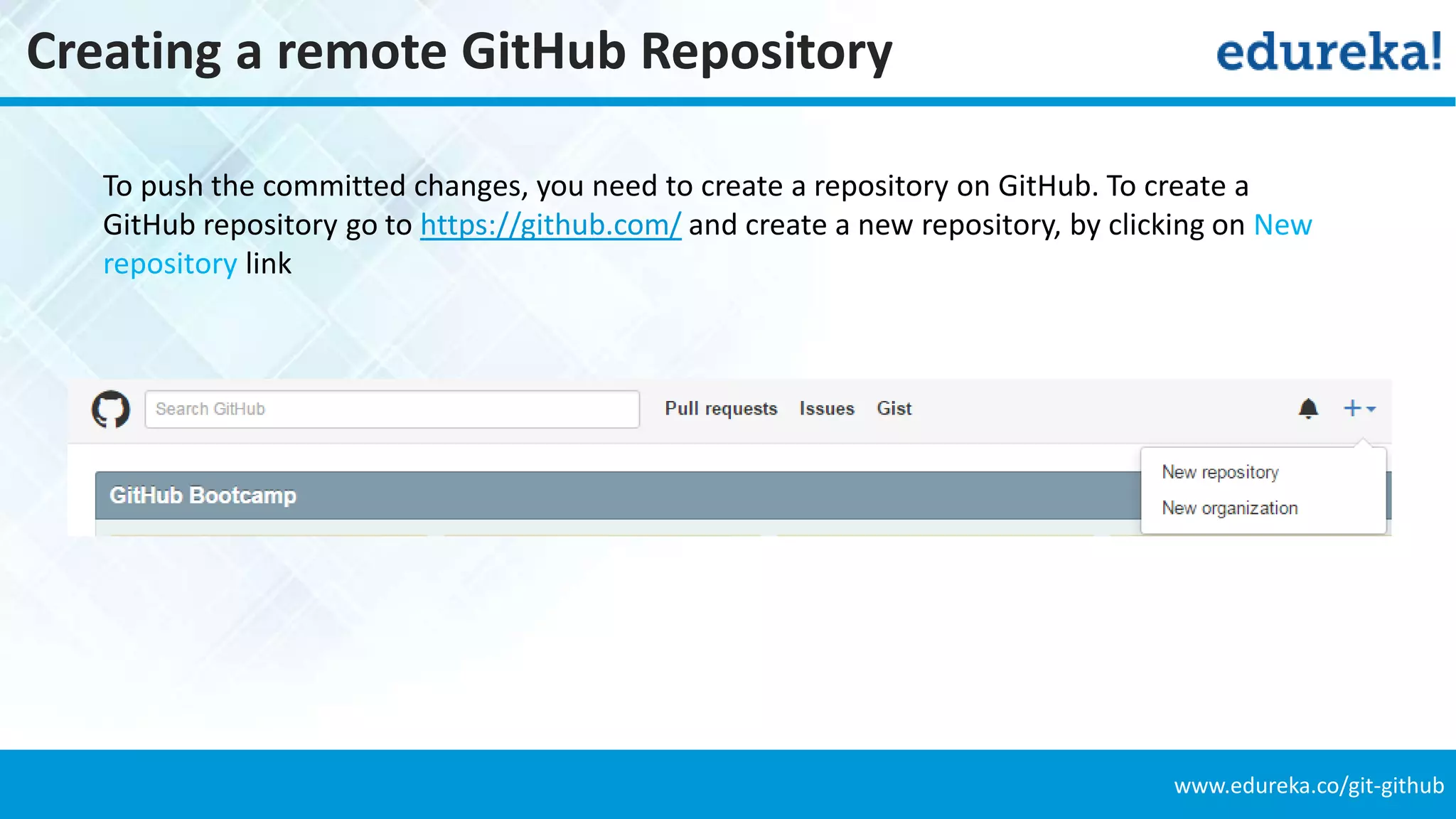
www.edureka.co/git-github Creating a remote GitHub Repository To push the committed changes, you need to create a repository on GitHub. To create a GitHub repository go to https://github.com/ and create a new repository, by clicking on New repository link
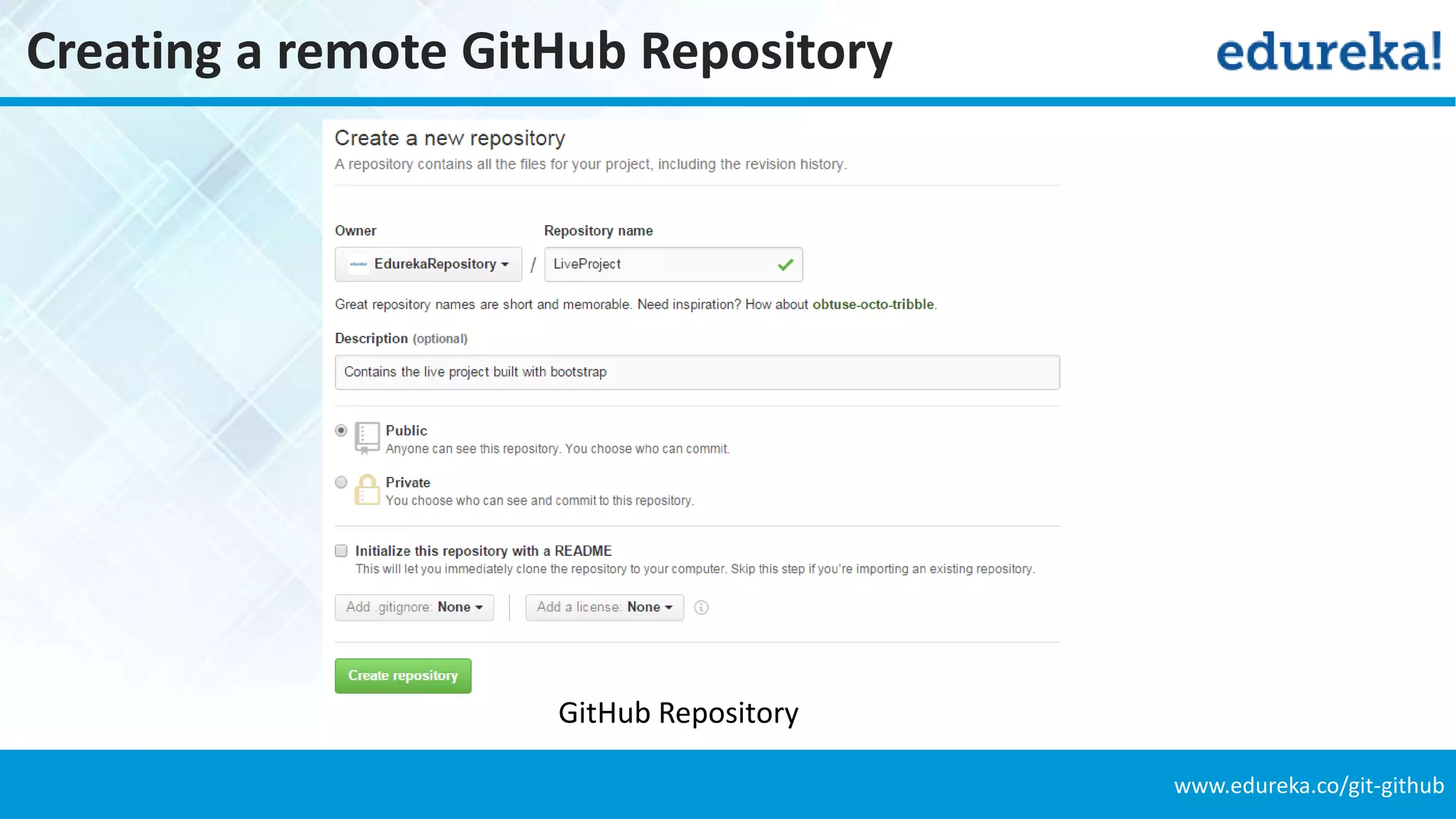
www.edureka.co/git-github Creating a remote GitHub Repository GitHub Repository
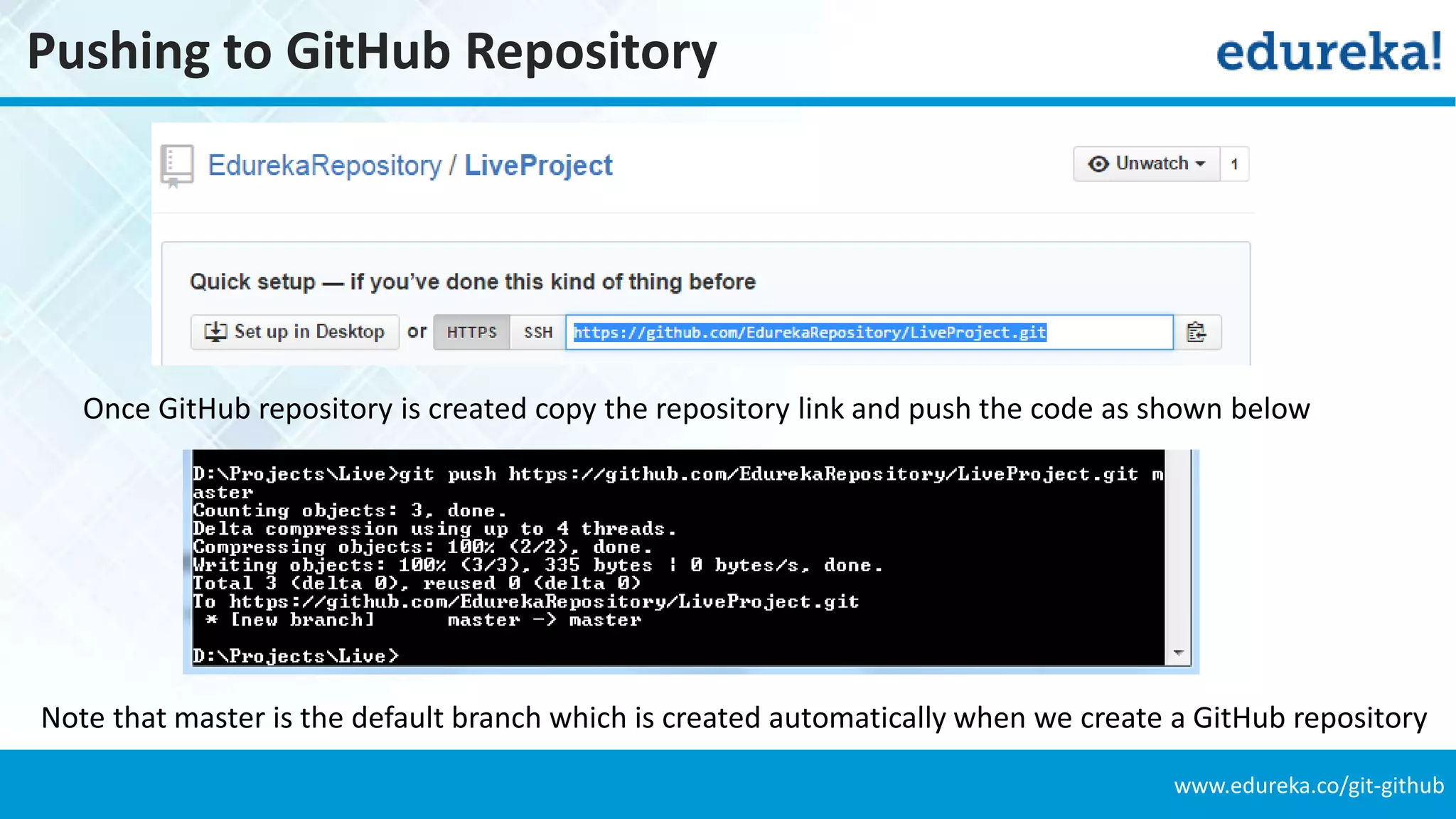
www.edureka.co/git-github Pushing to GitHub Repository Once GitHub repository is created copy the repository link and push the code as shown below Note that master is the default branch which is created automatically when we create a GitHub repository
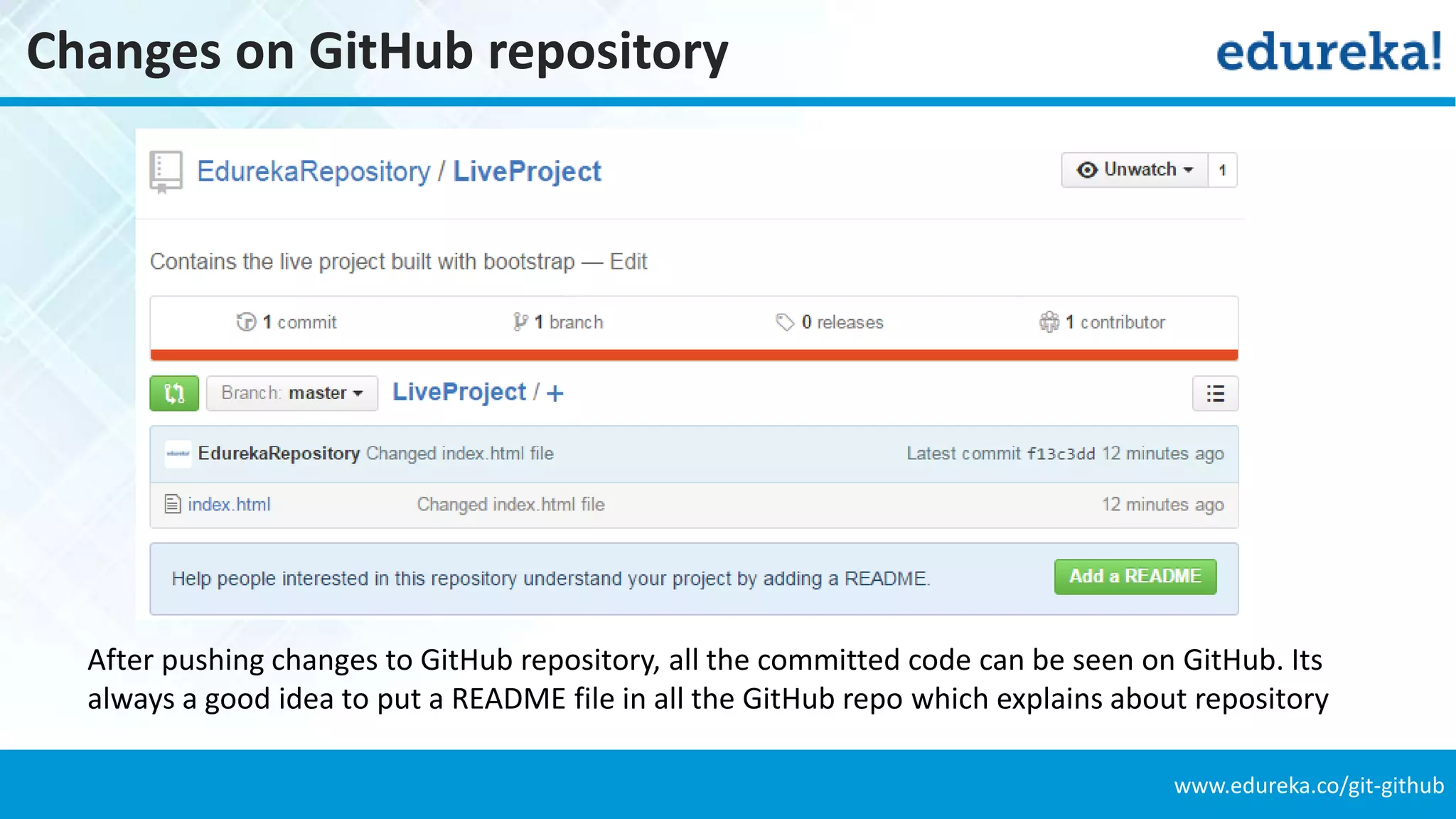
www.edureka.co/git-github Changes on GitHub repository After pushing changes to GitHub repository, all the committed code can be seen on GitHub. Its always a good idea to put a README file in all the GitHub repo which explains about repository
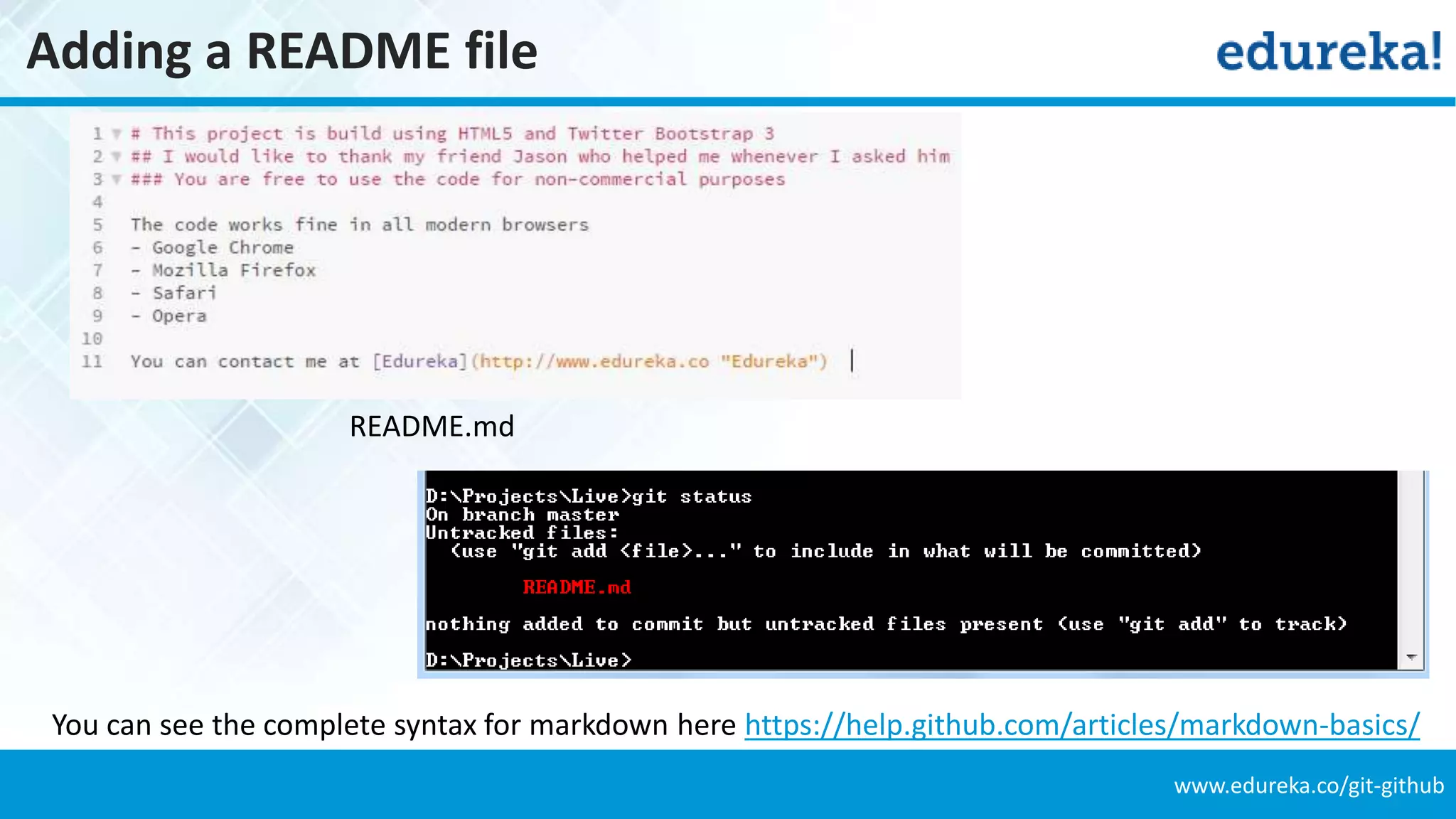
www.edureka.co/git-github Adding a README file You can see the complete syntax for markdown here https://help.github.com/articles/markdown-basics/ README.md
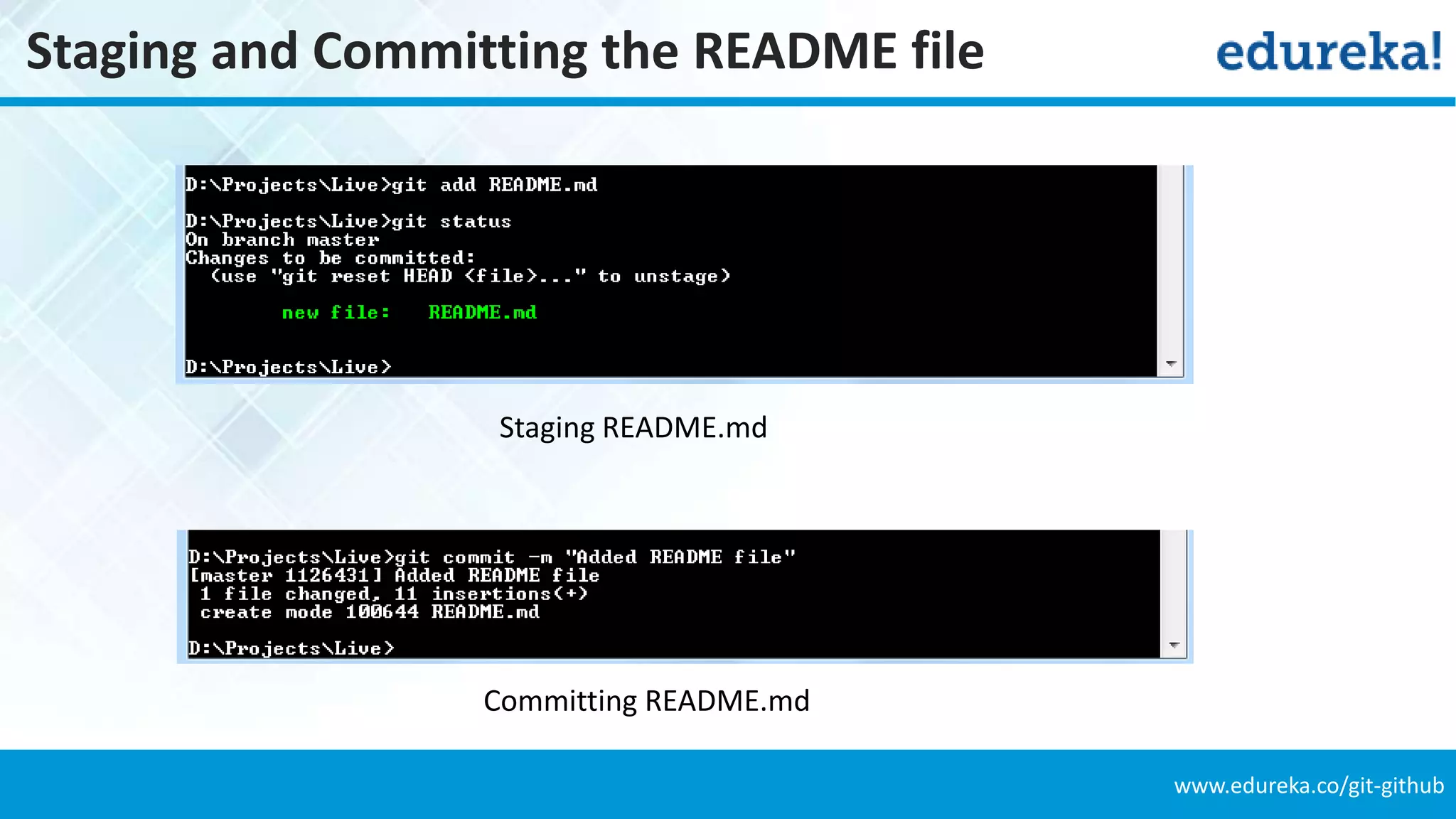
www.edureka.co/git-github Staging and Committing the README file Staging README.md Committing README.md
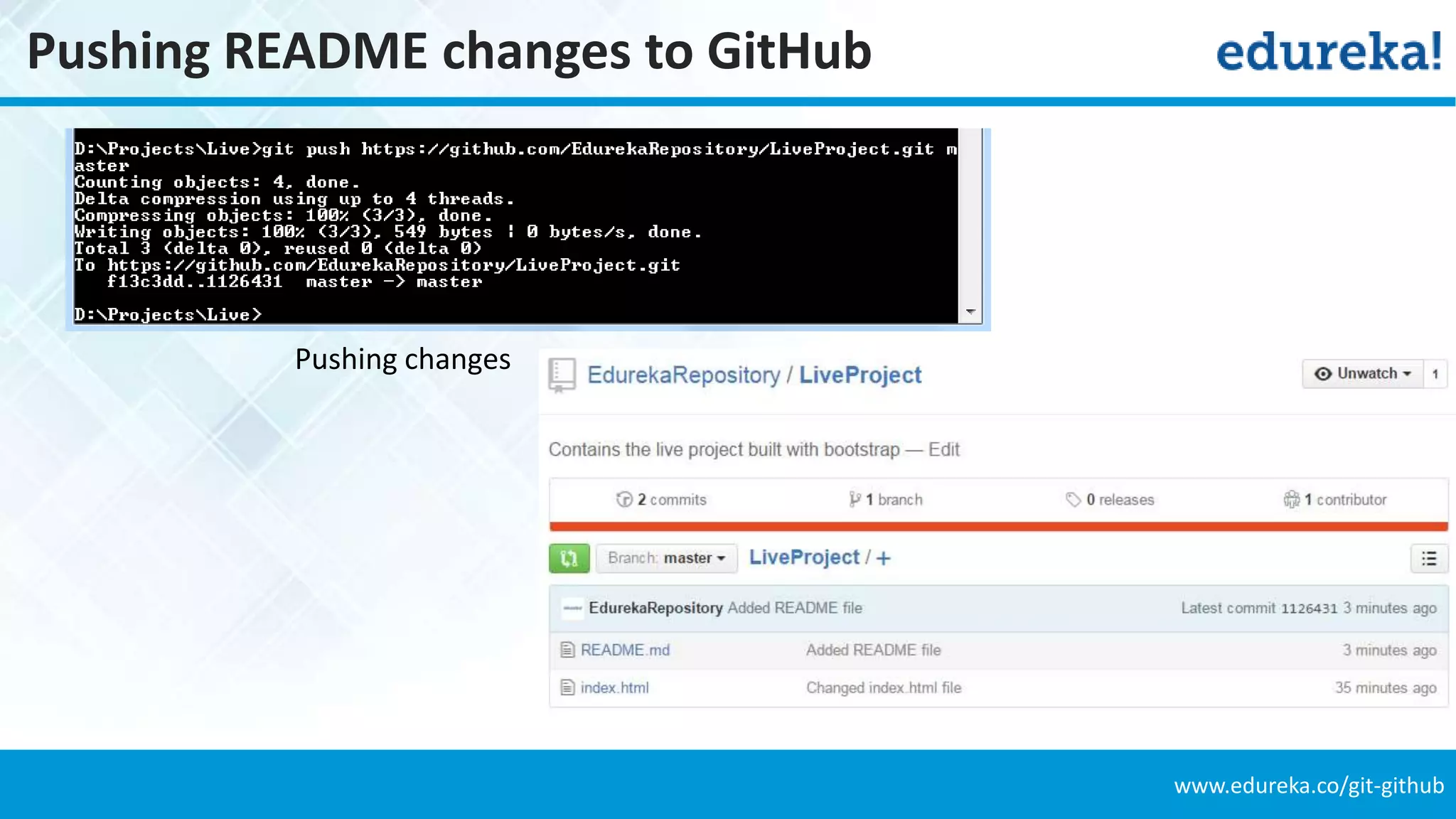
www.edureka.co/git-github Pushing README changes to GitHub Pushing changes
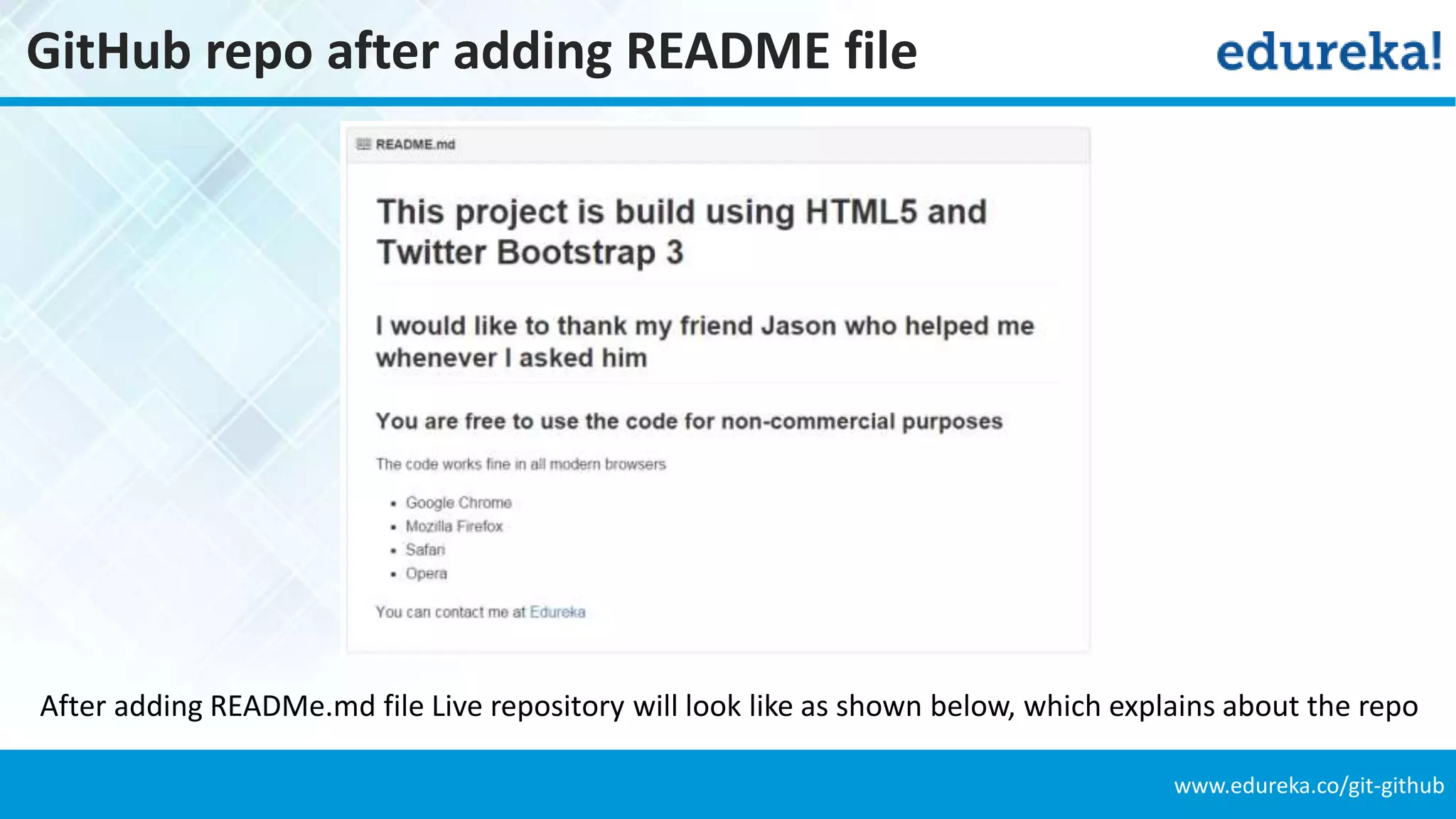
www.edureka.co/git-github GitHub repo after adding README file After adding READMe.md file Live repository will look like as shown below, which explains about the repo
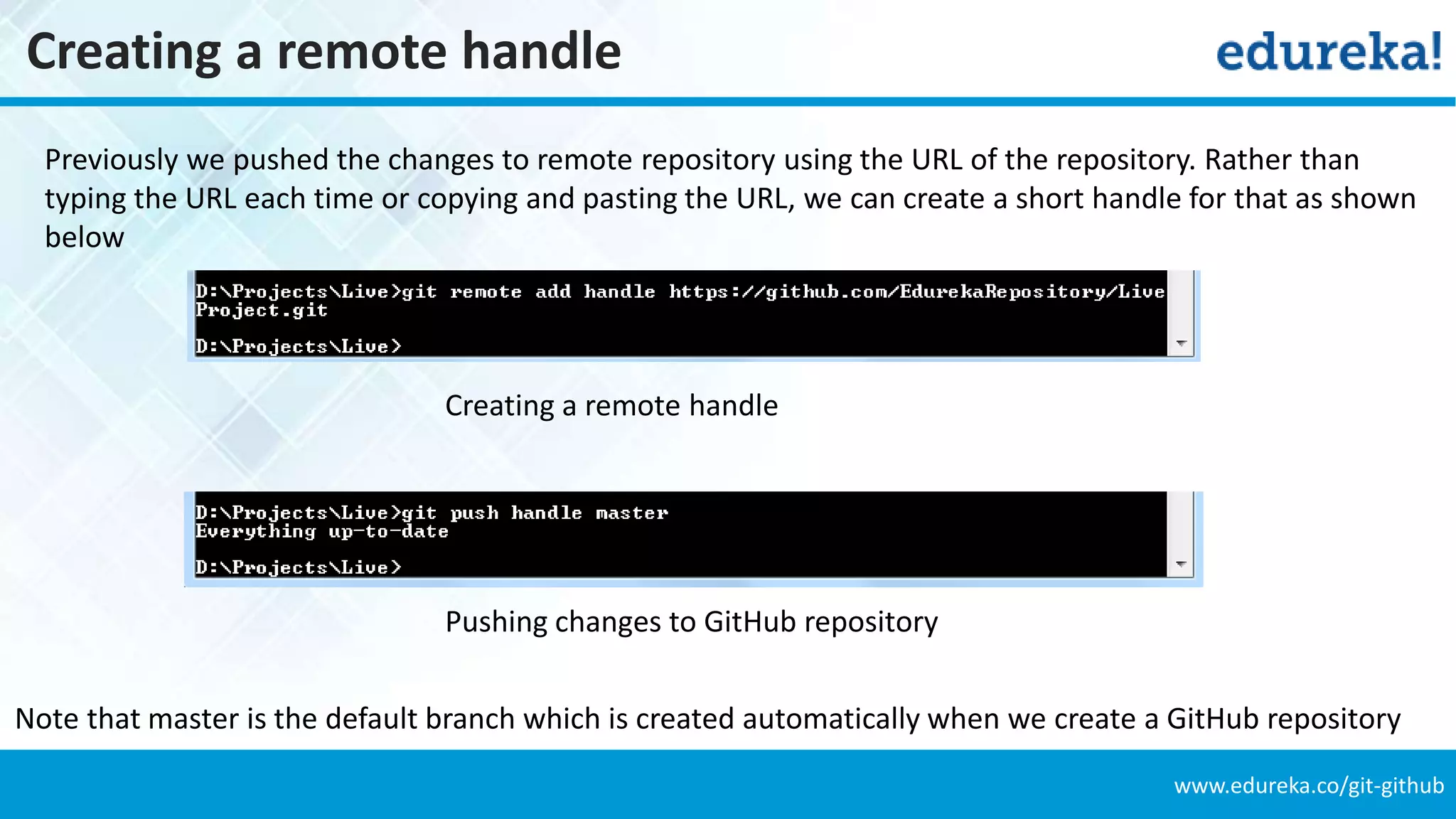
www.edureka.co/git-github Creating a remote handle Previously we pushed the changes to remote repository using the URL of the repository. Rather than typing the URL each time or copying and pasting the URL, we can create a short handle for that as shown below Creating a remote handle Pushing changes to GitHub repository Note that master is the default branch which is created automatically when we create a GitHub repository
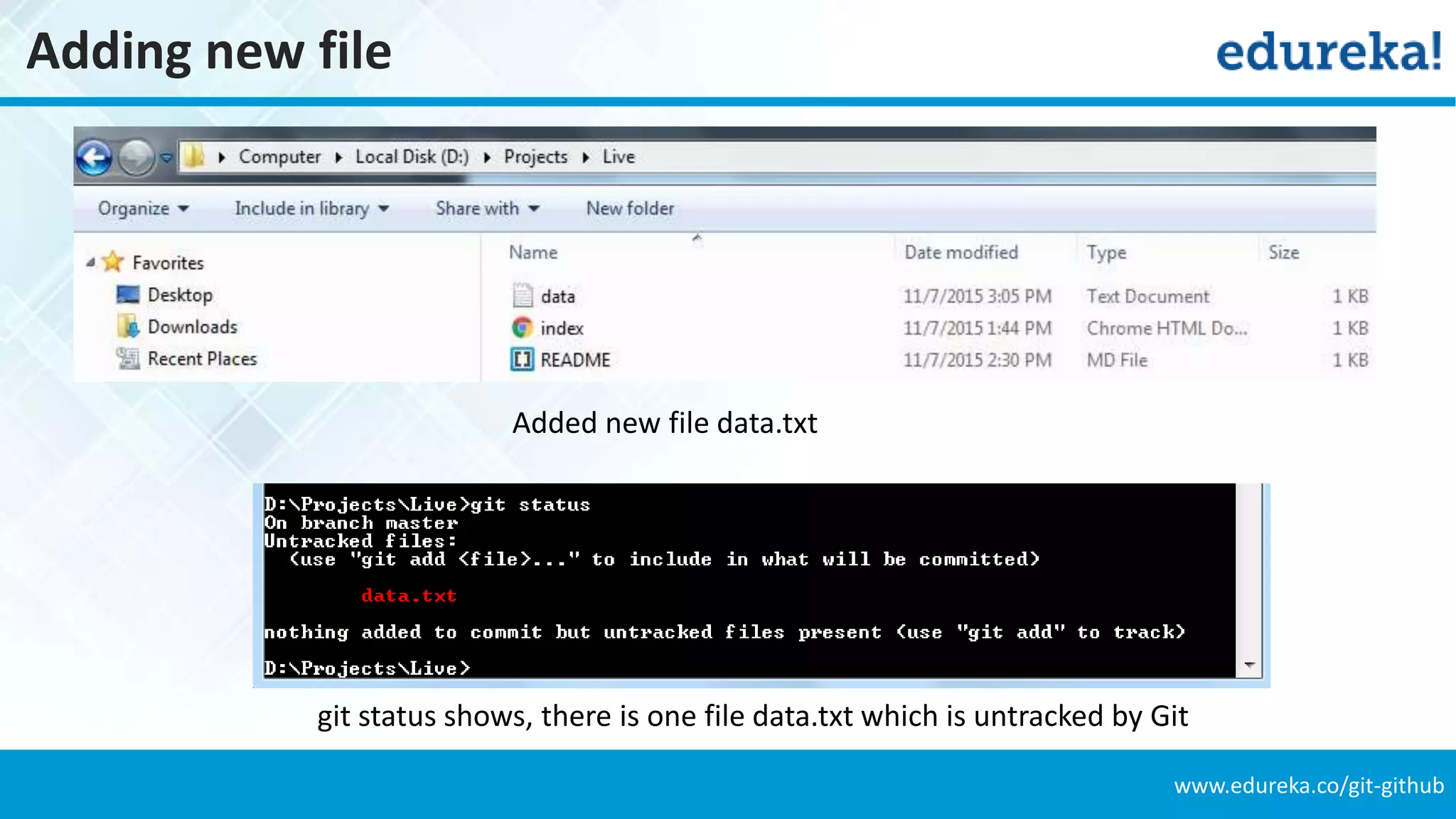
www.edureka.co/git-github Adding new file Added new file data.txt git status shows, there is one file data.txt which is untracked by Git
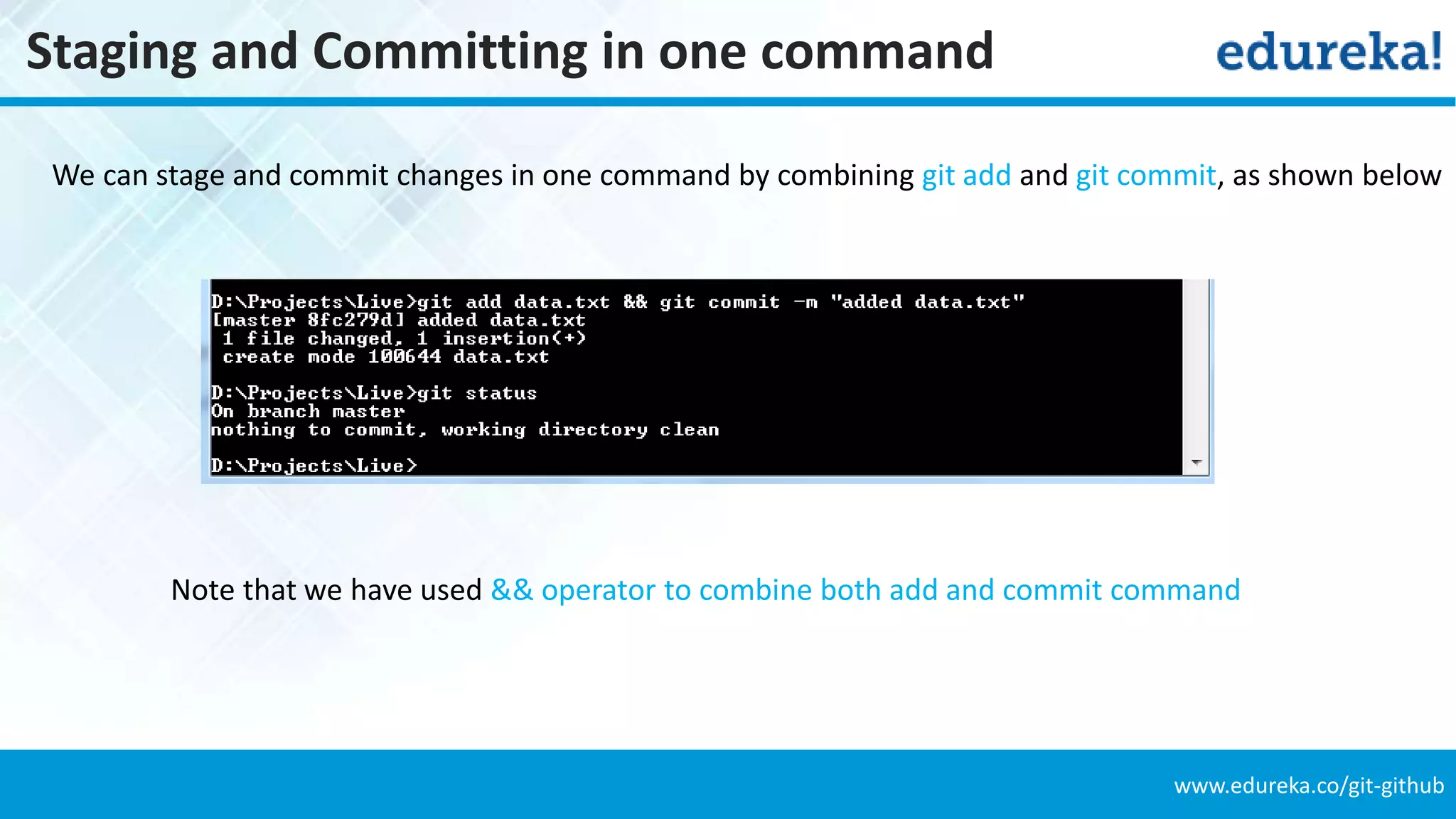
www.edureka.co/git-github Staging and Committing in one command We can stage and commit changes in one command by combining git add and git commit, as shown below Note that we have used && operator to combine both add and commit command
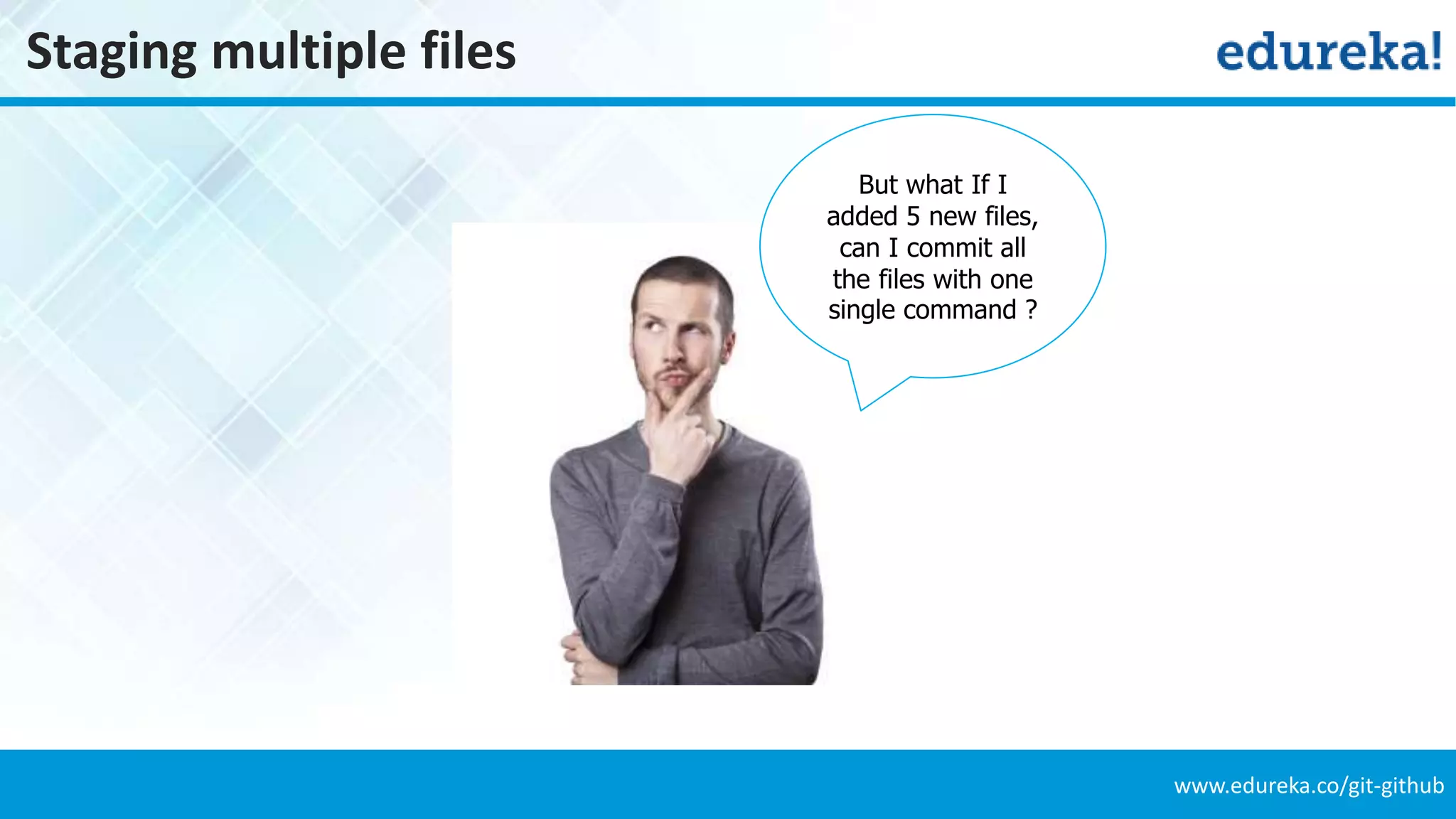
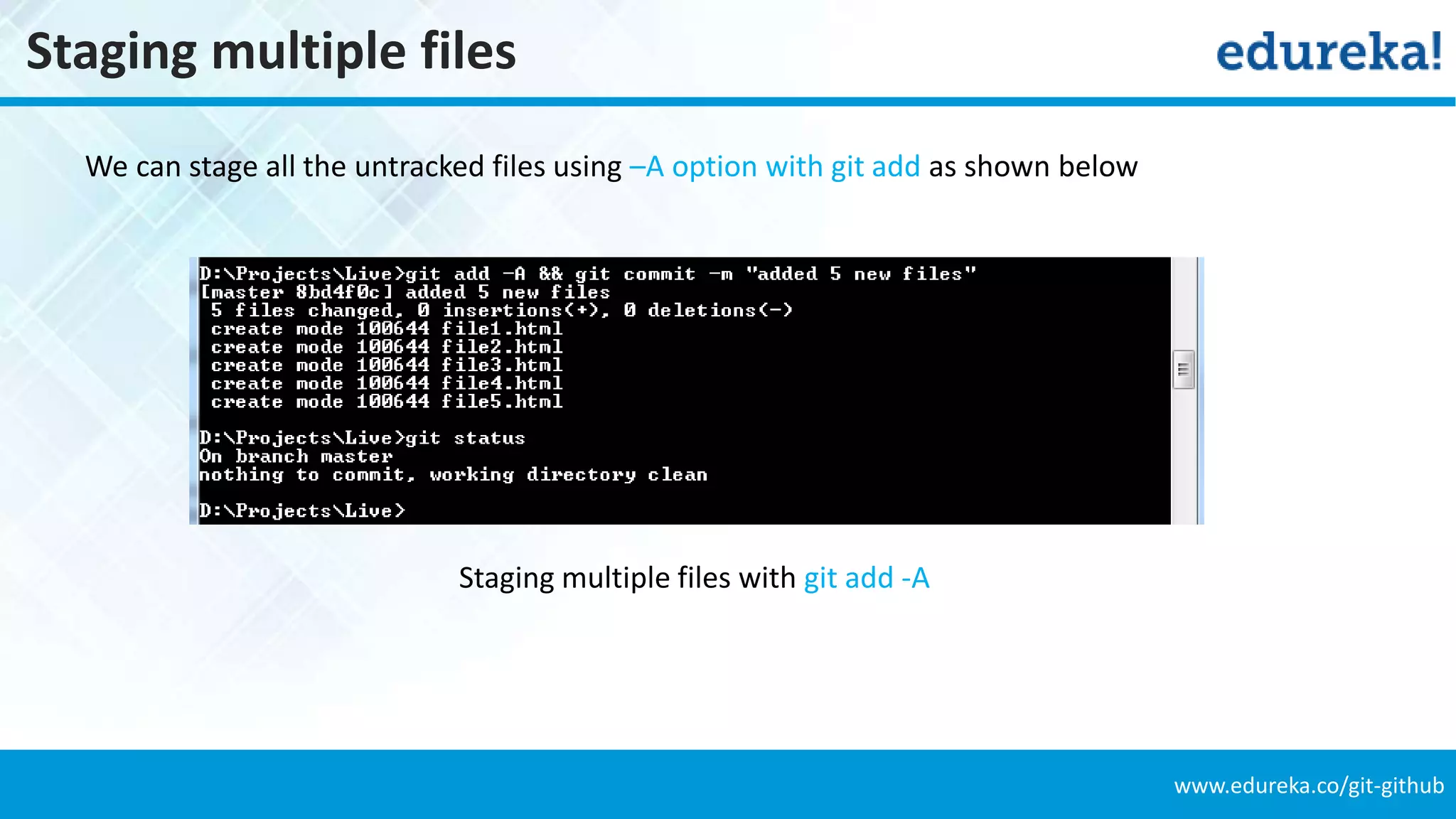
www.edureka.co/git-github Staging multiple files But what If I added 5 new files, can I commit all the files with one single command ?
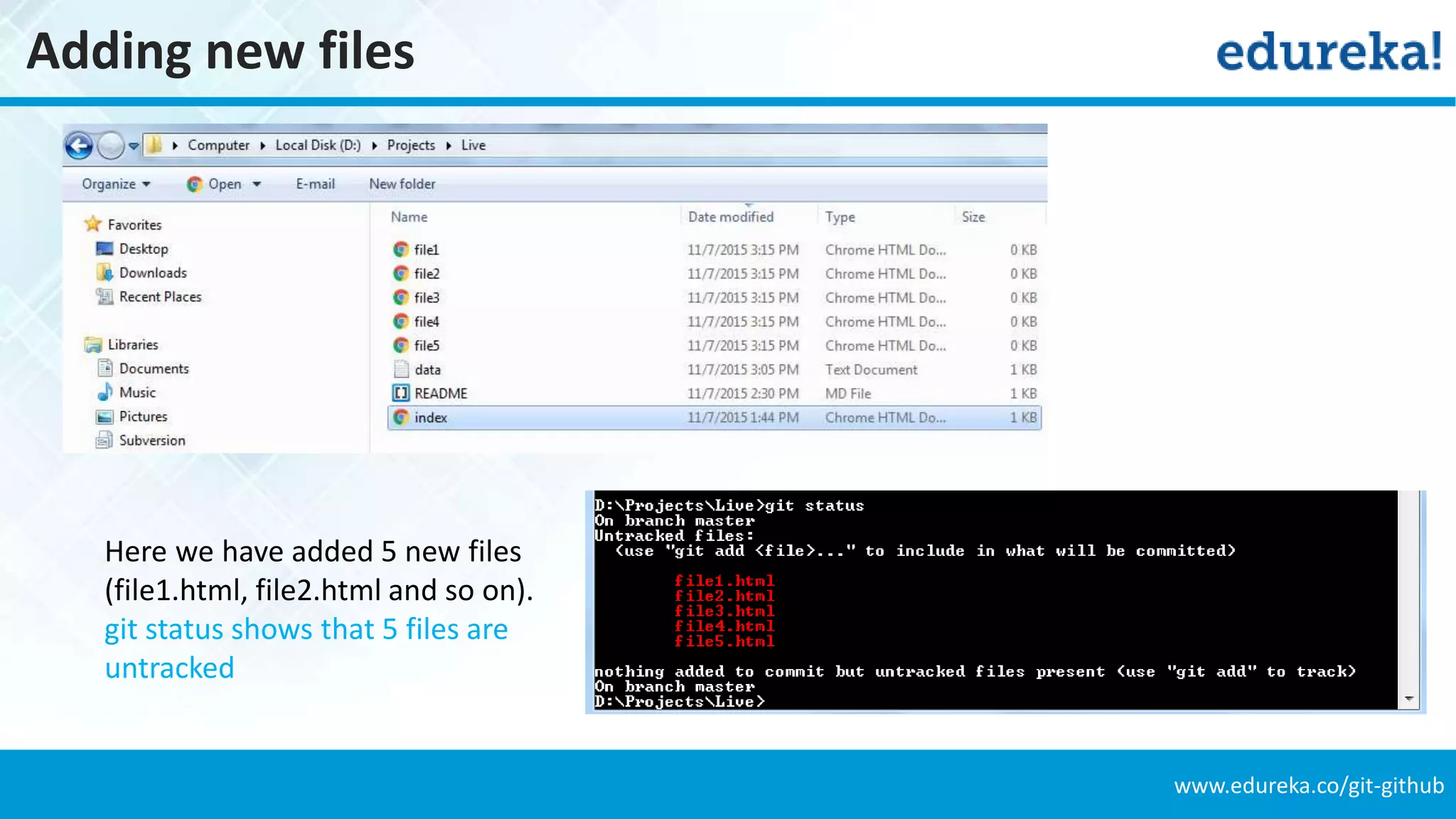
www.edureka.co/git-github Adding new files Here we have added 5 new files (file1.html, file2.html and so on). git status shows that 5 files are untracked
www.edureka.co/git-github Staging multiple files We can stage all the untracked files using –A option with git add as shown below Staging multiple files with git add -A
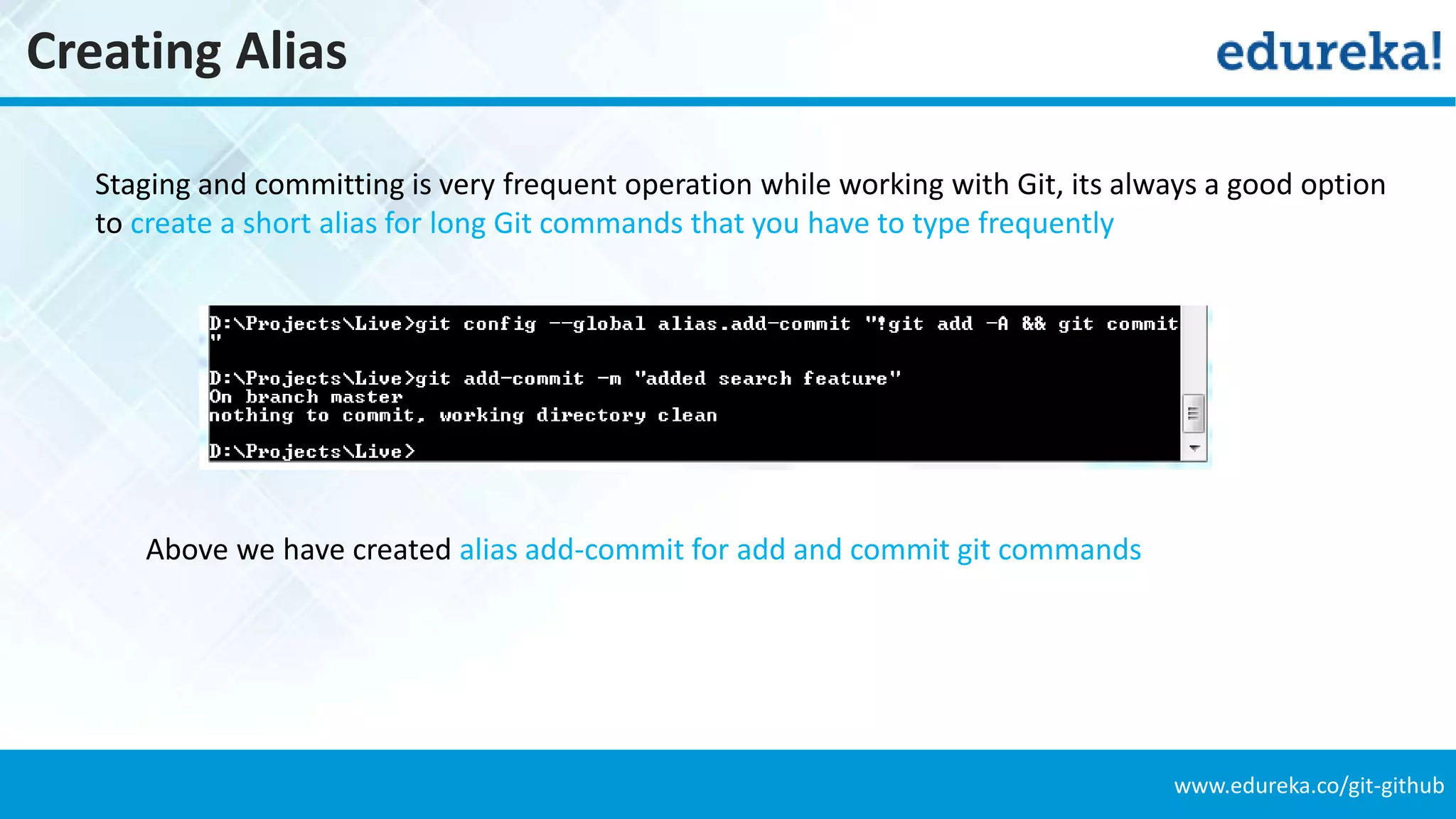
www.edureka.co/git-github Creating Alias Staging and committing is very frequent operation while working with Git, its always a good option to create a short alias for long Git commands that you have to type frequently Above we have created alias add-commit for add and commit git commands
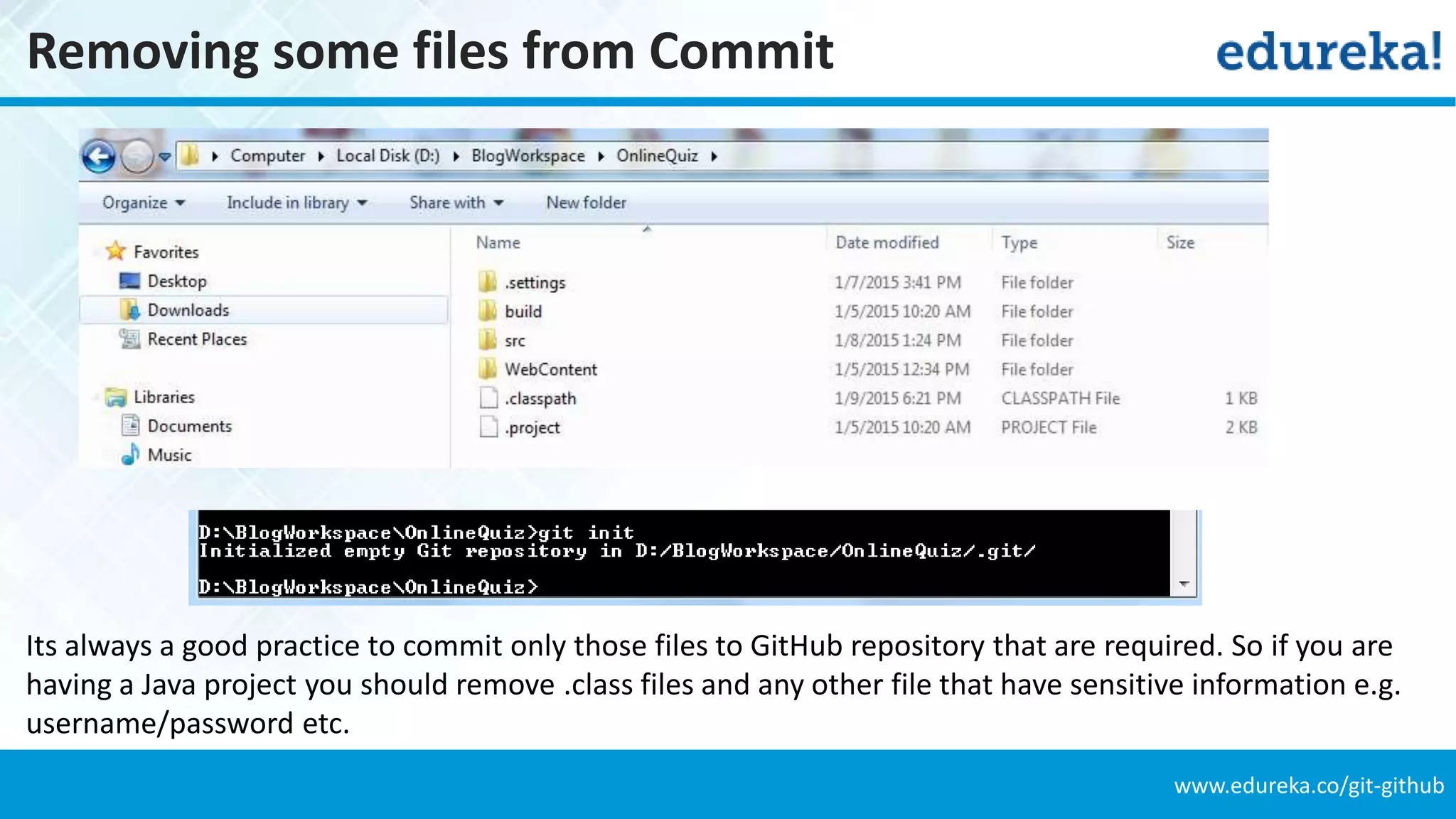
www.edureka.co/git-github Removing some files from Commit Its always a good practice to commit only those files to GitHub repository that are required. So if you are having a Java project you should remove .class files and any other file that have sensitive information e.g. username/password etc.
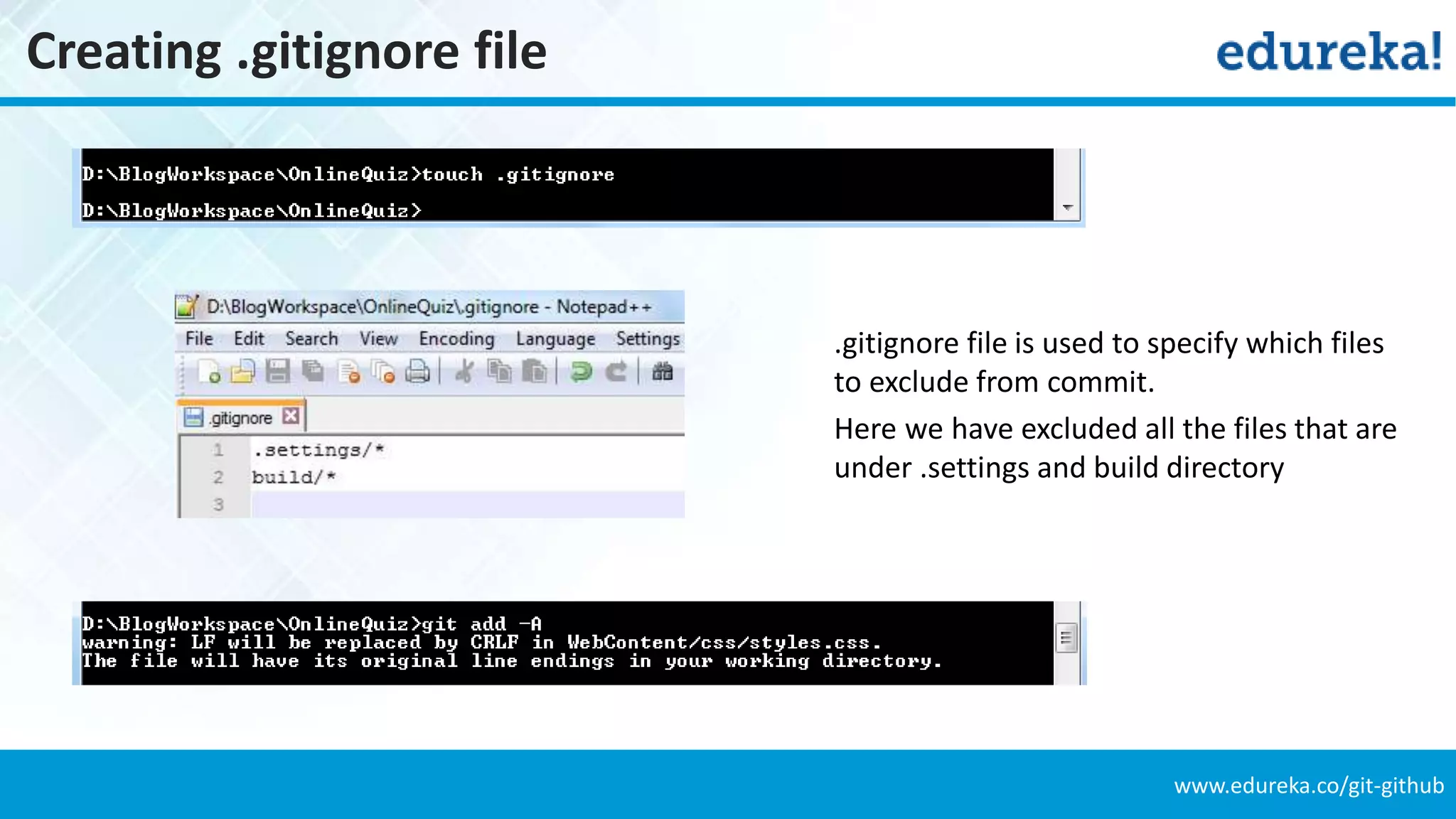
www.edureka.co/git-github Creating .gitignore file .gitignore file is used to specify which files to exclude from commit. Here we have excluded all the files that are under .settings and build directory
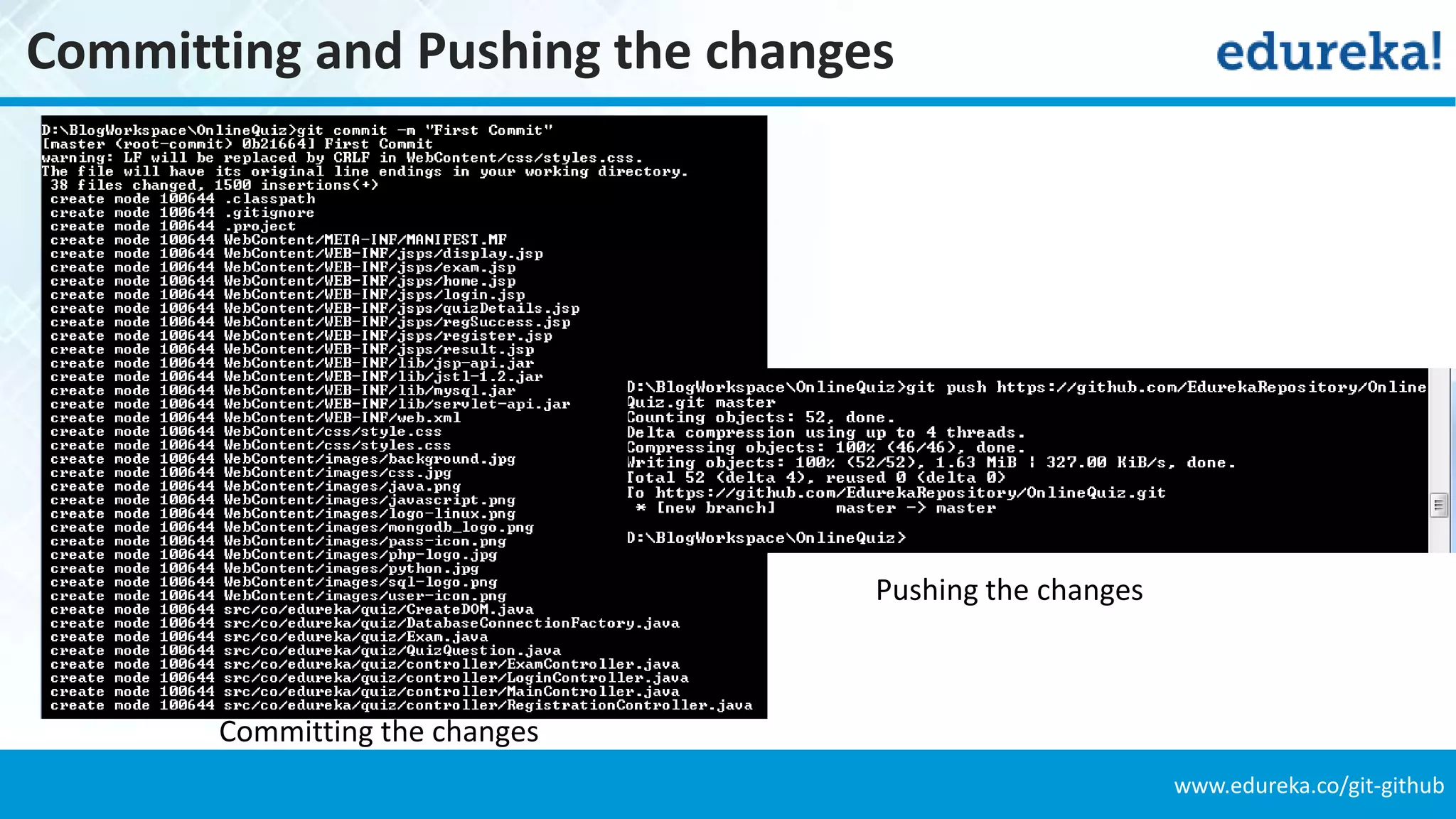
www.edureka.co/git-github Committing and Pushing the changes Committing the changes Pushing the changes
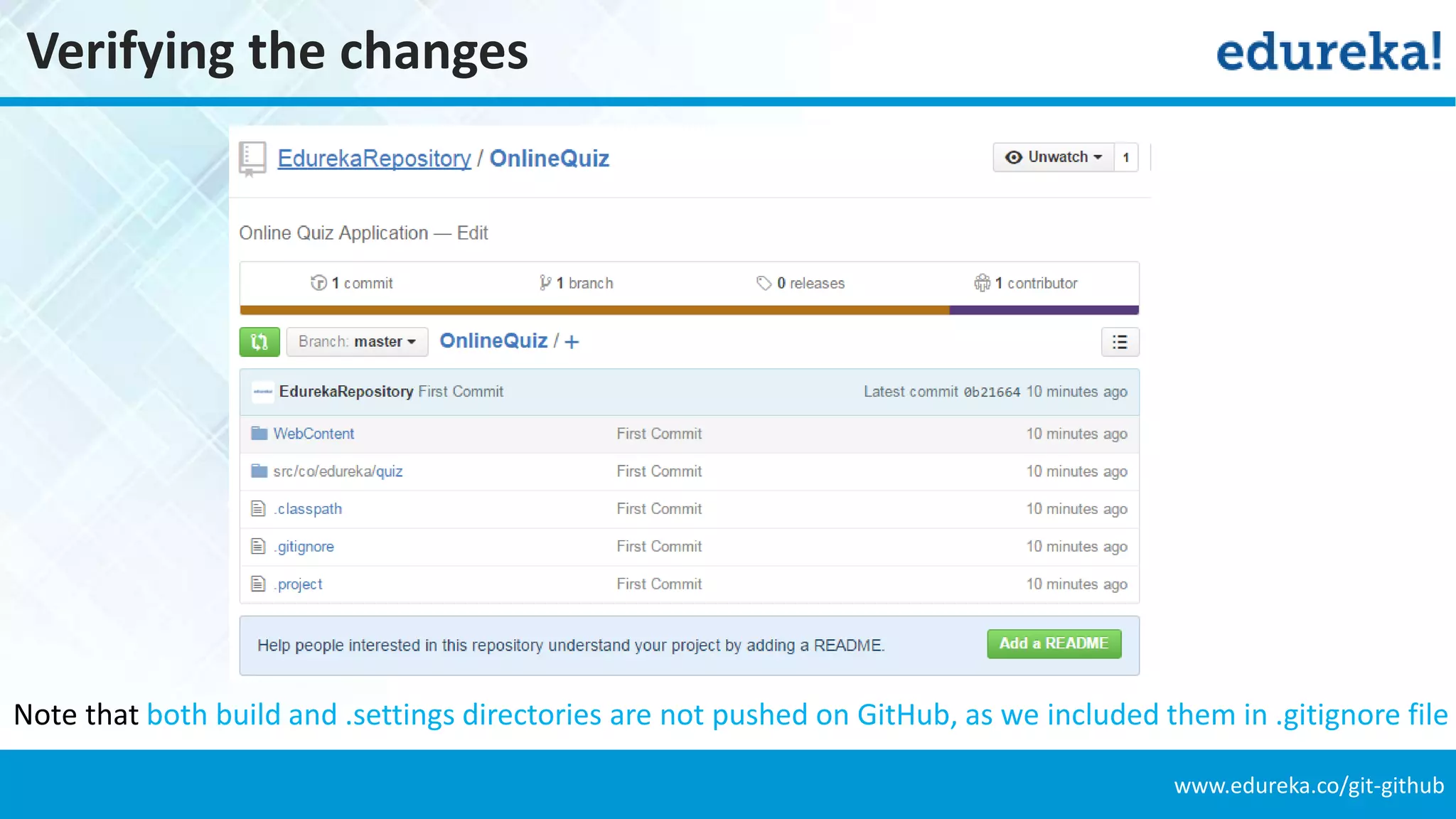
www.edureka.co/git-github Verifying the changes Note that both build and .settings directories are not pushed on GitHub, as we included them in .gitignore file
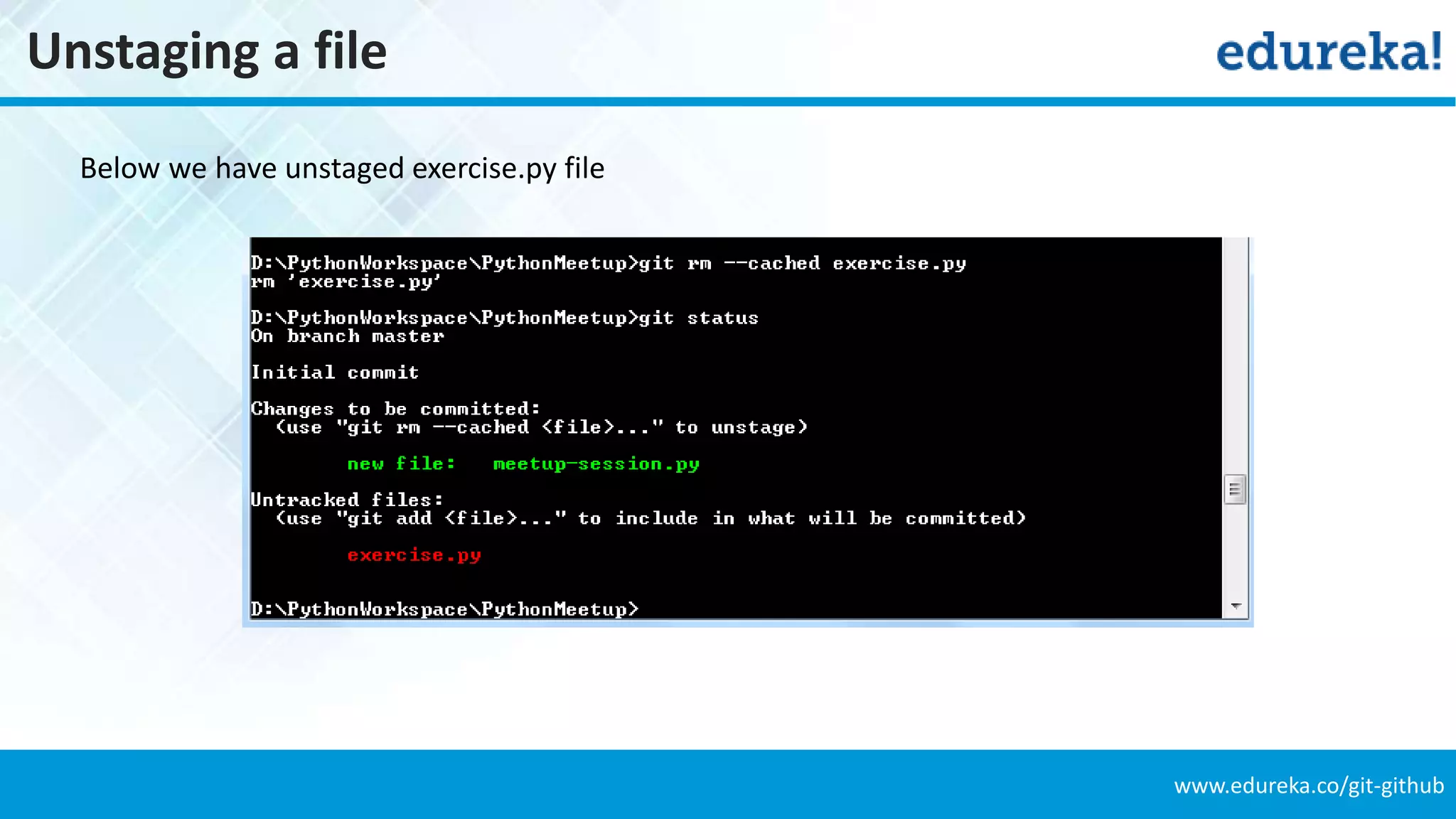
www.edureka.co/git-github Unstaging a file Consider the scenario where you have two files meetup-session.py and exercise.py You accidentally put both the files in staging area but you only want to commit meetup-session.py Problem : Solution : We can unstage the exercise.py by using git rm --cached <file>
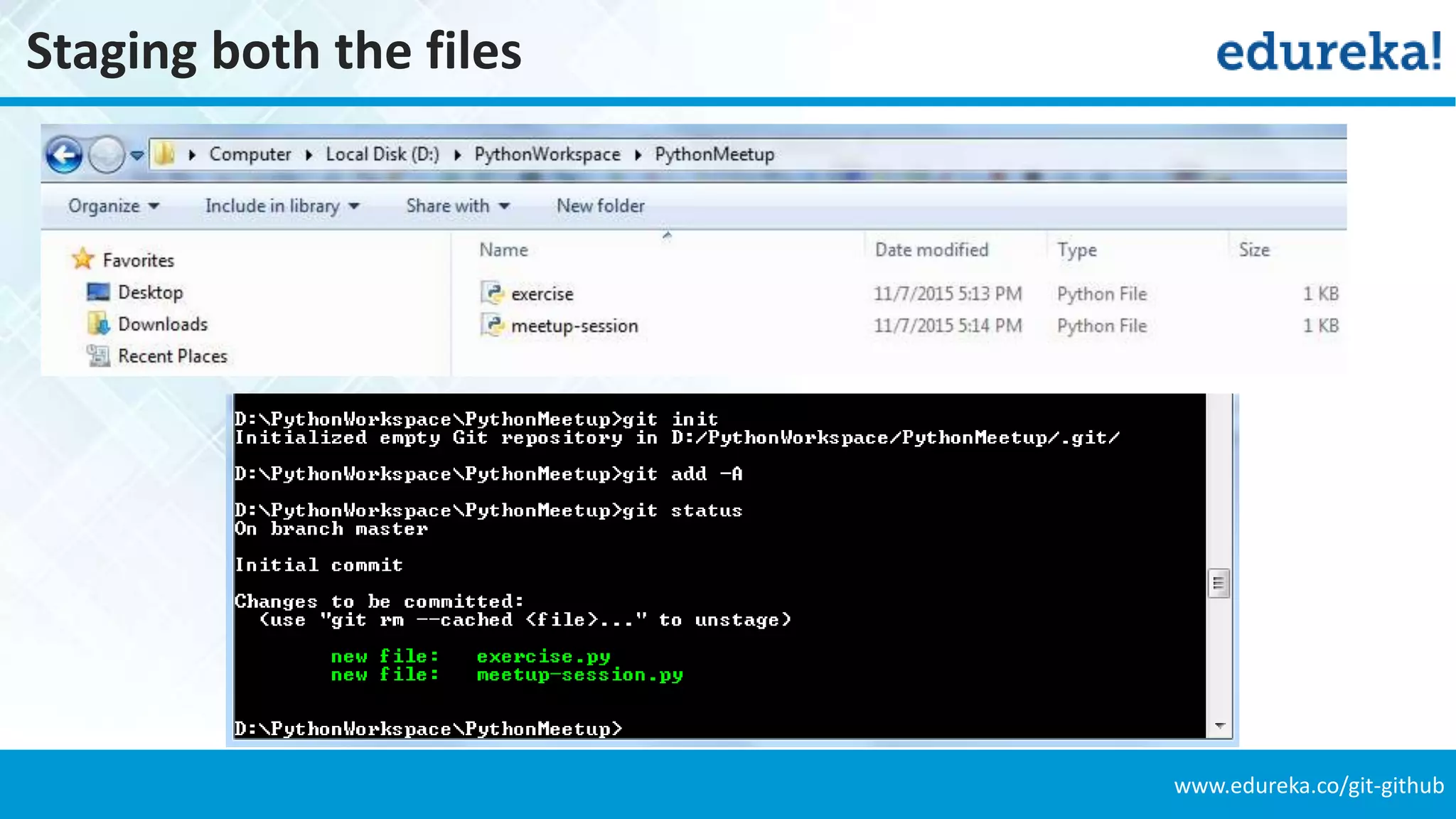
www.edureka.co/git-github Staging both the files
www.edureka.co/git-github Unstaging a file Below we have unstaged exercise.py file
www.edureka.co/git-github Branching
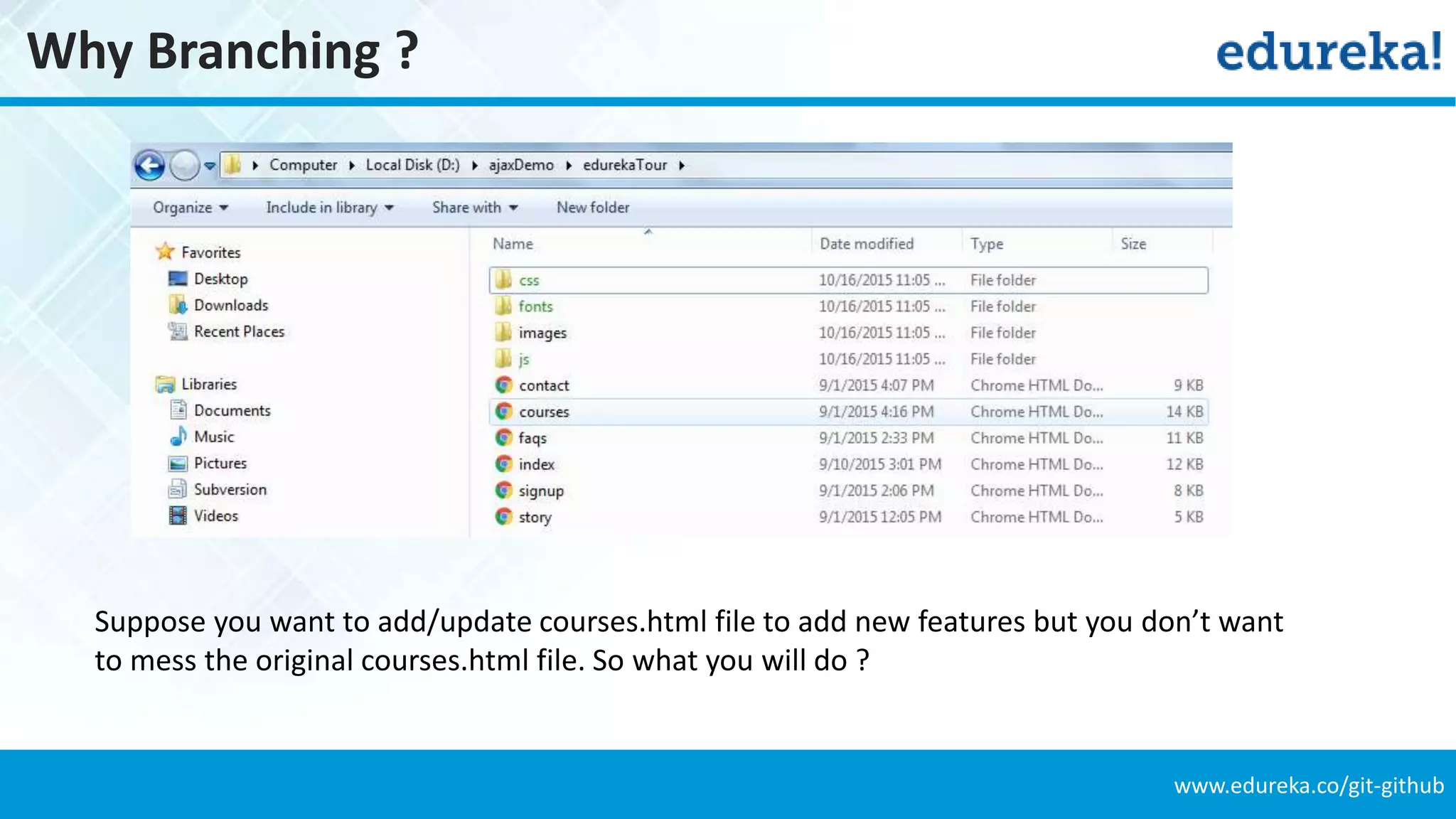
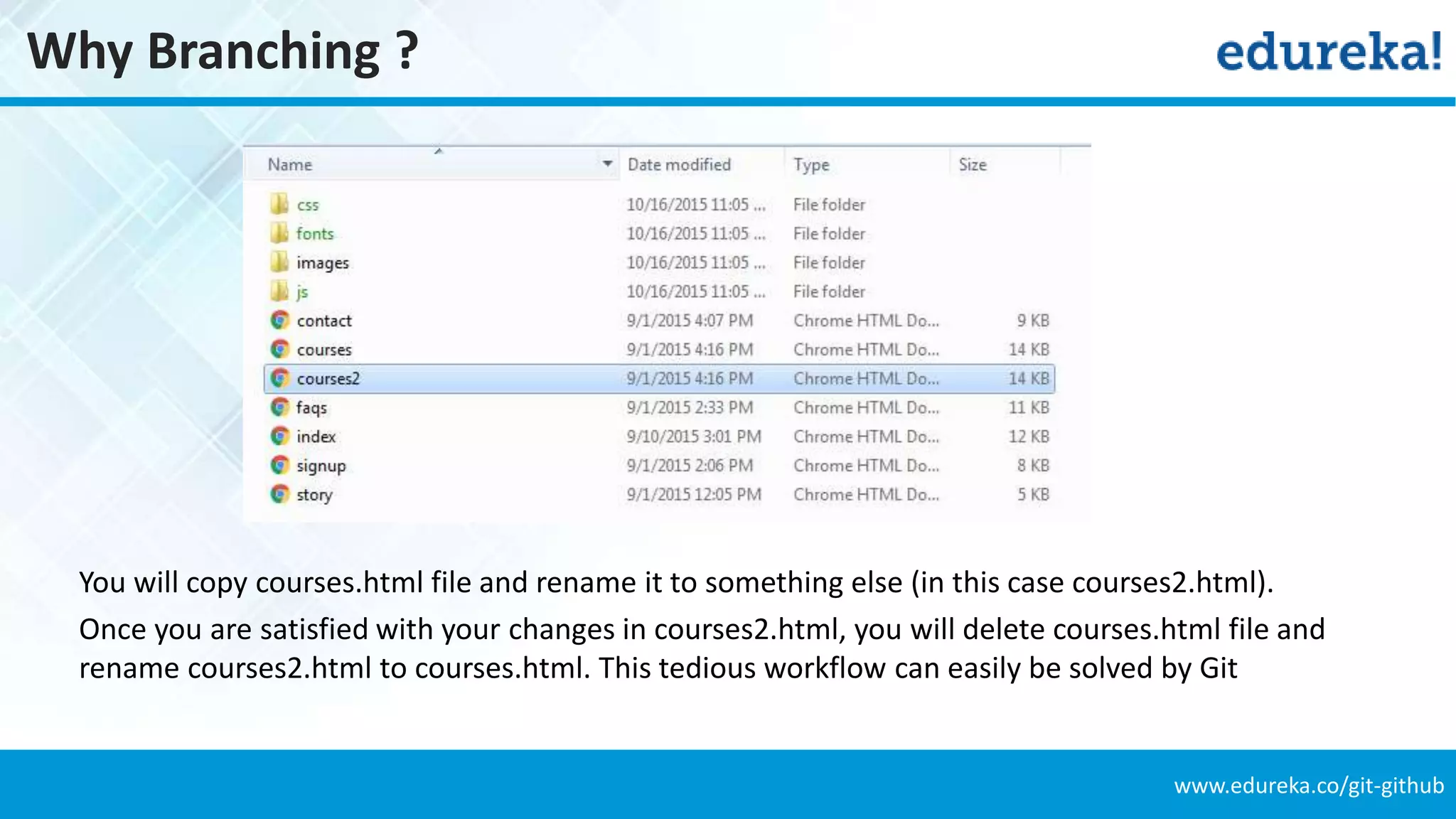
www.edureka.co/git-github Why Branching ? Suppose you want to add/update courses.html file to add new features but you don’t want to mess the original courses.html file. So what you will do ?
www.edureka.co/git-github Why Branching ? You will copy courses.html file and rename it to something else (in this case courses2.html). Once you are satisfied with your changes in courses2.html, you will delete courses.html file and rename courses2.html to courses.html. This tedious workflow can easily be solved by Git
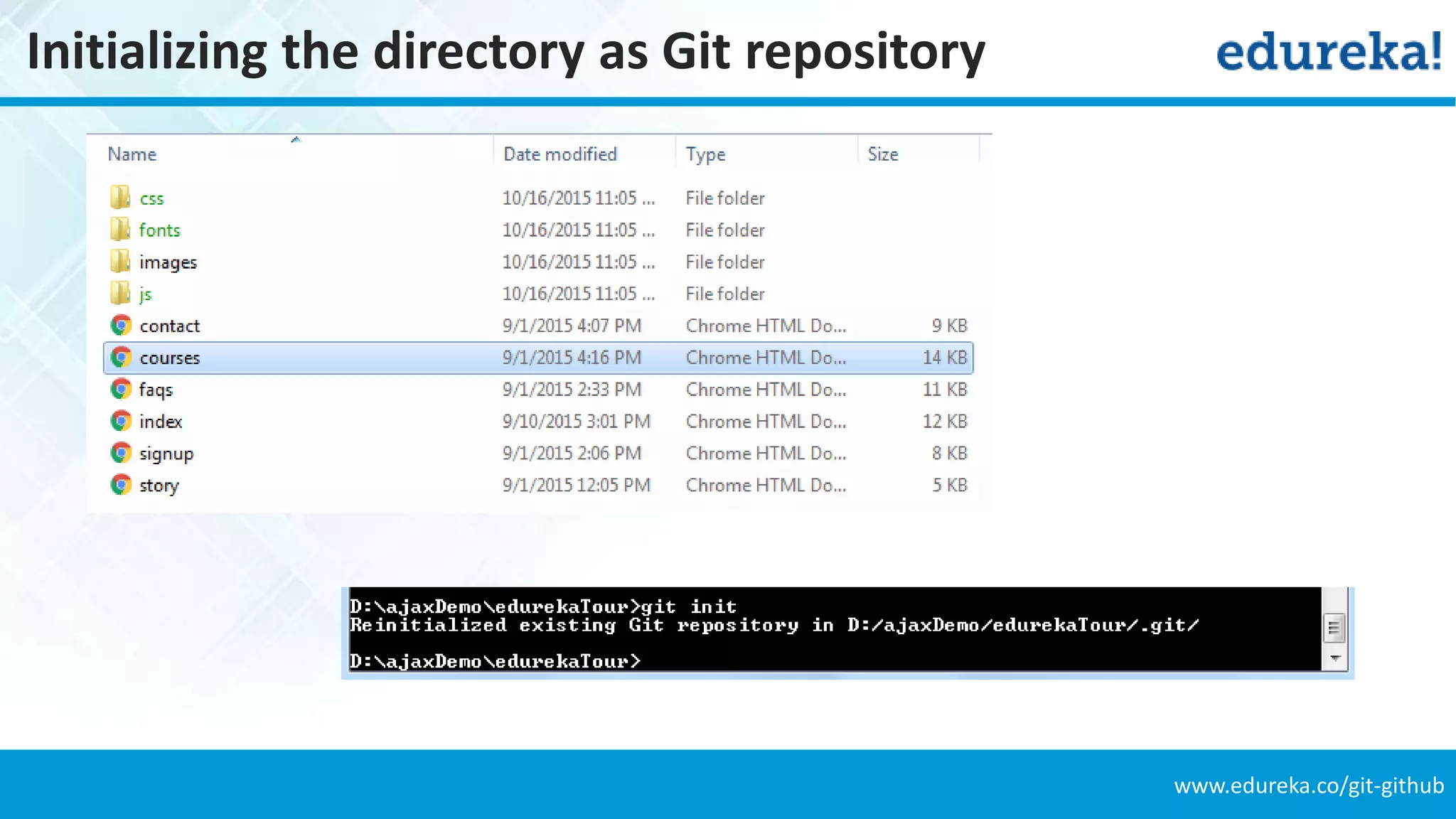
www.edureka.co/git-github Initializing the directory as Git repository
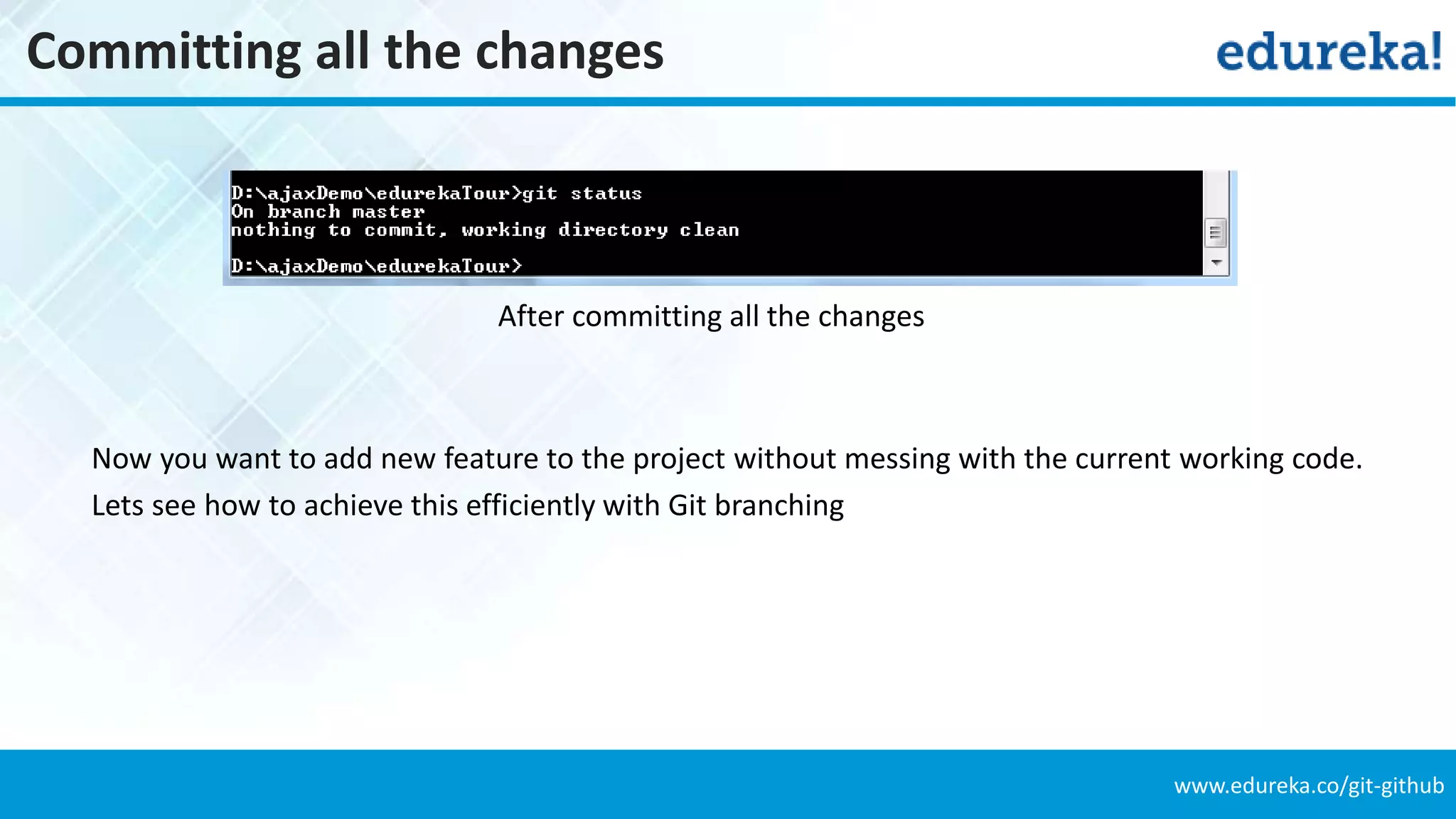
www.edureka.co/git-github Committing all the changes After committing all the changes Now you want to add new feature to the project without messing with the current working code. Lets see how to achieve this efficiently with Git branching
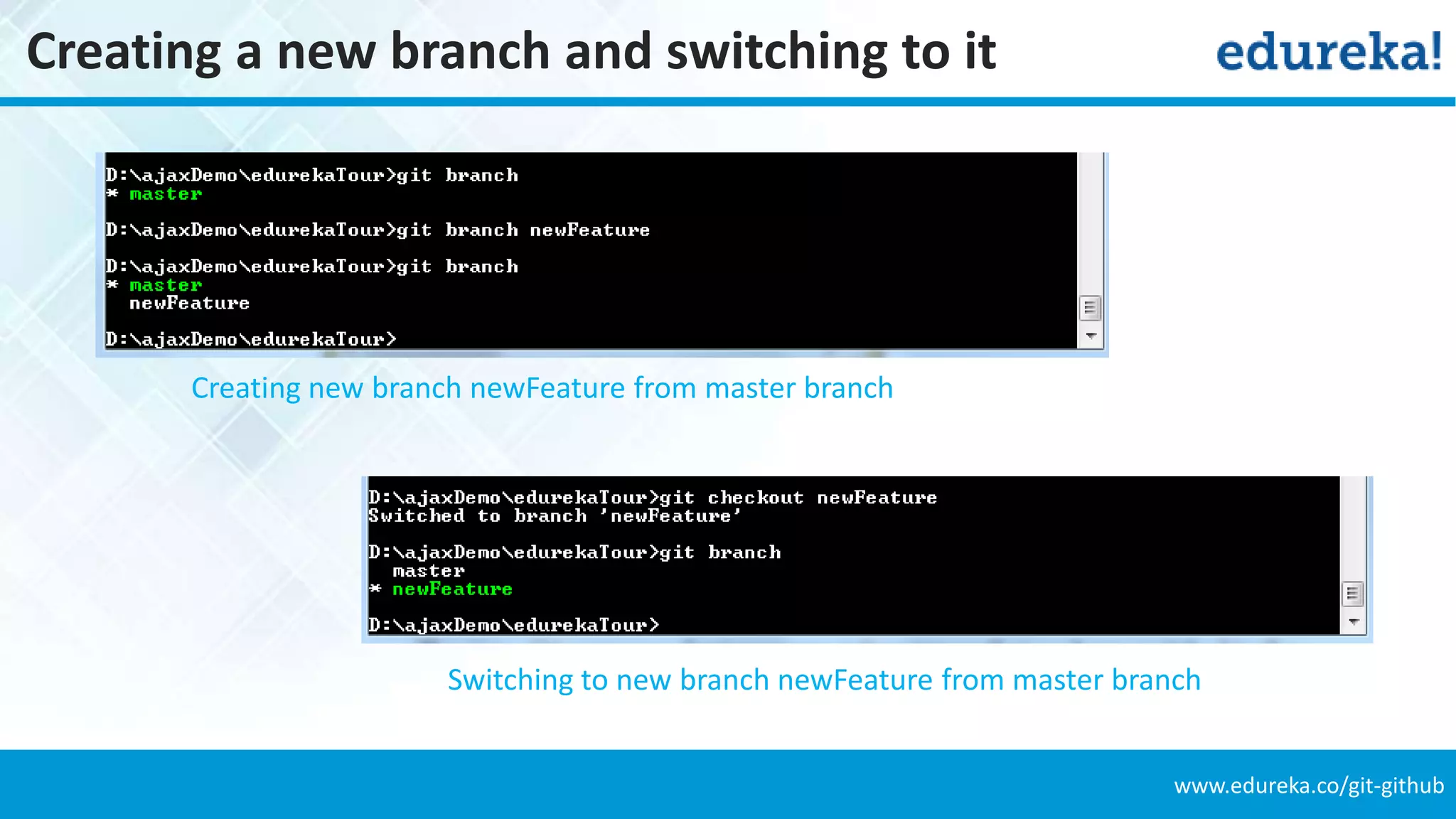
www.edureka.co/git-github Creating a new branch and switching to it Creating new branch newFeature from master branch Switching to new branch newFeature from master branch
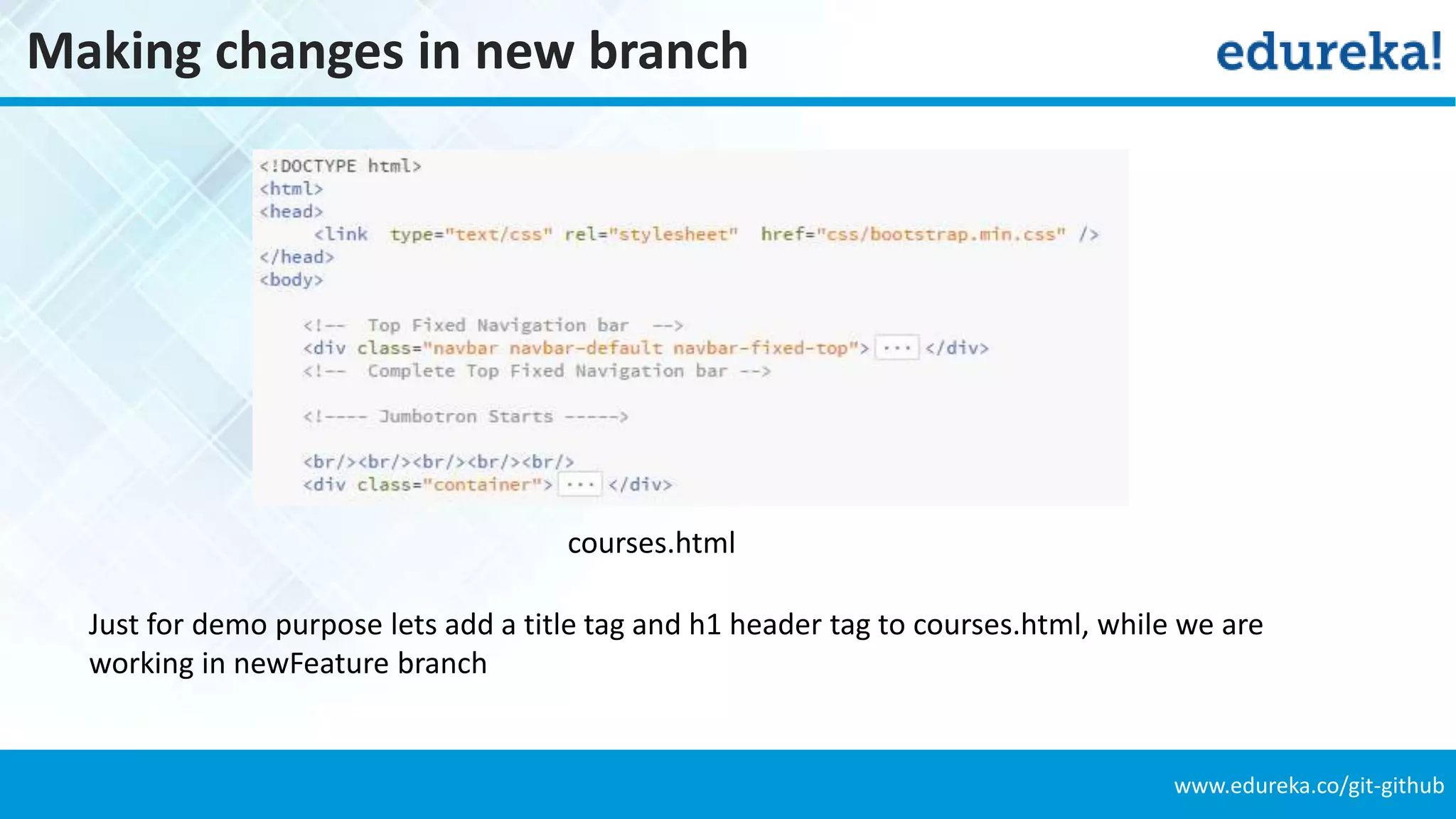
www.edureka.co/git-github Making changes in new branch courses.html Just for demo purpose lets add a title tag and h1 header tag to courses.html, while we are working in newFeature branch
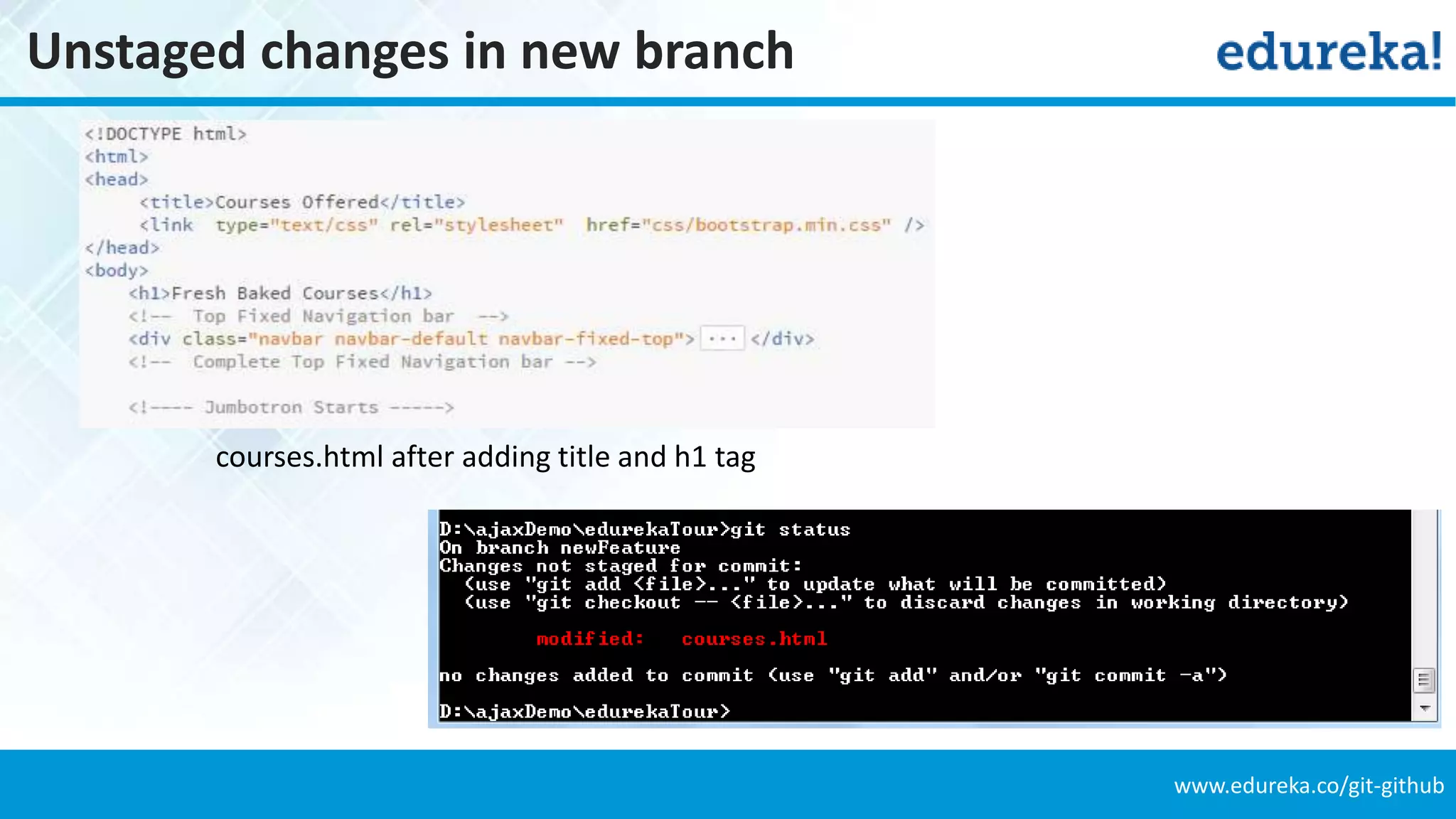
www.edureka.co/git-github Unstaged changes in new branch courses.html after adding title and h1 tag
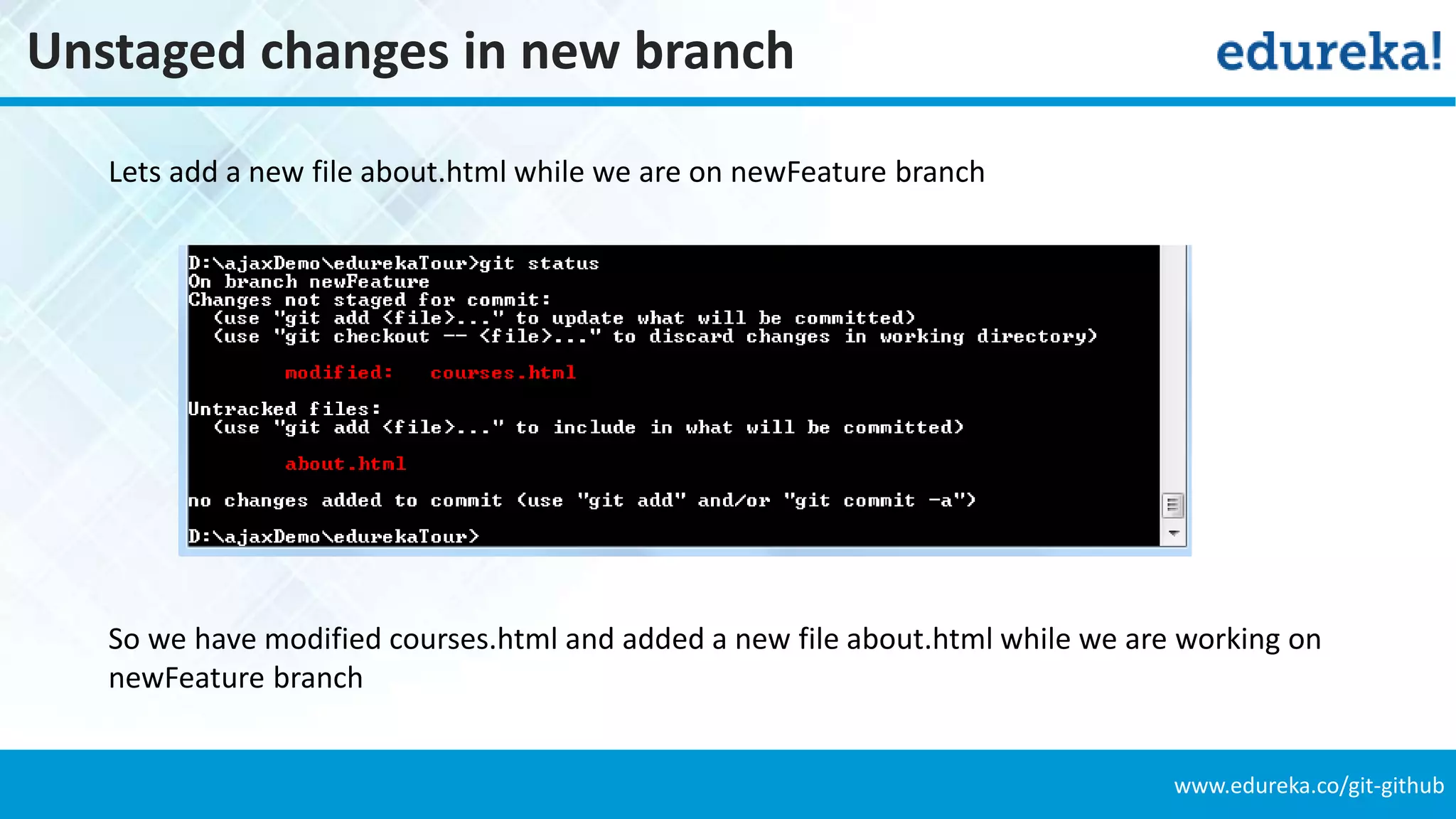
www.edureka.co/git-github Unstaged changes in new branch Lets add a new file about.html while we are on newFeature branch So we have modified courses.html and added a new file about.html while we are working on newFeature branch
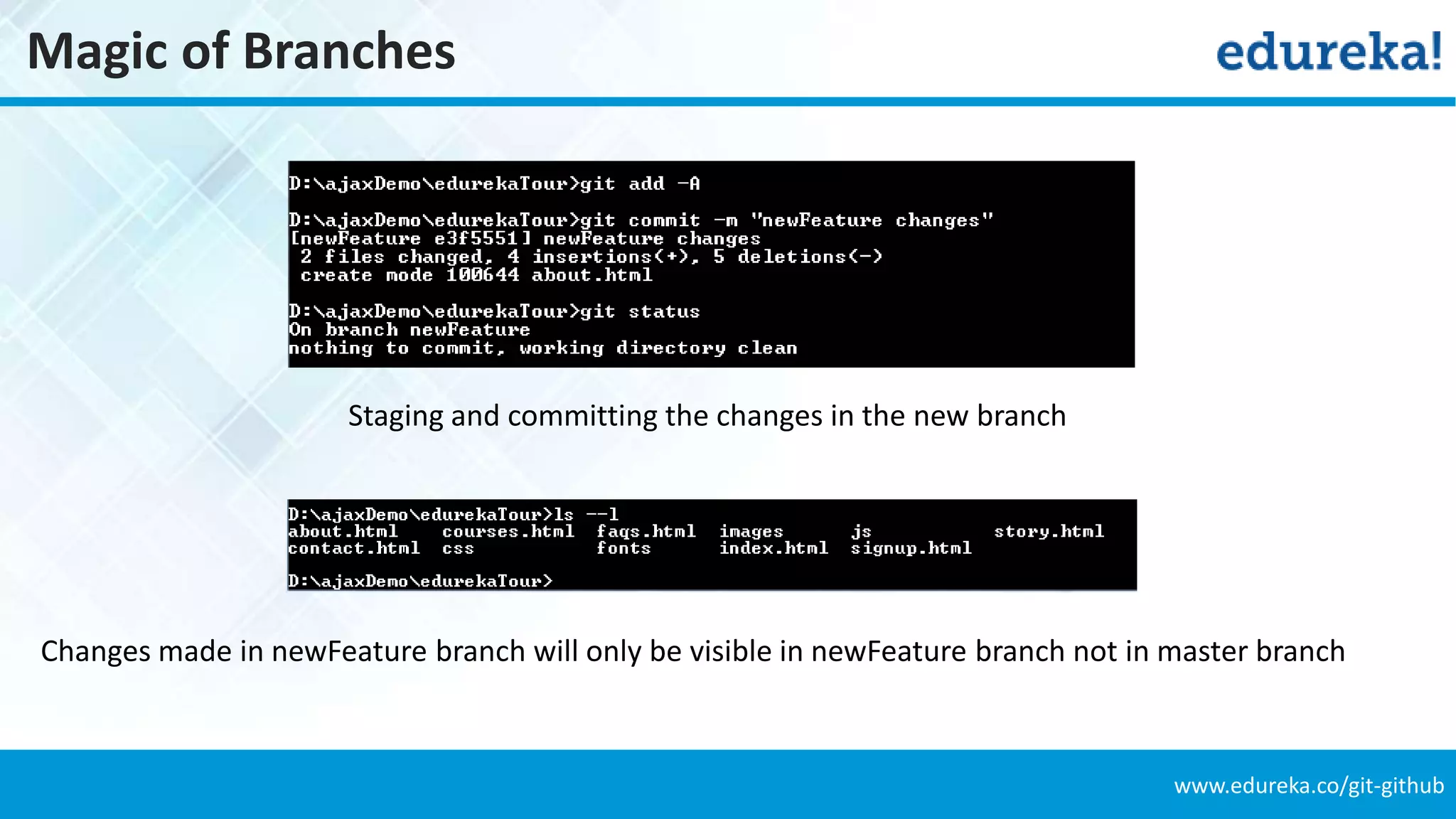
www.edureka.co/git-github Magic of Branches Staging and committing the changes in the new branch Changes made in newFeature branch will only be visible in newFeature branch not in master branch
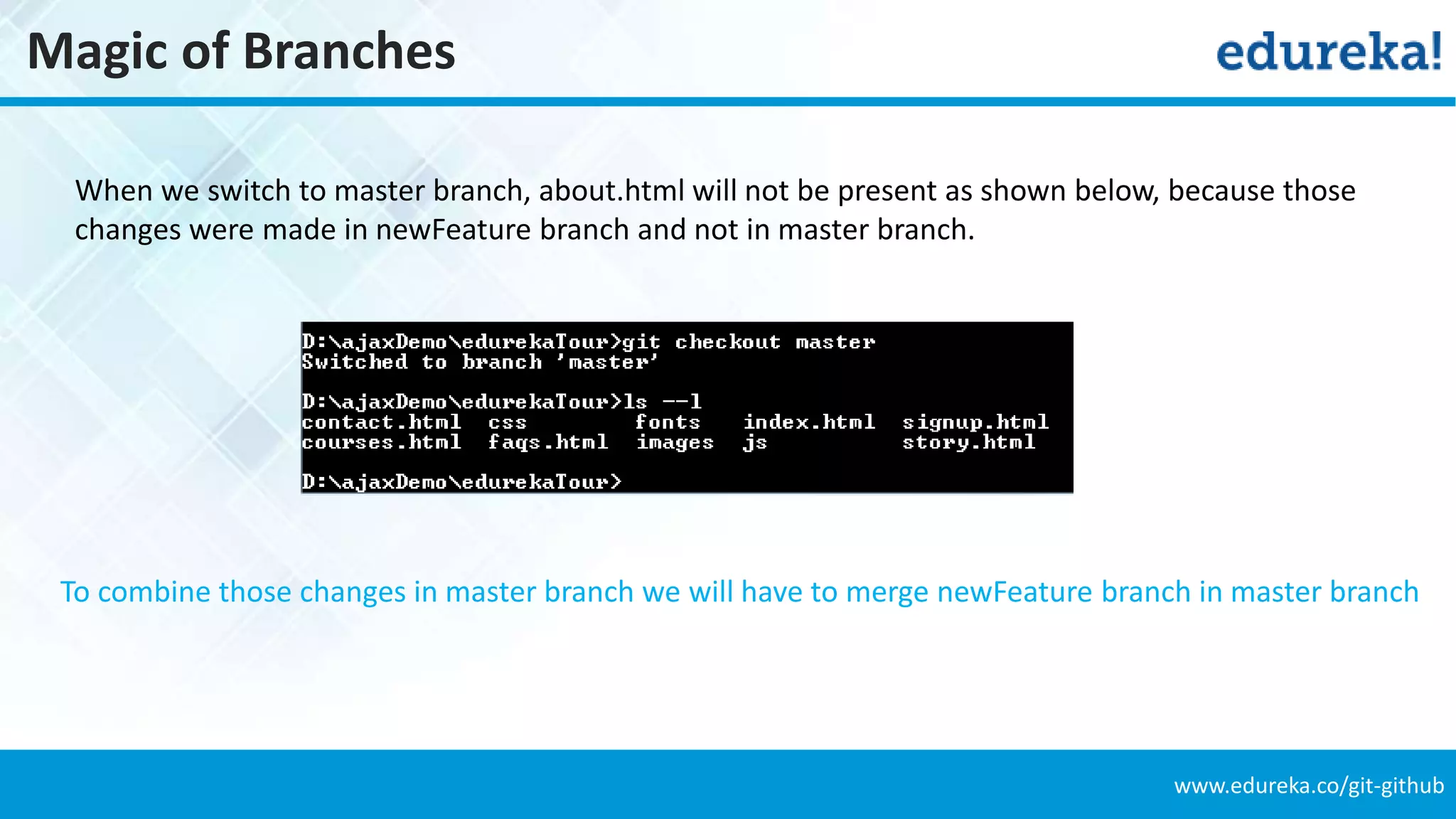
www.edureka.co/git-github Magic of Branches When we switch to master branch, about.html will not be present as shown below, because those changes were made in newFeature branch and not in master branch. To combine those changes in master branch we will have to merge newFeature branch in master branch
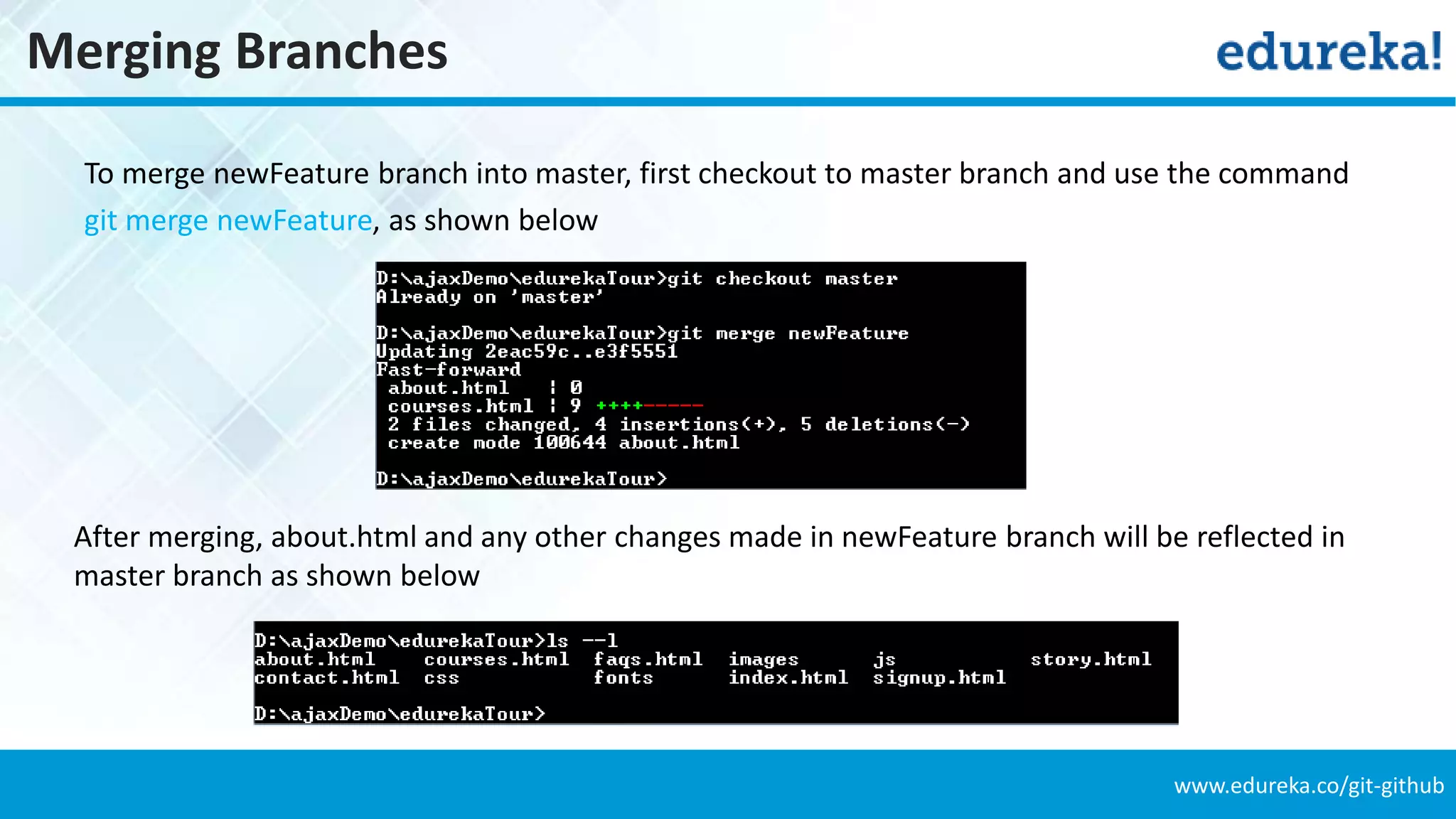
www.edureka.co/git-github Merging Branches To merge newFeature branch into master, first checkout to master branch and use the command git merge newFeature, as shown below After merging, about.html and any other changes made in newFeature branch will be reflected in master branch as shown below
www.edureka.co/git-github Survey Your feedback is vital for us, be it a compliment, a suggestion or a complaint. It helps us to make your experience better! Please spare few minutes to take the survey after the webinar.
www.edureka.co/git-github Thank You … Questions/Queries/Feedback Recording and presentation will be made available to you within 24 hours

Hacking Git and GitHub