Advanced Web Development in PHP Module III: Code Versioning and Branching with Git Rasan Samarasinghe ESOFT Computer Studies (pvt) Ltd. No 68/1, Main Street, Embilipitiya.
Contents 1. Introduction to Git 2. What is Version Controlling? 3. What is Distributed Version Controlling? 4. Why Use a Version Control System? 5. Downloading and Installing Git 6. Git Life Cycle 7. Init command 8. Clone Command 9. Config Command 10. Add Command 11. Commit Command 12. Status Command 13. Log Command 14. Diff Command 15. Revert Command 16. Reset Command 17. Clean Command 18. Commit --amend Command 19. Rebase Command 20. Reflog Command 21. Branch Command 22. Checkout Command 23. Merge Command 24. Remote Command 25. Fetch Command 26. Pull Command 27. Push Command
Introduction to Git Git is a distributed version control system, allows group of people to work on same source code at the same time without stepping on each others toes.
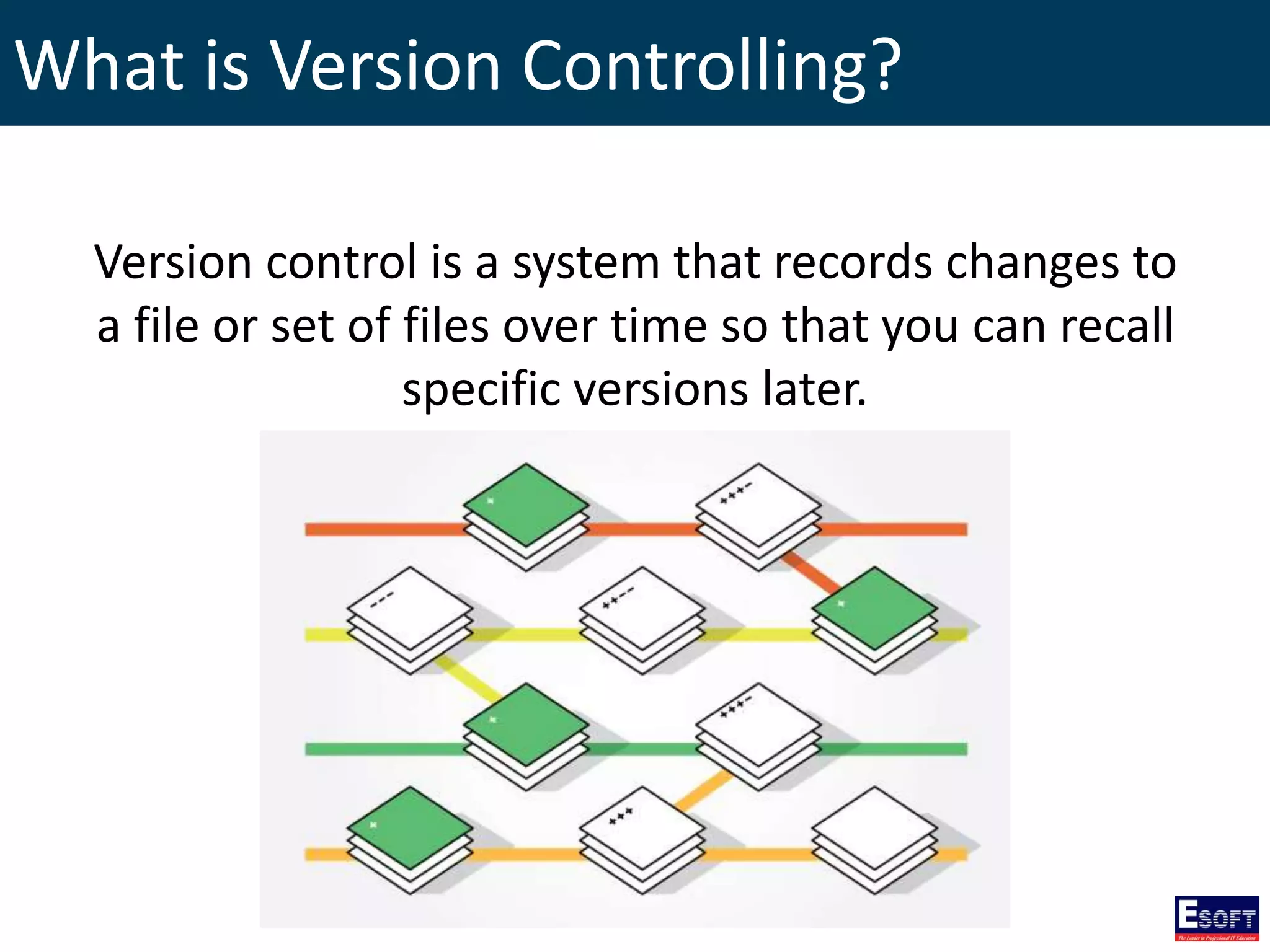
What is Version Controlling? Version control is a system that records changes to a file or set of files over time so that you can recall specific versions later.
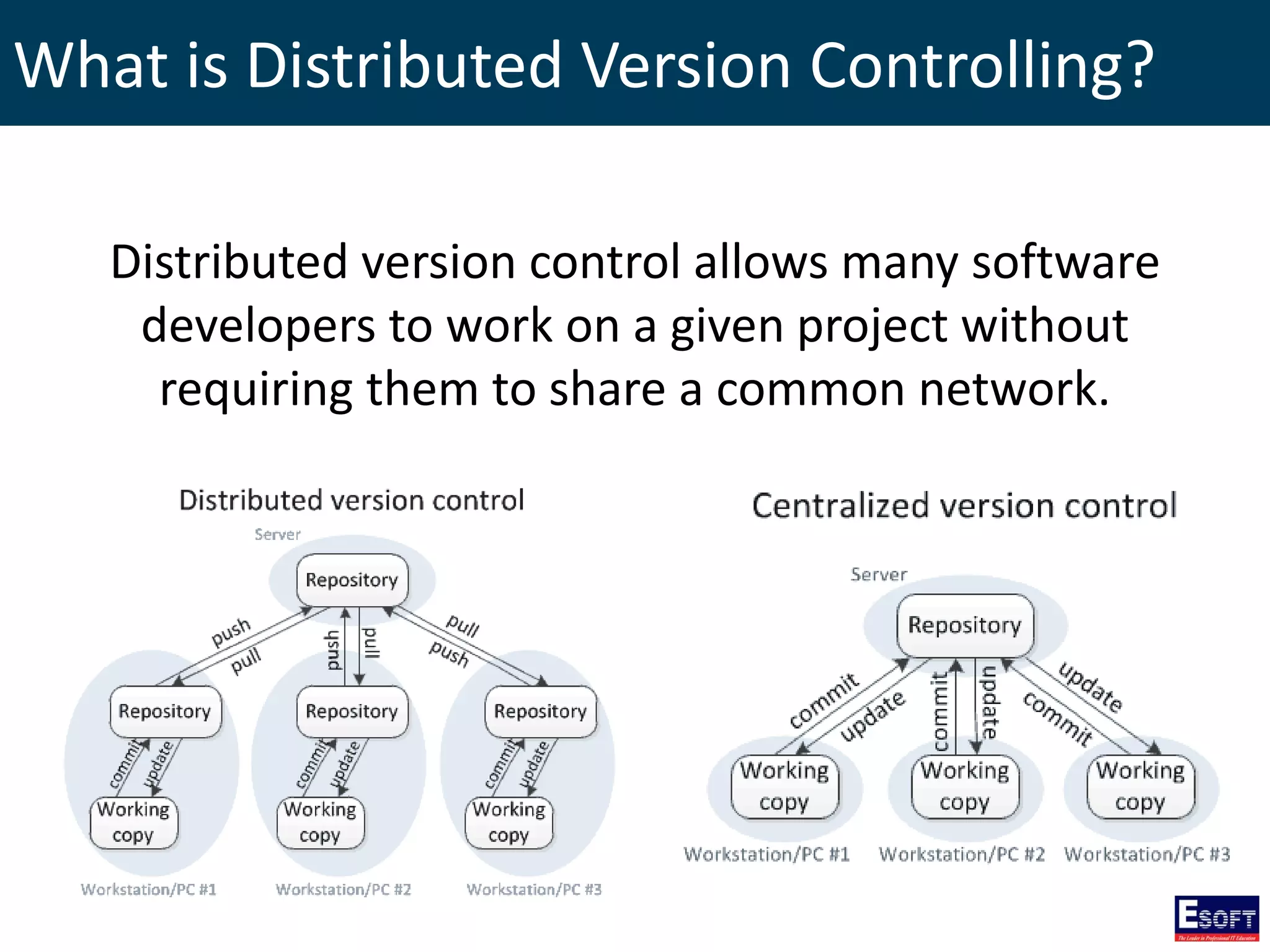
What is Distributed Version Controlling? Distributed version control allows many software developers to work on a given project without requiring them to share a common network.
Why Use a Version Control System? • Collaboration • Storing Versions • Restoring Previous Versions • Understanding What Happened • Backup
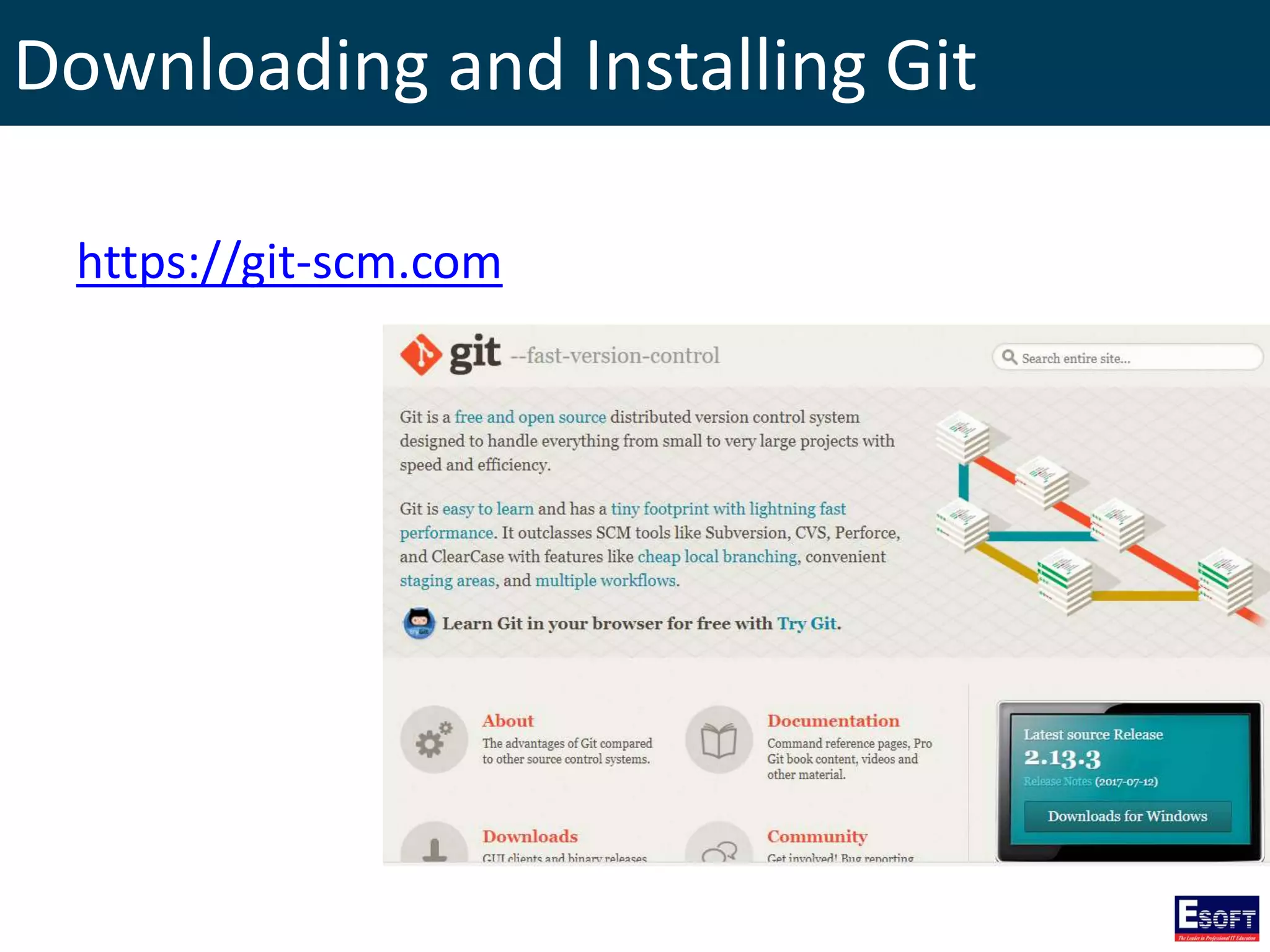
Downloading and Installing Git https://git-scm.com
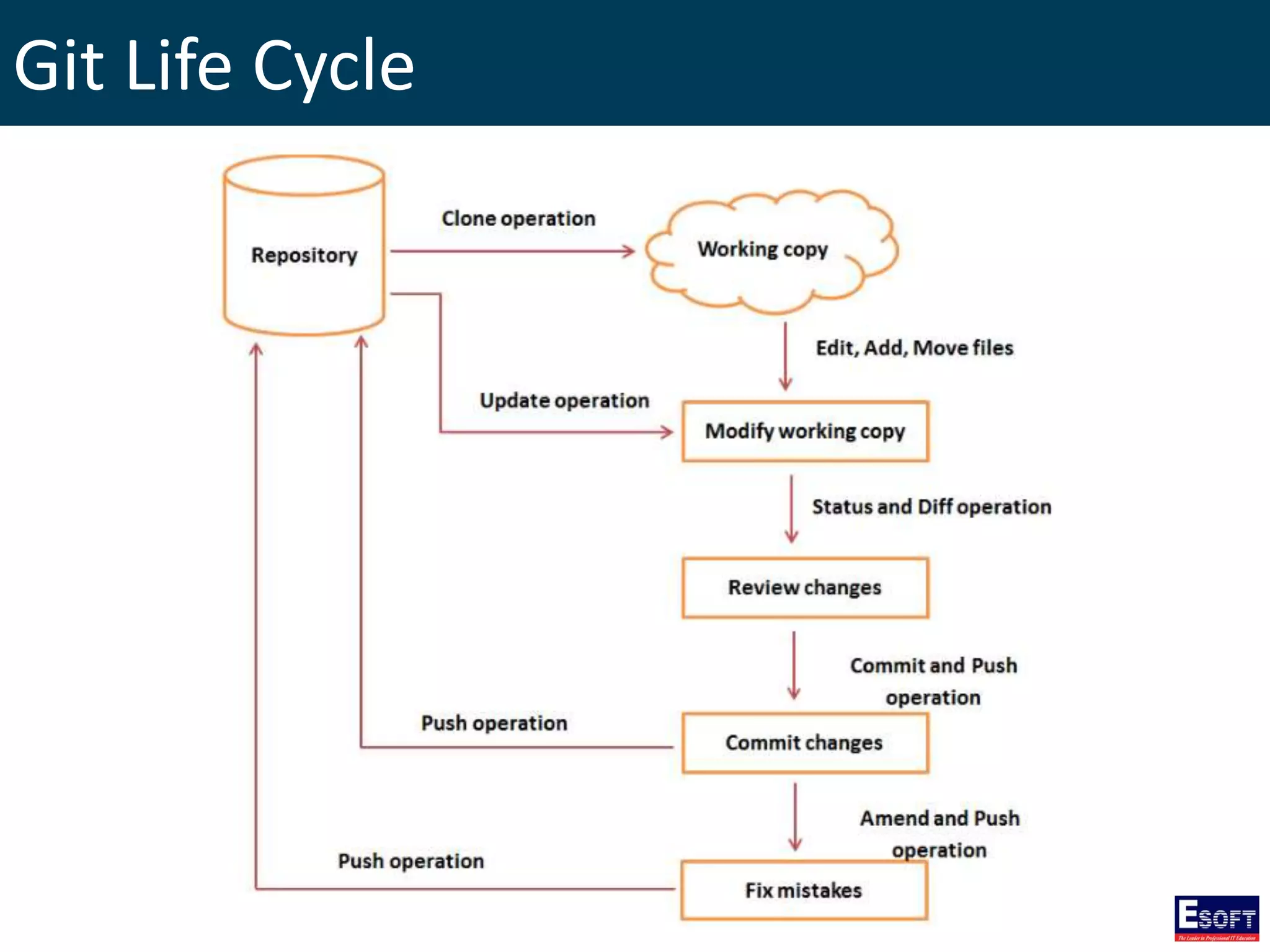
Git Life Cycle 1. You clone the GIT repository as a working copy. 2. You modify the working copy by adding/editing files. 3. If necessary, you also update the working copy by taking other developer's changes. 4. You review the changes before commit. 5. You commit changes. If everything is fine, then you push the changes to the repository. 6. After committing, if you realize something is wrong, then you correct the last commit and push the changes to the repository.
Git Life Cycle
Git Basics
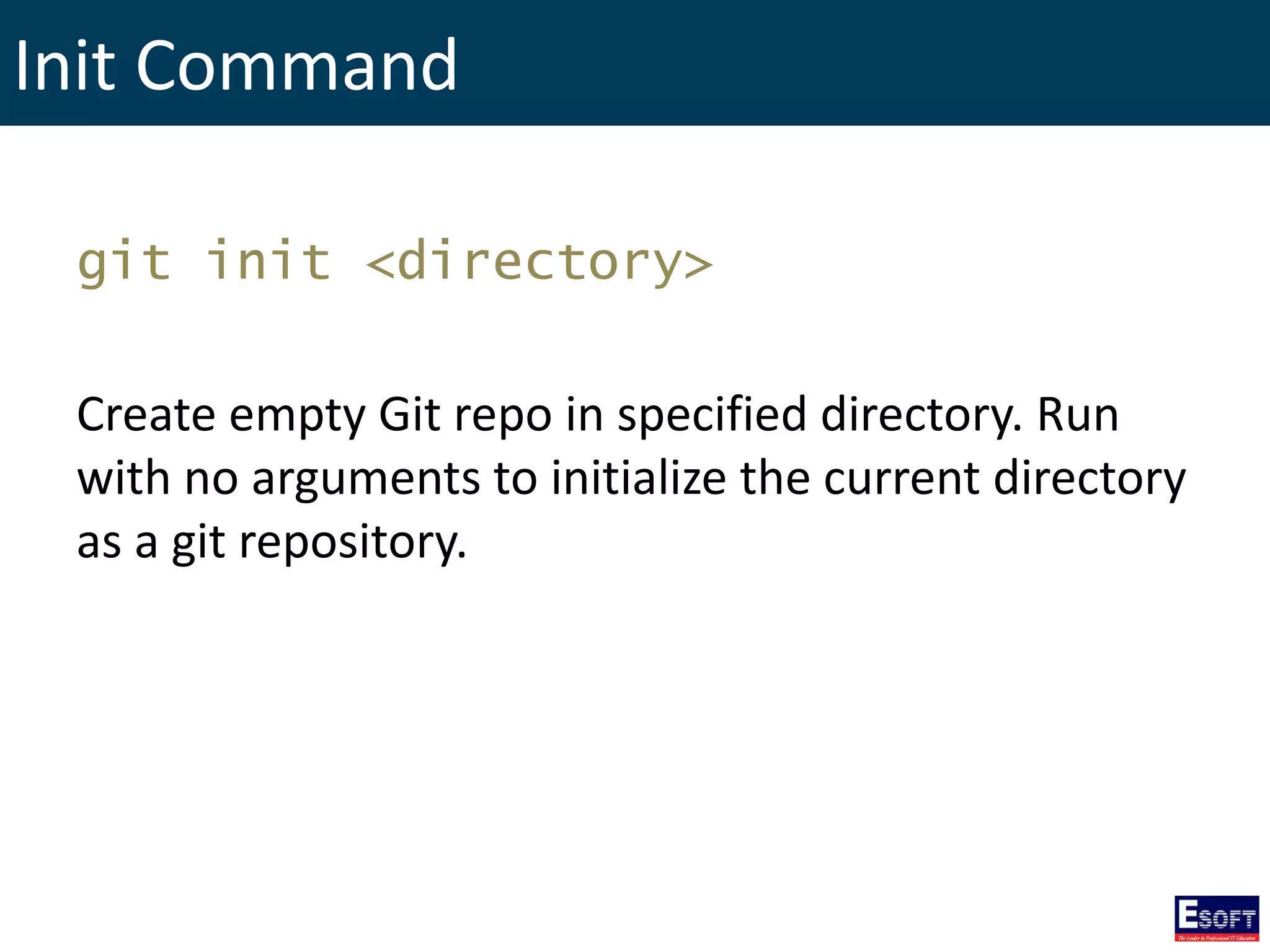
Init Command git init <directory> Create empty Git repo in specified directory. Run with no arguments to initialize the current directory as a git repository.
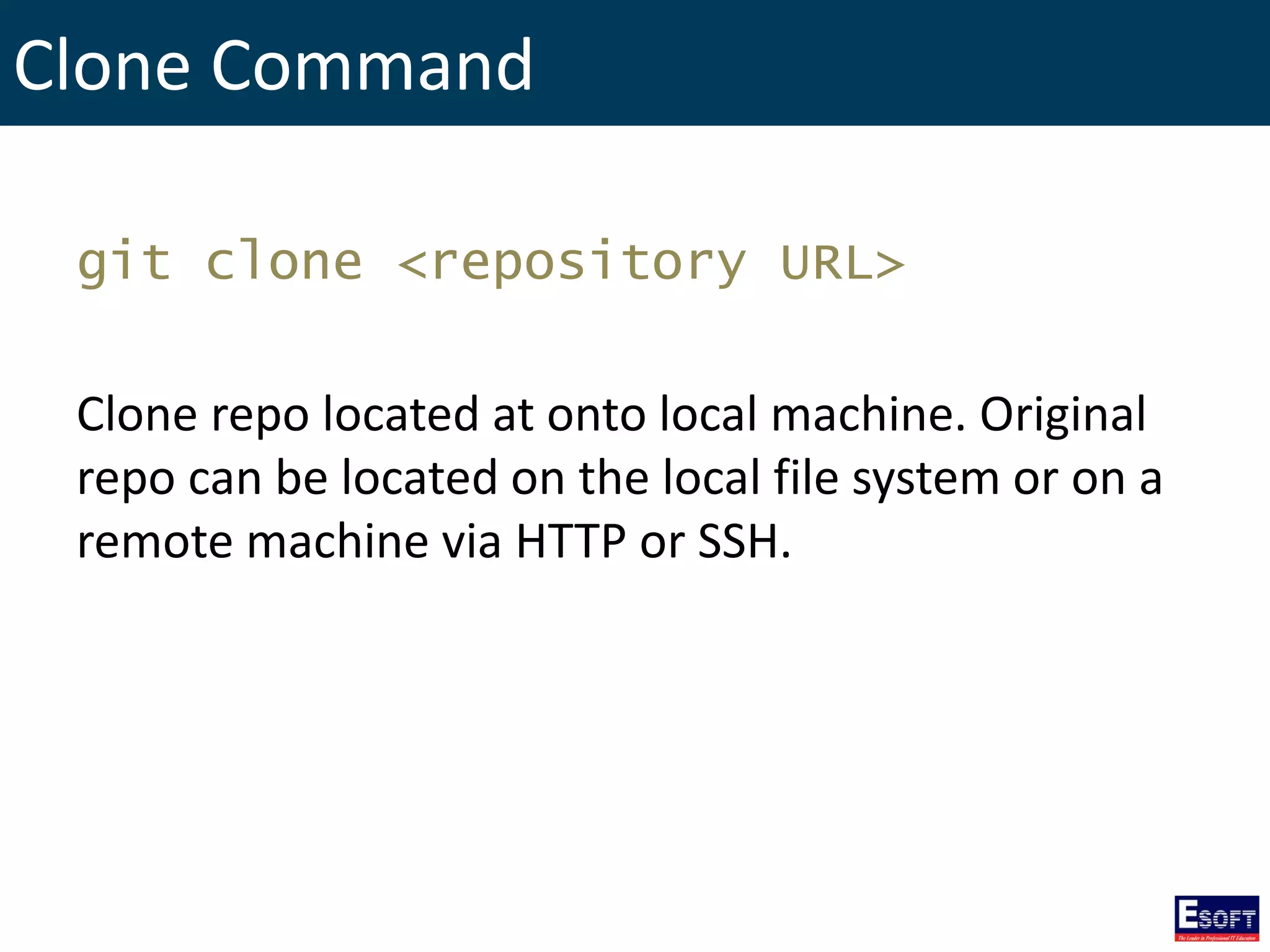
Clone Command git clone <repository URL> Clone repo located at onto local machine. Original repo can be located on the local file system or on a remote machine via HTTP or SSH.
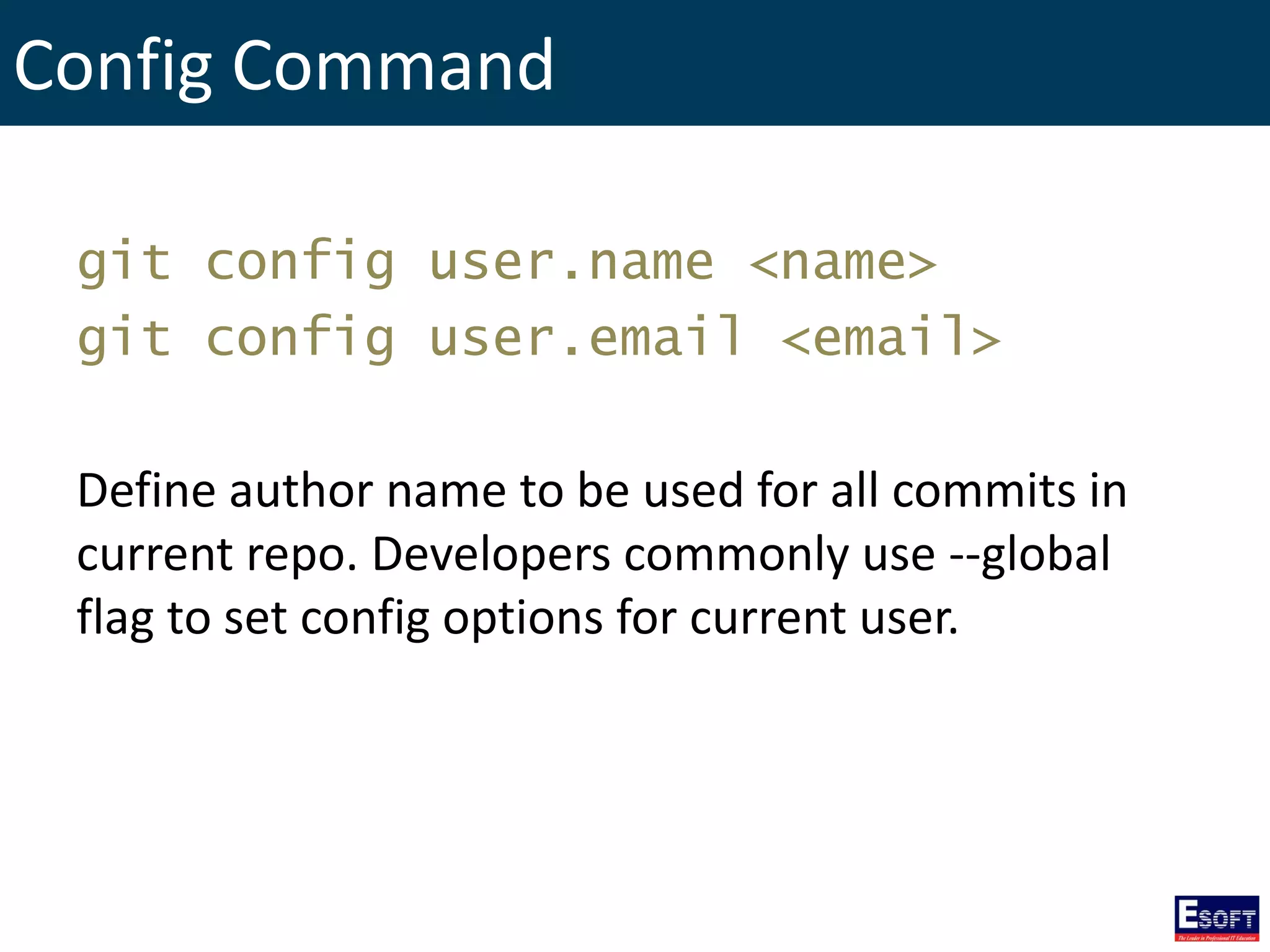
Config Command git config user.name <name> git config user.email <email> Define author name to be used for all commits in current repo. Developers commonly use --global flag to set config options for current user.
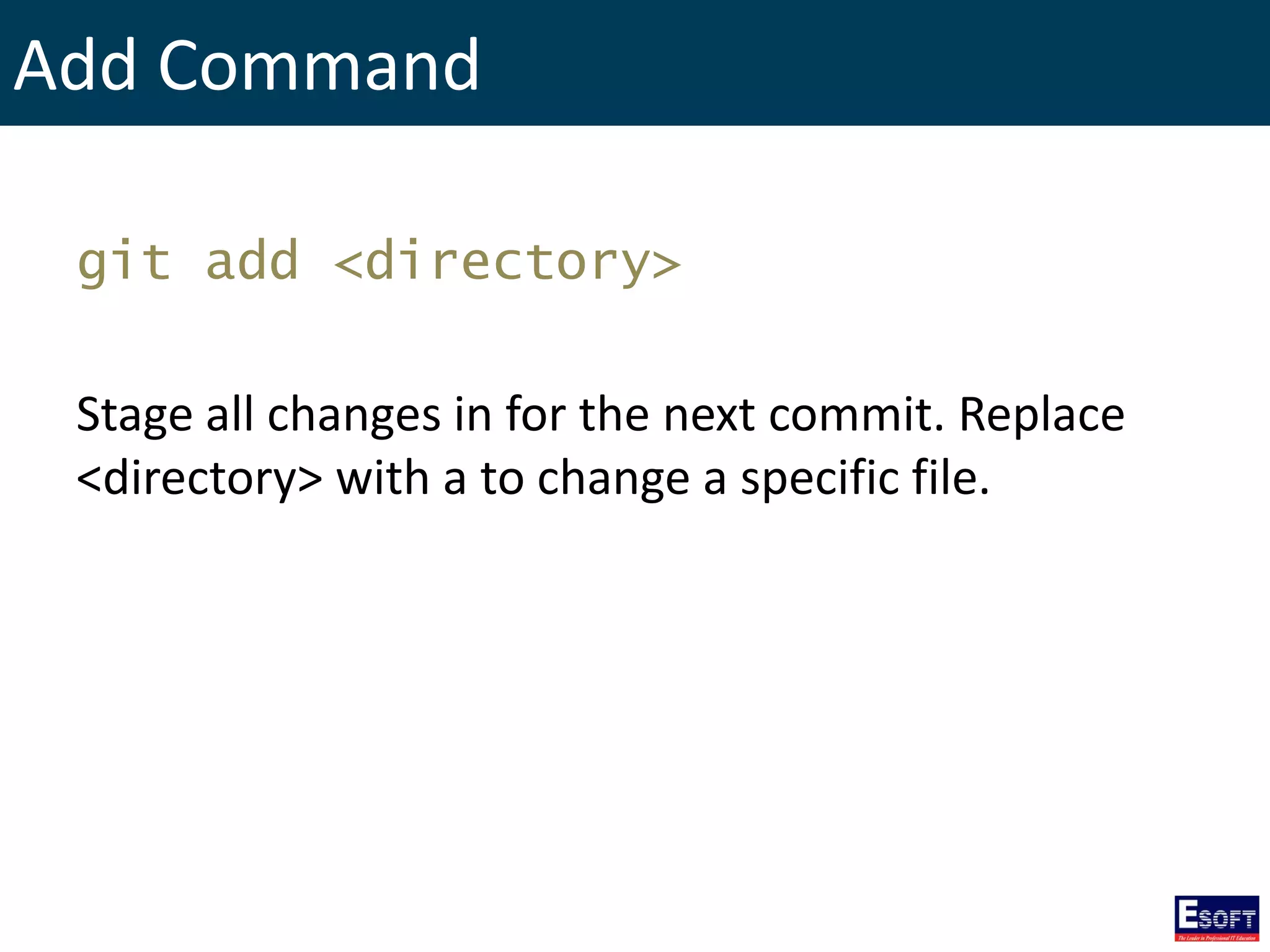
Add Command git add <directory> Stage all changes in for the next commit. Replace <directory> with a to change a specific file.
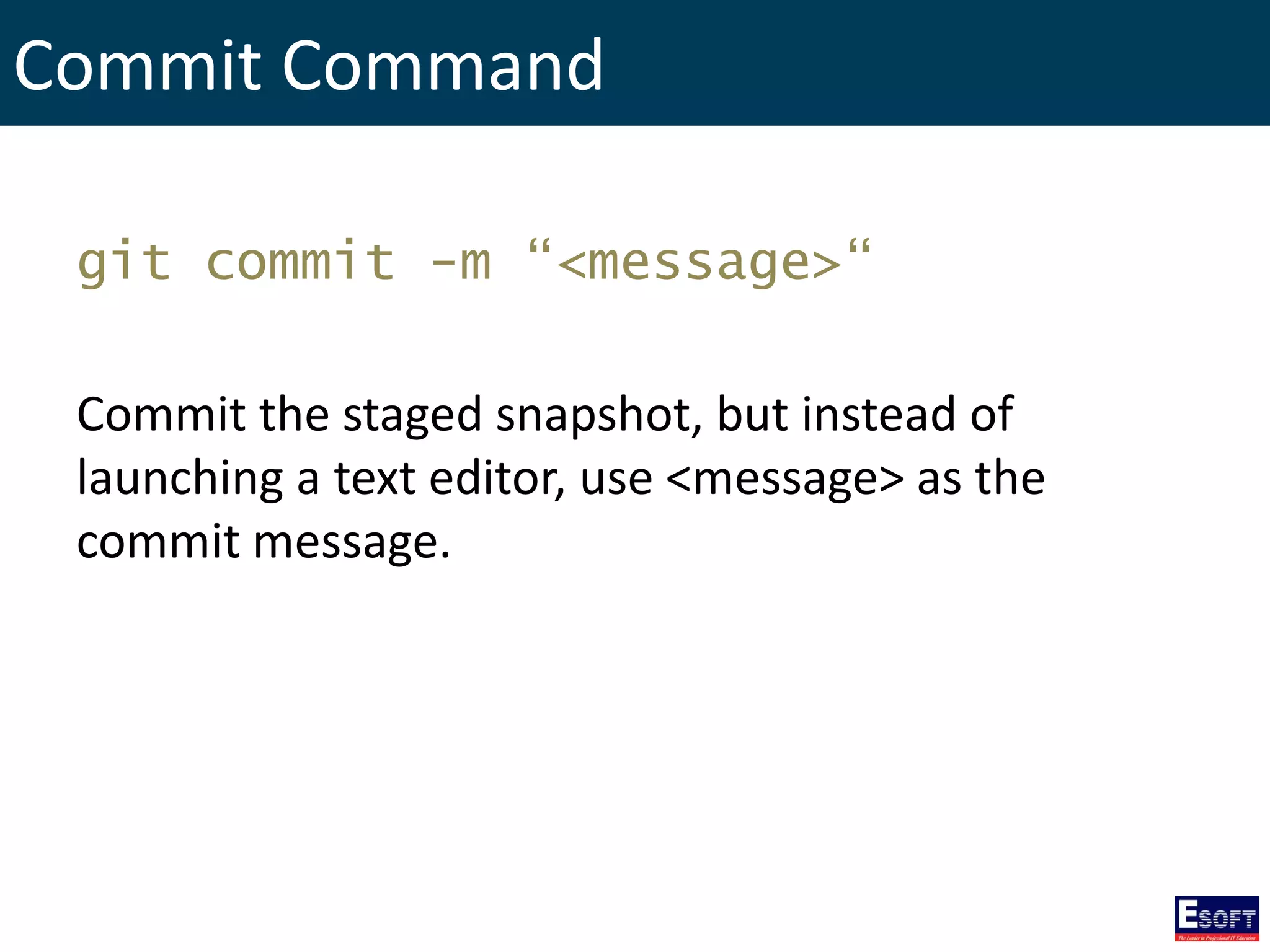
Commit Command git commit -m “<message>“ Commit the staged snapshot, but instead of launching a text editor, use <message> as the commit message.
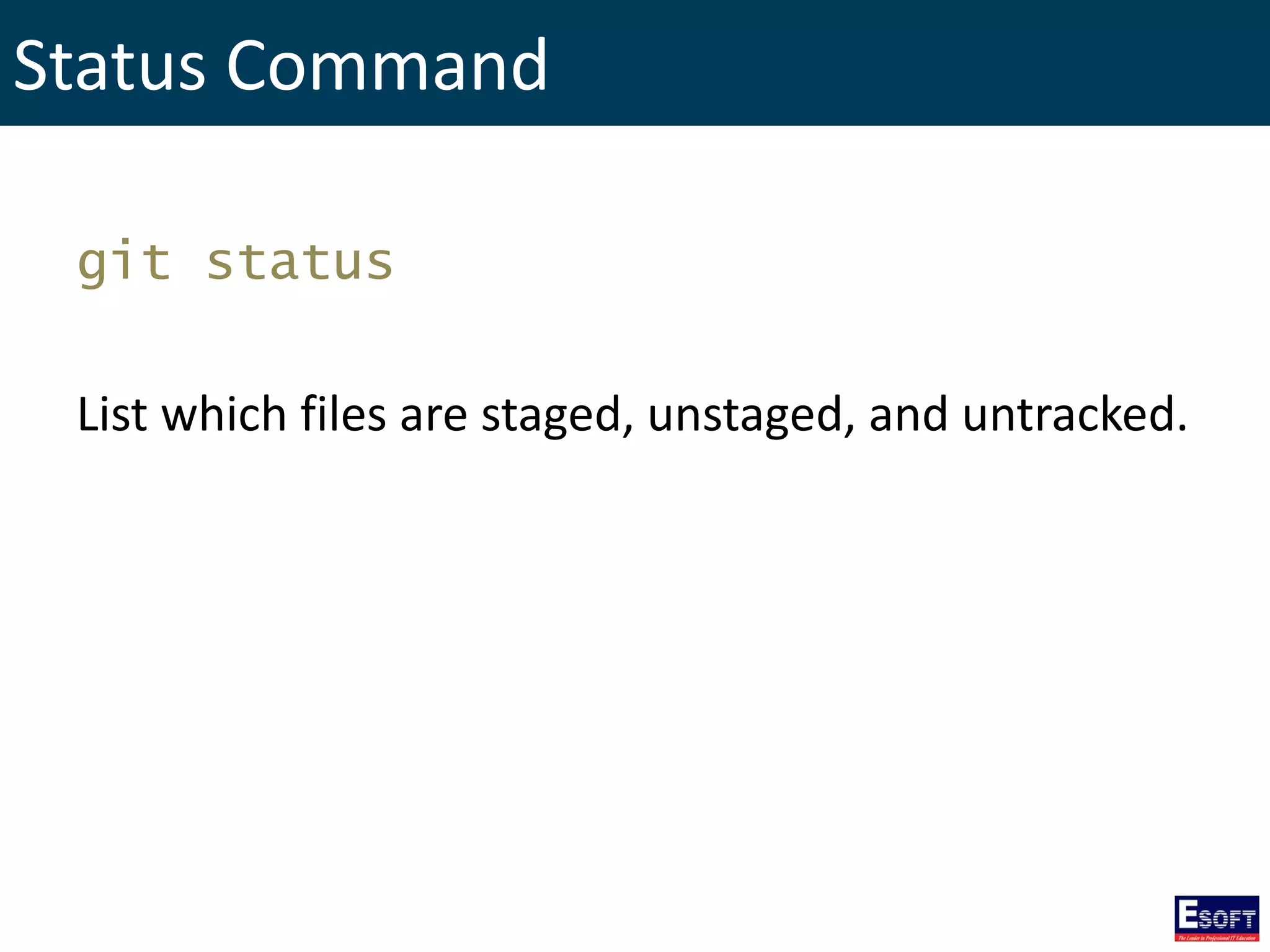
Status Command git status List which files are staged, unstaged, and untracked.
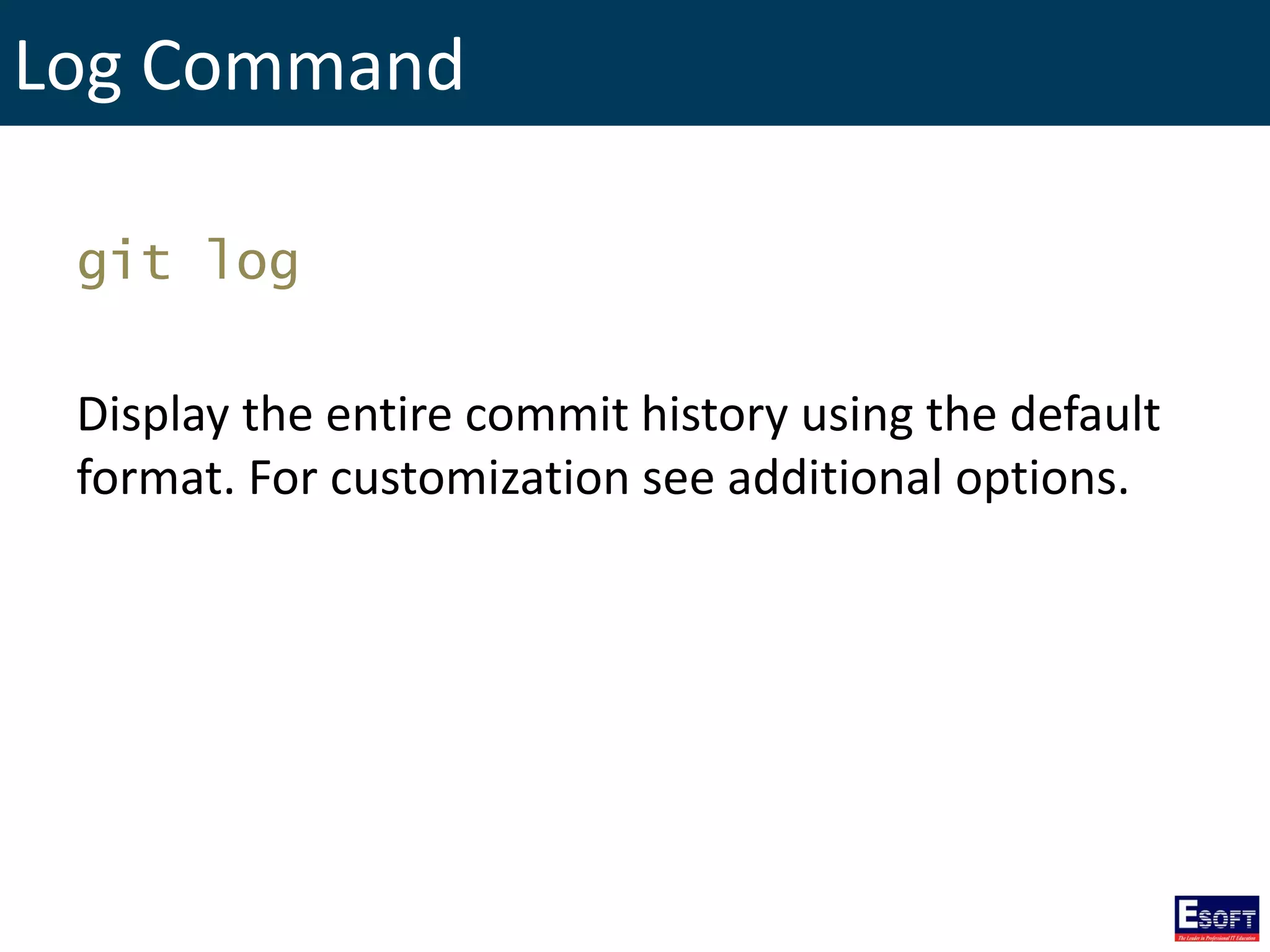
Log Command git log Display the entire commit history using the default format. For customization see additional options.
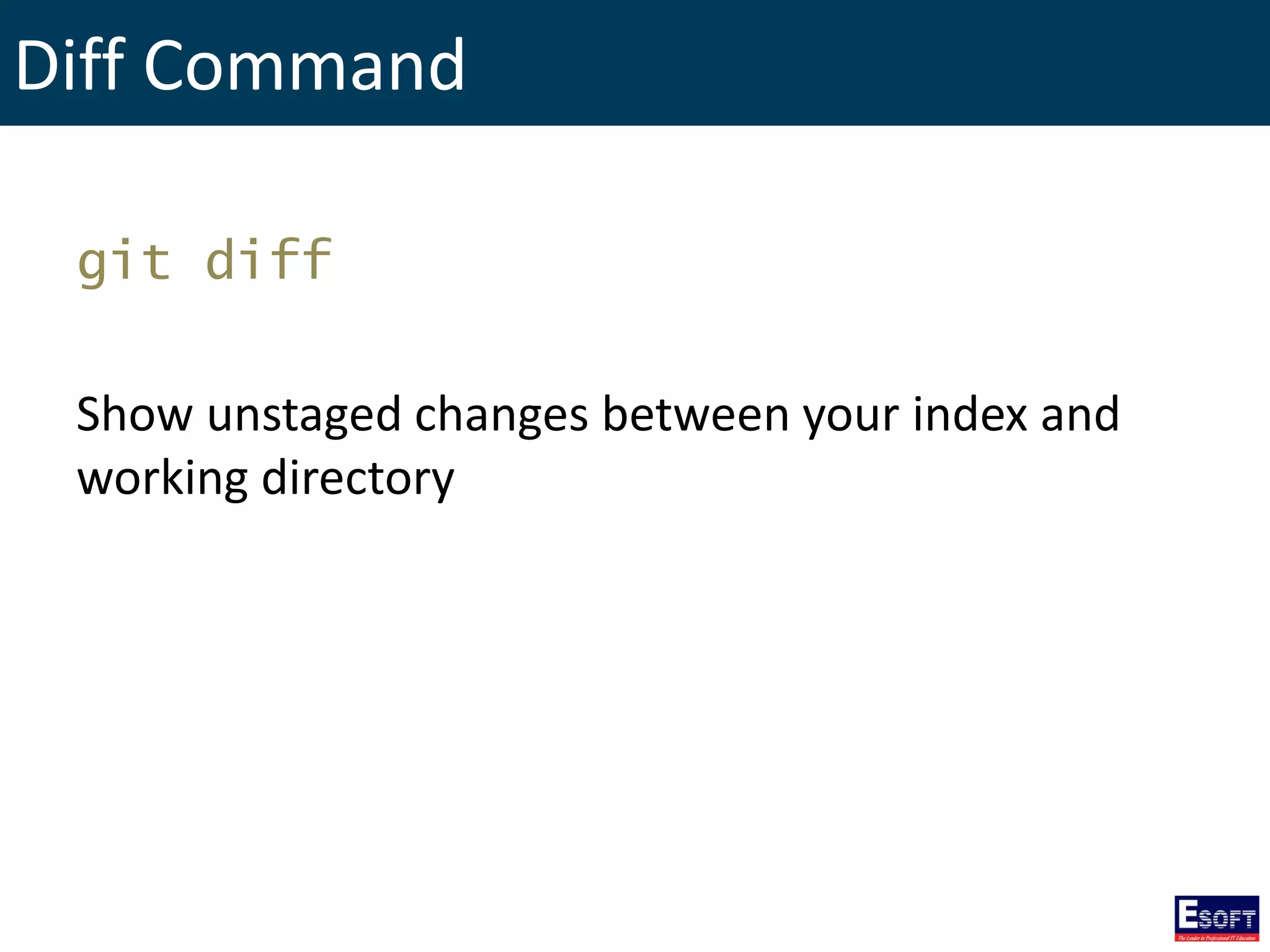
Diff Command git diff Show unstaged changes between your index and working directory
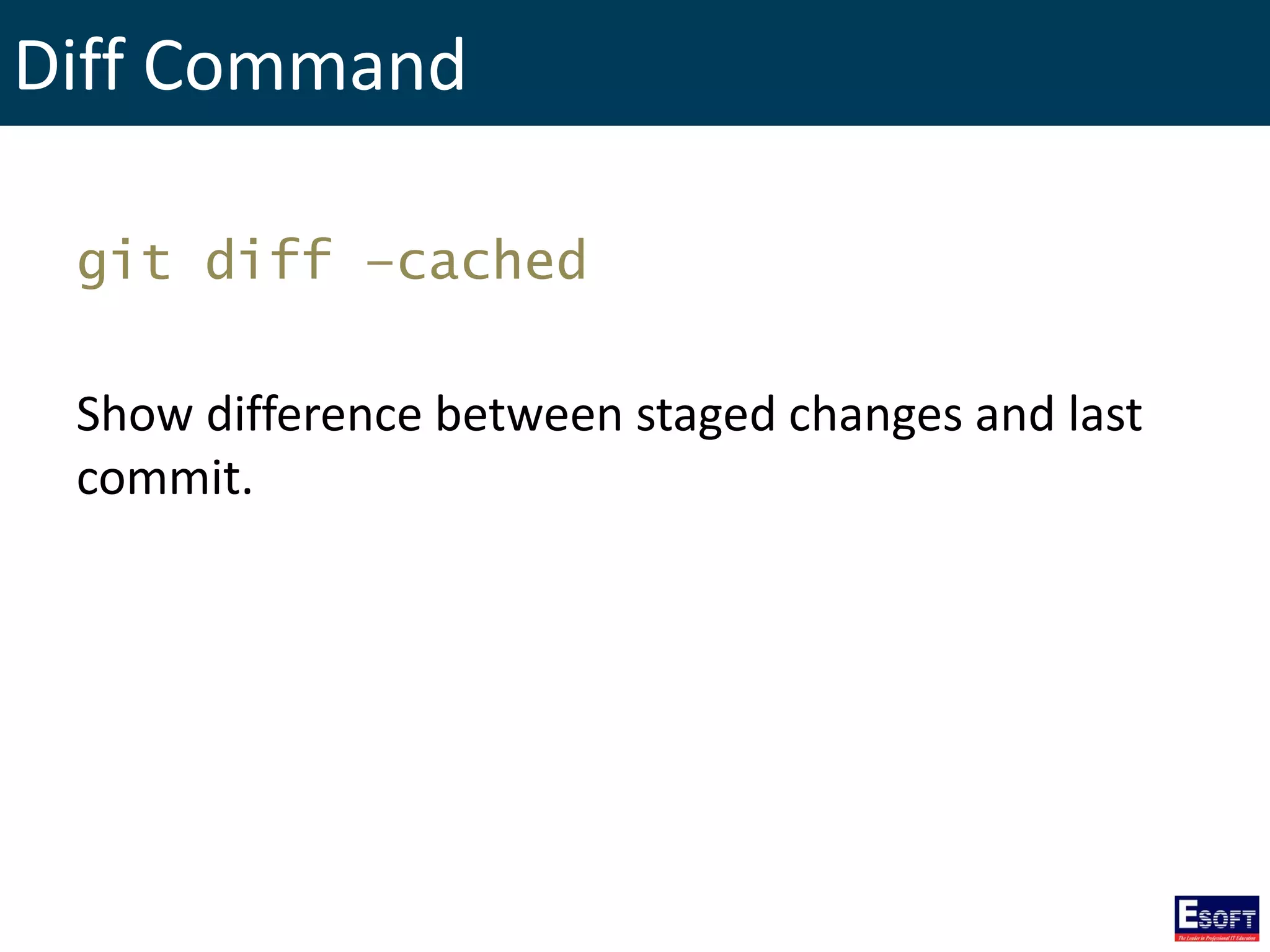
Diff Command git diff –cached Show difference between staged changes and last commit.
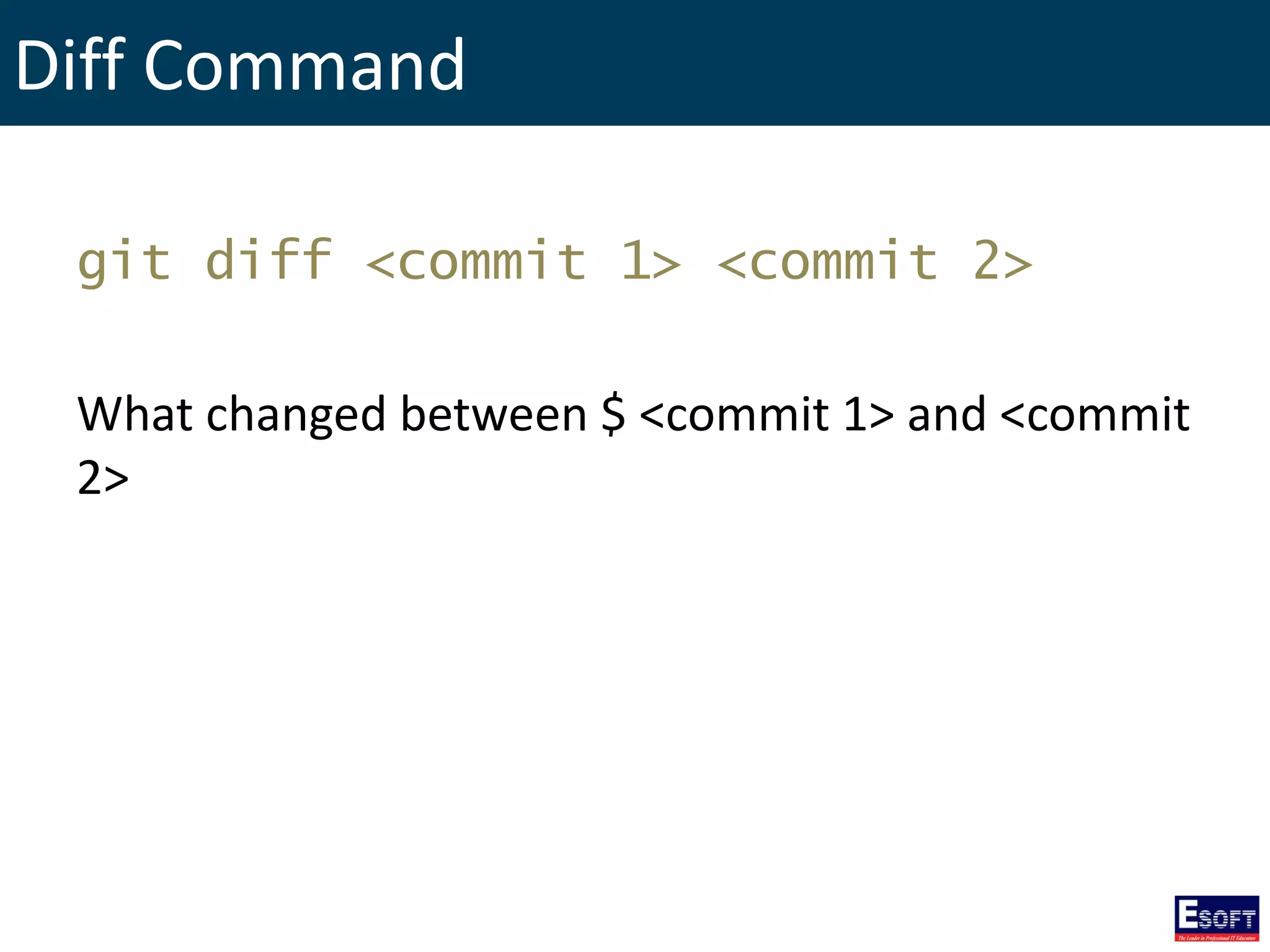
Diff Command git diff <commit 1> <commit 2> What changed between $ <commit 1> and <commit 2>
Undoing Changes
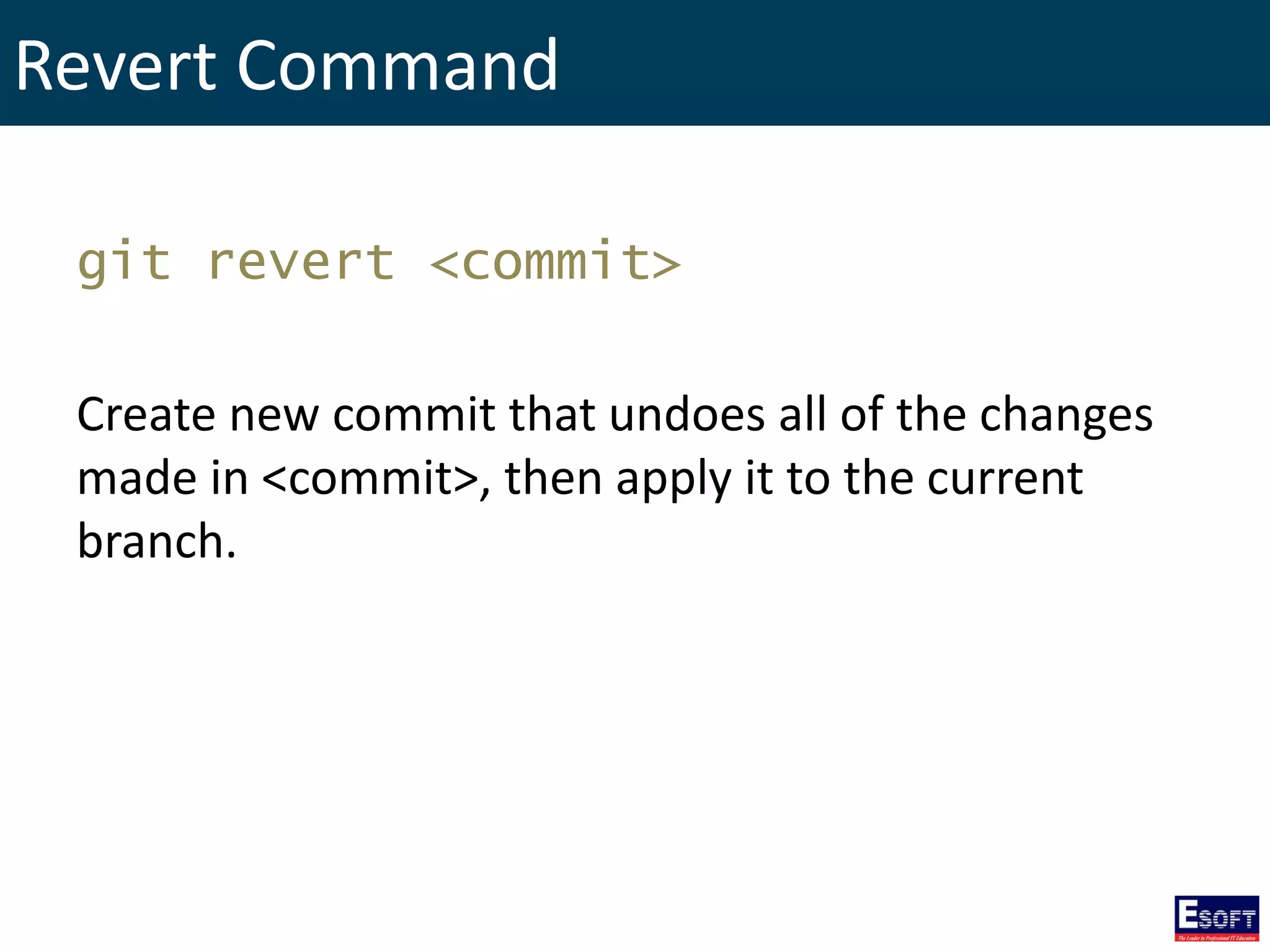
Revert Command git revert <commit> Create new commit that undoes all of the changes made in <commit>, then apply it to the current branch.
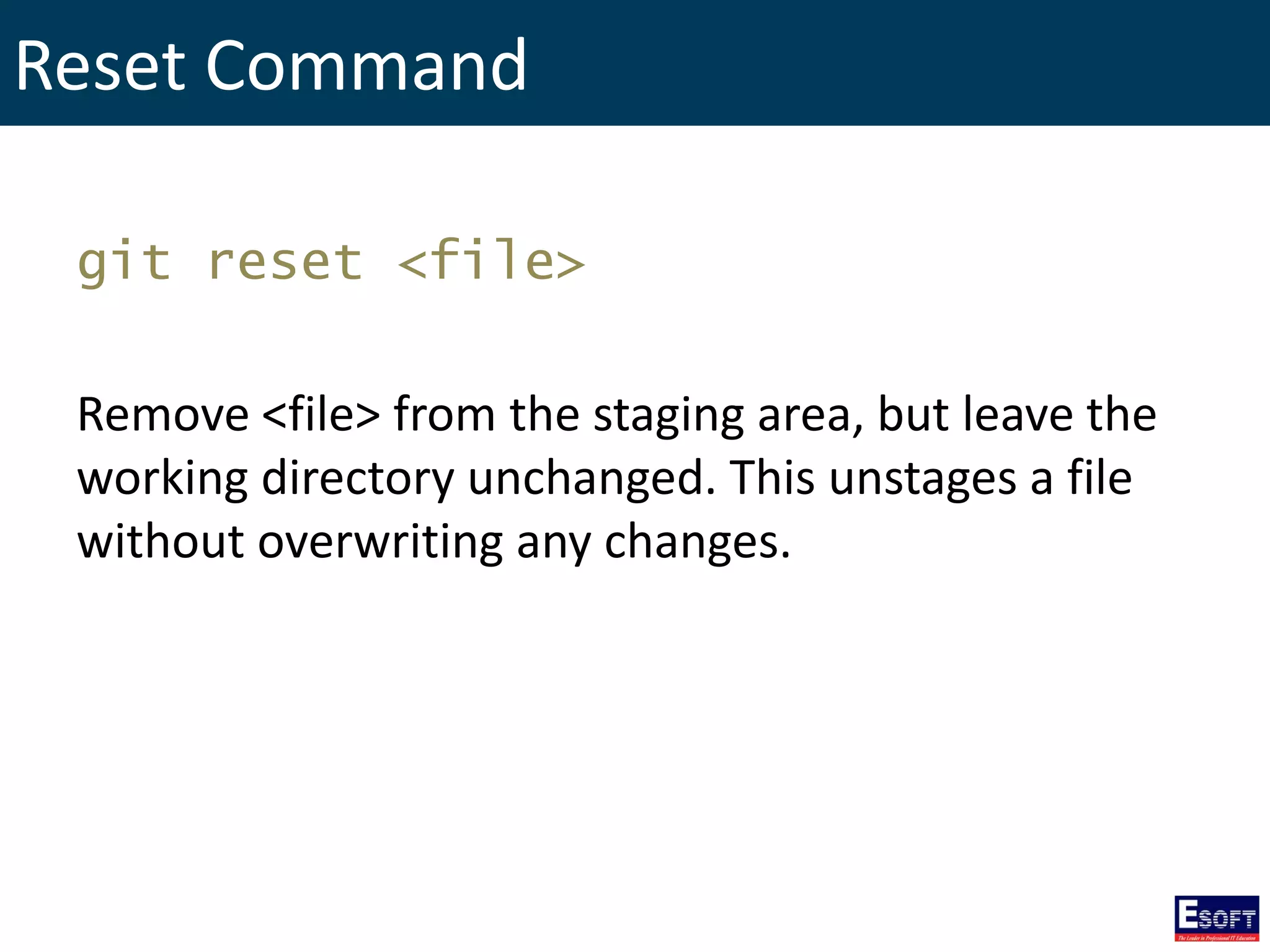
Reset Command git reset <file> Remove <file> from the staging area, but leave the working directory unchanged. This unstages a file without overwriting any changes.
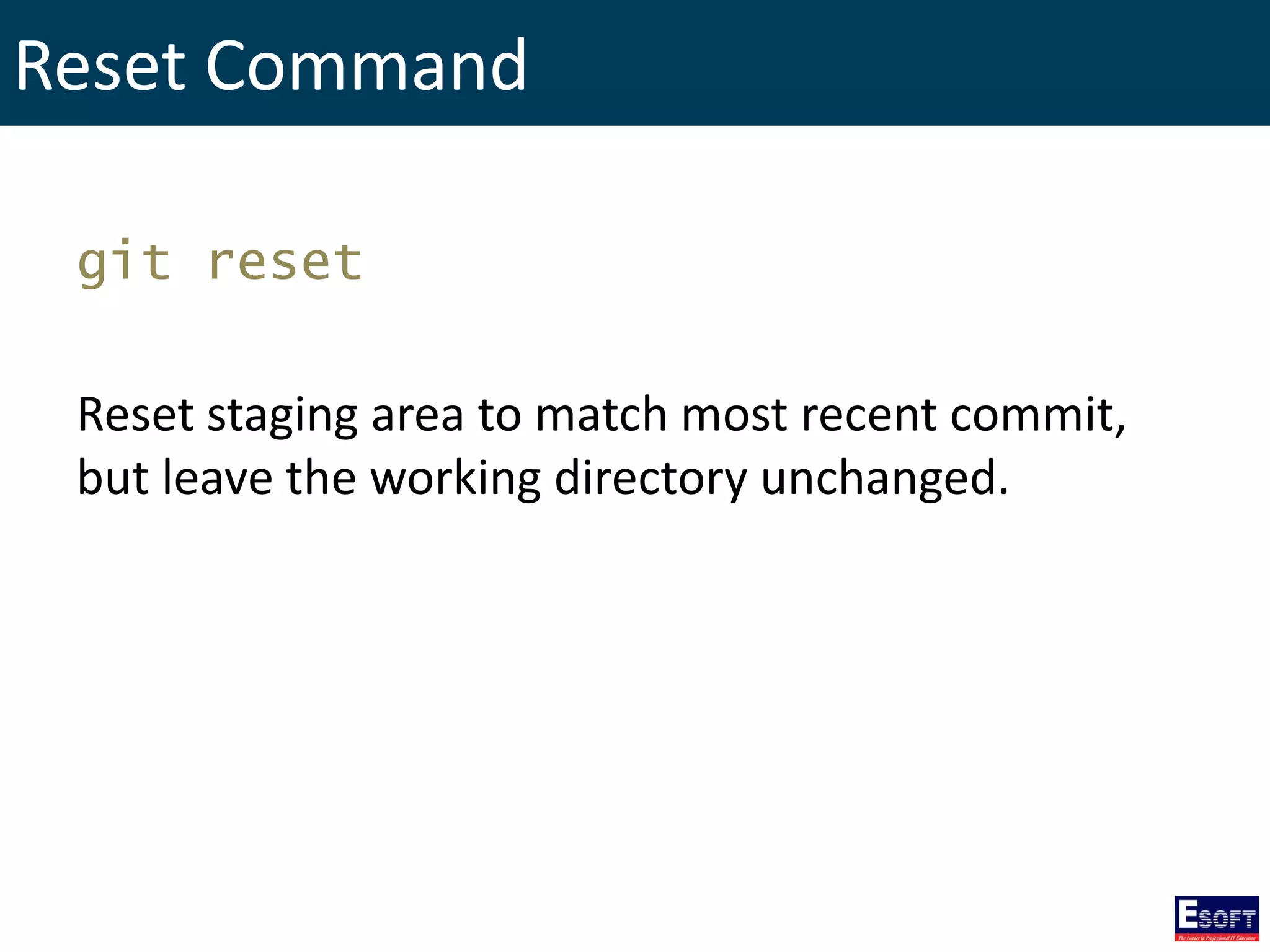
Reset Command git reset Reset staging area to match most recent commit, but leave the working directory unchanged.
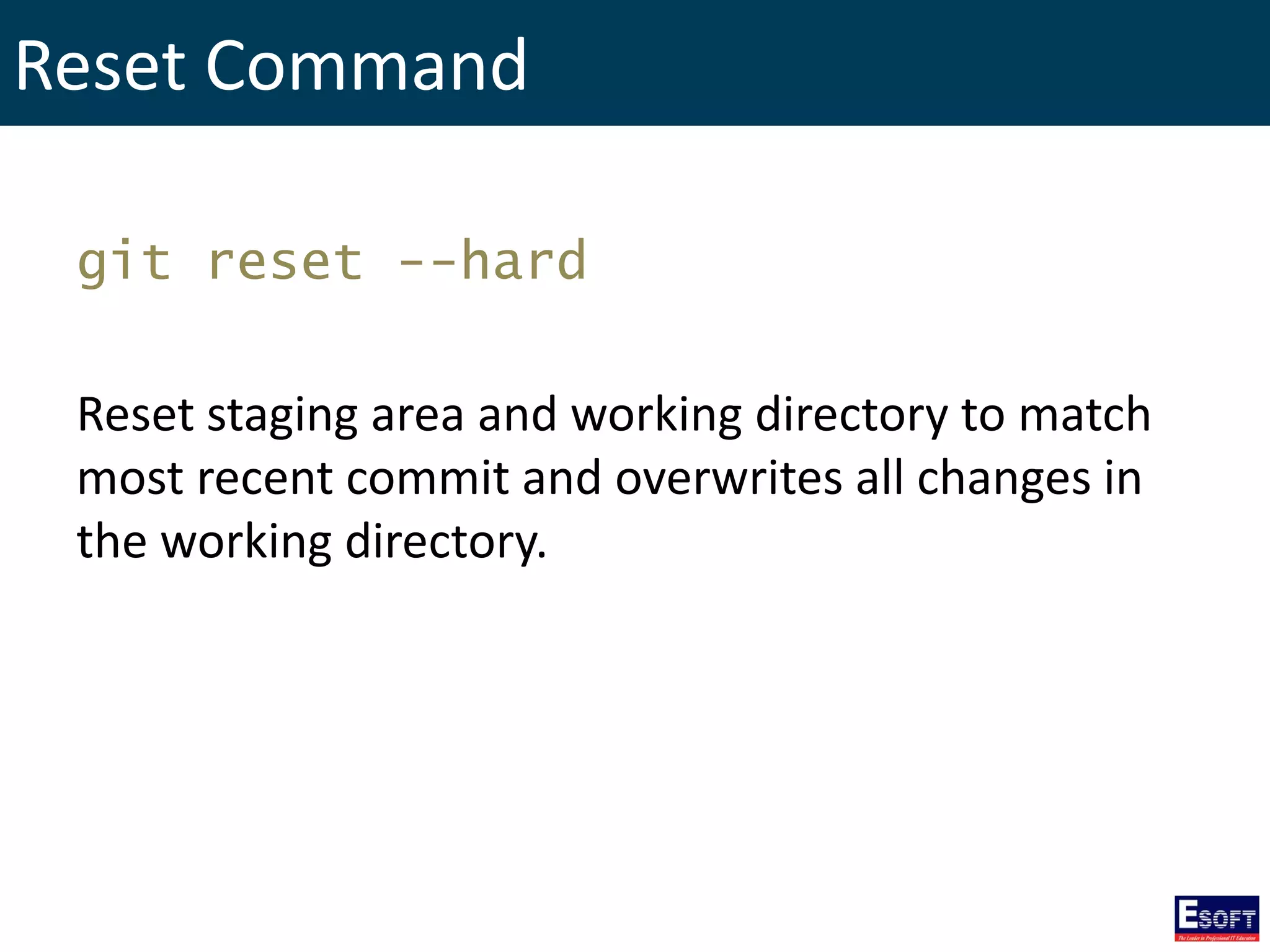
Reset Command git reset --hard Reset staging area and working directory to match most recent commit and overwrites all changes in the working directory.
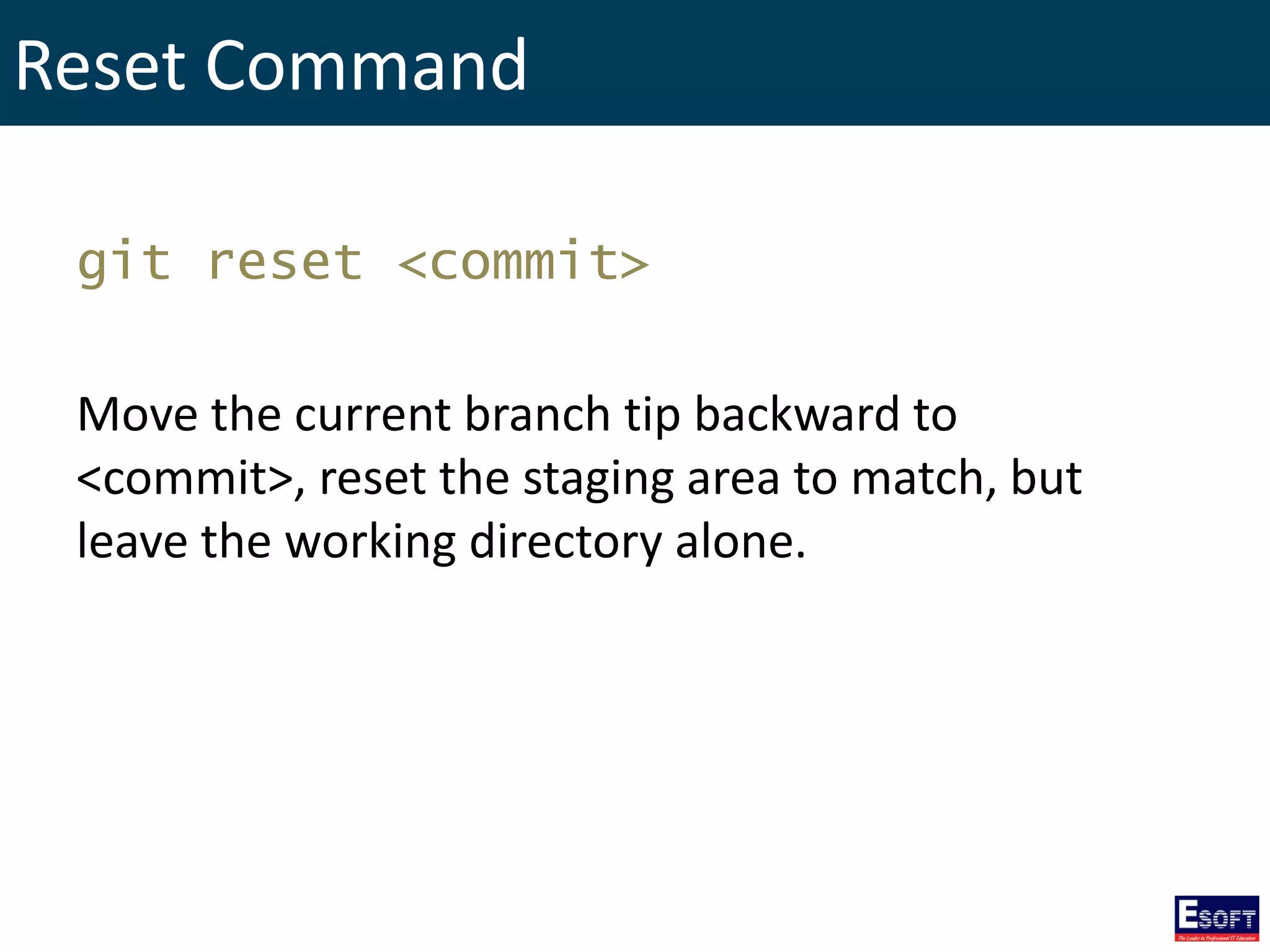
Reset Command git reset <commit> Move the current branch tip backward to <commit>, reset the staging area to match, but leave the working directory alone.
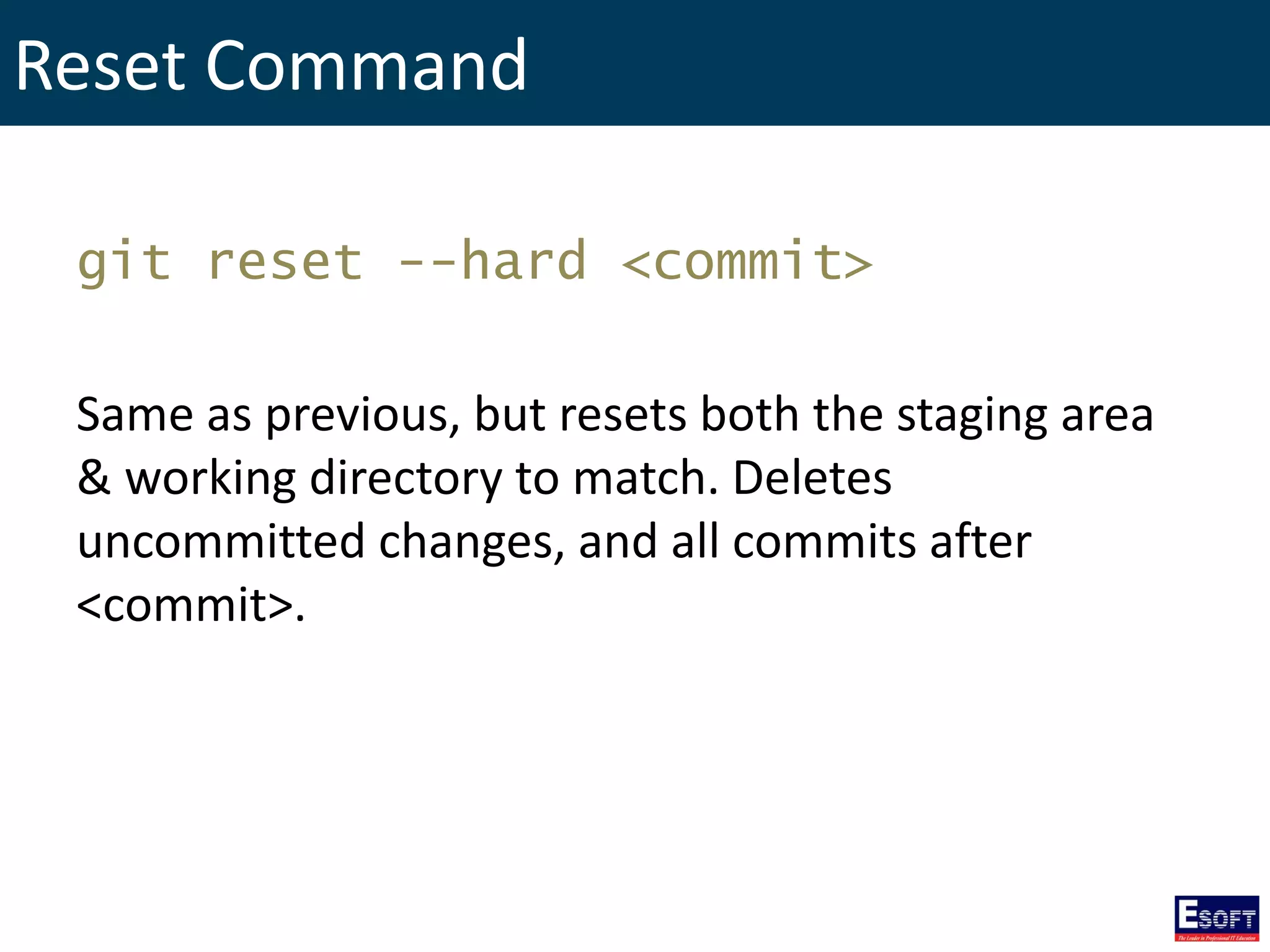
Reset Command git reset --hard <commit> Same as previous, but resets both the staging area & working directory to match. Deletes uncommitted changes, and all commits after <commit>.
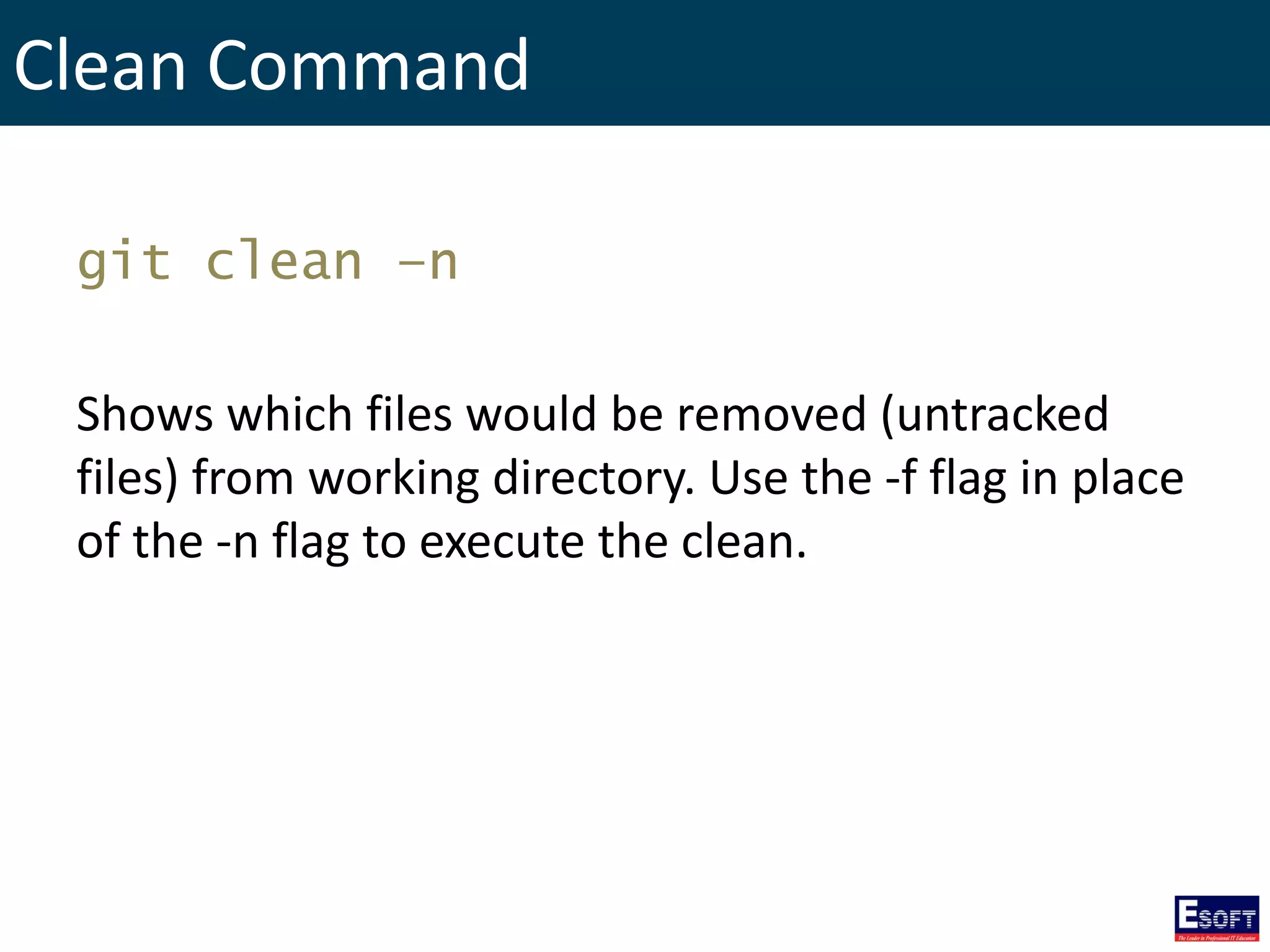
Clean Command git clean –n Shows which files would be removed (untracked files) from working directory. Use the -f flag in place of the -n flag to execute the clean.
Rewriting Git History
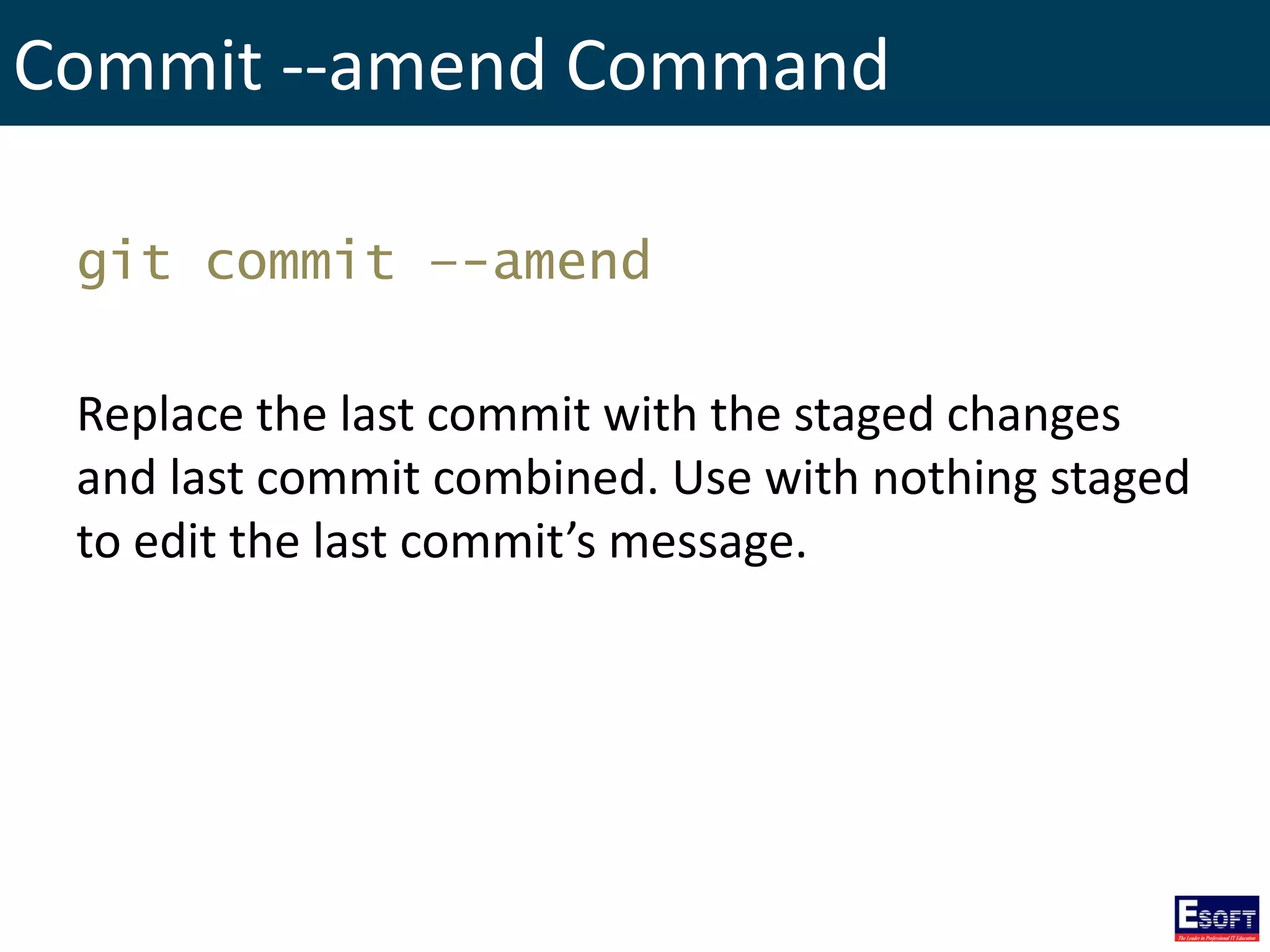
Commit --amend Command git commit –-amend Replace the last commit with the staged changes and last commit combined. Use with nothing staged to edit the last commit’s message.
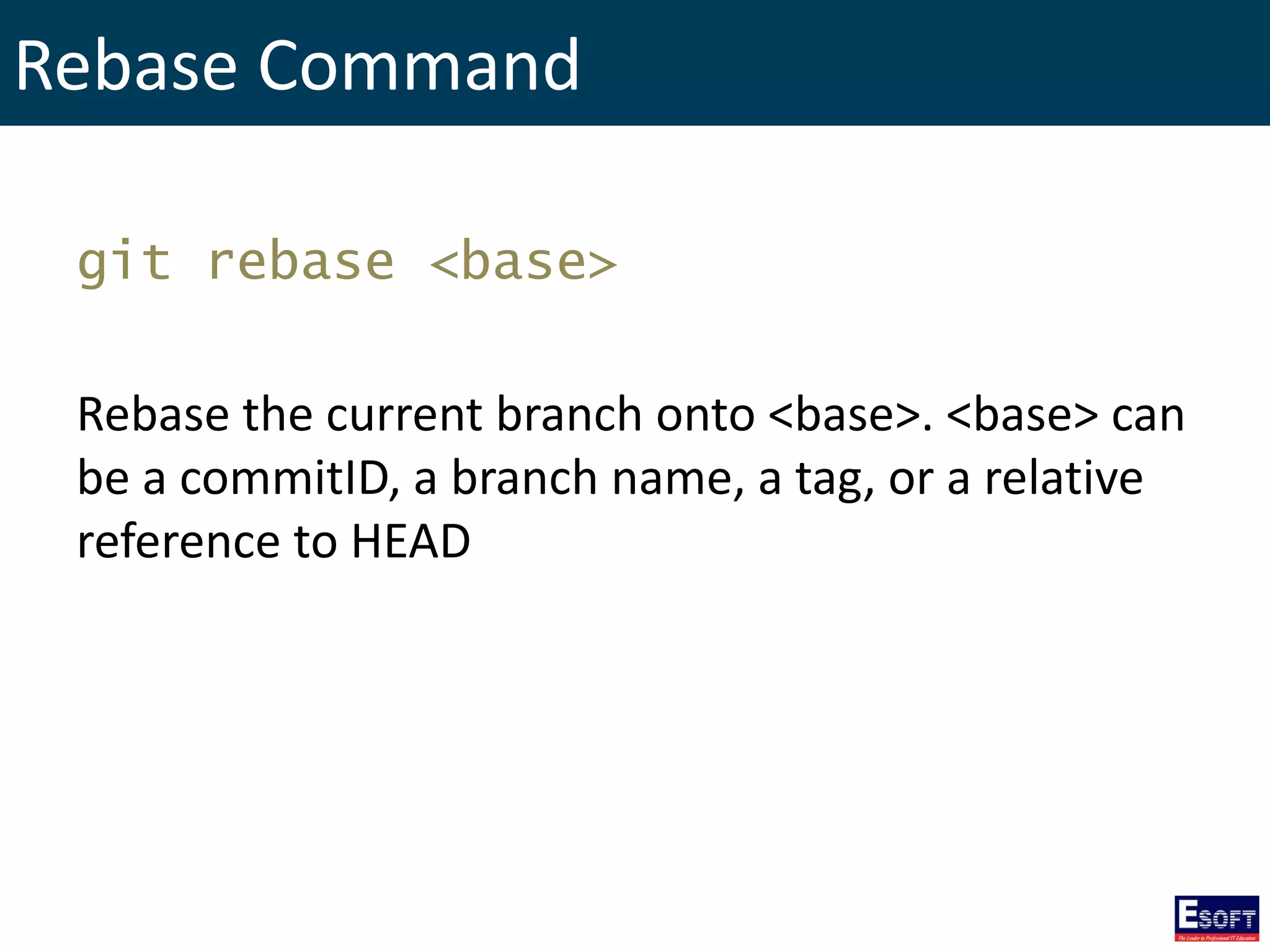
Rebase Command git rebase <base> Rebase the current branch onto <base>. <base> can be a commitID, a branch name, a tag, or a relative reference to HEAD
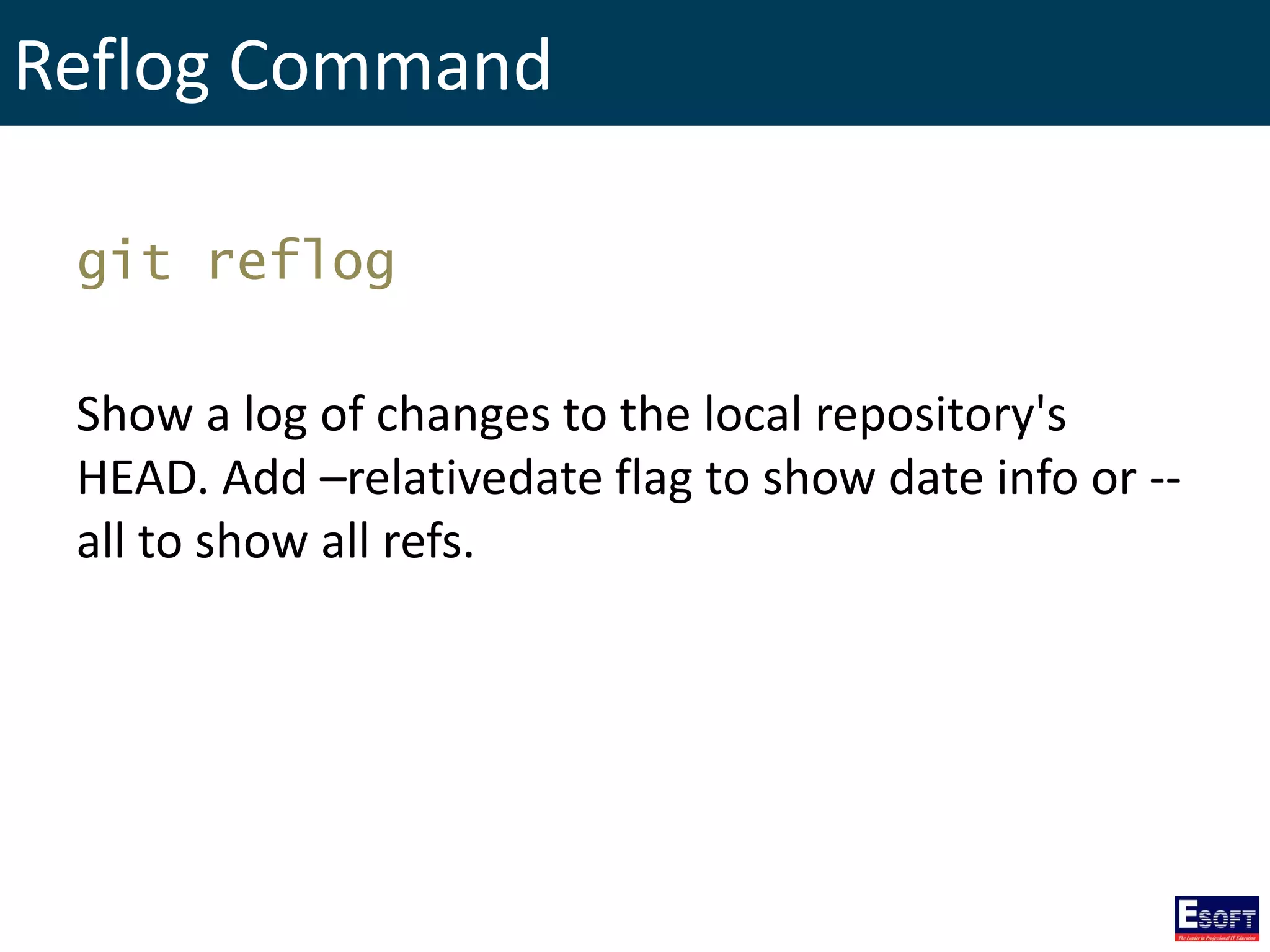
Reflog Command git reflog Show a log of changes to the local repository's HEAD. Add –relativedate flag to show date info or -- all to show all refs.
Git Branches
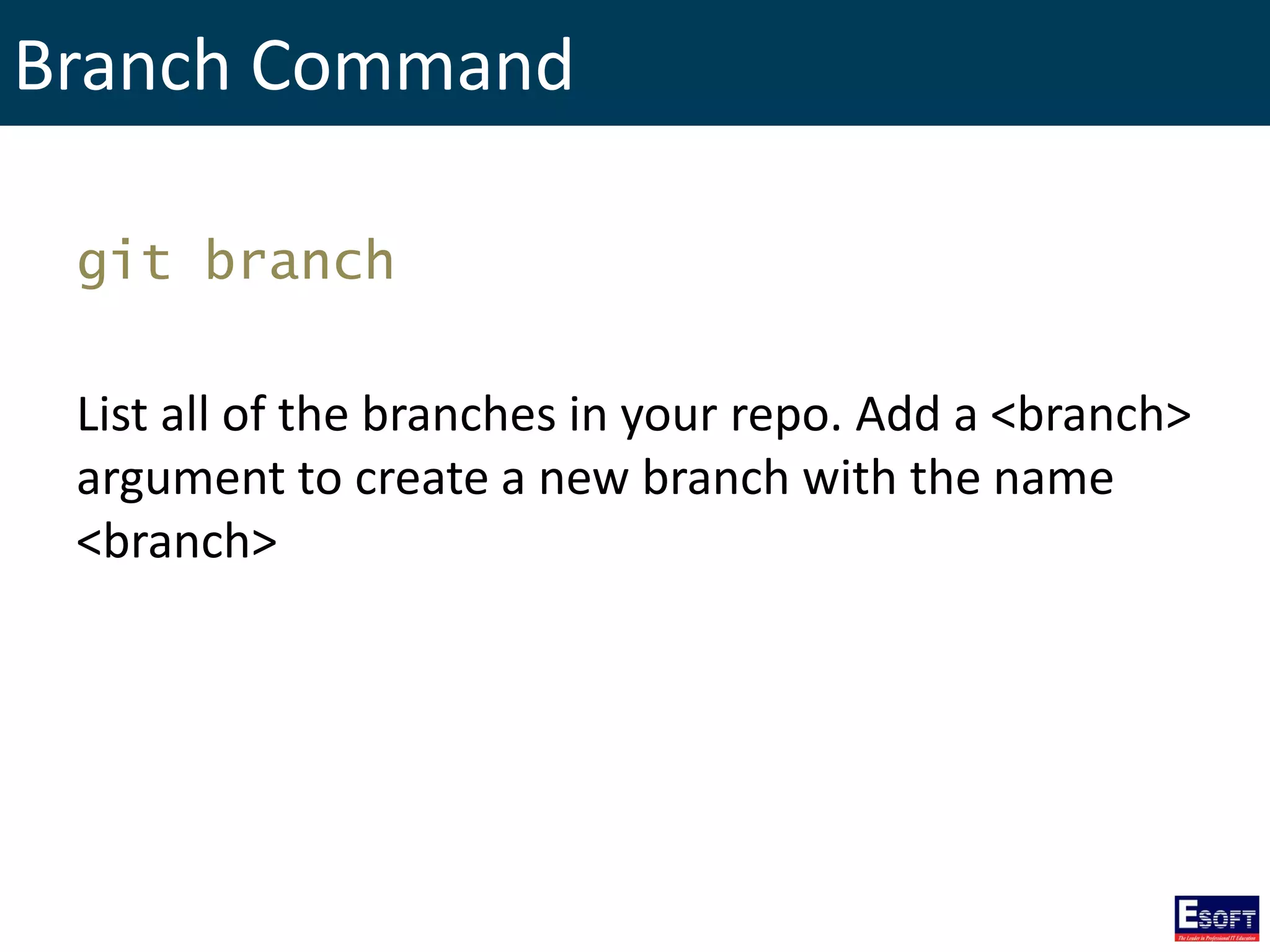
Branch Command git branch List all of the branches in your repo. Add a <branch> argument to create a new branch with the name <branch>
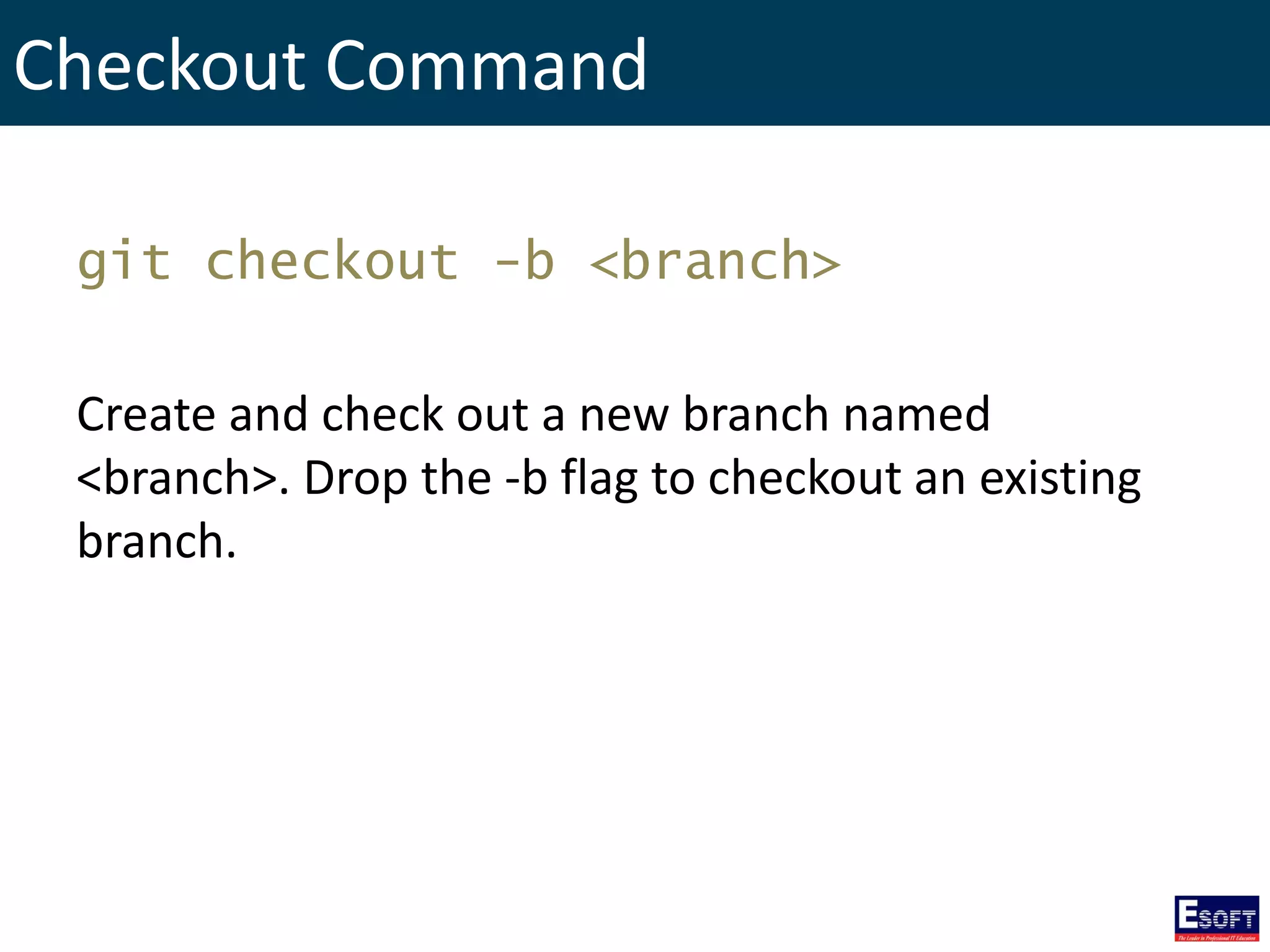
Checkout Command git checkout -b <branch> Create and check out a new branch named <branch>. Drop the -b flag to checkout an existing branch.
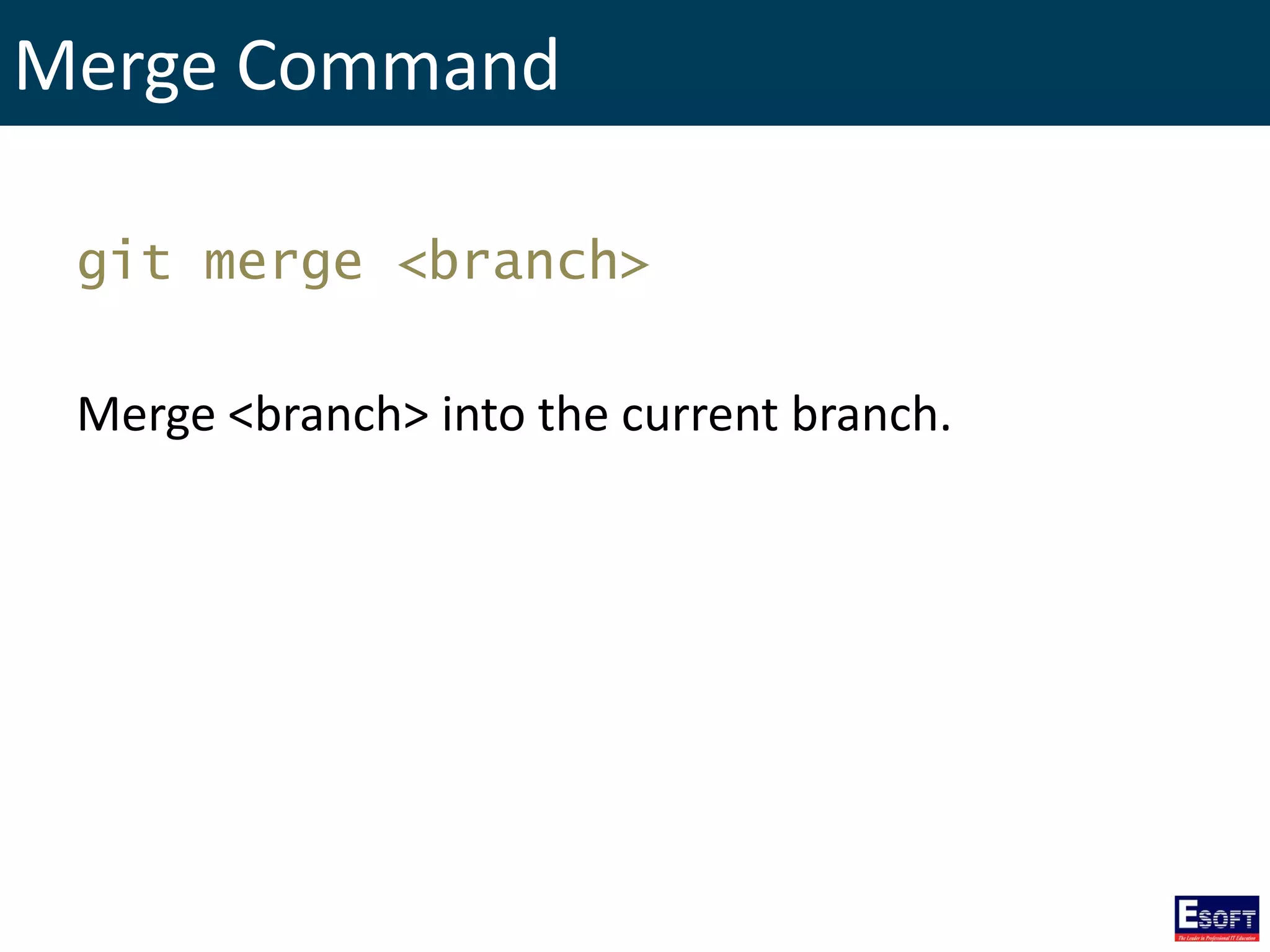
Merge Command git merge <branch> Merge <branch> into the current branch.
Remote Repositories
Remote Command git remote add <name> <url> Create a new connection to a remote repo. After adding a remote, you can use <name> as a shortcut for <url> in other commands.
Fetch Command git fetch <remote> <branch> Fetches a specific <branch>, from the repo. Leave off <branch> to fetch all remote refs.
Pull Command git pull <remote> Fetch the specified remote’s copy of current branch and immediately merge it into the local copy.
Push Command git push <remote> <branch> Push the branch to <remote>, along with necessary commits and objects. Creates named branch in the remote repo if it doesn’t exist.
The End http://twitter.com/rasansmn

Advanced Web Development in PHP - Code Versioning and Branching with Git

  • 1.
    Advanced Web Developmentin PHP Module III: Code Versioning and Branching with Git Rasan Samarasinghe ESOFT Computer Studies (pvt) Ltd. No 68/1, Main Street, Embilipitiya.
  • 2.
    Contents 1. Introduction toGit 2. What is Version Controlling? 3. What is Distributed Version Controlling? 4. Why Use a Version Control System? 5. Downloading and Installing Git 6. Git Life Cycle 7. Init command 8. Clone Command 9. Config Command 10. Add Command 11. Commit Command 12. Status Command 13. Log Command 14. Diff Command 15. Revert Command 16. Reset Command 17. Clean Command 18. Commit --amend Command 19. Rebase Command 20. Reflog Command 21. Branch Command 22. Checkout Command 23. Merge Command 24. Remote Command 25. Fetch Command 26. Pull Command 27. Push Command
  • 3.
    Introduction to Git Gitis a distributed version control system, allows group of people to work on same source code at the same time without stepping on each others toes.
  • 4.
    What is VersionControlling? Version control is a system that records changes to a file or set of files over time so that you can recall specific versions later.
  • 5.
    What is DistributedVersion Controlling? Distributed version control allows many software developers to work on a given project without requiring them to share a common network.
  • 6.
    Why Use aVersion Control System? • Collaboration • Storing Versions • Restoring Previous Versions • Understanding What Happened • Backup
  • 7.
    Downloading and InstallingGit https://git-scm.com
  • 8.
    Git Life Cycle 1.You clone the GIT repository as a working copy. 2. You modify the working copy by adding/editing files. 3. If necessary, you also update the working copy by taking other developer's changes. 4. You review the changes before commit. 5. You commit changes. If everything is fine, then you push the changes to the repository. 6. After committing, if you realize something is wrong, then you correct the last commit and push the changes to the repository.
  • 9.
  • 10.
  • 11.
    Init Command git init<directory> Create empty Git repo in specified directory. Run with no arguments to initialize the current directory as a git repository.
  • 12.
    Clone Command git clone<repository URL> Clone repo located at onto local machine. Original repo can be located on the local file system or on a remote machine via HTTP or SSH.
  • 13.
    Config Command git configuser.name <name> git config user.email <email> Define author name to be used for all commits in current repo. Developers commonly use --global flag to set config options for current user.
  • 14.
    Add Command git add<directory> Stage all changes in for the next commit. Replace <directory> with a to change a specific file.
  • 15.
    Commit Command git commit-m “<message>“ Commit the staged snapshot, but instead of launching a text editor, use <message> as the commit message.
  • 16.
    Status Command git status Listwhich files are staged, unstaged, and untracked.
  • 17.
    Log Command git log Displaythe entire commit history using the default format. For customization see additional options.
  • 18.
    Diff Command git diff Showunstaged changes between your index and working directory
  • 19.
    Diff Command git diff–cached Show difference between staged changes and last commit.
  • 20.
    Diff Command git diff<commit 1> <commit 2> What changed between $ <commit 1> and <commit 2>
  • 21.
  • 22.
    Revert Command git revert<commit> Create new commit that undoes all of the changes made in <commit>, then apply it to the current branch.
  • 23.
    Reset Command git reset<file> Remove <file> from the staging area, but leave the working directory unchanged. This unstages a file without overwriting any changes.
  • 24.
    Reset Command git reset Resetstaging area to match most recent commit, but leave the working directory unchanged.
  • 25.
    Reset Command git reset--hard Reset staging area and working directory to match most recent commit and overwrites all changes in the working directory.
  • 26.
    Reset Command git reset<commit> Move the current branch tip backward to <commit>, reset the staging area to match, but leave the working directory alone.
  • 27.
    Reset Command git reset--hard <commit> Same as previous, but resets both the staging area & working directory to match. Deletes uncommitted changes, and all commits after <commit>.
  • 28.
    Clean Command git clean–n Shows which files would be removed (untracked files) from working directory. Use the -f flag in place of the -n flag to execute the clean.
  • 29.
  • 30.
    Commit --amend Command gitcommit –-amend Replace the last commit with the staged changes and last commit combined. Use with nothing staged to edit the last commit’s message.
  • 31.
    Rebase Command git rebase<base> Rebase the current branch onto <base>. <base> can be a commitID, a branch name, a tag, or a relative reference to HEAD
  • 32.
    Reflog Command git reflog Showa log of changes to the local repository's HEAD. Add –relativedate flag to show date info or -- all to show all refs.
  • 33.
  • 34.
    Branch Command git branch Listall of the branches in your repo. Add a <branch> argument to create a new branch with the name <branch>
  • 35.
    Checkout Command git checkout-b <branch> Create and check out a new branch named <branch>. Drop the -b flag to checkout an existing branch.
  • 36.
    Merge Command git merge<branch> Merge <branch> into the current branch.
  • 37.
  • 38.
    Remote Command git remoteadd <name> <url> Create a new connection to a remote repo. After adding a remote, you can use <name> as a shortcut for <url> in other commands.
  • 39.
    Fetch Command git fetch<remote> <branch> Fetches a specific <branch>, from the repo. Leave off <branch> to fetch all remote refs.
  • 40.
    Pull Command git pull<remote> Fetch the specified remote’s copy of current branch and immediately merge it into the local copy.
  • 41.
    Push Command git push<remote> <branch> Push the branch to <remote>, along with necessary commits and objects. Creates named branch in the remote repo if it doesn’t exist.
  • 42.