- Matplotlib - Home
- Matplotlib - Introduction
- Matplotlib - Vs Seaborn
- Matplotlib - Environment Setup
- Matplotlib - Anaconda distribution
- Matplotlib - Jupyter Notebook
- Matplotlib - Pyplot API
- Matplotlib - Simple Plot
- Matplotlib - Saving Figures
- Matplotlib - Markers
- Matplotlib - Figures
- Matplotlib - Styles
- Matplotlib - Legends
- Matplotlib - Colors
- Matplotlib - Colormaps
- Matplotlib - Colormap Normalization
- Matplotlib - Choosing Colormaps
- Matplotlib - Colorbars
- Matplotlib - Working With Text
- Matplotlib - Text properties
- Matplotlib - Subplot Titles
- Matplotlib - Images
- Matplotlib - Image Masking
- Matplotlib - Annotations
- Matplotlib - Arrows
- Matplotlib - Fonts
- Matplotlib - Font Indexing
- Matplotlib - Font Properties
- Matplotlib - Scales
- Matplotlib - LaTeX
- Matplotlib - LaTeX Text Formatting in Annotations
- Matplotlib - PostScript
- Matplotlib - Mathematical Expressions
- Matplotlib - Animations
- Matplotlib - Celluloid Library
- Matplotlib - Blitting
- Matplotlib - Toolkits
- Matplotlib - Artists
- Matplotlib - Styling with Cycler
- Matplotlib - Paths
- Matplotlib - Path Effects
- Matplotlib - Transforms
- Matplotlib - Ticks and Tick Labels
- Matplotlib - Radian Ticks
- Matplotlib - Dateticks
- Matplotlib - Tick Formatters
- Matplotlib - Tick Locators
- Matplotlib - Basic Units
- Matplotlib - Autoscaling
- Matplotlib - Reverse Axes
- Matplotlib - Logarithmic Axes
- Matplotlib - Symlog
- Matplotlib - Unit Handling
- Matplotlib - Ellipse with Units
- Matplotlib - Spines
- Matplotlib - Axis Ranges
- Matplotlib - Axis Scales
- Matplotlib - Axis Ticks
- Matplotlib - Formatting Axes
- Matplotlib - Axes Class
- Matplotlib - Twin Axes
- Matplotlib - Figure Class
- Matplotlib - Multiplots
- Matplotlib - Grids
- Matplotlib - Object-oriented Interface
- Matplotlib - PyLab module
- Matplotlib - Subplots() Function
- Matplotlib - Subplot2grid() Function
- Matplotlib - Anchored Artists
- Matplotlib - Manual Contour
- Matplotlib - Coords Report
- Matplotlib - AGG filter
- Matplotlib - Ribbon Box
- Matplotlib - Fill Spiral
- Matplotlib - Findobj Demo
- Matplotlib - Hyperlinks
- Matplotlib - Image Thumbnail
- Matplotlib - Plotting with Keywords
- Matplotlib - Create Logo
- Matplotlib - Multipage PDF
- Matplotlib - Multiprocessing
- Matplotlib - Print Stdout
- Matplotlib - Compound Path
- Matplotlib - Sankey Class
- Matplotlib - MRI with EEG
- Matplotlib - Stylesheets
- Matplotlib - Background Colors
- Matplotlib - Basemap
- Matplotlib - Event Handling
- Matplotlib - Close Event
- Matplotlib - Mouse Move
- Matplotlib - Click Events
- Matplotlib - Scroll Event
- Matplotlib - Keypress Event
- Matplotlib - Pick Event
- Matplotlib - Looking Glass
- Matplotlib - Path Editor
- Matplotlib - Poly Editor
- Matplotlib - Timers
- Matplotlib - Viewlims
- Matplotlib - Zoom Window
- Matplotlib Widgets
- Matplotlib - Cursor Widget
- Matplotlib - Annotated Cursor
- Matplotlib - Buttons Widget
- Matplotlib - Check Buttons
- Matplotlib - Lasso Selector
- Matplotlib - Menu Widget
- Matplotlib - Mouse Cursor
- Matplotlib - Multicursor
- Matplotlib - Polygon Selector
- Matplotlib - Radio Buttons
- Matplotlib - RangeSlider
- Matplotlib - Rectangle Selector
- Matplotlib - Ellipse Selector
- Matplotlib - Slider Widget
- Matplotlib - Span Selector
- Matplotlib - Textbox
- Matplotlib Plotting
- Matplotlib - Line Plots
- Matplotlib - Area Plots
- Matplotlib - Bar Graphs
- Matplotlib - Histogram
- Matplotlib - Pie Chart
- Matplotlib - Scatter Plot
- Matplotlib - Box Plot
- Matplotlib - Arrow Demo
- Matplotlib - Fancy Boxes
- Matplotlib - Zorder Demo
- Matplotlib - Hatch Demo
- Matplotlib - Mmh Donuts
- Matplotlib - Ellipse Demo
- Matplotlib - Bezier Curve
- Matplotlib - Bubble Plots
- Matplotlib - Stacked Plots
- Matplotlib - Table Charts
- Matplotlib - Polar Charts
- Matplotlib - Hexagonal bin Plots
- Matplotlib - Violin Plot
- Matplotlib - Event Plot
- Matplotlib - Heatmap
- Matplotlib - Stairs Plots
- Matplotlib - Errorbar
- Matplotlib - Hinton Diagram
- Matplotlib - Contour Plot
- Matplotlib - Wireframe Plots
- Matplotlib - Surface Plots
- Matplotlib - Triangulations
- Matplotlib - Stream plot
- Matplotlib - Ishikawa Diagram
- Matplotlib - 3D Plotting
- Matplotlib - 3D Lines
- Matplotlib - 3D Scatter Plots
- Matplotlib - 3D Contour Plot
- Matplotlib - 3D Bar Plots
- Matplotlib - 3D Wireframe Plot
- Matplotlib - 3D Surface Plot
- Matplotlib - 3D Vignettes
- Matplotlib - 3D Volumes
- Matplotlib - 3D Voxels
- Matplotlib - Time Plots and Signals
- Matplotlib - Filled Plots
- Matplotlib - Step Plots
- Matplotlib - XKCD Style
- Matplotlib - Quiver Plot
- Matplotlib - Stem Plots
- Matplotlib - Visualizing Vectors
- Matplotlib - Audio Visualization
- Matplotlib - Audio Processing
- Matplotlib Useful Resources
- Matplotlib - Quick Guide
- Matplotlib - Cheatsheet
- Matplotlib - Useful Resources
- Matplotlib - Discussion
Matplotlib - Twin Axes
Twin axes in Matplotlib refer to the creation of two independent axes that share either the x-axis or the y-axis scales, enabling the display of a plot with two sets of data having different scales on the same axes. This technique is particularly useful when you want to visualize two datasets on the same plot, but they have significantly different scales.
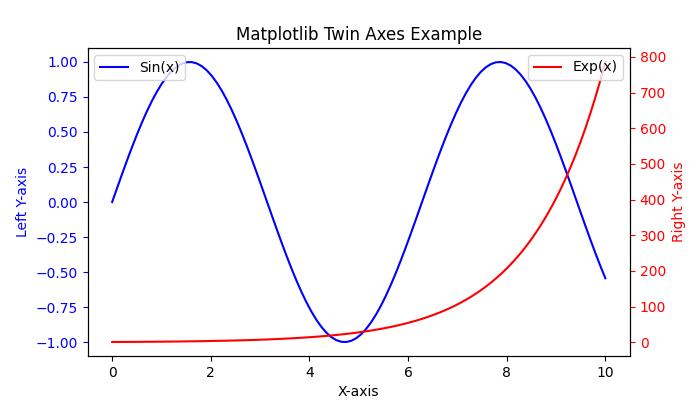
See the below image for reference −

In the above image, you can observe that two y-axes share the same x-axis, allowing us to compare the sin(x) and exp(x) datasets on the same plot with different y-axis scales.
Matplotlib's Axes class provides the twinx() and twiny() methods to create twin axes that share the same x-axis or y-axis, respectively.
Creating Twin Axes Sharing X-Axis
The Axes.twinx() method is used to create a set of twin axes sharing the x-axis. It generates a new set of axes with an invisible x-axis and an independent y-axis positioned opposite to the original one (i.e., at the right). The x-axis autoscale setting is inherited from the original axes.
Example
Here is an example that demonstrates how to use the twinx() method to create plots with different scales on the same set of axes.
import matplotlib.pyplot as plt import numpy as np # Create the input data x = np.linspace(0, 10, 100) # First Dataset y1 = np.sin(x) # Second Dataset y2 = np.exp(x/1.5) # Create the main set of axes fig, ax1 = plt.subplots(figsize=(7, 4)) # Plot the first dataset on the left y-axis ax1.plot(x, y1, color='blue', label='Sin(x)') ax1.set_xlabel('X-axis') ax1.set_ylabel('Left Y-axis', color='blue') ax1.tick_params('y', colors='blue') # Create a set of twin axes sharing the same x-axis ax2 = ax1.twinx() # Plot the second dataset on the right y-axis ax2.plot(x, y2, color='red', label='Exp(x)') ax2.set_ylabel('Right Y-axis', color='red') ax2.tick_params('y', colors='red') # Add legends for both datasets ax1.legend(loc='upper left') ax2.legend(loc='upper right') # Display the plot plt.title('Matplotlib Twin Axes Example') plt.show() Output
On executing the above code we will get the following output −
Example
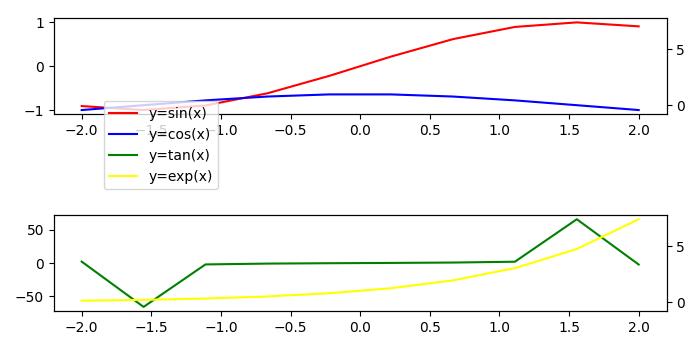
Here is an example that shares secondary Y-axis between subplots in Matplotlib
import numpy as np import matplotlib.pyplot as plt plt.rcParams["figure.figsize"] = [7.00, 3.50] plt.rcParams["figure.autolayout"] = True # Generate sample data x = np.linspace(-2, 2, 10) # Create subplots and their twinned axes ax0 = plt.subplot(211) ax1 = ax0.twinx() # Create a twin of Axes with a shared x-axis but independent y-axis. ax2 = plt.subplot(212) ax3 = ax2.twinx() # Create a twin of Axes with a shared x-axis but independent y-axis. # Join the twinned axes for sharing secondary Y-axis ax1.get_shared_y_axes().join(ax1, ax3) # Plot data on each subplot and twinned axes c1, = ax0.plot(x, np.sin(x), c='red') c2, = ax1.plot(x, np.cos(x), c='blue') c3, = ax2.plot(x, np.tan(x), c='green') c4, = ax3.plot(x, np.exp(x), c='yellow') # Add legend plt.legend([c1, c2, c3, c4], ["y=sin(x)", "y=cos(x)", "y=tan(x)", "y=exp(x)"], loc="upper left", bbox_to_anchor=(0.070, 2.25)) # Display the plot plt.show()
Output
On executing the above code you will get the following output −
Creating Twin Axes Sharing Y-Axis
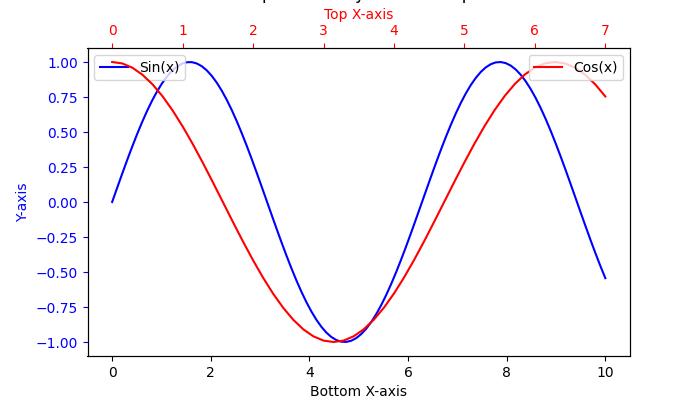
If you want to share the y-axis while maintaining independent x-axes, you can use Axes.twiny() method. This method creates a set of twin axes that share the y-axis, with an invisible y-axis and an independent x-axis positioned opposite to the original one (i.e., at the top). The y-axis autoscale setting is inherited from the original axes.
Example
Here is an example that demonstrates how to use the twiny() method to create plots with different scales on the same set of axes.
import matplotlib.pyplot as plt import numpy as np # First Dataset x1 = np.linspace(0, 10, 100) y = np.sin(x1) # Second Dataset x2 = np.linspace(0, 7, 50) z = np.cos(x2) # Create the main set of axes fig, ax1 = plt.subplots(figsize=(7, 4)) # Plot the first dataset on the bottom x-axis ax1.plot(x1, y, color='blue', label='Sin(x)') ax1.set_xlabel('Bottom X-axis') ax1.set_ylabel('Y-axis', color='blue') ax1.tick_params('y', colors='blue') # Create a set of twin axes sharing the same y-axis ax2 = ax1.twiny() # Plot the second dataset on the top x-axis ax2.plot(x2, z, color='red', label='Cos(x)') ax2.set_xlabel('Top X-axis', color='red') ax2.tick_params('x', colors='red') # Add legends for both datasets ax1.legend(loc='upper left') ax2.legend(loc='upper right') # Display the plot plt.title('Matplotlib Twiny Axes Example') plt.show() Output
On executing the above code we will get the following output −