Building  Android  Games  using   libGDX   Jussi  Pohjolainen   Tampere  University  of  Applied  Sciences  
INTRO  TO  LIBGDX  
PossibiliAes  (Android)   •  Streaming  music,  sound  effects   –  Wav,  mp3,  ogg   •  Audio  Recording  support   •  Accelerometer,  Compass,  Gestures  (taps,  pinch   zooming)   •  High-­‐level  2D  APIs   –  Sprites,  Textures,  Fonts,  Tiles,  UI  -­‐  library   •  High-­‐level  3D  APIs   •  UHliHes:  JSON,  XML,  File  I/O  (preferences),   Math..  
Cross-­‐plaTorm!   •  Desktop  target  uses  LWJGL     – Lightweight  Java  Game  Library   •  Android  target  uses  Android  SDK   •  HTML5  uses  Google  Web  Toolkit   – Java  -­‐>  JavaScript   •  iOS  uses  RoboVM   – Java  -­‐>  ObjecAve-­‐C  
Community  &  Support   •  Forum   – http://badlogicgames.com/forum/   •  IRC   – irc.freenode.net,  #libgdx   •  Blog   – http://www.badlogicgames.com/ wordpress/   •  TwiNer   – https://twitter.com/badlogicgames  
PROJECT  STRUCTURE  
libGDX  Project   •  LibGDX  project  contains  other  projects   •  Subprojects  for  each  target   –  android/   –  desktop/   –  gwt/   –  ios/   –  core/   •  One  Core  subproject  for  the  actual  logic  for  the   game,  target  projects  contains  only  launcher   classes    
Compiling   •  LibGDX  uses  Gradle  for  compiling   •  Gradle  uses  domain-­‐specific  language  (DSL)  to   define  targets  (android/ios...)  and   dependencies   •  When  compiling,  gradle  reads  build.gradle file  that  contains  DSL  that  describes  all  the   necessary  informaAon  how  to  compile
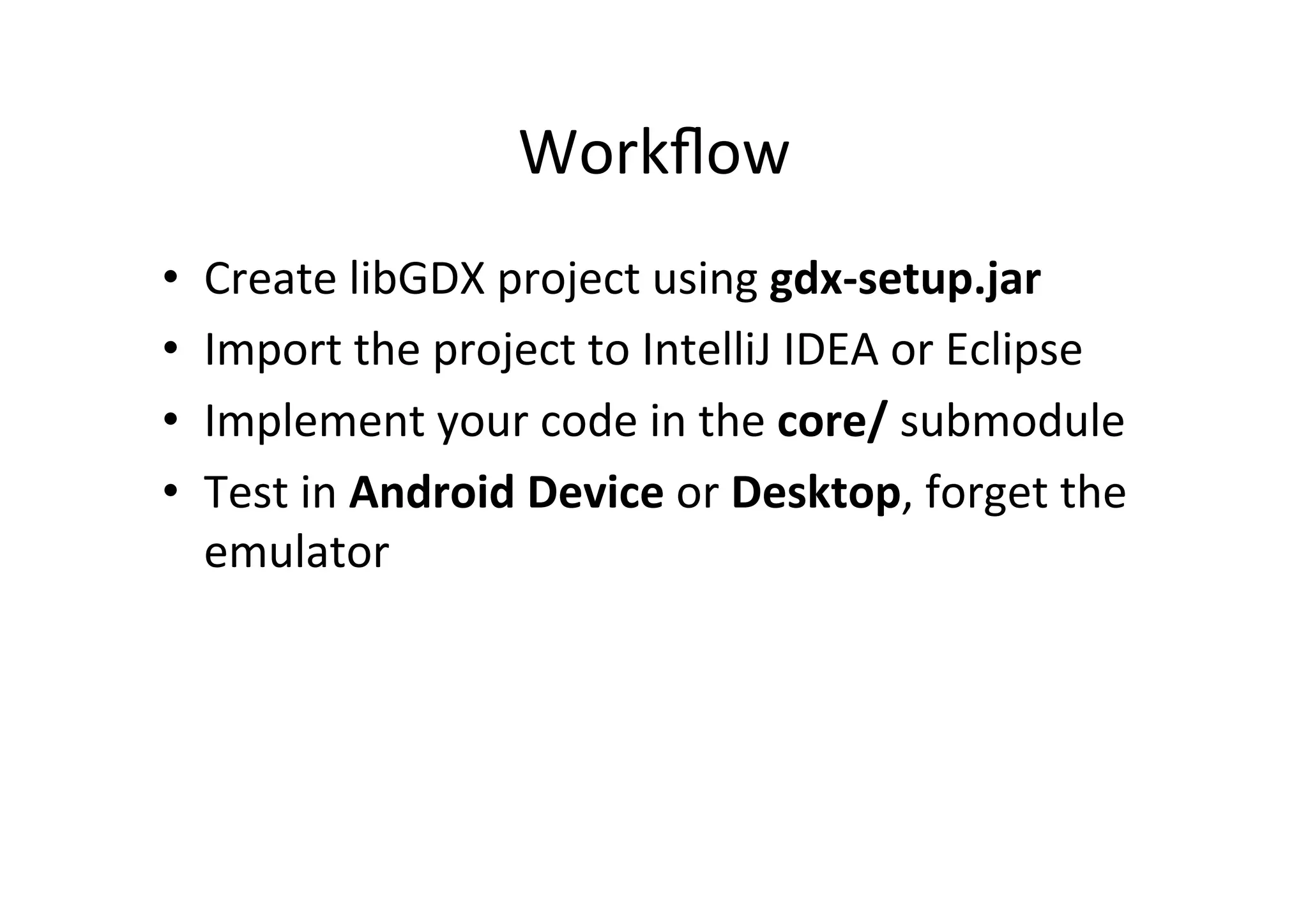
Workflow   •  Create  libGDX  project  using  gdx-­‐setup.jar   •  Import  the  project  to  IntelliJ  IDEA  or  Eclipse   •  Implement  your  code  in  the  core/  submodule   •  Test  in  Android  Device  or  Desktop,  forget  the   emulator    
Using  libGDX  in  commandline   •  Running   –  Desktop   •  gradlew desktop:run –  Android   •  gradlew android:installDebug android:run •  Packaging   –  Desktop   •  gradlew desktop:dist –  Android  (a^er  this,  you  must  sign  the  .apk)   •  gradlew android:assembleRelease
STARTER  CLASSES  
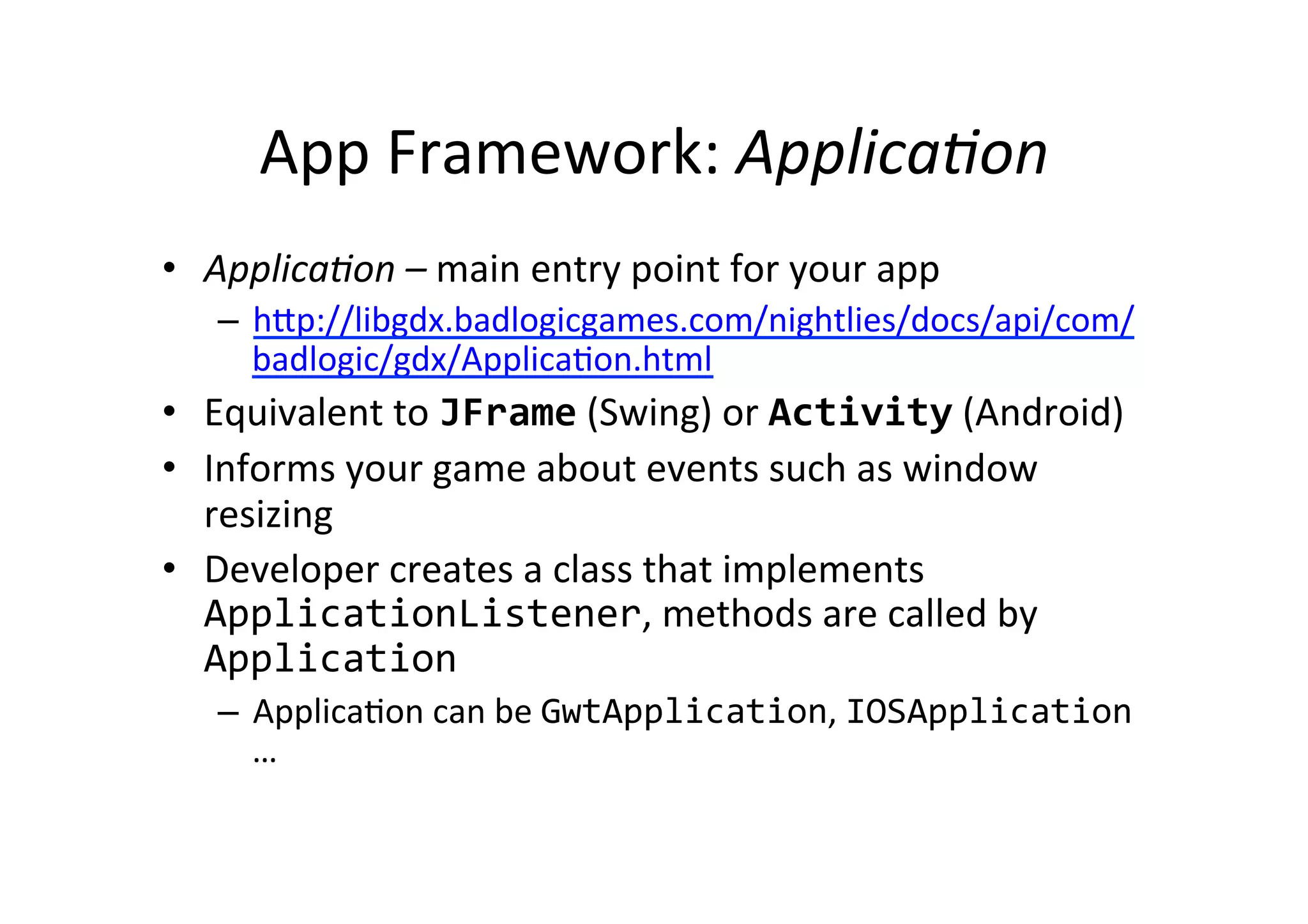
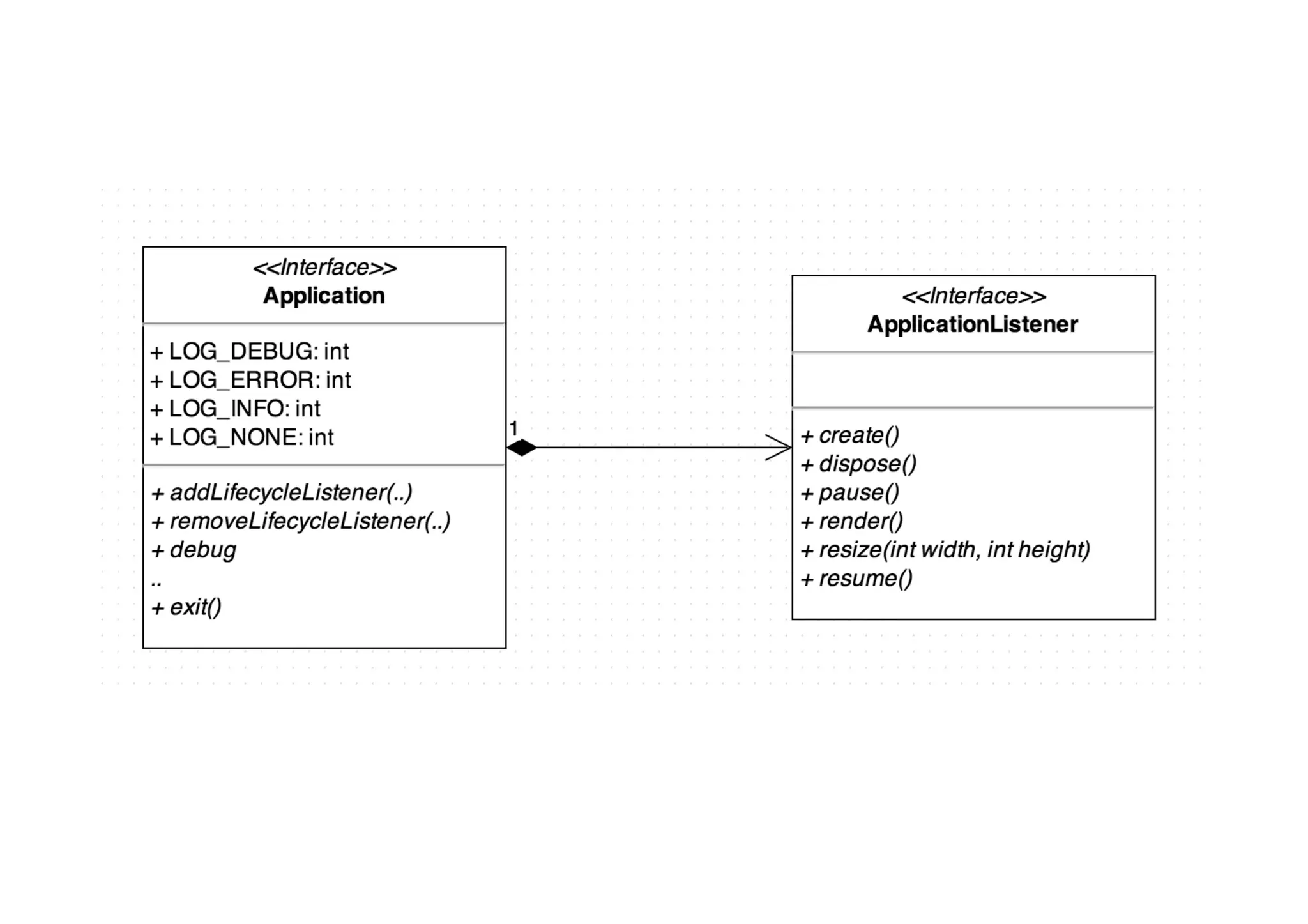
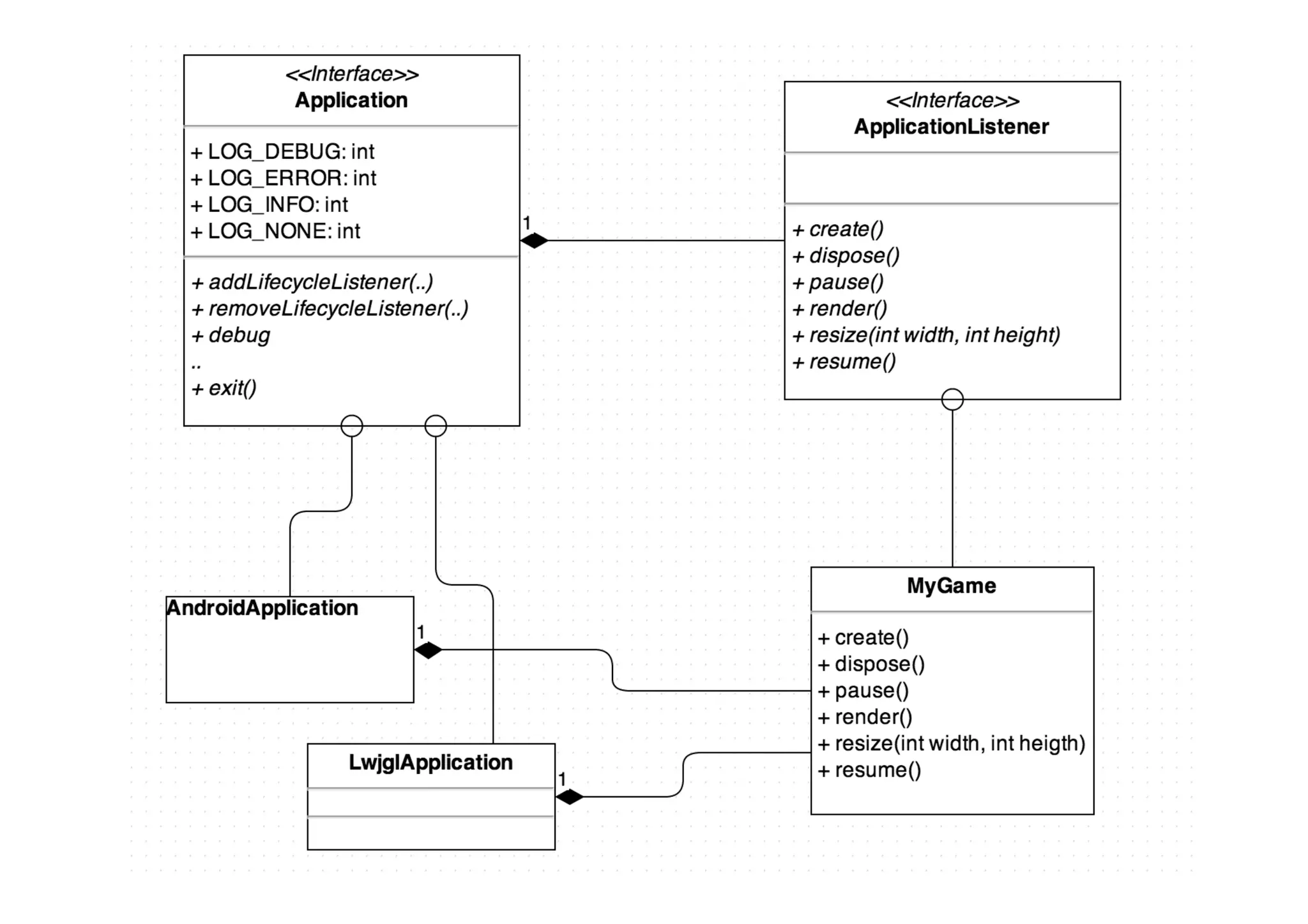
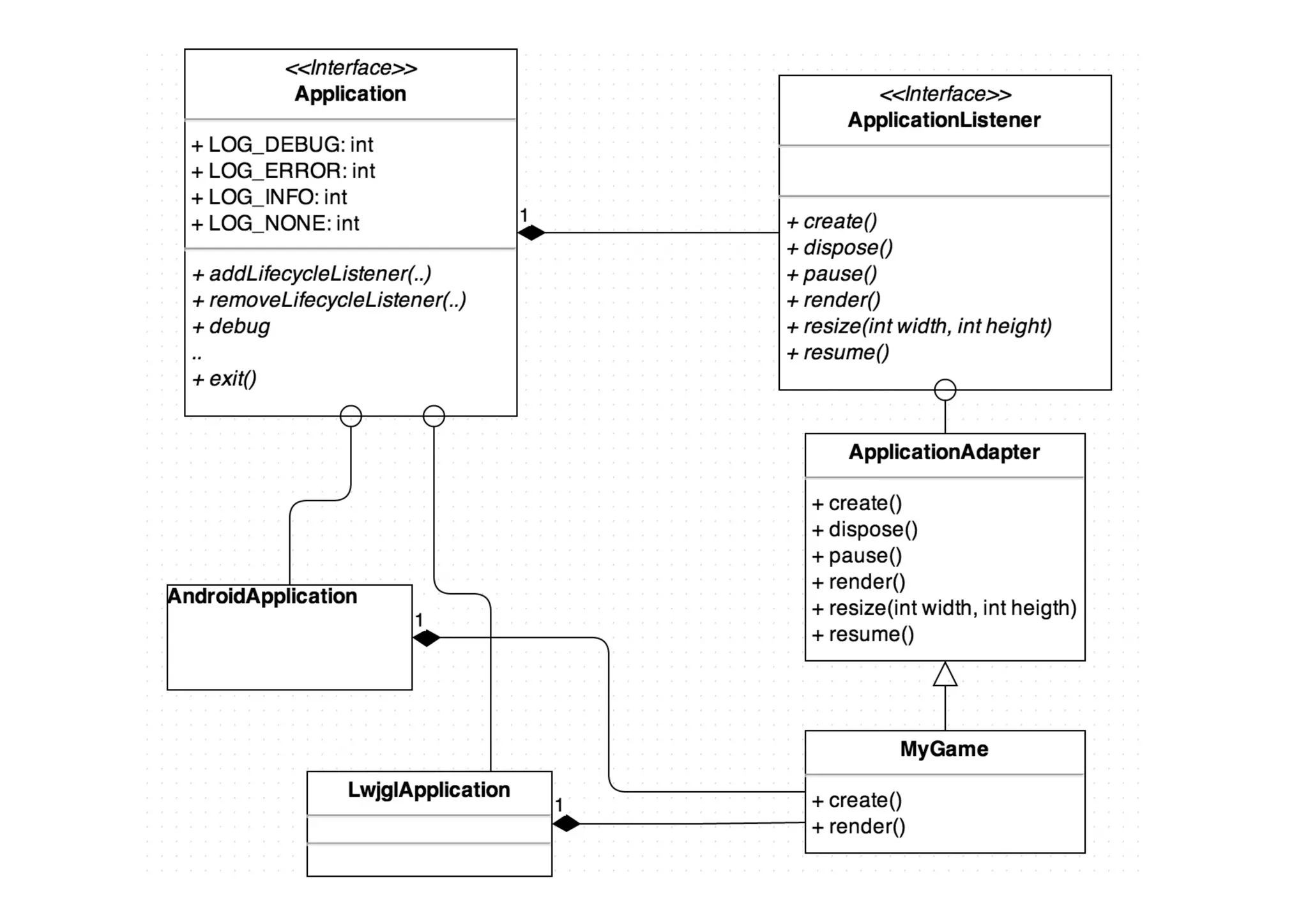
App  Framework:  ApplicaCon   •  ApplicaCon  –  main  entry  point  for  your  app   –  h_p://libgdx.badlogicgames.com/nightlies/docs/api/com/ badlogic/gdx/ApplicaAon.html   •  Equivalent  to  JFrame  (Swing)  or  Activity  (Android)   •  Informs  your  game  about  events  such  as  window   resizing   •  Developer  creates  a  class  that  implements   ApplicationListener,  methods  are  called  by   Application   –  ApplicaAon  can  be  GwtApplication,  IOSApplication   …  
About  Starter  Classes   •  For  each  plaVorm  (iOS,  Android,  Desktop  ..)  a   starter  class  must  be  wri_en   •  Starter  classes  are  plaTorm  dependent   •  We  will  focus  on     – Desktop  (LWJGL)   – Android  
LWJGL?   •  Lightweight  Java  Game  Library  (LWJGL)   framework  for  creaAng  games  with  Java   •  libGDX  is  built  on  top  of  LWJGL   •  See  more:   – http://www.lwjgl.org/
Starter  Classes:  Desktop   // This is platform specific: Java SE public class DesktopStarter { public static void main(String[] argv) { LwjglApplicationConfiguration config = new LwjglApplicationConfiguration(); config.title = “…”; config.width = 480; config.heigth = 320; new LwjglApplication(new MyGame(), config); } }
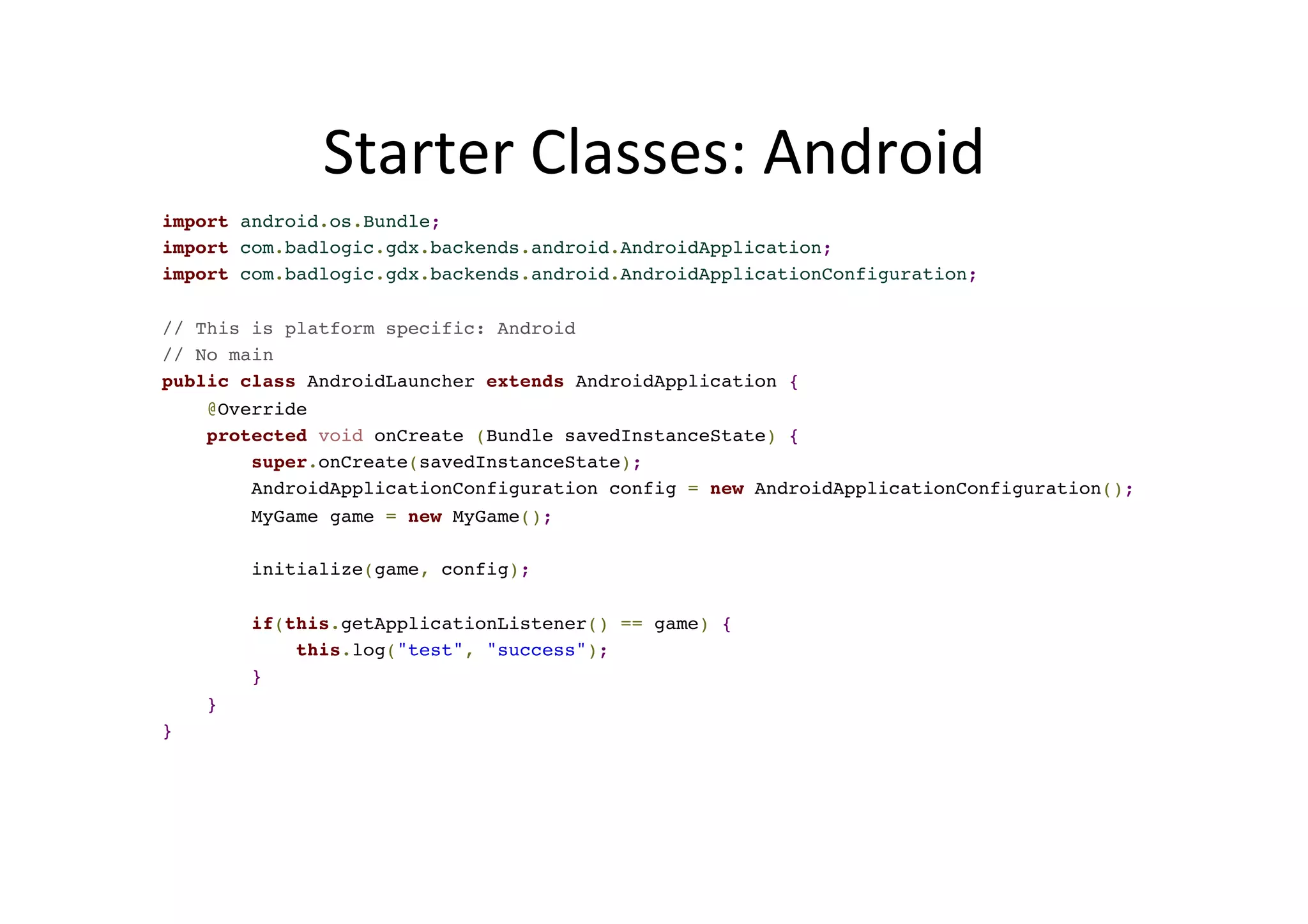
Starter  Classes:  Android   import android.os.Bundle; import com.badlogic.gdx.backends.android.AndroidApplication; import com.badlogic.gdx.backends.android.AndroidApplicationConfiguration; // This is platform specific: Android // No main public class AndroidLauncher extends AndroidApplication { @Override protected void onCreate (Bundle savedInstanceState) { super.onCreate(savedInstanceState); AndroidApplicationConfiguration config = new AndroidApplicationConfiguration(); MyGame game = new MyGame(); initialize(game, config); if(this.getApplicationListener() == game) { this.log("test", "success"); } } }
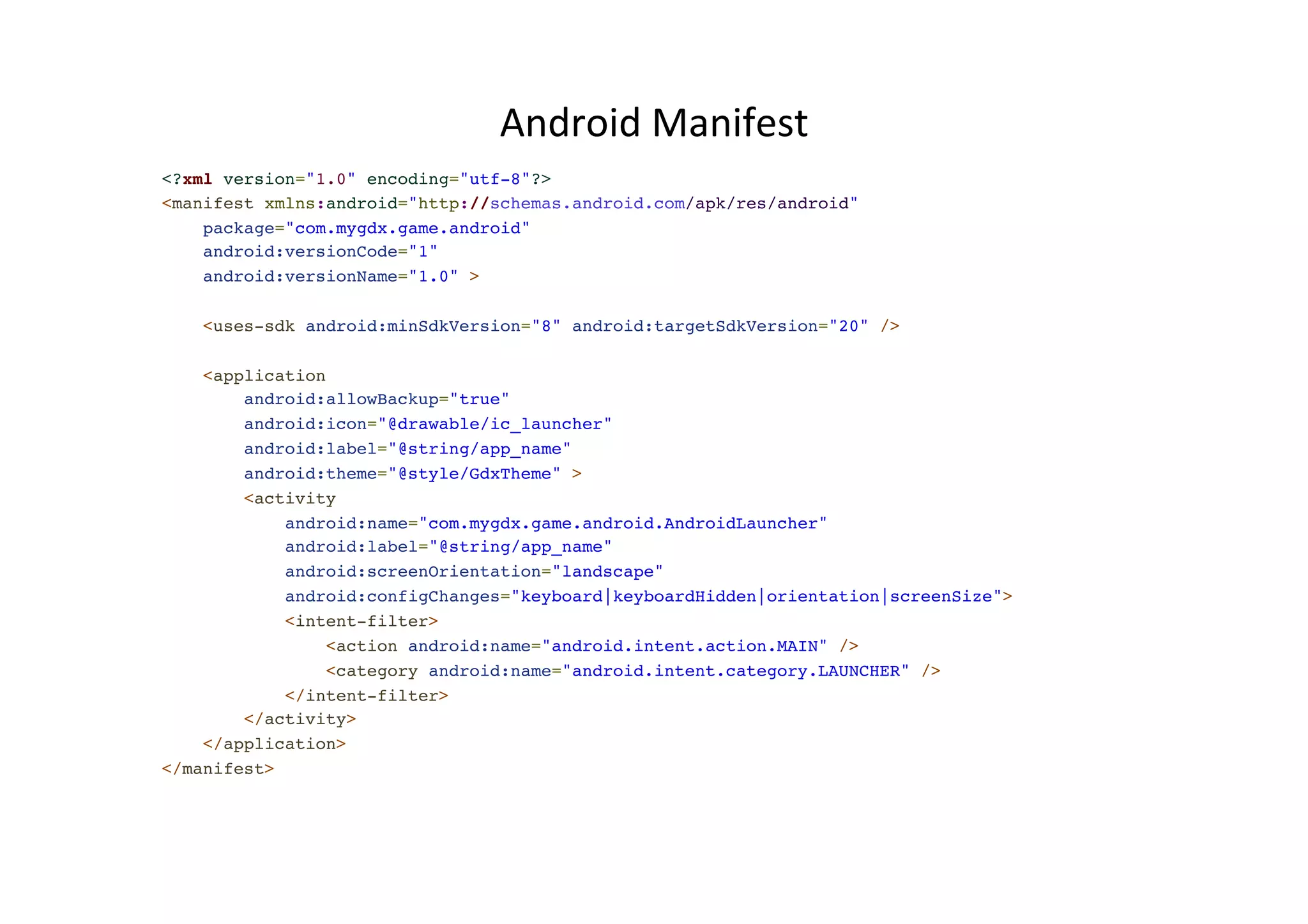
Android  Manifest   <?xml version="1.0" encoding="utf-8"?> <manifest xmlns:android="http://schemas.android.com/apk/res/android" package="com.mygdx.game.android" android:versionCode="1" android:versionName="1.0" > <uses-sdk android:minSdkVersion="8" android:targetSdkVersion="20" /> <application android:allowBackup="true" android:icon="@drawable/ic_launcher" android:label="@string/app_name" android:theme="@style/GdxTheme" > <activity android:name="com.mygdx.game.android.AndroidLauncher" android:label="@string/app_name" android:screenOrientation="landscape" android:configChanges="keyboard|keyboardHidden|orientation|screenSize"> <intent-filter> <action android:name="android.intent.action.MAIN" /> <category android:name="android.intent.category.LAUNCHER" /> </intent-filter> </activity> </application> </manifest>
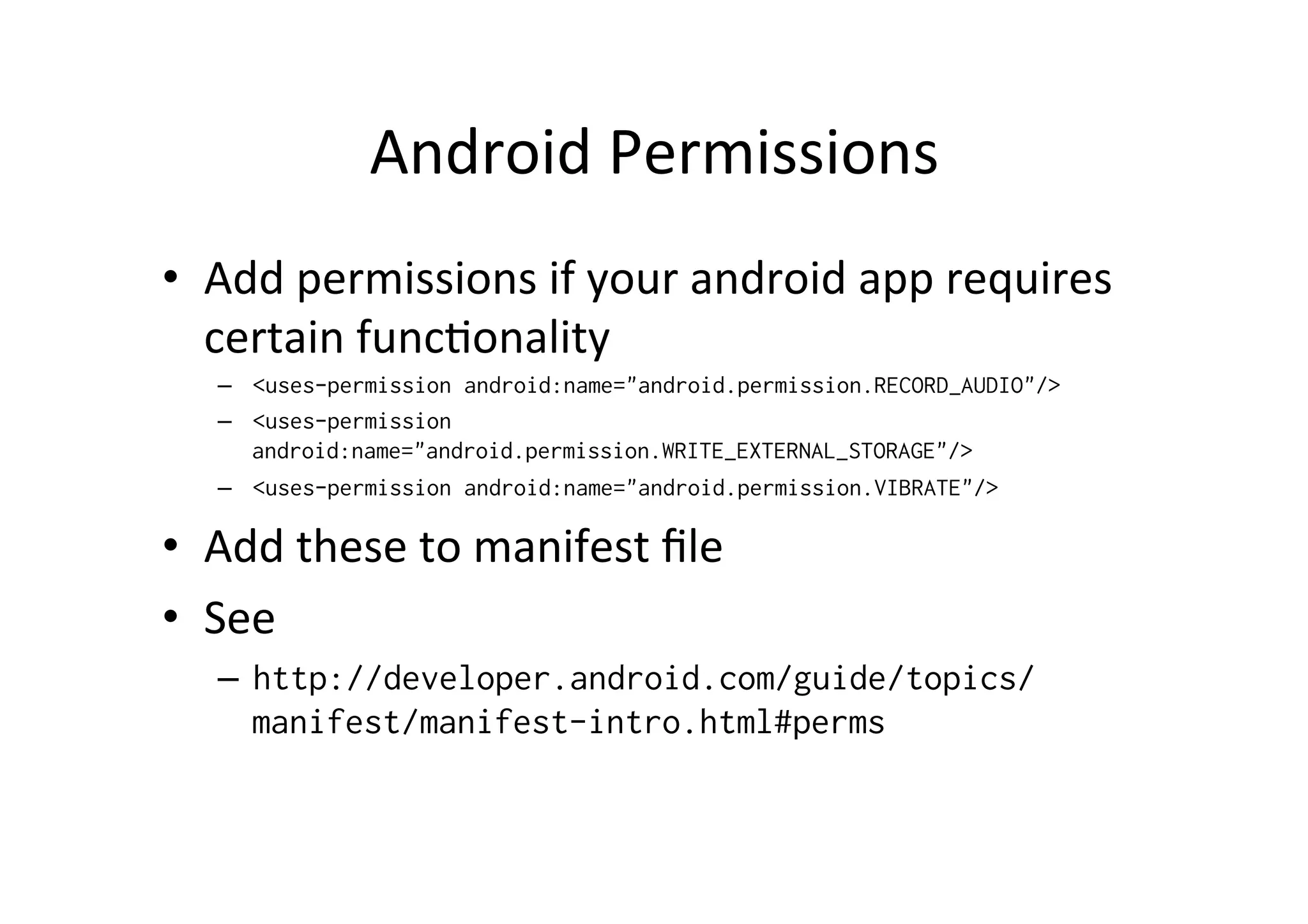
Android  Permissions   •  Add  permissions  if  your  android  app  requires   certain  funcAonality   –  <uses-permission android:name="android.permission.RECORD_AUDIO"/> –  <uses-permission android:name="android.permission.WRITE_EXTERNAL_STORAGE"/> –  <uses-permission android:name="android.permission.VIBRATE"/> •  Add  these  to  manifest  file •  See   –  http://developer.android.com/guide/topics/ manifest/manifest-intro.html#perms
APP  LIFE  CYCLE  AND  LOGGING  
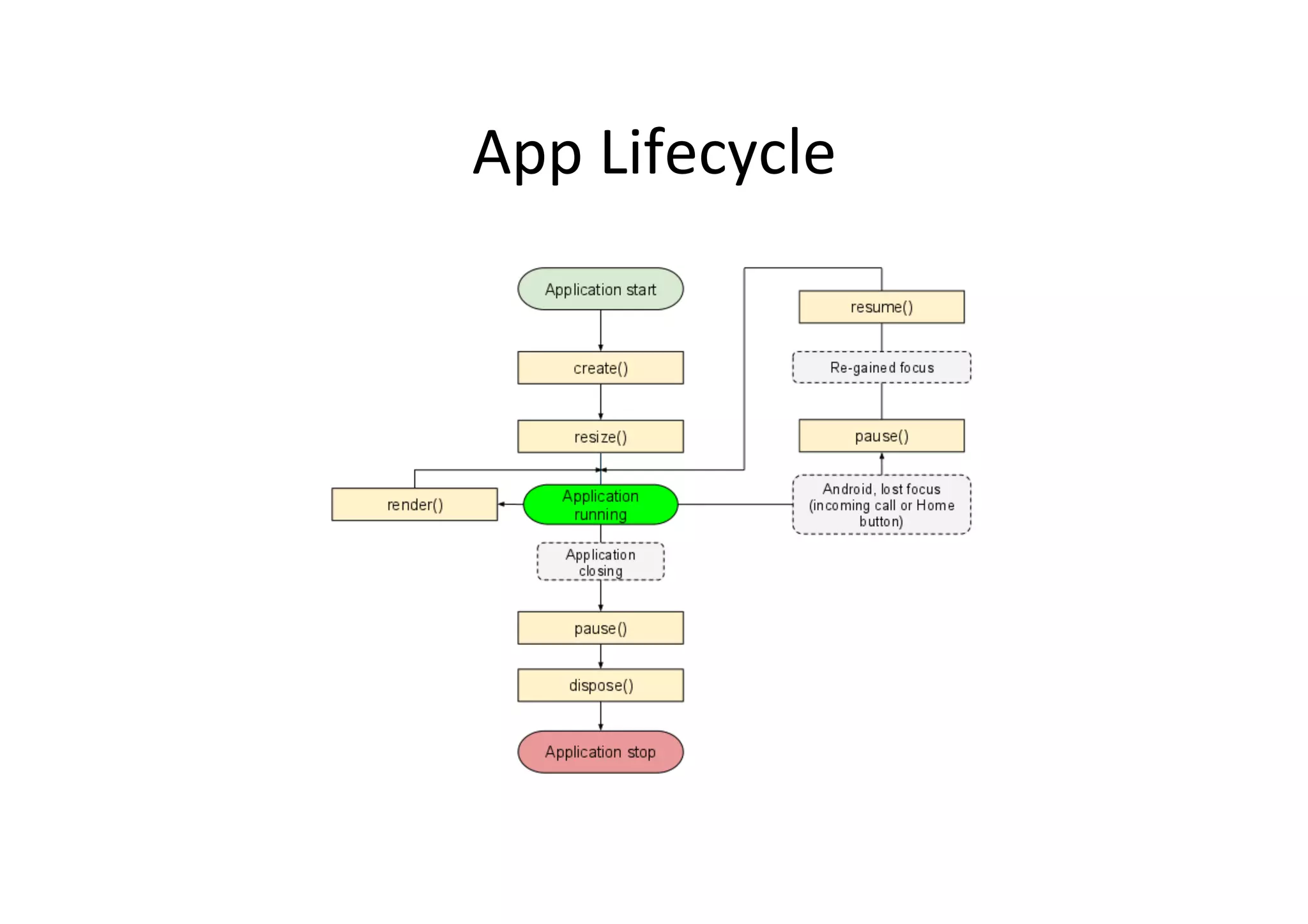
App  Lifecycle  
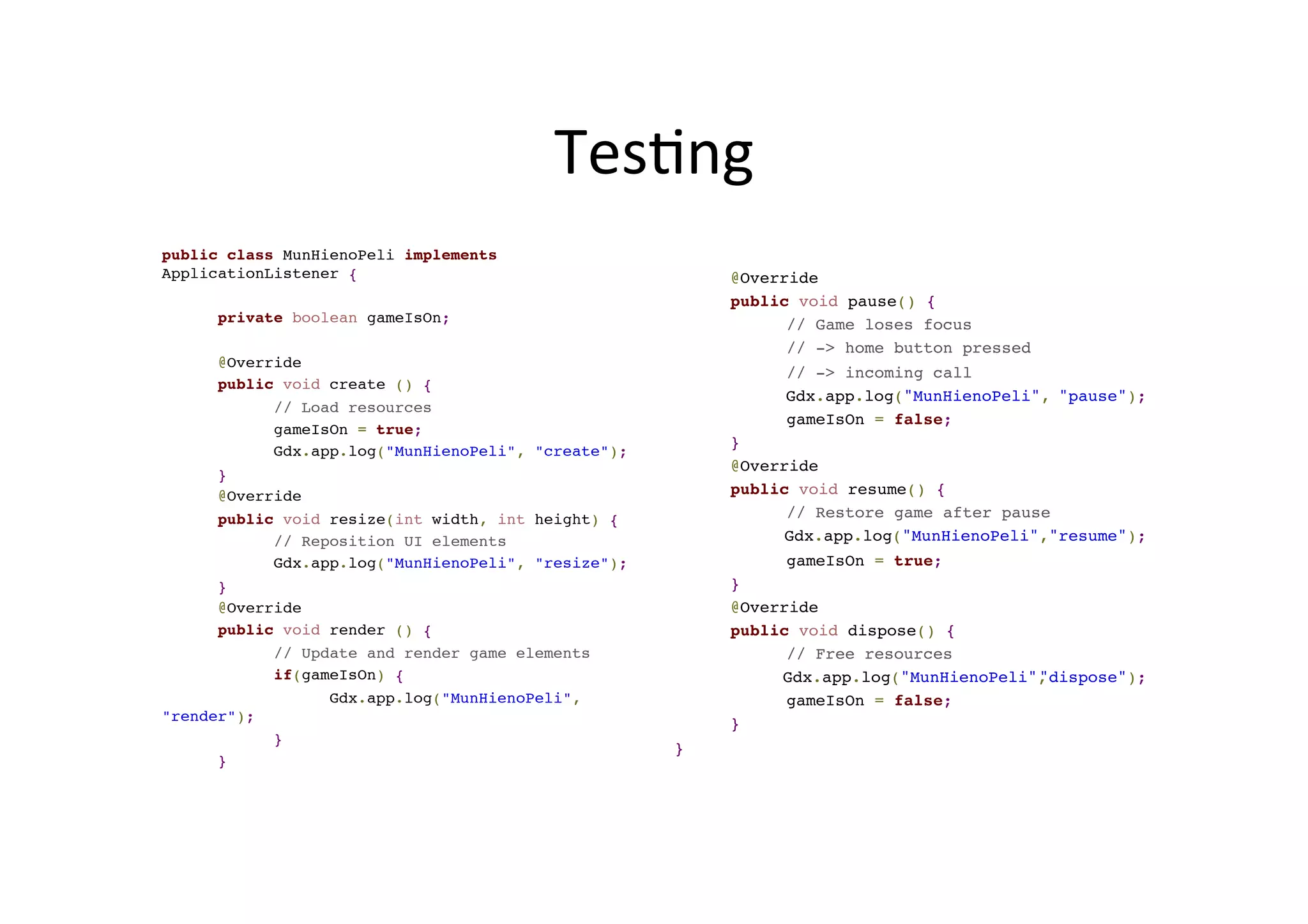
TesAng   public class MunHienoPeli implements ApplicationListener { private boolean gameIsOn; @Override public void create () { // Load resources gameIsOn = true; Gdx.app.log("MunHienoPeli", "create"); } @Override public void resize(int width, int height) { // Reposition UI elements Gdx.app.log("MunHienoPeli", "resize"); } @Override public void render () { // Update and render game elements if(gameIsOn) { Gdx.app.log("MunHienoPeli", "render"); } }   @Override public void pause() { // Game loses focus // -> home button pressed // -> incoming call Gdx.app.log("MunHienoPeli", "pause"); gameIsOn = false; } @Override public void resume() { // Restore game after pause Gdx.app.log("MunHienoPeli","resume"); gameIsOn = true; } @Override public void dispose() { // Free resources Gdx.app.log("MunHienoPeli","dispose"); gameIsOn = false; } }  
Logging  in  Android   •  Log  output  should  be  visible  in  IntelliJ  IDEA   •  If  not,  use  in  command  line  (adb  must  be  in   path)   – adb logcat
OTHER  MODULES  AND  ASSETS  
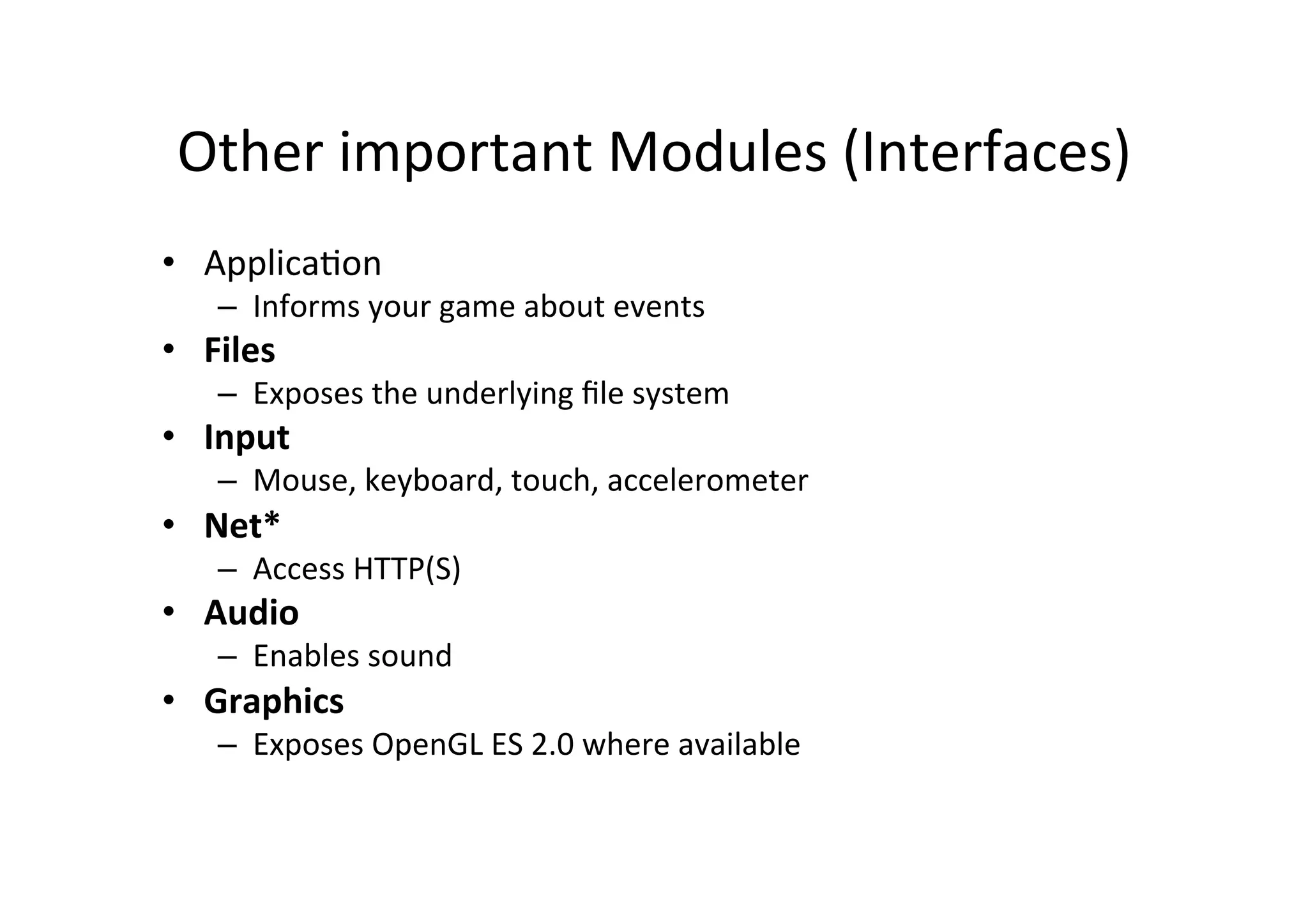
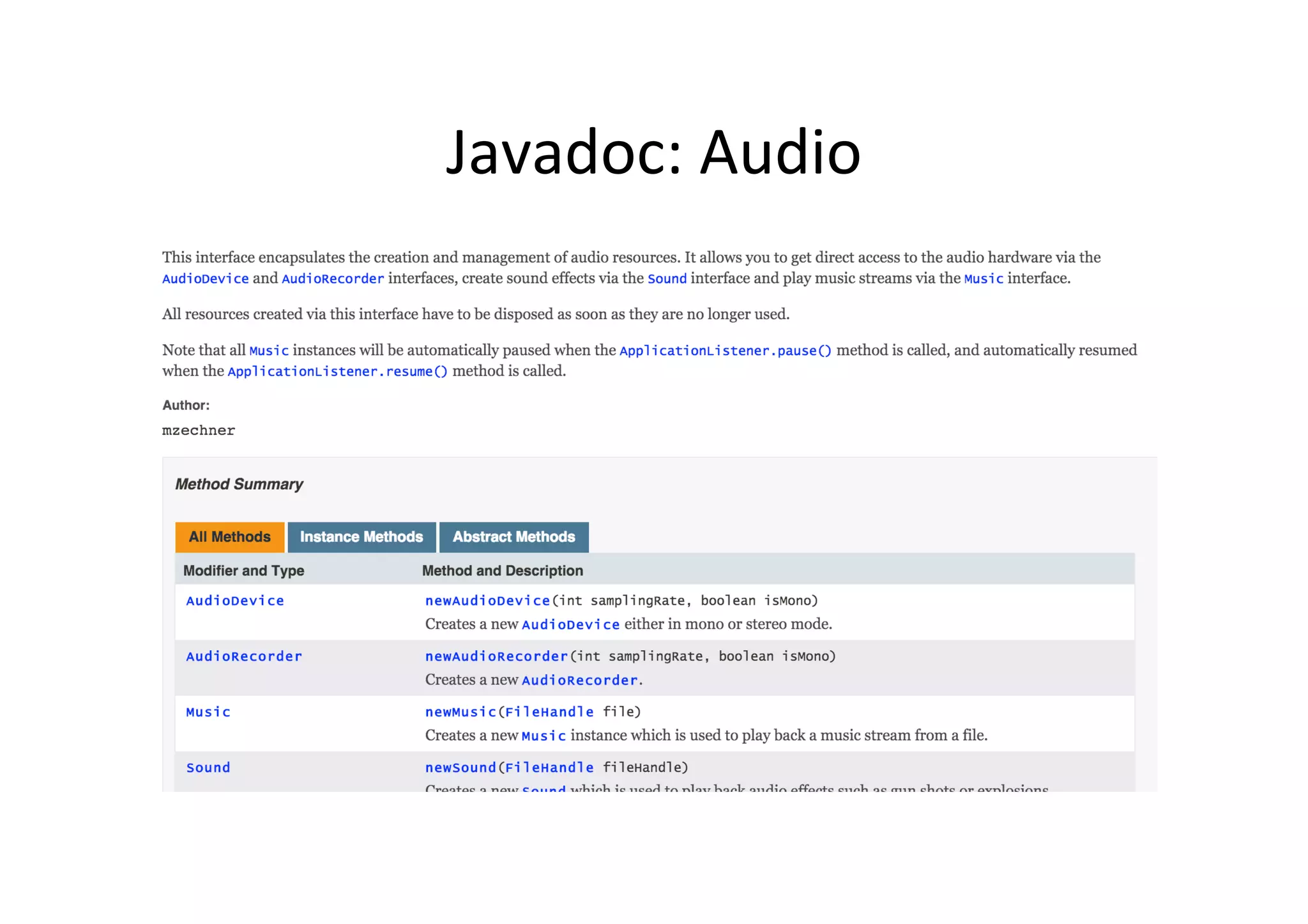
Other  important  Modules  (Interfaces)   •  ApplicaAon   –  Informs  your  game  about  events   •  Files   –  Exposes  the  underlying  file  system   •  Input   –  Mouse,  keyboard,  touch,  accelerometer   •  Net*   –  Access  HTTP(S)   •  Audio   –  Enables  sound   •  Graphics   –  Exposes  OpenGL  ES  2.0  where  available  
Accessing  Modules   •  All  modules  (previous  slide)  can  be  accessed   via  staAc  fields  of  Gdx  –  class   – Global  public  variables  for  easy  access   •  Example   – AudioDevice audioDevice = Gdx.audio.newAudioDevice(44100, false);
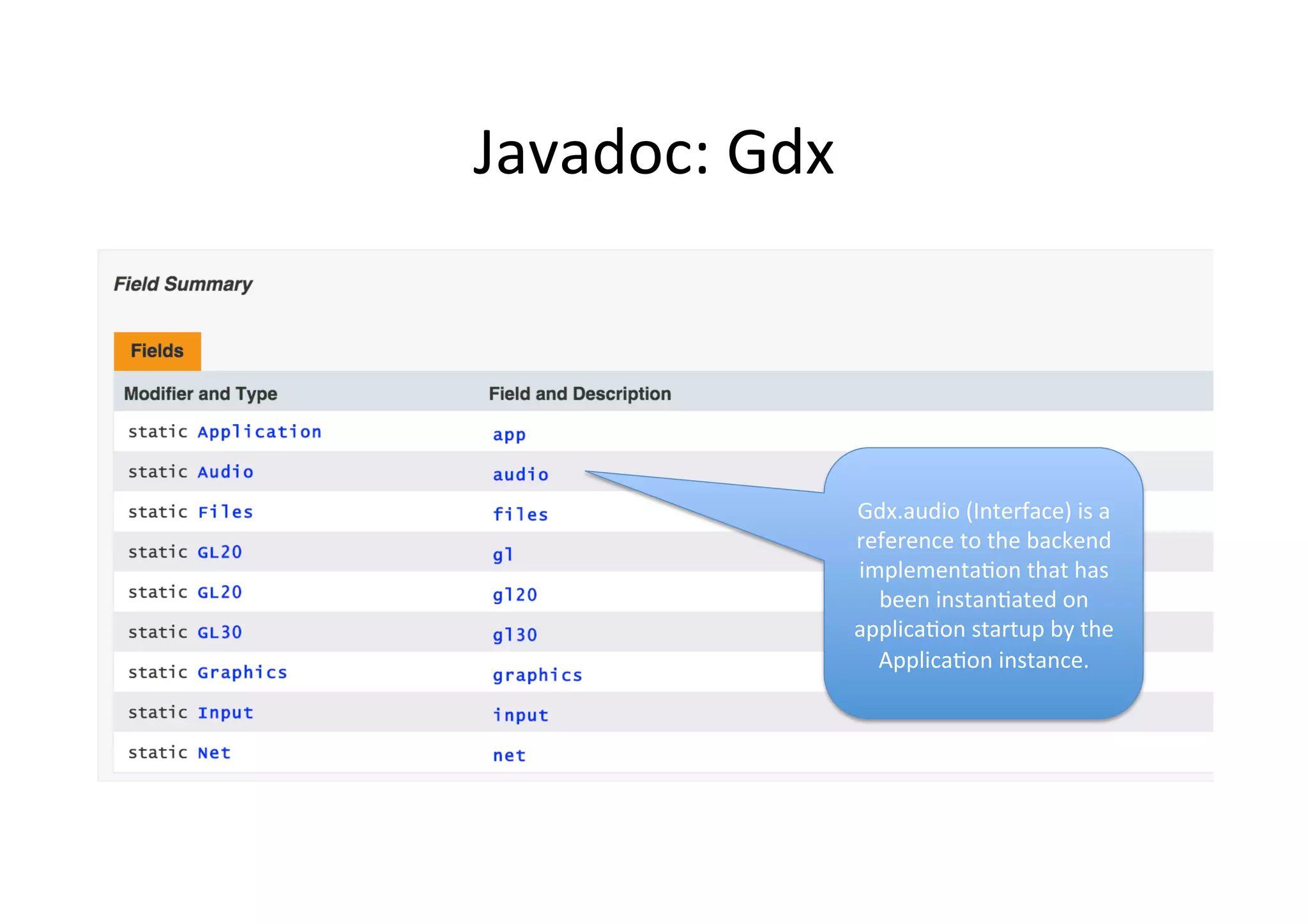
Javadoc:  Gdx   Gdx.audio  (Interface)  is  a   reference  to  the  backend   implementaAon  that  has   been  instanAated  on   applicaAon  startup  by  the   ApplicaAon  instance.    
Javadoc:  Audio  
Querying   •  ApplicaAon  (Gdx.app)  interface  provides   various  methods  to  query  properAes   – if(Gdx.app.getType() == Android) { … }
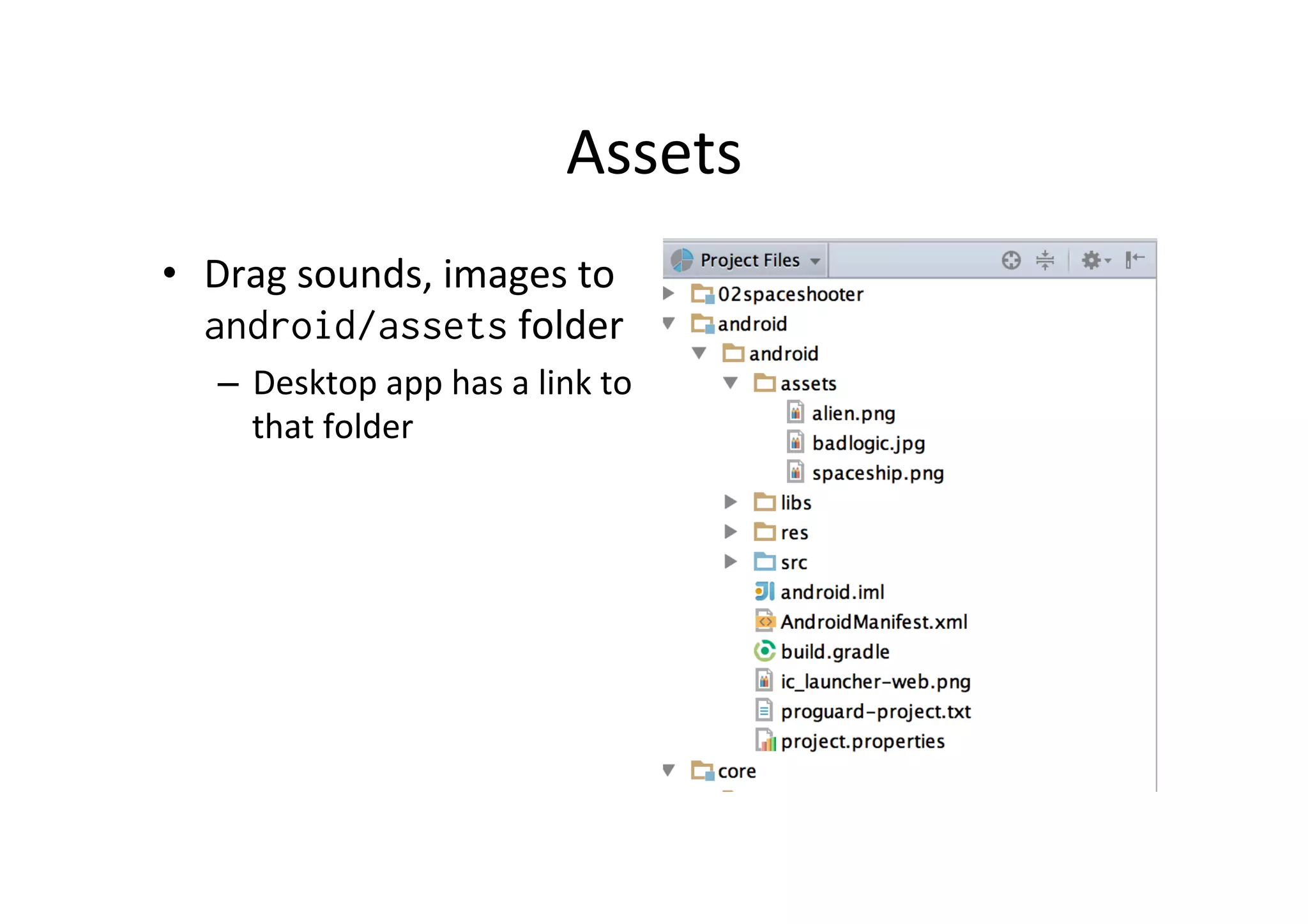
Assets   •  Drag  sounds,  images  to   android/assets  folder   –  Desktop  app  has  a  link  to   that  folder  
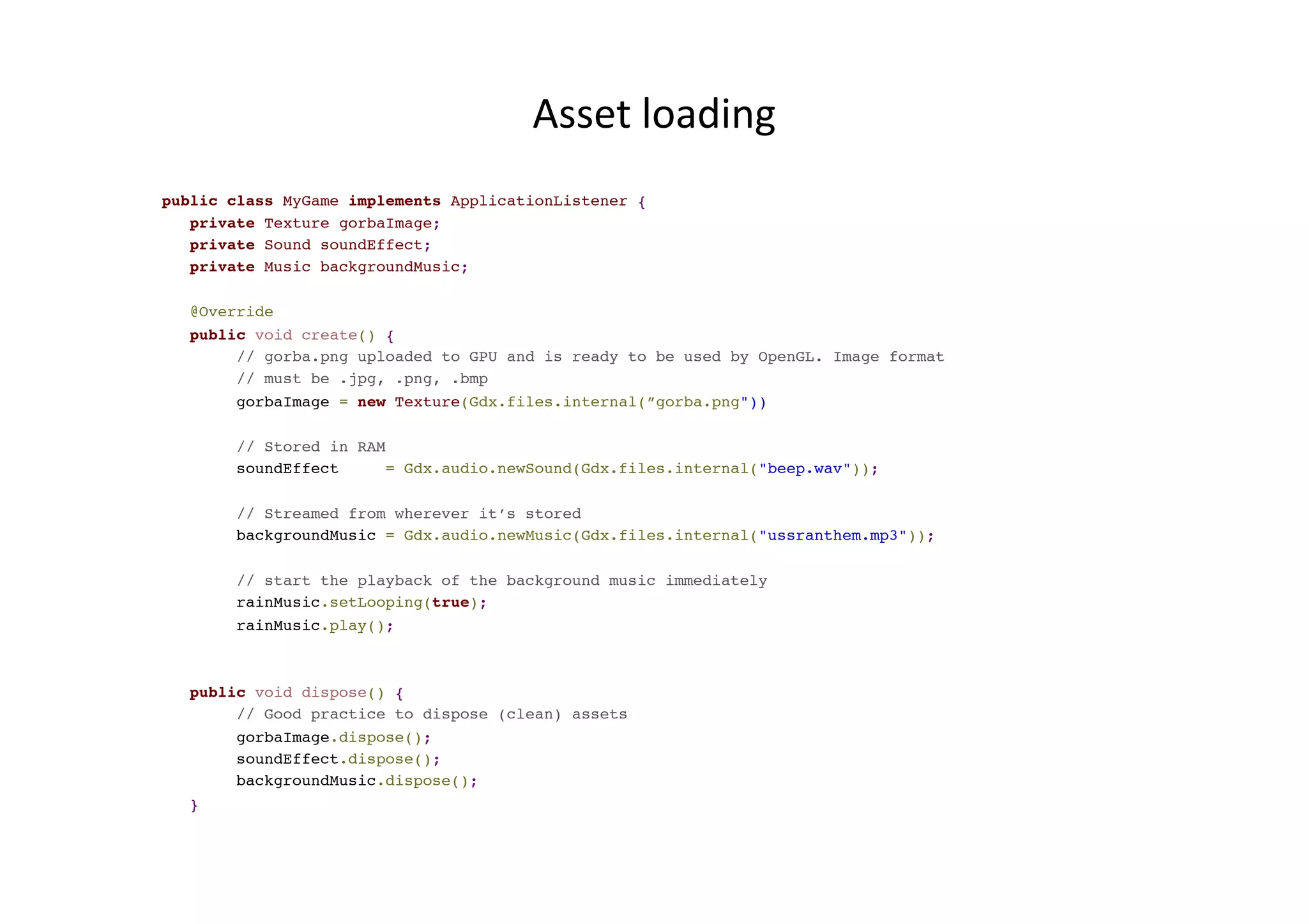
Asset  loading   public class MyGame implements ApplicationListener { private Texture gorbaImage; private Sound soundEffect; private Music backgroundMusic; @Override public void create() { // gorba.png uploaded to GPU and is ready to be used by OpenGL. Image format // must be .jpg, .png, .bmp gorbaImage = new Texture(Gdx.files.internal(”gorba.png")); // Stored in RAM soundEffect = Gdx.audio.newSound(Gdx.files.internal("beep.wav")); // Streamed from wherever it’s stored backgroundMusic = Gdx.audio.newMusic(Gdx.files.internal("ussranthem.mp3")); // start the playback of the background music immediately rainMusic.setLooping(true); rainMusic.play(); public void dispose() { // Good practice to dispose (clean) assets gorbaImage.dispose(); soundEffect.dispose(); backgroundMusic.dispose(); }
CAMERA  AND  GRAPHICS  
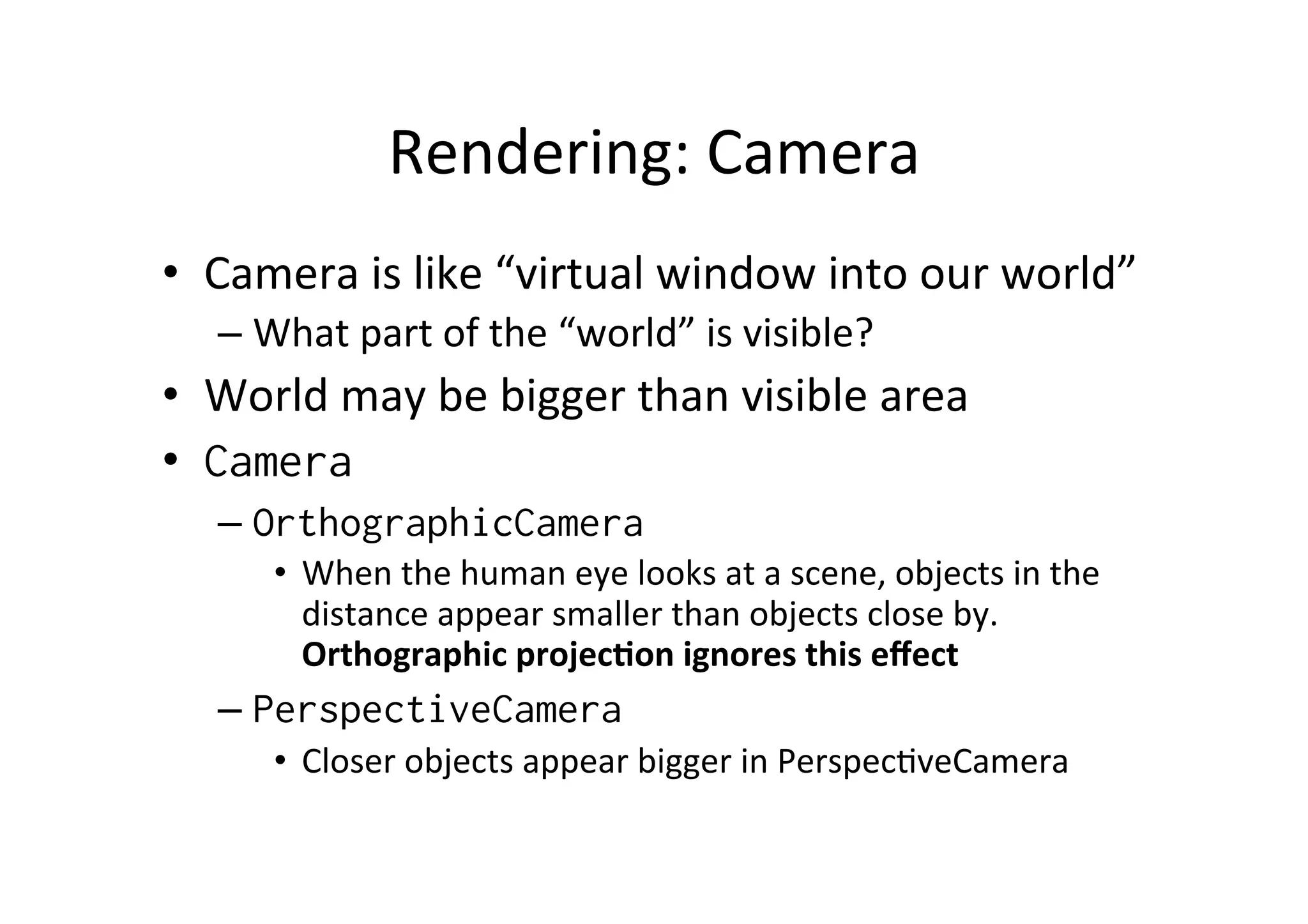
Rendering:  Camera   •  Camera  is  like  “virtual  window  into  our  world”   – What  part  of  the  “world”  is  visible?   •  World  may  be  bigger  than  visible  area   •  Camera – OrthographicCamera •  When  the  human  eye  looks  at  a  scene,  objects  in  the   distance  appear  smaller  than  objects  close  by.   Orthographic  projecHon  ignores  this  effect   – PerspectiveCamera •  Closer  objects  appear  bigger  in  PerspecAveCamera
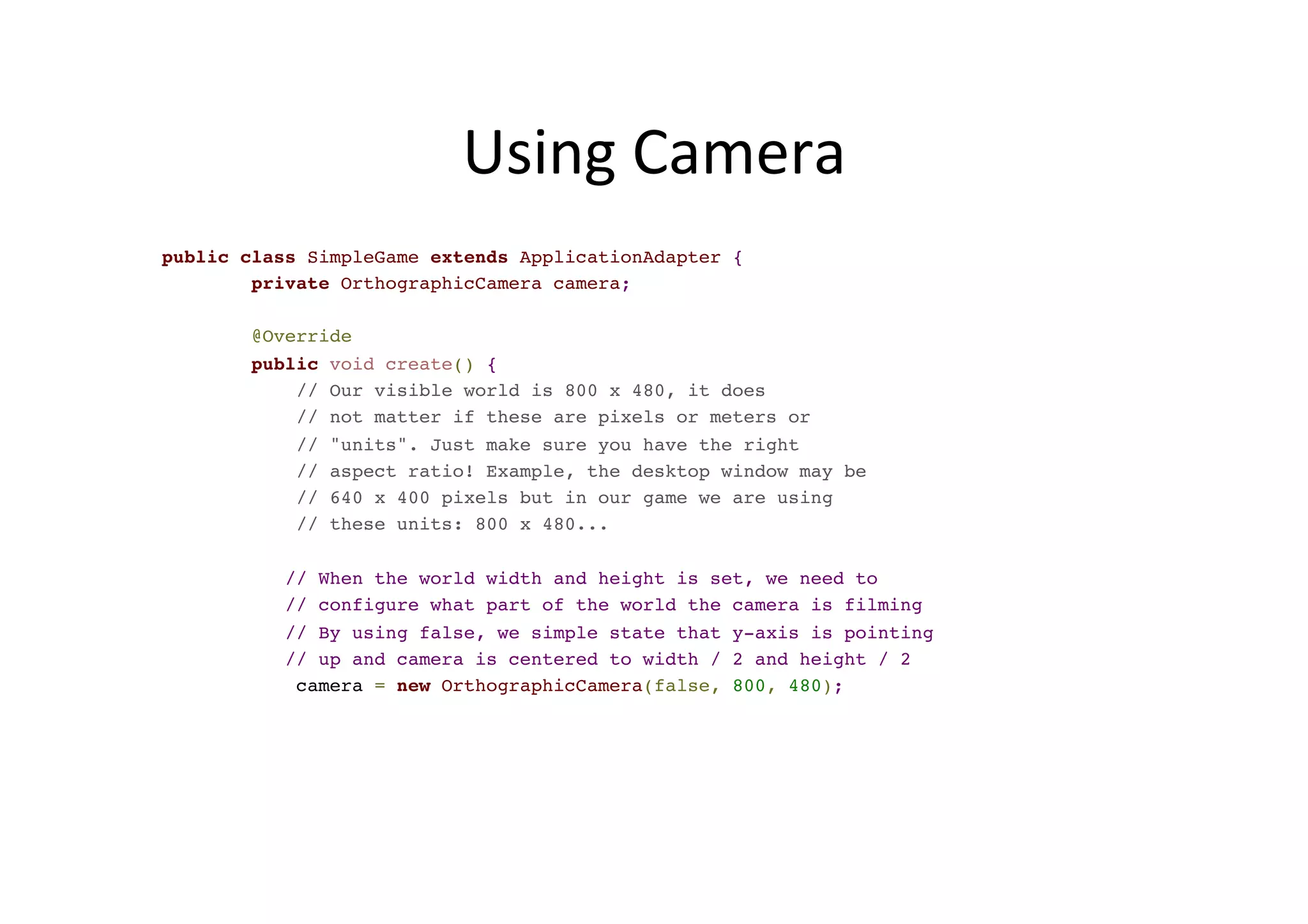
Using  Camera   public class SimpleGame extends ApplicationAdapter { private OrthographicCamera camera; @Override public void create() { // Our visible world is 800 x 480, it does // not matter if these are pixels or meters or // "units". Just make sure you have the right // aspect ratio! Example, the desktop window may be // 640 x 400 pixels but in our game we are using // these units: 800 x 480... // When the world width and height is set, we need to // configure what part of the world the camera is filming // By using false, we simple state that y-axis is pointing // up and camera is centered to width / 2 and height / 2 camera = new OrthographicCamera(false, 800, 480);
Word  about  OpenGL   •  OpenGL  (Open  Graphics  Library)  is  a  cross-­‐language,   mulA-­‐plaTorm  applicaAon  programming  interface  (API)   for  rendering  2D  and  3D  vector  graphics.     •  The  API  is  typically  used  to  interact  with  a  graphics   processing  unit  (GPU),  to  achieve  hardware-­‐ accelerated  rendering.   •  Widely  used  in  CAD,  virtual  reality,  scienAfic   visualizaAon,  informaAon  visualizaAon,  flight   simulaAon,  and  video  games.   •  libGDX  uses  OpenGL  ES  and  has  interface  also  for   direct  access  for  OpenGL  
Texture  Mapping   •  A  Texture  –  class  wraps  a  standard  OpenGL  ES   texture.   –  A  texture  is  an  OpenGL  Object  that  contains  one  or  more   images  that  all  have  the  same  image  format.   •  Image  loaded  into  the  GPU’s  memory  in  raw  format       •  Texture  mapping  is  process  of  working  out  where  in   space  the  texture  will  be  applied   –  “To  sAck  a  poster  on  a  wall,  one  needs  to  figure  out  where   on  the  wall  he  will  be  gluing  the  corners  of  the  paper”   –  Space  ó  Wall   –  Mesh  (Rectangle)  ó  Paper   –  Image  on  paper  ó  Texture  
SpriteBatch   •  SpriteBatch  class  takes  care  of  texture   mapping   •  Convenience  class  which  makes  drawing  onto   the  screen  easy  
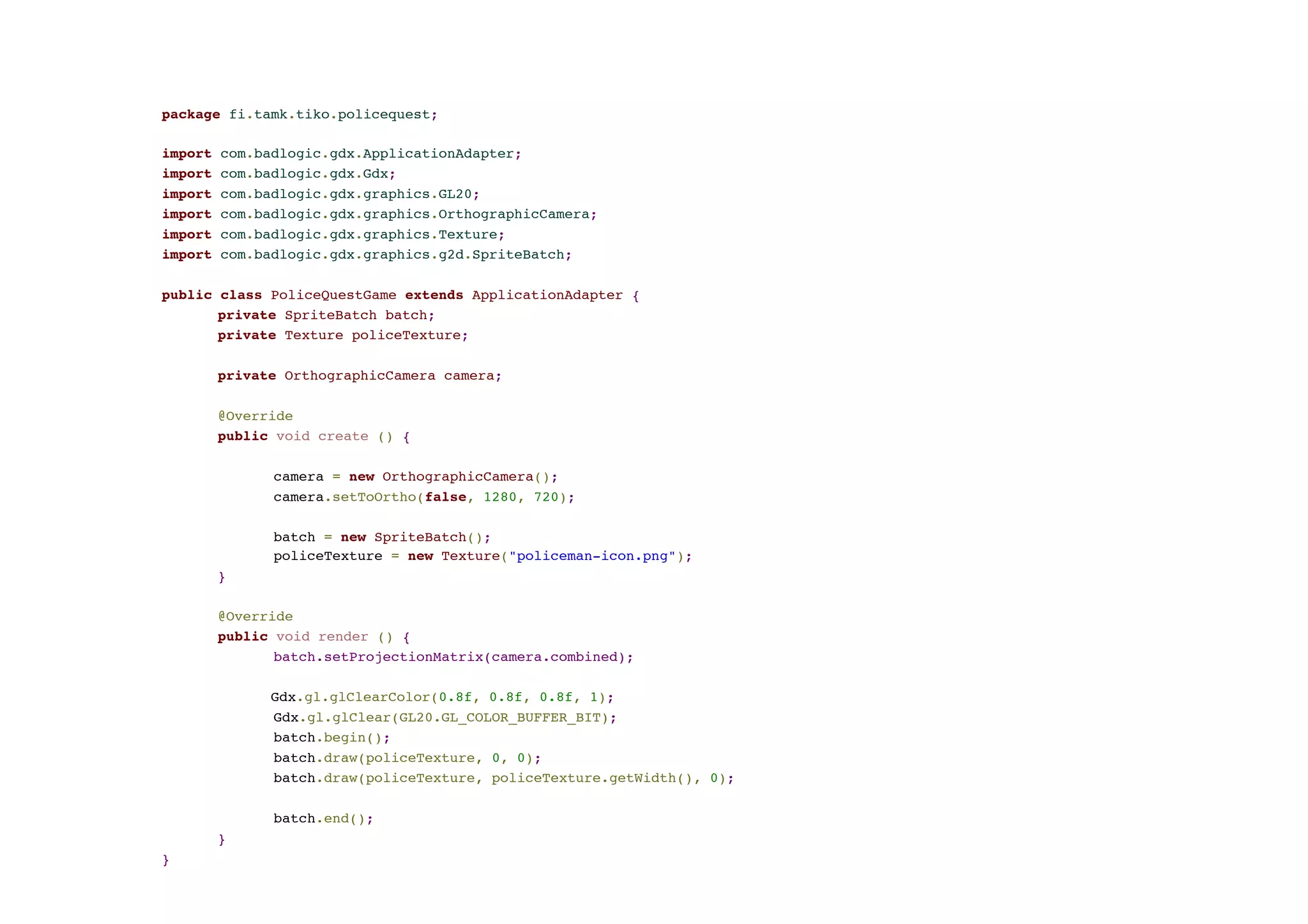
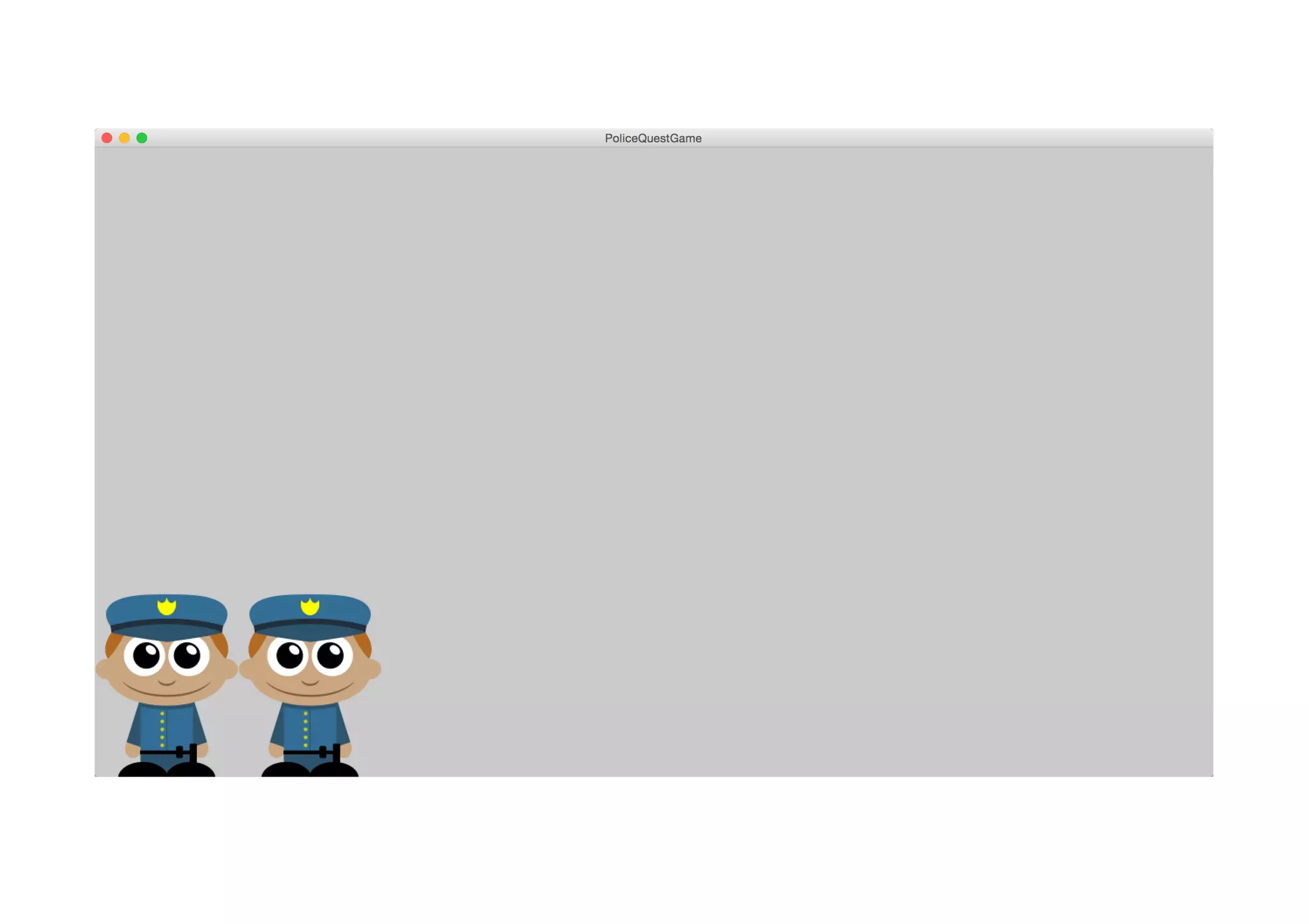
package fi.tamk.tiko.policequest; import com.badlogic.gdx.ApplicationAdapter; import com.badlogic.gdx.Gdx; import com.badlogic.gdx.graphics.GL20; import com.badlogic.gdx.graphics.OrthographicCamera; import com.badlogic.gdx.graphics.Texture; import com.badlogic.gdx.graphics.g2d.SpriteBatch; public class PoliceQuestGame extends ApplicationAdapter { private SpriteBatch batch; private Texture policeTexture; private OrthographicCamera camera; @Override public void create () { camera = new OrthographicCamera(); camera.setToOrtho(false, 1280, 720); batch = new SpriteBatch(); policeTexture = new Texture("policeman-icon.png"); } @Override public void render () { batch.setProjectionMatrix(camera.combined); Gdx.gl.glClearColor(0.8f, 0.8f, 0.8f, 1); Gdx.gl.glClear(GL20.GL_COLOR_BUFFER_BIT); batch.begin(); batch.draw(policeTexture, 0, 0); batch.draw(policeTexture, policeTexture.getWidth(), 0); batch.end(); } }
Clear  Screen   public void render() { // Direct OpenGL call // float red [0,1] // green // blue // alpha // https://www.opengl.org/sdk/docs/man/html/glClearColor.xhtml Gdx.gl.glClearColor(0, 0, 0.2f, 1); // Clear the screen with the color chosen // http://www.opengl.org/sdk/docs/man/html/glClear.xhtml Gdx.gl.glClear(GL20.GL_COLOR_BUFFER_BIT); // SpriteBatch is ready for commands batch.begin(); .... // No commands anymore, proceed to process the batch of commands // received batch.end(); }
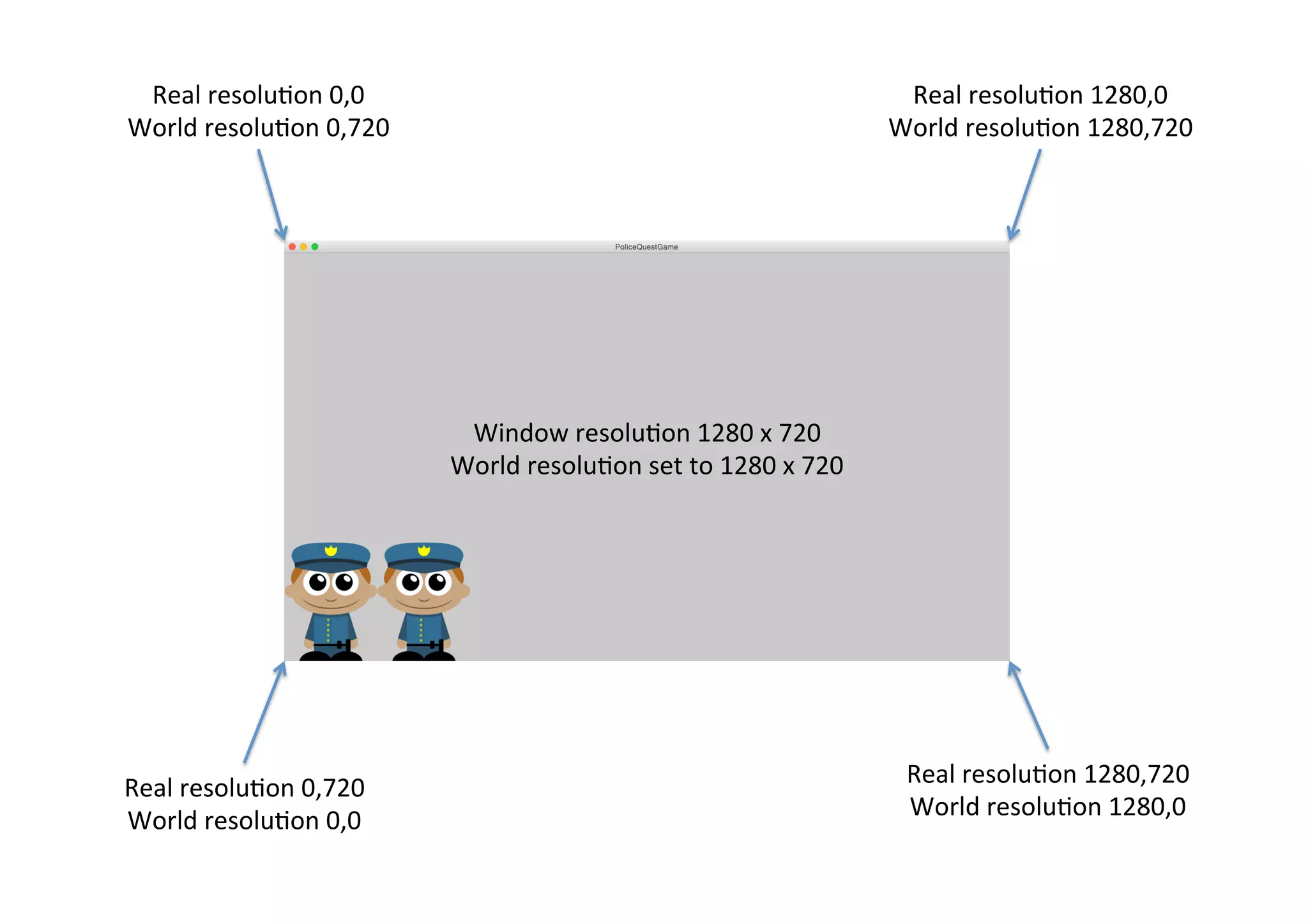
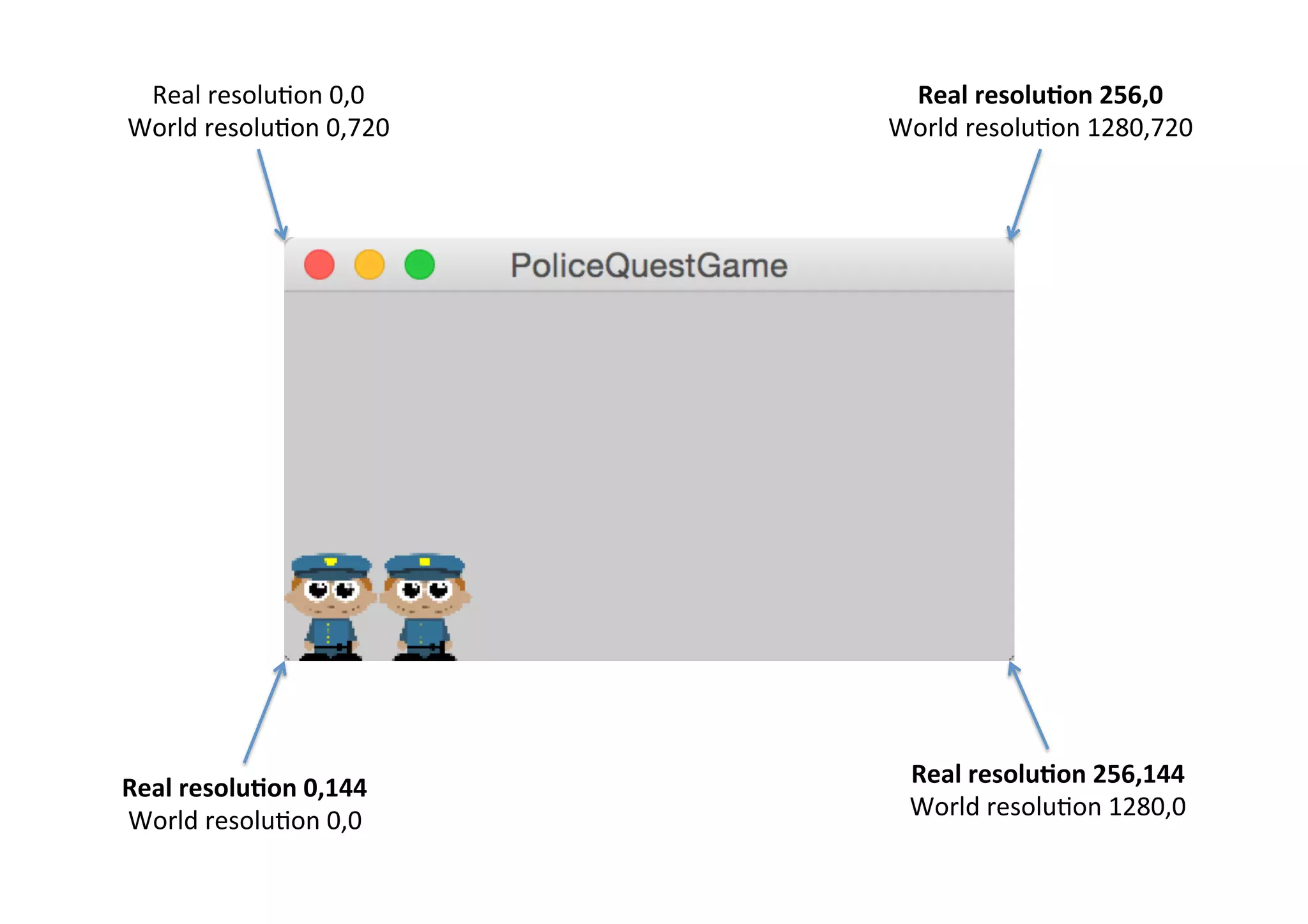
About  ResoluAon   •  Game  can  be  cross-­‐plaTorm,  what  is  the   resoluAon?   •  We  have  two  resoluAons   – The  real  resoluHon   – The  world  resoluHon   •  Mapping  must  be  done  between  these  two!  
Real  resoluAon  0,0   World  resoluAon  0,720   Real  resoluAon  0,720   World  resoluAon  0,0   Window  resoluAon  1280  x  720   World  resoluAon  set  to  1280  x  720   Real  resoluAon  1280,0   World  resoluAon  1280,720   Real  resoluAon  1280,720   World  resoluAon  1280,0  
Real  resoluAon  0,0   World  resoluAon  0,720   Real  resoluHon  0,144   World  resoluAon  0,0   Real  resoluHon  256,0   World  resoluAon  1280,720   Real  resoluHon  256,144   World  resoluAon  1280,0  
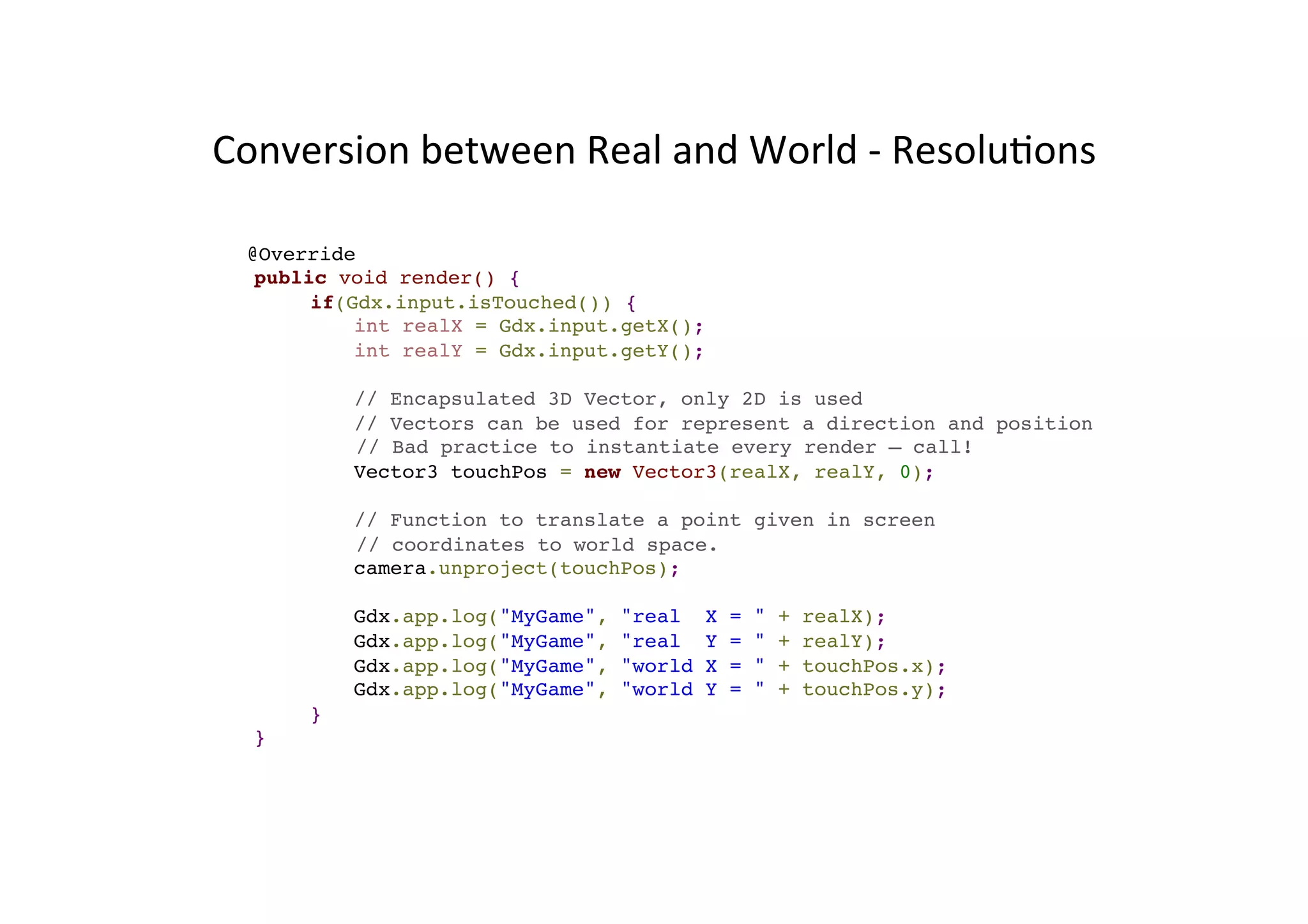
Conversion  between  Real  and  World  -­‐  ResoluAons   @Override public void render() { if(Gdx.input.isTouched()) { int realX = Gdx.input.getX(); int realY = Gdx.input.getY(); // Encapsulated 3D Vector, only 2D is used // Vectors can be used for represent a direction and position // Bad practice to instantiate every render – call! Vector3 touchPos = new Vector3(realX, realY, 0); // Function to translate a point given in screen // coordinates to world space. camera.unproject(touchPos); Gdx.app.log("MyGame", "real X = " + realX); Gdx.app.log("MyGame", "real Y = " + realY); Gdx.app.log("MyGame", "world X = " + touchPos.x); Gdx.app.log("MyGame", "world Y = " + touchPos.y); } }
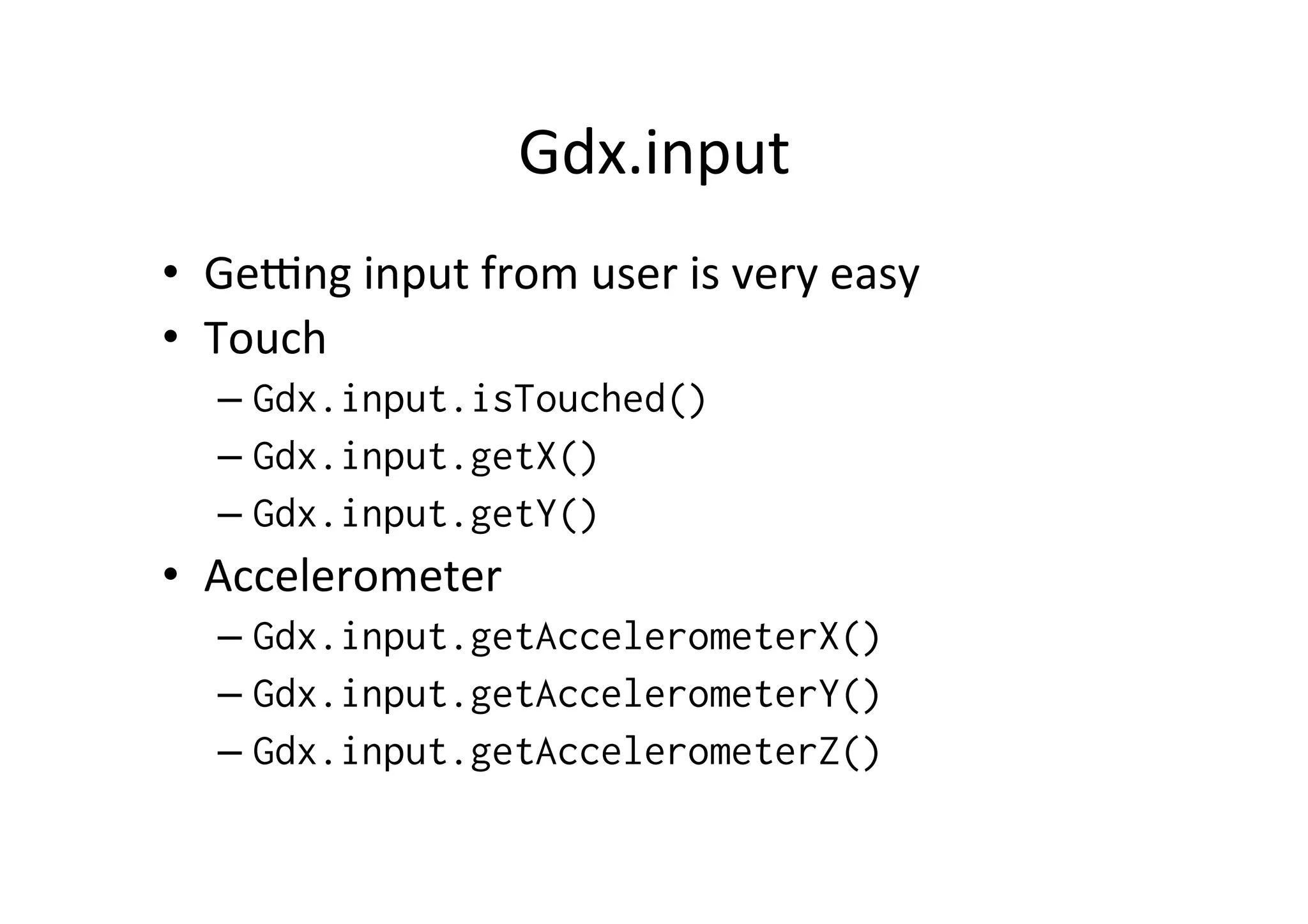
Gdx.input   •  Genng  input  from  user  is  very  easy   •  Touch   – Gdx.input.isTouched() – Gdx.input.getX() – Gdx.input.getY() •  Accelerometer   – Gdx.input.getAccelerometerX() – Gdx.input.getAccelerometerY() – Gdx.input.getAccelerometerZ()
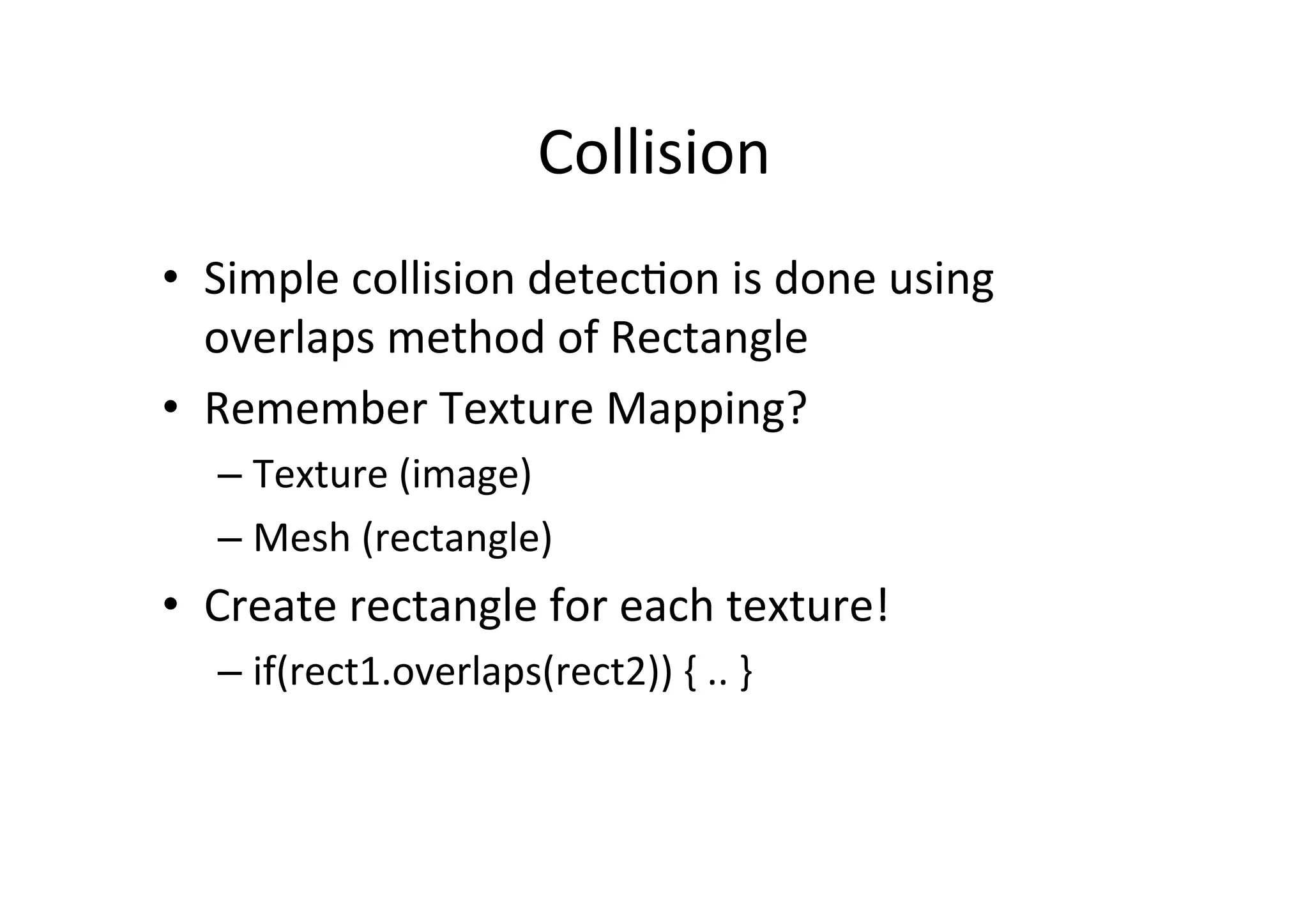
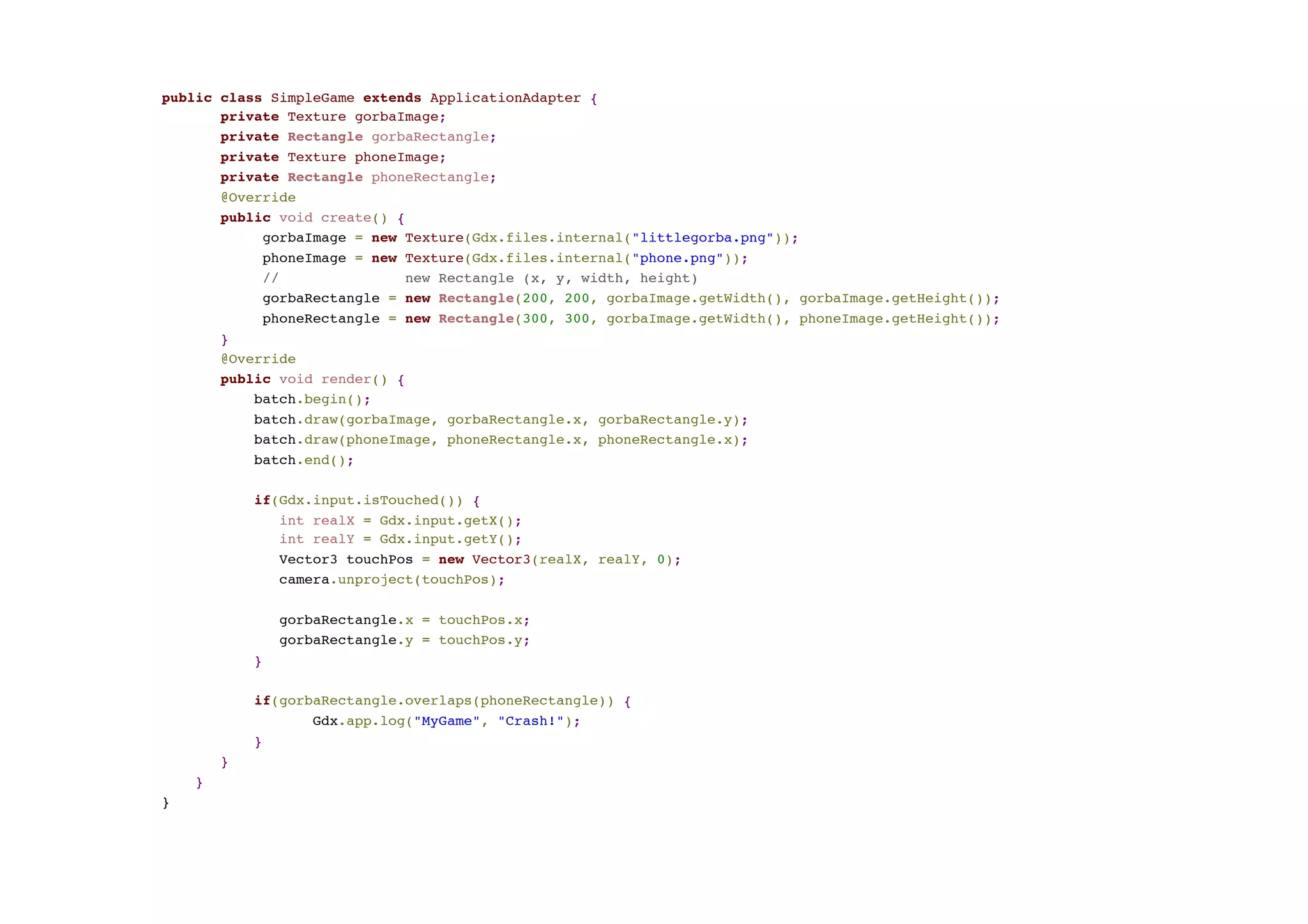
Collision   •  Simple  collision  detecAon  is  done  using   overlaps  method  of  Rectangle   •  Remember  Texture  Mapping?   – Texture  (image)   – Mesh  (rectangle)   •  Create  rectangle  for  each  texture!   – if(rect1.overlaps(rect2))  {  ..  }  
public class SimpleGame extends ApplicationAdapter { private Texture gorbaImage; private Rectangle gorbaRectangle; private Texture phoneImage; private Rectangle phoneRectangle; @Override public void create() { gorbaImage = new Texture(Gdx.files.internal("littlegorba.png")); phoneImage = new Texture(Gdx.files.internal("phone.png")); // new Rectangle (x, y, width, height) gorbaRectangle = new Rectangle(200, 200, gorbaImage.getWidth(), gorbaImage.getHeight()); phoneRectangle = new Rectangle(300, 300, gorbaImage.getWidth(), phoneImage.getHeight()); } @Override public void render() { batch.begin(); batch.draw(gorbaImage, gorbaRectangle.x, gorbaRectangle.y); batch.draw(phoneImage, phoneRectangle.x, phoneRectangle.x); batch.end(); if(Gdx.input.isTouched()) { int realX = Gdx.input.getX(); int realY = Gdx.input.getY(); Vector3 touchPos = new Vector3(realX, realY, 0); camera.unproject(touchPos); gorbaRectangle.x = touchPos.x; gorbaRectangle.y = touchPos.y; } if(gorbaRectangle.overlaps(phoneRectangle)) { Gdx.app.log("MyGame", "Crash!"); } } } }
FPS  AND  DELTATIME  
FPS?   •  Frame  rate,  also  known  frames  per  second  (FPS),   rate  at  which  an  imaging  device  produces  unique   consecuAve  images  called  frames   •  LibGDX  tries  to  call  the  render()  method  as  fast   as  possible   •  When  it  reaches  60  fps,  it  stops,  no  need  to   update  any  faster   •  You  can  query  the  FPS:   –  Gdx.graphics.getFramesPerSecond()
Moving  Game  Objects   •  Problem?   – if(le^  arrow  is  pressed)  {  x  =  x  +  speed  )   •  If  this  is  called  60  Ames  per  second,  the  object   moves  fast   •  If  this  is  called  10  Ames  per  second,  the  object   moves  slow!   •  Now  your  game  is  implemented  so  that  the   game  speed  varies  in  different  mobile   devices!  
Delta  Ame   •  Delta  Ame  –  elapsed  Ame  since  the  last   update  in  millisecs   – If  fps  is  60,  delta  Ame  is  1  /  60  =>  0.016   – If  fps  is  30,  delta  Ame  is  1  /  30  =>  0.033   •  To  get  the  delta  Ame   – Gdx.graphics.getDeltaTime() •  Now  use:   •  if(le^  arrow  is  pressed)  {  x  =  x  +  speed  *  delta  )    
TIPS  FOR  CREATING  A  GAME  
Tips   •  If  you  create  everything  in  one  class,  it's  going   to  be  crowded...   •  You  could  create  class  for  each  game  object   •  For  example   – AlienGameObject, BulletGameObject, SpaceShipGameObject
GameObject   •  Game  object  may  hold   –  Texture texture; –  Rectangle rectangle; –  float speedX; –  float speedY; •  If  all  of  your  game  objects  hold  common  features,   you  could  use  inheritance   –  class Spaceship extends GameObject –  class Alien extends GameObject •  In  fact  we  already  have  the  "GameObject"  in   LibGDX,  it's  called  Sprite

Intro to Building Android Games using libGDX

  • 1.
    Building  Android  Games  using   libGDX   Jussi  Pohjolainen   Tampere  University  of  Applied  Sciences  
  • 2.
  • 3.
    PossibiliAes  (Android)   • Streaming  music,  sound  effects   –  Wav,  mp3,  ogg   •  Audio  Recording  support   •  Accelerometer,  Compass,  Gestures  (taps,  pinch   zooming)   •  High-­‐level  2D  APIs   –  Sprites,  Textures,  Fonts,  Tiles,  UI  -­‐  library   •  High-­‐level  3D  APIs   •  UHliHes:  JSON,  XML,  File  I/O  (preferences),   Math..  
  • 4.
    Cross-­‐plaTorm!   •  Desktop  target  uses  LWJGL     – Lightweight  Java  Game  Library   •  Android  target  uses  Android  SDK   •  HTML5  uses  Google  Web  Toolkit   – Java  -­‐>  JavaScript   •  iOS  uses  RoboVM   – Java  -­‐>  ObjecAve-­‐C  
  • 5.
    Community  &  Support   •  Forum   – http://badlogicgames.com/forum/   •  IRC   – irc.freenode.net,  #libgdx   •  Blog   – http://www.badlogicgames.com/ wordpress/   •  TwiNer   – https://twitter.com/badlogicgames  
  • 7.
  • 8.
    libGDX  Project   • LibGDX  project  contains  other  projects   •  Subprojects  for  each  target   –  android/   –  desktop/   –  gwt/   –  ios/   –  core/   •  One  Core  subproject  for  the  actual  logic  for  the   game,  target  projects  contains  only  launcher   classes    
  • 9.
    Compiling   •  LibGDX  uses  Gradle  for  compiling   •  Gradle  uses  domain-­‐specific  language  (DSL)  to   define  targets  (android/ios...)  and   dependencies   •  When  compiling,  gradle  reads  build.gradle file  that  contains  DSL  that  describes  all  the   necessary  informaAon  how  to  compile
  • 10.
    Workflow   •  Create  libGDX  project  using  gdx-­‐setup.jar   •  Import  the  project  to  IntelliJ  IDEA  or  Eclipse   •  Implement  your  code  in  the  core/  submodule   •  Test  in  Android  Device  or  Desktop,  forget  the   emulator    
  • 11.
    Using  libGDX  in  commandline   •  Running   –  Desktop   •  gradlew desktop:run –  Android   •  gradlew android:installDebug android:run •  Packaging   –  Desktop   •  gradlew desktop:dist –  Android  (a^er  this,  you  must  sign  the  .apk)   •  gradlew android:assembleRelease
  • 12.
  • 13.
    App  Framework:  ApplicaCon   •  ApplicaCon  –  main  entry  point  for  your  app   –  h_p://libgdx.badlogicgames.com/nightlies/docs/api/com/ badlogic/gdx/ApplicaAon.html   •  Equivalent  to  JFrame  (Swing)  or  Activity  (Android)   •  Informs  your  game  about  events  such  as  window   resizing   •  Developer  creates  a  class  that  implements   ApplicationListener,  methods  are  called  by   Application   –  ApplicaAon  can  be  GwtApplication,  IOSApplication   …  
  • 17.
    About  Starter  Classes   •  For  each  plaVorm  (iOS,  Android,  Desktop  ..)  a   starter  class  must  be  wri_en   •  Starter  classes  are  plaTorm  dependent   •  We  will  focus  on     – Desktop  (LWJGL)   – Android  
  • 18.
    LWJGL?   •  Lightweight  Java  Game  Library  (LWJGL)   framework  for  creaAng  games  with  Java   •  libGDX  is  built  on  top  of  LWJGL   •  See  more:   – http://www.lwjgl.org/
  • 19.
    Starter  Classes:  Desktop   // This is platform specific: Java SE public class DesktopStarter { public static void main(String[] argv) { LwjglApplicationConfiguration config = new LwjglApplicationConfiguration(); config.title = “…”; config.width = 480; config.heigth = 320; new LwjglApplication(new MyGame(), config); } }
  • 20.
    Starter  Classes:  Android   import android.os.Bundle; import com.badlogic.gdx.backends.android.AndroidApplication; import com.badlogic.gdx.backends.android.AndroidApplicationConfiguration; // This is platform specific: Android // No main public class AndroidLauncher extends AndroidApplication { @Override protected void onCreate (Bundle savedInstanceState) { super.onCreate(savedInstanceState); AndroidApplicationConfiguration config = new AndroidApplicationConfiguration(); MyGame game = new MyGame(); initialize(game, config); if(this.getApplicationListener() == game) { this.log("test", "success"); } } }
  • 21.
    Android  Manifest   <?xmlversion="1.0" encoding="utf-8"?> <manifest xmlns:android="http://schemas.android.com/apk/res/android" package="com.mygdx.game.android" android:versionCode="1" android:versionName="1.0" > <uses-sdk android:minSdkVersion="8" android:targetSdkVersion="20" /> <application android:allowBackup="true" android:icon="@drawable/ic_launcher" android:label="@string/app_name" android:theme="@style/GdxTheme" > <activity android:name="com.mygdx.game.android.AndroidLauncher" android:label="@string/app_name" android:screenOrientation="landscape" android:configChanges="keyboard|keyboardHidden|orientation|screenSize"> <intent-filter> <action android:name="android.intent.action.MAIN" /> <category android:name="android.intent.category.LAUNCHER" /> </intent-filter> </activity> </application> </manifest>
  • 22.
    Android  Permissions   • Add  permissions  if  your  android  app  requires   certain  funcAonality   –  <uses-permission android:name="android.permission.RECORD_AUDIO"/> –  <uses-permission android:name="android.permission.WRITE_EXTERNAL_STORAGE"/> –  <uses-permission android:name="android.permission.VIBRATE"/> •  Add  these  to  manifest  file •  See   –  http://developer.android.com/guide/topics/ manifest/manifest-intro.html#perms
  • 23.
    APP  LIFE  CYCLE  AND  LOGGING  
  • 24.
  • 25.
    TesAng   public classMunHienoPeli implements ApplicationListener { private boolean gameIsOn; @Override public void create () { // Load resources gameIsOn = true; Gdx.app.log("MunHienoPeli", "create"); } @Override public void resize(int width, int height) { // Reposition UI elements Gdx.app.log("MunHienoPeli", "resize"); } @Override public void render () { // Update and render game elements if(gameIsOn) { Gdx.app.log("MunHienoPeli", "render"); } }   @Override public void pause() { // Game loses focus // -> home button pressed // -> incoming call Gdx.app.log("MunHienoPeli", "pause"); gameIsOn = false; } @Override public void resume() { // Restore game after pause Gdx.app.log("MunHienoPeli","resume"); gameIsOn = true; } @Override public void dispose() { // Free resources Gdx.app.log("MunHienoPeli","dispose"); gameIsOn = false; } }  
  • 26.
    Logging  in  Android   •  Log  output  should  be  visible  in  IntelliJ  IDEA   •  If  not,  use  in  command  line  (adb  must  be  in   path)   – adb logcat
  • 27.
  • 28.
    Other  important  Modules  (Interfaces)   •  ApplicaAon   –  Informs  your  game  about  events   •  Files   –  Exposes  the  underlying  file  system   •  Input   –  Mouse,  keyboard,  touch,  accelerometer   •  Net*   –  Access  HTTP(S)   •  Audio   –  Enables  sound   •  Graphics   –  Exposes  OpenGL  ES  2.0  where  available  
  • 29.
    Accessing  Modules   • All  modules  (previous  slide)  can  be  accessed   via  staAc  fields  of  Gdx  –  class   – Global  public  variables  for  easy  access   •  Example   – AudioDevice audioDevice = Gdx.audio.newAudioDevice(44100, false);
  • 30.
    Javadoc:  Gdx   Gdx.audio  (Interface)  is  a   reference  to  the  backend   implementaAon  that  has   been  instanAated  on   applicaAon  startup  by  the   ApplicaAon  instance.    
  • 31.
  • 32.
    Querying   •  ApplicaAon  (Gdx.app)  interface  provides   various  methods  to  query  properAes   – if(Gdx.app.getType() == Android) { … }
  • 33.
    Assets   •  Drag  sounds,  images  to   android/assets  folder   –  Desktop  app  has  a  link  to   that  folder  
  • 34.
    Asset  loading   publicclass MyGame implements ApplicationListener { private Texture gorbaImage; private Sound soundEffect; private Music backgroundMusic; @Override public void create() { // gorba.png uploaded to GPU and is ready to be used by OpenGL. Image format // must be .jpg, .png, .bmp gorbaImage = new Texture(Gdx.files.internal(”gorba.png")); // Stored in RAM soundEffect = Gdx.audio.newSound(Gdx.files.internal("beep.wav")); // Streamed from wherever it’s stored backgroundMusic = Gdx.audio.newMusic(Gdx.files.internal("ussranthem.mp3")); // start the playback of the background music immediately rainMusic.setLooping(true); rainMusic.play(); public void dispose() { // Good practice to dispose (clean) assets gorbaImage.dispose(); soundEffect.dispose(); backgroundMusic.dispose(); }
  • 35.
  • 36.
    Rendering:  Camera   • Camera  is  like  “virtual  window  into  our  world”   – What  part  of  the  “world”  is  visible?   •  World  may  be  bigger  than  visible  area   •  Camera – OrthographicCamera •  When  the  human  eye  looks  at  a  scene,  objects  in  the   distance  appear  smaller  than  objects  close  by.   Orthographic  projecHon  ignores  this  effect   – PerspectiveCamera •  Closer  objects  appear  bigger  in  PerspecAveCamera
  • 37.
    Using  Camera   publicclass SimpleGame extends ApplicationAdapter { private OrthographicCamera camera; @Override public void create() { // Our visible world is 800 x 480, it does // not matter if these are pixels or meters or // "units". Just make sure you have the right // aspect ratio! Example, the desktop window may be // 640 x 400 pixels but in our game we are using // these units: 800 x 480... // When the world width and height is set, we need to // configure what part of the world the camera is filming // By using false, we simple state that y-axis is pointing // up and camera is centered to width / 2 and height / 2 camera = new OrthographicCamera(false, 800, 480);
  • 38.
    Word  about  OpenGL   •  OpenGL  (Open  Graphics  Library)  is  a  cross-­‐language,   mulA-­‐plaTorm  applicaAon  programming  interface  (API)   for  rendering  2D  and  3D  vector  graphics.     •  The  API  is  typically  used  to  interact  with  a  graphics   processing  unit  (GPU),  to  achieve  hardware-­‐ accelerated  rendering.   •  Widely  used  in  CAD,  virtual  reality,  scienAfic   visualizaAon,  informaAon  visualizaAon,  flight   simulaAon,  and  video  games.   •  libGDX  uses  OpenGL  ES  and  has  interface  also  for   direct  access  for  OpenGL  
  • 39.
    Texture  Mapping   • A  Texture  –  class  wraps  a  standard  OpenGL  ES   texture.   –  A  texture  is  an  OpenGL  Object  that  contains  one  or  more   images  that  all  have  the  same  image  format.   •  Image  loaded  into  the  GPU’s  memory  in  raw  format       •  Texture  mapping  is  process  of  working  out  where  in   space  the  texture  will  be  applied   –  “To  sAck  a  poster  on  a  wall,  one  needs  to  figure  out  where   on  the  wall  he  will  be  gluing  the  corners  of  the  paper”   –  Space  ó  Wall   –  Mesh  (Rectangle)  ó  Paper   –  Image  on  paper  ó  Texture  
  • 40.
    SpriteBatch   •  SpriteBatch  class  takes  care  of  texture   mapping   •  Convenience  class  which  makes  drawing  onto   the  screen  easy  
  • 41.
    package fi.tamk.tiko.policequest; import com.badlogic.gdx.ApplicationAdapter; importcom.badlogic.gdx.Gdx; import com.badlogic.gdx.graphics.GL20; import com.badlogic.gdx.graphics.OrthographicCamera; import com.badlogic.gdx.graphics.Texture; import com.badlogic.gdx.graphics.g2d.SpriteBatch; public class PoliceQuestGame extends ApplicationAdapter { private SpriteBatch batch; private Texture policeTexture; private OrthographicCamera camera; @Override public void create () { camera = new OrthographicCamera(); camera.setToOrtho(false, 1280, 720); batch = new SpriteBatch(); policeTexture = new Texture("policeman-icon.png"); } @Override public void render () { batch.setProjectionMatrix(camera.combined); Gdx.gl.glClearColor(0.8f, 0.8f, 0.8f, 1); Gdx.gl.glClear(GL20.GL_COLOR_BUFFER_BIT); batch.begin(); batch.draw(policeTexture, 0, 0); batch.draw(policeTexture, policeTexture.getWidth(), 0); batch.end(); } }
  • 43.
    Clear  Screen   publicvoid render() { // Direct OpenGL call // float red [0,1] // green // blue // alpha // https://www.opengl.org/sdk/docs/man/html/glClearColor.xhtml Gdx.gl.glClearColor(0, 0, 0.2f, 1); // Clear the screen with the color chosen // http://www.opengl.org/sdk/docs/man/html/glClear.xhtml Gdx.gl.glClear(GL20.GL_COLOR_BUFFER_BIT); // SpriteBatch is ready for commands batch.begin(); .... // No commands anymore, proceed to process the batch of commands // received batch.end(); }
  • 44.
    About  ResoluAon   • Game  can  be  cross-­‐plaTorm,  what  is  the   resoluAon?   •  We  have  two  resoluAons   – The  real  resoluHon   – The  world  resoluHon   •  Mapping  must  be  done  between  these  two!  
  • 45.
    Real  resoluAon  0,0   World  resoluAon  0,720   Real  resoluAon  0,720   World  resoluAon  0,0   Window  resoluAon  1280  x  720   World  resoluAon  set  to  1280  x  720   Real  resoluAon  1280,0   World  resoluAon  1280,720   Real  resoluAon  1280,720   World  resoluAon  1280,0  
  • 46.
    Real  resoluAon  0,0   World  resoluAon  0,720   Real  resoluHon  0,144   World  resoluAon  0,0   Real  resoluHon  256,0   World  resoluAon  1280,720   Real  resoluHon  256,144   World  resoluAon  1280,0  
  • 47.
    Conversion  between  Real  and  World  -­‐  ResoluAons   @Override public void render() { if(Gdx.input.isTouched()) { int realX = Gdx.input.getX(); int realY = Gdx.input.getY(); // Encapsulated 3D Vector, only 2D is used // Vectors can be used for represent a direction and position // Bad practice to instantiate every render – call! Vector3 touchPos = new Vector3(realX, realY, 0); // Function to translate a point given in screen // coordinates to world space. camera.unproject(touchPos); Gdx.app.log("MyGame", "real X = " + realX); Gdx.app.log("MyGame", "real Y = " + realY); Gdx.app.log("MyGame", "world X = " + touchPos.x); Gdx.app.log("MyGame", "world Y = " + touchPos.y); } }
  • 48.
    Gdx.input   •  Genng  input  from  user  is  very  easy   •  Touch   – Gdx.input.isTouched() – Gdx.input.getX() – Gdx.input.getY() •  Accelerometer   – Gdx.input.getAccelerometerX() – Gdx.input.getAccelerometerY() – Gdx.input.getAccelerometerZ()
  • 49.
    Collision   •  Simple  collision  detecAon  is  done  using   overlaps  method  of  Rectangle   •  Remember  Texture  Mapping?   – Texture  (image)   – Mesh  (rectangle)   •  Create  rectangle  for  each  texture!   – if(rect1.overlaps(rect2))  {  ..  }  
  • 50.
    public class SimpleGameextends ApplicationAdapter { private Texture gorbaImage; private Rectangle gorbaRectangle; private Texture phoneImage; private Rectangle phoneRectangle; @Override public void create() { gorbaImage = new Texture(Gdx.files.internal("littlegorba.png")); phoneImage = new Texture(Gdx.files.internal("phone.png")); // new Rectangle (x, y, width, height) gorbaRectangle = new Rectangle(200, 200, gorbaImage.getWidth(), gorbaImage.getHeight()); phoneRectangle = new Rectangle(300, 300, gorbaImage.getWidth(), phoneImage.getHeight()); } @Override public void render() { batch.begin(); batch.draw(gorbaImage, gorbaRectangle.x, gorbaRectangle.y); batch.draw(phoneImage, phoneRectangle.x, phoneRectangle.x); batch.end(); if(Gdx.input.isTouched()) { int realX = Gdx.input.getX(); int realY = Gdx.input.getY(); Vector3 touchPos = new Vector3(realX, realY, 0); camera.unproject(touchPos); gorbaRectangle.x = touchPos.x; gorbaRectangle.y = touchPos.y; } if(gorbaRectangle.overlaps(phoneRectangle)) { Gdx.app.log("MyGame", "Crash!"); } } } }
  • 51.
  • 52.
    FPS?   •  Frame  rate,  also  known  frames  per  second  (FPS),   rate  at  which  an  imaging  device  produces  unique   consecuAve  images  called  frames   •  LibGDX  tries  to  call  the  render()  method  as  fast   as  possible   •  When  it  reaches  60  fps,  it  stops,  no  need  to   update  any  faster   •  You  can  query  the  FPS:   –  Gdx.graphics.getFramesPerSecond()
  • 53.
    Moving  Game  Objects   •  Problem?   – if(le^  arrow  is  pressed)  {  x  =  x  +  speed  )   •  If  this  is  called  60  Ames  per  second,  the  object   moves  fast   •  If  this  is  called  10  Ames  per  second,  the  object   moves  slow!   •  Now  your  game  is  implemented  so  that  the   game  speed  varies  in  different  mobile   devices!  
  • 54.
    Delta  Ame   • Delta  Ame  –  elapsed  Ame  since  the  last   update  in  millisecs   – If  fps  is  60,  delta  Ame  is  1  /  60  =>  0.016   – If  fps  is  30,  delta  Ame  is  1  /  30  =>  0.033   •  To  get  the  delta  Ame   – Gdx.graphics.getDeltaTime() •  Now  use:   •  if(le^  arrow  is  pressed)  {  x  =  x  +  speed  *  delta  )    
  • 55.
  • 56.
    Tips   •  If  you  create  everything  in  one  class,  it's  going   to  be  crowded...   •  You  could  create  class  for  each  game  object   •  For  example   – AlienGameObject, BulletGameObject, SpaceShipGameObject
  • 57.
    GameObject   •  Game  object  may  hold   –  Texture texture; –  Rectangle rectangle; –  float speedX; –  float speedY; •  If  all  of  your  game  objects  hold  common  features,   you  could  use  inheritance   –  class Spaceship extends GameObject –  class Alien extends GameObject •  In  fact  we  already  have  the  "GameObject"  in   LibGDX,  it's  called  Sprite