This page introduces the basic concepts and terminology used in the @tanstack/react-form library. Familiarizing yourself with these concepts will help you better understand and work with the library.
You can create options for your form so that it can be shared between multiple forms by using the formOptions function.
Example:
interface User { firstName: string lastName: string hobbies: Array<string> } const defaultUser: User = { firstName: '', lastName: '', hobbies: [] } const formOpts = formOptions({ defaultValues: defaultUser, }) interface User { firstName: string lastName: string hobbies: Array<string> } const defaultUser: User = { firstName: '', lastName: '', hobbies: [] } const formOpts = formOptions({ defaultValues: defaultUser, }) A Form Instance is an object that represents an individual form and provides methods and properties for working with the form. You create a form instance using the useForm hook provided by the form options. The hook accepts an object with an onSubmit function, which is called when the form is submitted.
const form = useForm({ ...formOpts, onSubmit: async ({ value }) => { // Do something with form data console.log(value) }, }) const form = useForm({ ...formOpts, onSubmit: async ({ value }) => { // Do something with form data console.log(value) }, }) You may also create a form instance without using formOptions by using the standalone useForm API:
interface User { firstName: string lastName: string hobbies: Array<string> } const defaultUser: User = { firstName: '', lastName: '', hobbies: [] } const form = useForm({ defaultValues: defaultUser, onSubmit: async ({ value }) => { // Do something with form data console.log(value) }, }) interface User { firstName: string lastName: string hobbies: Array<string> } const defaultUser: User = { firstName: '', lastName: '', hobbies: [] } const form = useForm({ defaultValues: defaultUser, onSubmit: async ({ value }) => { // Do something with form data console.log(value) }, }) A Field represents a single form input element, such as a text input or a checkbox. Fields are created using the form.Field component provided by the form instance. The component accepts a name prop, which should match a key in the form's default values. It also accepts a children prop, which is a render prop function that takes a field object as its argument.
Example:
<form.Field name="firstName" children={(field) => ( <> <input value={field.state.value} onBlur={field.handleBlur} onChange={(e) => field.handleChange(e.target.value)} /> <FieldInfo field={field} /> </> )} /> <form.Field name="firstName" children={(field) => ( <> <input value={field.state.value} onBlur={field.handleBlur} onChange={(e) => field.handleChange(e.target.value)} /> <FieldInfo field={field} /> </> )} /> If you run into issues handing in children as props, make sure to check your linting rules.
Example (ESLint):
"rules": { "react/no-children-prop": [ true, { "allowFunctions": true } ], } "rules": { "react/no-children-prop": [ true, { "allowFunctions": true } ], } Each field has its own state, which includes its current value, validation status, error messages, and other metadata. You can access a field's state using the field.state property.
Example:
const { value, meta: { errors, isValidating }, } = field.state const { value, meta: { errors, isValidating }, } = field.state There are four states in the metadata that can be useful to see how the user interacts with a field:
const { isTouched, isDirty, isPristine, isBlurred } = field.state.meta const { isTouched, isDirty, isPristine, isBlurred } = field.state.meta 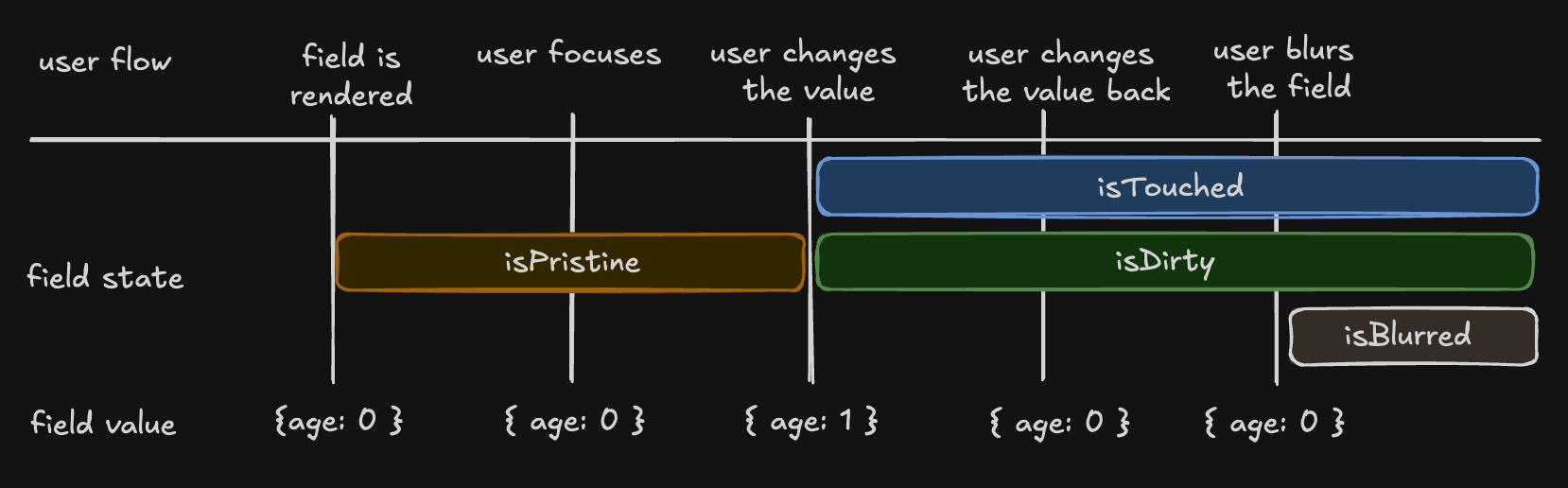
Non-Persistent dirty state
Persistent dirty state
We have chosen the persistent 'dirty' state model. To also support a non-persistent 'dirty' state, we introduce an additional flag:
const { isDefaultValue, isTouched } = field.state.meta // The following line will re-create the non-Persistent `dirty` functionality. const nonPersistentIsDirty = !isDefaultValue const { isDefaultValue, isTouched } = field.state.meta // The following line will re-create the non-Persistent `dirty` functionality. const nonPersistentIsDirty = !isDefaultValue 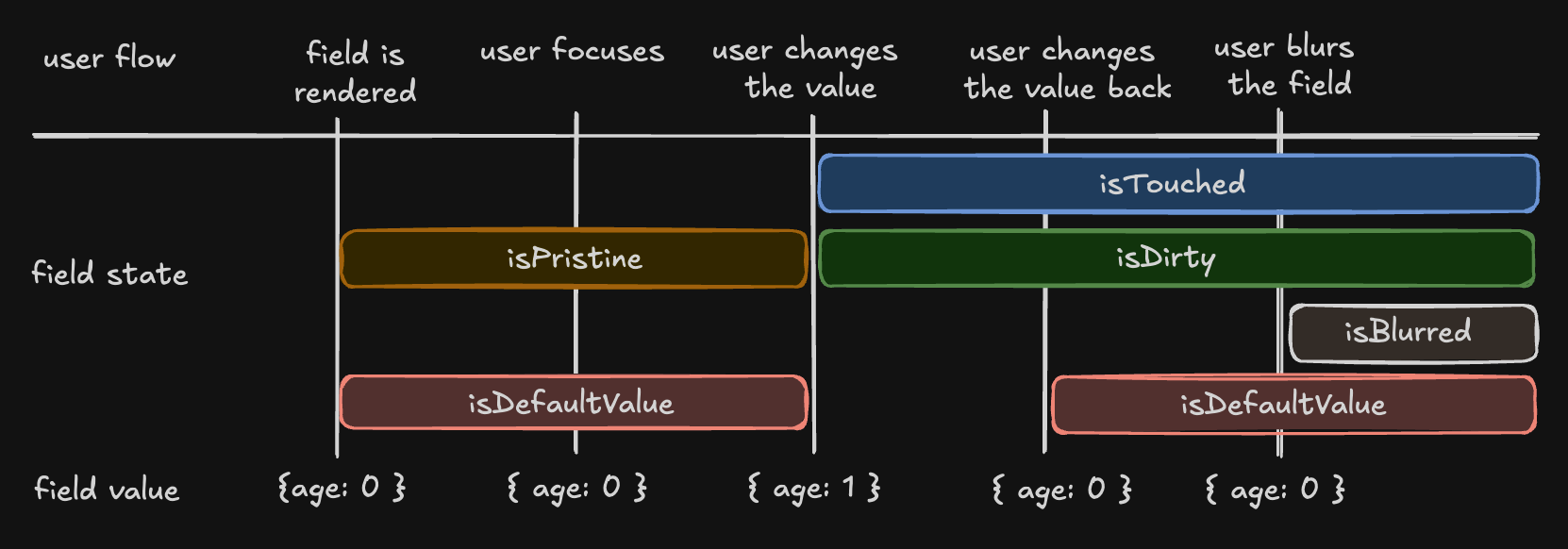
The Field API is an object passed to the render prop function when creating a field. It provides methods for working with the field's state.
Example:
<input value={field.state.value} onBlur={field.handleBlur} onChange={(e) => field.handleChange(e.target.value)} /> <input value={field.state.value} onBlur={field.handleBlur} onChange={(e) => field.handleChange(e.target.value)} /> @tanstack/react-form provides both synchronous and asynchronous validation out of the box. Validation functions can be passed to the form.Field component using the validators prop.
Example:
<form.Field name="firstName" validators={{ onChange: ({ value }) => !value ? 'A first name is required' : value.length < 3 ? 'First name must be at least 3 characters' : undefined, onChangeAsync: async ({ value }) => { await new Promise((resolve) => setTimeout(resolve, 1000)) return value.includes('error') && 'No "error" allowed in first name' }, }} children={(field) => ( <> <input value={field.state.value} onBlur={field.handleBlur} onChange={(e) => field.handleChange(e.target.value)} /> <FieldInfo field={field} /> </> )} /> <form.Field name="firstName" validators={{ onChange: ({ value }) => !value ? 'A first name is required' : value.length < 3 ? 'First name must be at least 3 characters' : undefined, onChangeAsync: async ({ value }) => { await new Promise((resolve) => setTimeout(resolve, 1000)) return value.includes('error') && 'No "error" allowed in first name' }, }} children={(field) => ( <> <input value={field.state.value} onBlur={field.handleBlur} onChange={(e) => field.handleChange(e.target.value)} /> <FieldInfo field={field} /> </> )} /> In addition to hand-rolled validation options, we also support the Standard Schema specification.
You can define a schema using any of the libraries implementing the specification and pass it to a form or field validator.
Supported libraries include:
import { z } from 'zod' const userSchema = z.object({ age: z.number().gte(13, 'You must be 13 to make an account'), }) function App() { const form = useForm({ defaultValues: { age: 0, }, validators: { onChange: userSchema, }, }) return ( <div> <form.Field name="age" children={(field) => { return <>{/* ... */}</> }} /> </div> ) } import { z } from 'zod' const userSchema = z.object({ age: z.number().gte(13, 'You must be 13 to make an account'), }) function App() { const form = useForm({ defaultValues: { age: 0, }, validators: { onChange: userSchema, }, }) return ( <div> <form.Field name="age" children={(field) => { return <>{/* ... */}</> }} /> </div> ) } @tanstack/react-form offers various ways to subscribe to form and field state changes, most notably the useStore(form.store) hook and the form.Subscribe component. These methods allow you to optimize your form's rendering performance by only updating components when necessary.
Example:
const firstName = useStore(form.store, (state) => state.values.firstName) //... <form.Subscribe selector={(state) => [state.canSubmit, state.isSubmitting]} children={([canSubmit, isSubmitting]) => ( <button type="submit" disabled={!canSubmit}> {isSubmitting ? '...' : 'Submit'} </button> )} /> const firstName = useStore(form.store, (state) => state.values.firstName) //... <form.Subscribe selector={(state) => [state.canSubmit, state.isSubmitting]} children={([canSubmit, isSubmitting]) => ( <button type="submit" disabled={!canSubmit}> {isSubmitting ? '...' : 'Submit'} </button> )} /> It is important to remember that while the useStore hook's selector prop is optional, it is strongly recommended to provide one, as omitting it will result in unnecessary re-renders.
// Correct use const firstName = useStore(form.store, (state) => state.values.firstName) const errors = useStore(form.store, (state) => state.errorMap) // Incorrect use const store = useStore(form.store) // Correct use const firstName = useStore(form.store, (state) => state.values.firstName) const errors = useStore(form.store, (state) => state.errorMap) // Incorrect use const store = useStore(form.store) Note: The usage of the useField hook to achieve reactivity is discouraged since it is designed to be used thoughtfully within the form.Field component. You might want to use useStore(form.store) instead.
@tanstack/react-form allows you to react to specific triggers and "listen" to them to dispatch side effects.
Example:
<form.Field name="country" listeners={{ onChange: ({ value }) => { console.log(`Country changed to: ${value}, resetting province`) form.setFieldValue('province', '') }, }} /> <form.Field name="country" listeners={{ onChange: ({ value }) => { console.log(`Country changed to: ${value}, resetting province`) form.setFieldValue('province', '') }, }} /> More information can be found at Listeners
Array fields allow you to manage a list of values within a form, such as a list of hobbies. You can create an array field using the form.Field component with the mode="array" prop.
When working with array fields, you can use the fields pushValue, removeValue, swapValues and moveValue methods to add, remove, swap, and move a value from one index to another within the array, respectively. Additional helper methods such as insertValue, replaceValue, and clearValues are also available for inserting, replacing, and clearing array values.
Example:
<form.Field name="hobbies" mode="array" children={(hobbiesField) => ( <div> Hobbies <div> {!hobbiesField.state.value.length ? 'No hobbies found.' : hobbiesField.state.value.map((_, i) => ( <div key={i}> <form.Field name={`hobbies[${i}].name`} children={(field) => { return ( <div> <label htmlFor={field.name}>Name:</label> <input id={field.name} name={field.name} value={field.state.value} onBlur={field.handleBlur} onChange={(e) => field.handleChange(e.target.value)} /> <button type="button" onClick={() => hobbiesField.removeValue(i)} > X </button> <FieldInfo field={field} /> </div> ) }} /> <form.Field name={`hobbies[${i}].description`} children={(field) => { return ( <div> <label htmlFor={field.name}>Description:</label> <input id={field.name} name={field.name} value={field.state.value} onBlur={field.handleBlur} onChange={(e) => field.handleChange(e.target.value)} /> <FieldInfo field={field} /> </div> ) }} /> </div> ))} </div> <button type="button" onClick={() => hobbiesField.pushValue({ name: '', description: '', yearsOfExperience: 0, }) } > Add hobby </button> </div> )} /> <form.Field name="hobbies" mode="array" children={(hobbiesField) => ( <div> Hobbies <div> {!hobbiesField.state.value.length ? 'No hobbies found.' : hobbiesField.state.value.map((_, i) => ( <div key={i}> <form.Field name={`hobbies[${i}].name`} children={(field) => { return ( <div> <label htmlFor={field.name}>Name:</label> <input id={field.name} name={field.name} value={field.state.value} onBlur={field.handleBlur} onChange={(e) => field.handleChange(e.target.value)} /> <button type="button" onClick={() => hobbiesField.removeValue(i)} > X </button> <FieldInfo field={field} /> </div> ) }} /> <form.Field name={`hobbies[${i}].description`} children={(field) => { return ( <div> <label htmlFor={field.name}>Description:</label> <input id={field.name} name={field.name} value={field.state.value} onBlur={field.handleBlur} onChange={(e) => field.handleChange(e.target.value)} /> <FieldInfo field={field} /> </div> ) }} /> </div> ))} </div> <button type="button" onClick={() => hobbiesField.pushValue({ name: '', description: '', yearsOfExperience: 0, }) } > Add hobby </button> </div> )} /> When using <button type="reset"> in conjunction with TanStack Form's form.reset(), you need to prevent the default HTML reset behavior to avoid unexpected resets of form elements (especially <select> elements) to their initial HTML values. Use event.preventDefault() inside the button's onClick handler to prevent the native form reset.
Example:
<button type="reset" onClick={(event) => { event.preventDefault() form.reset() }} > Reset </button> <button type="reset" onClick={(event) => { event.preventDefault() form.reset() }} > Reset </button> Alternatively, you can use <button type="button"> to prevent the native HTML reset.
<button type="button" onClick={() => { form.reset() }} > Reset </button> <button type="button" onClick={() => { form.reset() }} > Reset </button> These are the basic concepts and terminology used in the @tanstack/react-form library. Understanding these concepts will help you work more effectively with the library and create complex forms with ease.