Published on Jan 25, 2018
in category programming
Lately I was experimenting with GTK and its Ruby bindings and I decided to write a tutorial introducing this functionality. In this post we are going to create a simple ToDo application (something like what we created here with Ruby on Rails) using the gtk3 gem a.k.a. the GTK+ Ruby bindings.
Note: The code of the tutorial is available at GitHub.
Quoting the toolkit’s page:
GTK+, or the GIMP Toolkit, is a multi-platform toolkit for creating graphical user interfaces. Offering a complete set of widgets, GTK+ is suitable for projects ranging from small one-off tools to complete application suites.
..and about its creation:
GTK+ was initially developed for and used by the GIMP, the GNU Image Manipulation Program. It is called the “The GIMP ToolKit” so that the origins of the project are remembered. Today it is more commonly known as GTK+ for short and is used by a large number of applications including the GNU project’s GNOME desktop.
Make sure you have GTK+ installed.
The OS in which I developed the tutorial’s application is Ubuntu 16.04 which has GTK+ installed by default (version: 3.18).
You can check yours with the following command:
dpkg -l libgtk-3-0 You should have ruby installed on your system. I use RVM to manage multiple ruby versions installed on my system. If you want to go with that too, you can find instructions for installing the tool in its homepage and for installing ruby versions (a.k.a. rubies) the related documentation page.
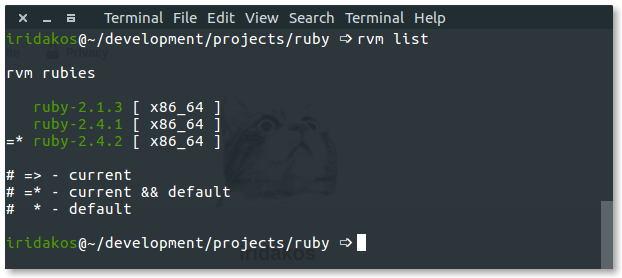
This tutorial is using Ruby 2.4.2. You can check yours using: ruby --version or via RVM with rvm list.
Again, quoting the tool’s page
Glade is a RAD tool to enable quick & easy development of user interfaces for the GTK+ toolkit and the GNOME desktop environment
We will use Glade to design the user interface of our application. If you are on Ubuntu, install glade with:
sudo apt install glade This gem provides the Ruby bindings for the GTK+ toolkit. In other words, it allows us to talk to the GTK+ API using the Ruby language.
Install the gem via:
gem install gtk3 We will build an application that:
.gtk-todo-tutorialarchivedgtk-todo-tutorial # root directory |-- application |-- ui # everything related to the ui of the application |-- models # our models |-- lib # the directory to host any utilities we might need |-- resources # directory to host the resources of our application gtk-todo # the executable that will start our application Let’s start!
Create a directory in which we will save all files that the application will need. As shown in the section above, I named mine gtk-todo-tutorial.
In there create a file named gtk-todo (that’s right, no extension) and add the following:
#!/usr/bin/env ruby require 'gtk3' app = Gtk::Application.new 'com.iridakos.gtk-todo', :flags_none app.signal_connect :activate do |application| window = Gtk::ApplicationWindow.new(application) window.set_title 'Hello GTK+Ruby!' window.present end puts app.run This is going to be the script that will start the application.
Note the shebang in the first line. This is how we define which interpreter must be used to execute the script under UNIX/Linux operating systems. This way, we don’t have to use ruby gtk-todo but just the script’s name gtk-todo.
Don’t try it yet though because we haven’t changed the mode of the file so as to be executable. To do so, type the following command in a terminal after navigating to the application’s root directory:
chmod +x ./gtk-todo # make the script executable Now from the console execute:
./gtk-todo # execute the script Ta daaaaaa
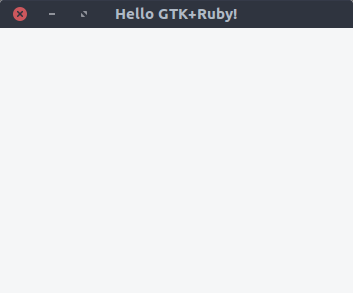
Notes
The application object we defined above and all of the GTK+ widgets in general, emit signals to trigger events. Once an application starts running for example, it emits a signal to trigger the activate event. All we have to do is to define what we want to happen when this signal is emitted. We accomplished this by using the signal_connect instance method and passing it a block whose code will be executed upon the given event. We will be doing this a lot throughout the tutorial.
When we initialized the Gtk::Application object we passed two parameters:
com.iridakos.gtk-todo: this is our application’s id and in general it should be a reverse DNS style identifier. For more information about its usage and best practices check here.:flags_none: this is a flag defining the behavior of the application. In our case, we used the default behavior. Check here all the flags and the type of applications they define. You can use the Ruby equivalent flags as defined in Gio::ApplicationFlags.constants. For example, instead of using the :flags_none we could instead use Gio::ApplicationFlags::FLAGS_NONESuppose the application object we previously created (Gtk::Application) had a lot of things to do when the activate signal was emitted or that we wanted to connect to more signals. We would end up creating a huge gtk-todo script file making it hard to read/maintain. Time to refactor.
As described in the The application structure section, create a folder named application along with its sub-folders ui, models and lib.
ui folder we will place all files related to our user interface.models folder we will place all files related to our models.lib folder we will place all other files that don’t belong to either of the aforementioned folders.We are going to define a new subclass of the Gtk::Application class for our application. Create a file named application.rb under application/ui/todo with the following contents.
module ToDo class Application < Gtk::Application def initialize super 'com.iridakos.gtk-todo', Gio::ApplicationFlags::FLAGS_NONE signal_connect :activate do |application| window = Gtk::ApplicationWindow.new(application) window.set_title 'Hello GTK+Ruby!' window.present end end end end and change the gtk-todo script accordingly:
#!/usr/bin/env ruby require 'gtk3' app = ToDo::Application.new puts app.run Much cleaner, isn’t it? Yeah, but it doesn’t work. You should be getting something like:
./gtk-todo:5:in `<main>': uninitialized constant ToDo (NameError) The problem is that we haven’t required any of the ruby files placed in the application folder. Change the script file as follows and execute it again.
#!/usr/bin/env ruby require 'gtk3' # Require all ruby files in the application folder recursively application_root_path = File.expand_path(__dir__) Dir[File.join(application_root_path, '**', '*.rb')].each { |file| require file } app = ToDo::Application.new puts app.run You should be fine.
At the beginning of this tutorial we said that we would use Glade to design the user interface of the application. Glade actually produces xml files with the appropriate elements and attributes that reflect what we designed via its user interface. We somehow need to make use of these files so that our application gets the UI we designed.
These files are resources for the application and the GResource API provides a way for packing them all together in a binary file and afterwards accessing them from inside the application with advantages as opposed to manually having to deal with already loaded resources, their location on the file system etc. Read more about the API here.
First, we need to create a file describing the resources of the application. Create a file named gresources.xml and place it directly under the resources folder.
<?xml version="1.0" encoding="UTF-8"?> <gresources> <gresource prefix="/com/iridakos/gtk-todo"> <file preprocess="xml-stripblanks">ui/application_window.ui</file> </gresource> </gresources> In this “description” we actually say: we have a resource which is located under the ui directory (relative to this xml file) with name application_window.ui. Before loading this resource please remove the blanks. Thanks. Of course this is not going to work now since we haven’t created the resource via Glade yet. Don’t worry though, one thing at a time.
Note: the xml-stripblanks directive will use the xmllint command to remove the blanks. In Ubuntu you have to install the package libxml2-utils to obtain it.
In order to produce the binary resources file, we are going to use another utility of the GLib library called glib-compile-resources. Check if you have it installed with dpkg -l libglib2.0-bin. You should be seeing something like this:
ii libglib2.0-bin 2.48.2-0ubuntu amd64 Programs for the GLib library If not, then install the package (sudo apt install libglib2.0-bin in Ubuntu).
Let’s build the file. We will add the code in our script so that the resources are getting built every time we execute it. Change the gtk-todo script as follows.
#!/usr/bin/env ruby require 'gtk3' require 'fileutils' # Require all ruby files in the application folder recursively application_root_path = File.expand_path(__dir__) Dir[File.join(application_root_path, '**', '*.rb')].each { |file| require file } # Define the source & target files of the glib-compile-resources command resource_xml = File.join(application_root_path, 'resources', 'gresources.xml') resource_bin = File.join(application_root_path, 'gresource.bin') # Build the binary system("glib-compile-resources", "--target", resource_bin, "--sourcedir", File.dirname(resource_xml), resource_xml) at_exit do # Before existing, please remove the binary we produced, thanks. FileUtils.rm_f(resource_bin) end app = ToDo::Application.new puts app.run and execute it. This happens in the console and it’s fine, we’ll fix it later on:
/.../gtk-todo-tutorial/resources/gresources.xml: Failed to locate 'ui/application_window.ui' in any source directory. What we did:
require statement for the fileutils library so that we can use it in the at_exit callglib-compile-resources commandglib-compile-resources commandOk, we described the resources, we packed them in a binary file. Now we have to load them and register them in the application so that we can use them. This is so easy as adding the following two lines before the at_exit hook.
resource = Gio::Resource.load(resource_bin) Gio::Resources.register(resource) That’s it. From now on, we are able to use the resources from anywhere inside the application (we’ll see how later on). Well now the script fails since it can’t load the binary which is not produced but…be patient, we are going to get to the interesting part soon. Actually now.
Open glade.
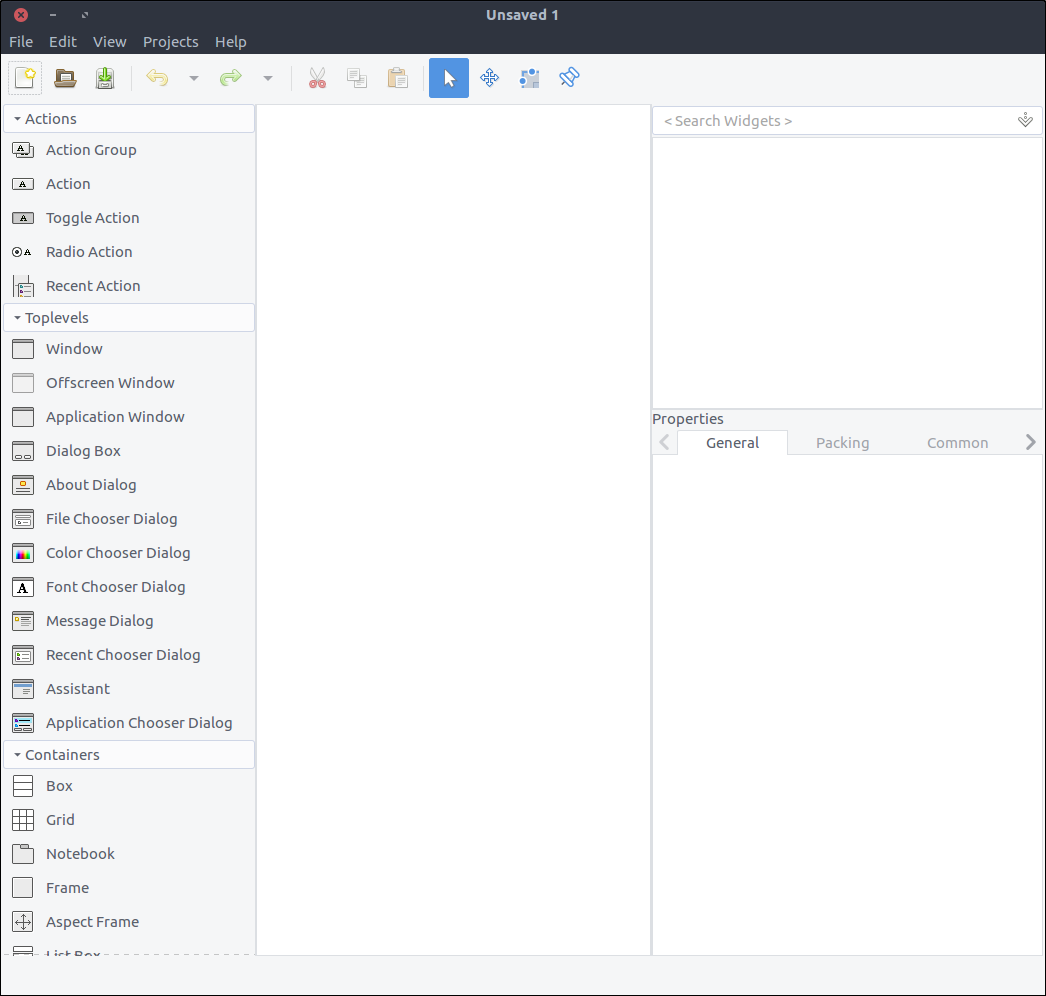
A quick description of what you see.
I will try to describe the steps for building this tutorial’s UI using Glade but if you are interested in building GTK+ applications you should take a look at the resources & tutorials for using the tool on the official page.
We are going to create the application window. As you can guess, all we have to do is drag the widget ‘Application Window’ from the widget section to the design section.
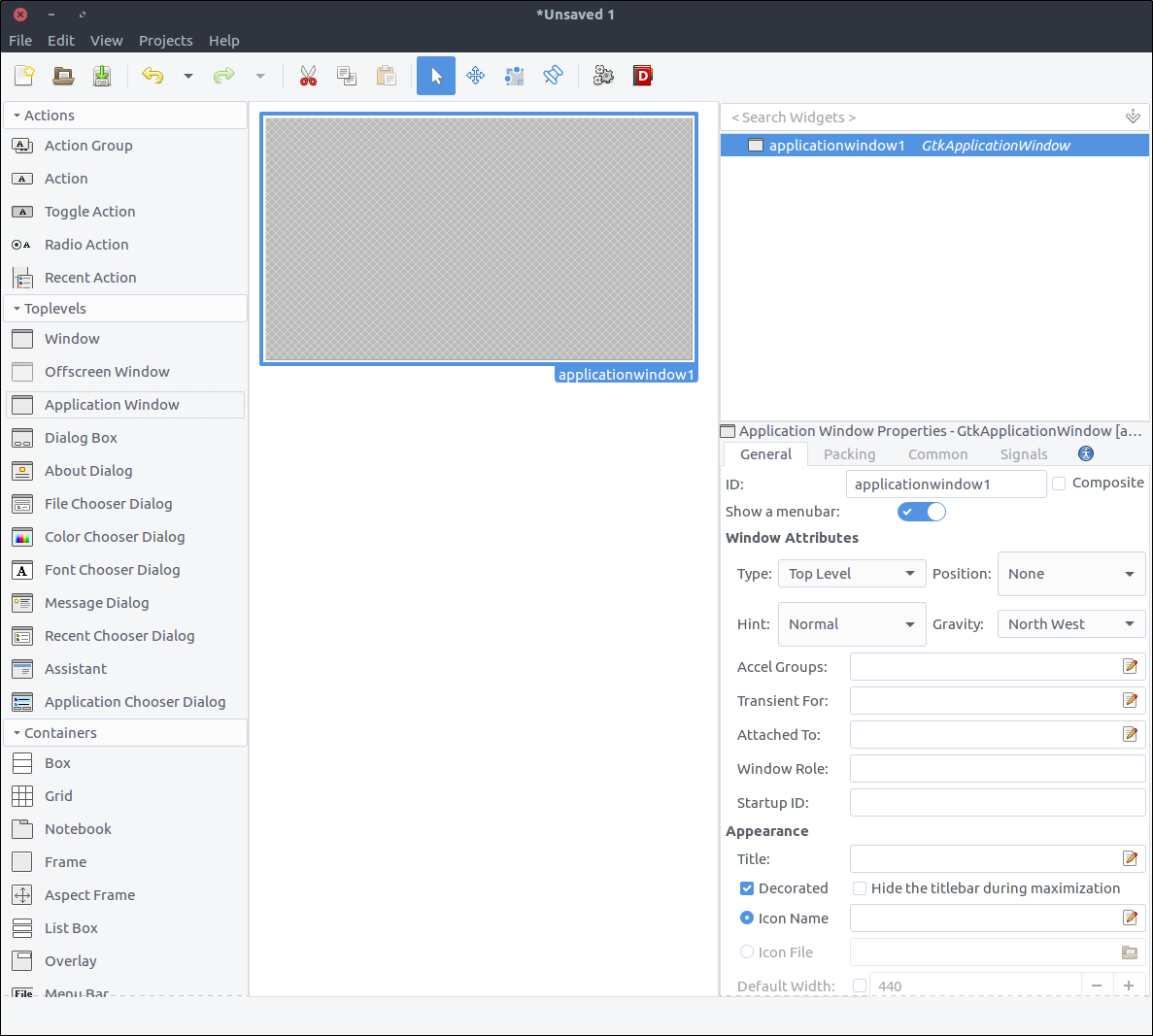
Gtk::Builder is an object used in GTK+ applications to read textual descriptions of a user interface (like the one we will build via Glade) and build the described objects-widgets.
In the properties section, the first property is the ID and it has a default value applicationWindow1. If we let this property as is, then later on, through our code we would create a Gtk::Builder that would load the file produced by glade and in order to obtain the application window we would have to use something line:
application_window = builder.get_object('applicationWindow1') application_window.signal_connect 'whatever' do |a,b| ... The application_window object would be of class Gtk::ApplicationWindow and thus whatever we had to add to its behavior (like setting its title) would take place out of the original class. Also, as shown in the snippet above, the code to connect to a signal of the window would be placed inside the file that instantiated it.
Good news though, a GTK+ feature introduced in 2013 allows the creation of composite widget templates which among other advantages allows as to define the custom class for the widget (which eventually derives from an existing GTK::Widget class in general). Don’t worry if you are confused. You are going to understand what is going on after we write some code and view the results.
Now, in order to define our design as a template, check the Composite checkbox in the property widget. Note that the ID property changed to Class Name. Fill in there TodoApplicationWindow. This is the class we are going to create in our code to represent this widget.
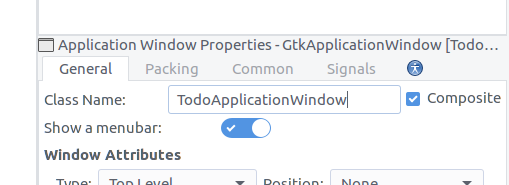
Save the file with name application_window.ui in a new folder named ui inside the resources. If you open the file from an editor you will see this:
<?xml version="1.0" encoding="UTF-8"?> <!-- Generated with glade 3.18.3 --> <interface> <requires lib="gtk+" version="3.12"/> <template class="TodoApplicationWindow" parent="GtkApplicationWindow"> <property name="can_focus">False</property> <child> <placeholder/> </child> </template> </interface> As you can see, our widget has a class and parent attribute. Following the parent class attribute convention, obviously, our class has to be defined inside a module named Todo. Before getting there, let’s try to start the application by executing the script (./gtk-todo).
Yeah! It starts!
While running the application, if you check the contents of the application’s root directory you can see the gresource.bin file there. Even though the application starts successfully because the resource bin is present and it can register it, we do not use it yet. We still initiate an ordinary Gtk::ApplicationWindow in our application.rb file and that all we show. Time to create our custom application window class.
Create a file named application_window.rb, place it under application/ui/todo folder and add the following content.
module Todo class ApplicationWindow < Gtk::ApplicationWindow # Register the class in the GLib world type_register class << self def init # Set the template from the resources binary set_template resource: '/com/iridakos/gtk-todo/ui/application_window.ui' end end def initialize(application) super application: application set_title 'GTK+ Simple ToDo' end end end We defined the init method as a singleton method on the class after opening the eigenclass in order to bind the template of this widget to the previously registered resource file.
Before that, we called the type_register class method which registers and make available our custom widget class to the GLib world.
Finally, each time we create an instance of this window, we set its title to GTK+ Simple ToDo.
Now, let’s go back to the application.rb file and use what we just implemented:
module ToDo class Application < Gtk::Application def initialize super 'com.iridakos.gtk-todo', Gio::ApplicationFlags::FLAGS_NONE signal_connect :activate do |application| window = Todo::ApplicationWindow.new(application) window.present end end end end Execute the script.
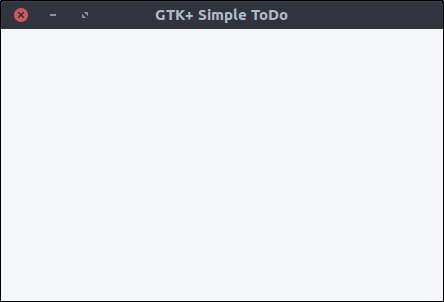
For simplicity, we are going to save the ToDo items in files in json format under a dedicated hidden folder in user’s home directory. Of course, in a real life application we would use a database but this is out of the scope of this tutorial.
Our Todo::Item model will have the following properties:
Create a file named item.rb under the application/models directory, with contents:
require 'securerandom' require 'json' module Todo class Item PROPERTIES = [:id, :title, :notes, :priority, :filename, :creation_datetime].freeze PRIORITIES = ['high', 'medium', 'normal', 'low'].freeze attr_accessor *PROPERTIES def initialize(options = {}) if user_data_path = options[:user_data_path] # New item. When saved, it will be placed under the :user_data_path value @id = SecureRandom.uuid @creation_datetime = Time.now.to_s @filename = "#{user_data_path}/#{id}.json" elsif filename = options[:filename] # Load an existing item load_from_file filename else raise ArgumentError, 'Please specify the :user_data_path for new item or the :filename to load existing' end end # Loads an item from a file def load_from_file(filename) properties = JSON.parse(File.read(filename)) # Assign the properties PROPERTIES.each do |property| self.send "#{property}=", properties[property.to_s] end rescue => e raise ArgumentError, "Failed to load existing item: #{e.message}" end # Resolves if an item is new def is_new? !File.exists? @filename end # Saves an item to its `filename` location def save! File.open(@filename, 'w') do |file| file.write self.to_json end end # Deletes an item def delete! raise 'Item is not saved!' if is_new? File.delete(@filename) end # Produces a json string for the item def to_json result = {} PROPERTIES.each do |prop| result[prop] = self.send prop end result.to_json end end end As you can see, we defined methods to:
:user_data_path in which it will be saved later on:filename to be loaded from. The filename must be a json file previously generated by an item:user_data_path or not)Let’s add a button to our application window for adding a new item. Open the resources/ui/application_window.ui file in glade.
Button from the widget section to the design section.add_new_item_button.
Don’t worry, we will improve the design later on. Now, let’s see how to connect functionality to our button’s clicked event.
First, we have to update our application window class so that it learns about its new child, the button with id add_new_item_button. Then, we can access the child to alter its behavior.
Change the init method as follows:
def init # Set the template from the resources binary set_template resource: '/com/iridakos/gtk-todo/ui/application_window.ui' bind_template_child 'add_new_item_button' end Pretty simple, right? The bind_template_child method does exactly what it says and from now on every instance of our Todo::ApplicationWindow class will have an add_new_item_button method to access the related button. So, let’s alter the initialize method as follows.
def initialize(application) super application: application set_title 'GTK+ Simple ToDo' add_new_item_button.signal_connect 'clicked' do |button, application| puts "OMG! I AM CLICKED" end end As you can see, we access the button by the add_new_item_button method and we define what we want to take place when clicked. Restart the application and try clicking it. In the console you should see the message OMG! I AM CLICKED every time you click the button.
What we want though to happen when we click this button is to show a new window through which we will save a ToDo item. You guessed right. Glade o’clock.
Window from the widget section to the design area.Composite property and name the class TodoNewItemWindow.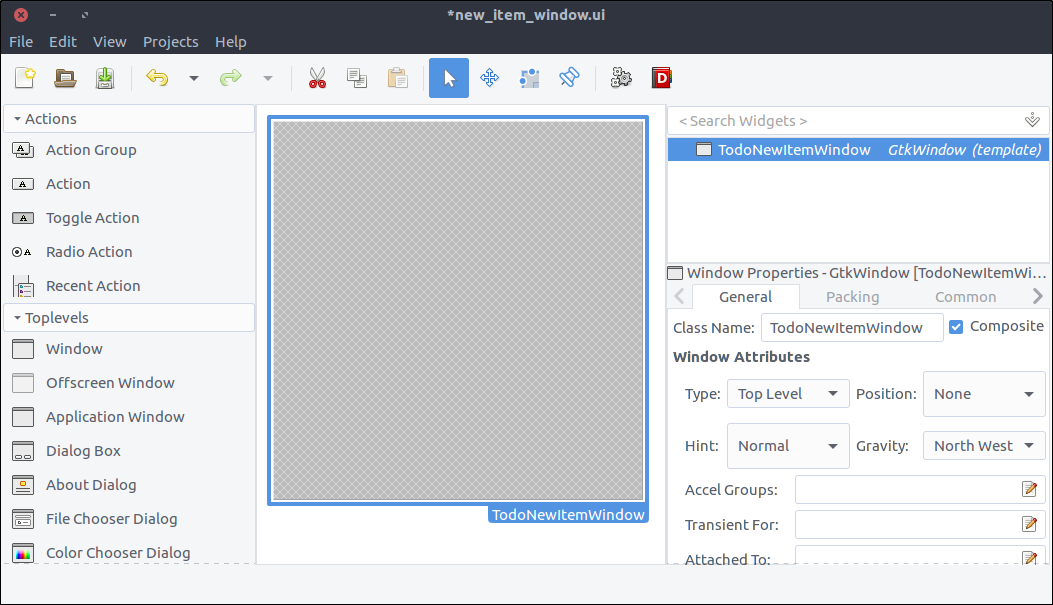
Grid from the widget section and place it in the window we added in the previous steps.Widget Spacing > Margins > Top, Bottom, Left, Right all to 10 so that the contents are not stuck to the borders of the window.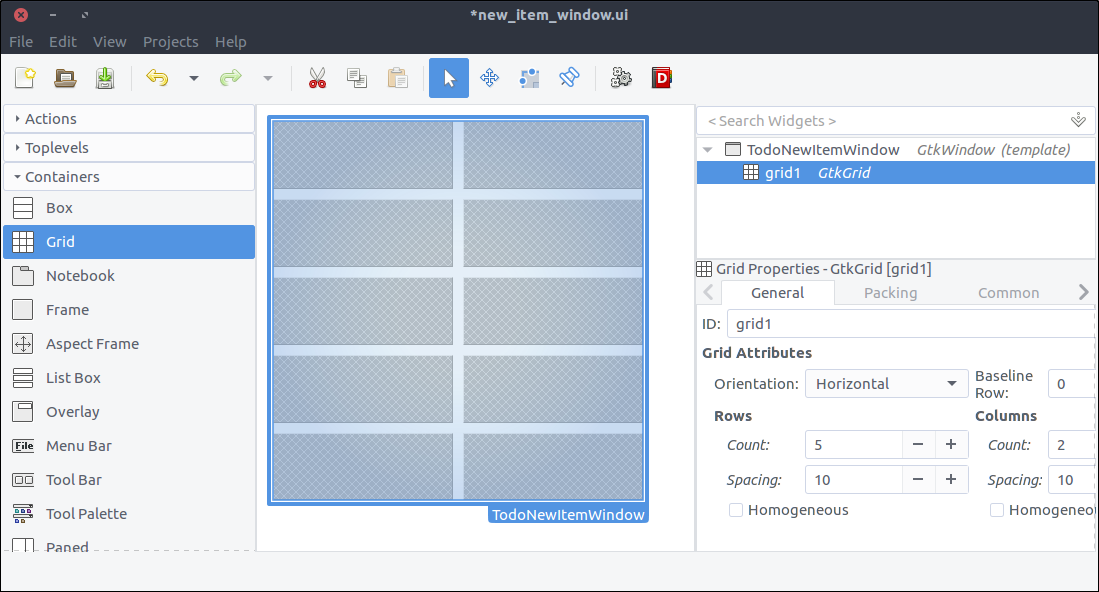
Label widget from the widget section and place them in each row of the Grid.Label property from top to bottom as: Id:Title:Notes:Priority:add_new_item_button button in the application window. BUT. We are going to add more elements to our design and the hierarchy of the widgets in Glade will be hard to read with all the label1. label2. So set a descriptive id to each to make our lives easier (like id_label, title_label, notes_label, priority_label). I even set the grid’s id to main_grid cause I don’t like seeing numbers in ids or variable names :)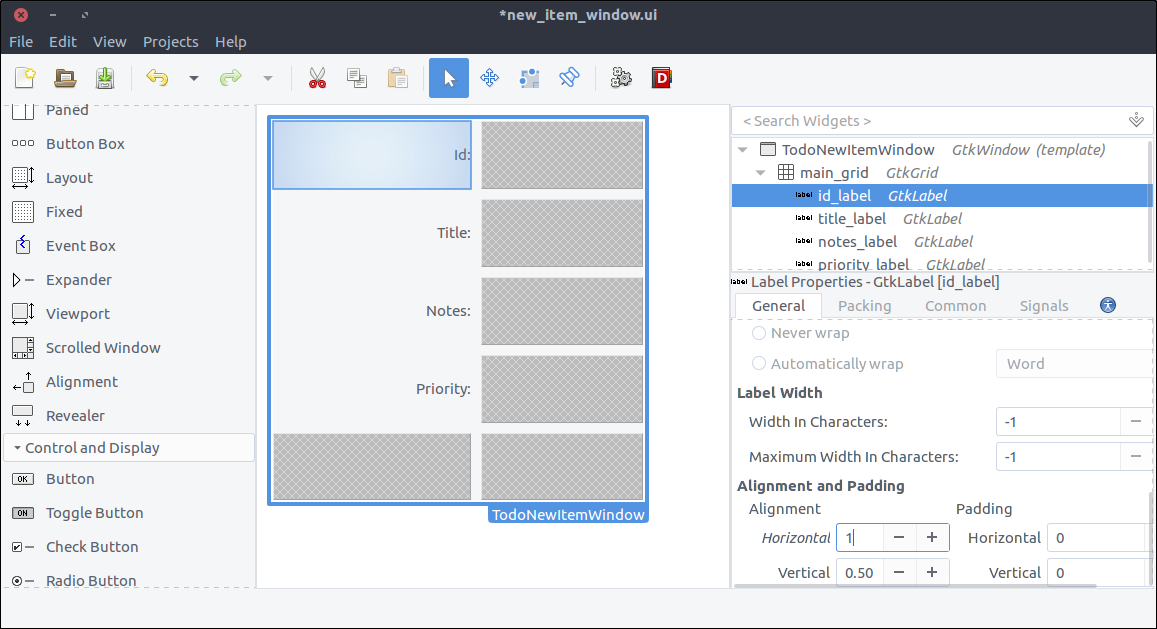
Label from the widget section to the second column of the grid’s first row. The id is automatically generated by our model thus we won’t allow editing so a label to display it is more than enough.ID property to id_value_label.id-of-the-todo-item-here.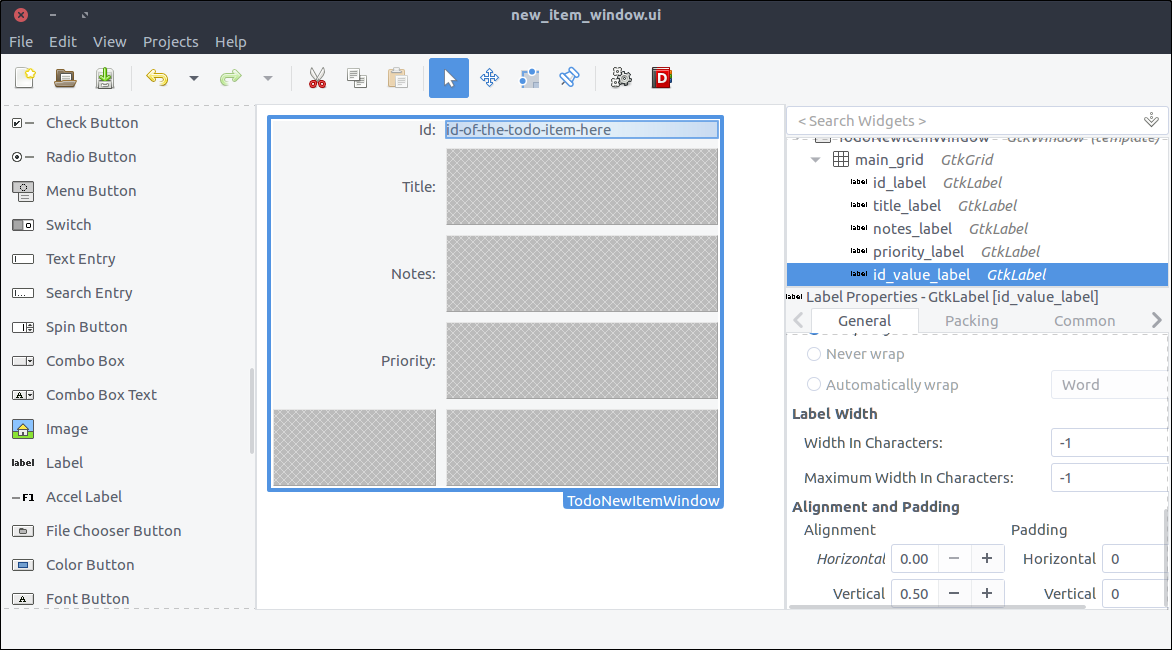
Text Entry from the widget section to the second column of the second row of the grid.title_text_entry. As you may have noticed, I prefer obtaining the widget type in the id so that the code in the class becomes more readable later on.Widget Spacing > Expand > Horizontal checkbox and turn on the switch which is right next to it. This way, the widget will expand horizontally every time its parent (a.k.a. the grid) is resized.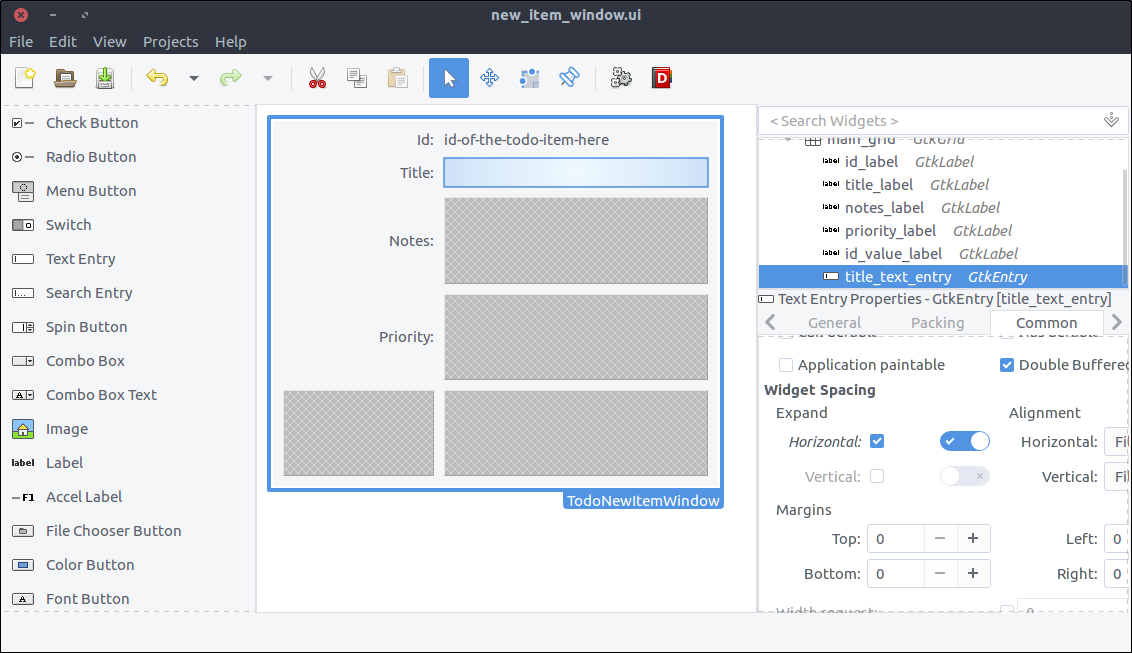
Text View from the widget section to the second column of the third row of the grid.ID to notes. Nope, just testing you. Set its ID property to notes_text_view.Widget Spacing > Expand > Horizontal, Vertical checkboxes and turn on the switches which are right next to them. This way, the widget will expand horizontally and vertically every time its parent (a.k.a. the grid) is resized.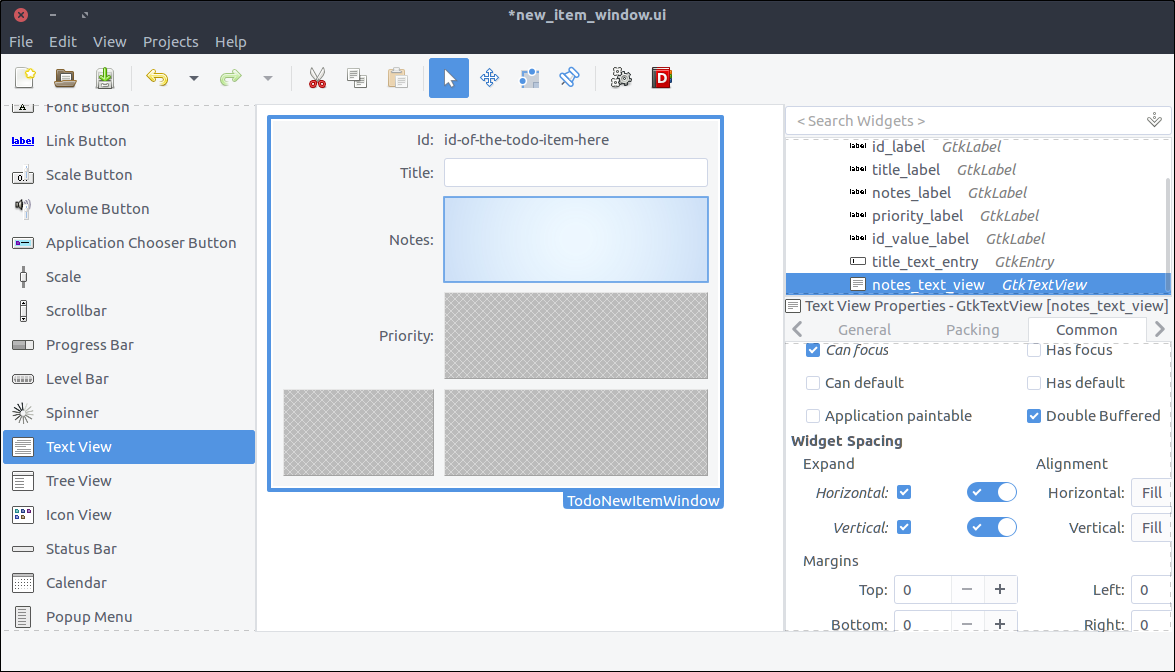
Combo Box from the widget section to the second column of the forth row of the grid.ID to priority_combo_box.Widget Spacing > Expand > Horizontal checkbox and turn on the switch which is right next to it. This way, the widget will expand horizontally every time its parent (a.k.a. the grid) is resized.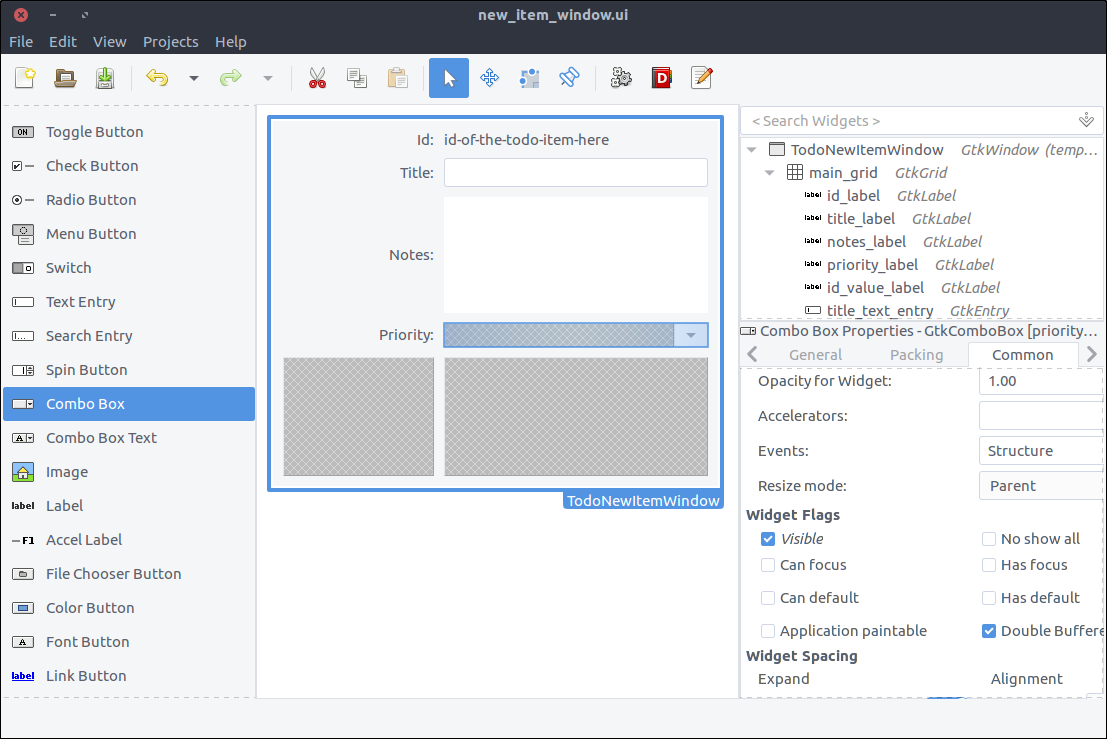
Button Box from the widget section to the second column of the last row of the grid.ID for readability. I named mine actions_box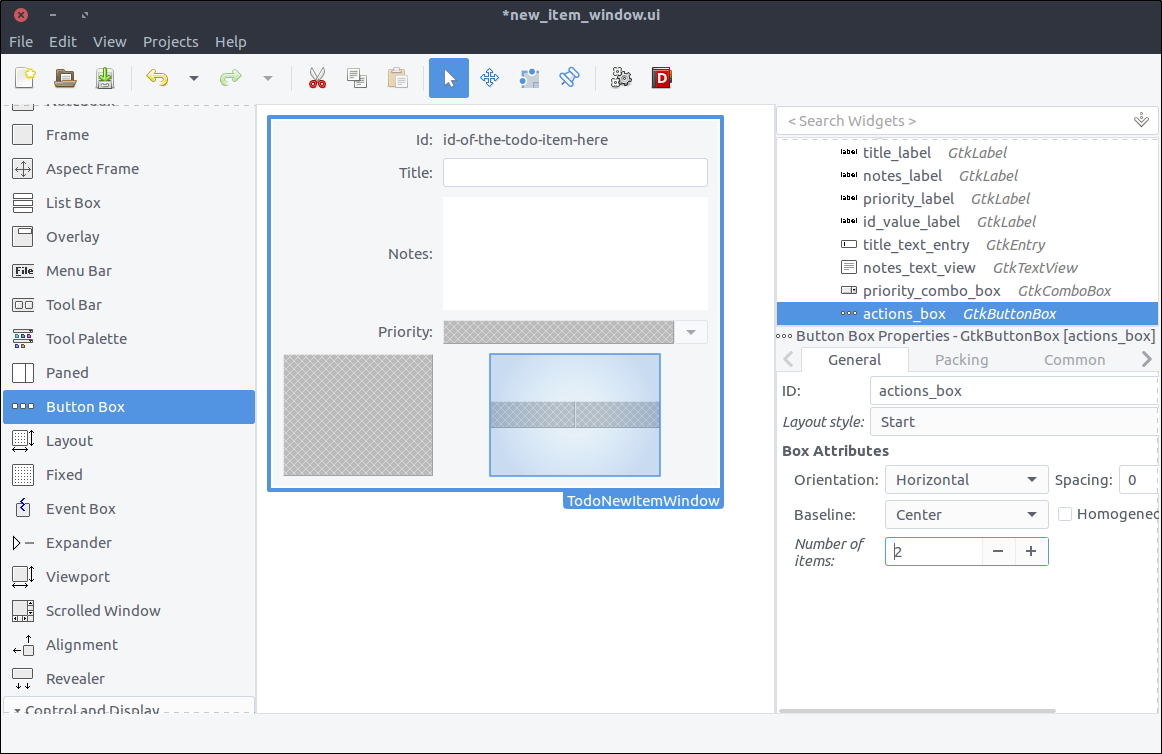
Button widget twice and place it to each of the two boxes of the button box widget we added in the previous step.ID properties to cancel_button & save_button respectively.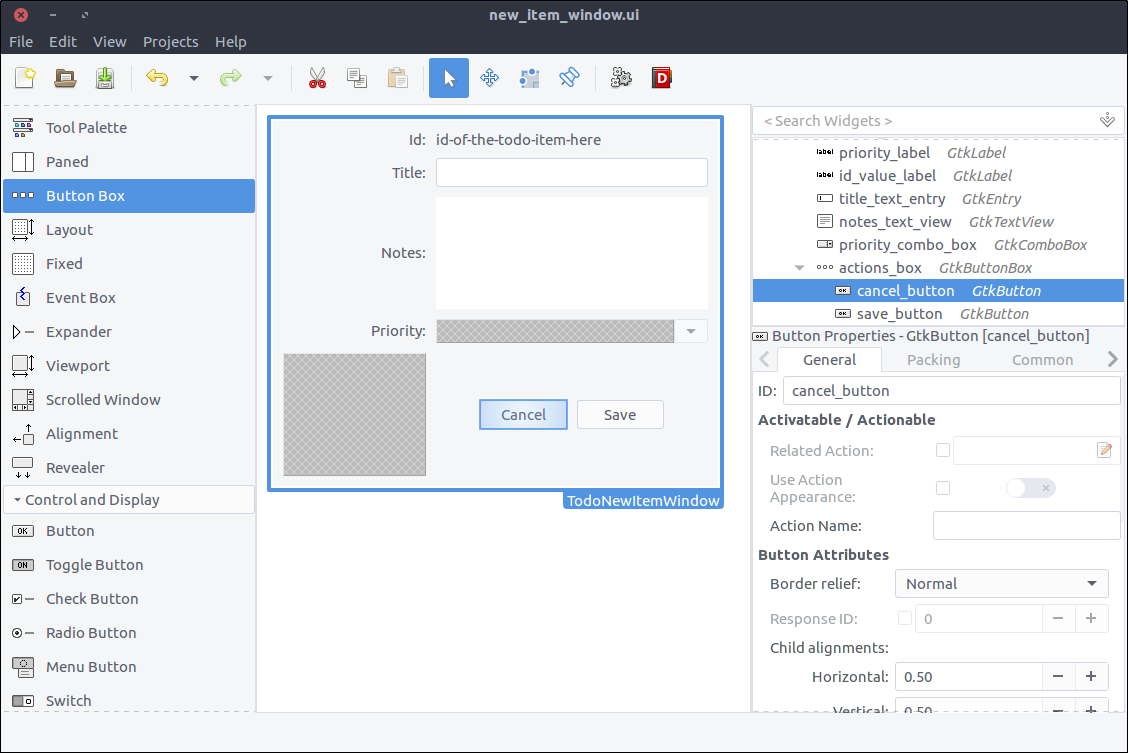
The window is ready. Save the file under resources/ui/new_item_window.ui.
Time to port it in our application.
Before implementing the new class, we must update our GResource description file a.k.a. resources/gresources.xml to obtain the new resource:
<?xml version="1.0" encoding="UTF-8"?> <gresources> <gresource prefix="/com/iridakos/gtk-todo"> <file preprocess="xml-stripblanks">ui/application_window.ui</file> <file preprocess="xml-stripblanks">ui/new_item_window.ui</file> </gresource> </gresources> Now we can create the new window class. Create a file under application/ui/todo named new_item_window.rb and set its contents as follows.
module Todo class NewItemWindow < Gtk::Window # Register the class in the GLib world type_register class << self def init # Set the template from the resources binary set_template resource: '/com/iridakos/gtk-todo/ui/new_item_window.ui' end end def initialize(application) super application: application end end end Nothing special here. We just changed the template resource to point to the correct file of our resources.
We have to change the add_new_item_button code that executes on the clicked signal to show the new item window. Go ahead and change that code in application_window.rb to this:
add_new_item_button.signal_connect 'clicked' do |button| new_item_window = NewItemWindow.new(application) new_item_window.present end Let’s see what we have done. Start the application and click on the Add new item button. Ta daaaaaaa
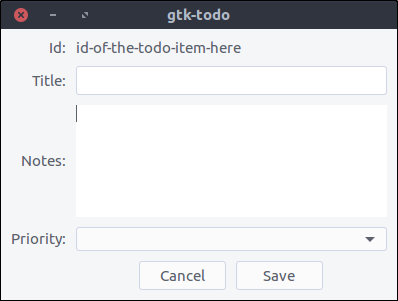
Of course, nothing happens when pressing the buttons. We will change that.
First we will bind the ui widgets in the Todo::NewItemWindow class.
Change the init method the to this:
def init # Set the template from the resources binary set_template resource: '/com/iridakos/gtk-todo/ui/new_item_window.ui' # Bind the window's widgets bind_template_child 'id_value_label' bind_template_child 'title_text_entry' bind_template_child 'notes_text_view' bind_template_child 'priority_combo_box' bind_template_child 'cancel_button' bind_template_child 'save_button' end This window is going to be shown either when creating a new Todo item or editing an existing one. Thus the new_item_window naming is not very valid. This was intentional though so that we refactor the code later (No it was not :D I made a mistake when writing the tutorial. In any case, we’ll refactor later on).
For now, we will update the initialize method of the window to require one extra parameter, the Todo::Item to be created or edited. We can then set a more meaningful window title and change the children widgets to reflect the current item.
Change the initialize method to this:
def initialize(application, item) super application: application set_title "ToDo item #{item.id} - #{item.is_new? ? 'Create' : 'Edit' } Mode" id_value_label.text = item.id title_text_entry.text = item.title if item.title notes_text_view.buffer.text = item.notes if item.notes # Configure the combo box model = Gtk::ListStore.new(String) Todo::Item::PRIORITIES.each do |priority| iterator = model.append iterator[0] = priority end priority_combo_box.model = model renderer = Gtk::CellRendererText.new priority_combo_box.pack_start(renderer, true) priority_combo_box.set_attributes(renderer, "text" => 0) priority_combo_box.set_active(Todo::Item::PRIORITIES.index(item.priority)) if item.priority end and add the constant PRIORITIES in the application/models/item.rb file just below the PROPERTIES constant as:
PRIORITIES = ['high', 'medium', 'normal', 'low'].freeze What did we do here?
id_value_label text to display the current item’s id.title_text_entry text to display the current item’s title.notes_text_view text to display the current item’s notes.priority_combo_box whose entries are going to have only one String value. At a first sight, a Gtk::ListStore model might look a little confusing. I will try to explain how it works now. Gtk::ListStore defining that its entries would consist of two string values: one for the country code and one for the country name. Thus we would initialize the ListStore as: model = Gtk::ListStore.new(String, String) [['gr', 'Greece'], ['jp','Japan'], ['nl', 'Netherlands']].each do |country_pair| entry = model.append # Each entry has two string positions since that's how we initialized the Gtk::ListStore # Store the country code in position 0 entry[0] = country_pair[0] # Store the country name in position 1 entry[1] = country_pair[1] end country_code_renderer = Gtk::CellRendererText.new # Add the first renderer combo.pack_start(country_code_renderer, true) # Use the value in index 0 of each model entry a.k.a. the country code combo.set_attributes(country_code_renderer, 'text' => 0) country_name_renderer = Gtk::CellRendererText.new # Add the second renderer combo.pack_start(country_name_renderer, true) # Use the value in index 1 of each model entry a.k.a. the country name combo.set_attributes(country_name_renderer, 'text' => 1) 0). Imagine that our model is something like [['high'],['medium'],['normal'],['low']] and 0 is actually the first element of each sub-array. I will stop with the model-combo-text-renderer explanations now…Remember that when initializing a new Todo::Item (not an existing one) we had to define a :user_data_path in which it would be saved. We are going to resolve this path when the application starts and make it accessible from all the widgets.
All we have to do is check if the .gtk-todo-tutorial path exists inside the user’s home ~ directory. If not, then we will create it. Then we set this as an instance variable of the application. All widgets have access to the application instance. Sooooo….all widgets have access to this user path variable.
Change the application/application.rb file to this:
module ToDo class Application < Gtk::Application attr_reader :user_data_path def initialize super 'com.iridakos.gtk-todo', Gio::ApplicationFlags::FLAGS_NONE @user_data_path = File.expand_path('~/.gtk-todo-tutorial') unless File.directory?(@user_data_path) puts "First run. Creating user's application path: #{@user_data_path}" FileUtils.mkdir_p(@user_data_path) end signal_connect :activate do |application| window = Todo::ApplicationWindow.new(application) window.present end end end end One last thing that we have to do before testing what we have done so far is to instantiate the Todo::NewItemWindow when the add_new_item_button is clicked complying with the changes we made a.k.a. change the code in application_window.rb to this:
add_new_item_button.signal_connect 'clicked' do |button| new_item_window = NewItemWindow.new(application, Todo::Item.new(user_data_path: application.user_data_path)) new_item_window.present end Start the application and click on the Add new item button. Ta daaaaaa (note the - Create mode part in the title).
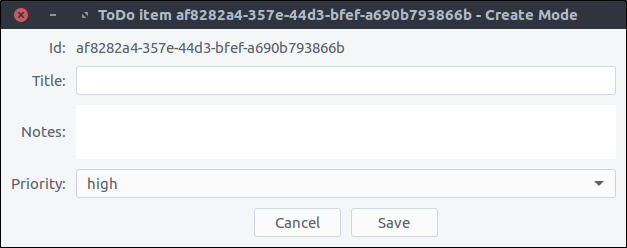
In order to close the Todo::NewItemWindow window when user clicks the cancel_button all we have to do is to add this to the window’s initialize method:
cancel_button.signal_connect 'clicked' do |button| close end close is an instance method of the Gtk::Window class that surprisingly enough closes the window.
Saving an item involves two steps:
save! method on the Todo::Item instanceAgain, our code will be placed in the initialie method of the Todo::NewItemWindow:
save_button.signal_connect 'clicked' do |button| item.title = title_text_entry.text item.notes = notes_text_view.buffer.text item.priority = priority_combo_box.active_iter.get_value(0) if priority_combo_box.active_iter item.save! close end Note that we again close the window after saving the item.
Let’s try that out.
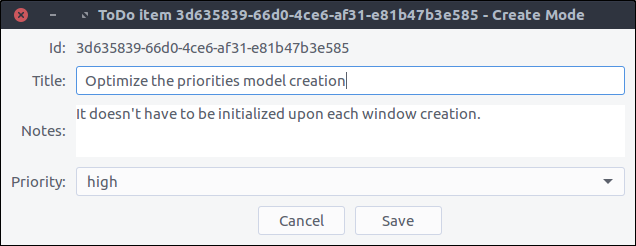
Pressing save and navigating to your ~/.gtk-todo-tutorial folder you should see a file there. Mine had the following contents:
{ "id": "3d635839-66d0-4ce6-af31-e81b47b3e585", "title": "Optimize the priorities model creation", "notes": "It doesn't have to be initialized upon each window creation.", "priority": "high", "filename": "/home/iridakos/.gtk-todo-tutorial/3d635839-66d0-4ce6-af31-e81b47b3e585.json", "creation_datetime": "2018-01-25 18:09:51 +0200" } Don’t forget to try out the cancel button as well.
Awesome!!!
We have left the Todo::ApplicationWindow to contain only one button. Time to change that.
We want the window to have the Add new item on the top but below it there should be a list with all of our todo items. To accomplish that we are going to add a Gtk::ListBox in our design which can contain any number of rows.
resources/ui/application_window.ui file in Glade.List Box widget from the widget section directly on the window nothing happens. That is normal. First we have to split the window in two parts. One part for the button and one for the list box. Bear with me.new_item_window in the hierarchy section and select Add parent > Box.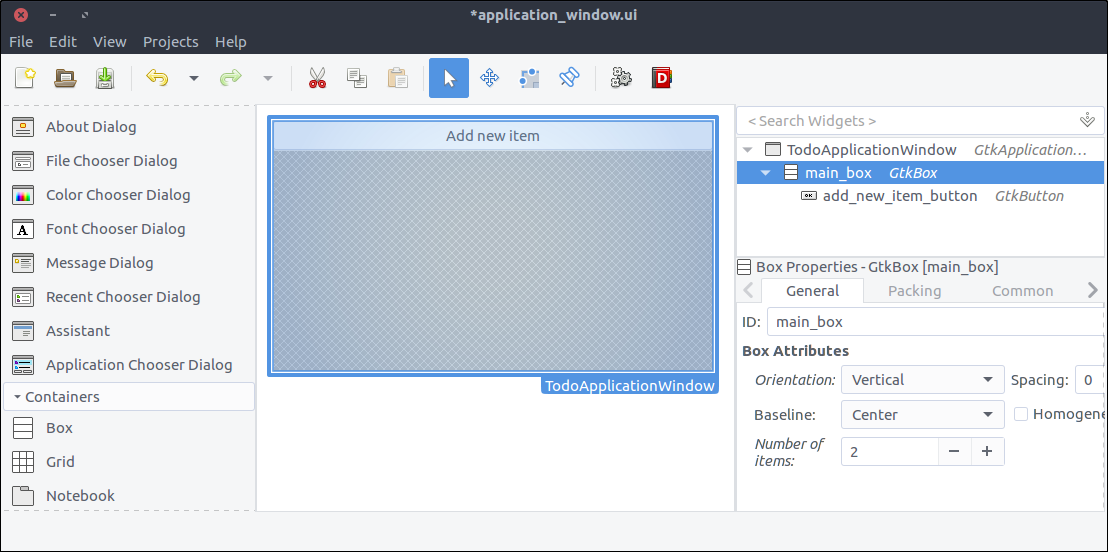
List Box and place it on the free are of the previously added box.ID property to todo_items_list_boxSelection mode to None since we won’t provide such a functionality.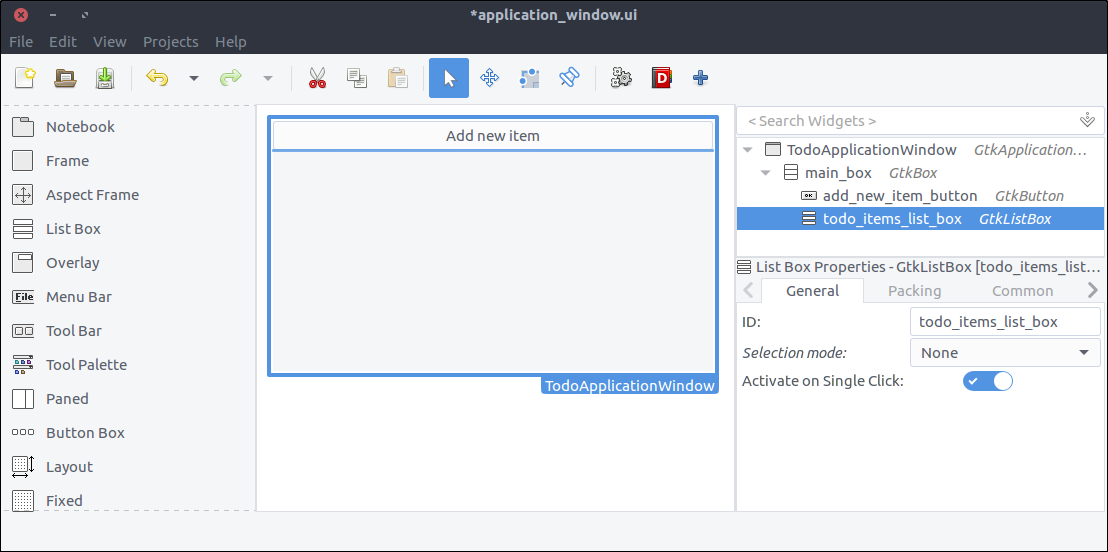
Each row of the list box that we created in the previous step is going to be more complex than a row of text. It is going to contain widgets that will allow the user to expand an item’s notes, and to delete or edit the item.
new_item_window.ui. Save it under resources/ui/todo_item_list_box_row.ui.List Box Row widget in the widget section so in order to add one directly as the top level widget of our project, we will do it in a kinda hackish way.List Box from the widget section to the design area.List Box and select Add Row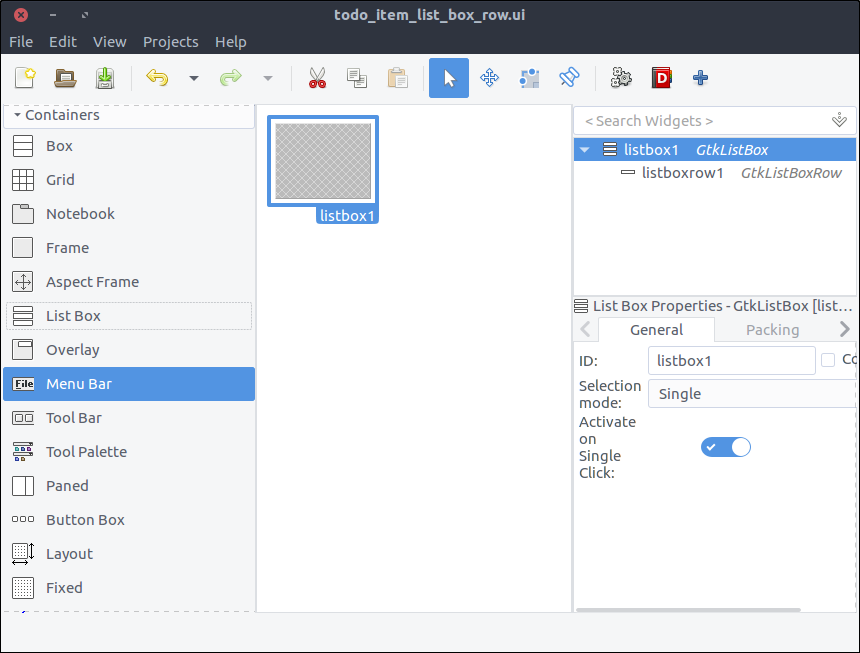
List Box Row which is nested under the List Box and select Remove parent. There it is. The List Box Row is the top level widget of the project now.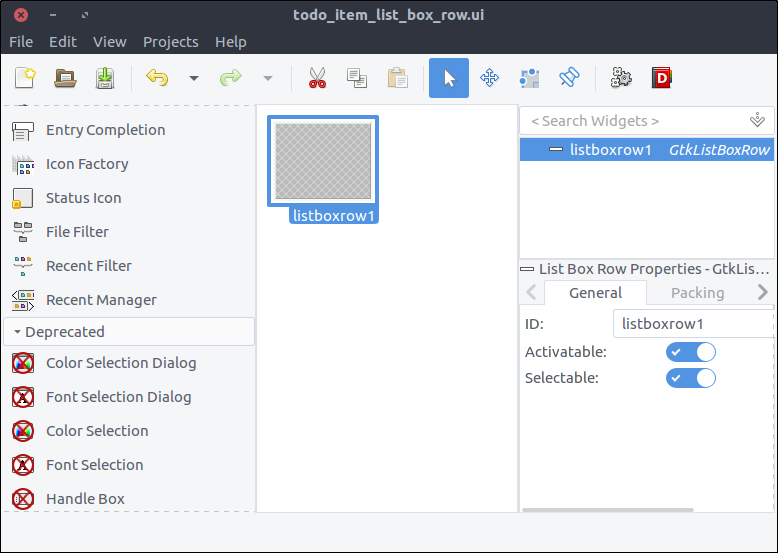
Composite property and set its name to TodoItemListBoxRow.Box from the widget section to the design area inside our List Box Row.ID property to main_box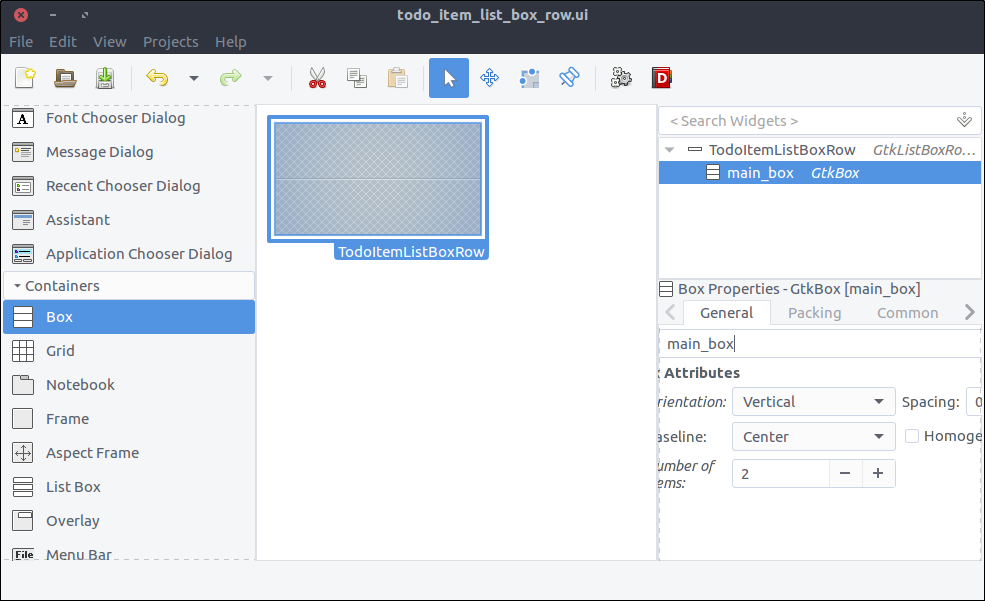
Box from the widget section to the first row of the previously added box.ID property to todo_item_top_box.Spacing (General tab) property to 10.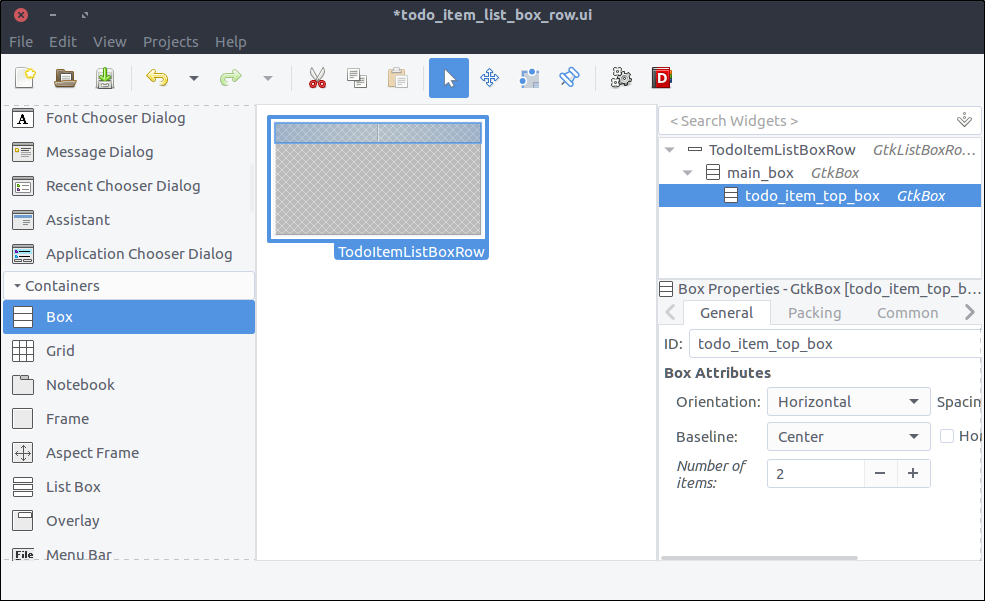
Label from the widget section to the first column of the todo_item_top_box.ID property to todo_item_title_label.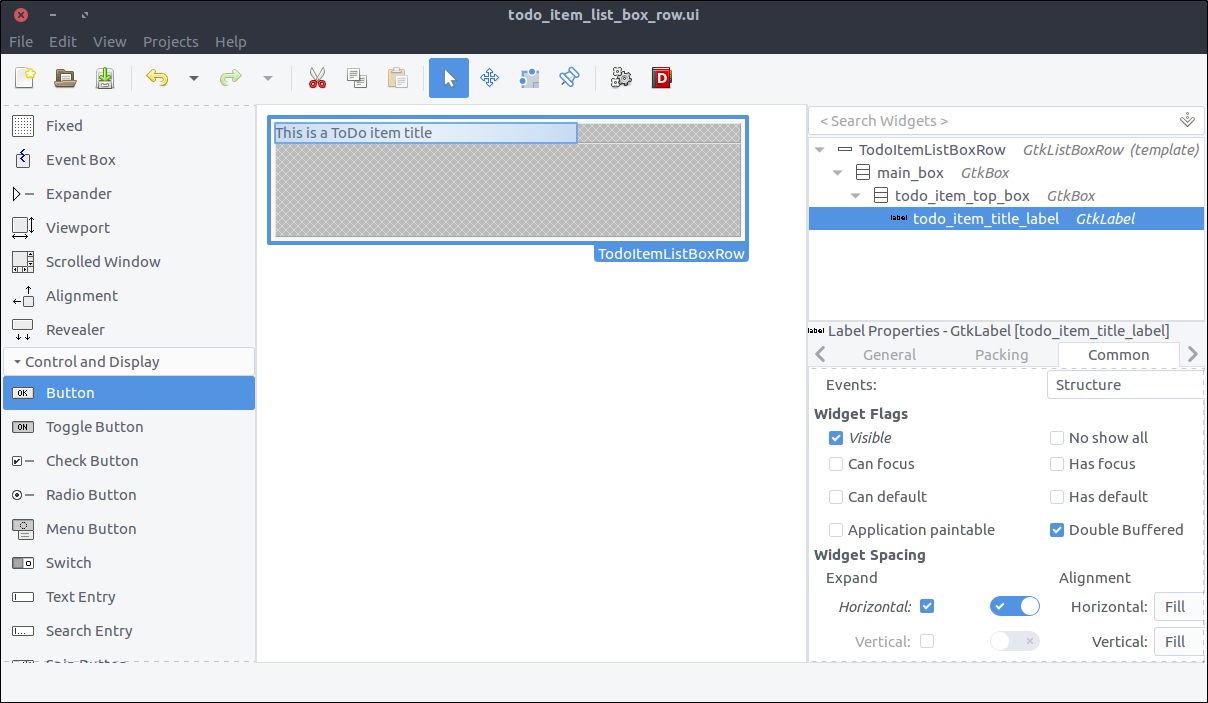
Button from the widget section to the second column of the todo_item_top_box.ID property to details_button... (three dots).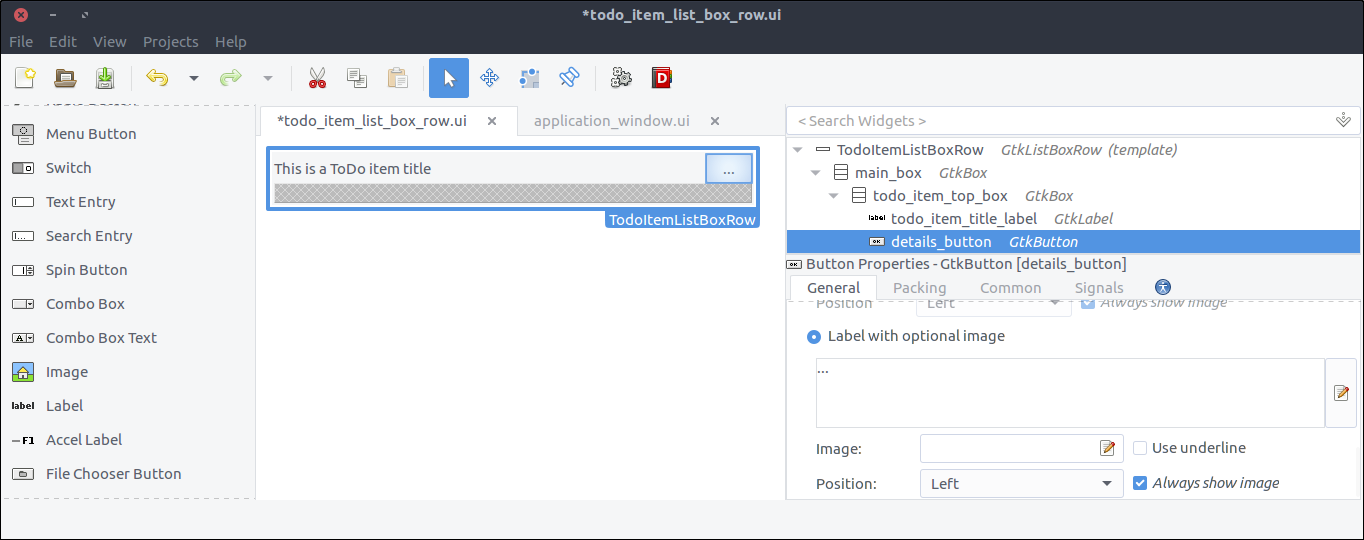
Revealer widget from the widget section to the second row of the main_box.Reveal Child switch in the General tab.ID property to todo_item_details_revealer.Transition type property to Slide Down.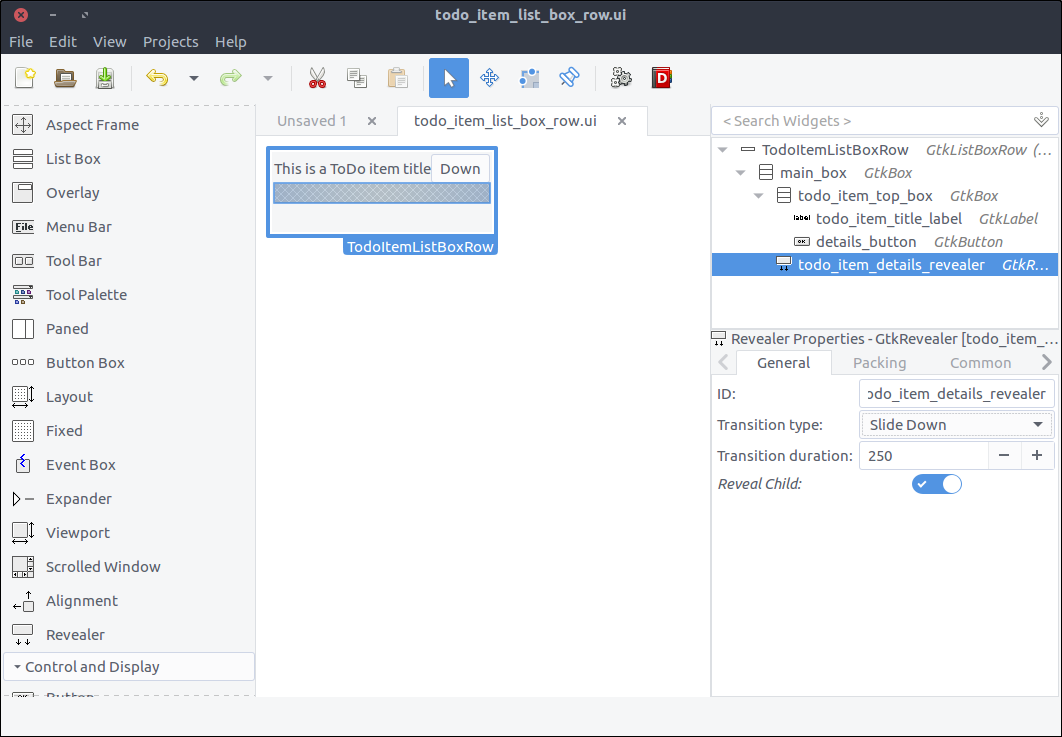
Box from the widget section to the reveal space.ID property to details_box.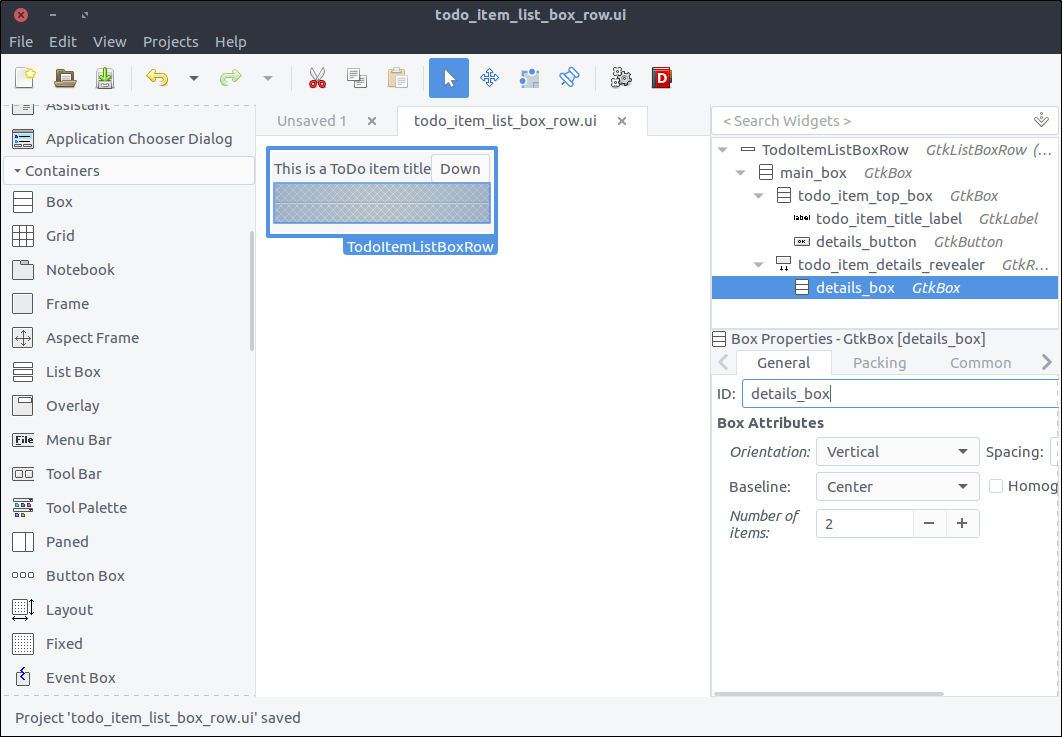
Button Box from the widget section to the first row of the details_box.ID property to todo_item_action_box.Layout style property to expand.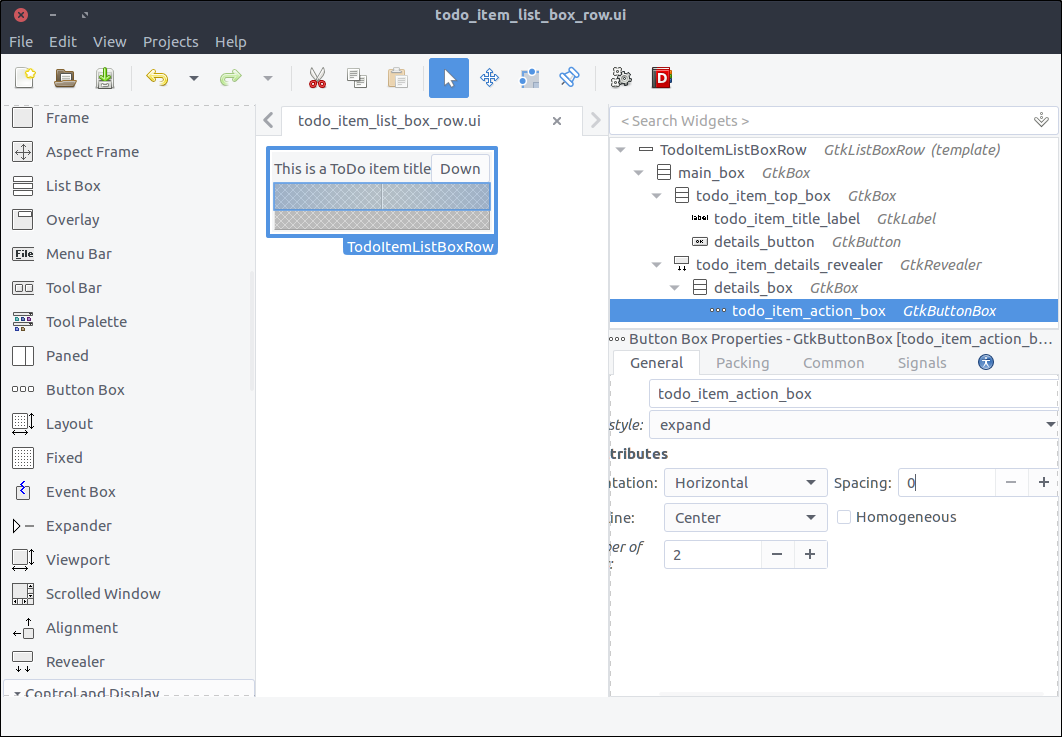
Button widgets to the first and second column of the todo_item_action_box respectively.ID properties to delete_button and edit_button respectively.Delete and Edit respective.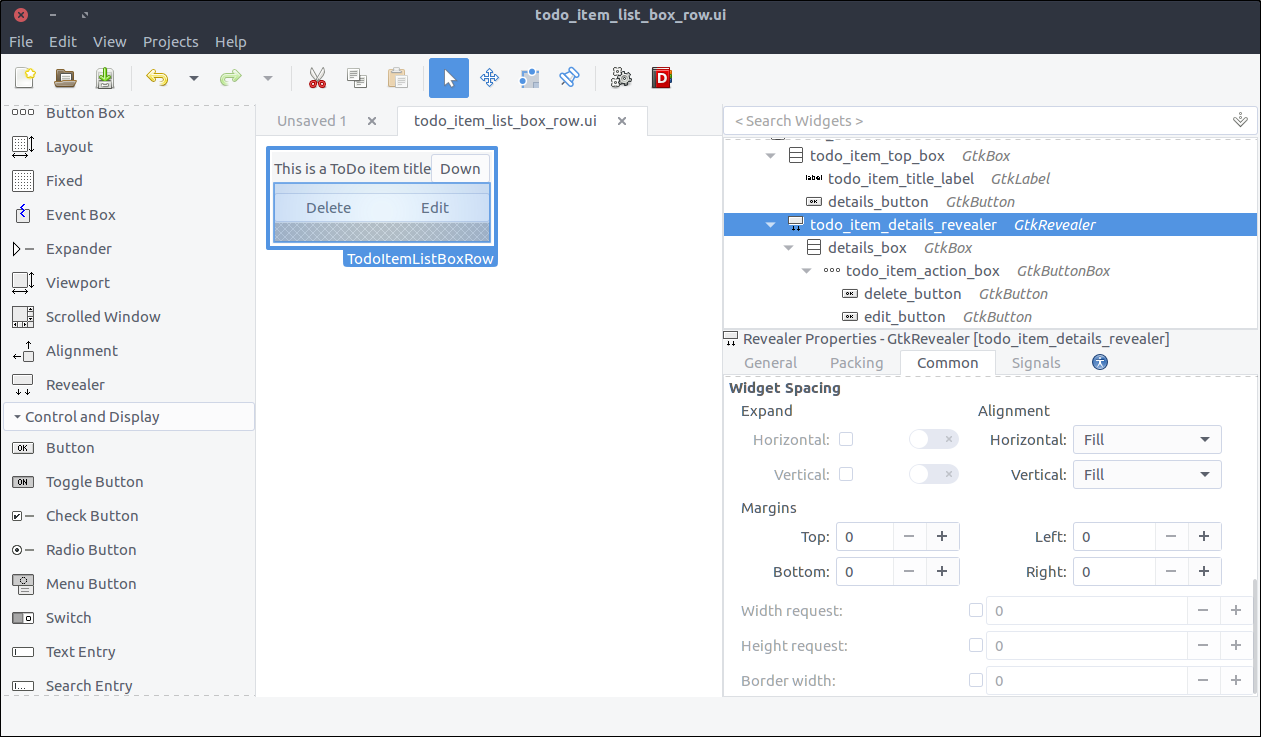
Viewport widget from the widget section to the second row of the details_box.ID property to todo_action_notes_viewport.Text View widget from the widget section to the todo_action_notes_viewport that we just added.ID to todo_item_notes_text_view.Editable property in the General tab of the properties section.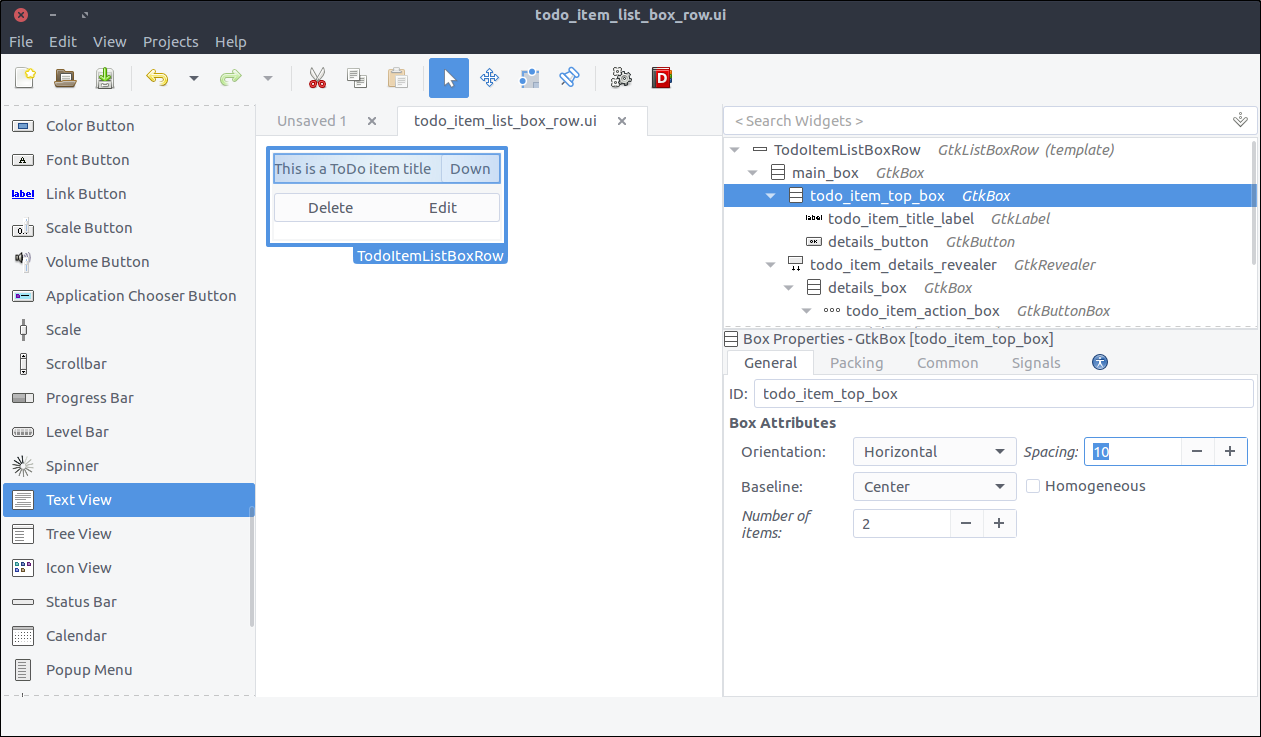
Now we will create the class reflecting the user interface of the list box row which we just created.
First we have to update our GResource description file to include the newly created design. Change the resources/gresources.xml file as follows:
<?xml version="1.0" encoding="UTF-8"?> <gresources> <gresource prefix="/com/iridakos/gtk-todo"> <file preprocess="xml-stripblanks">ui/application_window.ui</file> <file preprocess="xml-stripblanks">ui/new_item_window.ui</file> <file preprocess="xml-stripblanks">ui/todo_item_list_box_row.ui</file> </gresource> </gresources> Create a file named item_list_box_row.rb inside the application/ui folder and add the following content.
module Todo class ItemListBoxRow < Gtk::ListBoxRow type_register class << self def init set_template resource: '/com/iridakos/gtk-todo/ui/todo_item_list_box_row.ui' end end def initialize(item) super() end end end We will not bind any children at the moment here.
When starting the application, we have to search for files in the :user_data_path and for each file we must create a Todo::Item instance. For each instance, we must also add a new Todo::ItemListBoxRow to the Todo::ApplicationWindow’s todo_items_list_box list box. One thing at a time.
First of all, let’s bind the todo_items_list_box in the Todo::ApplicationWindow class. Change the init method as follows:
def init # Set the template from the resources binary set_template resource: '/com/iridakos/gtk-todo/ui/application_window.ui' bind_template_child 'add_new_item_button' bind_template_child 'todo_items_list_box' end Next, we will add an instance method in the same class that will be responsible to load the todo list items in the related list box. Add this code in Todo::ApplicationWindow.
def load_todo_items todo_items_list_box.children.each { |child| todo_items_list_box.remove child } json_files = Dir[File.join(File.expand_path(application.user_data_path), '*.json')] items = json_files.map{ |filename| Todo::Item.new(filename: filename) } items.each do |item| todo_items_list_box.add Todo::ItemListBoxRow.new(item) end end and then call this method at the end of the initialize method.
def initialize(application) super application: application set_title 'GTK+ Simple ToDo' add_new_item_button.signal_connect 'clicked' do |button| new_item_window = NewItemWindow.new(application, Todo::Item.new(user_data_path: application.user_data_path)) new_item_window.present end load_todo_items end Note: We first make sure we empty the list box of its current children rows and we refill it. This way, we will call this method after saving a Todo::Item via the signal_connect of the save_button of the Todo::NewItemWindow and the parent application window will be reloaded! Here’s the updated code (in application/ui/new_item_window.rb):
save_button.signal_connect 'clicked' do |button| item.title = title_text_entry.text item.notes = notes_text_view.buffer.text item.priority = priority_combo_box.active_iter.get_value(0) if priority_combo_box.active_iter item.save! close # Locate the application window application_window = application.windows.find { |w| w.is_a? Todo::ApplicationWindow } application_window.load_todo_items end Previously, we used this code:
json_files = Dir[File.join(File.expand_path(application.user_data_path), '*.json')] in order to find all the names of the files that exist in the application user data path with json extension.
Let’s see what we’ve created. Start the application and try adding a new ToDo item. After pressing the Save button you should see the parent Todo::ApplicationWindow being automatically updated with the new item!
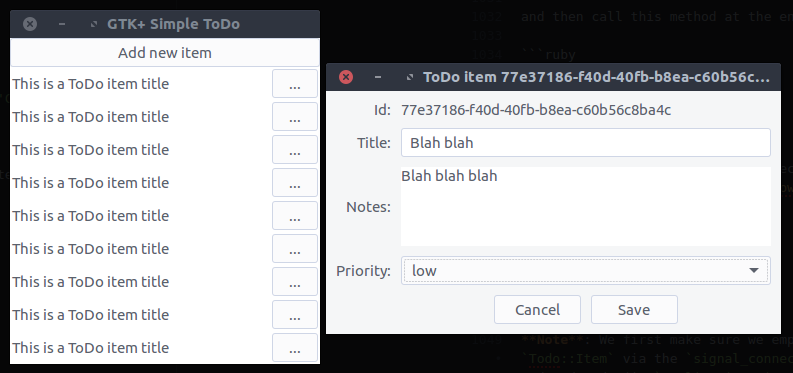
What’s left to do, is to complete the functionality of the Todo::ItemListBoxRow.
We will first bind the widgets. Change the init method of the Todo::ItemListBoxRow class as follows:
def init set_template resource: '/com/iridakos/gtk-todo/ui/todo_item_list_box_row.ui' bind_template_child 'details_button' bind_template_child 'todo_item_title_label' bind_template_child 'todo_item_details_revealer' bind_template_child 'todo_item_notes_text_view' bind_template_child 'delete_button' bind_template_child 'edit_button' end Then, we are going to setup the widgets based on the item of each row.
def initialize(item) super() todo_item_title_label.text = item.title || '' todo_item_notes_text_view.buffer.text = item.notes details_button.signal_connect 'clicked' do todo_item_details_revealer.set_reveal_child !todo_item_details_revealer.reveal_child? end delete_button.signal_connect 'clicked' do item.delete! # Locate the application window application_window = application.windows.find { |w| w.is_a? Todo::ApplicationWindow } application_window.load_todo_items end edit_button.signal_connect 'clicked' do new_item_window = NewItemWindow.new(application, item) new_item_window.present end end def application parent = self.parent parent = parent.parent while !parent.is_a? Gtk::Window parent.application end details_button is clicked, we instruct the todo_item_details_revealer to swap the visibility of its contents.Todo::ApplicationWindow in order to call its load_todo_items as we did after saving an item.Todo::NewItemWindow passing as item the current item. Works like a charm :Dapplication that navigates through the widget’s parents until it reaches a window from which it can obtain the application object.Save and run the application. There it is.
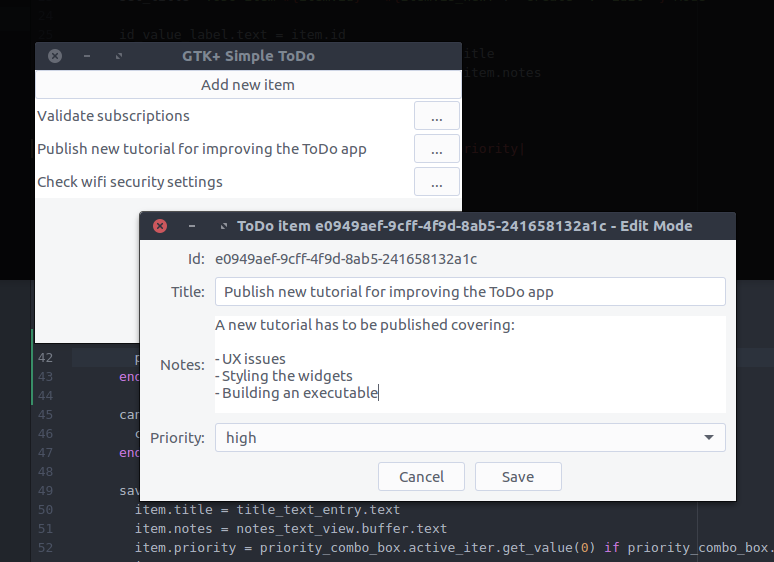
This has been a really long tutorial and even though there are so many items that we haven’t covered I think we better end it here.
Long post, cat photo.
 (
(