- MongoDB - Home
- MongoDB - Overview
- MongoDB - Advantages
- MongoDB - Environment
- MongoDB - Data Modeling
- MongoDB - Create Database
- MongoDB - Drop Database
- MongoDB - Create Collection
- MongoDB - Drop Collection
- MongoDB - Data Types
- MongoDB - Insert Document
- MongoDB - Query Document
- MongoDB - Update Document
- MongoDB - Delete Document
- MongoDB - Projection
- MongoDB - Limiting Records
- MongoDB - Sorting Records
- MongoDB - Indexing
- MongoDB - Aggregation
- MongoDB - Replication
- MongoDB - Sharding
- MongoDB - Create Backup
- MongoDB - Deployment
- MongoDB - Java
- MongoDB - PHP
- MongoDB - Relationships
- MongoDB - Database References
- MongoDB - Covered Queries
- MongoDB - Analyzing Queries
- MongoDB - Atomic Operations
- MongoDB - Advanced Indexing
- MongoDB - Indexing Limitations
- MongoDB - ObjectId
- MongoDB - Map Reduce
- MongoDB - Text Search
- MongoDB - Regular Expression
- Working with Rockmongo
- MongoDB - GridFS
- MongoDB - Capped Collections
- Auto-Increment Sequence
MongoDB - Environment
Let us now see how to install MongoDB on Windows.
Install MongoDB On Windows
To install MongoDB on Windows, first download the latest release of MongoDB from https://www.mongodb.com/download-center.
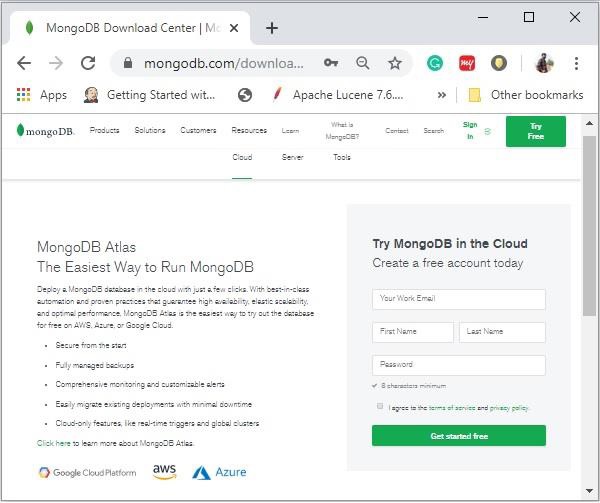
Enter the required details, select the Server tab, in it you can choose the version of MongoDB, operating system and, packaging as:
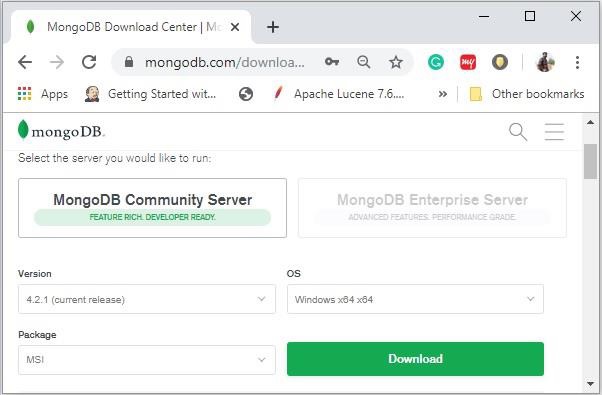
Now install the downloaded file, by default, it will be installed in the folder C:\Program Files\.
MongoDB requires a data folder to store its files. The default location for the MongoDB data directory is c:\data\db. So you need to create this folder using the Command Prompt. Execute the following command sequence.
C:\>md data C:\md data\db
Then you need to specify set the dbpath to the created directory in mongod.exe. For the same, issue the following commands.
In the command prompt, navigate to the bin directory current in the MongoDB installation folder. Suppose my installation folder is C:\Program Files\MongoDB
C:\Users\XYZ>d:cd C:\Program Files\MongoDB\Server\4.2\bin C:\Program Files\MongoDB\Server\4.2\bin>mongod.exe --dbpath "C:\data"
This will show waiting for connections message on the console output, which indicates that the mongod.exe process is running successfully.
Now to run the MongoDB, you need to open another command prompt and issue the following command.
C:\Program Files\MongoDB\Server\4.2\bin>mongo.exe MongoDB shell version v4.2.1 connecting to: mongodb://127.0.0.1:27017/?compressors=disabled&gssapiServiceName=mongodb Implicit session: session { "id" : UUID("4260beda-f662-4cbe-9bc7-5c1f2242663c") } MongoDB server version: 4.2.1 > This will show that MongoDB is installed and run successfully. Next time when you run MongoDB, you need to issue only commands.
C:\Program Files\MongoDB\Server\4.2\bin>mongod.exe --dbpath "C:\data" C:\Program Files\MongoDB\Server\4.2\bin>mongo.exe
Install MongoDB on Ubuntu
Run the following command to import the MongoDB public GPG key −
sudo apt-key adv --keyserver hkp://keyserver.ubuntu.com:80 --recv 7F0CEB10
Create a /etc/apt/sources.list.d/mongodb.list file using the following command.
echo 'deb http://downloads-distro.mongodb.org/repo/ubuntu-upstart dist 10gen' | sudo tee /etc/apt/sources.list.d/mongodb.list
Now issue the following command to update the repository −
sudo apt-get update
Next install the MongoDB by using the following command −
apt-get install mongodb-10gen = 4.2
In the above installation, 2.2.3 is currently released MongoDB version. Make sure to install the latest version always. Now MongoDB is installed successfully.
Start MongoDB
sudo service mongodb start
Stop MongoDB
sudo service mongodb stop
Restart MongoDB
sudo service mongodb restart
To use MongoDB run the following command.
mongo
This will connect you to running MongoDB instance.
MongoDB Help
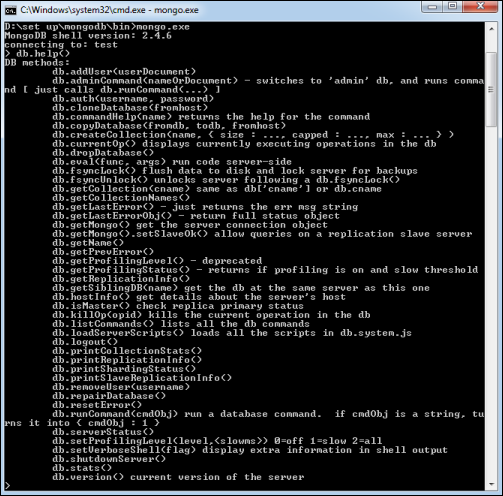
To get a list of commands, type db.help() in MongoDB client. This will give you a list of commands as shown in the following screenshot.
MongoDB Statistics
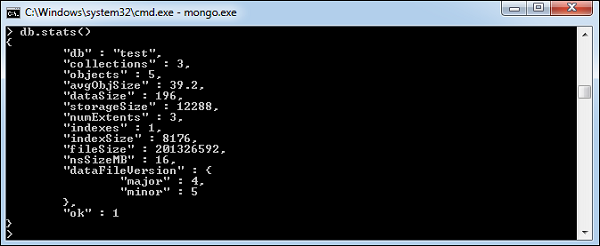
To get stats about MongoDB server, type the command db.stats() in MongoDB client. This will show the database name, number of collection and documents in the database. Output of the command is shown in the following screenshot.