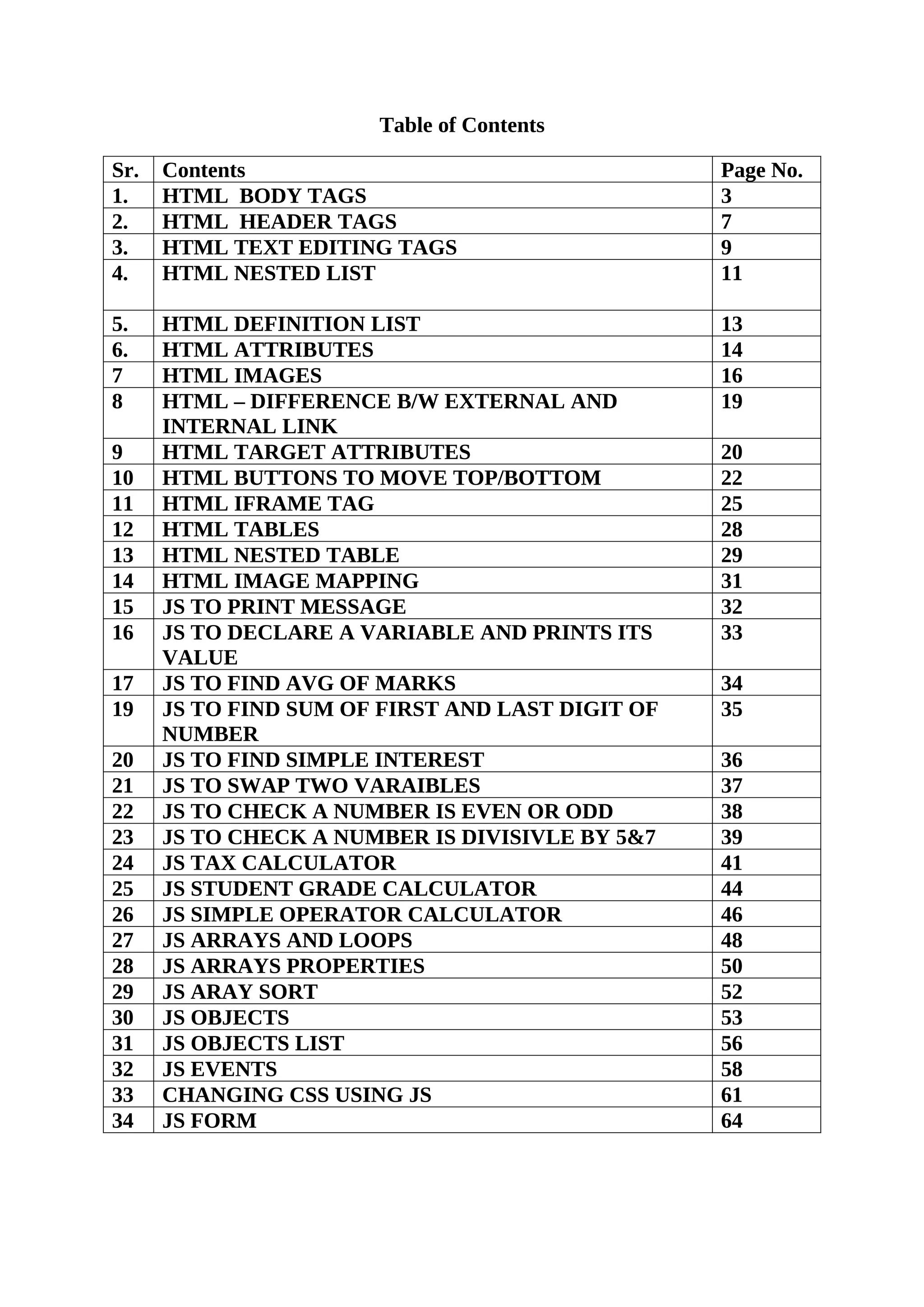
Table of Contents Sr. Contents Page No. 1. HTML BODY TAGS 3 2. HTML HEADER TAGS 7 3. HTML TEXT EDITING TAGS 9 4. HTML NESTED LIST 11 5. HTML DEFINITION LIST 13 6. HTML ATTRIBUTES 14 7 HTML IMAGES 16 8 HTML – DIFFERENCE B/W EXTERNAL AND INTERNAL LINK 19 9 HTML TARGET ATTRIBUTES 20 10 HTML BUTTONS TO MOVE TOP/BOTTOM 22 11 HTML IFRAME TAG 25 12 HTML TABLES 28 13 HTML NESTED TABLE 29 14 HTML IMAGE MAPPING 31 15 JS TO PRINT MESSAGE 32 16 JS TO DECLARE A VARIABLE AND PRINTS ITS VALUE 33 17 JS TO FIND AVG OF MARKS 34 19 JS TO FIND SUM OF FIRST AND LAST DIGIT OF NUMBER 35 20 JS TO FIND SIMPLE INTEREST 36 21 JS TO SWAP TWO VARAIBLES 37 22 JS TO CHECK A NUMBER IS EVEN OR ODD 38 23 JS TO CHECK A NUMBER IS DIVISIVLE BY 5&7 39 24 JS TAX CALCULATOR 41 25 JS STUDENT GRADE CALCULATOR 44 26 JS SIMPLE OPERATOR CALCULATOR 46 27 JS ARRAYS AND LOOPS 48 28 JS ARRAYS PROPERTIES 50 29 JS ARAY SORT 52 30 JS OBJECTS 53 31 JS OBJECTS LIST 56 32 JS EVENTS 58 33 CHANGING CSS USING JS 61 34 JS FORM 64
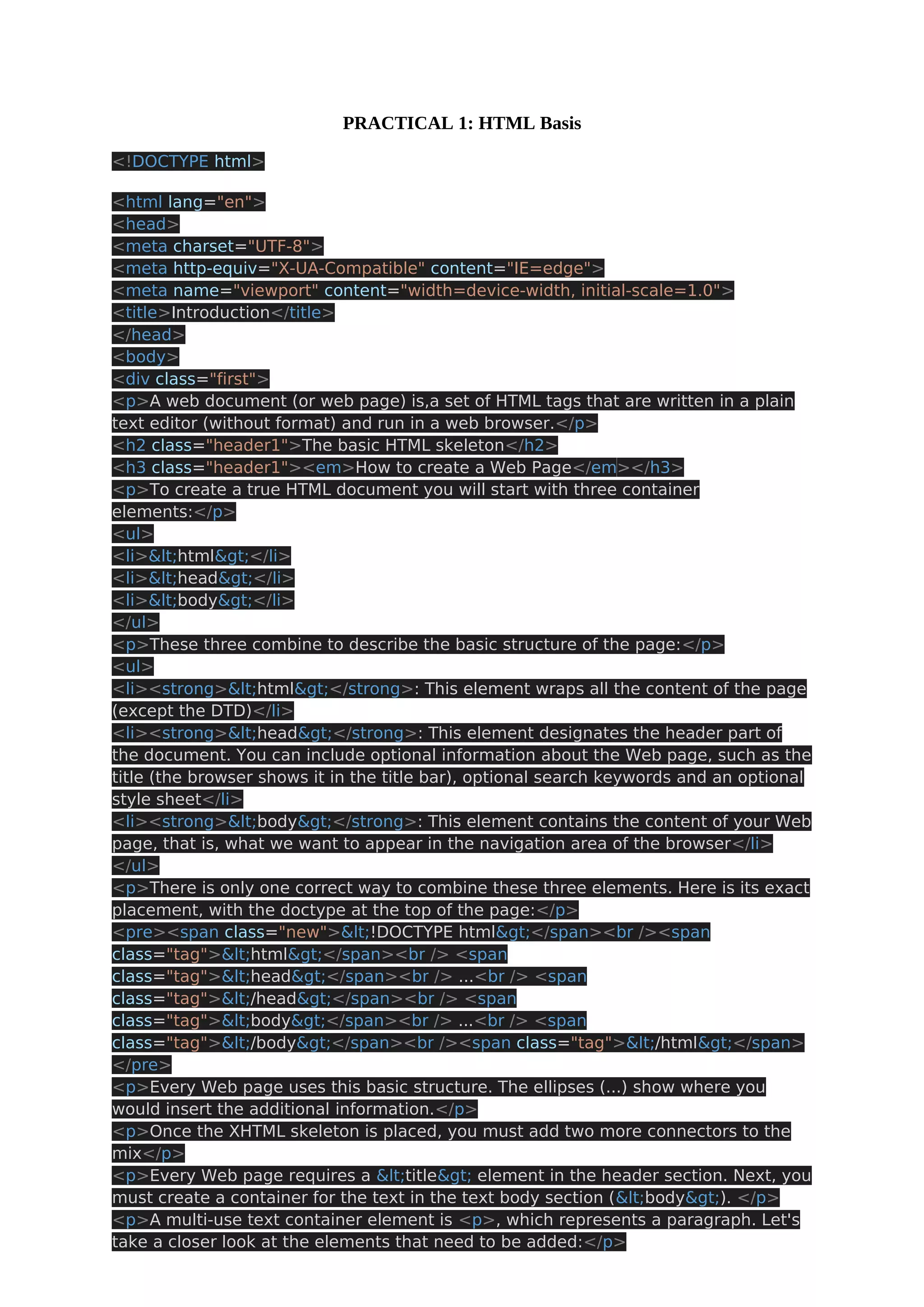
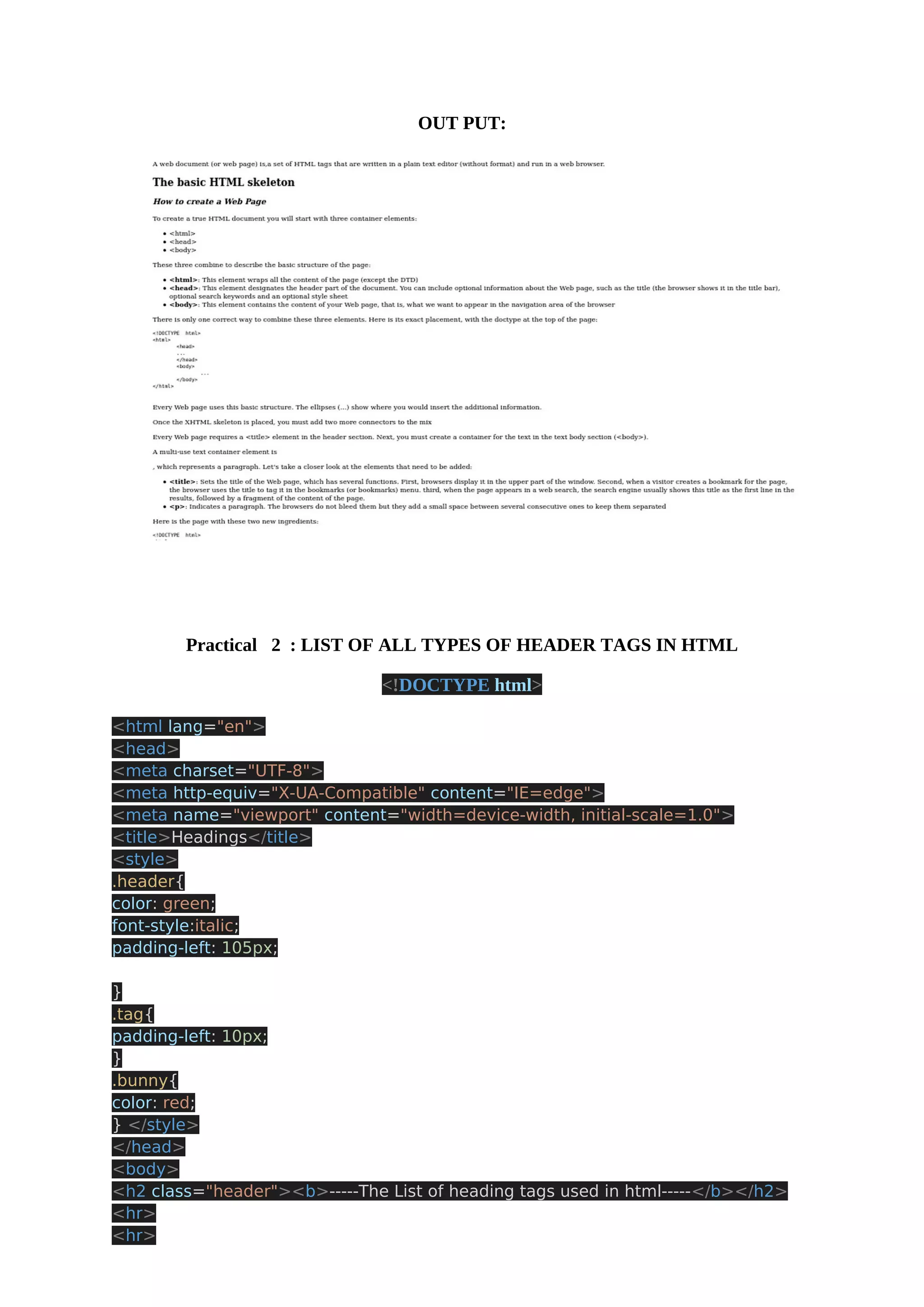
PRACTICAL 1: HTML Basis <!DOCTYPE html> <html lang="en"> <head> <meta charset="UTF-8"> <meta http-equiv="X-UA-Compatible" content="IE=edge"> <meta name="viewport" content="width=device-width, initial-scale=1.0"> <title>Introduction</title> </head> <body> <div class="first"> <p>A web document (or web page) is,a set of HTML tags that are written in a plain text editor (without format) and run in a web browser.</p> <h2 class="header1">The basic HTML skeleton</h2> <h3 class="header1"><em>How to create a Web Page</em></h3> <p>To create a true HTML document you will start with three container elements:</p> <ul> <li>&lt;html&gt;</li> <li>&lt;head&gt;</li> <li>&lt;body&gt;</li> </ul> <p>These three combine to describe the basic structure of the page:</p> <ul> <li><strong>&lt;html&gt;</strong>: This element wraps all the content of the page (except the DTD)</li> <li><strong>&lt;head&gt;</strong>: This element designates the header part of the document. You can include optional information about the Web page, such as the title (the browser shows it in the title bar), optional search keywords and an optional style sheet</li> <li><strong>&lt;body&gt;</strong>: This element contains the content of your Web page, that is, what we want to appear in the navigation area of the browser</li> </ul> <p>There is only one correct way to combine these three elements. Here is its exact placement, with the doctype at the top of the page:</p> <pre><span class="new">&lt;!DOCTYPE html&gt;</span><br /><span class="tag">&lt;html&gt;</span><br /> <span class="tag">&lt;head&gt;</span><br /> ...<br /> <span class="tag">&lt;/head&gt;</span><br /> <span class="tag">&lt;body&gt;</span><br /> ...<br /> <span class="tag">&lt;/body&gt;</span><br /><span class="tag">&lt;/html&gt;</span> </pre> <p>Every Web page uses this basic structure. The ellipses (...) show where you would insert the additional information.</p> <p>Once the XHTML skeleton is placed, you must add two more connectors to the mix</p> <p>Every Web page requires a &lt;title&gt; element in the header section. Next, you must create a container for the text in the text body section (&lt;body&gt;). </p> <p>A multi-use text container element is <p>, which represents a paragraph. Let's take a closer look at the elements that need to be added:</p>
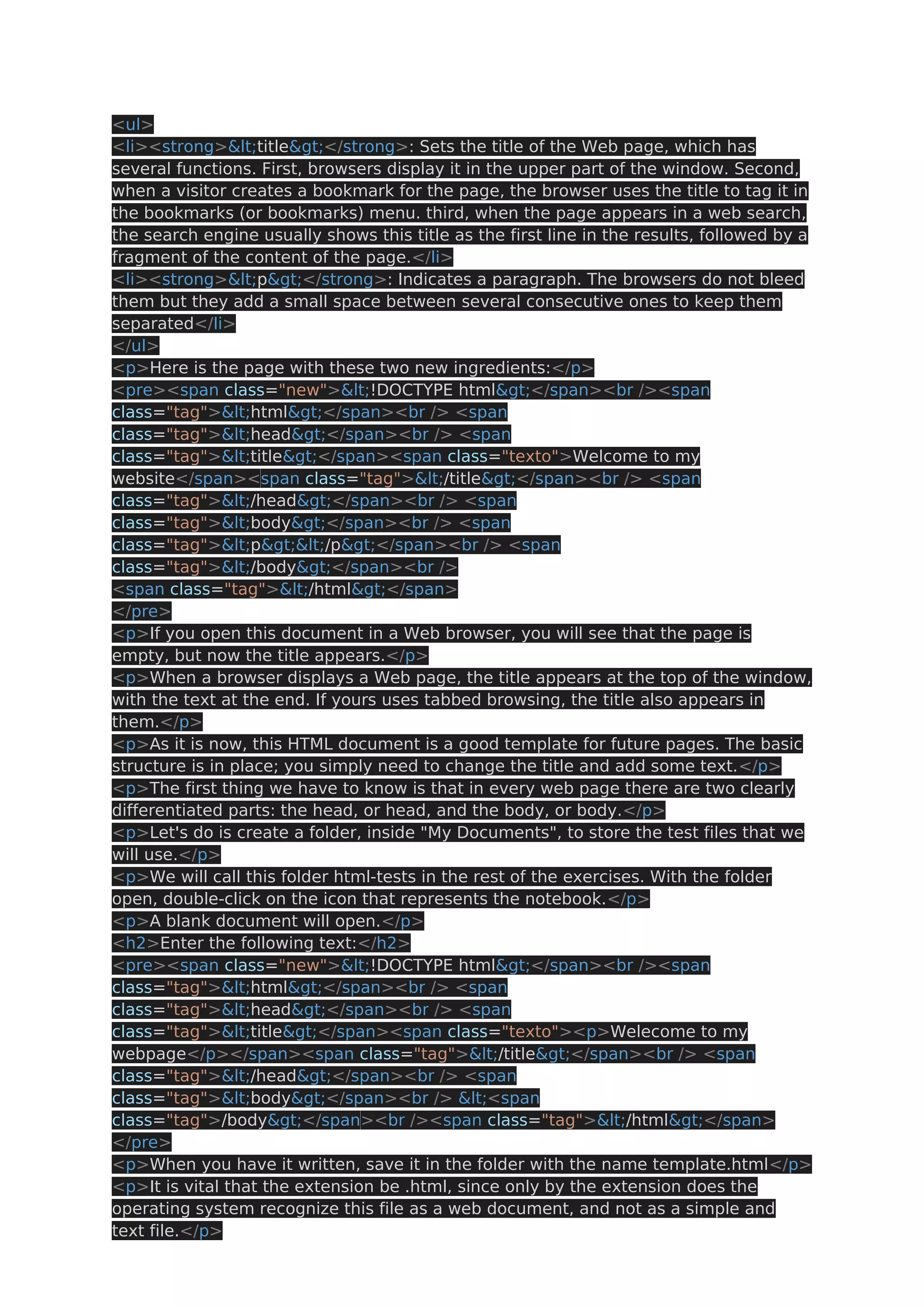
<ul> <li><strong>&lt;title&gt;</strong>: Sets the title of the Web page, which has several functions. First, browsers display it in the upper part of the window. Second, when a visitor creates a bookmark for the page, the browser uses the title to tag it in the bookmarks (or bookmarks) menu. third, when the page appears in a web search, the search engine usually shows this title as the first line in the results, followed by a fragment of the content of the page.</li> <li><strong>&lt;p&gt;</strong>: Indicates a paragraph. The browsers do not bleed them but they add a small space between several consecutive ones to keep them separated</li> </ul> <p>Here is the page with these two new ingredients:</p> <pre><span class="new">&lt;!DOCTYPE html&gt;</span><br /><span class="tag">&lt;html&gt;</span><br /> <span class="tag">&lt;head&gt;</span><br /> <span class="tag">&lt;title&gt;</span><span class="texto">Welcome to my website</span><span class="tag">&lt;/title&gt;</span><br /> <span class="tag">&lt;/head&gt;</span><br /> <span class="tag">&lt;body&gt;</span><br /> <span class="tag">&lt;p&gt;&lt;/p&gt;</span><br /> <span class="tag">&lt;/body&gt;</span><br /> <span class="tag">&lt;/html&gt;</span> </pre> <p>If you open this document in a Web browser, you will see that the page is empty, but now the title appears.</p> <p>When a browser displays a Web page, the title appears at the top of the window, with the text at the end. If yours uses tabbed browsing, the title also appears in them.</p> <p>As it is now, this HTML document is a good template for future pages. The basic structure is in place; you simply need to change the title and add some text.</p> <p>The first thing we have to know is that in every web page there are two clearly differentiated parts: the head, or head, and the body, or body.</p> <p>Let's do is create a folder, inside "My Documents", to store the test files that we will use.</p> <p>We will call this folder html-tests in the rest of the exercises. With the folder open, double-click on the icon that represents the notebook.</p> <p>A blank document will open.</p> <h2>Enter the following text:</h2> <pre><span class="new">&lt;!DOCTYPE html&gt;</span><br /><span class="tag">&lt;html&gt;</span><br /> <span class="tag">&lt;head&gt;</span><br /> <span class="tag">&lt;title&gt;</span><span class="texto"><p>Welecome to my webpage</p></span><span class="tag">&lt;/title&gt;</span><br /> <span class="tag">&lt;/head&gt;</span><br /> <span class="tag">&lt;body&gt;</span><br /> &lt;<span class="tag">/body&gt;</span><br /><span class="tag">&lt;/html&gt;</span> </pre> <p>When you have it written, save it in the folder with the name template.html</p> <p>It is vital that the extension be .html, since only by the extension does the operating system recognize this file as a web document, and not as a simple and text file.</p>
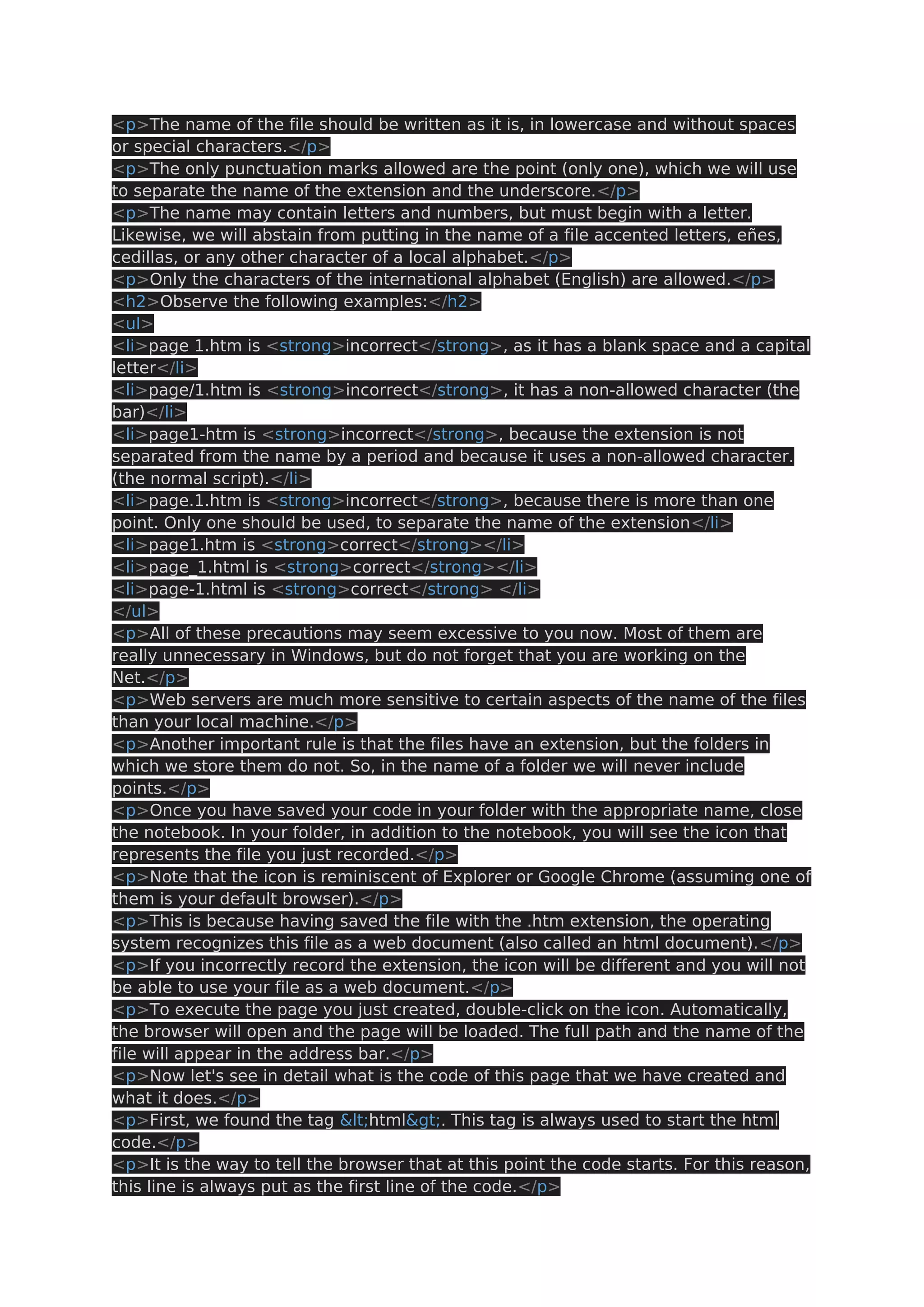
<p>The name of the file should be written as it is, in lowercase and without spaces or special characters.</p> <p>The only punctuation marks allowed are the point (only one), which we will use to separate the name of the extension and the underscore.</p> <p>The name may contain letters and numbers, but must begin with a letter. Likewise, we will abstain from putting in the name of a file accented letters, eñes, cedillas, or any other character of a local alphabet.</p> <p>Only the characters of the international alphabet (English) are allowed.</p> <h2>Observe the following examples:</h2> <ul> <li>page 1.htm is <strong>incorrect</strong>, as it has a blank space and a capital letter</li> <li>page/1.htm is <strong>incorrect</strong>, it has a non-allowed character (the bar)</li> <li>page1-htm is <strong>incorrect</strong>, because the extension is not separated from the name by a period and because it uses a non-allowed character. (the normal script).</li> <li>page.1.htm is <strong>incorrect</strong>, because there is more than one point. Only one should be used, to separate the name of the extension</li> <li>page1.htm is <strong>correct</strong></li> <li>page_1.html is <strong>correct</strong></li> <li>page-1.html is <strong>correct</strong> </li> </ul> <p>All of these precautions may seem excessive to you now. Most of them are really unnecessary in Windows, but do not forget that you are working on the Net.</p> <p>Web servers are much more sensitive to certain aspects of the name of the files than your local machine.</p> <p>Another important rule is that the files have an extension, but the folders in which we store them do not. So, in the name of a folder we will never include points.</p> <p>Once you have saved your code in your folder with the appropriate name, close the notebook. In your folder, in addition to the notebook, you will see the icon that represents the file you just recorded.</p> <p>Note that the icon is reminiscent of Explorer or Google Chrome (assuming one of them is your default browser).</p> <p>This is because having saved the file with the .htm extension, the operating system recognizes this file as a web document (also called an html document).</p> <p>If you incorrectly record the extension, the icon will be different and you will not be able to use your file as a web document.</p> <p>To execute the page you just created, double-click on the icon. Automatically, the browser will open and the page will be loaded. The full path and the name of the file will appear in the address bar.</p> <p>Now let's see in detail what is the code of this page that we have created and what it does.</p> <p>First, we found the tag &lt;html&gt;. This tag is always used to start the html code.</p> <p>It is the way to tell the browser that at this point the code starts. For this reason, this line is always put as the first line of the code.</p>
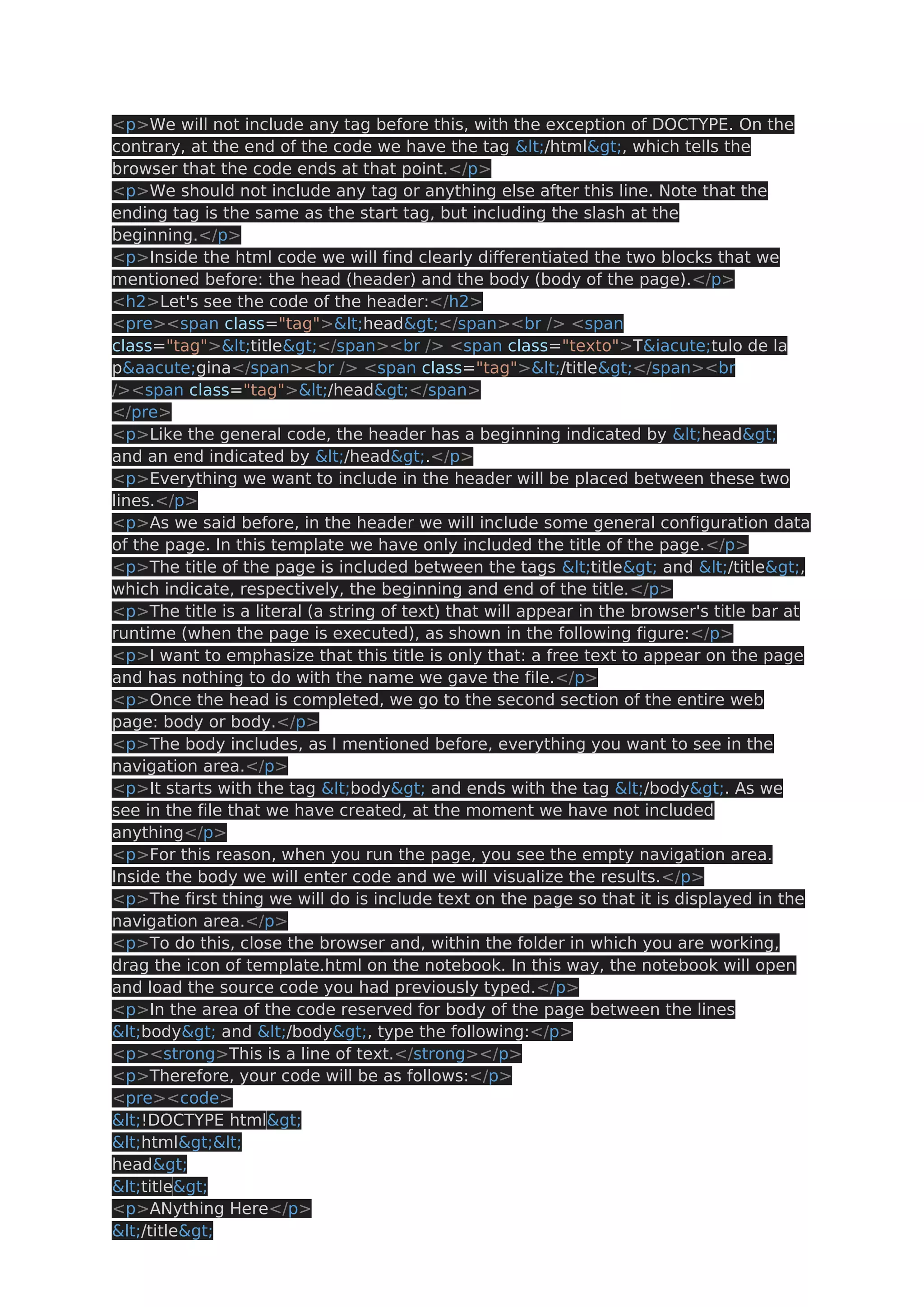
<p>We will not include any tag before this, with the exception of DOCTYPE. On the contrary, at the end of the code we have the tag &lt;/html&gt;, which tells the browser that the code ends at that point.</p> <p>We should not include any tag or anything else after this line. Note that the ending tag is the same as the start tag, but including the slash at the beginning.</p> <p>Inside the html code we will find clearly differentiated the two blocks that we mentioned before: the head (header) and the body (body of the page).</p> <h2>Let's see the code of the header:</h2> <pre><span class="tag">&lt;head&gt;</span><br /> <span class="tag">&lt;title&gt;</span><br /> <span class="texto">T&iacute;tulo de la p&aacute;gina</span><br /> <span class="tag">&lt;/title&gt;</span><br /><span class="tag">&lt;/head&gt;</span> </pre> <p>Like the general code, the header has a beginning indicated by &lt;head&gt; and an end indicated by &lt;/head&gt;.</p> <p>Everything we want to include in the header will be placed between these two lines.</p> <p>As we said before, in the header we will include some general configuration data of the page. In this template we have only included the title of the page.</p> <p>The title of the page is included between the tags &lt;title&gt; and &lt;/title&gt;, which indicate, respectively, the beginning and end of the title.</p> <p>The title is a literal (a string of text) that will appear in the browser's title bar at runtime (when the page is executed), as shown in the following figure:</p> <p>I want to emphasize that this title is only that: a free text to appear on the page and has nothing to do with the name we gave the file.</p> <p>Once the head is completed, we go to the second section of the entire web page: body or body.</p> <p>The body includes, as I mentioned before, everything you want to see in the navigation area.</p> <p>It starts with the tag &lt;body&gt; and ends with the tag &lt;/body&gt;. As we see in the file that we have created, at the moment we have not included anything</p> <p>For this reason, when you run the page, you see the empty navigation area. Inside the body we will enter code and we will visualize the results.</p> <p>The first thing we will do is include text on the page so that it is displayed in the navigation area.</p> <p>To do this, close the browser and, within the folder in which you are working, drag the icon of template.html on the notebook. In this way, the notebook will open and load the source code you had previously typed.</p> <p>In the area of the code reserved for body of the page between the lines &lt;body&gt; and &lt;/body&gt;, type the following:</p> <p><strong>This is a line of text.</strong></p> <p>Therefore, your code will be as follows:</p> <pre><code> &lt;!DOCTYPE html&gt; &lt;html&gt;&lt; head&gt; &lt;title&gt; <p>ANything Here</p> &lt;/title&gt;
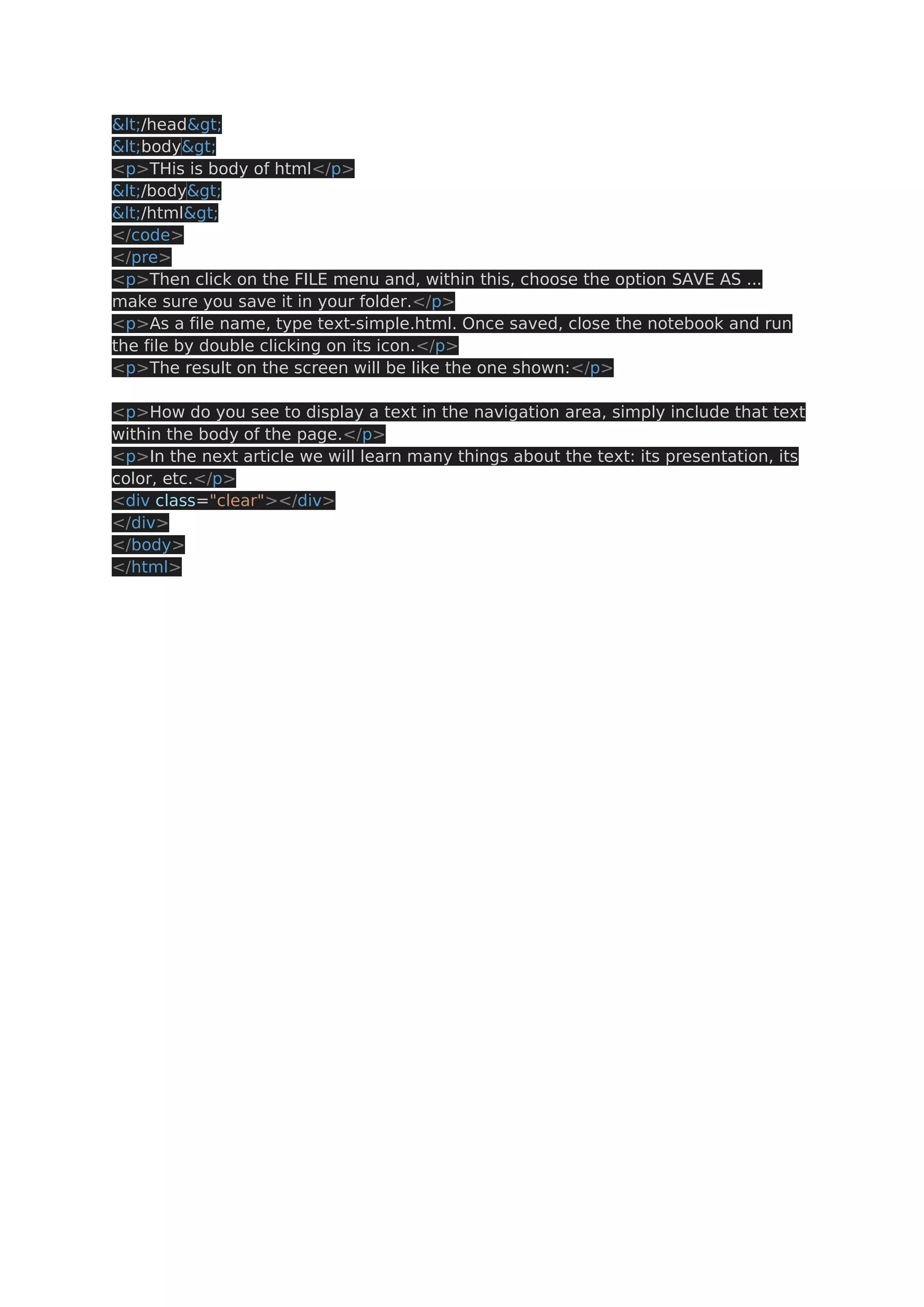
&lt;/head&gt; &lt;body&gt; <p>THis is body of html</p> &lt;/body&gt; &lt;/html&gt; </code> </pre> <p>Then click on the FILE menu and, within this, choose the option SAVE AS ... make sure you save it in your folder.</p> <p>As a file name, type text-simple.html. Once saved, close the notebook and run the file by double clicking on its icon.</p> <p>The result on the screen will be like the one shown:</p> <p>How do you see to display a text in the navigation area, simply include that text within the body of the page.</p> <p>In the next article we will learn many things about the text: its presentation, its color, etc.</p> <div class="clear"></div> </div> </body> </html>
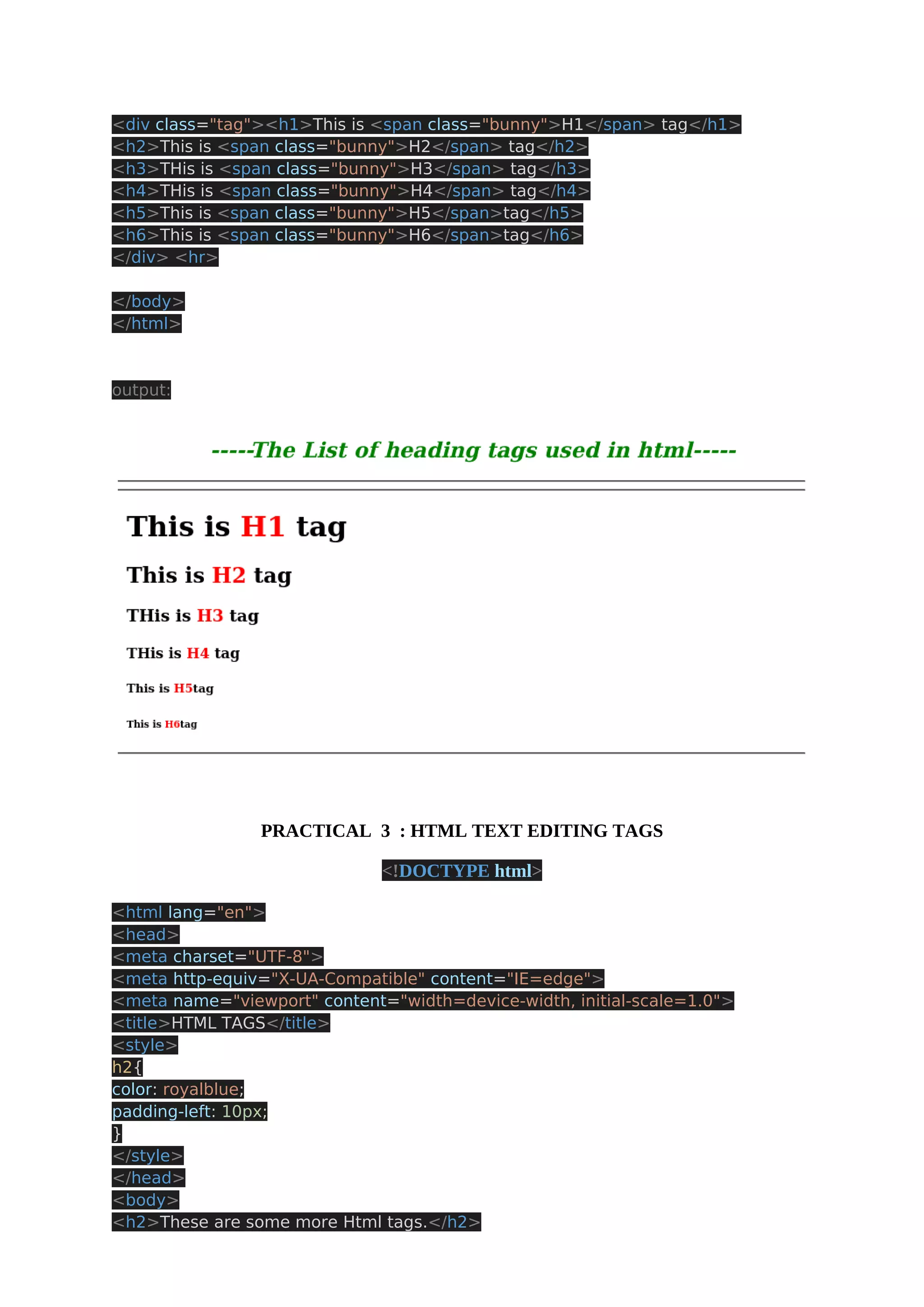
OUT PUT: Practical 2 : LIST OF ALL TYPES OF HEADER TAGS IN HTML <!DOCTYPE html> <html lang="en"> <head> <meta charset="UTF-8"> <meta http-equiv="X-UA-Compatible" content="IE=edge"> <meta name="viewport" content="width=device-width, initial-scale=1.0"> <title>Headings</title> <style> .header{ color: green; font-style:italic; padding-left: 105px; } .tag{ padding-left: 10px; } .bunny{ color: red; } </style> </head> <body> <h2 class="header"><b>-----The List of heading tags used in html-----</b></h2> <hr> <hr>
<div class="tag"><h1>This is <span class="bunny">H1</span> tag</h1> <h2>This is <span class="bunny">H2</span> tag</h2> <h3>THis is <span class="bunny">H3</span> tag</h3> <h4>THis is <span class="bunny">H4</span> tag</h4> <h5>This is <span class="bunny">H5</span>tag</h5> <h6>This is <span class="bunny">H6</span>tag</h6> </div> <hr> </body> </html> output: PRACTICAL 3 : HTML TEXT EDITING TAGS <!DOCTYPE html> <html lang="en"> <head> <meta charset="UTF-8"> <meta http-equiv="X-UA-Compatible" content="IE=edge"> <meta name="viewport" content="width=device-width, initial-scale=1.0"> <title>HTML TAGS</title> <style> h2{ color: royalblue; padding-left: 10px; } </style> </head> <body> <h2>These are some more Html tags.</h2>
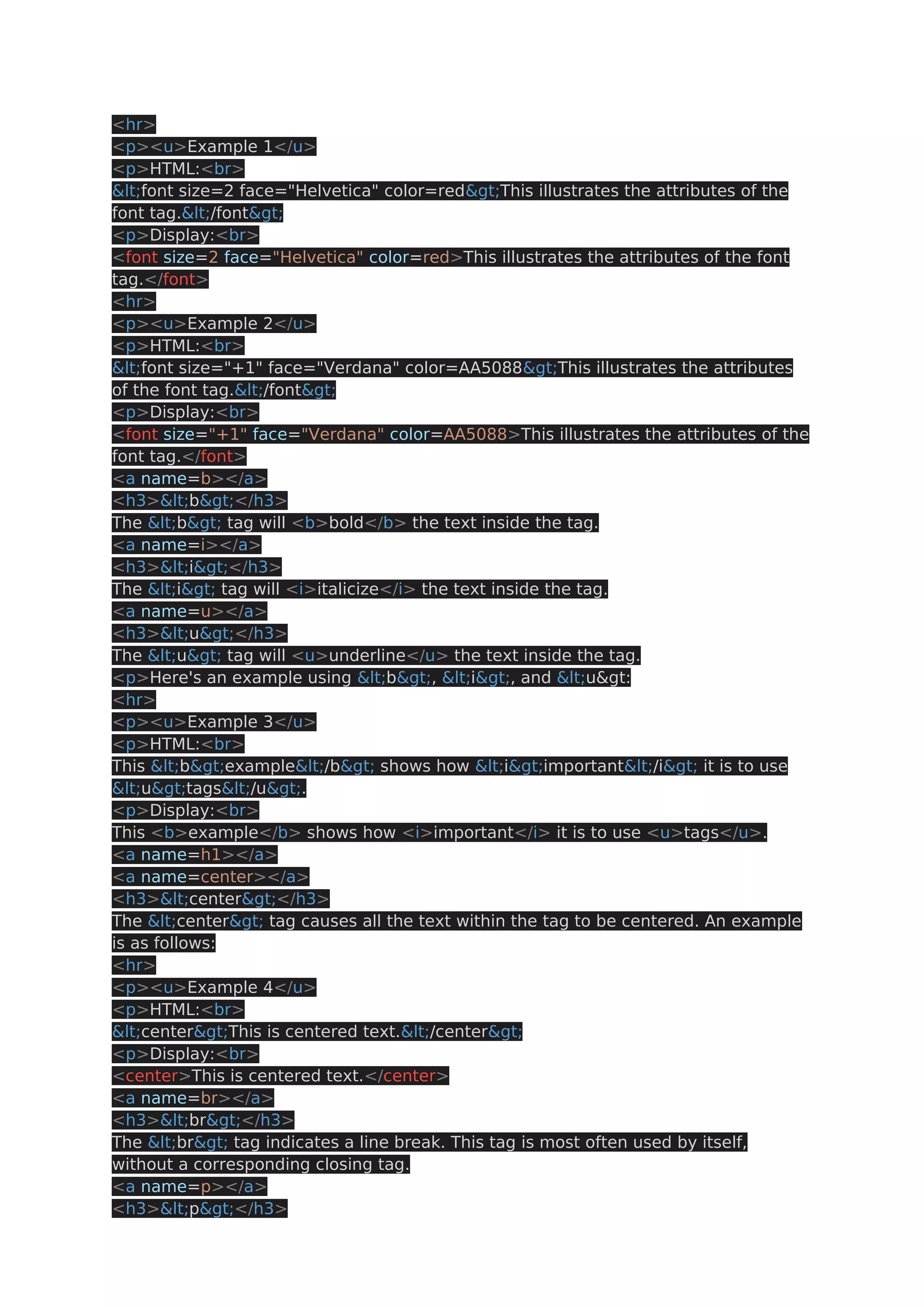
<hr> <p><u>Example 1</u> <p>HTML:<br> &lt;font size=2 face="Helvetica" color=red&gt;This illustrates the attributes of the font tag.&lt;/font&gt; <p>Display:<br> <font size=2 face="Helvetica" color=red>This illustrates the attributes of the font tag.</font> <hr> <p><u>Example 2</u> <p>HTML:<br> &lt;font size="+1" face="Verdana" color=AA5088&gt;This illustrates the attributes of the font tag.&lt;/font&gt; <p>Display:<br> <font size="+1" face="Verdana" color=AA5088>This illustrates the attributes of the font tag.</font> <a name=b></a> <h3>&lt;b&gt;</h3> The &lt;b&gt; tag will <b>bold</b> the text inside the tag. <a name=i></a> <h3>&lt;i&gt;</h3> The &lt;i&gt; tag will <i>italicize</i> the text inside the tag. <a name=u></a> <h3>&lt;u&gt;</h3> The &lt;u&gt; tag will <u>underline</u> the text inside the tag. <p>Here's an example using &lt;b&gt;, &lt;i&gt;, and &lt;u&gt: <hr> <p><u>Example 3</u> <p>HTML:<br> This &lt;b&gt;example&lt;/b&gt; shows how &lt;i&gt;important&lt;/i&gt; it is to use &lt;u&gt;tags&lt;/u&gt;. <p>Display:<br> This <b>example</b> shows how <i>important</i> it is to use <u>tags</u>. <a name=h1></a> <a name=center></a> <h3>&lt;center&gt;</h3> The &lt;center&gt; tag causes all the text within the tag to be centered. An example is as follows: <hr> <p><u>Example 4</u> <p>HTML:<br> &lt;center&gt;This is centered text.&lt;/center&gt; <p>Display:<br> <center>This is centered text.</center> <a name=br></a> <h3>&lt;br&gt;</h3> The &lt;br&gt; tag indicates a line break. This tag is most often used by itself, without a corresponding closing tag. <a name=p></a> <h3>&lt;p&gt;</h3>
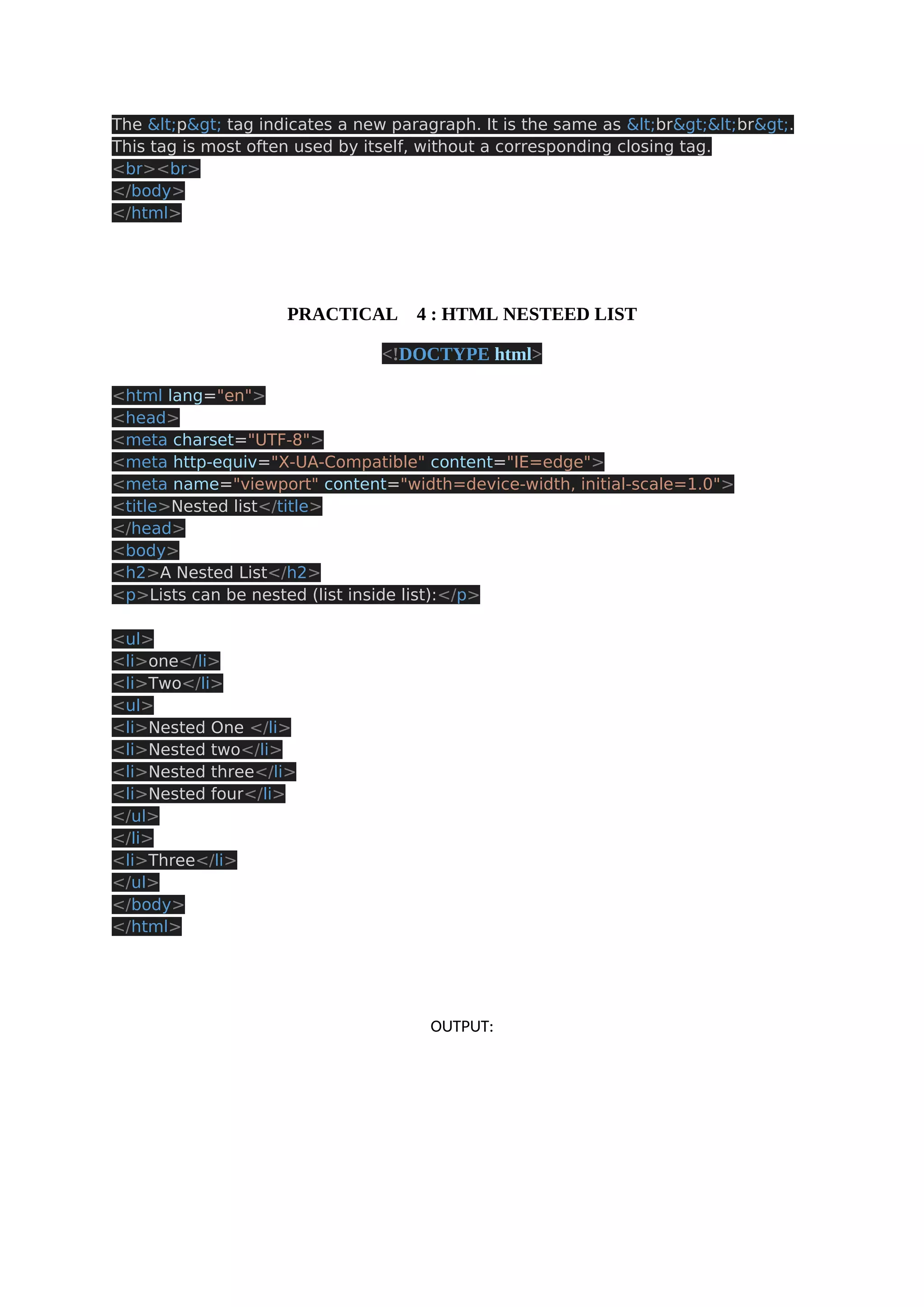
The &lt;p&gt; tag indicates a new paragraph. It is the same as &lt;br&gt;&lt;br&gt;. This tag is most often used by itself, without a corresponding closing tag. <br><br> </body> </html> PRACTICAL 4 : HTML NESTEED LIST <!DOCTYPE html> <html lang="en"> <head> <meta charset="UTF-8"> <meta http-equiv="X-UA-Compatible" content="IE=edge"> <meta name="viewport" content="width=device-width, initial-scale=1.0"> <title>Nested list</title> </head> <body> <h2>A Nested List</h2> <p>Lists can be nested (list inside list):</p> <ul> <li>one</li> <li>Two</li> <ul> <li>Nested One </li> <li>Nested two</li> <li>Nested three</li> <li>Nested four</li> </ul> </li> <li>Three</li> </ul> </body> </html> OUTPUT:
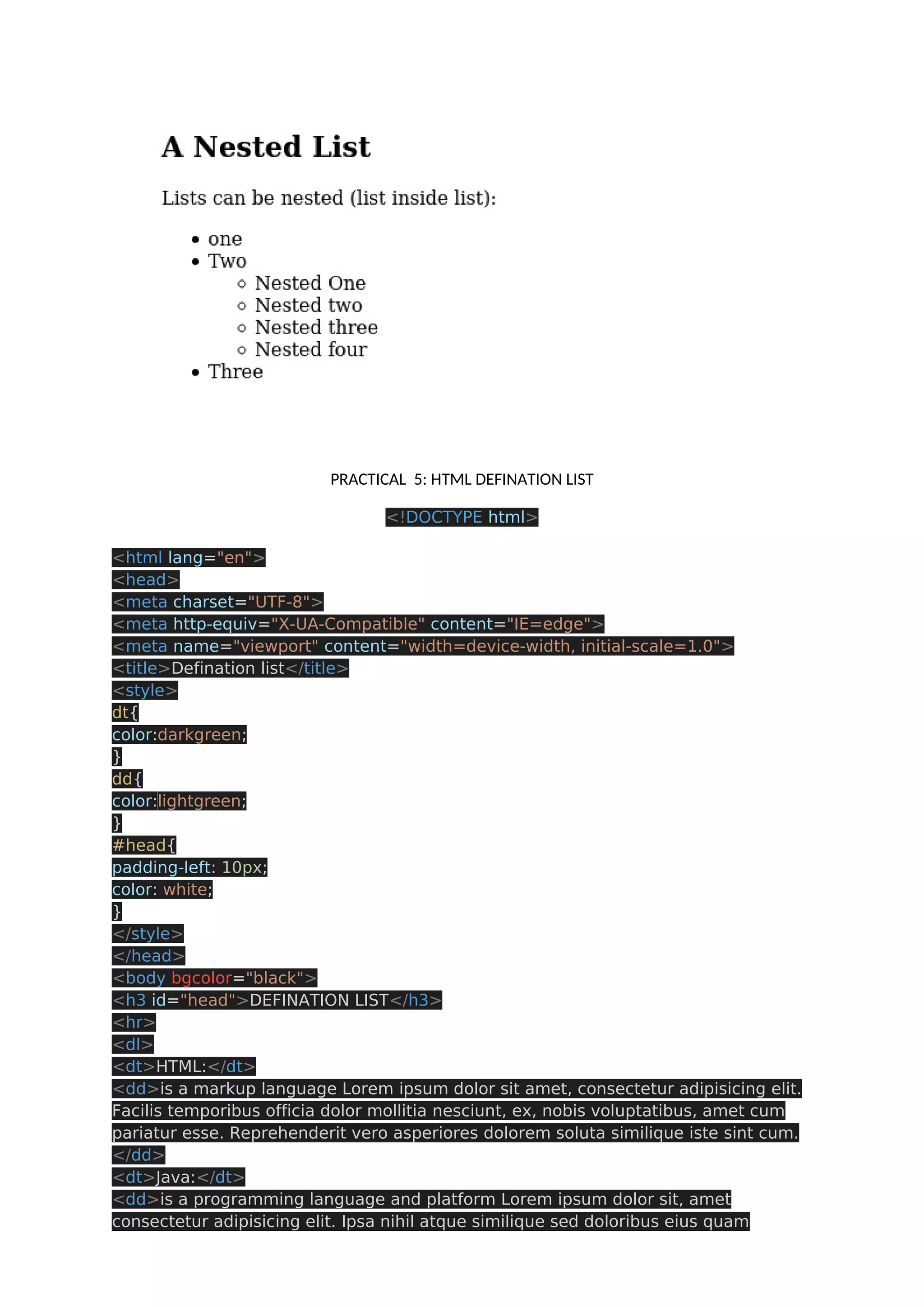
PRACTICAL 5: HTML DEFINATION LIST <!DOCTYPE html> <html lang="en"> <head> <meta charset="UTF-8"> <meta http-equiv="X-UA-Compatible" content="IE=edge"> <meta name="viewport" content="width=device-width, initial-scale=1.0"> <title>Defination list</title> <style> dt{ color:darkgreen; } dd{ color:lightgreen; } #head{ padding-left: 10px; color: white; } </style> </head> <body bgcolor="black"> <h3 id="head">DEFINATION LIST</h3> <hr> <dl> <dt>HTML:</dt> <dd>is a markup language Lorem ipsum dolor sit amet, consectetur adipisicing elit. Facilis temporibus officia dolor mollitia nesciunt, ex, nobis voluptatibus, amet cum pariatur esse. Reprehenderit vero asperiores dolorem soluta similique iste sint cum. </dd> <dt>Java:</dt> <dd>is a programming language and platform Lorem ipsum dolor sit, amet consectetur adipisicing elit. Ipsa nihil atque similique sed doloribus eius quam
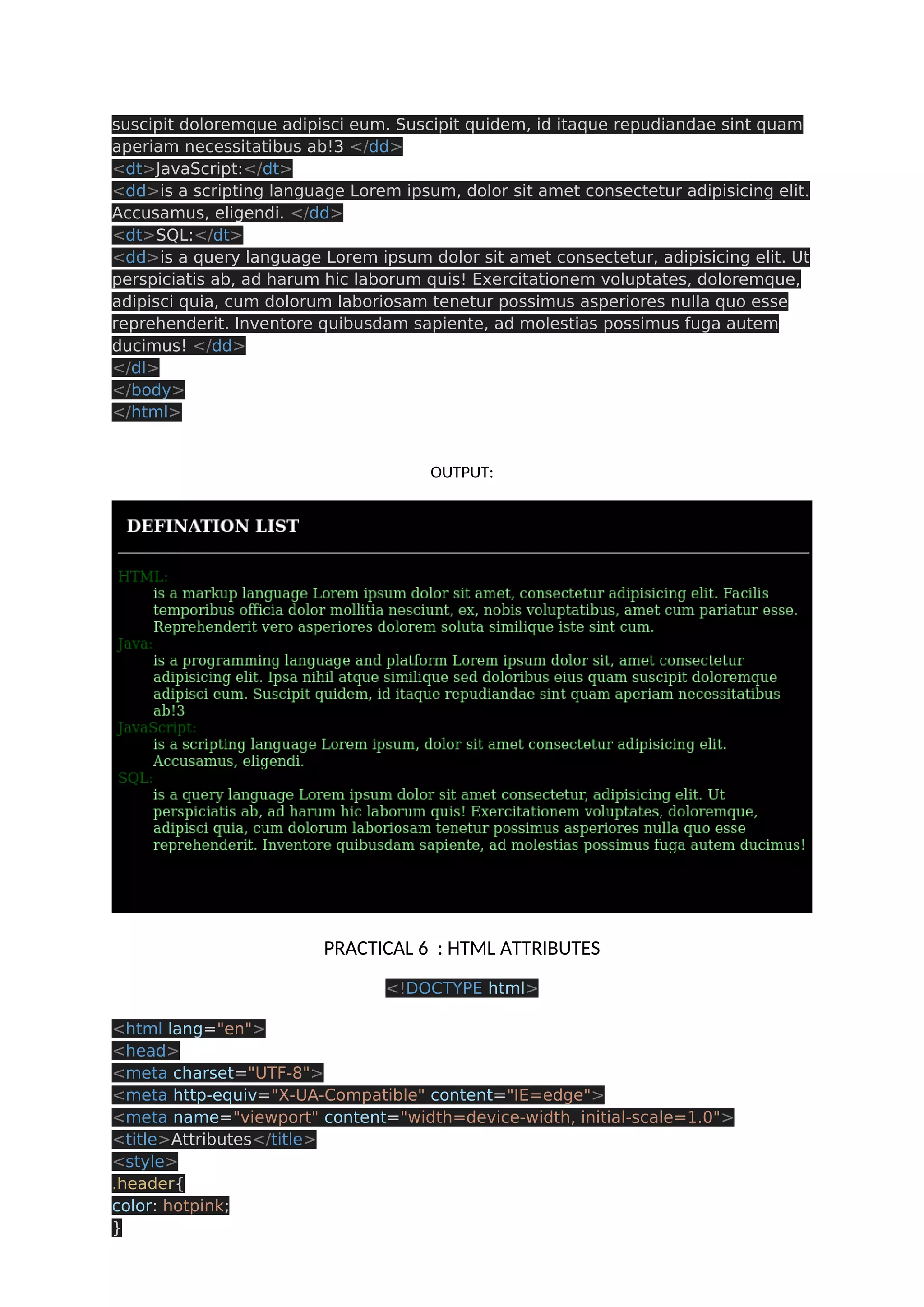
suscipit doloremque adipisci eum. Suscipit quidem, id itaque repudiandae sint quam aperiam necessitatibus ab!3 </dd> <dt>JavaScript:</dt> <dd>is a scripting language Lorem ipsum, dolor sit amet consectetur adipisicing elit. Accusamus, eligendi. </dd> <dt>SQL:</dt> <dd>is a query language Lorem ipsum dolor sit amet consectetur, adipisicing elit. Ut perspiciatis ab, ad harum hic laborum quis! Exercitationem voluptates, doloremque, adipisci quia, cum dolorum laboriosam tenetur possimus asperiores nulla quo esse reprehenderit. Inventore quibusdam sapiente, ad molestias possimus fuga autem ducimus! </dd> </dl> </body> </html> OUTPUT: PRACTICAL 6 : HTML ATTRIBUTES <!DOCTYPE html> <html lang="en"> <head> <meta charset="UTF-8"> <meta http-equiv="X-UA-Compatible" content="IE=edge"> <meta name="viewport" content="width=device-width, initial-scale=1.0"> <title>Attributes</title> <style> .header{ color: hotpink; }
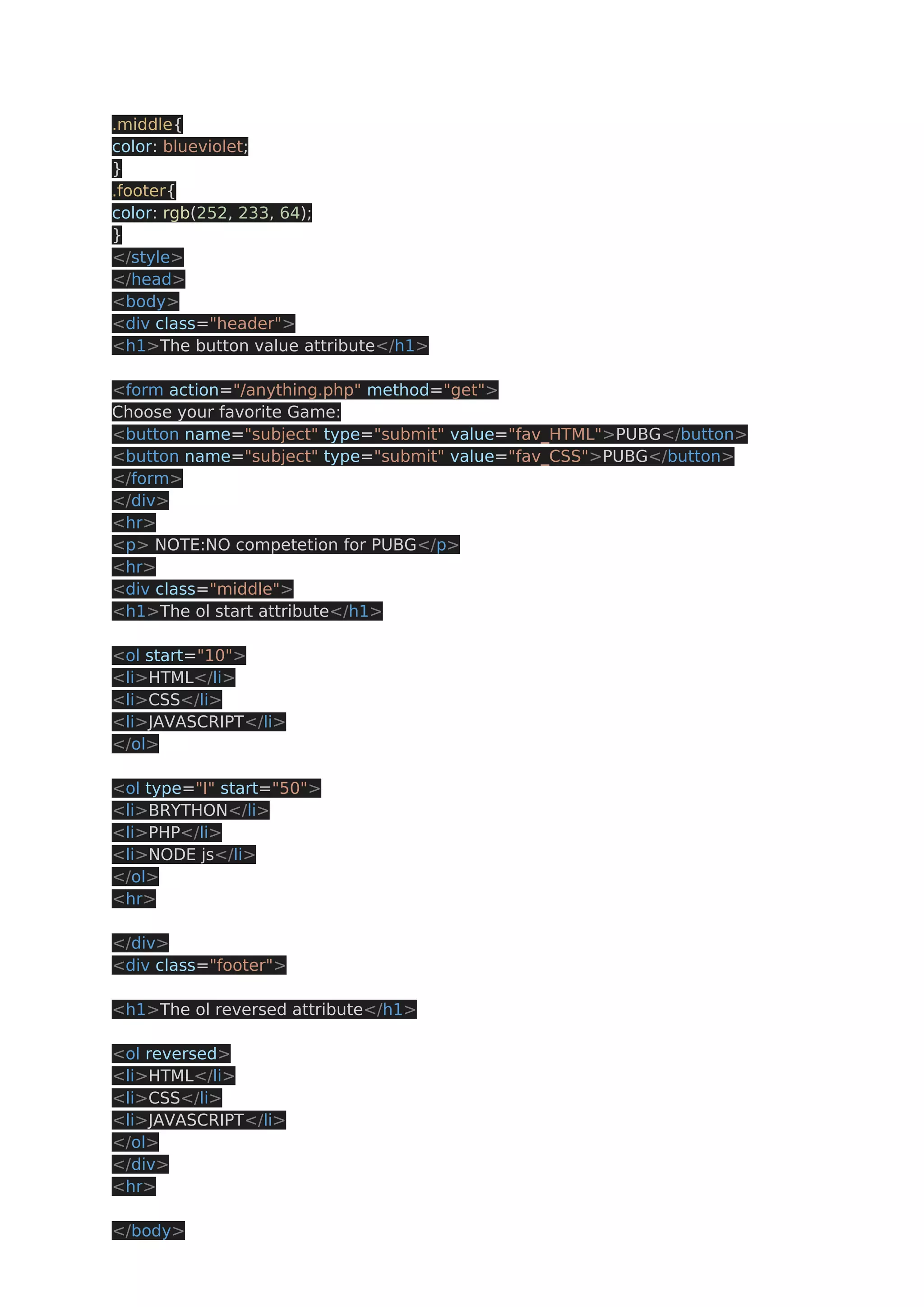
.middle{ color: blueviolet; } .footer{ color: rgb(252, 233, 64); } </style> </head> <body> <div class="header"> <h1>The button value attribute</h1> <form action="/anything.php" method="get"> Choose your favorite Game: <button name="subject" type="submit" value="fav_HTML">PUBG</button> <button name="subject" type="submit" value="fav_CSS">PUBG</button> </form> </div> <hr> <p> NOTE:NO competetion for PUBG</p> <hr> <div class="middle"> <h1>The ol start attribute</h1> <ol start="10"> <li>HTML</li> <li>CSS</li> <li>JAVASCRIPT</li> </ol> <ol type="I" start="50"> <li>BRYTHON</li> <li>PHP</li> <li>NODE js</li> </ol> <hr> </div> <div class="footer"> <h1>The ol reversed attribute</h1> <ol reversed> <li>HTML</li> <li>CSS</li> <li>JAVASCRIPT</li> </ol> </div> <hr> </body>
</html> OUTPUT: PRACTICAL 7 IMAGE AS HYPERLINK <!DOCTYPE html> <html lang="en"> <head> <meta charset="UTF-8"> <meta http-equiv="X-UA-Compatible" content="IE=edge"> <meta name="viewport" content="width=device-width, initial-scale=1.0"> <title>Images</title> </head> <body> <h2>IMAGE AS A HYPERLINK</h2> <hr> <a href="https://unsplash.com/photos/L1YOKkbZ5q0"> <img src="https://images.unsplash.com/photo-1621236505106-1a007ab491b8? ixid=MnwxMjA3fDB8MHxwaG90by1wYWdlfHx8fGVufDB8fHx8&ixlib=rb- 1.2.1&auto=format&fit=crop&w=373&q=80" alt="TURN ON YOUR INTERENT CONNECTION"></a> </body> </html> OUTPUT:
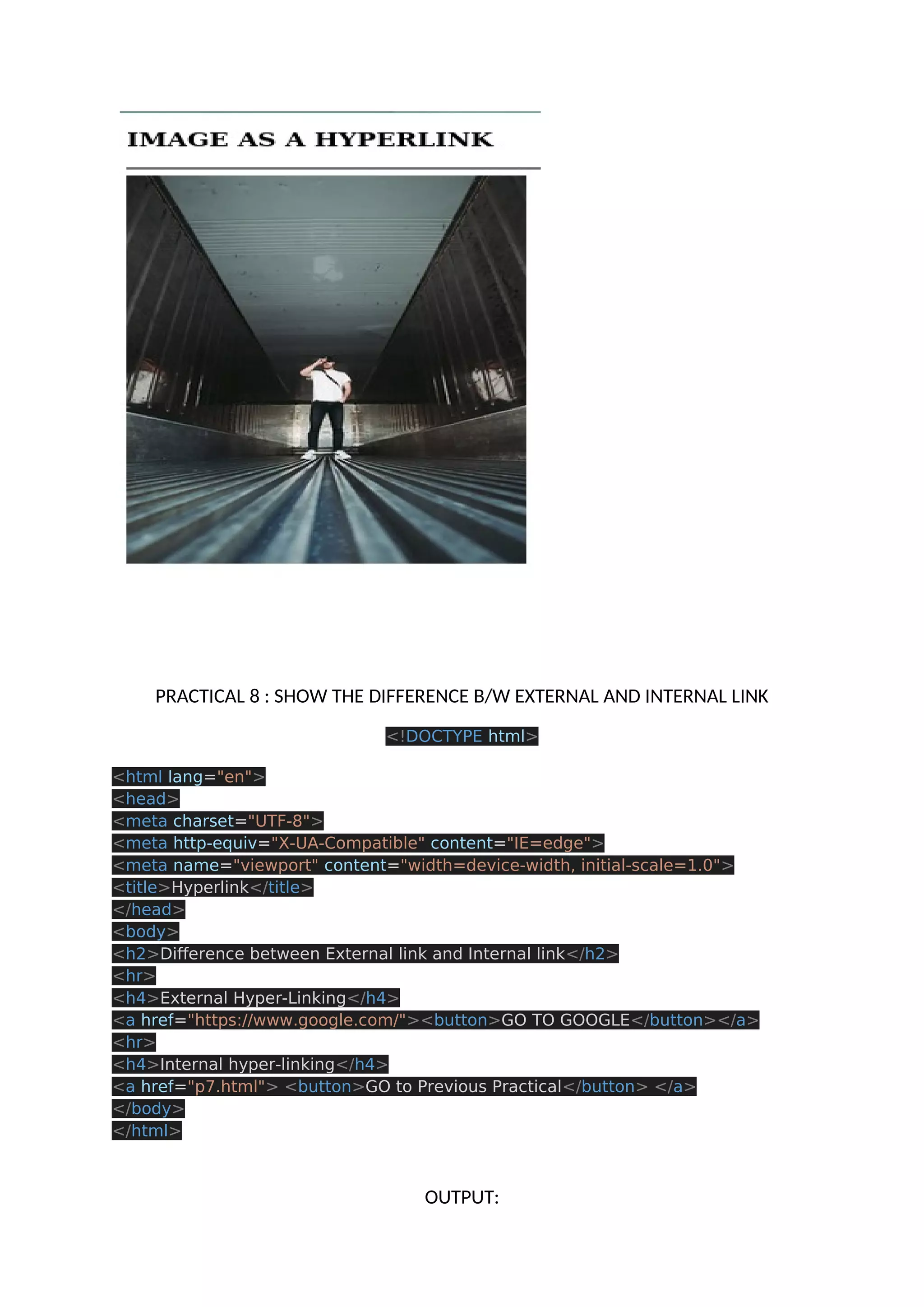
PRACTICAL 8 : SHOW THE DIFFERENCE B/W EXTERNAL AND INTERNAL LINK <!DOCTYPE html> <html lang="en"> <head> <meta charset="UTF-8"> <meta http-equiv="X-UA-Compatible" content="IE=edge"> <meta name="viewport" content="width=device-width, initial-scale=1.0"> <title>Hyperlink</title> </head> <body> <h2>Difference between External link and Internal link</h2> <hr> <h4>External Hyper-Linking</h4> <a href="https://www.google.com/"><button>GO TO GOOGLE</button></a> <hr> <h4>Internal hyper-linking</h4> <a href="p7.html"> <button>GO to Previous Practical</button> </a> </body> </html> OUTPUT:
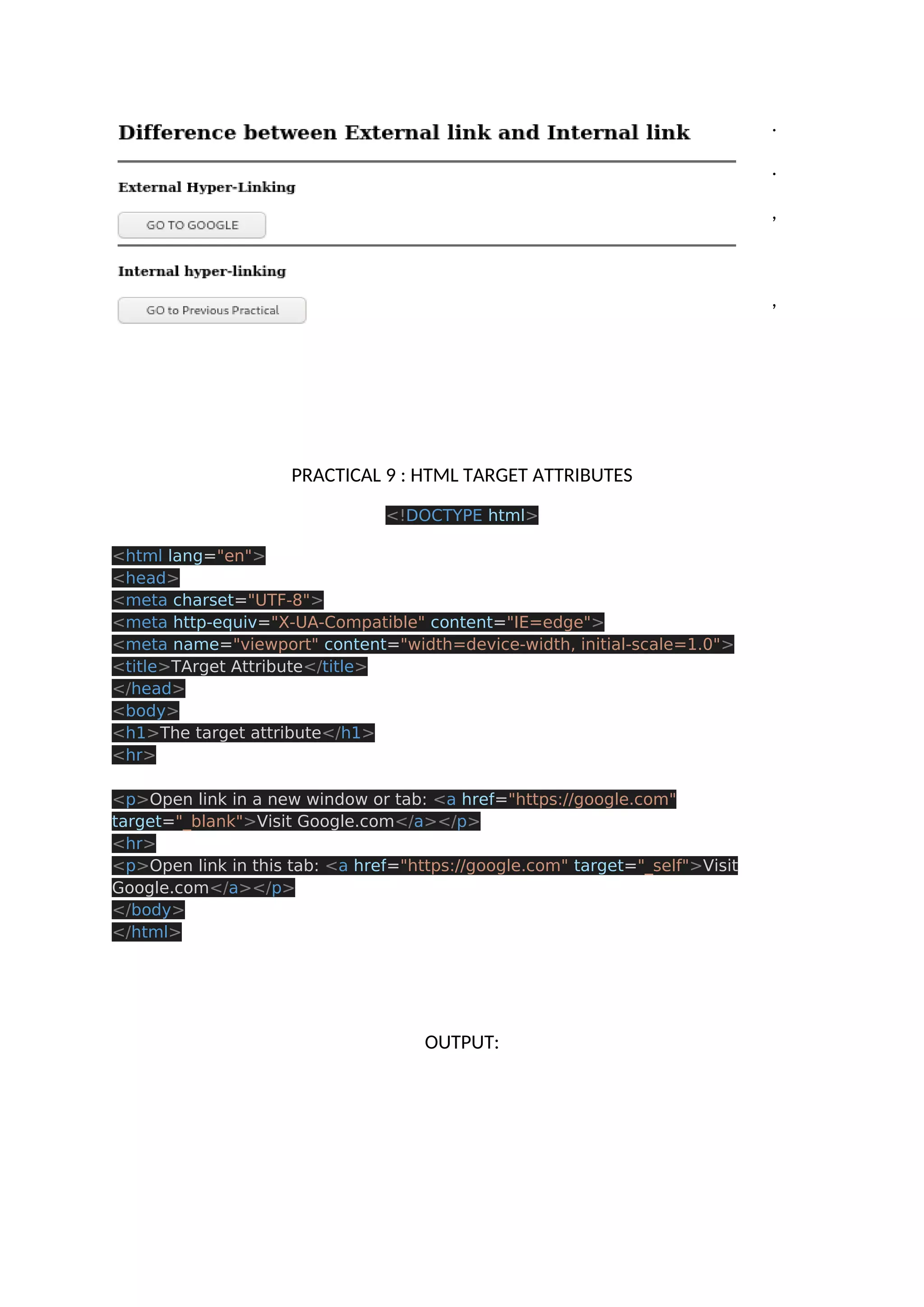
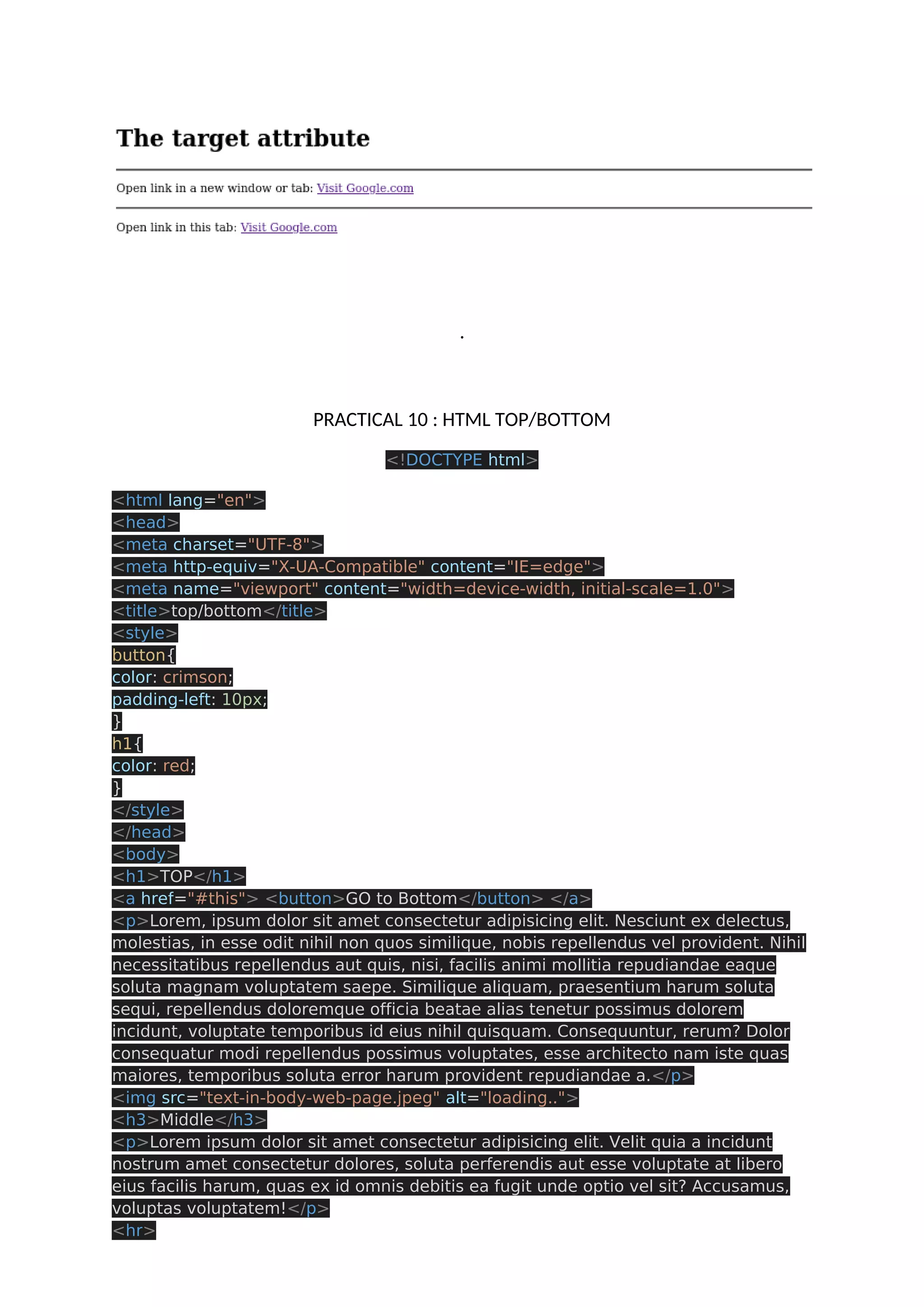
. . , , PRACTICAL 9 : HTML TARGET ATTRIBUTES <!DOCTYPE html> <html lang="en"> <head> <meta charset="UTF-8"> <meta http-equiv="X-UA-Compatible" content="IE=edge"> <meta name="viewport" content="width=device-width, initial-scale=1.0"> <title>TArget Attribute</title> </head> <body> <h1>The target attribute</h1> <hr> <p>Open link in a new window or tab: <a href="https://google.com" target="_blank">Visit Google.com</a></p> <hr> <p>Open link in this tab: <a href="https://google.com" target="_self">Visit Google.com</a></p> </body> </html> OUTPUT:
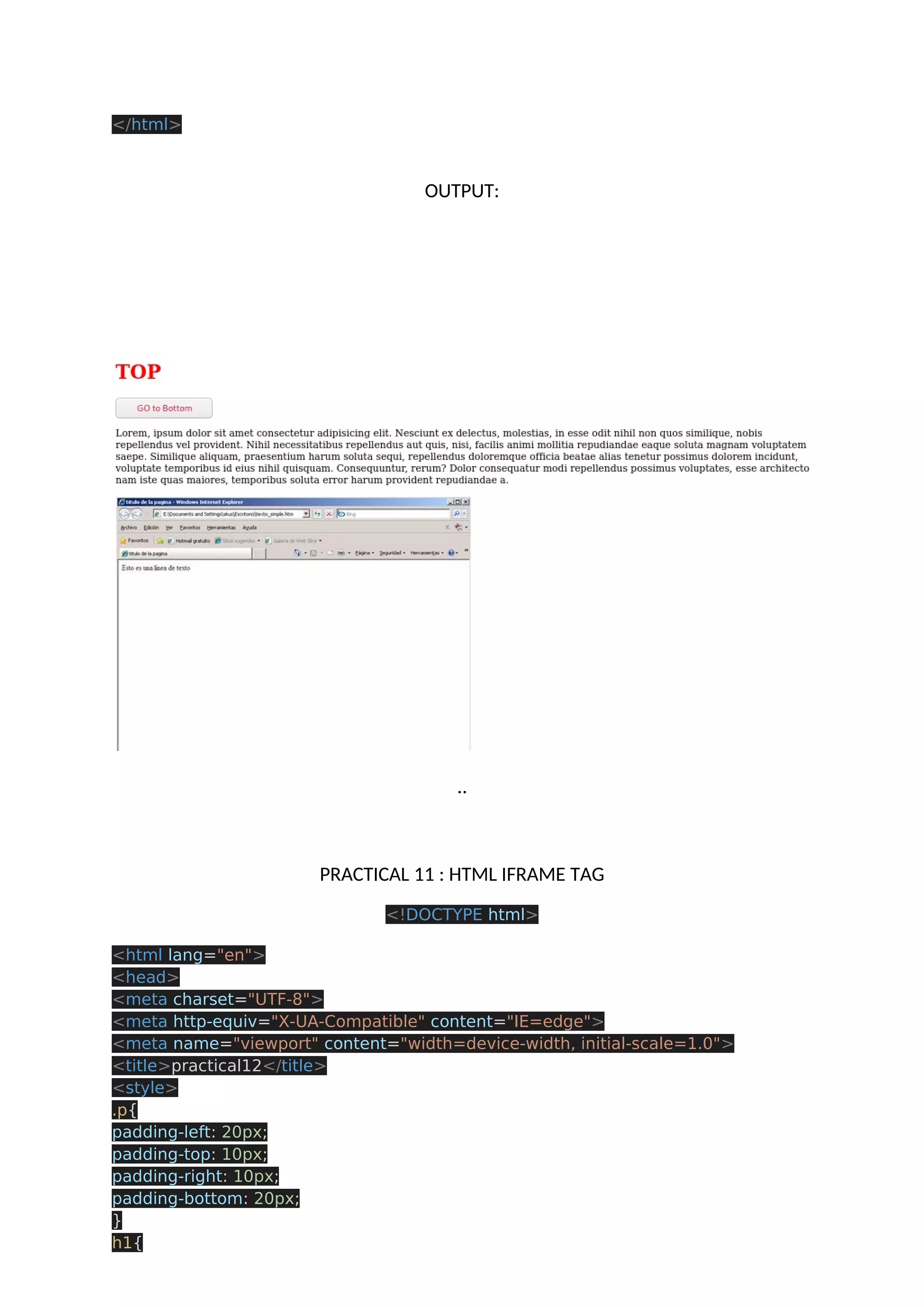
. PRACTICAL 10 : HTML TOP/BOTTOM <!DOCTYPE html> <html lang="en"> <head> <meta charset="UTF-8"> <meta http-equiv="X-UA-Compatible" content="IE=edge"> <meta name="viewport" content="width=device-width, initial-scale=1.0"> <title>top/bottom</title> <style> button{ color: crimson; padding-left: 10px; } h1{ color: red; } </style> </head> <body> <h1>TOP</h1> <a href="#this"> <button>GO to Bottom</button> </a> <p>Lorem, ipsum dolor sit amet consectetur adipisicing elit. Nesciunt ex delectus, molestias, in esse odit nihil non quos similique, nobis repellendus vel provident. Nihil necessitatibus repellendus aut quis, nisi, facilis animi mollitia repudiandae eaque soluta magnam voluptatem saepe. Similique aliquam, praesentium harum soluta sequi, repellendus doloremque officia beatae alias tenetur possimus dolorem incidunt, voluptate temporibus id eius nihil quisquam. Consequuntur, rerum? Dolor consequatur modi repellendus possimus voluptates, esse architecto nam iste quas maiores, temporibus soluta error harum provident repudiandae a.</p> <img src="text-in-body-web-page.jpeg" alt="loading.."> <h3>Middle</h3> <p>Lorem ipsum dolor sit amet consectetur adipisicing elit. Velit quia a incidunt nostrum amet consectetur dolores, soluta perferendis aut esse voluptate at libero eius facilis harum, quas ex id omnis debitis ea fugit unde optio vel sit? Accusamus, voluptas voluptatem!</p> <hr>
<p>Lorem ipsum dolor sit amet consectetur, adipisicing elit. Illum, molestias sunt officia mollitia numquam voluptate sed aut minima quis reiciendis!</p> <p>Lorem ipsum dolor sit amet, consectetur adipisicing elit. Ipsum accusantium ea nisi, unde earum exercitationem suscipit consequuntur possimus commodi, libero hic id illum vel. Voluptatem nihil maiores a eius et deleniti, quo debitis nemo ipsa modi labore necessitatibus aut magnam perferendis unde minima natus optio odit pariatur placeat? Ratione odit, aliquid recusandae corporis voluptate veritatis laudantium perspiciatis maiores exercitationem atque omnis praesentium mollitia tenetur eius quam in laboriosam sequi minima doloribus numquam reiciendis alias necessitatibus deserunt. Labore, molestias minus magni incidunt ullam, eaque dolorum repudiandae deserunt dolores ipsa dignissimos ut sint adipisci eos nesciunt nemo quibusdam quia at odit nam doloremque minima perspiciatis? Quibusdam optio recusandae repellat modi quaerat quasi cupiditate, nostrum soluta, mollitia qui eos aspernatur. Tempore, dolorem fugiat.</p> <hr> <p>Lorem ipsum dolor sit amet consectetur, adipisicing elit. Fuga minus eos molestias id, illo vitae ipsum eum sunt repellat non architecto cum suscipit omnis asperiores qui. Tempora voluptate suscipit fugiat numquam, quas illo dolores exercitationem assumenda ex earum, dolore sequi iusto error aperiam possimus quis? Minus rem odio beatae obcaecati quis! Facere aperiam iste eveniet saepe optio rerum praesentium amet quia illo similique velit, officiis consequatur modi nobis! Perferendis eius aut harum iste, velit consectetur vero, necessitatibus culpa molestias error ipsam ex ullam recusandae iure architecto voluptas esse debitis quia.</p> <p>Lorem ipsum dolor sit amet consectetur adipisicing elit. Minus nobis quasi est facilis id incidunt blanditiis rerum dicta, aperiam corrupti eligendi quaerat illo fuga et esse saepe voluptas repellendus possimus illum omnis harum quibusdam autem. Cumque adipisci ab recusandae, officia eaque modi architecto praesentium possimus ipsa libero, ullam at nam quaerat perferendis consequuntur aspernatur, hic odio aliquam! Suscipit eligendi vitae assumenda molestiae nemo, qui quisquam magnam neque voluptates dolor voluptate vel fuga? Ea quis vitae, a ex adipisci quia dolores? Voluptatem culpa reprehenderit cum rem, obcaecati voluptas facilis amet eius, totam nam consequuntur sint optio blanditiis soluta aliquam! Cupiditate aut magni ab ipsa accusantium non sapiente consequuntur labore nesciunt fuga molestiae repellendus atque alias vel voluptatem odit possimus eaque vero, saepe quae fugiat blanditiis? Alias inventore accusantium, quo aliquam iusto quibusdam, nesciunt cum cupiditate, magnam est veritatis aperiam! Saepe nulla minus facilis sunt reprehenderit vitae enim quibusdam. Nulla eius ad, accusantium ipsam, labore facere, quos qui libero ipsum maiores harum deleniti? Pariatur similique beatae ratione reiciendis quibusdam ex fuga recusandae reprehenderit cum culpa veniam saepe error assumenda nihil ipsa, ut in. A tempore incidunt, sed minima illum nam cumque, quis aspernatur accusamus numquam ipsam consectetur inventore pariatur, quibusdam veritatis. Eveniet laborum autem corrupti non, quo voluptas eos! Harum, suscipit aliquam ratione quasi ab perspiciatis itaque, a maxime ipsam, eaque provident nulla! Id nulla fugit corrupti doloribus at, fugiat iure dolor? Officiis ad quam porro eos reiciendis, sed consequuntur esse nobis, ex unde autem nulla quia quis dolorem doloremque! Delectus architecto minima dolore, facere fugiat porro, repudiandae officia sunt natus veniam inventore dolores vero voluptas nemo. Ea deserunt incidunt unde! Eaque exercitationem recusandae eum ducimus. Ab cupiditate consectetur eum molestias officiis optio libero fuga alias necessitatibus maxime veniam in quae a minus numquam quisquam autem inventore magnam
reiciendis magni, voluptatum, nulla architecto, perferendis minima. Laboriosam officiis quod, aliquam officia aut voluptatum ipsum tempore consequatur dolorem ducimus cumque, sed id porro vitae! Ab et iure labore nostrum, ducimus, dolor sequi eaque cum minima rerum ratione quod tempore maiores officiis? Delectus natus repudiandae porro consequuntur cupiditate, ullam voluptates officiis aliquid, reprehenderit dolor consectetur unde quae. Ducimus deleniti voluptatem eius, ab doloremque quia itaque soluta accusantium architecto officia beatae, eaque sint, est quos autem fugiat numquam quibusdam. Dolorum officia expedita modi aliquid natus, perspiciatis est omnis esse alias, facere fugit non suscipit aliquam soluta illo culpa delectus quaerat asperiores consectetur possimus. Blanditiis sunt esse quo ipsum ab inventore est, qui possimus eveniet, libero enim dignissimos. Ducimus ipsam deleniti neque illum odio omnis quod impedit quidem, inventore quos. Excepturi illum sunt fuga magnam quae qui tempora quod culpa vero dolore voluptatum eos vel aperiam amet quis numquam eligendi nostrum sed odio, ratione ea ipsa dicta. Unde eos, praesentium assumenda quam necessitatibus, voluptatibus aliquam nesciunt veniam soluta fuga debitis quos hic enim ab error provident culpa rem facere minus deleniti? Aperiam dolore, nihil, fuga labore laborum inventore optio minima repellat eveniet iste amet maiores architecto, ipsam doloribus aliquid? Illum corporis unde, alias sequi voluptate placeat nesciunt iusto, praesentium voluptatum sit facilis ipsa assumenda deserunt dolores similique sint? Voluptatibus eius deserunt animi, quas fugit cumque ipsam necessitatibus, labore ipsum quae aspernatur corporis error distinctio officia saepe illum cupiditate laboriosam enim recusandae soluta perspiciatis unde et omnis. Illum cupiditate eligendi dicta praesentium, molestias nesciunt et nisi! Quis, quod officia sequi natus amet facilis ratione quae. Et alias eaque doloremque laborum architecto ipsam quaerat ex dolore similique provident consequatur mollitia incidunt, porro blanditiis voluptates veritatis quis omnis vero nesciunt odio accusamus. Esse asperiores quos id voluptatibus praesentium molestias necessitatibus, deleniti odio, eveniet natus dolorem tempora magni, at rem. Nesciunt dolores dolor illum autem delectus non deserunt officiis consequuntur nam! Eaque eveniet corrupti libero amet dolore odit quia possimus! Animi, sapiente atque! Ex maiores, tempora distinctio facere saepe aliquam voluptate ab dolorum! Architecto quia excepturi neque velit perferendis fuga porro, ex ea modi sunt dolore quaerat, facere odio unde possimus culpa autem totam, consectetur nihil perspiciatis nisi molestias in! Tempora fugit dolorem et quibusdam sunt itaque, similique possimus fugiat, magni omnis perferendis non ullam. Rerum veniam, reprehenderit amet ullam quis maiores provident illo? Facilis quis exercitationem consectetur quae. Numquam recusandae, ipsam ratione alias porro, illum minima, dolor asperiores eum velit ad dolore necessitatibus. Blanditiis odit obcaecati hic eum consequuntur cumque expedita consectetur dolorem magni voluptatibus, veniam reprehenderit fuga at voluptatum tempore enim deleniti similique quisquam. Voluptatem ipsam aliquam aperiam obcaecati error minus odio enim, ex tempora nemo deserunt, quod quas fugit nulla at corrupti accusantium id inventore unde qui. Nobis quisquam debitis dolor dicta ducimus et, ad nisi incidunt ratione eligendi cupiditate, facere vero itaque perferendis. Quaerat praesentium expedita ipsum magnam reiciendis accusantium impedit ipsam totam quos obcaecati eius autem explicabo, sed quam sunt suscipit corporis blanditiis tempora recusandae nisi?</p> <a href="#top"><button>GO to Top</button></a> <h1 id="this">Bottom</h1> </body>
</html> OUTPUT: .. PRACTICAL 11 : HTML IFRAME TAG <!DOCTYPE html> <html lang="en"> <head> <meta charset="UTF-8"> <meta http-equiv="X-UA-Compatible" content="IE=edge"> <meta name="viewport" content="width=device-width, initial-scale=1.0"> <title>practical12</title> <style> .p{ padding-left: 20px; padding-top: 10px; padding-right: 10px; padding-bottom: 20px; } h1{
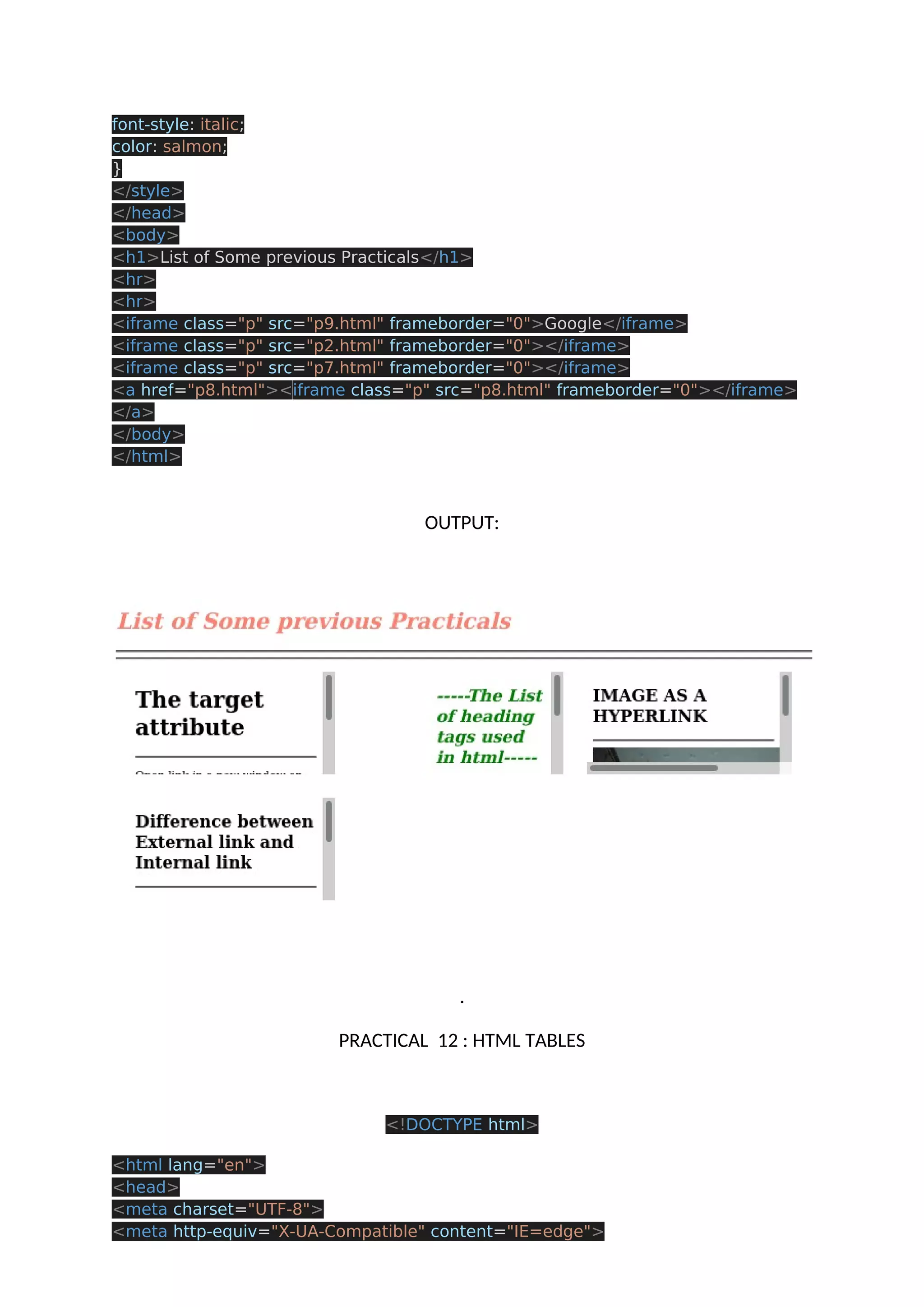
font-style: italic; color: salmon; } </style> </head> <body> <h1>List of Some previous Practicals</h1> <hr> <hr> <iframe class="p" src="p9.html" frameborder="0">Google</iframe> <iframe class="p" src="p2.html" frameborder="0"></iframe> <iframe class="p" src="p7.html" frameborder="0"></iframe> <a href="p8.html"><iframe class="p" src="p8.html" frameborder="0"></iframe> </a> </body> </html> OUTPUT: . PRACTICAL 12 : HTML TABLES <!DOCTYPE html> <html lang="en"> <head> <meta charset="UTF-8"> <meta http-equiv="X-UA-Compatible" content="IE=edge">
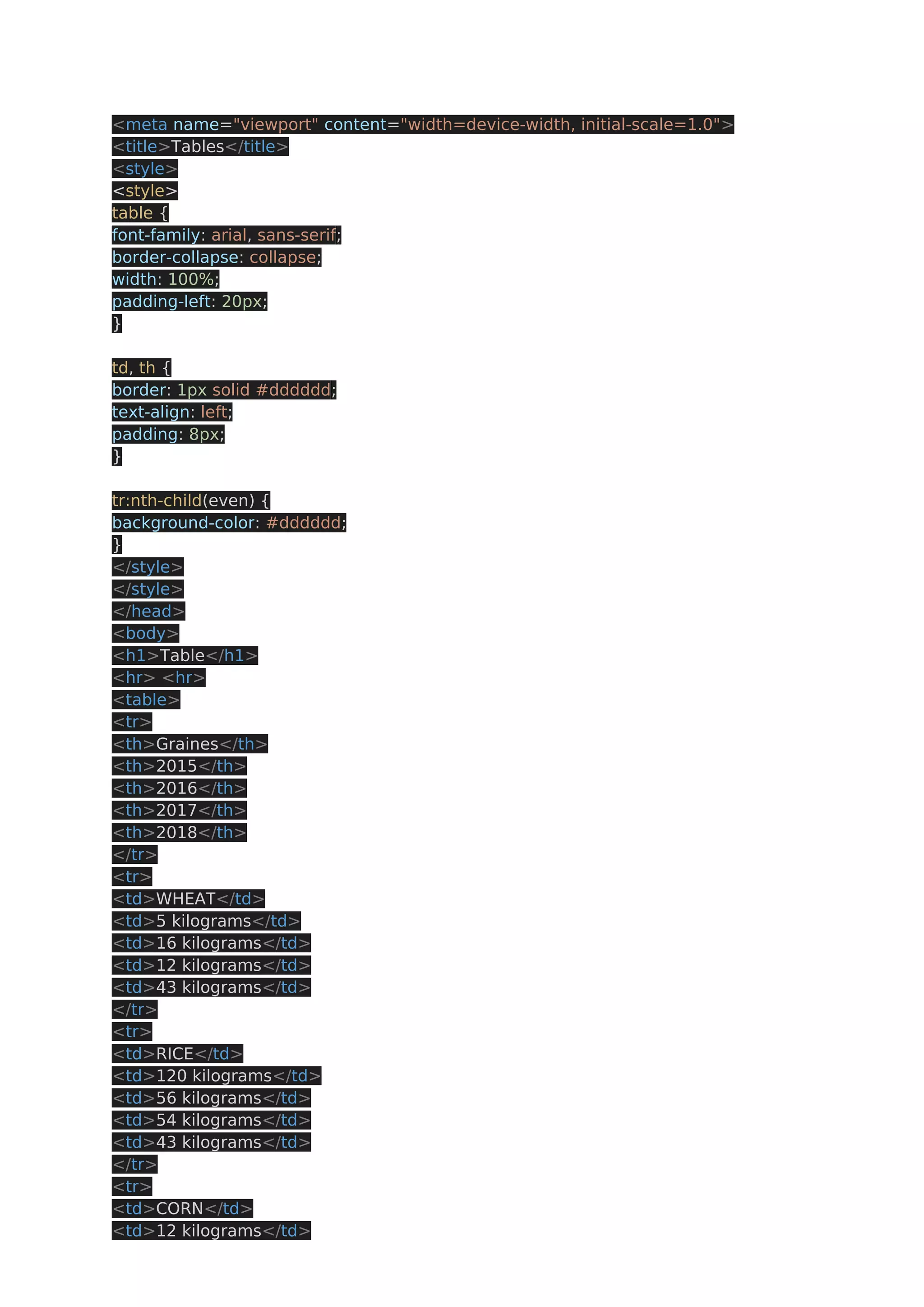
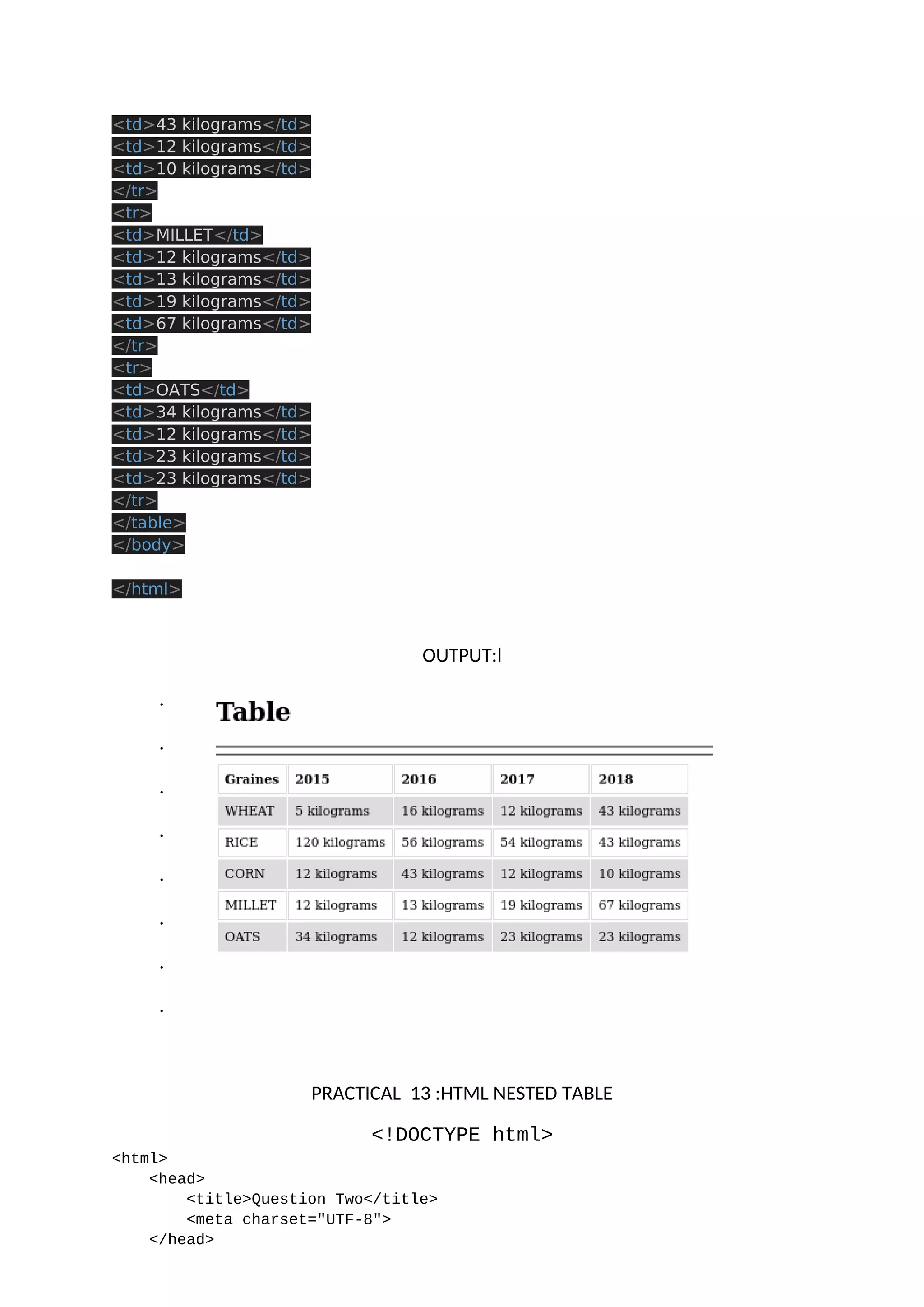
<meta name="viewport" content="width=device-width, initial-scale=1.0"> <title>Tables</title> <style> <style> table { font-family: arial, sans-serif; border-collapse: collapse; width: 100%; padding-left: 20px; } td, th { border: 1px solid #dddddd; text-align: left; padding: 8px; } tr:nth-child(even) { background-color: #dddddd; } </style> </style> </head> <body> <h1>Table</h1> <hr> <hr> <table> <tr> <th>Graines</th> <th>2015</th> <th>2016</th> <th>2017</th> <th>2018</th> </tr> <tr> <td>WHEAT</td> <td>5 kilograms</td> <td>16 kilograms</td> <td>12 kilograms</td> <td>43 kilograms</td> </tr> <tr> <td>RICE</td> <td>120 kilograms</td> <td>56 kilograms</td> <td>54 kilograms</td> <td>43 kilograms</td> </tr> <tr> <td>CORN</td> <td>12 kilograms</td>
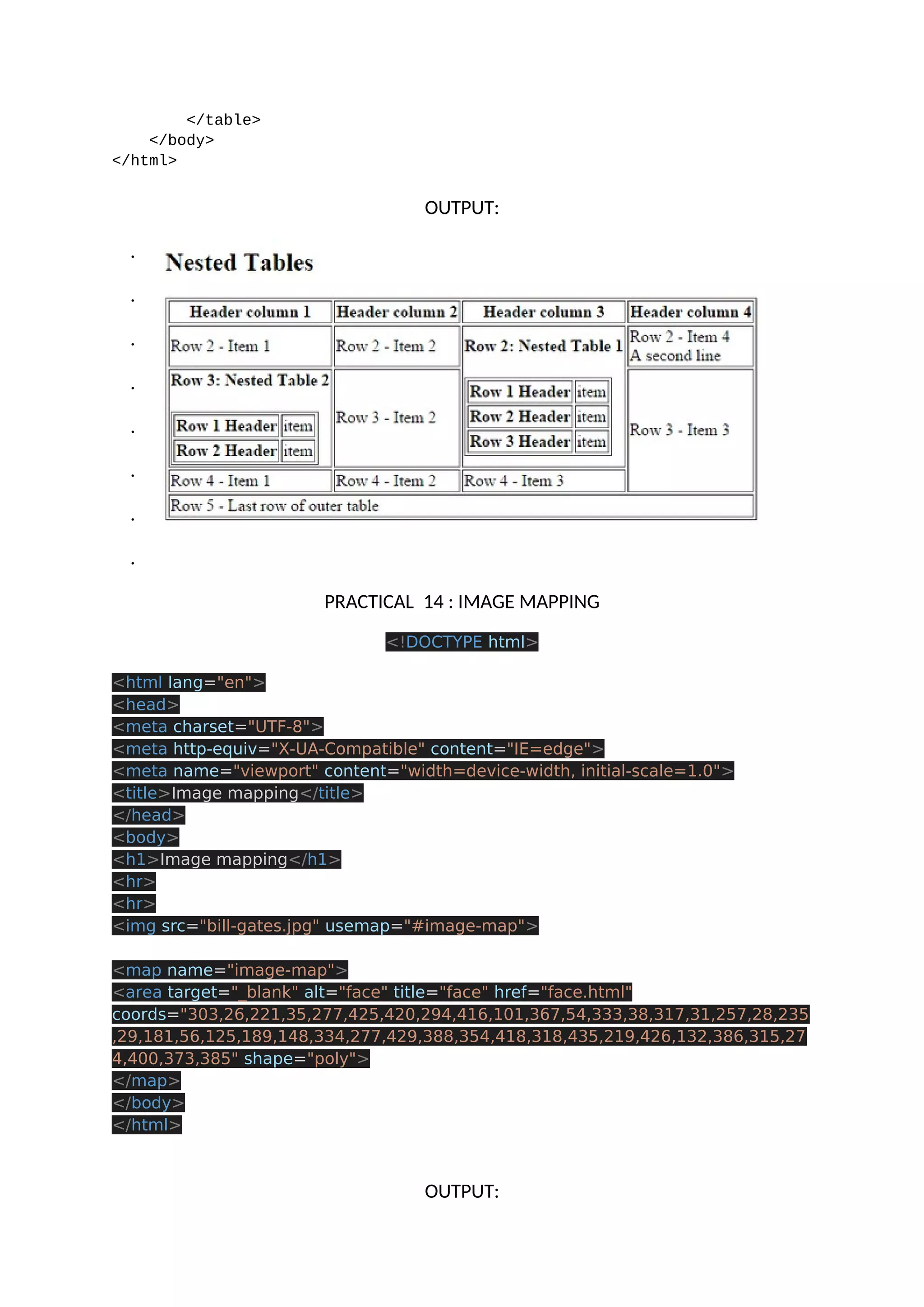
<td>43 kilograms</td> <td>12 kilograms</td> <td>10 kilograms</td> </tr> <tr> <td>MILLET</td> <td>12 kilograms</td> <td>13 kilograms</td> <td>19 kilograms</td> <td>67 kilograms</td> </tr> <tr> <td>OATS</td> <td>34 kilograms</td> <td>12 kilograms</td> <td>23 kilograms</td> <td>23 kilograms</td> </tr> </table> </body> </html> OUTPUT:l . . . . . . . . PRACTICAL 13 :HTML NESTED TABLE <!DOCTYPE html> <html> <head> <title>Question Two</title> <meta charset="UTF-8"> </head>
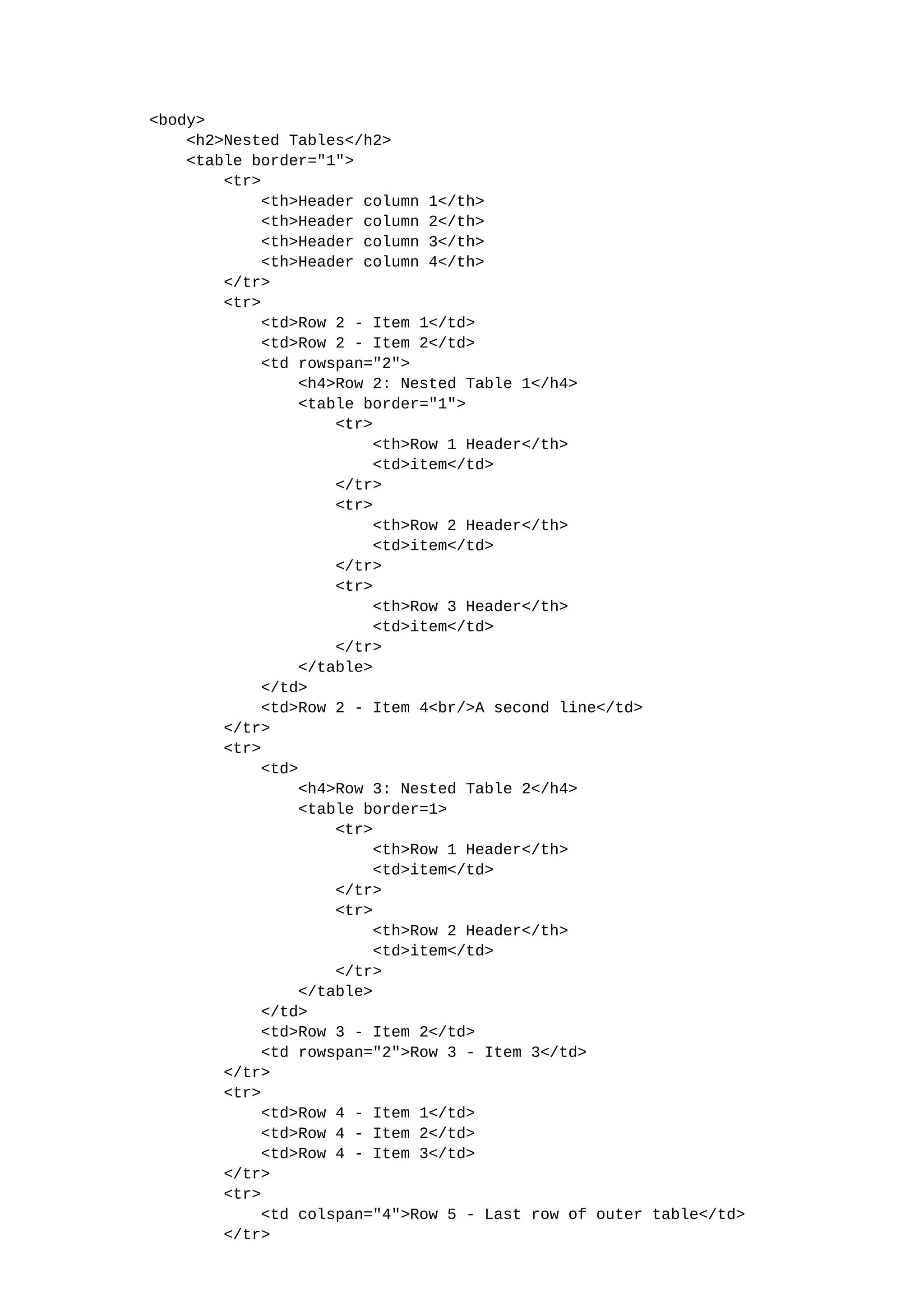
<body> <h2>Nested Tables</h2> <table border="1"> <tr> <th>Header column 1</th> <th>Header column 2</th> <th>Header column 3</th> <th>Header column 4</th> </tr> <tr> <td>Row 2 - Item 1</td> <td>Row 2 - Item 2</td> <td rowspan="2"> <h4>Row 2: Nested Table 1</h4> <table border="1"> <tr> <th>Row 1 Header</th> <td>item</td> </tr> <tr> <th>Row 2 Header</th> <td>item</td> </tr> <tr> <th>Row 3 Header</th> <td>item</td> </tr> </table> </td> <td>Row 2 - Item 4<br/>A second line</td> </tr> <tr> <td> <h4>Row 3: Nested Table 2</h4> <table border=1> <tr> <th>Row 1 Header</th> <td>item</td> </tr> <tr> <th>Row 2 Header</th> <td>item</td> </tr> </table> </td> <td>Row 3 - Item 2</td> <td rowspan="2">Row 3 - Item 3</td> </tr> <tr> <td>Row 4 - Item 1</td> <td>Row 4 - Item 2</td> <td>Row 4 - Item 3</td> </tr> <tr> <td colspan="4">Row 5 - Last row of outer table</td> </tr>
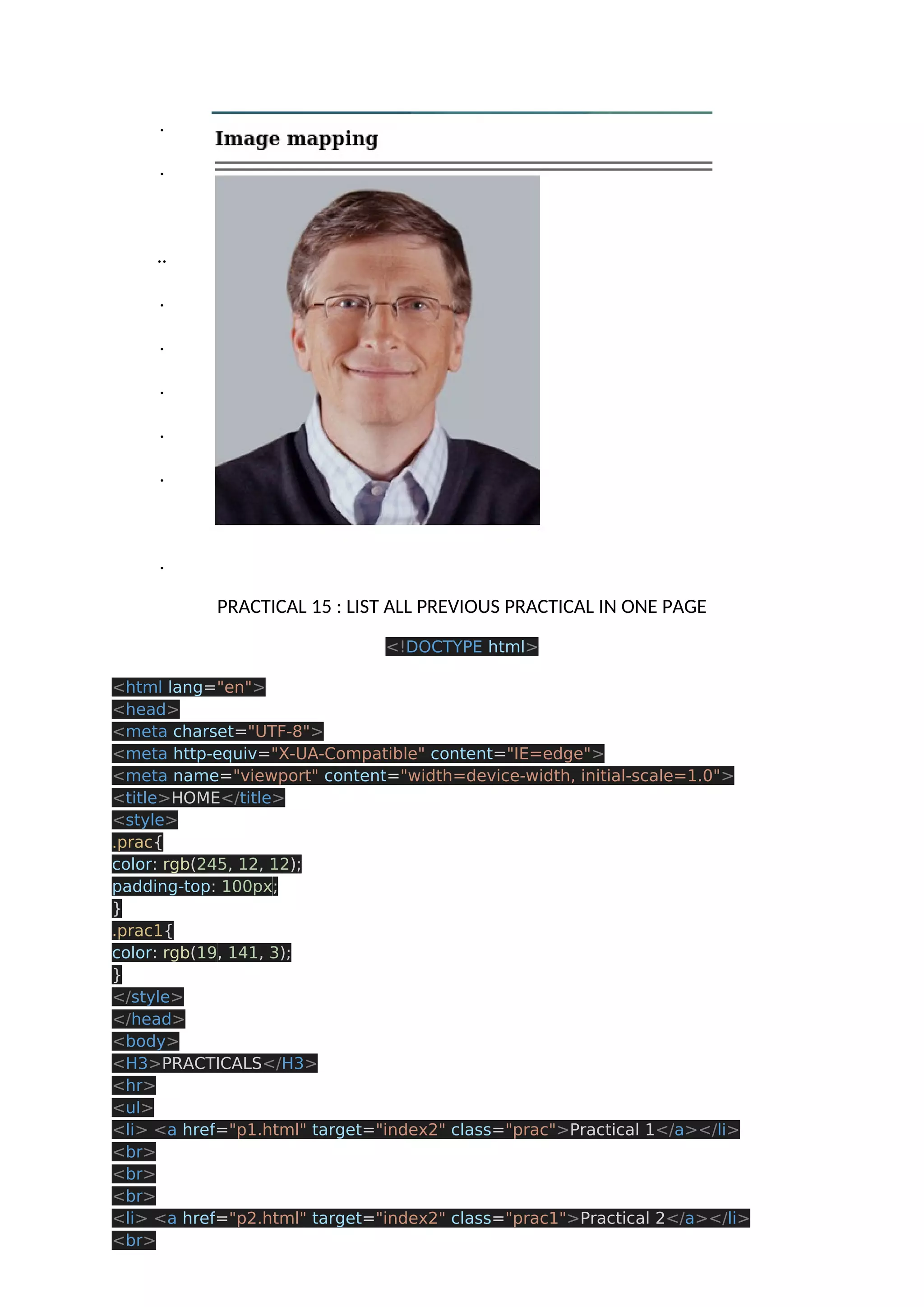
</table> </body> </html> OUTPUT: . . . . . . . . PRACTICAL 14 : IMAGE MAPPING <!DOCTYPE html> <html lang="en"> <head> <meta charset="UTF-8"> <meta http-equiv="X-UA-Compatible" content="IE=edge"> <meta name="viewport" content="width=device-width, initial-scale=1.0"> <title>Image mapping</title> </head> <body> <h1>Image mapping</h1> <hr> <hr> <img src="bill-gates.jpg" usemap="#image-map"> <map name="image-map"> <area target="_blank" alt="face" title="face" href="face.html" coords="303,26,221,35,277,425,420,294,416,101,367,54,333,38,317,31,257,28,235 ,29,181,56,125,189,148,334,277,429,388,354,418,318,435,219,426,132,386,315,27 4,400,373,385" shape="poly"> </map> </body> </html> OUTPUT:
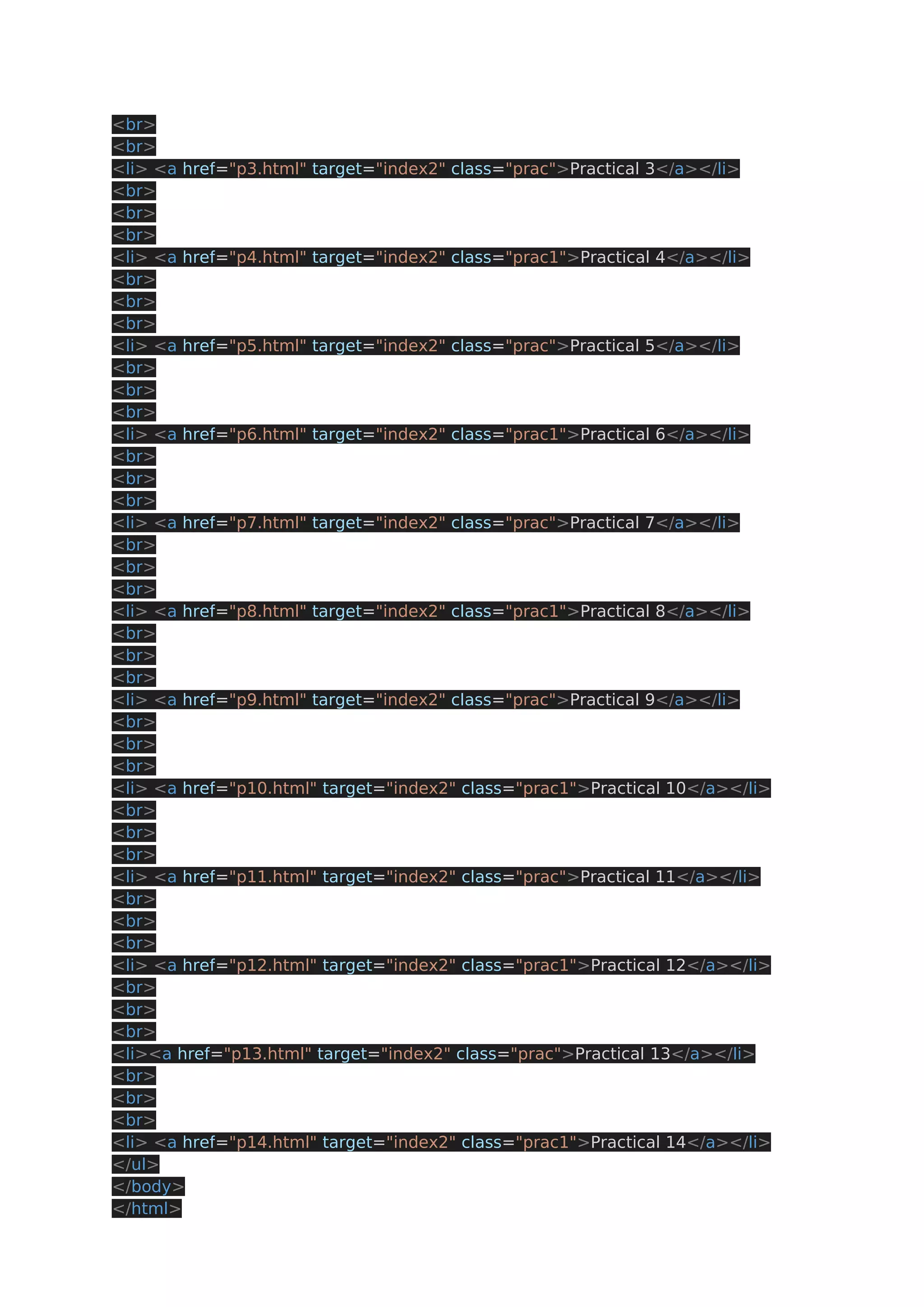
. . .. . . . . . . PRACTICAL 15 : LIST ALL PREVIOUS PRACTICAL IN ONE PAGE <!DOCTYPE html> <html lang="en"> <head> <meta charset="UTF-8"> <meta http-equiv="X-UA-Compatible" content="IE=edge"> <meta name="viewport" content="width=device-width, initial-scale=1.0"> <title>HOME</title> <style> .prac{ color: rgb(245, 12, 12); padding-top: 100px; } .prac1{ color: rgb(19, 141, 3); } </style> </head> <body> <H3>PRACTICALS</H3> <hr> <ul> <li> <a href="p1.html" target="index2" class="prac">Practical 1</a></li> <br> <br> <br> <li> <a href="p2.html" target="index2" class="prac1">Practical 2</a></li> <br>
<br> <br> <li> <a href="p3.html" target="index2" class="prac">Practical 3</a></li> <br> <br> <br> <li> <a href="p4.html" target="index2" class="prac1">Practical 4</a></li> <br> <br> <br> <li> <a href="p5.html" target="index2" class="prac">Practical 5</a></li> <br> <br> <br> <li> <a href="p6.html" target="index2" class="prac1">Practical 6</a></li> <br> <br> <br> <li> <a href="p7.html" target="index2" class="prac">Practical 7</a></li> <br> <br> <br> <li> <a href="p8.html" target="index2" class="prac1">Practical 8</a></li> <br> <br> <br> <li> <a href="p9.html" target="index2" class="prac">Practical 9</a></li> <br> <br> <br> <li> <a href="p10.html" target="index2" class="prac1">Practical 10</a></li> <br> <br> <br> <li> <a href="p11.html" target="index2" class="prac">Practical 11</a></li> <br> <br> <br> <li> <a href="p12.html" target="index2" class="prac1">Practical 12</a></li> <br> <br> <br> <li><a href="p13.html" target="index2" class="prac">Practical 13</a></li> <br> <br> <br> <li> <a href="p14.html" target="index2" class="prac1">Practical 14</a></li> </ul> </body> </html>
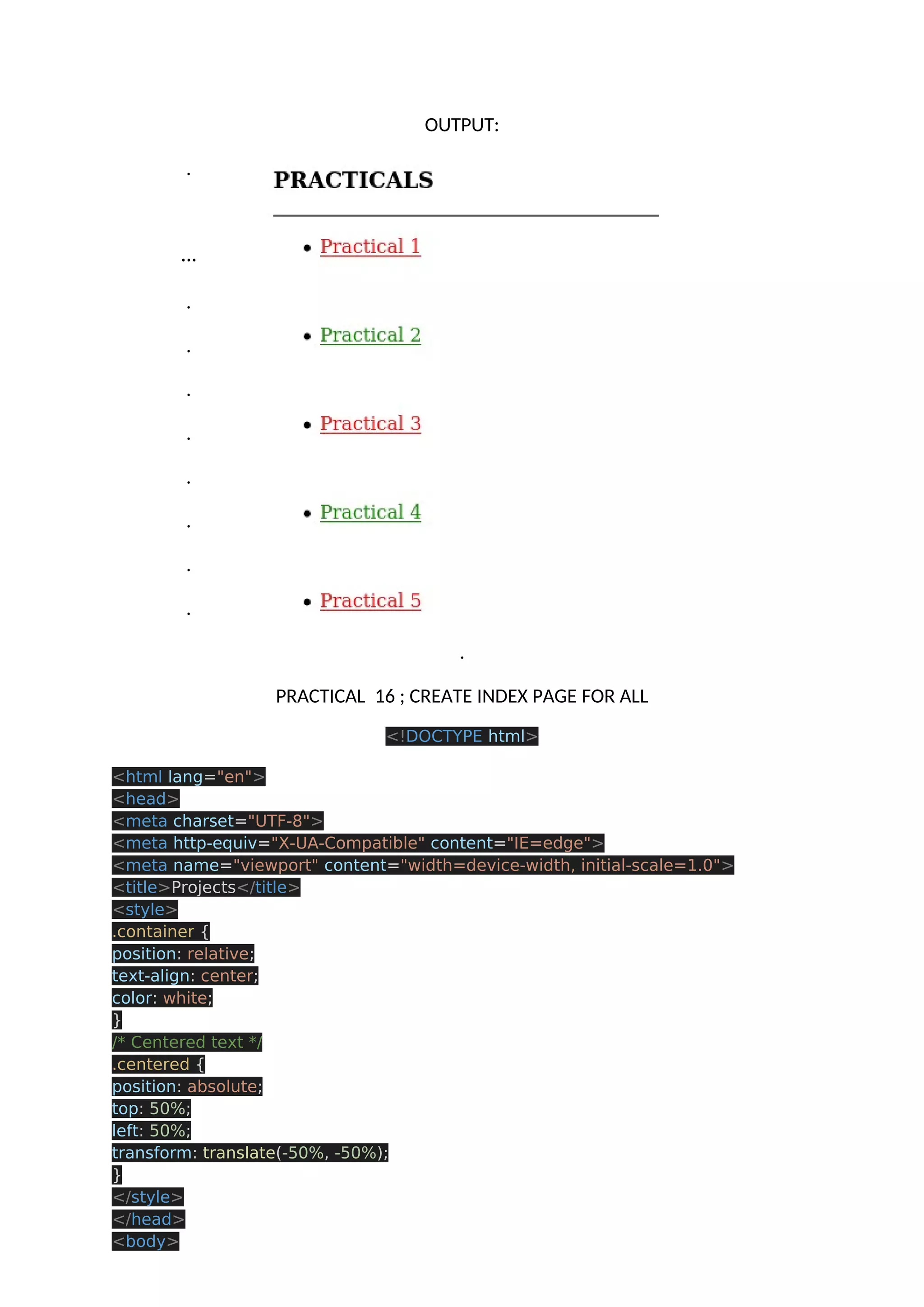
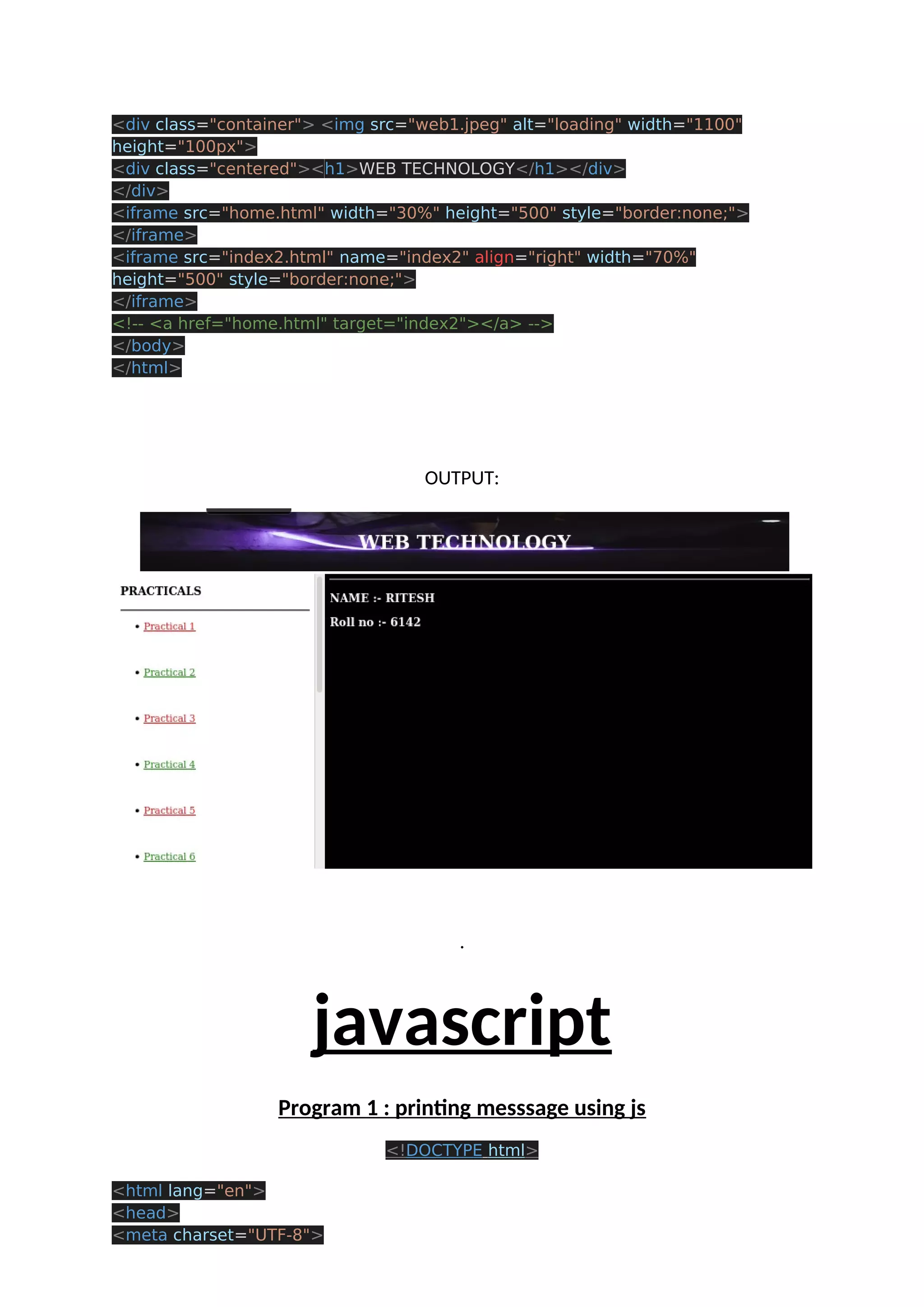
OUTPUT: . … . . . . . . . . . PRACTICAL 16 ; CREATE INDEX PAGE FOR ALL <!DOCTYPE html> <html lang="en"> <head> <meta charset="UTF-8"> <meta http-equiv="X-UA-Compatible" content="IE=edge"> <meta name="viewport" content="width=device-width, initial-scale=1.0"> <title>Projects</title> <style> .container { position: relative; text-align: center; color: white; } /* Centered text */ .centered { position: absolute; top: 50%; left: 50%; transform: translate(-50%, -50%); } </style> </head> <body>
<div class="container"> <img src="web1.jpeg" alt="loading" width="1100" height="100px"> <div class="centered"><h1>WEB TECHNOLOGY</h1></div> </div> <iframe src="home.html" width="30%" height="500" style="border:none;"> </iframe> <iframe src="index2.html" name="index2" align="right" width="70%" height="500" style="border:none;"> </iframe> <!-- <a href="home.html" target="index2"></a> --> </body> </html> OUTPUT: . javascript Program 1 : printing messsage using js <!DOCTYPE html> <html lang="en"> <head> <meta charset="UTF-8">
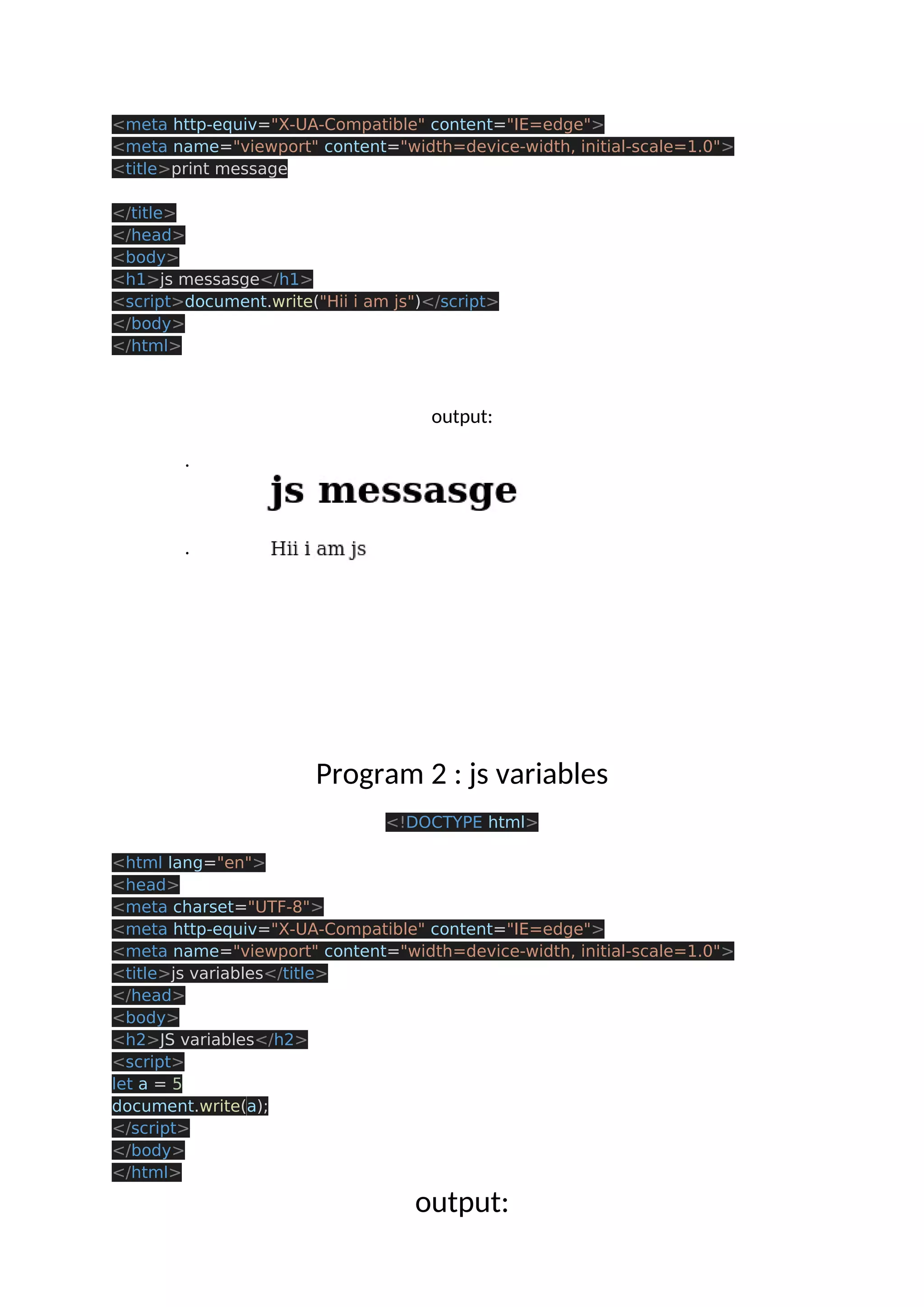
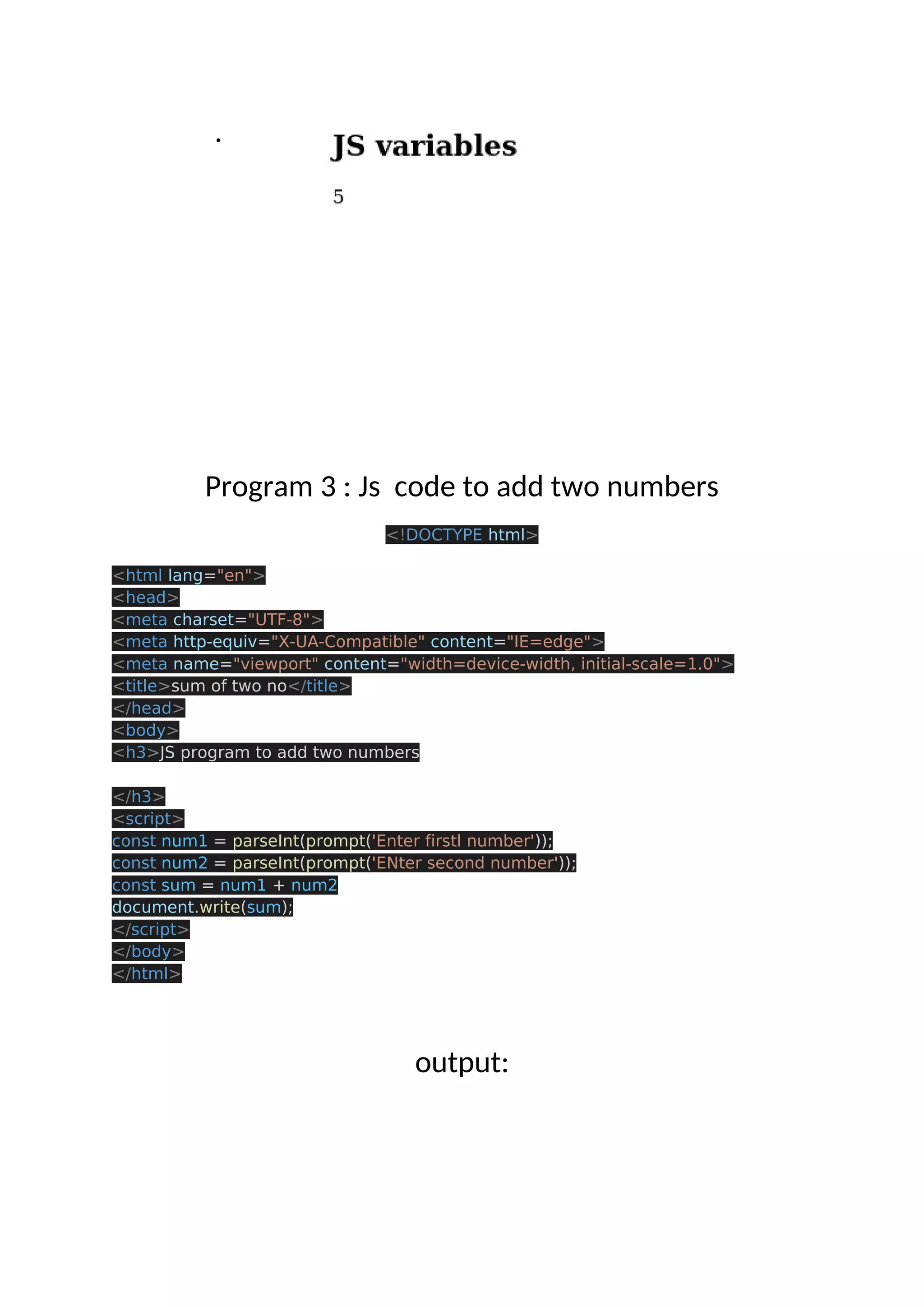
<meta http-equiv="X-UA-Compatible" content="IE=edge"> <meta name="viewport" content="width=device-width, initial-scale=1.0"> <title>print message </title> </head> <body> <h1>js messasge</h1> <script>document.write("Hii i am js")</script> </body> </html> output: . . Program 2 : js variables <!DOCTYPE html> <html lang="en"> <head> <meta charset="UTF-8"> <meta http-equiv="X-UA-Compatible" content="IE=edge"> <meta name="viewport" content="width=device-width, initial-scale=1.0"> <title>js variables</title> </head> <body> <h2>JS variables</h2> <script> let a = 5 document.write(a); </script> </body> </html> output:
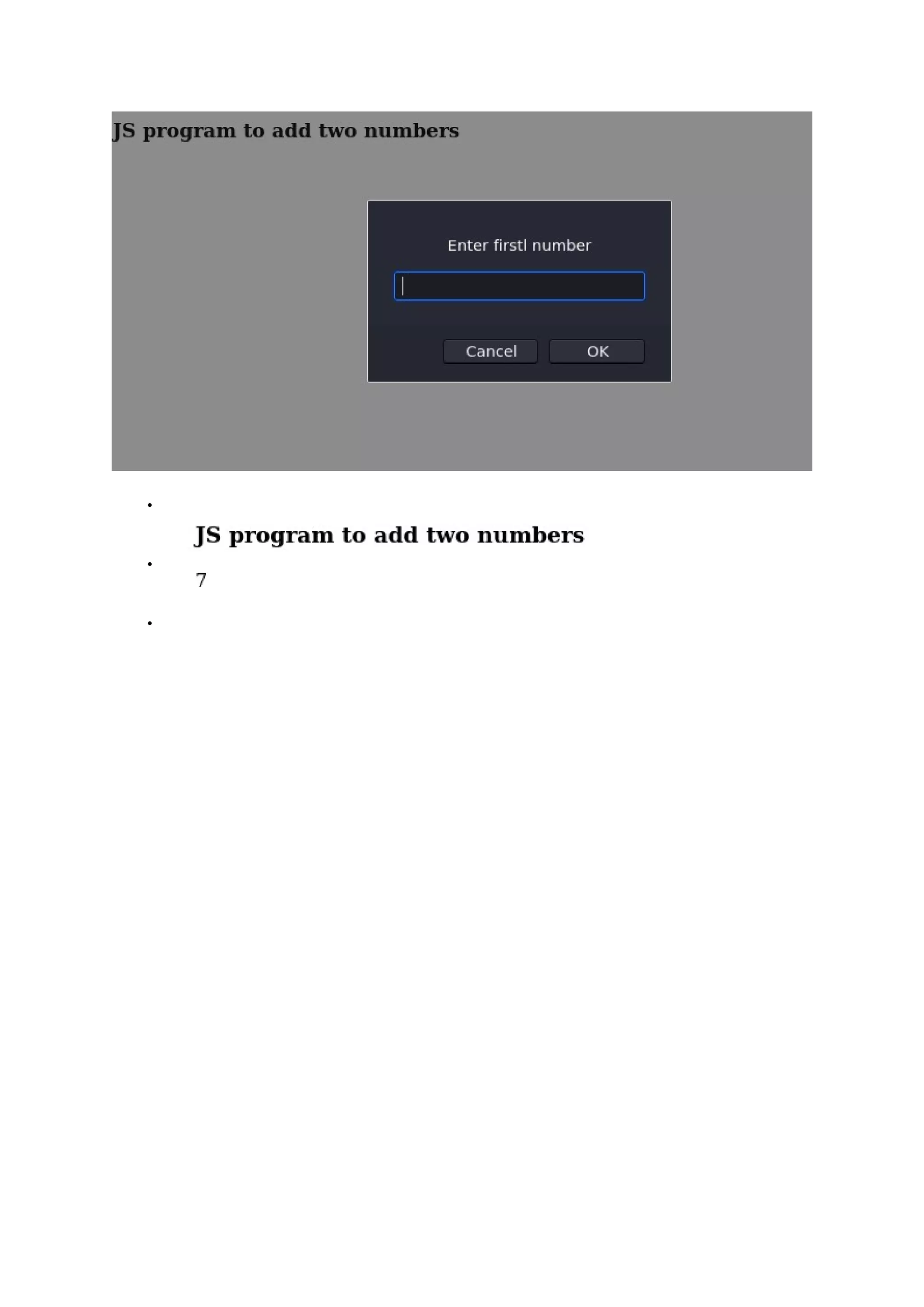
. Program 3 : Js code to add two numbers <!DOCTYPE html> <html lang="en"> <head> <meta charset="UTF-8"> <meta http-equiv="X-UA-Compatible" content="IE=edge"> <meta name="viewport" content="width=device-width, initial-scale=1.0"> <title>sum of two no</title> </head> <body> <h3>JS program to add two numbers </h3> <script> const num1 = parseInt(prompt('Enter firstl number')); const num2 = parseInt(prompt('ENter second number')); const sum = num1 + num2 document.write(sum); </script> </body> </html> output:
. . .
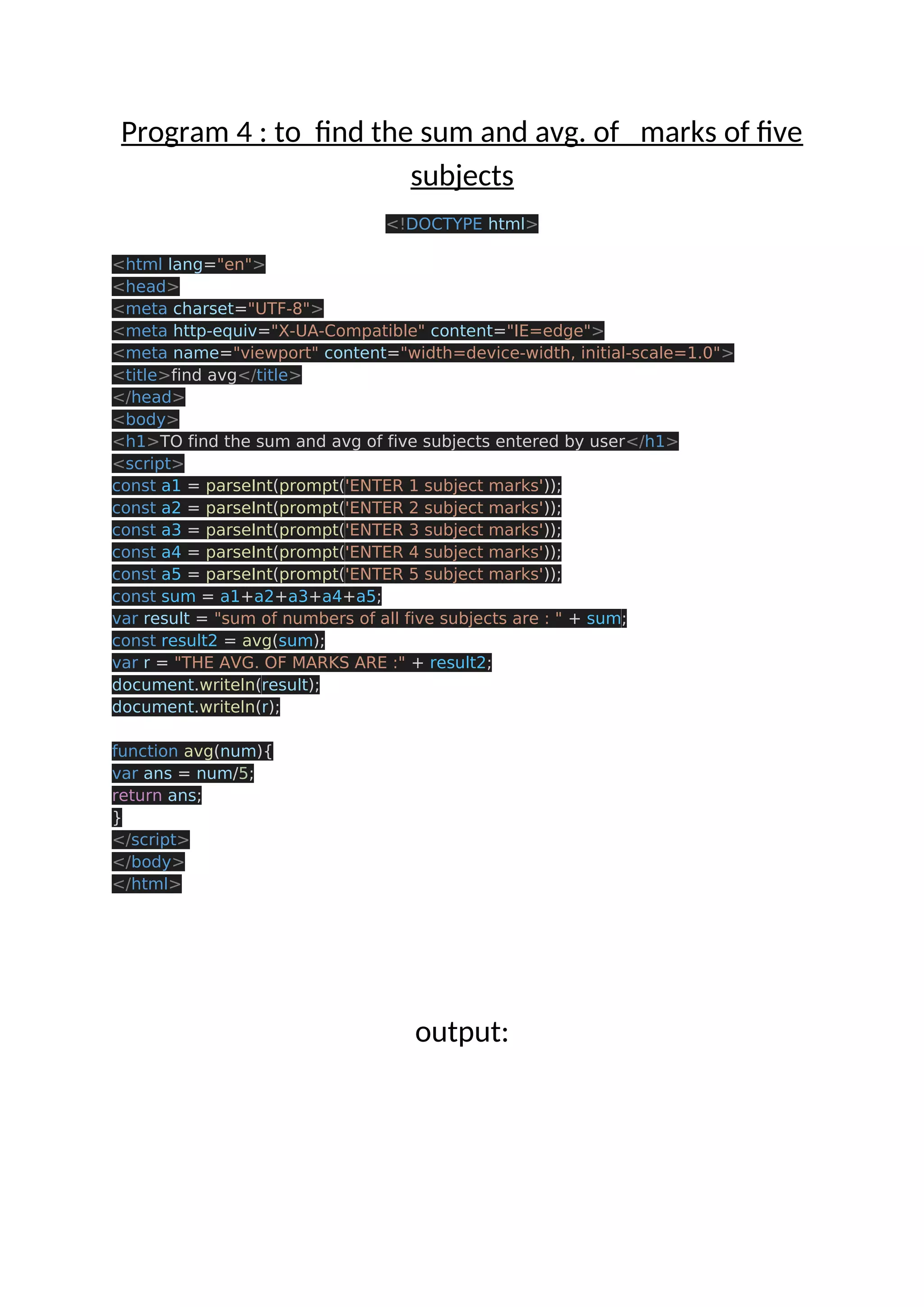
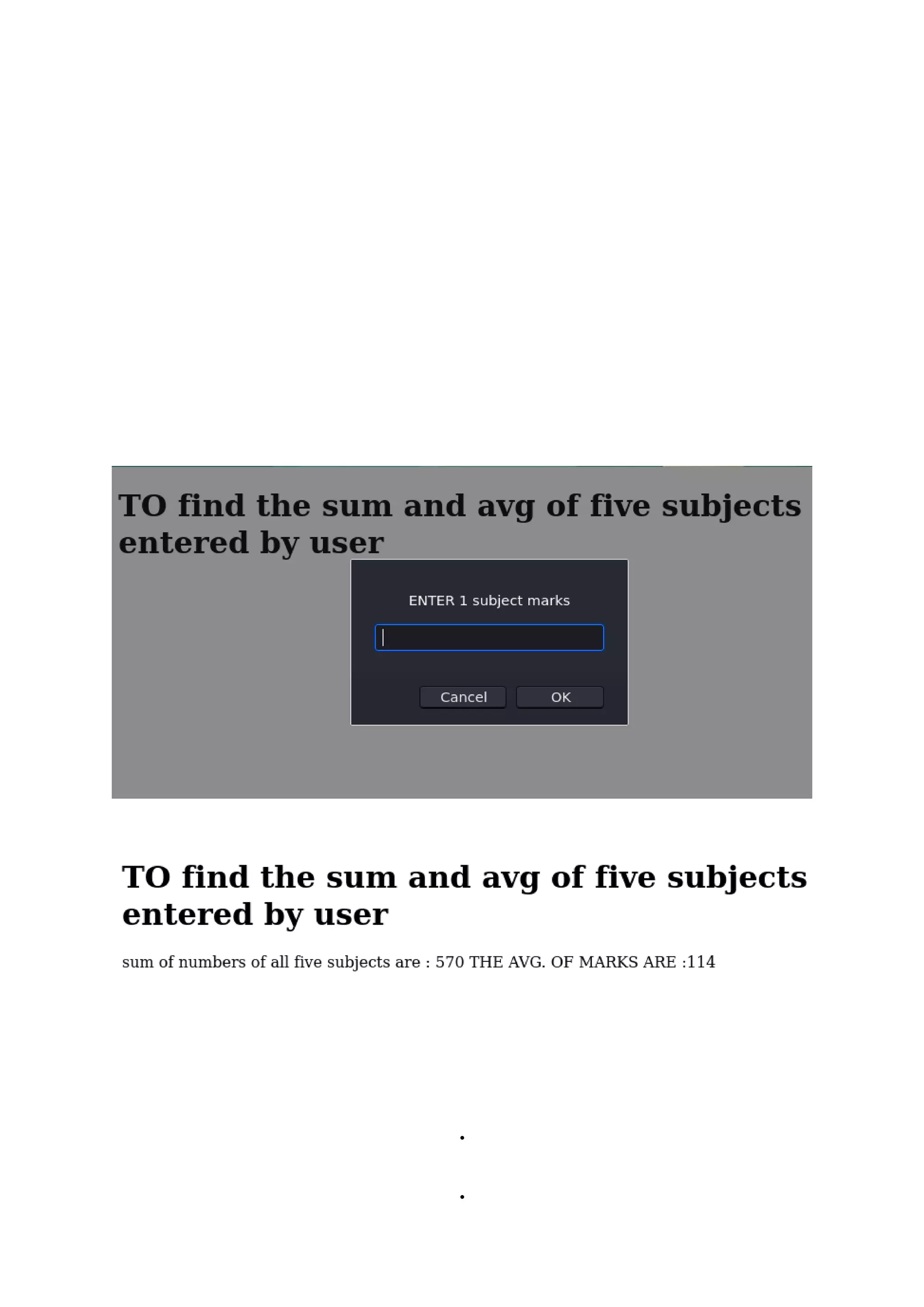
Program 4 : to find the sum and avg. of marks of five subjects <!DOCTYPE html> <html lang="en"> <head> <meta charset="UTF-8"> <meta http-equiv="X-UA-Compatible" content="IE=edge"> <meta name="viewport" content="width=device-width, initial-scale=1.0"> <title>find avg</title> </head> <body> <h1>TO find the sum and avg of five subjects entered by user</h1> <script> const a1 = parseInt(prompt('ENTER 1 subject marks')); const a2 = parseInt(prompt('ENTER 2 subject marks')); const a3 = parseInt(prompt('ENTER 3 subject marks')); const a4 = parseInt(prompt('ENTER 4 subject marks')); const a5 = parseInt(prompt('ENTER 5 subject marks')); const sum = a1+a2+a3+a4+a5; var result = "sum of numbers of all five subjects are : " + sum; const result2 = avg(sum); var r = "THE AVG. OF MARKS ARE :" + result2; document.writeln(result); document.writeln(r); function avg(num){ var ans = num/5; return ans; } </script> </body> </html> output:
. .
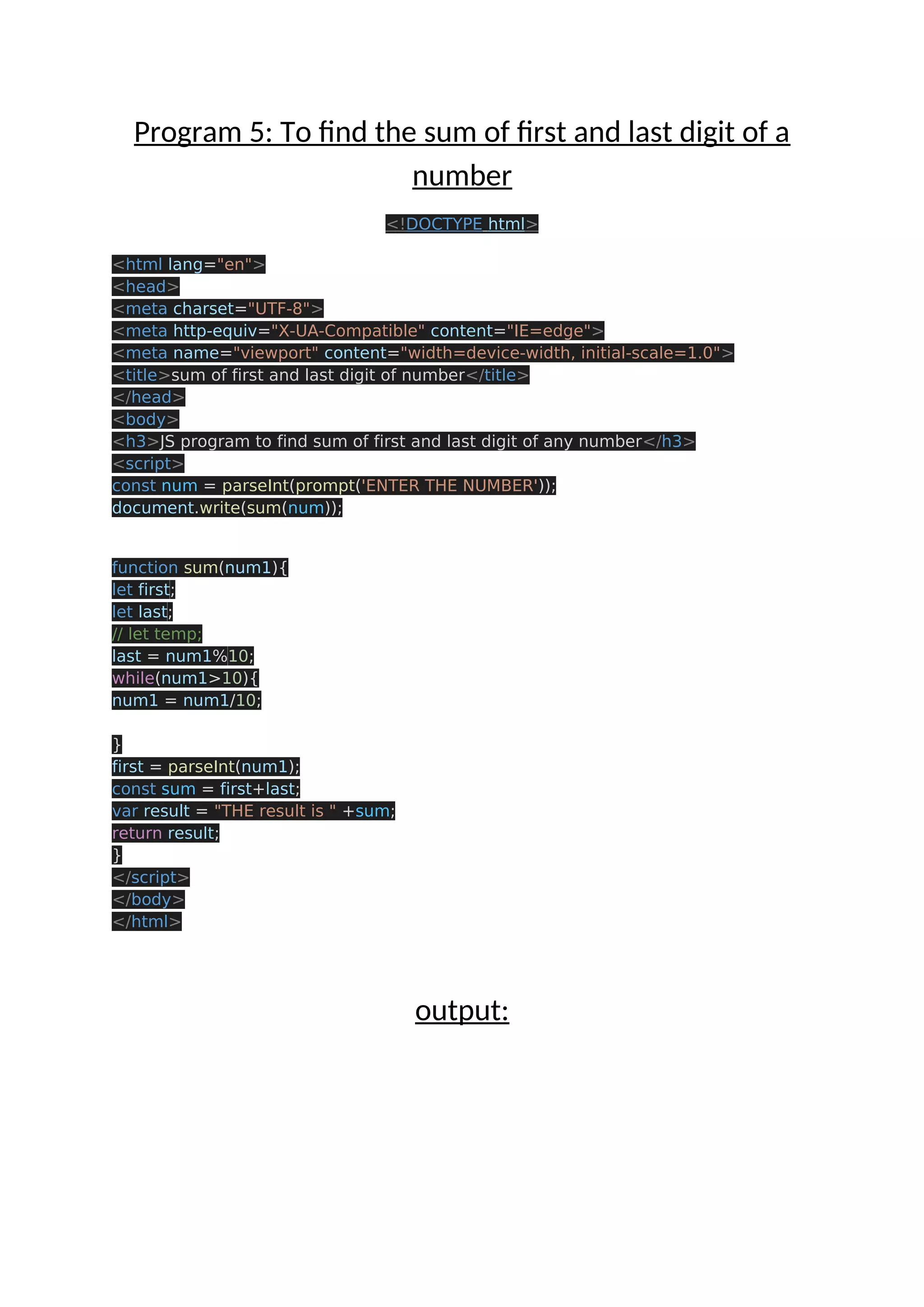
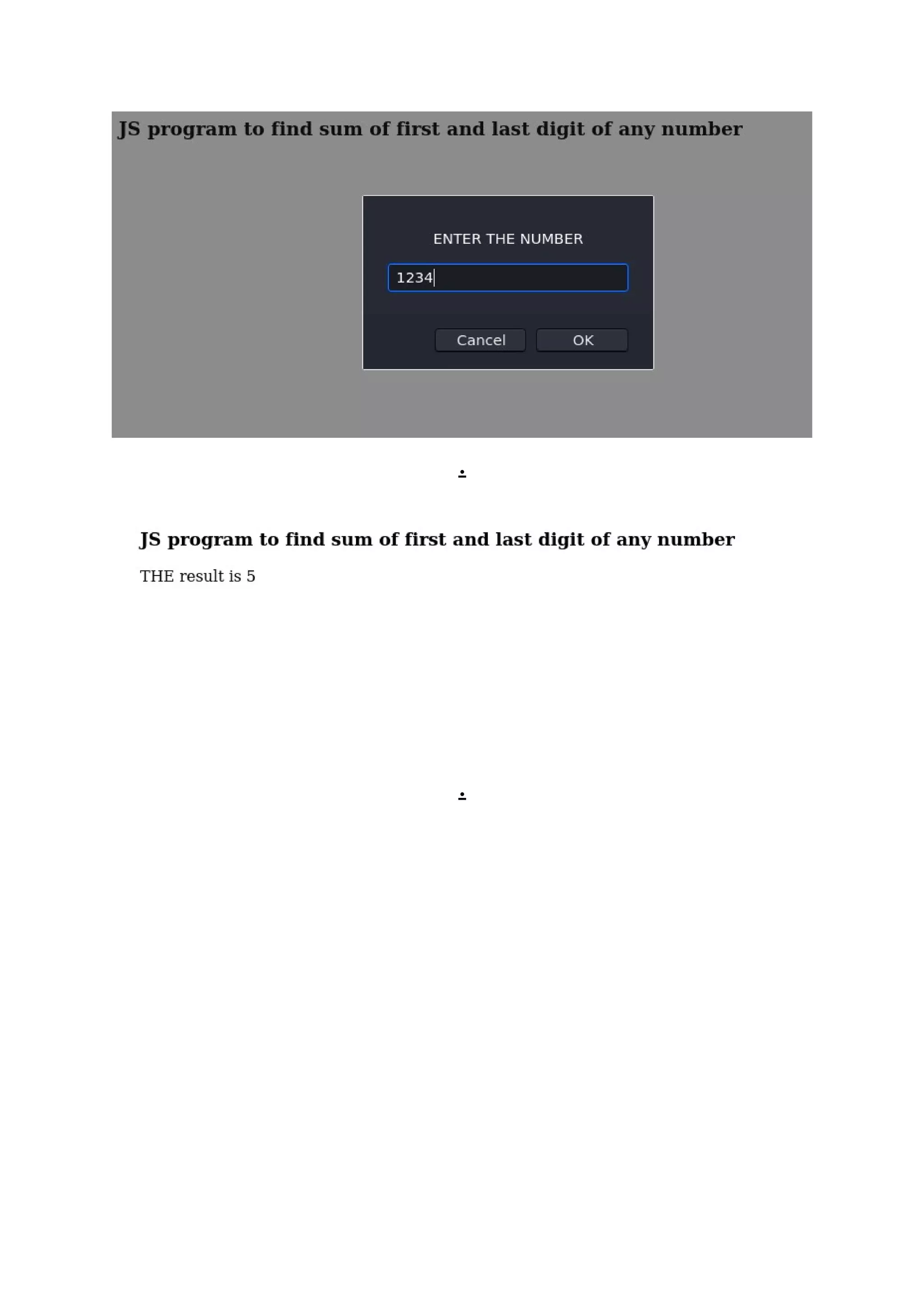
Program 5: To find the sum of first and last digit of a number <!DOCTYPE html> <html lang="en"> <head> <meta charset="UTF-8"> <meta http-equiv="X-UA-Compatible" content="IE=edge"> <meta name="viewport" content="width=device-width, initial-scale=1.0"> <title>sum of first and last digit of number</title> </head> <body> <h3>JS program to find sum of first and last digit of any number</h3> <script> const num = parseInt(prompt('ENTER THE NUMBER')); document.write(sum(num)); function sum(num1){ let first; let last; // let temp; last = num1%10; while(num1>10){ num1 = num1/10; } first = parseInt(num1); const sum = first+last; var result = "THE result is " +sum; return result; } </script> </body> </html> output:
. .
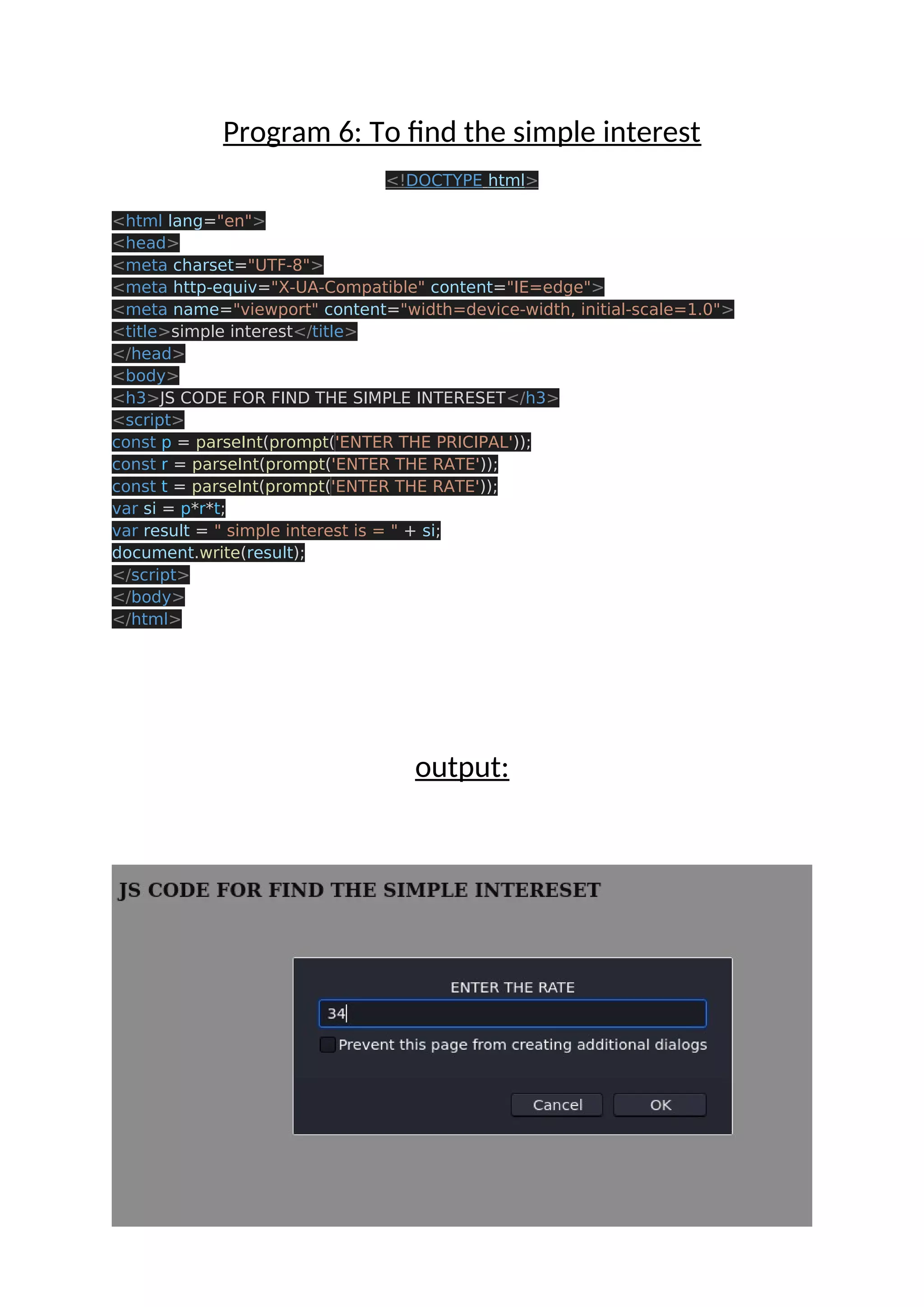
Program 6: To find the simple interest <!DOCTYPE html> <html lang="en"> <head> <meta charset="UTF-8"> <meta http-equiv="X-UA-Compatible" content="IE=edge"> <meta name="viewport" content="width=device-width, initial-scale=1.0"> <title>simple interest</title> </head> <body> <h3>JS CODE FOR FIND THE SIMPLE INTERESET</h3> <script> const p = parseInt(prompt('ENTER THE PRICIPAL')); const r = parseInt(prompt('ENTER THE RATE')); const t = parseInt(prompt('ENTER THE RATE')); var si = p*r*t; var result = " simple interest is = " + si; document.write(result); </script> </body> </html> output:
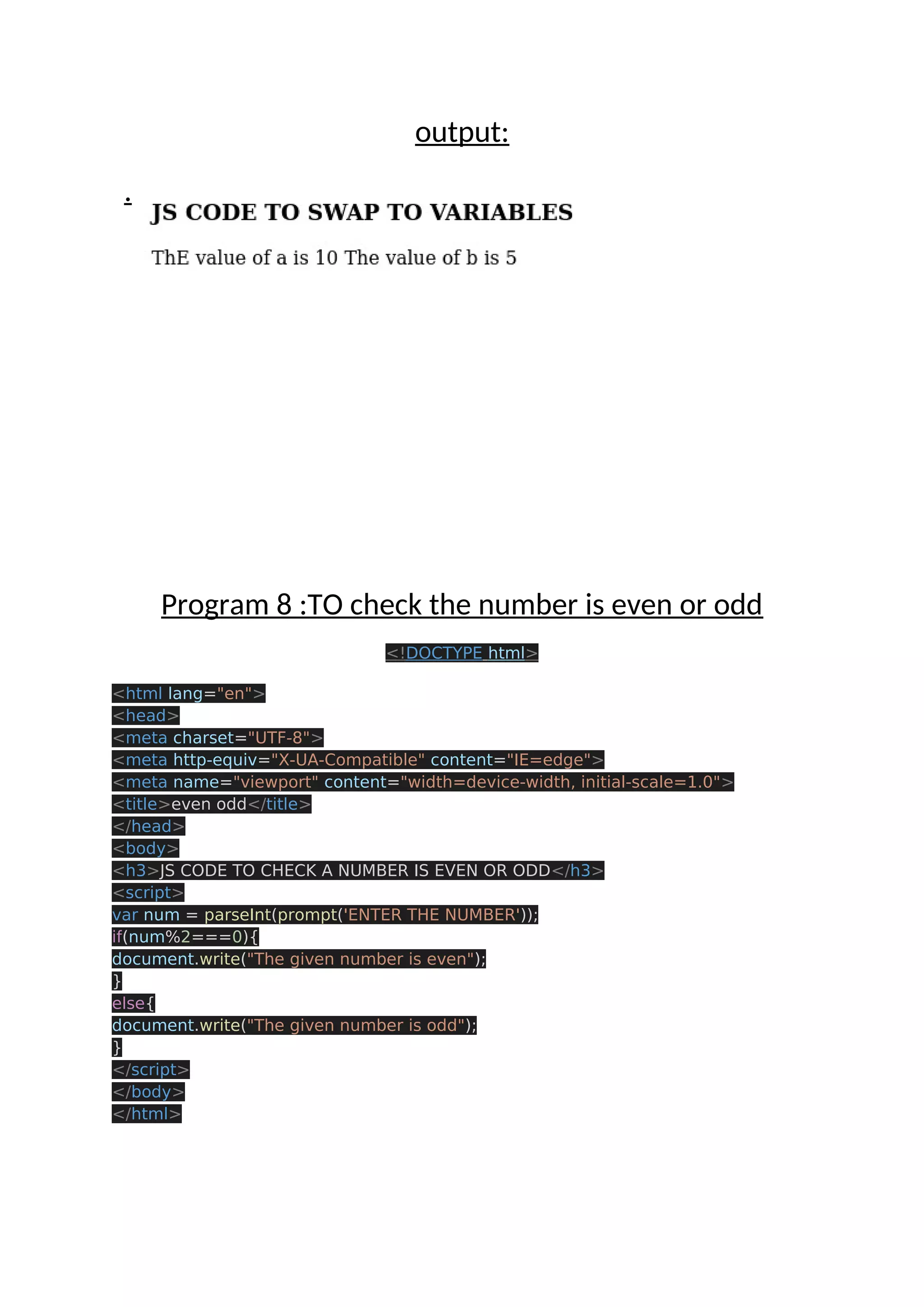
. . Program 7 :to swap to varaibles <!DOCTYPE html> <html lang="en"> <head> <meta charset="UTF-8"> <meta http-equiv="X-UA-Compatible" content="IE=edge"> <meta name="viewport" content="width=device-width, initial-scale=1.0"> <title>swap two variables </title> </head> <body> <h3>JS CODE TO SWAP TO VARIABLES</h3> <script> var a = 5; var b = 10; [a,b] = [b,a] a = " ThE value of a is "+a; b = " The value of b is " + b; document.writeln(a); document.writeln(b); </script> </body> </html>
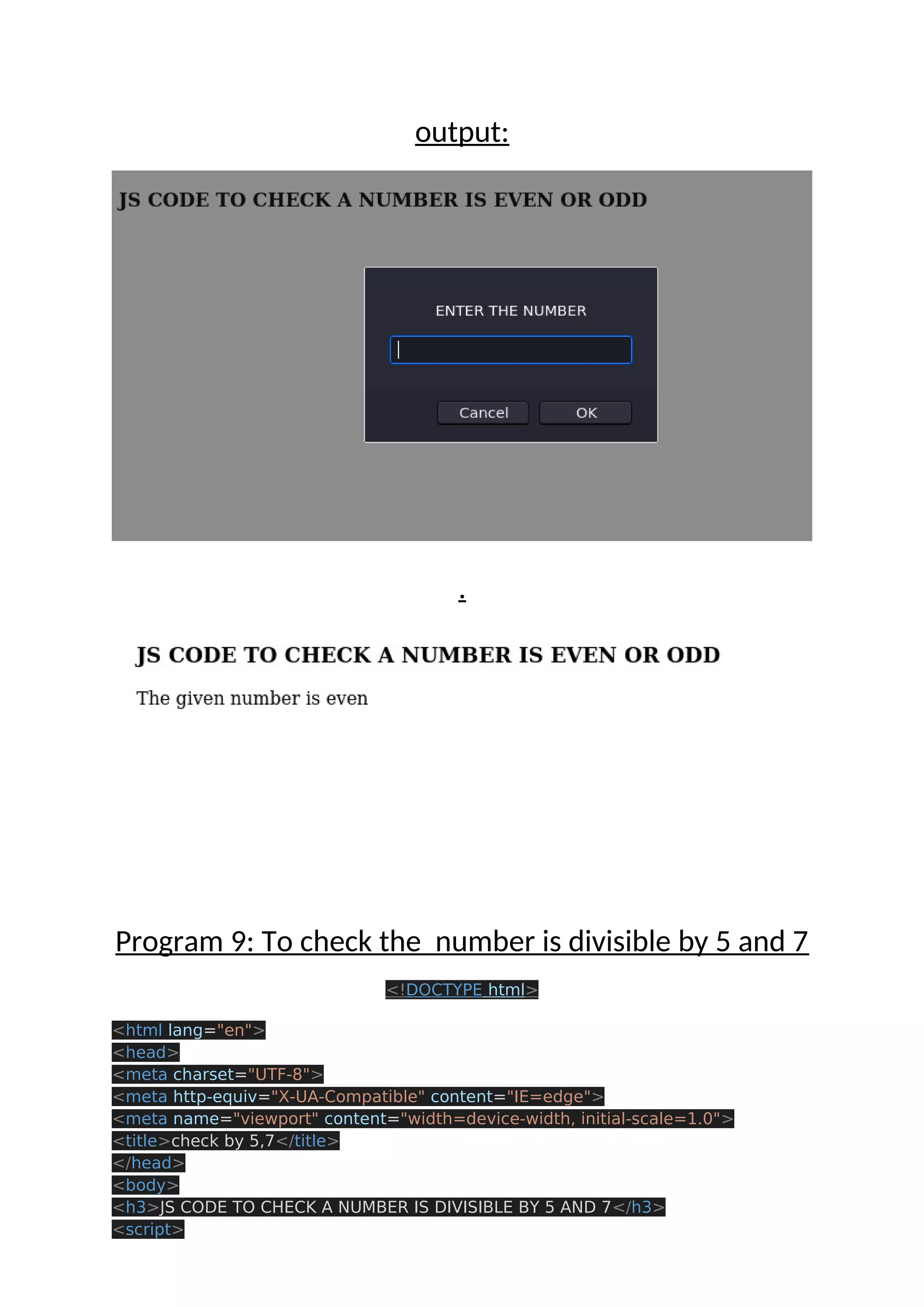
output: . Program 8 :TO check the number is even or odd <!DOCTYPE html> <html lang="en"> <head> <meta charset="UTF-8"> <meta http-equiv="X-UA-Compatible" content="IE=edge"> <meta name="viewport" content="width=device-width, initial-scale=1.0"> <title>even odd</title> </head> <body> <h3>JS CODE TO CHECK A NUMBER IS EVEN OR ODD</h3> <script> var num = parseInt(prompt('ENTER THE NUMBER')); if(num%2===0){ document.write("The given number is even"); } else{ document.write("The given number is odd"); } </script> </body> </html>
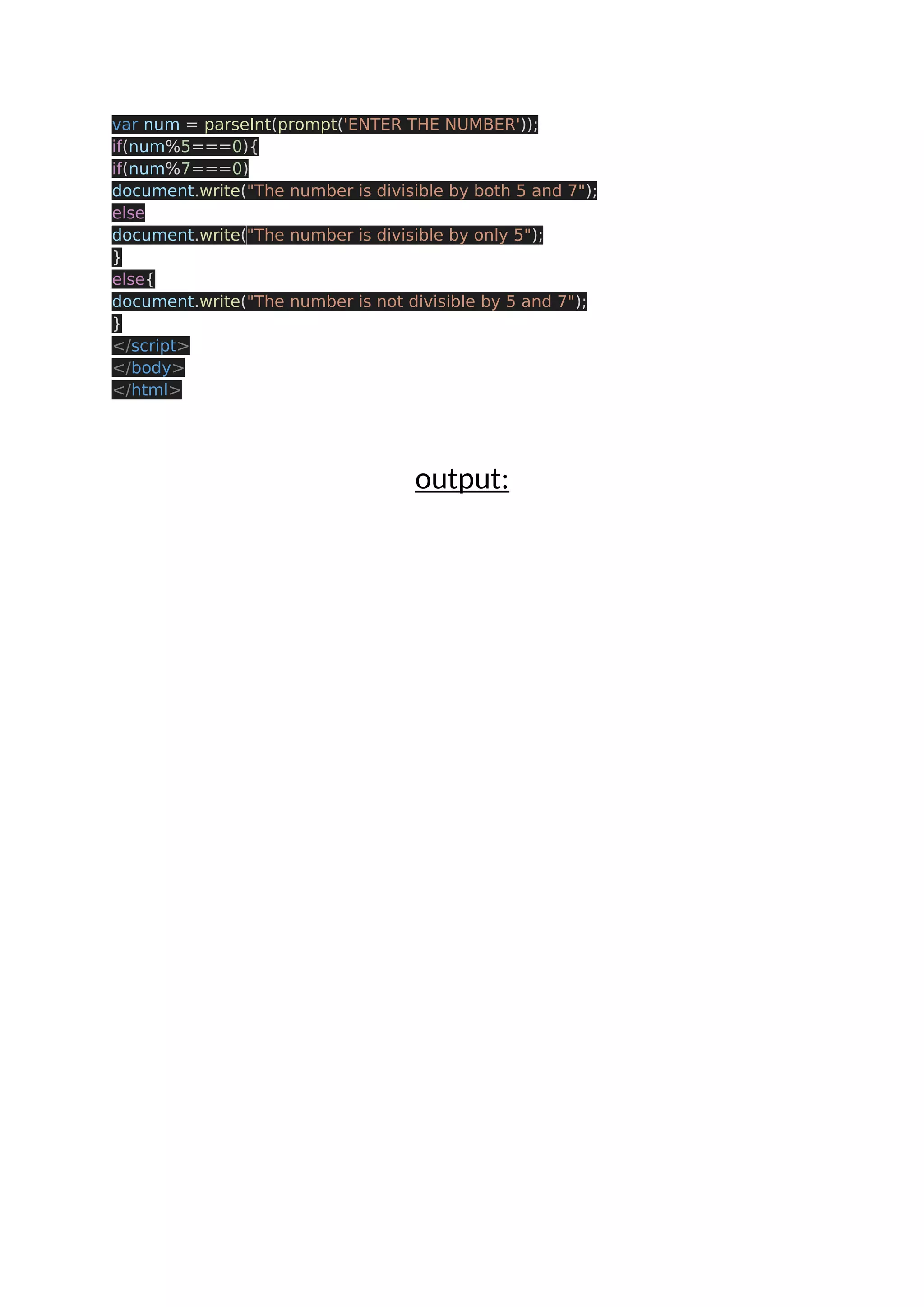
output: . Program 9: To check the number is divisible by 5 and 7 <!DOCTYPE html> <html lang="en"> <head> <meta charset="UTF-8"> <meta http-equiv="X-UA-Compatible" content="IE=edge"> <meta name="viewport" content="width=device-width, initial-scale=1.0"> <title>check by 5,7</title> </head> <body> <h3>JS CODE TO CHECK A NUMBER IS DIVISIBLE BY 5 AND 7</h3> <script>
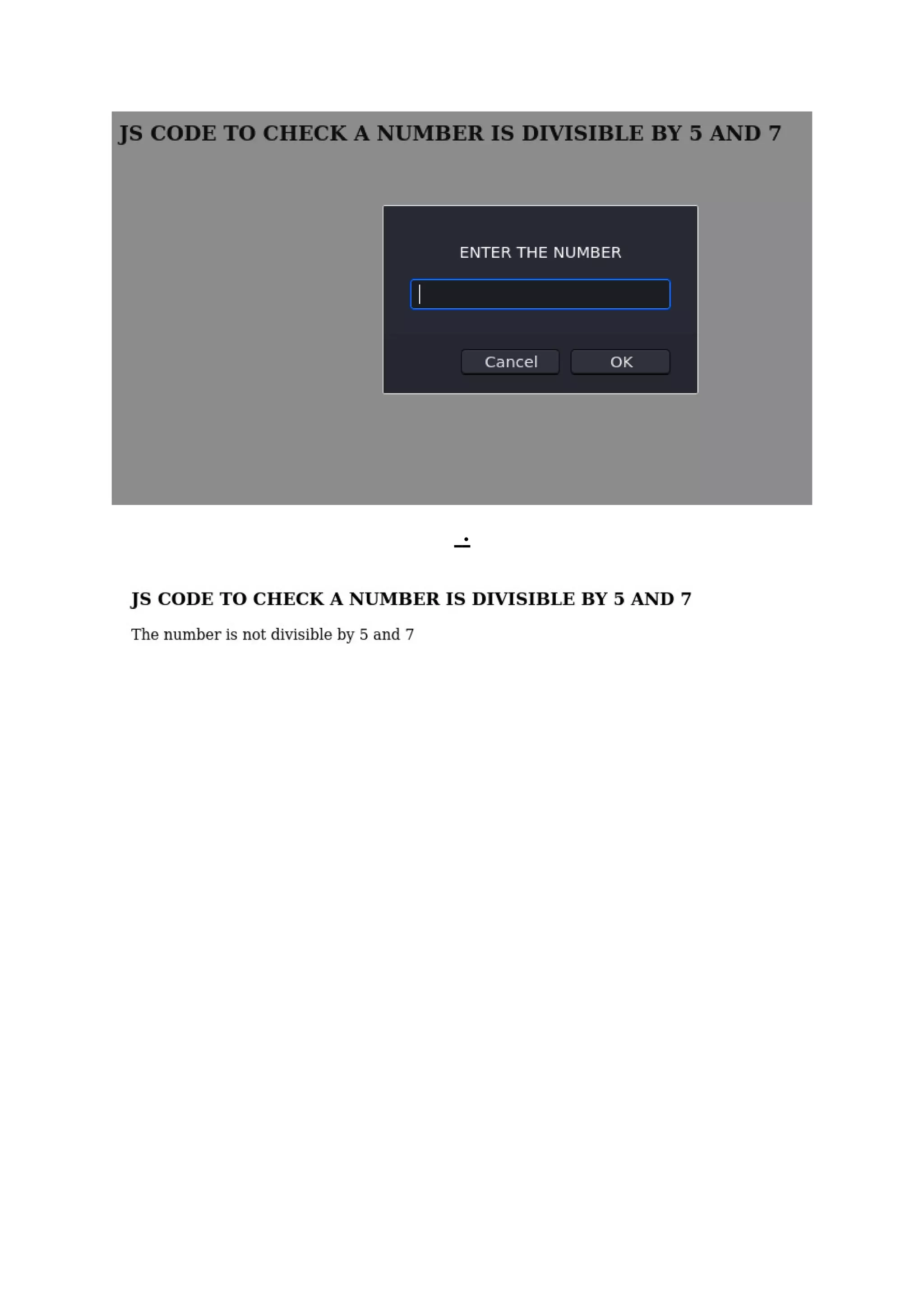
var num = parseInt(prompt('ENTER THE NUMBER')); if(num%5===0){ if(num%7===0) document.write("The number is divisible by both 5 and 7"); else document.write("The number is divisible by only 5"); } else{ document.write("The number is not divisible by 5 and 7"); } </script> </body> </html> output:
.
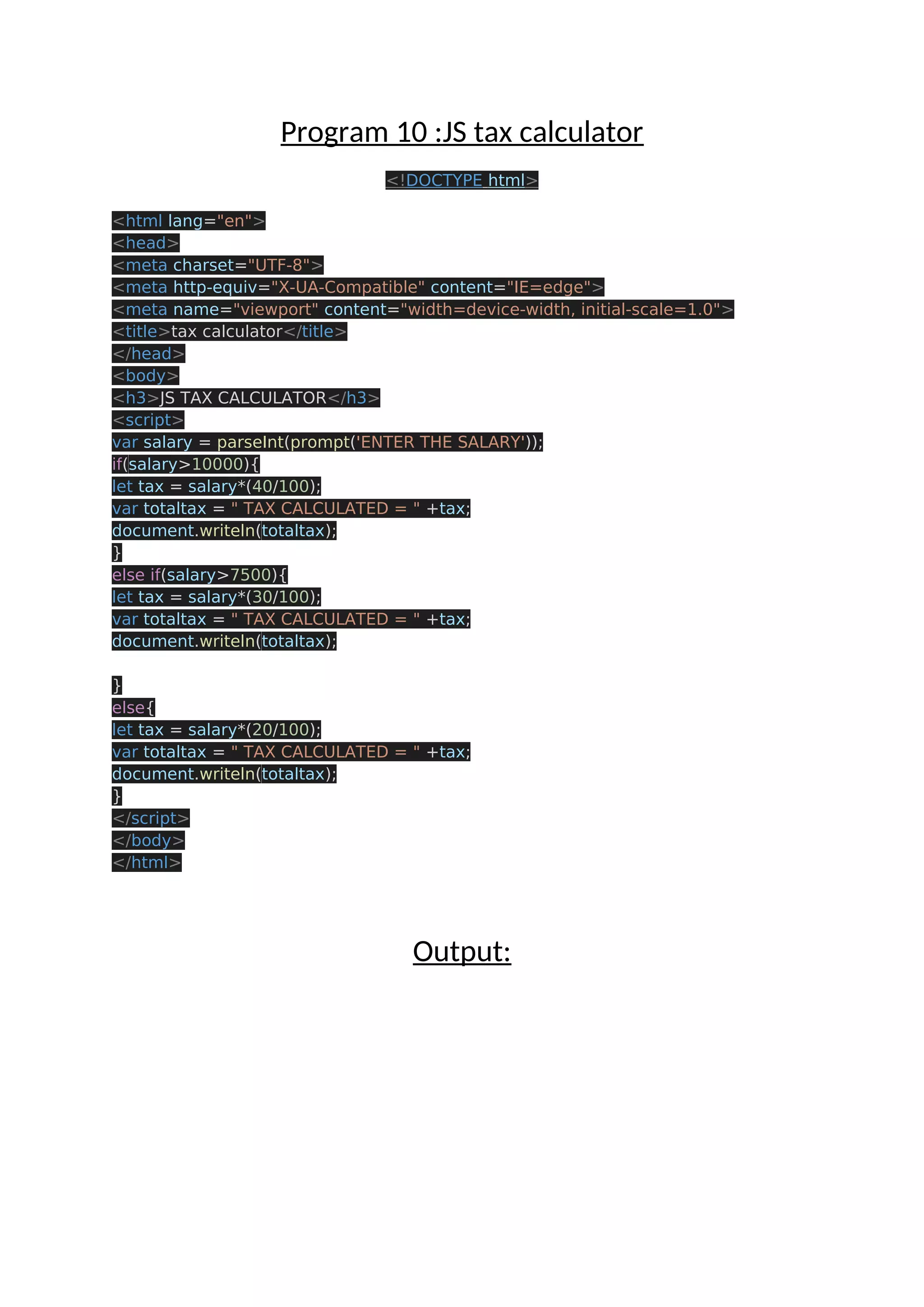
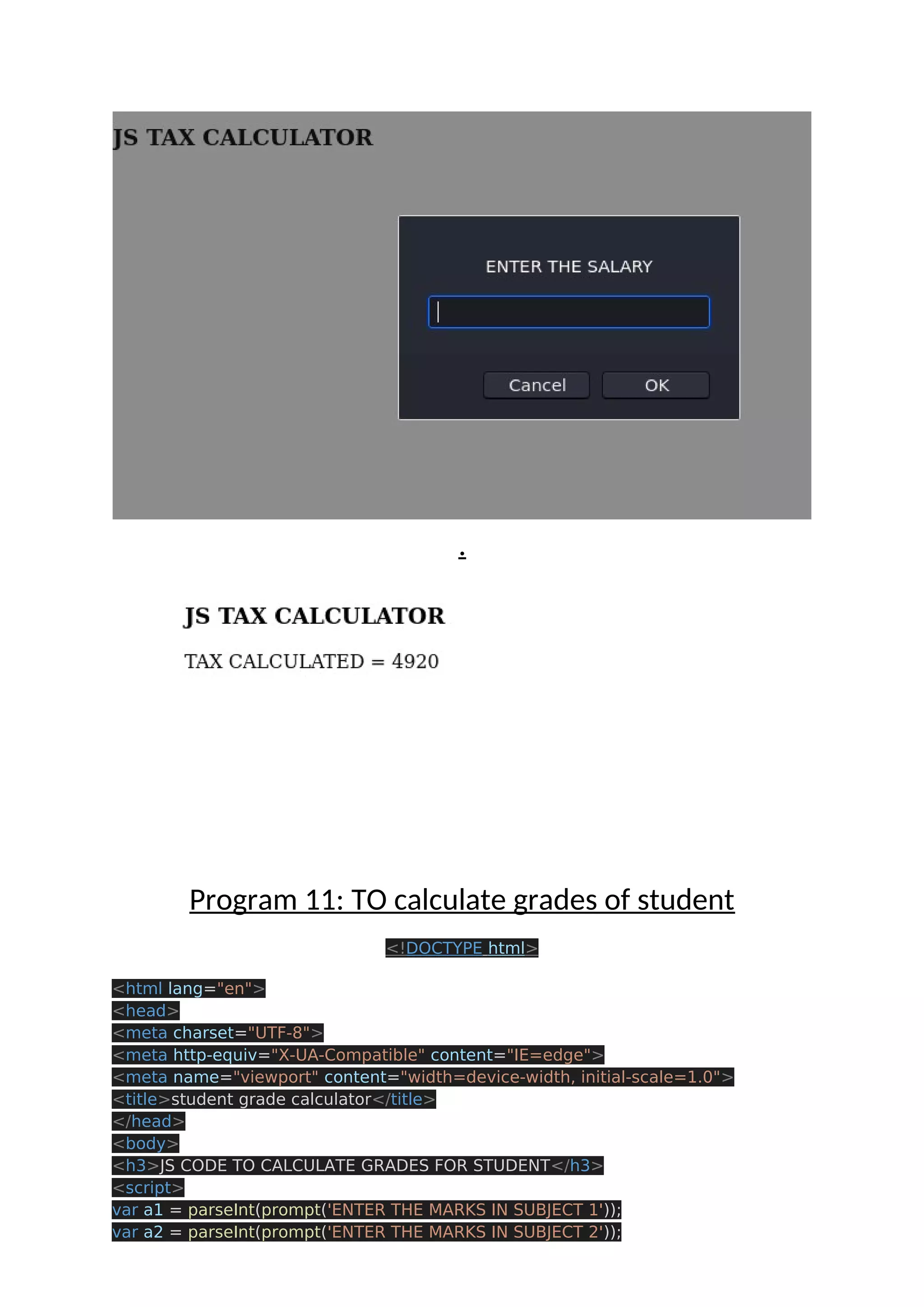
Program 10 :JS tax calculator <!DOCTYPE html> <html lang="en"> <head> <meta charset="UTF-8"> <meta http-equiv="X-UA-Compatible" content="IE=edge"> <meta name="viewport" content="width=device-width, initial-scale=1.0"> <title>tax calculator</title> </head> <body> <h3>JS TAX CALCULATOR</h3> <script> var salary = parseInt(prompt('ENTER THE SALARY')); if(salary>10000){ let tax = salary*(40/100); var totaltax = " TAX CALCULATED = " +tax; document.writeln(totaltax); } else if(salary>7500){ let tax = salary*(30/100); var totaltax = " TAX CALCULATED = " +tax; document.writeln(totaltax); } else{ let tax = salary*(20/100); var totaltax = " TAX CALCULATED = " +tax; document.writeln(totaltax); } </script> </body> </html> Output:
. Program 11: TO calculate grades of student <!DOCTYPE html> <html lang="en"> <head> <meta charset="UTF-8"> <meta http-equiv="X-UA-Compatible" content="IE=edge"> <meta name="viewport" content="width=device-width, initial-scale=1.0"> <title>student grade calculator</title> </head> <body> <h3>JS CODE TO CALCULATE GRADES FOR STUDENT</h3> <script> var a1 = parseInt(prompt('ENTER THE MARKS IN SUBJECT 1')); var a2 = parseInt(prompt('ENTER THE MARKS IN SUBJECT 2'));
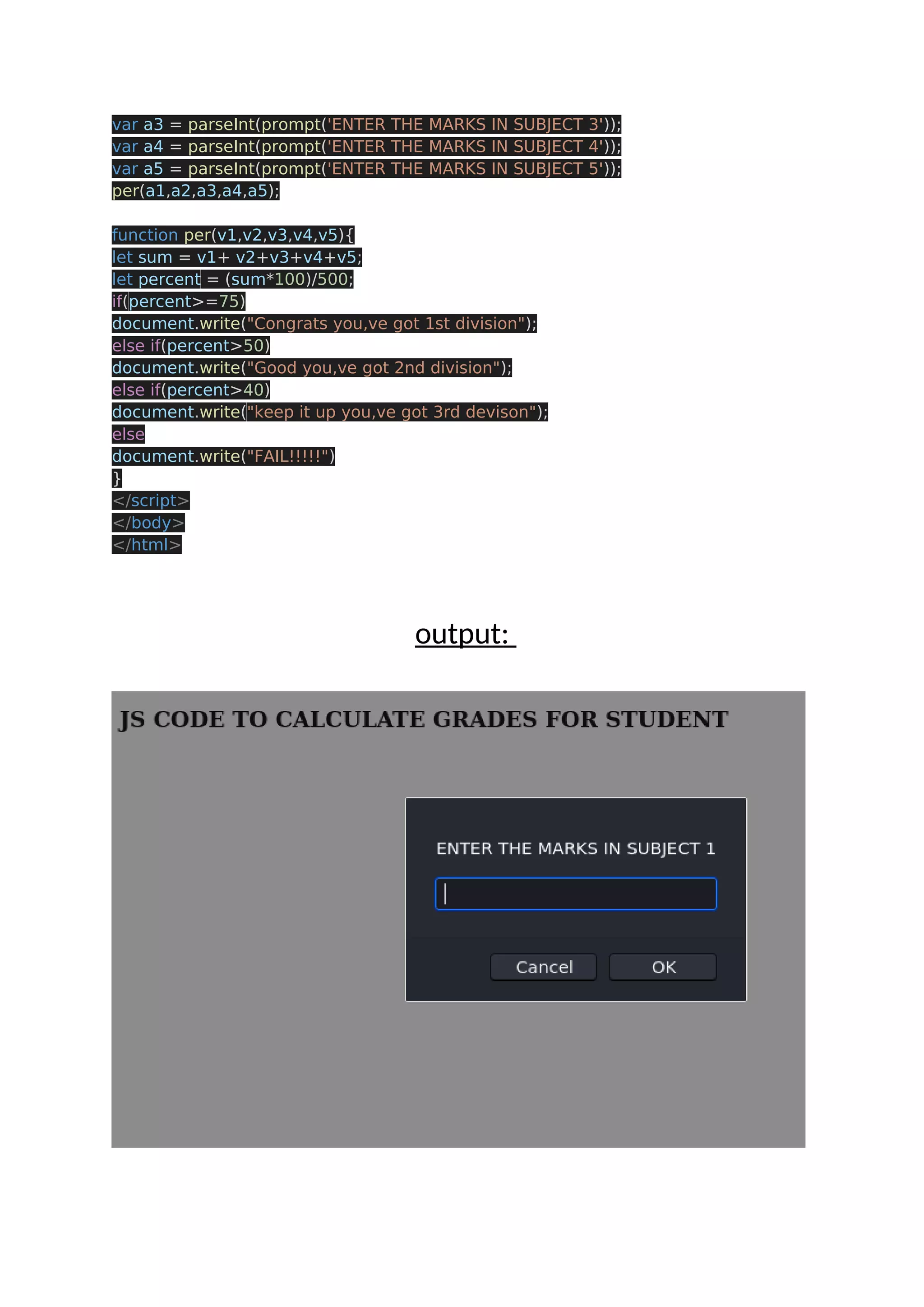
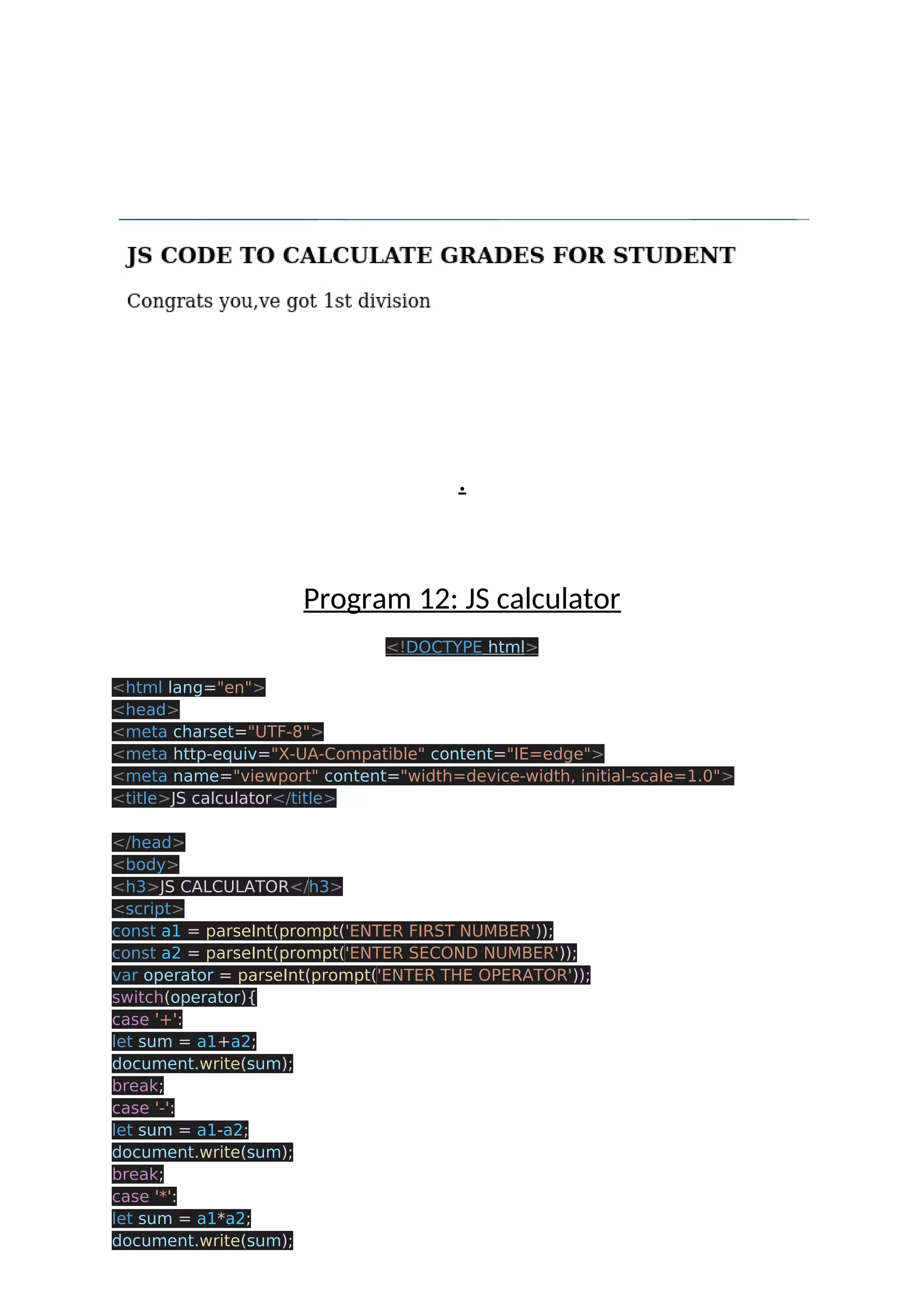
var a3 = parseInt(prompt('ENTER THE MARKS IN SUBJECT 3')); var a4 = parseInt(prompt('ENTER THE MARKS IN SUBJECT 4')); var a5 = parseInt(prompt('ENTER THE MARKS IN SUBJECT 5')); per(a1,a2,a3,a4,a5); function per(v1,v2,v3,v4,v5){ let sum = v1+ v2+v3+v4+v5; let percent = (sum*100)/500; if(percent>=75) document.write("Congrats you,ve got 1st division"); else if(percent>50) document.write("Good you,ve got 2nd division"); else if(percent>40) document.write("keep it up you,ve got 3rd devison"); else document.write("FAIL!!!!!") } </script> </body> </html> output:
. Program 12: JS calculator <!DOCTYPE html> <html lang="en"> <head> <meta charset="UTF-8"> <meta http-equiv="X-UA-Compatible" content="IE=edge"> <meta name="viewport" content="width=device-width, initial-scale=1.0"> <title>JS calculator</title> </head> <body> <h3>JS CALCULATOR</h3> <script> const a1 = parseInt(prompt('ENTER FIRST NUMBER')); const a2 = parseInt(prompt('ENTER SECOND NUMBER')); var operator = parseInt(prompt('ENTER THE OPERATOR')); switch(operator){ case '+': let sum = a1+a2; document.write(sum); break; case '-': let sum = a1-a2; document.write(sum); break; case '*': let sum = a1*a2; document.write(sum);
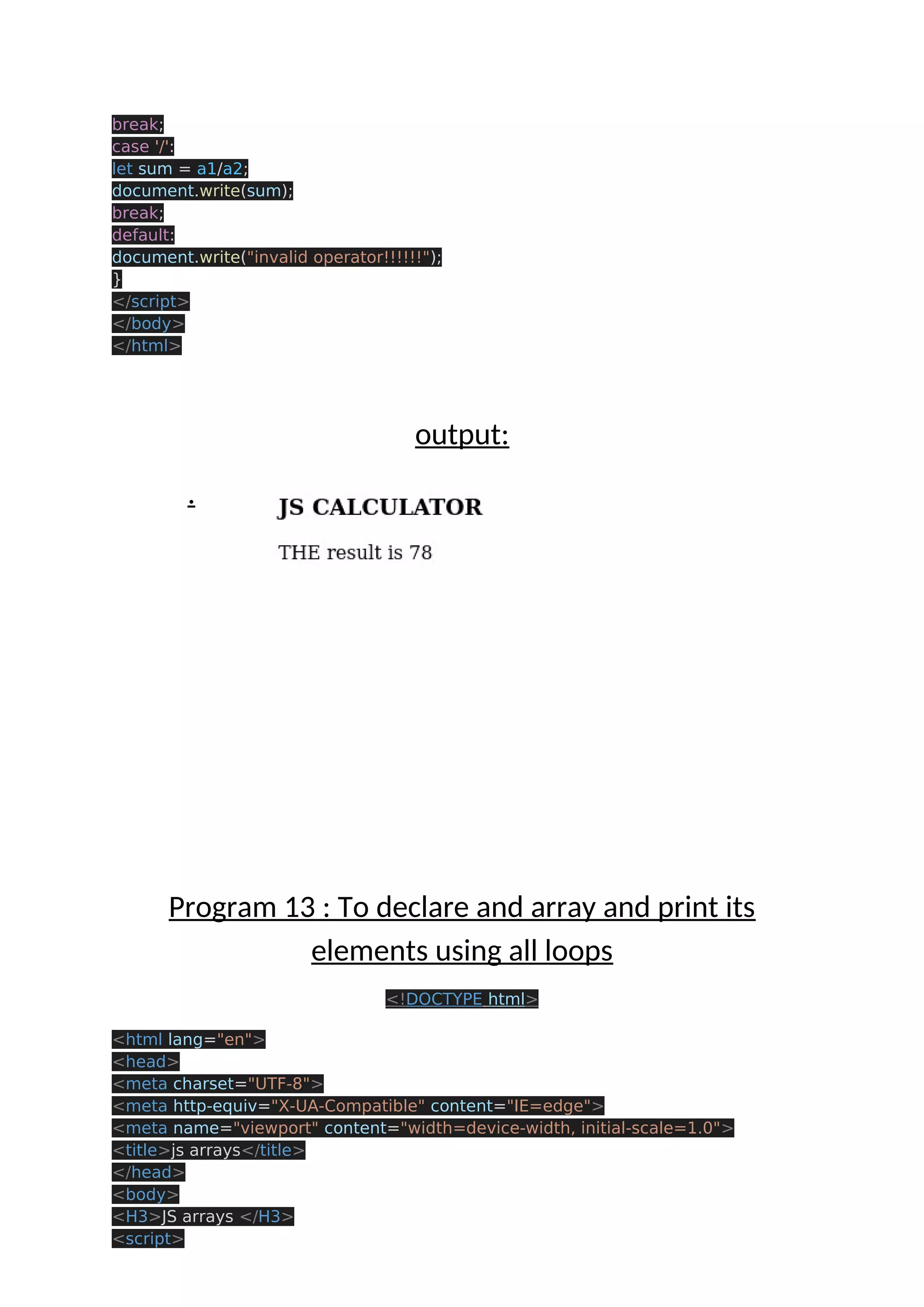
break; case '/': let sum = a1/a2; document.write(sum); break; default: document.write("invalid operator!!!!!!"); } </script> </body> </html> output: . Program 13 : To declare and array and print its elements using all loops <!DOCTYPE html> <html lang="en"> <head> <meta charset="UTF-8"> <meta http-equiv="X-UA-Compatible" content="IE=edge"> <meta name="viewport" content="width=device-width, initial-scale=1.0"> <title>js arrays</title> </head> <body> <H3>JS arrays </H3> <script>
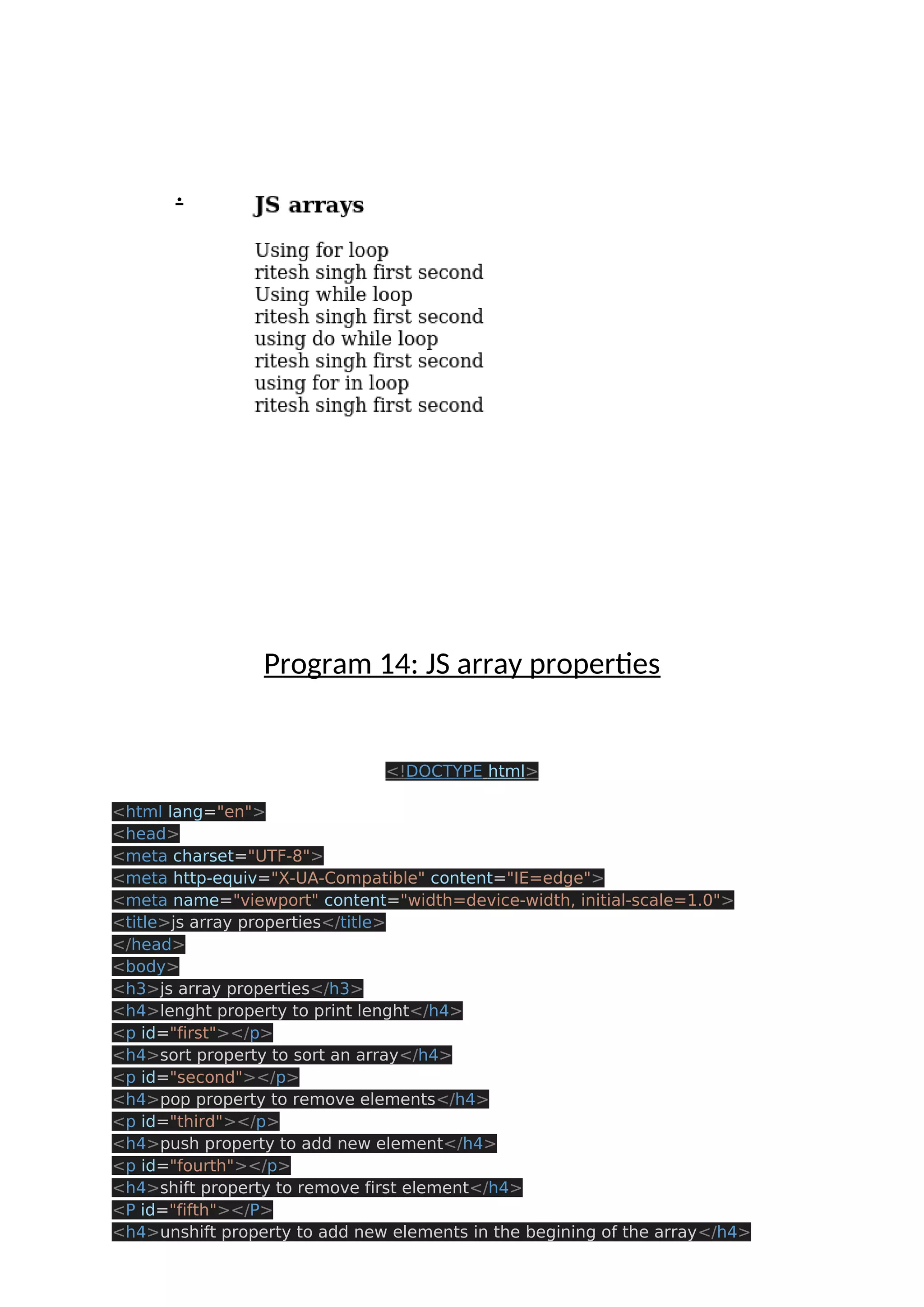
var arr = ["ritesh","singh","first","second"]; document.write("nUsing for loop") document.write("<br>"); for(let i=0;i<arr.length;i++){ let result = " "+ arr[i]; document.write(result); } document.write("<br>"); document.write("nUsing while loop"); document.write("<br>"); var a = 0; while(a<arr.length){ let result = " "+ arr[a]; document.write(result); a++; } document.write("<br>"); document.writeln("nusing do while loop"); document.write("<br>"); a = 0; do{ let result = " "+ arr[a]; document.write(result); a++; }while(a<arr.length); document.write("<br>"); document.write("using for in loop"); document.write("<br>"); a = 0; for (a in arr){ let result = " "+ arr[a]; document.write(result); } </script> </body> </html> Output:
. Program 14: JS array properties <!DOCTYPE html> <html lang="en"> <head> <meta charset="UTF-8"> <meta http-equiv="X-UA-Compatible" content="IE=edge"> <meta name="viewport" content="width=device-width, initial-scale=1.0"> <title>js array properties</title> </head> <body> <h3>js array properties</h3> <h4>lenght property to print lenght</h4> <p id="first"></p> <h4>sort property to sort an array</h4> <p id="second"></p> <h4>pop property to remove elements</h4> <p id="third"></p> <h4>push property to add new element</h4> <p id="fourth"></p> <h4>shift property to remove first element</h4> <P id="fifth"></P> <h4>unshift property to add new elements in the begining of the array</h4>
<p id="sixth"></p> <h4>merge property to add to different arrays in one</h4> <p id="seven"></p> <h4>reverse property to reverse an array</h4> <p id="eight"></p> <h4>indexof property to show the index of specific element of an array</h4> <p id="nine"></p> <script> var arr = ["ritesh","singh","first","second","third","fourth"]; document.getElementById("first").innerHTML = arr.length; document.getElementById("second").innerHTML = arr.sort(); document.getElementById("third").innerHTML = arr.pop(2); arr.push("new"); document.getElementById("fourth").innerHTML = arr; arr.shift(); document.getElementById("fifth").innerHTML = arr; arr.unshift("newelement","secondnew"); document.getElementById("sixth").innerHTML = arr; var arr1 = ["arr1 element","arr1 element2"]; var arr2 = arr.concat(arr1); document.getElementById("seven").innerHTML = arr2; document.getElementById("eight").innerHTML = arr.reverse(); document.getElementById("nine").innerHTML = arr.indexOf("ritesh"); </script> </body> </html> Output:
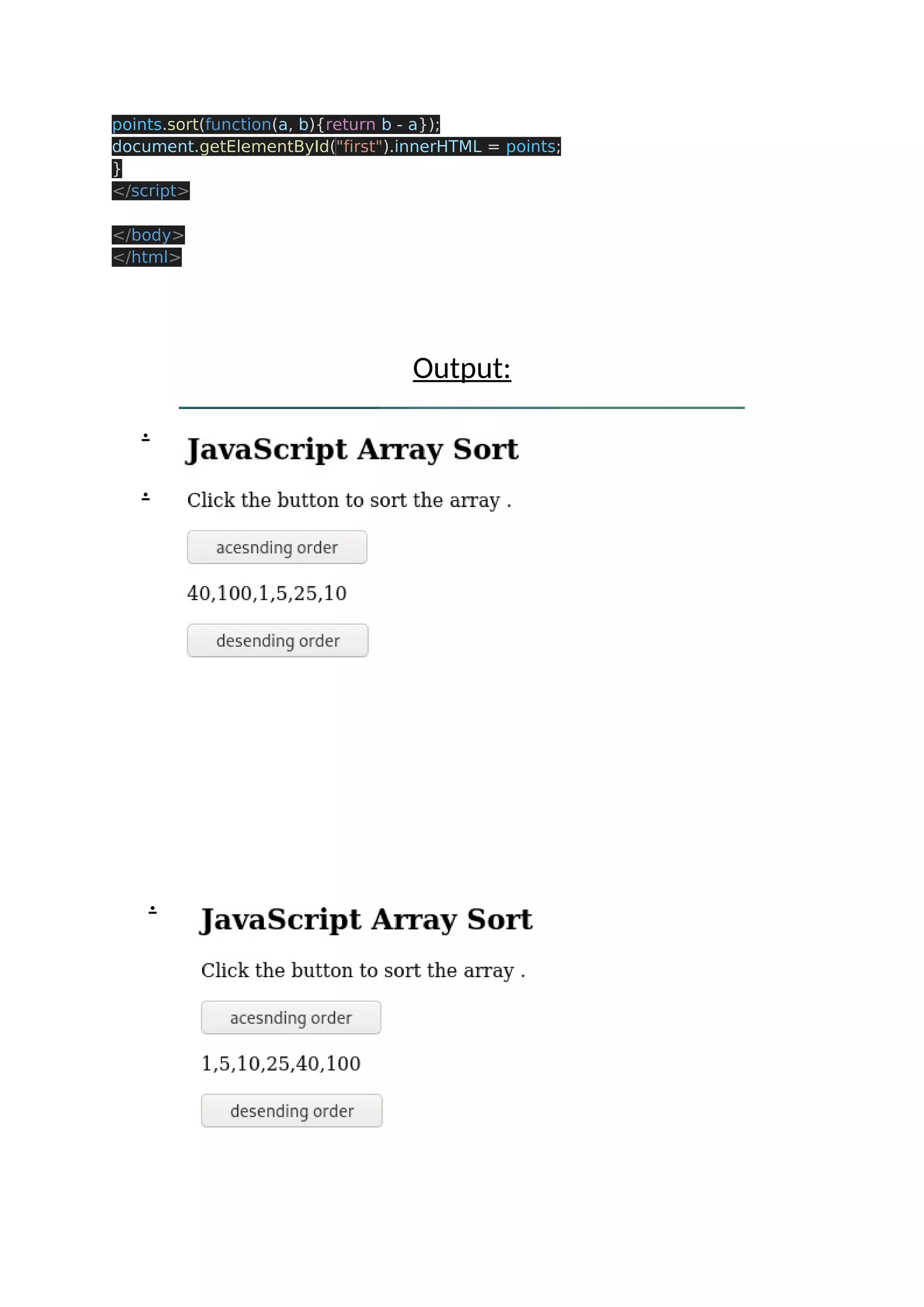
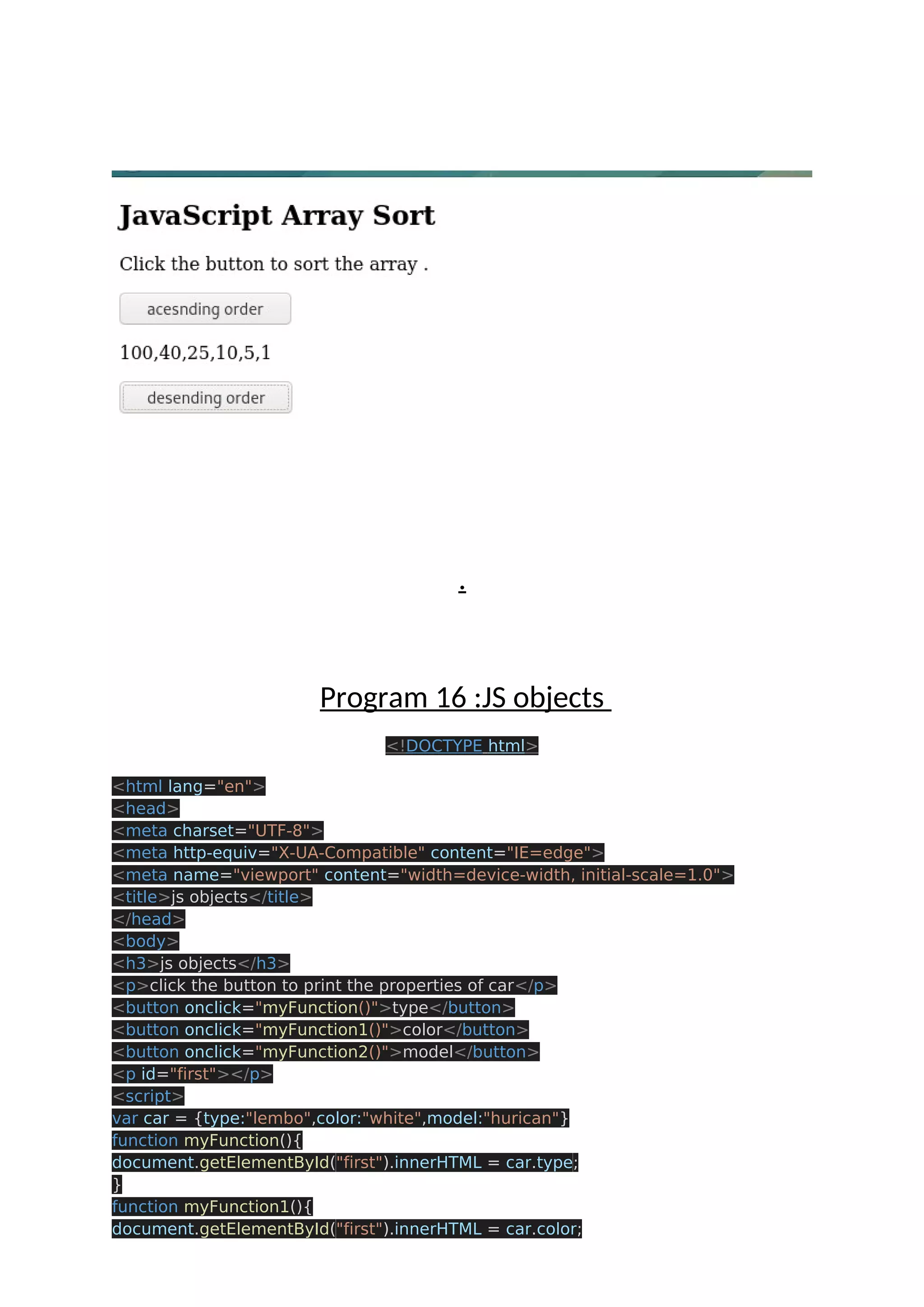
. Program 15: JS array sorting in ascending and descending order <!DOCTYPE html> <html> <body> <h2>JavaScript Array Sort</h2> <p>Click the button to sort the array .</p> <button onclick="myFunction()">acesnding order</button> <p id="first"></p> <button onclick="myFunction2()">desending order</button> <!-- <p id="second"></p> --> <script> const points = [40, 100, 1, 5, 25, 10]; document.getElementById("first").innerHTML = points; function myFunction() { points.sort(function(a, b){return a - b}); document.getElementById("first").innerHTML = points; } function myFunction2() {
points.sort(function(a, b){return b - a}); document.getElementById("first").innerHTML = points; } </script> </body> </html> Output: . . .
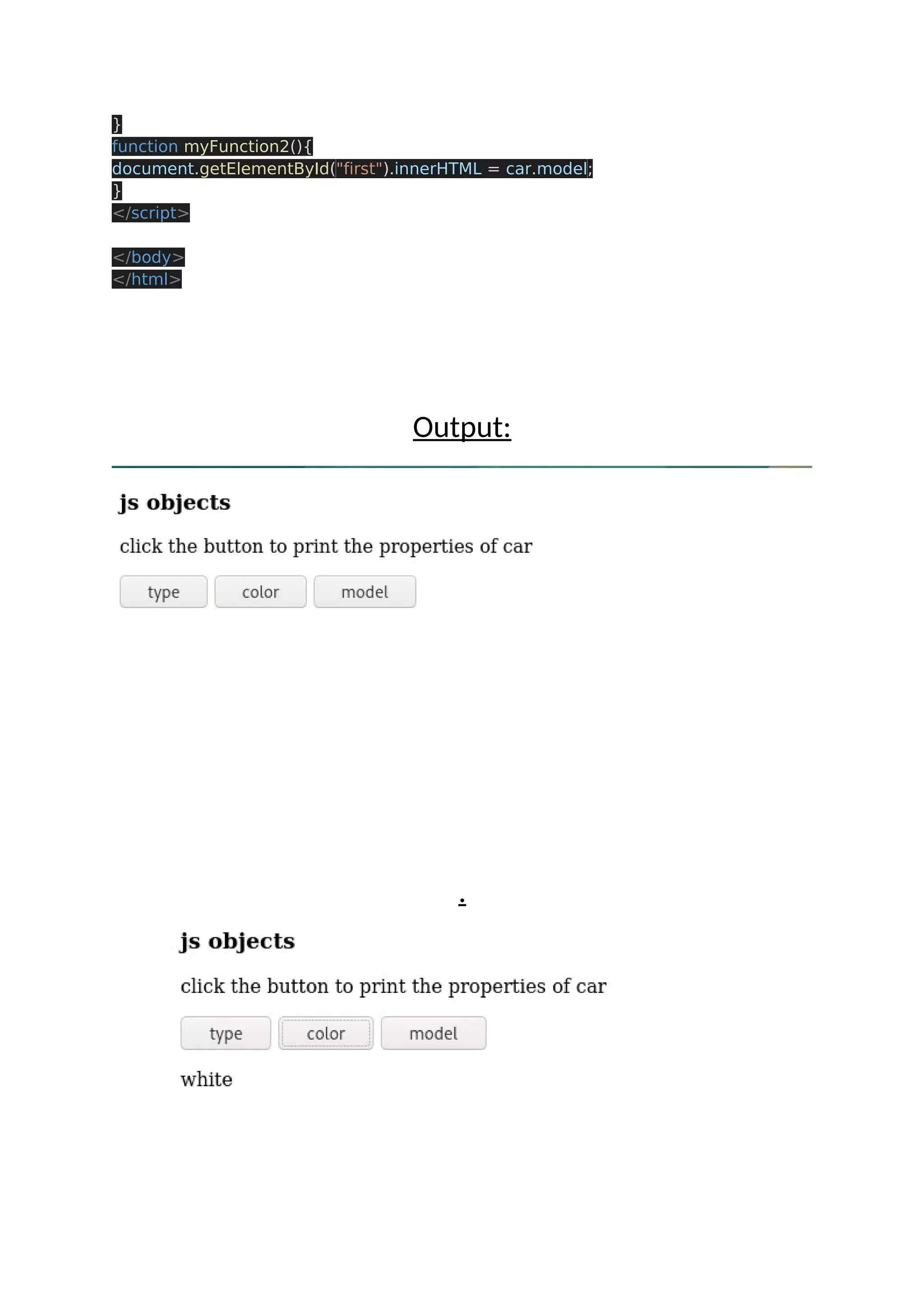
. Program 16 :JS objects <!DOCTYPE html> <html lang="en"> <head> <meta charset="UTF-8"> <meta http-equiv="X-UA-Compatible" content="IE=edge"> <meta name="viewport" content="width=device-width, initial-scale=1.0"> <title>js objects</title> </head> <body> <h3>js objects</h3> <p>click the button to print the properties of car</p> <button onclick="myFunction()">type</button> <button onclick="myFunction1()">color</button> <button onclick="myFunction2()">model</button> <p id="first"></p> <script> var car = {type:"lembo",color:"white",model:"hurican"} function myFunction(){ document.getElementById("first").innerHTML = car.type; } function myFunction1(){ document.getElementById("first").innerHTML = car.color;
} function myFunction2(){ document.getElementById("first").innerHTML = car.model; } </script> </body> </html> Output: .
. Program 17: printing the elements of objects within list <!DOCTYPE html> <html lang="en"> <head> <meta charset="UTF-8"> <meta http-equiv="X-UA-Compatible" content="IE=edge"> <meta name="viewport" content="width=device-width, initial-scale=1.0"> <title>task</title> </head> <body> <h3>printing the value from list of objects</h3> <p> var cars = [ {type:"volvo",year:"2016"}, {type:"saab",year:"2001"}, {type:"BMW",year:"2016"} ]</p> <p>printing the value of yearin type saab</p> <button onclick="myFunction()">click here</button> <p id="first"></p> <script> var cars = [ {type:"volvo",year:"2016"}, {type:"saab",year:"2001"},
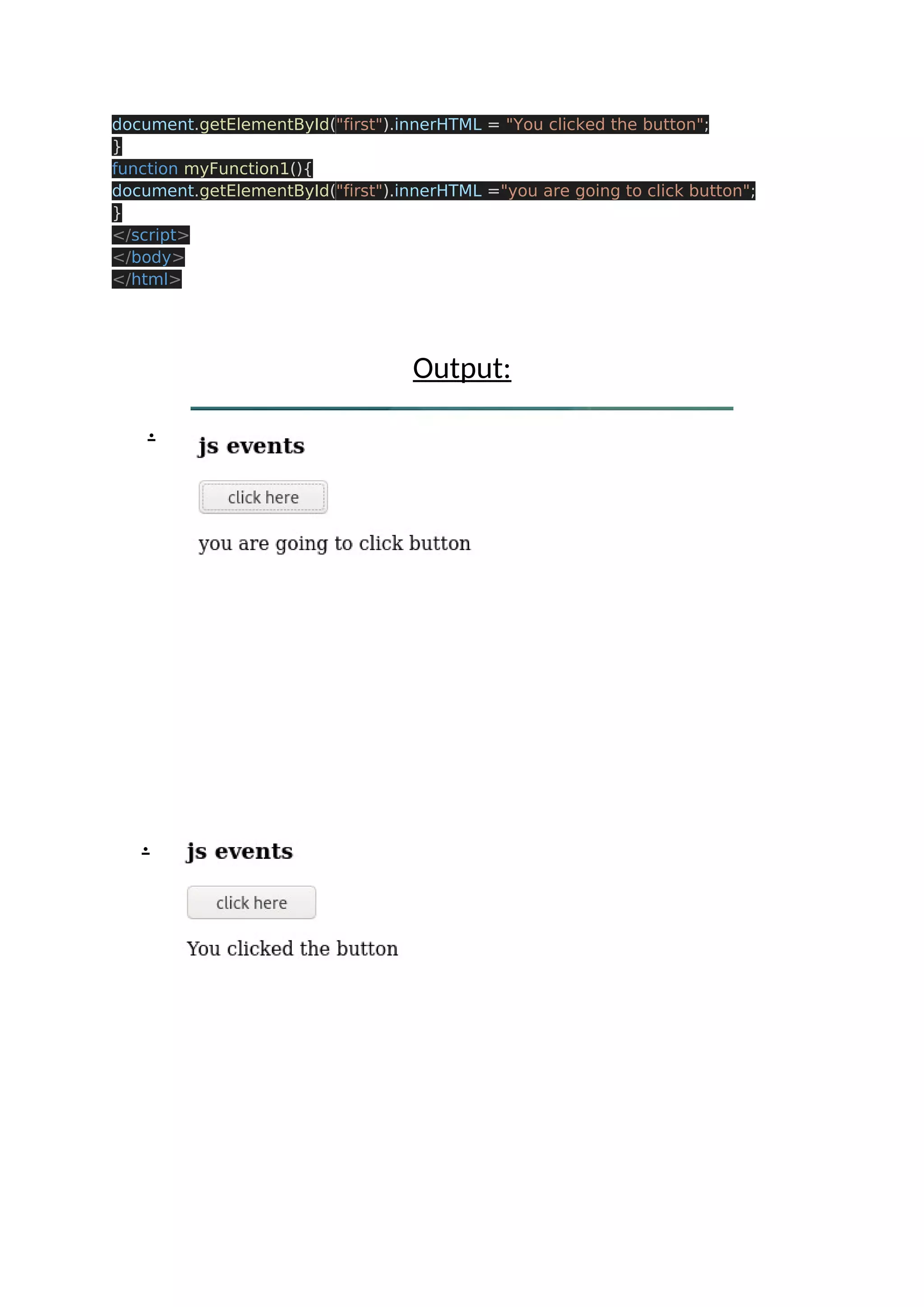
{type:"BMW",year:"2016"} ] function myFunction(){ document.getElementById("first").innerHTML = cars[1].year; } </script> </body> </html> Output: . Program 18:js events <!DOCTYPE html> <html lang="en"> <head> <meta charset="UTF-8"> <meta http-equiv="X-UA-Compatible" content="IE=edge"> <meta name="viewport" content="width=device-width, initial-scale=1.0"> <title>js events </title> </head> <body> <h3>js events</h3> <button onclick="myFunction()" onmouseover="myFunction1()" >click here</button> <p id="first"></p> <script> function myFunction(){
document.getElementById("first").innerHTML = "You clicked the button"; } function myFunction1(){ document.getElementById("first").innerHTML ="you are going to click button"; } </script> </body> </html> Output: . .
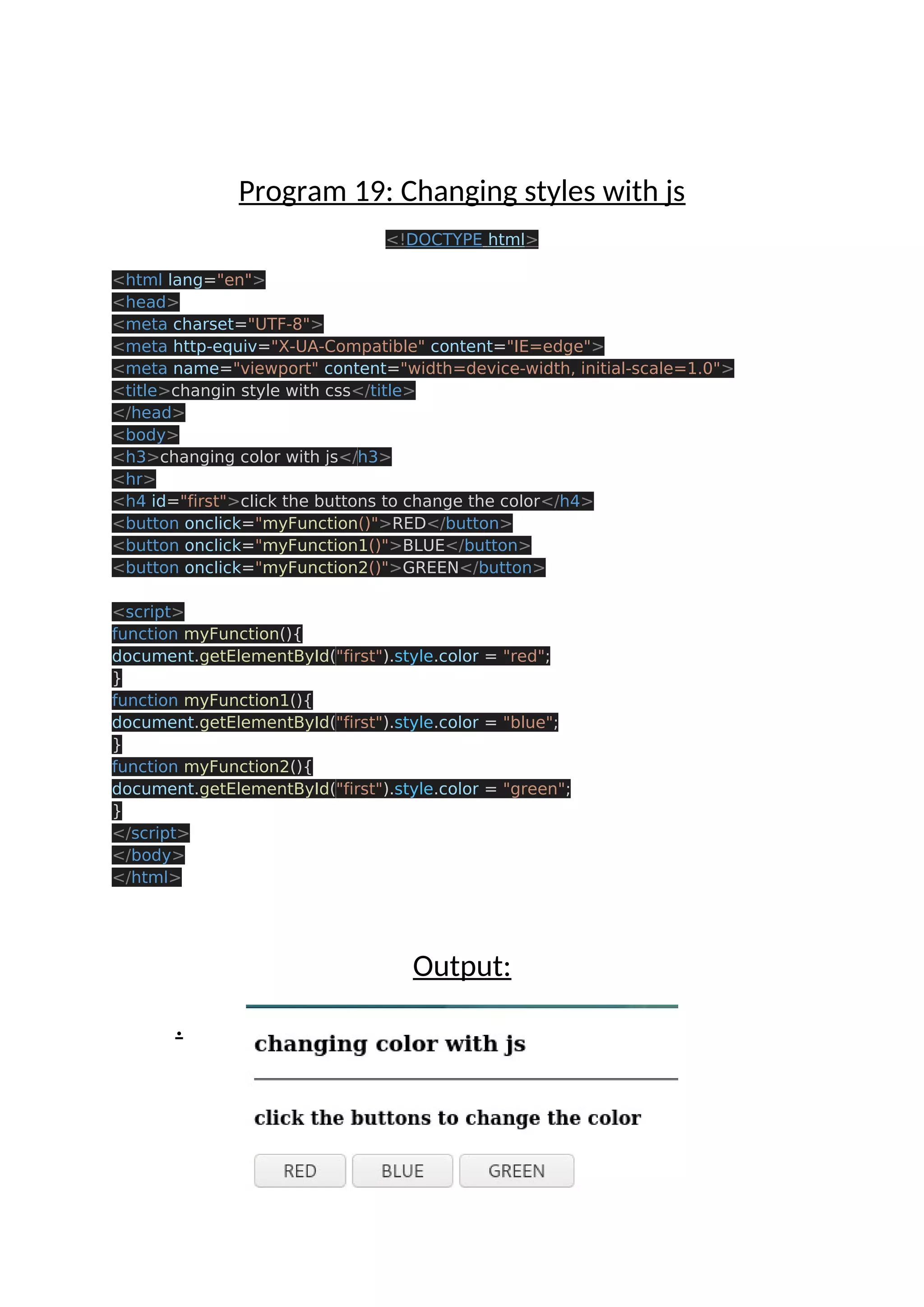
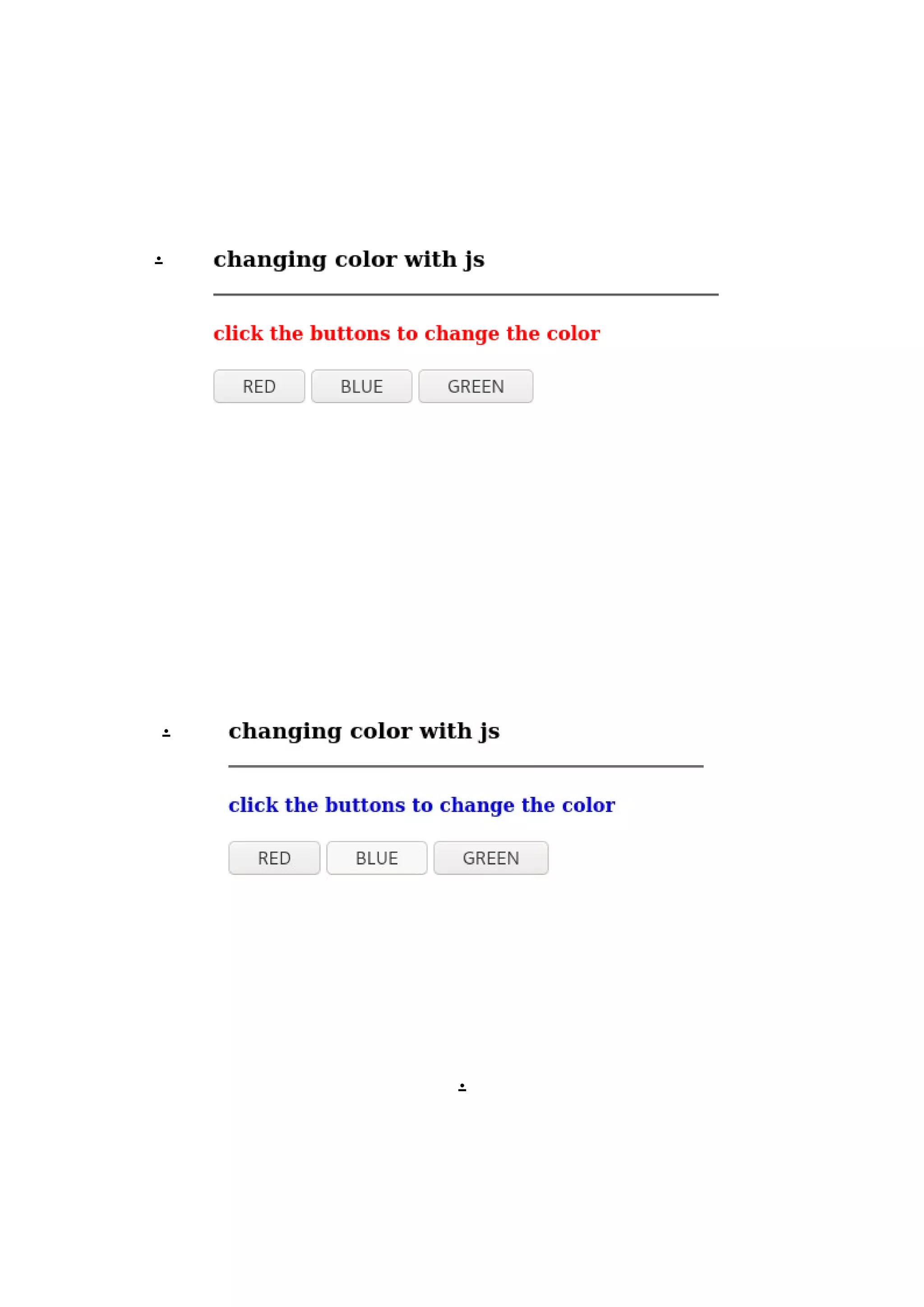
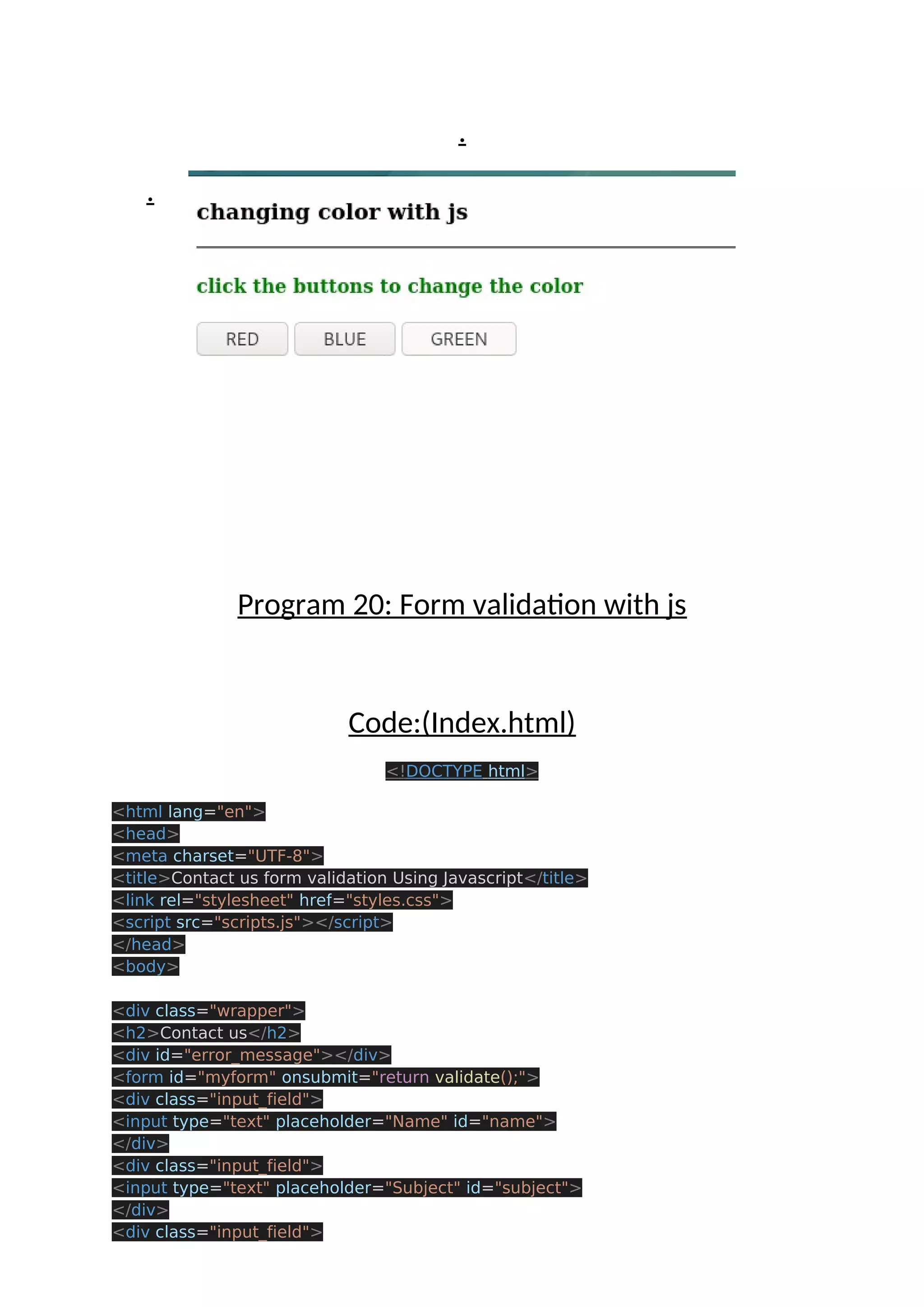
Program 19: Changing styles with js <!DOCTYPE html> <html lang="en"> <head> <meta charset="UTF-8"> <meta http-equiv="X-UA-Compatible" content="IE=edge"> <meta name="viewport" content="width=device-width, initial-scale=1.0"> <title>changin style with css</title> </head> <body> <h3>changing color with js</h3> <hr> <h4 id="first">click the buttons to change the color</h4> <button onclick="myFunction()">RED</button> <button onclick="myFunction1()">BLUE</button> <button onclick="myFunction2()">GREEN</button> <script> function myFunction(){ document.getElementById("first").style.color = "red"; } function myFunction1(){ document.getElementById("first").style.color = "blue"; } function myFunction2(){ document.getElementById("first").style.color = "green"; } </script> </body> </html> Output: .
. . .
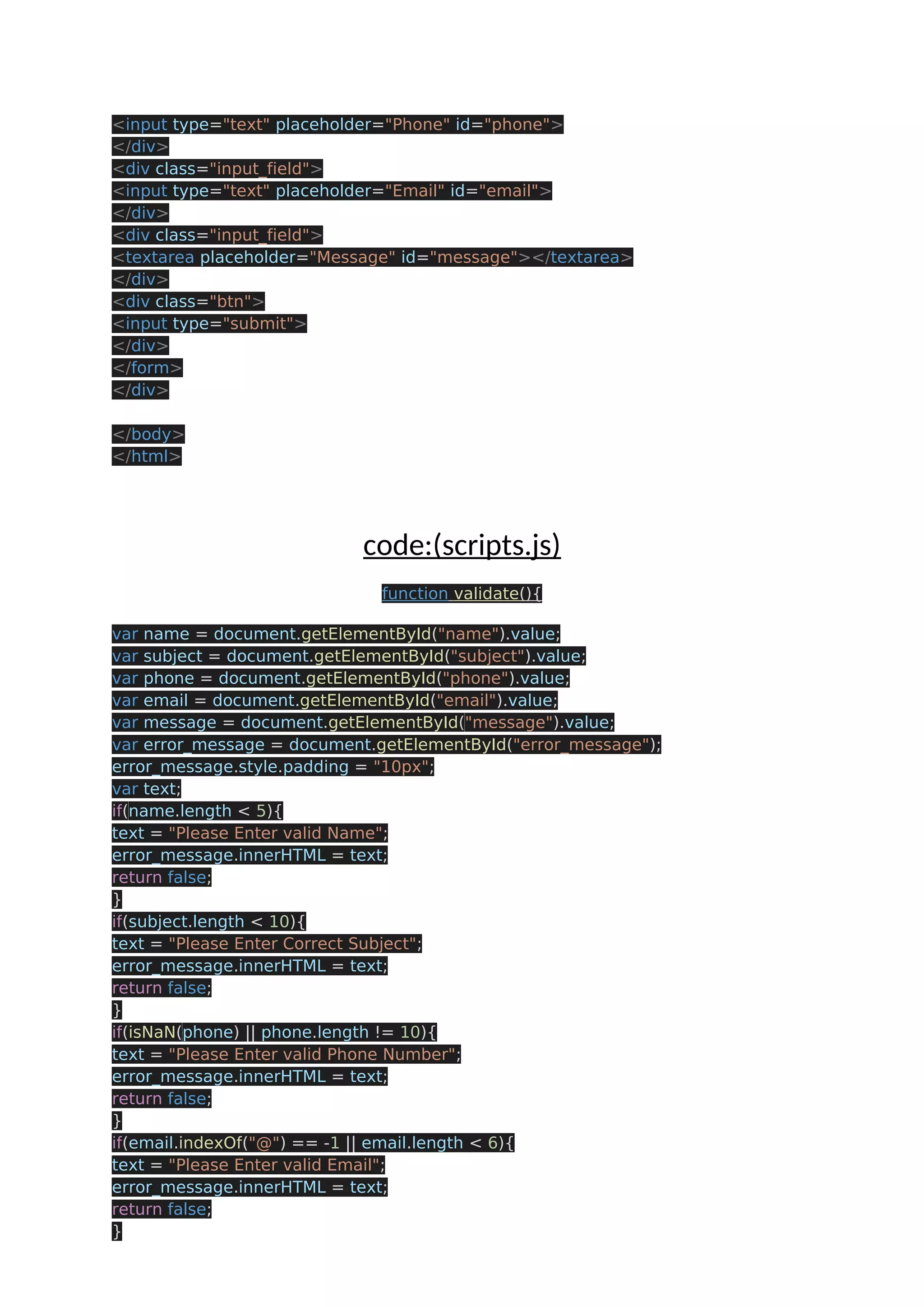
. . Program 20: Form validation with js Code:(Index.html) <!DOCTYPE html> <html lang="en"> <head> <meta charset="UTF-8"> <title>Contact us form validation Using Javascript</title> <link rel="stylesheet" href="styles.css"> <script src="scripts.js"></script> </head> <body> <div class="wrapper"> <h2>Contact us</h2> <div id="error_message"></div> <form id="myform" onsubmit="return validate();"> <div class="input_field"> <input type="text" placeholder="Name" id="name"> </div> <div class="input_field"> <input type="text" placeholder="Subject" id="subject"> </div> <div class="input_field">
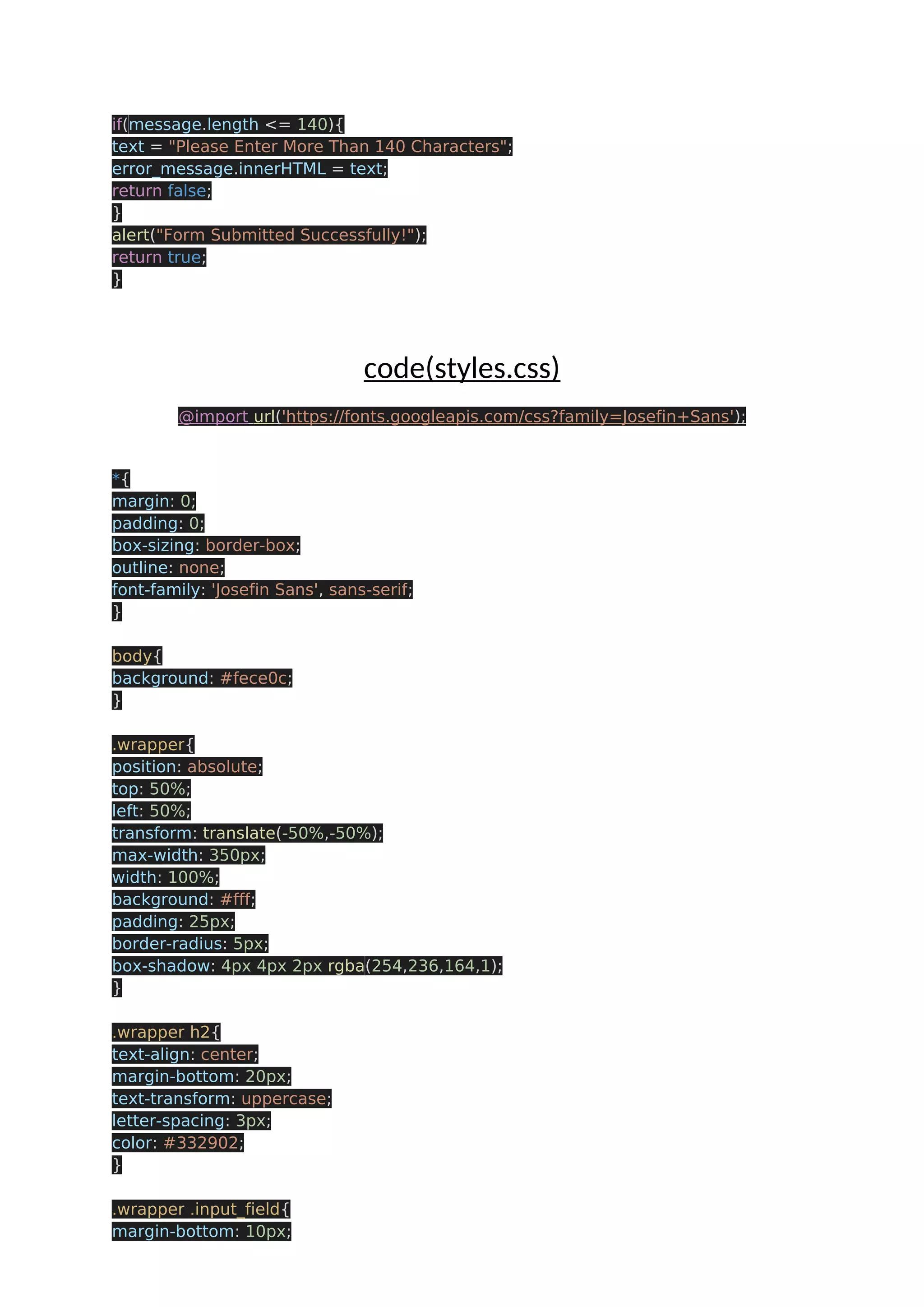
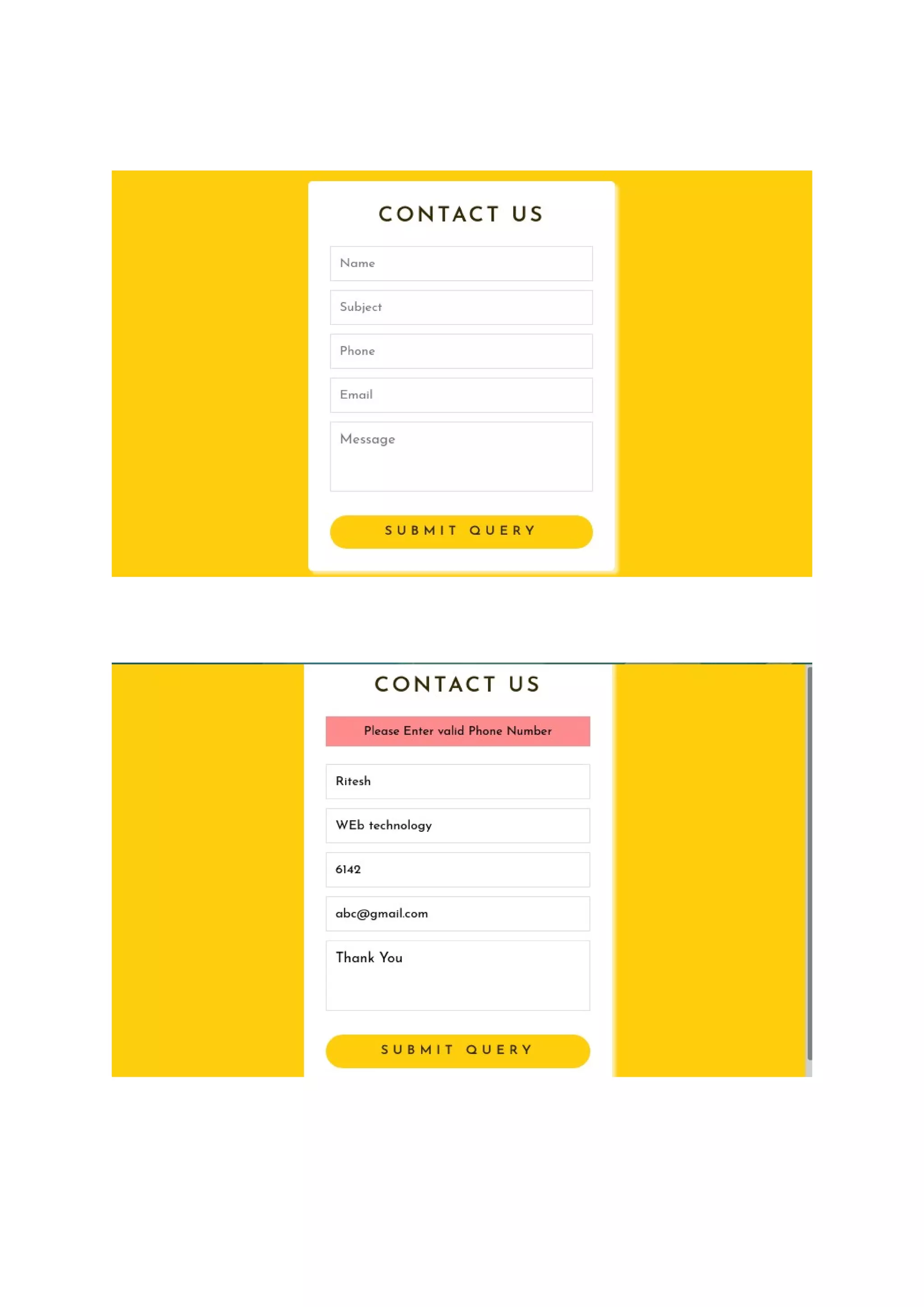
<input type="text" placeholder="Phone" id="phone"> </div> <div class="input_field"> <input type="text" placeholder="Email" id="email"> </div> <div class="input_field"> <textarea placeholder="Message" id="message"></textarea> </div> <div class="btn"> <input type="submit"> </div> </form> </div> </body> </html> code:(scripts.js) function validate(){ var name = document.getElementById("name").value; var subject = document.getElementById("subject").value; var phone = document.getElementById("phone").value; var email = document.getElementById("email").value; var message = document.getElementById("message").value; var error_message = document.getElementById("error_message"); error_message.style.padding = "10px"; var text; if(name.length < 5){ text = "Please Enter valid Name"; error_message.innerHTML = text; return false; } if(subject.length < 10){ text = "Please Enter Correct Subject"; error_message.innerHTML = text; return false; } if(isNaN(phone) || phone.length != 10){ text = "Please Enter valid Phone Number"; error_message.innerHTML = text; return false; } if(email.indexOf("@") == -1 || email.length < 6){ text = "Please Enter valid Email"; error_message.innerHTML = text; return false; }
if(message.length <= 140){ text = "Please Enter More Than 140 Characters"; error_message.innerHTML = text; return false; } alert("Form Submitted Successfully!"); return true; } code(styles.css) @import url('https://fonts.googleapis.com/css?family=Josefin+Sans'); *{ margin: 0; padding: 0; box-sizing: border-box; outline: none; font-family: 'Josefin Sans', sans-serif; } body{ background: #fece0c; } .wrapper{ position: absolute; top: 50%; left: 50%; transform: translate(-50%,-50%); max-width: 350px; width: 100%; background: #fff; padding: 25px; border-radius: 5px; box-shadow: 4px 4px 2px rgba(254,236,164,1); } .wrapper h2{ text-align: center; margin-bottom: 20px; text-transform: uppercase; letter-spacing: 3px; color: #332902; } .wrapper .input_field{ margin-bottom: 10px;
} .wrapper .input_field input[type="text"], .wrapper textarea{ border: 1px solid #e0e0e0; width: 100%; padding: 10px; } .wrapper textarea{ resize: none; height: 80px; } .wrapper .btn input[type="submit"]{ border: 0px; margin-top: 15px; padding: 10px; text-align: center; width: 100%; background: #fece0c; color: #332902; text-transform: uppercase; letter-spacing: 5px; font-weight: bold; border-radius: 25px; cursor: pointer; } #error_message{ margin-bottom: 20px; background: #fe8b8e; padding: 0px; text-align: center; font-size: 14px; transition: all 0.5s ease; } Output:
web technology practical file

web technology practical file

  • 3.
    Table of Contents Sr.Contents Page No. 1. HTML BODY TAGS 3 2. HTML HEADER TAGS 7 3. HTML TEXT EDITING TAGS 9 4. HTML NESTED LIST 11 5. HTML DEFINITION LIST 13 6. HTML ATTRIBUTES 14 7 HTML IMAGES 16 8 HTML – DIFFERENCE B/W EXTERNAL AND INTERNAL LINK 19 9 HTML TARGET ATTRIBUTES 20 10 HTML BUTTONS TO MOVE TOP/BOTTOM 22 11 HTML IFRAME TAG 25 12 HTML TABLES 28 13 HTML NESTED TABLE 29 14 HTML IMAGE MAPPING 31 15 JS TO PRINT MESSAGE 32 16 JS TO DECLARE A VARIABLE AND PRINTS ITS VALUE 33 17 JS TO FIND AVG OF MARKS 34 19 JS TO FIND SUM OF FIRST AND LAST DIGIT OF NUMBER 35 20 JS TO FIND SIMPLE INTEREST 36 21 JS TO SWAP TWO VARAIBLES 37 22 JS TO CHECK A NUMBER IS EVEN OR ODD 38 23 JS TO CHECK A NUMBER IS DIVISIVLE BY 5&7 39 24 JS TAX CALCULATOR 41 25 JS STUDENT GRADE CALCULATOR 44 26 JS SIMPLE OPERATOR CALCULATOR 46 27 JS ARRAYS AND LOOPS 48 28 JS ARRAYS PROPERTIES 50 29 JS ARAY SORT 52 30 JS OBJECTS 53 31 JS OBJECTS LIST 56 32 JS EVENTS 58 33 CHANGING CSS USING JS 61 34 JS FORM 64
  • 4.
    PRACTICAL 1: HTMLBasis <!DOCTYPE html> <html lang="en"> <head> <meta charset="UTF-8"> <meta http-equiv="X-UA-Compatible" content="IE=edge"> <meta name="viewport" content="width=device-width, initial-scale=1.0"> <title>Introduction</title> </head> <body> <div class="first"> <p>A web document (or web page) is,a set of HTML tags that are written in a plain text editor (without format) and run in a web browser.</p> <h2 class="header1">The basic HTML skeleton</h2> <h3 class="header1"><em>How to create a Web Page</em></h3> <p>To create a true HTML document you will start with three container elements:</p> <ul> <li>&lt;html&gt;</li> <li>&lt;head&gt;</li> <li>&lt;body&gt;</li> </ul> <p>These three combine to describe the basic structure of the page:</p> <ul> <li><strong>&lt;html&gt;</strong>: This element wraps all the content of the page (except the DTD)</li> <li><strong>&lt;head&gt;</strong>: This element designates the header part of the document. You can include optional information about the Web page, such as the title (the browser shows it in the title bar), optional search keywords and an optional style sheet</li> <li><strong>&lt;body&gt;</strong>: This element contains the content of your Web page, that is, what we want to appear in the navigation area of the browser</li> </ul> <p>There is only one correct way to combine these three elements. Here is its exact placement, with the doctype at the top of the page:</p> <pre><span class="new">&lt;!DOCTYPE html&gt;</span><br /><span class="tag">&lt;html&gt;</span><br /> <span class="tag">&lt;head&gt;</span><br /> ...<br /> <span class="tag">&lt;/head&gt;</span><br /> <span class="tag">&lt;body&gt;</span><br /> ...<br /> <span class="tag">&lt;/body&gt;</span><br /><span class="tag">&lt;/html&gt;</span> </pre> <p>Every Web page uses this basic structure. The ellipses (...) show where you would insert the additional information.</p> <p>Once the XHTML skeleton is placed, you must add two more connectors to the mix</p> <p>Every Web page requires a &lt;title&gt; element in the header section. Next, you must create a container for the text in the text body section (&lt;body&gt;). </p> <p>A multi-use text container element is <p>, which represents a paragraph. Let's take a closer look at the elements that need to be added:</p>
  • 5.
    <ul> <li><strong>&lt;title&gt;</strong>: Sets thetitle of the Web page, which has several functions. First, browsers display it in the upper part of the window. Second, when a visitor creates a bookmark for the page, the browser uses the title to tag it in the bookmarks (or bookmarks) menu. third, when the page appears in a web search, the search engine usually shows this title as the first line in the results, followed by a fragment of the content of the page.</li> <li><strong>&lt;p&gt;</strong>: Indicates a paragraph. The browsers do not bleed them but they add a small space between several consecutive ones to keep them separated</li> </ul> <p>Here is the page with these two new ingredients:</p> <pre><span class="new">&lt;!DOCTYPE html&gt;</span><br /><span class="tag">&lt;html&gt;</span><br /> <span class="tag">&lt;head&gt;</span><br /> <span class="tag">&lt;title&gt;</span><span class="texto">Welcome to my website</span><span class="tag">&lt;/title&gt;</span><br /> <span class="tag">&lt;/head&gt;</span><br /> <span class="tag">&lt;body&gt;</span><br /> <span class="tag">&lt;p&gt;&lt;/p&gt;</span><br /> <span class="tag">&lt;/body&gt;</span><br /> <span class="tag">&lt;/html&gt;</span> </pre> <p>If you open this document in a Web browser, you will see that the page is empty, but now the title appears.</p> <p>When a browser displays a Web page, the title appears at the top of the window, with the text at the end. If yours uses tabbed browsing, the title also appears in them.</p> <p>As it is now, this HTML document is a good template for future pages. The basic structure is in place; you simply need to change the title and add some text.</p> <p>The first thing we have to know is that in every web page there are two clearly differentiated parts: the head, or head, and the body, or body.</p> <p>Let's do is create a folder, inside "My Documents", to store the test files that we will use.</p> <p>We will call this folder html-tests in the rest of the exercises. With the folder open, double-click on the icon that represents the notebook.</p> <p>A blank document will open.</p> <h2>Enter the following text:</h2> <pre><span class="new">&lt;!DOCTYPE html&gt;</span><br /><span class="tag">&lt;html&gt;</span><br /> <span class="tag">&lt;head&gt;</span><br /> <span class="tag">&lt;title&gt;</span><span class="texto"><p>Welecome to my webpage</p></span><span class="tag">&lt;/title&gt;</span><br /> <span class="tag">&lt;/head&gt;</span><br /> <span class="tag">&lt;body&gt;</span><br /> &lt;<span class="tag">/body&gt;</span><br /><span class="tag">&lt;/html&gt;</span> </pre> <p>When you have it written, save it in the folder with the name template.html</p> <p>It is vital that the extension be .html, since only by the extension does the operating system recognize this file as a web document, and not as a simple and text file.</p>
  • 6.
    <p>The name ofthe file should be written as it is, in lowercase and without spaces or special characters.</p> <p>The only punctuation marks allowed are the point (only one), which we will use to separate the name of the extension and the underscore.</p> <p>The name may contain letters and numbers, but must begin with a letter. Likewise, we will abstain from putting in the name of a file accented letters, eñes, cedillas, or any other character of a local alphabet.</p> <p>Only the characters of the international alphabet (English) are allowed.</p> <h2>Observe the following examples:</h2> <ul> <li>page 1.htm is <strong>incorrect</strong>, as it has a blank space and a capital letter</li> <li>page/1.htm is <strong>incorrect</strong>, it has a non-allowed character (the bar)</li> <li>page1-htm is <strong>incorrect</strong>, because the extension is not separated from the name by a period and because it uses a non-allowed character. (the normal script).</li> <li>page.1.htm is <strong>incorrect</strong>, because there is more than one point. Only one should be used, to separate the name of the extension</li> <li>page1.htm is <strong>correct</strong></li> <li>page_1.html is <strong>correct</strong></li> <li>page-1.html is <strong>correct</strong> </li> </ul> <p>All of these precautions may seem excessive to you now. Most of them are really unnecessary in Windows, but do not forget that you are working on the Net.</p> <p>Web servers are much more sensitive to certain aspects of the name of the files than your local machine.</p> <p>Another important rule is that the files have an extension, but the folders in which we store them do not. So, in the name of a folder we will never include points.</p> <p>Once you have saved your code in your folder with the appropriate name, close the notebook. In your folder, in addition to the notebook, you will see the icon that represents the file you just recorded.</p> <p>Note that the icon is reminiscent of Explorer or Google Chrome (assuming one of them is your default browser).</p> <p>This is because having saved the file with the .htm extension, the operating system recognizes this file as a web document (also called an html document).</p> <p>If you incorrectly record the extension, the icon will be different and you will not be able to use your file as a web document.</p> <p>To execute the page you just created, double-click on the icon. Automatically, the browser will open and the page will be loaded. The full path and the name of the file will appear in the address bar.</p> <p>Now let's see in detail what is the code of this page that we have created and what it does.</p> <p>First, we found the tag &lt;html&gt;. This tag is always used to start the html code.</p> <p>It is the way to tell the browser that at this point the code starts. For this reason, this line is always put as the first line of the code.</p>
  • 7.
    <p>We will notinclude any tag before this, with the exception of DOCTYPE. On the contrary, at the end of the code we have the tag &lt;/html&gt;, which tells the browser that the code ends at that point.</p> <p>We should not include any tag or anything else after this line. Note that the ending tag is the same as the start tag, but including the slash at the beginning.</p> <p>Inside the html code we will find clearly differentiated the two blocks that we mentioned before: the head (header) and the body (body of the page).</p> <h2>Let's see the code of the header:</h2> <pre><span class="tag">&lt;head&gt;</span><br /> <span class="tag">&lt;title&gt;</span><br /> <span class="texto">T&iacute;tulo de la p&aacute;gina</span><br /> <span class="tag">&lt;/title&gt;</span><br /><span class="tag">&lt;/head&gt;</span> </pre> <p>Like the general code, the header has a beginning indicated by &lt;head&gt; and an end indicated by &lt;/head&gt;.</p> <p>Everything we want to include in the header will be placed between these two lines.</p> <p>As we said before, in the header we will include some general configuration data of the page. In this template we have only included the title of the page.</p> <p>The title of the page is included between the tags &lt;title&gt; and &lt;/title&gt;, which indicate, respectively, the beginning and end of the title.</p> <p>The title is a literal (a string of text) that will appear in the browser's title bar at runtime (when the page is executed), as shown in the following figure:</p> <p>I want to emphasize that this title is only that: a free text to appear on the page and has nothing to do with the name we gave the file.</p> <p>Once the head is completed, we go to the second section of the entire web page: body or body.</p> <p>The body includes, as I mentioned before, everything you want to see in the navigation area.</p> <p>It starts with the tag &lt;body&gt; and ends with the tag &lt;/body&gt;. As we see in the file that we have created, at the moment we have not included anything</p> <p>For this reason, when you run the page, you see the empty navigation area. Inside the body we will enter code and we will visualize the results.</p> <p>The first thing we will do is include text on the page so that it is displayed in the navigation area.</p> <p>To do this, close the browser and, within the folder in which you are working, drag the icon of template.html on the notebook. In this way, the notebook will open and load the source code you had previously typed.</p> <p>In the area of the code reserved for body of the page between the lines &lt;body&gt; and &lt;/body&gt;, type the following:</p> <p><strong>This is a line of text.</strong></p> <p>Therefore, your code will be as follows:</p> <pre><code> &lt;!DOCTYPE html&gt; &lt;html&gt;&lt; head&gt; &lt;title&gt; <p>ANything Here</p> &lt;/title&gt;
  • 8.
    &lt;/head&gt; &lt;body&gt; <p>THis is bodyof html</p> &lt;/body&gt; &lt;/html&gt; </code> </pre> <p>Then click on the FILE menu and, within this, choose the option SAVE AS ... make sure you save it in your folder.</p> <p>As a file name, type text-simple.html. Once saved, close the notebook and run the file by double clicking on its icon.</p> <p>The result on the screen will be like the one shown:</p> <p>How do you see to display a text in the navigation area, simply include that text within the body of the page.</p> <p>In the next article we will learn many things about the text: its presentation, its color, etc.</p> <div class="clear"></div> </div> </body> </html>
  • 9.
    OUT PUT: Practical 2: LIST OF ALL TYPES OF HEADER TAGS IN HTML <!DOCTYPE html> <html lang="en"> <head> <meta charset="UTF-8"> <meta http-equiv="X-UA-Compatible" content="IE=edge"> <meta name="viewport" content="width=device-width, initial-scale=1.0"> <title>Headings</title> <style> .header{ color: green; font-style:italic; padding-left: 105px; } .tag{ padding-left: 10px; } .bunny{ color: red; } </style> </head> <body> <h2 class="header"><b>-----The List of heading tags used in html-----</b></h2> <hr> <hr>
  • 10.
    <div class="tag"><h1>This is<span class="bunny">H1</span> tag</h1> <h2>This is <span class="bunny">H2</span> tag</h2> <h3>THis is <span class="bunny">H3</span> tag</h3> <h4>THis is <span class="bunny">H4</span> tag</h4> <h5>This is <span class="bunny">H5</span>tag</h5> <h6>This is <span class="bunny">H6</span>tag</h6> </div> <hr> </body> </html> output: PRACTICAL 3 : HTML TEXT EDITING TAGS <!DOCTYPE html> <html lang="en"> <head> <meta charset="UTF-8"> <meta http-equiv="X-UA-Compatible" content="IE=edge"> <meta name="viewport" content="width=device-width, initial-scale=1.0"> <title>HTML TAGS</title> <style> h2{ color: royalblue; padding-left: 10px; } </style> </head> <body> <h2>These are some more Html tags.</h2>
  • 11.
    <hr> <p><u>Example 1</u> <p>HTML:<br> &lt;font size=2face="Helvetica" color=red&gt;This illustrates the attributes of the font tag.&lt;/font&gt; <p>Display:<br> <font size=2 face="Helvetica" color=red>This illustrates the attributes of the font tag.</font> <hr> <p><u>Example 2</u> <p>HTML:<br> &lt;font size="+1" face="Verdana" color=AA5088&gt;This illustrates the attributes of the font tag.&lt;/font&gt; <p>Display:<br> <font size="+1" face="Verdana" color=AA5088>This illustrates the attributes of the font tag.</font> <a name=b></a> <h3>&lt;b&gt;</h3> The &lt;b&gt; tag will <b>bold</b> the text inside the tag. <a name=i></a> <h3>&lt;i&gt;</h3> The &lt;i&gt; tag will <i>italicize</i> the text inside the tag. <a name=u></a> <h3>&lt;u&gt;</h3> The &lt;u&gt; tag will <u>underline</u> the text inside the tag. <p>Here's an example using &lt;b&gt;, &lt;i&gt;, and &lt;u&gt: <hr> <p><u>Example 3</u> <p>HTML:<br> This &lt;b&gt;example&lt;/b&gt; shows how &lt;i&gt;important&lt;/i&gt; it is to use &lt;u&gt;tags&lt;/u&gt;. <p>Display:<br> This <b>example</b> shows how <i>important</i> it is to use <u>tags</u>. <a name=h1></a> <a name=center></a> <h3>&lt;center&gt;</h3> The &lt;center&gt; tag causes all the text within the tag to be centered. An example is as follows: <hr> <p><u>Example 4</u> <p>HTML:<br> &lt;center&gt;This is centered text.&lt;/center&gt; <p>Display:<br> <center>This is centered text.</center> <a name=br></a> <h3>&lt;br&gt;</h3> The &lt;br&gt; tag indicates a line break. This tag is most often used by itself, without a corresponding closing tag. <a name=p></a> <h3>&lt;p&gt;</h3>
  • 12.
    The &lt;p&gt; tagindicates a new paragraph. It is the same as &lt;br&gt;&lt;br&gt;. This tag is most often used by itself, without a corresponding closing tag. <br><br> </body> </html> PRACTICAL 4 : HTML NESTEED LIST <!DOCTYPE html> <html lang="en"> <head> <meta charset="UTF-8"> <meta http-equiv="X-UA-Compatible" content="IE=edge"> <meta name="viewport" content="width=device-width, initial-scale=1.0"> <title>Nested list</title> </head> <body> <h2>A Nested List</h2> <p>Lists can be nested (list inside list):</p> <ul> <li>one</li> <li>Two</li> <ul> <li>Nested One </li> <li>Nested two</li> <li>Nested three</li> <li>Nested four</li> </ul> </li> <li>Three</li> </ul> </body> </html> OUTPUT:
  • 13.
    PRACTICAL 5: HTMLDEFINATION LIST <!DOCTYPE html> <html lang="en"> <head> <meta charset="UTF-8"> <meta http-equiv="X-UA-Compatible" content="IE=edge"> <meta name="viewport" content="width=device-width, initial-scale=1.0"> <title>Defination list</title> <style> dt{ color:darkgreen; } dd{ color:lightgreen; } #head{ padding-left: 10px; color: white; } </style> </head> <body bgcolor="black"> <h3 id="head">DEFINATION LIST</h3> <hr> <dl> <dt>HTML:</dt> <dd>is a markup language Lorem ipsum dolor sit amet, consectetur adipisicing elit. Facilis temporibus officia dolor mollitia nesciunt, ex, nobis voluptatibus, amet cum pariatur esse. Reprehenderit vero asperiores dolorem soluta similique iste sint cum. </dd> <dt>Java:</dt> <dd>is a programming language and platform Lorem ipsum dolor sit, amet consectetur adipisicing elit. Ipsa nihil atque similique sed doloribus eius quam
  • 14.
    suscipit doloremque adipiscieum. Suscipit quidem, id itaque repudiandae sint quam aperiam necessitatibus ab!3 </dd> <dt>JavaScript:</dt> <dd>is a scripting language Lorem ipsum, dolor sit amet consectetur adipisicing elit. Accusamus, eligendi. </dd> <dt>SQL:</dt> <dd>is a query language Lorem ipsum dolor sit amet consectetur, adipisicing elit. Ut perspiciatis ab, ad harum hic laborum quis! Exercitationem voluptates, doloremque, adipisci quia, cum dolorum laboriosam tenetur possimus asperiores nulla quo esse reprehenderit. Inventore quibusdam sapiente, ad molestias possimus fuga autem ducimus! </dd> </dl> </body> </html> OUTPUT: PRACTICAL 6 : HTML ATTRIBUTES <!DOCTYPE html> <html lang="en"> <head> <meta charset="UTF-8"> <meta http-equiv="X-UA-Compatible" content="IE=edge"> <meta name="viewport" content="width=device-width, initial-scale=1.0"> <title>Attributes</title> <style> .header{ color: hotpink; }
  • 15.
    .middle{ color: blueviolet; } .footer{ color: rgb(252,233, 64); } </style> </head> <body> <div class="header"> <h1>The button value attribute</h1> <form action="/anything.php" method="get"> Choose your favorite Game: <button name="subject" type="submit" value="fav_HTML">PUBG</button> <button name="subject" type="submit" value="fav_CSS">PUBG</button> </form> </div> <hr> <p> NOTE:NO competetion for PUBG</p> <hr> <div class="middle"> <h1>The ol start attribute</h1> <ol start="10"> <li>HTML</li> <li>CSS</li> <li>JAVASCRIPT</li> </ol> <ol type="I" start="50"> <li>BRYTHON</li> <li>PHP</li> <li>NODE js</li> </ol> <hr> </div> <div class="footer"> <h1>The ol reversed attribute</h1> <ol reversed> <li>HTML</li> <li>CSS</li> <li>JAVASCRIPT</li> </ol> </div> <hr> </body>
  • 16.
    </html> OUTPUT: PRACTICAL 7 IMAGEAS HYPERLINK <!DOCTYPE html> <html lang="en"> <head> <meta charset="UTF-8"> <meta http-equiv="X-UA-Compatible" content="IE=edge"> <meta name="viewport" content="width=device-width, initial-scale=1.0"> <title>Images</title> </head> <body> <h2>IMAGE AS A HYPERLINK</h2> <hr> <a href="https://unsplash.com/photos/L1YOKkbZ5q0"> <img src="https://images.unsplash.com/photo-1621236505106-1a007ab491b8? ixid=MnwxMjA3fDB8MHxwaG90by1wYWdlfHx8fGVufDB8fHx8&ixlib=rb- 1.2.1&auto=format&fit=crop&w=373&q=80" alt="TURN ON YOUR INTERENT CONNECTION"></a> </body> </html> OUTPUT:
  • 17.
    PRACTICAL 8 :SHOW THE DIFFERENCE B/W EXTERNAL AND INTERNAL LINK <!DOCTYPE html> <html lang="en"> <head> <meta charset="UTF-8"> <meta http-equiv="X-UA-Compatible" content="IE=edge"> <meta name="viewport" content="width=device-width, initial-scale=1.0"> <title>Hyperlink</title> </head> <body> <h2>Difference between External link and Internal link</h2> <hr> <h4>External Hyper-Linking</h4> <a href="https://www.google.com/"><button>GO TO GOOGLE</button></a> <hr> <h4>Internal hyper-linking</h4> <a href="p7.html"> <button>GO to Previous Practical</button> </a> </body> </html> OUTPUT:
  • 18.
    . . , , PRACTICAL 9 :HTML TARGET ATTRIBUTES <!DOCTYPE html> <html lang="en"> <head> <meta charset="UTF-8"> <meta http-equiv="X-UA-Compatible" content="IE=edge"> <meta name="viewport" content="width=device-width, initial-scale=1.0"> <title>TArget Attribute</title> </head> <body> <h1>The target attribute</h1> <hr> <p>Open link in a new window or tab: <a href="https://google.com" target="_blank">Visit Google.com</a></p> <hr> <p>Open link in this tab: <a href="https://google.com" target="_self">Visit Google.com</a></p> </body> </html> OUTPUT:
  • 19.
    . PRACTICAL 10 :HTML TOP/BOTTOM <!DOCTYPE html> <html lang="en"> <head> <meta charset="UTF-8"> <meta http-equiv="X-UA-Compatible" content="IE=edge"> <meta name="viewport" content="width=device-width, initial-scale=1.0"> <title>top/bottom</title> <style> button{ color: crimson; padding-left: 10px; } h1{ color: red; } </style> </head> <body> <h1>TOP</h1> <a href="#this"> <button>GO to Bottom</button> </a> <p>Lorem, ipsum dolor sit amet consectetur adipisicing elit. Nesciunt ex delectus, molestias, in esse odit nihil non quos similique, nobis repellendus vel provident. Nihil necessitatibus repellendus aut quis, nisi, facilis animi mollitia repudiandae eaque soluta magnam voluptatem saepe. Similique aliquam, praesentium harum soluta sequi, repellendus doloremque officia beatae alias tenetur possimus dolorem incidunt, voluptate temporibus id eius nihil quisquam. Consequuntur, rerum? Dolor consequatur modi repellendus possimus voluptates, esse architecto nam iste quas maiores, temporibus soluta error harum provident repudiandae a.</p> <img src="text-in-body-web-page.jpeg" alt="loading.."> <h3>Middle</h3> <p>Lorem ipsum dolor sit amet consectetur adipisicing elit. Velit quia a incidunt nostrum amet consectetur dolores, soluta perferendis aut esse voluptate at libero eius facilis harum, quas ex id omnis debitis ea fugit unde optio vel sit? Accusamus, voluptas voluptatem!</p> <hr>
  • 20.
    <p>Lorem ipsum dolorsit amet consectetur, adipisicing elit. Illum, molestias sunt officia mollitia numquam voluptate sed aut minima quis reiciendis!</p> <p>Lorem ipsum dolor sit amet, consectetur adipisicing elit. Ipsum accusantium ea nisi, unde earum exercitationem suscipit consequuntur possimus commodi, libero hic id illum vel. Voluptatem nihil maiores a eius et deleniti, quo debitis nemo ipsa modi labore necessitatibus aut magnam perferendis unde minima natus optio odit pariatur placeat? Ratione odit, aliquid recusandae corporis voluptate veritatis laudantium perspiciatis maiores exercitationem atque omnis praesentium mollitia tenetur eius quam in laboriosam sequi minima doloribus numquam reiciendis alias necessitatibus deserunt. Labore, molestias minus magni incidunt ullam, eaque dolorum repudiandae deserunt dolores ipsa dignissimos ut sint adipisci eos nesciunt nemo quibusdam quia at odit nam doloremque minima perspiciatis? Quibusdam optio recusandae repellat modi quaerat quasi cupiditate, nostrum soluta, mollitia qui eos aspernatur. Tempore, dolorem fugiat.</p> <hr> <p>Lorem ipsum dolor sit amet consectetur, adipisicing elit. Fuga minus eos molestias id, illo vitae ipsum eum sunt repellat non architecto cum suscipit omnis asperiores qui. Tempora voluptate suscipit fugiat numquam, quas illo dolores exercitationem assumenda ex earum, dolore sequi iusto error aperiam possimus quis? Minus rem odio beatae obcaecati quis! Facere aperiam iste eveniet saepe optio rerum praesentium amet quia illo similique velit, officiis consequatur modi nobis! Perferendis eius aut harum iste, velit consectetur vero, necessitatibus culpa molestias error ipsam ex ullam recusandae iure architecto voluptas esse debitis quia.</p> <p>Lorem ipsum dolor sit amet consectetur adipisicing elit. Minus nobis quasi est facilis id incidunt blanditiis rerum dicta, aperiam corrupti eligendi quaerat illo fuga et esse saepe voluptas repellendus possimus illum omnis harum quibusdam autem. Cumque adipisci ab recusandae, officia eaque modi architecto praesentium possimus ipsa libero, ullam at nam quaerat perferendis consequuntur aspernatur, hic odio aliquam! Suscipit eligendi vitae assumenda molestiae nemo, qui quisquam magnam neque voluptates dolor voluptate vel fuga? Ea quis vitae, a ex adipisci quia dolores? Voluptatem culpa reprehenderit cum rem, obcaecati voluptas facilis amet eius, totam nam consequuntur sint optio blanditiis soluta aliquam! Cupiditate aut magni ab ipsa accusantium non sapiente consequuntur labore nesciunt fuga molestiae repellendus atque alias vel voluptatem odit possimus eaque vero, saepe quae fugiat blanditiis? Alias inventore accusantium, quo aliquam iusto quibusdam, nesciunt cum cupiditate, magnam est veritatis aperiam! Saepe nulla minus facilis sunt reprehenderit vitae enim quibusdam. Nulla eius ad, accusantium ipsam, labore facere, quos qui libero ipsum maiores harum deleniti? Pariatur similique beatae ratione reiciendis quibusdam ex fuga recusandae reprehenderit cum culpa veniam saepe error assumenda nihil ipsa, ut in. A tempore incidunt, sed minima illum nam cumque, quis aspernatur accusamus numquam ipsam consectetur inventore pariatur, quibusdam veritatis. Eveniet laborum autem corrupti non, quo voluptas eos! Harum, suscipit aliquam ratione quasi ab perspiciatis itaque, a maxime ipsam, eaque provident nulla! Id nulla fugit corrupti doloribus at, fugiat iure dolor? Officiis ad quam porro eos reiciendis, sed consequuntur esse nobis, ex unde autem nulla quia quis dolorem doloremque! Delectus architecto minima dolore, facere fugiat porro, repudiandae officia sunt natus veniam inventore dolores vero voluptas nemo. Ea deserunt incidunt unde! Eaque exercitationem recusandae eum ducimus. Ab cupiditate consectetur eum molestias officiis optio libero fuga alias necessitatibus maxime veniam in quae a minus numquam quisquam autem inventore magnam
  • 21.
    reiciendis magni, voluptatum,nulla architecto, perferendis minima. Laboriosam officiis quod, aliquam officia aut voluptatum ipsum tempore consequatur dolorem ducimus cumque, sed id porro vitae! Ab et iure labore nostrum, ducimus, dolor sequi eaque cum minima rerum ratione quod tempore maiores officiis? Delectus natus repudiandae porro consequuntur cupiditate, ullam voluptates officiis aliquid, reprehenderit dolor consectetur unde quae. Ducimus deleniti voluptatem eius, ab doloremque quia itaque soluta accusantium architecto officia beatae, eaque sint, est quos autem fugiat numquam quibusdam. Dolorum officia expedita modi aliquid natus, perspiciatis est omnis esse alias, facere fugit non suscipit aliquam soluta illo culpa delectus quaerat asperiores consectetur possimus. Blanditiis sunt esse quo ipsum ab inventore est, qui possimus eveniet, libero enim dignissimos. Ducimus ipsam deleniti neque illum odio omnis quod impedit quidem, inventore quos. Excepturi illum sunt fuga magnam quae qui tempora quod culpa vero dolore voluptatum eos vel aperiam amet quis numquam eligendi nostrum sed odio, ratione ea ipsa dicta. Unde eos, praesentium assumenda quam necessitatibus, voluptatibus aliquam nesciunt veniam soluta fuga debitis quos hic enim ab error provident culpa rem facere minus deleniti? Aperiam dolore, nihil, fuga labore laborum inventore optio minima repellat eveniet iste amet maiores architecto, ipsam doloribus aliquid? Illum corporis unde, alias sequi voluptate placeat nesciunt iusto, praesentium voluptatum sit facilis ipsa assumenda deserunt dolores similique sint? Voluptatibus eius deserunt animi, quas fugit cumque ipsam necessitatibus, labore ipsum quae aspernatur corporis error distinctio officia saepe illum cupiditate laboriosam enim recusandae soluta perspiciatis unde et omnis. Illum cupiditate eligendi dicta praesentium, molestias nesciunt et nisi! Quis, quod officia sequi natus amet facilis ratione quae. Et alias eaque doloremque laborum architecto ipsam quaerat ex dolore similique provident consequatur mollitia incidunt, porro blanditiis voluptates veritatis quis omnis vero nesciunt odio accusamus. Esse asperiores quos id voluptatibus praesentium molestias necessitatibus, deleniti odio, eveniet natus dolorem tempora magni, at rem. Nesciunt dolores dolor illum autem delectus non deserunt officiis consequuntur nam! Eaque eveniet corrupti libero amet dolore odit quia possimus! Animi, sapiente atque! Ex maiores, tempora distinctio facere saepe aliquam voluptate ab dolorum! Architecto quia excepturi neque velit perferendis fuga porro, ex ea modi sunt dolore quaerat, facere odio unde possimus culpa autem totam, consectetur nihil perspiciatis nisi molestias in! Tempora fugit dolorem et quibusdam sunt itaque, similique possimus fugiat, magni omnis perferendis non ullam. Rerum veniam, reprehenderit amet ullam quis maiores provident illo? Facilis quis exercitationem consectetur quae. Numquam recusandae, ipsam ratione alias porro, illum minima, dolor asperiores eum velit ad dolore necessitatibus. Blanditiis odit obcaecati hic eum consequuntur cumque expedita consectetur dolorem magni voluptatibus, veniam reprehenderit fuga at voluptatum tempore enim deleniti similique quisquam. Voluptatem ipsam aliquam aperiam obcaecati error minus odio enim, ex tempora nemo deserunt, quod quas fugit nulla at corrupti accusantium id inventore unde qui. Nobis quisquam debitis dolor dicta ducimus et, ad nisi incidunt ratione eligendi cupiditate, facere vero itaque perferendis. Quaerat praesentium expedita ipsum magnam reiciendis accusantium impedit ipsam totam quos obcaecati eius autem explicabo, sed quam sunt suscipit corporis blanditiis tempora recusandae nisi?</p> <a href="#top"><button>GO to Top</button></a> <h1 id="this">Bottom</h1> </body>
  • 22.
    </html> OUTPUT: .. PRACTICAL 11 :HTML IFRAME TAG <!DOCTYPE html> <html lang="en"> <head> <meta charset="UTF-8"> <meta http-equiv="X-UA-Compatible" content="IE=edge"> <meta name="viewport" content="width=device-width, initial-scale=1.0"> <title>practical12</title> <style> .p{ padding-left: 20px; padding-top: 10px; padding-right: 10px; padding-bottom: 20px; } h1{
  • 23.
    font-style: italic; color: salmon; } </style> </head> <body> <h1>Listof Some previous Practicals</h1> <hr> <hr> <iframe class="p" src="p9.html" frameborder="0">Google</iframe> <iframe class="p" src="p2.html" frameborder="0"></iframe> <iframe class="p" src="p7.html" frameborder="0"></iframe> <a href="p8.html"><iframe class="p" src="p8.html" frameborder="0"></iframe> </a> </body> </html> OUTPUT: . PRACTICAL 12 : HTML TABLES <!DOCTYPE html> <html lang="en"> <head> <meta charset="UTF-8"> <meta http-equiv="X-UA-Compatible" content="IE=edge">
  • 24.
    <meta name="viewport" content="width=device-width,initial-scale=1.0"> <title>Tables</title> <style> <style> table { font-family: arial, sans-serif; border-collapse: collapse; width: 100%; padding-left: 20px; } td, th { border: 1px solid #dddddd; text-align: left; padding: 8px; } tr:nth-child(even) { background-color: #dddddd; } </style> </style> </head> <body> <h1>Table</h1> <hr> <hr> <table> <tr> <th>Graines</th> <th>2015</th> <th>2016</th> <th>2017</th> <th>2018</th> </tr> <tr> <td>WHEAT</td> <td>5 kilograms</td> <td>16 kilograms</td> <td>12 kilograms</td> <td>43 kilograms</td> </tr> <tr> <td>RICE</td> <td>120 kilograms</td> <td>56 kilograms</td> <td>54 kilograms</td> <td>43 kilograms</td> </tr> <tr> <td>CORN</td> <td>12 kilograms</td>
  • 25.
    <td>43 kilograms</td> <td>12 kilograms</td> <td>10kilograms</td> </tr> <tr> <td>MILLET</td> <td>12 kilograms</td> <td>13 kilograms</td> <td>19 kilograms</td> <td>67 kilograms</td> </tr> <tr> <td>OATS</td> <td>34 kilograms</td> <td>12 kilograms</td> <td>23 kilograms</td> <td>23 kilograms</td> </tr> </table> </body> </html> OUTPUT:l . . . . . . . . PRACTICAL 13 :HTML NESTED TABLE <!DOCTYPE html> <html> <head> <title>Question Two</title> <meta charset="UTF-8"> </head>
  • 26.
    <body> <h2>Nested Tables</h2> <table border="1"> <tr> <th>Headercolumn 1</th> <th>Header column 2</th> <th>Header column 3</th> <th>Header column 4</th> </tr> <tr> <td>Row 2 - Item 1</td> <td>Row 2 - Item 2</td> <td rowspan="2"> <h4>Row 2: Nested Table 1</h4> <table border="1"> <tr> <th>Row 1 Header</th> <td>item</td> </tr> <tr> <th>Row 2 Header</th> <td>item</td> </tr> <tr> <th>Row 3 Header</th> <td>item</td> </tr> </table> </td> <td>Row 2 - Item 4<br/>A second line</td> </tr> <tr> <td> <h4>Row 3: Nested Table 2</h4> <table border=1> <tr> <th>Row 1 Header</th> <td>item</td> </tr> <tr> <th>Row 2 Header</th> <td>item</td> </tr> </table> </td> <td>Row 3 - Item 2</td> <td rowspan="2">Row 3 - Item 3</td> </tr> <tr> <td>Row 4 - Item 1</td> <td>Row 4 - Item 2</td> <td>Row 4 - Item 3</td> </tr> <tr> <td colspan="4">Row 5 - Last row of outer table</td> </tr>
  • 27.
    </table> </body> </html> OUTPUT: . . . . . . . . PRACTICAL 14 :IMAGE MAPPING <!DOCTYPE html> <html lang="en"> <head> <meta charset="UTF-8"> <meta http-equiv="X-UA-Compatible" content="IE=edge"> <meta name="viewport" content="width=device-width, initial-scale=1.0"> <title>Image mapping</title> </head> <body> <h1>Image mapping</h1> <hr> <hr> <img src="bill-gates.jpg" usemap="#image-map"> <map name="image-map"> <area target="_blank" alt="face" title="face" href="face.html" coords="303,26,221,35,277,425,420,294,416,101,367,54,333,38,317,31,257,28,235 ,29,181,56,125,189,148,334,277,429,388,354,418,318,435,219,426,132,386,315,27 4,400,373,385" shape="poly"> </map> </body> </html> OUTPUT:
  • 28.
    . . .. . . . . . . PRACTICAL 15 :LIST ALL PREVIOUS PRACTICAL IN ONE PAGE <!DOCTYPE html> <html lang="en"> <head> <meta charset="UTF-8"> <meta http-equiv="X-UA-Compatible" content="IE=edge"> <meta name="viewport" content="width=device-width, initial-scale=1.0"> <title>HOME</title> <style> .prac{ color: rgb(245, 12, 12); padding-top: 100px; } .prac1{ color: rgb(19, 141, 3); } </style> </head> <body> <H3>PRACTICALS</H3> <hr> <ul> <li> <a href="p1.html" target="index2" class="prac">Practical 1</a></li> <br> <br> <br> <li> <a href="p2.html" target="index2" class="prac1">Practical 2</a></li> <br>
  • 29.
    <br> <br> <li> <a href="p3.html"target="index2" class="prac">Practical 3</a></li> <br> <br> <br> <li> <a href="p4.html" target="index2" class="prac1">Practical 4</a></li> <br> <br> <br> <li> <a href="p5.html" target="index2" class="prac">Practical 5</a></li> <br> <br> <br> <li> <a href="p6.html" target="index2" class="prac1">Practical 6</a></li> <br> <br> <br> <li> <a href="p7.html" target="index2" class="prac">Practical 7</a></li> <br> <br> <br> <li> <a href="p8.html" target="index2" class="prac1">Practical 8</a></li> <br> <br> <br> <li> <a href="p9.html" target="index2" class="prac">Practical 9</a></li> <br> <br> <br> <li> <a href="p10.html" target="index2" class="prac1">Practical 10</a></li> <br> <br> <br> <li> <a href="p11.html" target="index2" class="prac">Practical 11</a></li> <br> <br> <br> <li> <a href="p12.html" target="index2" class="prac1">Practical 12</a></li> <br> <br> <br> <li><a href="p13.html" target="index2" class="prac">Practical 13</a></li> <br> <br> <br> <li> <a href="p14.html" target="index2" class="prac1">Practical 14</a></li> </ul> </body> </html>
  • 30.
    OUTPUT: . … . . . . . . . . . PRACTICAL 16 ;CREATE INDEX PAGE FOR ALL <!DOCTYPE html> <html lang="en"> <head> <meta charset="UTF-8"> <meta http-equiv="X-UA-Compatible" content="IE=edge"> <meta name="viewport" content="width=device-width, initial-scale=1.0"> <title>Projects</title> <style> .container { position: relative; text-align: center; color: white; } /* Centered text */ .centered { position: absolute; top: 50%; left: 50%; transform: translate(-50%, -50%); } </style> </head> <body>
  • 31.
    <div class="container"> <imgsrc="web1.jpeg" alt="loading" width="1100" height="100px"> <div class="centered"><h1>WEB TECHNOLOGY</h1></div> </div> <iframe src="home.html" width="30%" height="500" style="border:none;"> </iframe> <iframe src="index2.html" name="index2" align="right" width="70%" height="500" style="border:none;"> </iframe> <!-- <a href="home.html" target="index2"></a> --> </body> </html> OUTPUT: . javascript Program 1 : printing messsage using js <!DOCTYPE html> <html lang="en"> <head> <meta charset="UTF-8">
  • 32.
    <meta http-equiv="X-UA-Compatible" content="IE=edge"> <metaname="viewport" content="width=device-width, initial-scale=1.0"> <title>print message </title> </head> <body> <h1>js messasge</h1> <script>document.write("Hii i am js")</script> </body> </html> output: . . Program 2 : js variables <!DOCTYPE html> <html lang="en"> <head> <meta charset="UTF-8"> <meta http-equiv="X-UA-Compatible" content="IE=edge"> <meta name="viewport" content="width=device-width, initial-scale=1.0"> <title>js variables</title> </head> <body> <h2>JS variables</h2> <script> let a = 5 document.write(a); </script> </body> </html> output:
  • 33.
    . Program 3 :Js code to add two numbers <!DOCTYPE html> <html lang="en"> <head> <meta charset="UTF-8"> <meta http-equiv="X-UA-Compatible" content="IE=edge"> <meta name="viewport" content="width=device-width, initial-scale=1.0"> <title>sum of two no</title> </head> <body> <h3>JS program to add two numbers </h3> <script> const num1 = parseInt(prompt('Enter firstl number')); const num2 = parseInt(prompt('ENter second number')); const sum = num1 + num2 document.write(sum); </script> </body> </html> output:
  • 34.
  • 35.
    Program 4 :to find the sum and avg. of marks of five subjects <!DOCTYPE html> <html lang="en"> <head> <meta charset="UTF-8"> <meta http-equiv="X-UA-Compatible" content="IE=edge"> <meta name="viewport" content="width=device-width, initial-scale=1.0"> <title>find avg</title> </head> <body> <h1>TO find the sum and avg of five subjects entered by user</h1> <script> const a1 = parseInt(prompt('ENTER 1 subject marks')); const a2 = parseInt(prompt('ENTER 2 subject marks')); const a3 = parseInt(prompt('ENTER 3 subject marks')); const a4 = parseInt(prompt('ENTER 4 subject marks')); const a5 = parseInt(prompt('ENTER 5 subject marks')); const sum = a1+a2+a3+a4+a5; var result = "sum of numbers of all five subjects are : " + sum; const result2 = avg(sum); var r = "THE AVG. OF MARKS ARE :" + result2; document.writeln(result); document.writeln(r); function avg(num){ var ans = num/5; return ans; } </script> </body> </html> output:
  • 36.
  • 37.
    Program 5: Tofind the sum of first and last digit of a number <!DOCTYPE html> <html lang="en"> <head> <meta charset="UTF-8"> <meta http-equiv="X-UA-Compatible" content="IE=edge"> <meta name="viewport" content="width=device-width, initial-scale=1.0"> <title>sum of first and last digit of number</title> </head> <body> <h3>JS program to find sum of first and last digit of any number</h3> <script> const num = parseInt(prompt('ENTER THE NUMBER')); document.write(sum(num)); function sum(num1){ let first; let last; // let temp; last = num1%10; while(num1>10){ num1 = num1/10; } first = parseInt(num1); const sum = first+last; var result = "THE result is " +sum; return result; } </script> </body> </html> output:
  • 38.
  • 39.
    Program 6: Tofind the simple interest <!DOCTYPE html> <html lang="en"> <head> <meta charset="UTF-8"> <meta http-equiv="X-UA-Compatible" content="IE=edge"> <meta name="viewport" content="width=device-width, initial-scale=1.0"> <title>simple interest</title> </head> <body> <h3>JS CODE FOR FIND THE SIMPLE INTERESET</h3> <script> const p = parseInt(prompt('ENTER THE PRICIPAL')); const r = parseInt(prompt('ENTER THE RATE')); const t = parseInt(prompt('ENTER THE RATE')); var si = p*r*t; var result = " simple interest is = " + si; document.write(result); </script> </body> </html> output:
  • 40.
    . . Program 7 :toswap to varaibles <!DOCTYPE html> <html lang="en"> <head> <meta charset="UTF-8"> <meta http-equiv="X-UA-Compatible" content="IE=edge"> <meta name="viewport" content="width=device-width, initial-scale=1.0"> <title>swap two variables </title> </head> <body> <h3>JS CODE TO SWAP TO VARIABLES</h3> <script> var a = 5; var b = 10; [a,b] = [b,a] a = " ThE value of a is "+a; b = " The value of b is " + b; document.writeln(a); document.writeln(b); </script> </body> </html>
  • 41.
    output: . Program 8 :TOcheck the number is even or odd <!DOCTYPE html> <html lang="en"> <head> <meta charset="UTF-8"> <meta http-equiv="X-UA-Compatible" content="IE=edge"> <meta name="viewport" content="width=device-width, initial-scale=1.0"> <title>even odd</title> </head> <body> <h3>JS CODE TO CHECK A NUMBER IS EVEN OR ODD</h3> <script> var num = parseInt(prompt('ENTER THE NUMBER')); if(num%2===0){ document.write("The given number is even"); } else{ document.write("The given number is odd"); } </script> </body> </html>
  • 42.
    output: . Program 9: Tocheck the number is divisible by 5 and 7 <!DOCTYPE html> <html lang="en"> <head> <meta charset="UTF-8"> <meta http-equiv="X-UA-Compatible" content="IE=edge"> <meta name="viewport" content="width=device-width, initial-scale=1.0"> <title>check by 5,7</title> </head> <body> <h3>JS CODE TO CHECK A NUMBER IS DIVISIBLE BY 5 AND 7</h3> <script>
  • 43.
    var num =parseInt(prompt('ENTER THE NUMBER')); if(num%5===0){ if(num%7===0) document.write("The number is divisible by both 5 and 7"); else document.write("The number is divisible by only 5"); } else{ document.write("The number is not divisible by 5 and 7"); } </script> </body> </html> output:
  • 44.
  • 45.
    Program 10 :JStax calculator <!DOCTYPE html> <html lang="en"> <head> <meta charset="UTF-8"> <meta http-equiv="X-UA-Compatible" content="IE=edge"> <meta name="viewport" content="width=device-width, initial-scale=1.0"> <title>tax calculator</title> </head> <body> <h3>JS TAX CALCULATOR</h3> <script> var salary = parseInt(prompt('ENTER THE SALARY')); if(salary>10000){ let tax = salary*(40/100); var totaltax = " TAX CALCULATED = " +tax; document.writeln(totaltax); } else if(salary>7500){ let tax = salary*(30/100); var totaltax = " TAX CALCULATED = " +tax; document.writeln(totaltax); } else{ let tax = salary*(20/100); var totaltax = " TAX CALCULATED = " +tax; document.writeln(totaltax); } </script> </body> </html> Output:
  • 46.
    . Program 11: TOcalculate grades of student <!DOCTYPE html> <html lang="en"> <head> <meta charset="UTF-8"> <meta http-equiv="X-UA-Compatible" content="IE=edge"> <meta name="viewport" content="width=device-width, initial-scale=1.0"> <title>student grade calculator</title> </head> <body> <h3>JS CODE TO CALCULATE GRADES FOR STUDENT</h3> <script> var a1 = parseInt(prompt('ENTER THE MARKS IN SUBJECT 1')); var a2 = parseInt(prompt('ENTER THE MARKS IN SUBJECT 2'));
  • 47.
    var a3 =parseInt(prompt('ENTER THE MARKS IN SUBJECT 3')); var a4 = parseInt(prompt('ENTER THE MARKS IN SUBJECT 4')); var a5 = parseInt(prompt('ENTER THE MARKS IN SUBJECT 5')); per(a1,a2,a3,a4,a5); function per(v1,v2,v3,v4,v5){ let sum = v1+ v2+v3+v4+v5; let percent = (sum*100)/500; if(percent>=75) document.write("Congrats you,ve got 1st division"); else if(percent>50) document.write("Good you,ve got 2nd division"); else if(percent>40) document.write("keep it up you,ve got 3rd devison"); else document.write("FAIL!!!!!") } </script> </body> </html> output:
  • 48.
    . Program 12: JScalculator <!DOCTYPE html> <html lang="en"> <head> <meta charset="UTF-8"> <meta http-equiv="X-UA-Compatible" content="IE=edge"> <meta name="viewport" content="width=device-width, initial-scale=1.0"> <title>JS calculator</title> </head> <body> <h3>JS CALCULATOR</h3> <script> const a1 = parseInt(prompt('ENTER FIRST NUMBER')); const a2 = parseInt(prompt('ENTER SECOND NUMBER')); var operator = parseInt(prompt('ENTER THE OPERATOR')); switch(operator){ case '+': let sum = a1+a2; document.write(sum); break; case '-': let sum = a1-a2; document.write(sum); break; case '*': let sum = a1*a2; document.write(sum);
  • 49.
    break; case '/': let sum= a1/a2; document.write(sum); break; default: document.write("invalid operator!!!!!!"); } </script> </body> </html> output: . Program 13 : To declare and array and print its elements using all loops <!DOCTYPE html> <html lang="en"> <head> <meta charset="UTF-8"> <meta http-equiv="X-UA-Compatible" content="IE=edge"> <meta name="viewport" content="width=device-width, initial-scale=1.0"> <title>js arrays</title> </head> <body> <H3>JS arrays </H3> <script>
  • 50.
    var arr =["ritesh","singh","first","second"]; document.write("nUsing for loop") document.write("<br>"); for(let i=0;i<arr.length;i++){ let result = " "+ arr[i]; document.write(result); } document.write("<br>"); document.write("nUsing while loop"); document.write("<br>"); var a = 0; while(a<arr.length){ let result = " "+ arr[a]; document.write(result); a++; } document.write("<br>"); document.writeln("nusing do while loop"); document.write("<br>"); a = 0; do{ let result = " "+ arr[a]; document.write(result); a++; }while(a<arr.length); document.write("<br>"); document.write("using for in loop"); document.write("<br>"); a = 0; for (a in arr){ let result = " "+ arr[a]; document.write(result); } </script> </body> </html> Output:
  • 51.
    . Program 14: JSarray properties <!DOCTYPE html> <html lang="en"> <head> <meta charset="UTF-8"> <meta http-equiv="X-UA-Compatible" content="IE=edge"> <meta name="viewport" content="width=device-width, initial-scale=1.0"> <title>js array properties</title> </head> <body> <h3>js array properties</h3> <h4>lenght property to print lenght</h4> <p id="first"></p> <h4>sort property to sort an array</h4> <p id="second"></p> <h4>pop property to remove elements</h4> <p id="third"></p> <h4>push property to add new element</h4> <p id="fourth"></p> <h4>shift property to remove first element</h4> <P id="fifth"></P> <h4>unshift property to add new elements in the begining of the array</h4>
  • 52.
    <p id="sixth"></p> <h4>merge propertyto add to different arrays in one</h4> <p id="seven"></p> <h4>reverse property to reverse an array</h4> <p id="eight"></p> <h4>indexof property to show the index of specific element of an array</h4> <p id="nine"></p> <script> var arr = ["ritesh","singh","first","second","third","fourth"]; document.getElementById("first").innerHTML = arr.length; document.getElementById("second").innerHTML = arr.sort(); document.getElementById("third").innerHTML = arr.pop(2); arr.push("new"); document.getElementById("fourth").innerHTML = arr; arr.shift(); document.getElementById("fifth").innerHTML = arr; arr.unshift("newelement","secondnew"); document.getElementById("sixth").innerHTML = arr; var arr1 = ["arr1 element","arr1 element2"]; var arr2 = arr.concat(arr1); document.getElementById("seven").innerHTML = arr2; document.getElementById("eight").innerHTML = arr.reverse(); document.getElementById("nine").innerHTML = arr.indexOf("ritesh"); </script> </body> </html> Output:
  • 53.
    . Program 15: JSarray sorting in ascending and descending order <!DOCTYPE html> <html> <body> <h2>JavaScript Array Sort</h2> <p>Click the button to sort the array .</p> <button onclick="myFunction()">acesnding order</button> <p id="first"></p> <button onclick="myFunction2()">desending order</button> <!-- <p id="second"></p> --> <script> const points = [40, 100, 1, 5, 25, 10]; document.getElementById("first").innerHTML = points; function myFunction() { points.sort(function(a, b){return a - b}); document.getElementById("first").innerHTML = points; } function myFunction2() {
  • 54.
    points.sort(function(a, b){return b- a}); document.getElementById("first").innerHTML = points; } </script> </body> </html> Output: . . .
  • 55.
    . Program 16 :JSobjects <!DOCTYPE html> <html lang="en"> <head> <meta charset="UTF-8"> <meta http-equiv="X-UA-Compatible" content="IE=edge"> <meta name="viewport" content="width=device-width, initial-scale=1.0"> <title>js objects</title> </head> <body> <h3>js objects</h3> <p>click the button to print the properties of car</p> <button onclick="myFunction()">type</button> <button onclick="myFunction1()">color</button> <button onclick="myFunction2()">model</button> <p id="first"></p> <script> var car = {type:"lembo",color:"white",model:"hurican"} function myFunction(){ document.getElementById("first").innerHTML = car.type; } function myFunction1(){ document.getElementById("first").innerHTML = car.color;
  • 56.
    } function myFunction2(){ document.getElementById("first").innerHTML =car.model; } </script> </body> </html> Output: .
  • 57.
    . Program 17: printingthe elements of objects within list <!DOCTYPE html> <html lang="en"> <head> <meta charset="UTF-8"> <meta http-equiv="X-UA-Compatible" content="IE=edge"> <meta name="viewport" content="width=device-width, initial-scale=1.0"> <title>task</title> </head> <body> <h3>printing the value from list of objects</h3> <p> var cars = [ {type:"volvo",year:"2016"}, {type:"saab",year:"2001"}, {type:"BMW",year:"2016"} ]</p> <p>printing the value of yearin type saab</p> <button onclick="myFunction()">click here</button> <p id="first"></p> <script> var cars = [ {type:"volvo",year:"2016"}, {type:"saab",year:"2001"},
  • 58.
    {type:"BMW",year:"2016"} ] function myFunction(){ document.getElementById("first").innerHTML =cars[1].year; } </script> </body> </html> Output: . Program 18:js events <!DOCTYPE html> <html lang="en"> <head> <meta charset="UTF-8"> <meta http-equiv="X-UA-Compatible" content="IE=edge"> <meta name="viewport" content="width=device-width, initial-scale=1.0"> <title>js events </title> </head> <body> <h3>js events</h3> <button onclick="myFunction()" onmouseover="myFunction1()" >click here</button> <p id="first"></p> <script> function myFunction(){
  • 59.
    document.getElementById("first").innerHTML = "Youclicked the button"; } function myFunction1(){ document.getElementById("first").innerHTML ="you are going to click button"; } </script> </body> </html> Output: . .
  • 60.
    Program 19: Changingstyles with js <!DOCTYPE html> <html lang="en"> <head> <meta charset="UTF-8"> <meta http-equiv="X-UA-Compatible" content="IE=edge"> <meta name="viewport" content="width=device-width, initial-scale=1.0"> <title>changin style with css</title> </head> <body> <h3>changing color with js</h3> <hr> <h4 id="first">click the buttons to change the color</h4> <button onclick="myFunction()">RED</button> <button onclick="myFunction1()">BLUE</button> <button onclick="myFunction2()">GREEN</button> <script> function myFunction(){ document.getElementById("first").style.color = "red"; } function myFunction1(){ document.getElementById("first").style.color = "blue"; } function myFunction2(){ document.getElementById("first").style.color = "green"; } </script> </body> </html> Output: .
  • 61.
  • 62.
    . . Program 20: Formvalidation with js Code:(Index.html) <!DOCTYPE html> <html lang="en"> <head> <meta charset="UTF-8"> <title>Contact us form validation Using Javascript</title> <link rel="stylesheet" href="styles.css"> <script src="scripts.js"></script> </head> <body> <div class="wrapper"> <h2>Contact us</h2> <div id="error_message"></div> <form id="myform" onsubmit="return validate();"> <div class="input_field"> <input type="text" placeholder="Name" id="name"> </div> <div class="input_field"> <input type="text" placeholder="Subject" id="subject"> </div> <div class="input_field">
  • 63.
    <input type="text" placeholder="Phone"id="phone"> </div> <div class="input_field"> <input type="text" placeholder="Email" id="email"> </div> <div class="input_field"> <textarea placeholder="Message" id="message"></textarea> </div> <div class="btn"> <input type="submit"> </div> </form> </div> </body> </html> code:(scripts.js) function validate(){ var name = document.getElementById("name").value; var subject = document.getElementById("subject").value; var phone = document.getElementById("phone").value; var email = document.getElementById("email").value; var message = document.getElementById("message").value; var error_message = document.getElementById("error_message"); error_message.style.padding = "10px"; var text; if(name.length < 5){ text = "Please Enter valid Name"; error_message.innerHTML = text; return false; } if(subject.length < 10){ text = "Please Enter Correct Subject"; error_message.innerHTML = text; return false; } if(isNaN(phone) || phone.length != 10){ text = "Please Enter valid Phone Number"; error_message.innerHTML = text; return false; } if(email.indexOf("@") == -1 || email.length < 6){ text = "Please Enter valid Email"; error_message.innerHTML = text; return false; }
  • 64.
    if(message.length <= 140){ text= "Please Enter More Than 140 Characters"; error_message.innerHTML = text; return false; } alert("Form Submitted Successfully!"); return true; } code(styles.css) @import url('https://fonts.googleapis.com/css?family=Josefin+Sans'); *{ margin: 0; padding: 0; box-sizing: border-box; outline: none; font-family: 'Josefin Sans', sans-serif; } body{ background: #fece0c; } .wrapper{ position: absolute; top: 50%; left: 50%; transform: translate(-50%,-50%); max-width: 350px; width: 100%; background: #fff; padding: 25px; border-radius: 5px; box-shadow: 4px 4px 2px rgba(254,236,164,1); } .wrapper h2{ text-align: center; margin-bottom: 20px; text-transform: uppercase; letter-spacing: 3px; color: #332902; } .wrapper .input_field{ margin-bottom: 10px;
  • 65.
    } .wrapper .input_field input[type="text"], .wrappertextarea{ border: 1px solid #e0e0e0; width: 100%; padding: 10px; } .wrapper textarea{ resize: none; height: 80px; } .wrapper .btn input[type="submit"]{ border: 0px; margin-top: 15px; padding: 10px; text-align: center; width: 100%; background: #fece0c; color: #332902; text-transform: uppercase; letter-spacing: 5px; font-weight: bold; border-radius: 25px; cursor: pointer; } #error_message{ margin-bottom: 20px; background: #fe8b8e; padding: 0px; text-align: center; font-size: 14px; transition: all 0.5s ease; } Output: