SELENIUM LOCATORS PRELRIK.COM | PANKAJ DUBEYSELENIUM TUTORIAL | VIDEO: youtube.com/c/prelrik
What is SELENIUM LOCATOR “Selenium locators are the identifiers to identify any web element on webpage to perform action on it.”
Types of SELENIUM LOCATORS 1: ID 2: NAME 3: CLASS NAME 4: CSS Selector 5: Xpath 6: LINK TEXT 7: PARTIAL LINK TEXT 8: TAG NAME
MOST PREFERRED & USED SELENIUM LOCATORS ---PREFERRED --- ● ID ● NAME --- USED--- ● xPATH ● CSS SELECTOR PATH
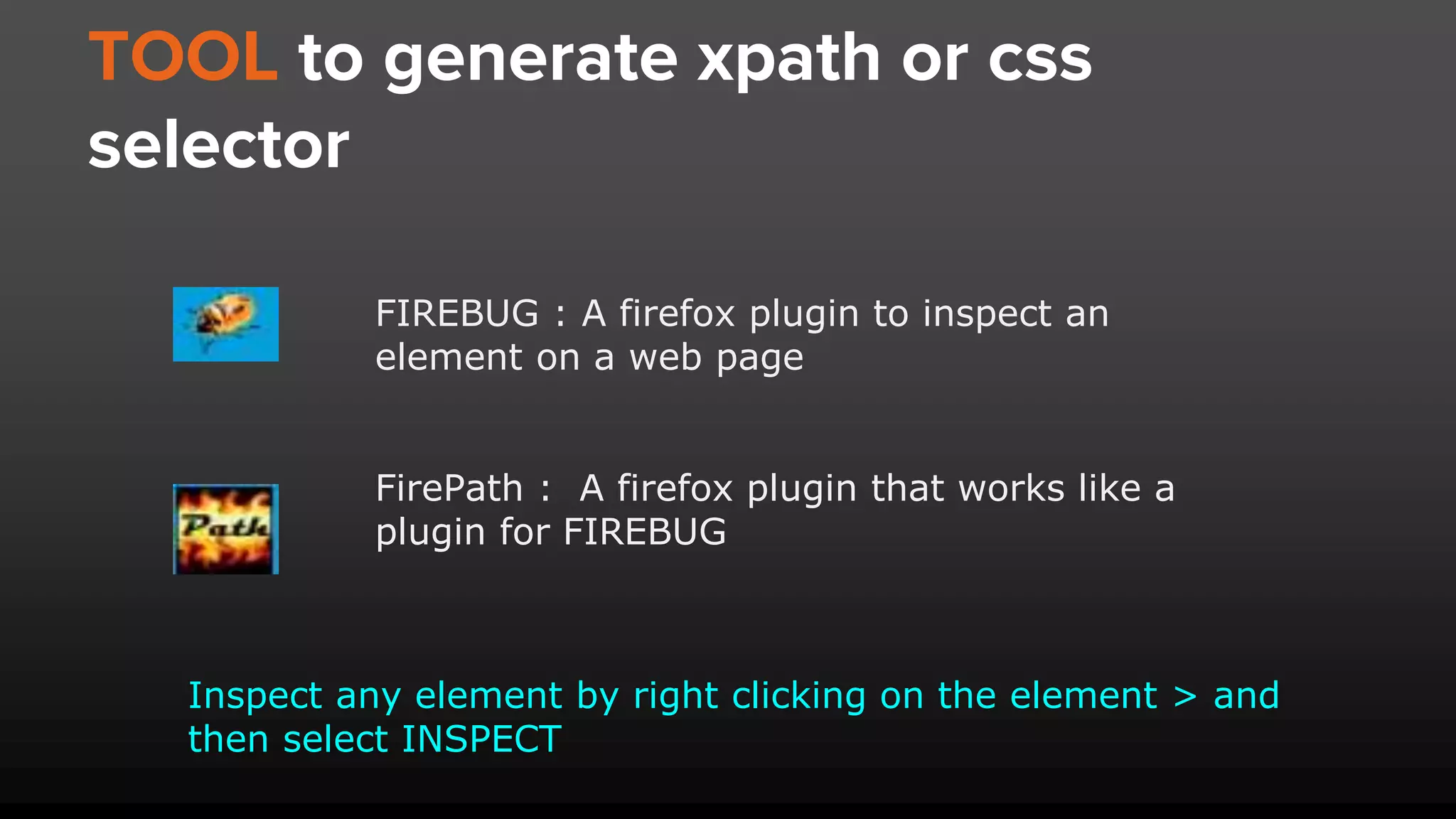
TOOL to generate xpath or css selector FIREBUG : A firefox plugin to inspect an element on a web page FirePath : A firefox plugin that works like a plugin for FIREBUG Inspect any element by right clicking on the element > and then select INSPECT
Selenium locator ID ID should be given the first priority if your are trying to locate any web element as it gives the fastest result and hence your script execution could be faster. Syntax: driver.findElement(By.ID(“full-name”));
Selenium locator ID Pros: 1: Fastest 2: Most preferred locator Cons: 1: It works only when there is fixed ID attribute value
Selenium locator NAME The name locator type will locate the first element with a matching name attribute. If multiple elements have the same value for a name attribute, then you can use filters to further refine your location strategy. Syntax: driver.findElement(By.Name(“full-name”));
Selenium locator CLASS The class locator uses a specific class attribute to get to the first element on a web page. Syntax: driver.findElement(By.className(“class-name”));
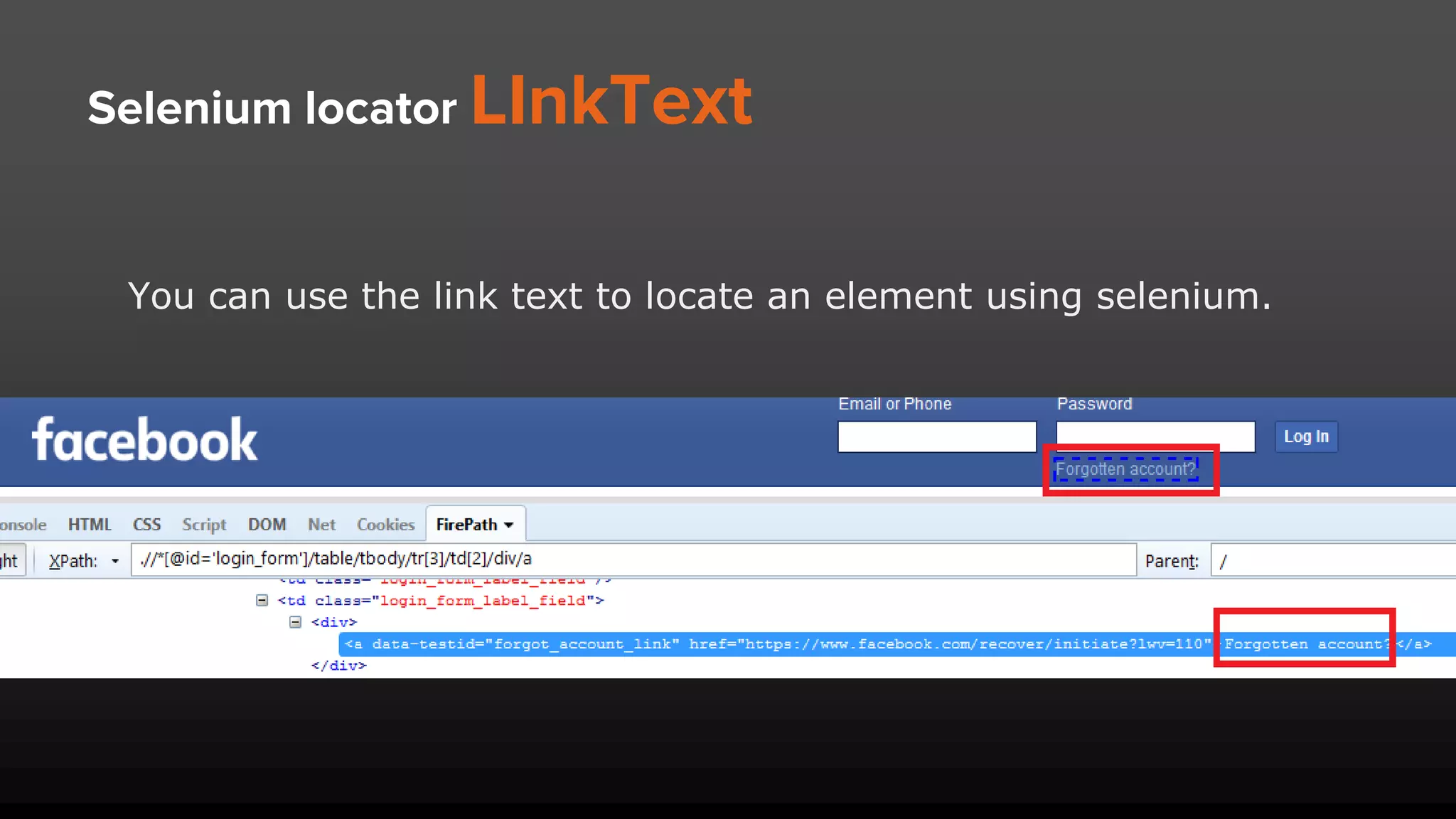
Selenium locator LInkText You can use the link text to locate an element using selenium.
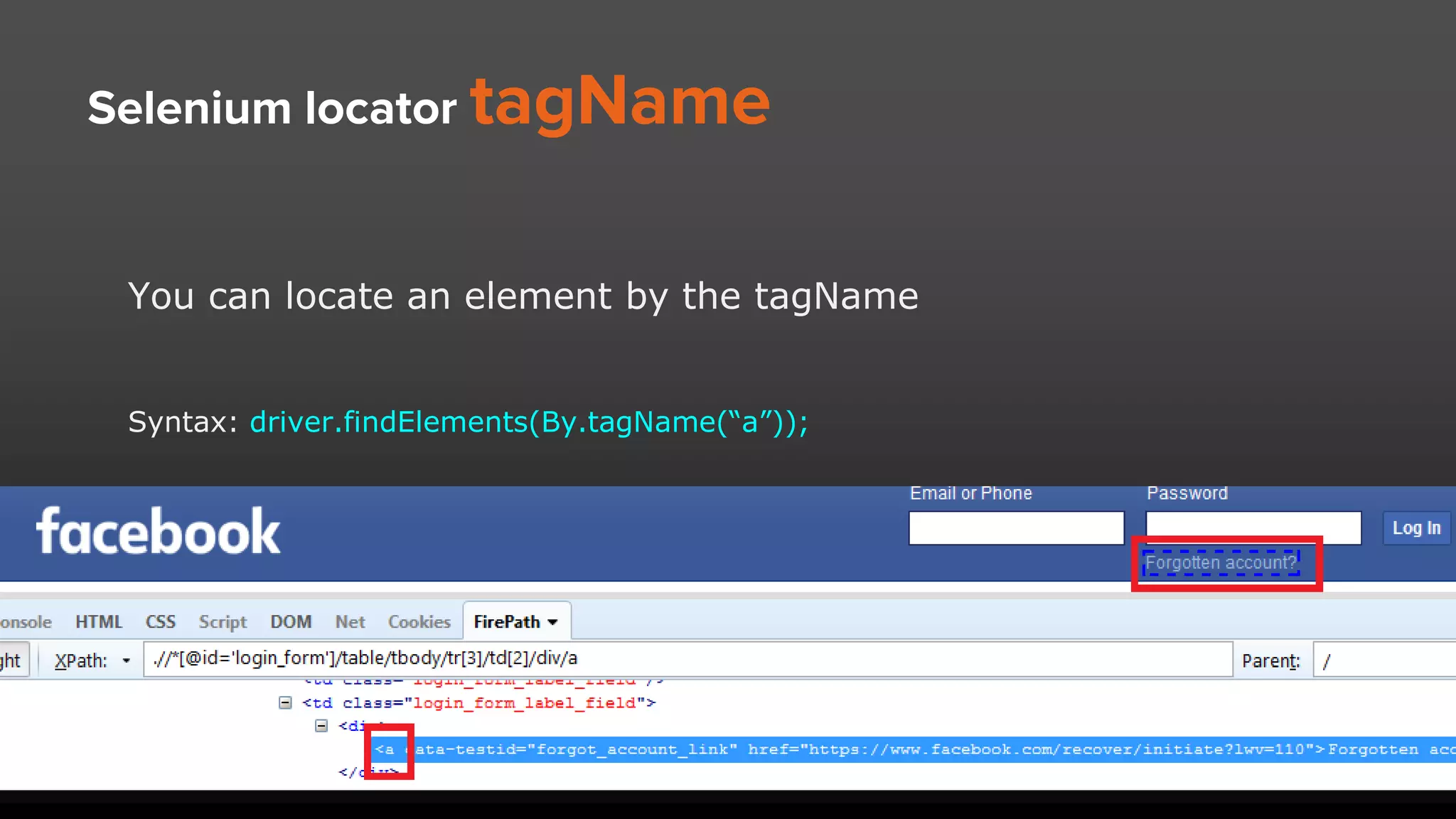
Selenium locator tagName You can locate an element by the tagName Syntax: driver.findElements(By.tagName(“a”));
Selenium locator xPath.. ● xPath stands for XML path ● XPath is the language used for locating nodes in an XML document ● It’s most flexible to derive xPath to identify web elements ● You can use any node attribute to create xPath of an element, but that attribute value should be unique in DOM xPath Syntax: //*[@attributeName=’attributeValue’][@attribute2=’value’]
Types of xPath.. Absolute xPath Syntax: /html/body/form/div/span/span Relative xPath: Syntax: //Input[@AttributeName=’value’]
xPath Methods.. ● Contains() Syntax: //*[contains(text(),'Email')] ● Starts-with() Syntax: //*[starts-with(text(),'Pass')] ● text() Syntax: //*[text()='Password']
xPath Advance.. ● parent() Syntax: //*[text()='Password']/parent::parentTagName[1] ● ancestor() Syntax: //*[text()='Password']/ancestor::table ● descendant() Syntax: .//*[@id='value']/descendant::h1 ● preceding/following sibling() Syntax: .//*[@class='_li']/div[1]/following-sibling::div
Selenium locator css Selector path (1/3) ● is the cascading stylesheet path ● Is a pattern to find an element in web page syntax : [attribute-Name=’value’][attribute2=’value’]
How to create a css Selector path (2/3) ● You can use element ID by prefixing # Syntax: #idValue ● You can use element Class Name by prefixing . (dot) Syntax: .className ● You can use (>) to access the child elements Syntax: .className>childNode ● You can use first-child, last-child or nth-child(n) methods to define the position of child elements Syntax: .className>childNodeName::nth-child(n)
How to create a css Selector path (3/3) syntax : [attribute-Name=’value’][attribute2=’value’] ● Starts with = ^ Syntax: [attribute-Name^=’value’] ● Ends with = $ Syntax: [attribute-Name$=’value’] ● Contains = * Syntax: [attribute-Name*=’value’]

Selenium locators: ID, Name, xpath, CSS Selector advance methods

  • 1.
    SELENIUM LOCATORS PRELRIK.COM |PANKAJ DUBEYSELENIUM TUTORIAL | VIDEO: youtube.com/c/prelrik
  • 2.
    What is SELENIUMLOCATOR “Selenium locators are the identifiers to identify any web element on webpage to perform action on it.”
  • 3.
    Types of SELENIUMLOCATORS 1: ID 2: NAME 3: CLASS NAME 4: CSS Selector 5: Xpath 6: LINK TEXT 7: PARTIAL LINK TEXT 8: TAG NAME
  • 4.
    MOST PREFERRED &USED SELENIUM LOCATORS ---PREFERRED --- ● ID ● NAME --- USED--- ● xPATH ● CSS SELECTOR PATH
  • 5.
    TOOL to generatexpath or css selector FIREBUG : A firefox plugin to inspect an element on a web page FirePath : A firefox plugin that works like a plugin for FIREBUG Inspect any element by right clicking on the element > and then select INSPECT
  • 6.
    Selenium locator ID IDshould be given the first priority if your are trying to locate any web element as it gives the fastest result and hence your script execution could be faster. Syntax: driver.findElement(By.ID(“full-name”));
  • 7.
    Selenium locator ID Pros: 1:Fastest 2: Most preferred locator Cons: 1: It works only when there is fixed ID attribute value
  • 8.
    Selenium locator NAME Thename locator type will locate the first element with a matching name attribute. If multiple elements have the same value for a name attribute, then you can use filters to further refine your location strategy. Syntax: driver.findElement(By.Name(“full-name”));
  • 9.
    Selenium locator CLASS Theclass locator uses a specific class attribute to get to the first element on a web page. Syntax: driver.findElement(By.className(“class-name”));
  • 10.
    Selenium locator LInkText Youcan use the link text to locate an element using selenium.
  • 11.
    Selenium locator tagName Youcan locate an element by the tagName Syntax: driver.findElements(By.tagName(“a”));
  • 12.
    Selenium locator xPath.. ●xPath stands for XML path ● XPath is the language used for locating nodes in an XML document ● It’s most flexible to derive xPath to identify web elements ● You can use any node attribute to create xPath of an element, but that attribute value should be unique in DOM xPath Syntax: //*[@attributeName=’attributeValue’][@attribute2=’value’]
  • 13.
    Types of xPath.. AbsolutexPath Syntax: /html/body/form/div/span/span Relative xPath: Syntax: //Input[@AttributeName=’value’]
  • 14.
    xPath Methods.. ● Contains() Syntax://*[contains(text(),'Email')] ● Starts-with() Syntax: //*[starts-with(text(),'Pass')] ● text() Syntax: //*[text()='Password']
  • 15.
    xPath Advance.. ● parent() Syntax://*[text()='Password']/parent::parentTagName[1] ● ancestor() Syntax: //*[text()='Password']/ancestor::table ● descendant() Syntax: .//*[@id='value']/descendant::h1 ● preceding/following sibling() Syntax: .//*[@class='_li']/div[1]/following-sibling::div
  • 16.
    Selenium locator cssSelector path (1/3) ● is the cascading stylesheet path ● Is a pattern to find an element in web page syntax : [attribute-Name=’value’][attribute2=’value’]
  • 17.
    How to createa css Selector path (2/3) ● You can use element ID by prefixing # Syntax: #idValue ● You can use element Class Name by prefixing . (dot) Syntax: .className ● You can use (>) to access the child elements Syntax: .className>childNode ● You can use first-child, last-child or nth-child(n) methods to define the position of child elements Syntax: .className>childNodeName::nth-child(n)
  • 18.
    How to createa css Selector path (3/3) syntax : [attribute-Name=’value’][attribute2=’value’] ● Starts with = ^ Syntax: [attribute-Name^=’value’] ● Ends with = $ Syntax: [attribute-Name$=’value’] ● Contains = * Syntax: [attribute-Name*=’value’]