Database application Chapter 2: MySQL Database and PhpMyAdmin Faculty of Physical and Basic Education ComputerScience By: Msc. KarwanM. Kareem 2014 -2015 © University of Sulaimani, Faculty of Physical & Basic Education, Department of Computer Science 2014 / 2015 1
© University of Sulaimani, Faculty of Physical & Basic Education, Department of Computer Science 2014 / 2015 Topics Familiarizing yourself with phpMyAdmin. Creating tables in a MySQL database with phpMyAdmin. Deleting tables in a MySQL database with phpMyAdmin. Inserting fields into a MySQL database table using phpMyAdmin. Modifying fields in a MySQL database table using phpMyAdmin. Deleting fields in a MySQL database table using phpMyAdmin. Exporting MySQL databases and tables using phpMyAdmin. Importing MySQL databases and tables using phpMyAdmin. Running SQL queries on a MySQL database using phpMyAdmin. Searching through a MySQL database using phpMyAdmin. 2
Part 1: familiarizing yourself with phpMyAdmin By: Msc. KarwanM. Kareem 2014 -2015 © University of Sulaimani, Faculty of Physical & Basic Education, Department of Computer Science 2014 / 2015 3
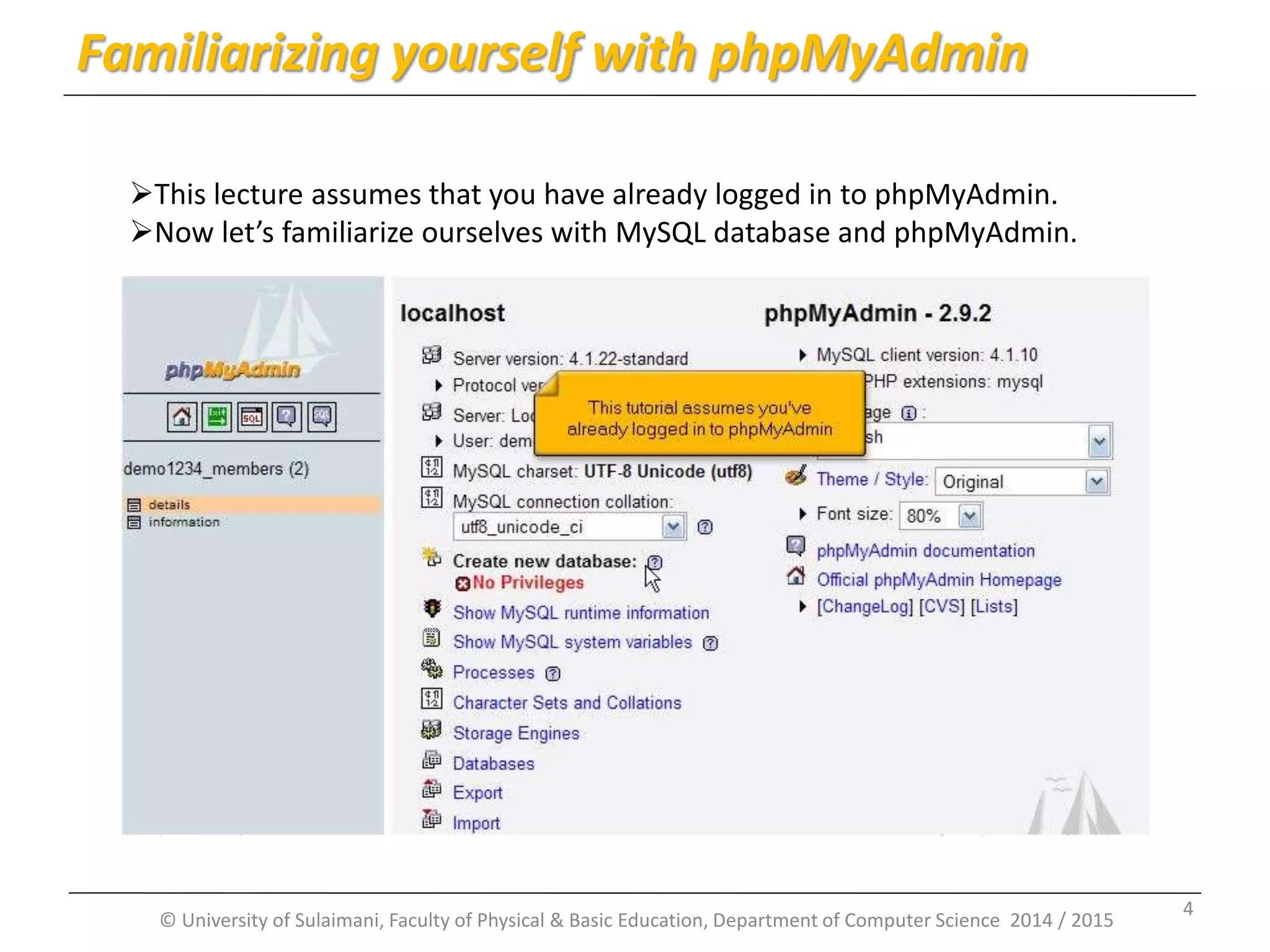
© University of Sulaimani, Faculty of Physical & Basic Education, Department of Computer Science 2014 / 2015 Familiarizing yourself with phpMyAdmin This lecture assumes that you have already logged in to phpMyAdmin. Now let’s familiarize ourselves with MySQL database and phpMyAdmin. 4
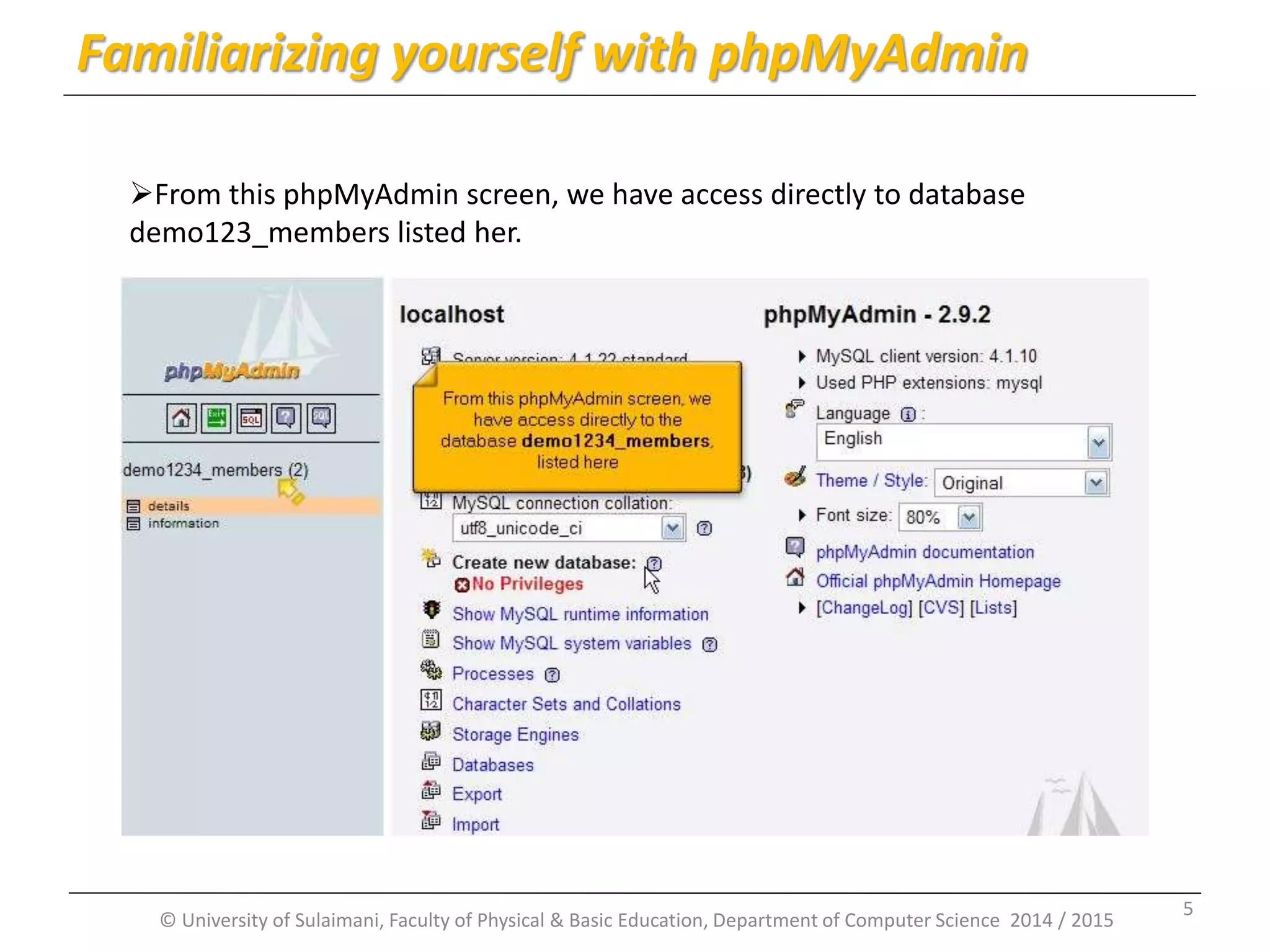
© University of Sulaimani, Faculty of Physical & Basic Education, Department of Computer Science 2014 / 2015 Familiarizing yourself with phpMyAdmin From this phpMyAdmin screen, we have access directly to database demo123_members listed her. 5
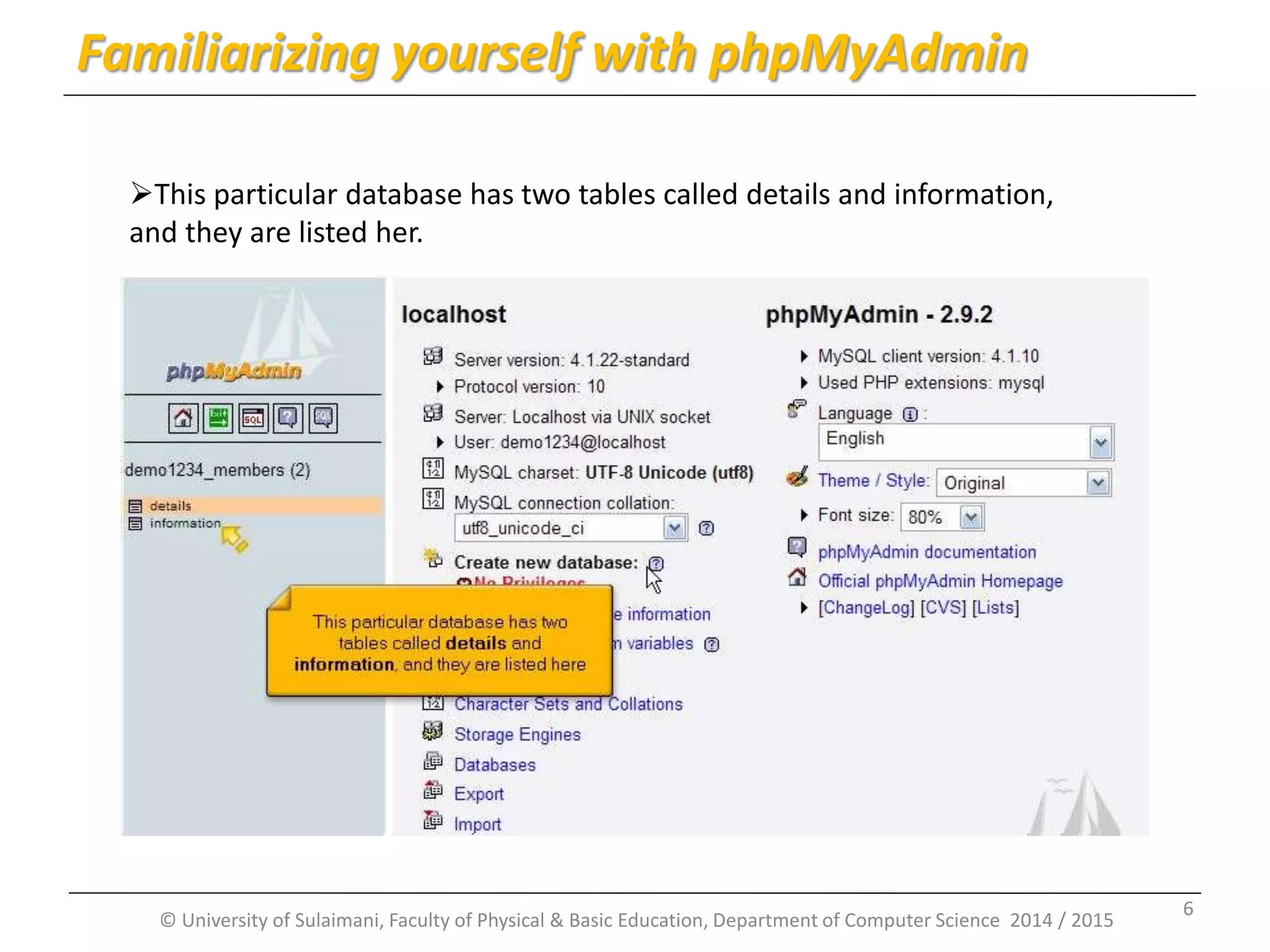
© University of Sulaimani, Faculty of Physical & Basic Education, Department of Computer Science 2014 / 2015 Familiarizing yourself with phpMyAdmin This particular database has two tables called details and information, and they are listed her. 6
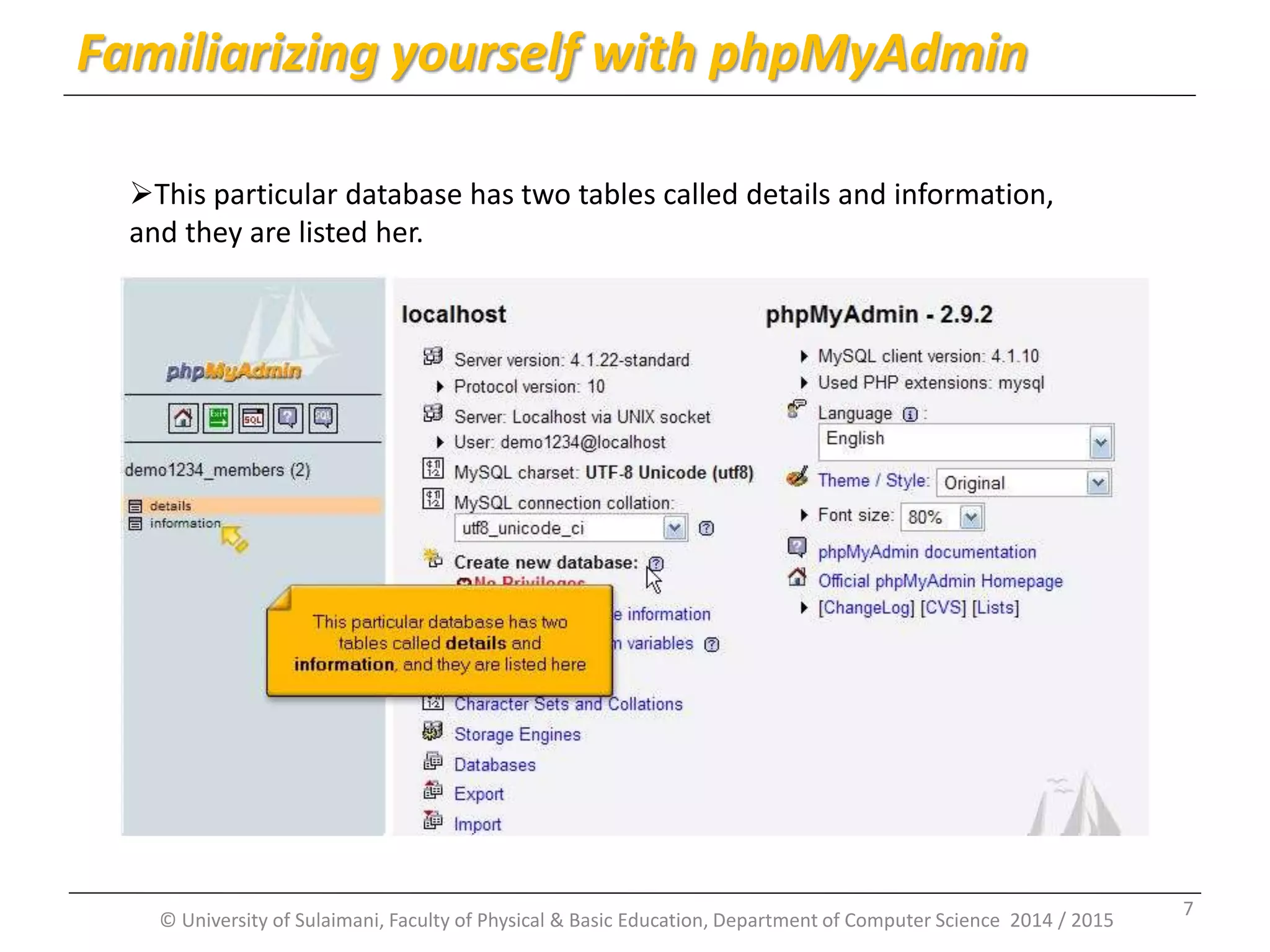
© University of Sulaimani, Faculty of Physical & Basic Education, Department of Computer Science 2014 / 2015 Familiarizing yourself with phpMyAdmin This particular database has two tables called details and information, and they are listed her. 7
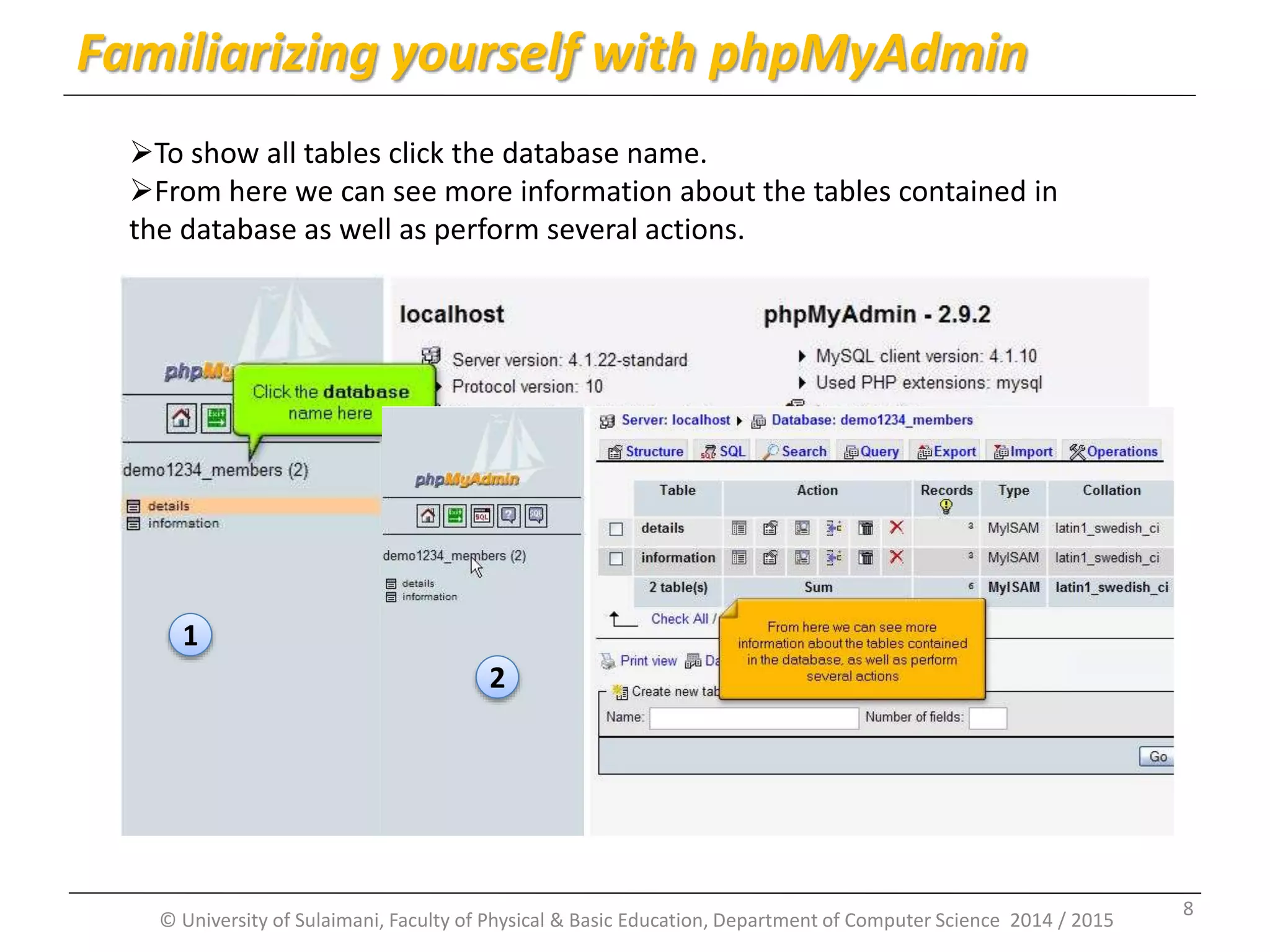
© University of Sulaimani, Faculty of Physical & Basic Education, Department of Computer Science 2014 / 2015 Familiarizing yourself with phpMyAdmin To show all tables click the database name. From here we can see more information about the tables contained in the database as well as perform several actions. 1 2 8
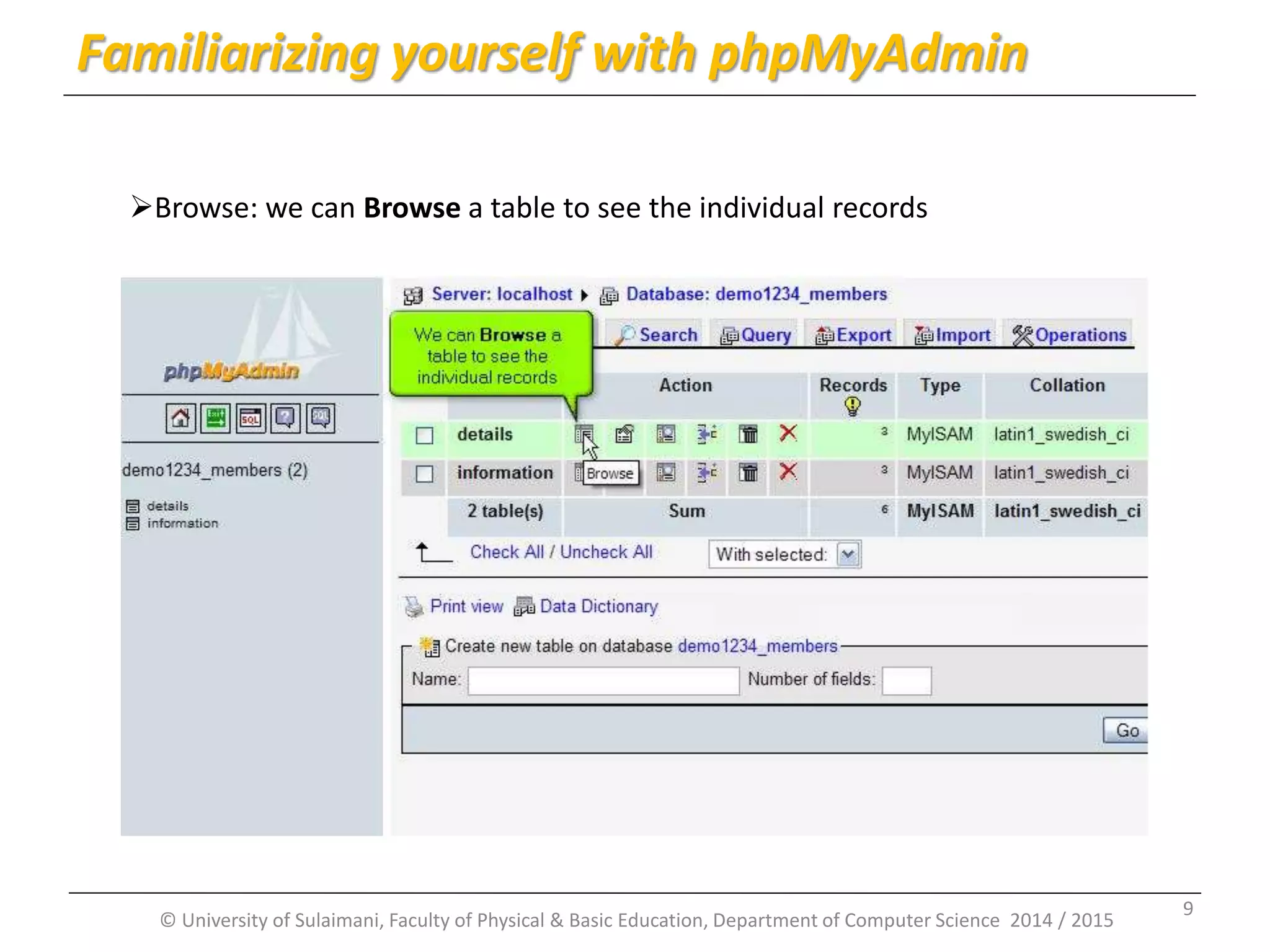
© University of Sulaimani, Faculty of Physical & Basic Education, Department of Computer Science 2014 / 2015 Familiarizing yourself with phpMyAdmin Browse: we can Browse a table to see the individual records 9
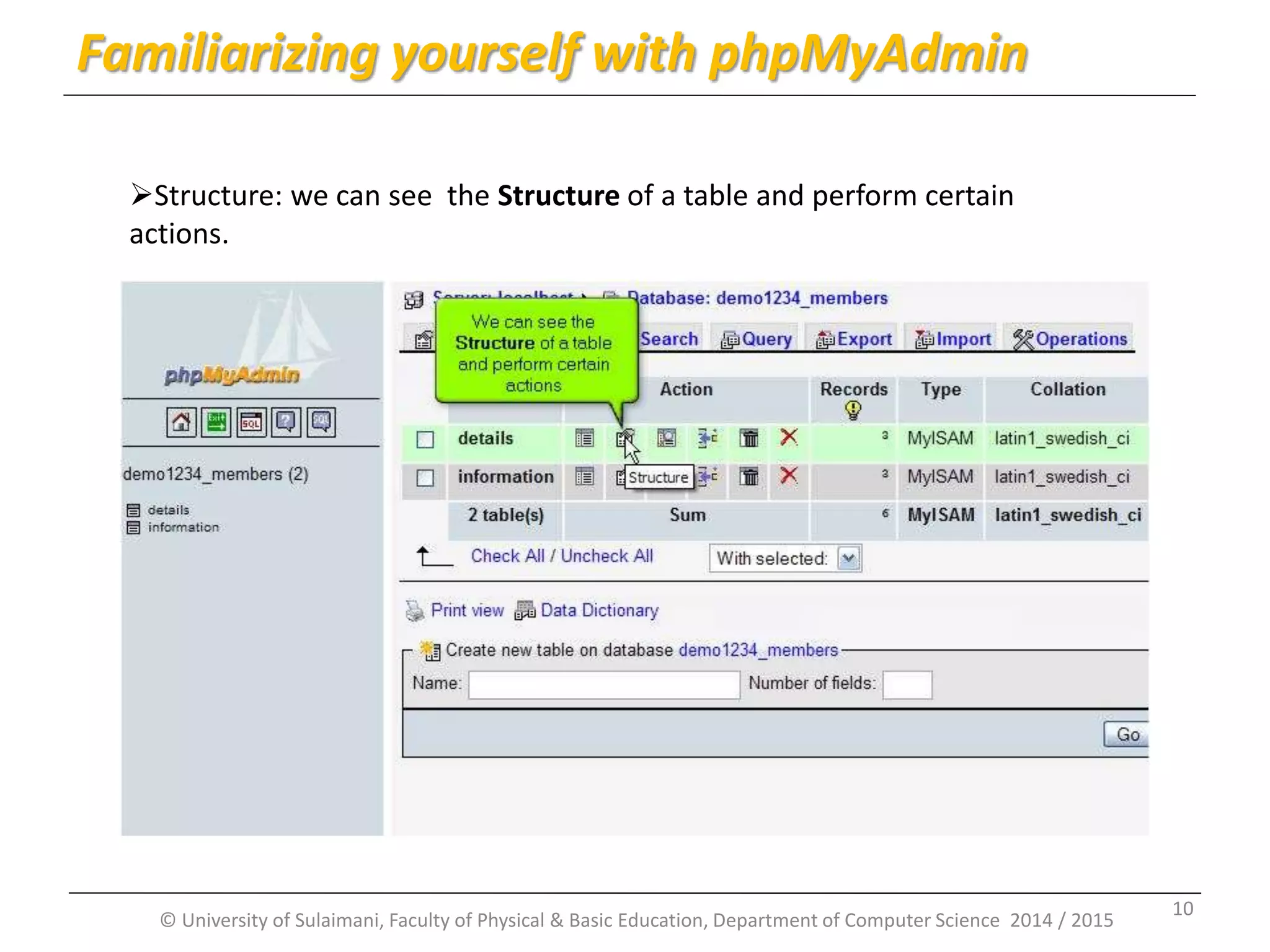
© University of Sulaimani, Faculty of Physical & Basic Education, Department of Computer Science 2014 / 2015 Familiarizing yourself with phpMyAdmin Structure: we can see the Structure of a table and perform certain actions. 10
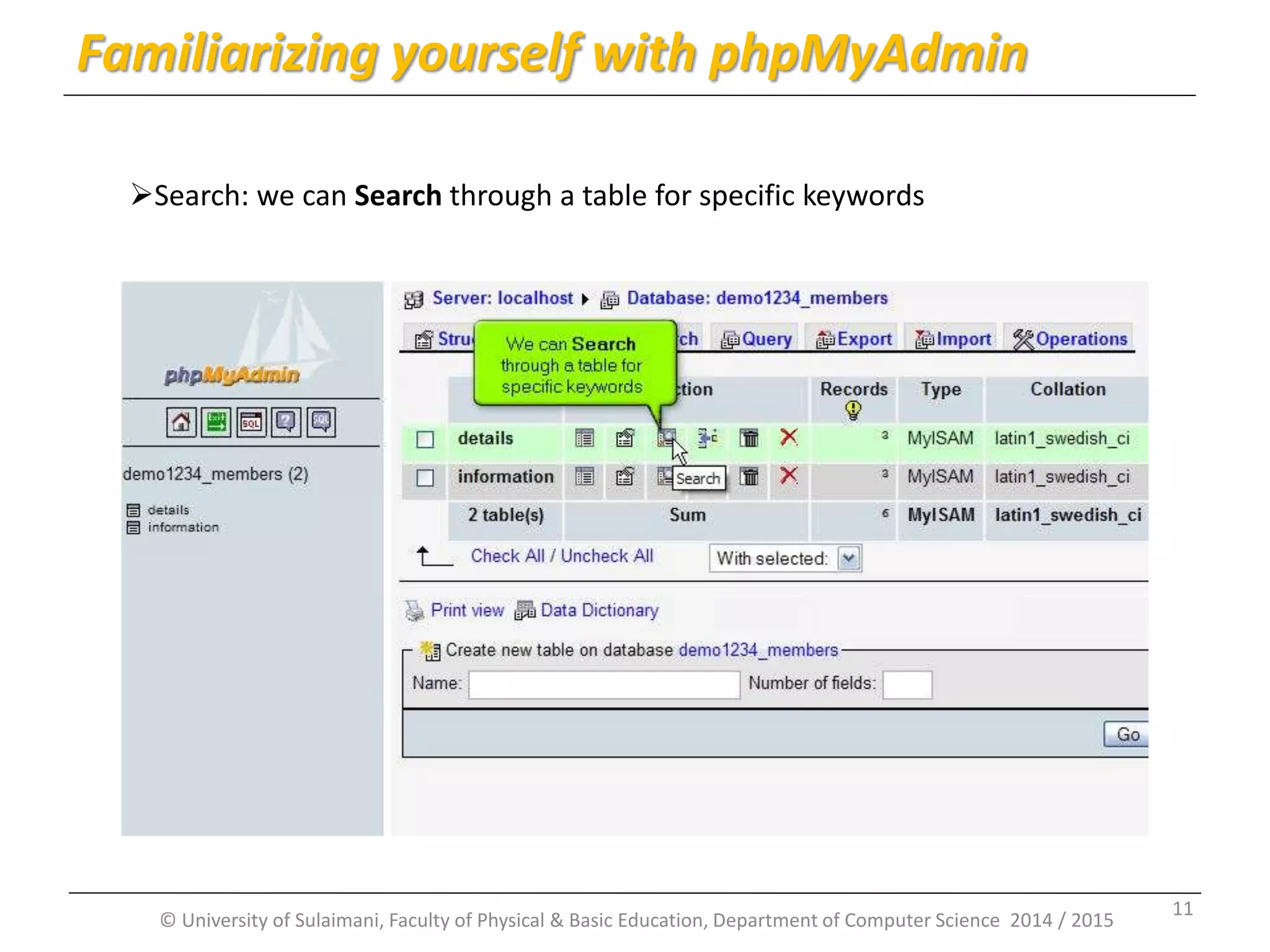
© University of Sulaimani, Faculty of Physical & Basic Education, Department of Computer Science 2014 / 2015 Familiarizing yourself with phpMyAdmin Search: we can Search through a table for specific keywords 11
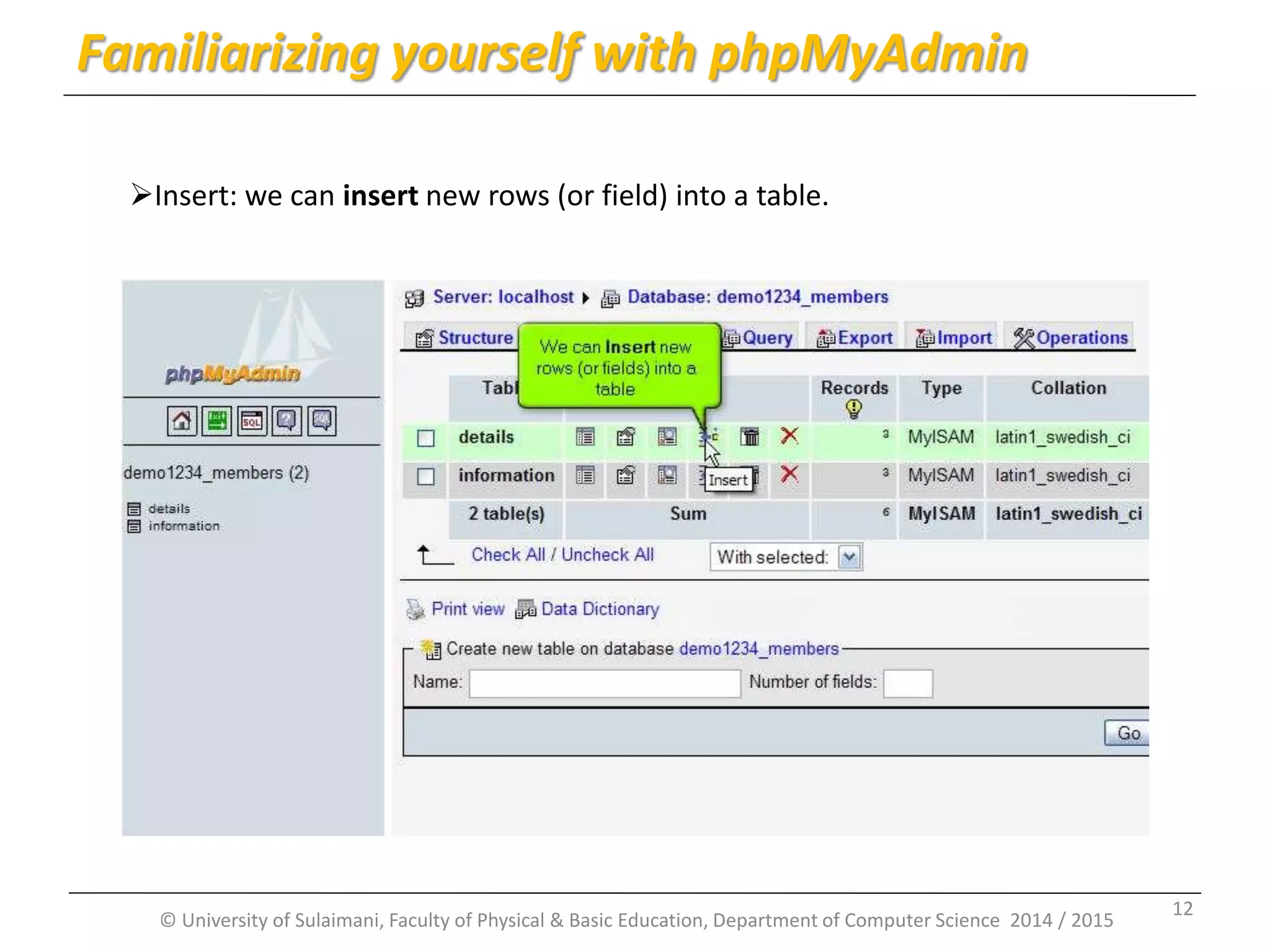
© University of Sulaimani, Faculty of Physical & Basic Education, Department of Computer Science 2014 / 2015 Familiarizing yourself with phpMyAdmin Insert: we can insert new rows (or field) into a table. 12
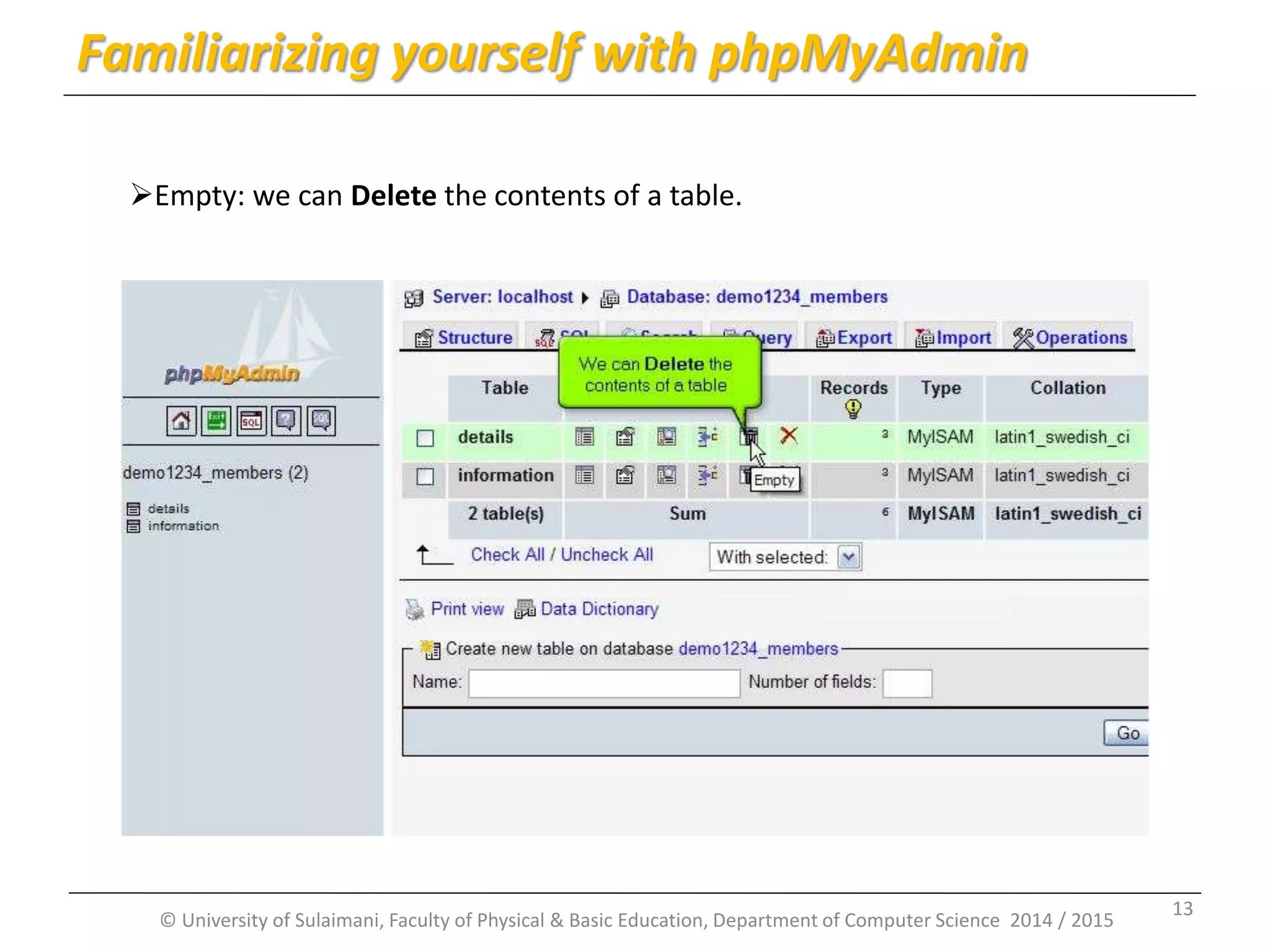
© University of Sulaimani, Faculty of Physical & Basic Education, Department of Computer Science 2014 / 2015 Familiarizing yourself with phpMyAdmin Empty: we can Delete the contents of a table. 13
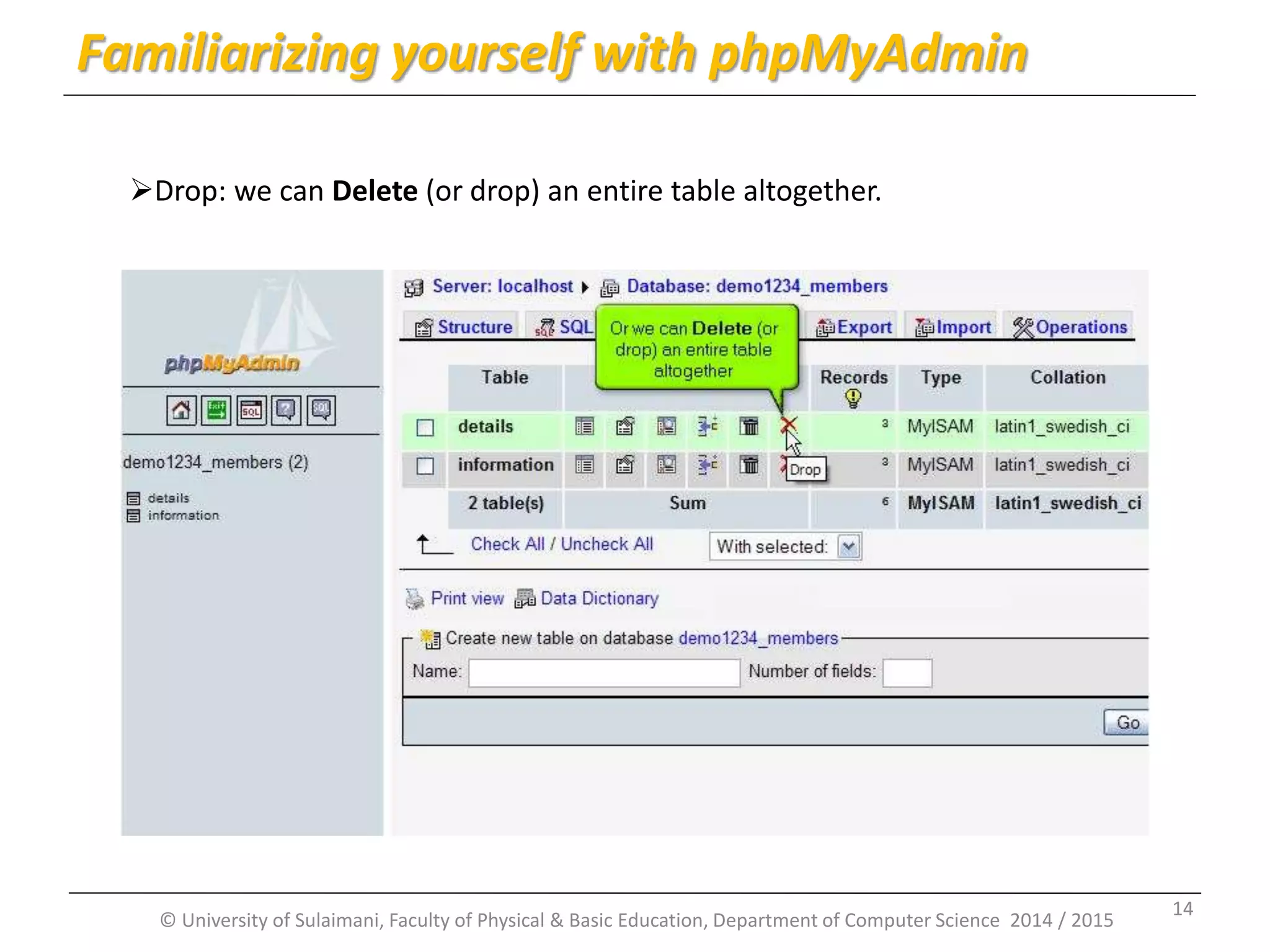
© University of Sulaimani, Faculty of Physical & Basic Education, Department of Computer Science 2014 / 2015 Familiarizing yourself with phpMyAdmin Drop: we can Delete (or drop) an entire table altogether. 14
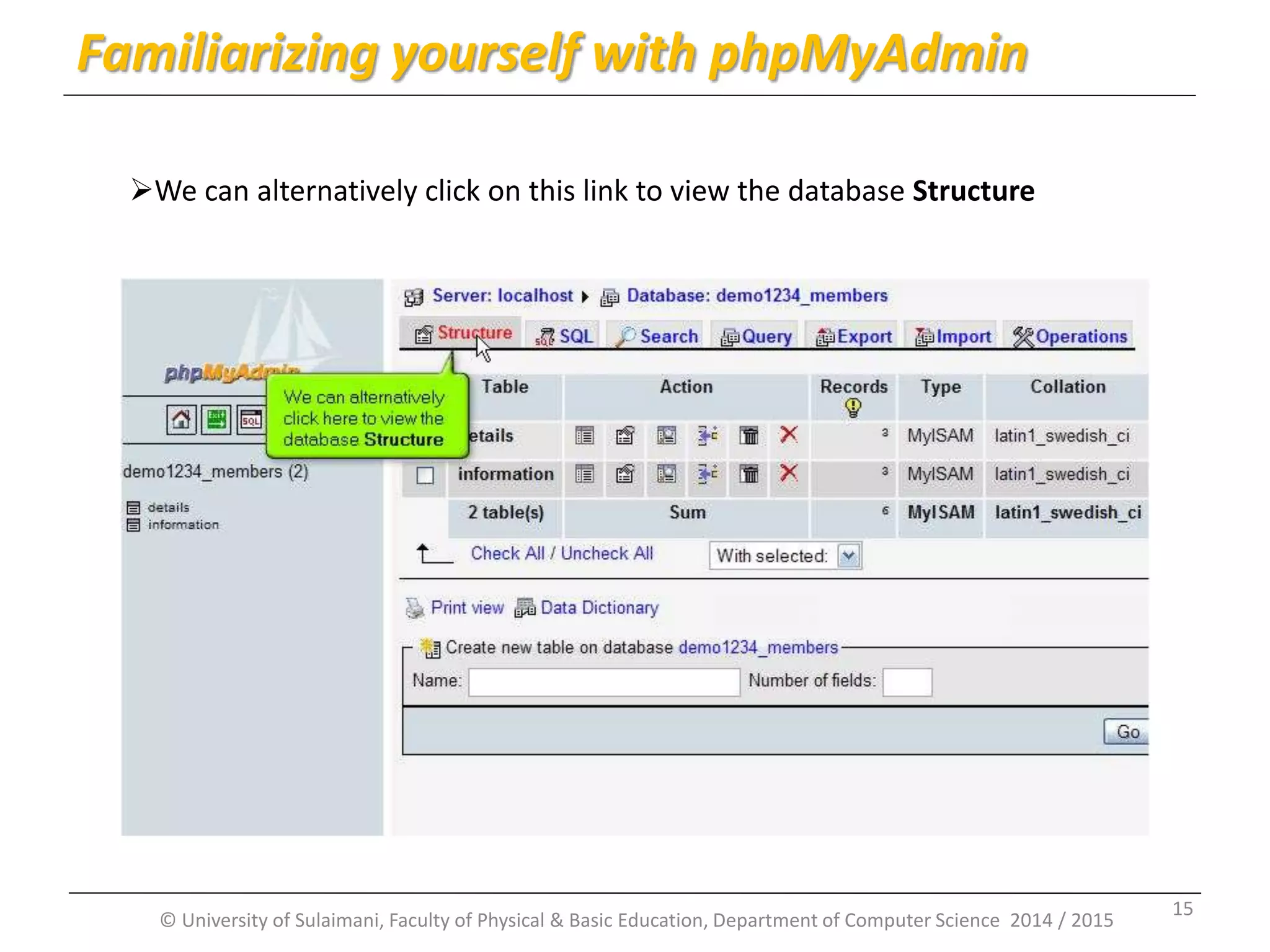
© University of Sulaimani, Faculty of Physical & Basic Education, Department of Computer Science 2014 / 2015 Familiarizing yourself with phpMyAdmin We can alternatively click on this link to view the database Structure 15
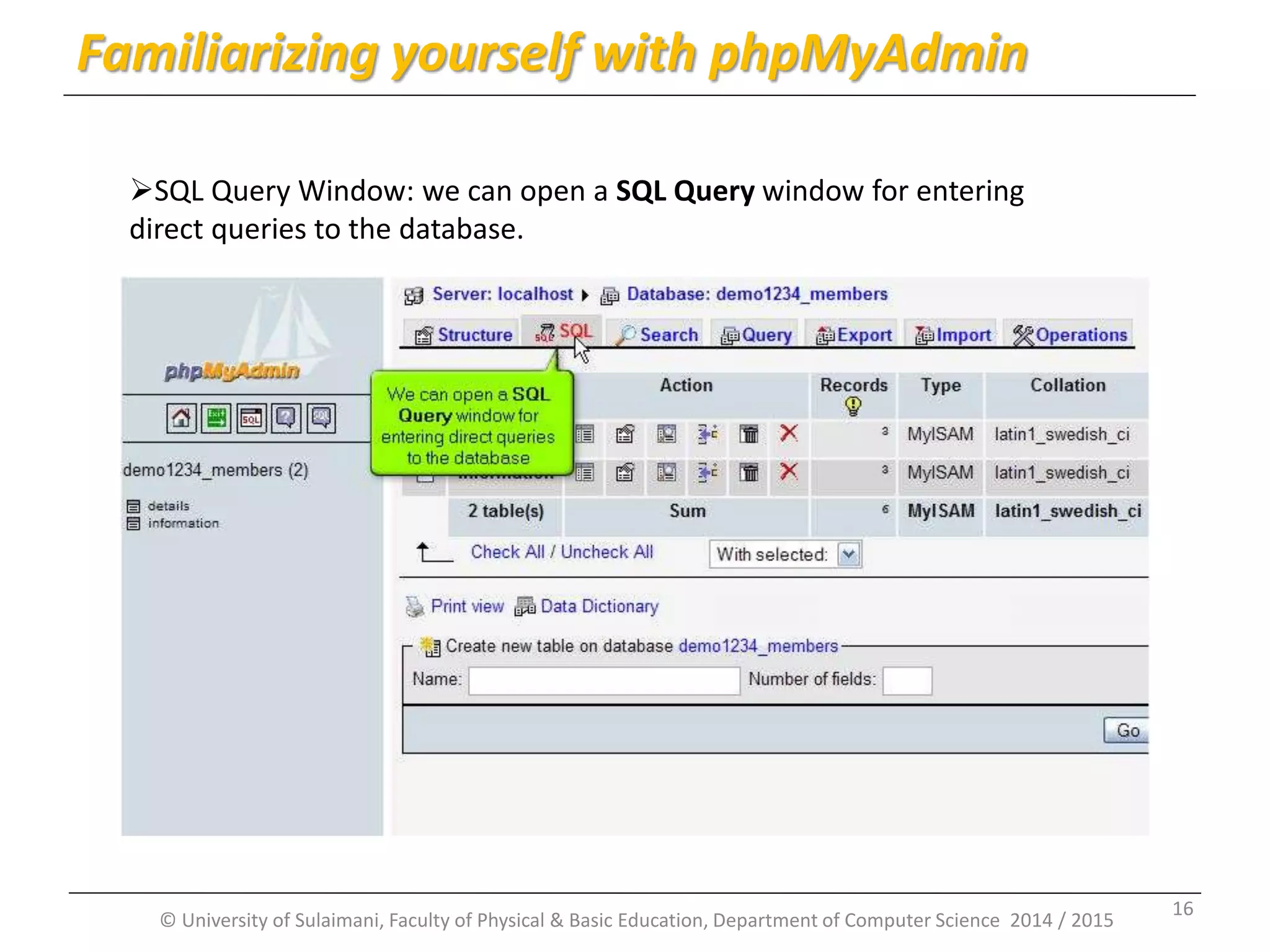
© University of Sulaimani, Faculty of Physical & Basic Education, Department of Computer Science 2014 / 2015 Familiarizing yourself with phpMyAdmin SQL Query Window: we can open a SQL Query window for entering direct queries to the database. 16
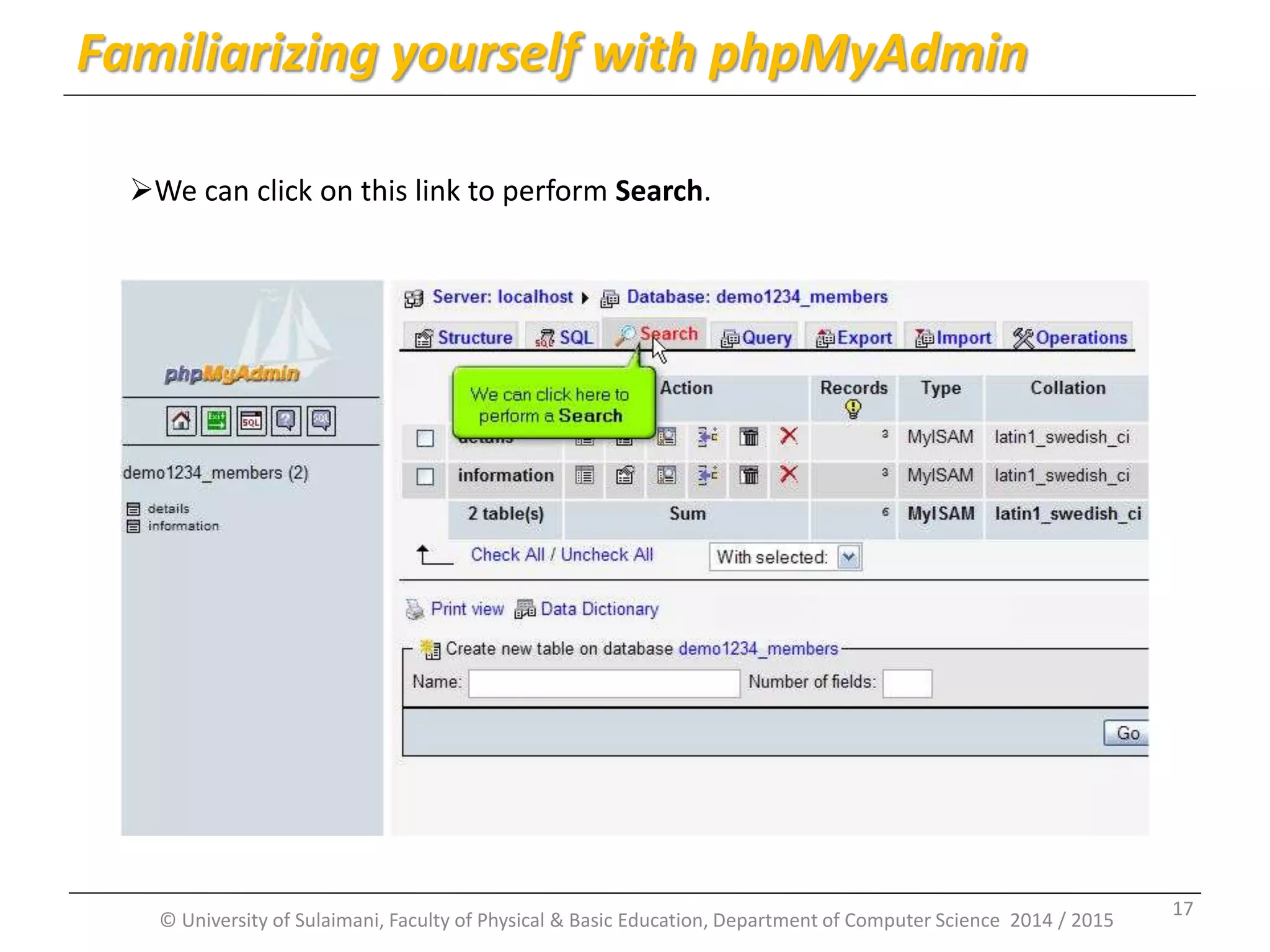
© University of Sulaimani, Faculty of Physical & Basic Education, Department of Computer Science 2014 / 2015 Familiarizing yourself with phpMyAdmin We can click on this link to perform Search. 17
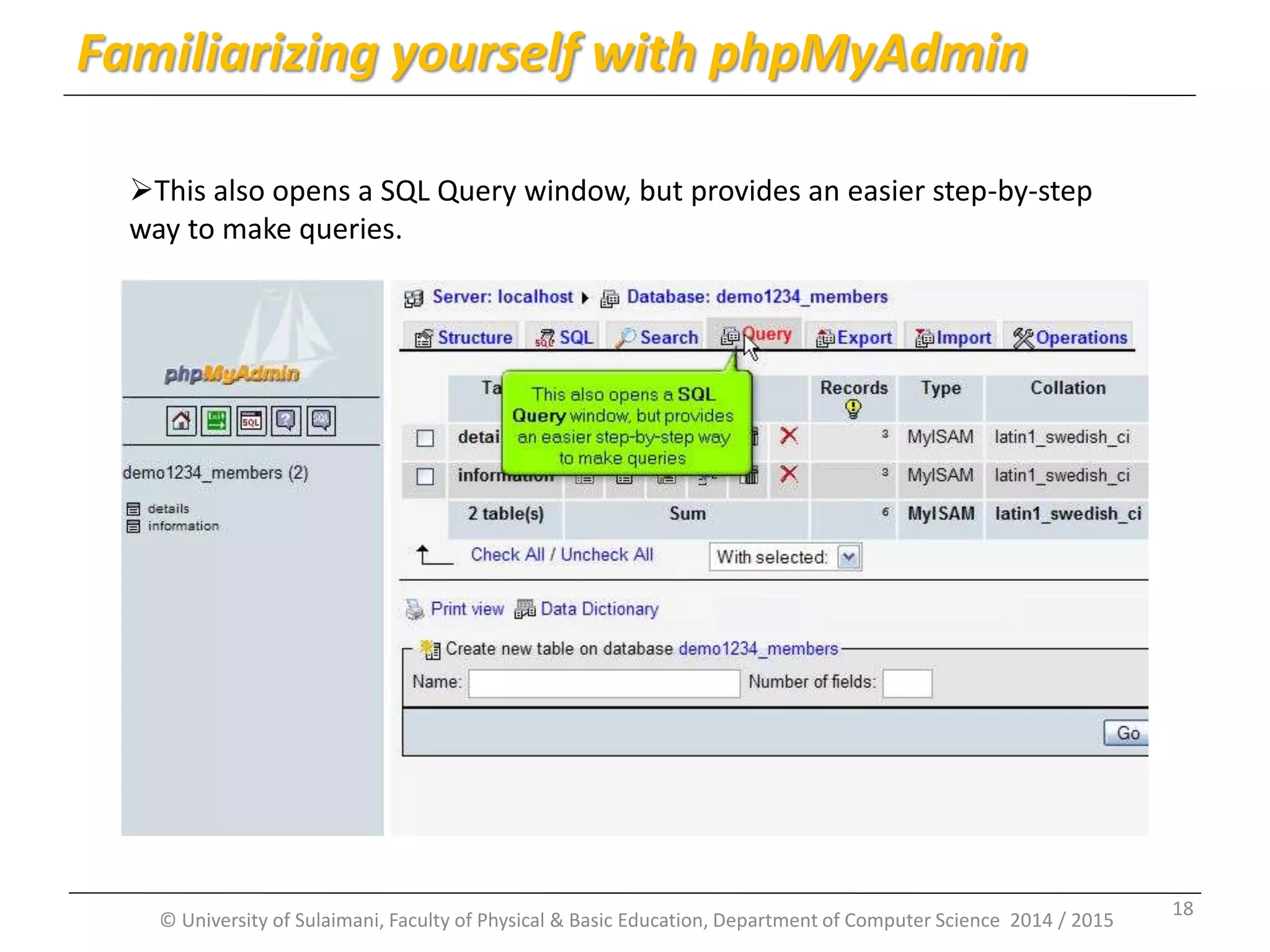
© University of Sulaimani, Faculty of Physical & Basic Education, Department of Computer Science 2014 / 2015 Familiarizing yourself with phpMyAdmin This also opens a SQL Query window, but provides an easier step-by-step way to make queries. 18
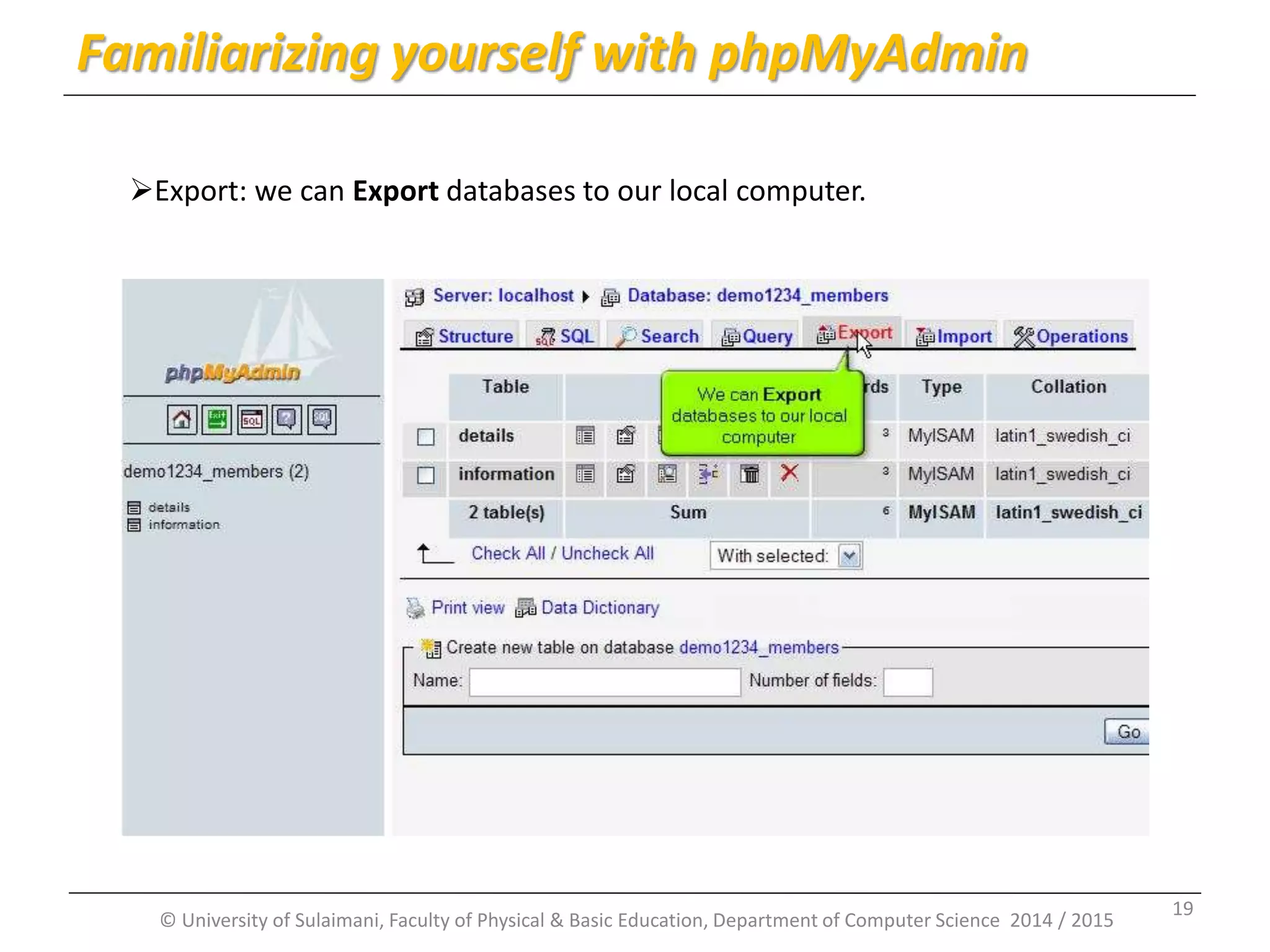
© University of Sulaimani, Faculty of Physical & Basic Education, Department of Computer Science 2014 / 2015 Familiarizing yourself with phpMyAdmin Export: we can Export databases to our local computer. 19
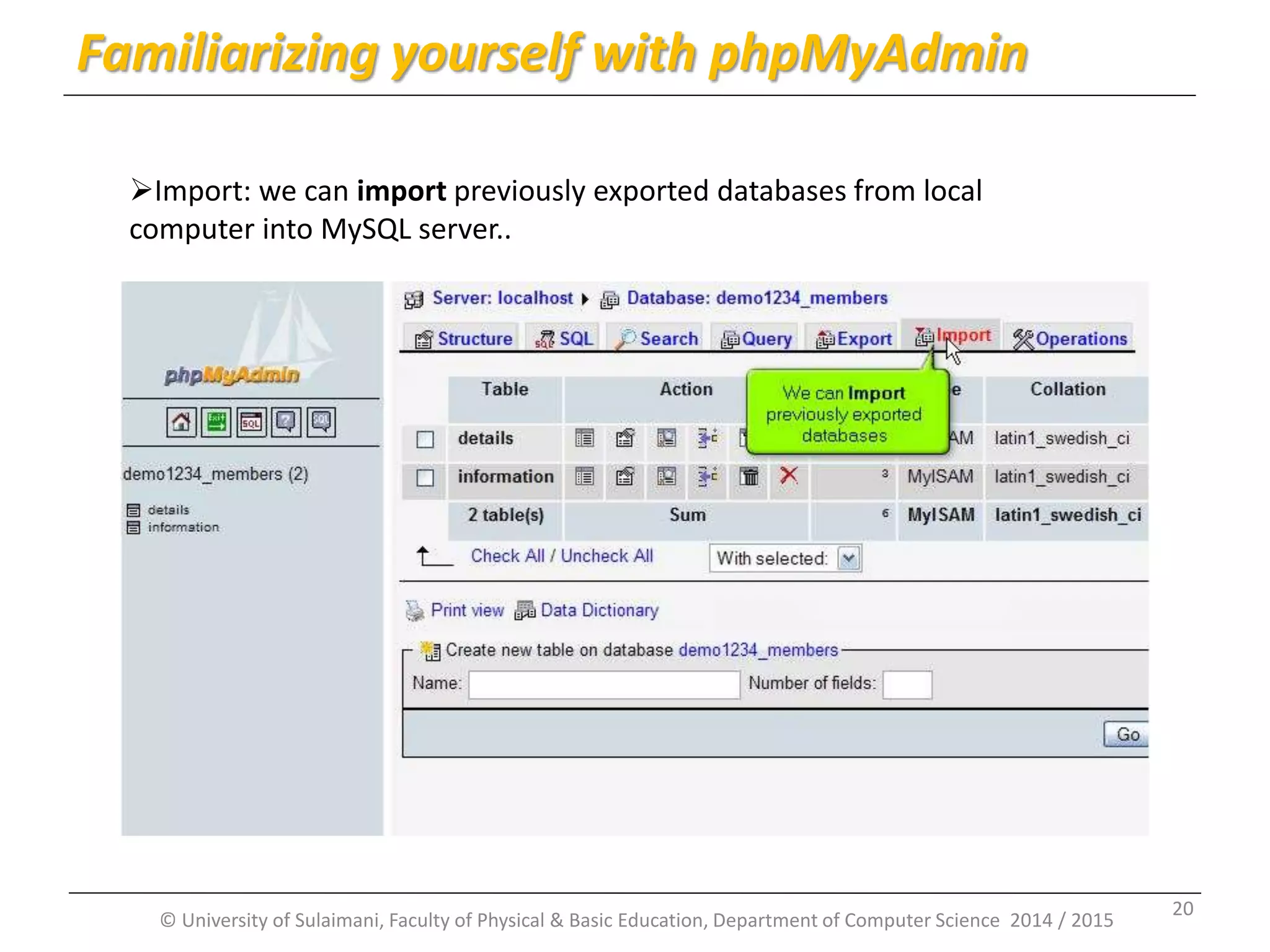
© University of Sulaimani, Faculty of Physical & Basic Education, Department of Computer Science 2014 / 2015 Familiarizing yourself with phpMyAdmin Import: we can import previously exported databases from local computer into MySQL server.. 20
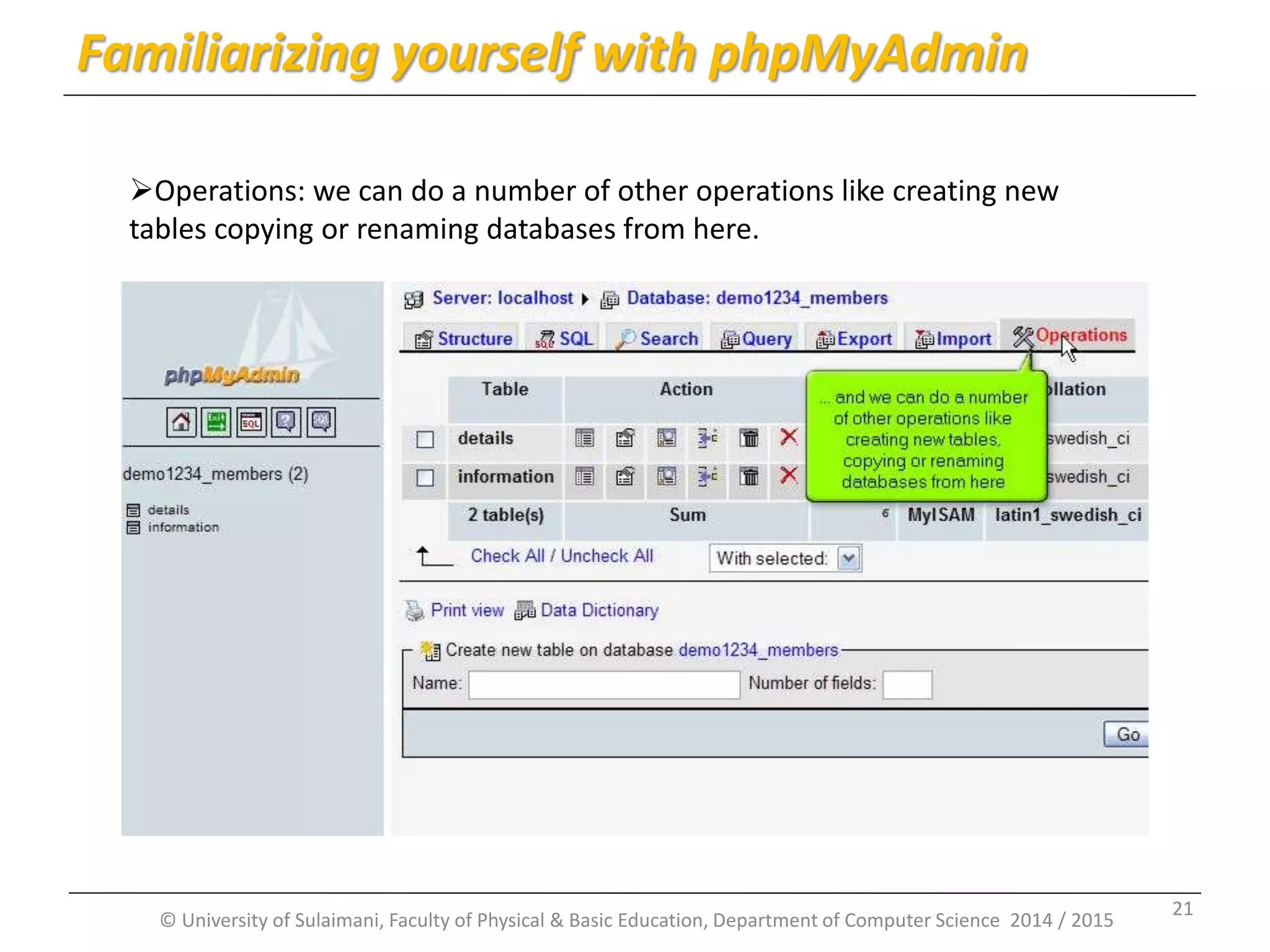
© University of Sulaimani, Faculty of Physical & Basic Education, Department of Computer Science 2014 / 2015 Familiarizing yourself with phpMyAdmin Operations: we can do a number of other operations like creating new tables copying or renaming databases from here. 21
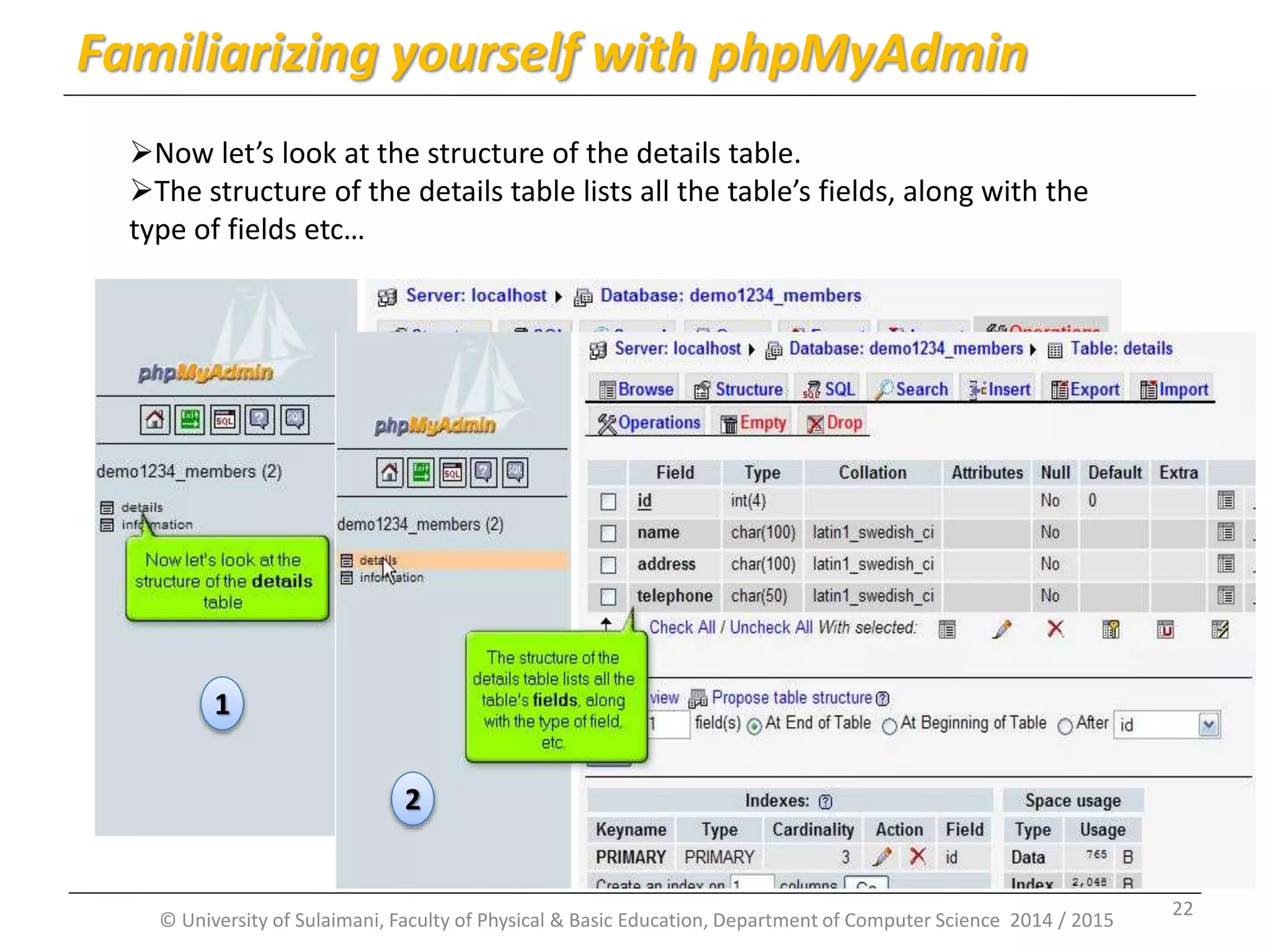
© University of Sulaimani, Faculty of Physical & Basic Education, Department of Computer Science 2014 / 2015 Familiarizing yourself with phpMyAdmin Now let’s look at the structure of the details table. The structure of the details table lists all the table’s fields, along with the type of fields etc… 1 2 22
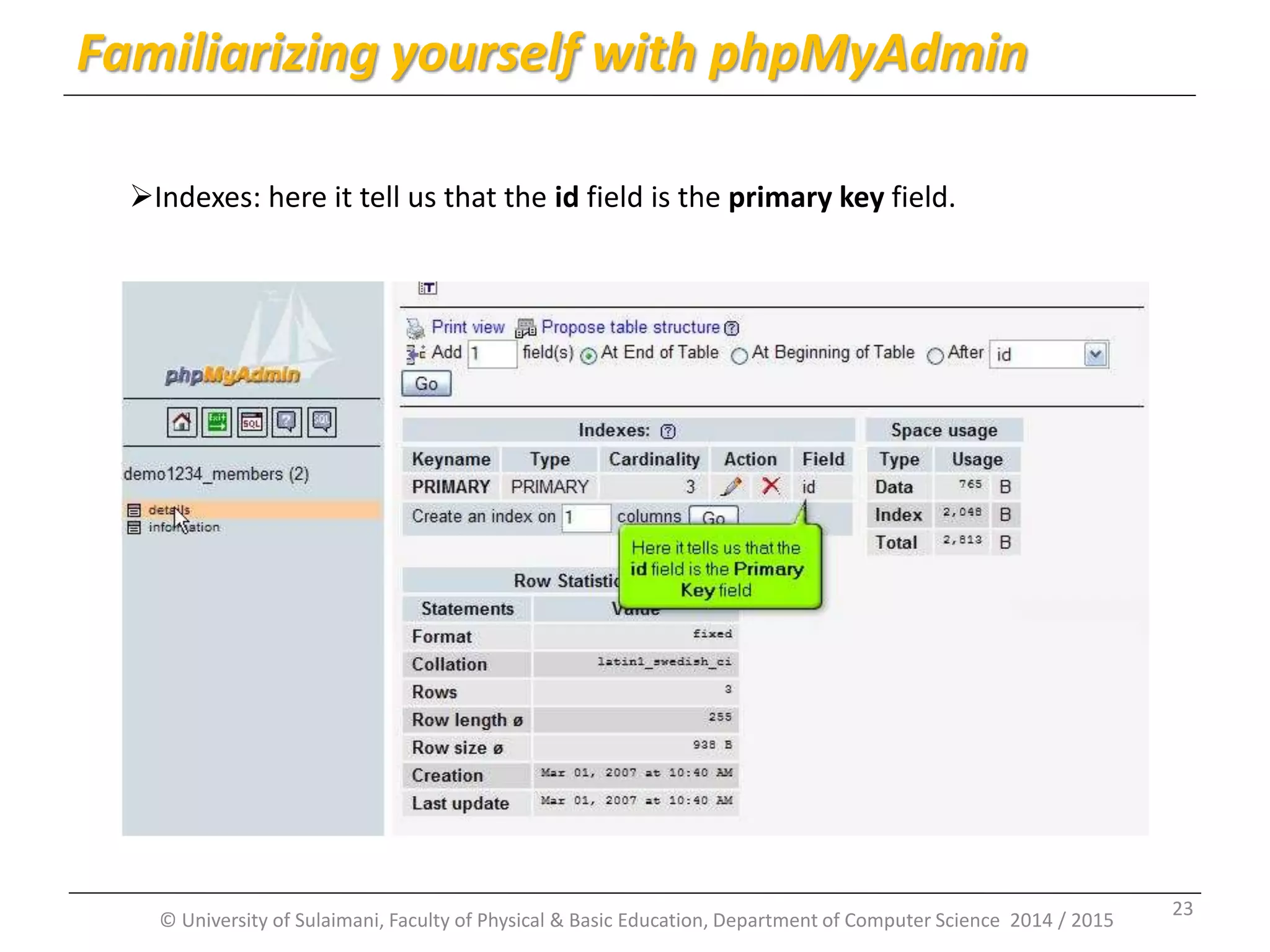
© University of Sulaimani, Faculty of Physical & Basic Education, Department of Computer Science 2014 / 2015 Familiarizing yourself with phpMyAdmin Indexes: here it tell us that the id field is the primary key field. 23
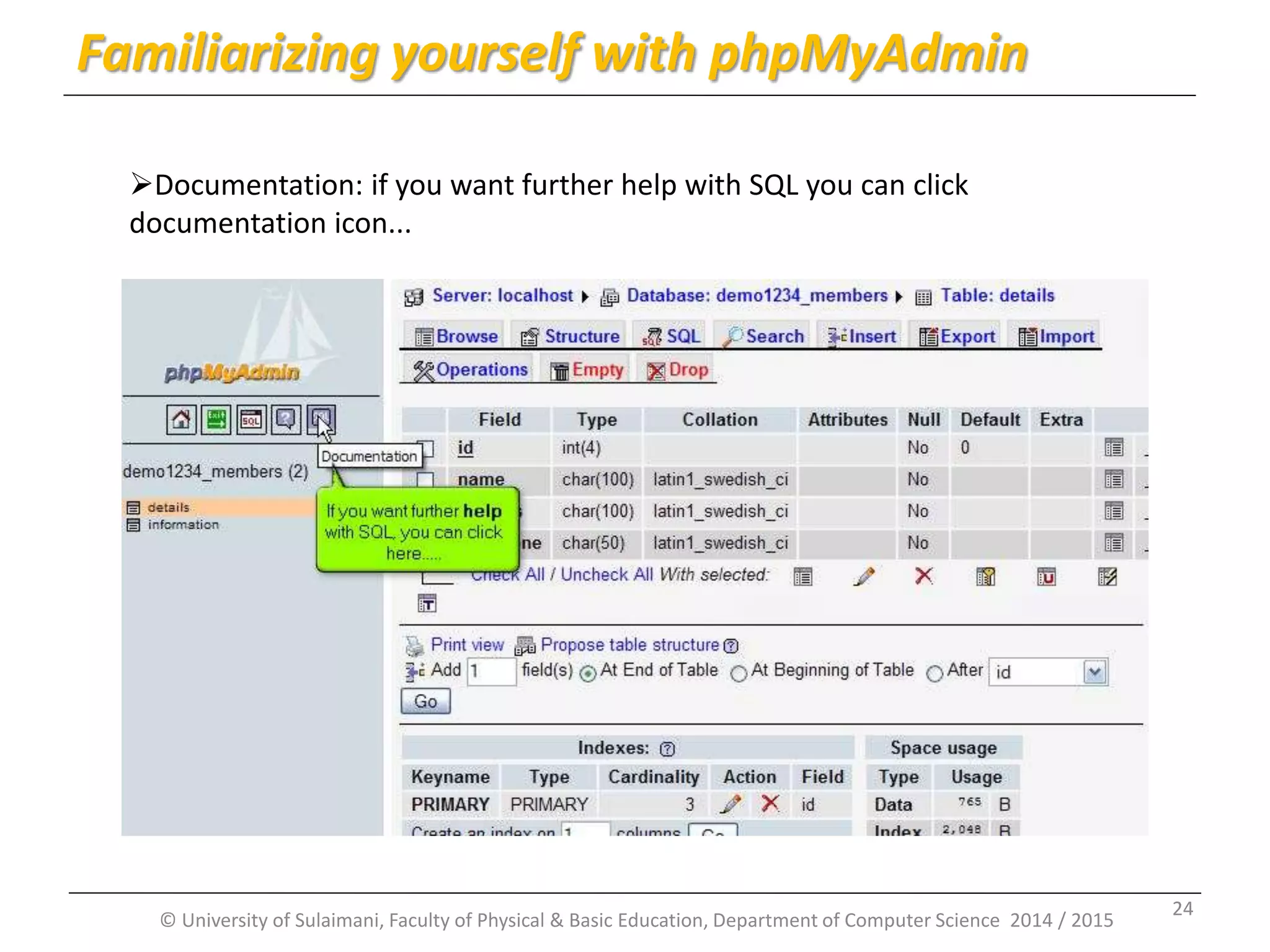
© University of Sulaimani, Faculty of Physical & Basic Education, Department of Computer Science 2014 / 2015 Familiarizing yourself with phpMyAdmin Documentation: if you want further help with SQL you can click documentation icon... 24
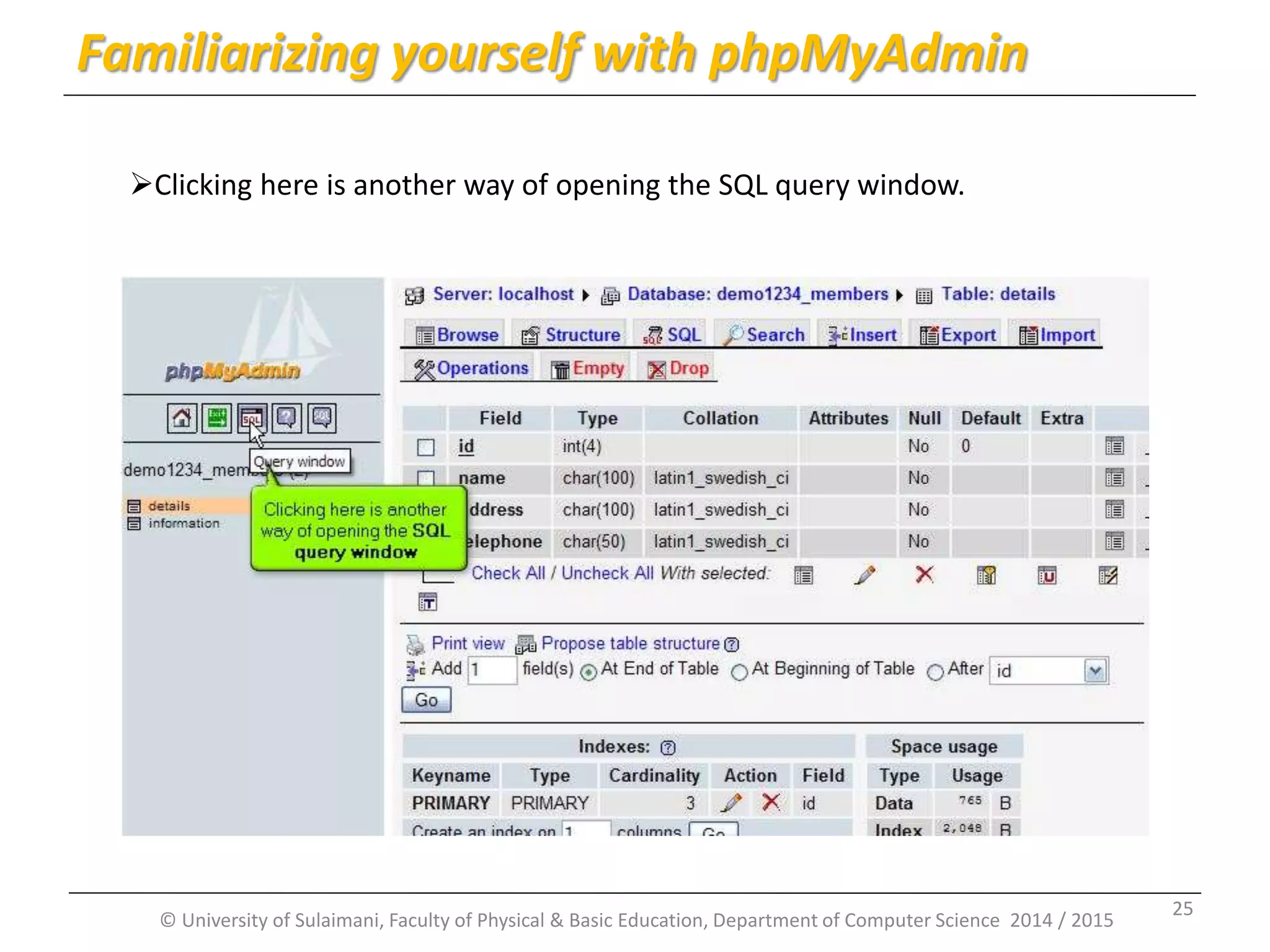
© University of Sulaimani, Faculty of Physical & Basic Education, Department of Computer Science 2014 / 2015 Familiarizing yourself with phpMyAdmin Clicking here is another way of opening the SQL query window. 25
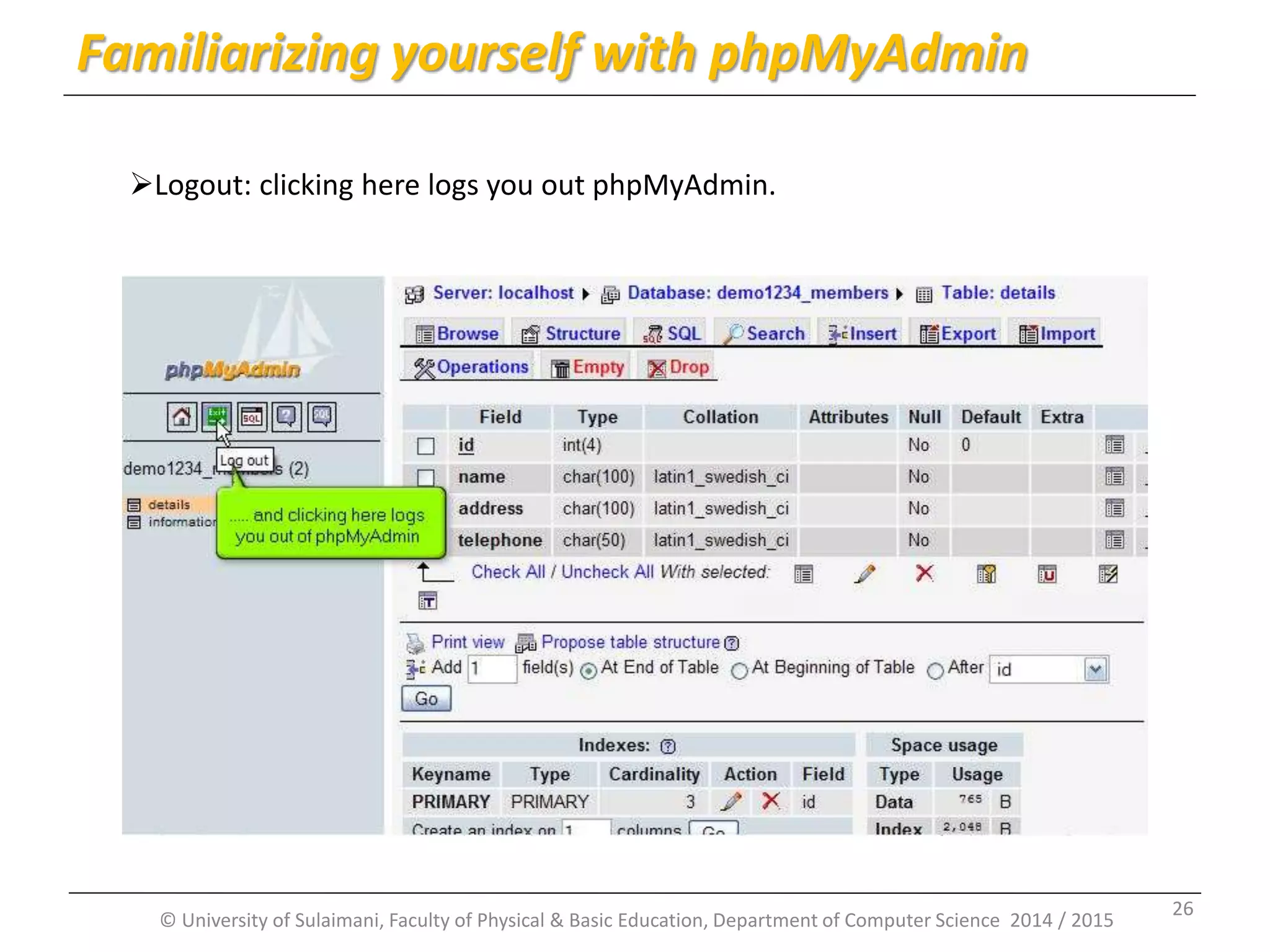
© University of Sulaimani, Faculty of Physical & Basic Education, Department of Computer Science 2014 / 2015 Familiarizing yourself with phpMyAdmin Logout: clicking here logs you out phpMyAdmin. 26
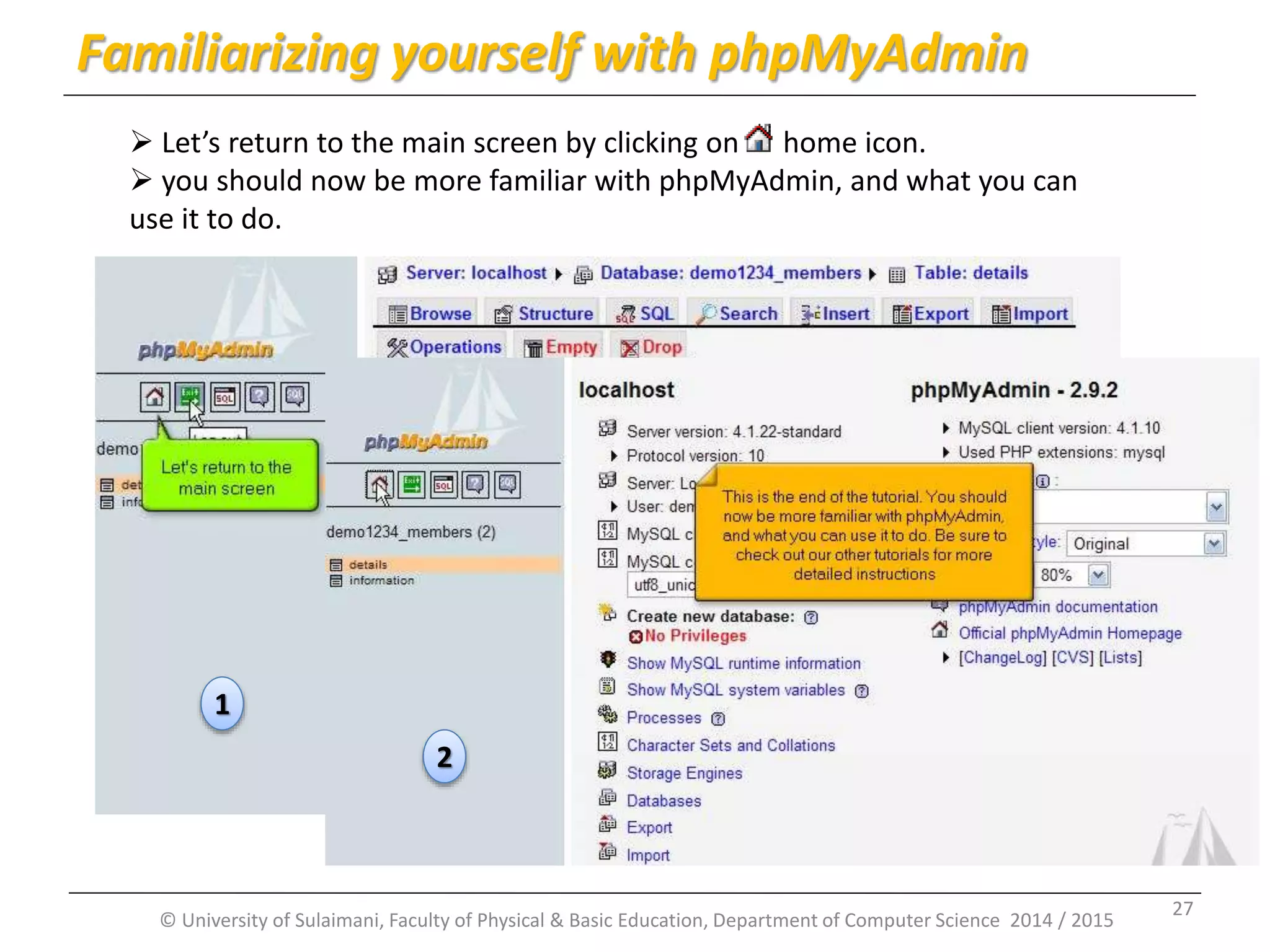
© University of Sulaimani, Faculty of Physical & Basic Education, Department of Computer Science 2014 / 2015 Familiarizing yourself with phpMyAdmin  Let’s return to the main screen by clicking on home icon.  you should now be more familiar with phpMyAdmin, and what you can use it to do. 1 2 27
Part 2: Creating tables in a MySQL database with phpMyAdmin By: Msc. KarwanM. Kareem 2014 -2015 © University of Sulaimani, Faculty of Physical & Basic Education, Department of Computer Science 2014 / 2015 28
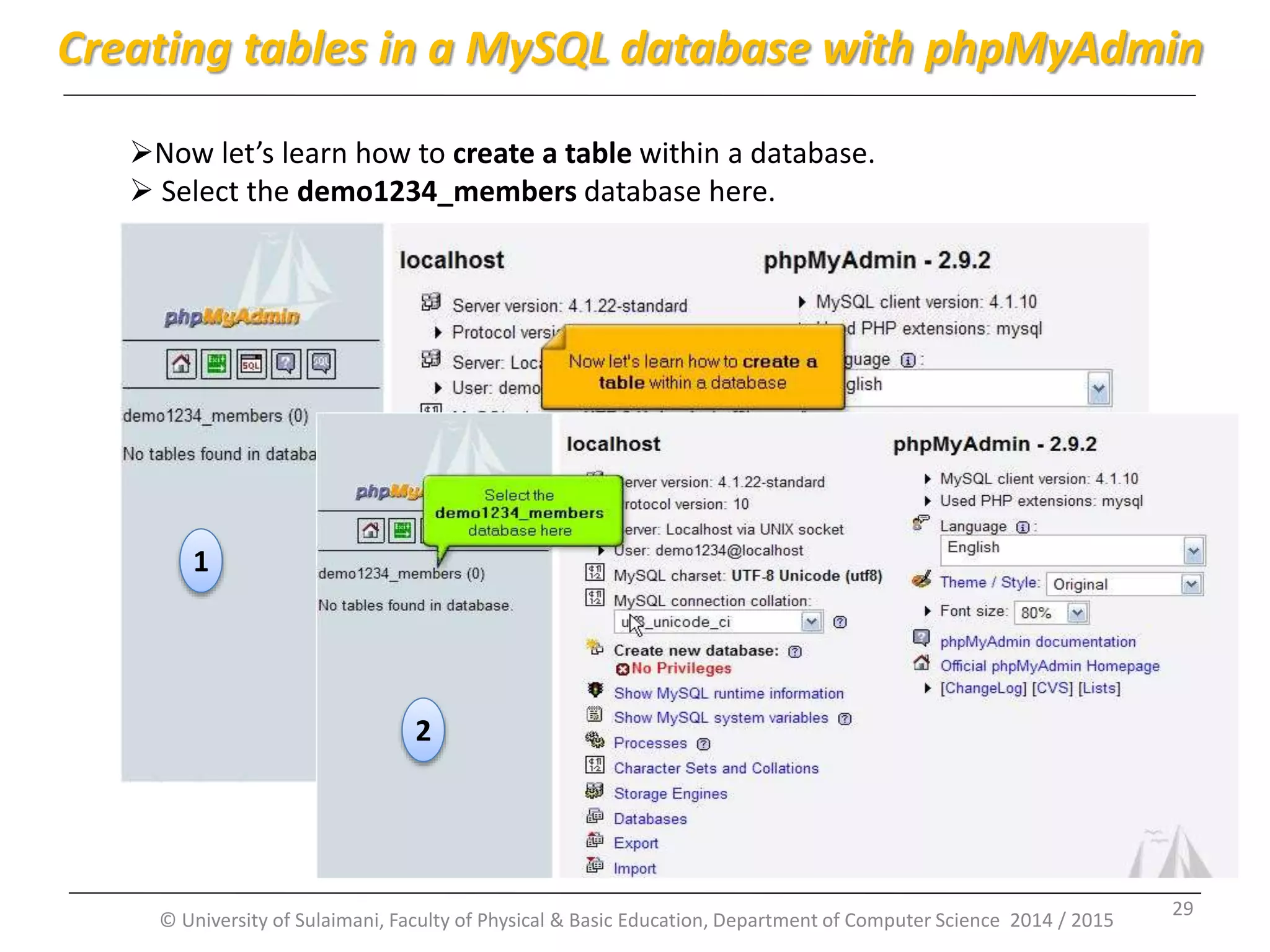
© University of Sulaimani, Faculty of Physical & Basic Education, Department of Computer Science 2014 / 2015 Creating tables in a MySQL database with phpMyAdmin Now let’s learn how to create a table within a database.  Select the demo1234_members database here. 1 2 29
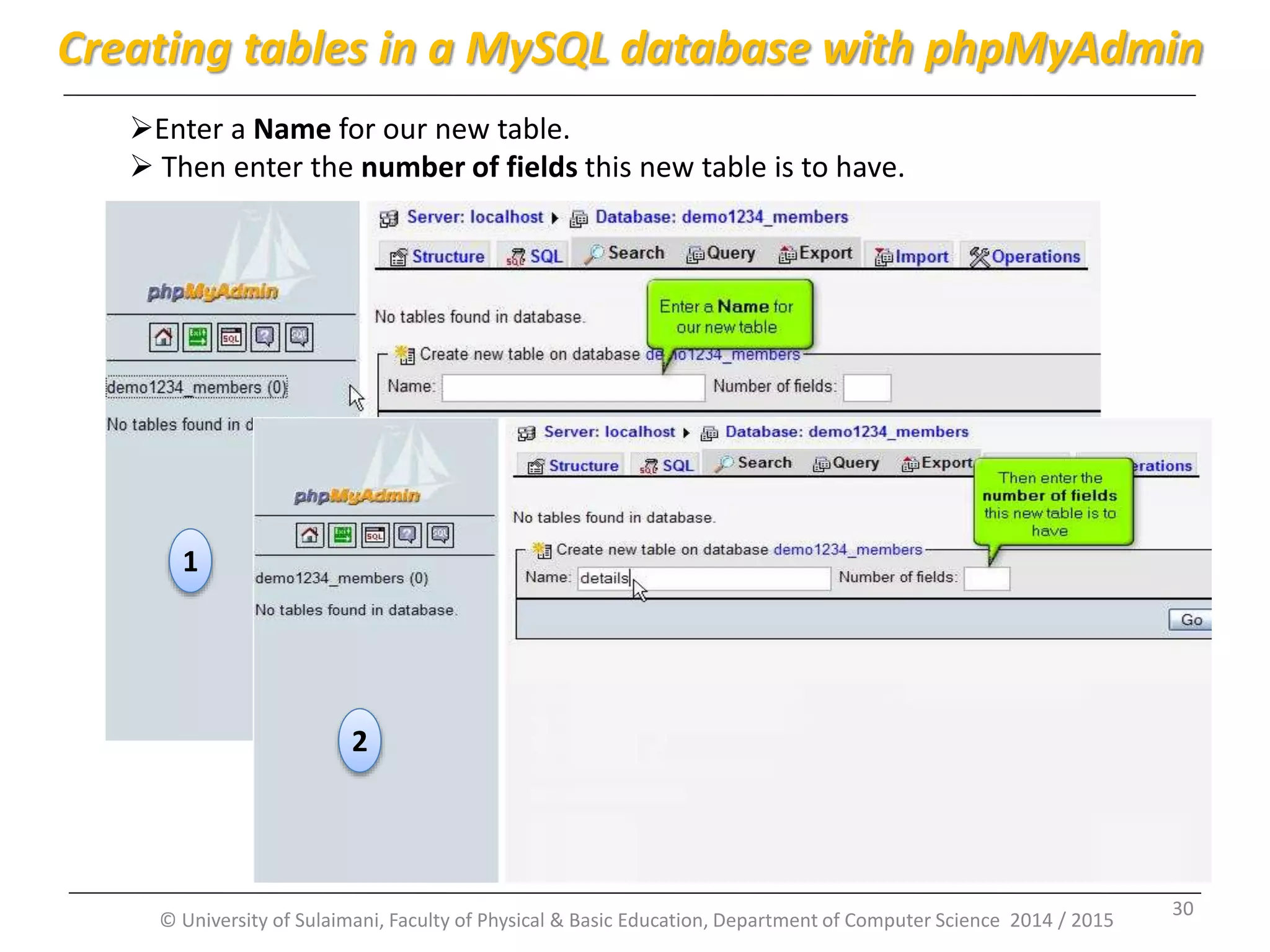
© University of Sulaimani, Faculty of Physical & Basic Education, Department of Computer Science 2014 / 2015 Enter a Name for our new table.  Then enter the number of fields this new table is to have. 1 2 Creating tables in a MySQL database with phpMyAdmin 30
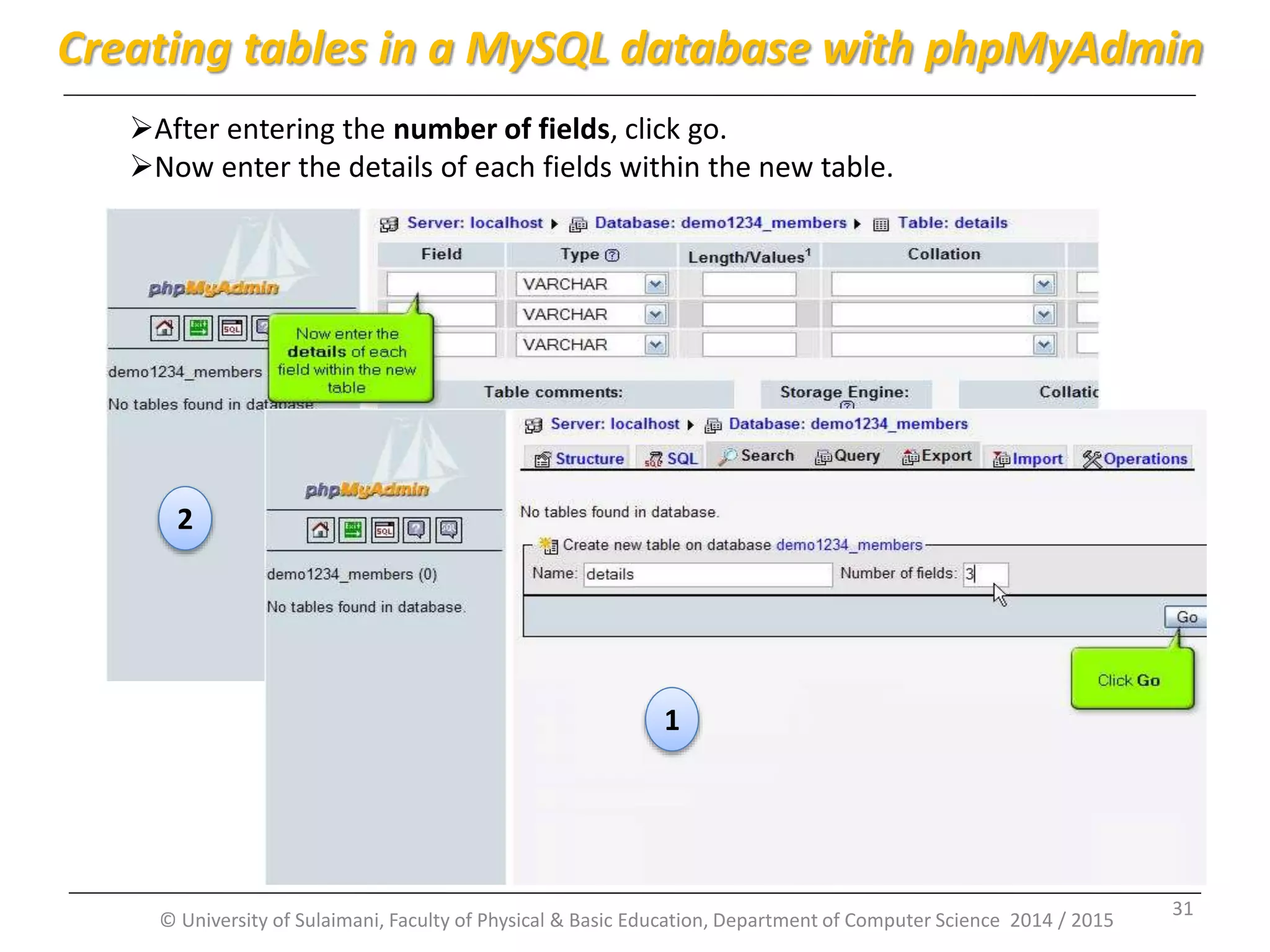
© University of Sulaimani, Faculty of Physical & Basic Education, Department of Computer Science 2014 / 2015 After entering the number of fields, click go. Now enter the details of each fields within the new table. 1 2 Creating tables in a MySQL database with phpMyAdmin 31
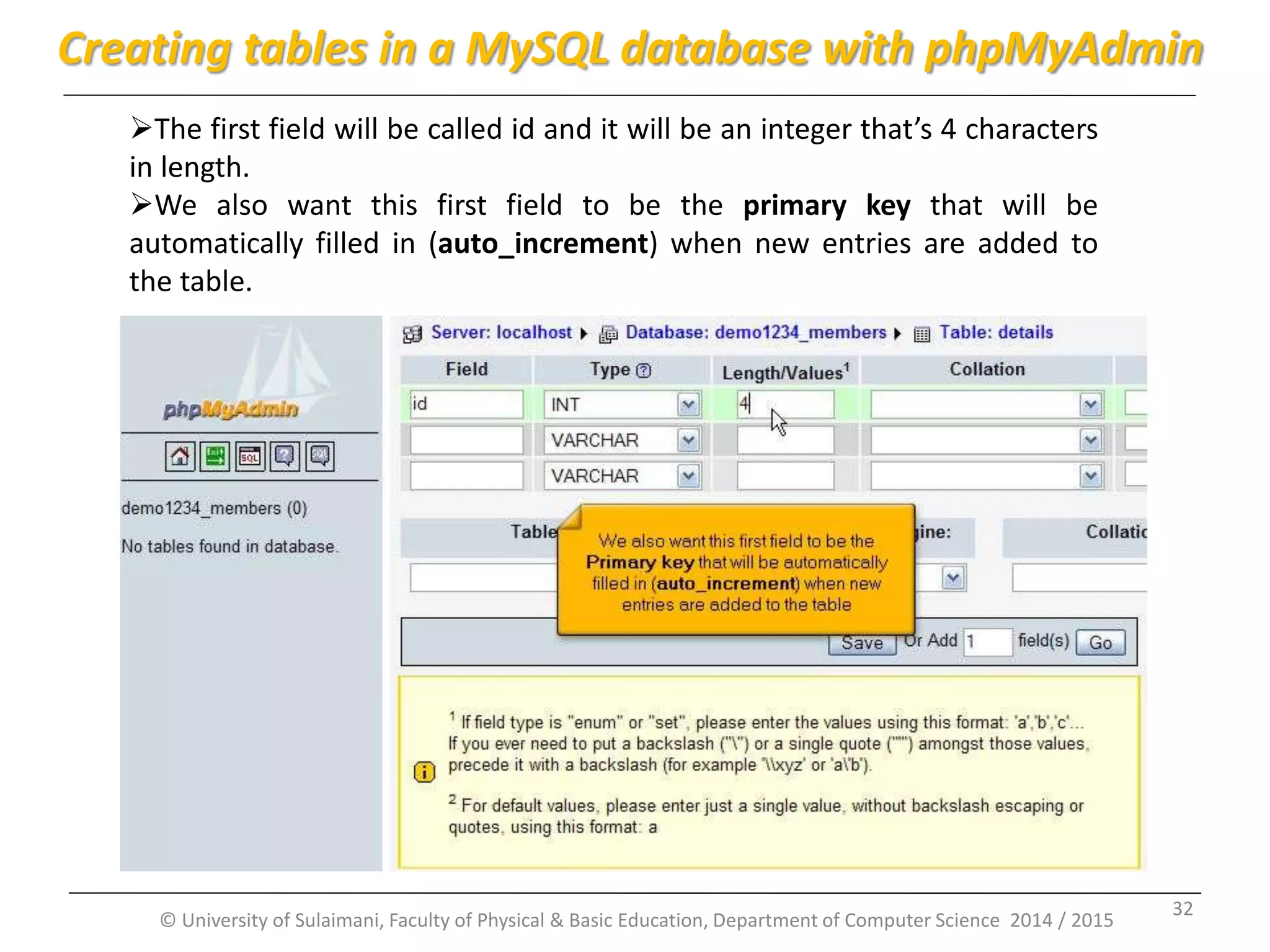
© University of Sulaimani, Faculty of Physical & Basic Education, Department of Computer Science 2014 / 2015 The first field will be called id and it will be an integer that’s 4 characters in length. We also want this first field to be the primary key that will be automatically filled in (auto_increment) when new entries are added to the table. Creating tables in a MySQL database with phpMyAdmin 32
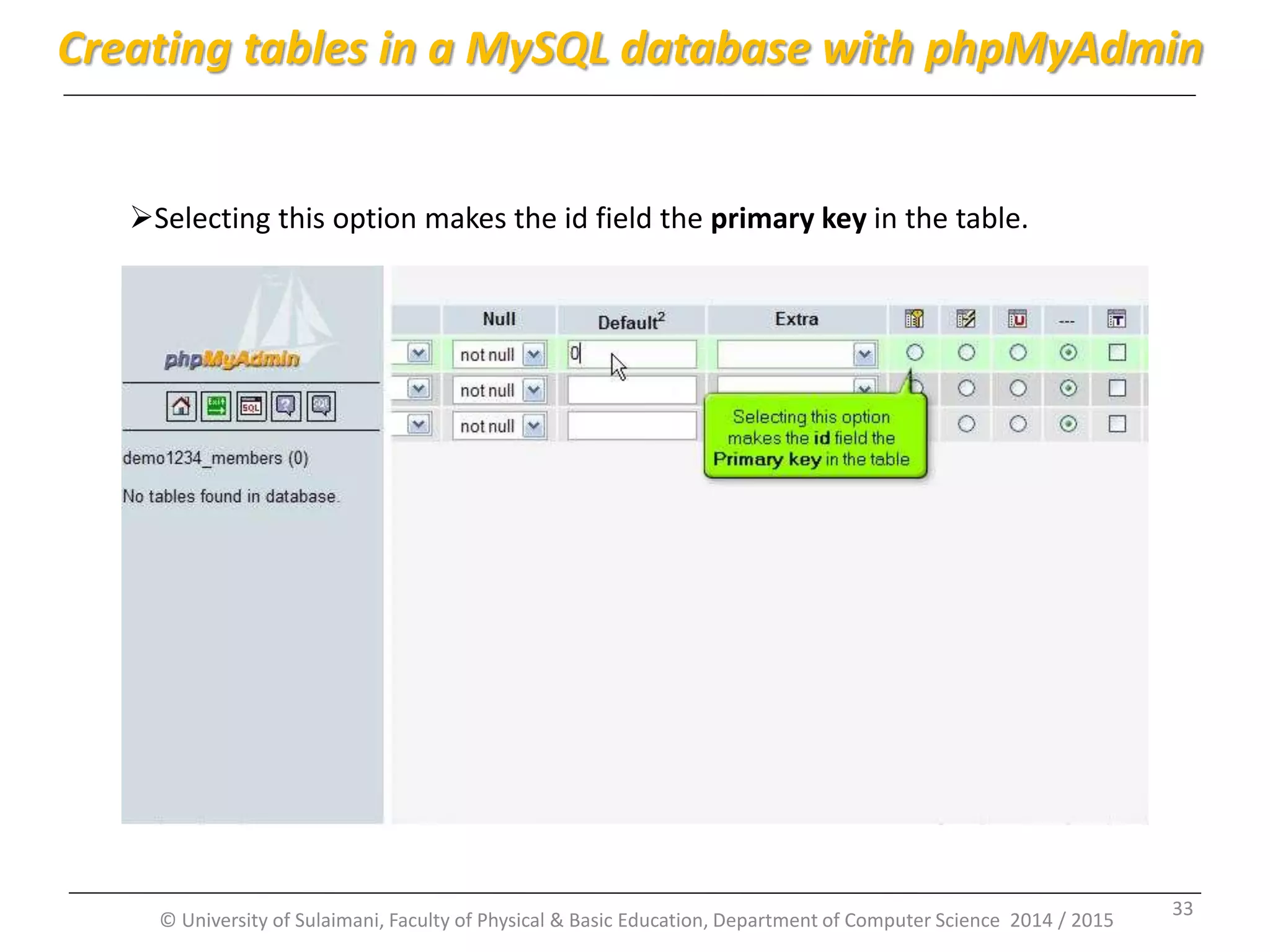
© University of Sulaimani, Faculty of Physical & Basic Education, Department of Computer Science 2014 / 2015 Selecting this option makes the id field the primary key in the table. Creating tables in a MySQL database with phpMyAdmin 33
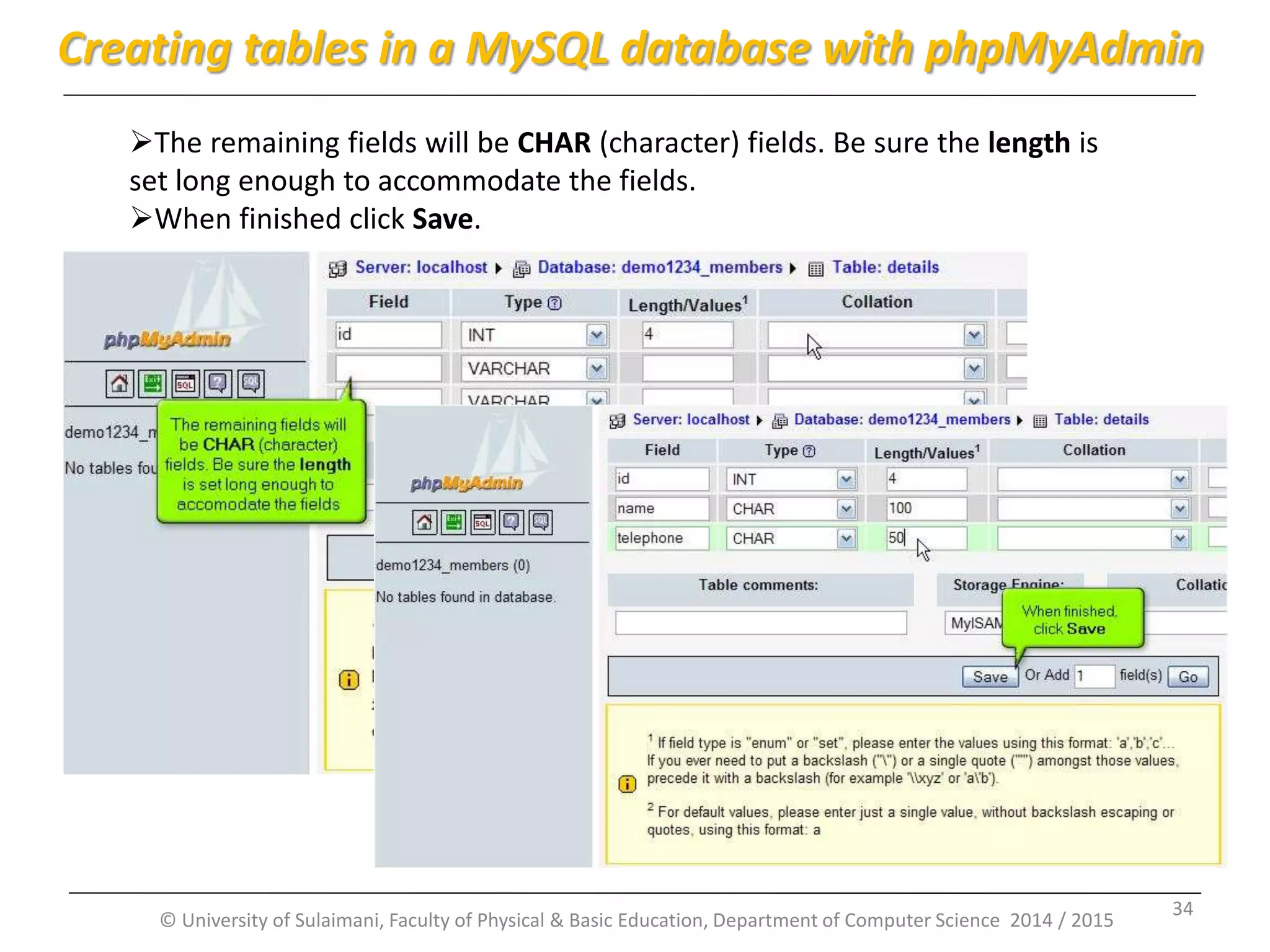
© University of Sulaimani, Faculty of Physical & Basic Education, Department of Computer Science 2014 / 2015 The remaining fields will be CHAR (character) fields. Be sure the length is set long enough to accommodate the fields. When finished click Save. Creating tables in a MySQL database with phpMyAdmin 34
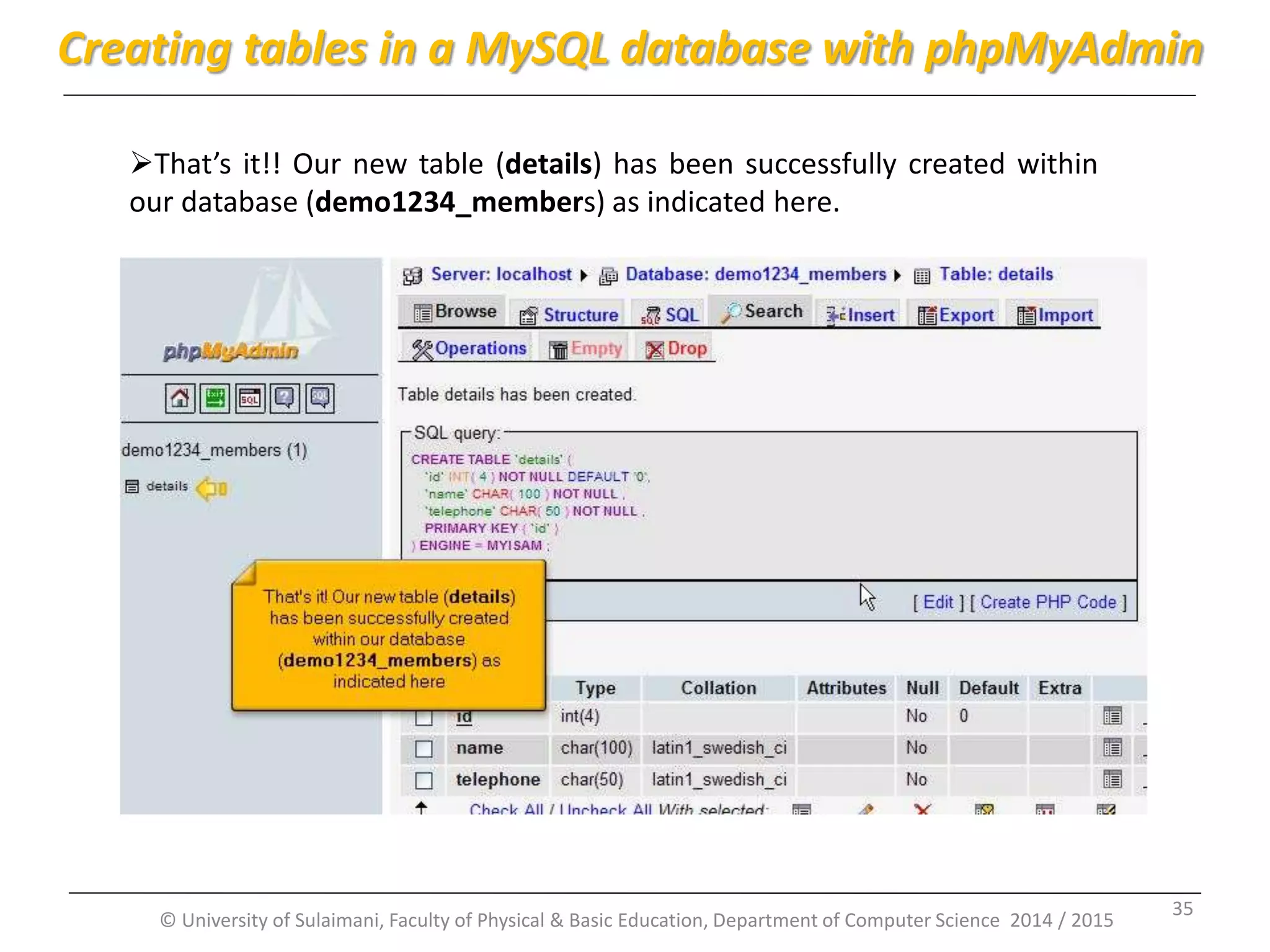
© University of Sulaimani, Faculty of Physical & Basic Education, Department of Computer Science 2014 / 2015 That’s it!! Our new table (details) has been successfully created within our database (demo1234_members) as indicated here. Creating tables in a MySQL database with phpMyAdmin 35
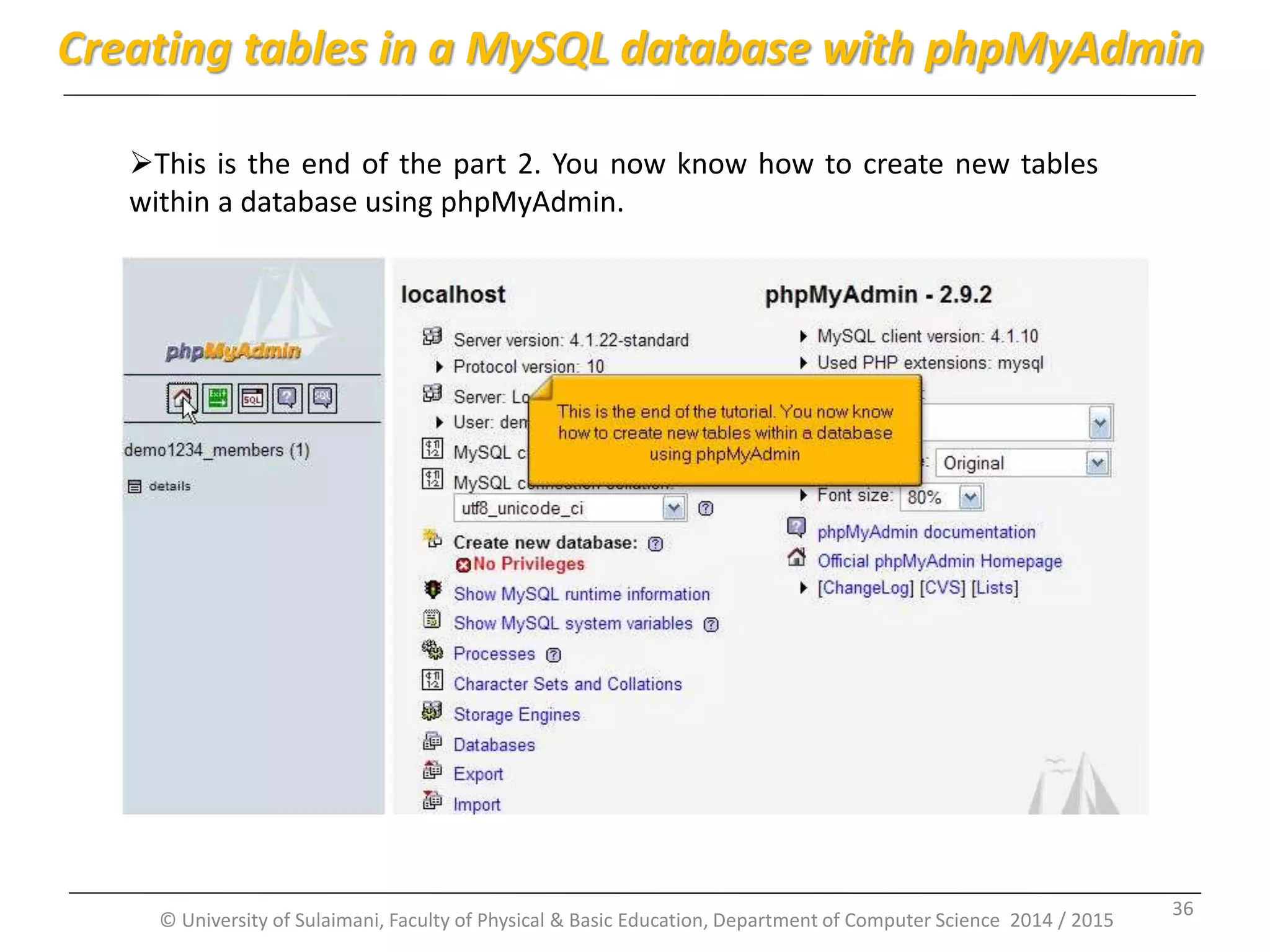
© University of Sulaimani, Faculty of Physical & Basic Education, Department of Computer Science 2014 / 2015 This is the end of the part 2. You now know how to create new tables within a database using phpMyAdmin. Creating tables in a MySQL database with phpMyAdmin 36
Part 3: Deleting tables in a MySQL database with phpMyAdmin By: Msc. KarwanM. Kareem 2014 -2015 © University of Sulaimani, Faculty of Physical & Basic Education, Department of Computer Science 2014 / 2015 37
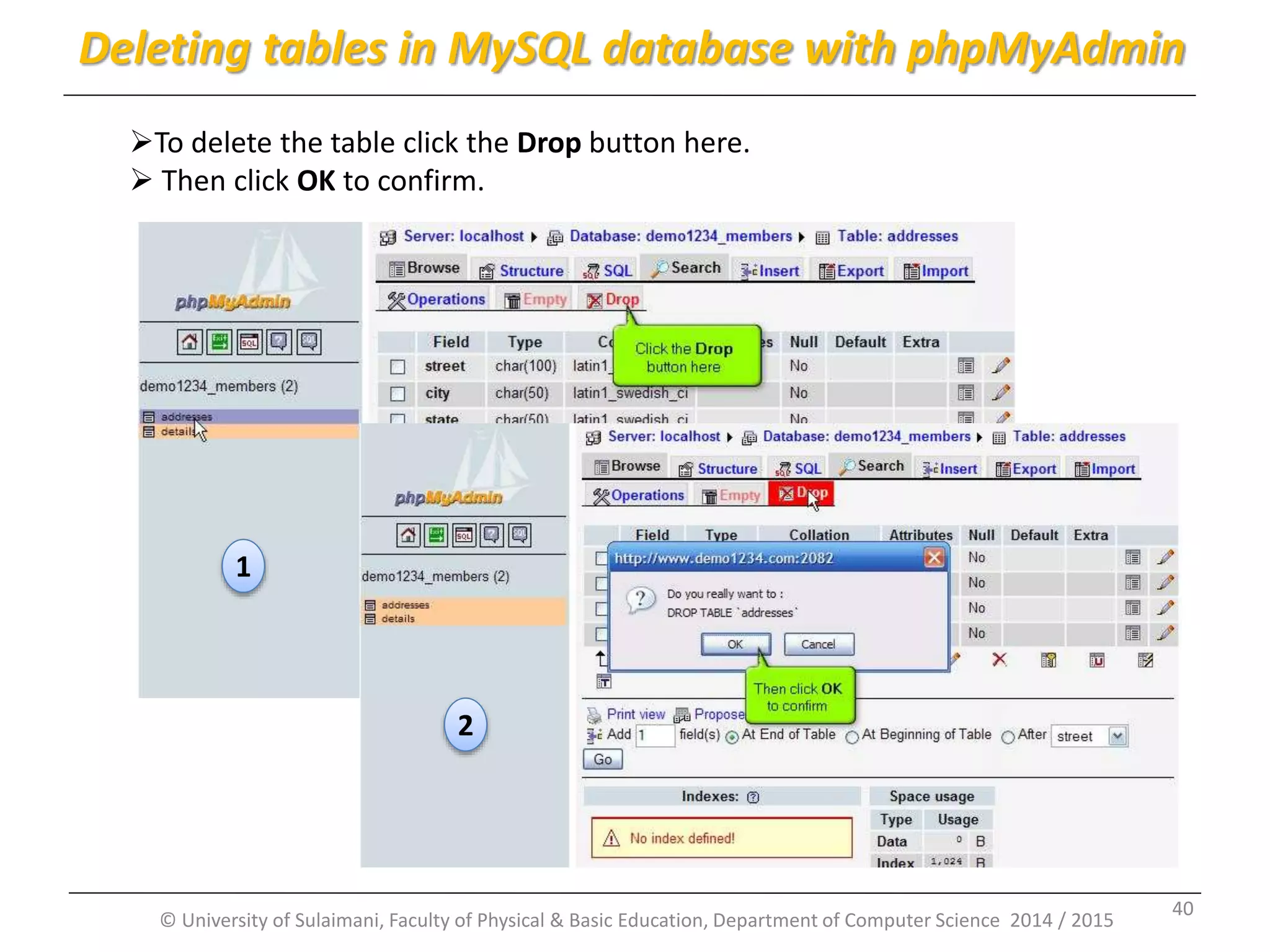
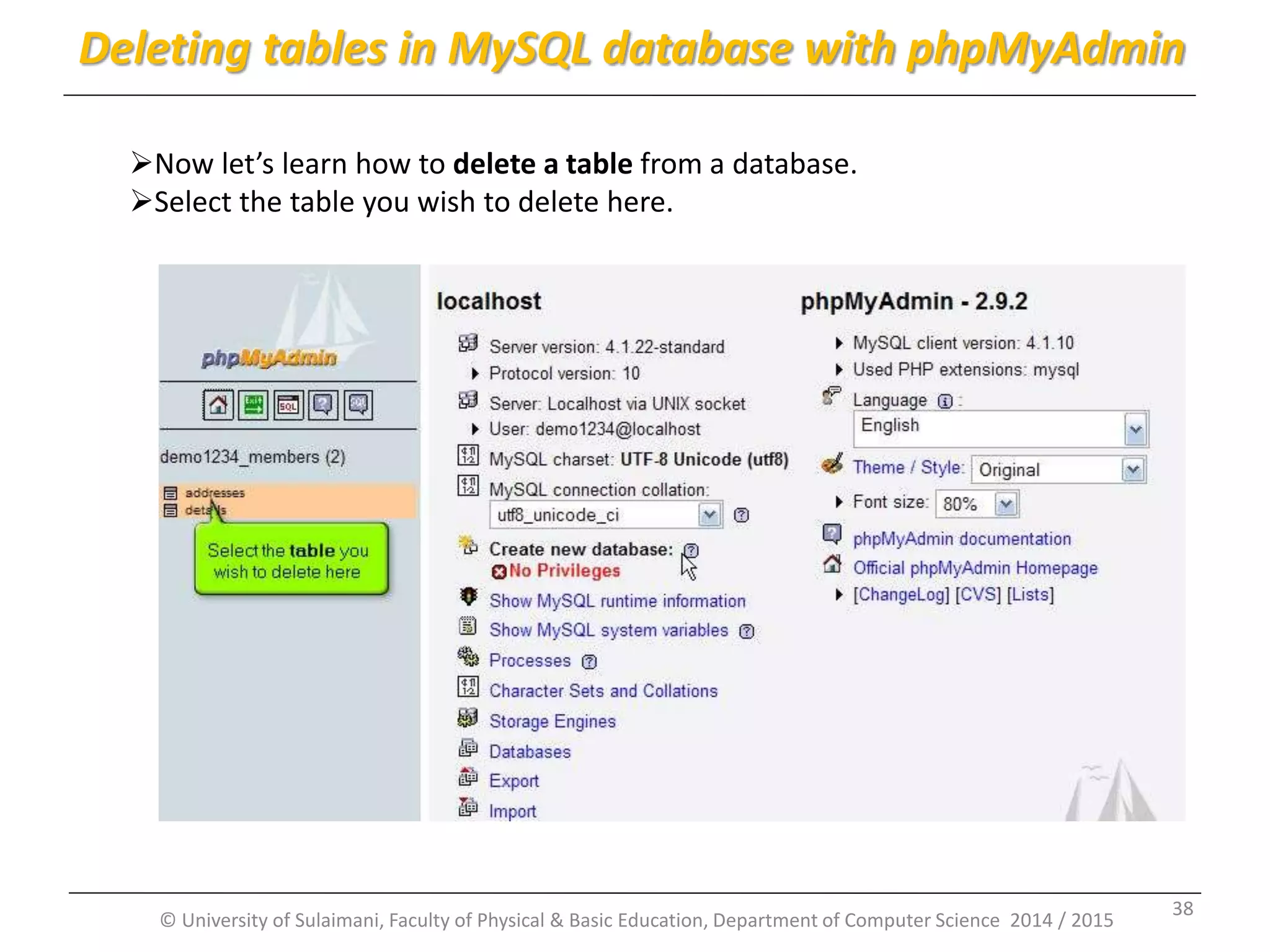
© University of Sulaimani, Faculty of Physical & Basic Education, Department of Computer Science 2014 / 2015 Now let’s learn how to delete a table from a database. Select the table you wish to delete here. Deleting tables in MySQL database with phpMyAdmin 38
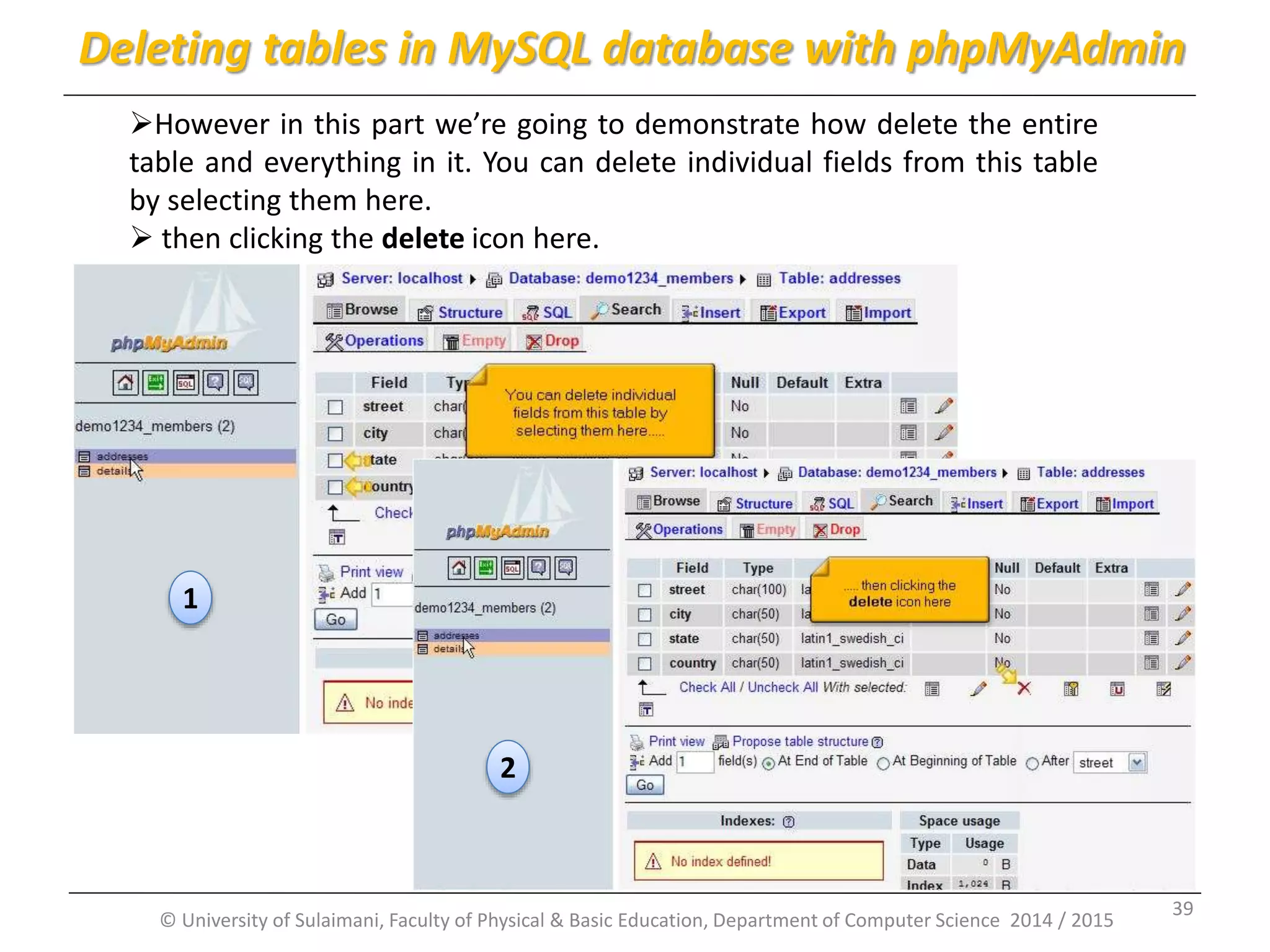
© University of Sulaimani, Faculty of Physical & Basic Education, Department of Computer Science 2014 / 2015 However in this part we’re going to demonstrate how delete the entire table and everything in it. You can delete individual fields from this table by selecting them here.  then clicking the delete icon here. Deleting tables in MySQL database with phpMyAdmin 1 2 39
© University of Sulaimani, Faculty of Physical & Basic Education, Department of Computer Science 2014 / 2015 To delete the table click the Drop button here.  Then click OK to confirm. Deleting tables in MySQL database with phpMyAdmin 1 2 40
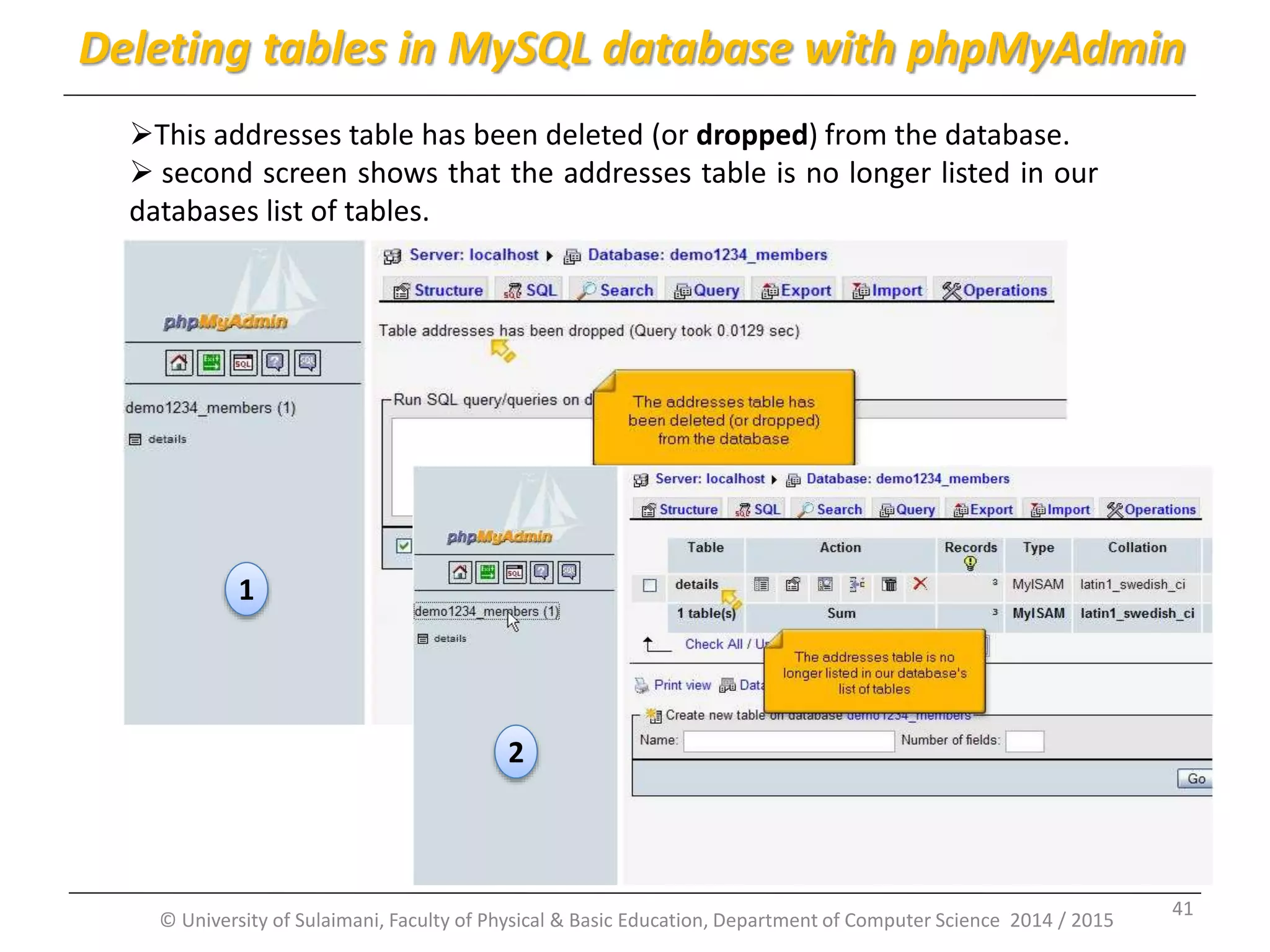
© University of Sulaimani, Faculty of Physical & Basic Education, Department of Computer Science 2014 / 2015 This addresses table has been deleted (or dropped) from the database.  second screen shows that the addresses table is no longer listed in our databases list of tables. Deleting tables in MySQL database with phpMyAdmin 1 2 1 2 41
Part 4: Inserting fields into a MySQL database table using phpMyAdmin By: Msc. KarwanM. Kareem 2014 -2015 © University of Sulaimani, Faculty of Physical & Basic Education, Department of Computer Science 2014 / 2015 42
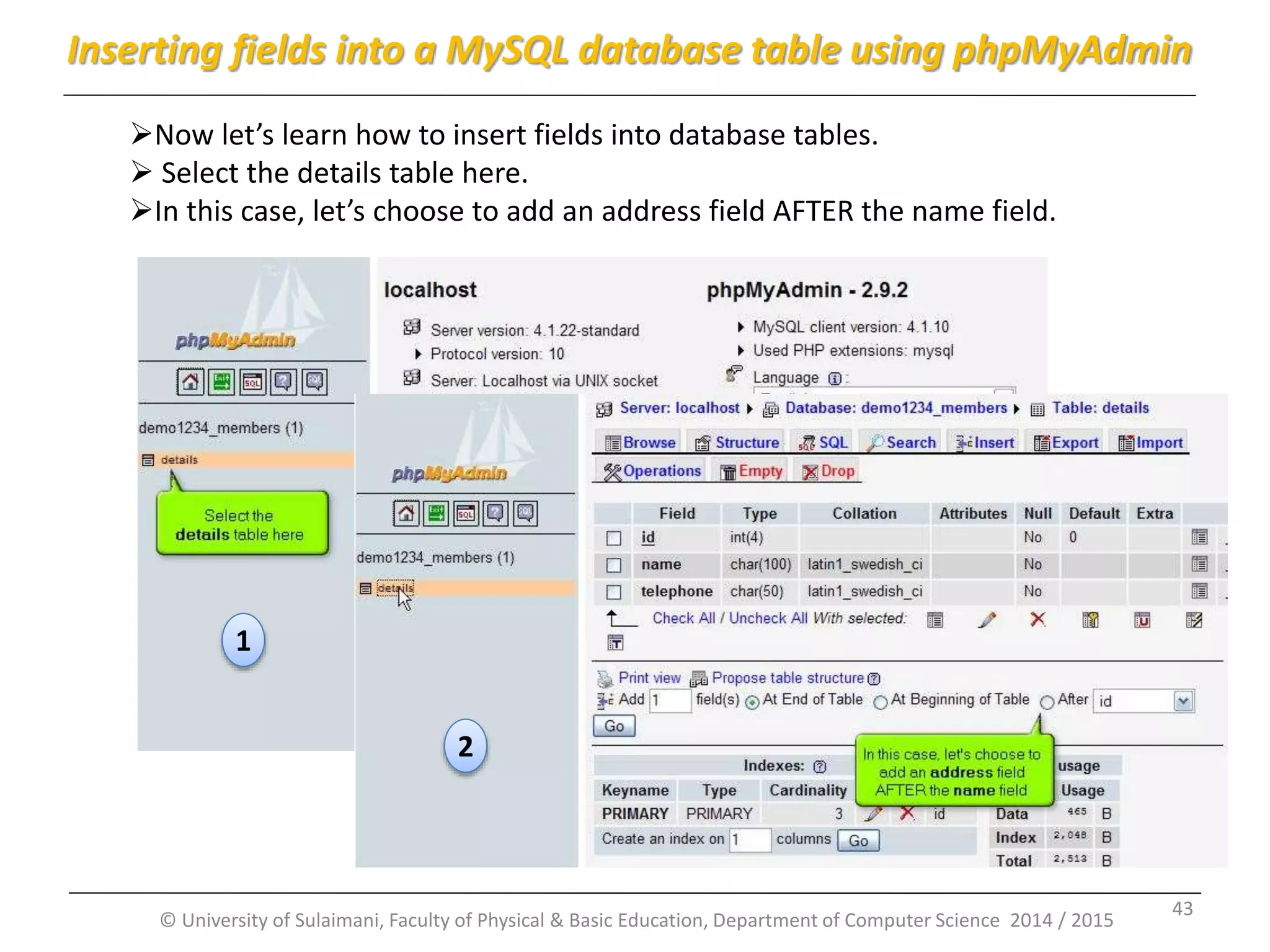
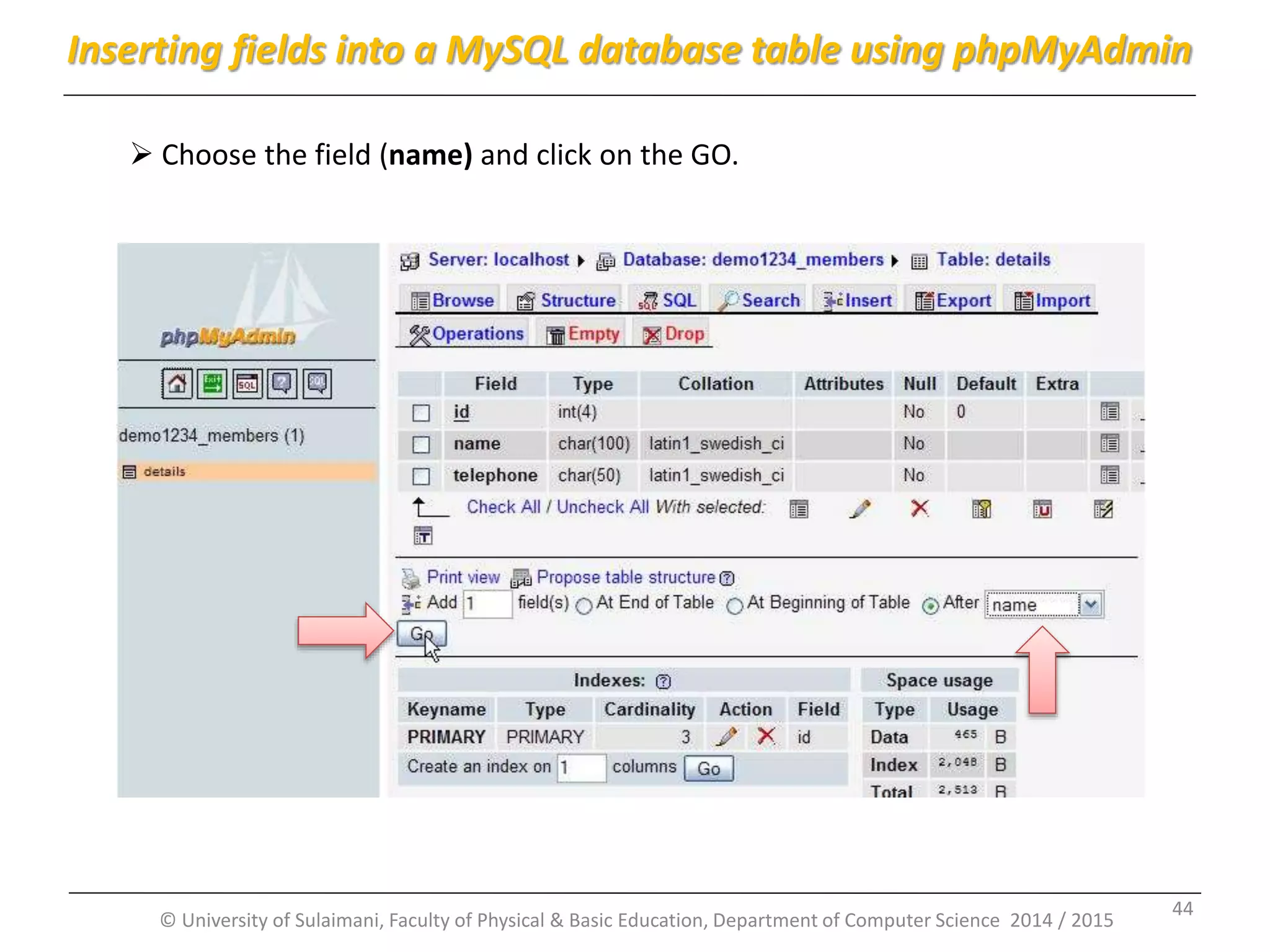
© University of Sulaimani, Faculty of Physical & Basic Education, Department of Computer Science 2014 / 2015 Now let’s learn how to insert fields into database tables.  Select the details table here. In this case, let’s choose to add an address field AFTER the name field. Inserting fields into a MySQL database table using phpMyAdmin 1 2 43
© University of Sulaimani, Faculty of Physical & Basic Education, Department of Computer Science 2014 / 2015  Choose the field (name) and click on the GO. Inserting fields into a MySQL database table using phpMyAdmin 44
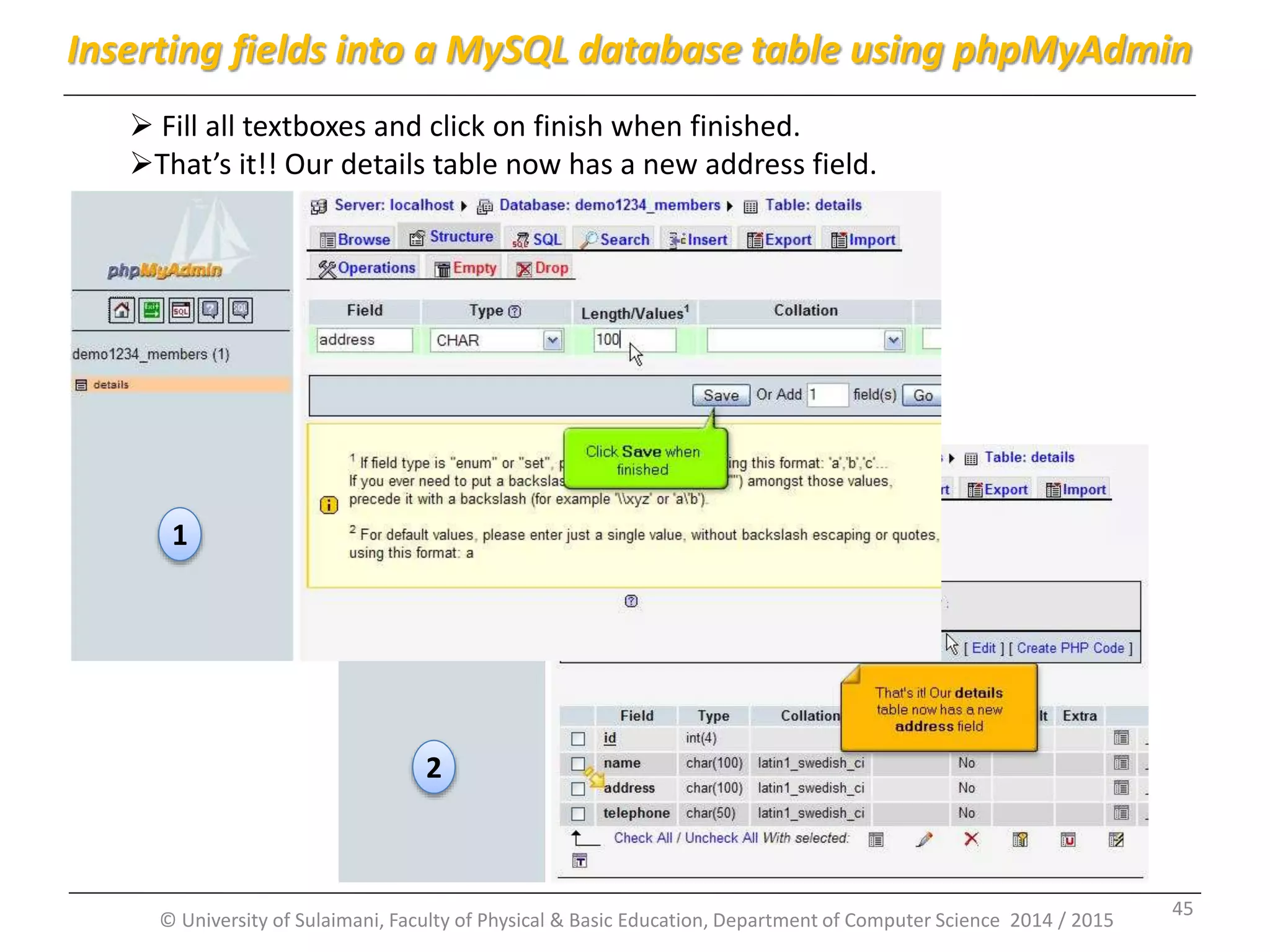
© University of Sulaimani, Faculty of Physical & Basic Education, Department of Computer Science 2014 / 2015  Fill all textboxes and click on finish when finished. That’s it!! Our details table now has a new address field. Inserting fields into a MySQL database table using phpMyAdmin 1 2 45
Part 5: Modifying fields in a MySQL database table using phpMyAdmin By: Msc. KarwanM. Kareem 2014 -2015 © University of Sulaimani, Faculty of Physical & Basic Education, Department of Computer Science 2014 / 2015 46
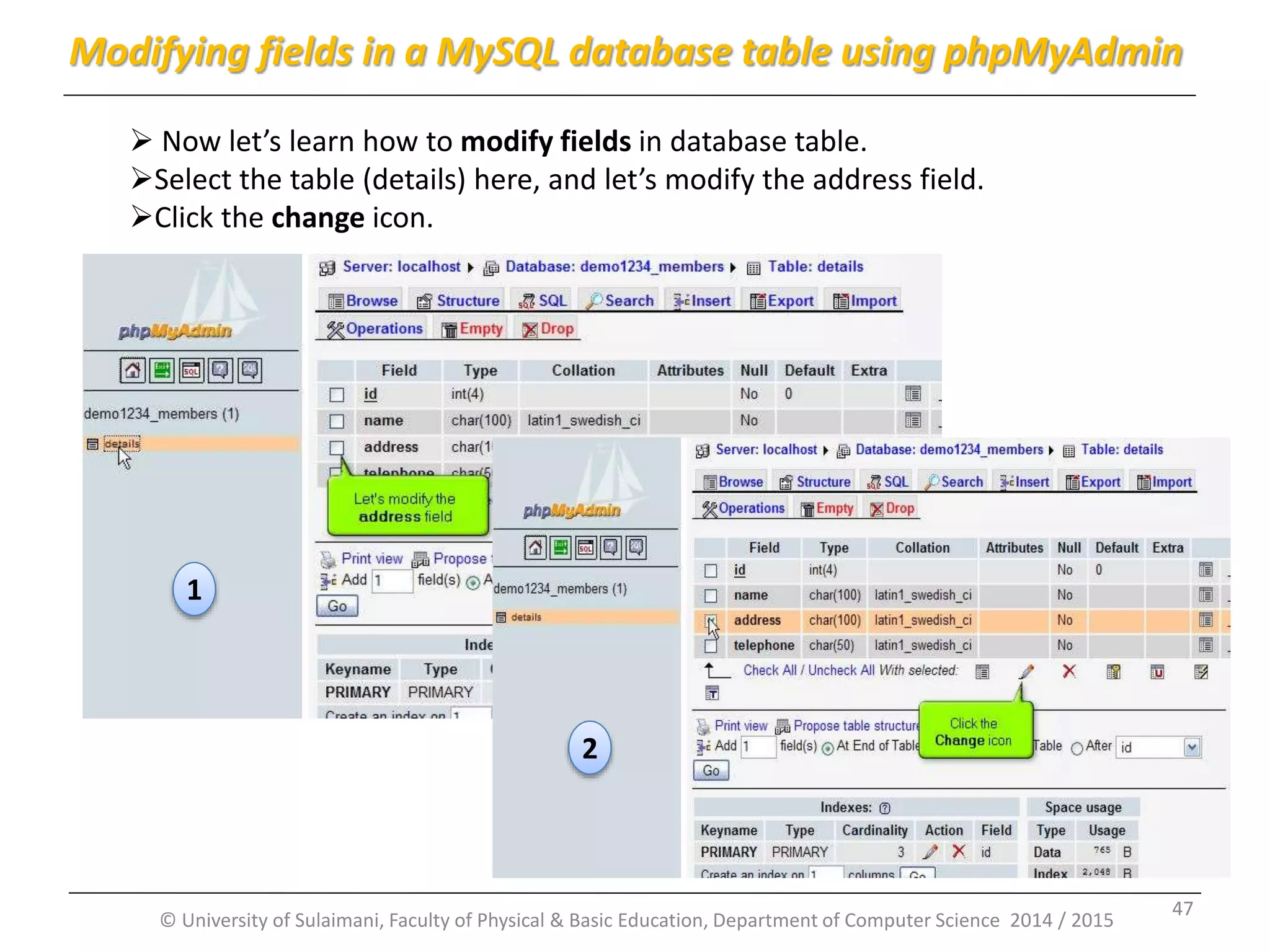
© University of Sulaimani, Faculty of Physical & Basic Education, Department of Computer Science 2014 / 2015  Now let’s learn how to modify fields in database table. Select the table (details) here, and let’s modify the address field. Click the change icon. Modifying fields in a MySQL database table using phpMyAdmin 1 2 47
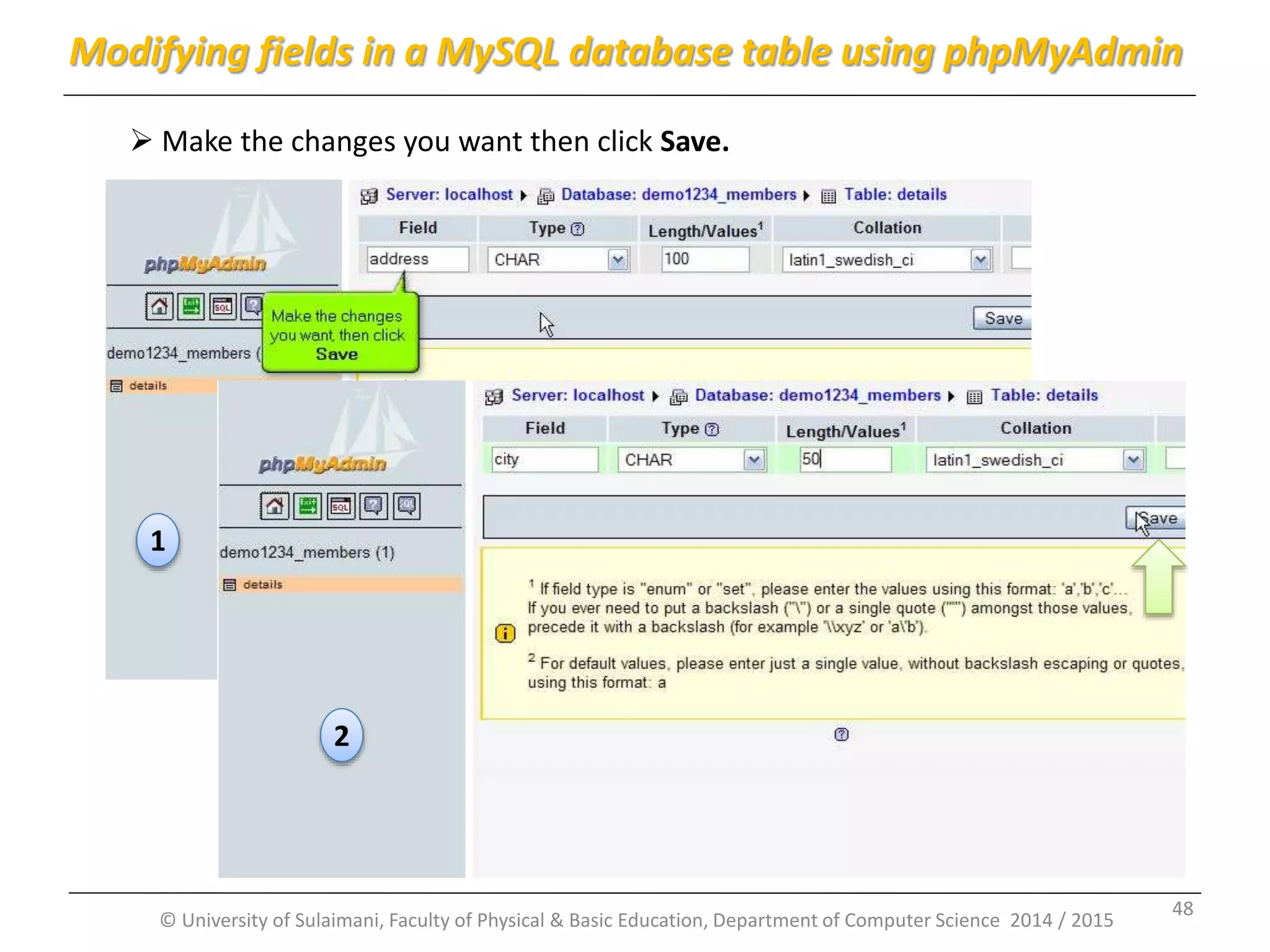
© University of Sulaimani, Faculty of Physical & Basic Education, Department of Computer Science 2014 / 2015  Make the changes you want then click Save. Modifying fields in a MySQL database table using phpMyAdmin 1 2 48
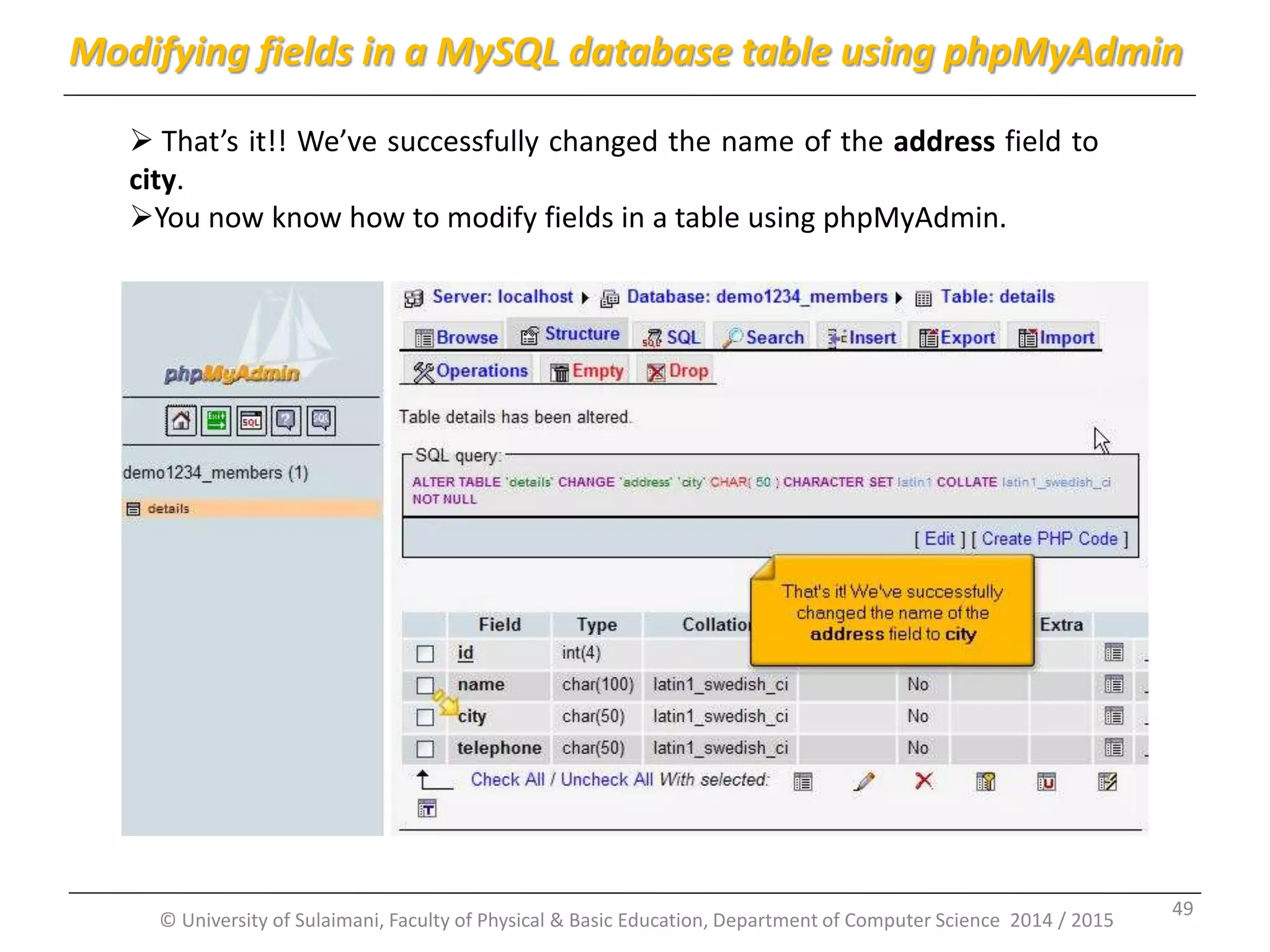
© University of Sulaimani, Faculty of Physical & Basic Education, Department of Computer Science 2014 / 2015  That’s it!! We’ve successfully changed the name of the address field to city. You now know how to modify fields in a table using phpMyAdmin. Modifying fields in a MySQL database table using phpMyAdmin 49
Part 6: Deleting fields in a MySQL database table using phpMyAdmin By: Msc. KarwanM. Kareem 2014 -2015 © University of Sulaimani, Faculty of Physical & Basic Education, Department of Computer Science 2014 / 2015 50
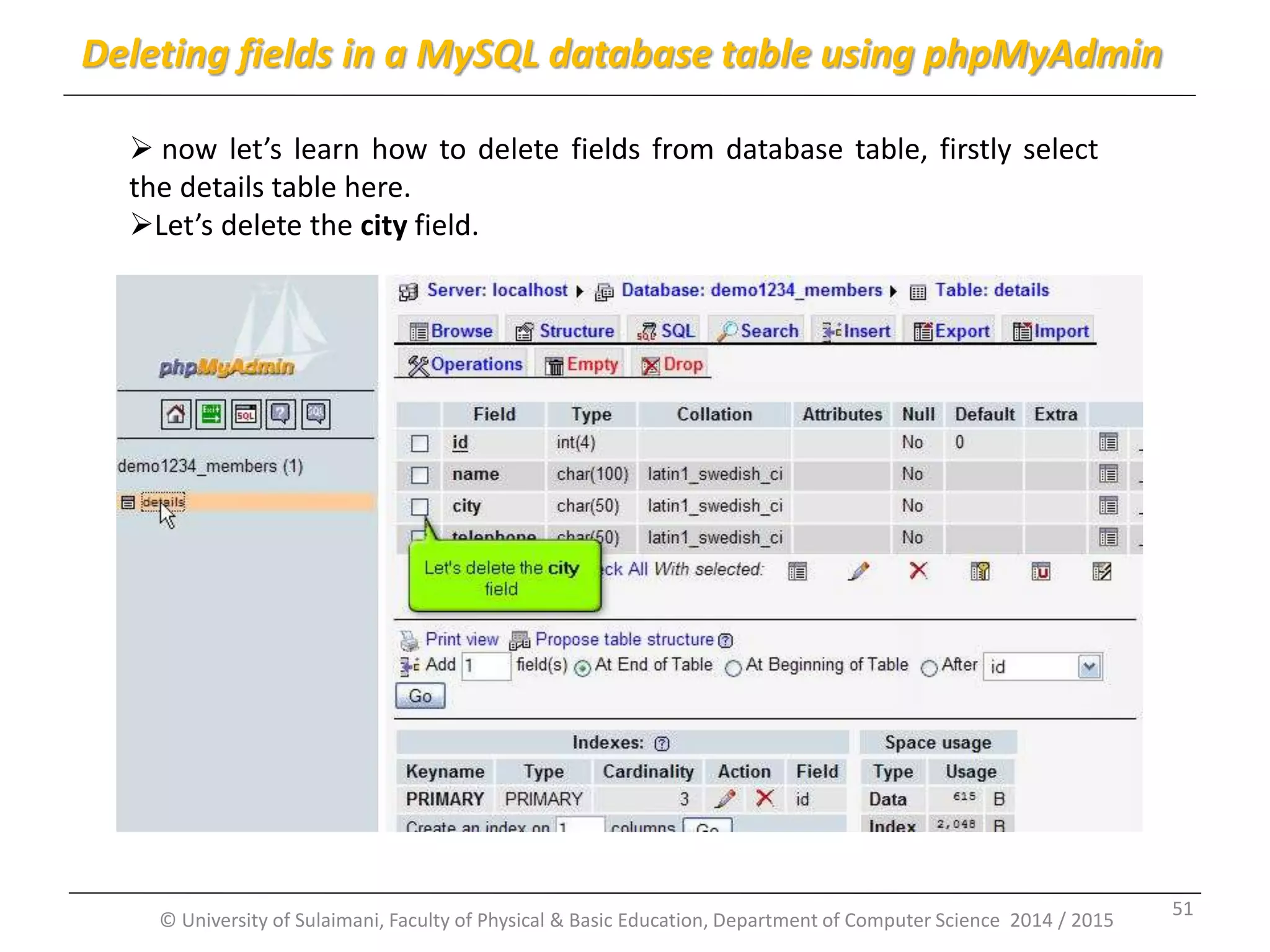
© University of Sulaimani, Faculty of Physical & Basic Education, Department of Computer Science 2014 / 2015  now let’s learn how to delete fields from database table, firstly select the details table here. Let’s delete the city field. Deleting fields in a MySQL database table using phpMyAdmin 51
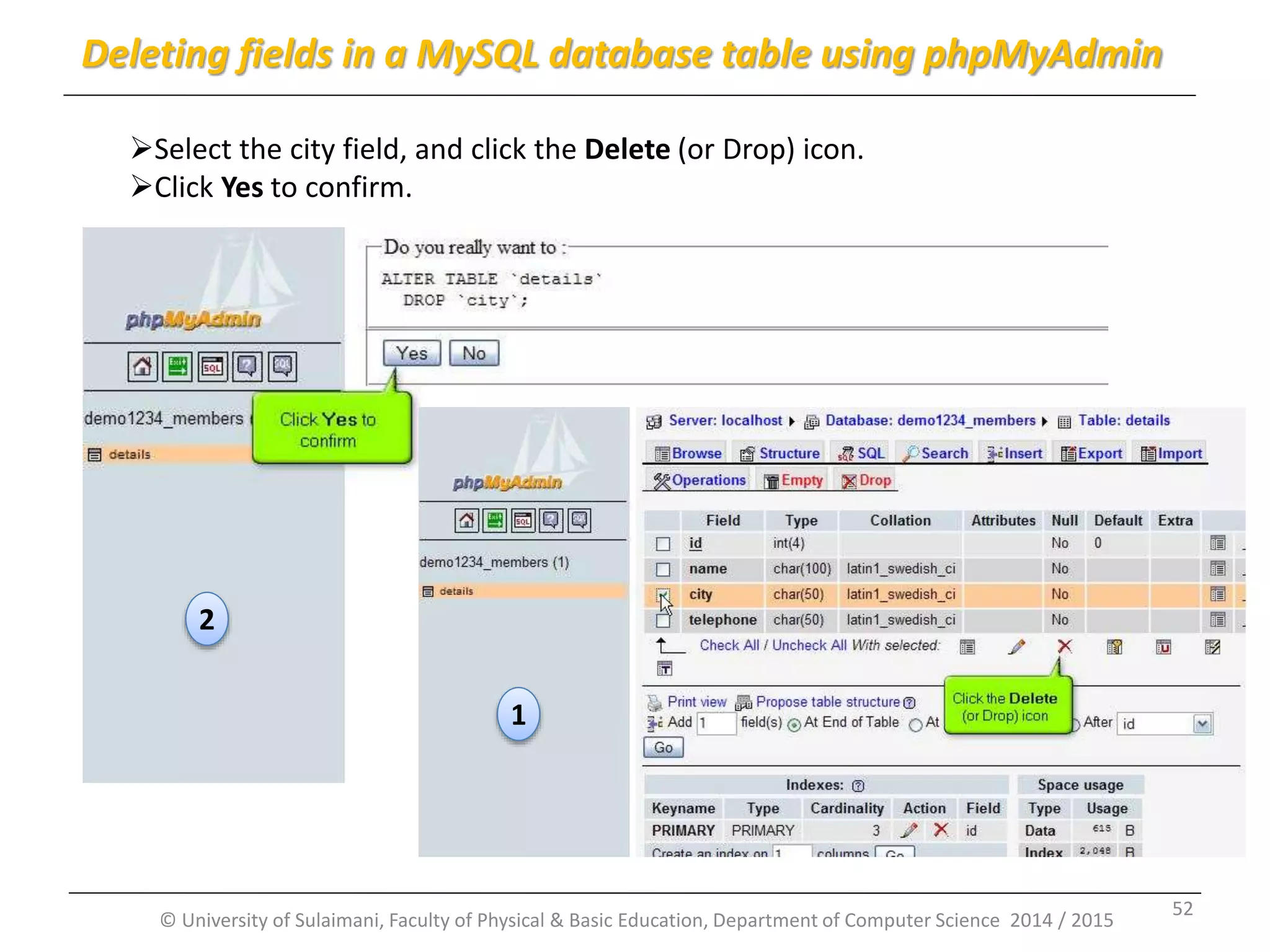
© University of Sulaimani, Faculty of Physical & Basic Education, Department of Computer Science 2014 / 2015 Select the city field, and click the Delete (or Drop) icon. Click Yes to confirm. 1 2 Deleting fields in a MySQL database table using phpMyAdmin 52
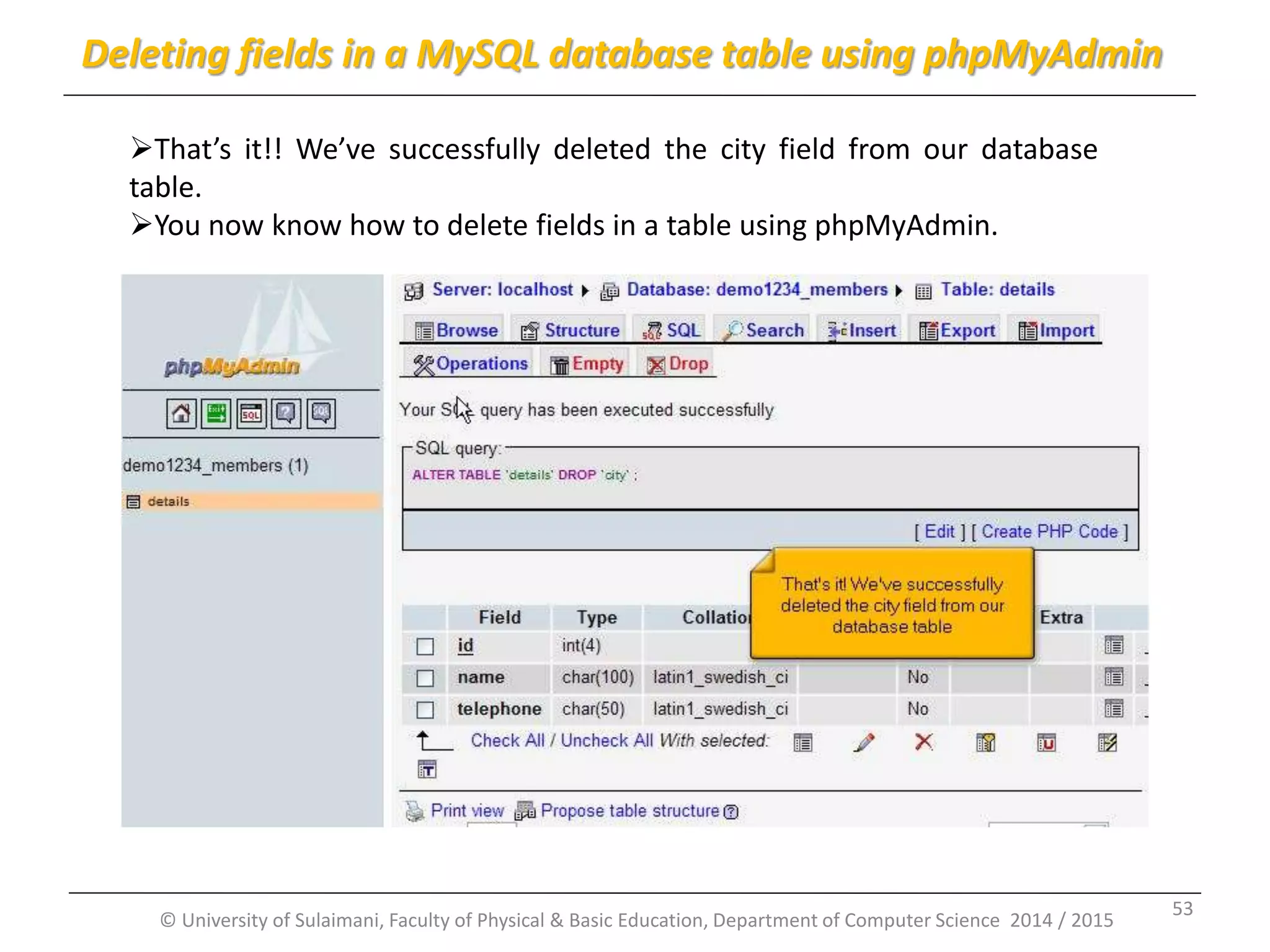
© University of Sulaimani, Faculty of Physical & Basic Education, Department of Computer Science 2014 / 2015 That’s it!! We’ve successfully deleted the city field from our database table. You now know how to delete fields in a table using phpMyAdmin. Deleting fields in a MySQL database table using phpMyAdmin 53
Part 7: Exporting and importing MySQL databases and tables using phpMyAdmin By: Msc. KarwanM. Kareem 2014 -2015 © University of Sulaimani, Faculty of Physical & Basic Education, Department of Computer Science 2014 / 2015 54
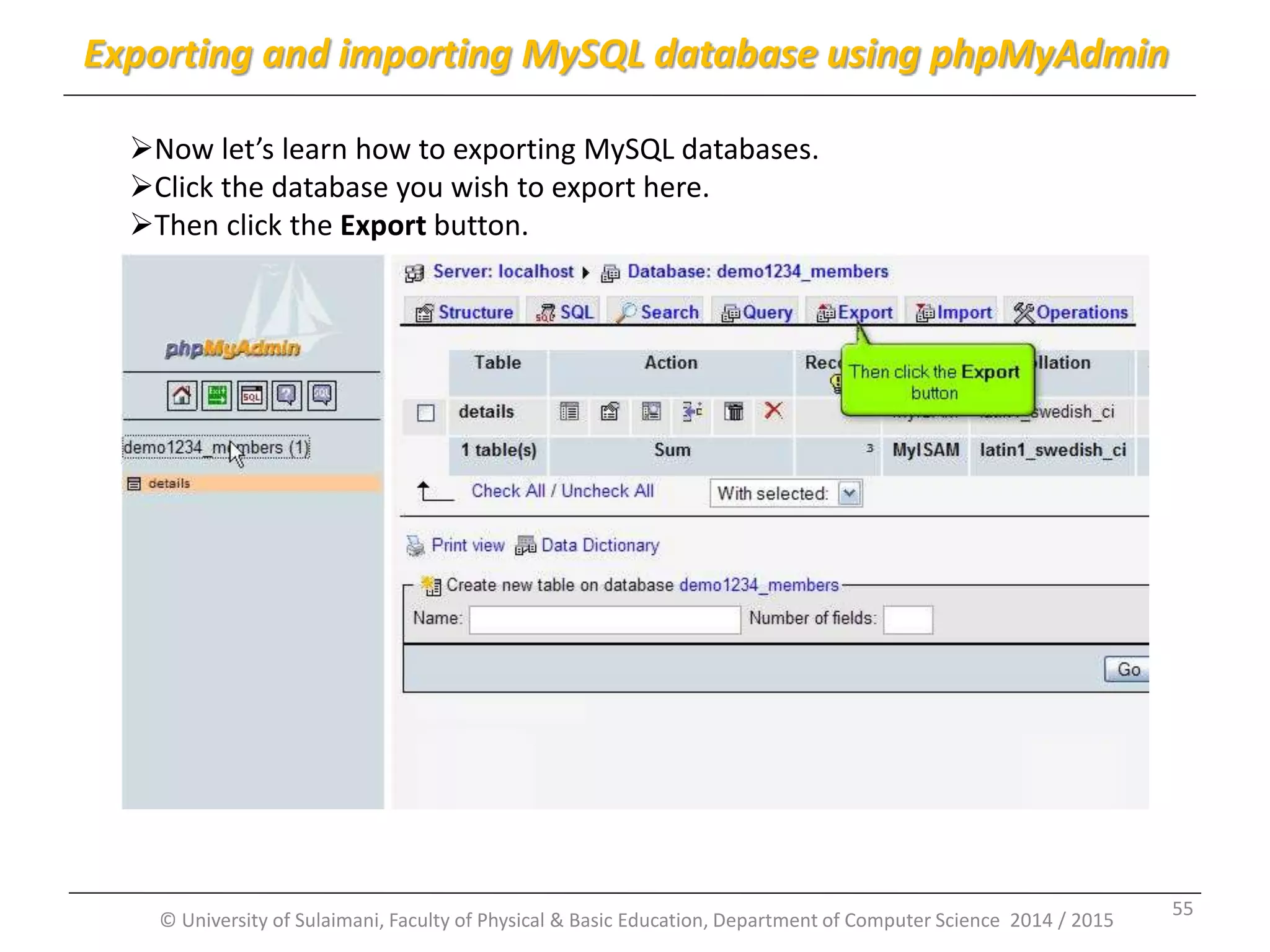
© University of Sulaimani, Faculty of Physical & Basic Education, Department of Computer Science 2014 / 2015 Now let’s learn how to exporting MySQL databases. Click the database you wish to export here. Then click the Export button. Exporting and importing MySQL database using phpMyAdmin 55
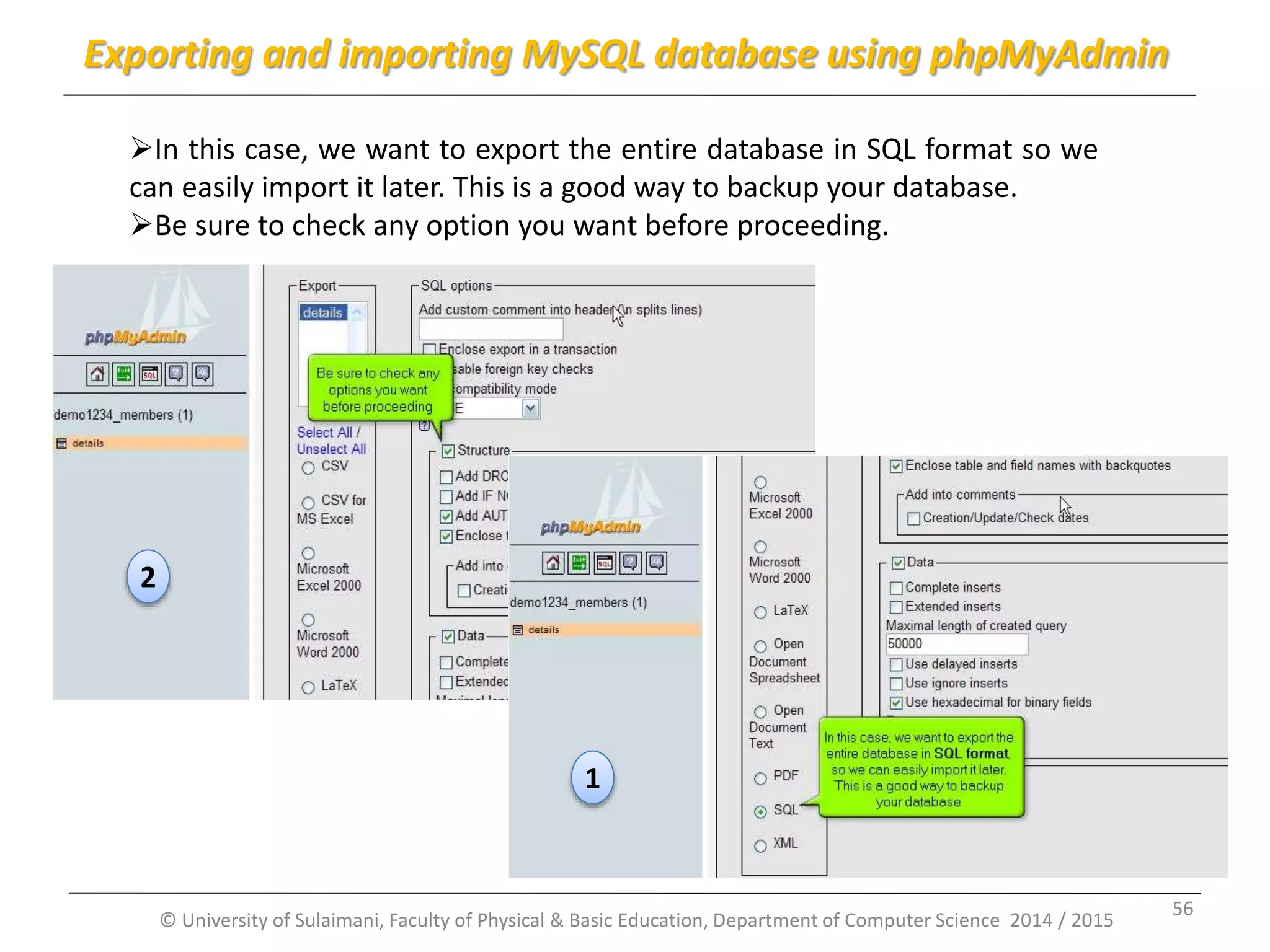
© University of Sulaimani, Faculty of Physical & Basic Education, Department of Computer Science 2014 / 2015 In this case, we want to export the entire database in SQL format so we can easily import it later. This is a good way to backup your database. Be sure to check any option you want before proceeding. Exporting and importing MySQL database using phpMyAdmin 1 2 56
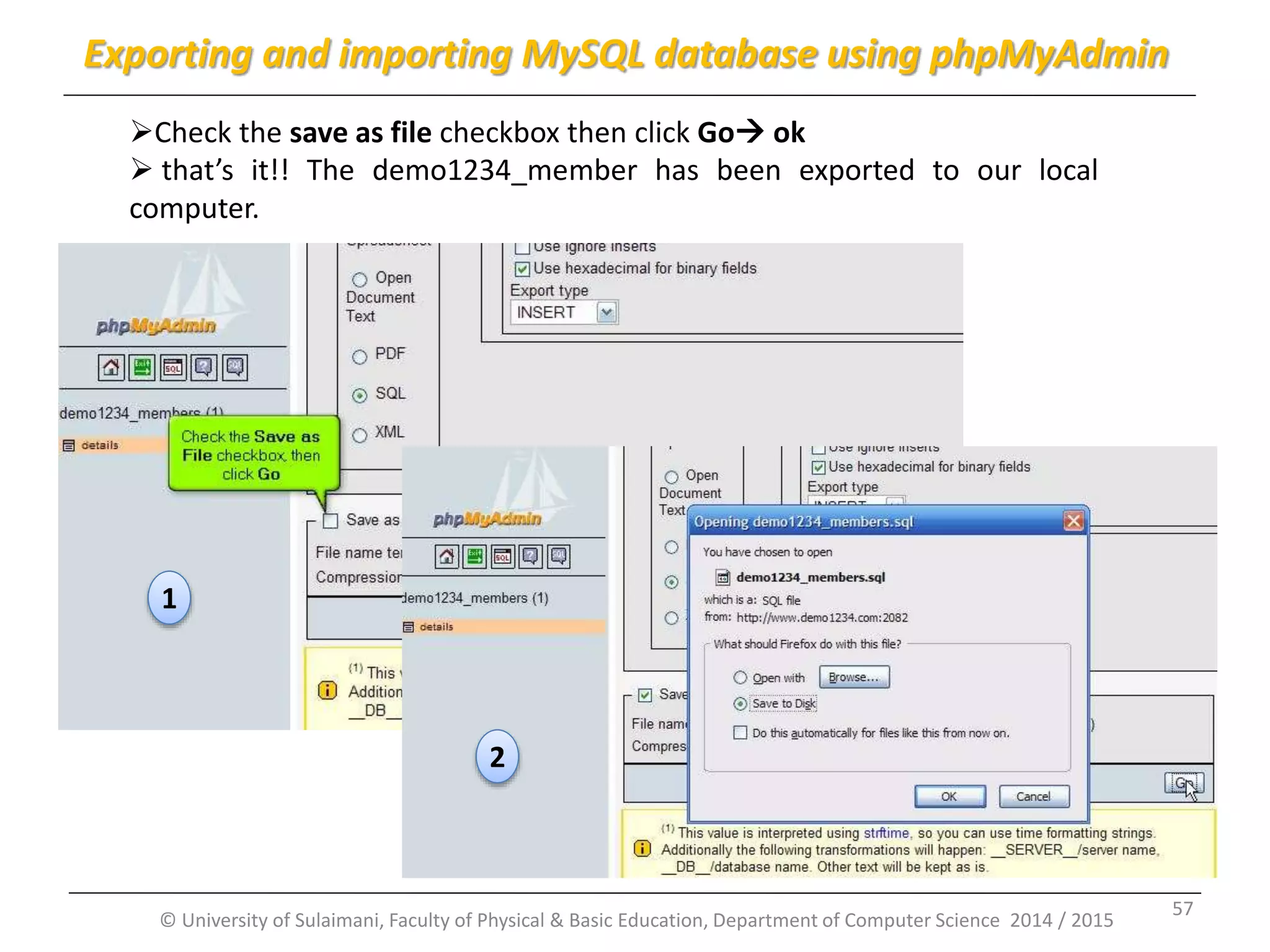
© University of Sulaimani, Faculty of Physical & Basic Education, Department of Computer Science 2014 / 2015 Check the save as file checkbox then click Go ok  that’s it!! The demo1234_member has been exported to our local computer. Exporting and importing MySQL database using phpMyAdmin 1 2 57
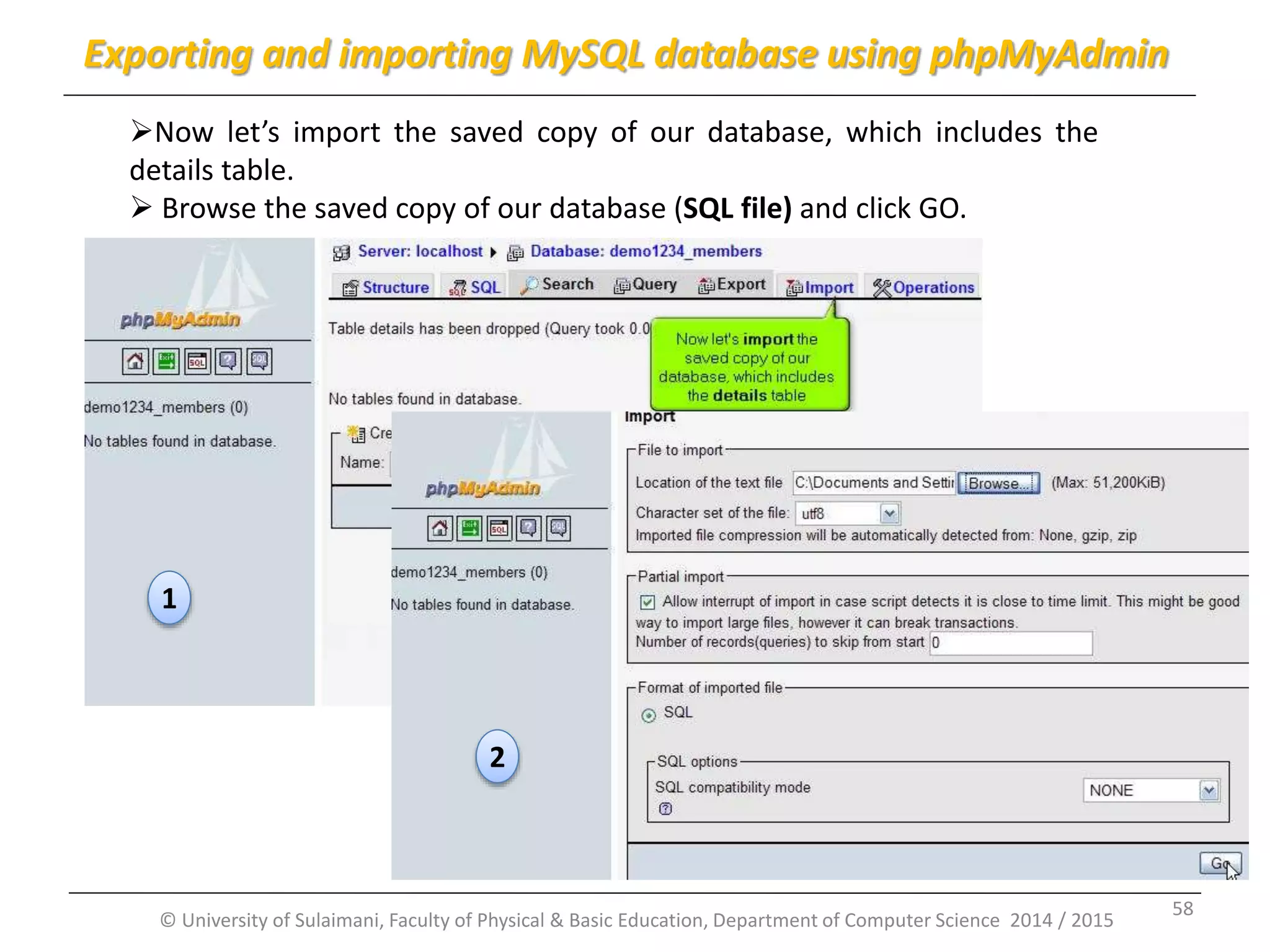
© University of Sulaimani, Faculty of Physical & Basic Education, Department of Computer Science 2014 / 2015 Now let’s import the saved copy of our database, which includes the details table.  Browse the saved copy of our database (SQL file) and click GO. Exporting and importing MySQL database using phpMyAdmin 1 22 58
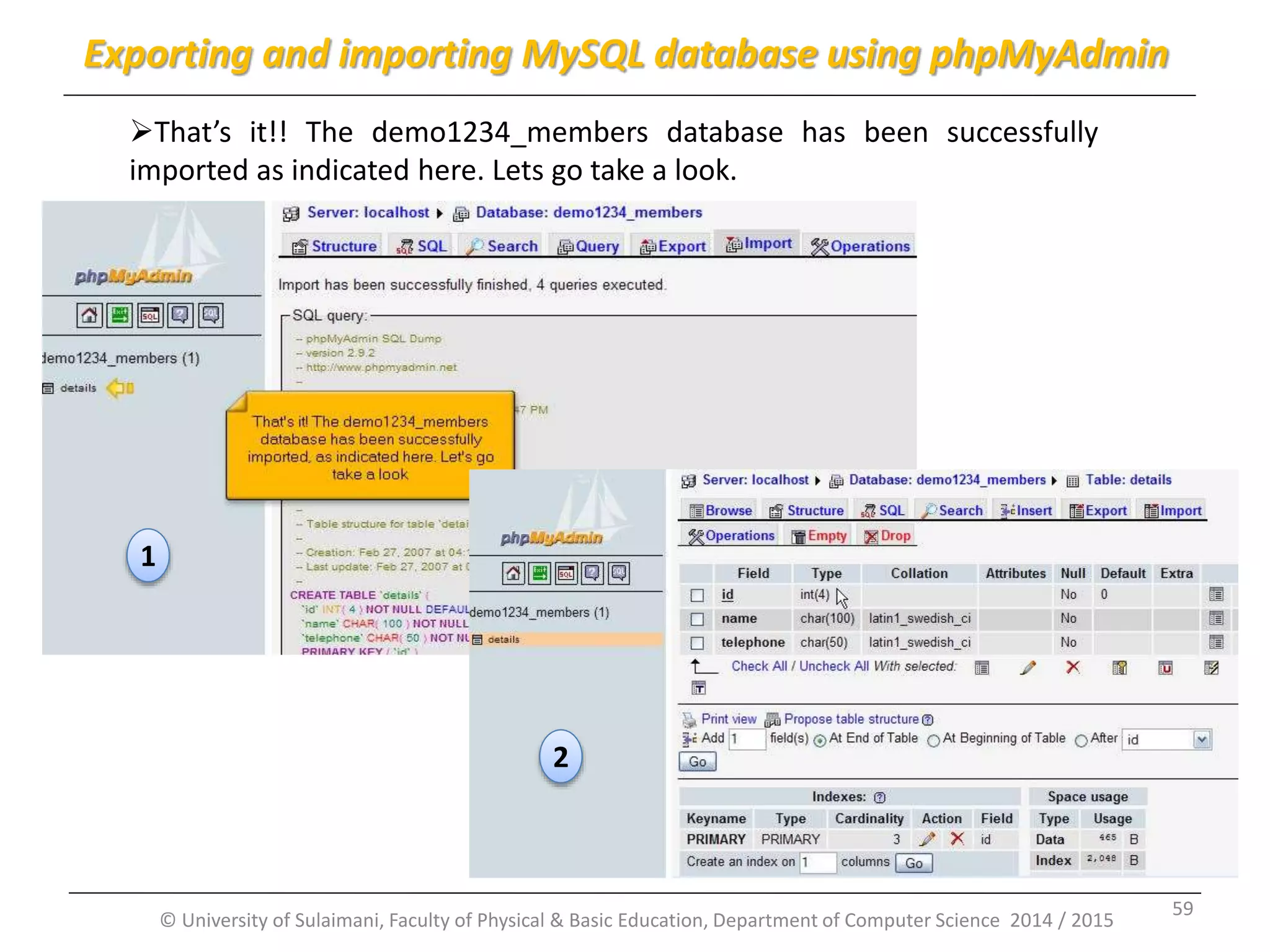
© University of Sulaimani, Faculty of Physical & Basic Education, Department of Computer Science 2014 / 2015 That’s it!! The demo1234_members database has been successfully imported as indicated here. Lets go take a look. Exporting and importing MySQL database using phpMyAdmin 1 22 2 59
Part 8: Running SQL queries on a MySQL database using phpMyAdmin By: Msc. KarwanM. Kareem 2014 -2015 © University of Sulaimani, Faculty of Physical & Basic Education, Department of Computer Science 2014 / 2015 60
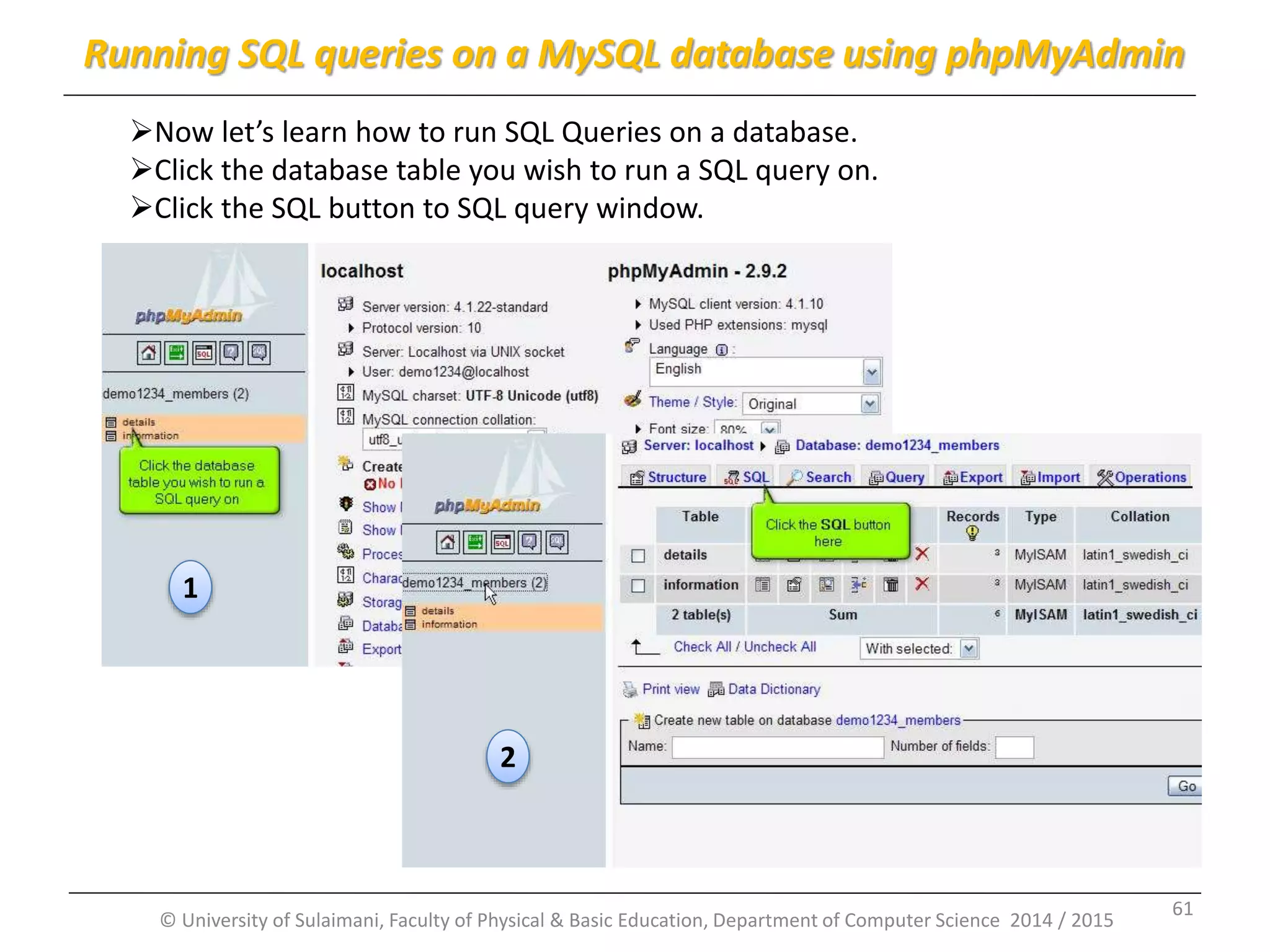
© University of Sulaimani, Faculty of Physical & Basic Education, Department of Computer Science 2014 / 2015 Now let’s learn how to run SQL Queries on a database. Click the database table you wish to run a SQL query on. Click the SQL button to SQL query window. Running SQL queries on a MySQL database using phpMyAdmin 1 2 61
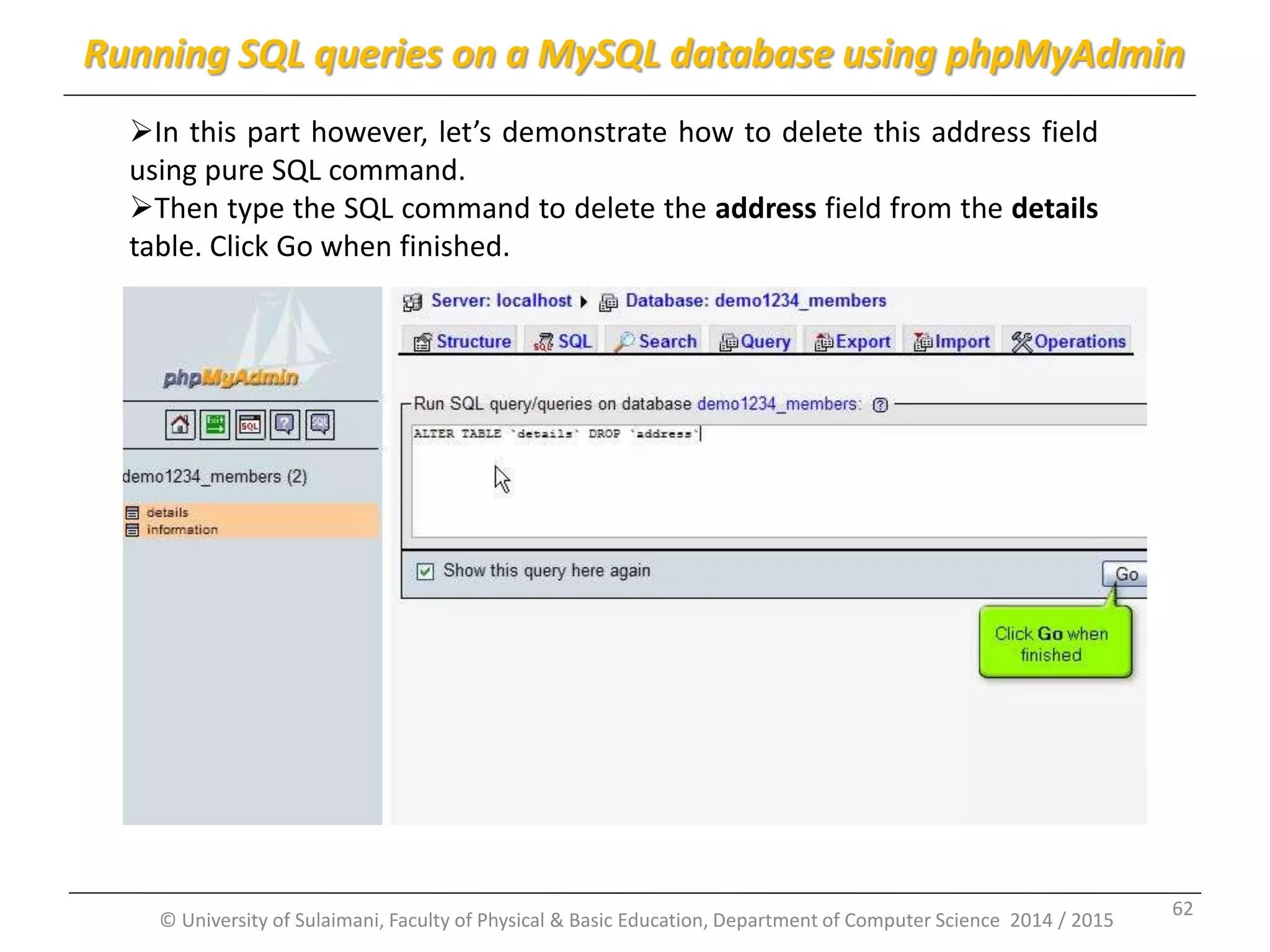
© University of Sulaimani, Faculty of Physical & Basic Education, Department of Computer Science 2014 / 2015 In this part however, let’s demonstrate how to delete this address field using pure SQL command. Then type the SQL command to delete the address field from the details table. Click Go when finished. Running SQL queries on a MySQL database using phpMyAdmin 62
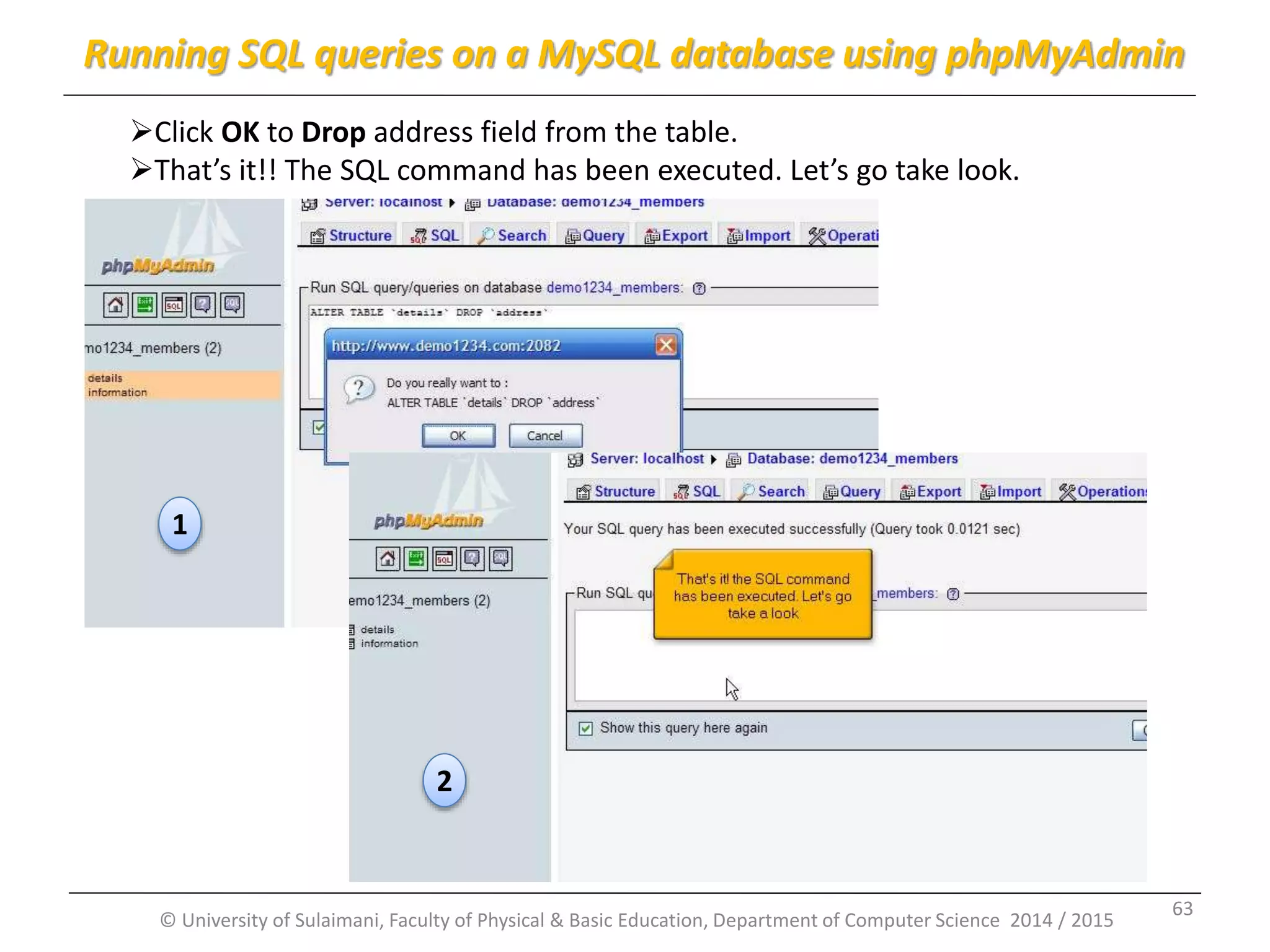
© University of Sulaimani, Faculty of Physical & Basic Education, Department of Computer Science 2014 / 2015 Click OK to Drop address field from the table. That’s it!! The SQL command has been executed. Let’s go take look. Running SQL queries on a MySQL database using phpMyAdmin 2 1 63
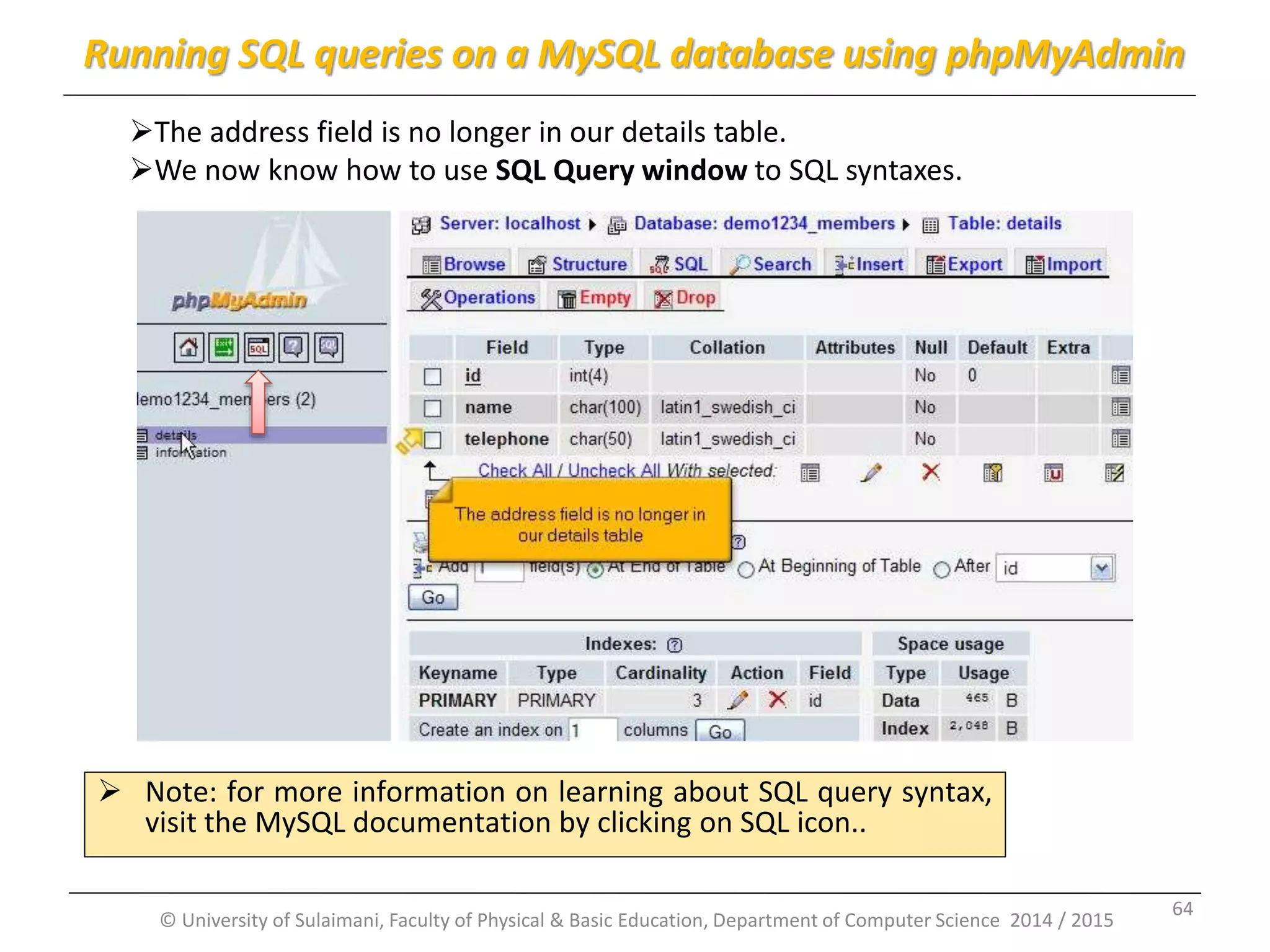
© University of Sulaimani, Faculty of Physical & Basic Education, Department of Computer Science 2014 / 2015 The address field is no longer in our details table. We now know how to use SQL Query window to SQL syntaxes. Running SQL queries on a MySQL database using phpMyAdmin  Note: for more information on learning about SQL query syntax, visit the MySQL documentation by clicking on SQL icon.. 64
Part 9: Searching through a MySQL database using phpMyAdmin By: Msc. KarwanM. Kareem 2014 -2015 © University of Sulaimani, Faculty of Physical & Basic Education, Department of Computer Science 2014 / 2015 65
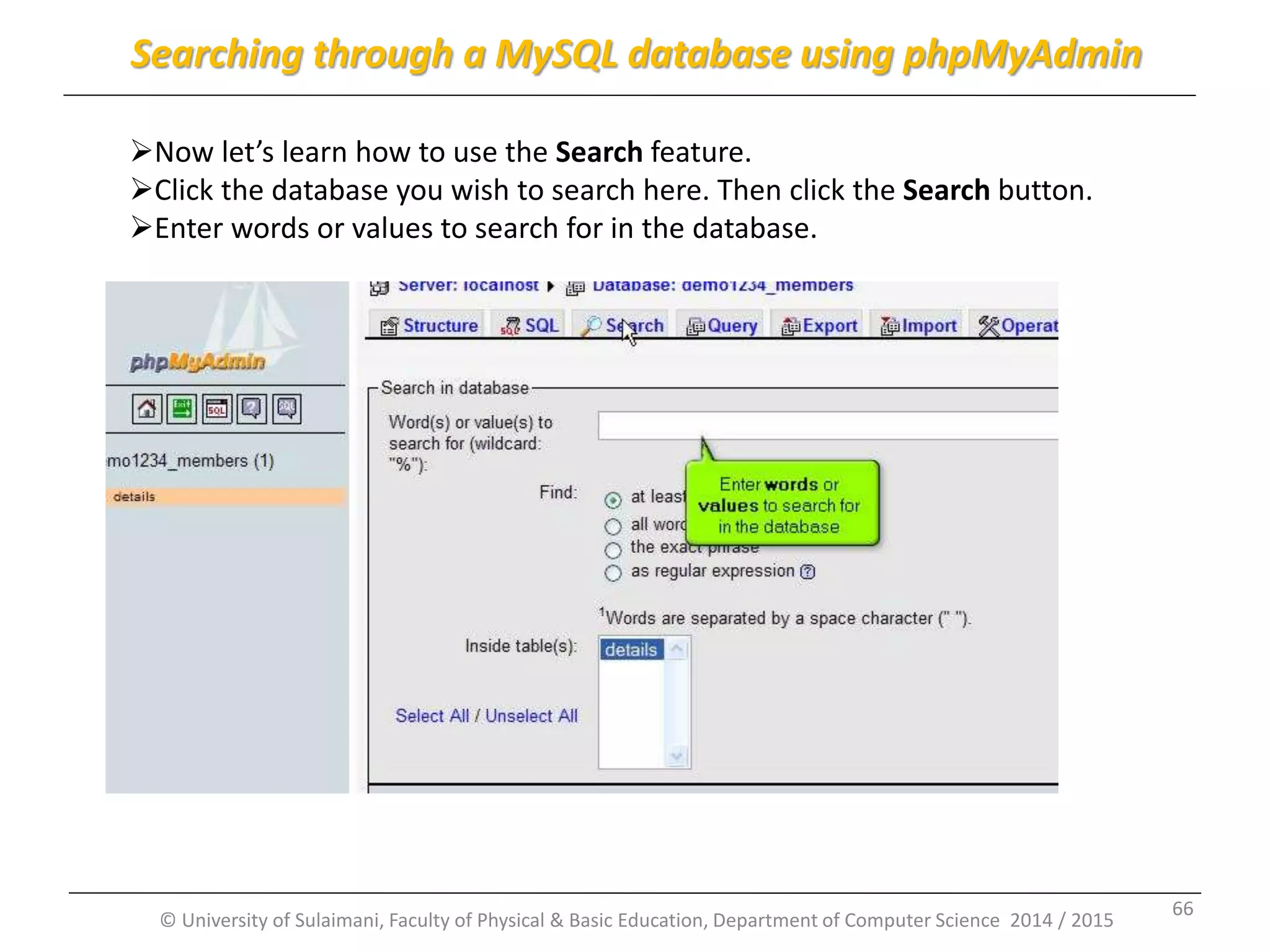
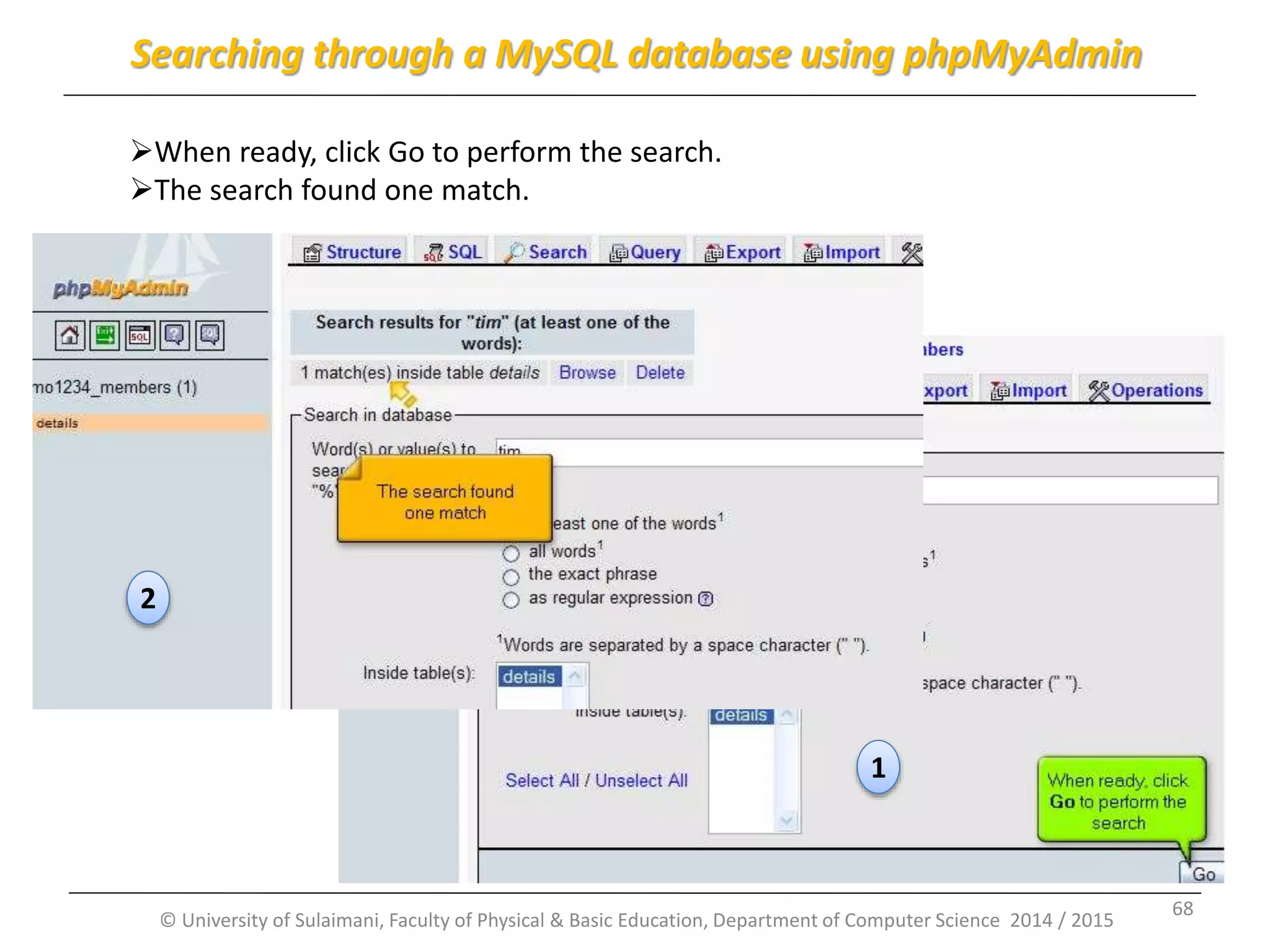
© University of Sulaimani, Faculty of Physical & Basic Education, Department of Computer Science 2014 / 2015 Now let’s learn how to use the Search feature. Click the database you wish to search here. Then click the Search button. Enter words or values to search for in the database. Searching through a MySQL database using phpMyAdmin 66
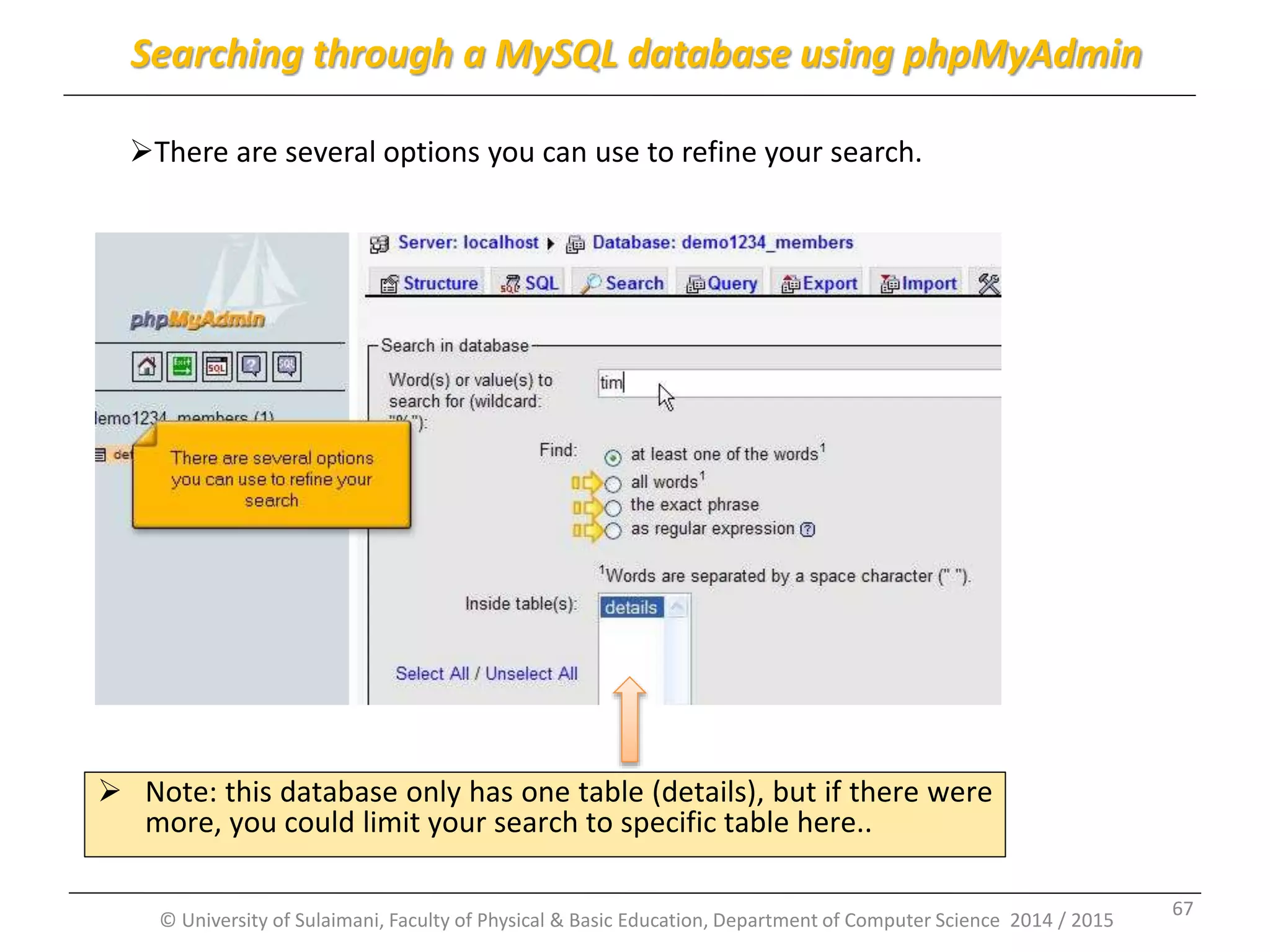
© University of Sulaimani, Faculty of Physical & Basic Education, Department of Computer Science 2014 / 2015 There are several options you can use to refine your search. Searching through a MySQL database using phpMyAdmin  Note: this database only has one table (details), but if there were more, you could limit your search to specific table here.. 67
© University of Sulaimani, Faculty of Physical & Basic Education, Department of Computer Science 2014 / 2015 When ready, click Go to perform the search. The search found one match. Searching through a MySQL database using phpMyAdmin 1 2 68
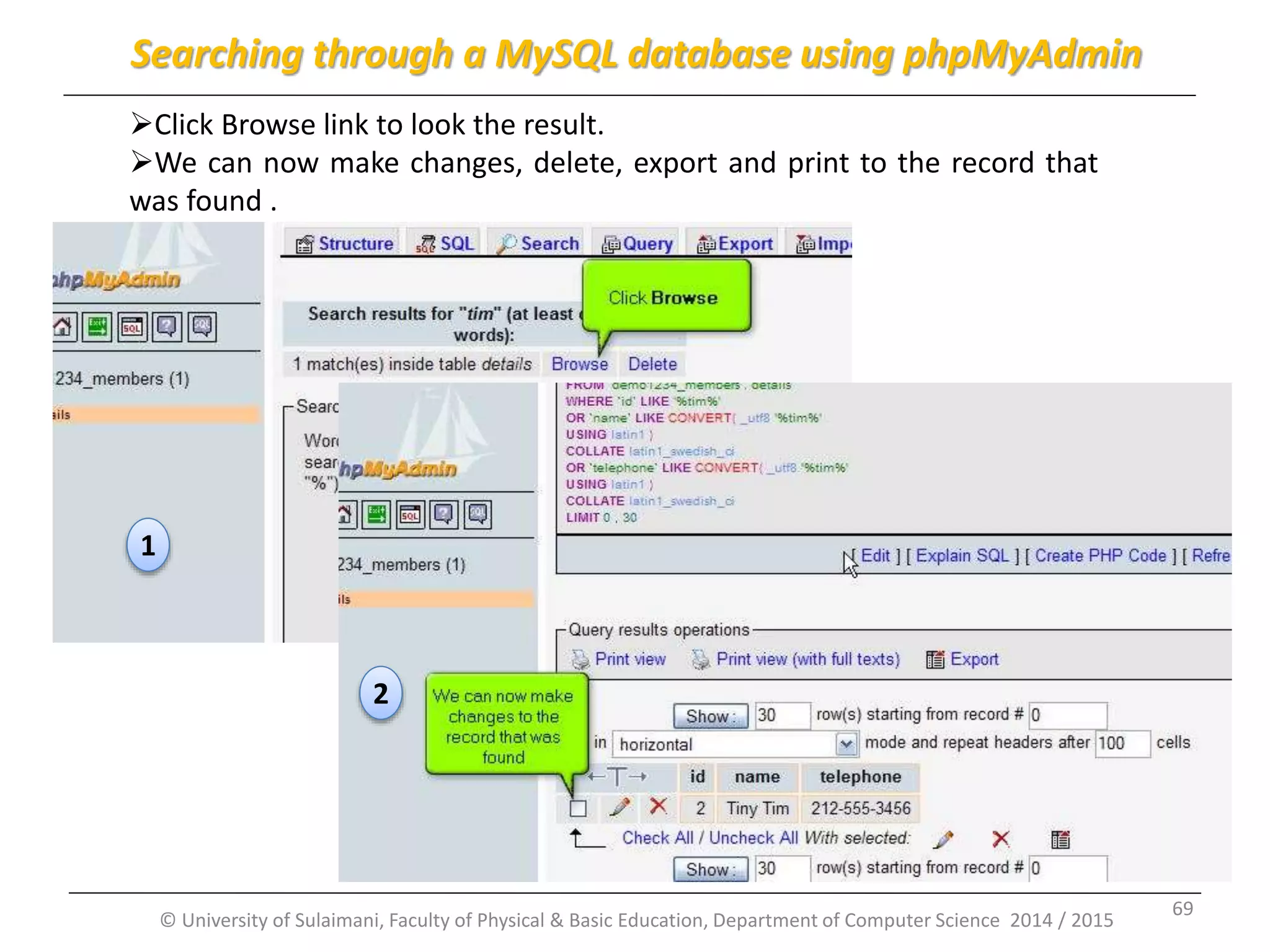
© University of Sulaimani, Faculty of Physical & Basic Education, Department of Computer Science 2014 / 2015 Click Browse link to look the result. We can now make changes, delete, export and print to the record that was found . Searching through a MySQL database using phpMyAdmin 2 1 69
© University of Sulaimani, Faculty of Physical & Basic Education, Department of Computer Science 2014 / 2015 END… END… Any questions..? Hope you have been happy Thank you By: Msc. KarwanM. Kareem 2014 -2015 70

Mysqldatabaseandphpmyadmin sujit bera

  • 1.
    Database application Chapter 2:MySQL Database and PhpMyAdmin Faculty of Physical and Basic Education ComputerScience By: Msc. KarwanM. Kareem 2014 -2015 © University of Sulaimani, Faculty of Physical & Basic Education, Department of Computer Science 2014 / 2015 1
  • 2.
    © University ofSulaimani, Faculty of Physical & Basic Education, Department of Computer Science 2014 / 2015 Topics Familiarizing yourself with phpMyAdmin. Creating tables in a MySQL database with phpMyAdmin. Deleting tables in a MySQL database with phpMyAdmin. Inserting fields into a MySQL database table using phpMyAdmin. Modifying fields in a MySQL database table using phpMyAdmin. Deleting fields in a MySQL database table using phpMyAdmin. Exporting MySQL databases and tables using phpMyAdmin. Importing MySQL databases and tables using phpMyAdmin. Running SQL queries on a MySQL database using phpMyAdmin. Searching through a MySQL database using phpMyAdmin. 2
  • 3.
    Part 1: familiarizing yourselfwith phpMyAdmin By: Msc. KarwanM. Kareem 2014 -2015 © University of Sulaimani, Faculty of Physical & Basic Education, Department of Computer Science 2014 / 2015 3
  • 4.
    © University ofSulaimani, Faculty of Physical & Basic Education, Department of Computer Science 2014 / 2015 Familiarizing yourself with phpMyAdmin This lecture assumes that you have already logged in to phpMyAdmin. Now let’s familiarize ourselves with MySQL database and phpMyAdmin. 4
  • 5.
    © University ofSulaimani, Faculty of Physical & Basic Education, Department of Computer Science 2014 / 2015 Familiarizing yourself with phpMyAdmin From this phpMyAdmin screen, we have access directly to database demo123_members listed her. 5
  • 6.
    © University ofSulaimani, Faculty of Physical & Basic Education, Department of Computer Science 2014 / 2015 Familiarizing yourself with phpMyAdmin This particular database has two tables called details and information, and they are listed her. 6
  • 7.
    © University ofSulaimani, Faculty of Physical & Basic Education, Department of Computer Science 2014 / 2015 Familiarizing yourself with phpMyAdmin This particular database has two tables called details and information, and they are listed her. 7
  • 8.
    © University ofSulaimani, Faculty of Physical & Basic Education, Department of Computer Science 2014 / 2015 Familiarizing yourself with phpMyAdmin To show all tables click the database name. From here we can see more information about the tables contained in the database as well as perform several actions. 1 2 8
  • 9.
    © University ofSulaimani, Faculty of Physical & Basic Education, Department of Computer Science 2014 / 2015 Familiarizing yourself with phpMyAdmin Browse: we can Browse a table to see the individual records 9
  • 10.
    © University ofSulaimani, Faculty of Physical & Basic Education, Department of Computer Science 2014 / 2015 Familiarizing yourself with phpMyAdmin Structure: we can see the Structure of a table and perform certain actions. 10
  • 11.
    © University ofSulaimani, Faculty of Physical & Basic Education, Department of Computer Science 2014 / 2015 Familiarizing yourself with phpMyAdmin Search: we can Search through a table for specific keywords 11
  • 12.
    © University ofSulaimani, Faculty of Physical & Basic Education, Department of Computer Science 2014 / 2015 Familiarizing yourself with phpMyAdmin Insert: we can insert new rows (or field) into a table. 12
  • 13.
    © University ofSulaimani, Faculty of Physical & Basic Education, Department of Computer Science 2014 / 2015 Familiarizing yourself with phpMyAdmin Empty: we can Delete the contents of a table. 13
  • 14.
    © University ofSulaimani, Faculty of Physical & Basic Education, Department of Computer Science 2014 / 2015 Familiarizing yourself with phpMyAdmin Drop: we can Delete (or drop) an entire table altogether. 14
  • 15.
    © University ofSulaimani, Faculty of Physical & Basic Education, Department of Computer Science 2014 / 2015 Familiarizing yourself with phpMyAdmin We can alternatively click on this link to view the database Structure 15
  • 16.
    © University ofSulaimani, Faculty of Physical & Basic Education, Department of Computer Science 2014 / 2015 Familiarizing yourself with phpMyAdmin SQL Query Window: we can open a SQL Query window for entering direct queries to the database. 16
  • 17.
    © University ofSulaimani, Faculty of Physical & Basic Education, Department of Computer Science 2014 / 2015 Familiarizing yourself with phpMyAdmin We can click on this link to perform Search. 17
  • 18.
    © University ofSulaimani, Faculty of Physical & Basic Education, Department of Computer Science 2014 / 2015 Familiarizing yourself with phpMyAdmin This also opens a SQL Query window, but provides an easier step-by-step way to make queries. 18
  • 19.
    © University ofSulaimani, Faculty of Physical & Basic Education, Department of Computer Science 2014 / 2015 Familiarizing yourself with phpMyAdmin Export: we can Export databases to our local computer. 19
  • 20.
    © University ofSulaimani, Faculty of Physical & Basic Education, Department of Computer Science 2014 / 2015 Familiarizing yourself with phpMyAdmin Import: we can import previously exported databases from local computer into MySQL server.. 20
  • 21.
    © University ofSulaimani, Faculty of Physical & Basic Education, Department of Computer Science 2014 / 2015 Familiarizing yourself with phpMyAdmin Operations: we can do a number of other operations like creating new tables copying or renaming databases from here. 21
  • 22.
    © University ofSulaimani, Faculty of Physical & Basic Education, Department of Computer Science 2014 / 2015 Familiarizing yourself with phpMyAdmin Now let’s look at the structure of the details table. The structure of the details table lists all the table’s fields, along with the type of fields etc… 1 2 22
  • 23.
    © University ofSulaimani, Faculty of Physical & Basic Education, Department of Computer Science 2014 / 2015 Familiarizing yourself with phpMyAdmin Indexes: here it tell us that the id field is the primary key field. 23
  • 24.
    © University ofSulaimani, Faculty of Physical & Basic Education, Department of Computer Science 2014 / 2015 Familiarizing yourself with phpMyAdmin Documentation: if you want further help with SQL you can click documentation icon... 24
  • 25.
    © University ofSulaimani, Faculty of Physical & Basic Education, Department of Computer Science 2014 / 2015 Familiarizing yourself with phpMyAdmin Clicking here is another way of opening the SQL query window. 25
  • 26.
    © University ofSulaimani, Faculty of Physical & Basic Education, Department of Computer Science 2014 / 2015 Familiarizing yourself with phpMyAdmin Logout: clicking here logs you out phpMyAdmin. 26
  • 27.
    © University ofSulaimani, Faculty of Physical & Basic Education, Department of Computer Science 2014 / 2015 Familiarizing yourself with phpMyAdmin  Let’s return to the main screen by clicking on home icon.  you should now be more familiar with phpMyAdmin, and what you can use it to do. 1 2 27
  • 28.
    Part 2: Creating tablesin a MySQL database with phpMyAdmin By: Msc. KarwanM. Kareem 2014 -2015 © University of Sulaimani, Faculty of Physical & Basic Education, Department of Computer Science 2014 / 2015 28
  • 29.
    © University ofSulaimani, Faculty of Physical & Basic Education, Department of Computer Science 2014 / 2015 Creating tables in a MySQL database with phpMyAdmin Now let’s learn how to create a table within a database.  Select the demo1234_members database here. 1 2 29
  • 30.
    © University ofSulaimani, Faculty of Physical & Basic Education, Department of Computer Science 2014 / 2015 Enter a Name for our new table.  Then enter the number of fields this new table is to have. 1 2 Creating tables in a MySQL database with phpMyAdmin 30
  • 31.
    © University ofSulaimani, Faculty of Physical & Basic Education, Department of Computer Science 2014 / 2015 After entering the number of fields, click go. Now enter the details of each fields within the new table. 1 2 Creating tables in a MySQL database with phpMyAdmin 31
  • 32.
    © University ofSulaimani, Faculty of Physical & Basic Education, Department of Computer Science 2014 / 2015 The first field will be called id and it will be an integer that’s 4 characters in length. We also want this first field to be the primary key that will be automatically filled in (auto_increment) when new entries are added to the table. Creating tables in a MySQL database with phpMyAdmin 32
  • 33.
    © University ofSulaimani, Faculty of Physical & Basic Education, Department of Computer Science 2014 / 2015 Selecting this option makes the id field the primary key in the table. Creating tables in a MySQL database with phpMyAdmin 33
  • 34.
    © University ofSulaimani, Faculty of Physical & Basic Education, Department of Computer Science 2014 / 2015 The remaining fields will be CHAR (character) fields. Be sure the length is set long enough to accommodate the fields. When finished click Save. Creating tables in a MySQL database with phpMyAdmin 34
  • 35.
    © University ofSulaimani, Faculty of Physical & Basic Education, Department of Computer Science 2014 / 2015 That’s it!! Our new table (details) has been successfully created within our database (demo1234_members) as indicated here. Creating tables in a MySQL database with phpMyAdmin 35
  • 36.
    © University ofSulaimani, Faculty of Physical & Basic Education, Department of Computer Science 2014 / 2015 This is the end of the part 2. You now know how to create new tables within a database using phpMyAdmin. Creating tables in a MySQL database with phpMyAdmin 36
  • 37.
    Part 3: Deleting tablesin a MySQL database with phpMyAdmin By: Msc. KarwanM. Kareem 2014 -2015 © University of Sulaimani, Faculty of Physical & Basic Education, Department of Computer Science 2014 / 2015 37
  • 38.
    © University ofSulaimani, Faculty of Physical & Basic Education, Department of Computer Science 2014 / 2015 Now let’s learn how to delete a table from a database. Select the table you wish to delete here. Deleting tables in MySQL database with phpMyAdmin 38
  • 39.
    © University ofSulaimani, Faculty of Physical & Basic Education, Department of Computer Science 2014 / 2015 However in this part we’re going to demonstrate how delete the entire table and everything in it. You can delete individual fields from this table by selecting them here.  then clicking the delete icon here. Deleting tables in MySQL database with phpMyAdmin 1 2 39
  • 40.
    © University ofSulaimani, Faculty of Physical & Basic Education, Department of Computer Science 2014 / 2015 To delete the table click the Drop button here.  Then click OK to confirm. Deleting tables in MySQL database with phpMyAdmin 1 2 40
  • 41.
    © University ofSulaimani, Faculty of Physical & Basic Education, Department of Computer Science 2014 / 2015 This addresses table has been deleted (or dropped) from the database.  second screen shows that the addresses table is no longer listed in our databases list of tables. Deleting tables in MySQL database with phpMyAdmin 1 2 1 2 41
  • 42.
    Part 4: Inserting fieldsinto a MySQL database table using phpMyAdmin By: Msc. KarwanM. Kareem 2014 -2015 © University of Sulaimani, Faculty of Physical & Basic Education, Department of Computer Science 2014 / 2015 42
  • 43.
    © University ofSulaimani, Faculty of Physical & Basic Education, Department of Computer Science 2014 / 2015 Now let’s learn how to insert fields into database tables.  Select the details table here. In this case, let’s choose to add an address field AFTER the name field. Inserting fields into a MySQL database table using phpMyAdmin 1 2 43
  • 44.
    © University ofSulaimani, Faculty of Physical & Basic Education, Department of Computer Science 2014 / 2015  Choose the field (name) and click on the GO. Inserting fields into a MySQL database table using phpMyAdmin 44
  • 45.
    © University ofSulaimani, Faculty of Physical & Basic Education, Department of Computer Science 2014 / 2015  Fill all textboxes and click on finish when finished. That’s it!! Our details table now has a new address field. Inserting fields into a MySQL database table using phpMyAdmin 1 2 45
  • 46.
    Part 5: Modifying fieldsin a MySQL database table using phpMyAdmin By: Msc. KarwanM. Kareem 2014 -2015 © University of Sulaimani, Faculty of Physical & Basic Education, Department of Computer Science 2014 / 2015 46
  • 47.
    © University ofSulaimani, Faculty of Physical & Basic Education, Department of Computer Science 2014 / 2015  Now let’s learn how to modify fields in database table. Select the table (details) here, and let’s modify the address field. Click the change icon. Modifying fields in a MySQL database table using phpMyAdmin 1 2 47
  • 48.
    © University ofSulaimani, Faculty of Physical & Basic Education, Department of Computer Science 2014 / 2015  Make the changes you want then click Save. Modifying fields in a MySQL database table using phpMyAdmin 1 2 48
  • 49.
    © University ofSulaimani, Faculty of Physical & Basic Education, Department of Computer Science 2014 / 2015  That’s it!! We’ve successfully changed the name of the address field to city. You now know how to modify fields in a table using phpMyAdmin. Modifying fields in a MySQL database table using phpMyAdmin 49
  • 50.
    Part 6: Deleting fieldsin a MySQL database table using phpMyAdmin By: Msc. KarwanM. Kareem 2014 -2015 © University of Sulaimani, Faculty of Physical & Basic Education, Department of Computer Science 2014 / 2015 50
  • 51.
    © University ofSulaimani, Faculty of Physical & Basic Education, Department of Computer Science 2014 / 2015  now let’s learn how to delete fields from database table, firstly select the details table here. Let’s delete the city field. Deleting fields in a MySQL database table using phpMyAdmin 51
  • 52.
    © University ofSulaimani, Faculty of Physical & Basic Education, Department of Computer Science 2014 / 2015 Select the city field, and click the Delete (or Drop) icon. Click Yes to confirm. 1 2 Deleting fields in a MySQL database table using phpMyAdmin 52
  • 53.
    © University ofSulaimani, Faculty of Physical & Basic Education, Department of Computer Science 2014 / 2015 That’s it!! We’ve successfully deleted the city field from our database table. You now know how to delete fields in a table using phpMyAdmin. Deleting fields in a MySQL database table using phpMyAdmin 53
  • 54.
    Part 7: Exporting andimporting MySQL databases and tables using phpMyAdmin By: Msc. KarwanM. Kareem 2014 -2015 © University of Sulaimani, Faculty of Physical & Basic Education, Department of Computer Science 2014 / 2015 54
  • 55.
    © University ofSulaimani, Faculty of Physical & Basic Education, Department of Computer Science 2014 / 2015 Now let’s learn how to exporting MySQL databases. Click the database you wish to export here. Then click the Export button. Exporting and importing MySQL database using phpMyAdmin 55
  • 56.
    © University ofSulaimani, Faculty of Physical & Basic Education, Department of Computer Science 2014 / 2015 In this case, we want to export the entire database in SQL format so we can easily import it later. This is a good way to backup your database. Be sure to check any option you want before proceeding. Exporting and importing MySQL database using phpMyAdmin 1 2 56
  • 57.
    © University ofSulaimani, Faculty of Physical & Basic Education, Department of Computer Science 2014 / 2015 Check the save as file checkbox then click Go ok  that’s it!! The demo1234_member has been exported to our local computer. Exporting and importing MySQL database using phpMyAdmin 1 2 57
  • 58.
    © University ofSulaimani, Faculty of Physical & Basic Education, Department of Computer Science 2014 / 2015 Now let’s import the saved copy of our database, which includes the details table.  Browse the saved copy of our database (SQL file) and click GO. Exporting and importing MySQL database using phpMyAdmin 1 22 58
  • 59.
    © University ofSulaimani, Faculty of Physical & Basic Education, Department of Computer Science 2014 / 2015 That’s it!! The demo1234_members database has been successfully imported as indicated here. Lets go take a look. Exporting and importing MySQL database using phpMyAdmin 1 22 2 59
  • 60.
    Part 8: Running SQLqueries on a MySQL database using phpMyAdmin By: Msc. KarwanM. Kareem 2014 -2015 © University of Sulaimani, Faculty of Physical & Basic Education, Department of Computer Science 2014 / 2015 60
  • 61.
    © University ofSulaimani, Faculty of Physical & Basic Education, Department of Computer Science 2014 / 2015 Now let’s learn how to run SQL Queries on a database. Click the database table you wish to run a SQL query on. Click the SQL button to SQL query window. Running SQL queries on a MySQL database using phpMyAdmin 1 2 61
  • 62.
    © University ofSulaimani, Faculty of Physical & Basic Education, Department of Computer Science 2014 / 2015 In this part however, let’s demonstrate how to delete this address field using pure SQL command. Then type the SQL command to delete the address field from the details table. Click Go when finished. Running SQL queries on a MySQL database using phpMyAdmin 62
  • 63.
    © University ofSulaimani, Faculty of Physical & Basic Education, Department of Computer Science 2014 / 2015 Click OK to Drop address field from the table. That’s it!! The SQL command has been executed. Let’s go take look. Running SQL queries on a MySQL database using phpMyAdmin 2 1 63
  • 64.
    © University ofSulaimani, Faculty of Physical & Basic Education, Department of Computer Science 2014 / 2015 The address field is no longer in our details table. We now know how to use SQL Query window to SQL syntaxes. Running SQL queries on a MySQL database using phpMyAdmin  Note: for more information on learning about SQL query syntax, visit the MySQL documentation by clicking on SQL icon.. 64
  • 65.
    Part 9: Searching througha MySQL database using phpMyAdmin By: Msc. KarwanM. Kareem 2014 -2015 © University of Sulaimani, Faculty of Physical & Basic Education, Department of Computer Science 2014 / 2015 65
  • 66.
    © University ofSulaimani, Faculty of Physical & Basic Education, Department of Computer Science 2014 / 2015 Now let’s learn how to use the Search feature. Click the database you wish to search here. Then click the Search button. Enter words or values to search for in the database. Searching through a MySQL database using phpMyAdmin 66
  • 67.
    © University ofSulaimani, Faculty of Physical & Basic Education, Department of Computer Science 2014 / 2015 There are several options you can use to refine your search. Searching through a MySQL database using phpMyAdmin  Note: this database only has one table (details), but if there were more, you could limit your search to specific table here.. 67
  • 68.
    © University ofSulaimani, Faculty of Physical & Basic Education, Department of Computer Science 2014 / 2015 When ready, click Go to perform the search. The search found one match. Searching through a MySQL database using phpMyAdmin 1 2 68
  • 69.
    © University ofSulaimani, Faculty of Physical & Basic Education, Department of Computer Science 2014 / 2015 Click Browse link to look the result. We can now make changes, delete, export and print to the record that was found . Searching through a MySQL database using phpMyAdmin 2 1 69
  • 70.
    © University ofSulaimani, Faculty of Physical & Basic Education, Department of Computer Science 2014 / 2015 END… END… Any questions..? Hope you have been happy Thank you By: Msc. KarwanM. Kareem 2014 -2015 70