JavaScript - a Brief Introduction IMI PRINCE www.newsvelley.blogspot.com
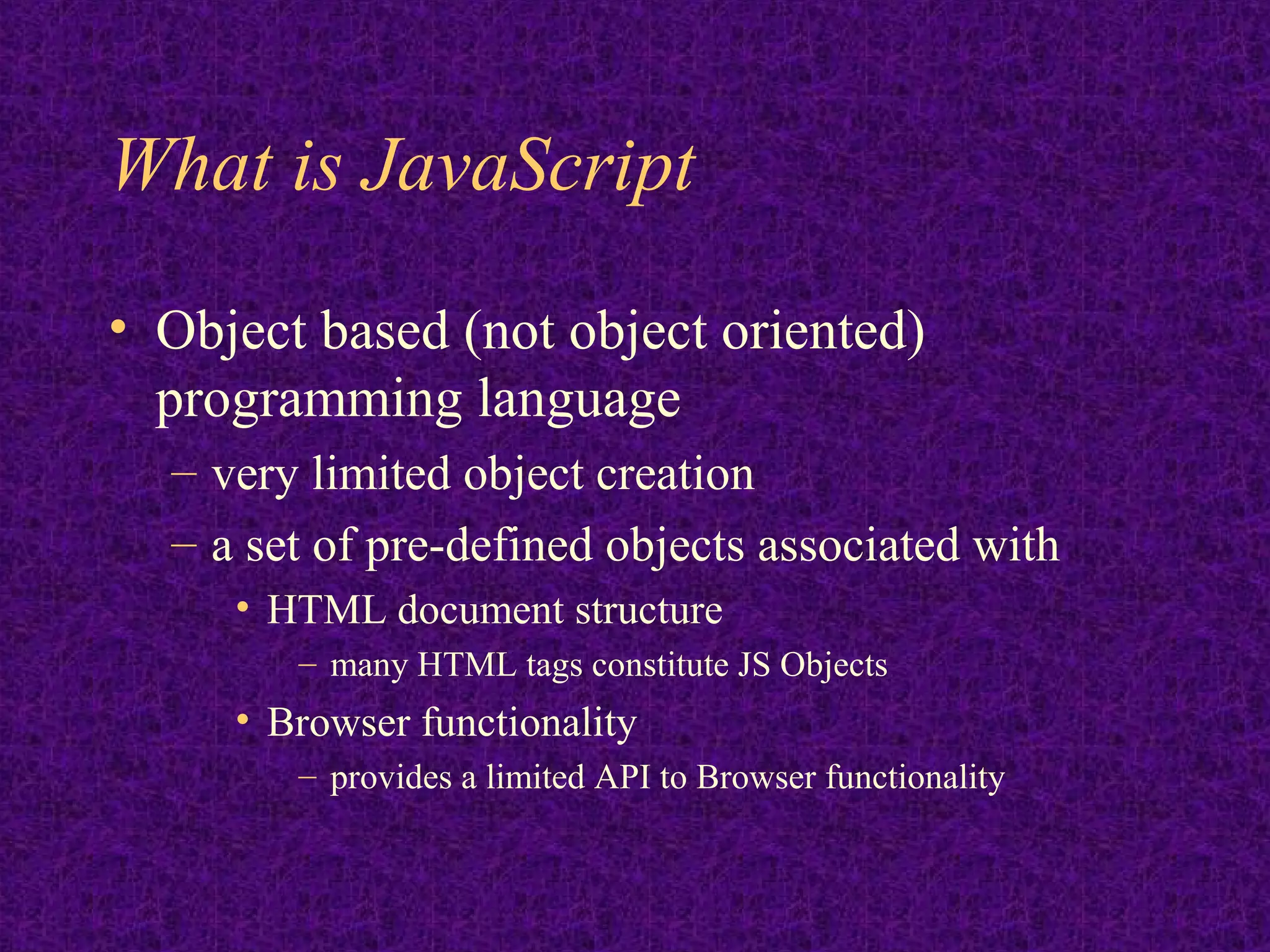
What is JavaScript • Object based (not object oriented) programming language – very limited object creation – a set of pre-defined objects associated with • HTML document structure – many HTML tags constitute JS Objects • Browser functionality – provides a limited API to Browser functionality
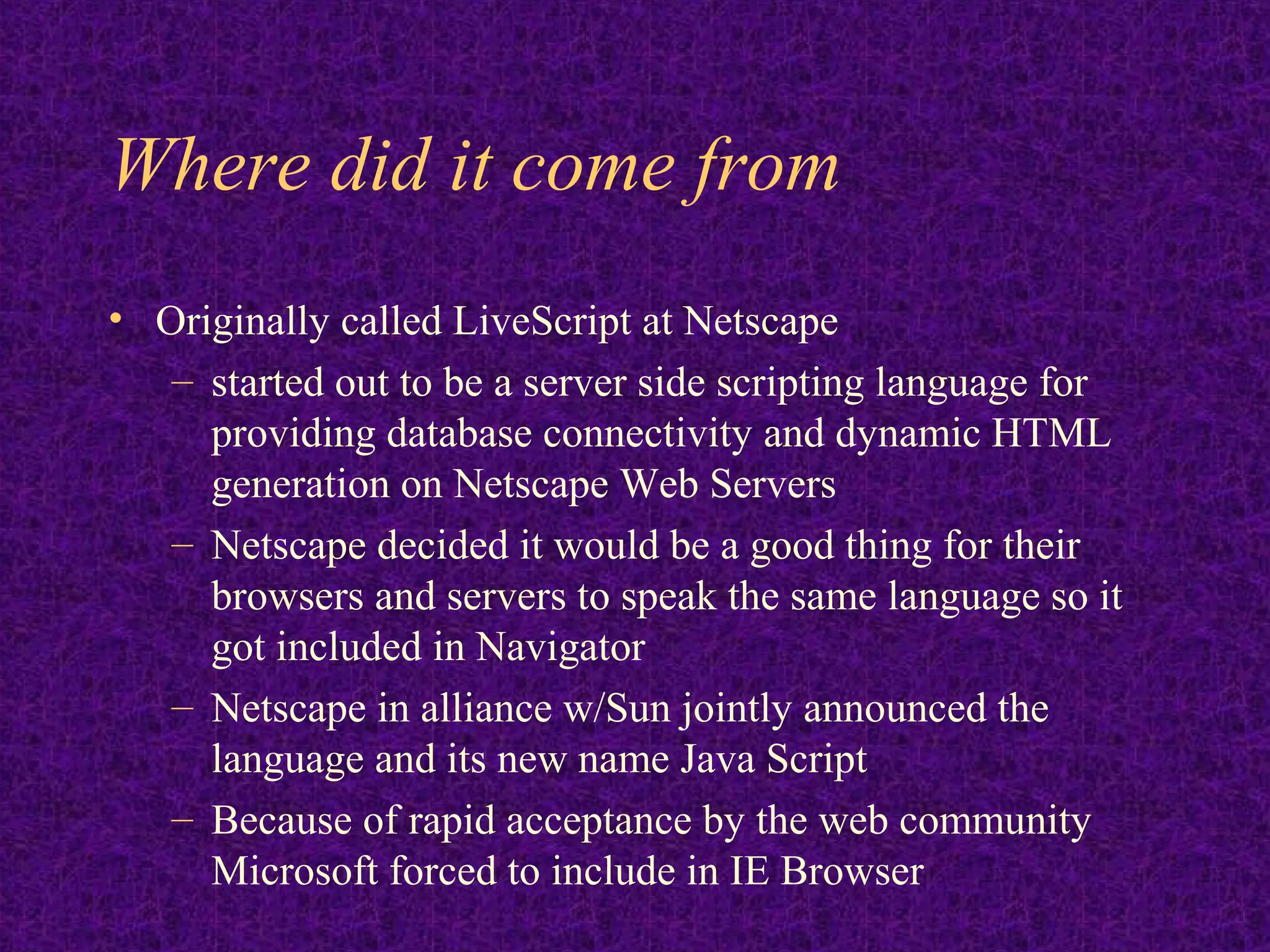
Where did it come from • Originally called LiveScript at Netscape – started out to be a server side scripting language for providing database connectivity and dynamic HTML generation on Netscape Web Servers – Netscape decided it would be a good thing for their browsers and servers to speak the same language so it got included in Navigator – Netscape in alliance w/Sun jointly announced the language and its new name Java Script – Because of rapid acceptance by the web community Microsoft forced to include in IE Browser
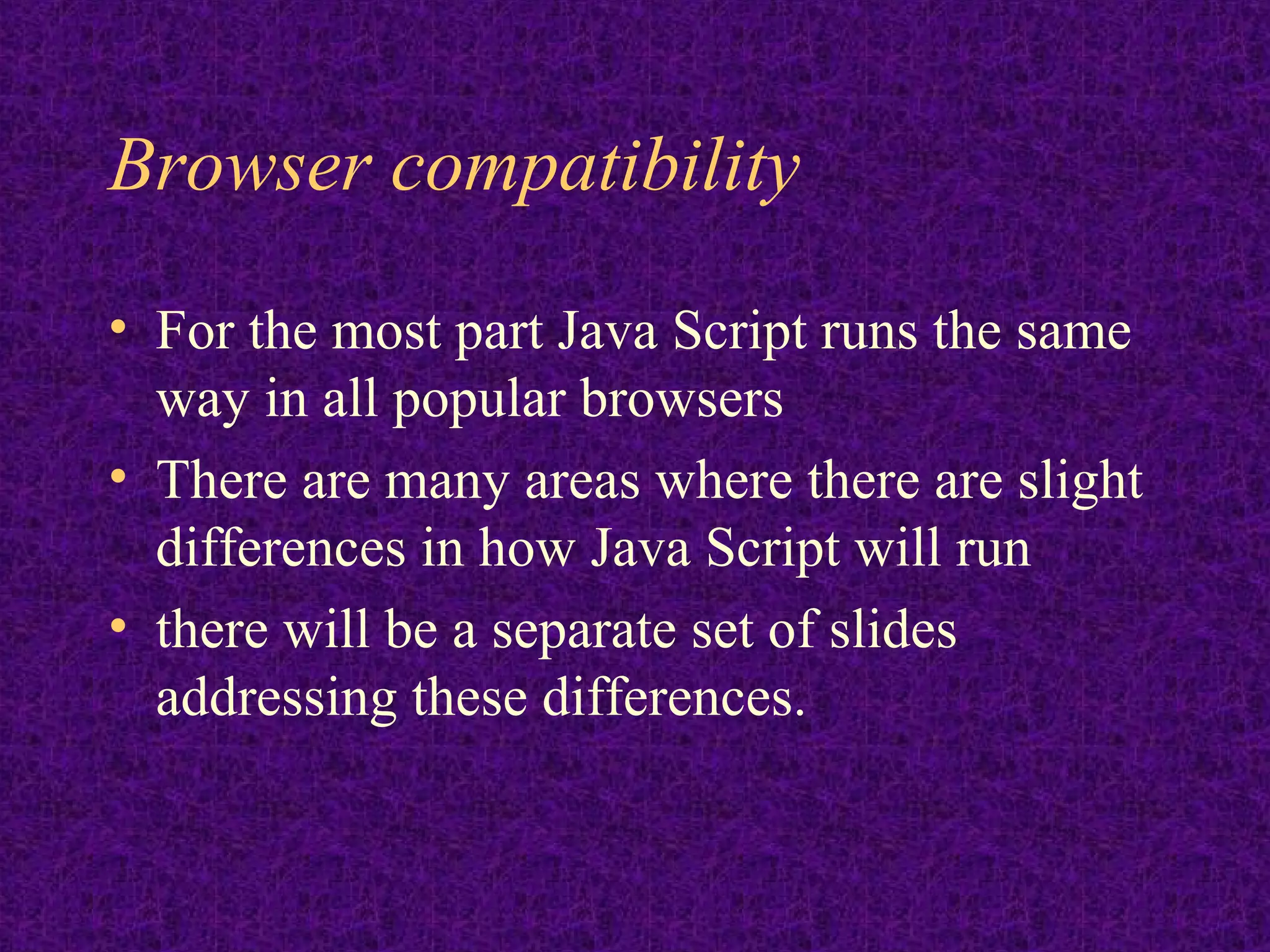
Browser compatibility • For the most part Java Script runs the same way in all popular browsers • There are many areas where there are slight differences in how Java Script will run • there will be a separate set of slides addressing these differences.
JavaScript…Java ? • There is no relationship other than the fact that Java and JavaScript resemble each other (and C++) syntactically • JavaScript is pretty much the de-facto standard for client-side scripting (Internet Explorer also provides VBScript & JScript) • In Netscape browsers there is an API that allows JavaScript and Java applets embedded in the same page to converse
What can it be used for • Some pretty amazing things…. – Text animation – graphic animation – simple browser based application – HTML forms submission – client-side forms data validation (relieving the server of this task) – web site navigation
What do I need to get started • A web browser – Netscape Navigator 4.x or later – MS Internet Explorer 3.x or later • A text Editor – Wordpad/Notepad – Vi, Emacs
Process • Open your text editor • create a file containing html and Javascript • save as text file with file type .htm or .html • open your browser • click on file, open file – locate the file you just created • open file in browser
Putting JavaScript into your HTML • in an external file – collect commonly used functions together into external function libraries on the server • added benefit of privacy from curious users • in-line with your HTML • as an expression for an HTML tag attribute • within some HTML tags as Event Handlers
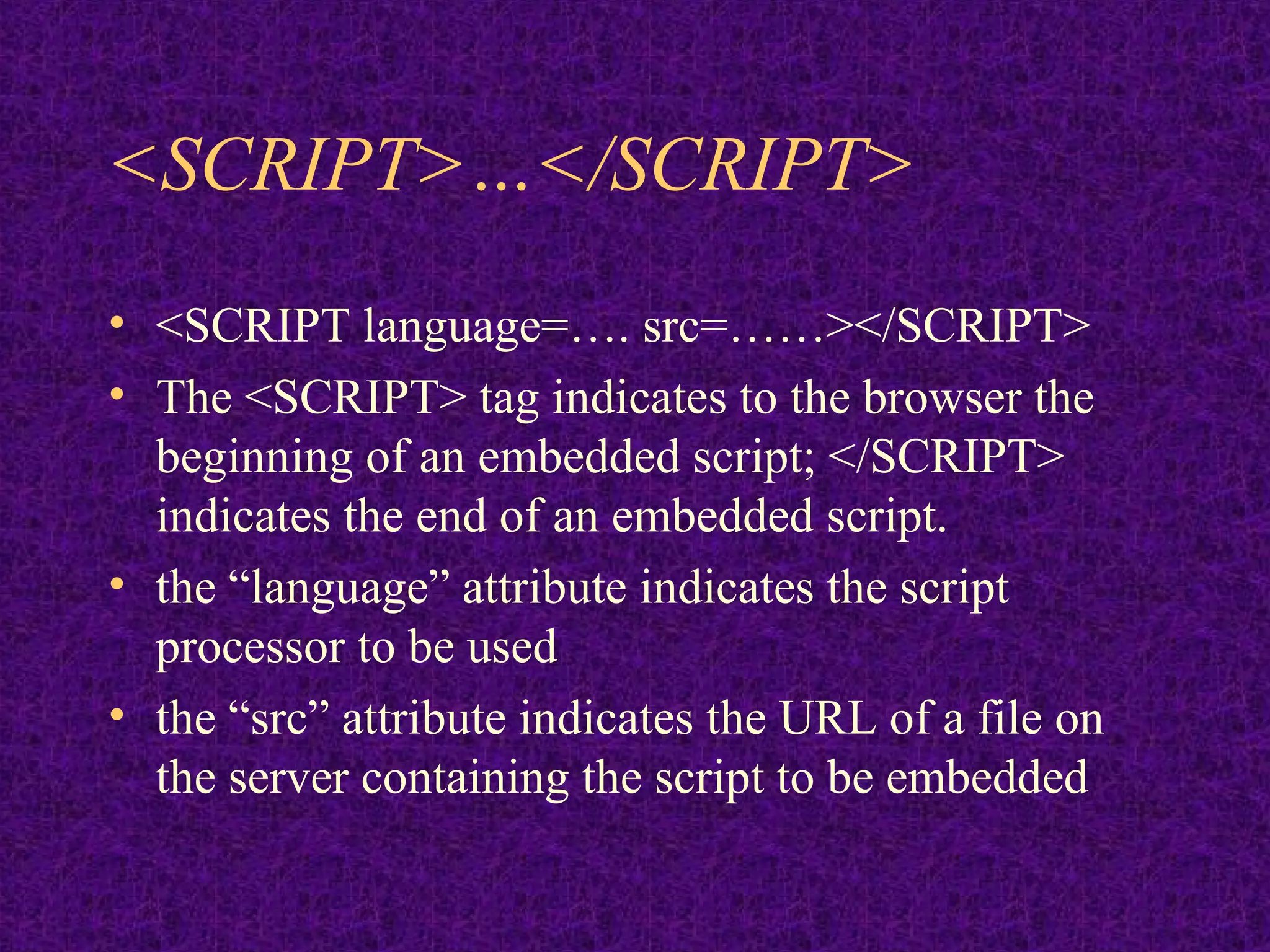
<SCRIPT>…</SCRIPT> • <SCRIPT language=…. src=……></SCRIPT> • The <SCRIPT> tag indicates to the browser the beginning of an embedded script; </SCRIPT> indicates the end of an embedded script. • the “language” attribute indicates the script processor to be used • the “src” attribute indicates the URL of a file on the server containing the script to be embedded
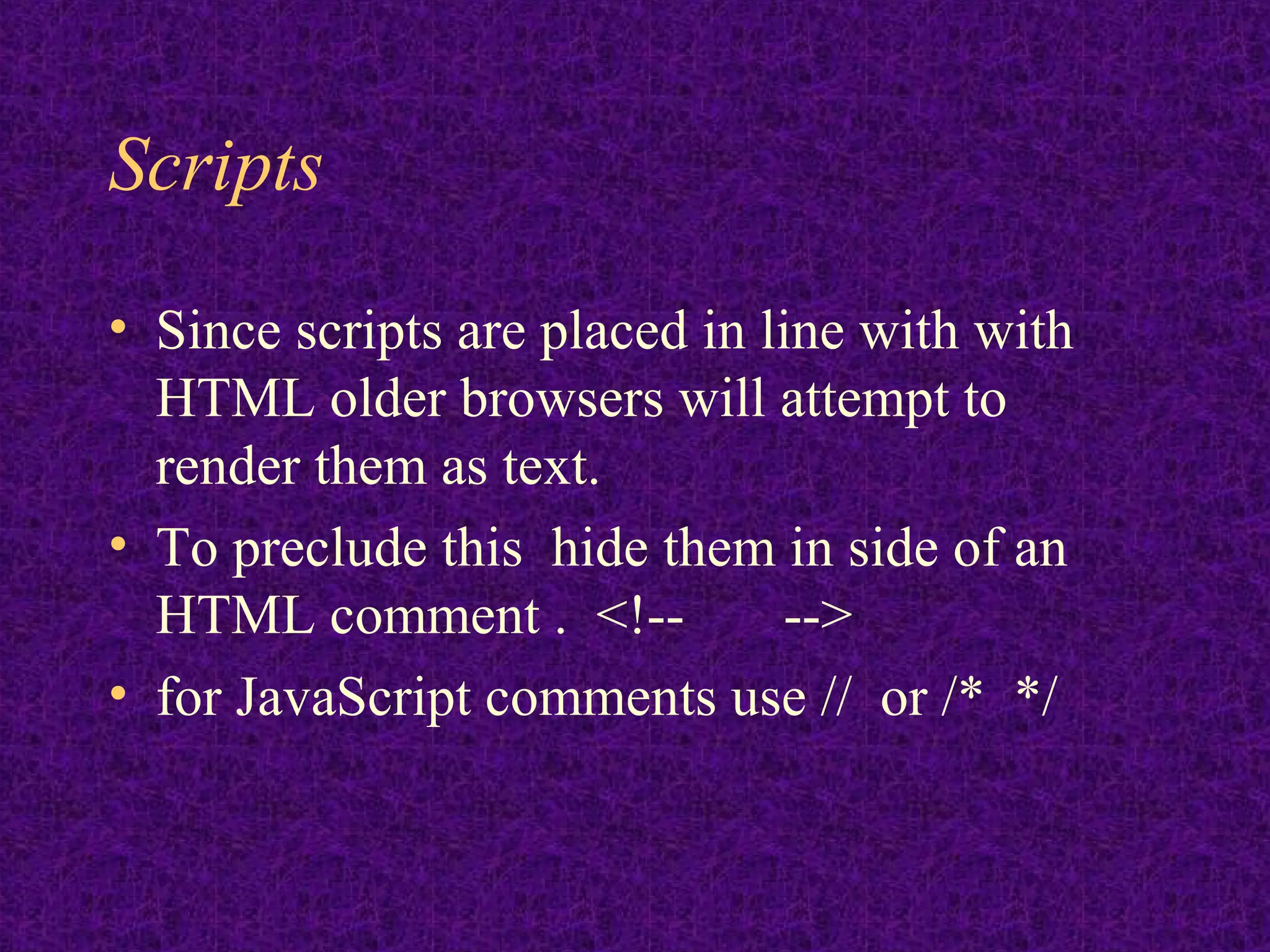
Scripts • Since scripts are placed in line with with HTML older browsers will attempt to render them as text. • To preclude this hide them in side of an HTML comment . <!-- --> • for JavaScript comments use // or /* */
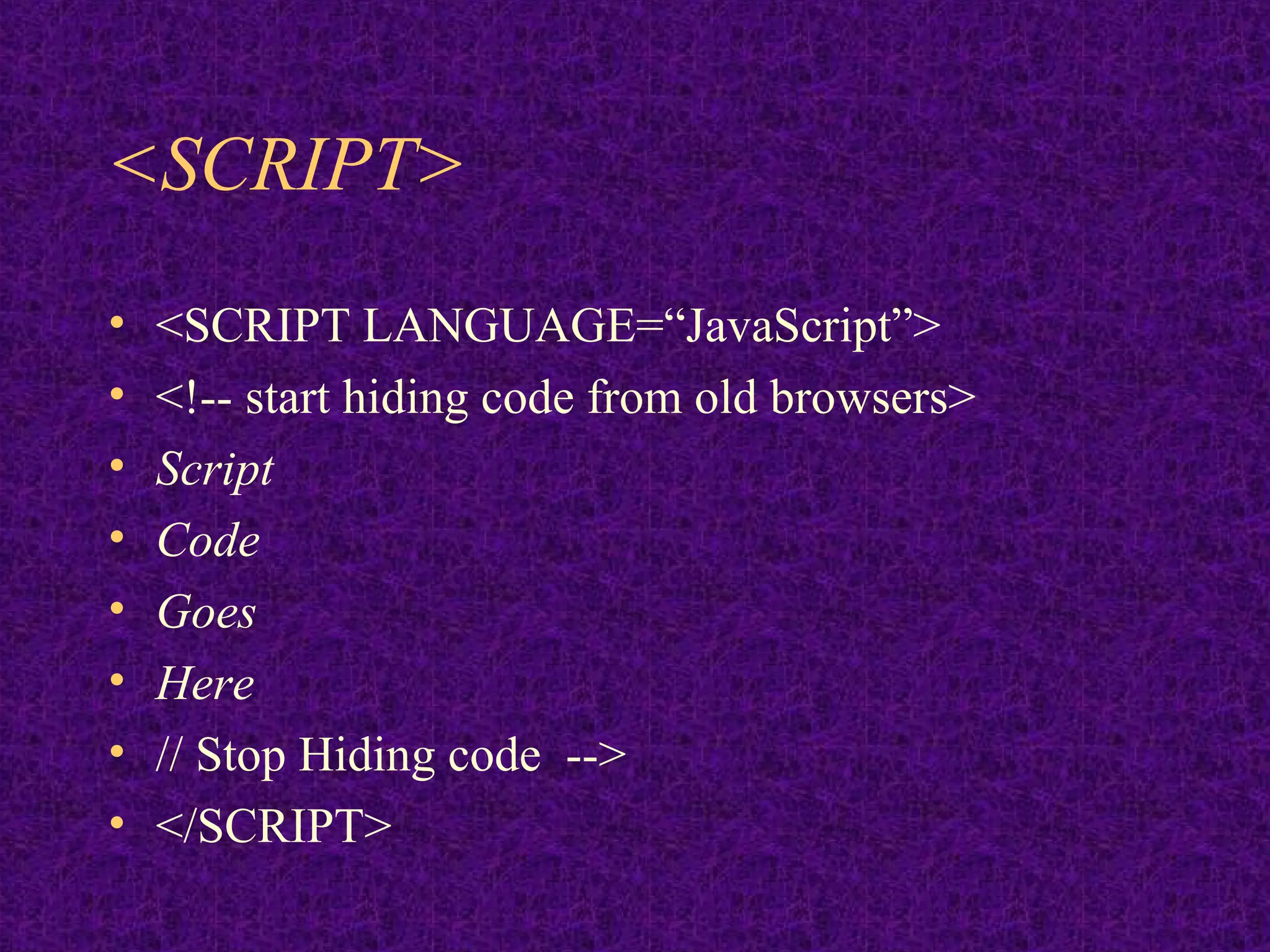
<SCRIPT> • <SCRIPT LANGUAGE=“JavaScript”> • <!-- start hiding code from old browsers> • Script • Code • Goes • Here • // Stop Hiding code --> • </SCRIPT>
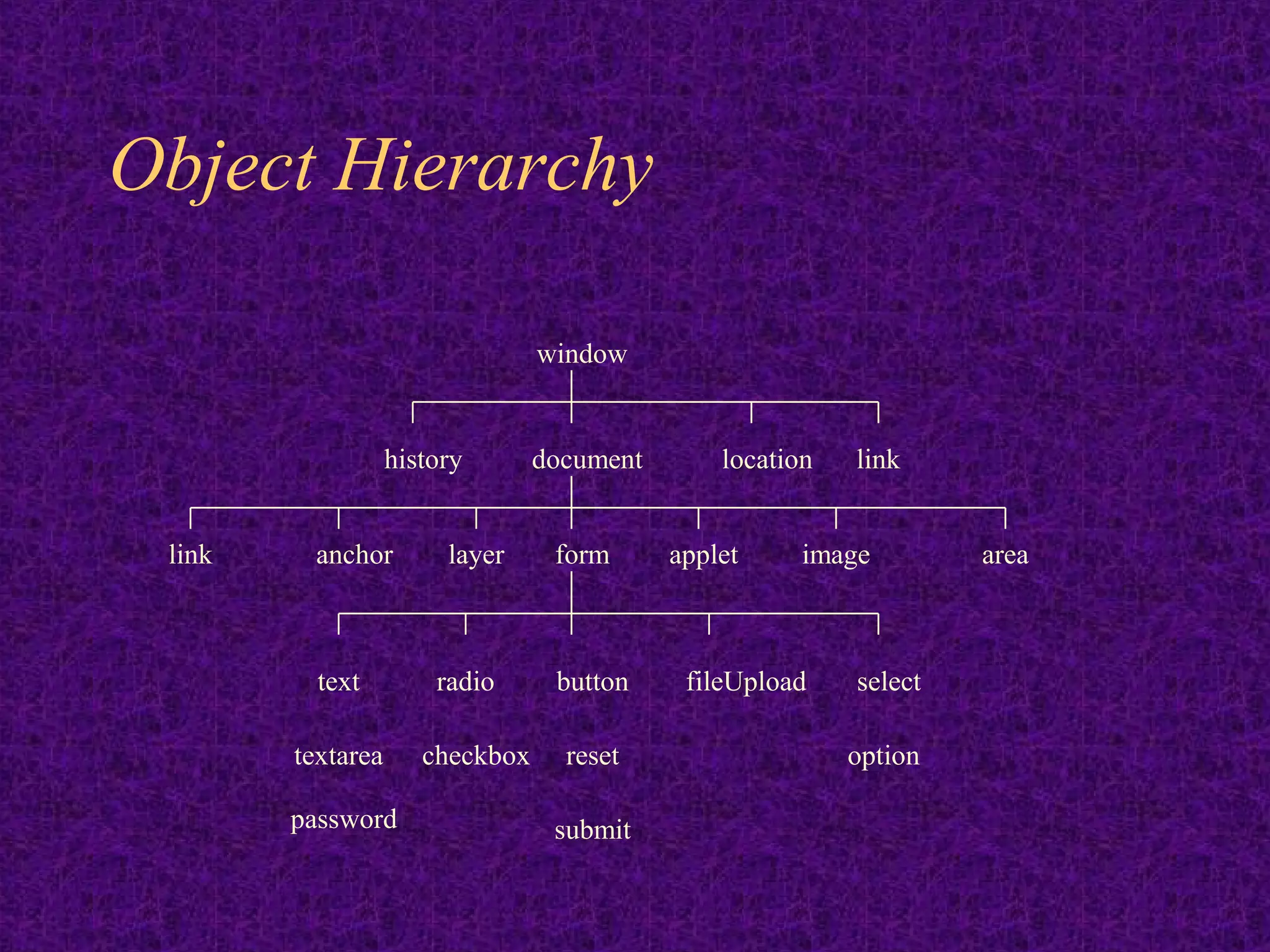
Object Hierarchy window history document location link link anchor layer form applet image area text radio button fileUpload select textarea checkbox reset option password submit
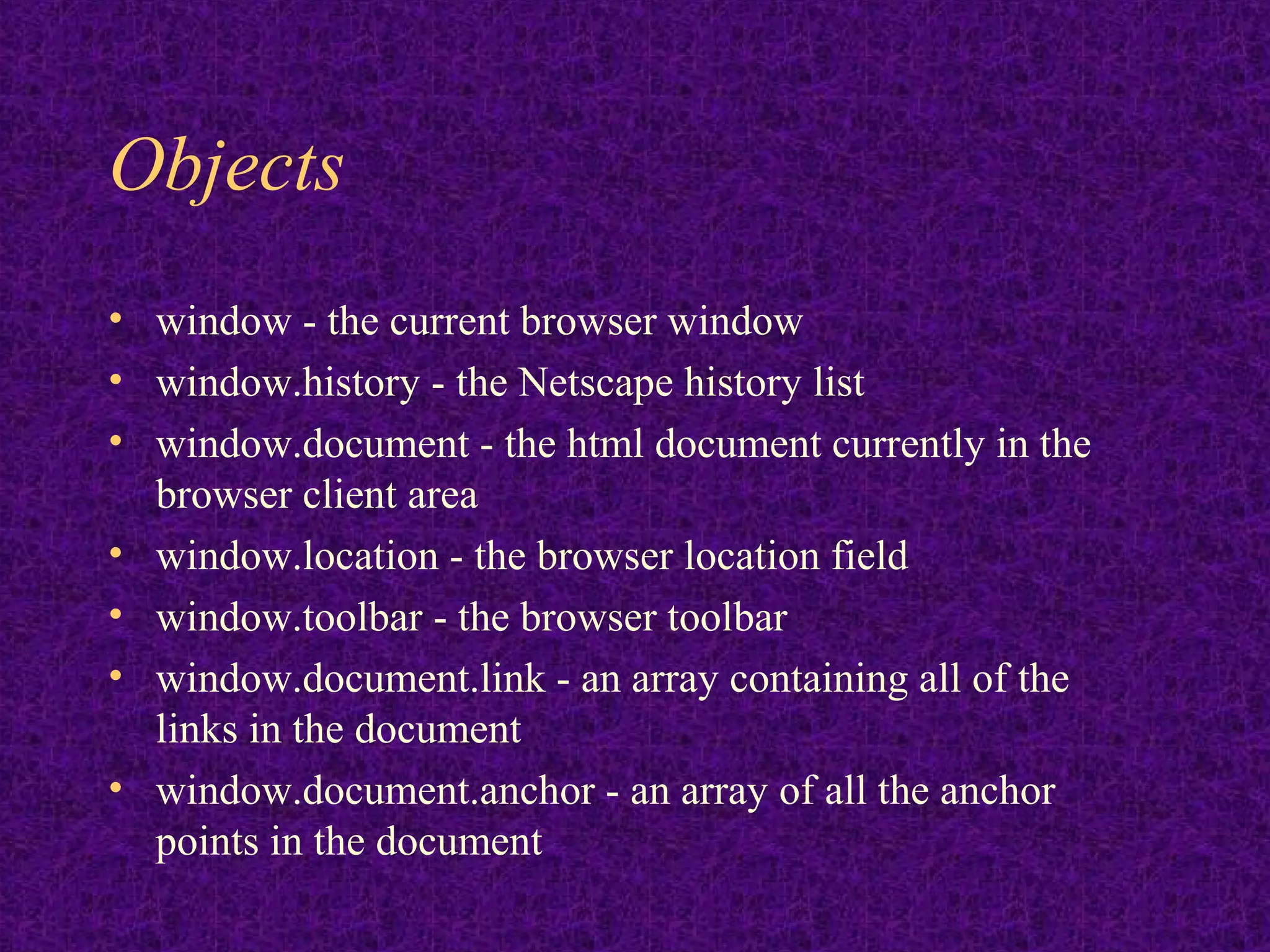
Objects • window - the current browser window • window.history - the Netscape history list • window.document - the html document currently in the browser client area • window.location - the browser location field • window.toolbar - the browser toolbar • window.document.link - an array containing all of the links in the document • window.document.anchor - an array of all the anchor points in the document
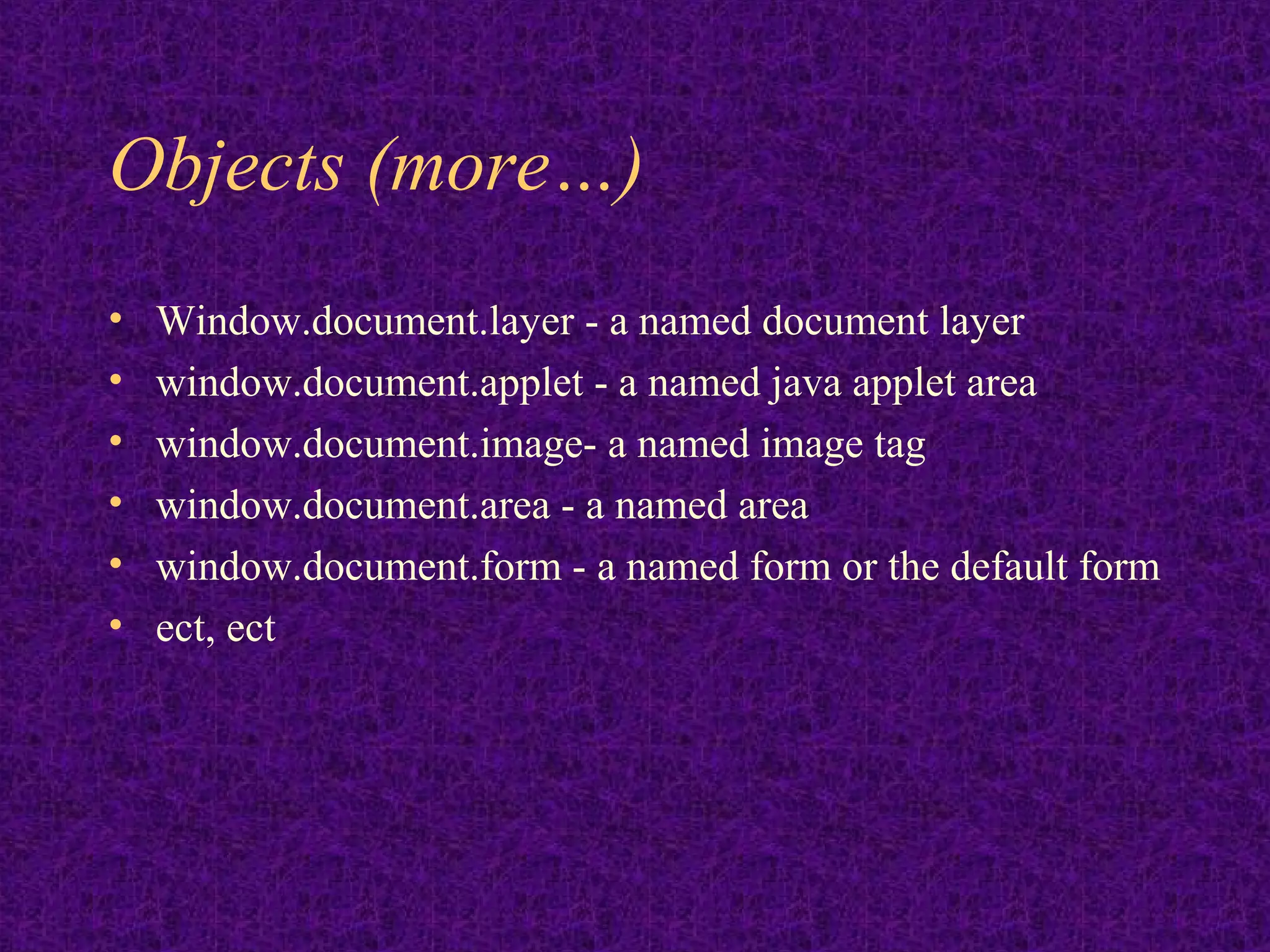
Objects (more…) • Window.document.layer - a named document layer • window.document.applet - a named java applet area • window.document.image- a named image tag • window.document.area - a named area • window.document.form - a named form or the default form • ect, ect
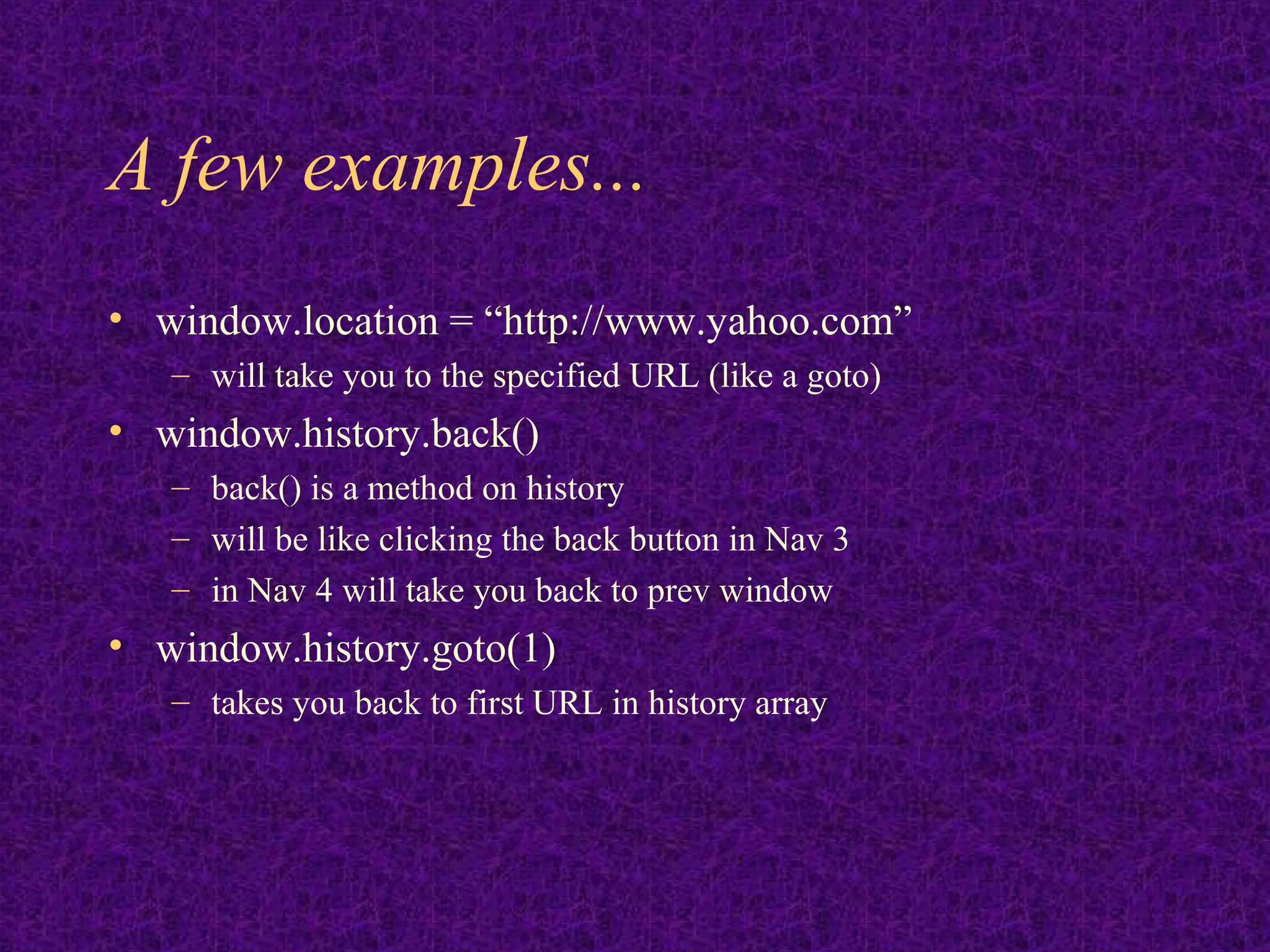
A few examples... • window.location = “http://www.yahoo.com” – will take you to the specified URL (like a goto) • window.history.back() – back() is a method on history – will be like clicking the back button in Nav 3 – in Nav 4 will take you back to prev window • window.history.goto(1) – takes you back to first URL in history array
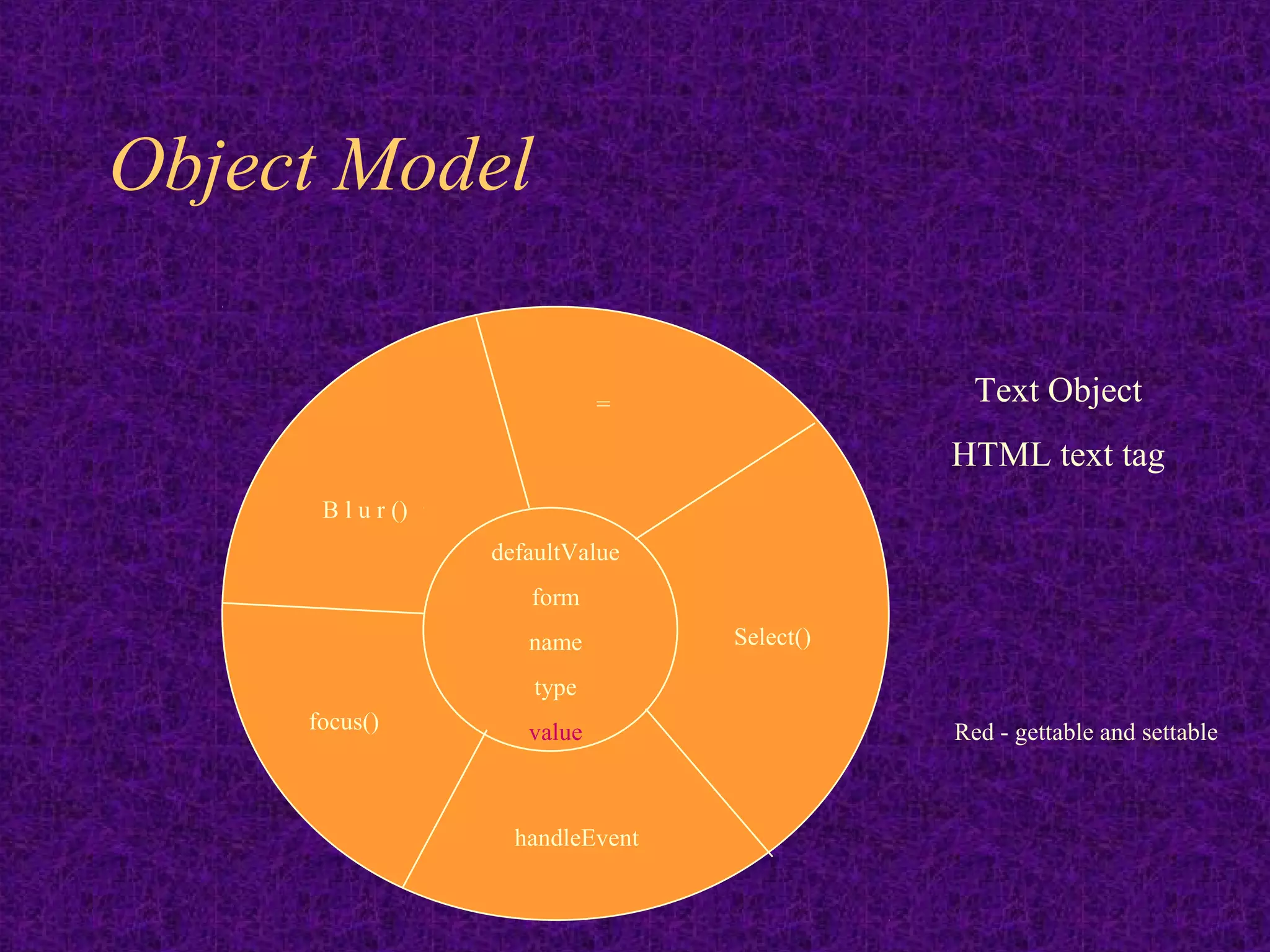
The Object Model • It is very important to understand the object model • each object has its own properties, some of which are read only some of which you can set directly by assignment (as location) • each object also has a set of behaviors called methods
Object Model = Text Object HTML text tag B l u r () defaultValue form name Select() type focus() value Red - gettable and settable handleEvent
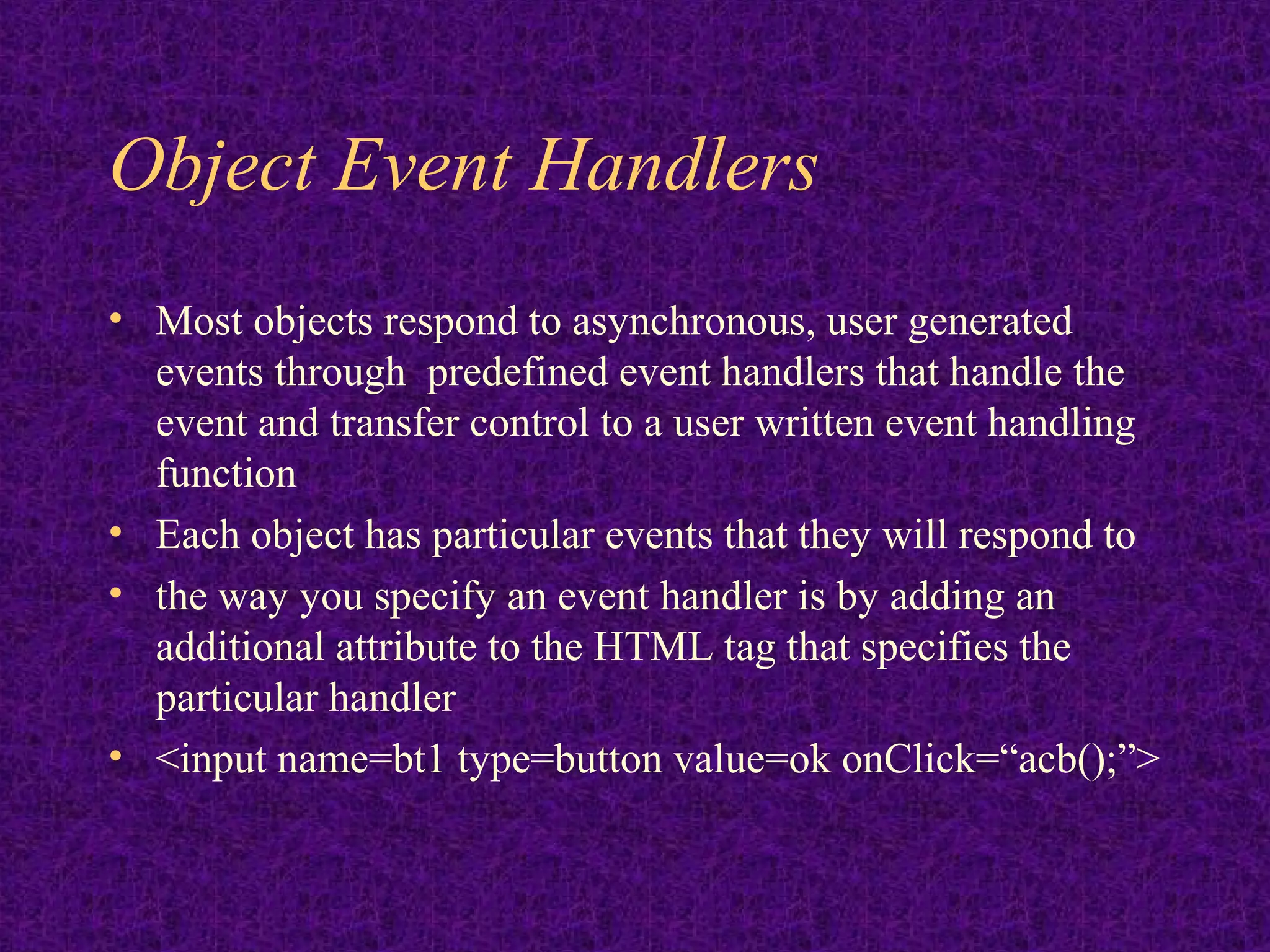
Object Event Handlers • Most objects respond to asynchronous, user generated events through predefined event handlers that handle the event and transfer control to a user written event handling function • Each object has particular events that they will respond to • the way you specify an event handler is by adding an additional attribute to the HTML tag that specifies the particular handler • <input name=bt1 type=button value=ok onClick=“acb();”>
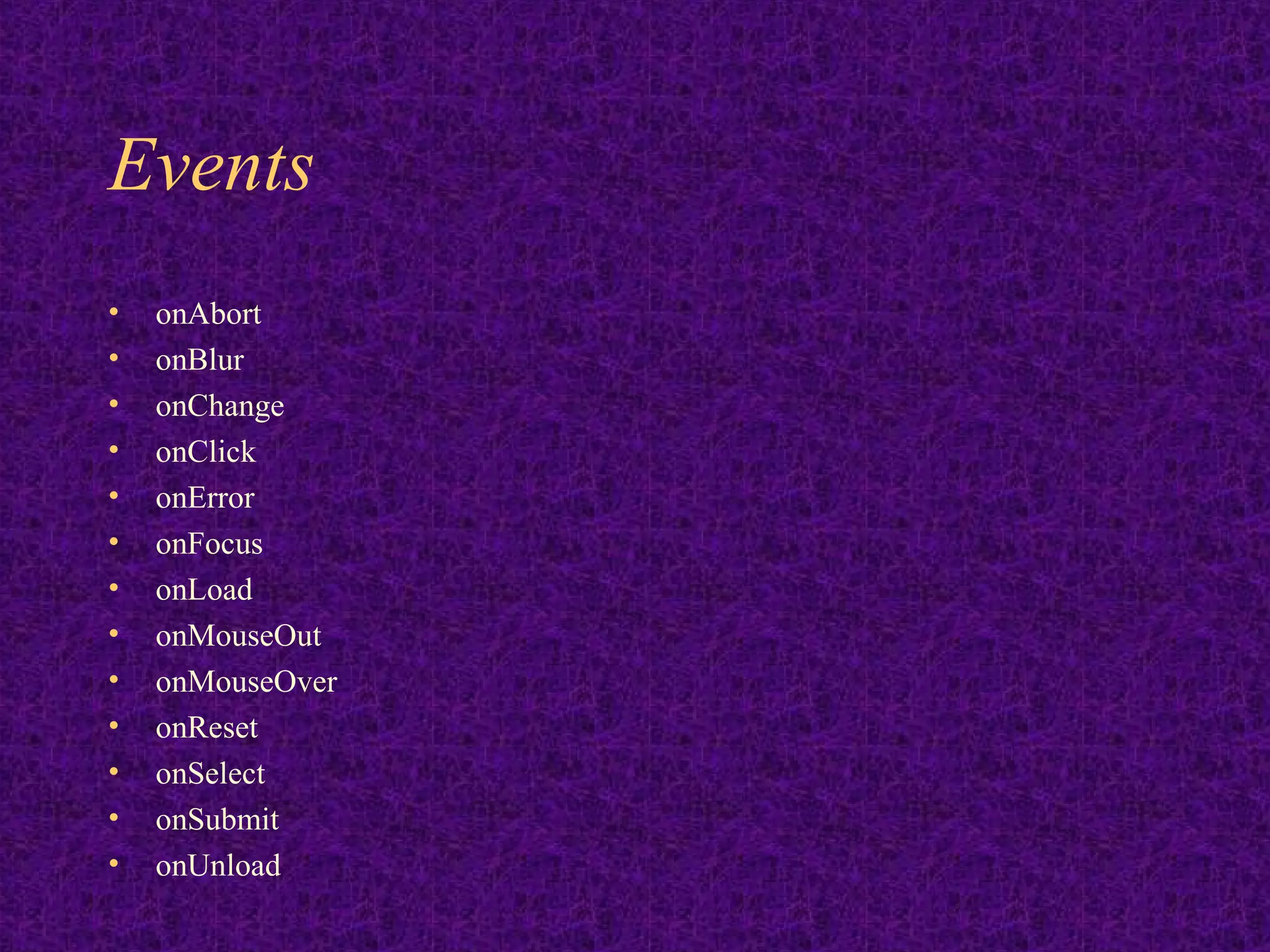
Events • onAbort • onBlur • onChange • onClick • onError • onFocus • onLoad • onMouseOut • onMouseOver • onReset • onSelect • onSubmit • onUnload
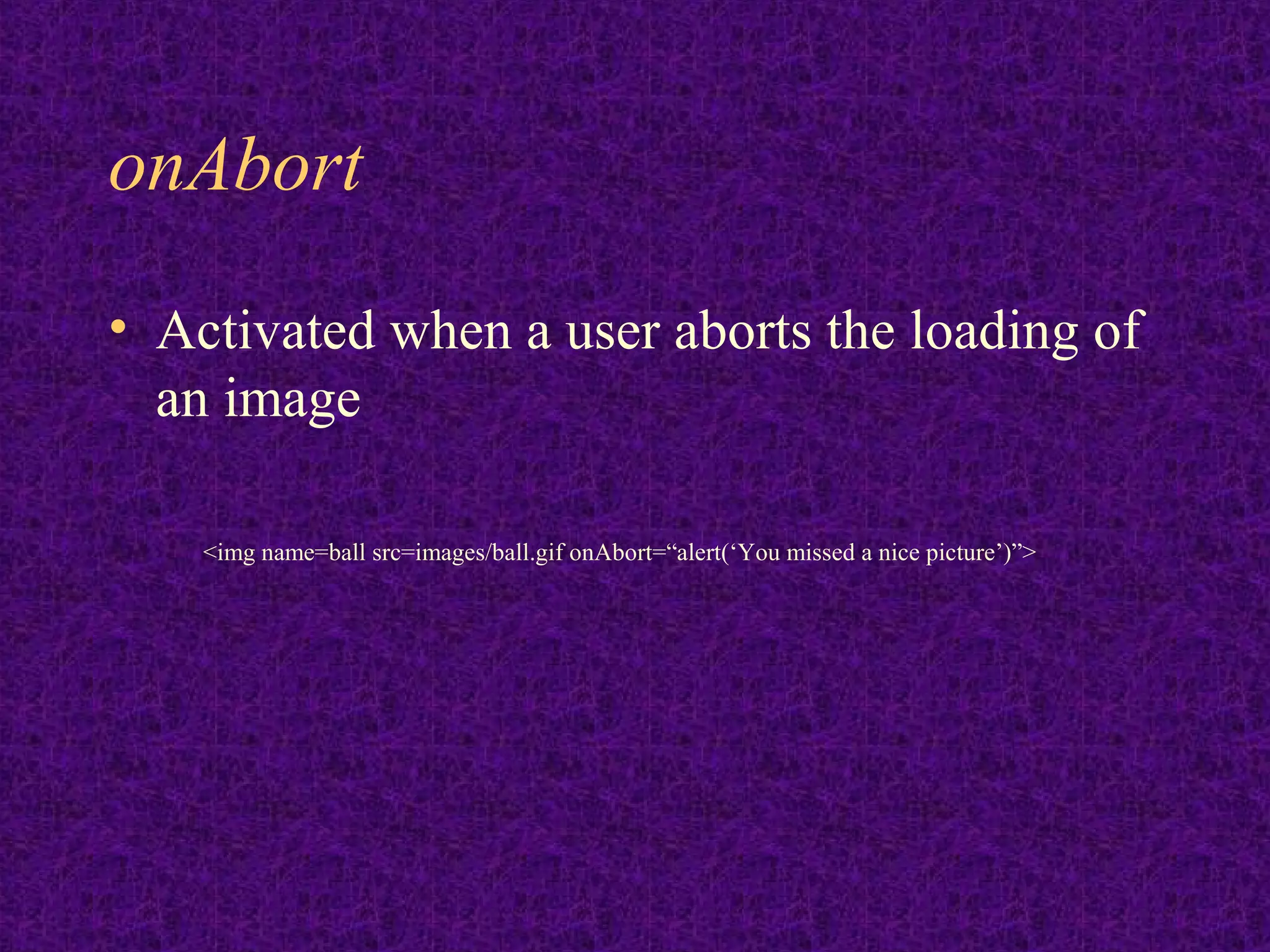
onAbort • Activated when a user aborts the loading of an image <img name=ball src=images/ball.gif onAbort=“alert(‘You missed a nice picture’)”>
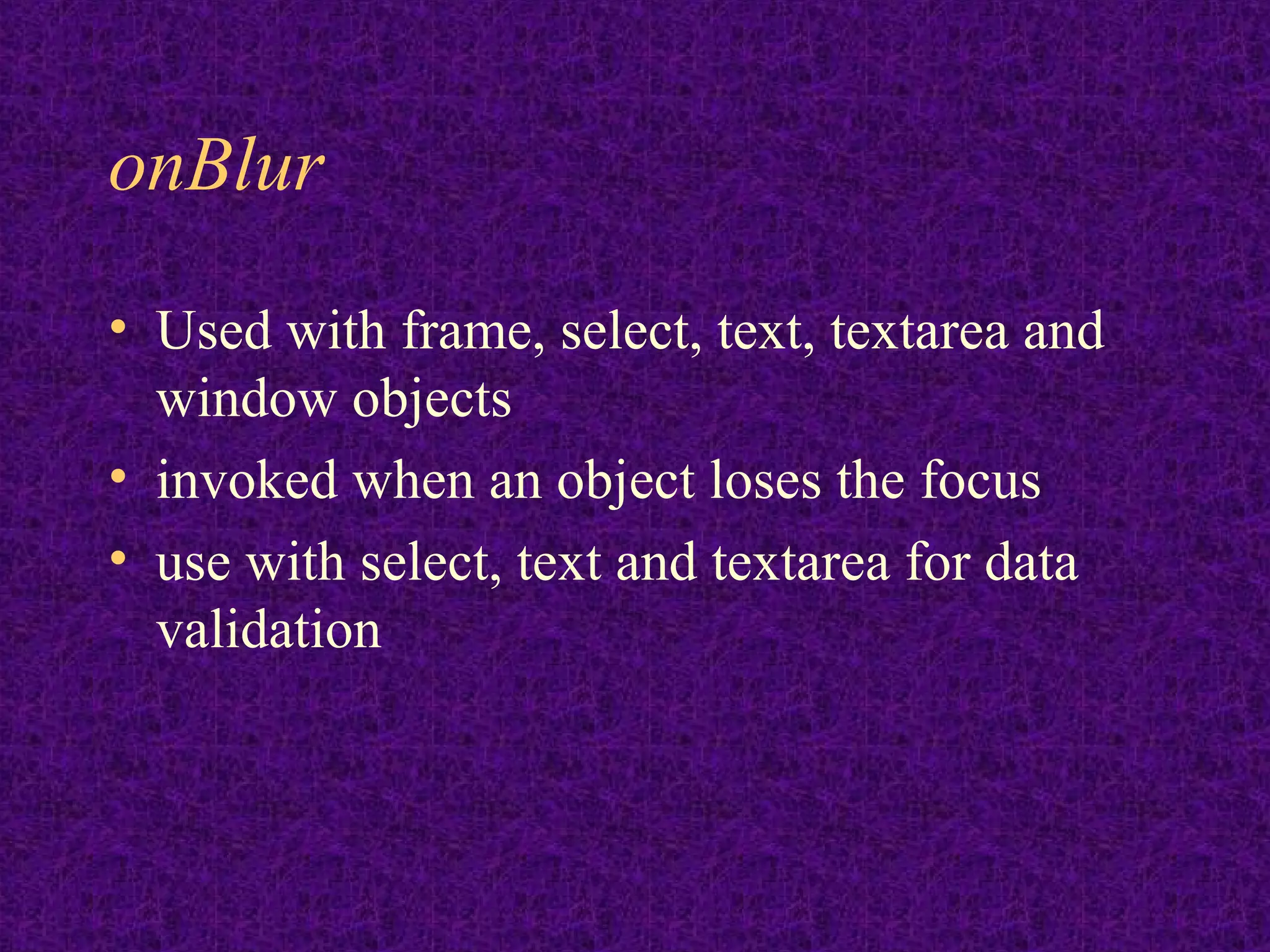
onBlur • Used with frame, select, text, textarea and window objects • invoked when an object loses the focus • use with select, text and textarea for data validation
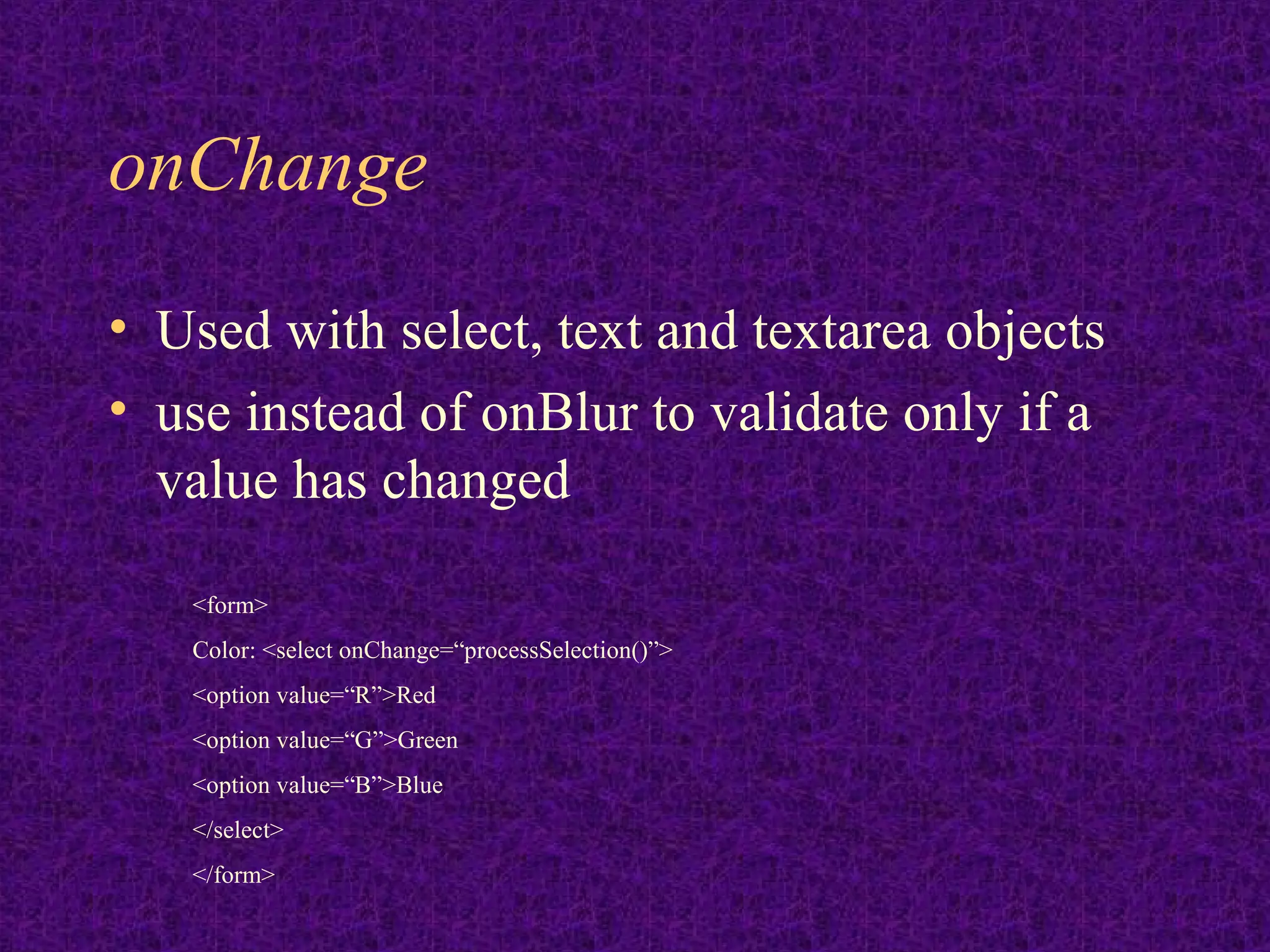
onChange • Used with select, text and textarea objects • use instead of onBlur to validate only if a value has changed <form> Color: <select onChange=“processSelection()”> <option value=“R”>Red <option value=“G”>Green <option value=“B”>Blue </select> </form>
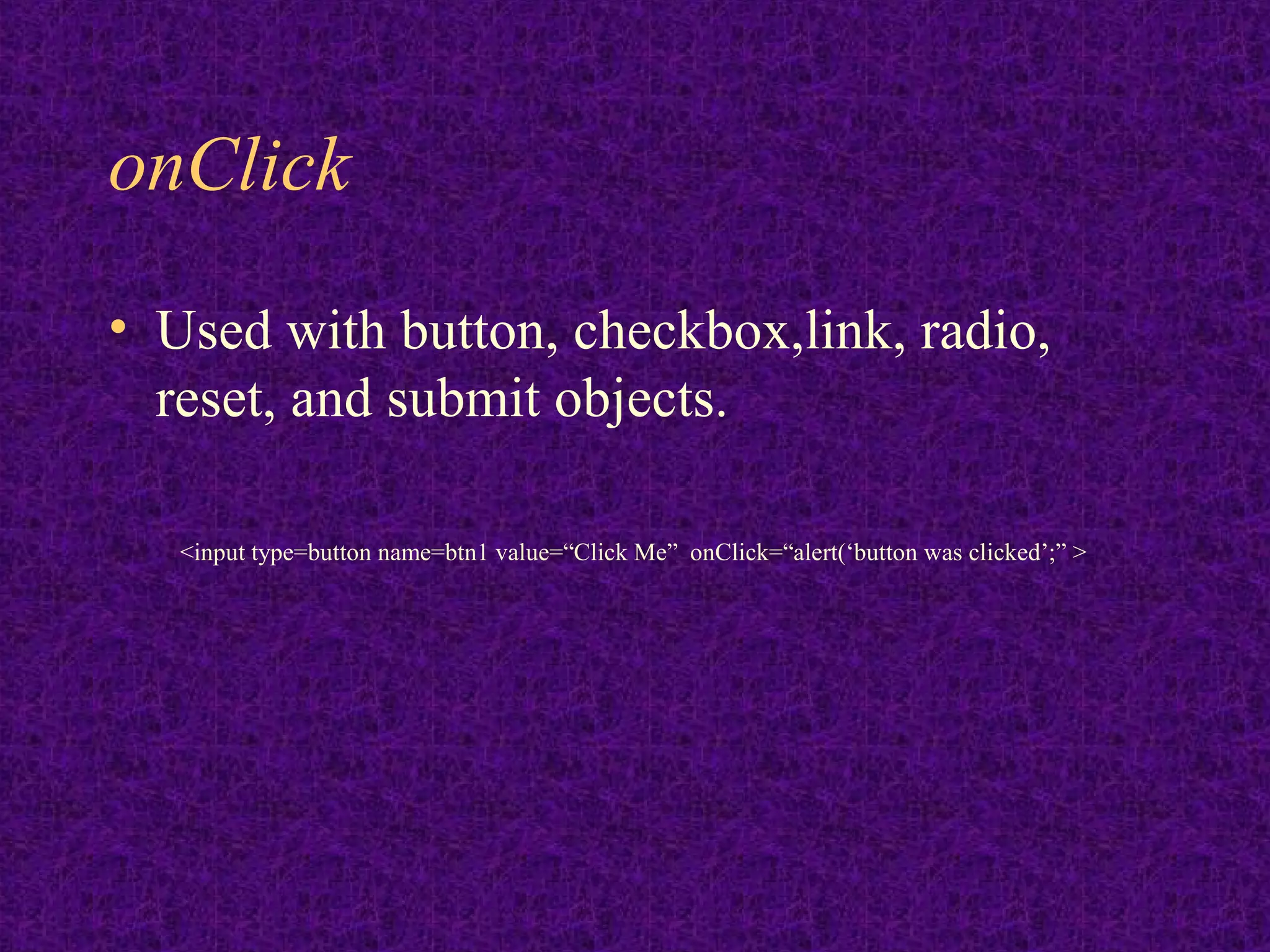
onClick • Used with button, checkbox,link, radio, reset, and submit objects. <input type=button name=btn1 value=“Click Me” onClick=“alert(‘button was clicked’;” >
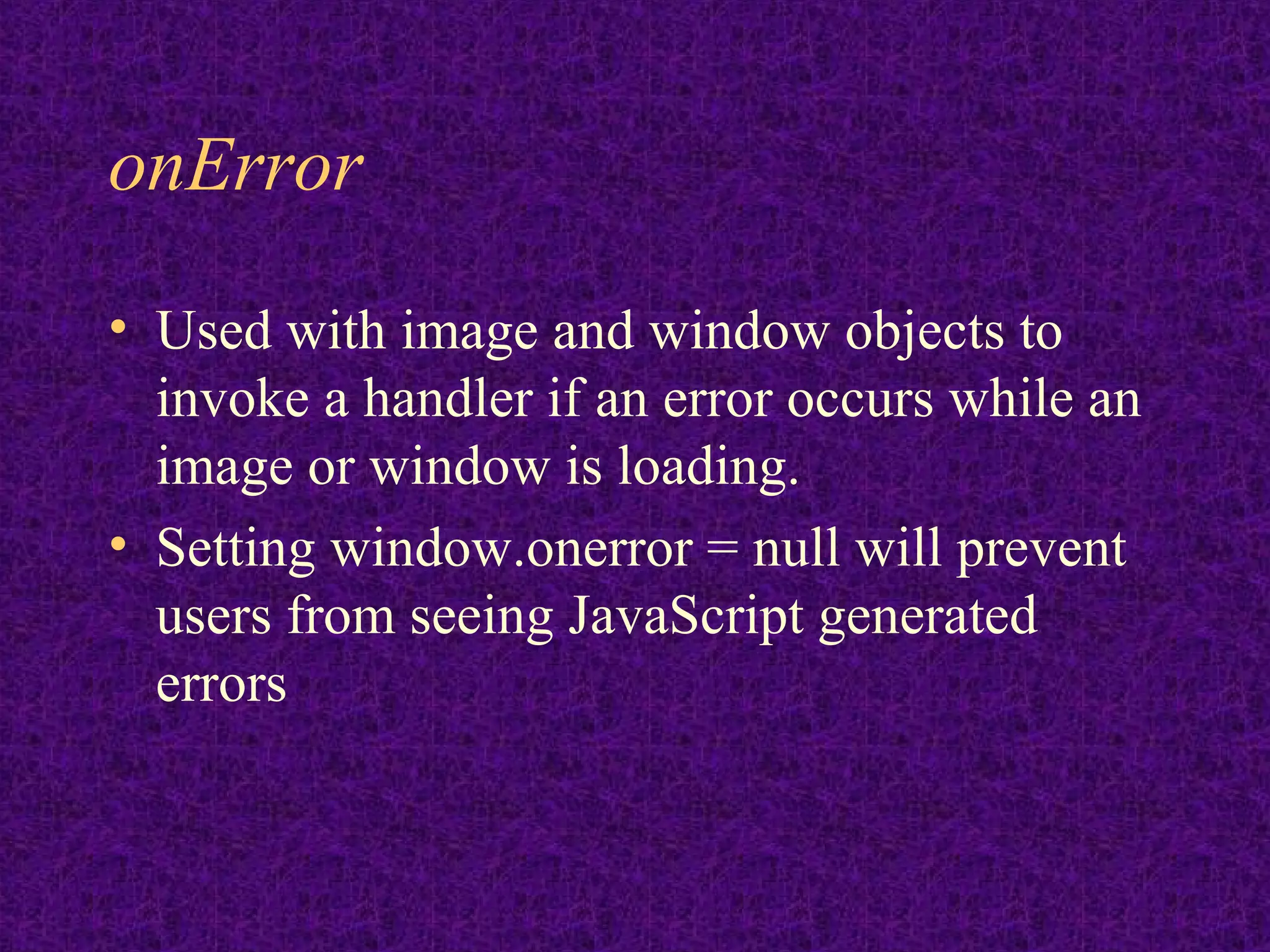
onError • Used with image and window objects to invoke a handler if an error occurs while an image or window is loading. • Setting window.onerror = null will prevent users from seeing JavaScript generated errors
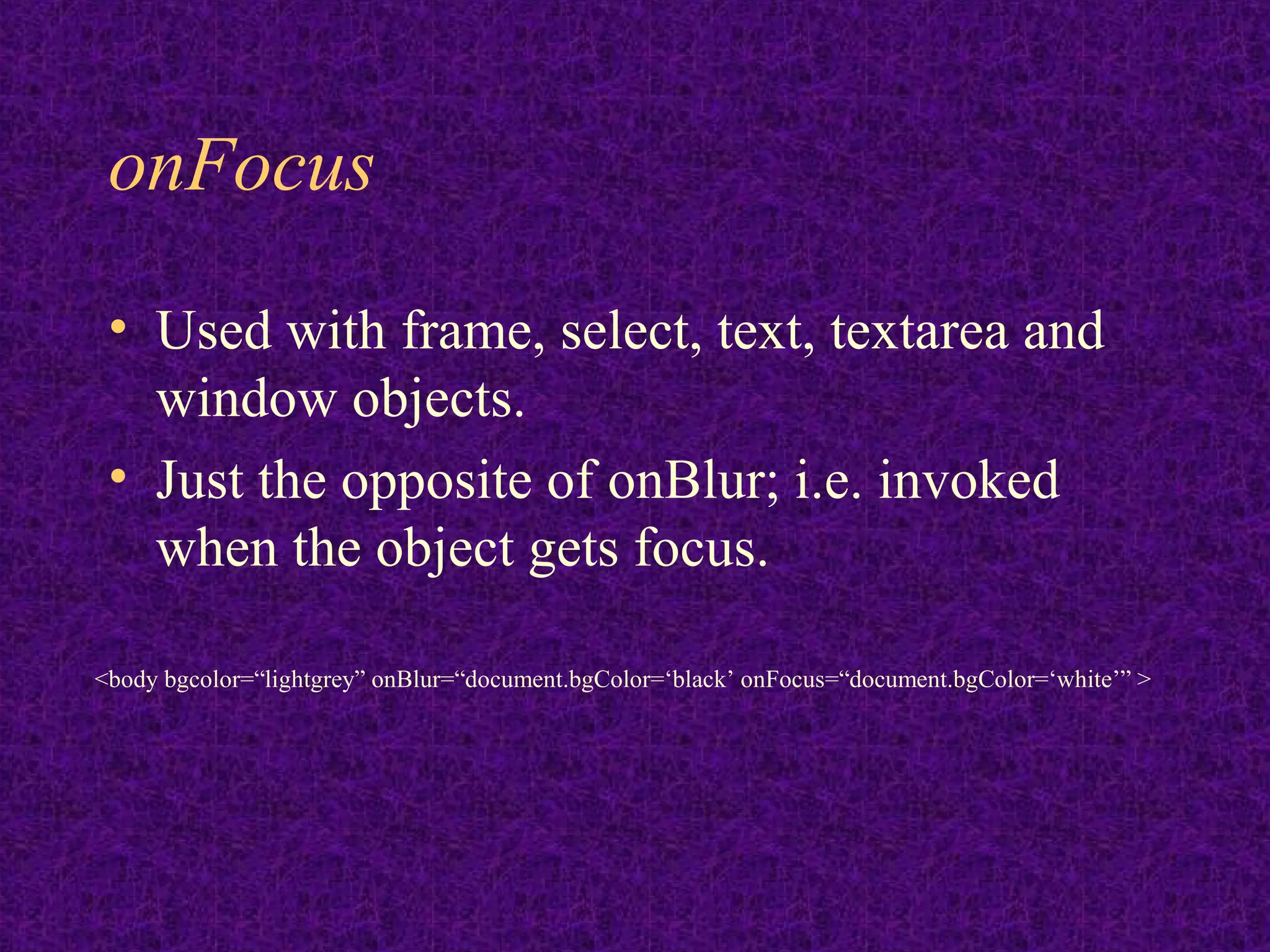
onFocus • Used with frame, select, text, textarea and window objects. • Just the opposite of onBlur; i.e. invoked when the object gets focus. <body bgcolor=“lightgrey” onBlur=“document.bgColor=‘black’ onFocus=“document.bgColor=‘white’” >
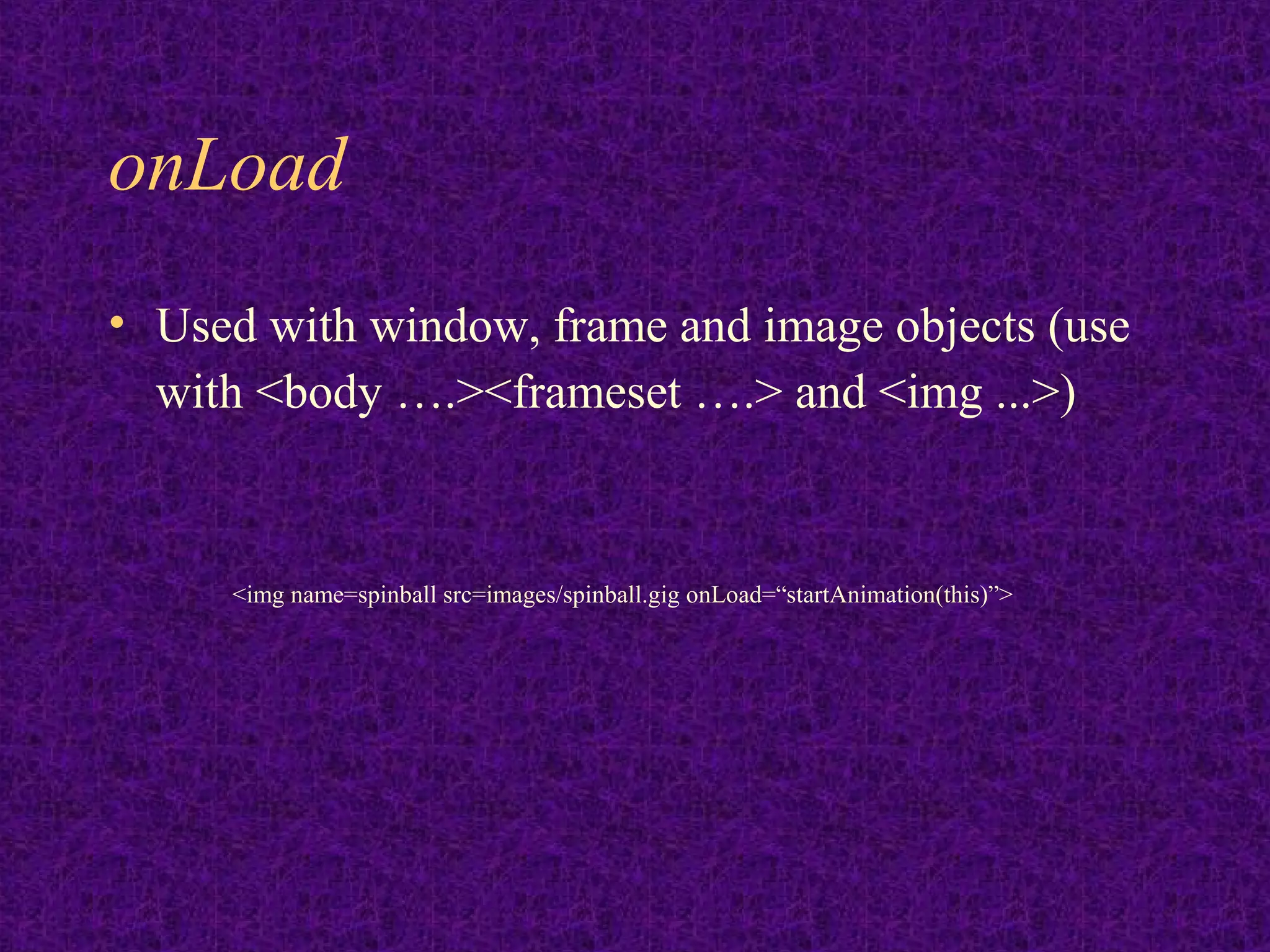
onLoad • Used with window, frame and image objects (use with <body ….><frameset ….> and <img ...>) <img name=spinball src=images/spinball.gig onLoad=“startAnimation(this)”>
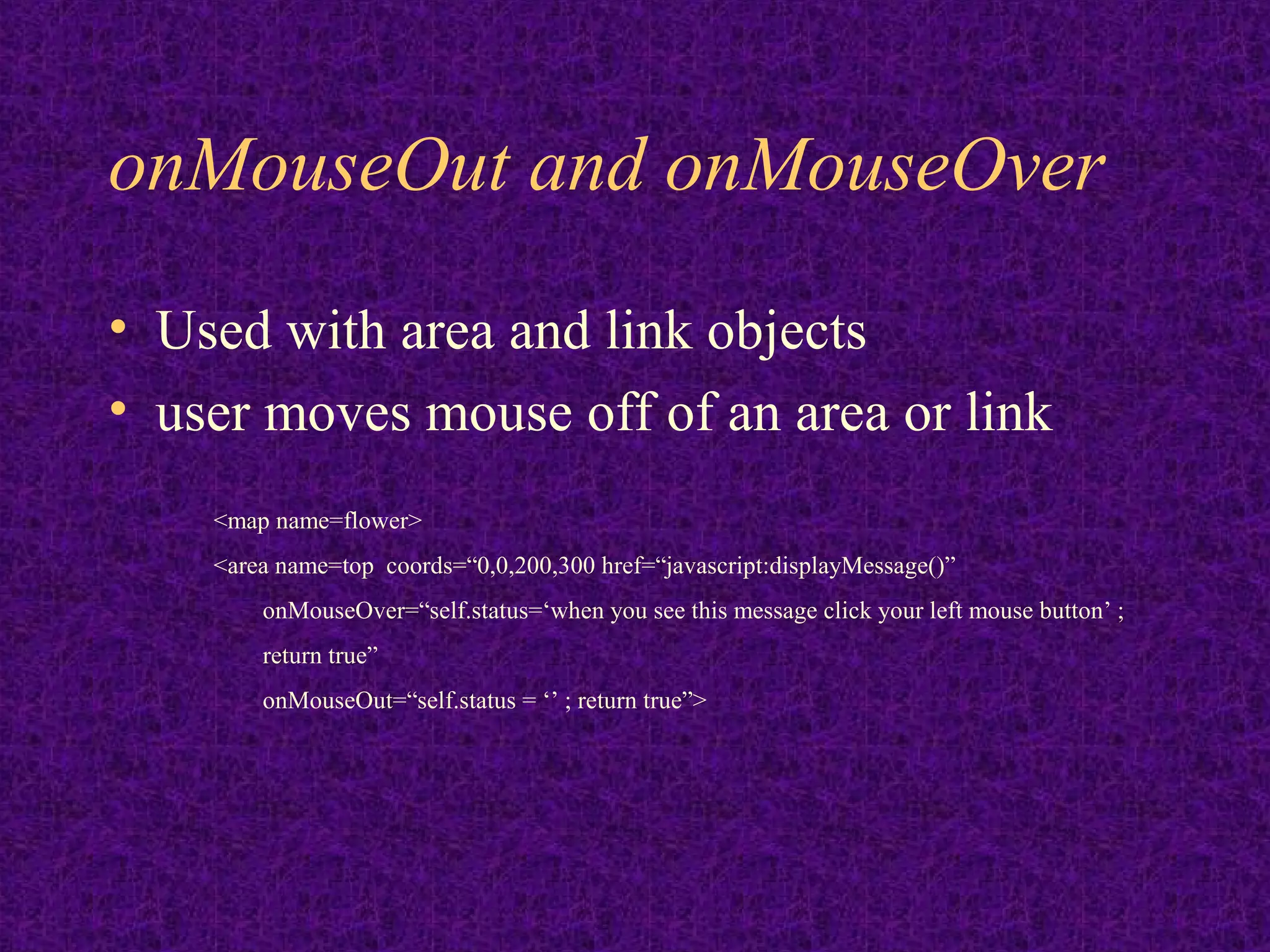
onMouseOut and onMouseOver • Used with area and link objects • user moves mouse off of an area or link <map name=flower> <area name=top coords=“0,0,200,300 href=“javascript:displayMessage()” onMouseOver=“self.status=‘when you see this message click your left mouse button’ ; return true” onMouseOut=“self.status = ‘’ ; return true”>
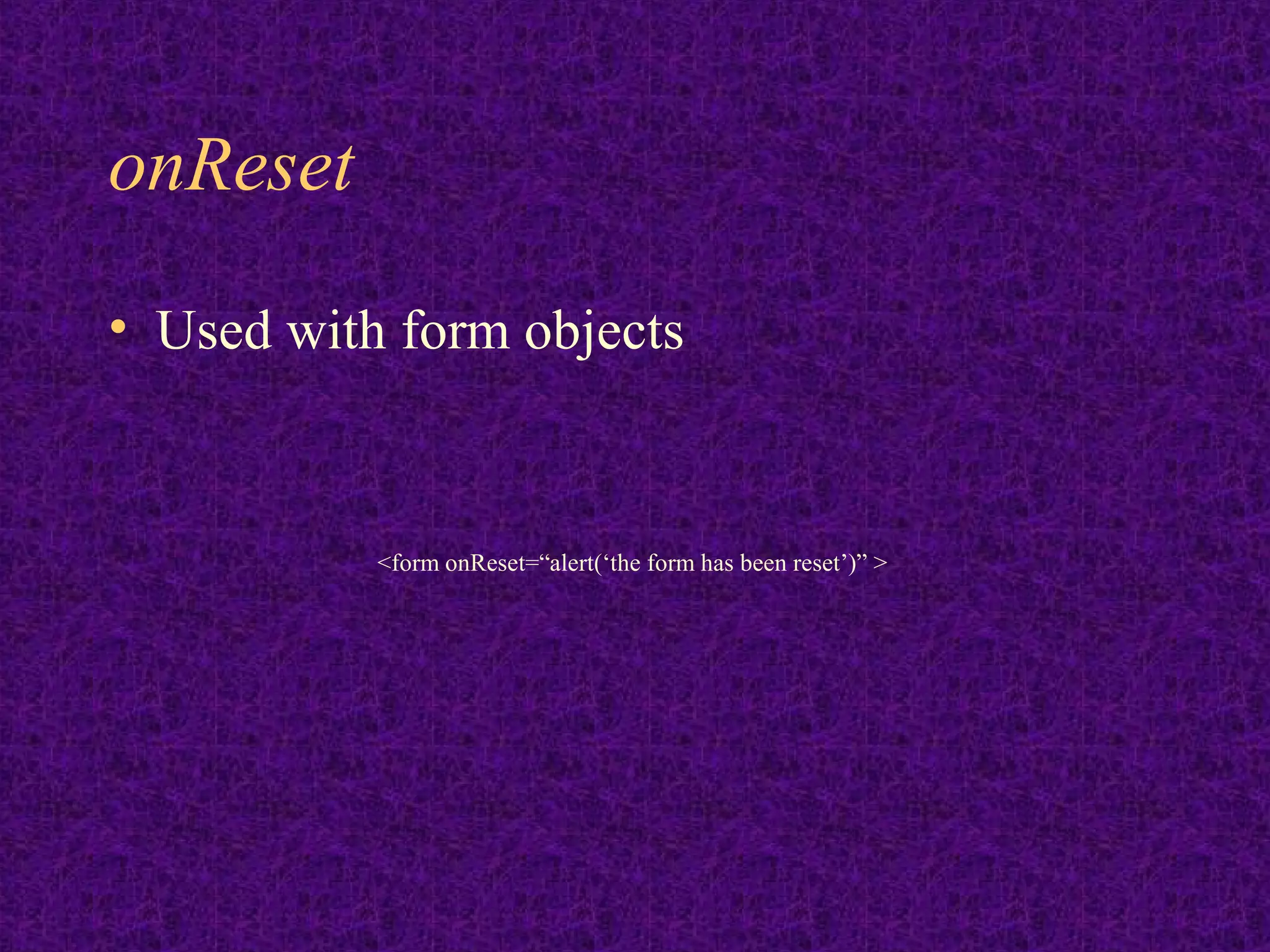
onReset • Used with form objects <form onReset=“alert(‘the form has been reset’)” >
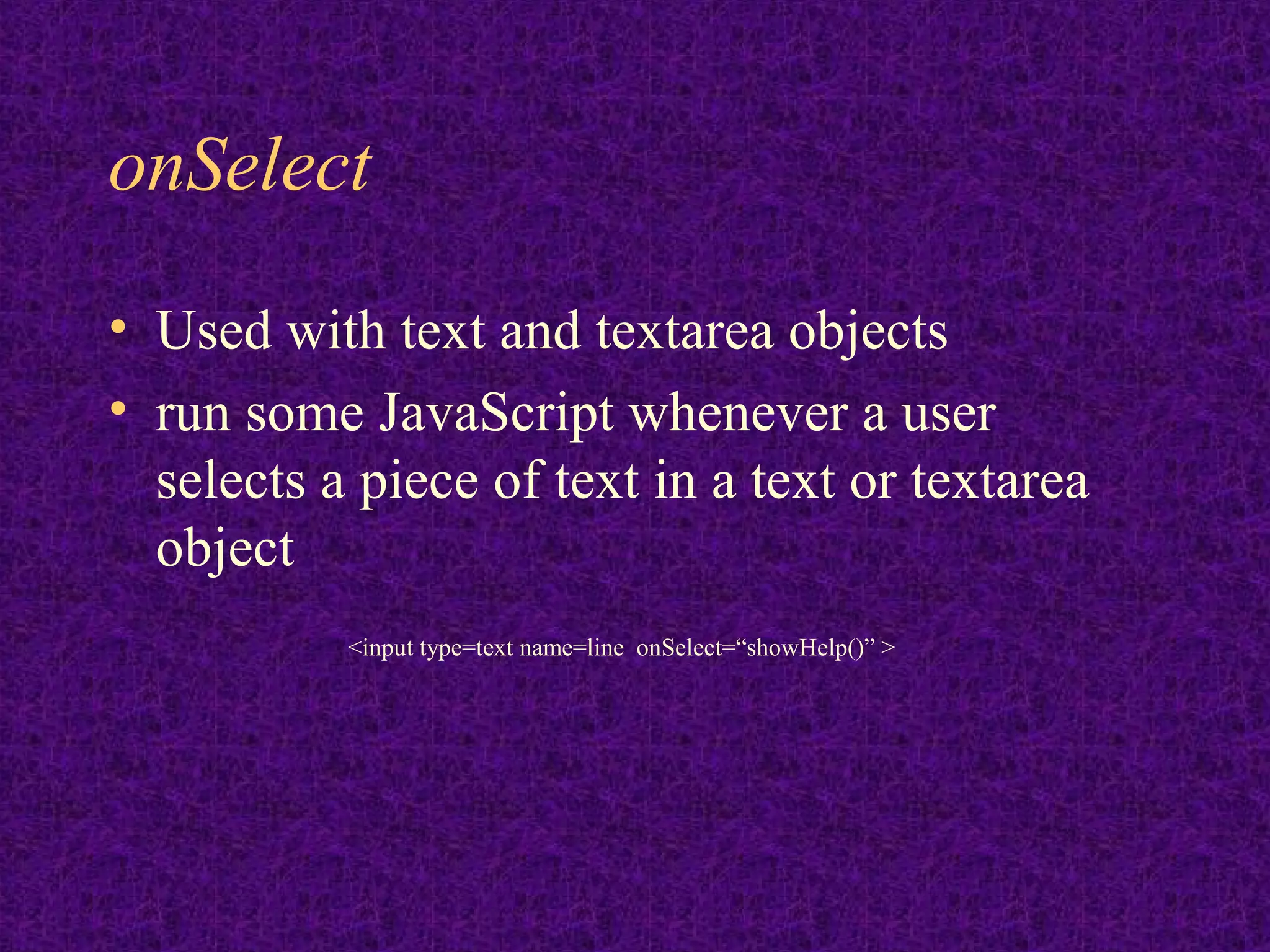
onSelect • Used with text and textarea objects • run some JavaScript whenever a user selects a piece of text in a text or textarea object <input type=text name=line onSelect=“showHelp()” >
onSubmit • Use with form objects to run a handler whenever a form has been submitted. • Useful to validate all fields prior to actual submission
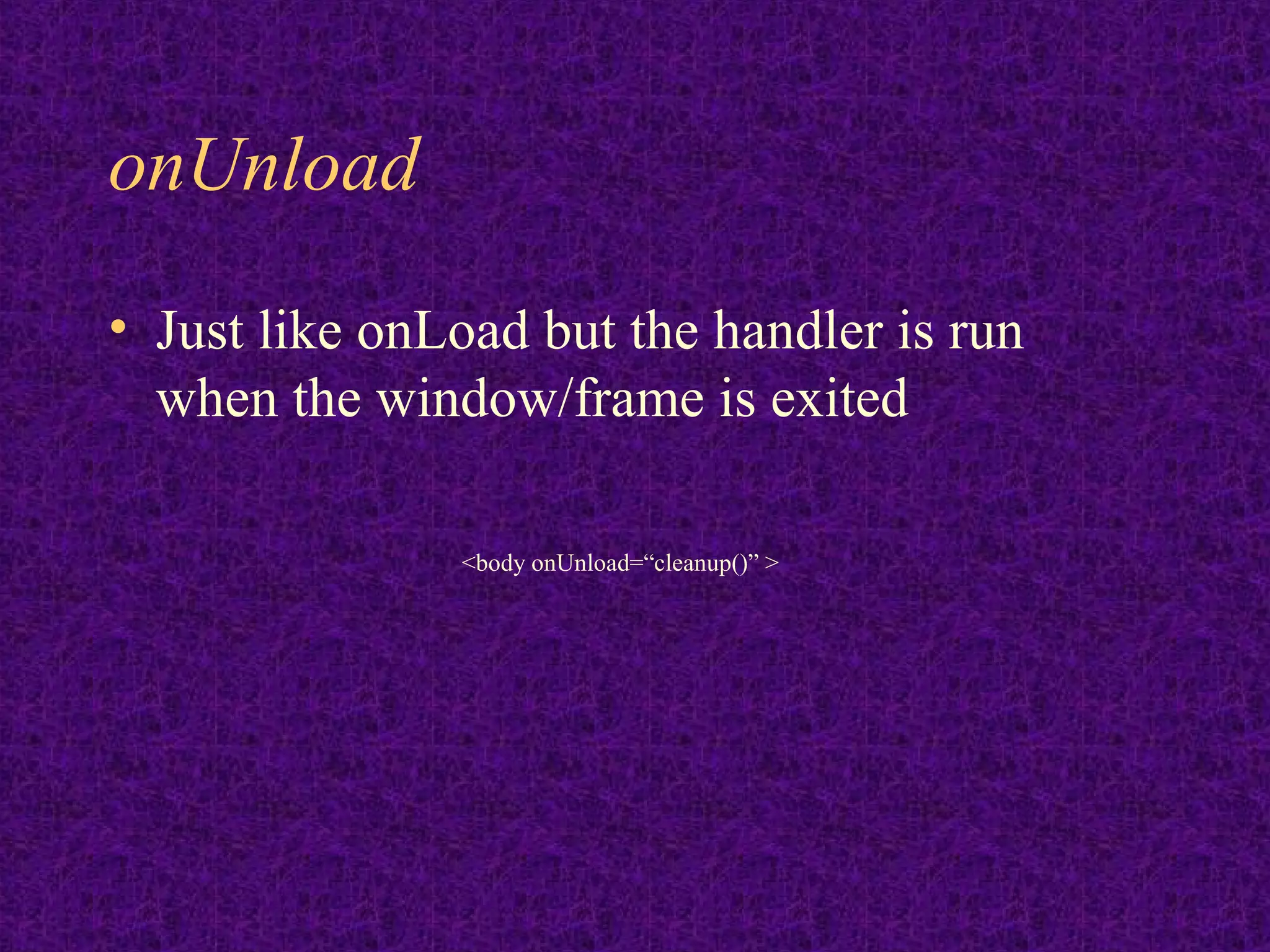
onUnload • Just like onLoad but the handler is run when the window/frame is exited <body onUnload=“cleanup()” >

Learn javascript easy steps

  • 1.
    JavaScript - aBrief Introduction IMI PRINCE www.newsvelley.blogspot.com
  • 2.
    What is JavaScript •Object based (not object oriented) programming language – very limited object creation – a set of pre-defined objects associated with • HTML document structure – many HTML tags constitute JS Objects • Browser functionality – provides a limited API to Browser functionality
  • 3.
    Where did itcome from • Originally called LiveScript at Netscape – started out to be a server side scripting language for providing database connectivity and dynamic HTML generation on Netscape Web Servers – Netscape decided it would be a good thing for their browsers and servers to speak the same language so it got included in Navigator – Netscape in alliance w/Sun jointly announced the language and its new name Java Script – Because of rapid acceptance by the web community Microsoft forced to include in IE Browser
  • 4.
    Browser compatibility • Forthe most part Java Script runs the same way in all popular browsers • There are many areas where there are slight differences in how Java Script will run • there will be a separate set of slides addressing these differences.
  • 5.
    JavaScript…Java ? • Thereis no relationship other than the fact that Java and JavaScript resemble each other (and C++) syntactically • JavaScript is pretty much the de-facto standard for client-side scripting (Internet Explorer also provides VBScript & JScript) • In Netscape browsers there is an API that allows JavaScript and Java applets embedded in the same page to converse
  • 6.
    What can itbe used for • Some pretty amazing things…. – Text animation – graphic animation – simple browser based application – HTML forms submission – client-side forms data validation (relieving the server of this task) – web site navigation
  • 7.
    What do Ineed to get started • A web browser – Netscape Navigator 4.x or later – MS Internet Explorer 3.x or later • A text Editor – Wordpad/Notepad – Vi, Emacs
  • 8.
    Process • Open your text editor • create a file containing html and Javascript • save as text file with file type .htm or .html • open your browser • click on file, open file – locate the file you just created • open file in browser
  • 9.
    Putting JavaScript intoyour HTML • in an external file – collect commonly used functions together into external function libraries on the server • added benefit of privacy from curious users • in-line with your HTML • as an expression for an HTML tag attribute • within some HTML tags as Event Handlers
  • 10.
    <SCRIPT>…</SCRIPT> • <SCRIPT language=….src=……></SCRIPT> • The <SCRIPT> tag indicates to the browser the beginning of an embedded script; </SCRIPT> indicates the end of an embedded script. • the “language” attribute indicates the script processor to be used • the “src” attribute indicates the URL of a file on the server containing the script to be embedded
  • 11.
    Scripts • Since scriptsare placed in line with with HTML older browsers will attempt to render them as text. • To preclude this hide them in side of an HTML comment . <!-- --> • for JavaScript comments use // or /* */
  • 12.
    <SCRIPT> • <SCRIPT LANGUAGE=“JavaScript”> • <!-- start hiding code from old browsers> • Script • Code • Goes • Here • // Stop Hiding code --> • </SCRIPT>
  • 13.
    Object Hierarchy window history document location link link anchor layer form applet image area text radio button fileUpload select textarea checkbox reset option password submit
  • 14.
    Objects • window -the current browser window • window.history - the Netscape history list • window.document - the html document currently in the browser client area • window.location - the browser location field • window.toolbar - the browser toolbar • window.document.link - an array containing all of the links in the document • window.document.anchor - an array of all the anchor points in the document
  • 15.
    Objects (more…) • Window.document.layer - a named document layer • window.document.applet - a named java applet area • window.document.image- a named image tag • window.document.area - a named area • window.document.form - a named form or the default form • ect, ect
  • 16.
    A few examples... •window.location = “http://www.yahoo.com” – will take you to the specified URL (like a goto) • window.history.back() – back() is a method on history – will be like clicking the back button in Nav 3 – in Nav 4 will take you back to prev window • window.history.goto(1) – takes you back to first URL in history array
  • 17.
    The Object Model •It is very important to understand the object model • each object has its own properties, some of which are read only some of which you can set directly by assignment (as location) • each object also has a set of behaviors called methods
  • 18.
    Object Model = Text Object HTML text tag B l u r () defaultValue form name Select() type focus() value Red - gettable and settable handleEvent
  • 19.
    Object Event Handlers •Most objects respond to asynchronous, user generated events through predefined event handlers that handle the event and transfer control to a user written event handling function • Each object has particular events that they will respond to • the way you specify an event handler is by adding an additional attribute to the HTML tag that specifies the particular handler • <input name=bt1 type=button value=ok onClick=“acb();”>
  • 20.
    Events • onAbort • onBlur • onChange • onClick • onError • onFocus • onLoad • onMouseOut • onMouseOver • onReset • onSelect • onSubmit • onUnload
  • 21.
    onAbort • Activated whena user aborts the loading of an image <img name=ball src=images/ball.gif onAbort=“alert(‘You missed a nice picture’)”>
  • 22.
    onBlur • Used withframe, select, text, textarea and window objects • invoked when an object loses the focus • use with select, text and textarea for data validation
  • 23.
    onChange • Used withselect, text and textarea objects • use instead of onBlur to validate only if a value has changed <form> Color: <select onChange=“processSelection()”> <option value=“R”>Red <option value=“G”>Green <option value=“B”>Blue </select> </form>
  • 24.
    onClick • Used withbutton, checkbox,link, radio, reset, and submit objects. <input type=button name=btn1 value=“Click Me” onClick=“alert(‘button was clicked’;” >
  • 25.
    onError • Used withimage and window objects to invoke a handler if an error occurs while an image or window is loading. • Setting window.onerror = null will prevent users from seeing JavaScript generated errors
  • 26.
    onFocus • Usedwith frame, select, text, textarea and window objects. • Just the opposite of onBlur; i.e. invoked when the object gets focus. <body bgcolor=“lightgrey” onBlur=“document.bgColor=‘black’ onFocus=“document.bgColor=‘white’” >
  • 27.
    onLoad • Used withwindow, frame and image objects (use with <body ….><frameset ….> and <img ...>) <img name=spinball src=images/spinball.gig onLoad=“startAnimation(this)”>
  • 28.
    onMouseOut and onMouseOver •Used with area and link objects • user moves mouse off of an area or link <map name=flower> <area name=top coords=“0,0,200,300 href=“javascript:displayMessage()” onMouseOver=“self.status=‘when you see this message click your left mouse button’ ; return true” onMouseOut=“self.status = ‘’ ; return true”>
  • 29.
    onReset • Used withform objects <form onReset=“alert(‘the form has been reset’)” >
  • 30.
    onSelect • Used withtext and textarea objects • run some JavaScript whenever a user selects a piece of text in a text or textarea object <input type=text name=line onSelect=“showHelp()” >
  • 31.
    onSubmit • Use withform objects to run a handler whenever a form has been submitted. • Useful to validate all fields prior to actual submission
  • 32.
    onUnload • Just likeonLoad but the handler is run when the window/frame is exited <body onUnload=“cleanup()” >