Presented by: Deepuranjan Kumar MCA 2nd Year MUR2301159
web technologies HTML + CSS + Javascript
Goals Introduction to web technologies: ● HTML to create the document structure and content ● CSS to control is visual aspect ● Javascript for interactivity
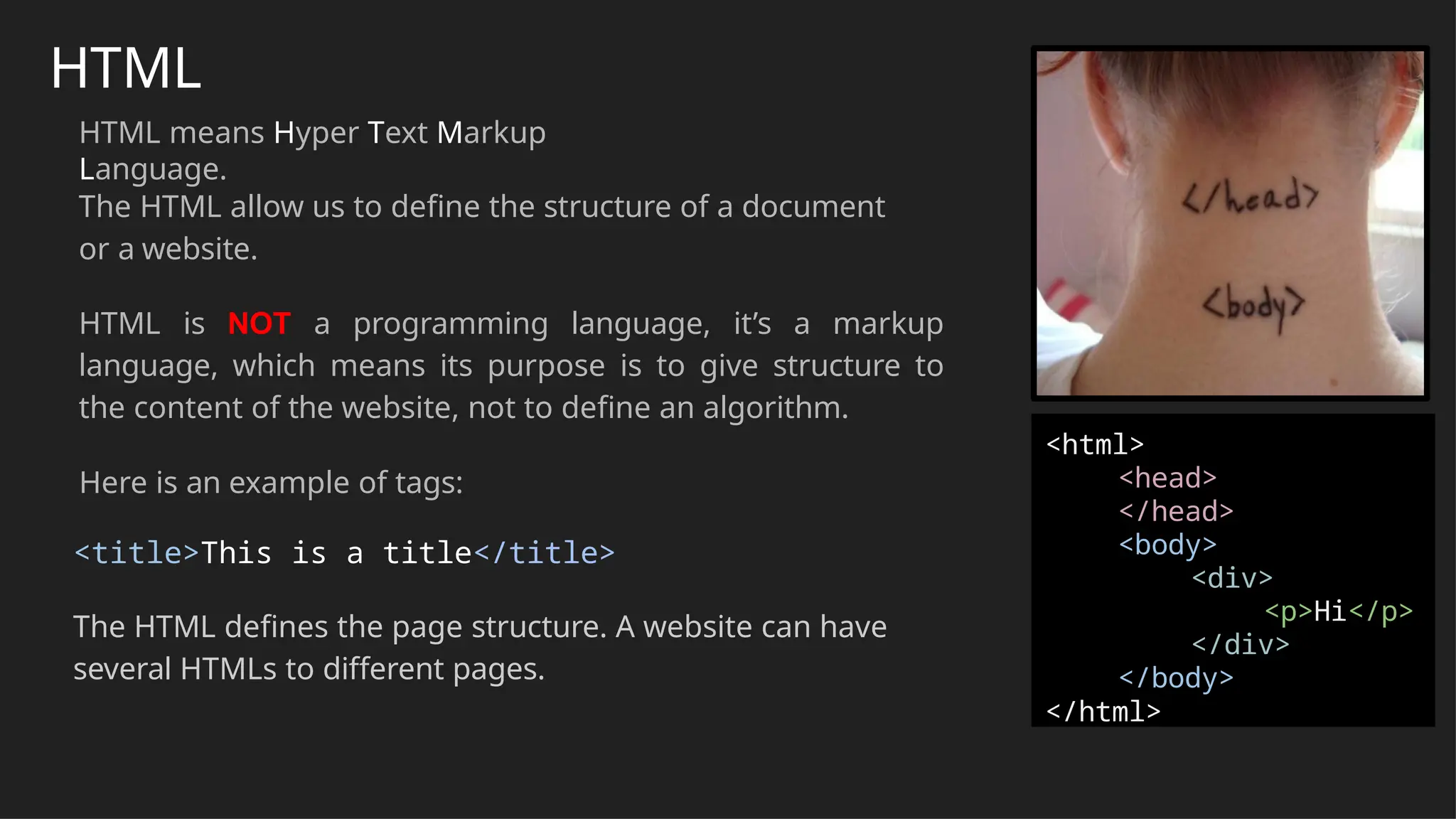
HTML HTML means Hyper Text Markup Language. The HTML allow us to define the structure of a document or a website. HTML is NOT a programming language, it’s a markup language, which means its purpose is to give structure to the content of the website, not to define an algorithm. Here is an example of tags: <title>This is a title</title> The HTML defines the page structure. A website can have several HTMLs to different pages. <html> <head> </head> <body> <div> <p>Hi</p> </div> </body> </html>
HTML: syntax example <div id="main"> <!-- this is a comment --> This is text without a tag. <button class="mini">press me</button> <img src="me.png" /> </div> Tag name attribute s commen t text tag self-closing tag
Although there are lots of tags in the HTML specification, 99% of the webs use a subset of HTML tags with less that 10 tags, the most important are: ● <div>: a container, usually represents a rectangular area with information inside. ● <img/>: an image ● <a>: a clickable link to go to another URL ● <p>: a text paragraph ● <h1>: a title (h2,h3,h4 are titles of less importance) ● <input>: a widget to let the user introduce information ● <style> and <link>: to insert CSS rules ● <script>: to execute Javascript ● <span>: a null tag (doesn't do anything), good for tagging info HTML: main tags
HTML: other interesting tags There are some tags that could be useful sometimes: ● <button>: to create a button ● <audio>: for playing audio ● <video>: to play video ● <canvas>: to draw graphics from javascript ● <iframe>: to put another website inside ours
CSS CSS allows us to specify how to present (render) the document info stored in the HTML. Thanks to CSS we can control all the aspects of the visualization and some other features: ● Colors: content, background, borders ● Margins: interior margin, exterior margin ● Position: where to put it ● Sizes: width, height ● Behaviour: changes on mouse over
CSS example * { color: blue; /*a comment */ margin: 10px; font: 14px Tahoma; } This will change all the tags in my web ( ‘*‘ means all) to look blue with font Tahoma with 14px, and leaving a margin of 10px around.
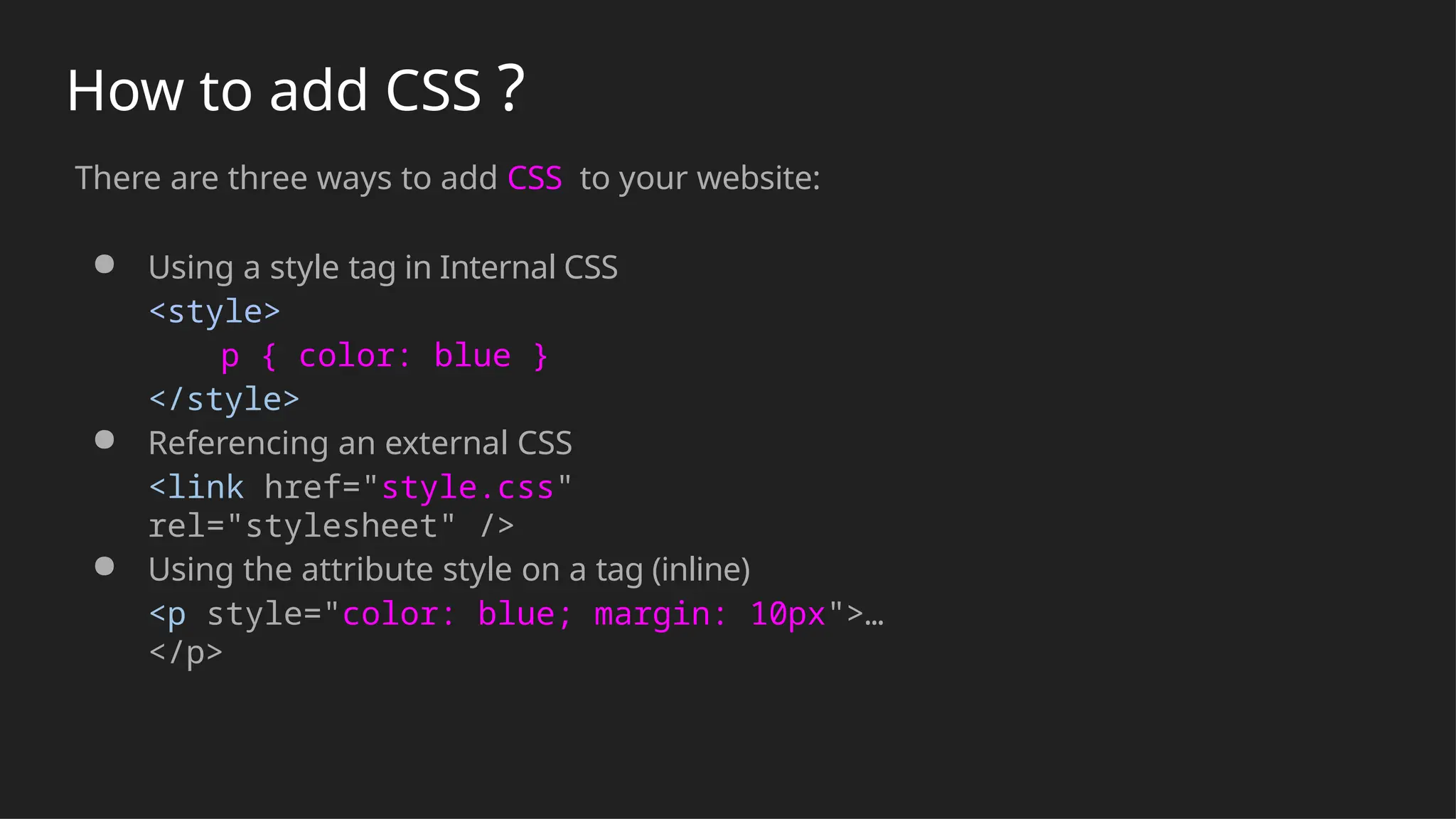
How to add CSS ? There are three ways to add CSS to your website: ● Using a style tag in Internal CSS <style> p { color: blue } </style> ● Referencing an external CSS <link href="style.css" rel="stylesheet" /> ● Using the attribute style on a tag (inline) <p style="color: blue; margin: 10px">… </p>
CSS Properties Here is a list of the most common CSS fields and an example: ● color: #FF0000; red; rgba(255,00,100,1.0); //different ways to specify colors ● background-color: red; ● background-image: url('file.png'); ● font: 18px 'Tahoma'; ● border: 2px solid black; ● border-top: 2px solid red; ● border-radius: 2px; //to remove corners and make them more round ● margin: 10px; //distance from the border to the outer elements ● padding: 2px; //distance from the border to the inner elements ● width: 100%; 300px; 1.3em; //many different ways to specify distances ● height: 200px; ● text-align: center; ● box-shadow: 3px 3px 5px black; ● cursor: pointer; ● display: inline-block; ● overflow: hidden;
CSS Selectors You can also specify tags by its context, for example: tags that are inside of tags matching a selector. Just separate the selectors by an space: div#main p.intro { ... } This will affect to the p tags of class intro that are inside the tag div of id main <div id="main"> <p class="intro">....</p> ← Affects this one </div> <p class="intro">....</p>← but not this one
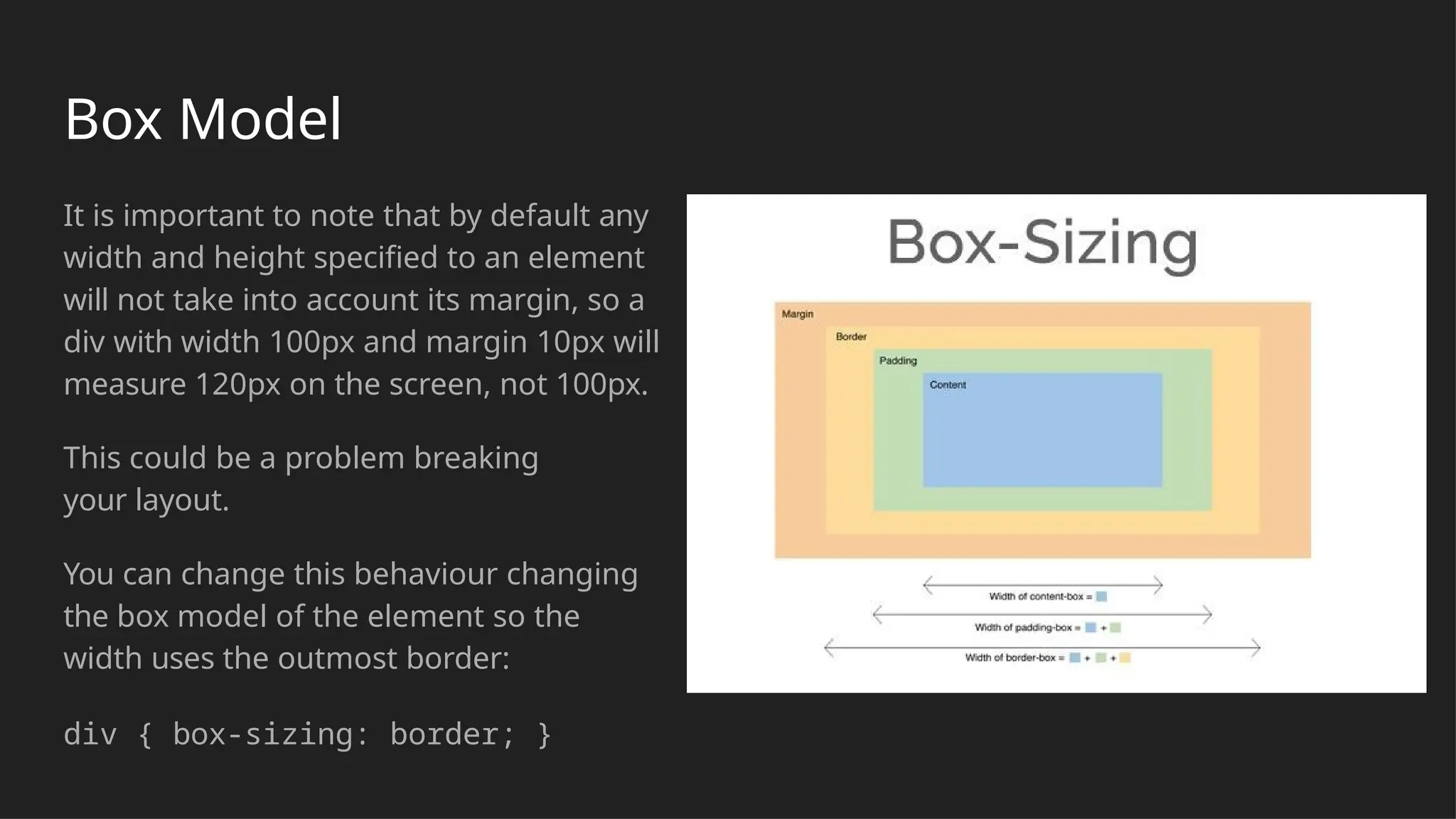
Box Model It is important to note that by default any width and height specified to an element will not take into account its margin, so a div with width 100px and margin 10px will measure 120px on the screen, not 100px. This could be a problem breaking your layout. You can change this behaviour changing the box model of the element so the width uses the outmost border: div { box-sizing: border; }
Layout One of the hardest parts of CSS is construing the layout of your website (the structure inside the window) . By default HTML tends to put everything in one column, which is not ideal. There has been many proposals in CSS to address this issue (tables, fixed divs, flex, grid, …).
Flexbo x The first big proposal to address the layout was the flexbox model. This model allows to arrange stuff in one direction (vertically or horizontally) very easily. You can even choose to arrange from right to left (reverse). It can also be used to arrange a series of elements in different rows. Check the tutorial for more info. HTML <div class="box"> <div>One</div> <div>Two</div> <div>Three <br>first line <br>second line </div> </div> CSS .box { display: flex; }
Javascript A regular programming language, easy to start, hard to master. Allows to give some interactivity to the elements on the web. var my_number = 10; function say( str ) { console.log( str ); } say("hello"); Java Script is programming language . We use it to give instructions to the computer JavaScript is a scripting language that allows developers to create dynamic and interactive web pages
Javascript: Syntax Very similar to C++ or Java but much simpler. var my_number = 10; //this is a comment var my_string = "hello"; var my_array = [10,20,"name",true]; var my_object = { name: "javi", city: "Barcelona" }; function say( str ) { for(var i = 0; i < 10; ++i) console.log(" say: " + str );
Javascript example <html> <body> <h1>This is a title</h1> <script> var title = document.querySelector("h1"); title.innerHTML = "This is another title"; </script> </body> </html>
Javascript: using selectors You can retrieve elements using selectors: var nodes = document.querySelectorAll("p.intro"); will return an array with all <p class="intro"> nodes in the web. Or if we have already a node and we want to search inside: var node = mynode.querySelectorAll("p.intro")
Javascript: create nodes Create elements: var element = document.createElement("div"); And attach them to the DOM: document.querySelector("#main").appendChild( elemen t ); Or remove it from its parent: element.remove(); You can clone an element also easily: var cloned = element.cloneNode(true);
JavaScript Today used many fields Web/ Mobile App Real time Networkin g App Command line tools
Example of a website HTML in index.html <link href="style.css" rel="stylesheet"/> <h1>Welcome</h1> <p> <button>Click me</button> </p> <script src="code.js"/> CSS in style.css h1 { color: #333; } button { border: 2px solid #AAA; background- color: #555; } Javascript in code.js //fetch the button from the DOM var button = document.querySelector("button"); //attach and event when the user clicks it button.addEventListener("click", myfunction); //create the function that will be called when the button is pressed function myfunction() { //this shows a popup window alert("button clicked!"); }
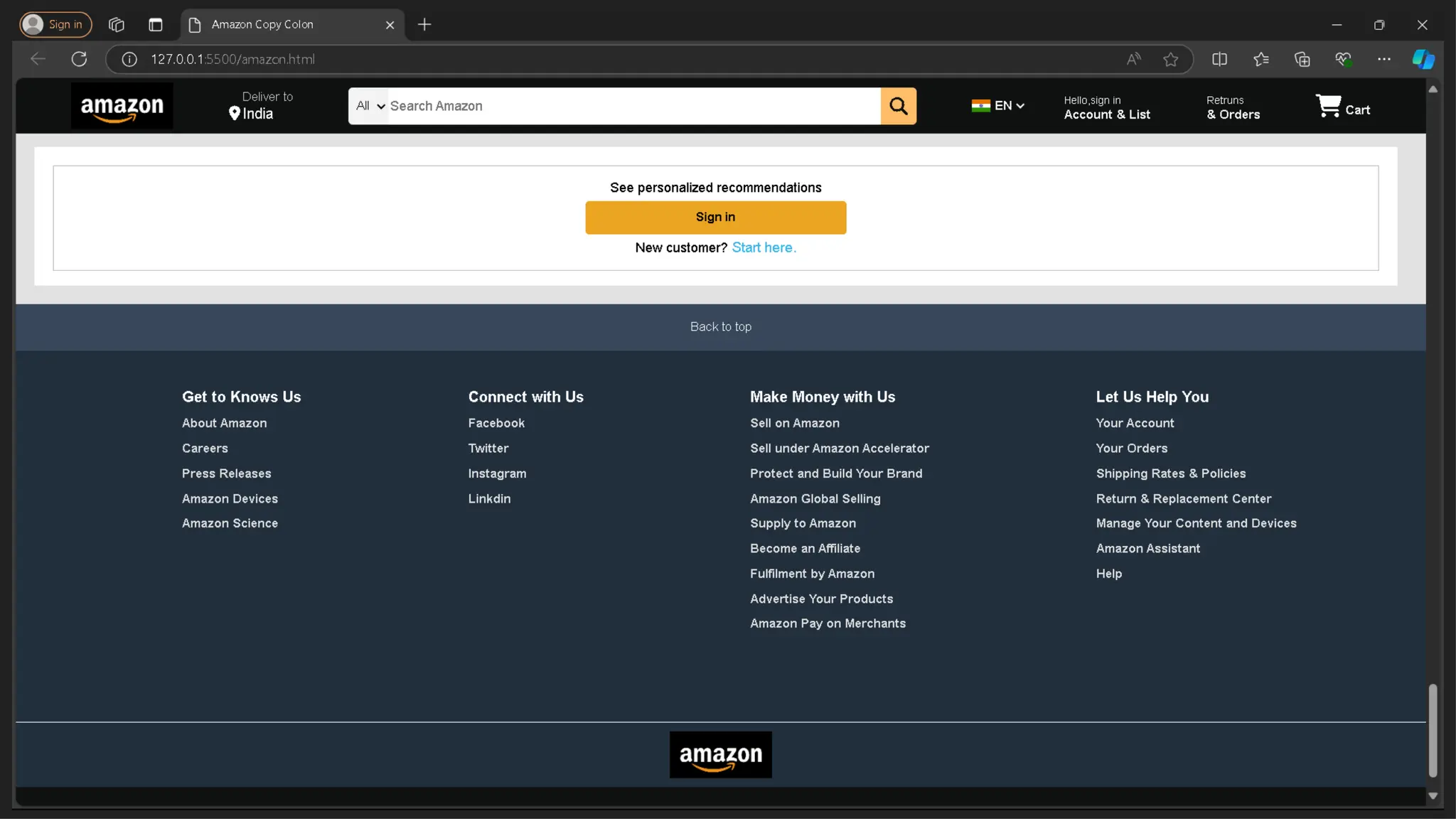
Project Report of Amazon Clone
Introduction to HTML+CSS+Javascript by Deepu.pptx

Introduction to HTML+CSS+Javascript by Deepu.pptx

  • 1.
  • 2.
    web technologies HTML +CSS + Javascript
  • 3.
    Goals Introduction to web technologies: ●HTML to create the document structure and content ● CSS to control is visual aspect ● Javascript for interactivity
  • 4.
    HTML HTML means HyperText Markup Language. The HTML allow us to define the structure of a document or a website. HTML is NOT a programming language, it’s a markup language, which means its purpose is to give structure to the content of the website, not to define an algorithm. Here is an example of tags: <title>This is a title</title> The HTML defines the page structure. A website can have several HTMLs to different pages. <html> <head> </head> <body> <div> <p>Hi</p> </div> </body> </html>
  • 5.
    HTML: syntax example <divid="main"> <!-- this is a comment --> This is text without a tag. <button class="mini">press me</button> <img src="me.png" /> </div> Tag name attribute s commen t text tag self-closing tag
  • 6.
    Although there arelots of tags in the HTML specification, 99% of the webs use a subset of HTML tags with less that 10 tags, the most important are: ● <div>: a container, usually represents a rectangular area with information inside. ● <img/>: an image ● <a>: a clickable link to go to another URL ● <p>: a text paragraph ● <h1>: a title (h2,h3,h4 are titles of less importance) ● <input>: a widget to let the user introduce information ● <style> and <link>: to insert CSS rules ● <script>: to execute Javascript ● <span>: a null tag (doesn't do anything), good for tagging info HTML: main tags
  • 7.
    HTML: other interestingtags There are some tags that could be useful sometimes: ● <button>: to create a button ● <audio>: for playing audio ● <video>: to play video ● <canvas>: to draw graphics from javascript ● <iframe>: to put another website inside ours
  • 8.
    CSS CSS allows usto specify how to present (render) the document info stored in the HTML. Thanks to CSS we can control all the aspects of the visualization and some other features: ● Colors: content, background, borders ● Margins: interior margin, exterior margin ● Position: where to put it ● Sizes: width, height ● Behaviour: changes on mouse over
  • 9.
    CSS example * { color:blue; /*a comment */ margin: 10px; font: 14px Tahoma; } This will change all the tags in my web ( ‘*‘ means all) to look blue with font Tahoma with 14px, and leaving a margin of 10px around.
  • 10.
    How to addCSS ? There are three ways to add CSS to your website: ● Using a style tag in Internal CSS <style> p { color: blue } </style> ● Referencing an external CSS <link href="style.css" rel="stylesheet" /> ● Using the attribute style on a tag (inline) <p style="color: blue; margin: 10px">… </p>
  • 11.
    CSS Properties Here isa list of the most common CSS fields and an example: ● color: #FF0000; red; rgba(255,00,100,1.0); //different ways to specify colors ● background-color: red; ● background-image: url('file.png'); ● font: 18px 'Tahoma'; ● border: 2px solid black; ● border-top: 2px solid red; ● border-radius: 2px; //to remove corners and make them more round ● margin: 10px; //distance from the border to the outer elements ● padding: 2px; //distance from the border to the inner elements ● width: 100%; 300px; 1.3em; //many different ways to specify distances ● height: 200px; ● text-align: center; ● box-shadow: 3px 3px 5px black; ● cursor: pointer; ● display: inline-block; ● overflow: hidden;
  • 12.
    CSS Selectors You canalso specify tags by its context, for example: tags that are inside of tags matching a selector. Just separate the selectors by an space: div#main p.intro { ... } This will affect to the p tags of class intro that are inside the tag div of id main <div id="main"> <p class="intro">....</p> ← Affects this one </div> <p class="intro">....</p>← but not this one
  • 13.
    Box Model It isimportant to note that by default any width and height specified to an element will not take into account its margin, so a div with width 100px and margin 10px will measure 120px on the screen, not 100px. This could be a problem breaking your layout. You can change this behaviour changing the box model of the element so the width uses the outmost border: div { box-sizing: border; }
  • 14.
    Layout One of thehardest parts of CSS is construing the layout of your website (the structure inside the window) . By default HTML tends to put everything in one column, which is not ideal. There has been many proposals in CSS to address this issue (tables, fixed divs, flex, grid, …).
  • 15.
    Flexbo x The first bigproposal to address the layout was the flexbox model. This model allows to arrange stuff in one direction (vertically or horizontally) very easily. You can even choose to arrange from right to left (reverse). It can also be used to arrange a series of elements in different rows. Check the tutorial for more info. HTML <div class="box"> <div>One</div> <div>Two</div> <div>Three <br>first line <br>second line </div> </div> CSS .box { display: flex; }
  • 16.
    Javascript A regular programminglanguage, easy to start, hard to master. Allows to give some interactivity to the elements on the web. var my_number = 10; function say( str ) { console.log( str ); } say("hello"); Java Script is programming language . We use it to give instructions to the computer JavaScript is a scripting language that allows developers to create dynamic and interactive web pages
  • 17.
    Javascript: Syntax Very similarto C++ or Java but much simpler. var my_number = 10; //this is a comment var my_string = "hello"; var my_array = [10,20,"name",true]; var my_object = { name: "javi", city: "Barcelona" }; function say( str ) { for(var i = 0; i < 10; ++i) console.log(" say: " + str );
  • 18.
    Javascript example <html> <body> <h1>This isa title</h1> <script> var title = document.querySelector("h1"); title.innerHTML = "This is another title"; </script> </body> </html>
  • 19.
    Javascript: using selectors Youcan retrieve elements using selectors: var nodes = document.querySelectorAll("p.intro"); will return an array with all <p class="intro"> nodes in the web. Or if we have already a node and we want to search inside: var node = mynode.querySelectorAll("p.intro")
  • 20.
    Javascript: create nodes Createelements: var element = document.createElement("div"); And attach them to the DOM: document.querySelector("#main").appendChild( elemen t ); Or remove it from its parent: element.remove(); You can clone an element also easily: var cloned = element.cloneNode(true);
  • 21.
    JavaScript Today usedmany fields Web/ Mobile App Real time Networkin g App Command line tools
  • 22.
    Example of a website HTMLin index.html <link href="style.css" rel="stylesheet"/> <h1>Welcome</h1> <p> <button>Click me</button> </p> <script src="code.js"/> CSS in style.css h1 { color: #333; } button { border: 2px solid #AAA; background- color: #555; } Javascript in code.js //fetch the button from the DOM var button = document.querySelector("button"); //attach and event when the user clicks it button.addEventListener("click", myfunction); //create the function that will be called when the button is pressed function myfunction() { //this shows a popup window alert("button clicked!"); }
  • 23.
    Project Report ofAmazon Clone