Automate IIF File uploads and data extraction with Power Automate and SharePoint Power Automate SharePoint Services In this blog post, we’ll walk through how to manually upload an Intuit Interchange Format (IIF) file to a SharePoint document library and automatically parse its contents to create list items in a SharePoint list using Power Automate. This can be especially useful when working with QuickBooks for data exports. Scenario Overview
1. Manually upload an IIF file to a SharePoint document library. 2. Trigger a Power Automate flow when the file is uploaded. 3. Read and parse the file content. 4. Extract relevant data (e.g., transaction details). 5. Create items in a SharePoint list based on the data. Step 1: Set Up SharePoint Library and List Document Library 1. Create a new library (e.g., "Time Tracker Excel Docs").‍ 2. Assume we are uploading the file contains the values for the below fields,  Date  Type  Amount  Account  Name  Memo 3. Based on the above fields, create a necessary column in SharePoint list." Include Column Name along with type of column.
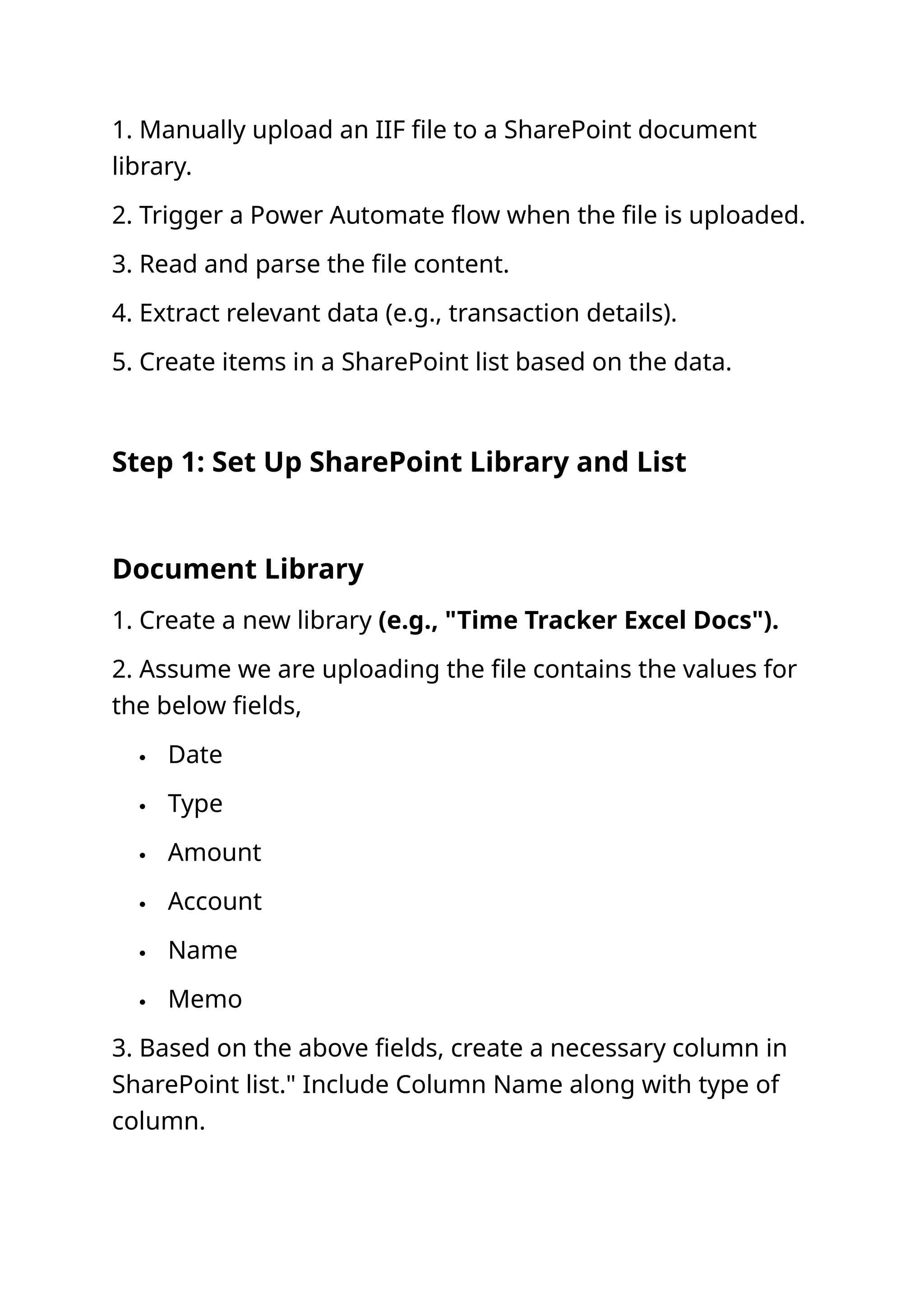
SharePoint List‍ 1. Create a new SharePoint list (e.g., "IIF Uploads Data"). 2. Define necessary columns like:  Date  Type  Amount  Account  Name Step 2: Uploading the IIF File 1. Users to manually upload .iif files to the “Time Tracker Excel Docs” library. 2. Example file name (e.g., Invoices_2025.iif). Step 3: Create Power Automate Flow 1. Trigger Action Use “When a file is created (properties only)” to trigger the document library.
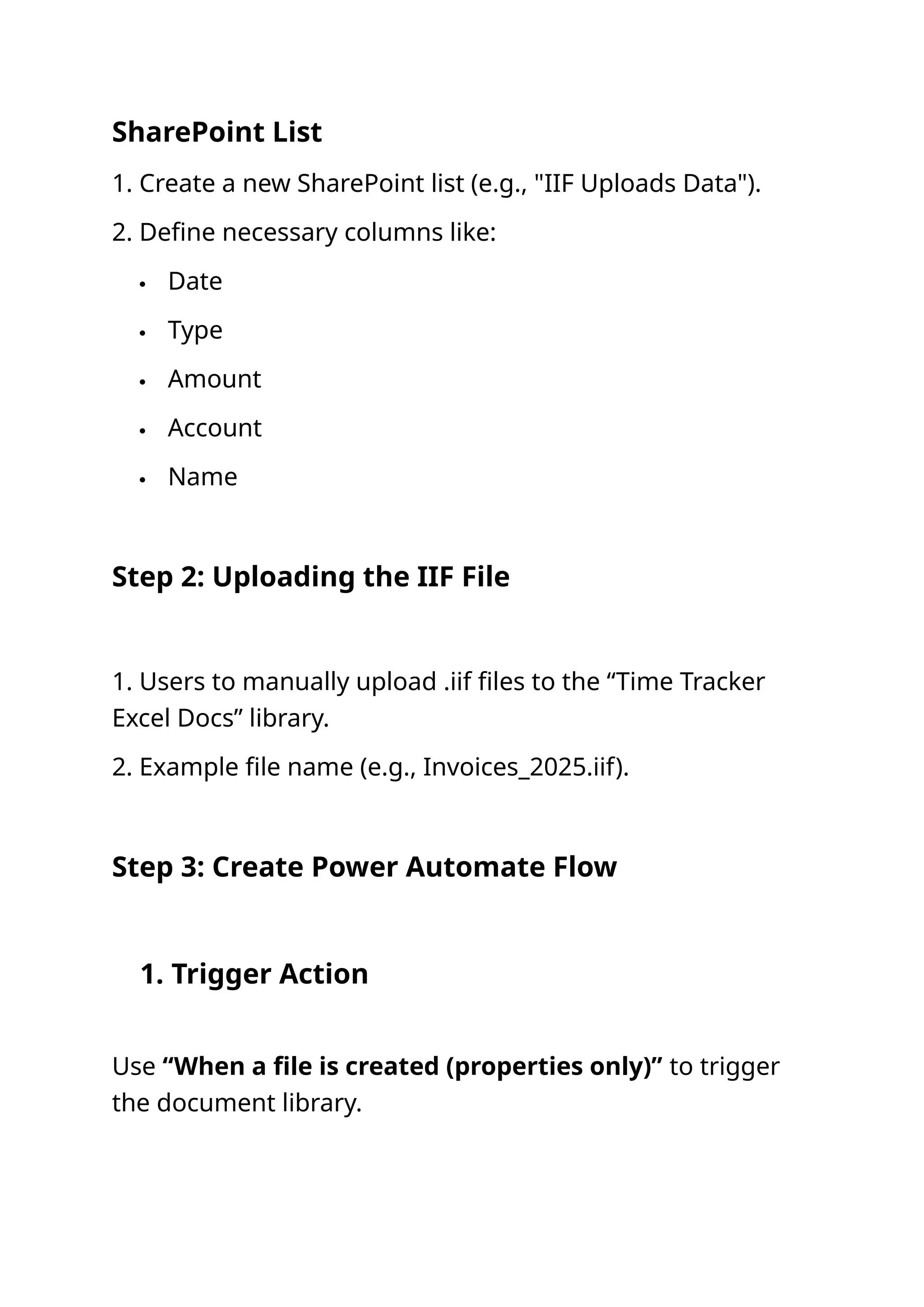
2. Get File Content  Action: “Get file content”  Use the Identifier from the trigger step. 2. Convert File Content from Base64 to String
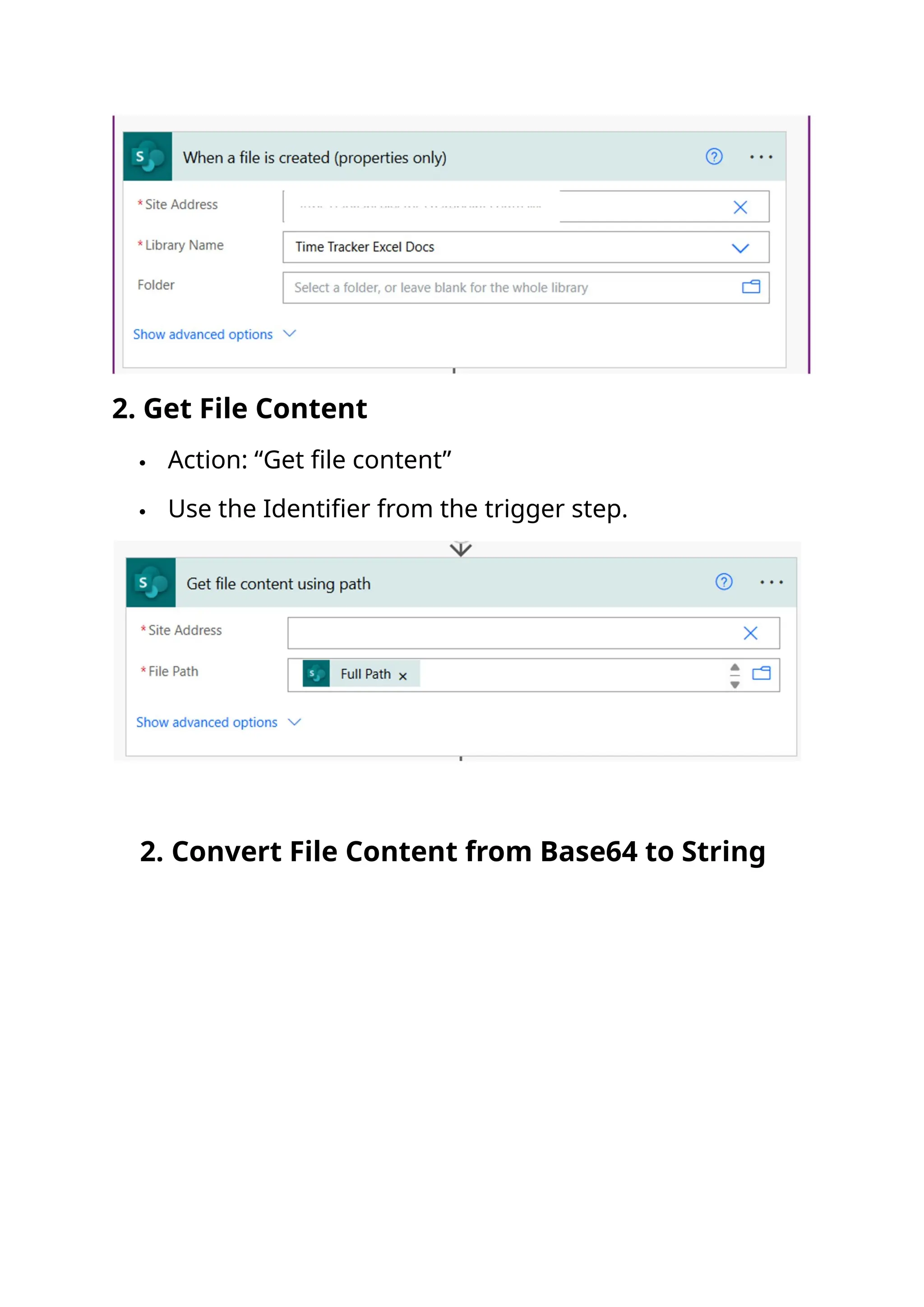
 Action Name: ‘Compose ConvertBase64 IIF’  Description: This Compose action decodes the base64 content of the uploaded .iif file into a readable string format.  Expression Used: base64ToString(body('Get_file_content')? ['$content'])  Create an 'Initialize variable' action named 'varFileItems' with the type set to 'String' and use a 'Set variable 2' action to assign the output of the 'Compose' action to it.  Get file content is the action where the file content is fetched from the SharePoint library.  base64ToString() is the expression that converts the base64-encoded file content into plain text. Need workflow support? We’re here to help Contact Us
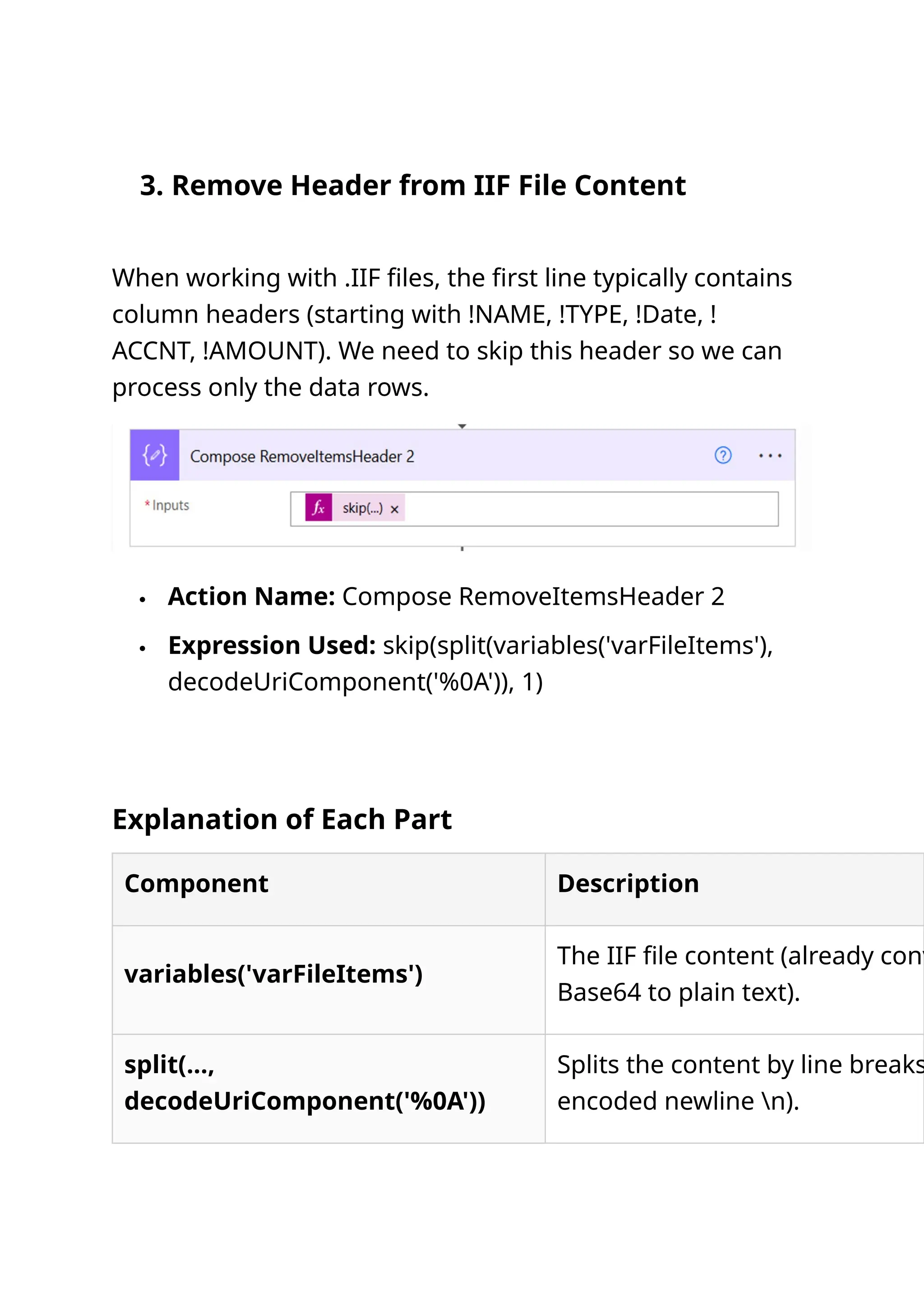
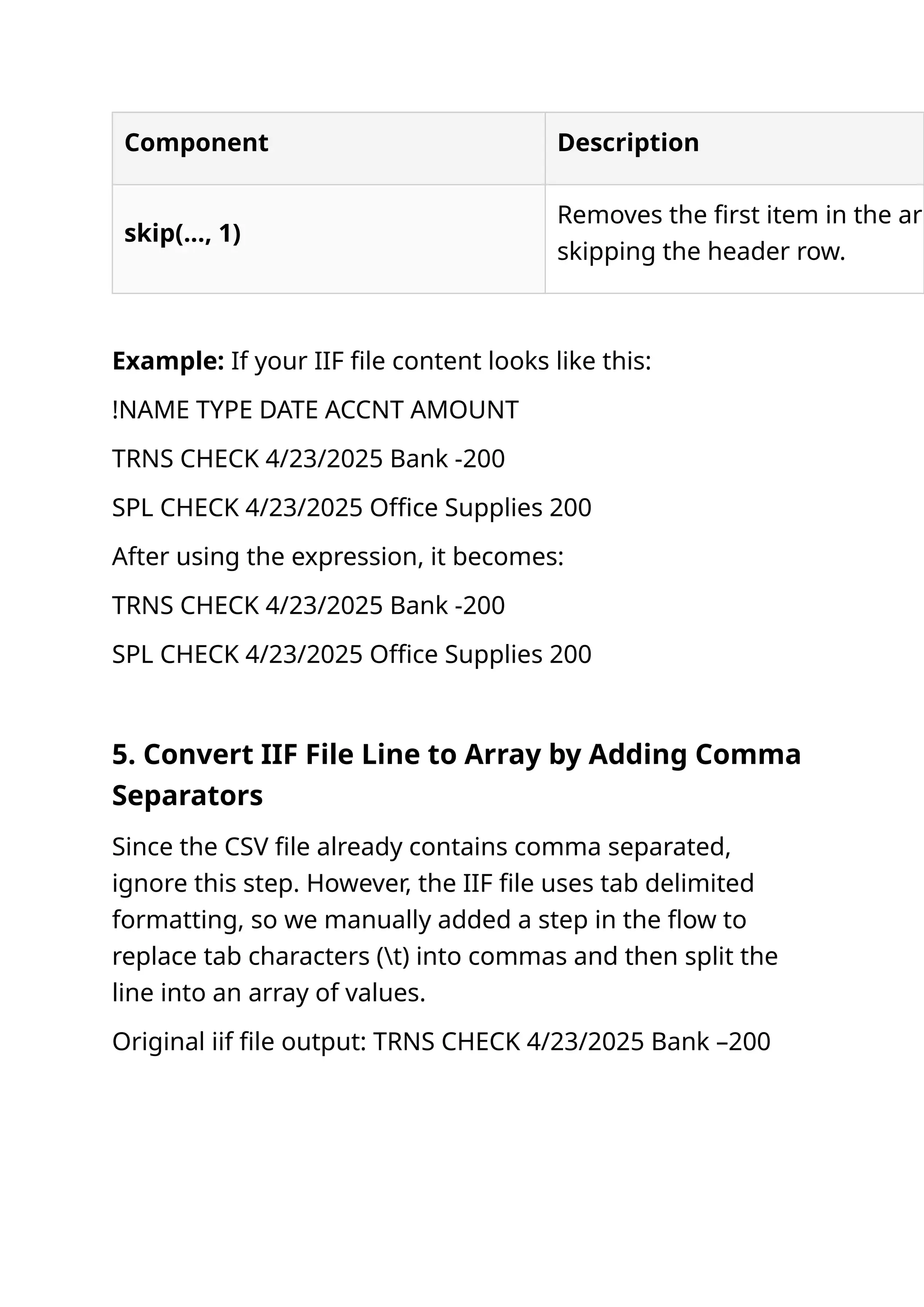
3. Remove Header from IIF File Content When working with .IIF files, the first line typically contains column headers (starting with !NAME, !TYPE, !Date, ! ACCNT, !AMOUNT). We need to skip this header so we can process only the data rows.  Action Name: Compose RemoveItemsHeader 2  Expression Used: skip(split(variables('varFileItems'), decodeUriComponent('%0A')), 1) Explanation of Each Part Component Description variables('varFileItems') The IIF file content (already conv Base64 to plain text). split(..., decodeUriComponent('%0A')) Splits the content by line breaks encoded newline n).
Component Description skip(..., 1) Removes the first item in the arr skipping the header row. Example: If your IIF file content looks like this: !NAME TYPE DATE ACCNT AMOUNT TRNS CHECK 4/23/2025 Bank -200 SPL CHECK 4/23/2025 Office Supplies 200 After using the expression, it becomes: TRNS CHECK 4/23/2025 Bank -200 SPL CHECK 4/23/2025 Office Supplies 200 5. Convert IIF File Line to Array by Adding Comma Separators Since the CSV file already contains comma separated, ignore this step. However, the IIF file uses tab delimited formatting, so we manually added a step in the flow to replace tab characters (t) into commas and then split the line into an array of values. Original iif file output: TRNS CHECK 4/23/2025 Bank –200
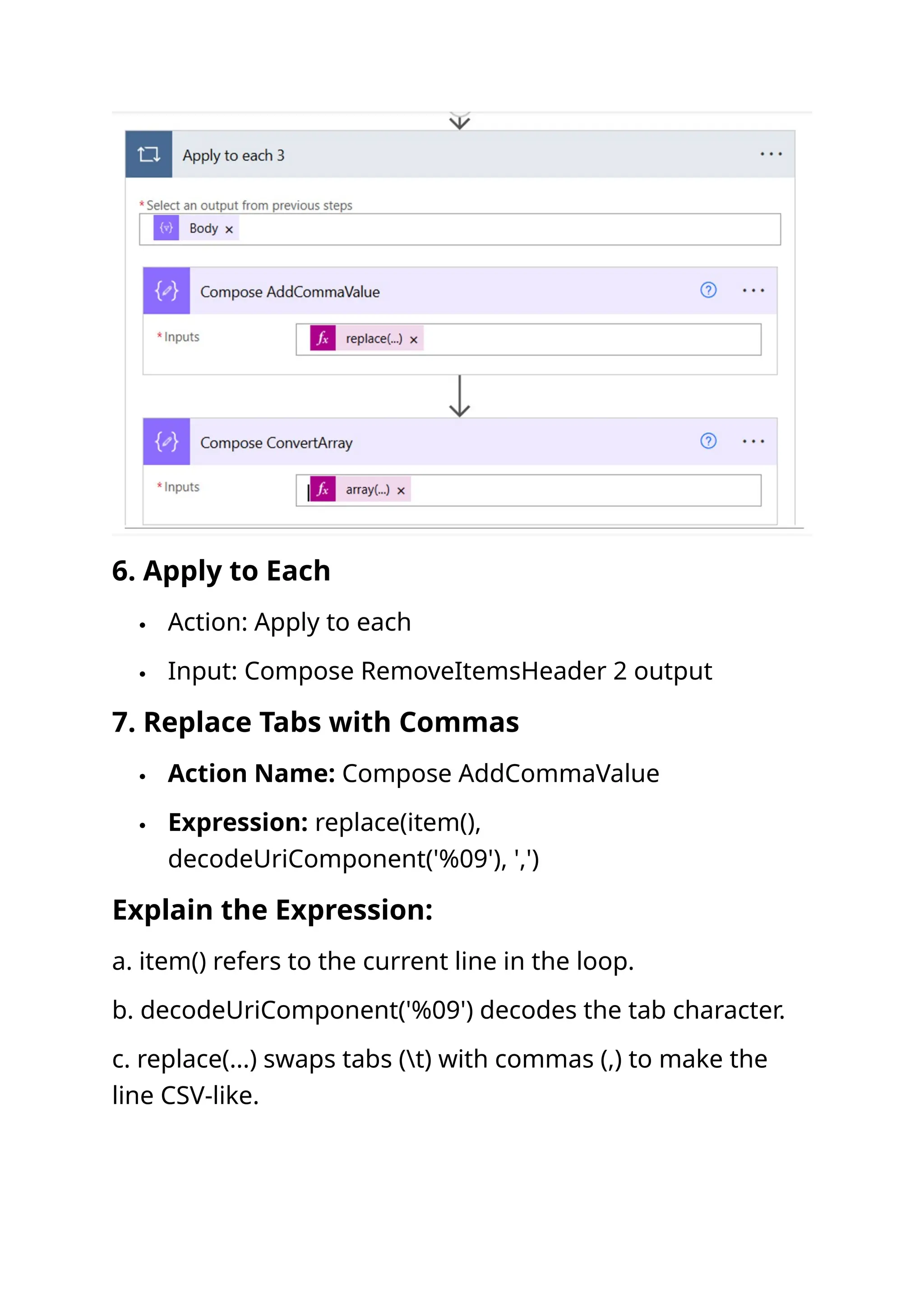
6. Apply to Each  Action: Apply to each  Input: Compose RemoveItemsHeader 2 output 7. Replace Tabs with Commas  Action Name: Compose AddCommaValue  Expression: replace(item(), decodeUriComponent('%09'), ',') Explain the Expression: a. item() refers to the current line in the loop. b. decodeUriComponent('%09') decodes the tab character. c. replace(...) swaps tabs (t) with commas (,) to make the line CSV-like.
d. For example, after adding the commas, the line becomes: TRNS,CHECK,4/23/2025,Bank,-200 8. Convert Line to Array  Action Name: Compose ConvertArray  Expression:array(outputs('Compose_AddCommaValue') )  Converts the comma-separated string into an array.  Now, each value from the line can be referenced by its position in the array (e.g., array[0], array[1]...).  For example, the converted array value would look like: ["TRNS", "CHECK", "4/23/2025", "Bank", "-200"] 9. Create SharePoint List Item  Action: Create item – SharePoint  Site Address: Your site  List Name: IIF Uploads Data  Map SharePoint Columns: Example: a. Name: split(item(), 't')[0] b. Type: split(item(), 't')[1] c. Date : split(item(), 't')[2] After setting up the workflow, uploading a file to Time Tracker Excel Docs triggers the flow. If the file does not match the expected format:
 The workflow may fail or terminate.  No list items can be created.  Error notifications can be triggered if configured. Conclusion Parsing .iif files and creating SharePoint list items using Power Automate is a practical example of how automation can save time and reduce manual data entry errors. With proper handling of file structure and error management, you can easily streamline your QuickBooks-related workflows. Need help setting this up? Our experts can guide you Contact an Expert

Automate IIF File uploads and data extraction with Power Automate and SharePoint

  • 1.
    Automate IIF Fileuploads and data extraction with Power Automate and SharePoint Power Automate SharePoint Services In this blog post, we’ll walk through how to manually upload an Intuit Interchange Format (IIF) file to a SharePoint document library and automatically parse its contents to create list items in a SharePoint list using Power Automate. This can be especially useful when working with QuickBooks for data exports. Scenario Overview
  • 2.
    1. Manually uploadan IIF file to a SharePoint document library. 2. Trigger a Power Automate flow when the file is uploaded. 3. Read and parse the file content. 4. Extract relevant data (e.g., transaction details). 5. Create items in a SharePoint list based on the data. Step 1: Set Up SharePoint Library and List Document Library 1. Create a new library (e.g., "Time Tracker Excel Docs").‍ 2. Assume we are uploading the file contains the values for the below fields,  Date  Type  Amount  Account  Name  Memo 3. Based on the above fields, create a necessary column in SharePoint list." Include Column Name along with type of column.
  • 3.
    SharePoint List‍ 1. Createa new SharePoint list (e.g., "IIF Uploads Data"). 2. Define necessary columns like:  Date  Type  Amount  Account  Name Step 2: Uploading the IIF File 1. Users to manually upload .iif files to the “Time Tracker Excel Docs” library. 2. Example file name (e.g., Invoices_2025.iif). Step 3: Create Power Automate Flow 1. Trigger Action Use “When a file is created (properties only)” to trigger the document library.
  • 4.
    2. Get FileContent  Action: “Get file content”  Use the Identifier from the trigger step. 2. Convert File Content from Base64 to String
  • 5.
     Action Name:‘Compose ConvertBase64 IIF’  Description: This Compose action decodes the base64 content of the uploaded .iif file into a readable string format.  Expression Used: base64ToString(body('Get_file_content')? ['$content'])  Create an 'Initialize variable' action named 'varFileItems' with the type set to 'String' and use a 'Set variable 2' action to assign the output of the 'Compose' action to it.  Get file content is the action where the file content is fetched from the SharePoint library.  base64ToString() is the expression that converts the base64-encoded file content into plain text. Need workflow support? We’re here to help Contact Us
  • 6.
    3. Remove Headerfrom IIF File Content When working with .IIF files, the first line typically contains column headers (starting with !NAME, !TYPE, !Date, ! ACCNT, !AMOUNT). We need to skip this header so we can process only the data rows.  Action Name: Compose RemoveItemsHeader 2  Expression Used: skip(split(variables('varFileItems'), decodeUriComponent('%0A')), 1) Explanation of Each Part Component Description variables('varFileItems') The IIF file content (already conv Base64 to plain text). split(..., decodeUriComponent('%0A')) Splits the content by line breaks encoded newline n).
  • 7.
    Component Description skip(..., 1) Removesthe first item in the arr skipping the header row. Example: If your IIF file content looks like this: !NAME TYPE DATE ACCNT AMOUNT TRNS CHECK 4/23/2025 Bank -200 SPL CHECK 4/23/2025 Office Supplies 200 After using the expression, it becomes: TRNS CHECK 4/23/2025 Bank -200 SPL CHECK 4/23/2025 Office Supplies 200 5. Convert IIF File Line to Array by Adding Comma Separators Since the CSV file already contains comma separated, ignore this step. However, the IIF file uses tab delimited formatting, so we manually added a step in the flow to replace tab characters (t) into commas and then split the line into an array of values. Original iif file output: TRNS CHECK 4/23/2025 Bank –200
  • 8.
    6. Apply toEach  Action: Apply to each  Input: Compose RemoveItemsHeader 2 output 7. Replace Tabs with Commas  Action Name: Compose AddCommaValue  Expression: replace(item(), decodeUriComponent('%09'), ',') Explain the Expression: a. item() refers to the current line in the loop. b. decodeUriComponent('%09') decodes the tab character. c. replace(...) swaps tabs (t) with commas (,) to make the line CSV-like.
  • 9.
    d. For example,after adding the commas, the line becomes: TRNS,CHECK,4/23/2025,Bank,-200 8. Convert Line to Array  Action Name: Compose ConvertArray  Expression:array(outputs('Compose_AddCommaValue') )  Converts the comma-separated string into an array.  Now, each value from the line can be referenced by its position in the array (e.g., array[0], array[1]...).  For example, the converted array value would look like: ["TRNS", "CHECK", "4/23/2025", "Bank", "-200"] 9. Create SharePoint List Item  Action: Create item – SharePoint  Site Address: Your site  List Name: IIF Uploads Data  Map SharePoint Columns: Example: a. Name: split(item(), 't')[0] b. Type: split(item(), 't')[1] c. Date : split(item(), 't')[2] After setting up the workflow, uploading a file to Time Tracker Excel Docs triggers the flow. If the file does not match the expected format:
  • 10.
     The workflowmay fail or terminate.  No list items can be created.  Error notifications can be triggered if configured. Conclusion Parsing .iif files and creating SharePoint list items using Power Automate is a practical example of how automation can save time and reduce manual data entry errors. With proper handling of file structure and error management, you can easily streamline your QuickBooks-related workflows. Need help setting this up? Our experts can guide you Contact an Expert