





Feel free to donate to help support and contribute to this project :) Thanks!


CustomPyQt is a python GUI interface library built from the PySide6 library, providing a modern and consistant interface with styled widgets and dark and light themes; all widget's colors can be styled in ("light", "dark") format. CustomPyQt can also be used or integrated with PySide and PyQt versions as long as PySide6 is installed.
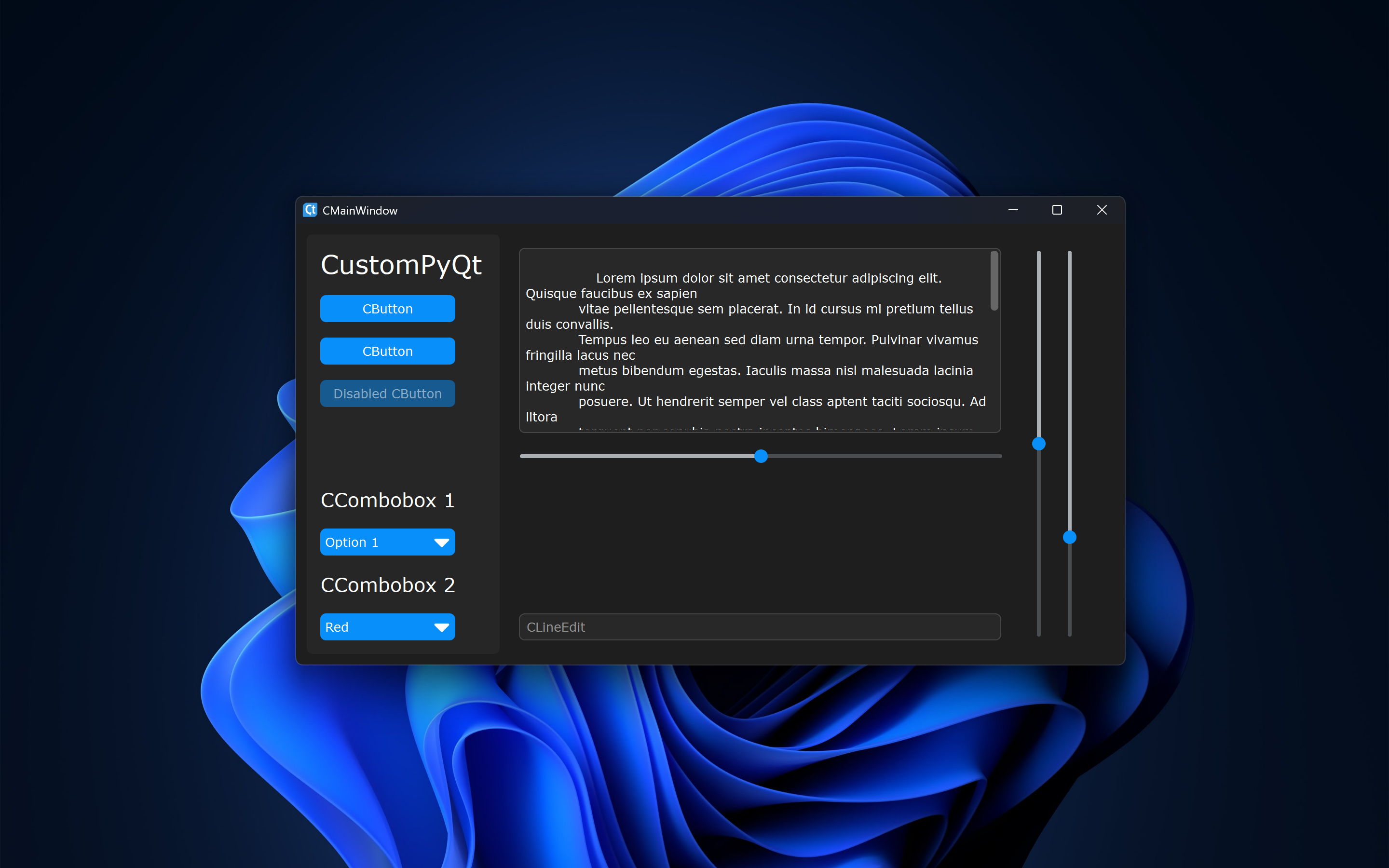
| complex_example.py on Windows 11 with dark mode and "blue" theme
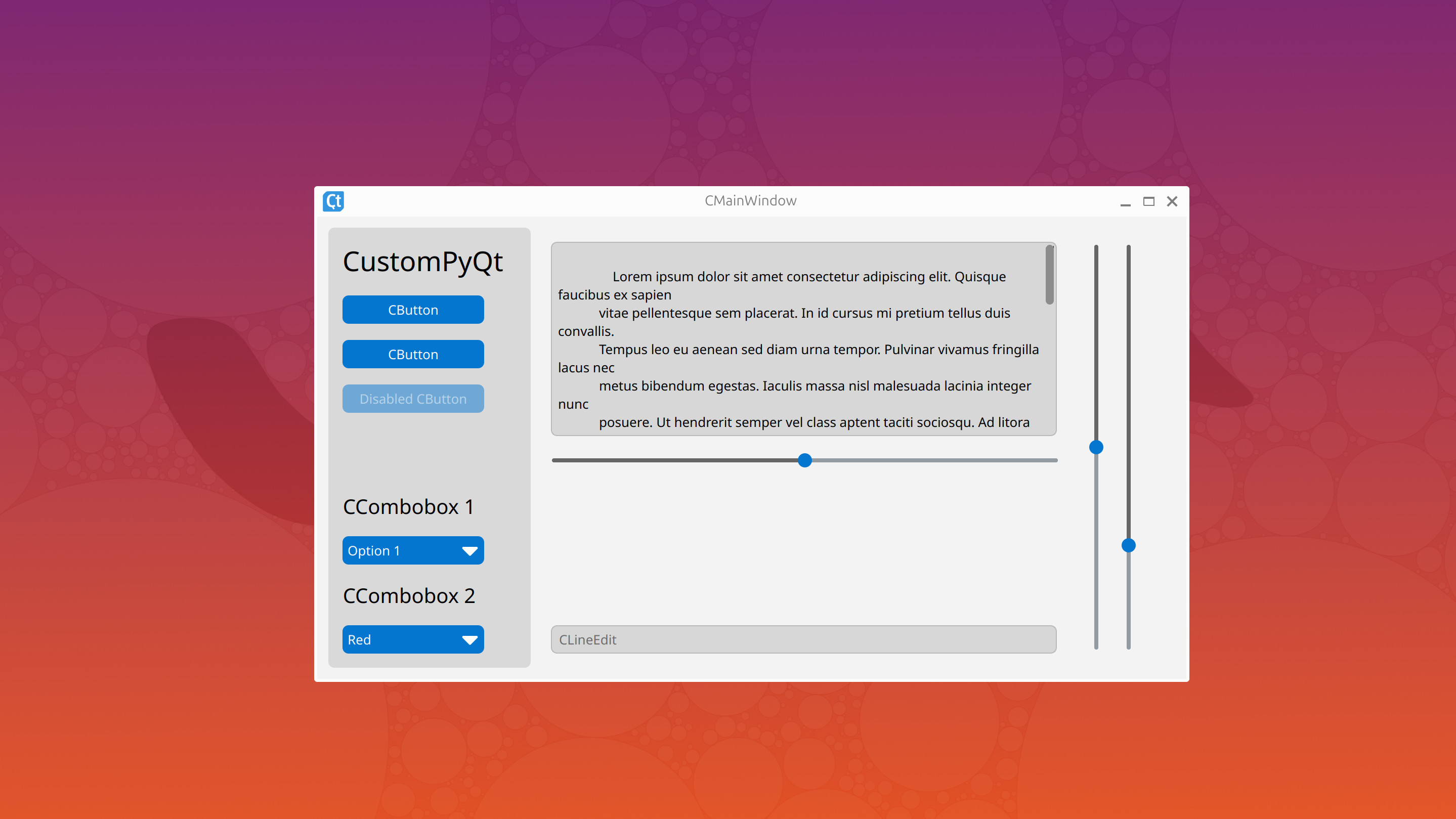
| complex_example.py on Ubuntu 22.04 with light mode and "blue" theme
- Python 3.9, 3.10, 3.11, 3.12, or 3.13
- Pyside6 (you can install with the command
pip install PySide6)
pip install PyCt6 If there is any issues you can try python -m pip install PyCt6 and if that still doesn't work you can also try python3.13 -m pip install PyCt6 using whatever python version you have
The documentation can be found on this Github Wiki page:
CustomPyQt Documentation and Tutorial
Here is a simple example program with only one button to test the CustomPyQt library:
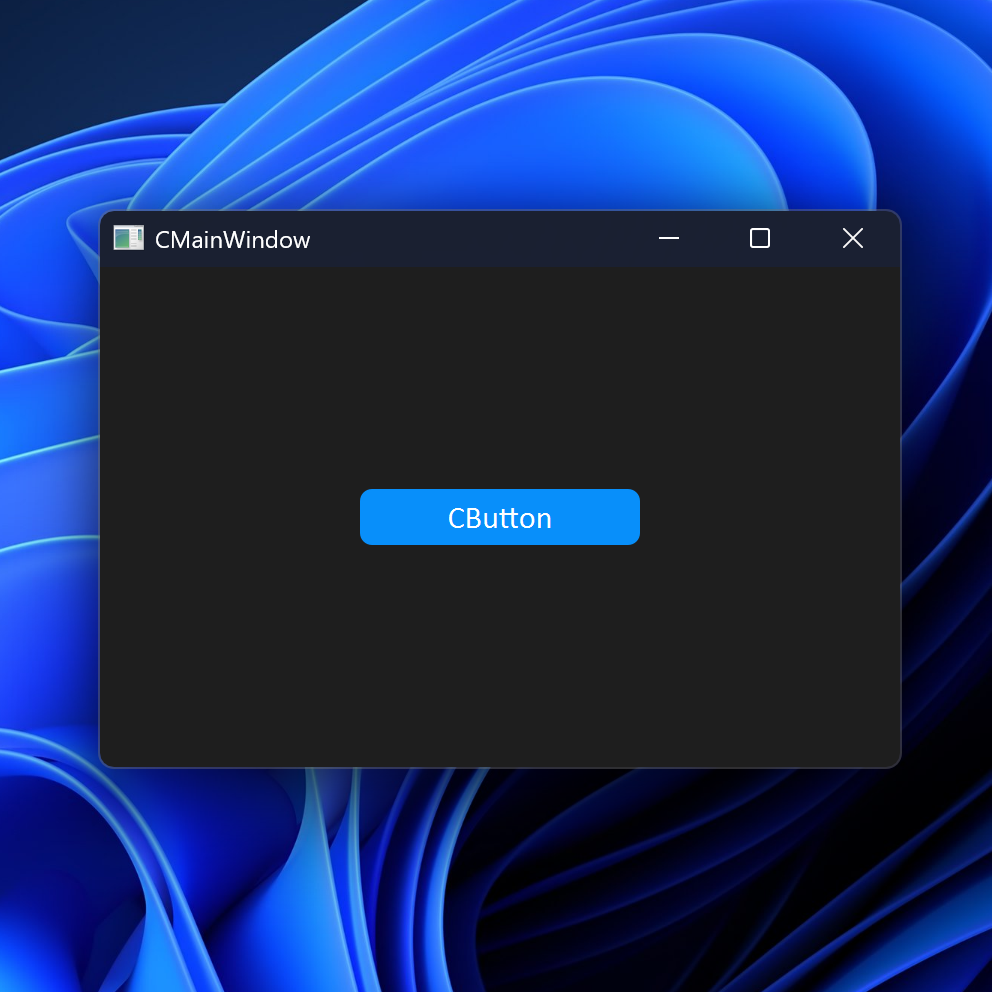
from PyCt6 import CApplication, CMainWindow, CButton, set_appearance_mode, set_color_theme from PySide6.QtWidgets import QVBoxLayout from PySide6.QtCore import Qt set_appearance_mode("system") set_color_theme("blue") class MainWindow(CMainWindow): def __init__(self): super().__init__(width=400, height=250, title="CMainWindow", background_color="rgb(30,30,30)") self.main_layout = QVBoxLayout() self.main_layout.setAlignment(Qt.AlignmentFlag.AlignCenter) self.button = CButton(master=self, text="CButton", command=self.command) self.main_layout.addWidget(self.button) self.setLayout(self.main_layout) def command(self): print("Button Clicked!") app = CApplication() win = MainWindow() win.show() app.exec()which results in this window on Windows 11
You can find more example programs in the examples folder and in the documentation
