
This page describes how to simulate different network conditions on Android Automotive hardware devices in a scalable, low-maintenance way. This environment agnostic network simulation uses commonly available Linux tools that can run on Android Automotive hardware devices.
The following sections describe how to set up and run a network simulation on Android Automotive hardware devices.
Kernel requirement
To enable network simulation on a device under test (DUT), the Linux ifb and netem modules must be configured in the kernel config file, as shown below:
# Network simulation config fragment start CONFIG_NET_SCH_NETEM=y CONFIG_IFB=y CONFIG_NET_ACT_MIRRED=y # Network simulation config fragment end Set up simulation
All network simulations or throttling simulations must be conducted on a device under test (DUT). This simulation uses the Linux tc and NetEm utilities to control network traffic on the network interface controller (NIC) based on the control policy and rules.
To set up the simulation, do the following:
- Connect the DUT and the host server to the internet.
- Create the
NetworkSimulation.shscript by copying it from the code provided in theNetworkSimulation.shscript section and download it on the host server. - Connect the host server to the DUT. Ensure that the DUT appears in the list of connected devices by running
adb devices -l.
For an illustration of the setup architecture, see the following figure:
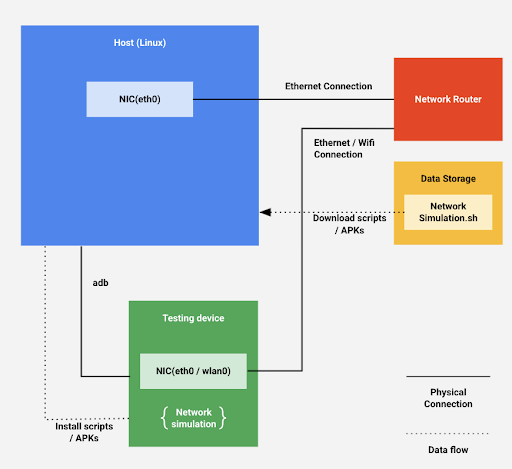
Figure 1. Setup architecture.
NetworkSimulation.sh script
The NetworkSimulation.sh script file contains adb commands that run the network simulation. Copy the following into a file named NetworkSimulation.sh:
#!/bin/bash latency=$1 bandwidth=$2 packetloss=$3 # root device and set it to permissive mode adb root adb shell setenforce 0 #Clear the current tc control adb shell tc qdisc del dev ifb0 root adb shell ip link set dev ifb0 down adb shell tc qdisc del dev wlan0 ingress adb shell tc qdisc del dev wlan0 root # Create a virtual device for ingress adb shell ip link set dev wlan0 up adb shell ip link set dev ifb0 up adb shell tc qdisc del dev wlan0 clsact adb shell tc qdisc add dev wlan0 handle ffff: ingress adb shell tc filter add dev wlan0 parent ffff: protocol all u32 match u32 0 0 action mirred egress redirect dev ifb0 # Throttle upload bandwidth / latency / packet loss adb shell tc qdisc add dev wlan0 root handle 1: htb default 11 adb shell tc class add dev wlan0 parent 1: classid 1:1 htb rate "$bandwidth" adb shell tc class add dev wlan0 parent 1:1 classid 1:11 htb rate "$bandwidth" adb shell tc qdisc add dev wlan0 parent 1:11 handle 10: netem delay "$latency" loss "$packetloss" # Throttle download bandwidth adb shell tc qdisc add dev ifb0 root handle 1: htb default 10 adb shell tc class add dev ifb0 parent 1: classid 1:1 htb rate "$bandwidth" adb shell tc class add dev ifb0 parent 1:1 classid 1:10 htb rate "$bandwidth" Execute simulation
To execute a network simulation, the adb commands in the NetworkSimulation.sh script file use command line arguments to set values.
To specify the latency, bandwidth, and packet loss you want to simulate, run the NetworkSimulation.sh script with the following command line arguments:
- Latency, specified in ms.
- Bandwidth, specified in kbit or mbit.
- Packet loss, as a percentage.
For example, to set a 300ms latency, 100kbit bandwidth and 50% packet loss, run:
bash NetworkSimulation.sh 300ms 100kbit 50% To set a 100ms latency, 1mbit bandwidth and 0% packet loss, run:
bash NetworkSimulation.sh 100ms 1mbit 0% Verify simulation
After executing the NetworkSimulation.sh script, verify that the network simulation is configured correctly and is running as expected using the Linux ping and curl commands. Use the ping command to verify the latency and the curl command to verify the bandwidth.
For example, the following is the expected output of ping for a simulation executed with bash NetworkSimulation.sh 100ms 500kbit 10%:
BUILD:/ # ping -c 20 www.google.com PING www.google.com (172.217.5.100) 56(84) bytes of data. 64 bytes from sfo03s07-in-f4.1e100.net (172.217.5.100): icmp_seq=1 ttl=119 time=103 ms 64 bytes from sfo03s07-in-f4.1e100.net (172.217.5.100): icmp_seq=2 ttl=119 time=105 ms 64 bytes from sfo03s07-in-f4.1e100.net (172.217.5.100): icmp_seq=3 ttl=119 time=103 ms 64 bytes from sfo03s07-in-f4.1e100.net (172.217.5.100): icmp_seq=5 ttl=119 time=103 ms 64 bytes from sfo03s07-in-f4.1e100.net (172.217.5.100): icmp_seq=6 ttl=119 time=103 ms 64 bytes from sfo03s07-in-f4.1e100.net (172.217.5.100): icmp_seq=7 ttl=119 time=103 ms 64 bytes from sfo03s07-in-f4.1e100.net (172.217.5.100): icmp_seq=9 ttl=119 time=103 ms 64 bytes from sfo03s07-in-f4.1e100.net (172.217.5.100): icmp_seq=10 ttl=119 time=103 ms 64 bytes from sfo03s07-in-f4.1e100.net (172.217.5.100): icmp_seq=11 ttl=119 time=185 ms 64 bytes from sfo03s07-in-f4.1e100.net (172.217.5.100): icmp_seq=12 ttl=119 time=103 ms 64 bytes from sfo03s07-in-f4.1e100.net (172.217.5.100): icmp_seq=13 ttl=119 time=103 ms 64 bytes from sfo03s07-in-f4.1e100.net (172.217.5.100): icmp_seq=14 ttl=119 time=103 ms 64 bytes from sfo03s07-in-f4.1e100.net (172.217.5.100): icmp_seq=15 ttl=119 time=103 ms 64 bytes from sfo03s07-in-f4.1e100.net (172.217.5.100): icmp_seq=16 ttl=119 time=103 ms 64 bytes from sfo03s07-in-f4.1e100.net (172.217.5.100): icmp_seq=17 ttl=119 time=103 ms 64 bytes from sfo03s07-in-f4.1e100.net (172.217.5.100): icmp_seq=18 ttl=119 time=103 ms 64 bytes from sfo03s07-in-f4.1e100.net (172.217.5.100): icmp_seq=19 ttl=119 time=103 ms 64 bytes from sfo03s07-in-f4.1e100.net (172.217.5.100): icmp_seq=20 ttl=119 time=103 ms --- www.google.com ping statistics --- 20 packets transmitted, 18 received, 10% packet loss, time 19040ms rtt min/avg/max/mdev = 103.394/108.307/185.756/18.791 ms
This example shows that ping reports a packet loss at 10% and average latency close to 108ms, which is as expected for the 100ms value specified in the simulation. It's normal for the reported latency to differ from the specified value by a small amount.
For the same example, the following is the expected output of running the curl command.
BUILD:/sdcard/DCIM # curl https://images-assets.nasa.gov/image/PIA15416/PIA15416~orig.jpg -o foo.jpg % Total % Received % Xferd Average Speed Time Time Time Current Dload Upload Total Spent Left Speed 100 6598k 100 6598k 0 0 49220 0 0:02:17 0:02:17 --:--:-- 47574
This example shows that curl reports the average download speed at 49220 Bps, which is as expected for the 500kbit specified in the simulation. It's normal for the reported bandwidth to differ from the specified value by a small amount.