To make it easier to use this project we stared maintaing our own Language-learning Focused suwayomi-fork
have a suggetion or want to have a chat? Join mangatan's discord server
Welcome! This guide provides the steps to get your OCR server running for a seamless reading experience.
This project relies on Suwayomi which is a free, open source, and cross-platform manga reader server that runs extensions built for Mihon (Tachiyomi).
With manga from Suwayomi, Mangatan will automatically make each pages' text scannable for Yomitan and other dictionary software.
- 💻 Combined Server(Recommended) | Combines the below 2 methods into one easy to use script.
- 💻 For PC/Desktop (Node.js) | The old method, still up-to-date and works just fine.
- 🐍 For PC - Local OCR (Alternative Python Server) | Locally run ocr server instead of google lens.
- 📱 For Android | Host Mangatan and Suwayomi on your mobile device!
- 📱 For Android Alternative | Rely on a host server!
There are multiple ways to run the OCR itself, the recommneded way is using the simplified combined server below.
-
Suwayomi-Server
- First, download and set up the Suwayomi-Server.
- Follow the installation instructions provided on their official GitHub page to get it running.
-
Tampermonkey Extension & Userscript
- Get the Tampermonkey extension for your browser. ( allow access to file urls in your browser's extension settings)
- Then, install the required userscript for this project from this GitHub repository.
-
Install uv
-
Run one of the following commands in the
ocr-serverfolder:# Run with Google Lens ( Use Google to proccess ) uv run server.py # Run with OneOCR ( Use local computer to proccess ) uv run server.py -e=oneocr
Your ocr server should now be active and ready to use. To stop it at any time, return to the terminal window and press Ctrl + C.
(This entire project was tested kindly by sonphamthai on Discord, Demo By Rin) 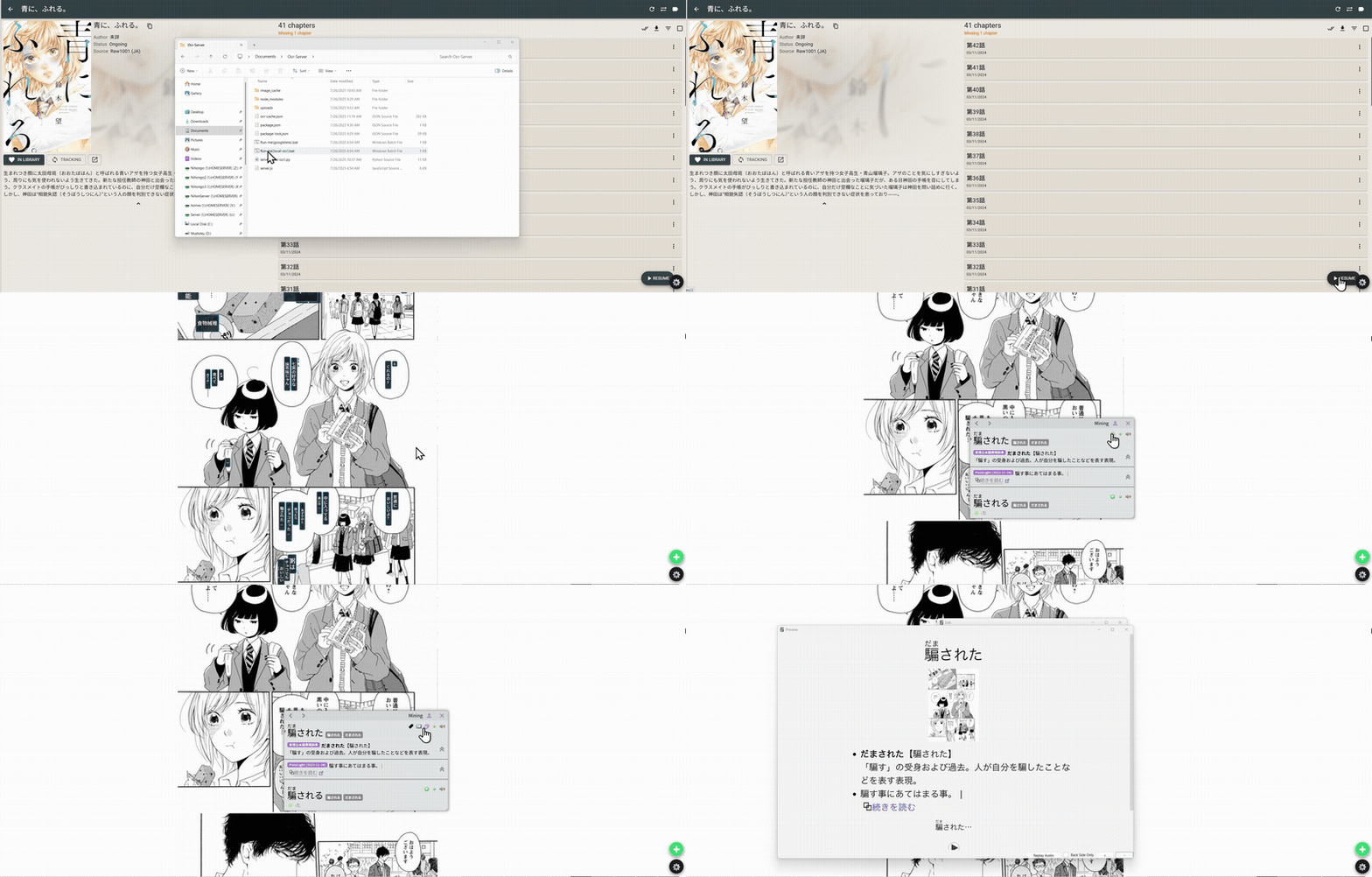
You'll need a few things before you start. Please install them in the following order.
-
Suwayomi-Server
- First, download and set up the Suwayomi-Server.
- Follow the installation instructions provided on their official GitHub page to get it running.
-
Tampermonkey Extension & Userscript
- Get the Tampermonkey extension for your browser.
- Then, install the required userscript for this project from this GitHub repository.
-
Node.js Environment
- This provides the runtime (
node) and package manager (npm) needed to run the OCR server. - Please download and install Node.js first.
- You can verify if you have it by opening a terminal or command prompt and running:
node -v npm -v
- This provides the runtime (
- Download the
ocr-server-legacyproject files as a ZIP and unzip the folder. - Open your terminal or Command Prompt and navigate into the unzipped
ocr-server-legacyfolder. /Step 2 Get the OCR Server Source Code/1. downloading ocr server.gif)
/Step 2 Get the OCR Server Source Code/1. downloading ocr server.gif)
Now, from inside the ocr-server-legacy project folder in your terminal:
- Copy this command then paste (Ctrl+V) then press enter:
npm ci
- This command downloads all required libraries into a
node_modulesfolder.
- This command downloads all required libraries into a
With all dependencies installed, you're ready to start the server.
- Run the following command in your terminal:
node server.js
- On Windows: You can also run the
Runme.batfile if it's available.
- View Translations: Simply move your mouse cursor over any image or manga panel. The OCR overlay will appear automatically.
- Focus on Text: To make a specific text box clearer, just hover your mouse over it.
- Configuration: Click the
⚙️(gear) icon at the bottom-right to open the settings panel. - Persistent Caching: The server now automatically saves all OCR results to a file named
ocr-cache.json. Your cache will be reloaded the next time you start the server. - Cache Management:
- To Export: Open a new browser tab to
http://127.0.0.1:3000/export-cacheto download your cache file. - To Import: Use the settings panel in the userscript to upload a previously saved
ocr-cache.jsonfile.
- To Export: Open a new browser tab to
- Anki Export: After hovering on an image to make the overlay visible, a
✚button will appear. Tapping this button will export a screenshot of the image to the last created card in Anki.
This is a high-performance, alternative local OCR server written in Python. It does not require Node.js and processes images directly on your machine.
- You must have Python installed. You can download it from the official Python website.
- Ensure you have the Tampermonkey extension and the project's userscript installed in your browser, as described in the PC/Desktop section.
- Install OneOCR
- Open your terminal or Command Prompt.
- Navigate into the
ocr-server-legacyfolder. - Run the following command to install the required Python libraries:
pip install oneocr waitress flask aiohttp Pillow "Flask[async]"
- From the same terminal window, run the following command:
python local_server.py
- The server will start on
http://127.0.0.1:3000. - Optionally, run
runme(local-server).bat
- Once the server is running, make sure the OCR Server URL in the userscript settings (
⚙️icon) is set tohttp://127.0.0.1:3000. - The server will automatically create and manage an
ocr-cache.jsonfile in its folder.
For Android users, you'll need Termux.
Recommended Browser for Android: For the best experience, it's recommended to use Edge Canary , Firefox or another browser that supports extensions. After installing it, install the Tampermonkey extension.
To install the userscript, go to Tampermonkey's Dashboard -> Utilities -> "Install from File" after you download from this repository, or simply copy-paste the code.
-
Install Termux:
-
Set up Suwayomi-Server in Termux:
- Open a Termux session and run the following command to install and configure Suwayomi-Server. This sets up a simple
suwayomicommand for you to use.
pkg update -y && pkg install -y openjdk-21 wget jq libandroid-posix-semaphore && mkdir -p ~/suwayomi/bin && LATEST_JAR_URL=$(curl -s https://api.github.com/repos/Suwayomi/Suwayomi-Server/releases/latest | jq -r '.assets[] | select(.name | endswith(".jar")) | .browser_download_url') && wget -O ~/suwayomi/SuwayomiServer.jar "$LATEST_JAR_URL" && echo -e '#!/data/data/com.termux/files/usr/bin/bash\njava -jar ~/suwayomi/SuwayomiServer.jar' > ~/suwayomi/bin/suwayomi && chmod +x ~/suwayomi/bin/suwayomi && echo 'export PATH="$HOME/suwayomi/bin:$PATH"' >> ~/.bashrc && source ~/.bashrc
- From now on, you can always run Suwayomi by just typing
suwayomiin Termux.
- Open a Termux session and run the following command to install and configure Suwayomi-Server. This sets up a simple
-
Set up Mangatan OCR Server in Termux:
- In another Termux session, run the single command below. It has been revised to be more stable and will download the server, install all dependencies by correctly forcing the platform compatibility for Termux, and create a handy
mangatanstartup command. - Copy the entire command block and paste it into your Termux terminal, then press Enter.
rm -rf ~/Mangatan && pkg install -y git nodejs && git clone https://github.com/kaihouguide/Mangatan && cd Mangatan/ocr-server-legacy && npm install express chrome-lens-ocr multer node-fetch --force && mkdir -p ~/bin && echo -e '#!/data/data/com.termux/files/usr/bin/sh\ncd ~/Mangatan/ocr-server-legacy && node server.js' > ~/bin/mangatan && chmod +x ~/bin/mangatan && echo 'export PATH=$HOME/bin:$PATH' >> ~/.bashrc && source ~/.bashrc
- After the command above finishes, run these next commands one-by-one to finalize the installation.
npm install --cpu=wasm32 sharp --force
npm install @img/sharp-wasm32 --force
rm -rf node_modules package-lock.json
npm install --force
- In another Termux session, run the single command below. It has been revised to be more stable and will download the server, install all dependencies by correctly forcing the platform compatibility for Termux, and create a handy
After this, you can always start the Mangatan server by just typing mangatan in Termux.
- Open Termux and write
suwayomi, swipe from left to right to open a new session*, and writemangatan. Then go to127.0.0.1:4567and start reading. *If you have swipe gestures, swipe from bottom left, upwards. - Toggle Overlay: Long-press (press and hold for about half a second) on an image to show or hide the OCR text overlay.
- Tap-to-Focus: Once the overlay is visible, tap on any specific text box to highlight it.
- Configuration: Tap the
⚙️(gear) icon to open the settings panel. From here you can change the color theme, text orientation, Anki settings, and more. - Anki Export: After long-pressing an image to make the overlay visible, a
✚button will appear. Tapping this button will export a screenshot of the image to the last created card in Anki. - Note: The persistent cache file (
ocr-cache.json) will be stored in the~/Mangatan/ocr-server-legacydirectory.
Here is the updated response with the new header you requested.
This section provides an alternative setup method for users who prefer to run the servers on a desktop or host machine and access them from their mobile device.
-
Download and Set up Suwayomi & OCR on Host Machine:
- Begin by downloading and configuring both the Suwayomi-Server and Mangatan OCR-Server on your host computer (Windows, macOS, or Linux).
-
Configure Suwayomi and OCR URLs:
-
Suwayomi Setup:
- Locate the
server.conffile, which is typically found in the application data directory. - Change the
server.ipsetting to your host machine's IP address. More information on the default data directory locations can be found below.
Data Directory Locations:
- Windows 7 and later:
C:\Users\<Account>\AppData\Local\Tachidesk - Windows XP:
C:\Documents and Settings\<Account>\Application Data\Local Settings\Tachidesk - macOS:
/Users/<Account>/Library/Application Support/Tachidesk - Unix/Linux:
/home/<account>/.local/share/Tachidesk
- Locate the
-
OCR Setup:
- Launch the Mangatan OCR server with a custom argument to specify its IP address.
- Use the command-line argument
--ip <your_host_ip_address>when starting the server.
-
-
Mobile Setup:
- On your Android device, install the Tampermonkey extension on your preferred browser (e.g., Edge Canary, Firefox).
- Install the tampermonkey and the script from the repository.
- After installation, adjust the IP addresses and port numbers in the scripts's settings to match the ones you configured on your host machine. This will allow your mobile browser to connect to the servers running on your desktop. (You will have to do this every script update——For now.)
-
Automate Startup: For the most reliable performance, you should run the Suwayomi server and the OCR server as separate services. This allows a tool like NSSM (Non-Sucking Service Manager) to monitor and restart each component independently if it crashes.
-
Example Script for Suwayomi Server: To launch the core server directly and avoid any issues with the launcher, create a
.batfile with the following content. Make sure to use the specific Java runtime that comes with the application.@echo off cd /d "<path-to-suwayomi-server-folder>" "<path-to-suwayomi-server-folder>\jre\bin\java.exe" -jar "<path-to-suwayomi-server-folder>\bin\Suwayomi-Server.jar"
-
Example Script for OCR Server: The OCR server should be in a separate
.batfile and configured as its own service.@echo offs cd /d "<path-to-suwayomi-server-folder>\ocr-server-legacy" node server.js --cache-path "<your-cache-path>" --ip <your-ip-address> --port <your-port>
-
Important: You must use absolute paths for both the
cdcommands and the executable files. NSSM services often run with a different environment than your user account, so relative paths may not work correctly.
- You will have to go into tampermonkey and change each value of 127.0.0.1 to your host IP, this will have to be repeated every time you update your script!