Install RaspianOS with a customizable Cinnamon-desktop and some modern styles.
'Cinnamon' uses more ressources than other desktops. You can try if it's suitable for you on a Raspberry 3b+ or 4b. Otherwise you can install RaspianOS with an also costumizable mate-desktop: https://github.com/TRMSC/raspian-mate-modified
There is plan for making a theme or an image in this repository. Till then you can use the description in this file.
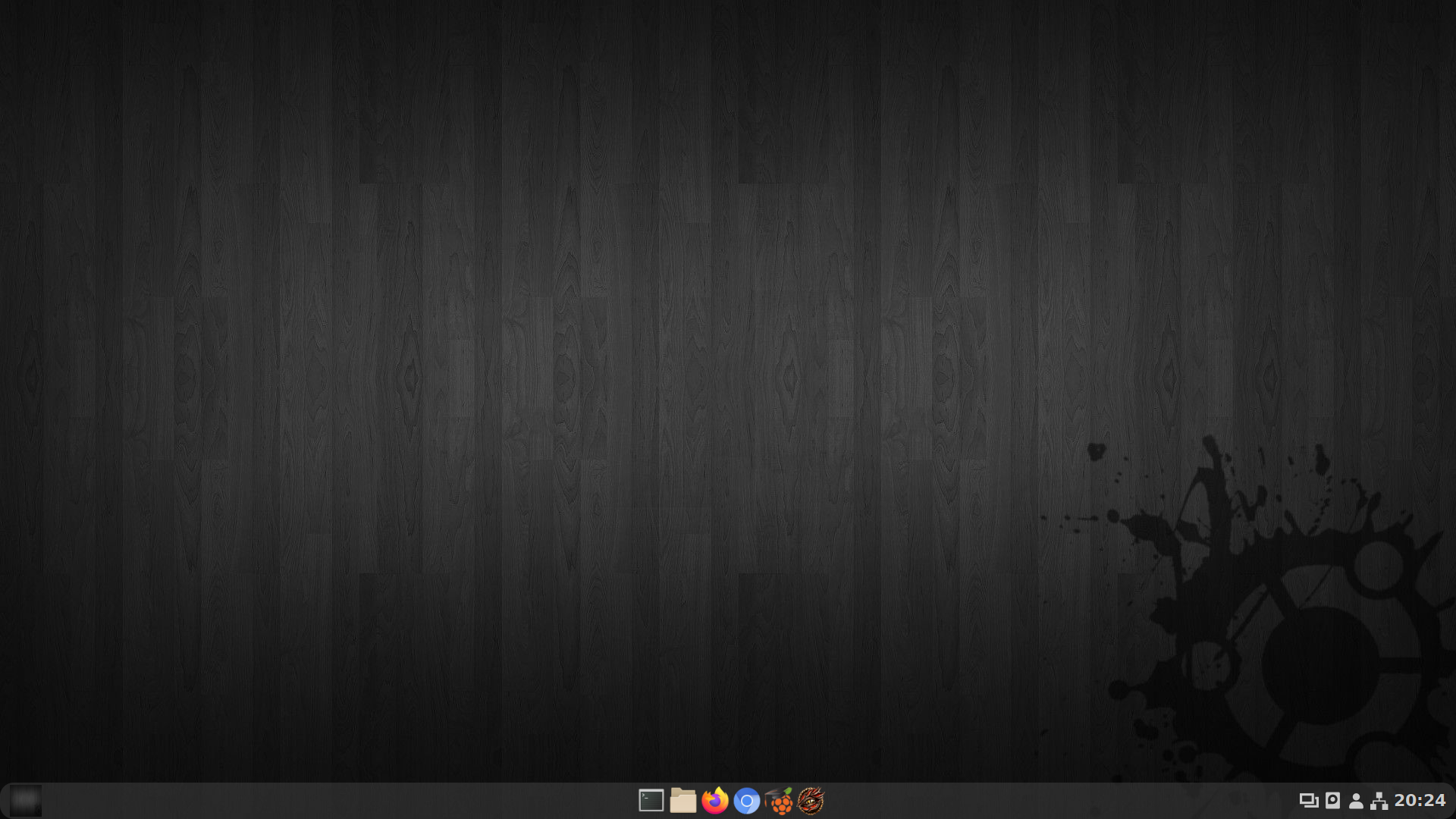
The wallpaper on the image in this repository is from https://wallpaper.dog/dark-linux-mint-wallpapers. Got inspirations for this article from https://mike632t.wordpress.com/2015/08/10/installing-cinnamon-jessie/.
- Download the image:
Get the latest RaspianOS LIGHT-image on https://www.raspberrypi.org/software/operating-systems/
Flash the image on a SD-Card.
- First settings
Login - userame: pi - password: raspberry (if it doesn't work you have to use a 'z' instead of the 'y')
sudo raspi-config Localitation options:
- Select time-zone
- Change keyboard layout (for example Generic 105-Key-PC)
- Select wifi-country
- Press escape
Make a reboot.
sudo reboot now - WiFi
If you have an internet-connecion by lan-cable you can skip this step.
sudo nano /etc/wpa_supplicant/wpa_supplicant.conf Add to the end of the file:
network={ ssid="networkname" psk="networkpassword" } Press CTRL+O - Enter - CTRL+X
sudo reboot now - Select language
Now you can change the language.
sudo raspi-config Localitation options - Change Locale:
- Select with space for example en_US.UTF-8 or de_DE.UTF-8.
- Unselect the languages you don't need if they are selected.
- Press enter.
- Select the default language und press enter again.
- Press escape when finished.
Make a reboot.
sudo reboot now - Update & Upgrade
Let's do an update and upgrade.
sudo apt update && sudo apt upgrade -y - User
Create a new user for example 'monica':
sudo useradd -m monica -G sudo Select a password:
sudo passwd monica sudo reboot now - Login
Login with your new useraccount.
If you want you can delete the pi-user by typing in:
sudo deluser -remove-home pi sudo rm /etc/sudoers.d/010_pi-nopasswd - Install the desktop
Now everything is done for installing:
sudo apt-get install xserver-xorg xserver-xorg-core xfonts-base xinit cinnamon-core lightdm libgl1-mesa-dri x11-xserver-utils gnome-terminal --no-install-recommends Make a reboot:
sudo reboot now - Style the cinnamon.css
In further versions I want to make a whole theme or finished image in this repository.
For now you can make some changes manually.
sudo nano /usr/share/cinnamon/theme/cinnamon.css Change some stylesheets by replacing the following sections or individual parts:
.menu { border-radius: 35px 5px 35px 10px; /*rounded corners*/ background-color: rgba(80,80,80,0.9); border-width: 1px; border-color: #ffffff; color: #ffffff; /*textcolor*/ min-width: 100px; margin-bottom: 5px; /*distance to the panel*/ margin-left: 5px; /*distance to the left*/ } #panel { color: #ffffff; /*textcolor*/ background-color: rgba(80,80,80,0.4); border: 1px solid rgba(80,80,80,0.7); border-radius: 18px; /*rounded corners*/ font-weight: normal; height: 50px; /*change high depended on your screen*/ width: 32px; padding-left: 15px; /*left distance to the menu-button*/ padding-right: 15px; /*right distance to the clock*/ margin-left: 5px; /*left distance to the screen*/ margin-right: 5px; /*right distance to the screen*/ } Press CTRL+O - Enter - CTRL+X
Go to menu - settings - themes and activate 'cinnamon' for desktop.
You can get the original cinnamon.css back here: https://github.com/linuxmint/cinnamon/blob/master/data/theme/cinnamon.css
- More changes
The changes you made are only for the menu and panel. Further you can make the following changes:
- You can change 'controls' to 'Adwaita-dark'
- You can download more themes by clicking 'Add/ remove' - for example 'Adapta-Nokto' for the window-borders
Application-symbols in the middle of the panel:
- Rightclick on the panel - 'Add applets to panel' and choose 'panel launchers'
- Rightclick on the panel - 'Panel editing mode'
- Take the new symbols to the middle of the panel
- Rightclick on the panel - 'Panel editing mode' (deactivate)
- Now you can get more symbols there by rightclick on applications in the menu - 'add to panel'
You also can change the following:
- Rightclick on 'menu' - configure for deleting the menu-text and choose an individual icon
- Change the background image by clicking right on the desktop
- Optional packages
You have a distribution without recommended software. If you want you can for example install the following tools:
sudo apt-get install chrome-browser #browser sudo apt-get install firefox-esr #browser sudo apt-get install geany #editor sudo apt-get install gnome-utils #eg screenshot-tool sudo apt-get install synaptic #paketmanager