A work in progress, DJ mixing webapp with streaming support, where the UI runs on your browser.
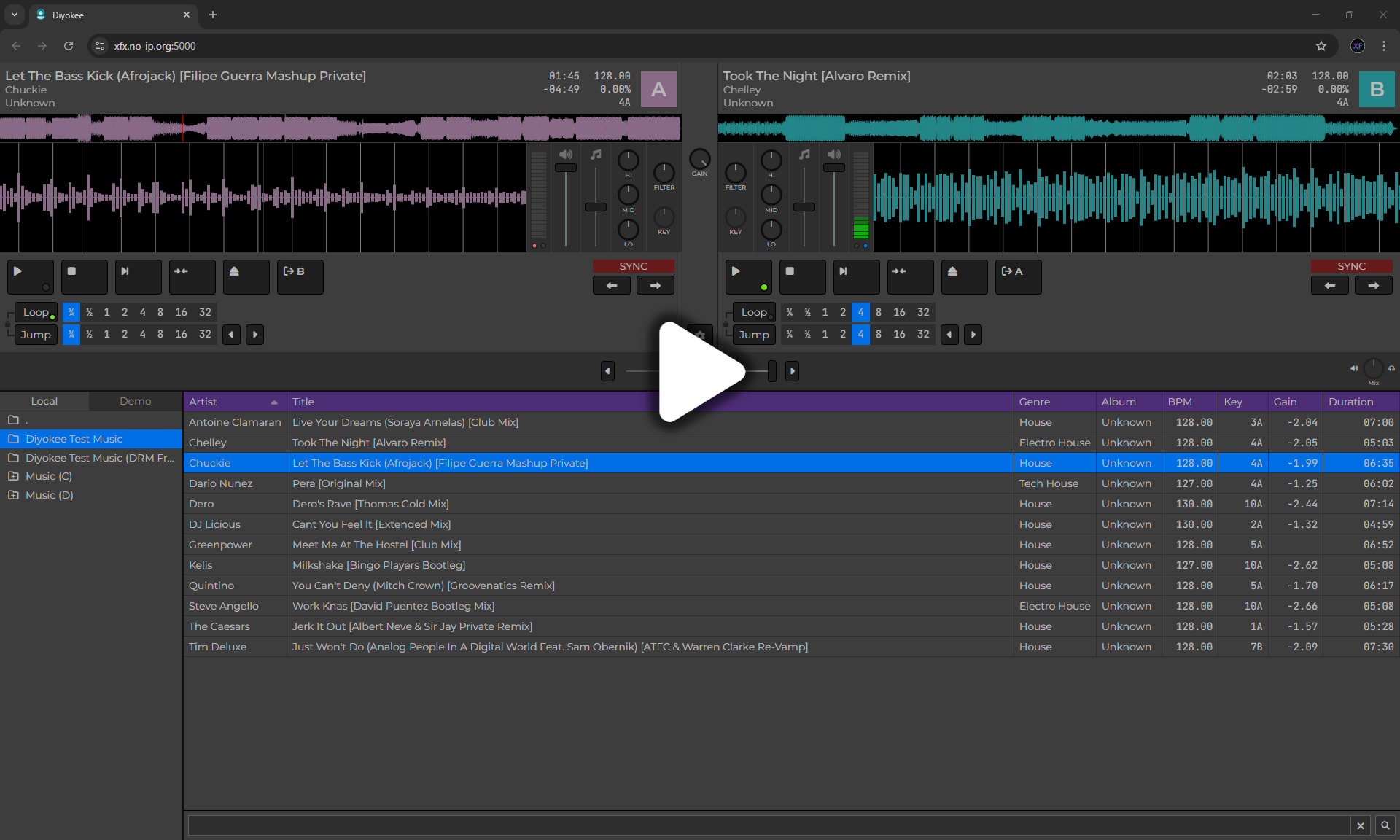 *You will notice that while loading some tracks the UI freezes. This has been greatly improved in version 2025.11.11
- To load a track into a player, drag & drop the track or select the track and click the
 button. You can also use
 Ctrl+Alt+AorCtrl+Alt+Bkeys on your keyboard to load a track into the A or B player, respectively. - Click the
 button to start playing.
 - Click the
 button to stop playback and move to the beginning of the track.
 - Click the
 button to define a cue point. At this moment, only one cue point can be defined, and it will always snap to the nearest beat marker.
 - Click the
 button to jump to the cue point. Leave the button pressed to temporarily play the track from the cue point.
 - Click the
 button to sync the track to the other player
 - Use the
 fader to change the volume.
 - Use the
 fader to change the tempo (BPM).
 - Use the Hi/Mid/Low knobs to change the track's equalization.
Right-click over the Eq control to display a menu with several presets from popular mixing consoles. - Use the fader between the two players to cross-fade between them.
- Faders and knobs can be used by clicking and dragging or by moving the mouse over them and using the scroll wheel.
- Use the
 and
and  buttons under the SYNC section to perform small tempo adjustments.
 - You can click and drag over both waveforms (synced and full) to change the playback position.
- Search for files in the textbox at the bottom of the files list. The search is recursive.
- Double-click a track in the files list to open the Track Properties dialog.

- Use the Jump and Cue buttons to switch between Loop/Jump and Cue tabs.

- Since 2025/11/19 Diyokee supports MIDI controllers. Click the Settings button and scroll down to the MIDI section to select the MIDI device and create a profile for your controller.

- A fancy screen for remote connections to the stream
- The settings dialog does not yet support streaming configuration
- Searching is quite limited and a bit buggy
- Song Key detection is not yet supported
- State preservation is only partially implemented and the way it works sucks
- Making changes to the Audio Matrix, the MIDI profiles or changing the MIDI controller requires restarting the application
- Movable dialogs are now disabled as they break support for mouse sensitive UI controls (see Known Issues regarding mouse support)
- ...and many more
- Making changes to a file with the Track Properties dialog can cause duplicates in the database, which will crash the program
- Mouse support (scrolling/dragging) still needs to be improved
- The code needs to be cleaned up before adding new features, especially in the Player component
| Platform | Architecture | Status | Download | Release Date |
|---|---|---|---|---|
| Windows | x64 | Working |  | 2025-12-22 |
| Linux | x64 | Working1 | | 2025-12-22 |
| Linux | Arm64 | Working1 | | 2025-12-22 |
| MacOS | x64 | Working2 | | 2025-12-22 |
| MacOS | Arm64 | Working2 | | 2025-12-22 |
This project wouldn't have been possible without the following:
- BASS audio library
- AspNetCore.SassCompiler
- BlazorExtensions.Canvas
- Icons8
- Font Awesome
Footnotes
-
File attributes may be lost when unzipping the app under Linux-like systems, including macOS.
Usechmod +xto set the executable bit on thediyokee-serverbinary. ↩ ↩2 -
Before running the program, open a Terminal and change to the directory where you unzipped the file (usually
~/Downloads/diyokee-osx-x64).
Next, set the executable attribute on thepre-run.shfile:chmod +x pre-run.sh.
Then, run the script:./pre-run.sh.
Now, you can launch the app by double-clicking theDiyokee-serverfile in the Finder or by running./Diyokee-serverin the Terminal. ↩ ↩2