

Easy Screenshot testing.
Screenshot testing is a kind of end-to-end testing where all the parts of your application are being tested. Exquisite takes a screenshot of your webpage and compares it pixel by pixel against a reference image in a short amount of time.
Screenshot testing is useful in some environments where snapshot-testing or even selenium cannot be used easily.
Think about checking if a map is well painted where most of the components are fragments of images (tiles) mixed with vector graphics where selenium only sees a canvasElement. The only way to know if the content is correct is the human eye.
| expected | actual |
|---|---|
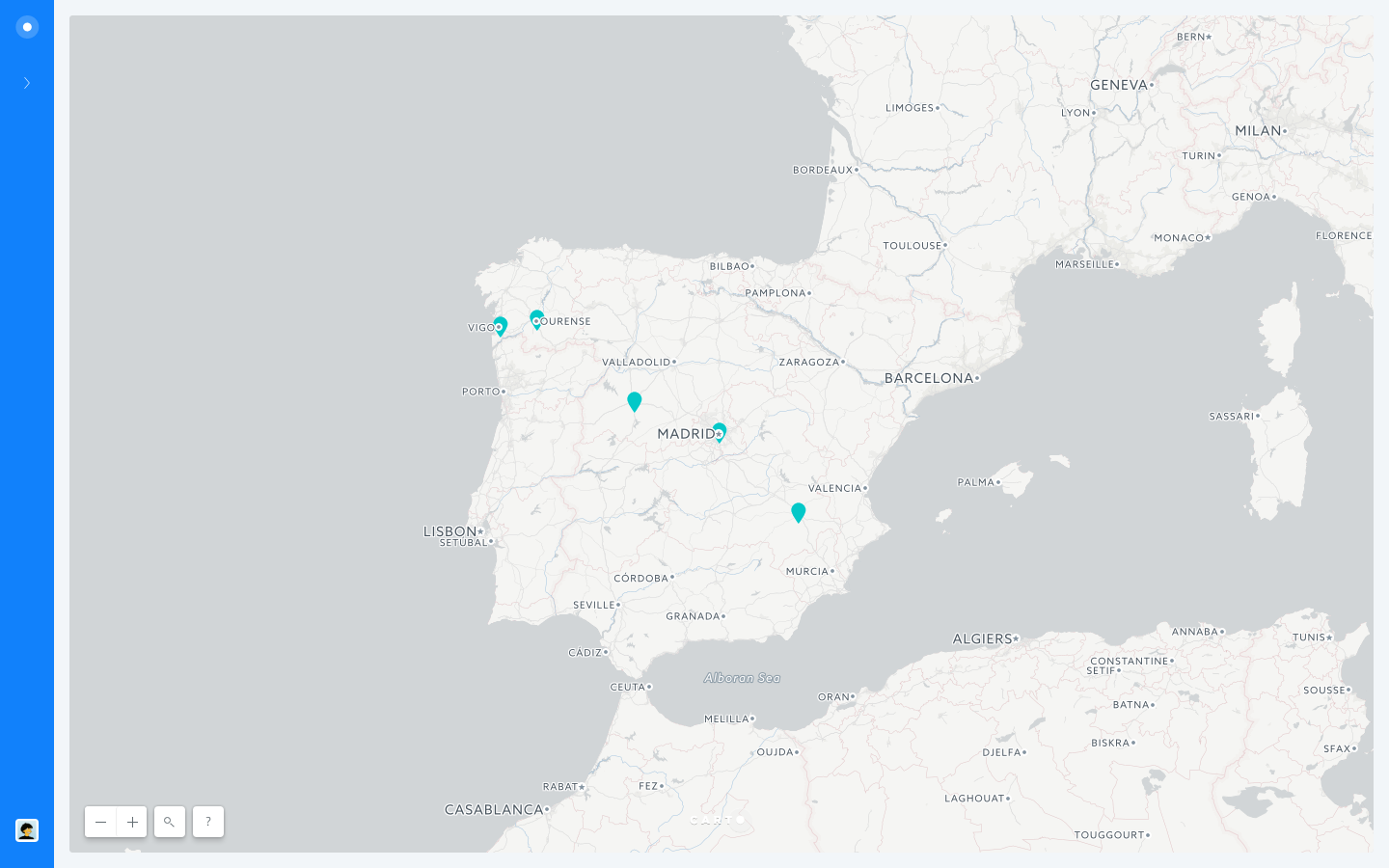 | 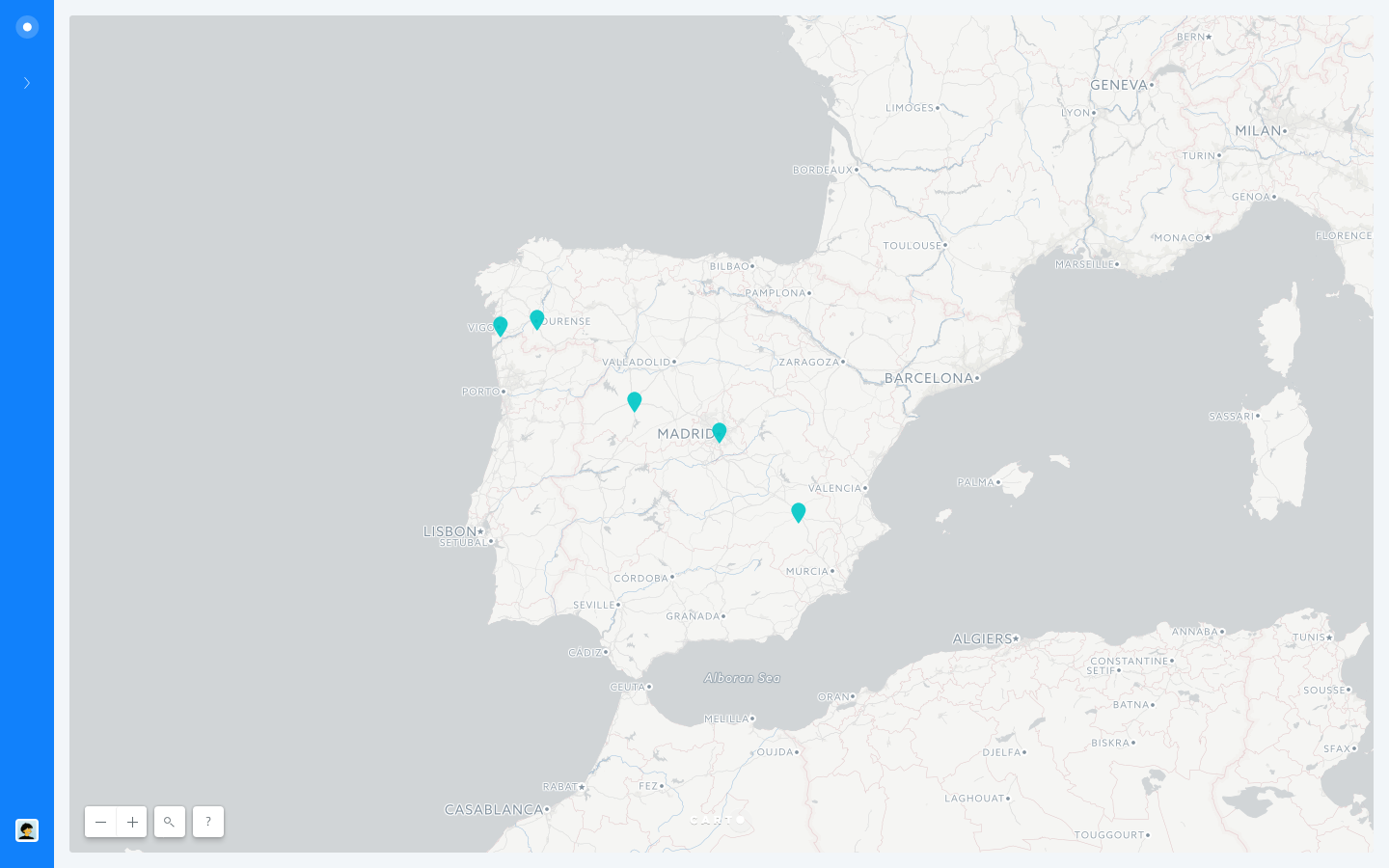 |
Can you spot the differences in those two maps? Exquisite can (in less than 3 seconds!)
Exquisite needs "node": ">=6.9.0"
Install the app as a regular node module, using yarn or npm install.
yarn add exquisite-sst Compare a screenshot against a reference image.
- params.url: Url to take the screenshot from. Default:
undefined. Required. - params.input: Path to the reference image. Default:
original.png - params.output: Path where the screenshot is saved. Default:
output.png - params.delay: Milliseconds to wait between the page-loaded event and the screenshot. Default:
0 - params.viewportWidth: With of the browser screen. Default:
1440 - params.viewportHeight: Height of the browser screen. Default:
900 - params.deviceScaleFactor: Specify device pixel ratio. Default:
1 - params.headless: Use a headless browser. Default:
false - params.threshold: Image diff threshold. Default:
0.1 - params.waitForFn: The screenshot will be taken only when this function returns true. Default:
undefined- This can be a
functionor astringcontaining the function code. - When this is parameter is given the delay is ignored.
- This can be a
- params.consoleFn: The output of the chrome console will be redirected to this funcion. Default:
undefined- Callback is called with consoleMessages
- This can only be a
functionso it cannot be used from the command line
- params.pageEvents: You can add handlers for events Puppeteer's Page object. This is useful to detect errors within the page. Default:
{ error: console.error, pageerror: console.error, requestfailed: console.error, }
Take a screenshot and save it as a reference image.
- params.url: Url to take the screenshot from. Default:
undefined. Required. - params.output: Path where the screenshot is saved. Default:
output.png - params.delay: Milliseconds to wait between the page-loaded event and the screenshot. Default:
0 - params.viewportWidth: With of the browser screen. Default:
1440 - params.viewportHeight: Height of the browser screen. Default:
900 - params.headless: Use a headless browser. Default:
false - params.waitForFn: The screenshot will be taken only when this function returns true. Default:
undefined- This can be a
functionor astringcontaining the function code. - When this is parameter is given the delay is ignored.
- This can be a
- params.consoleFn: The output of the chrome console will be redirected to this funcion. Default:
undefined- Callback is called with consoleMessages
- This can only be a
functionso it cannot be used from the command line
- params.pageEvents: You can add handlers for events Puppeteer's Page object. This is useful to detect errors within the page. Default:
{ error: console.error, pageerror: console.error, requestfailed: console.error, }
Get a reference image
const path = require('path'); // Require the package const exquisite = require('exquisite-sst'); // Path where the reference screenshot will be stored. const output = path.resolve(__dirname, 'google.png'); // Url to take the screenshot from const url = 'https://google.com'; // Get the reference exquisite.getReference({ url, output }).then(console.log).catch(console.error);Compare the screenshot against a reference.
const path = require('path'); const fs = require('fs'); // Require the package const exquisite = require('exquisite-sst'); // Wait 2000 ms after the loaded event to take the screenshot const delay = 2000; // Reference image const input = path.resolve(__dirname, 'reference.png'); // Path where the screenshot will be saved const output = path.resolve(__dirname, 'map.png'); // Url to take the screenshot from const url = 'https://google.com'; // Take the screenshot and compare it against the reference image. exquisite.test({ input, output, url, delay }).then(differentPixels => { // Delete the screenshot fs.unlinkSync(output); // Log the result console.log(`Images are ${differentPixels === 0 ? 'equal' : 'different'}`); });Yo can use exquisite from the command line using the same parameters described in the API
Add the --reference flag to take the reference screenshot.
# Install exquisite-sst globally npm install -g exquisite-sst # Generate the reference image for google exquisite-sst --reference --url http://www.example.com --output reference.png --delay 200 # Compare the reference image against a new screenshot exquisite-sst --url http://www.google.com --input reference.png # Compare the reference image against a new screenshot waiting 200 ms to take the screenshot exquisite-sst --url http://www.example.com --input reference.png --delay 200 # Compare the reference image against a new screenshot waiting the background to be red exquisite-sst --url http://www.example.com --input reference.png --waitForFn "document.body.style.background === 'red'"When using exquisite in a CI environment like travis it could be useful to watch the screenshots of the failed tests.
You can use the cloudinary api to save and compare the taken screenshots.
const exquisite = require('exquisite-sst'); const path = require('path'); const fs = require('fs'); const delay = 2000; // Use cloudinary to upload screenshots for manual debugging const cloudinary = require('cloudinary'); // Configure cloudinary using env vars to prevent exposing private credentials. cloudinary.config({ cloud_name: process.env.CLOUD, api_key: process.env.API_KEY, api_secret: process.env.API_SECRET }); // Example using mocha describe('Image comparing', () => { it('Should return true when the reference and the url screenshot are equal', () => { const input = path.resolve(__dirname, 'reference/i1.png'); const output = path.resolve(__dirname, 'reference/i1_out.png'); const url = 'https://iago-carto.carto.com/builder/fe05bdc5-af40-4227-9944-ba31e3493728/embed'; return exquisite.test({ input, output, url, delay }).then(differentPixels => { // Delete the taken screenshot fs.unlinkSync(output); // If the result is not the expected, upload the screenshots and make the test fail if (differentPixels > 0) { cloudinary.uploader.upload(input); cloudinary.uploader.upload(output); throw new Error(`${url}: Screenshot doesn't match!`); } }); }); });The tests are build to run on travis, dont worry if failing on your machine!
yarn test