

This page describes how Google Kubernetes Engine (GKE) uses Service Extensions to add custom logic into Cloud Load Balancing.
This page is intended for GKE Identity and account admins and Developers who need to configure custom traffic management logic using Service Extensions.
Before reading this page, ensure that you're familiar with the following:
- Basic GKE networking concepts
- GKE Gateway API
- GKE Gateway Controllers
- GKE GatewayClasses
- Service Extensions overview
Overview
GKE uses Service Extensions to add custom logic into Cloud Load Balancing. You can use Service Extensions for tasks such as advanced traffic splitting, custom authentication, or request logging.
The GKE Gateway controller supports the following Service Extensions:
GCPRoutingExtension: this extension adds custom logic into Cloud Load Balancing to control traffic routing.GCPTrafficExtension: this extension inserts custom logic to Cloud Load Balancing to modify traffic. This logic is applied to traffic after the service is selected. The load balancer can add or change the headers and payloads of HTTP requests and responses.GCPTrafficExtensiondoes not affect service selection or service security policies.
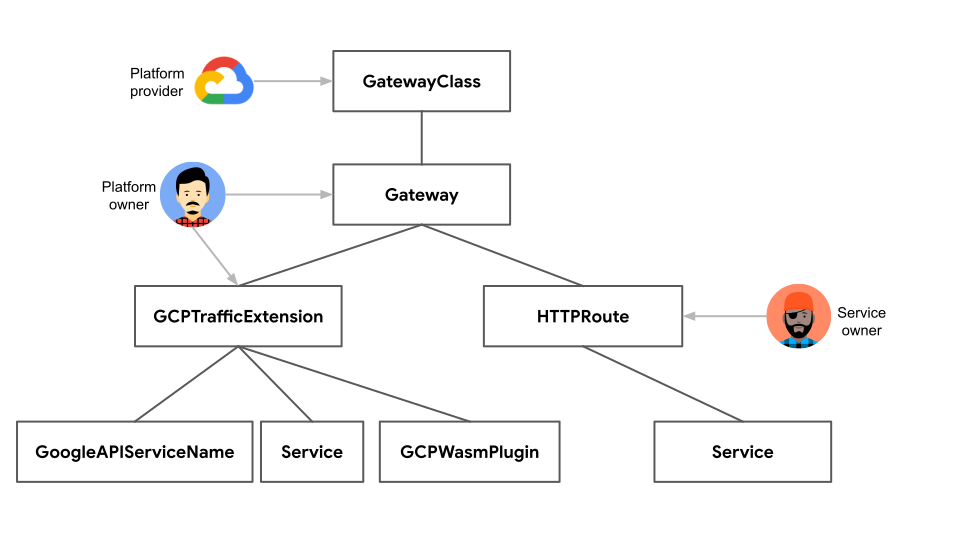
An extension attaches to a Gateway and references a Service, a GCPWasmPlugin, or a googleAPIServiceName.
Reference a Service: in this model, you deploy your custom logic as a separate backend application, exposed as a Kubernetes Service. The load balancer makes a callout to this service to process traffic. This approach is versatile and lets you implement custom routing logic or perform traffic manipulation, such as header modification or payload inspection. You reference a Service with either the
GCPRoutingExtensionorGCPTrafficExtension.Reference a
GCPWasmPluginresource: for high-performance use cases, you can inject custom, user-written logic directly into the data path of the Google Cloud load balancer by using a WebAssembly (Wasm) module. You define aGCPWasmPluginresource that points to your Wasm module's image in Artifact Registry. This method is used only with aGCPTrafficExtensionand a global external Application Load Balancer.Reference a Google API Service: you can also reference a Google API service directly by using the
googleAPIServiceNamefield within aGCPTrafficExtension.
In the following diagram, the GCPRoutingExtension resource is attached to a Gateway and references multiple Services. The extension controls traffic routing to the Services.

In the following diagram, the GCPTrafficExtension resource is attached to a Gateway and references a Service, a GoogleAPIServiceName, or a GCPWasmPlugin. The extension changes the headers and payloads of requests and responses.
Before you begin
Before you start, make sure that you have performed the following tasks:
- Enable the Google Kubernetes Engine API. Enable Google Kubernetes Engine API
- If you want to use the Google Cloud CLI for this task, install and then initialize the gcloud CLI. If you previously installed the gcloud CLI, get the latest version by running the
gcloud components updatecommand. Earlier gcloud CLI versions might not support running the commands in this document.
Enable the Compute Engine API, the Network Services API, and the Model Armor API if needed.
Go to Enable access to APIs and follow the instructions.
For detailed information about the pricing of Google Cloud Service Extensions, see Pricing.
Review the required roles and permissions in Service Extensions access control.
Familiarize yourself with the quotas and limits in Service Extensions quotas.
If you intend to use Common Expression Language (CEL) matchers, review the supported attributes and operators in the CEL matcher language reference.
Review restrictions and limitations for Service Extensions.
GKE Gateway controller requirements
- Your cluster must use GKE version 1.33 or later.
- To use the
GCPWasmPlugin, your cluster must use GKE version 1.33.3 or later. - Your cluster must have the Gateway API enabled.
- You must have a configured Gateway resource. This resource can be a global external Application Load Balancer, regional external Application Load Balancer, or regional internal Application Load Balancer Gateway. If you use a
GCPWasmPluginresource, then you must deploy a global external Application Load Balancer Gateway only. - You must have a configured HTTPRoute resource.
Restrictions and limitations
The following table lists the restrictions associated with the configuration of Gateway Service Extensions in GKE:
| Category | Restrictions and limitations |
|---|---|
| Load Balancer | The GCPRoutingExtension is supported for the following load balancers:
GCPTrafficExtension is supported for the following load balancers:
|
| Extension chain and specification |
|
| Timing and matching |
|
| Header and metadata |
|
| Event |
|
GCPTrafficExtension |
|
GCPWasmPlugin |
|
googleAPIServiceName and backendRef | When you reference a Service that uses the backendRef in an Extension, you must meet the following conditions:
|
Refer to a Service
In Service Extensions, you can refer to a Service that hosts the custom logic that you want the load balancer to execute. Gateways don't have Service Extensions by default.
To configure GKE Service Extensions, follow these steps:
Deploy a backend callout Service: create a Kubernetes Service that represents the backend service for custom logic execution. The load balancer invokes this service.
Configure Service Extensions: use the appropriate extension based on your load balancer type.
GCPRoutingExtensionfor regional Gateways: use this extension for regional external Application Load Balancer and regional internal Application Load Balancer to implement custom routing logic within the region.GCPTrafficExtensionfor global external, regional external, and internal Gateways: use this extension for global external Application Load Balancer, regional external Application Load Balancer, and regional internal Application Load Balancer to perform traffic manipulation, such as header modification or payload inspection, across various load balancer types.
Deploy a backend callout service
A callout service implements custom logic for Gateway Service Extensions in GKE. The Gateway invokes these backend applications, based on GCPTrafficExtension or GCPRoutingExtension configurations, to modify or route traffic.
You deploy a callout service to add custom logic to your Gateway. This separate service handles custom processing, such as header manipulation, payload transformations, or traffic routing.
To deploy a service that can function as a callout for your Gateway, perform the following steps:
(Optional) Create a secret for TLS: This command creates a Kubernetes secret of type TLS that contains your TLS certificate and private key.
To create the TLS secret for your callout service, replace the following:
SECRET_NAME: the secret name for your callout servicepath-to-cert: the file paths to your certificatepath-to-key: the file paths to your key
To verify that the secret was added, run the following command:
kubectl get secrets SECRET_NAMEReplace
SECRET_NAMEwith the secret name for your callout service.The output should be similar to the following:
NAME TYPE DATA AGE SECRET_NAME kubernetes.io/tls 2 12sDefine Deployment and Service resources.
You must define the following:
- Deployment: to manage the application pods that contain the custom logic for your Service Extensions.
- Service: to expose the application pods that are managed by the Deployment as a network service.
Create a sample manifest
extension-service-app.yamlthat has Deployment and Service definitions:apiVersion: apps/v1 kind: Deployment metadata: name: extension-service-app spec: selector: matchLabels: app: store replicas: 1 template: metadata: labels: app: store spec: containers: - name: serviceextensions image: us-docker.pkg.dev/service-extensions-samples/callouts/python-example-basic:main ports: - containerPort: 8080 - containerPort: 443 volumeMounts: - name: certs mountPath: "/etc/certs/" readOnly: true env: - name: POD_NAME valueFrom: fieldRef: fieldPath: metadata.name - name: NAMESPACE valueFrom: fieldRef: fieldPath: metadata.namespace - name: TLS_SERVER_CERT value: "/etc/certs/path-to-cert" - name: TLS_SERVER_PRIVKEY value: "/etc/certs/path-to-key" resources: requests: cpu: 10m volumes: - name: certs secret: secretName: SECRET_NAME optional: false --- apiVersion: v1 kind: Service metadata: name: extension-service spec: ports: - port: 443 targetPort: 443 appProtocol: HTTP2 selector: app: storeApply the
extension-service-app.yamlmanifest:kubectl apply -f extension-service-app.yaml
Verify your configuration:
Verify that the application was deployed:
kubectl get pod --selector app=storeAfter the application starts running, the output is similar to the following:
NAME READY STATUS RESTARTS AGE extension-service-app-85f466bc9b-b5mf4 1/1 Running 0 7sVerify that the Service was deployed:
kubectl get service extension-serviceThe output is similar to the following, which shows a Service for each store Deployment:
NAME TYPE CLUSTER-IP EXTERNAL-IP PORT(S) AGE extension-service ClusterIP 34.118.225.9 <none> 443/TCP 2m40s
Configure Service Extensions
You can configure either a GCPRoutingExtension or a GCPTrafficExtension to customize your traffic flow.
Configure the GCPRoutingExtension for regional Gateways
You can reroute traffic by using a GCPRoutingExtension. To configure a GCPRoutingExtension, update the HTTPRoute to specify the requests for the service-extensions.com host.
Update HTTPRoute. Modify your HTTPRoute to include hostnames or paths that will trigger the routing extension.
Save the following sample manifest as the
store-route.yamlfile:kind: HTTPRoute apiVersion: gateway.networking.k8s.io/v1 metadata: name: store spec: parentRefs: - kind: Gateway name:GATEWAY_NAME hostnames: - "store.example.com" - "service-extensions.example.com" rules: - backendRefs: - name: store-v1 port: 8080 - matches: - headers: - name: env value: canary backendRefs: - name: store-v2 port: 8080 - matches: - path: value: /de backendRefs: - name: store-german port: 8080Replace
GATEWAY_NAMEwith the name of your Gateway.Apply the
store-route.yamlmanifest:kubectl apply -f store-route.yaml
Define the
GCPRoutingExtension.Save the
GCPRoutingExtensionconfiguration in the samplegcp-routing-extension.yamlfile:kind: GCPRoutingExtension apiVersion: networking.gke.io/v1 metadata: name: my-gateway-extension namespace: default spec: targetRefs: - group: "gateway.networking.k8s.io" kind: Gateway name: GATEWAY_NAME extensionChains: - name: chain1 matchCondition: celExpressions: - celMatcher: request.path.contains("serviceextensions") extensions: - name: ext1 authority: "myext.com" timeout: 1s backendRef: group: "" kind: Service name: extension-service port: 443Replace
GATEWAY_NAMEwith the name of your Gateway.Apply the sample manifest to your cluster:
kubectl apply -f gcp-routing-extension.yaml
Verify the configuration of the
GCPRoutingExtensionand its binding to the Gateway.Check the
GCPRoutingExtensiondeployment:kubectl describe gcproutingextension my-gateway-extensionThe output is similar to the following:
Name: my-gateway-extension Namespace: default Labels: <none> Annotations: <none> API Version: networking.gke.io/v1 Kind: GCPRoutingExtension Metadata: Creation Timestamp: 2025-03-02T17:12:30Z Generation: 1 Resource Version: 31283253 UID: ec8efaa0-d8e7-4e1b-9fd4-0ae0ef3c74d0 Spec: Extension Chains: Extensions: Authority: myext.com Backend Ref: Group: Kind: Service Name: extension-service Port: 443 Name: ext1 Timeout: 1s Match Condition: Cel Expressions: Cel Matcher: request.path.contains("serviceextensions") Name: chain1 Target Refs: Group: gateway.networking.k8s.io Kind: Gateway Name: GATEWAY_NAME Events: <none>The output displays the details of the
GCPRoutingExtension, which is namedmy-gateway-extension, within the default namespace. The output shows theSpecfield, which contains the definition of how the extension should behave.Verify the Gateway binding:
Confirm that the
GCPRoutingExtensionis bound to the Gateway. This might take a few minutes:kubectl describe gateway GATEWAY_NAMEThe output is similar to the following:
Name: GATEWAY_NAME Namespace: default Labels: none Annotations: networking.gke.io/addresses: /projects/1234567890/regions/us-central1/addresses/test-hgbk-default-internal-http-5ypwen3x2gcr networking.gke.io/backend-services: /projects/1234567890/regions/us-central1/backendServices/test-hgbk-default-extension-service-443-rduk21fwhoj0, /projects/1234567890/re... networking.gke.io/firewalls: /projects/1234567890/global/firewalls/test-hgbk-l7-default-us-central1 networking.gke.io/forwarding-rules: /projects/1234567890/regions/us-central1/forwardingRules/test-hgbk-default-internal-http-qn7dk9i9zm73 networking.gke.io/health-checks: /projects/1234567890/regions/us-central1/healthChecks/test-hgbk-default-extension-service-443-rduk21fwhoj0, /projects/1234567890/regio... networking.gke.io/last-reconcile-time: 2025-03-02T17:15:02Z networking.gke.io/lb-route-extensions: /projects/1234567890/locations/us-central1/lbRouteExtensions/test-hgbk-default-internal-http-lwh0op4qorb0 networking.gke.io/lb-traffic-extensions: networking.gke.io/ssl-certificates: networking.gke.io/target-http-proxies: /projects/1234567890/regions/us-central1/targetHttpProxies/test-hgbk-default-internal-http-2jzr7e3xclhj networking.gke.io/target-https-proxies: networking.gke.io/url-maps: /projects/1234567890/regions/us-central1/urlMaps/test-hgbk-default-internal-http-2jzr7e3xclhj API Version: gateway.networking.k8s.io/v1 Kind: Gateway Metadata: Creation Timestamp: 2025-03-02T16:37:50Z Finalizers: gateway.finalizer.networking.gke.io Generation: 1 Resource Version: 31284863 UID: fd512611-bad2-438e-abfd-5619474fbf31 ...The output shows the annotations, which GKE uses to store the links between the Gateway and the underlying Google Cloud resources. The
networking.gke.io/lb-route-extensionsannotation confirms the binding of the gateway to theGCPRoutingExtension.Check the extension status by confirming that the
GCPRoutingExtensionhas aProgrammedstatus with theProgrammingSucceededreason. This command might take a few minutes.kubectl describe gcproutingextension my-gateway-extensionThe output is similar to the following:
Name: my-gateway-extension Namespace: default Labels: <none> Annotations: <none> API Version: networking.gke.io/v1 Kind: GCPRoutingExtension Metadata: Creation Timestamp: 2025-03-02T17:12:30Z Generation: 1 Resource Version: 31284378 UID: ec8efaa0-d8e7-4e1b-9fd4-0ae0ef3c74d0 Spec: Extension Chains: Extensions: Authority: myext.com Backend Ref: Group: Kind: Service Name: extension-service Port: 443 Name: ext1 Timeout: 1s Match Condition: Cel Expressions: Cel Matcher: request.path.contains("serviceextensions") Name: chain1 Target Refs: Group: gateway.networking.k8s.io Kind: Gateway Name: GATEWAY_NAME Status: Ancestors: Ancestor Ref: Group: gateway.networking.k8s.io Kind: Gateway Name: GATEWAY_NAME Namespace: default Conditions: Last Transition Time: 2025-03-02T17:14:15Z Message: Reason: Accepted Status: True Type: Accepted Last Transition Time: 2025-03-02T17:14:15Z Message: Reason: ProgrammingSucceeded Status: True Type: Programmed Controller Name: networking.gke.io/gateway Events: Type Reason Age From Message ---- ------ ---- ---- ------- Normal ADD 2m31s sc-gateway-controller default/my-gateway-extension Normal SYNC 51s (x2 over 98s) sc-gateway-controller Attachment of GCPRoutingExtension "default/my-gateway-extension" to AncestorRef {Group: "gateway.networking.k8s.io", Kind: "Gateway", Namespace: "default", Name: "GATEWAY_NAME", SectionName: nil, Port: nil} was a success Normal SYNC 23s sc-gateway-controller Reconciliation of GCPRoutingExtension "default/my-gateway-extension" to AncestorRef {Group: "gateway.networking.k8s.io", Kind: "Gateway", Namespace: "default", Name: "GATEWAY_NAME", SectionName: nil, Port: nil} was a successThe
Status.Conditionsfield shows aProgrammedcondition withStatus: TrueandReason: ProgrammingSucceeded. This information confirms that the extension was successfully applied.
Send traffic to your application.
After your Gateway, Route, and application are deployed in your cluster, you can pass traffic to your application.
To access your application, you need to find the IP address of your Gateway.
In your terminal, use the following command:
kubectl get gateways.gateway.networking.k8s.io GATEWAY_NAME -o=jsonpath="{.status.addresses[0].value}"Replace
GATEWAY_NAMEwith the name of your Gateway.This command outputs the Gateway's IP address. In the follow-up commands, replace
GATEWAY_IP_ADDRESSwith the IP address from the output.Test the path update by going to the
serviceextensionsversion of the store service atstore.example.com/serviceextensions:curl http://store.example.com/serviceextensions --resolve store.example.com:80:GATEWAY_IP_ADDRESS -vThe output is similar to the following:
{ "cluster_name": "gke1", "host_header": "service-extensions.com", "metadata": "store-v1", "pod_name": "store-v1-5d9554f847-cvxpd", "pod_name_emoji": "💇🏼♀️", "project_id": "gateway-demo", "timestamp": "2025-03-15T12:00:00", "zone": "us-central1-c" }
Configure the GCPTrafficExtension
You can use a GCPTrafficExtension to use advanced traffic management capabilities within your Google Cloud environment. You can configure this extension across global external Application Load Balancers, regional external Application Load Balancers, and regional internal Application Load Balancers. You can use GCPTrafficExtension to implement custom HTTP request and response logic, sophisticated routing, transformations, and security policies.
Update HTTPRoute. Modify your HTTPRoute to include hostnames or paths that will trigger the traffic extension.
Save the following sample manifest as the
store-route.yamlfile:kind: HTTPRoute apiVersion: gateway.networking.k8s.io/v1 metadata: name: store spec: parentRefs: - kind: Gateway name: GATEWAY_NAME hostnames: - "store.example.com" - "service-extensions.example.com" rules: - backendRefs: - name: store-v1 port: 8080 - matches: - headers: - name: env value: canary backendRefs: - name: store-v2 port: 8080 - matches: - path: value: /de backendRefs: - name: store-german port: 8080Replace
GATEWAY_NAMEwith the name of your Gateway, such asinternal-http,external-http, orglobal-external-http.Apply the
store-route.yamlmanifest to your cluster:kubectl apply -f store-route.yaml
Define the
GCPTrafficExtension.Save the
GCPTrafficExtensionconfiguration to the samplegcp-traffic-extension.yamlfile:kind: GCPTrafficExtension apiVersion: networking.gke.io/v1 metadata: name: my-traffic-extension namespace: default spec: targetRefs: - group: "gateway.networking.k8s.io" kind: Gateway name: GATEWAY_NAME extensionChains: - name: chain1 matchCondition: celExpressions: - celMatcher: request.path.contains("serviceextensions") extensions: - name: ext1 authority: "myext.com" timeout: 1s backendRef: group: "" kind: Service name: extension-service port: 443 supportedEvents: - REQUEST_HEADERS - REQUEST_BODY - RESPONSE_HEADERS - RESPONSE_BODYReplace
GATEWAY_NAMEwith the name of your Gateway, asinternal-http,external-http, orglobal-external-http.Apply the sample manifest to your cluster:
kubectl apply -f gcp-traffic-extension.yaml
Verify the configuration of the
GCPTrafficExtensionand its binding to the Gateway.Check the
GCPTrafficExtensiondeployment:kubectl describe gcptrafficextension my-traffic-extensionThe output is similar to the following:
Name: my-traffic-extension Namespace: default Labels: <none> Annotations: <none> API Version: networking.gke.io/v1 Kind: GCPTrafficExtension Metadata: Creation Timestamp: 2025-03-02T17:12:30Z Generation: 1 Resource Version: 31283253 UID: ec8efaa0-d8e7-4e1b-9fd4-0ae0ef3c74d0 Spec: Extension Chains: Extensions: Authority: myext.com Backend Ref: Group: Kind: Service Name: extension-service Port: 443 Name: ext1 Timeout: 1s Match Condition: Cel Expressions: Cel Matcher: request.path.contains("serviceextensions") Name: chain1 Target Refs: Group: gateway.networking.k8s.io Kind: Gateway Name: GATEWAY_NAME Events: <none>The output displays the details of the
GCPTrafficExtensionnamedmy-traffic-extensionwithin the default namespace. It shows theSpecfield, which contains the definition of how the extension should behave.Verify the Gateway binding:
Confirm that the
GCPTrafficExtensionis bound to the Gateway. This command might take a few minutes to complete:kubectl describe gateway GATEWAY_NAMEThe output is similar to the following:
Name: GATEWAY_NAME Namespace: default Labels: <none> Annotations: networking.gke.io/addresses: /projects/1234567890/regions/us-central1/addresses/test-hgbk-default-internal-http-5ypwen3x2gcr networking.gke.io/backend-services: /projects/1234567890/regions/us-central1/backendServices/test-hgbk-default-extension-service-443-rduk21fwhoj0, /projects/1234567890/re... networking.gke.io/firewalls: /projects/1234567890/global/firewalls/test-hgbk-l7-default-us-central1 networking.gke.io/forwarding-rules: /projects/1234567890/regions/us-central1/forwardingRules/test-hgbk-default-internal-http-qn7dk9i9zm73 networking.gke.io/health-checks: /projects/1234567890/regions/us-central1/healthChecks/test-hgbk-default-extension-service-443-rduk21fwhoj0, /projects/1234567890/regio... networking.gke.io/last-reconcile-time: 2025-03-02T17:15:02Z networking.gke.io/lb-traffic-extensions: /projects/1234567890/locations/us-central1/lbTrafficExtensions/test-hgbk-default-internal-http-lwh0op4qorb0 networking.gke.io/ssl-certificates: networking.gke.io/target-http-proxies: /projects/1234567890/regions/us-central1/targetHttpProxies/test-hgbk-default-internal-http-2jzr7e3xclhj networking.gke.io/target-https-proxies: networking.gke.io/url-maps: /projects/1234567890/regions/us-central1/urlMaps/test-hgbk-default-internal-http-2jzr7e3xclhj API Version: gateway.networking.k8s.io/v1 Kind: Gateway Metadata: Creation Timestamp: 2025-03-02T16:37:50Z Finalizers: gateway.finalizer.networking.gke.io Generation: 1 Resource Version: 31284863 UID: fd512611-bad2-438e-abfd-5619474fbf31 ...The output shows the annotations, which GKE uses to store the links between the Gateway and the underlying Google Cloud resources. The
networking.gke.io/lb-traffic-extensionsannotation confirms the binding.Check the extension status:
Confirm that the
GCPTrafficExtensionhas aProgrammedstatus with theProgrammingSucceededreason. The command might take a few minutes to complete.To check the extension status of
GCPTrafficExtension, run the following command:kubectl describe gcptrafficextension my-traffic-extensionThe
GCPTrafficExtensionresource output is similar to the following:Name: my-traffic-extension Namespace: default Labels: <none> Annotations: <none> API Version: networking.gke.io/v1 Kind: GCPTrafficExtension Metadata: Creation Timestamp: 2025-03-02T17:12:30Z Generation: 1 Resource Version: 31284378 UID: ec8efaa0-d8e7-4e1b-9fd4-0ae0ef3c74d0 Spec: Extension Chains: Extensions: Authority: myext.com Backend Ref: Group: Kind: Service Name: extension-service Port: 443 Name: ext1 Timeout: 1s Match Condition: Cel Expressions: Cel Matcher: request.path.contains("serviceextensions") Name: chain1 Target Refs: Group: gateway.networking.k8s.io Kind: Gateway Name: GATEWAY_NAME Status: Ancestors: Ancestor Ref: Group: gateway.networking.k8s.io Kind: Gateway Name: GATEWAY_NAME Namespace: default Conditions: Last Transition Time: 2025-03-02T17:14:15Z Message: Reason: Accepted Status: True Type: Accepted Last Transition Time: 2025-03-02T17:14:15Z Message: Reason: ProgrammingSucceeded Status: True Type: Programmed Controller Name: networking.gke.io/gateway Events: Type Reason Age From Message ---- ------ ---- ---- ------- Normal ADD 2m31s sc-gateway-controller default/my-traffic-extension Normal SYNC 51s (x2 over 98s) sc-gateway-controller Attachment of GCPTrafficExtension "default/my-gateway-extension" to AncestorRef {Group: "gateway.networking.k8s.io", Kind: "Gateway", Namespace: "default", Name: "GATEWAY_NAME", SectionName: nil, Port: nil} was a success Normal SYNC 23s sc-gateway-controller Reconciliation of GCPTrafficExtension "default/my-traffic-extension" to AncestorRef {Group: "gateway.networking.k8s.io", Kind: "Gateway", Namespace: "default", Name: "GATEWAY_NAME", SectionName: nil, Port: nil} was a successThe
Status.Conditionsfield shows aProgrammedcondition withStatus: TrueandReason: ProgrammingSucceeded. This information confirms that the extension was successfully applied.
Send traffic to your application.
After your Gateway, Route, and application are deployed in your cluster, you can pass traffic to your application.
To access your application, you need to find the IP address of your Gateway.
In your terminal, use the following command:
kubectl get gateways.gateway.networking.k8s.io GATEWAY_NAME -o=jsonpath="{.status.addresses[0].value}"Replace
GATEWAY_NAMEwith the name of your Gateway.This command outputs the Gateway's IP address. In the follow-up commands, replace
GATEWAY_IP_ADDRESSwith the IP address from the output.Test the path update by going to the
serviceextensionsversion of the store service atstore.example.com/serviceextensions:curl http://store.example.com/serviceextensions --resolve store.example.com:80:GATEWAY_IP_ADDRESS -vThe output is similar to the following:
{ * Request completely sent off < HTTP/1.1 200 OK < server: Werkzeug/2.3.7 Python/3.11.3 < date: Sun, 02 Mar 2025 16:58:10 GMT < content-type: application/json < access-control-allow-origin: * < hello: service-extensions < via: 1.1 google < transfer-encoding: chunked }
Refer to a GCPWasmPlugin resource
You can inject custom logic directly into the load balancer's data path by using a GCPWasmPlugin with a GCPTrafficExtension. This method lets you deploy custom traffic management capabilities packaged as a Wasm module.
To configure GKE Service Extensions, follow these steps:
Deploy a
GCPWasmPlugin: create and deploy aGCPWasmPlugincustom resource definition (CRD) that contains the custom code for your Wasm module. You can useGCPWasmPluginonly withGCPTrafficExtensionfor thegke-l7-global-external-managedGatewayClass.Configure Service Extensions: use the
GCPTrafficExtensionfor the global external Application Load Balancer.
Deploy a GCPWasmPlugin
The GCPWasmPlugin lets you inject custom, user-written logic directly into the data path of the Google Cloud load balancer. The GCPWasmPlugin resource points to the Wasm module's image in Artifact Registry, which is then executed by the load balancer.
Before you continue with the following steps, ensure that you have uploaded your Wasm module to an Artifact Registry repository. For more information, see Prepare the plugin code.
To deploy a GCPWasmPlugin resource, complete the following steps:
Save the following manifest as
wasm-plugin.yaml:kind: GCPWasmPlugin apiVersion: networking.gke.io/v1 metadata: name: gcp-wasm-plugin spec: versions: - name: wasm-plugin-version description: "Test wasm plugin version" image: "us-docker.pkg.dev/service-extensions-samples/plugins/local-reply:main" weight: 1000000 logConfig: enabled: true # Configures the sampling rate of activity logs. # The value of the field must be in range [0, 1e6]. sampleRate: 1000000 # Specifies the lowest level of logs that are exported to Cloud Logging. minLogLevel: INFONote the following:
spec.versions.name: the version name must be unique within theGCPWasmPluginresource. You can list up to 10 versions, and only one version must have a non-zero weight.spec.versions.image: references the image containing the plugin code that is stored in Artifact Registry.spec.versions.weight: specifies the weight of the plugin version. The weight must be a number between 0 and 1,000,000, inclusive.spec.logConfig: specifies whether to enable Cloud Logging for this plugin. If the value isn't specified, Cloud Logging is disabled by default.spec.logConfig.sampleRate: configures the sampling rate of activity logs. The rate must be a number between 0 and 1,000,000, inclusive. If unspecified when Cloud Logging is enabled, the default value is1,000,000(100% of requests are logged).spec.logConfig.minLogLevel: specifies the lowest level of logs that are exported to Cloud Logging. If the value isn't specified when Cloud Logging is enabled, the field is set toINFOby default.
Apply the
wasm-plugin.yamlmanifest:kubectl apply -f wasm-plugin.yamlVerify that the plugin was deployed:
kubectl describe gcpwasmplugins.networking.gke.io gcp-wasm-pluginThe output is similar to the following:
Name: gcp-wasm-plugin Namespace: default Labels: <none> Annotations: <none> API Version: networking.gke.io/v1 Kind: GCPWasmPlugin Metadata: Creation Timestamp: 2025-08-08T19:54:18Z Generation: 1 Resource Version: 44578 UID: 549a12c7-91d1-43ad-a406-d6157a799b79 Spec: Log Config: Enabled: true Min Log Level: INFO Sample Rate: 1000000 Versions: Description: Test wasm plugin version Image: us-docker.pkg.dev/service-extensions-samples/plugins/local-reply:main Name: wasm-plugin-version Weight: 1000000 Events: <none>
Configure Service Extensions
To add custom logic to your global external Application Load Balancer, you can configure a GCPTrafficExtension to use a GCPWasmPlugin. You can use a GCPTrafficExtension to use advanced traffic management capabilities within your Google Cloud environment. You can configure this extension across global external Application Load Balancers.
To configure a GCPTrafficExtension to use a GCPWasmPlugin, complete the following steps:
Define the
GCPTrafficExtension.Save the
GCPTrafficExtensionconfiguration asgcp-traffic-extension-with-plugin.yaml:kind: GCPTrafficExtension apiVersion: networking.gke.io/v1 metadata: name: gcp-traffic-extension-with-plugin namespace: default spec: targetRefs: - group: "gateway.networking.k8s.io" kind: Gateway name: GATEWAY_NAME extensionChains: - name: chain1 matchCondition: celExpressions: - celMatcher: request.path.contains("serviceextensions") extensions: - name: ext1 supportedEvents: - RequestHeaders - ResponseHeaders backendRef: group: "networking.gke.io" kind: GCPWasmPlugin name: gcp-wasm-pluginReplace
GATEWAY_NAMEwith the name of your Gateway, such asglobal-external-http.Apply the sample manifest to your cluster:
kubectl apply -f gcp-traffic-extension-with-plugin.yaml
Verify the configuration of the
GCPTrafficExtensionand its binding to the Gateway.Check the
GCPTrafficExtensiondeployment:kubectl describe gcptrafficextensions.networking.gke.io gcp-traffic-extension-with-pluginThe output is similar to the following:
Name: gcp-traffic-extension-with-plugin Namespace: default Labels: <none> Annotations: <none> API Version: networking.gke.io/v1 Kind: GCPTrafficExtension Metadata: Creation Timestamp: 2025-03-02T17:12:30Z Generation: 1 Resource Version: 31283253 UID: ec8efaa0-d8e7-4e1b-9fd4-0ae0ef3c74d0 Spec: Extension Chains: Extensions: Backend Ref: Group: networking.gke.io Kind: GCPWasmPlugin Name: gcp-wasm-plugin Name: ext1 Supported Events: RequestHeaders ResponseHeaders Match Condition: Cel Expressions: Cel Matcher: request.path.contains("serviceextensions") Name: chain1 Target Refs: Group: gateway.networking.k8s.io Kind: Gateway Name: GATEWAY_NAME Events: <none>The output displays the details of the
GCPTrafficExtensionnamedgcp-traffic-extension-with-pluginwithin the default namespace. It shows theSpecfield, which contains the definition of how the extension should behave.Verify the Gateway binding:
Confirm that the
GCPTrafficExtensionis bound to the Gateway. This command might take a few minutes to complete:kubectl describe gateway GATEWAY_NAMEThe output is similar to the following:
Name: GATEWAY_NAME Namespace: default Labels: <none> Annotations: networking.gke.io/addresses: /projects/922988411345/global/addresses/test-k18j-default-external-http-2jfqxrkgd0fm networking.gke.io/backend-services: /projects/922988411345/global/backendServices/test-k18j-default-gw-serve404-80-8zjp3d8cqfsu, /projects/922988411345/global/backendServices... networking.gke.io/certmap: store-example-com-map networking.gke.io/firewalls: /projects/922988411345/global/firewalls/test-k18j-l7-default-global networking.gke.io/forwarding-rules: /projects/922988411345/global/forwardingRules/test-k18j-default-external-http-wt1tl0cwi6zr networking.gke.io/health-checks: /projects/922988411345/global/healthChecks/test-k18j-default-gw-serve404-80-8zjp3d8cqfsu, /projects/922988411345/global/healthChecks/test-... networking.gke.io/last-reconcile-time: 2025-08-08T20:27:35Z networking.gke.io/lb-route-extensions: networking.gke.io/lb-traffic-extensions: projects/922988411345/locations/global/lbTrafficExtensions/test-k18j-default-external-http-0tdum40yts35 networking.gke.io/ssl-certificates: networking.gke.io/target-http-proxies: networking.gke.io/target-https-proxies: /projects/922988411345/global/targetHttpsProxies/test-k18j-default-external-http-jy9mc97xb5yh networking.gke.io/url-maps: /projects/922988411345/global/urlMaps/test-k18j-default-external-http-jy9mc97xb5yh networking.gke.io/wasm-plugin-versions: projects/922988411345/locations/global/wasmPlugins/test-k18j-default-gcp-wasm-plugin-itle20jj9nyk/versions/test-k18j-wasm-plugin-version-i... networking.gke.io/wasm-plugins: projects/922988411345/locations/global/wasmPlugins/test-k18j-default-gcp-wasm-plugin-itle20jj9nyk API Version: gateway.networking.k8s.io/v1 Kind: Gateway Metadata: Creation Timestamp: 2025-03-02T16:37:50Z Finalizers: gateway.finalizer.networking.gke.io Generation: 1 Resource Version: 31284863 UID: fd512611-bad2-438e-abfd-5619474fbf31 Spec: Gateway Class Name: gke-l7-global-external-managed Listeners: Allowed Routes: Namespaces: From: Same Name: https Port: 443 Protocol: HTTPS ...The output shows the annotations, which GKE uses to store the links between the Gateway and the underlying Google Cloud resources. The
networking.gke.io/lb-traffic-extensions,networking.gke.io/wasm-plugin-versions, andnetworking.gke.io/wasm-pluginsannotations confirm the binding.Check the extension status:
Confirm that the
GCPTrafficExtensionhas aProgrammedstatus with theProgrammingSucceededreason. The command might take a few minutes to complete.kubectl describe gcptrafficextensions.networking.gke.io gcp-traffic-extension-with-pluginThe output is similar to the following:
Name: gcp-traffic-extension-with-plugin Namespace: default Labels: <none> Annotations: <none> API Version: networking.gke.io/v1 Kind: GCPTrafficExtension Metadata: Creation Timestamp: 2025-08-08T20:08:09Z Generation: 1 Resource Version: 56528 UID: 1389f790-9663-45ca-ac4e-a2c082f43359 Spec: Extension Chains: Extensions: Backend Ref: Group: networking.gke.io Kind: GCPWasmPlugin Name: gcp-wasm-plugin Name: ext1 Supported Events: RequestHeaders ResponseHeaders Match Condition: Cel Expressions: Cel Matcher: request.path.contains("serviceextensions") Name: chain1 Target Refs: Group: gateway.networking.k8s.io Kind: Gateway Name: external-http Status: Ancestors: Ancestor Ref: Group: gateway.networking.k8s.io Kind: Gateway Name: external-http Namespace: default Conditions: Last Transition Time: 2025-08-08T20:16:13Z Message: Observed Generation: 1 Reason: Accepted Status: True Type: Accepted Last Transition Time: 2025-08-08T20:16:13Z Message: Observed Generation: 1 Reason: ResolvedRefs Status: True Type: ResolvedRefs Last Transition Time: 2025-08-08T20:16:13Z Message: Observed Generation: 1 Reason: ProgrammingSucceeded Status: True Type: Programmed Controller Name: networking.gke.io/gateway Events: Type Reason Age From Message ---- ------ ---- ---- ------- Normal ADD 19m sc-gateway-controller default/gcp-traffic-extension-with-plugin Normal SYNC 3m25s (x4 over 11m) sc-gateway-controller Attachment of GCPTrafficExtension "default/gcp-traffic-extension-with-plugin" to AncestorRef {Group: "gateway.networking.k8s.io", Kind: "Gateway", Namespace: "default", Name: "external-http", SectionName: nil, Port: nil} was a success Normal SYNC 3m25s (x4 over 11m) sc-gateway-controller All the object references were able to be resolved for GCPTrafficExtension "default/gcp-traffic-extension-with-plugin" bound to AncestorRef {Group: "gateway.networking.k8s.io", Kind: "Gateway", Namespace: "default", Name: "external-http", SectionName: nil, Port: nil} Normal SYNC 3m25s (x4 over 11m) sc-gateway-controller Programming of GCPTrafficExtension "default/gcp-traffic-extension-with-plugin" to AncestorRef {Group: "gateway.networking.k8s.io", Kind: "Gateway", Namespace: "default", Name: "external-http", SectionName: nil, Port: nil} was a successCheck the plugin status.
Confirm that the
GCPWasmPluginresource has aProgrammedstatus with theProgrammingSucceededreason. The command might take a few minutes to complete.kubectl describe gcpwasmplugins.networking.gke.io gcp-wasm-pluginThe output is similar to the following:
Name: gcp-wasm-plugin Namespace: default Labels: <none> Annotations: <none> API Version: networking.gke.io/v1 Kind: GCPWasmPlugin Metadata: Creation Timestamp: 2025-08-08T19:54:18Z Generation: 1 Resource Version: 44578 UID: 549a12c7-91d1-43ad-a406-d6157a799b79 Spec: Log Config: Enabled: true Min Log Level: INFO Sample Rate: 1000000 Versions: Description: Test wasm plugin version Image: us-docker.pkg.dev/service-extensions-samples/plugins/local-reply:main Name: wasm-plugin-version Weight: 1000000 Status: Ancestors: Ancestor Ref: Group: gateway.networking.k8s.io Kind: Gateway Name: external-http Namespace: default Conditions: Last Transition Time: 2025-08-08T19:59:06Z Message: Observed Generation: 1 Reason: Accepted Status: True Type: Accepted Last Transition Time: 2025-08-08T19:59:06Z Message: Observed Generation: 1 Reason: ResolvedRefs Status: True Type: ResolvedRefs Last Transition Time: 2025-08-08T19:59:06Z Message: Observed Generation: 1 Reason: ProgrammingSucceeded Status: True Type: Programmed Controller Name: networking.gke.io/gateway Events: Type Reason Age From Message ---- ------ ---- ---- ------- Normal ADD 31m sc-gateway-controller default/gcp-wasm-plugin Normal SYNC 2m1s (x7 over 26m) sc-gateway-controller Attachment of WasmPlugin "default/gcp-wasm-plugin" to AncestorRef {Group: "gateway.networking.k8s.io", Kind: "Gateway", Namespace: "default", Name: "external-http", SectionName: nil, Port: nil} was a success Normal SYNC 2m1s (x7 over 26m) sc-gateway-controller All the object references were able to be resolved for WasmPlugin "default/gcp-wasm-plugin" bound to AncestorRef {Group: "gateway.networking.k8s.io", Kind: "Gateway", Namespace: "default", Name: "external-http", SectionName: nil, Port: nil} Normal SYNC 2m1s (x7 over 26m) sc-gateway-controller Programming of WasmPlugin "default/gcp-wasm-plugin" to AncestorRef {Group: "gateway.networking.k8s.io", Kind: "Gateway", Namespace: "default", Name: "external-http", SectionName: nil, Port: nil} was a success
Send traffic to your application.
After your Gateway, Route, and application are deployed in your cluster, you can pass traffic to your application.
To access your application, you need to find the IP address of your Gateway.
In your terminal, use the following command:
kubectl get gateways.gateway.networking.k8s.io GATEWAY_NAME -o=jsonpath="{.status.addresses[0].value}"Replace
GATEWAY_NAMEwith the name of your Gateway.This command outputs the Gateway's IP address. In the follow-up commands, replace
GATEWAY_IP_ADDRESSwith the IP address from the output.Test the path update by going to the
serviceextensionsversion of the store service atstore.example.com/serviceextensions:curl https://store.example.com/serviceextensions --resolve store.example.com:443:GATEWAY_IP_ADDRESS --cacert cacert.pem -vThe output returns
Hello World.
Manage the GCPWasmPlugin resource
You can update the GCPWasmPlugin CRD and monitor the plugin.
Update the GCPWasmPlugin
To update a GCPWasmPlugin resource, follow these steps:
Make the change in your
GCPWasmPluginmanifest and follow the steps described in Deploy aGCPWasmPlugin.For example, to have two versions of the plugin, where one version is serving traffic and the other is not, update your
wasm-plugin.yamlfile to the following:kind: GCPWasmPlugin apiVersion: networking.gke.io/v1 metadata: name: gcp-wasm-plugin spec: versions: - name: wasm-plugin-version-v1 description: "Serving Wasm Plugin version" image: "us-docker.pkg.dev/service-extensions-samples/plugins/local-reply:main" weight: 1000000 - name: wasm-plugin-version-v2 description: "Non serving Wasm Plugin version" image: "us-docker.pkg.dev/service-extensions-samples/plugins/local-reply:main" weight: 0 logConfig: enabled: true sampleRate: 1000000 minLogLevel: INFOIn this example, the following applies:
wasm-plugin-version-v1has aweightof1000000, meaning it serves all traffic.wasm-plugin-version-v2has aweightof0, meaning it does not serve any traffic.
To ensure that the Gateway is updated, run the following command. This command might take a few minutes to complete:
kubectl describe gateway GATEWAY_NAMEReplace
GATEWAY_NAMEwith the name of your Gateway.
Monitor GCPWasmPlugin
To view metrics for GCPWasmPlugin in the Google Cloud console, see Monitoring from a plugins perspective.
When you reach the step in the guide where you must select a value from the Plugin version filter list, look for the format prefix−WASM_PLUGIN_VERSION_NAME_FROM_FILE−suffix, where WASM_PLUGIN_VERSION_NAME_FROM_FILE is the specific version name you defined in your GCPWasmPlugin configuration file.
Troubleshoot traffic extensions on Gateways
This section provides troubleshooting tips for configuring traffic extensions on Gateways.
Gateway not found
The following error indicates that the Gateway resource specified in the targetRefs field of the GCPTrafficExtension or GCPRoutingExtension resource does not exist:
error: failed to create resource: GCPTrafficExtension.networking.gke.io "my-traffic-extension" is invalid: spec.gatewayRef: gateway "my-gateway" not found in namespace "default" To resolve this issue, ensure that the Gateway resource specified in the targetRefs field of the GCPTrafficExtension or GCPRoutingExtension resource exists in the specified namespace.
Service or service port not found
The following error indicates that the Service or Service port specified in the backendRef field of the GCPTrafficExtension or GCPRoutingExtension resource does not exist:
error: failed to create resource: GCPTrafficExtension.networking.gke.io "my-traffic-extension" is invalid: spec.service: service "callout-service" not found in namespace "default" To resolve this issue, ensure that the Service and Service port specified in the backendRef field of the GCPTrafficExtension or GCPRoutingExtension resource exist in the specified namespace.
No network endpoints in the NEG
The following error indicates that there are no network endpoints in the NEG are associated with the Service specified in the backendRef field of the GCPTrafficExtension or GCPRoutingExtension resource:
error: failed to create resource: GCPTrafficExtension.networking.gke.io "my-traffic-extension" is invalid: spec.service: no network endpoints found for service "callout-service" To resolve this issue, ensure that the Service specified in the backendRef field of the GCPTrafficExtension or GCPRoutingExtension resource has network endpoints.
No reply or reply with an error when sending the request
If you don't receive a reply, or if you receive a reply with an error when you send a request, it might indicate that the callout Service is not working correctly.
To resolve this issue, check the logs of the callout Service for any errors.
Error code 404 in the JSON payload
The following error indicates that the callout Service is not found or is not responding to the request:
{ "error": { "code": 404, "message": "Requested entity was not found.", "status": "NOT_FOUND" } } To resolve this issue, ensure that the callout Service is running, that it is listening on the correct port, and that the service is correctly configured in the GCPTrafficExtension or GCPRoutingExtension resource.
Error code 500 in the JSON payload
The following error indicates that the callout Service is experiencing an internal server error:
{ "error": { "code": 500, "message": "Internal server error.", "status": "INTERNAL" } } To resolve this issue, check the logs of the callout Service to identify the cause of the internal server error.
GCPWasmPlugin does not exist
The following error indicates that the GCPWasmPlugin resource doesn't exist in your project:
Status: Ancestors: Ancestor Ref: Group: gateway.networking.k8s.io Kind: Gateway Name: external-http Namespace: default Conditions: Last Transition Time: 2025-03-06T16:27:57Z Message: Reason: Accepted Status: True Type: Accepted Last Transition Time: 2025-03-06T16:27:57Z Message: error cause: invalid-wasm-plugin: GCPWasmPlugin default/my-wasm-plugin in GCPTrafficExtension default/my-gateway-plugin-extension does not exist Reason: GCPWasmPluginNotFound Status: False Type: ResolvedRefs Controller Name: networking.gke.io/gateway To resolve this issue, create a corresponding GCPWasmPlugin in the Google Cloud project or point an extension to an existing GCPWasmPlugin.
What's next
- Learn about GKE Inference Gateway.
- Learn how to Serve an LLM with GKE Inference Gateway.
- Learn how to View observability metrics.