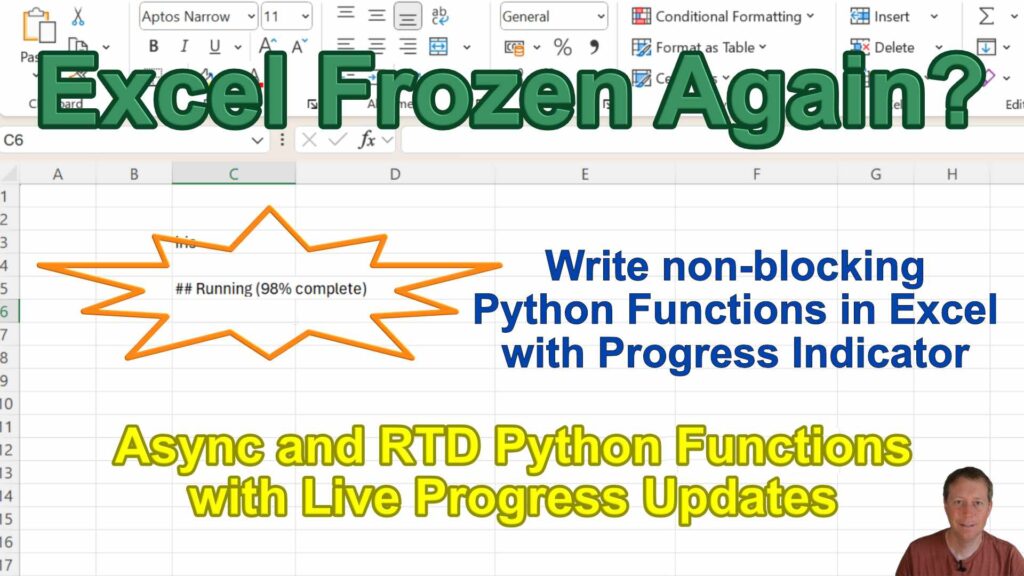
Hit Enter, and your formula runs… but Excel is locked solid. No scrolling. No edits. Just waiting.
With PyXLL, it doesn’t have to be that way. You can run long Python functions without freezing Excel — and even show live progress updates while they work.
Here’s how.
What is a long running function?
Ever written an Excel function that takes so long to run it feels like Excel has frozen?
Normally, when a function is running, Excel just sits there — locked up until the function finishes. Not fun.
With PyXLL, we can break free from that limitation. It’s possible to write Python functions that run in the background, letting Excel stay responsive while the work gets done.
PyXLL lets you call Python functions directly from Excel as if they were ordinary worksheet formulas. But what happens when those Python functions are slow — really slow — and nobody wants to watch the spreadsheet grind away?
You can try to make the code faster (see How to profile Python code in Excel), but sometimes speed just isn’t in your control — for example, when pulling huge datasets from a database or waiting on a sluggish web service.
In this article, we’ll look at a couple of ways to make slow Python functions in Excel feel fast — or at least, feel painless — by improving the user experience instead of the raw execution time.
Sample Problem
Let’s start with a simple example of a slow function.
I’ve written a small demo that returns one of Plotly’s standard test datasets — nothing too fancy.
To really make the function “slow”, I’ve sprinkled in a few time.sleep calls. (Think of them as coffee breaks for your code.)
from pyxll import xl_func import plotly.data import time @xl_func("str dataset: dataframe") def long_running_function(dataset: str): """Runs synchronously, blocking Excel.""" for i in range(50): time.sleep(0.05) func = getattr(plotly.data, dataset) return func() Now, when we run this function in Excel, the problem jumps out immediately: while the function is running, Excel is completely frozen. You can’t scroll, edit cells, or keep working — you’re stuck waiting. Even worse, if you change any input to the function, Excel blocks again until it’s done.
The result? A spreadsheet that feels sluggish and frustrating to use.
Async to the Rescue
The first way to tackle our slow-function problem is with an async function (see Asynchronous Functions).
In Excel, async functions run concurrently. If you’ve got multiple async functions on a sheet, Excel will kick them all off at once, then wait until they’re all done. This is perfect for firing off lots of small web or database requests in parallel — but it’s also handy for big, slow jobs.
Using asyncio with PyXLL
With PyXLL, the easiest way to write an async Excel function is to use Python’s built-in asyncio. I’m not going to dive deep into async programming or threading here — if you’re new to those topics, I’d suggest checking out some tutorials first so you can get the most from this example.
Let’s take our original slow function and convert it into an async one. Async really shines when you can yield control back to the event loop while you’re waiting on something — typically I/O like a database query or an API call. Instead of blocking with time.sleep, we’ll swap that for await asyncio.sleep, which does the same thing but lets other work happen in the meantime.
from pyxll import xl_func import plotly.data import asyncio @xl_func("str dataset: dataframe") async def long_running_function_async(dataset): """Runs on the asyncio event loop.""" for i in range(50): await asyncio.sleep(0.05) func = getattr(plotly.data, dataset) return func() User Experience in Excel
Back in Excel, when we call our new async function, things look similar at first — Excel still waits for the result. But there’s an important difference: if the user tries to click around while the calculation is running, Excel interrupts it with a #CALC! error, allowing them to keep working. Behind the scenes, our function is still running, and once it finishes, Excel quietly updates the cell with the result.

When Async Isn’t Enough
Of course, not every function can be easily rewritten as async. In some cases, it’s better to run the work on a background thread or even a separate process. One easy way to do this in Python is with the ThreadPoolExecutor or ProcessPoolExecutor from the concurrent.futures module. Paired with asyncio’s run_in_executor, you can offload a slow function to a background thread or process while keeping the async structure in place.
Here’s what that looks like: our original long-running function now runs in a background thread via ThreadPoolExecutor, called from another async function. In Excel, it behaves just like the pure-async example — but now the work happens on a separate thread.
from pyxll import xl_func from concurrent.futures import ThreadPoolExecutor import asyncio @xl_func("str dataset: dataframe") async def long_running_function_threaded(dataset): """Runs on the asyncio event loop, but does the actual work on a background thread.""" loop = asyncio.get_running_loop() with ThreadPoolExecutor() as executor: return await loop.run_in_executor(executor, long_running_function, dataset) RTD with Progress Updates
Why RTD Helps
Async functions are a big improvement — they let users interrupt Excel and keep working — but they still have one drawback: there’s no feedback while the function runs. The next approach fixes that by showing a progress indicator so the user can see that something’s happening.
Enter RTD (Real-Time Data) functions. RTD is usually used for streaming live data into Excel — think ticking stock prices or foreign exchange rates — but there’s nothing stopping us from using it to report the progress of a long-running calculation.
Generators for RTD
With PyXLL, the simplest way to create an RTD function is with a Python generator. Unlike a normal function that returns once, a generator yields multiple values over time.
Let’s take our earlier async function and turn it into an async generator. The first step is simple: replace the return statement with yield. Then, when decorating the function with @xl_func, update the signature so PyXLL knows to treat it as an RTD function.
@xl_func("str dataset: rtd<union<dataframe, str>, auto_detach=True>") async def long_running_function_rtd_async(dataset): """Runs on the asyncio event loop.""" for i in range(50): await asyncio.sleep(0.05) func = getattr(plotly.data, dataset) yield func() Adding Progress Messages
If we only yield the final value, Excel won’t show anything until the function completes. So let’s add some early yields — for example, a "# Working…" message at the start, and percentage updates as the function progresses.
One extra detail: our current return type is rtd<dataframe>, which works fine when the result is always a DataFrame. But now we’re sometimes yielding strings, so we’ll change it to a union type. That way, PyXLL knows it might get either a string or a DataFrame and will handle the conversion correctly.
@xl_func("str dataset: rtd<union<dataframe, str>>") async def long_running_function_rtd_async(dataset): """Runs on the asyncio event loop.""" yield "## Working..." pct = 0 for i in range(50): await asyncio.sleep(0.05) pct += 2 yield f"## Running ({pct}% complete)" func = getattr(plotly.data, dataset) yield func() What It Looks Like in Excel
Now, when we run our RTD-powered long-running function in Excel, we immediately see a status message. As it runs, the updates appear in real time, and when it’s done, the final result replaces the progress indicator — all without blocking Excel.

Restarting RTD Functions
There’s one last wrinkle: by default, RTD functions in Excel don’t restart when you recalculate. If you press Ctrl + Alt + F9 after they’ve finished, you’ll just see the last yielded value. That’s sometimes exactly what you want (e.g., for a large dataset you don’t want to reload), but other times you might want the function to start fresh.
That’s where PyXLL’s auto detaching comes in. With auto_detach enabled in the RTD type, the function “detaches” after yielding its final value, behaving like a normal Excel function again. Now, pressing Ctrl + Alt + F9 re-runs your generator from the beginning — perfect when you want a recalculation to trigger a new run.
@xl_func("str dataset: rtd<union<dataframe, str>, auto_detach=True>") async def long_running_function_rtd_async(dataset): """Runs on the asyncio event loop.""" yield "## Working..." pct = 0 for i in range(50): await asyncio.sleep(0.05) pct += 2 yield f"## Running ({pct}% complete)" func = getattr(plotly.data, dataset) yield func() Summary
In this walkthrough, we explored two practical ways to handle long-running Excel functions with PyXLL.
First, we turned a slow function into an async function so it could be interrupted by the user, keeping Excel responsive. Then, we built an RTD function that streamed progress updates in real time — no blocking, no guesswork. Finally, we saw how PyXLL’s auto detach feature makes RTD functions even more versatile by letting them restart cleanly when recalculated.
I hope this has sparked some ideas for making your own worksheets more responsive and user-friendly when dealing with time-consuming functions.
All the code from this example is linked below, and if you have any questions, feel free to reach out via the contact form on the PyXLL website.