Bootstrap Navigation Bar provides a responsive, customizable, and pre-styled navigation component for web applications. It incorporates features like branding, navigation links, dropdowns, and responsiveness, enabling developers to create effective and visually appealing navigation menus effortlessly.
Navbar: Bootstrap provides various types of navigation bars:
| Navbar Type | Description |
|---|
| Basic Navbar | Standard navigation bar layout. |
| Inverted Navbar | Navbar with inverted colors for a different look. |
| Coloured Navigation Bar | Navbar with customized colors for visual appeal. |
| Right-Aligned Navbar | The navbar is aligned to the right side of the page. |
| Fixed Navigation Bar | Navbar that remains fixed at the top of the page. |
| Drop-Down menu Navbar | Navbar with drop-down menu options for navigation. |
| Collapsible Navbar | Navbar with collapsible menu for space efficiency. |
Examples of Bootstrap Navigation Bar
Basic Navbar:
The basic navbar, styled with the navbar class, includes a logo, navigation links, and dropdown menus. It's created using the <nav> tag and initialized with the navbar navbar-default classes.
Example: In this example we creates a basic Bootstrap navbar with a brand name and navigation links. It's styled using Bootstrap's default navbar classes for a simple layout.
HTML <!DOCTYPE html> <html lang="en"> <head> <title>Bootstrap Example</title> <meta charset="utf-8" /> <meta name="viewport" content="width=device-width, initial-scale=1" /> <link rel="stylesheet" href= "https://maxcdn.bootstrapcdn.com/bootstrap/3.4.0/css/bootstrap.min.css" /> <script src= "https://ajax.googleapis.com/ajax/libs/jquery/3.4.1/jquery.min.js"> </script> <script src= "https://maxcdn.bootstrapcdn.com/bootstrap/3.4.0/js/bootstrap.min.js"> </script> </head> <body> <nav class="navbar navbar-default"> <div class="container-fluid"> <div class="navbar-header"> <a class="navbar-brand" href="#"> WebSiteName</a> </div> <ul class="nav navbar-nav"> <li class="active"> <a href="#">Home</a> </li> <li> <a href="#">Page 1</a> </li> <li> <a href="#">Page 2</a> </li> <li> <a href="#">Page 3</a> </li> </ul> </div> </nav> </body> </html>
Output:

Inverted Navbar:
An inverted navbar is styled with dark colors and light text. It's created using the navbar-inverse class in Bootstrap, providing a sleek and modern appearance for navigation menus.
Example:
HTML <!DOCTYPE html> <html lang="en"> <head> <title>Bootstrap Example</title> <meta charset="utf-8"> <meta name="viewport" content="width=device-width, initial-scale=1"> <link rel="stylesheet" href= "https://maxcdn.bootstrapcdn.com/bootstrap/3.4.0/css/bootstrap.min.css"> <script src= "https://ajax.googleapis.com/ajax/libs/jquery/3.4.1/jquery.min.js"> </script> <script src= "https://maxcdn.bootstrapcdn.com/bootstrap/3.4.0/js/bootstrap.min.js"> </script> </head> <body> <nav class="navbar navbar-inverse"> <div class="container-fluid"> <div class="navbar-header"> <a class="navbar-brand" href="#"> WebSiteName</a> </div> <ul class="nav navbar-nav"> <li class="active"> <a href="#">Home</a> </li> <li> <a href="#">Page 1</a> </li> <li> <a href="#">Page 2</a> </li> <li> <a href="#">Page 3</a> </li> </ul> </div> </nav> </body> </html>
Output:

Coloured navigation Bar :
A colored navigation bar is styled using custom CSS or Bootstrap classes to have a background color different from the default. It enhances visual appeal and branding consistency.
- .bg-primary - Blue
- .bg-success - Green
- .bg-warning - Yellow
- .bg-danger - Red
- .bg-secondary - Grey
- .bg-dark - Black
- .bg-light - White
Use .bg-color class to change the color of the navbar to the above-listed colors.
Example: In this example we creates a Bootstrap navbar with a colored background for each navigation link, using Bootstrap's background color classes like bg-primary, bg-success, bg-danger, and bg-warning.
HTML <!DOCTYPE html> <html lang="en"> <head> <title>Bootstrap Example</title> <meta charset="utf-8"> <meta name="viewport" content="width=device-width, initial-scale=1"> <link rel="stylesheet" href= "https://maxcdn.bootstrapcdn.com/bootstrap/3.4.0/css/bootstrap.min.css"> <script src= "https://ajax.googleapis.com/ajax/libs/jquery/3.4.1/jquery.min.js"> </script> <script src= "https://maxcdn.bootstrapcdn.com/bootstrap/3.4.0/js/bootstrap.min.js"> </script> </head> <body> <nav class="navbar navbar-default"> <div class="container-fluid"> <div class="navbar-header"> <a class="navbar-brand" href="#"> WebSiteName</a> </div> <ul class="nav navbar-nav"> <li class="active"><a href="#"> Home</a></li> <li class="bg-primary"><a href="#"> Page 1</a></li> <li class="bg-success"><a href="#"> Page 2</a></li> <li class="bg-danger"><a href="#"> Page 3</a></li> <li class="bg-warning"><a href="#"> Page 4</a></li> </ul> </div> </nav> </body> </html>
Output:

Right-Aligned Navbar:
A Bootstrap right-aligned navbar is created using the navbar-right class on the <ul> element, aligning navigation items to the right side of the navbar container.
Example: In this example we creates a Bootstrap navbar with a dark background and right-aligned navigation items, including registration and login links with corresponding icons.
HTML <!DOCTYPE html> <html lang="en"> <head> <title>Bootstrap Example</title> <meta charset="utf-8"> <meta name="viewport" content="width=device-width, initial-scale=1"> <link rel="stylesheet" href= "https://maxcdn.bootstrapcdn.com/bootstrap/3.4.0/css/bootstrap.min.css"> <script src= "https://ajax.googleapis.com/ajax/libs/jquery/3.4.1/jquery.min.js"> </script> <script src= "https://maxcdn.bootstrapcdn.com/bootstrap/3.4.0/js/bootstrap.min.js"> </script> </head> <body> <nav class="navbar navbar-inverse"> <div class="container-fluid"> <div class="navbar-header"> <a class="navbar-brand" href="#"> WebSiteName</a> </div> <ul class="nav navbar-nav"> <li class="active"><a href="#">Home</a></li> <li><a href="#">Page 1</a></li> <li><a href="#">Page 2</a></li> <li><a href="#">Page 3</a></li> </ul> <ul class="nav navbar-nav navbar-right"> <li><a href="#"> <span class="glyphicon glyphicon-user"></span> Register</a></li> <li><a href="#"> <span class="glyphicon glyphicon-log-in"></span> Login</a></li> </ul> </div> </nav> </body> </html>
Output:

Fixed Navigation Bar:
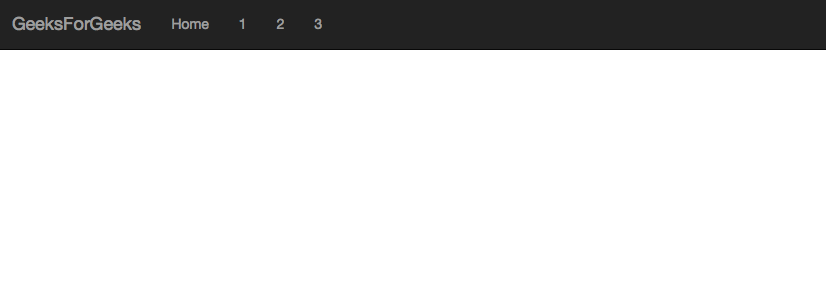
A Bootstrap fixed navigation bar remains visible at the top of the viewport while scrolling. It's created using the navbar-fixed-top class for a persistent navigation experience.
Example: In this example we creates a Bootstrap navbar with a dark background and fixed positioning at the top of the viewport, ensuring it remains visible while scrolling.
HTML <!DOCTYPE html> <html lang="en"> <head> <title>Bootstrap Example</title> <meta charset="utf-8"> <meta name="viewport" content="width=device-width, initial-scale=1"> <link rel="stylesheet" href= "https://maxcdn.bootstrapcdn.com/bootstrap/3.4.0/css/bootstrap.min.css"> <script src= "https://ajax.googleapis.com/ajax/libs/jquery/3.4.1/jquery.min.js"> </script> <script src= "https://maxcdn.bootstrapcdn.com/bootstrap/3.4.0/js/bootstrap.min.js"> </script> </head> <body> <nav class="navbar navbar-inverse navbar-fixed-top"> <div class="container-fluid"> <div class="navbar-header"> <a class="navbar-brand" href="#"> GeeksForGeeks</a> </div> <ul class="nav navbar-nav"> <li class="active"><a href="#"> Home</a></li> <li><a href="#">1</a></li> <li><a href="#">2</a></li> <li><a href="#">3</a></li> </ul> </div> </nav> </body> </html>
Output:
Drop-Down Menu Navbar:
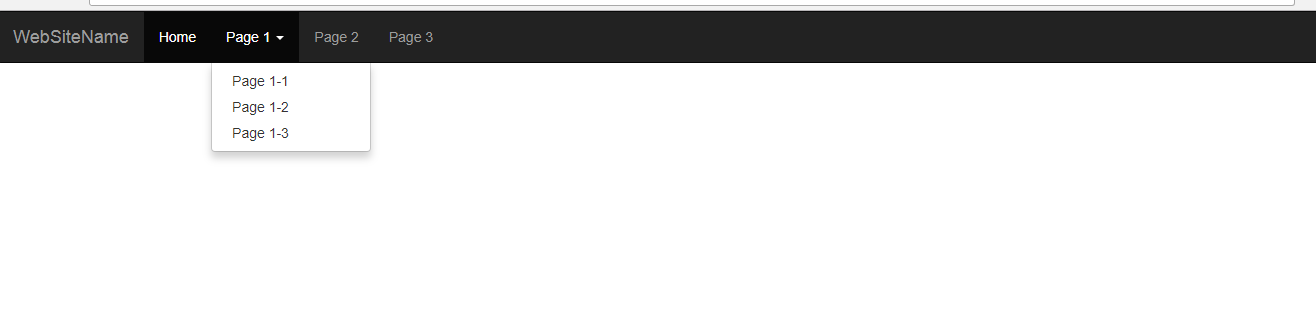
A Bootstrap dropdown menu navbar features navigation links that expand into dropdown menus when clicked, providing a compact and organized navigation structure for web applications.
Example: In this example creates a Bootstrap navbar with dropdown menus, providing compact navigation. Dropdowns expand on clicking parent items, enhancing navigation options and organization.
HTML <!DOCTYPE html> <html lang="en"> <head> <title>Bootstrap Example</title> <meta charset="utf-8"> <meta name="viewport" content="width=device-width, initial-scale=1"> <link rel="stylesheet" href= "https://maxcdn.bootstrapcdn.com/bootstrap/3.4.0/css/bootstrap.min.css"> <script src= "https://ajax.googleapis.com/ajax/libs/jquery/3.4.1/jquery.min.js"> </script> <script src= "https://maxcdn.bootstrapcdn.com/bootstrap/3.4.0/js/bootstrap.min.js"> </script> </head> <body> <nav class="navbar navbar-inverse navbar-fixed-top"> <div class="container-fluid"> <div class="navbar-header"> <a class="navbar-brand" href="#"> WebsiteName </a> </div> <ul class="nav navbar-nav"> <li class="active"> <a href="#">Home</a> </li> <li class="dropdown"> <a class="dropdown-toggle" data-toggle="dropdown" href="#"> Page 1<span class="caret"></span></a> <ul class="dropdown-menu"> <li><a href="#">Page 1-1</a></li> <li><a href="#">Page 1-2</a></li> <li><a href="#">Page 1-3</a></li> </ul> </li> <li><a href="#">Page 2</a></li> <li><a href="#">Page 3</a></li> </ul> </div> </nav> </body> </html>
Output:
Collapsible Navigation Bar:
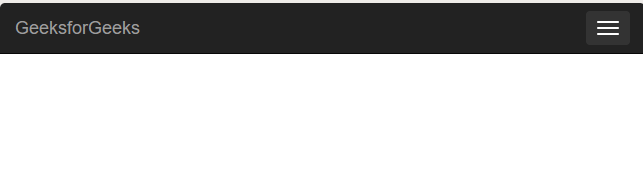
A Bootstrap collapsible navigation bar collapses into a hamburger icon on smaller screens, conserving space. It expands to reveal navigation links when toggled, ensuring accessibility and responsiveness.
Example: In this example creates a Bootstrap navbar with a collapsible feature. On smaller screens, it collapses into a hamburger icon, conserving space while ensuring accessibility.
HTML <!DOCTYPE html> <html lang="en"> <head> <title>Bootstrap Example</title> <meta charset="utf-8"> <meta name="viewport" content="width=device-width, initial-scale=1"> <link rel="stylesheet" href= "https://maxcdn.bootstrapcdn.com/bootstrap/3.4.0/css/bootstrap.min.css"> <script src= "https://ajax.googleapis.com/ajax/libs/jquery/3.4.1/jquery.min.js"> </script> <script src= "https://maxcdn.bootstrapcdn.com/bootstrap/3.4.0/js/bootstrap.min.js"> </script> </head> <body> <nav class="navbar navbar-inverse navbar-fixed-top"> <div role="navigation"> <div class="container"> <div class="navbar-header"> <button class="navbar-toggle" type="button" data-toggle="collapse" data-target=".navbar-collapse"> <span class="sr-only">Toggle navigation</span> <span class="icon-bar"></span> <span class="icon-bar"></span> <span class="icon-bar"></span> </button> <a href="#" class="navbar-brand">GeeksforGeeks</a> </div> <div class="navbar-collapse collapse"> <ul class="nav navbar-nav navbar-right"> <li class="active"><a href="#">Home</a></li> <li> <a href="#">About</a> </li> <li><a href="#">Contact</a> </li> </ul> </div> </div> </div> </nav> </body> </html>
Output:
Supported Browser:
Explore
Layout
Content
Forms
Forms Layout
Components
Navbar
Helpers
Extend
Utilities
References
My Profile