File Monitor Filter Driver SDK
Download EaseFilter File Monitor SDK Setup File Download EaseFilter File Monitor SDK Zip File
Introduction
In today's digital landscape, ensuring the security of your files is paramount. Understanding who accessed your files and when is crucial for maintaining data integrity and compliance. The EaseFilter File Monitor Filter Driver SDK is a comprehensive file system filter driver development kit that enables you to develop robust file system monitoring software with ease.
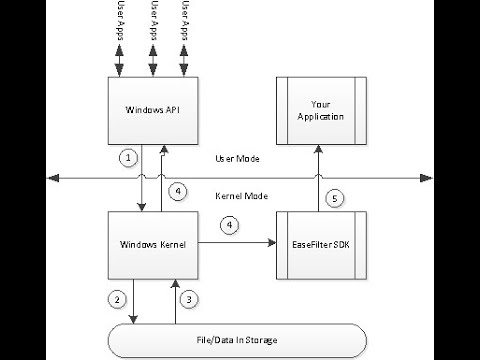
A file system filter driver intercepts requests directed at a file system or another filter driver. By capturing these requests before they reach their intended targets, the filter driver can extend or modify the functionality provided by the original target. Windows offers file system filtering services through the Filter Manager, which provides a framework for developing file systems and filter drivers without delving into the complexities of file I/O operations.
EaseFilter File Monitor Filter Driver SDK
EaseFilter Filter Driver SDK can monitor Windows file I/O activities in real time, track the file access and changes, monitor file and folder permission changes, audit who is writing, deleting, moving or reading files, report the user name and process name, get the user name and the ip address when the Windows file server's file is accessed by network user.

Capabilities of the File Monitor Filter Driver SDK
With this SDK, you can develop software for various purposes:
- Continuous Data Protection (CDP): Create applications that log file update information in real-time, including write operations with specific offsets and lengths.
- File Auditing: Intercept file system calls to analyze and log file content, ensuring comprehensive auditing capabilities.
- Access Logging: Generate detailed access logs to determine who accessed specific files and when.
- File Journaling: Record file update information based on parameters like location, type, and size.
Monitoring File Changes
The File Monitor SDK enables you to observe changes in files and subdirectories within specified directories. You can set up filter rules to monitor files on local computers, network drives, or remote systems. By registering file change events, your application can receive notifications whenever a user or process modifies a file.
Events you can monitor include:
- File Creation: Receive notifications when a new file is created by a user or process.
- File Deletion: Be alerted when a file is deleted.
- File Renaming: Get notified when a file is renamed.
- File Writing: Detect when data is written to a file.
- Security Changes: Monitor changes to a file's security settings.
- Information Changes: Track modifications to a file's attributes, such as size, time, or other metadata.
Real-Time File I/O Activity Tracking
By registering specific file I/O events, your application can receive real-time notifications when processes request I/O operations on files. These events provide insights into who accessed the file, the nature of the I/O request, and the outcome of the operation.
Key events include:
- OnPostFileCreate: Triggered after a process opens or creates a file. Details include desired access levels, creation options, and the result of the operation (e.g., FILE_CREATED, FILE_OPENED).
- OnPostFileRead: Fired after a process reads data from a file. Information includes read offsets, lengths, and read types (e.g., cache read, non-cache read).
- OnPostFileWrite: Occurs after data is written to a file. Provides write offsets, lengths, and write types.
- OnPostQueryFileInfo: Triggered after querying a file's information, such as allocation size, file size, timestamps, attributes, and internal IDs.
- OnPostSetFileInfo: Fired after changes to a file's information, including size, attributes, and timestamps.
- OnPostMoveOrRenameFile: Occurs after a file is renamed, providing both old and new file names.
Flexible Filter Rule
The EaseFilter File Monitor SDK provides a highly configurable filtering system, allowing you to monitor only the file activities you care about. You can define include and exclude rules with multiple criteria, ensuring optimal performance and precise event tracking.
Combine these filters (path, process, user, flags) to create precise rules. At least one filter rule must be defined to enable monitoring.
File Path Masks (Wildcards)
Monitor specific directories or file types using wildcard patterns. If multiple rules match a file, the driver applies the rule with the most specific (deepest) file path. For example, a rule for c:\test\test2\* would take precedence over a rule for c:\test\* for a file in c:\test\test2.
C:\Data\*.docx D:\Projects\Reports\*Supports * and ? wildcards for flexible pattern matching.
Process-Based Filtering
Include or exclude specific processes by name or process ID (PID).
Only monitor activity from: notepad.exe Exclude all activity from: backup.exeUser-Based Filtering
Filter events by Windows user accounts.
- Include list — Only users in this list will generate events.
- Exclude list — Users in this list will be ignored.
File Access Flags
Filter based on file creation/opening attributes and options:
DesiredAccess— e.g., Read, Write, ExecuteDisposition— e.g., CreateNew, OpenExisting, OverwriteCreateOptions— e.g., Temporary file, Delete on close, Directory

File System Event Log Data
When you integrate the EaseFilter File Monitor SDK, the driver can capture a very detailed set of log data for every file system event that matches your filter rules.Here’s the typical log data you can get:
Field | Description |
|---|---|
EventType | Action performed (Create, Open, Read, Write, Rename, Delete, Query, SetInformation, etc.). |
EventTime | Timestamp when the event occurred (ISO 8601 recommended, UTC). |
ResultStatus | NTSTATUS or Win32 result code (e.g., STATUS_SUCCESS, ACCESS_DENIED). |
ThreadId / ProcessId | Numeric thread and process identifiers that triggered the event. |
FilePath | Full NT or Win32 path to the file (e.g., C:\Data\report.docx). |
FileName | Filename only. |
FileAttributes | Attributes like ReadOnly, Hidden, System, Archive, etc. |
FileSize | Current size in bytes (if applicable). |
FileId / ObjectId | NTFS unique identifier for the file/object. |
IsDirectory | Boolean: whether the object is a directory. |
UserName | Domain\Username that performed the action. |
UserSID | Security Identifier (SID) of the user. |
UserDomain | Domain name (if applicable). |
ProcessName | Executable name (e.g., notepad.exe). |
ProcessPath | Full path to the executable. |
DesiredAccess | Requested access rights (Read, Write, Execute, Delete, etc.). |
Disposition | Create/Open mode (CreateNew, OpenExisting, Overwrite, etc.). |
CreateOptions | Flags such as FILE_DELETE_ON_CLOSE, FILE_DIRECTORY_FILE, FILE_SEQUENTIAL_ONLY, etc. |
ShareAccess | Share mode requested (read/write/delete sharing). |
Offset | Byte offset in the file where the operation starts. |
Length | Number of bytes read or written. |
Data (optional) | Actual bytes transferred — capture typically optional and can impact performance; sanitize sensitive content before logging. |

Integrate EaseFilter FileMonitor SDK with Elastic, Splunk, and SIEM
1. Data Collection from FileMonitor SDK
The EaseFilter FileMonitor SDK generates detailed file I/O event logs, including:
- User name and process name/ID
- File path, size, attributes, last write time
- Thread ID and unique file object handle
- I/O status (success/error)
- Remote access details (IsRemoteAccess flag, Remote IP)
- Event type (Create, Read, Write, Delete, Rename, Security Change, etc.)
2. Formatting Logs for SIEM
Format SDK output into a structured JSON format for compatibility with log ingestion tools:
{ "Timestamp": "2025-08-08T10:15:32Z", "EventType": "FileWrite", "User": "DOMAIN\\UserA", "ProcessName": "notepad.exe", "ProcessId": 4321, "FilePath": "C:\\Data\\report.docx", "FileSize": 10240, "IOStatus": "SUCCESS", "IsRemoteAccess": false, "RemoteIP": "" } 3. Integration with Elastic Stack (ELK)
- Use Filebeat to ship JSON logs from your application to Elasticsearch.
- Configure
filebeat.ymlto read the log file and parse JSON fields. - Example configuration:
filebeat.inputs: - type: log paths: - "C:/Logs/filemonitor.json" json.keys_under_root: true json.add_error_key: true output.elasticsearch: hosts: ["http://localhost:9200"]
4. Integration with Splunk
- Use the Splunk Universal Forwarder to monitor the FileMonitor SDK log file.
- Example
inputs.confconfiguration:
[monitor://C:\\Logs\\filemonitor.json] disabled = false index = file_monitor sourcetype = json
5. Integration with Other SIEM Platforms
Many SIEM tools (e.g., QRadar, ArcSight) support JSON or Syslog ingestion. You can send events directly via:
- HTTP REST API (POST JSON events)
- Syslog UDP/TCP
- Agent-based collectors
// Example: Sending event to SIEM REST API HttpClient client = new HttpClient(); var content = new StringContent(jsonString, Encoding.UTF8, "application/json"); await client.PostAsync("https://siem.example.com/api/logs", content); 6. Recommended Architecture
- Run FileMonitor SDK in a background service to capture events in real-time.
- Write logs to JSON files or send directly via REST/Syslog.
- Integrate with log shipping agents (Filebeat, Splunk Forwarder).
- Analyze in Elastic/Kibana, Splunk dashboards, or SIEM alerts.
7. Example C# Collector Skeleton
// Program.cs using System; using System.Net.Http; using System.Text; using System.Threading.Tasks; using Newtonsoft.Json; // NOTE: Replace namespaces/types below with the ones from your EaseFilter SDK. using EaseFilter.FilterControl; // placeholder - change to actual SDK namespace using EaseFilter.FilterControl.Args; // placeholder - change as needed class Program { static HttpClient httpClient = new HttpClient() { Timeout = TimeSpan.FromSeconds(5) }; static string aiServiceUrl = "http://localhost:5000/score"; // Python AI endpoint static void Main(string[] args) { Console.WriteLine("Starting EaseFilter listener..."); FilterControl filter = new FilterControl(); // TODO: initialize filter: provide your registry key/license/config // filter.Initialize(...); // Create a filter rule (example path) FileFilterRule rule = new FileFilterRule(@"C:\Sensitive\*"); rule.AccessFlag = AccessFlag.ALLOW_MAX_ACCESS; // let callbacks decide // Register callbacks (use correct event args for your SDK) rule.OnPreWriteFile += OnPreWriteFile; rule.OnPreCreateFile += OnPreCreateFile; rule.OnPreReadFile += OnPreReadFile; filter.AddFileFilter(rule); if (!filter.StartFiltering()) { Console.WriteLine("Failed to start filter: " + FilterAPI.GetLastErrorMessage()); return; } Console.WriteLine("Filter started. Press Enter to exit."); Console.ReadLine(); filter.StopFiltering(); } // Example: pre-write callback static void OnPreWriteFile(object sender, WriteFileEventArgs e) { // Build a light-weight JSON event for AI var ev = new { timestamp = DateTime.UtcNow.ToString("o"), action = "write", filePath = e.FileName, processName = e.ProcessName, processId = e.ProcessId, userName = e.UserName, fileSize = e.FileSize, bytesToWrite = e.Length, isRemote = e.IsRemoteAccess }; var decision = QueryAiSync(ev).GetAwaiter().GetResult(); if (decision == "block") { // Block the operation — exact API depends on EaseFilter SDK types e.ReturnStatus = NtStatus.StatusAccessDenied; // requires Control SDK capability e.FilterReply.ReturnMessage = "Blocked by AI policy."; } // else allow (do nothing) } static void OnPreCreateFile(object sender, CreateFileEventArgs e) { var ev = new { timestamp = DateTime.UtcNow.ToString("o"), action = "create", filePath = e.FileName, processName = e.ProcessName, processId = e.ProcessId, userName = e.UserName, desiredAccess = e.DesiredAccess.ToString(), isRemote = e.IsRemoteAccess }; var decision = QueryAiSync(ev).GetAwaiter().GetResult(); if (decision == "block") { e.ReturnStatus = NtStatus.StatusAccessDenied; e.FilterReply.ReturnMessage = "Blocked by AI policy."; } } static void OnPreReadFile(object sender, ReadFileEventArgs e) { var ev = new { timestamp = DateTime.UtcNow.ToString("o"), action = "read", filePath = e.FileName, processName = e.ProcessName, processId = e.ProcessId, userName = e.UserName, readLength = e.Length, isRemote = e.IsRemoteAccess }; var decision = QueryAiSync(ev).GetAwaiter().GetResult(); if (decision == "block") { e.ReturnStatus = NtStatus.StatusAccessDenied; e.FilterReply.ReturnMessage = "Blocked by AI policy."; } } static async Task QueryAiSync(object ev) { try { var json = JsonConvert.SerializeObject(ev); var resp = await httpClient.PostAsync(aiServiceUrl, new StringContent(json, Encoding.UTF8, "application/json")); if (!resp.IsSuccessStatusCode) return "allow"; var text = await resp.Content.ReadAsStringAsync(); // Expect response like: { "decision": "allow" } or "block", "investigate" dynamic o = JsonConvert.DeserializeObject(text); return (string)o.decision; } catch (Exception ex) { // On error, be conservative: allow or block based on your policy. Here we allow. Console.WriteLine("AI query error: " + ex.Message); return "allow"; } } } File Monitor Demo Video