

The WhatsApp Button block provides an easy way for your website visitors to contact you via WhatsApp. The WhatsApp Button block will allow your site’s visitors to contact you via WhatsApp with the tap of a button.
This feature is available on sites with our WordPress.com Premium, Business, and Commerce plans. For free sites and sites on the Personal plan, upgrade your plan to access this feature.
To add a WhatsApp Button block, click on the + block inserter icon. Search for WhatsApp and click on the button block to add it to the post or page.
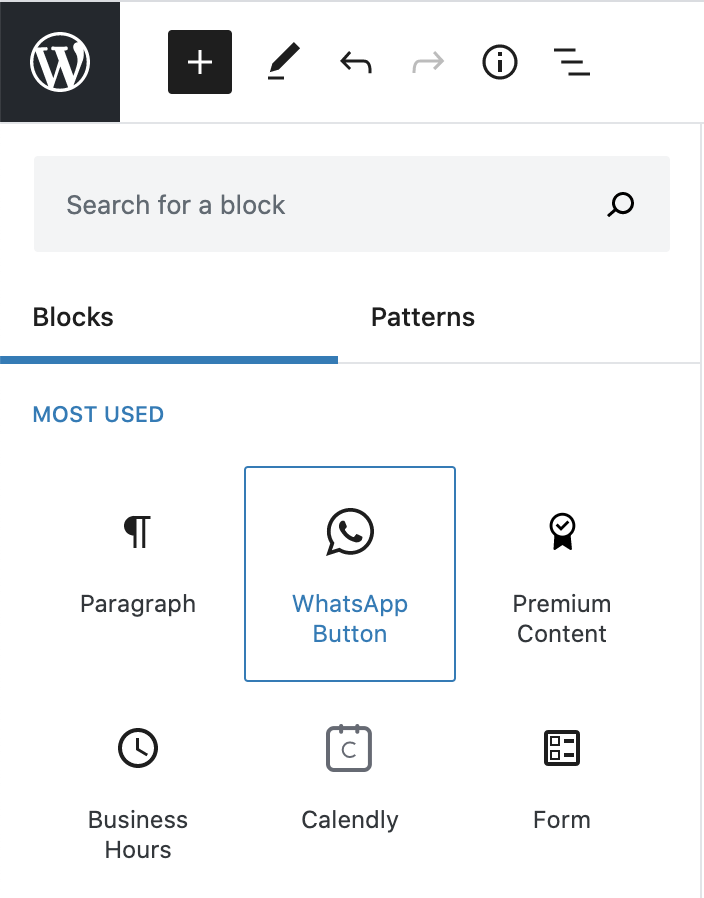
For more information, visit our detailed instructions on adding blocks.
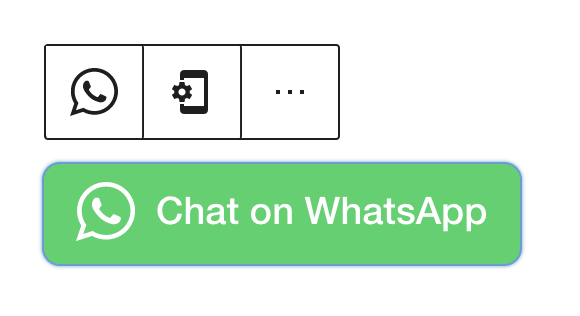
When you first add the WhatsApp Button block, you will have a default green WhatsApp button on your post or page:
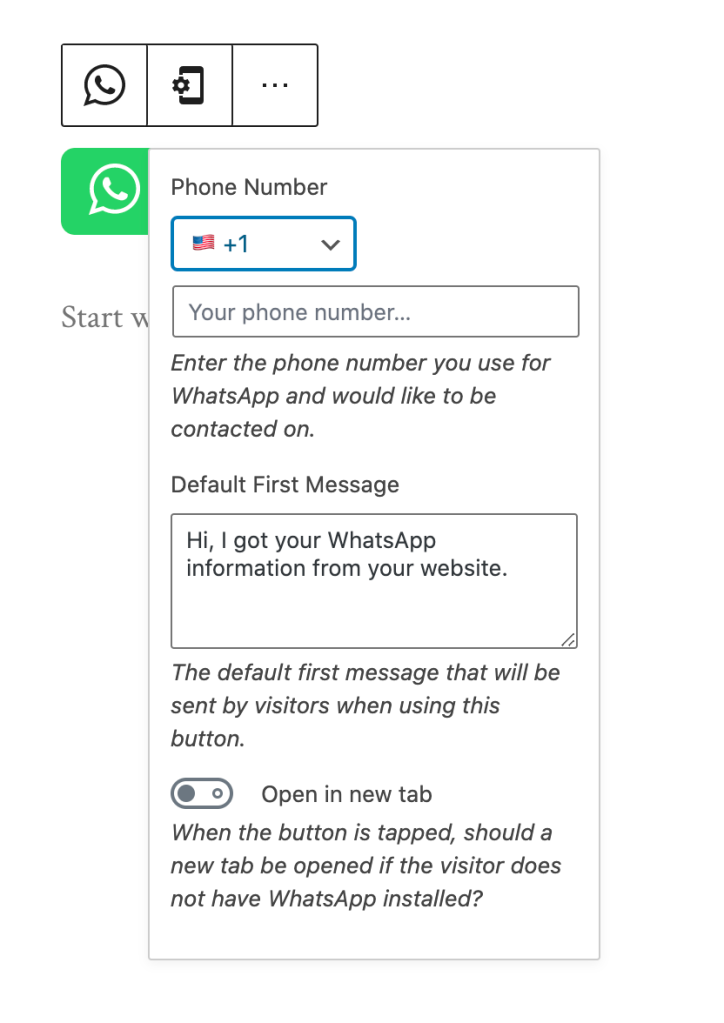
You will want to set your contact number and default first message once you have added the block. To do this use the settings button and fill out the form:
When you select a block, you will find additional block settings in the right sidebar. If you do not see the sidebar, you may need to click the Settings icon in the top-right corner to bring up the settings. This icon looks like a square with two uneven columns:

More details for this standard block style can be found in the Color Settings guide.
For more information, visit our detailed instructions on Advanced Settings.