

Use the Page Break block if you’d like to add pagination, or page breaks, to a page or post. This can be useful if you are writing a step-by-step tutorial or if you’d like to split your page into multiple chapters, for instance.
In this guide
Have a question?
Ask our AI assistantTo add a page break, click on the + block inserter button and search for the Page Break block. Click on it to add it to your post or page.
You can also type /page break and hit enter on a new line to add one quickly.
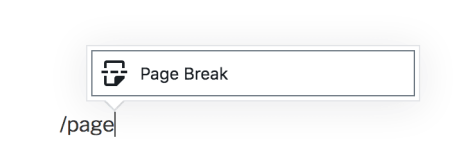
For more information, visit our detailed instructions on adding blocks.
Any content written after the Page Break block will appear on the next page. You can add as many page breaks as you want. Each Page Break block adds a new number to the multi-page link that appears at the bottom, splitting the content into more pages:

If you are using the classic editor, follow these steps to add a page break:
- Switch to the HTML editor by clicking on the Text tab at the top of the page or post:
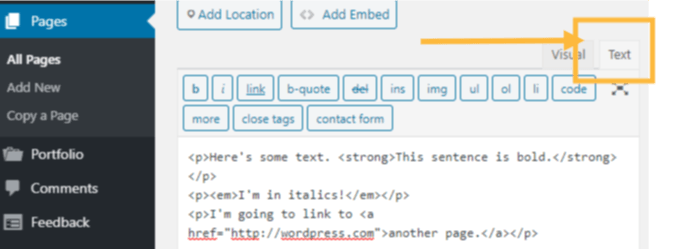
- Place your cursor where you want to make the page break.
- Type, or copy and paste, the following:
<!‐‐nextpage‐‐> - Any content that is written after
<!‐‐nextpage‐‐>will appear on the next page when you view the page or post.