Wouldn’t it be great if you could automate your design tasks? Research shows that using social technologies at work can raise productivity by 20 to 25 percent.
This guide will show you how to automate your most repetitive design tasks without writing a single line of code.
Get ready to streamline your workflow, eliminate manual work, and reclaim your work hours.
What is Design Automation (and Why Should You Care)?
Nowadays, you’ll most likely see “automation” and “generative AI” (or LLMs) in the same sentence.
Generative AI can write essays, analyze data, and automate design work.
Instead of having to spend hours trying to come up with your own design or recreating someone else’s work, you can type in what you’d like to appear into a generative AI and it can execute your design in minutes.
If you’re using Pikto AI, it can create what you’re looking for by parsing your text, generating a design, and allowing you to change elements like images and fonts.
When you’re satisfied with the design, you have the option to save it as a template so that the next time you have a similar report, presentation, or infographic, you can reuse the design and just make tweaks to it.
With generative AI, you can look like a professional designer with no design experience necessary.
5 Time-Consuming Design Tasks You Can Automate Today
From resizing files for different social media platforms to creating templates for different reports and presentations, design tasks can take up a huge chunk of your workday.
One way you can reclaim your work time is to automate the five time-consuming design tasks below by outsourcing to AI.
1. Creating Social Media Visuals in Bulk
Let’s say you’re a lifestyle brand and you’re active on all major social media platforms.
Using a design tool like Piktochart, you can create variations of your visuals for Instagram, Facebook, and LinkedIn at once, in bulk, instead of making them all individually.
You can type what you want in your post content and Pikto AI will present you with a bunch of options to choose from.
You can edit the images and colors, save as a template if you love the design, export, and you’re good to go for all of your social media visual needs.
Rather than having to figure out what size design would work best for a particular platform, you can let Pikto AI take care of that for you (it already knows the optimal aspect ratios).
Your ads, banners, stories, headers, and carousels can all be made in one place, no professional design experience necessary.
2. Standardizing business reports and presentations
One way to ensure visual consistency for your business is to standardize business reports and presentations.
You can create a master template based on a visual you use often and incorporate that across all of your reports and presentations.
It’s easy to create a master template out of previous designs.
Once you make a visual on Pikto AI, it’s saved in your workplace and you can reuse the same design as often as you want (the layout, icons, etc. can all be reused!).
Piktochart also allows you to create brand assets by setting your brand guidelines, e.g. your fonts, brand colors, and logos, and applying them to templates.
The next time you want to design a report or presentation, when you go to edit the template, your brand colors will appear in the color tab.
You can choose your brand font schemas to be automatically applied across the template.

3. Designing data and information visualizations
Tired of depending on Sheets for your information visualizations? Can’t get your charts to look sophisticated and polished when drawing them on Sketch?
The good news is that you can use design tools and generative AI to instantly turn your data into charts and graphs.
Piktochart allows you to choose the type of chart or graph you want for your infographic, paste in your data, and automatically generate your chart or graph.
With Piktochart’s Preserve Content feature, you can upload an existing file and it will convert your black and white existing text, tables, and charts into a well-designed and aesthetically pleasing report.
Think of it as a content glow up.
What’s more, if you want to incorporate your brand colors and fonts, you can set the chart information and colors to your brand colors and your data and information visualizations will be automatically standardized for your brand.
Easy, right?
4. Resizing and repurposing a core design
Although you can easily create designs in bulk with generative AI, sometimes you fall in love with a design that hits the right notes and want to use it for multiple channels.
In addition to creating a template of that design so that you can reuse it for future projects, you can easily use a tool like Pikto AI to resize the design so that you can use it in different formats.

Instead of having to create new designs for each platform, you can resize and repurpose your core design’s dimensions to optimize it visually across every platform.
When you’re done designing, you can go to your image settings and use the dropdown menu to resize your image for Instagram, Facebook, LinkedIn, Youtube, and Twitter.
You can also turn it into a banner for your email, website, or Twitch.
With automation, you can kill several design birds with one stone.
5. Generating a First Draft with AI Image Generators
If you’re at a loss for where to start when it comes to generating a first draft for your design tasks, generative AI can help.
General gen AI tools like ChatGPT can help you create a simple first draft as inspiration for your designs.
And while tools like ChatGPT and Claude are a great starting point, the caveat is that you can’t create a template if you like the design or customize it.
If you want a tool that goes a step further, you can use a specialized design tool like Pikto AI.
Pikto AI can not only help you come up with design ideas by presenting you with dozens of options for the prompt that you give it, you can create a template of the final design you choose.
After creating your template, you can then customize it with your branding so that your final product is on brand.


The Best Design Automation Tools for Your Workflow
Now that you know which design tasks you should automate to optimize your workflow, let’s look at which design automation tools you’ll need.
Some tools are particularly good for certain use cases, so we’ll explore which tools are best for all-in-one visual communication, advanced design, and for communication across apps.
For All-in-One Visual Communication: Piktochart
Piktochart is the all-in-one visual communication tool for all of your design needs.
With Piktochart’s Expanded AI tools, you can beautify your existing content with the Preserve Content feature, generate templates with AI, use the AI Image Generator to create images, and, if you’re a Business Plan subscriber, you can set brand assets for use across all of your designs.
Before:
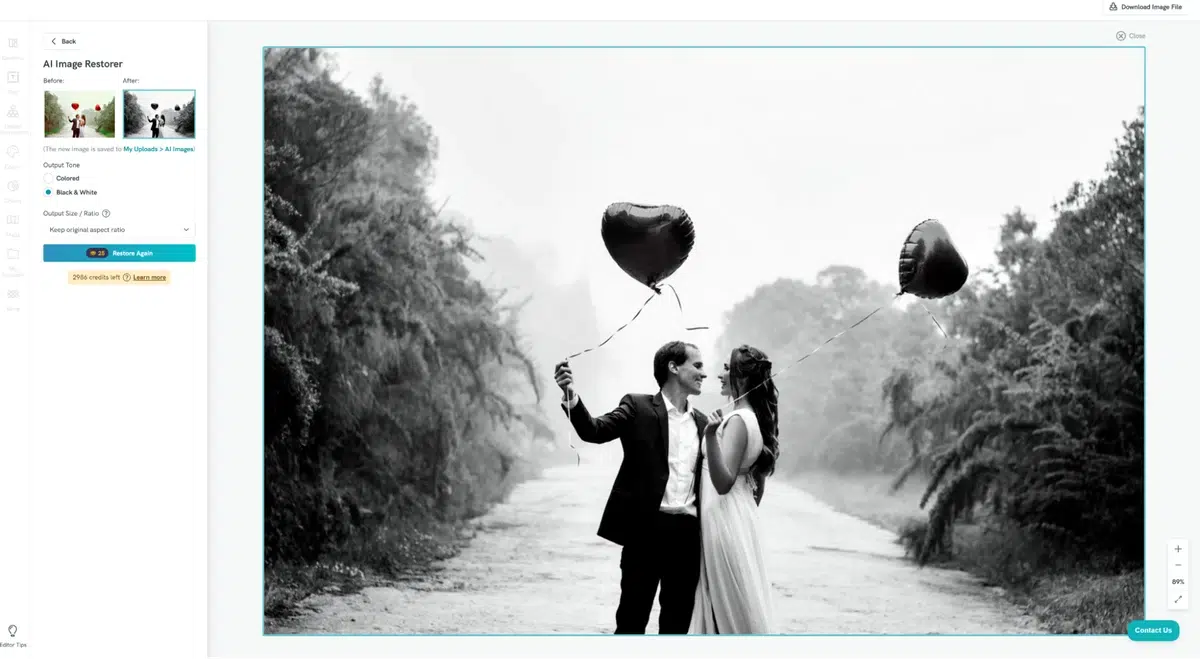

Image Restorer:
Object Remover:
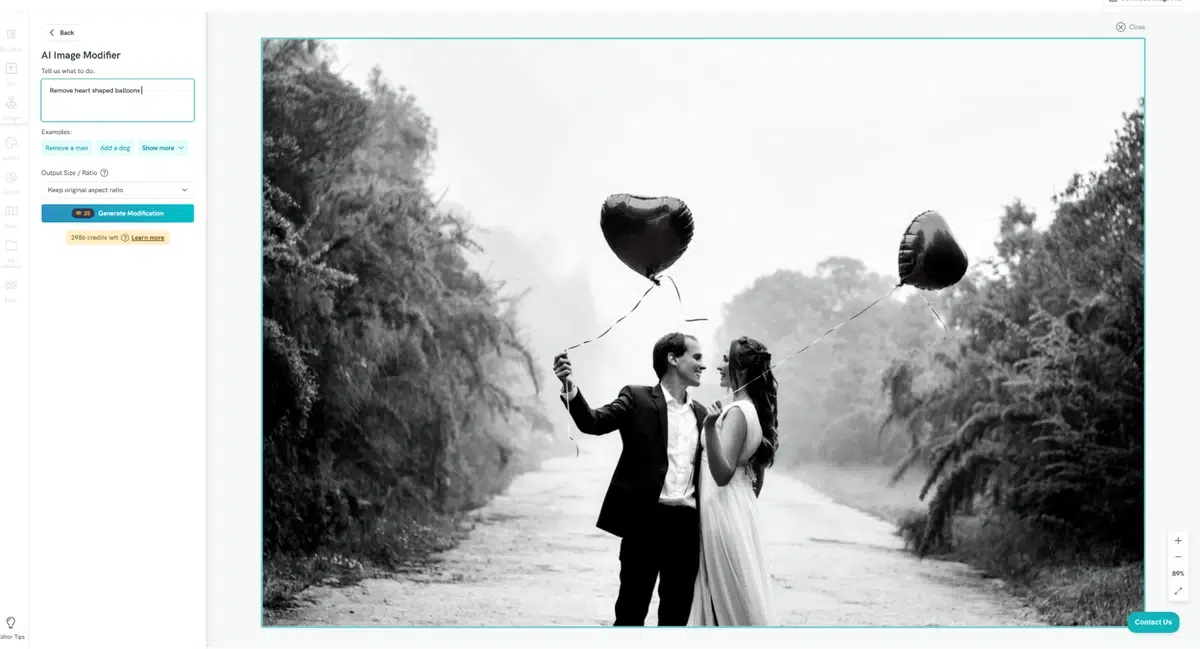
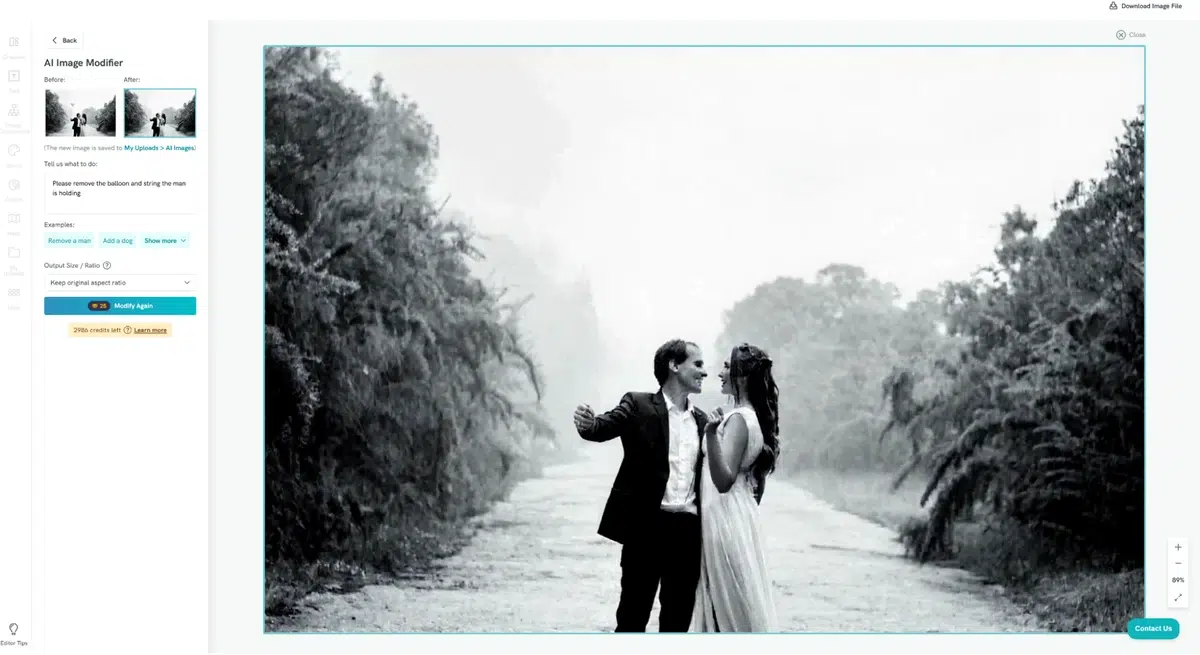

On top of being able to generate images based on textual input and making your existing work publishing worthy, Piktochart offers a wide range of image editing tools in the AI design suite to make it easy to edit images.
You can use Piktochart’s image upscaler to increase your image resolution and quality, the background remover to remove unwanted objects, the image restorer to manipulate the color or ratio, and you can change the image style by converting it to a different visual style (e.g. Ghibli, cyberpunk, cartoon styles).
For Advanced UI/UX and Product Design: Figma
Figma is a tool used for wireframing and mapping user flows, as well as prototyping webpages.
You can use Figma to walk stakeholders through the process of what happens when a user arrives on your site and what interactions they can have with different elements on your site.
Figma can help automate design tasks by allowing users to create reusable components that update everywhere in the design, automatically adjust spacing, alignment, and size, and fill in text, images, and icons with plugins.
You can also integrate Figma with other APIs to automate the design to development to client handoff process.
For Connecting Different Apps: Make/Zapier
Make and Zapier are tools that allow users to automate workflows across different applications.
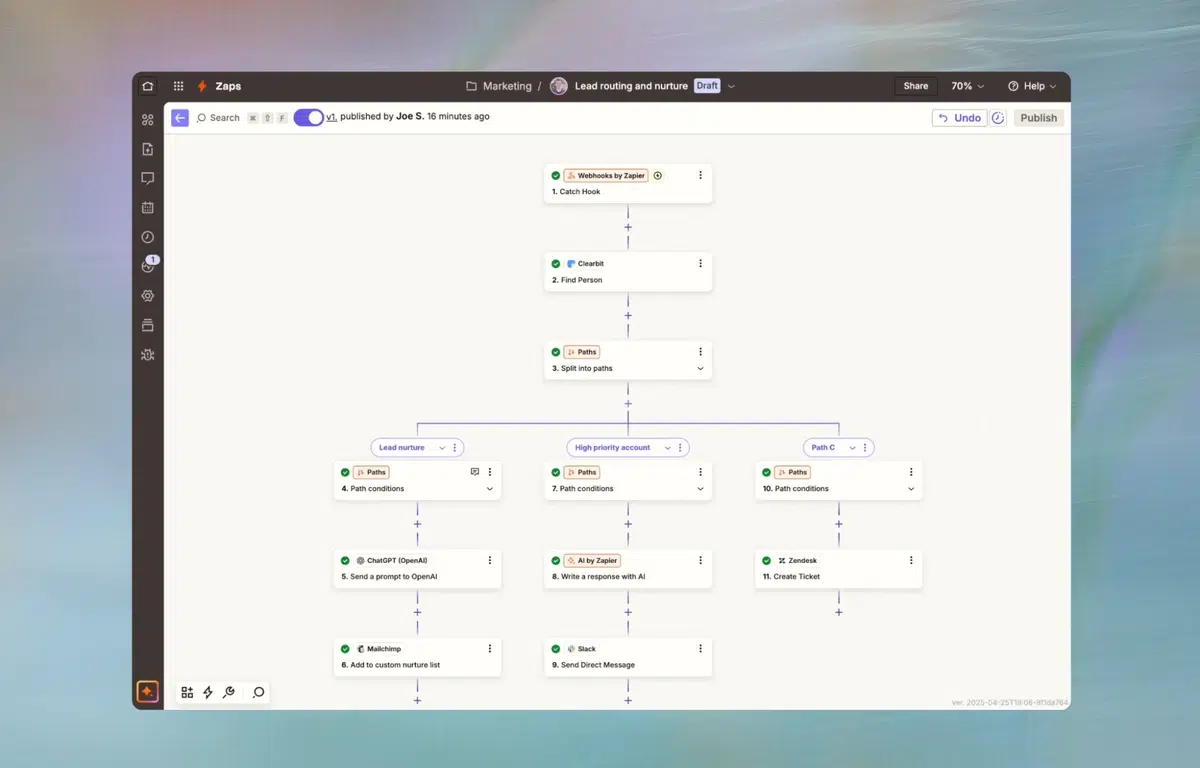
For example, if you have a WordPress site, you can set up a Zap where you’ll get a Slack notification every time a user leaves a comment.
You can automatically upload exported designs to client folders, send automated emails or messages when a file is updated, upload to social media, and update design progress in PM tools.
Being able to connect across applications is useful for automating design tasks as a workflow one stop shop when it comes to file management, client communication, and content publishing.
Final Thoughts: More Time for Strategy, Less on Tedious Tasks
Let’s face it, nobody likes wasting valuable time doing tedious tasks.
Now that you know tools like Piktochart can help you create social media visuals, reports, charts and graphs, and designs in general, you should take advantage of it to automate your repetitive design tasks.
By leveraging the power of generative AI, not only can you generate more time to strategize your next professional steps, you can also produce polished visuals that a designer would be proud of.
That’s a win-win in anyone’s book, so you should try letting Pikto AI take over your design tasks as soon as possible.