
Image thresholding is one of the most essential and widely used techniques in image processing and computer vision. It transforms a grayscale image into a binary image by setting pixel values to either a maximum or minimum based on a defined threshold. This simple yet powerful method is commonly used in applications such as object detection, document scanning, image segmentation, and more. In this tutorial, we will explore various thresholding techniques provided by OpenCV and demonstrate how to implement them in both Python and C++.
Table of contents
Import cv2
Before using any OpenCV functions, we must first import the library. This is the essential first step to access all OpenCV functionalities.
Python
# import the cv2 library import cv2 C++
//Include Libraries //OpenCV's cv::Mat acts like NumPy arrays for image processing. #include<opencv2/opencv.hpp> #include<iostream> We are assuming that you have already installed OpenCV on your device.
If not please refer the relevant links below:
Example Image
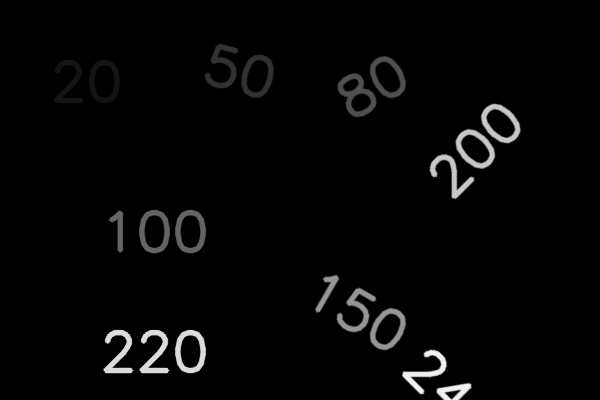
We have used the image below, which contains various numbers rendered with pixel intensities equal to their actual values. In this grayscale image, the higher the pixel value, the brighter the corresponding number appears.
Functions and Syntaxes
Image thresholding is the process of converting a grayscale image into a binary image using cv2.threshold(). This is achieved by selecting a threshold value and assigning pixel values accordingly. This technique is particularly useful for separating objects from the background.
Python
retval, dst = cv2.threshold(src, thresh, maxval, type) C++
double threshold(InputArray src, OutputArray dst, double thresh, double maxval, int type); The function accepts the below arguments:
- src: Input grayscale image (must be single-channel).
- dst: Output image after thresholding (same size and type as input).
- thresh: Threshold value to compare each pixel against.
- maxval: Value assigned to pixels that meet the threshold condition (varies by type).
- type: Thresholding type.
OpenCV provides five basic types of image thresholding that can be applied to grayscale images using the cv2.threshold() function. These techniques differ in how they modify pixel values based on a given threshold.
Binary Thresholding (cv2.THRESH_BINARY)
Sets pixels to the maximum value if they are above the threshold; otherwise, sets them to zero.
Python
_, thresh_img = cv2.threshold(img, 127, 255, cv2.THRESH_BINARY) C++
threshold(img, thresh_img, 127, 255, THRESH_BINARY); This thresholding operation can be expressed as:
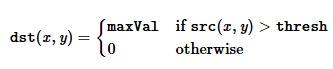
So, if the intensity of the pixel src(x,y) is higher than thresh, then the new pixel intensity is set to a MaxVal. Otherwise, the pixels are set to 0.
Inverse Binary Thresholding (cv2.THRESH_BINARY_INV)
Opposite of binary thresholding: sets pixels to zero if they are above the threshold; otherwise, sets them to the maximum value.
Python
_, thresh_img = cv2.threshold(img, 127, 255, cv2.THRESH_BINARY_INV) C++
threshold(img, thresh_img, 127, 255, THRESH_BINARY_INV); This thresholding operation can be expressed as:

If the intensity of the pixel src(x,y) is higher than thresh, then the new pixel intensity is set to a 0. Otherwise, it is set to MaxVal.
Truncate Thresholding (cv2.THRESH_TRUNC)
Sets pixels to the threshold value if they are above it; otherwise, leaves them unchanged.
Python
_, thresh_img = cv2.threshold(img, 127, 255, cv2.THRESH_TRUNC) C++
threshold(img, thresh_img, 127, 255, THRESH_TRUNC); This thresholding operation can be expressed as:

The maximum intensity value for the pixels is thresh, if src(x,y) is greater, then its value is truncated.
To Zero Thresholding (cv2.THRESH_TOZERO)
Leaves pixels unchanged if they are above the threshold; otherwise, sets them to zero.



Python
_, thresh_img = cv2.threshold(img, 127, 255, cv2.THRESH_TOZERO) C++
threshold(img, thresh_img, 127, 255, THRESH_TOZERO); This operation can be expressed as:

If src(x,y) is lower than thresh, the new pixel value will be set to 0.
Inverse To Zero Thresholding (cv2.THRESH_TOZERO_INV)
Opposite of To Zero thresholding: sets pixels to zero if they are above the threshold; otherwise, leaves them unchanged.
Python
_, thresh_img = cv2.threshold(img, 127, 255, cv2.THRESH_TOZERO_INV) C++
threshold(img, thresh_img, 127, 255, THRESH_TOZERO_INV); This operation can be expressed as:

If src(x,y) is greater than thresh, the new pixel value will be set to 0.
Implementation
Let’s apply these thresholding techniques to an example image:
Python
import cv2 import matplotlib.pyplot as plt # Read the image img = cv2.imread('intensity_digits.png', cv2.IMREAD_GRAYSCALE) # Apply different thresholding techniques _, binary = cv2.threshold(img, 127, 255, cv2.THRESH_BINARY) _, binary_inv = cv2.threshold(img, 127, 255, cv2.THRESH_BINARY_INV) _, trunc = cv2.threshold(img, 127, 255, cv2.THRESH_TRUNC) _, tozero = cv2.threshold(img, 127, 255, cv2.THRESH_TOZERO) _, tozero_inv = cv2.threshold(img, 127, 255, cv2.THRESH_TOZERO_INV) # Display the results cv2.imshow("binary",binary) cv2.imshow("binary_inv",binary_inv) cv2.imshow("trunc",trunc) cv2.imshow("tozero",tozero) cv2.imshow("tozero_inv",tozero_inv) cv2.waitKey(0) cv2.destroyAllWindows() C++
#include <opencv2/opencv.hpp> using namespace cv; int main() { // Read the image in grayscale Mat img = imread("intensity_digits.png", IMREAD_GRAYSCALE); Mat binary, binary_inv, trunc, tozero, tozero_inv; // Apply different thresholding techniques threshold(img, binary, 127, 255, THRESH_BINARY); threshold(img, binary_inv, 127, 255, THRESH_BINARY_INV); threshold(img, trunc, 127, 255, THRESH_TRUNC); threshold(img, tozero, 127, 255, THRESH_TOZERO); threshold(img, tozero_inv, 127, 255, THRESH_TOZERO_INV); // Display the results imshow("binary", binary); imshow("binary_inv", binary_inv); imshow("trunc", trunc); imshow("tozero", tozero); imshow("tozero_inv", tozero_inv); waitKey(0); destroyAllWindows(); return 0; } This code reads a grayscale image and applies five different image thresholding techniques (BINARY, BINARY_INV, TRUNC, TOZERO, TOZERO_INV) using OpenCV’s cv2.threshold() function. Each resulting image is displayed in a separate window to visually compare the effects of the different methods.
Output
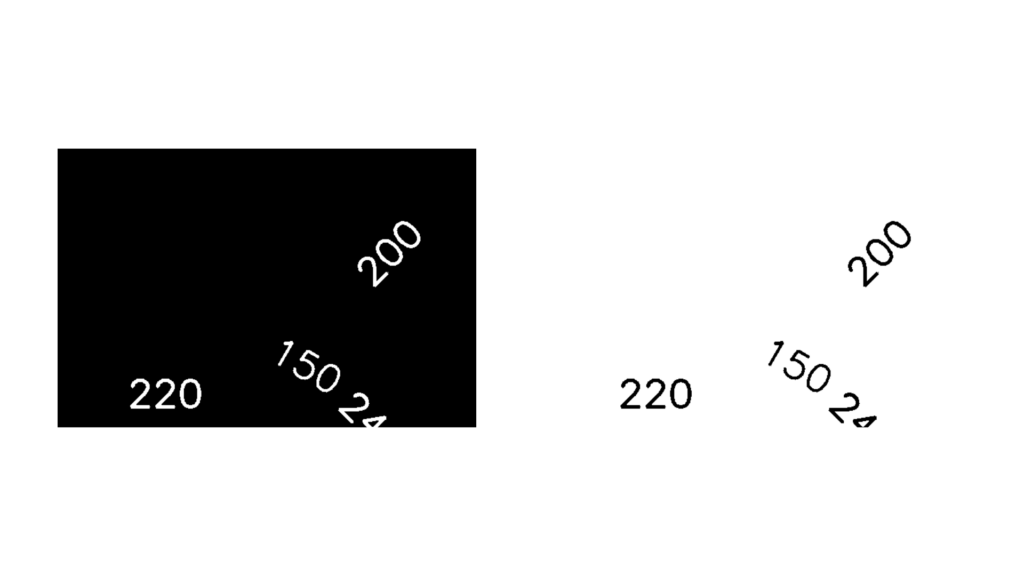
Fig2. Binary Thresholding Fig3. Inverse Binary Thresholding
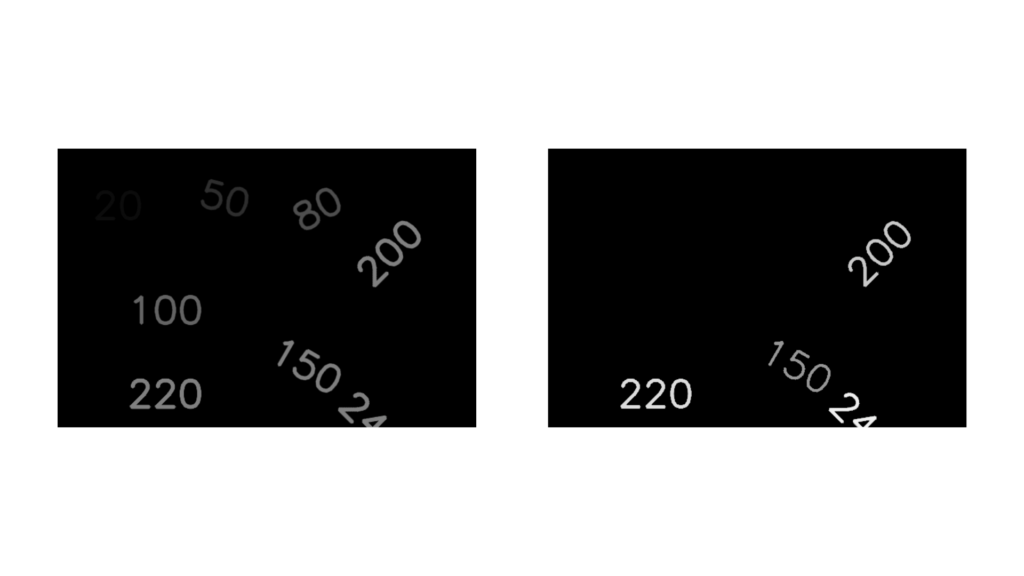
Fig4. Truncate Thresholding Fig5. To Zero Thresholding
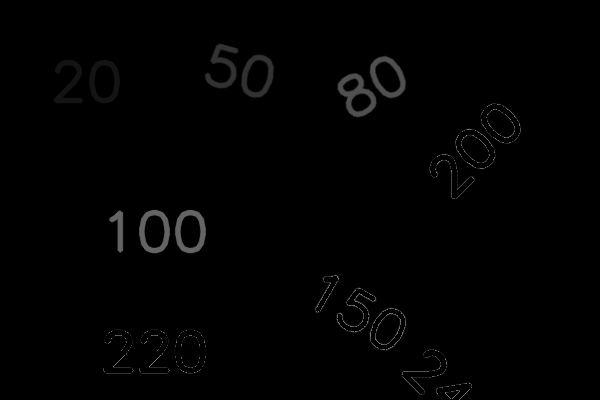
Other Thresholding Methods
While basic image thresholding works well for images with uniform lighting, it often fails when lighting varies across the image. To handle such cases, OpenCV offers more advanced techniques like Adaptive Thresholding and Otsu’s Thresholding. These methods automatically determine the threshold value either locally (adaptive) or globally (Otsu’s), resulting in more robust segmentation in challenging lighting conditions.
Adaptive Thresholding
In situations where lighting conditions vary across the image, adaptive thresholding is more effective. Instead of using a global threshold value, it calculates the threshold for smaller regions of the image.
Python
# Apply Adaptive Mean Thresholding thresh_img = cv2.adaptiveThreshold(img, 255, cv2.ADAPTIVE_THRESH_MEAN_C, cv2.THRESH_BINARY, 11, 2) # Apply Adaptive Gaussian Thresholding thresh_img = cv2.adaptiveThreshold(img, 255, cv2.ADAPTIVE_THRESH_GAUSSIAN_C, cv2.THRESH_BINARY, 11, 2) C++
# Apply Adaptive Mean Thresholding adaptiveThreshold(img, thresh_img, 255, ADAPTIVE_THRESH_MEAN_C, THRESH_BINARY, 11, 2); # Apply Adaptive Gaussian Thresholding adaptiveThreshold(img, thresh_img, 255, ADAPTIVE_THRESH_GAUSSIAN_C, THRESH_BINARY, 11, 2); - cv2.ADAPTIVE_THRESH_MEAN_C calculates the mean of the neighborhood area.
- cv2.ADAPTIVE_THRESH_GAUSSIAN_C calculates a weighted sum of the neighborhood values where weights are a Gaussian window.
- 11 is the size of the neighborhood area (block size).
- 2 is a constant subtracted from the mean or weighted mean.
Otsu’s Binarization
Otsu’s method automatically determines the optimal threshold value by minimizing intra-class intensity variance. It is useful when the image histogram has two distinct peaks.
Python
# Apply Otsu's thresholding _, thresh_img = cv2.threshold(img, 0, 255, cv2.THRESH_BINARY + cv2.THRESH_OTSU) C++
# Apply Otsu's thresholding threshold(img, thresh_img, 0, 255, THRESH_BINARY | THRESH_OTSU); - img: Input grayscale image.
- 0: Initial threshold value (ignored when using Otsu’s method).
- 255: Maximum pixel value to use.
- cv2.THRESH_BINARY + cv2.THRESH_OTSU: Combines binary thresholding with Otsu’s algorithm, which automatically computes the optimal threshold based on image histogram.
The initial threshold value (0 here) is ignored and OpenCV calculates the best threshold internally and returns it as the first output (_ in this case).
Example Implementation
Python
import cv2 # Load image in grayscale img = cv2.imread("intensity_digits.png", cv2.IMREAD_GRAYSCALE) # Adaptive Mean Thresholding thresh_mean = cv2.adaptiveThreshold(img, 255, cv2.ADAPTIVE_THRESH_MEAN_C, cv2.THRESH_BINARY, 11, 2) # Adaptive Gaussian Thresholding thresh_gauss = cv2.adaptiveThreshold(img, 255, cv2.ADAPTIVE_THRESH_GAUSSIAN_C, cv2.THRESH_BINARY, 11, 2) # Otsu's Thresholding _, thresh_otsu = cv2.threshold(img, 0, 255, cv2.THRESH_BINARY + cv2.THRESH_OTSU) # Save the output images cv2.imwrite("adaptive_mean.png", thresh_mean) cv2.imwrite("adaptive_gaussian.png", thresh_gauss) cv2.imwrite("otsu_threshold.png", thresh_otsu) # Display results cv2.imshow("Adaptive Mean", thresh_mean) cv2.imshow("Adaptive Gaussian", thresh_gauss) cv2.imshow("Otsu Threshold", thresh_otsu) cv2.waitKey(0) cv2.destroyAllWindows() C++
#include <opencv2/opencv.hpp> using namespace cv; int main() { // Load image in grayscale Mat img = imread("intensity_digits.png", IMREAD_GRAYSCALE); // Check if image loaded if (img.empty()) { std::cerr << "Failed to load image." << std::endl; return -1; } Mat thresh_mean, thresh_gauss, thresh_otsu; // Adaptive Mean Thresholding adaptiveThreshold(img, thresh_mean, 255, ADAPTIVE_THRESH_MEAN_C, THRESH_BINARY, 11, 2); // Adaptive Gaussian Thresholding adaptiveThreshold(img, thresh_gauss, 255, ADAPTIVE_THRESH_GAUSSIAN_C, THRESH_BINARY, 11, 2); // Otsu's Thresholding threshold(img, thresh_otsu, 0, 255, THRESH_BINARY | THRESH_OTSU); // Save the results imwrite("adaptive_mean.png", thresh_mean); imwrite("adaptive_gaussian.png", thresh_gauss); imwrite("otsu_threshold.png", thresh_otsu); // Show results imshow("Adaptive Mean", thresh_mean); imshow("Adaptive Gaussian", thresh_gauss); imshow("Otsu Threshold", thresh_otsu); waitKey(0); destroyAllWindows(); return 0; } - adaptiveThreshold(…) splits the image into small regions (blocks) and applies a threshold for each.
- ADAPTIVE_THRESH_MEAN_C: Uses the mean of the neighborhood.
- ADAPTIVE_THRESH_GAUSSIAN_C: Uses a weighted sum (Gaussian window).
- blockSize = 11: Size of the local neighborhood (must be odd).
- C = 2: A constant subtracted from the mean or weighted mean to fine-tune the result.
- The threshold value is 0 and OpenCV computes the optimal value automatically for Otsu’s technique.
Output
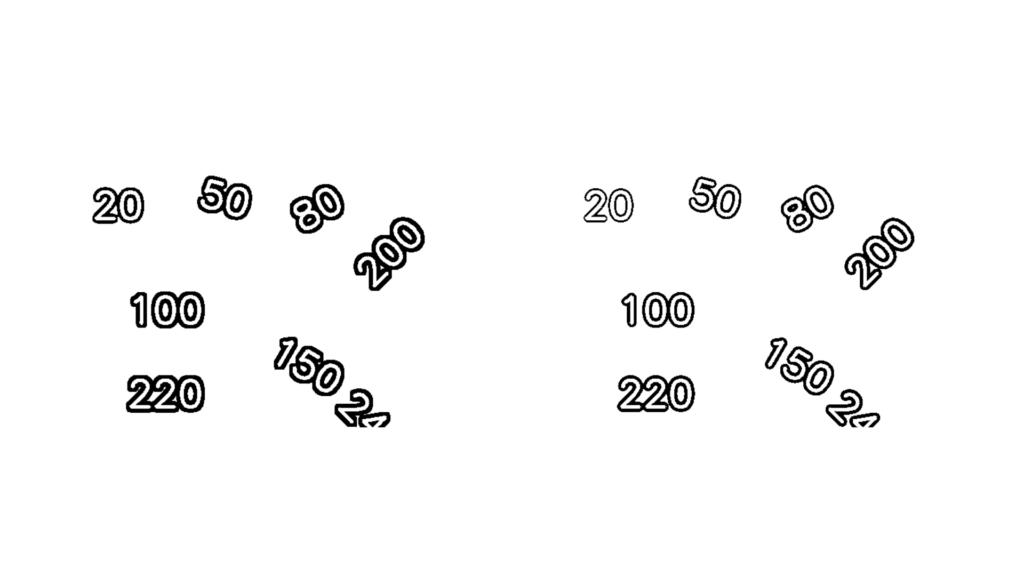
Fig7. Adaptive mean Fig8. Adaptive Gaussian
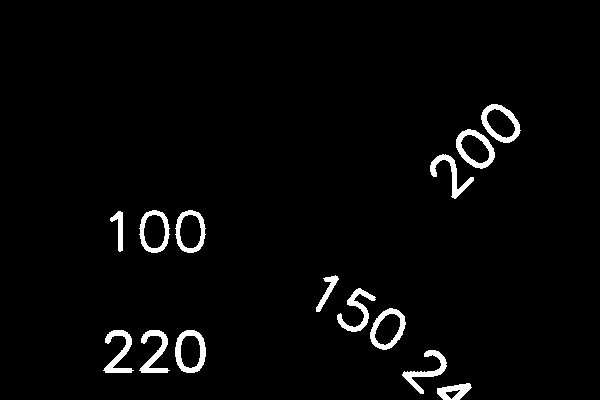
Summary
In this blog, we explored different image thresholding techniques using OpenCV. We began with basic thresholding methods and moved on to more advanced techniques like Adaptive Thresholding, which is effective under varying lighting conditions, and Otsu’s Thresholding, which automatically determines the optimal threshold value based on image histograms. With just a few lines of code, OpenCV makes it easy to implement powerful image preprocessing techniques.



5K+ Learners
Join Free VLM Bootcamp3 Hours of Learning