Hi,
this week I had the problem on a Windows Server 2008 R2 system that I had to recognize if a network connection to specific closed TCP port is tried to established.
The Windows firewall on the machine is running but logs only packets to the firewall logfile for tcp and udp ports an which a process is listen to. Also the parsing of the logfile is frequently necessary.
A better way is to enable the firewall audit option “Filtering Platform Packet Drop”. This generates an EventLog entry with EventID 5152 for each incoming packet which is dropped. Windows provides the abiltiy to trigger an schedule task after an eventlog entry is written and pass some event details as parameter to a script defined in the task. Unfortunataly not with the GUI.
Turn the Windows Firewall on and if not set by a domain policy open the Group policy object editor and enable these two policies:
Computer Configuration Windows Settings Security Settings Local Policies Security Options Audit: Force audit policy subcategory settings: enable Computer Configuration Windows Settings Security Settings Advanced Audit Policy Configuration System Audit Policies Object Access Filtering Platform Packet Drop: Faliure
Check if they are active:
D:\>reg query HKLM\System\CurrentControlSet\Control\Lsa /v SCENoApplyLegacyAuditPolicy HKEY_LOCAL_MACHINE\System\CurrentControlSet\Control\Lsa SCENoApplyLegacyAuditPolicy REG_DWORD 0x1D:\>auditpol /get /SubCategory:{0CCE9225-69AE-11D9-BED3-505054503030} System audit policy Category/Subcategory Setting Object Access Filtering Platform Packet Drop Failure
Check if packets were logged. I use nmap. Start a port scan on a second system, bootet with a live linux such as Knoppix or Kali Linux, against your Windows System
root@live # nmap -sT -p 9100-9110 192.168.1.1 9100/tcp filtered jetdirect 9101/tcp filtered jetdirect 9102/tcp filtered jetdirect 9103/tcp filtered jetdirect 9104/tcp filtered jetdirect 9105/tcp filtered jetdirect 9106/tcp filtered jetdirect 9107/tcp filtered jetdirect 9108/tcp filtered unknown 9109/tcp filtered unknown 9110/tcp filtered unknownFiltered means packet were dropped. Entries with EventID 5152 and Source “Microsoft Windows security auditing.” are logged to the Security EventLog:
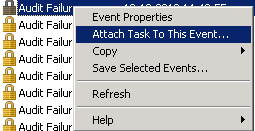
The Windows Filtering Platform has blocked a packet. Application Information: Process ID: 0 Application Name: - Network Information: Direction: Inbound Source Address: 192.168.1.110 Source Port: 34135 Destination Address: 192.168.1.1 Destination Port: 9110 Protocol: 6 Filter Information: Filter Run-Time ID: 79299 Layer Name: Transport Layer Run-Time ID: 13Creating a triggered Schedule Task for this Event is quite simple. Select the Eventlog entry and choose “Attach a Task to this event” from the right click menu.
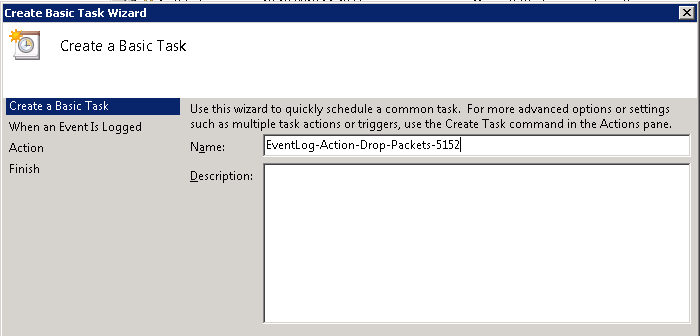
Define a name
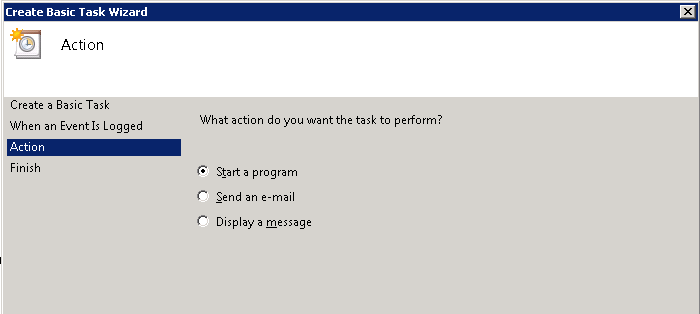
Start a program
I use a powershell script were you can do further actions.
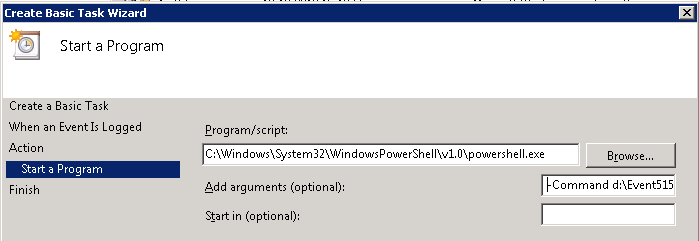
Now, for each new log entry the script is called one time. But by default no information about the event was passed to the script. The task must be modified.
Export the task by the following command line.
[D:\]schtasks /query /TN "Event Viewer Tasks\EventLog-Action-Drop-Packets-5152" /XML > C:\temp\Export-EventLog-Action-Drop-Packets-5152.xmlNote: The Taskname is the relative path below the C:\Windows\System32\Tasks folder.
C:\>dir "\Windows\System32\Tasks\Event Viewer Tasks" Volume in drive C is SYSTEM Volume Serial Number is FRD2-865E Directory of C:\Windows\System32\Tasks\Event Viewer Tasks 18.12.2013 15:15 <DIR> . 18.12.2013 15:15 <DIR> .. 18.12.2013 15:16 3.616 EventLog-Action-Drop-Packets-5152 1 File(s) 3.616 bytes 2 Dir(s) 36.972.118.016 bytes freeThe export should looks like this
<?xml version="1.0" encoding="UTF-16"?> <Task version="1.2" xmlns="http://schemas.microsoft.com/windows/2004/02/mit/task"> <RegistrationInfo> <Date>2013-12-18T19:06:56.6561506</Date> <Author>PC\localadm</Author> </RegistrationInfo> <Triggers> <EventTrigger> <Enabled>true</Enabled> <Subscription><QueryList><Query Id="0" Path="Security"><Select Path="Security">*[System[Provider[@Name='Microsoft-Windows-Security-Auditing'] and EventID=5152]]</Select></Query></QueryList></Subscription> </EventTrigger> </Triggers> <Principals> <Principal id="Author"> <RunLevel>LeastPrivilege</RunLevel> <UserId>PC\localadm</UserId> <LogonType>InteractiveToken</LogonType> </Principal> </Principals> <Settings> <MultipleInstancesPolicy>IgnoreNew</MultipleInstancesPolicy> <DisallowStartIfOnBatteries>true</DisallowStartIfOnBatteries> <StopIfGoingOnBatteries>true</StopIfGoingOnBatteries> <AllowHardTerminate>true</AllowHardTerminate> <StartWhenAvailable>false</StartWhenAvailable> <RunOnlyIfNetworkAvailable>false</RunOnlyIfNetworkAvailable> <IdleSettings> <StopOnIdleEnd>true</StopOnIdleEnd> <RestartOnIdle>false</RestartOnIdle> </IdleSettings> <AllowStartOnDemand>true</AllowStartOnDemand> <Enabled>true</Enabled> <Hidden>false</Hidden> <RunOnlyIfIdle>false</RunOnlyIfIdle> <WakeToRun>false</WakeToRun> <ExecutionTimeLimit>P3D</ExecutionTimeLimit> <Priority>7</Priority> </Settings> <Actions Context="Author"> <Exec> <Command>C:\Windows\System32\WindowsPowerShell\v1.0\powershell.exe</Command> <Arguments>-Command D:\Event5152.ps1</Arguments> </Exec> </Actions> </Task>
You have to determine which parameters should be passed to the script. To get a list all possible values open an event with ID 5152 in event viewer, switch to Details and XML View.
<Event xmlns="http://schemas.microsoft.com/win/2004/08/events/event"> <System> <Provider Name="Microsoft-Windows-Security-Auditing" Guid="{54849625-5478-4994-A5BA-3E3B0328C30D}" /> <EventID>5152</EventID> <Version>0</Version> <Level>0</Level> <Task>12809</Task> <Opcode>0</Opcode> <Keywords>0x8010000000000000</Keywords> <TimeCreated SystemTime="2013-12-18T17:14:01.325613300Z" /> <EventRecordID>156715054</EventRecordID> <Correlation /> <Execution ProcessID="4" ThreadID="92" /> <Channel>Security</Channel> <Computer>PC.local</Computer> <Security /> </System> <EventData> <Data Name="ProcessId">0</Data> <Data Name="Application">-</Data> <Data Name="Direction">%%14592</Data> <Data Name="SourceAddress">192.168.1.100</Data> <Data Name="SourcePort">45345</Data> <Data Name="DestAddress">192.168.1.1</Data> <Data Name="DestPort">9100</Data> <Data Name="Protocol">17</Data> <Data Name="FilterRTID">79299</Data> <Data Name="LayerName">%%14597</Data> <Data Name="LayerRTID">13</Data> </EventData> </Event> Open the task export xml file with your favorite editor. Define a <ValueQueries> Node as child of the <EventTrigger> node and for each parameter a <Value> node under <ValueQueries>.
The name attribute of the Value Node is the variable name which will be used in the action node later. The text within the value node is the XPath query to select a detail from the event.
<ValueQueries> <Value name="TimeCreated">Event/System/TimeCreated/@SystemTime</Value> <Value name="SourceAddress">Event/EventData/Data[@Name='SourceAddress']</Value> <Value name="SourcePort">Event/EventData/Data[@Name='SourcePort']</Value> <Value name="DestAddress">Event/EventData/Data[@Name='DestAddress']</Value> <Value name="DestPort">Event/EventData/Data[@Name='DestPort']</Value> </ValueQueries>
Append these variables as parameters to the task action arguments
<Arguments>-Command D:\Event5152.ps1 '$(SourceAddress)' '$(SourcePort)' '$(DestAddress)' '$(DestPort)' '$(DestPort)' '$(TimeCreated)'</Arguments>
The new complete task definition:
<?xml version="1.0" encoding="UTF-16"?> <Task version="1.2" xmlns="http://schemas.microsoft.com/windows/2004/02/mit/task"> <RegistrationInfo> <Date>2013-12-18T19:06:56.6561506</Date> <Author>PC\localadm</Author> </RegistrationInfo> <Triggers> <EventTrigger> <Enabled>true</Enabled> <Subscription><QueryList><Query Id="0" Path="Security"><Select Path="Security">*[System[Provider[@Name='Microsoft-Windows-Security-Auditing'] and EventID=5152]]</Select></Query></QueryList></Subscription> <ValueQueries> <Value name="TimeCreated">Event/System/TimeCreated/@SystemTime</Value> <Value name="SourceAddress">Event/EventData/Data[@Name='SourceAddress']</Value> <Value name="SourcePort">Event/EventData/Data[@Name='SourcePort']</Value> <Value name="DestAddress">Event/EventData/Data[@Name='DestAddress']</Value> <Value name="DestPort">Event/EventData/Data[@Name='DestPort']</Value> </ValueQueries> </EventTrigger> </Triggers> <Principals> <Principal id="Author"> <RunLevel>LeastPrivilege</RunLevel> <UserId>PC\localadm</UserId> <LogonType>InteractiveToken</LogonType> </Principal> </Principals> <Settings> <MultipleInstancesPolicy>IgnoreNew</MultipleInstancesPolicy> <DisallowStartIfOnBatteries>true</DisallowStartIfOnBatteries> <StopIfGoingOnBatteries>true</StopIfGoingOnBatteries> <AllowHardTerminate>true</AllowHardTerminate> <StartWhenAvailable>false</StartWhenAvailable> <RunOnlyIfNetworkAvailable>false</RunOnlyIfNetworkAvailable> <IdleSettings> <StopOnIdleEnd>true</StopOnIdleEnd> <RestartOnIdle>false</RestartOnIdle> </IdleSettings> <AllowStartOnDemand>true</AllowStartOnDemand> <Enabled>true</Enabled> <Hidden>false</Hidden> <RunOnlyIfIdle>false</RunOnlyIfIdle> <WakeToRun>false</WakeToRun> <ExecutionTimeLimit>P3D</ExecutionTimeLimit> <Priority>7</Priority> </Settings> <Actions Context="Author"> <Exec> <Command>C:\Windows\System32\WindowsPowerShell\v1.0\powershell.exe</Command> <Arguments>-Command D:\Event5152.ps1 '$(SourceAddress)' '$(SourcePort)' '$(DestAddress)' '$(DestPort)' '$(DestPort)' '$(TimeCreated)'</Arguments> </Exec> </Actions> </Task>
Delete the old task
C:\>schtasks /Delete /TN "Event Viewer Tasks\EventLog-Action-Drop-Packets-5152"
 WARNING: Are you sure you want to remove the task "Event Viewer Tasks\EventLog-A
 ction-Drop-Packets-5152" (Y/N)? y
 SUCCESS: The scheduled task "Event Viewer Tasks\EventLog-Action-Drop-Packets-5152" was successfully deleted.
import the new, altered task definition
C:\>schtasks /Create /XML c:\TEMP\Export-EventLog-Action-Drop-Packets-5152.xml /TN "Event Viewer Tasks\EventLog-Action-Drop-Packets-5152"
and create the action script. My script example (D:\Event5152.ps1) simply writes all parameters to a file.
[string]$sOutput="" [string]$sOutputFile="d:\temp\Event5151.txt" $sOutput=(get-date).ToShortDateString()" "+(get-date).ToLongTimeString() if($args.Length -ge 1){ for($iLoop=0;$iLoop -lt $args.Length;$iLoop++){ $sOutput+=";"+$iLoop.ToString()+":"+$args[$iLoop] } } Add-Content -path $sOutputFile -value $sOutput Thats it.
Michael
Nice article and it worked for me for AD user creation. I would like to create a scheduled task to notify me when DHCP leases are running low (System Log / Event 1020). Event 1020 doesn’t have names associated with the event data:
172.18.202.32
92
1
How would this change the parameter passed to the script? I am having trouble wrapping my head around this one. I thought about using $Args[0], $Args[1], etc but that doesn’t seem to work.
Thank you
Hi Bob,
your right. The parameter are passed as command line parameter to the script ($argv[0] – $argv[n]).
But you have to specify which parameter are passed. See the ValueQueries and the Arguments nodes of the altered Taskfile. The exact property names of the Eventlog entry can be found in the XML view of the event.
Michael
Hi,
I want to go this for logging and user configuration purposes. I found a technet blog entry (h t t p://blogs.technet.com/b/wincat/archive/2011/08/25/trigger-a-powershell-script-from-a-windows-event.aspx), but it was yours that helped me to get the EventData processed!
Many thanks for this!
How can I pass an empty argument?
I would like to pass something like-Command D:\Event5152.ps1 ‘$(SourceAddress)’ ” ‘$(TimeCreated)’
Is this possible ?
Hi Pandaranum,
makes this sence 🙂 ? What were you aiming to achieve with an empty parameter?
Michael
Hi Michael,
I want to run the same batch file(which takes 3 args) when different events occurs. Now, I have an event which is using 2 parameters and another one which is using 3 parameters. I would like to run that batch file, as follows:
(Ev.1) .bat $arg1[non-empty] $arg2[empty] $arg3[non-empty]
(Ev.2) .bat $arg1[non-empty] $arg2[non-empty] $arg3[non-empty]
I hope you understand !
Thanks for your answer & BR
Hi Pandoranum
try
D:\Event5152.ps1 ‘$(SourceAddress)’ ‘””‘ ‘$(TimeCreated)’
but not sure if this works within an Scheduletask XML file.
This should pass an empty argument:
Test.ps1:
write-host $Args.Count
PS D:\Temp> .\test.ps1 f “” rt
3
Michael
I have an event that just writes:
fubar
How would that be referenced in the scheduled task XML?
Michael,
I’m in love with you.
Thank you for great description!!!
This is still a very useful article in 2020 and still relative for Windows Server 2016. I’d done something similar following other articles, but this one would have got me going a lot fast if I’d found it first.
One thing I’ve done to make this work for various types of events is that I only pass along the EventChannel and EventRecordID to my PowerShell script. In my script I query the event log to grab that specific event and that gives my script access to every property of the event without having to specify which properties I want to use.
This is the ValueQueries that I add to the exported xml
Event/System/Channel
Event/System/EventRecordID
This is the element of the xml:
-ExecutionPolicy Bypass -file “fully qualified path to script” -EventChannel “$(EventChannel)” -EventRecordID “$(EventRecordID)”
This is the parameter declaration at the beginning of my PowerShell script:
param([string]$EventChannel = “”, [string]$EventRecordID = “”)
And this is the query to give my script access to the event:
$eventLogEntry = (Get-WinEvent -LogName “$($EventChannel)” -FilterXPath “*[System[(EventRecordID=$($EventRecordID))]]” | Select-Object -First 1)
Amazing article.
Absolutely brilliant article, Michael! Thank you so much for all the explanations, the sample XML. I had seen another article that grabs the Event Number and makes a query to retrieve the specifics, but your method is so much better by getting it from the event’s XML and passing it as a variable. Can’t thank you enough for this beautiful method.
Thanks. That’s exactly what I was looking for.
I want to use this method for multiple different events.
Is it possible to pass whole ‘EventData’ section to one parameter, or should I use Seth’s approach?
Thanks a lot for all of this, very usefull. I searched for a looonnng time how to forward arguments from event to scheduled task ! 🙂
I have only a little problem, my argument contains a ‘ in its value and then it is not forwarded correctly (cause arguments are surrounded by ‘ already).
How to bypass this ?
Sorry, I found solution, instead of having ‘$(argument)’, I put “””$(argument)””” and all is fine.
I have been searching a lot and used ChatGPT to find how to pass the parameters to a powershell script in a Windows Task. After a few hours, your solution worked.
Thank you for this post.
Thank you, with this info i mange to make a task that run a powershell script and pass the username of the user that logon and not only the user that made the task (on a terminal server).