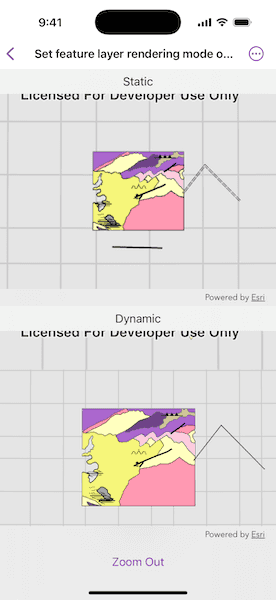
Render features in a scene statically or dynamically by setting the feature layer rendering mode.
Use case
In dynamic rendering mode, features and graphics are stored on the GPU. As a result, dynamic rendering mode is good for moving objects and for maintaining graphical fidelity during extent changes, since individual graphic changes can be efficiently applied directly to the GPU state. This gives the map or scene a seamless look and feel when interacting with it. The number of features and graphics has a direct impact on GPU resources, so large numbers of features or graphics can affect the responsiveness of maps or scenes to user interaction. Ultimately, the number and complexity of features and graphics that can be rendered in dynamic rendering mode is dependent on the power and memory of the device's GPU.
In static rendering mode, features and graphics are rendered only when needed (for example, after an extent change) and offloads a significant portion of the graphical processing onto the CPU. As a result, less work is required by the GPU to draw the graphics, and the GPU can spend its resources on keeping the UI interactive. Use this mode for stationary graphics, complex geometries, and very large numbers of features or graphics. The number of features and graphics has little impact on frame render time, meaning it scales well, and pushes a constant GPU payload. However, rendering updates is CPU and system memory intensive, which can have an impact on device battery life.
How to use the sample
Use the 'Zoom In'/'Zoom Out' button to trigger the zoom animation on both static and dynamic scenes.
How it works
- Create a scene with operational layers and set the
renderingModefor each layer. - The
renderingModecan be set tostatic,dynamic, orautomatic.
- In Static rendering mode, the number of features and graphics has little impact on frame render time, meaning it scales well, however points don't stay screen-aligned and point/polyline/polygon objects are only redrawn once scene view navigation is complete.
- In Dynamic rendering mode, large numbers of features or graphics can affect the responsiveness of scenes to user interaction, however points remain screen-aligned and point/polyline/polygon objects are continually redrawn while the scene view is navigating.
- When left to automatic rendering, points are drawn dynamically and polylines and polygons statically.
Relevant API
- FeatureLayer
- FeatureLayer.RenderingMode
- Scene
- SceneView
Tags
3D, dynamic, feature layer, features, rendering, static
Sample Code
// Copyright 2025 Esri // // Licensed under the Apache License, Version 2.0 (the "License"); // you may not use this file except in compliance with the License. // You may obtain a copy of the License at // // https://www.apache.org/licenses/LICENSE-2.0 // // Unless required by applicable law or agreed to in writing, software // distributed under the License is distributed on an "AS IS" BASIS, // WITHOUT WARRANTIES OR CONDITIONS OF ANY KIND, either express or implied. // See the License for the specific language governing permissions and // limitations under the License. import ArcGIS import SwiftUI struct SetFeatureLayerRenderingModeOnSceneView: View { /// Scene that displays with dynamic rendering. @State private var dynamicScene = Scene() /// Scene that displays with static rendering. @State private var staticScene = Scene() /// A Boolean value indicating whether the scene views are currently zooming. @State private var isZooming = false /// The viewpoint for the scene. @State private var camera: Camera = .zoomedOut /// A Boolean value indicating whether the scene is fully zoomed in. @State private var isZoomedIn = false init() { // The service feature tables using point, polygon, and polyline services. let featureTables: [ServiceFeatureTable] = [URL.pointTable, .polylineTable, .polygonTable].map(ServiceFeatureTable.init(url:)) // Iterate through the feature tables and use them to set up feature layers. // Set the rendering mode for either dynamic or static rendering, // and add the feature layers to the scene. for featureTable in featureTables { // Set up the dynamic scene first. let dynamicFeatureLayer = FeatureLayer(featureTable: featureTable) dynamicFeatureLayer.renderingMode = .dynamic dynamicScene.addOperationalLayer(dynamicFeatureLayer) // Then set up the static scene using a clone of the dynamic feature layer. let staticFeatureLayer = dynamicFeatureLayer.clone() staticFeatureLayer.renderingMode = .static staticScene.addOperationalLayer(staticFeatureLayer) } staticScene.initialViewpoint = Viewpoint(boundingGeometry: Camera.zoomedOut.location, camera: Camera.zoomedOut) dynamicScene.initialViewpoint = Viewpoint(boundingGeometry: Camera.zoomedOut.location, camera: Camera.zoomedOut) } var body: some View { VStack(spacing: 0) { SceneViewReader { sceneViewProxy in SceneView(scene: staticScene) .overlay(alignment: .top) { Text("Static") .multilineTextAlignment(.center) .frame(maxWidth: .infinity, alignment: .center) .padding(8) .background(.regularMaterial, ignoresSafeAreaEdges: .horizontal) } .task(id: camera) { await sceneViewProxy.setViewpointCamera(camera, duration: 2) isZooming = false } .disabled(true) } SceneViewReader { sceneViewProxy in SceneView(scene: dynamicScene) .overlay(alignment: .top) { Text("Dynamic") .multilineTextAlignment(.center) .frame(maxWidth: .infinity, alignment: .center) .padding(8) .background(.regularMaterial, ignoresSafeAreaEdges: .horizontal) } .task(id: camera) { await sceneViewProxy.setViewpointCamera(camera, duration: 2) isZooming = false } .disabled(true) } } .toolbar { ToolbarItem(placement: .bottomBar) { Button(isZoomedIn ? "Zoom Out" : "Zoom In") { isZooming = true camera = isZoomedIn ? .zoomedOut : .zoomedIn isZoomedIn.toggle() } .disabled(isZooming) } } } } private extension Camera { /// Camera set to zoom in on scene position at an angle. static var zoomedIn: Camera { Camera( lookingAt: Point( latitude: 34.395, longitude: -118.45 ), distance: 2500, heading: 90, pitch: 75, roll: 0 ) } /// Camera set to zoom out on scene position without angle. static var zoomedOut: Camera { Camera( lookingAt: Point( latitude: 34.46, longitude: -118.37 ), distance: 30000, heading: 0, pitch: 0, roll: 0 ) } } private extension URL { static var pointTable: URL { URL(string: "https://sampleserver6.arcgisonline.com/arcgis/rest/services/Energy/Geology/FeatureServer/0")! } static var polylineTable: URL { URL(string: "https://sampleserver6.arcgisonline.com/arcgis/rest/services/Energy/Geology/FeatureServer/8")! } static var polygonTable: URL { URL(string: "https://sampleserver6.arcgisonline.com/arcgis/rest/services/Energy/Geology/FeatureServer/9")! } } #Preview { SetFeatureLayerRenderingModeOnSceneView() }