Use the Geometry Editor to edit geometries using utility network connectivity rules.
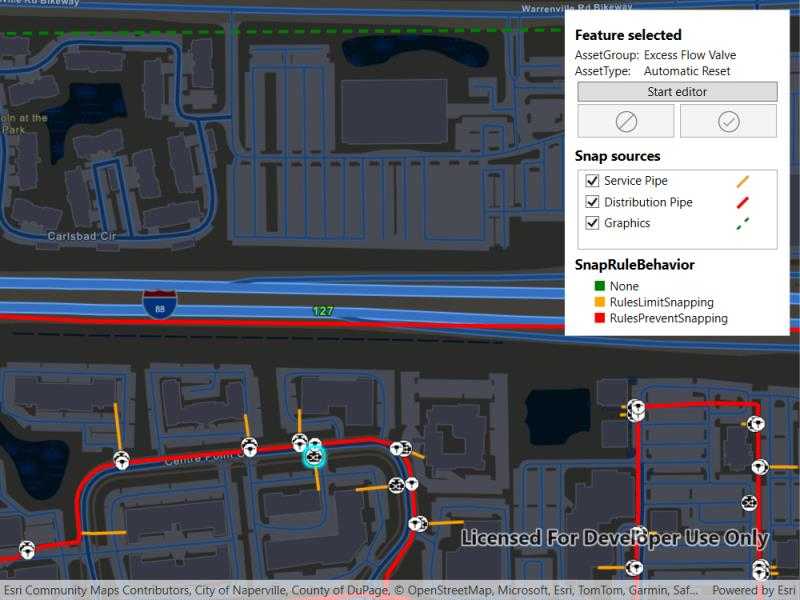
Use case
A field worker can create new features in a utility network by editing and snapping the vertices of a geometry to existing features on a map. In a gas utility network, gas pipeline features can be represented with the polyline geometry type. Utility networks use geometric coincident-based connectivity to provide pathways for resources. Rule-based snapping uses utility network connectivity rules when editing features based on their asset type and asset group to help maintain network connectivity.
How to use the sample
To edit a geometry, tap a point geometry to be edited in the map to select it. Then edit the geometry by clicking the button to start the geometry editor.
Snap sources can be enabled and disabled. Snapping will not occur when SnapRuleBehavior.RulesPreventSnapping even when the source is enabled.
To interactively snap a vertex to a feature or graphic, ensure that snapping is enabled for the relevant snap source, then move the mouse pointer or drag a vertex close to an existing feature or graphic. If the existing feature or graphic has valid utility network connectivity rules for the asset type that is being created or edited, the edit position will be adjusted to coincide with (or snap to) edges and vertices of its geometry. Click or release the touch pointer to place the vertex at the snapped location.
To discard changes and stop the geometry editor, press the discard button.
To save your edits, press the save button.
How it works
-
Create a map with
LoadSettings.FeatureTilingModeset toEnabledWithFullResolutionWhenSupported. -
Create a
Geodatabaseusing the mobile geodatabase file location. -
Display
Geodatabase.FeatureTableson the map using subtype feature layers. -
Create a
GeometryEditorand connect it to the map view. -
When editing a feature:
a. Call
SnapRules.CreateAsync(UtilityNetwork, UtilityAssetType)to get the snap rules associated with a givenUtilityAssetType.b. Use
SyncSourceSettings(SnapRules, SnapSourceEnablingBehavior.SetFromRules)to populate theSnapSettings.SourceSettingswithSnapSourceSettingsenabling the sources with rules. -
Start the geometry editor with an existing geometry or
GeometryType.Point.
Relevant API
- FeatureLayer
- Geometry
- GeometryEditor
- GeometryEditorStyle
- GraphicsOverlay
- MapView
- SnapRuleBehavior
- SnapRules
- SnapSettings
- SnapSource
- SnapSourceEnablingBehavior
- SnapSourceSettings
- UtilityNetwork
About the data
The Naperville gas network mobile geodatabase contains a utility network with a set of connectivity rules that can be used to perform geometry edits with rules based snapping.
Tags
edit, feature, geometry editor, graphics, layers, map, snapping, utility network
Sample Code
// Copyright 2025 Esri. // // Licensed under the Apache License, Version 2.0 (the "License"); you may not use this file except in compliance with the License. // You may obtain a copy of the License at: http://www.apache.org/licenses/LICENSE-2.0 // // Unless required by applicable law or agreed to in writing, software distributed under the License is distributed on an // "AS IS" BASIS, WITHOUT WARRANTIES OR CONDITIONS OF ANY KIND, either express or implied. See the License for the specific // language governing permissions and limitations under the License. using Esri.ArcGISRuntime.Data; using Esri.ArcGISRuntime.Geometry; using Esri.ArcGISRuntime.Mapping; using Esri.ArcGISRuntime.Symbology; using Esri.ArcGISRuntime.UI; using Esri.ArcGISRuntime.UI.Controls; using System; using System.IO; using System.Linq; using System.Threading.Tasks; using System.Windows; using System.Windows.Media; using Esri.ArcGISRuntime.UI.Editing; using ArcGIS.Samples.Managers; using Esri.ArcGISRuntime.UtilityNetworks; using System.Collections.Generic; using Geometry = Esri.ArcGISRuntime.Geometry.Geometry; namespace ArcGIS.WPF.Samples.SnapGeometryEditsWithUtilityNetworkRules { [ArcGIS.Samples.Shared.Attributes.Sample( name: "Snap geometry edits with utility network rules", category: "Utility network", description: "Use the Geometry Editor to edit geometries using utility network connectivity rules.", instructions: "To edit a geometry, tap a point geometry to be edited in the map to select it. Then edit the geometry by clicking the button to start the geometry editor.", tags: new[] { "edit", "feature", "geometry editor", "graphics", "layers", "map", "snapping", "utility network" })] [ArcGIS.Samples.Shared.Attributes.OfflineData("0fd3a39660d54c12b05d5f81f207dffd")] public partial class SnapGeometryEditsWithUtilityNetworkRules { // Layer name for the pipeline subtype feature layer. private const string PipelineLayerName = "PipelineLine"; // Subtype names for utility network features. private const string ServicePipeLayerName = "Service Pipe"; private const string DistributionPipeName = "Distribution Pipe"; private const string DeviceLayerName = "PipelineDevice"; private const string ExcessFlowValveName = "Excess Flow Valve"; private const string JunctionLayerName = "PipelineJunction"; private const string ControllableTeeName = "Controllable Tee"; // Identifier for non-UN features. private const string GraphicsId = "Graphics"; // Default symbology for graphic and sublayers used to restore after edit. private readonly Renderer _defaultGraphicRenderer = new SimpleRenderer(new SimpleLineSymbol(SimpleLineSymbolStyle.Dash, System.Drawing.Color.Gray, 3)); private Renderer _defaultDistributionRenderer = null; private Renderer _defaultServiceRenderer = null; // Hold references to the selected feature. private Feature _selectedFeature; // Hold references to the subtype sublayers for the distribution and service pipe layers. private SubtypeSublayer _distributionPipeLayer; private SubtypeSublayer _servicePipeLayer; // Hold a reference to the utility network geodatabase. private Geodatabase _geodatabase; // Graphic json string graphicJson = "{\"paths\":[[[-9811826.6810284462,5132074.7700250093],[-9811786.4643617794,5132440.9533583419],[-9811384.2976951133,5132354.1700250087],[-9810372.5310284477,5132360.5200250093],[-9810353.4810284469,5132066.3033583425]]],\"spatialReference\":{\"wkid\":102100,\"latestWkid\":3857}}"; public SnapGeometryEditsWithUtilityNetworkRules() { InitializeComponent(); _ = InitializeAsync(); } private async Task InitializeAsync() { try { // Create a map. MyMapView.Map = new Map(BasemapStyle.ArcGISStreetsNight) { InitialViewpoint = new Viewpoint(new MapPoint(-9811055.156028448, 5131792.19502501, SpatialReferences.WebMercator), 1e4) }; // Set the map load setting feature tiling mode. // Enabled with full resolution when supported is used to ensure that snapping to geometries occurs in full resolution. // Snapping in full resolution improves snapping accuracy. MyMapView.Map.LoadSettings.FeatureTilingMode = FeatureTilingMode.EnabledWithFullResolutionWhenSupported; await AddLayersToMapFromGeodatabase(); // Create a graphics overlay and add it to the map view. MyMapView.GraphicsOverlays.Add(new GraphicsOverlay() { Id = GraphicsId, Renderer = _defaultGraphicRenderer }); MyMapView.GraphicsOverlays[0].Graphics.Add(new Graphic(Geometry.FromJson(graphicJson))); // Create and add a geometry editor to the map view. MyMapView.GeometryEditor = new GeometryEditor(); // Enable snapping on the geometry layer. MyMapView.GeometryEditor.SnapSettings.IsEnabled = true; MyMapView.GeometryEditor.SnapSettings.IsFeatureSnappingEnabled = true; // Show the UI. SnappingControls.Visibility = Visibility.Visible; } catch (Exception ex) { // Show an error message. MessageBox.Show(ex.Message); } } private async Task AddLayersToMapFromGeodatabase() { // Get the path to the local geodatabase for this platform (temp directory, for example). string geodatabasePath = DataManager.GetDataFolder("0fd3a39660d54c12b05d5f81f207dffd", "NapervilleGasUtilities.geodatabase"); // See if the geodatabase file is already present. if (File.Exists(geodatabasePath)) { // Open the geodatabase. _geodatabase = await Geodatabase.OpenAsync(geodatabasePath); // Subscribe to the unloaded event to close the geodatabase when the sample is closed. Unloaded += SampleUnloaded; // Get and load feature tables from the geodatabase. // Create subtype feature layers from the feature tables and add them to the map. var pipeTable = _geodatabase.GetGeodatabaseFeatureTable(PipelineLayerName); await pipeTable.LoadAsync(); var pipeLayer = new SubtypeFeatureLayer(pipeTable); MyMapView.Map.OperationalLayers.Add(pipeLayer); var deviceTable = _geodatabase.GetGeodatabaseFeatureTable(DeviceLayerName); await deviceTable.LoadAsync(); SubtypeFeatureLayer devicelayer = new SubtypeFeatureLayer(deviceTable); MyMapView.Map.OperationalLayers.Add(devicelayer); var junctionTable = _geodatabase.GetGeodatabaseFeatureTable(JunctionLayerName); await junctionTable.LoadAsync(); SubtypeFeatureLayer junctionlayer = new SubtypeFeatureLayer(junctionTable); MyMapView.Map.OperationalLayers.Add(junctionlayer); // Add the utility network to the map and load it. var utilityNetwork = _geodatabase.UtilityNetworks.FirstOrDefault(); MyMapView.Map.UtilityNetworks.Add(utilityNetwork); await utilityNetwork.LoadAsync(); // Load the map. await MyMapView.Map.LoadAsync(); // Ensure all layers are loaded. await Task.WhenAll(MyMapView.Map.OperationalLayers.ToList().Select(layer => layer.LoadAsync()).ToList()); // Set the visibility of the sublayers and store the default renderer for the distribution and service pipe layers. // In this sample we will only set a small subset of sublayers to be visible. foreach (var sublayer in pipeLayer.SubtypeSublayers) { switch (sublayer.Name) { case DistributionPipeName: _distributionPipeLayer = sublayer; _defaultDistributionRenderer = sublayer.Renderer; break; case ServicePipeLayerName: _servicePipeLayer = sublayer; _defaultServiceRenderer = sublayer.Renderer; break; default: sublayer.IsVisible = false; break; } } // To avoid too much visual clutter, only show the Excess Flow Valve and Controllable Tee sublayers in the device layer. foreach (var sublayer in devicelayer.SubtypeSublayers) { switch (sublayer.Name) { case ExcessFlowValveName: case ControllableTeeName: sublayer.IsVisible = true; break; default: sublayer.IsVisible = false; break; } } } } private async Task SetSnapSettings(UtilityAssetType assetType) { // Get the snap rules associated with the asset type. SnapRules snapRules = await SnapRules.CreateAsync(MyMapView.Map.UtilityNetworks[0], assetType); // Synchronize the snap source collection with the map's operational layers using the snap rules. // Setting SnapSourceEnablingBehavior.SetFromRules will enable snapping for the layers and sublayers specified in the snap rules. MyMapView.GeometryEditor.SnapSettings.SyncSourceSettings(snapRules, SnapSourceEnablingBehavior.SetFromRules); // Enable snapping for the graphics overlay. var graphicsSourceSetting = MyMapView.GeometryEditor.SnapSettings.SourceSettings.First(sourceSetting => sourceSetting.Source is GraphicsOverlay); graphicsSourceSetting.IsEnabled = true; var snapSources = new List<SnapSourceSettingsVM>(); foreach (var sourceSetting in MyMapView.GeometryEditor.SnapSettings.SourceSettings) { if (sourceSetting.Source is GraphicsOverlay graphicsOverlay) { snapSources.Add(new SnapSourceSettingsVM(sourceSetting)); } else if (sourceSetting.Source is SubtypeFeatureLayer subtypeFeatureLayer && subtypeFeatureLayer.Name == PipelineLayerName) { foreach (var subtypeSublayer in sourceSetting.ChildSourceSettings) { switch ((subtypeSublayer.Source as SubtypeSublayer).Name) { case ServicePipeLayerName: case DistributionPipeName: snapSources.Add(new SnapSourceSettingsVM(subtypeSublayer)); break; } } } } // Create a list of snap source settings with snapping enabled. SnapSourcesList.ItemsSource = snapSources; } private void GeometryEditorButton_Click(object sender, RoutedEventArgs e) { // Get the symbol for the selected feature. Symbol symbol = ((GeodatabaseFeatureTable)_selectedFeature.FeatureTable).LayerInfo?.DrawingInfo?.Renderer?.GetSymbol(_selectedFeature); // Set the vertex symbol for the geometry editor tool. MyMapView.GeometryEditor.Tool.Style.VertexSymbol = MyMapView.GeometryEditor.Tool.Style.FeedbackVertexSymbol = MyMapView.GeometryEditor.Tool.Style.SelectedVertexSymbol = symbol; MyMapView.GeometryEditor.Tool.Style.VertexTextSymbol = null; // Hide the selected feature. if (_selectedFeature != null && _selectedFeature.FeatureTable?.Layer is FeatureLayer selectedFeatureLayer) { selectedFeatureLayer.SetFeatureVisible(_selectedFeature, false); } // Start the geometry editor. MyMapView.GeometryEditor.Start(_selectedFeature.Geometry); } private void DiscardButton_Click(object sender, RoutedEventArgs e) { // Discard the current edit. MyMapView.GeometryEditor.Stop(); // Reset the selection. ResetSelections(); } private async void SaveButton_Click(object sender, RoutedEventArgs e) { // Stop the geometry editor and get the updated geometry. Geometry geometry = MyMapView.GeometryEditor.Stop(); try { // Update the feature with the new geometry. _selectedFeature.Geometry = geometry; await ((GeodatabaseFeatureTable)_selectedFeature.FeatureTable).UpdateFeatureAsync(_selectedFeature); } catch (Exception ex) { MessageBox.Show(ex.ToString(), "Error"); } // Reset the selection. ResetSelections(); } private async void MyMapView_GeoViewTapped(object sender, GeoViewInputEventArgs e) { if (MyMapView.GeometryEditor.IsStarted) return; // Identify the feature at the tapped location. var identifyResult = await MyMapView.IdentifyLayersAsync(e.Position, 5, false); // As we are using subtype feature layers in this sample the returned features are contained in the sublayer results. ArcGISFeature feature = identifyResult?.FirstOrDefault()?.SublayerResults?.FirstOrDefault()?.GeoElements?.FirstOrDefault() as ArcGISFeature; // In this sample we only allow selection of point features. // If the identified feature is null or the feature is not a point feature then reset the selection and return. if (feature == null || feature.FeatureTable.GeometryType != GeometryType.Point) { ResetSelections(); return; } else if (_selectedFeature != null && feature != _selectedFeature && _selectedFeature.FeatureTable?.Layer is FeatureLayer selectedFeatureLayer) { // If a feature is already selected and the tapped feature is not the selected feature then clear the previous selection. selectedFeatureLayer.ClearSelection(); } // Update the selected feature. _selectedFeature = feature; // Select the feature on the layer. (_selectedFeature.FeatureTable?.Layer as FeatureLayer).SelectFeature(_selectedFeature); // Create a utility element for the selected feature using the utility network. UtilityElement element = MyMapView.Map.UtilityNetworks[0]?.CreateElement(feature); // Update the UI visibility. UpdateUI(); // Update the UI with the selected feature information. SelectedAssetGroupLabel.Text = element?.AssetGroup.Name; SelectedAssetTypeLabel.Text = element?.AssetType.Name; await SetSnapSettings(element.AssetType); } private void ResetSelections() { if (_selectedFeature != null && _selectedFeature.FeatureTable?.Layer is FeatureLayer selectedFeatureLayer) { // Clear the existing selection and show the selected feature; selectedFeatureLayer.ClearSelection(); selectedFeatureLayer.SetFeatureVisible(_selectedFeature, true); } // Reset the selected feature and layer. _selectedFeature = null; // Update the UI visibility. UpdateUI(); // Revert back to the default renderer for the distribution and service pipe layers and graphics overlay. _distributionPipeLayer.Renderer = _defaultDistributionRenderer; _servicePipeLayer.Renderer = _defaultServiceRenderer; MyMapView.GraphicsOverlays[0].Renderer = _defaultGraphicRenderer; // Clear the snap sources list. SnapSourcesList.ItemsSource = null; } private void UpdateUI() { InstructionsLabel.Visibility = _selectedFeature != null ? Visibility.Collapsed : Visibility.Visible; SelectedFeaturePanel.Visibility = SnapSourcesPanel.Visibility = _selectedFeature != null ? Visibility.Visible : Visibility.Collapsed; } private void SampleUnloaded(object sender, RoutedEventArgs e) { // Close the geodatabase when the sample closes. _geodatabase.Close(); } } public class SnapSourceSettingsVM { public SnapSourceSettings SnapSourceSettings { get; } private Symbol _rulesPreventSymbol = new SimpleLineSymbol(SimpleLineSymbolStyle.Solid, System.Drawing.Color.Red, 4); private Symbol _rulesLimitSymbol = new SimpleLineSymbol(SimpleLineSymbolStyle.Solid, System.Drawing.Color.Orange, 3); private Symbol _noneSymbol = new SimpleLineSymbol(SimpleLineSymbolStyle.Dash, System.Drawing.Color.Green, 3); // Wrap the snap source settings in a view model to expose them to the UI. public SnapSourceSettingsVM(SnapSourceSettings snapSourceSettings) { SnapSourceSettings = snapSourceSettings; // Set the symbol for the snap source displayed in the UI. _ = SetSymbolAsync(); } private async Task SetSymbolAsync() { Symbol symbol = null; switch (SnapSourceSettings.RuleBehavior) { case SnapRuleBehavior.None: symbol = _noneSymbol; break; case SnapRuleBehavior.RulesLimitSnapping: symbol = _rulesLimitSymbol; break; case SnapRuleBehavior.RulesPreventSnapping: symbol = _rulesPreventSymbol; break; } if (SnapSourceSettings.Source is SubtypeSublayer sublayer) { sublayer.Renderer = new SimpleRenderer(symbol); } else if (SnapSourceSettings.Source is GraphicsOverlay graphicsOverlay) { graphicsOverlay.Renderer = new SimpleRenderer(symbol); } if (symbol != null) { var swatch = await symbol.CreateSwatchAsync(); _symbol = await swatch.ToImageSourceAsync(); } } private ImageSource _symbol; public ImageSource Symbol => _symbol; public string Name { get { if (SnapSourceSettings.Source is ILayerContent content) { return content.Name; } if (SnapSourceSettings.Source is GraphicsOverlay overlay) { return overlay.Id ?? string.Empty; } return string.Empty; } } } }