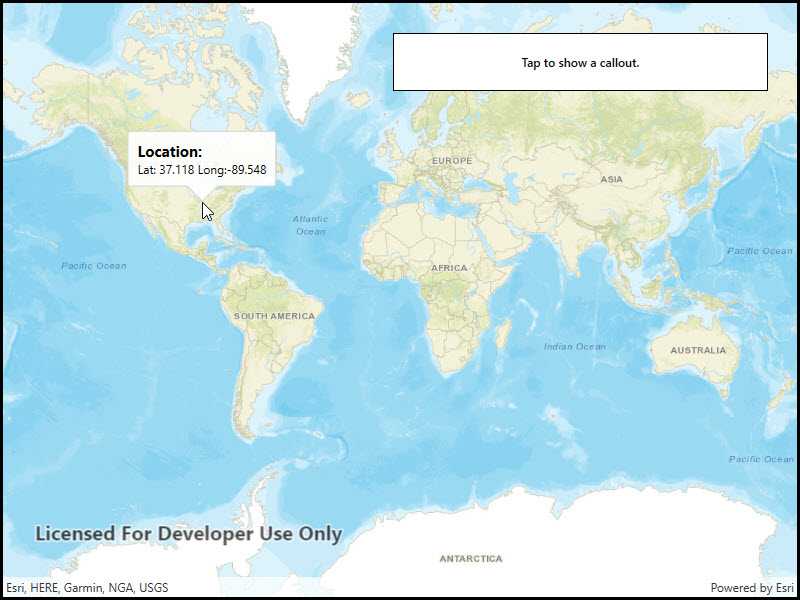
Show a callout with the latitude and longitude of user-tapped points.
Use case
Callouts are used to display temporary detail content on a map. You can display text and arbitrary UI controls in callouts.
How to use the sample
Tap anywhere on the map. A callout showing the WGS84 coordinates for the tapped point will appear.
How it works
- Listen for
GeoViewTappedevents on the map view. - When the user taps, get the tapped location from the
Locationproperty of theGeoViewInputEventArgs. - Project the geometry to WGS84 using
GeometryEngine.Project. - Create a string to display the coordinates; note that latitude and longitude in WGS84 map to the Y and X coordinates.
- Create a new callout definition using a title and the coordinate string.
- Display the callout by calling
ShowCalloutAton the map view with the location and the callout definition.
Relevant API
- CalloutDefinition
- GeometryEngine.Project
- GeoViewTappedEventArgs
- MapView.GeoViewTapped
- MapView.ShowCalloutAt
Tags
balloon, bubble, callout, flyout, flyover, info window, popup, tap
Sample Code
// Copyright 2017 Esri. // // Licensed under the Apache License, Version 2.0 (the "License"); you may not use this file except in compliance with the License. // You may obtain a copy of the License at: http://www.apache.org/licenses/LICENSE-2.0 // // Unless required by applicable law or agreed to in writing, software distributed under the License is distributed on an // "AS IS" BASIS, WITHOUT WARRANTIES OR CONDITIONS OF ANY KIND, either express or implied. See the License for the specific // language governing permissions and limitations under the License. using Esri.ArcGISRuntime.Geometry; using Esri.ArcGISRuntime.Mapping; using Esri.ArcGISRuntime.UI; using Esri.ArcGISRuntime.UI.Controls; namespace ArcGIS.WPF.Samples.ShowCallout { [ArcGIS.Samples.Shared.Attributes.Sample( name: "Show callout", category: "MapView", description: "Show a callout with the latitude and longitude of user-tapped points.", instructions: "Tap anywhere on the map. A callout showing the WGS84 coordinates for the tapped point will appear.", tags: new[] { "balloon", "bubble", "callout", "flyout", "flyover", "info window", "popup", "tap" })] public partial class ShowCallout { public ShowCallout() { InitializeComponent(); Initialize(); } private void Initialize() { // Create a new basemap using the streets base layer Basemap myBasemap = new Basemap(BasemapStyle.ArcGISStreets); // Create a new map based on the streets basemap Map myMap = new Map(myBasemap); // Assign the map to the MapView MyMapView.Map = myMap; // Wire up the MapView GeoVewTapped event MyMapView.GeoViewTapped += MyMapView_GeoViewTapped; } private void MyMapView_GeoViewTapped(object sender, GeoViewInputEventArgs e) { // Get the user-tapped location MapPoint mapLocation = e.Location; // Project the user-tapped map point location to a geometry Geometry myGeometry = mapLocation.Project(SpatialReferences.Wgs84); // Convert to geometry to a traditional Lat/Long map point MapPoint projectedLocation = (MapPoint)myGeometry; // Format the display callout string based upon the projected map point (example: "Lat: 100.123, Long: 100.234") string mapLocationDescription = string.Format("Lat: {0:F3} Long:{1:F3}", projectedLocation.Y, projectedLocation.X); // Create a new callout definition using the formatted string CalloutDefinition myCalloutDefinition = new CalloutDefinition("Location:", mapLocationDescription); // Display the callout MyMapView.ShowCalloutAt(mapLocation, myCalloutDefinition); } } }