Combine multiple symbols from a mobile style file into a single symbol.
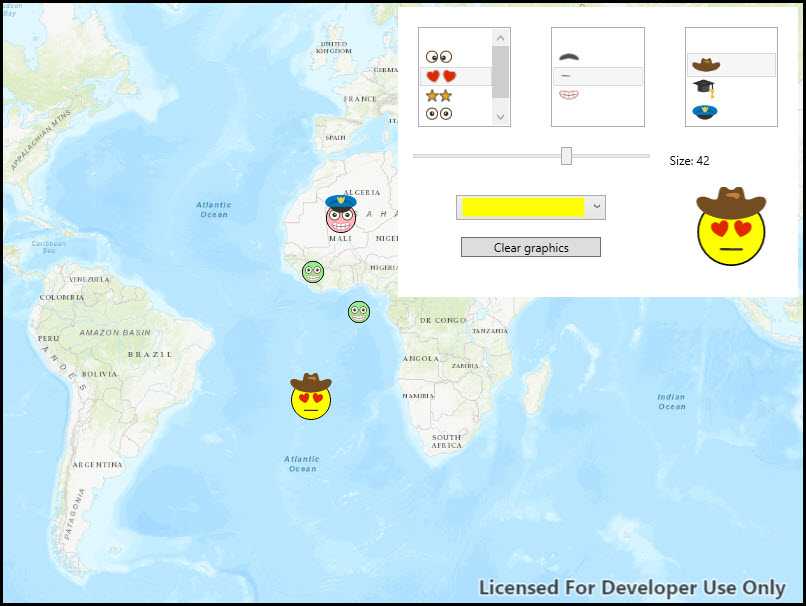
Use case
You may choose to display individual elements of a dataset like a water infrastructure network (such as valves, nodes, or endpoints) with the same basic shape, but wish to modify characteristics of elements according to some technical specifications. Multilayer symbols lets you add or remove components or modify the colors to create advanced symbol styles.
How to use the sample
Select a symbol and a color from each of the category lists to create an emoji. A preview of the symbol is updated as selections are made. The size of the symbol can be set using the slider. Click the map to create a point graphic using the customized emoji symbol, and click "Reset" to clear all graphics from the display.
How it works
- On startup, read a mobile style file using
SymbolStyle.OpenAsync. - Get a list of all symbols in the style by calling
SearchSymbolsAsyncwith the default search parameters. - Iterate the list of
SymbolStyleSearchResultand add symbols to list boxes according to their category. Display a preview of each symbol withCreateSwatchAsync. - When symbol selections change, create a new multilayer symbol by passing the keys for the selected symbols into
GetSymbolAsync. Color lock all symbol layers except the base layer and update the current symbol preview image. - Create graphics symbolized with the current symbol when the user taps the map view.
Relevant API
- MultilayerPointSymbol
- MultilayerSymbol.CreateSwatchAsync
- SymbolLayer
- SymbolStyle
- SymbolStyle.GetSymbolAsync
- SymbolStyleSearchParameters
Offline data
About the data
The mobile style file used in this sample was created using ArcGIS Pro, and is hosted on ArcGIS Online. It contains symbol layers that can be combined to create emojis.
Additional information
While each of these symbols can be created from scratch, a more convenient workflow is to author them using ArcGIS Pro and store them in a mobile style file (.stylx). ArcGIS Maps SDK for .NET can read symbols from a mobile style, and you can modify and combine them as needed in your app.
Tags
advanced symbology, mobile style, multilayer, stylx
Sample Code
// Copyright 2019 Esri. // // Licensed under the Apache License, Version 2.0 (the "License"); you may not use this file except in compliance with the License. // You may obtain a copy of the License at: http://www.apache.org/licenses/LICENSE-2.0 // // Unless required by applicable law or agreed to in writing, software distributed under the License is distributed on an // "AS IS" BASIS, WITHOUT WARRANTIES OR CONDITIONS OF ANY KIND, either express or implied. See the License for the specific // language governing permissions and limitations under the License. using ArcGIS.Samples.Managers; using Esri.ArcGISRuntime.Mapping; using Esri.ArcGISRuntime.Symbology; using Esri.ArcGISRuntime.UI; using Esri.ArcGISRuntime.UI.Controls; using System; using System.Collections.Generic; using System.Drawing; using System.Linq; using System.Threading.Tasks; using System.Windows; using WinMedia = System.Windows.Media; namespace ArcGIS.WPF.Samples.SymbolsFromMobileStyle { [ArcGIS.Samples.Shared.Attributes.Sample( name: "Read symbols from mobile style", category: "Symbology", description: "Combine multiple symbols from a mobile style file into a single symbol.", instructions: "Select a symbol and a color from each of the category lists to create an emoji. A preview of the symbol is updated as selections are made. The size of the symbol can be set using the slider. Click the map to create a point graphic using the customized emoji symbol, and click \"Reset\" to clear all graphics from the display.", tags: new[] { "advanced symbology", "mobile style", "multilayer", "stylx" })] [ArcGIS.Samples.Shared.Attributes.OfflineData("1bd036f221f54a99abc9e46ff3511cbf")] [ArcGIS.Samples.Shared.Attributes.ClassFile("Converters\\ColorToSolidBrushConverter.cs")] public partial class SymbolsFromMobileStyle { // A variable for the symbol style object. private SymbolStyle _emojiStyle; // The unique identifier (key) for the background face symbol in the mobile style. private readonly string _baseSymbolKey = "Face1"; public SymbolsFromMobileStyle() { InitializeComponent(); // Call a function that will create the map and fill UI controls with symbols in a mobile style. _ = Initialize(); } private async Task Initialize() { // Create a new topographic basemap and assign it to the map view. Map map = new Map(BasemapStyle.ArcGISTopographic); MyMapView.Map = map; // Create a graphics overlay for showing point graphics and add it to the map view. GraphicsOverlay overlay = new GraphicsOverlay(); MyMapView.GraphicsOverlays.Add(overlay); // Fill the symbol color combo box with some color choices. FaceColorComboBox.Items.Add(Color.Yellow); FaceColorComboBox.Items.Add(Color.LightGreen); FaceColorComboBox.Items.Add(Color.LightPink); FaceColorComboBox.SelectedIndex = 0; // Get the full path to the downloaded mobile style file (.stylx). string mobileStyleFilePath = DataManager.GetDataFolder("1bd036f221f54a99abc9e46ff3511cbf", "emoji-mobile.stylx"); // Call a function that will read the mobile style file and populate list boxes with symbol layers. await ReadMobileStyle(mobileStyleFilePath); // Handle the tapped event on the map view to draw point graphics with the chosen symbol. MyMapView.GeoViewTapped += GeoViewTapped; } private async Task ReadMobileStyle(string stylePath) { try { // Open the mobile style file at the provided path. _emojiStyle = await SymbolStyle.OpenAsync(stylePath); // Get the default style search parameters. SymbolStyleSearchParameters searchParams = await _emojiStyle.GetDefaultSearchParametersAsync(); // Search the style with the default parameters to return all symbol results. IList<SymbolStyleSearchResult> styleResults = await _emojiStyle.SearchSymbolsAsync(searchParams); // Create an empty placeholder image to represent "no symbol" for each category. WinMedia.ImageSource emptyImage = WinMedia.Imaging.BitmapSource.Create (2, 2, 96, 96, WinMedia.PixelFormats.Indexed1, new WinMedia.Imaging.BitmapPalette(new List<WinMedia.Color> { WinMedia.Colors.Transparent }), new byte[4], 1); // Create lists to contain the available symbol layers for each category of symbol and add an empty entry as default. List<SymbolLayerInfo> eyeSymbolInfos = new List<SymbolLayerInfo> { new SymbolLayerInfo("", emptyImage, "") }; List<SymbolLayerInfo> mouthSymbolInfos = new List<SymbolLayerInfo> { new SymbolLayerInfo("", emptyImage, "") }; List<SymbolLayerInfo> hatSymbolInfos = new List<SymbolLayerInfo>() { new SymbolLayerInfo("", emptyImage, "") }; // Loop through the results and put symbols into the appropriate list according to category. foreach (SymbolStyleSearchResult result in styleResults) { // Get the symbol for this result. MultilayerPointSymbol multiLayerSym = await result.GetSymbolAsync() as MultilayerPointSymbol; // Create a swatch image from the symbol. RuntimeImage swatch = await multiLayerSym.CreateSwatchAsync(); WinMedia.ImageSource symbolImage = await swatch.ToImageSourceAsync(); // Create a symbol layer info object to represent the symbol in the list. // The symbol key will be used to retrieve the symbol from the style. SymbolLayerInfo symbolInfo = new SymbolLayerInfo(result.Name, symbolImage, result.Key); // Add the symbol layer info to the correct list for its category. switch (result.Category) { case "Eyes": { eyeSymbolInfos.Add(symbolInfo); break; } case "Mouth": { mouthSymbolInfos.Add(symbolInfo); break; } case "Hat": { hatSymbolInfos.Add(symbolInfo); break; } } } // Show the symbols in the category list boxes. EyeSymbolList.ItemsSource = eyeSymbolInfos; MouthSymbolList.ItemsSource = mouthSymbolInfos; HatSymbolList.ItemsSource = hatSymbolInfos; // Call a function to construct the current symbol (default yellow circle). Symbol faceSymbol = await GetCurrentSymbol(); // Call a function to show a preview image of the symbol. await UpdateSymbolPreview(faceSymbol); } catch (Exception ex) { MessageBox.Show("Error reading symbols from style: " + ex.Message); } } // Handler for the tapped event on the map view. private async void GeoViewTapped(object sender, GeoViewInputEventArgs e) { try { // Call a function to get the currently defined multilayer point symbol. MultilayerPointSymbol faceSymbol = await GetCurrentSymbol(); // Create a graphic for the tapped location using the current symbol and add it to the map view. Graphic graphic = new Graphic(e.Location, faceSymbol); MyMapView.GraphicsOverlays.First().Graphics.Add(graphic); } catch (Exception ex) { MessageBox.Show(ex.Message, "Error"); } } // An event handler for list box and combo box selection changes that will update the current symbol. private async void SymbolPropertyChanged(object sender, System.Windows.Controls.SelectionChangedEventArgs e) { try { // Call a function that will construct the current symbol. Symbol faceSymbol = await GetCurrentSymbol(); // Call a function to update the symbol preview. await UpdateSymbolPreview(faceSymbol); } catch (Exception ex) { MessageBox.Show(ex.Message, "Error"); } } private async Task<MultilayerPointSymbol> GetCurrentSymbol() { // If the style hasn't been opened, return. if (_emojiStyle == null) { return null; } MultilayerPointSymbol faceSymbol = null; try { // Get the key that identifies the selected eye symbol (or an empty string if none selected). SymbolLayerInfo eyeLayerInfo = (SymbolLayerInfo)EyeSymbolList.SelectedItem; string eyeLayerKey = eyeLayerInfo != null ? eyeLayerInfo.Key : string.Empty; // Get the key that identifies the selected mouth symbol (or an empty string if none selected). SymbolLayerInfo mouthLayerInfo = (SymbolLayerInfo)MouthSymbolList.SelectedItem; string mouthLayerKey = mouthLayerInfo != null ? mouthLayerInfo.Key : string.Empty; // Get the key that identifies the selected hat symbol (or an empty string if none selected). SymbolLayerInfo hatLayerInfo = (SymbolLayerInfo)HatSymbolList.SelectedItem; string hatLayerKey = hatLayerInfo != null ? hatLayerInfo.Key : string.Empty; // Create a list of the symbol keys that identify the selected symbol layers, including the base (circle) symbol. List<string> symbolKeys = new List<string> { _baseSymbolKey, eyeLayerKey, mouthLayerKey, hatLayerKey }; // Get a multilayer point symbol from the style that contains the selected symbol layers. faceSymbol = await _emojiStyle.GetSymbolAsync(symbolKeys) as MultilayerPointSymbol; // Loop through all symbol layers and lock the color. foreach (SymbolLayer lyr in faceSymbol.SymbolLayers) { // Changing the color of the symbol will not affect this layer. lyr.IsColorLocked = true; } // Unlock the color for the base (first) layer. Changing the symbol color will change this layer's color. faceSymbol.SymbolLayers.First().IsColorLocked = false; // Set the symbol color from the combo box. if (FaceColorComboBox.SelectedItem != null) { faceSymbol.Color = (Color)FaceColorComboBox.SelectedItem; } // Set the symbol size from the slider. faceSymbol.Size = SizeSlider.Value; } catch (Exception ex) { MessageBox.Show("Unable to create symbol: " + ex.Message, "Exception"); } // Return the multilayer point symbol. return faceSymbol; } private async Task UpdateSymbolPreview(Symbol symbolToShow) { if (symbolToShow == null) { return; } // Create a swatch from the symbol with a white background. RuntimeImage swatch = await symbolToShow.CreateSwatchAsync(80, 80, 96, Color.White); // Convert the swatch to an image source and show it in the Image control. WinMedia.ImageSource symbolImage = await swatch.ToImageSourceAsync(); SymbolPreviewImage.Source = symbolImage; } // A handler for the click event on the clear graphics button. private void ClearGraphicsClick(object sender, RoutedEventArgs e) { // Clear all graphics from the first (only) graphics overlay in the map view. MyMapView.GraphicsOverlays.FirstOrDefault()?.Graphics.Clear(); } } // A class for storing information about a symbol layer. public class SymbolLayerInfo { // An image source for a preview image of the symbol. public WinMedia.ImageSource ImageSrc { get; private set; } // The name of the symbol as it appears in the mobile style. public string Name { get; private set; } // A key that uniquely identifies the symbol in the style. public string Key { get; private set; } // Take all symbol info in the constructor. public SymbolLayerInfo(string name, WinMedia.ImageSource source, string key) { Name = name; ImageSrc = source; Key = key; } } }