Learn how to calculate the length and area of geometries.
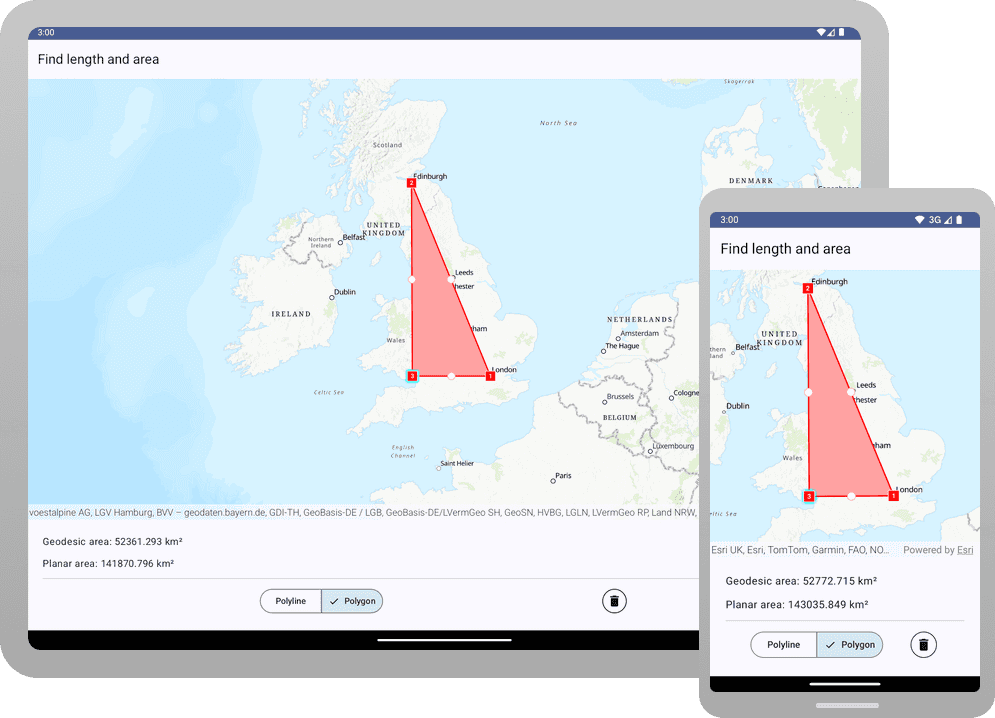
You can calculate the length of a line and determine the area of a polygon using the GeometryEngine. The measurement depends on the coordinate system (or spatial reference) defined for the geometry. If the geometry's spatial reference is Web Mercator (3857) or WGS84 (4326), use geodesic calculations to account for the curvature of the Earth. Use planar measurements based on Euclidean distances if the spatial reference is a projected coordinate system (anything other than Web Mercator or WGS84).
In this tutorial, you will use the geometry editor tool named VertexTool to draw graphics on the view and the geometry engine to calculate both geodesic and planar lengths and areas to see the difference between the two measurements.
For more information on making measurements, see Make measurements.
For general information on spatial references, see Spatial references in Reference topics.
For specific information on spatial references in ArcGIS Maps SDKs for Native Apps, see Spatial references.
For detailed information on projected coordinate systems, including well-known IDs (WKIDs), areas of use, and maximum/minim latitude and longitude, download the Coordinate systems and transformation zip file and see the Projected Coordinate System tables PDF.
Prerequisites
Before starting this tutorial, you need the following:
-
An ArcGIS Location Platform or ArcGIS Online account.
-
A development and deployment environment that meets the system requirements.
-
An IDE for Android development in Kotlin.
Develop or download
You have two options for completing this tutorial:
Option 1: Develop the code
Open an Android Studio project
-
Open the project you created by completing the Display a map tutorial.
-
Continue with the following instructions to calculate the length and area of geometries.
-
Modify the old project for use in this new tutorial.
-
On your file system, delete the .idea folder, if present, at the top level of your project.
-
In the Android view, open app > res > values > strings.xml.
In the
<string name="appelement, change the text content to Find length and area._name" > strings.xmlUse dark colors for code blocks <resources> <string name="app_name">Find length and area</string> </resources> -
In the Android view, open Gradle Scripts > settings.gradle.kts.
Change the value of
rootto "Find length and area".Project.name settings.gradle.ktsUse dark colors for code blocks dependencyResolutionManagement { repositoriesMode.set(RepositoriesMode.FAIL_ON_PROJECT_REPOS) repositories { google() mavenCentral() maven { url = uri("https://esri.jfrog.io/artifactory/arcgis") } } } rootProject.name = "Find length and area" include(":app") -
Click File > Sync Project with Gradle files. Android Studio will recognize your changes and create a new .idea folder.
-
-
In
libs.versions.toml, add a [libraries] entry for the dependency. In the module-levelbuild.gradle.kts (app), add the dependency for the lifecycle view model.Use dark colors for code blocks [libraries] arcgis-maps-kotlin = { group = "com.esri", name = "arcgis-maps-kotlin", version.ref = "arcgisMapsKotlin" } arcgis-maps-kotlin-toolkit-bom = { group = "com.esri", name = "arcgis-maps-kotlin-toolkit-bom", version.ref = "arcgisMapsKotlin" } arcgis-maps-kotlin-toolkit-geoview-compose = { group = "com.esri", name = "arcgis-maps-kotlin-toolkit-geoview-compose" } arcgis-maps-kotlin-toolkit-authentication = { group = "com.esri", name = "arcgis-maps-kotlin-toolkit-authentication" } androidx-core-ktx = { group = "androidx.core", name = "core-ktx", version.ref = "coreKtx" } junit = { group = "junit", name = "junit", version.ref = "junit" } androidx-junit = { group = "androidx.test.ext", name = "junit", version.ref = "junitVersion" } androidx-espresso-core = { group = "androidx.test.espresso", name = "espresso-core", version.ref = "espressoCore" } androidx-lifecycle-runtime-ktx = { group = "androidx.lifecycle", name = "lifecycle-runtime-ktx", version.ref = "lifecycleRuntimeKtx" } androidx-activity-compose = { group = "androidx.activity", name = "activity-compose", version.ref = "activityCompose" } androidx-lifecycle-viewmodel-compose = { group = "androidx.lifecycle", name = "lifecycle-viewmodel-compose", version.ref = "lifecycleRuntimeKtx" } -
Click File > Sync Project with Gradle files.
Add imports
Modify import statements to reference the packages and classes required for this tutorial.
@file:OptIn(ExperimentalMaterial3Api::class) package com.example.app.screens import android.app.Application import android.util.Log import androidx.compose.foundation.layout.Arrangement import androidx.compose.foundation.layout.Column import androidx.compose.foundation.layout.Row import androidx.compose.foundation.layout.fillMaxSize import androidx.compose.foundation.layout.fillMaxWidth import androidx.compose.foundation.layout.padding import androidx.compose.material.icons.Icons import androidx.compose.material.icons.filled.Delete import androidx.compose.material3.ExperimentalMaterial3Api import androidx.compose.material3.HorizontalDivider import androidx.compose.material3.Icon import androidx.compose.material3.OutlinedIconButton import androidx.compose.material3.Scaffold import androidx.compose.material3.SegmentedButton import androidx.compose.material3.SegmentedButtonDefaults import androidx.compose.material3.SingleChoiceSegmentedButtonRow import androidx.compose.material3.Text import androidx.compose.material3.TopAppBar import androidx.compose.runtime.Composable import androidx.compose.runtime.getValue import androidx.compose.runtime.mutableIntStateOf import androidx.compose.runtime.mutableStateOf import androidx.compose.runtime.remember import androidx.compose.runtime.setValue import androidx.compose.ui.Modifier import androidx.compose.ui.res.stringResource import androidx.compose.ui.unit.dp import androidx.lifecycle.ViewModel import androidx.lifecycle.viewModelScope import androidx.lifecycle.viewmodel.compose.viewModel import com.arcgismaps.geometry.AreaUnit import com.arcgismaps.geometry.GeodeticCurveType import com.arcgismaps.geometry.GeometryEngine import com.arcgismaps.geometry.GeometryType import com.arcgismaps.geometry.LinearUnit import com.arcgismaps.geometry.MeasurementUnit import com.arcgismaps.geometry.Point import com.arcgismaps.geometry.Polygon import com.arcgismaps.geometry.Polyline import com.arcgismaps.geometry.SpatialReference import com.arcgismaps.mapping.ArcGISMap import com.arcgismaps.mapping.BasemapStyle import com.arcgismaps.mapping.Viewpoint import com.arcgismaps.mapping.view.geometryeditor.GeometryEditor import com.arcgismaps.mapping.view.geometryeditor.VertexTool import com.arcgismaps.toolkit.geoviewcompose.MapView import com.example.app.R import kotlinx.coroutines.launch import kotlin.math.round Create a view model
Modern app architecture uses a map view model to hold the business logic and the mutual state of your app.
-
In Android Studio: in the Android view, open app > kotlin+java > com.example.app > screens > MainScreen.kt
Create a map view model that extends
View.Model MainScreen.ktUse dark colors for code blocks class MapViewModel : ViewModel() { } -
In the
Maincomposable, delete the entire function body. Leave just the function declaration as shown below. Then delete the top-level code for creating a map that is part of the Display a map tutorial. In this tutorial, you will create the map within the view model.Screen MainScreen.ktUse dark colors for code blocks Copy @Composable fun MainScreen() { }MainScreen.ktUse dark colors for code blocks fun createMap(): ArcGISMap { return ArcGISMap(BasemapStyle.ArcGISTopographic).apply { initialViewpoint = Viewpoint( latitude = 34.0270, longitude = -118.8050, scale = 72000.0 ) } } -
In the view model, create a map from a
BasemapStyleand center theArcGISMap.initialViewpointon England with a scale of 1:10,000,000.MainScreen.ktUse dark colors for code blocks // Create a map using the basemap style ArcGISTopographic. val map = ArcGISMap(BasemapStyle.ArcGISTopographic).apply { initialViewpoint = Viewpoint( center = Point( x = -1.880843, y = 53.479979, spatialReference = SpatialReference.wgs84() ), scale = 10_000_000.0 ) }
Create a geometry editor and the display strings
A geometry editor allows the user to create geometries and edit them by tapping on the map view. The geometry engine returns the current geometry, which you measure. You will assign the measurements as strings to be displayed directly below the map. Declare map view model properties for the geometry editor and the strings.
-
Create a
GeometryEditor. Then createMutablestrings to display the measurements of the geometry.State MainScreen.ktUse dark colors for code blocks val geometryEditor = GeometryEditor() // Create mutable state variables for displaying the current planar and geodetic measurements. var geodeticMeasurement by mutableStateOf("0") var planarMeasurement by mutableStateOf("0") var measureType by mutableStateOf("measurement") var displayUnits by mutableStateOf("")The
measurecan have the following values at runtime: "measurement", "length", and "area". TheType displayvalue can be "km" or "km²".Units -
Create a function to reset the display strings to
0and a utility to log errors.MainScreen.ktUse dark colors for code blocks /** * Reset the strings that display measurements. */ fun resetDisplayText() { displayUnits = "" measureType = "measurement" geodeticMeasurement = "0" planarMeasurement = "0" } /** * Log errors. */ private fun logError(error: Throwable) { Log.e(this.javaClass.simpleName, error.message.toString(), error.cause) }
Create functions to start the geometry editor and delete the geometry
When the user taps the Polyine or Polygon tool, the geometry editor should be stopped and then restarted with the appropriate geometry type. When the user taps the Delete tool, the current geometry in the geometry editor should be deleted.
-
Create a function to start the geometry editor with a
PolylineorPolygon. Then create a function that deletes the current geometry in the geometry editor and resets the measurement display text.MainScreen.ktUse dark colors for code blocks /** * Starts the GeometryEditor using the selected [GeometryType]. */ fun startEditor(selectedGeometry: GeometryType) { geometryEditor.apply { // Stops the current editing session stop() // Start new editing session start(selectedGeometry) } } /** * Deletes the selected element and stops the geometry editor if there are no * more elements in the geometry. */ fun deleteSelection() { if (geometryEditor.geometry.value?.isEmpty == true) { geometryEditor.stop() return } // Select the entire geometry instead of the just the most recent edit. geometryEditor.selectGeometry() val selectedElement = geometryEditor.selectedElement.value if (selectedElement?.canDelete == true) { geometryEditor.deleteSelectedElement() } resetDisplayText() }You call
GeometryEditor.selectGeometry()to select the entire geometry instead of just the last edit. For instance, selecting the entire polygon instead of just the last line drawn on the screen.
Calculate measurements of the current geometry
Calculate the geodetic and planar measurements for the current geometry, which can be Polyline or Polygon. Simplify the topology of the geometry, and call display.
-
Create the following function to display geodetic and planar measurements of the same polyline (length) or polygon (area). Leave the body empty. You will complete the code for this function later.
MainScreen.ktUse dark colors for code blocks private fun displayMeasurements( measurementGeodetic: Double, measurementPlanar: Double, geometryType: GeometryType, spatialReferenceUnit: MeasurementUnit ) { } -
Create the following function that obtains the current geometry using the
GeometryEditor. This is the geometry you will measure using theGeometryEngine.MainScreen.ktUse dark colors for code blocks /** * Calculates the geometry's measurement. */ private fun calculateMeasurements() { // Retrieve the latest state of the geometry using the geometry editor. val geometryToMeasure = geometryEditor.geometry.value ?: return logError(Exception("Geometry passed is null.")) } -
Simplify the geometry to make it topologically consistent. Simplifying ensures that areas are not returned as negative values. (If you omit simplification with this map, for example, creating a triangle by tapping its vertices in counterclockwise order can yield a negative area, whereas tapping in clockwise order yields a positive area.)
MainScreen.ktUse dark colors for code blocks // Simplify the geometry to make it topologically consistent according to its type. // Among other things, simplifying ensures that areas are never returned as negative values. val simplifiedGeometry = GeometryEngine.simplifyOrNull(geometry = geometryToMeasure) ?: return logError(Exception("Failed to simplify the geometry")) -
Create a local variable to store the spatial reference of the simplified geometry.
MainScreen.ktUse dark colors for code blocks val spatialReferenceOfGeometry = simplifiedGeometry.spatialReference ?: return logError(Exception("The geometry has no spatial reference")) -
Test if the geometry is a
Polylineor aPolygon.If the geometry is a
Polyline, callGeometryEngine.lengthGeodetic()with the geometry, kilometers as the unit of measure, andGeodeticCurveType.Geodesicas the geodetic curve type. Then callGeometryEngine.length()to get the planar length of the geometry. Last, call your function to display the results. Pass the geodetic length, planar length, geometry type, and the unit of measure of the geometry's spatial reference.MainScreen.ktUse dark colors for code blocks when (simplifiedGeometry) { is Polyline -> { // Get the geodetic length. val lengthGeodetic = GeometryEngine.lengthGeodetic( geometry = simplifiedGeometry, lengthUnit = LinearUnit.kilometers, curveType = GeodeticCurveType.Geodesic ) // Get the planar length, which is returned in meters. val lengthPlanar = GeometryEngine.length(geometry = simplifiedGeometry) // Update UI fields using the GeometryEngine results. displayMeasurements( measurementGeodetic = lengthGeodetic, measurementPlanar = lengthPlanar, geometryType = GeometryType.Polyline, spatialReferenceUnit = spatialReferenceOfGeometry.unit ) } -
If the geometry is a
Polygon, write similar code to measure the polygon's area. Note that you callGeometryEngine.areaGeodetic()with square kilometers as the units of measure.MainScreen.ktUse dark colors for code blocks is Polygon -> { // Get the geodetic area. val areaGeodetic = GeometryEngine.areaGeodetic( geometry = simplifiedGeometry, unit = AreaUnit.squareKilometers, curveType = GeodeticCurveType.Geodesic ) // Get the planar area, which is returned in square meters. val areaPlanar = GeometryEngine.area(geometry = simplifiedGeometry) // Update UI fields using the GeometryEngine results. displayMeasurements( measurementGeodetic = areaGeodetic, measurementPlanar = areaPlanar, geometryType = GeometryType.Polygon, spatialReferenceUnit = spatialReferenceOfGeometry.unit ) } else -> {} }
Display the current measurements
You declared the display function above and called it twice in calculate. Now you will implement the function, which converts units of measurement so that the planar units match the geodetic units, rounds the measurements, and displays them by assigning to the Mutable display strings.
-
Test if the geometry type is
PolylineorPolygon. If the geometry type isPolyline, set thedisplayproperty to "km" andUnits measureto "length" and do the following:Type - Create a rounding function as an extension function on
Double. You will round to 3 decimal places. - Round the geodetic measurement and display it.
- Test if the units of measurement of the geometry's spatial reference is
Linear. If so, you know the geometry has a projected spatial reference.Unit - Convert the length to kilometers. (The
GeometryEngine.length()function returns length in meters.) - Round the converted measurement and assign to
planar.Measurement
MainScreen.ktUse dark colors for code blocks /** * Rounds number to 3 decimal places. */ private fun Double.roundToThreeDecimals(): Double { return round(this * 1000.0) / 1000.0 } private fun displayMeasurements( measurementGeodetic: Double, measurementPlanar: Double, geometryType: GeometryType, spatialReferenceUnit: MeasurementUnit ) { when (geometryType) { GeometryType.Polyline -> { displayUnits = "km" measureType = "length" // Round the geodetic measurement. Then display it. geodeticMeasurement = measurementGeodetic.roundToThreeDecimals().toString() // If a spatial reference is projected, its measurement unit is LinearUnit. In this tutorial, you can tell // the spatial reference by inspection. However, for more complex apps, it is good practice to check. if (spatialReferenceUnit is LinearUnit) { val convertedPlanarMeasurement = spatialReferenceUnit.convertTo( toUnit = LinearUnit.kilometers, value = measurementPlanar ) planarMeasurement = convertedPlanarMeasurement.roundToThreeDecimals().toString() } } } } - Create a rounding function as an extension function on
-
If the geometry type is
Polygon, set thedisplayproperty to "km²" andUnit measureto "area" and do the following:Type - Round the geodetic measurement to 3 decimal places and display it.
- Test if the units of measurement of the geometry's spatial reference are
LinearUnit. If so, you know the geometry has a projected spatial reference. - Convert the area to square kilometers. (The
GeometryEngine.area()function returns a result in square meters). - Round the converted measurement and assign to
planar.Measurement
Because this tutorial creates a map from a
BasemapStyle, it has a projected spatial reference: Web Mercator. If you were using a map with a geographic spatial reference such as WGS84, your measurements would be returned inAngularUnit. Such units make little sense in length and area measurements, and you would need to useGeometryEngine.project()to project to a projected coordinate system (PCS).In the code below, you test the units of the geometry's spatial reference to make sure they are
LinearUnit. Measurement units that useLinearUnitindicate the spatial reference is a PCS. For planar length, convert the measurement from meters (the default) to kilometers. For planar area, first create aAreaUnitusing aLinearUnit, and then convert the measurement from square meters (the default) to square kilometers.If you merely want to check your geometry's spatial reference, access the boolean value
SpatialReference.isProjectedorSpatialReference.isGeographic.MainScreen.ktUse dark colors for code blocks GeometryType.Polygon -> { displayUnits = "km²" measureType = "area" // Round the geodetic measurement. Then display it. geodeticMeasurement = measurementGeodetic.roundToThreeDecimals().toString() // If a spatial reference is projected, its measurement unit is LinearUnit. In this tutorial, you can tell // the spatial reference by inspection. However, for more complex apps, it is good practice to check. if (spatialReferenceUnit is LinearUnit) { val convertedPlanarMeasurement = AreaUnit(spatialReferenceUnit).convertTo( toUnit = AreaUnit.squareKilometers, area = measurementPlanar ) planarMeasurement = convertedPlanarMeasurement.roundToThreeDecimals().toString() } } else -> {}
Start collecting geometry changes
The geometry editor provides access to the current geometry. GeometryEditor.geometry is a State that emits a value every time the current geometry changes. You should collect the values and call calculate.
-
In the view model's initialization block, do the following:
- Load the map.
- Set the
GeometryEditorto use theVertexTool. - Start collecting the geometry from the geometry editor.
MainScreen.ktUse dark colors for code blocks /** * Load the map and set GeometryEditor tool after the map is loaded. */ init { viewModelScope.launch { // Load the map. map.load().onFailure { error -> logError(error) } // Set Geometry Editor tool when map is loaded. geometryEditor.tool = VertexTool() viewModelScope.launch { geometryEditor.geometry.collect { // Update the length/area measurement as the geometry changes. calculateMeasurements() } } } }
Implement the UI
-
After the
Maincomposable, declare a composable to display the measurement text and then the Polyline, Polygon, and Delete tools. Leave the body empty for now. You will complete the code for this composable in a later step.Screen MainScreen.ktUse dark colors for code blocks @Composable fun GeometryOptions(mapViewModel: MapViewModel) { } -
In the
Maincomposable, instantiate the view model. Then create aScreen Scaffoldthat contains aColumn. The column will contain theMapView, followed by the controls defined in theGeometrycomposable.Options MainScreen.ktUse dark colors for code blocks @Composable fun MainScreen() { // Create a ViewModel to handle MapView interactions. val mapViewModel: MapViewModel = viewModel() Scaffold(topBar = { TopAppBar(title = { Text(text = stringResource(id = R.string.app_name)) }) }) { Column( modifier = Modifier .fillMaxSize() .padding(it) ) { MapView( modifier = Modifier .fillMaxSize() .weight(1f), arcGISMap = mapViewModel.map, geometryEditor = mapViewModel.geometryEditor ) GeometryOptions(mapViewModel) } } } -
In the
Geometrycomposable, create aOptions Columnto display the measurement texts, a horizontal divider, and a tool row (which you will define next).MainScreen.ktUse dark colors for code blocks @Composable fun GeometryOptions(mapViewModel: MapViewModel) { Column(modifier = Modifier.padding(24.dp), verticalArrangement = Arrangement.spacedBy(12.dp)) { Text(text = "Geodesic ${mapViewModel.measureType}: ${mapViewModel.geodeticMeasurement} ${mapViewModel.displayUnits}") Text(text = "Planar ${mapViewModel.measureType}: ${mapViewModel.planarMeasurement} ${mapViewModel.displayUnits}") HorizontalDivider() } } -
Create a
Rowto display a two-choice button for the Polyline and Polygon tools, and a Delete tool (trash icon).MainScreen.ktUse dark colors for code blocks @Composable fun GeometryOptions(mapViewModel: MapViewModel) { Column(modifier = Modifier.padding(24.dp), verticalArrangement = Arrangement.spacedBy(12.dp)) { Text(text = "Geodesic ${mapViewModel.measureType}: ${mapViewModel.geodeticMeasurement} ${mapViewModel.displayUnits}") Text(text = "Planar ${mapViewModel.measureType}: ${mapViewModel.planarMeasurement} ${mapViewModel.displayUnits}") HorizontalDivider() Row( modifier = Modifier.fillMaxWidth(), horizontalArrangement = Arrangement.SpaceEvenly ) { // Default to an unselected state. var selectedIndex by remember { mutableIntStateOf(-1) } // A two-choice button: Polyline and Polygon tools. SingleChoiceSegmentedButtonRow { // Create segmented buttons for each Geometry. listOf("Polyline", "Polygon").forEachIndexed { index, label -> SegmentedButton( shape = SegmentedButtonDefaults.itemShape(index = index, count = 2), selected = index == selectedIndex, onClick = { // Update the selected index. selectedIndex = index // Reset UI text fields. mapViewModel.resetDisplayText() // Start the GeometryEditor mapViewModel.startEditor( selectedGeometry = if (index == 0) GeometryType.Polyline else GeometryType.Polygon ) } ) { Text(label) } } } // The Delete tool uses the default delete icon: trash can. OutlinedIconButton(onClick = mapViewModel::deleteSelection) { Icon( imageVector = Icons.Default.Delete, contentDescription = "Delete" ) } } } }
Click Run > Run > app to run the app.
You should see a map centered on England with two buttons at the bottom of the screen. Click the Polyline button, and tap at least two points. The geodetic and planar length of the polyline should display below the map. Then click the Polygon button, and tap at least three points. The geodetic and planar area of the polygon should display.
Project geometries for better planar results (optional)
In this app, the map's spatial reference is the projected coordinate system Web Mercator, which determines the planar measurements. Compare geodetic vs. planar results:
| Geometry | Geoedetic | Planar |
|---|---|---|
| London-Edinburgh | 533 km | 903 km |
| London-Edinburgh-Cardiff | 52790 km² | 143041 km² |
These discrepancies are large, even in a relatively small region.
Requesting geodetic length or area returns reliable results. Although planar results are less accurate than geodetic ones, some projected spatial references yield more accurate results than others, particularly in relatively "narrow" regions. For more useful planar results within the United Kingdom, try using the British National Grid (BNG) Coordinate System (WKID = 27700).
Try these minor changes to the code:
-
In
calculate, add code that projectsMeasurements() geomteryto the British National Grid.To Measure MainScreen.ktUse dark colors for code blocks private fun calculateMeasurements() { val geometryToMeasure = geometryEditor.geometry.value ?: return logError(Exception("Geometry passed is null.")) val projectedGeometry = GeometryEngine.projectOrNull( geometry = geometryToMeasure, spatialReference = SpatialReference(27700) ) ?: return logError(Exception("Failed to project geometry")) -
Modify the
simplifycall by passingOr Null() projectedinstead ofGeometry geometry.To Measure MainScreen.ktUse dark colors for code blocks val simplifiedGeometry = GeometryEngine.simplifyOrNull(geometry = projectedGeometry) ?: return logError(Exception("Failed to simplify the geometry")) -
Run the app, and tap the Polyline tool. Tap London and then Edinburgh. For comparison with Web Mercator: The discrepancy is now about 0.2 km. That is a decided improvement.
-
Now tap the Polygon tool. Tap London, Edinburgh, and Cardiff. For comparison with Web Mercator: The discrepancy is now about 66 km².
Note that the discrepancies increase as you measure distances and areas outside the BNG. For example, measure the length between London and San Francisco.
There are many other projections that optimize certain kinds of measurement. Examples include the (1) various StatePlane projections in the United States and (2) UTM with an appropriate zone throughout most of the world.
Alternatively, you can download the tutorial solution, as follows.
Option 2: Download the solution
-
Click the Download solution link in the right-hand side of this page.
-
Unzip the file to a location on your machine.
-
Run Android Studio.
-
Go to File > Open.... Navigate to the solution folder and click Open.
On Windows: If you are in the Welcome to Android Studio dialog, click Open and navigate to the solution folder. Then click Open.
Since the downloaded solution does not contain authentication credentials, you must first set up authentication to create credentials, and then add the developer credentials to the solution.
Set up authentication
To access the secure ArcGIS location services used in this tutorial, you must implement API key authentication or user authentication using an ArcGIS Location Platform or an ArcGIS Online account.
You can implement API key authentication or user authentication in this tutorial. Compare the differences below:
API key authentication
- Users are not required to sign in.
- Requires creating an API key credential with the correct privileges.
- API keys are long-lived access tokens.
- Service usage is billed to the API key owner/developer.
- Simplest authentication method to implement.
- Recommended approach for new ArcGIS developers.
Learn more in API key authentication.
User authentication
- Users are required to sign in with an ArcGIS account.
- User accounts must have privilege to access the ArcGIS services used in application.
- Requires creating OAuth credentials.
- Application uses a redirect URL and client ID.
- Service usage is billed to the organization of the user signed into the application.
Learn more in User authentication.
To complete this tutorial, click on the tab in the switcher below for your authentication type of choice, either API key authentication or User authentication.
Create a new API key access token with privileges to access the secure resources used in this tutorial.
-
Complete the Create an API key tutorial and create an API key with the following privilege(s):
- Privileges
- Location services > Basemaps
- Privileges
-
Copy and paste the API key access token into a safe location. It will be used in a later step.
Set developer credentials in the solution
To allow your app users to access ArcGIS location services, use the developer credentials that you created in the Set up authentication step to authenticate requests for resources.
-
In the Android view of Android Studio, open app > kotlin+java > com.example.app > MainActivity. Set the
AuthenticationtoMode ..API _KEY MainActivity.ktUse dark colors for code blocks class MainActivity : ComponentActivity() { private enum class AuthenticationMode { API_KEY, USER_AUTH } private val authenticationMode = AuthenticationMode.API_KEY -
Set the
apiproperty with your API key access token.Key MainActivity.ktUse dark colors for code blocks override fun onCreate(savedInstanceState: Bundle?) { super.onCreate(savedInstanceState) when (authenticationMode) { AuthenticationMode.API_KEY -> { ArcGISEnvironment.apiKey = ApiKey.create("YOUR_ACCESS_TOKEN") }
Best Practice: The access token is stored directly in the code as a convenience for this tutorial. Do not store credentials directly in source code in a production environment.
Run the app
Click Run > Run > app to run the app.
You should see a map centered on England with two buttons at the bottom of the screen. Click the Polyline button, and tap at least two points. The geodetic and planar length of the polyline should display below the map. Then click the Polygon button, and tap at least three points. The geodetic and planar area of the polygon should display.
What's next?
Learn how to use additional API features, ArcGIS location services, and ArcGIS tools in these tutorials: