Analyze the viewshed for an object (GeoElement) in a scene.
Use case
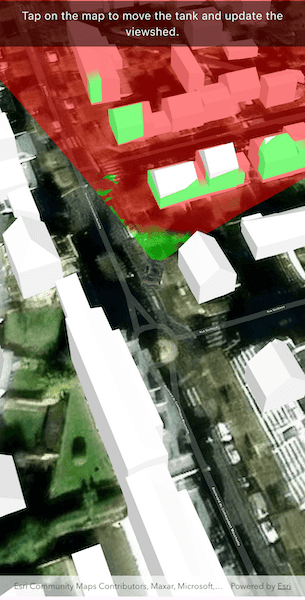
A viewshed analysis is a type of visual analysis you can perform on a scene. The viewshed aims to answer the question 'What can I see from a given location?'. The output is an overlay with two different colors - one representing the visible areas (green) and the other representing the obstructed areas (red).
How to use the sample
Tap to set a destination for the vehicle (a GeoElement). The vehicle will 'drive' towards the tapped location. The viewshed analysis will update as the vehicle moves.
How it works
- Create and show the
ArcGISScene, with an elevation source and a buildings layer. - Add a model (the
GeoElement) to represent the observer (in this case, a tank).- Use a
SimpleRendererwhich has a heading expression set in theGraphicsOverlay. This way you can relate the viewshed's heading to theGeoElementobject's heading.
- Use a
- Create a
GeoElementViewshedwith configuration for the viewshed analysis. - Add the viewshed to an
AnalysisOverlayand add the overlay to the scene. - Configure the SceneView
CameraControllerto orbit the vehicle.
Relevant API
- AnalysisOverlay
- GeodeticDistanceResult
- GeoElementViewshed
- GeometryEngine.distanceGeodetic
- GeometryEngine.moveGeodetic
- ModelSceneSymbol
- OrbitGeoElementCameraController
Offline data
About the data
This sample shows a Buildings in Brest, France Scene from ArcGIS Online. The sample uses a Tank model scene symbol hosted as an item on ArcGIS Online.
Tags
3D, analysis, buildings, model, scene, viewshed, visibility analysis
Sample Code
// Copyright 2025 Esri // // Licensed under the Apache License, Version 2.0 (the "License"); // you may not use this file except in compliance with the License. // You may obtain a copy of the License at // // https://www.apache.org/licenses/LICENSE-2.0 // // Unless required by applicable law or agreed to in writing, software // distributed under the License is distributed on an "AS IS" BASIS, // WITHOUT WARRANTIES OR CONDITIONS OF ANY KIND, either express or implied. // See the License for the specific language governing permissions and // limitations under the License. // import 'dart:async'; import 'dart:io'; import 'package:arcgis_maps/arcgis_maps.dart'; import 'package:arcgis_maps_sdk_flutter_samples/common/common.dart'; import 'package:flutter/material.dart'; import 'package:path_provider/path_provider.dart'; class ShowViewshedFromGeoelementInScene extends StatefulWidget { const ShowViewshedFromGeoelementInScene({super.key}); @override State<ShowViewshedFromGeoelementInScene> createState() => _ShowViewshedFromGeoelementInSceneState(); } class _ShowViewshedFromGeoelementInSceneState extends State<ShowViewshedFromGeoelementInScene> with SampleStateSupport { // Create a controller for the scene view. final _sceneViewController = ArcGISSceneView.createController(); // The graphic for the tank. Graphic? _tankGraphic; // Timer for animation. Timer? _animationTimer; // Waypoint for tank graphic. ArcGISPoint? _waypoint; // A flag for when the map view is ready and controls can be used. var _ready = false; @override Widget build(BuildContext context) { return Scaffold( body: SafeArea( top: false, left: false, right: false, child: Stack( children: [ // Add a scene view to the widget tree and set a controller. ArcGISSceneView( controllerProvider: () => _sceneViewController, onSceneViewReady: onSceneViewReady, onTap: onTap, ), // Display a progress indicator and prevent interaction until state is ready. LoadingIndicator(visible: !_ready), // Banner at the top. SafeArea( child: IgnorePointer( child: Container( width: double.infinity, padding: const EdgeInsets.all(10), color: Colors.black.withValues(alpha: 0.5), child: const Text( 'Tap on the map to move the tank and update the viewshed.', textAlign: TextAlign.center, style: TextStyle(color: Colors.white, fontSize: 16), ), ), ), ), ], ), ), ); } // Called when the scene view is ready. Future<void> onSceneViewReady() async { // Create and configure the scene with elevation. final scene = _createScene(); // Assign the scene to the scene view controller. _sceneViewController.arcGISScene = scene; // Load the tank graphic from the local data. _tankGraphic = await _loadTankGraphic(); // Add the tank graphic to the scene. _addTankToScene(_tankGraphic!); // Set up the orbit camera controller to follow the tank. _setupCameraController(_tankGraphic!); // Add the viewshed to the scene. _addViewshedToScene(_tankGraphic!); setState(() => _ready = true); } // Creates a scene with an imagery basemap and adds elevation data. ArcGISScene _createScene() { final scene = ArcGISScene.withBasemapStyle(BasemapStyle.arcGISImagery); // Add world elevation source to the scene's surface. final elevationSource = ArcGISTiledElevationSource.withUri( Uri.parse( 'https://elevation3d.arcgis.com/arcgis/rest/services/WorldElevation3D/Terrain3D/ImageServer', ), ); scene.baseSurface.elevationSources.add(elevationSource); // Create the building layer and add it to the scene. final buildingsLayer = ArcGISSceneLayer.withUri( Uri.parse( 'https://tiles.arcgis.com/tiles/P3ePLMYs2RVChkJx/arcgis/rest/services/Buildings_Brest/SceneServer/layers/0', ), ); scene.operationalLayers.add(buildingsLayer); return scene; } // Convert the tapped location into a waypoint within the scene and initiate the tank's animation towards the waypoint. Future<void> onTap(Offset localPosition) async { // Convert localPosition to scenePoint. final scenePoint = await _sceneViewController.screenToLocation( screen: localPosition, ); setState(() => _waypoint = scenePoint); _startTankAnimation(); } // Animate the tank toward the waypoint. void _startTankAnimation() { // Cancel any existing timer. _animationTimer?.cancel(); _animationTimer = Timer.periodic(const Duration(milliseconds: 100), ( timer, ) async { if (_tankGraphic == null || _waypoint == null) return; final tempPos = _tankGraphic!.geometry! as ArcGISPoint; final currentPos = ArcGISPoint( x: tempPos.x, y: tempPos.y, spatialReference: SpatialReference.wgs84, ); final target = ArcGISPoint( x: _waypoint!.x, y: _waypoint!.y, spatialReference: SpatialReference.wgs84, ); // Use geodetic distance to get distance and azimuth. final result = GeometryEngine.distanceGeodetic( point1: currentPos, point2: target, distanceUnit: LinearUnit(unitId: LinearUnitId.meters), azimuthUnit: AngularUnit(unitId: AngularUnitId.degrees), curveType: GeodeticCurveType.geodesic, ); final distance = result.distance; final azimuth = result.azimuth1; // Stop if close enough. if (distance <= 5) { _waypoint = null; timer.cancel(); return; } // Move a small step toward the waypoint. const step = 1.0; // meters final movedPoints = GeometryEngine.moveGeodetic( pointCollection: [currentPos], distance: step, azimuth: azimuth, distanceUnit: LinearUnit(unitId: LinearUnitId.meters), azimuthUnit: AngularUnit(unitId: AngularUnitId.degrees), curveType: GeodeticCurveType.geodesic, ); if (movedPoints.isEmpty) return; final newPoint = movedPoints.first; _tankGraphic!.geometry = newPoint; // Update heading. final currentHeading = (_tankGraphic!.attributes['HEADING'] as num?)?.toDouble() ?? 0.0; final headingDiff = shortestAngle(currentHeading, azimuth); final newHeading = currentHeading + headingDiff / 10; _tankGraphic!.attributes['HEADING'] = newHeading; }); } // Calculate shortest angle to rotate. double shortestAngle(double from, double to) { final difference = (to - from + 540) % 360 - 180; return difference; } // Loads the 3D tank model from local sample data and returns it as a Graphic. Future<Graphic> _loadTankGraphic() async { const downloadFileName = 'bradley_low_3ds'; final appDir = await getApplicationDocumentsDirectory(); final zipFile = File('${appDir.absolute.path}/$downloadFileName.zip'); if (!zipFile.existsSync()) { await downloadSampleDataWithProgress( itemIds: ['07d62a792ab6496d9b772a24efea45d0'], destinationFiles: [zipFile], ); } final tankModelPath = '${appDir.absolute.path}/$downloadFileName/bradle.3ds'; // Define the tank symbol. final tankSymbol = ModelSceneSymbol.withUri(uri: Uri.parse(tankModelPath), scale: 10) ..heading = 90 ..anchorPosition = SceneSymbolAnchorPosition.bottom; // Return the graphic that combines geometry and symbol. return Graphic( geometry: ArcGISPoint(x: -4.506390, y: 48.385624), attributes: {'HEADING': 0.0}, symbol: tankSymbol, ); } // Adds the tank graphic to a graphics overlay and sets the initial viewpoint. void _addTankToScene(Graphic tankGraphic) { final graphicsOverlay = GraphicsOverlay() ..graphics.add(tankGraphic) ..sceneProperties = LayerSceneProperties( surfacePlacement: SurfacePlacement.relative, ); // Configure the heading expression for the tank; this will allow the // viewshed to update automatically based on the tank's position. final renderer = SimpleRenderer() ..sceneProperties.headingExpression = '[HEADING]' ..sceneProperties.pitchExpression = '[PITCH]' ..sceneProperties.rollExpression = '[ROLL]'; graphicsOverlay.renderer = renderer; _sceneViewController.graphicsOverlays.add(graphicsOverlay); } // Add viewshed to the scene. void _addViewshedToScene(Graphic tankGraphic) { // Create a GeoElementViewshed attached to the scene. final geoElementViewshed = GeoElementViewshed( geoElement: tankGraphic, horizontalAngle: 90, verticalAngle: 40, headingOffset: 0, pitchOffset: 0, minDistance: 0.1, maxDistance: 250, ) // Offset the observer location to the front of the tank. ..offsetZ = 0.5 ..offsetY = 4; // Create an Analysis Overlay and add the viewshed to it. final analysisOverlay = AnalysisOverlay()..analyses.add(geoElementViewshed); // Add the analysis overlay to the scene view. _sceneViewController.analysisOverlays.add(analysisOverlay); } // Configures the orbit camera controller for the tank graphic. void _setupCameraController(Graphic tankGraphic) { final cameraController = OrbitGeoElementCameraController( targetGeoElement: tankGraphic, distance: 200, ); _sceneViewController.cameraController = cameraController; } }