1. Define a study area
The first step is to define one or more study areas. A study area is a location used to restrict the search for the GeoEnrichment service. The study parameter is required for a global search or local search. When you submit a request, the service returns information for the study areas provided.
Types of study areas
The value of the study parameter can take many forms. It can include one or more point, line, or polygon geometries, administrative boundaries, street addresses, and drive time service areas. For points and addresses, the GeoEnrichment service calculates a buffer or service area in which to aggregate data. See the examples below:
| Study area | Description | Example |
|---|---|---|
| Named administrative boundaries | Includes countries, states, U.S. ZIP Codes, etc | study |
| Street addresses | Defaults to a one mile buffer around address | study |
| Buffer around a point or line | Defaults to a one mile buffer around point or line | study |
| Area within a polygon | Area within a geometry defined by three or more points. | study |
| Drive time service areas | Calculates a drive time area around a point or address | study |
2. Specify the data to find
The next step is to define the data you want to retrieve for the study area. To do so, you need to find the names of the analysis variables and/or data collections that are supported by the GeoEnrichment service. There are thousands of data variables and collections to choose from. You can query the service for these values or you can find them interactively with the Analysis Variable Finder and Data Collection Finder.
The general steps are:
- Go to the Analysis Variable Finder or Data Collection Finder.
- Explore the groups of variables and collections.
- Select the variables and data collections and copy the JSON.
Analysis variables
An analysis variable is a parameter that represents data stored within the GeoEnrichment service. All valid enrich queries to the GeoEnrichment service return analysis variables in their response.
You can set the analysis parameter of an enrich request to return global and local data for a study area.
Data collections
A data collection is a predefined list of analysis variables that can be used to get data from the GeoEnrichment service. When you make an enrich request with a data collection, the response contains information for each analysis variable in the collection.
For example, the Key data collection contains the following analysis variables:
Total Population (TOTPO P) Total Households (TOTH H) Average Household Size (AVGHHS Z) Male Population (TOTMALE S) Female Population (TOTFEMALE S)
3. Make a request
The final step is to make a request to the GeoEnrichment service. You can use the JavaScript Maps SDK, scripting API, or open source library.
The general steps are:
- Reference the service or import the relevant packages access the GeoEnrichment service.
- Define the following parameters:
study: The study area in which you want the data returned.Areas - The
analysisorVariables data. If you provide neither parameter, data from theCollections Keydata collection will be returned by default.Global Facts token: An access token.
- Make the request.
https://geoenrich.arcgis.com/arcgis/rest/services/World/geoenrichmentserver/Geoenrichment/enrich?<parameters>APIs
function getDemographicData(point) { // Request demographic data arcgisRest .queryDemographicData({ studyAreas: [ { geometry: { x: point.longitude, y: point.latitude } }, ], authentication: authentication, }) .then((response) => { if ( response.results[0].value.FeatureSet.length > 0 && response.results[0].value.FeatureSet[0].features.length > 0 ) { const attributes = response.results[0].value.FeatureSet[0].features[0].attributes showData(attributes, point) } else { console.log("No data found.") } }) } REST API
curl https://geoenrich.arcgis.com/arcgis/rest/services/World/geoenrichmentserver/Geoenrichment/enrich? \ -d "studyAreas=[{'geometry':{'x': -117.1956, 'y': 34.0572}}]" -d "f=json" -d "token=<ACCESS_TOKEN>"Additional resources
Tutorials
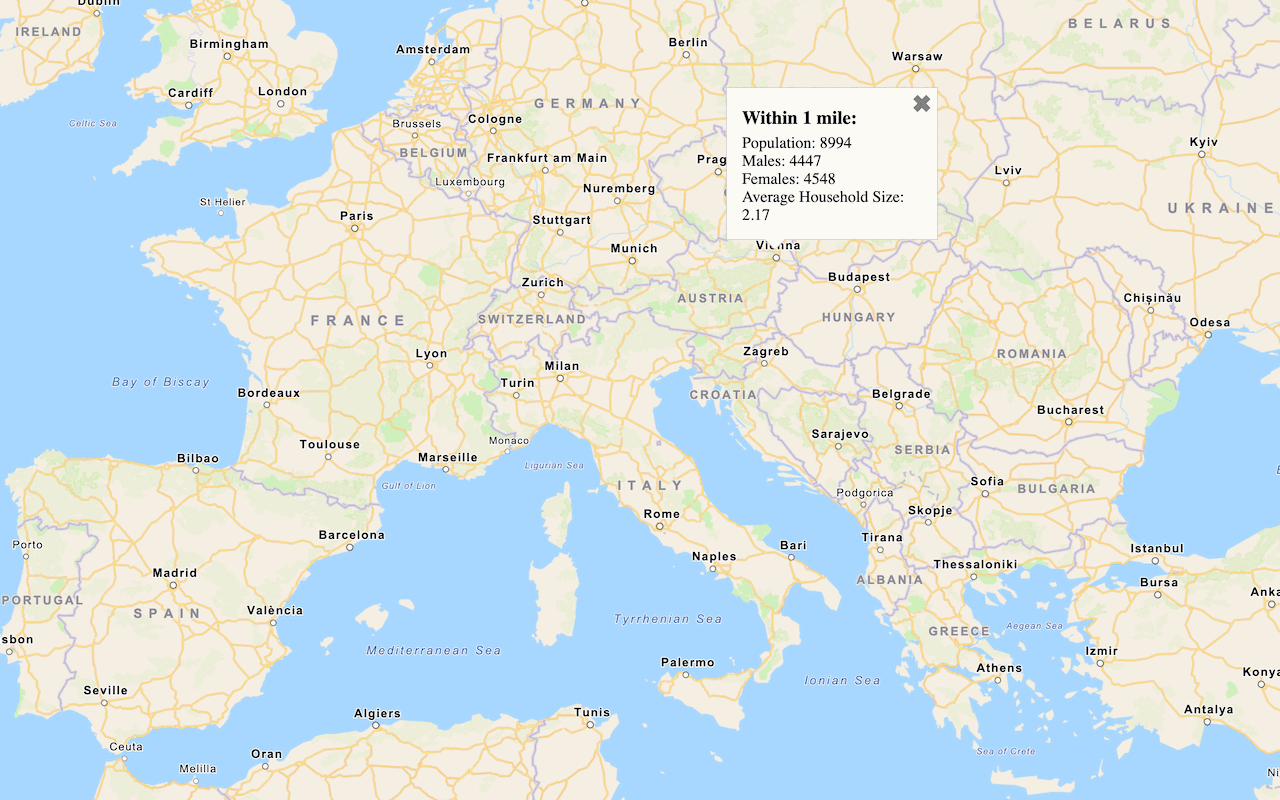
Query demographic data
Query demographic information for locations around the world with the GeoEnrichment service.

Get local data
Query local analysis variables in select countries around the world with the GeoEnrichment service.

Find data using analysis variables
