Chips
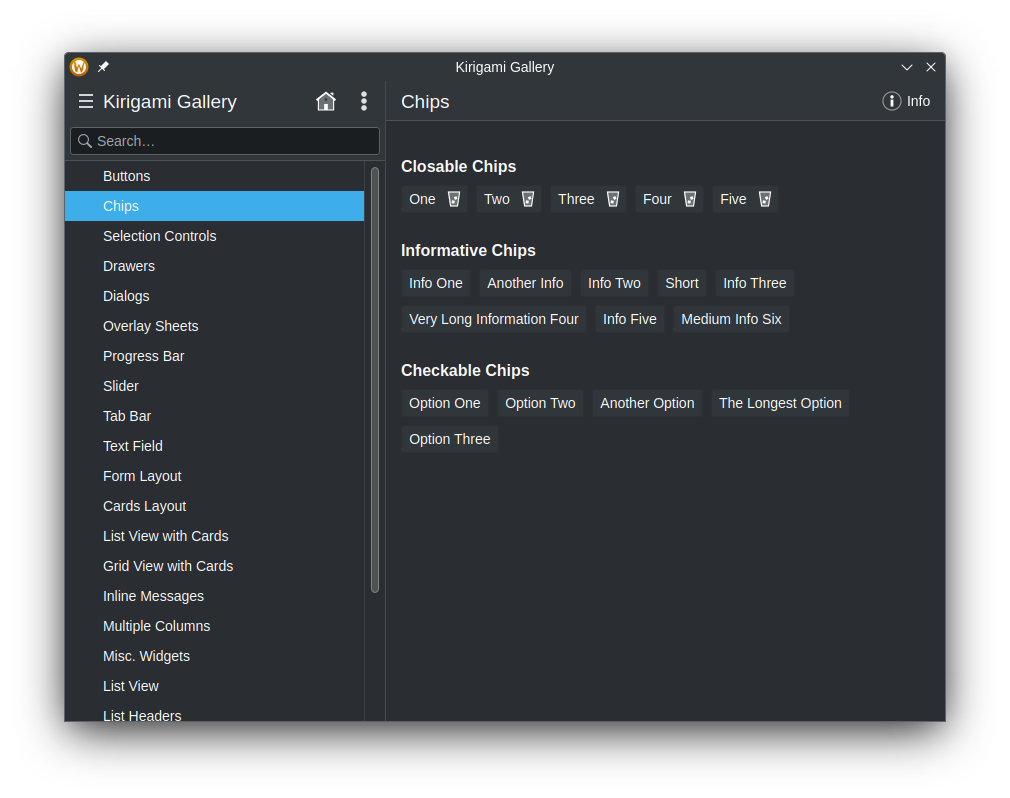
Los componentes Kirigami.Chip son pequeños elementos que heredan de AbstractButton y que se usan para mostrar propiedades comunes o filtros de algo. Suelen ser elementos de texto, con el que se puede interactuar, y contienen un botón de borrado opcional.
Inicio rápido
Chips can easily be added using the Kirigami.Chip component. By assigning a string to its inherited AbstractButton.text field, we give chips their name.
import QtQuick import QtQuick.Layouts import QtQuick.Controls import org.kde.kirigami as Kirigami Kirigami.ApplicationWindow { title: "Chips" pageStack.initialPage: Kirigami.Page { title: "Chips" Kirigami.FormLayout { anchors.fill: parent Kirigami.Chip { text: "Chip 1" } Kirigami.Chip { text: "Chip 2" } Kirigami.Chip { text: "Chip 3" } } } }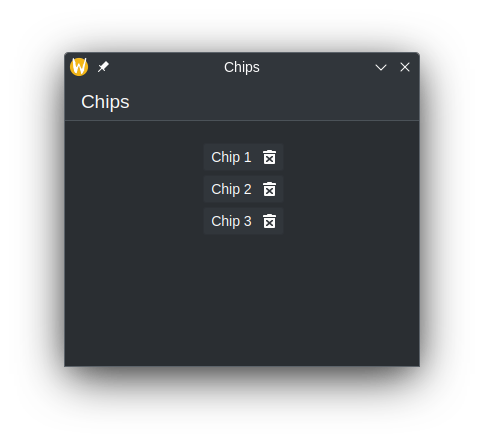
Con repetidores (recomendado)
Como los chips están diseñados para usarse más de una vez, probablemente querrá usar algún tipo de estructura de datos de lista y realizar una iteración para mostrarlos. Para ello, necesitamos un ListModel y un componente Repeater.
El ListModel se usa para almacenar los chips. Para rellenar el ListModel (y, por lo tanto, los chips), declaramos un par de componentes ListElement, que contienen un campo llamado text. Podemos usar esta cadena asignada desde aquí al campo text para cada chip repetido.
The Repeater is used for displaying the chips. First, we need to set the model field of the Repeater to our ListModel, or create the ListModel inside of repeater. Then, we declare the Kirigami.Chip component inside of the Repeater, and assign its text field with the element's data using the modelData property.
Kirigami.ApplicationWindow { id: root title: "Chips" ListModel { id: chips ListElement { text: "Chip 1" } ListElement { text: "Chip 2" } ListElement { text: "Chip 3" } } pageStack.initialPage: Kirigami.Page { title: "Chips" Kirigami.FormLayout { anchors.fill: parent Repeater { Layout.fillWidth: true model: chips Kirigami.Chip { id: chip text: modelData } } } } }Nota
You can dynamically append and remove data from the ListModel, and the Repeater will automatically make those changes. However, simply changing a specific item from either the Repeater or ListModel does not affect the other, and requires the changing of both, unless something like QAbstractListModel is used. See Example Application for more information.Aplicación de ejemplo
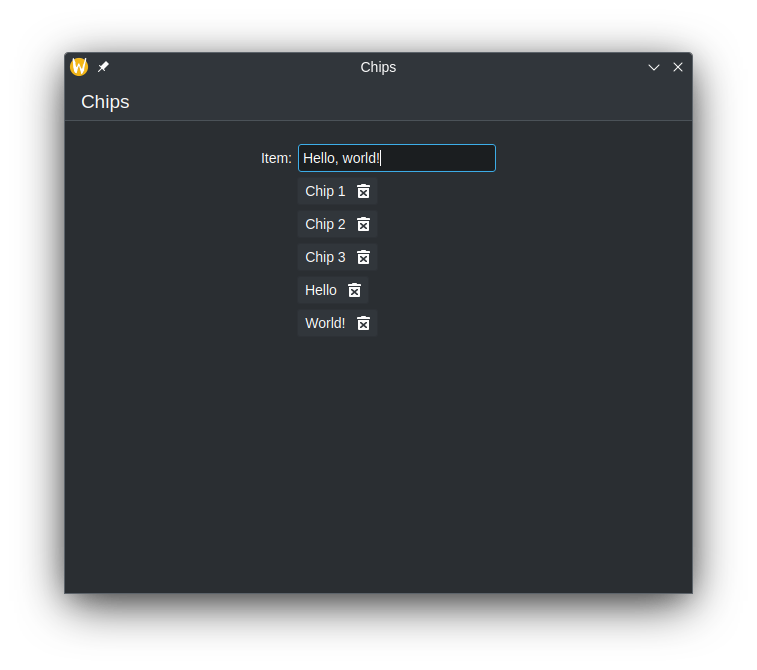
La aplicación de ejemplo siguiente muestra cómo se pueden usar chips en programas como listas de tareas pendientes.
| |