

Summary: Downloading and viewings the blocking logs for the Azure Web Application Firewall (V2) is necessary to adjust the blocking rules for the WAF. Even when the WAF is in the default “discovery” mode, there still may be some default blocking behavior.
First, the Application Gateway which is hosting the WAF needs to be enabled to send its diagnostic logs to a Log Analytics Workspace in Azure. After creating the Log Analytics Workspace, enable the diagnostic log forwarding (this example is via the Azure Portal):

Select the logs and Log Analytics Workspace.

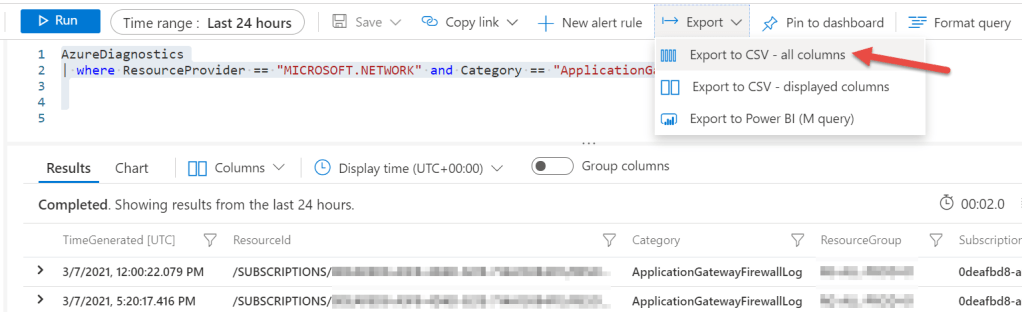
The following PowerShell script will download logs for the past 24hrs from the WAF’s Log Analytics Workspace and export a CSV of the results.
Get-WafLogs.ps1 (example):
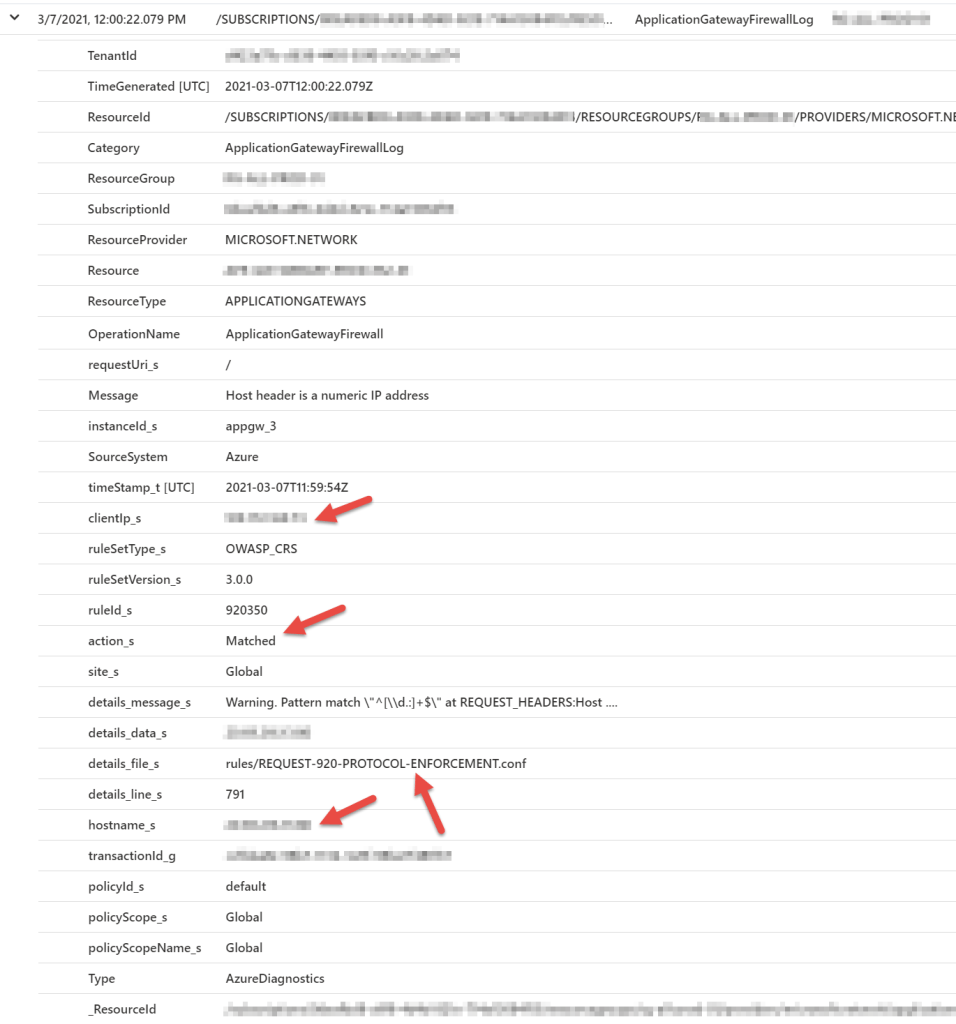
<# .DESCRIPTION Gets WAF Logs .EXAMPLE PS >> .\Get-WafLogs.ps1 .NOTES AUTHORS: Otto Helweg LASTEDIT: March 7, 2021 VERSION: 1.0.1 POWERSHELL: Requires version 6 Update Execution Policy and Modules: Set-ExecutionPolicy Bypass -Force Login to Azure first: Logout-AzAccount Login-AzAccount -Subscription "<Subscription Name>" Select-AzSubscription -Subscription "<Subscription Name>" Example: .\Get-WafLogs.ps1 -workspaceName <Workspace Name> -workspaceRG <Resource Group Name> #> param($workspaceName,$workspaceRG) if (!($workspaceName)) { $workspaceName = Read-Host "Workspace Name" } if (!($workspaceRG)) { $workspaceRG = Read-Host "Resource Group Name" } $WorkspaceID = (Get-AzOperationalInsightsWorkspace -Name $workspaceName -ResourceGroupName $workspaceRG).CustomerID $query = 'AzureDiagnostics | where ResourceProvider == "MICROSOFT.NETWORK" and Category == "ApplicationGatewayFirewallLog"' $results = Invoke-AzOperationalInsightsQuery -WorkspaceId $WorkspaceID -Query $query -Timespan (New-TimeSpan -days 1) # $results.results | export-csv c:\temp\LogAnalyticsLogs.csv -Delimiter "," -NoTypeInformation $csvOutput = @() foreach ($result in $results.Results) { $rule = "" $uri = "" if ($result.details_file_s) { $rule = (($result.details_file_s).Split("/")[1]).Split(".")[0] } else { $rule = "N/A" } $uri = "$($result.hostname_s)$($result.requestUri_s)" $timeStamp = Get-Date $result.TimeGenerated -Format "dd/MM/yyyy HH:mm:ss" # Write-Output "$timeStamp,$($result.clientIp_s),$uri,$($result.action_s),$($result.ruleSetType_s),$($result.ruleId_s),$rule,$($result.Message)" Write-Host "." -NoNewline $csvOutputItem = New-Object -Type PSObject -Property @{ TimeStamp = $timeStamp ClientIP = $result.clientIp_s URI = $uri Action = $result.action_s RuleSet = $result.ruleSetType_s RuleID = $result.ruleId_s RuleName = $rule Message = $result.Message } | Select-Object TimeStamp,ClientIP,URI,Action,RuleSet,RuleID,RuleName,Message $csvOutput += $csvOutputItem } Write-Output "" $csvFileName = "$((Get-Date).Year)$((Get-Date).Month.ToString('00'))$((Get-Date).Day.ToString('00'))$((Get-Date).Hour.ToString('00'))$((Get-Date).Minute.ToString('00'))$((Get-Date).Second.ToString('00'))-WAFLogs.csv" Write-Output "Exporting to file .\$csvFileName" $csvOutput | Export-Csv -Path .\$csvFileName -NoTypeThe output (formatted in Excel) shows the WAF logs based on which rule and action were applied. These logs can be used to fine tune the rules used when the WAF is in ‘blocking’ mode as well as viewing the actions taken by the WAF while in ‘discovery’ mode.

Enjoy!



 Cloud Robots