Editor’s Note: This post was updated in October 2021 to reflect the current versions of react-navigation and react-native-firebase.

Managing user authentication flows in a mobile app is one of the most significant features to implement. In this tutorial, we are going to discuss one of the strategies for implementing an authentication flow using an email sign-in provider with React Native and the latest versions of react-navigation (version 6) and react-native-firebase libraries. For backend service, we are going to use Firebase SDK.
To follow along, make sure you have access to a Firebase project and its console (a free tier project will work — I will also be using a free tier).
The Replay is a weekly newsletter for dev and engineering leaders.
Delivered once a week, it's your curated guide to the most important conversations around frontend dev, emerging AI tools, and the state of modern software.
For this tutorial, ensure your dev environment includes the following required packages:
For a complete walkthrough on setting up a development environment for React Native, you can go through the official documentation here.
Start by creating a new React Native app. Open a terminal window and execute the following command. I am going to use npm to access the latest React Native CLI version. After the project directory is created, please make sure that you navigate inside the directory:
npx react-native init rnEmailAuthFirebase # navigate to project directory cd rnEmailAuthFirebase
Let’s now install all the dependencies required to build this demo app. Go back to the terminal window to run the following command. The following libraries that are being installed are related to both configure Firebase SDK in the React Native app and set up a navigational flow using react-navigation.
To install dependencies, I am going to use yarn, but you can use npm too:
# for navigation yarn add @react-navigation/native @react-navigation/stack react-native-reanimated react-native-gesture-handler react-native-screens react-native-safe-area-context @react-native-community/masked-view yarn add @react-navigation/[email protected] @react-navigation/[email protected] [email protected] [email protected] [email protected] @react-native-masked-view/[email protected]
If you’re on a Mac and developing for iOS, you need to install the pods (via Cocoapods) to complete the linking. Run the command below:
npx pod-install ios
The dependency react-native-screens requires additional configuration for the Android platform. Open the file android/app/src/main/java//MainActivity.java and add the following at the top:
import android.os.Bundle;
In the same file, add the following code snippet in the MainActivity class:
@Override protected void onCreate(Bundle savedInstanceState) { super.onCreate(null); } The package react-native-gesture-handler requires additional configuration. Open the App.js file at the root of your React Native app and import the package at the top of the file.
// language: javascript import 'react-native-gesture-handler';
The steps to integrate and enable React Navigation library are now complete.
If you have used react-native-firebase version 5 or below, you might have noticed that it was a monorepo that used to manage all Firebase dependencies from one module.
The latest version of this library wants you to only install those dependencies based on Firebase features that you want to use. For example, in the current app, to support the email authentication feature you are going to install the auth and core app package:
yarn add @react-native-firebase/app @react-native-firebase/auth
After installing the dependencies, please make sure to follow the instructions provided in react-navigation’s official documentation to configure its native binaries to work on both iOS and Android platforms.
iOS users, install pods after installing these dependencies:
npx pod-install ios
To access the Firebase credentials for each mobile OS platform and configure them to use Firebase SDK, create a new Firebase project. Or, use one if you have access already from the Firebase console, in which case you can skip this step.
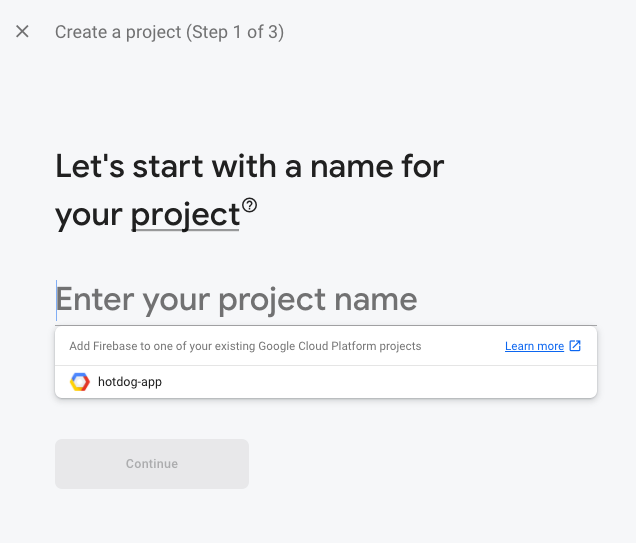
To create a new Firebase project, click on the Add project button and then enter the name of the Firebase project.

On the next screen, you can leave everything to default settings and press the Create project button to initialize a new Firebase project.
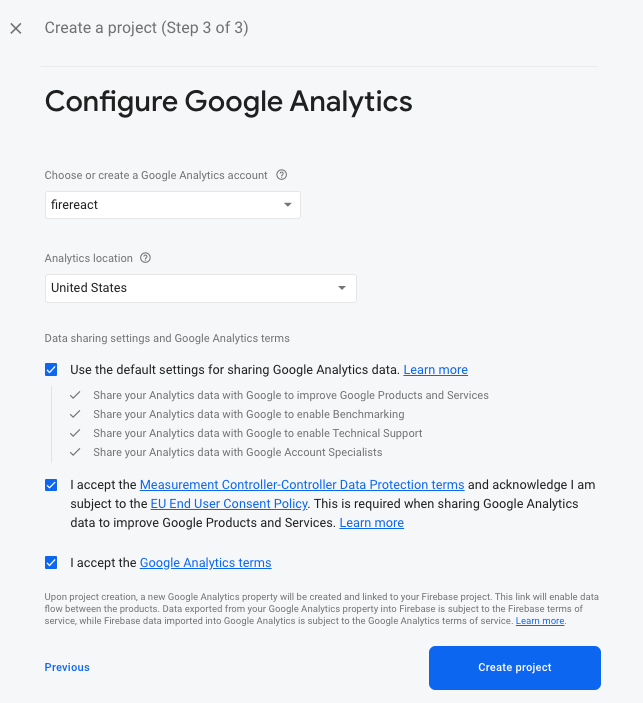
When the loading finishes, press the button and you’ll be welcomed by the main dashboard screen of the Firebase project. Click Create Project and you’ll be redirected to the dashboard screen. That’s it. You have successfully created a new Firebase project!
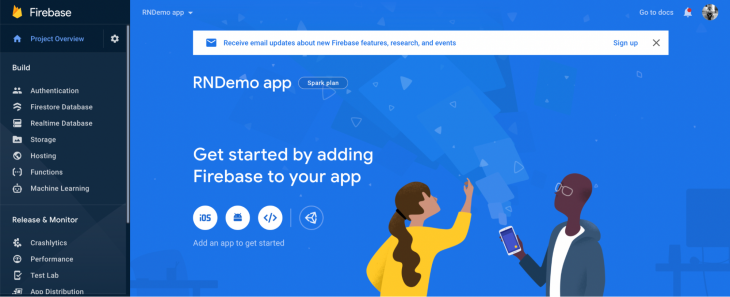
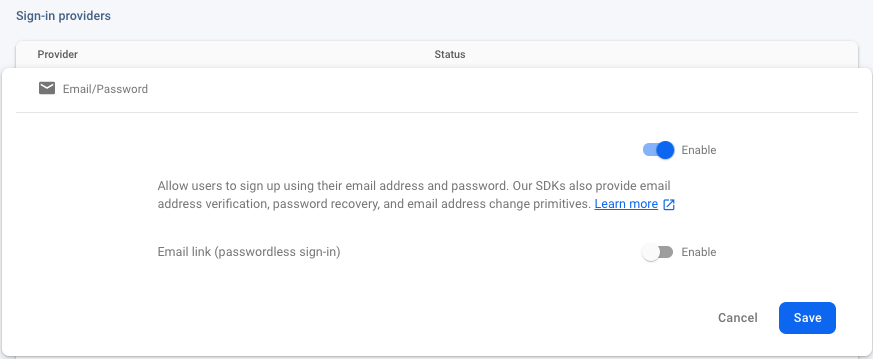
Now make sure that the Email Sign-in method is enabled. From the Firebase console, navigate to the Authentication section from the side menu:
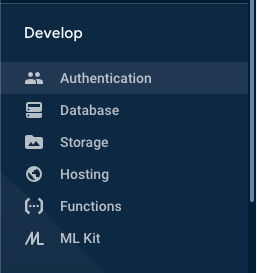
Go to the second tab, Sign-in method, and enable the Email sign-in provider:
Firebase provides a file called GoogleService-Info.plist that contains all the API keys as well as other credentials for iOS devices to authenticate the correct Firebase project.
To get these credentials, go back to the Firebase console in a browser window. From the dashboard screen of your Firebase project, open project settings from the side menu:
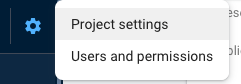
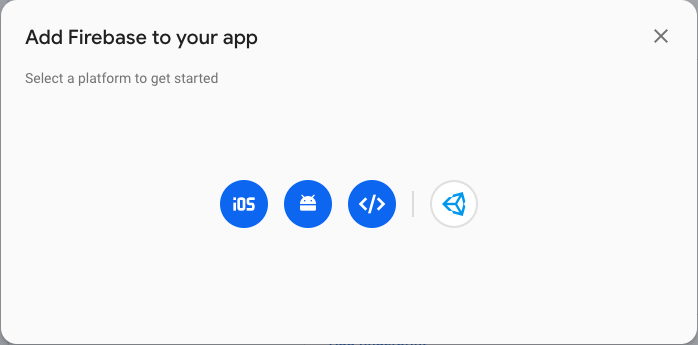
Go to your apps section and click on the icon iOS to select the platform:
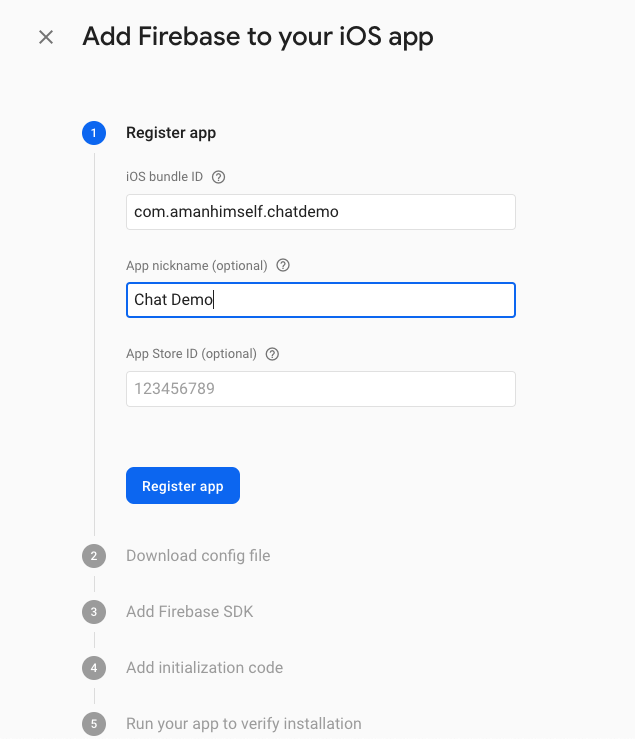
Enter the application details and click on Register app and download GoogleService-Info.plist.
Open Xcode, then open the file /ios/rnEmailAuthFirebase.xcodeproj file. Right-click on the project name and Add Files option, then select the file to add to this project:
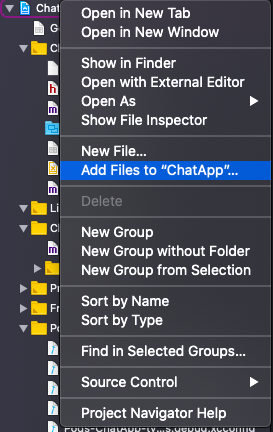
Then open ios/ChatApp/AppDelegate.m and add the following header:
#import <Firebase.h>
In the same file, within the didFinishLaunchingWithOptions method, add the following configure method:
- (BOOL)application:(UIApplication *)application didFinishLaunchingWithOptions:(NSDictionary *)launchOptions { if ([FIRApp defaultApp] == nil) { [FIRApp configure]; } Lastly, go back to the terminal window to install pods:
cd ios/ && pod install # after pods are installed cd ..
Make sure you build the iOS app:
npx react-native run-ios
To integrate the Firebase configuration for your Android app, you need to generate, download, and add google-services.json.
From the Firebase dashboard screen, click on Project Overview > Settings and in the General tab, go to the Your Apps section. Click on the Add app button and then click the button with the Android icon in the modal.
Enter the details of your app. Then click on Register app. The Android package name in the image below must match your local projects package name, which can be found inside of the manifest tag within the /android/app/src/main/AndroidManifest.xml file within your project.
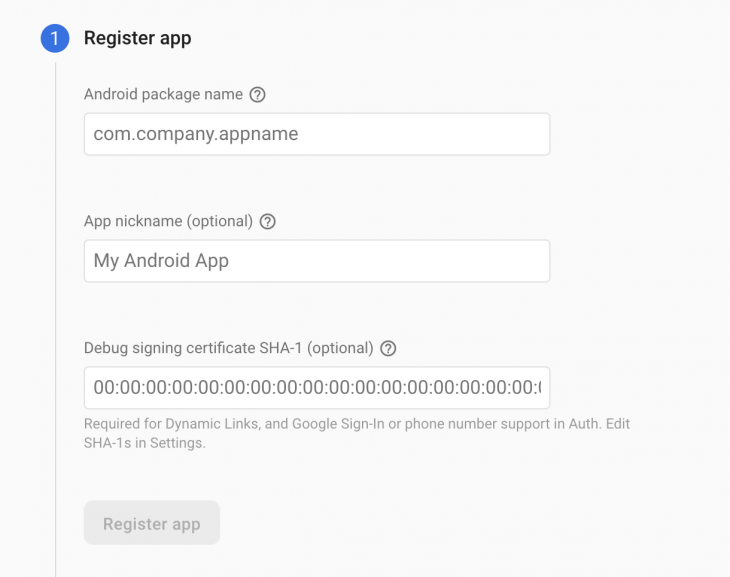
Download the google-services.json file. Place it inside of your React Native project at the file location: /android/app/google-services.json.
Next, enable the google-services plugin. This requires modification in two files in the Android directory. Add the google-services plugin as a dependency inside of your /android/build.gradle file:
buildscript { dependencies { // ... other dependencies // Add the line below classpath 'com.google.gms:google-services:4.3.8' } } Then, execute the plugin by adding the following to your /android/app/build.gradle file:
apply plugin: 'com.android.application' apply plugin: 'com.google.gms.google-services' // <- Add this line
Next, to rebuild the Android app, execute the following commands:
npx react-native run-android
That’s it. The configuration to set up a Firebase SDK and credentials in a React Native app is complete.
In this section, let’s create some reusable form components such as FormInput and FormButton. These UI components are going to be used in two screens: login and signup. The advantage of reusable components in React Native is that you do not have to write a similar common code again for a different set of screen components.
Create a new directory src/components and inside it, create three new files:
FormButton.jsFormInput.jsLoading.jsOpen FormButton.js. This component is going to display a button in the screen component UI. Start by importing the following statements:
import React from 'react'; import { StyleSheet, TouchableOpacity, Text } from 'react-native'; import { windowHeight, windowWidth } from '../utils/Dimensions'; Dimensions from React Native core API provides a way to get the screen width and height. Instead of giving the fixed width and height to a text input field, let this API calculate it for us based on the dimensions of the window. You are going to create these helpers, windowHeight and windowWidth, at the end of this section.
Next, export the default function FormButton that is going to have some props:
export default function FormButton({ buttonTitle, ...rest }) { return ( <TouchableOpacity style={styles.buttonContainer} {...rest}> <Text style={styles.buttonText}>{buttonTitle}</Text> </TouchableOpacity> ); } The ...rest props must be the last prop passed as a parameter, otherwise, you are going to get an error. The purpose of passing this prop is to allow the component to have other props value. Lastly, define the corresponding styles for this reusable component:
const styles = StyleSheet.create({ buttonContainer: { marginTop: 10, width: windowWidth / 2, height: windowHeight / 15, backgroundColor: '#6646ee', padding: 10, alignItems: 'center', justifyContent: 'center', borderRadius: 8 }, buttonText: { fontSize: 28, color: '#ffffff' } }); Then open FormInput.js, the second reusable component. It is going to be similar to the previous UI component you have just created.
This component is going to provide a text input field for the screen components to use and for the user to enter the credentials:
import React from 'react'; import { StyleSheet, TextInput } from 'react-native'; import { windowHeight, windowWidth } from '../utils/Dimensions'; export default function FormInput({ labelValue, placeholderText, ...rest }) { return ( <TextInput value={labelValue} style={styles.input} numberOfLines={1} placeholder={placeholderText} placeholderTextColor='#666' {...rest} /> ); } const styles = StyleSheet.create({ input: { padding: 10, marginTop: 5, marginBottom: 10, width: windowWidth / 1.5, height: windowHeight / 15, fontSize: 16, borderRadius: 8, borderWidth: 1 } }); Lastly, open the Loading.js file. This component is going to be responsible for displaying a loading spinner:
import React from 'react'; import { View, ActivityIndicator, StyleSheet } from 'react-native'; export default function Loading() { return ( <View style={styles.loadingContainer}> <ActivityIndicator size='large' color='#6646ee' /> </View> ); } const styles = StyleSheet.create({ loadingContainer: { flex: 1, alignItems: 'center', justifyContent: 'center' } }); Now, inside the src/ directory create another directory called utils/. Inside this new directory create and open the file called Dimensions.js and the following code snippet:
import { Dimensions } from 'react-native'; export const windowWidth = Dimensions.get('window').width; export const windowHeight = Dimensions.get('window').height; Let us store all our screen components together inside a new directory called src/screens/ and create one of the most essential screen component files LoginScreen.js.
This screen component is going to be the initial route when the user is not authenticated or authorized to enter the app. It is going to ask for the user’s credentials to enter the app and view the home screen or any other screens that are only allowed for the user to interact with when they are authorized to do so.
The login screen is going to have four main UI elements:
email and passwordStart by importing the following statements:
import React, { useState } from 'react'; import { View, Text, StyleSheet, TouchableOpacity } from 'react-native'; import FormButton from '../components/FormButton'; import FormInput from '../components/FormInput'; Define state variables, email, and password inside the LoginScreen functional component. They are going to be used with the FormInput component to obtain the value of the user credentials. By default, they are going to have an empty string as their value:
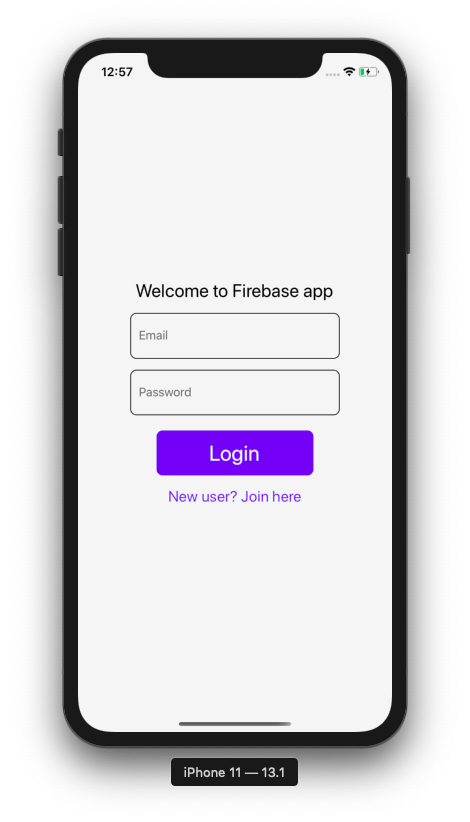
export default function LoginScreen({ navigation }) { const [email, setEmail] = useState(''); const [password, setPassword] = useState(''); return ( <View style={styles.container}> <Text style={styles.text}>Welcome to Firebase app</Text> <FormInput value={email} placeholderText='Email' onChangeText={userEmail => setEmail(userEmail)} autoCapitalize='none' keyboardType='email-address' autoCorrect={false} /> <FormInput value={password} placeholderText='Password' onChangeText={userPassword => setPassword(userPassword)} secureTextEntry={true} /> <FormButton buttonTitle='Login' onPress={() => alert('login button')} /> <TouchableOpacity style={styles.navButton} onPress={() => navigation.navigate('Signup')} > <Text style={styles.navButtonText}>New user? Join here</Text> </TouchableOpacity> </View> ); } The navigation prop reference is used here to navigate to sign up the screen. This prop reference provides a set of functions ready to dispatch as actions for each screen component and is provided by the react-navigation library. The navigation.navigate() accepts the value of the screen to navigate to, from the current screen.
The prop will not dispatch an action right now for two reasons. Reason one, you have yet to create a signup screen, and reason two, there is a navigation stack set up. You are going to do that soon. Lastly, here are the corresponding styles for the LoginScreen component:
const styles = StyleSheet.create({ container: { backgroundColor: '#f5f5f5', flex: 1, justifyContent: 'center', alignItems: 'center' }, text: { fontSize: 24, marginBottom: 10 }, navButton: { marginTop: 15 }, navButtonText: { fontSize: 20, color: '#6646ee' } }); Create a new file called SignupScreen.js inside src/screens/ directory. This screen is going to be very similar to the screen you created in the previous section.
Here is the complete code snippet:
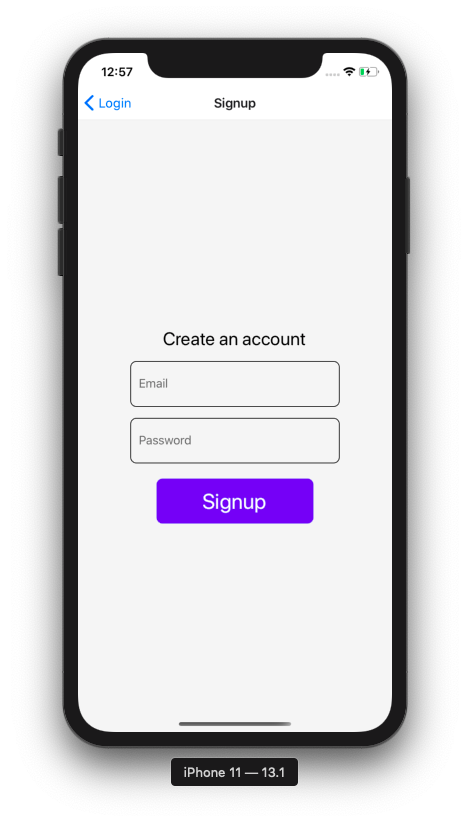
import React, { useState } from 'react'; import { View, Text, StyleSheet } from 'react-native'; import FormButton from '../components/FormButton'; import FormInput from '../components/FormInput'; export default function SignupScreen() { const [email, setEmail] = useState(''); const [password, setPassword] = useState(''); return ( <View style={styles.container}> <Text style={styles.text}>Create an account</Text> <FormInput value={email} placeholderText='Email' onChangeText={userEmail => setEmail(userEmail)} autoCapitalize='none' keyboardType='email-address' autoCorrect={false} /> <FormInput value={password} placeholderText='Password' onChangeText={userPassword => setPassword(userPassword)} secureTextEntry={true} /> <FormButton buttonTitle='Signup' onPress={() => alert('sign button')} /> </View> ); } const styles = StyleSheet.create({ container: { backgroundColor: '#f5f5f5', flex: 1, justifyContent: 'center', alignItems: 'center' }, text: { fontSize: 24, marginBottom: 10 } }); In the current app, let us create another screen component called the HomeScreen. This component is not going to do much. It is going to have a logout button and display the user’s details when you integrate the Firebase backend service.
Create a new file called HomeScreen.js inside the screens directory with the following code snippet:
import React from 'react'; import { View, Text, StyleSheet } from 'react-native'; import FormButton from '../components/FormButton'; export default function HomeScreen() { return ( <View style={styles.container}> <Text style={styles.text}>Home Screen</Text> <FormButton buttonTitle='Logout' /> </View> ); } const styles = StyleSheet.create({ container: { flex: 1, justifyContent: 'center', alignItems: 'center', backgroundColor: '#f5f5f1' }, text: { fontSize: 20, color: '#333333' } }); This screen is going to have its own stack navigator. A stack navigator provides the React Native app to transit between different screens similar to how the navigation in a web browser works. It pushes or pops a screen when in the navigational state.
Create a new directory src/navigation where all the navigation-related configuration files are going to be stored for the current demo app. Inside, start by creating a new file called HomeStack.js with the following code snippet:
import React from 'react'; import { createStackNavigator } from '@react-navigation/stack'; import HomeScreen from '../screens/HomeScreen'; const Stack = createStackNavigator(); export default function HomeStack() { return ( <Stack.Navigator> <Stack.Screen name='Home' component={HomeScreen} /> </Stack.Navigator> ); } Navigators are defined declaratively, and the react-navigation library follows a component-based approach. This is quite similar to that of the react-router library in web development using React (if you are familiar with it).
The createStackNavigator is a function used to implement a stack navigation pattern. The Stack is an instance of this function in the above code snippet. This function returns two React components, Screen and Navigator, that help us configure each component screen as shown below.
There are going to be two stack navigators in the current app. The first navigator you have seen in the previous section. The second navigator is going to be called AuthStack.
Inside the navigation/ directory, create a new file called AuthStack.js. This file is going to have a stack navigator too with the following code snippet:
import React from 'react'; import { createStackNavigator } from '@react-navigation/stack'; import SignupScreen from '../screens/SignupScreen'; import LoginScreen from '../screens/LoginScreen'; const Stack = createStackNavigator(); export default function AuthStack() { return ( <Stack.Navigator initialRouteName='Login'> <Stack.Screen name='Login' component={LoginScreen} options={{ header: () => null }} /> <Stack.Screen name='Signup' component={SignupScreen} /> </Stack.Navigator> ); } In the above snippet, the Stack.Navigator takes those prop values that are common to each screen route. For example, the stack navigator adds a header to each screen inside it. For the current stack, you are not going to require a header on the Login screen, this is set to null.
The initialRouteName is the name of the route to render on the first load of the navigator.
Let’s create an authentication provider to check whether the user is logged in or not and automatically authenticate them if they are logged in.
Create a new file called AuthProvider.js inside src/navigation/. Start by importing the following statements:
import React, { createContext, useState } from 'react'; import auth from '@react-native-firebase/auth'; Create an AuthContext. Export it since it is going to provide the user’s state and other helper functions that are necessary to perform authentication actions throughout the different app screens:
export const AuthContext = createContext({}); The Context API in Reactjs shares data that is considered global for a tree of React components. When you are creating a context (like we did above), there is a requirement to pass a default value. The value is then used when a component does not have a matching Provider.
The Provider allows the React components to subscribe to the context changes. To create an auth provider, export a function called AuthProvider.
This provider is going to allow the screen components to access the state of the current user in the application. Define a state variable called user inside this functional component as shown below:
export const AuthProvider = ({ children }) => { const [user, setUser] = useState(null); return ( <AuthContext.Provider value={{ user, setUser, login: async (email, password) => { try { await auth().signInWithEmailAndPassword(email, password); } catch (e) { console.log(e); } }, register: async (email, password) => { try { await auth().createUserWithEmailAndPassword(email, password); } catch (e) { console.log(e); } }, logout: async () => { try { await auth().signOut(); } catch (e) { console.error(e); } } }} > {children} </AuthContext.Provider> ); }; In the snippet above, inside the object value, there are some functions defined. These functions are helper methods that are going to be used in the screen components for different actions.
Each of the functions is consuming Firebase methods to interact with real-time Firebase backend service. Both the login and register functions require the user’s email and password to verify/save credentials. The logout method invokes a simple signOut() method.
All these Firebase methods are available from the @react-native-firebase/auth package. Do note that all these functions are asynchronous actions and, thus, require using async await syntax helps or a promise based syntax.
In this section, you are going to wrap the auth provider around the Routes such as to use the helper functions as well as the value of the current user in the screen components.
Create a new file called src/navigation/index.js file and add the following code snippet:
import React from 'react'; import { AuthProvider } from './AuthProvider'; import Routes from './Routes'; export default function Providers() { return ( <AuthProvider> <Routes /> </AuthProvider> ); } Also, make sure to use the Providers as the entry point of the current demo app. Modify the App.js file as shown below:
import React from 'react'; import Providers from './src/navigation'; export default function App() { return <Providers />; } The last piece of the puzzle is going to be a Routes.js file inside the src/navigation/ directory. Create this file and start by importing the following statements:
import React, { useContext, useState, useEffect } from 'react'; import { NavigationContainer } from '@react-navigation/native'; import auth from '@react-native-firebase/auth'; import AuthStack from './AuthStack'; import HomeStack from './HomeStack'; import { AuthContext } from './AuthProvider'; import Loading from '../components/Loading'; Define the Routes function with two state variables initializing and loading to check whether the user’s state is logged in or not. From the auth context, add user and setUser. Then define a helper method that handles user state changes.
Using useEffect Hook, you can subscribe to this state change function and make sure you unsubscribe it when the component unmounts:
export default function Routes() { const { user, setUser } = useContext(AuthContext); const [loading, setLoading] = useState(true); const [initializing, setInitializing] = useState(true); // Handle user state changes function onAuthStateChanged(user) { setUser(user); if (initializing) setInitializing(false); setLoading(false); } useEffect(() => { const subscriber = auth().onAuthStateChanged(onAuthStateChanged); return subscriber; // unsubscribe on unmount }, []); if (loading) { return <Loading />; } return ( <NavigationContainer> {user ? <HomeStack /> : <AuthStack />} </NavigationContainer> ); } AuthContext to complete the appEverything is configured now and all you have to do is use the helper methods from the AuthContext. Start by modifying the Login.js file:
// import useContext from React import React, { useState, useContext } from 'react'; // after other import statements, add below import { AuthContext } from '../navigation/AuthProvider'; // inside functional component LoginScreen, fetch the helper method export default function LoginScreen({navigation}) { // ... const { login } = useContext(AuthContext); // make sure the FormButton's onPress method uses the helper method return ( {/* rest of the code remains same */} <FormButton buttonTitle='Login' onPress={() => login(email, password)} /> ) } To run the app, you have to build it using the platform-specific command as shown below from a terminal window:
# for iOS npx react-native run-ios # for android npx react-native run-android
You are going to get the following output in the simulator for the login screen:
Similarly, SignupScreen.js has to be modified like this:
// import useContext from React import React, { useState, useContext } from 'react'; // after other import statements, add below import { AuthContext } from '../navigation/AuthProvider'; // inside functional component SignupScreen, fetch the helper method export default function SignupScreen({navigation}) { // ... const { register } = useContext(AuthContext); // make sure the FormButton's onPress method uses the helper method return ( {/* rest of the code remains same */} <FormButton buttonTitle='Signup' onPress={() => register(email, password)} /> ) } You are going to get the following output in the simulator for the signup screen:
Lastly, modify the HomeScreen.js file like this:
import React, { useContext } from 'react'; import { View, Text, StyleSheet } from 'react-native'; import FormButton from '../components/FormButton'; import { AuthContext } from '../navigation/AuthProvider'; export default function HomeScreen() { const { user, logout } = useContext(AuthContext); return ( <View style={styles.container}> <Text style={styles.text}>Welcome user {user.uid}</Text> <FormButton buttonTitle='Logout' onPress={() => logout()} /> </View> ); } // styles remain same Here is the complete demo of the app. Create a new user account:
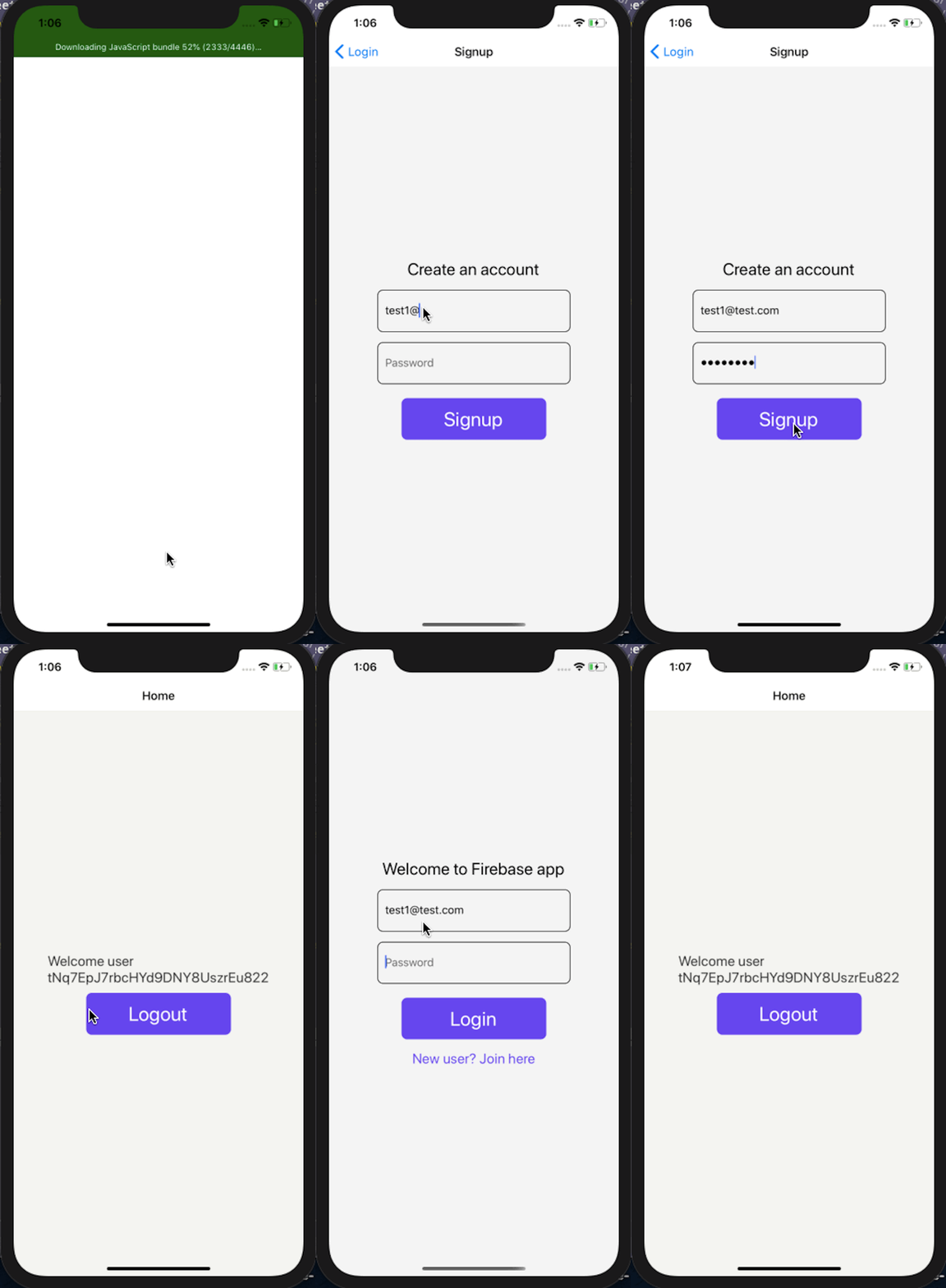
To verify the user account is being stored in the Firebase, check out its console. You are going to find the uid of the user to be the same:

Congratulations! You have completed this tutorial. Here is what we covered in this post:
The integration of Firebase SDK with the latest react-native-version makes it easy since the library has been divided into different modules for different purposes. Now, as a developer building the app, you have to only install those modules directly corresponding to the Firebase services you want to use.
You can find the complete code used in this demo at this GitHub repo.

LogRocket's Galileo AI watches sessions for you and and surfaces the technical and usability issues holding back your React Native apps.
LogRocket also helps you increase conversion rates and product usage by showing you exactly how users are interacting with your app. LogRocket's product analytics features surface the reasons why users don't complete a particular flow or don't adopt a new feature.
Start proactively monitoring your React Native apps — try LogRocket for free.

Compare the top AI development tools and models of December 2025. View updated rankings, feature breakdowns, and find the best fit for you.

Fixing AI code, over-engineering JavaScript, and more: discover what’s new in The Replay, LogRocket’s newsletter for dev and engineering leaders, in the December 10th issue.

TOON is a lightweight format designed to reduce token usage in LLM prompts. This post breaks down how it compares to JSON, where the savings come from, and when it actually helps.

Andrew Evans, principal engineer and tech lead at CarMax discusses five ways to fix AI-generated code and help you debug, test, and ship safely.
Hey there, want to help make our blog better?
Join LogRocket’s Content Advisory Board. You’ll help inform the type of content we create and get access to exclusive meetups, social accreditation, and swag.
Sign up now


 Learn more →






7 Replies to "Setting up email authentication with React Native, react-navigation, and Firebase"
Just letting you know you have a type above. (You forgot the i) Great article!!
Create a new file called src/navgation/index.js file and add the following code snippet:
Thank you a lot for the article, it’s an amazing tutorial.
In case you want to display the login or sign up error message on the log in screen, here’s a tip:
UseContext 🙂
In AuthProvider.js, add
const [error, setError] = useState(”);
return (
>>
Then where the error is caught:
setError(“login error”); (or whatever error message you want to display).
In the login screen, add:
const {error} = useContext(AuthContext);
Under the password input:
{error}
Here you go 🙂
Terrifically well done tutorial! Clearly explained which makes the information easily digestible. Thanks for your help 😉
Thanks for the tutorial Aman! I’ve also added a username to the registration.. how can I display this with firebase’s user.displayName property? Been on this for hours… plz help!
Thanks for reading it Lucia!
If you want to use user.displayName field, you’ll have to update user.updateProfile({ displayName: “User’s Name”}} when signing up a new user.
Thanks for reading it Marcel!
Thanks for this great tutorial!